Intent: Define requirements, calculate costs, and document the complete implementation framework for museum history touchscreens supporting America’s 250th celebration in 2026.
As museums, historical societies, schools, and community organizations prepare to commemorate America’s 250th birthday in 2026, the need for engaging historical exhibits has never been greater. Traditional static displays—plaques, printed timelines, and photo collages—cannot convey the depth and richness of 250 years of American history in ways that resonate with today’s audiences who expect interactive, multimedia experiences.
This comprehensive implementation guide provides the technical specifications, content planning frameworks, budget calculators, and installation checklists you need to implement museum-quality history touchscreens. Whether you’re creating a dedicated America 250 exhibit, renovating existing historical displays, or building permanent community heritage installations, you’ll discover how to transform historical storytelling through interactive technology that educates, inspires, and preserves legacy for future generations.
Museums and historical institutions face persistent challenges displaying comprehensive historical content. Physical space limits how many artifacts, photos, and documents you can exhibit. Static displays cannot provide the context, detail, and connections that bring history to life. Traditional exhibits require costly physical updates when adding new content or correcting information. Most critically, passive displays fail to engage visitors seeking the interactive experiences they encounter everywhere else in their lives.
History touchscreens solve these limitations while creating educational platforms that display unlimited historical content—primary source documents, historical photos, video interviews with historians, audio clips from historical events, interactive timelines, searchable archives, and detailed narratives—all within systems accessible both in museums and online to researchers worldwide.
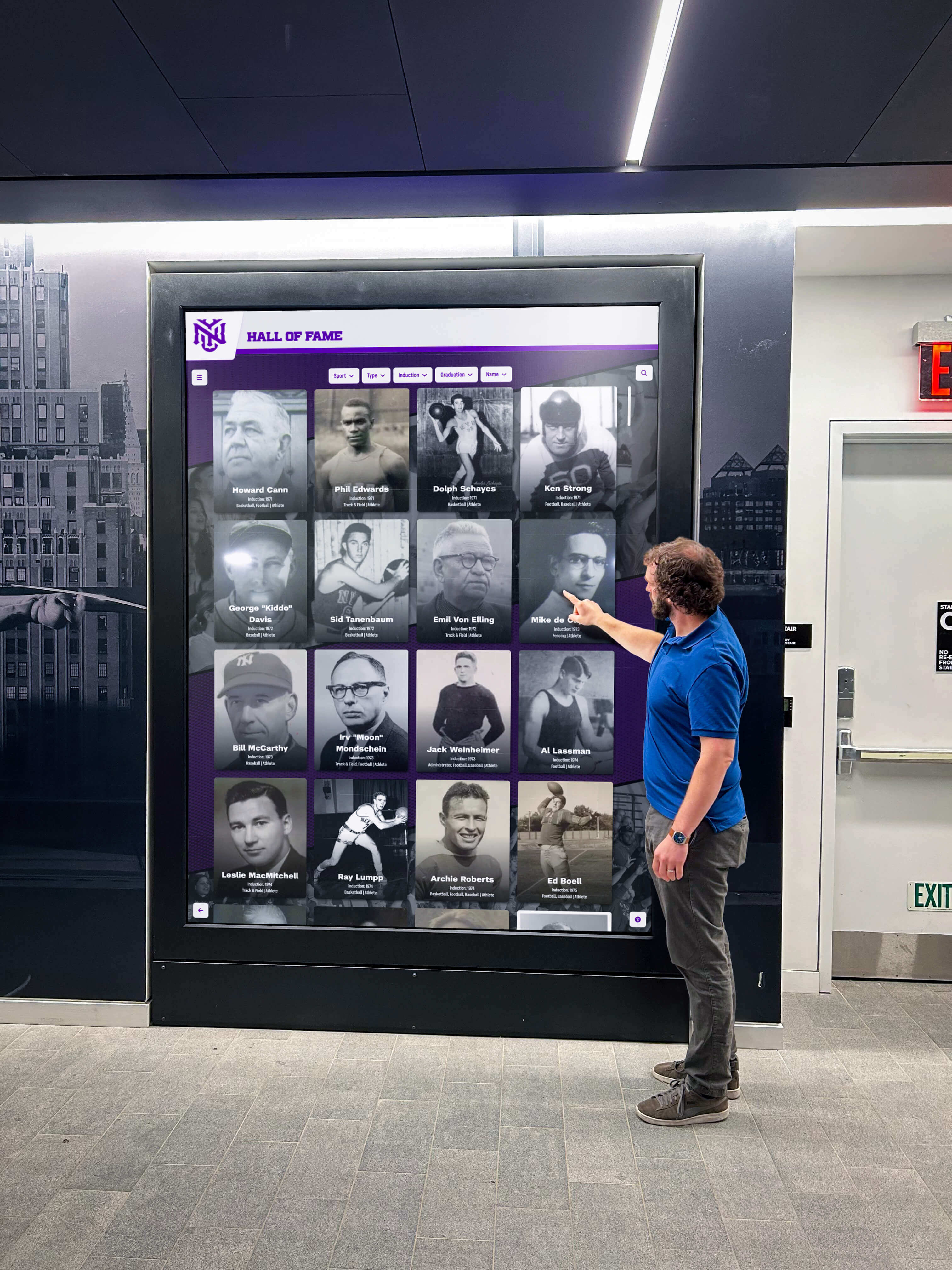
Before You Start: Pre-Implementation Planning
Before evaluating specific hardware or requesting vendor proposals, document answers to fundamental questions that guide every subsequent decision and prevent expensive mistakes occurring when institutions implement solutions misaligned with actual needs.
Define Your Historical Content Scope and Purpose
Exhibit Focus and Narrative: Will your touchscreen installation focus exclusively on America’s 250-year journey from independence to present, or encompass broader community history including local contributions to national events? Narrowly focused exhibits dive deeper into specific themes, while comprehensive approaches place local history within national context.
Target Audience Identification: Document who will primarily use these displays. Are you serving school groups requiring age-appropriate content with educational standards alignment? Museum visitors seeking in-depth research resources? General public wanting accessible historical overviews? Audience definition shapes content depth, interface design, and technical requirements.
Content Volume Assessment: Calculate how much historical content you plan to include initially. A community commemorating its founding families’ contributions to independence faces different content requirements than a comprehensive museum documenting 250 years of industrial, cultural, and social evolution. Count existing documents, photos, artifacts, oral histories, and research materials requiring digitization to establish realistic content migration timelines.
Educational vs. Commemorative Balance: Determine whether your installation primarily educates visitors about historical facts, commemorates community heritage and achievements, or balances both purposes. Educational focus emphasizes primary sources, multiple perspectives, and historical context. Commemorative installations highlight community pride, notable citizens, and local legacy. Most successful implementations integrate both approaches.
Assess Your Technical Environment and Organizational Capacity
Physical Installation Locations: Document proposed installation sites with specific attention to environmental conditions affecting technology. Museums with climate-controlled galleries provide ideal environments. Community centers, town halls, and outdoor pavilions require weatherproofing, temperature tolerance, and security considerations. Visit sites during different times of day to observe lighting conditions, traffic patterns, and accessibility.
Network Infrastructure Requirements: Verify available connectivity at intended display locations. Cloud-based content management platforms require reliable internet access. Document network speed using actual tests at proposed locations—don’t assume WiFi coverage extends everywhere. Identify firewall restrictions that may prevent cloud platform access. Determine whether IT staff or facilities management controls network access and security policies.
Content Development Capacity: Identify who will manage historical research, content creation, and system updates. Museums often have curators, archivists, or education directors with appropriate expertise but limited time. Community organizations may rely on volunteer historical societies with passion but variable technical skills. Assess realistic available time and capabilities honestly—platforms requiring extensive technical knowledge fail when managed by staff lacking appropriate training or bandwidth.
Existing Historical Resources: Document where historical materials currently exist. Do you have digitized photo collections, or require scanning physical archives? Are oral histories recorded, transcribed, and organized? Do subject-matter experts exist locally, or must you source historical research externally? Inventory existing resources shapes implementation timelines and budget allocation between technology and content development.
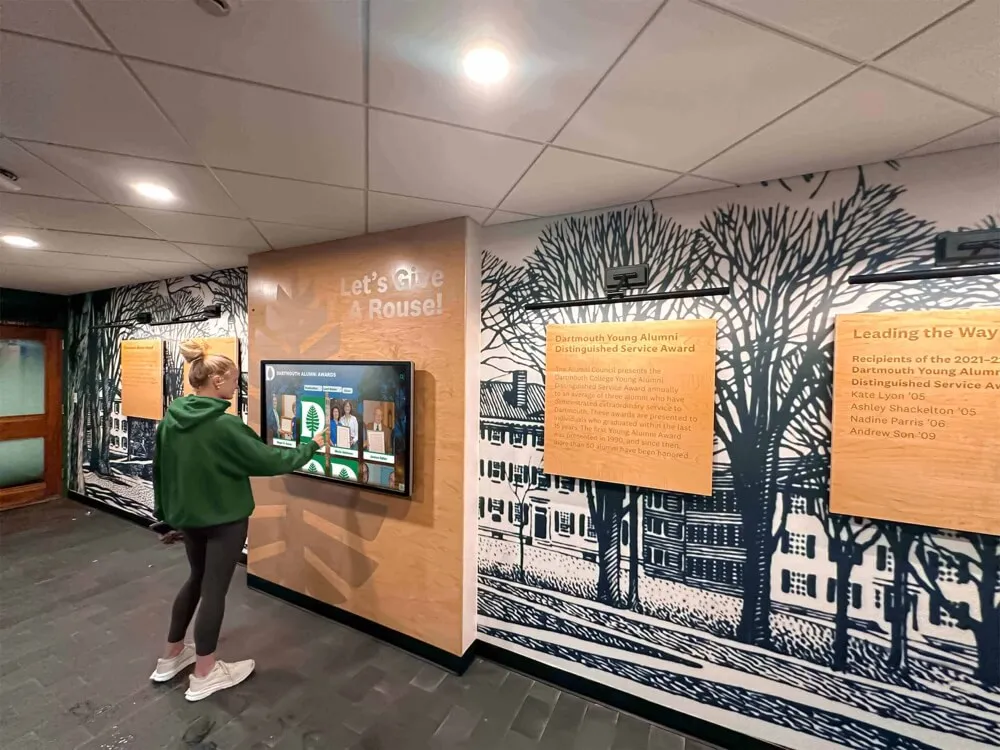
Establish Budget Parameters and Funding Sources
Total Available Investment: Determine complete budget including hardware, software, installation, content development, training, and ongoing maintenance. Museum history touchscreen investments typically range from $10,000 for basic single-display systems to $75,000+ for comprehensive multi-display installations with extensive professional content development.
Museums often secure America 250 funding through specific commemorative grants, historical society donations, civic organization support, or local government allocations. Document whether funding is one-time capital investment or includes operational budget for annual platform fees, content updates, and technical support.
Funding Source Restrictions: Note restrictions on how funds can be used. Government grants often require public access and educational components. Historical society funding may restrict content to specific community narratives. Corporate sponsorships might include recognition requirements. Understanding constraints prevents selecting solutions incompatible with funding parameters.
Implementation Timeline Requirements: Establish whether installation must complete before America’s 250th anniversary on July 4, 2026, or allows extended implementation. Rushed timelines limit content development quality and vendor availability during peak commemorative installation periods. Optimal timelines allow 4-6 months for research, content development, system configuration, and staff training.
Understanding Museum History Touchscreen System Components
Complete historical display systems comprise four distinct components that must work together cohesively. Institutions make purchasing mistakes by focusing exclusively on hardware specifications while underestimating software platform, content development, and ongoing management requirements.
Component 1: Commercial Display Hardware
Physical touchscreen displays require careful specification to ensure appropriate capabilities, durability, and longevity in museum environments where equipment must function reliably for decades.
Commercial vs. Consumer Display Requirements
Museum installations demand commercial-grade displays specifically designed for public environments:
- Extended Duty Cycle: Commercial displays operate reliably 12-16 hours daily for years. Consumer televisions expect 4-6 hours daily and fail prematurely in museum applications
- Enhanced Durability: Commercial panels withstand constant touch interaction, temperature variations, and extended operation without screen burn-in or image retention
- Professional Warranties: Commercial equipment includes 3-5 year warranties with advance replacement service. Consumer warranties provide minimal coverage inappropriate for institutional deployments
- Vandal Resistance: Commercial displays feature reinforced screens resisting damage from aggressive touching or impacts that would crack consumer displays
Display Sizing by Application
Choose appropriate screen size based on content complexity, viewing distances, and installation environment:
Timeline and Overview Displays (43-55 inches): Suit focused content like linear historical timelines, key events chronologies, or biographical collections where visitors view individually or in small groups at close proximity.
Comprehensive Historical Archives (55-75 inches): Accommodate complex content requiring simultaneous display of documents, photos, and explanatory text. Larger screens enable comfortable reading of primary source documents and detailed historical images.
Community Gathering Spaces (65-86 inches): Match scale of large lobbies, auditoriums, or public spaces where visibility across distances matters. Multi-user interaction capabilities allow group exploration.
Calculate optimal sizing using museum industry standards: viewers should stand no more than 1.5-2x the screen diagonal measurement from displays showing detailed content requiring reading. A 55-inch display suits comfortable document reading up to 6-8 feet, while 75-inch displays accommodate 8-12 foot viewing distances.
Touch Technology Selection
Modern commercial displays primarily use two proven touch technologies:
Infrared Touch Systems project invisible light beams across screen surfaces. Interruption of beams detects touch location. This technology dominates museum installations because it works with any object (fingers, styluses, gloved hands), supports multi-user simultaneous interaction, provides proven reliability, and features glass screens easy to clean. Infrared systems have slightly raised bezels housing emitters and sensors.
Capacitive Touch Systems detect electrical conductivity changes when conductive objects contact screens. This technology provides flush glass surfaces with minimal bezels, smooth touch response similar to smartphones, and reduced ambient light sensitivity. Capacitive technology costs more for large formats and requires conductive contact (not gloves).
For museum history applications, infrared technology typically provides better value considering price, reliability, multi-user capability, and maintenance simplicity.
Component 2: Specialized Historical Content Platform
Software powering history touchscreens determines whether installations create compelling educational experiences or become expensive equipment visitors ignore. This represents the most critical decision in implementation planning.
Why Generic Digital Signage Fails for Historical Exhibits
Many institutions mistakenly implement generic digital signage platforms designed for advertisements and announcements. These systems rotate pre-programmed slides but lack capabilities educational historical exhibits require:
- No Archival Organization: Signage displays sequential slides rather than searchable document collections with metadata, dates, and historical context
- Limited Interactivity: Touch features extend only to advancing slides, not exploring document details, related events, or historical connections
- Poor Content Management: Interfaces designed for creating advertisement graphics, not maintaining historical archives with proper citation, provenance, and scholarly standards
- No Search or Filtering: Visitors cannot find specific events, people, or time periods without watching entire content rotations
- Minimal Educational Features: No timeline navigation, related content suggestions, or learning pathways that educational exhibits require
Generic signage creates experiences barely superior to printed panels while failing to provide educational depth that justifies interactive technology investment.
Essential Historical Platform Features
Purpose-built historical display platforms like those from solutions such as Rocket Alumni Solutions specifically address museum needs through specialized capabilities:
Timeline-Based Content Organization: Structure historical content chronologically with intuitive timeline navigation allowing visitors to explore events by year, decade, or era. Users should jump directly to specific periods, view detailed event descriptions, examine primary sources, and understand historical context rather than passively consuming linear presentations.
Primary Source Integration: Comprehensive platforms incorporate high-resolution scans of historical documents, newspapers, photographs, maps, letters, and artifacts. Zoom capabilities allow examination of document details. Proper attribution, dates, and source citations maintain scholarly standards while making primary sources accessible.
Multimedia Historical Storytelling: Best-in-class systems combine historical photos, video clips from documentary footage or interviews, audio recordings of speeches or oral histories, and detailed narratives creating rich, engaging experiences. This multimedia approach brings history to life in ways static text and single images cannot achieve.
Educational Context and Connections: Effective historical platforms provide context explaining why events mattered, how they connected to broader historical movements, and what they mean today. Related content suggestions encourage deeper exploration—viewing one event suggests connected people, places, and developments.
Searchable Archives with Metadata: Powerful search capabilities with filtering by date range, event type, people, locations, and themes enable researchers, students, and curious visitors to find specific information efficiently. Proper metadata and tagging make collections genuinely useful rather than decorative.
Mobile Web Access and Virtual Exhibits: Extended access through responsive websites allows researchers anywhere to explore content, educators to use materials in classrooms, and community members to engage with history remotely. This digital reach multiplies exhibit impact beyond physical museum visits.
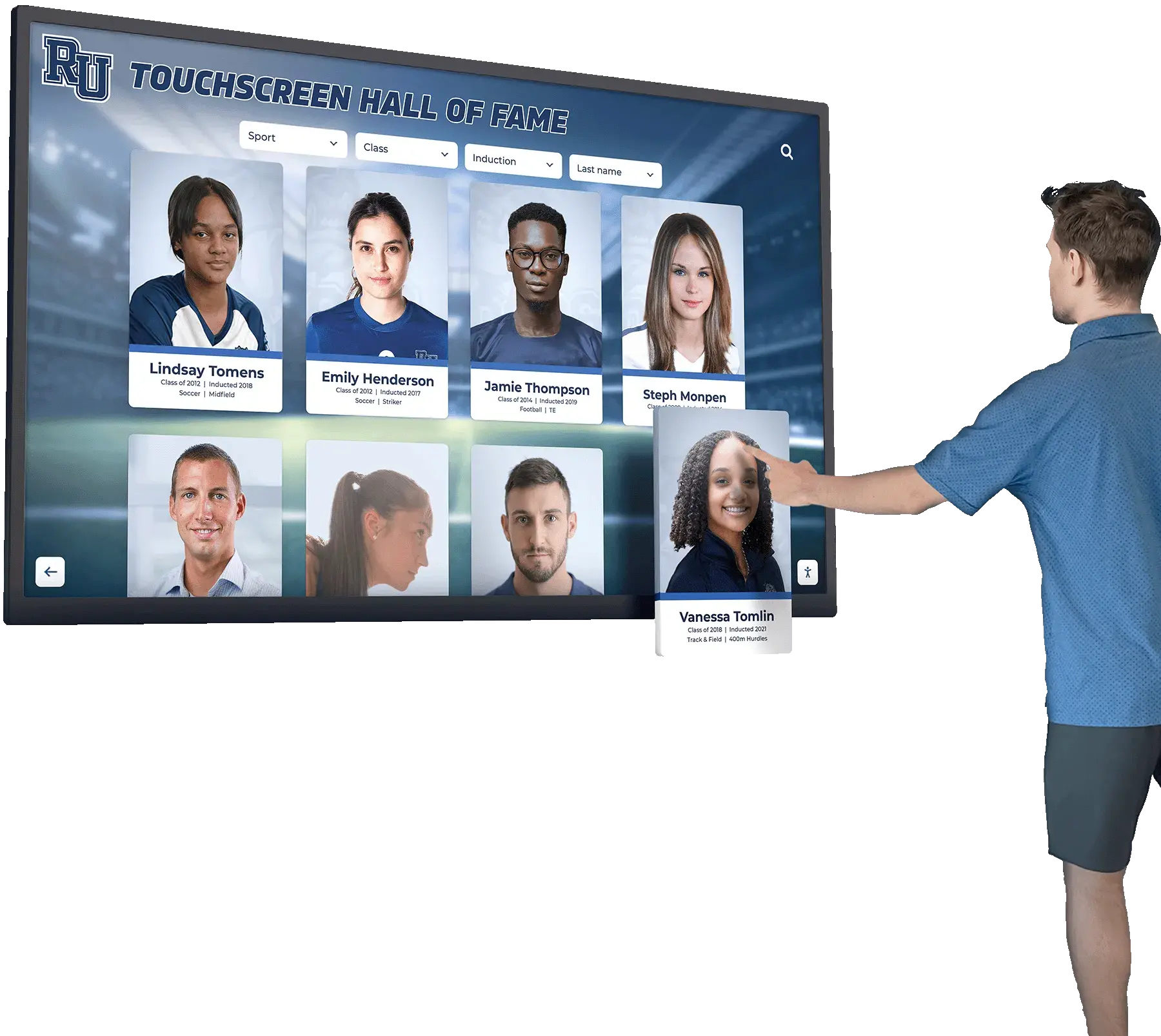
Component 3: Historical Content Development and Curation
The most overlooked implementation component involves historical research, content curation, digitization, and narrative development. Inadequate content planning causes projects to stall regardless of hardware or software quality.
Historical Content Audit and Inventory
Before requesting vendor proposals, conduct comprehensive content audit:
Physical Collections Assessment: Inventory existing historical materials requiring digitization—photo collections, documents, artifacts requiring photography, oral history recordings, research files, and published local histories. Photograph items using smartphones to create working inventory even if not final display images.
Existing Digital Assets: Document photos, documents, or videos already digitized. Note file formats, resolution quality, metadata completeness, and copyright status. Assess whether existing digital assets meet display quality standards or require re-scanning.
Research Gaps Identification: Identify historical periods, events, or perspectives lacking sufficient documentation. Determine whether gaps can be addressed through additional research, oral history collection, or partnerships with universities and historical societies, or whether some eras will remain incomplete initially.
Subject Matter Expertise: Document available expertise for historical research, fact-checking, and narrative development. Museums often have curators or historians on staff. Community organizations may rely on volunteer historians whose knowledge varies. Identify needs for external historical consultation.
Content Development Options and Trade-offs
Three approaches to content creation present different cost, quality, and timeline implications:
Internal Development assigns historical research, writing, and digitization to existing museum staff, interns, or volunteer historical society members. This approach minimizes external costs but requires realistic assessment of available time and sustainable workload. Calculate hours required: comprehensive historical profiles with photos, documents, context, and citations typically require 2-4 hours each for well-documented subjects, or 4-8+ hours for events requiring original research and source location.
Professional Content Services include historians, archivists, photo researchers, writers, and digitization specialists as part of vendor implementation packages. This approach ensures scholarly quality, speeds up launch timelines, and delivers professional presentation but increases upfront investment significantly—typically adding $8,000-$30,000 depending on content volume and research complexity.
Hybrid Approaches combine professional services for initial content development with internal processes for ongoing additions. This balances launch timeline needs with sustainable long-term practices. Example: hire professional historians to develop core America 250 content while staff maintain ongoing additions of community contributions and contemporary commemorations.

Component 4: Installation and Technical Integration
Professional installation addresses multiple technical, aesthetic, and preservation requirements ensuring touchscreens integrate effectively with museum environments while protecting historical settings.
Museum Environment Considerations
Historical buildings often present unique installation challenges:
Historical Preservation Requirements: Museums in historic buildings face restrictions on wall penetrations, electrical modifications, and aesthetic changes. Coordinate with preservation officers early. Free-standing kiosk solutions often provide easier compliance than wall-mounted installations requiring structural changes.
Climate Control Dependencies: Touchscreen equipment requires temperature ranges typically 50-95°F and humidity below 80% for reliable operation. Verify climate control systems maintain appropriate conditions year-round, or select ruggedized equipment rated for wider environmental tolerance.
Aesthetic Integration: Displays should complement rather than compete with museum aesthetics. Custom cabinetry, coordinated colors, and thoughtful placement ensure technology enhances rather than detracts from historical environments. Budget for professional design consultation ensuring visual harmony.
Accessibility Compliance: ADA requirements mandate touchscreens mounted 15-48 inches from floor to center of interactive area, clear approach space of 30 × 48 inches, and interface design accommodating various abilities. Museum installations must consider wheelchair users, visitors with vision or hearing impairments, and cognitive accessibility.
Electrical and Network Infrastructure
Technical infrastructure requirements vary by installation complexity:
Power Requirements: Each display requires dedicated 120V circuit providing 15-amp capacity. Calculate location distances from electrical panels and existing outlet positions. Running new circuits costs $300-$1,200 per circuit depending on distance and complexity.
Network Connectivity: Cloud-based content management requires reliable internet access. Wired Ethernet provides optimal reliability. If WiFi is only option, conduct actual signal strength tests at proposed locations using network analysis tools. Museums with thick walls or historic construction often have poor wireless coverage requiring additional access points.
Backup and Redundancy: Consider whether exhibits require backup power for continuous operation during outages. Uninterruptible power supplies (UPS) provide short-term backup. More extensive installations may integrate with building emergency power systems.
Step-by-Step Implementation Process: Your 180-Day Timeline
Museum history touchscreen projects typically require 5-7 months from initial planning to public opening. This timeline accommodates proper content development, vendor evaluation, installation coordination, and staff training without rushing quality.
Months 1-2: Planning, Research, and Stakeholder Alignment
Week 1-2 Actions:
Document answers to all pre-implementation questions outlined earlier. Schedule conversations with key stakeholders—executive director, curators, education director, facilities manager, IT coordinator, and board members—to gather input on priorities, constraints, and expectations. Early conversations surface issues derailing projects when discovered late.
Create decision criteria matrix listing factors most important to your specific situation. Not all institutions share identical priorities. Document your priorities:
- Historical accuracy and scholarly rigor vs. accessible popular presentation
- Comprehensive content vs. focused thematic approach
- Initial cost vs. total five-year ownership cost
- Professional content development vs. internal creation
- Advanced features vs. proven reliable systems
- Vendor support vs. self-service flexibility
Week 3-4 Actions:
Begin historical content research and inventory. Assign staff or volunteers to catalog existing materials, identify gaps, and outline proposed exhibit narrative structure. Create preliminary content outline organizing historical themes, time periods, and key events to scope content volume.
Visit museums with existing history touchscreen installations. Direct observation reveals implementation realities vendors may understate—actual visitor engagement, content management difficulty, technical reliability, and ongoing maintenance requirements. Many museum directors report peer conversations provided more valuable insight than vendor demonstrations.
Week 5-8 Actions:
Complete detailed content development plan specifying who will research, write, and curate historical content, estimated hours required, timeline for completion, and quality control processes. This plan becomes foundation for realistic vendor proposals and timeline establishment.
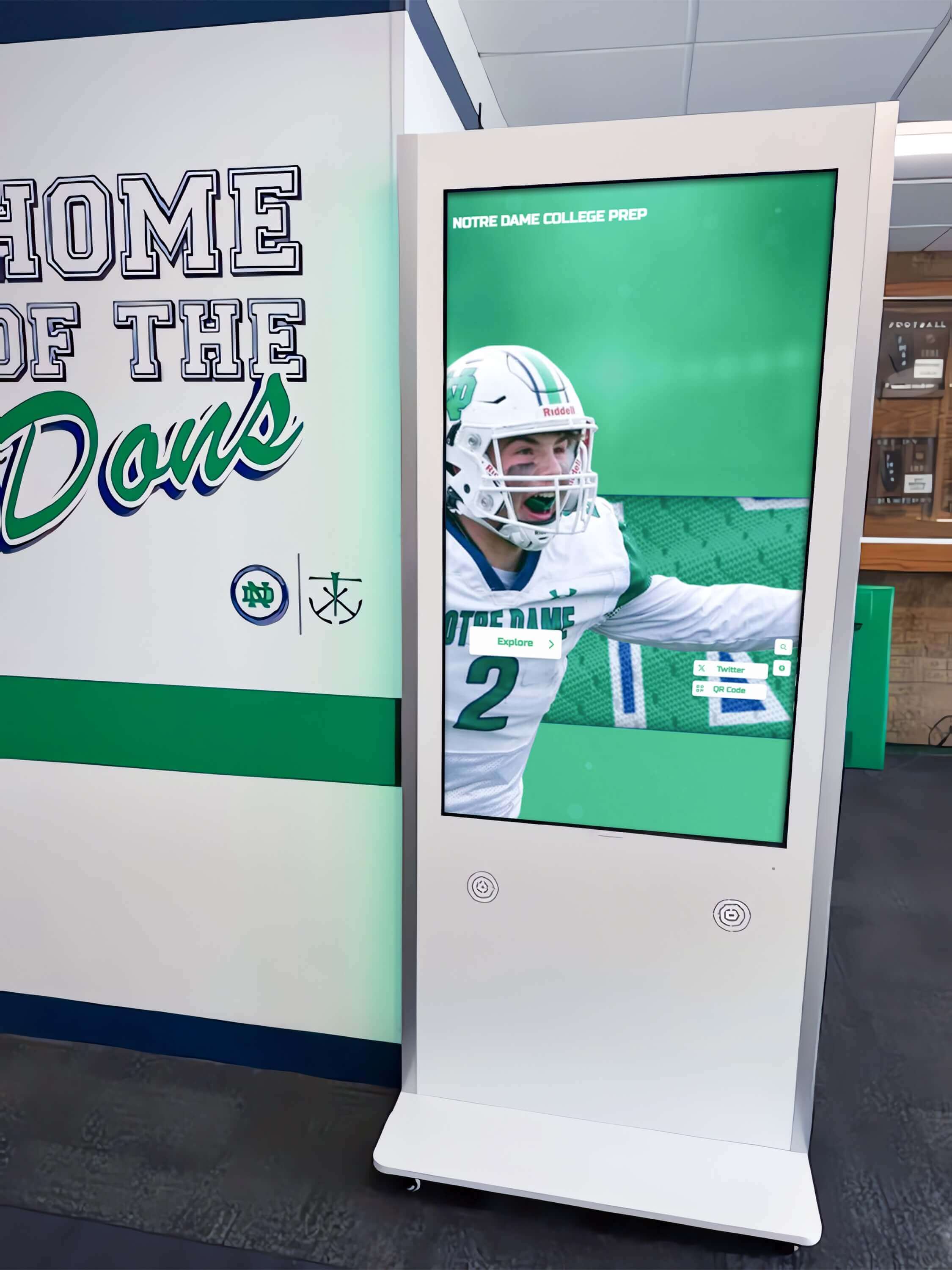
Measure and photograph intended installation locations documenting wall space, viewing distances, traffic patterns, ceiling heights, lighting conditions, and environmental factors. Note electrical outlet locations, network access points, HVAC vents, and obstacles affecting installation. These measurements prevent discovering late that proposed solutions won’t fit.
Month 3: Vendor Research and Demonstrations
Vendor Identification and Outreach:
Research vendors offering historical display solutions purpose-built for museums and educational institutions. The market includes several categories:
Specialized Educational Platforms: Vendors focusing on museum, library, and educational institution needs provide purpose-built platforms with features designed specifically for historical content, scholarly standards, and educational requirements. These solutions typically offer more intuitive content management and better archival organization compared to adapted alternatives.
Museum Technology Integrators: Firms specializing in museum exhibits combine hardware, software, and custom content development. These vendors provide complete solutions but typically cost more and require longer implementation timelines due to custom development approaches.
Digital Signage with Historical Templates: General digital signage vendors offering historical content templates provide lower-cost options suitable when basic timeline displays meet needs. These work when content complexity is limited but lack depth for comprehensive historical archives.
Request demonstrations from 3-4 vendors representing different approaches. Schedule 90-minute demonstrations allowing thorough evaluation rather than brief overviews.
Demonstration Evaluation Framework:
During vendor demonstrations, systematically assess each solution:
Content Management Assessment (30 minutes):
Request vendors demonstrate actual historical content entry—creating timeline events, uploading primary source documents, adding photos with proper attribution, and publishing updates. Watch for:
- Whether interface accommodates scholarly citation standards
- How many steps required for common tasks
- If forms support historical metadata (dates, sources, people, places)
- Whether batch operations enable efficient historical content migration
- Content review and approval workflows maintaining quality control
Visitor Interface Assessment (25 minutes):
Experience actual interface museum visitors will see. Evaluate:
- Whether timeline navigation is intuitive without instruction
- Search effectiveness and filtering capabilities
- Content organization clarity
- Historical document readability and zoom functionality
- Whether multimedia (audio, video) plays smoothly
- Visual appeal and professional museum appearance
Have multiple people with varying technical comfort test interfaces. Systems requiring explanation for basic navigation frustrate casual museum visitors.
Technical Implementation Assessment (20 minutes):
Understand what implementation involves:
- Required network specifications and bandwidth
- Hardware compatibility and recommendations
- Installation process, timeline, and coordination requirements
- Integration capabilities with existing museum systems
- Content backup, preservation, and long-term access
- Ongoing maintenance and technical support requirements
Content Development Support Assessment (15 minutes):
Clarify exactly what content services vendor provides:
- Historical research and fact-checking capabilities
- Professional writing and narrative development
- Digitization services and quality standards
- Photo research and licensing assistance
- Timeline and typical content development rates
- Quality control and revision processes
Request references from museums implementing systems 12-24 months ago. Recent references remain enthusiastic about new installations, while institutions 1-2 years into use provide realistic perspective on ongoing support quality and long-term satisfaction.
Month 4: Proposal Comparison and Selection
Request detailed written proposals from vendors meeting your requirements. Standardize proposals by providing identical specifications to all vendors including number of displays, installation locations, approximate content volume, required services, and timeline constraints.
Proposal Analysis Framework
Create comparison spreadsheet documenting:
Hardware Specifications:
- Display brand, model, screen size, and touch technology
- Commercial certification and warranty coverage
- Mounting system (wall-mount, kiosk, custom cabinetry)
- Environmental ratings and operating conditions
- Accessibility compliance features
Software Platform:
- Licensing model (one-time, annual subscription, perpetual)
- Timeline organization and navigation capabilities
- Primary source document support and zoom features
- Multimedia capabilities and format support
- Search and filtering functionality
- Mobile web access and virtual exhibit features
- Content management system features and usability
- Multi-user administration and role permissions
Content Development Services:
- Historical research and fact-checking included
- Number of completed content pieces in base price
- Writing, editing, and quality control processes
- Digitization services scope and specifications
- Photo research and licensing assistance
- Timeline for content development completion
Implementation Services:
- Installation included or additional cost
- Project management and coordination
- Staff training hours, format, and location
- Technical configuration and testing
- Timeline from contract to operation
Ongoing Support:
- Annual software fees or subscriptions
- Technical support response time guarantees
- Content update assistance
- Software updates and new features
- Hardware warranty and service coverage
Total Investment:
- Initial implementation cost
- Year 1 total (including all first-year fees)
- Years 2-5 estimated costs (subscriptions, support)
- Five-year total cost of ownership
This structured comparison prevents “apples to oranges” proposals where vendors emphasize different elements making objective evaluation difficult.
Reference Interview Questions
Contact provided references asking:
- How accurate were timeline and cost estimates?
- What unexpected challenges occurred during implementation?
- How satisfied are you with historical content quality and accuracy?
- How difficult is ongoing content management for staff?
- What has visitor response been?
- Would you select the same vendor again knowing what you know now?
- What do you wish you had known before purchasing?
Months 5-6: Content Development and System Configuration
Content Development Phase:
Execute content development plan whether internal, professional, or hybrid approach. Maintain regular progress reviews ensuring quality standards and timeline adherence.
Historical Research and Writing: Develop narrative content with proper historical context, citations, and scholarly rigor. Fact-check all claims against primary sources. Address multiple perspectives when historical events have competing interpretations.
Primary Source Digitization: Scan historical documents, photos, and artifacts at appropriate resolutions—typically 300-600 DPI for display quality with zoom capabilities. Maintain original file formats and create derivatives optimized for display performance. Document metadata including dates, sources, copyright status, and provenance.
Multimedia Production: If including video or audio, edit historical footage clips, conduct and edit oral history interviews, and produce audio narration maintaining professional production quality appropriate for museum exhibits.
Quality Control and Review: Implement multi-step review processes including content creator review, subject-matter expert fact-checking, and editorial review for clarity and consistency. This iterative process ensures historical accuracy and presentation quality.
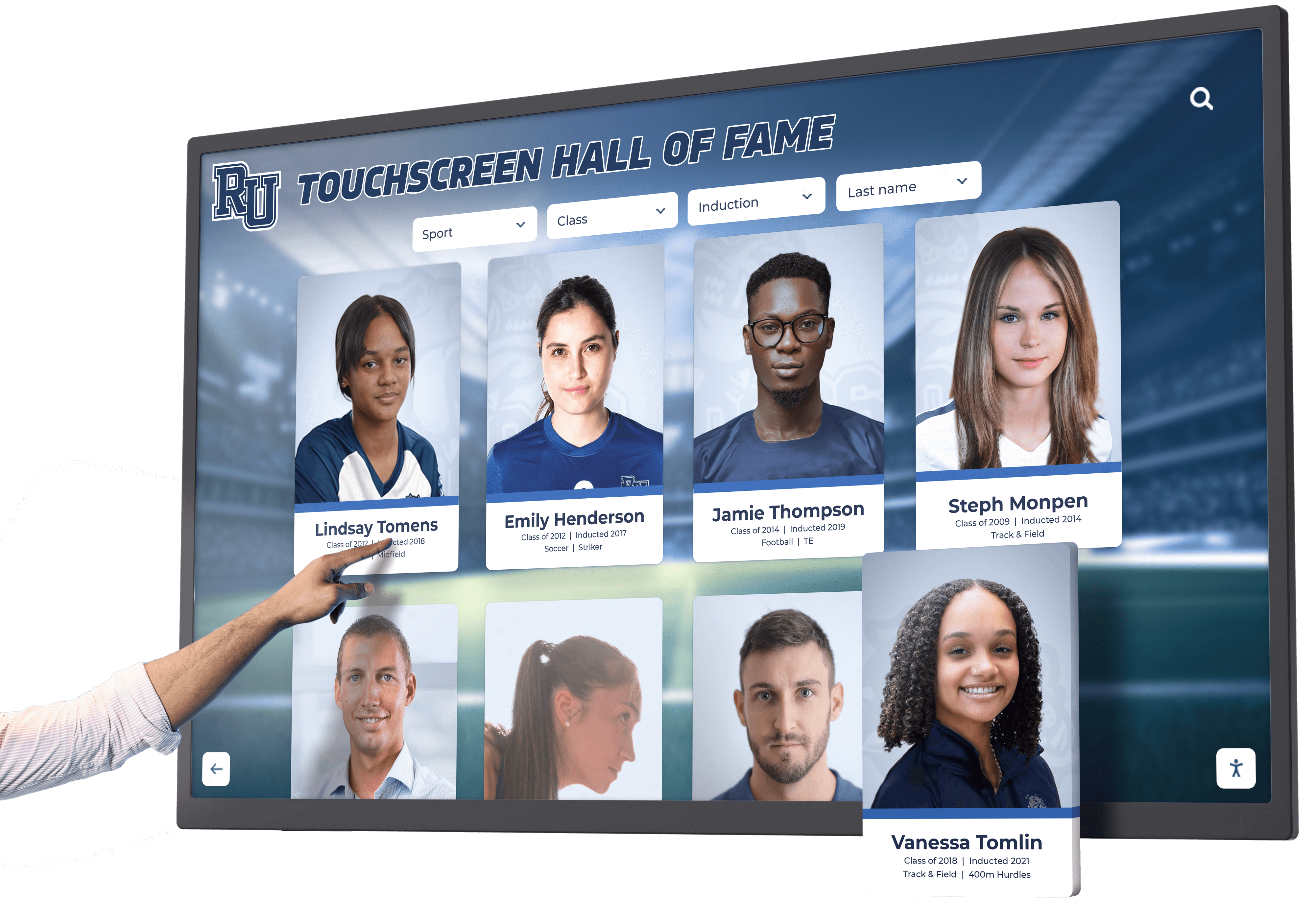
System Configuration Phase:
Work with vendor to configure platform including:
Visual Design and Branding: Establish color schemes, typography, and visual treatments consistent with museum brand and exhibit aesthetics. Create custom graphics, backgrounds, and interface elements.
Content Import and Organization: Upload developed content to platform. Organize into appropriate structures, establish timeline relationships, tag for search and filtering, and link related content.
Testing and Refinement: Test all functionality including navigation, search, document zoom, multimedia playback, and mobile access. Conduct user testing with staff and volunteers to identify usability issues requiring refinement.
Month 6-7: Installation and Launch Preparation
Physical Installation:
Coordinate with facilities, IT, electricians, and vendors to schedule installation work. Plan timing around museum operations to minimize disruption to visitors and staff.
Site Preparation: Complete any required electrical work, network installation, wall preparation, or structural modifications before display delivery. Confirm accessibility clearances and sight lines.
Display Installation and Configuration: Mount displays, connect power and network, install and configure software, load final content, and conduct comprehensive system testing. Verify all features function correctly before launch.
Staff Training:
Conduct thorough training for all staff interacting with touchscreen systems:
Content Administrators: 4-8 hours training on content management system covering content creation, editing, publishing, and ongoing maintenance. Include troubleshooting common issues.
Museum Educators and Docents: 2-3 hours training on system features, content organization, and using displays during educational programs. Prepare talking points explaining exhibit purpose and encouraging visitor interaction.
Technical Staff: 2-4 hours training on hardware, network requirements, basic troubleshooting, and vendor support procedures.
Launch Planning:
Coordinate public opening with America’s 250th celebration events:
Soft Launch: Open displays to museum members or school groups for initial feedback and issue identification before public opening. Address any problems discovered.
Public Opening: Create ceremonial unveiling event coordinating with local America 250 commemorations. Invite local officials, historians, media, and community leaders. Prepare press materials highlighting exhibit significance and community historical contributions.
Investment Ranges and Budget Planning
Museum history touchscreen pricing varies significantly based on display size, content complexity, professional services, and vendor business models. Understanding typical investment ranges enables realistic budget planning and funding requests.
Single-Display System Costs
Basic Systems ($10,000-$20,000):
Entry-level solutions combine commercial touchscreen with historical display software providing fundamental capabilities:
- 43-55 inch commercial touchscreen display
- Historical timeline software with basic features
- Professional installation and mounting
- 50-100 pieces of client-provided content imported
- 4 hours staff training
- First year technical support
Basic systems suit institutions with limited budgets, technical staff comfortable with self-service content development, and focused content scope (single theme or limited time period).
Mid-Range Comprehensive Systems ($20,000-$45,000):
Moderate investments provide enhanced platforms, professional content development, and comprehensive support:
- 55-65 inch commercial touchscreen display
- Advanced historical platform with full archival features
- Professional installation with custom design integration
- Professional content development (100-200 historical entries)
- Photo research and digitization services
- Comprehensive training (8-12 hours)
- Mobile web access and virtual exhibit capabilities
- First year priority support
Mid-range systems suit institutions requiring professional historical content development, user-friendly platforms for non-technical staff, and comprehensive visitor experiences.
Premium Museum Systems ($45,000-$85,000+):
Substantial investments include extensive content services, multiple displays, and ongoing support:
- 65-86 inch commercial touchscreen displays
- Enterprise historical platforms with custom development
- Premium installation with architectural integration
- Extensive professional content development (300+ entries)
- Original historical research and documentation
- Custom multimedia production
- White-glove project management
- Extended warranties and premium support contracts
Premium systems address large museums requiring comprehensive historical coverage, original research, and extensive professional content services.
Multi-Display Configurations
Museums implementing multiple coordinated displays across galleries or floors experience different economics:
Two-Display Systems: Typically cost 55-65% more than single displays rather than double, as content development, software licensing, and training scale efficiently while hardware and installation costs increase linearly.
Three+ Display Systems: Often negotiate 20-30% per-display discounts compared to single installations as institutions become significant vendor customers justifying volume pricing.
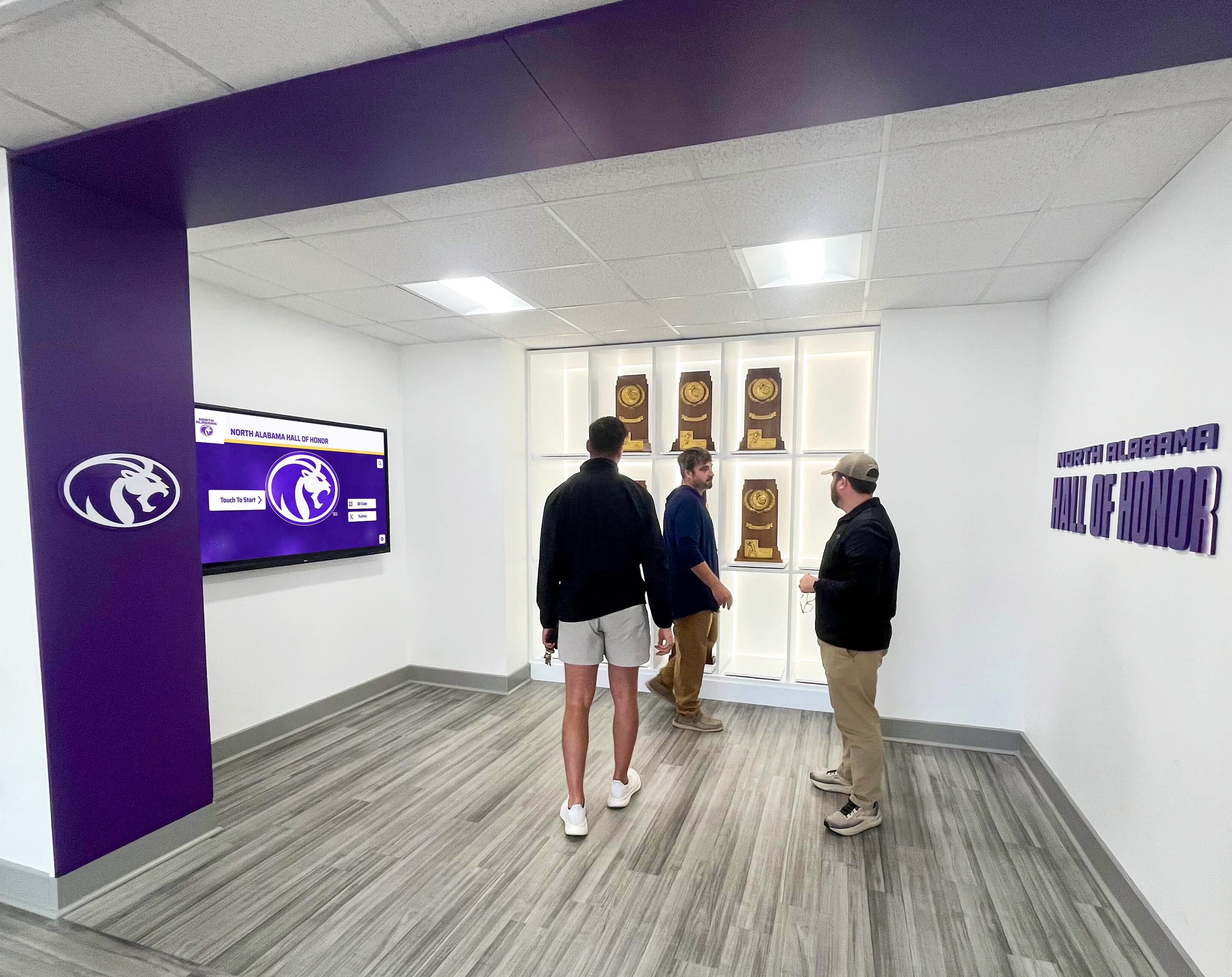
Multi-display implementations work best when different displays serve distinct purposes (chronological timeline in main gallery, thematic exploration in education wing, community contributions in lobby).
Technical Specifications Checklist
Before finalizing purchases, confirm technical requirements with facilities and IT staff preventing implementation problems:
Network Requirements
Internet Connectivity:
- Minimum bandwidth: 10-20 Mbps dedicated for cloud platforms
- Network reliability: 99%+ uptime for optimal operation
- Firewall access: Outbound HTTPS (port 443) to vendor platforms
- Static IP requirements: Determine if displays need static IPs
Physical Connectivity:
- Wired Ethernet strongly preferred
- WiFi acceptable if signal strength exceeds -60 dBm at location
- Document coverage using network analysis tools
Security Requirements:
- Content management access policies
- User authentication methods
- Data encryption requirements
- Compliance with institutional security policies
Power and Installation Requirements
Electrical:
- Dedicated 120V 15-amp circuit per display
- Power outlet within 6 feet of installation
- Surge protection for equipment
- Professional cable management
Mounting and Physical Installation:
- Wall structure assessment for weight capacity
- Commercial mounting brackets with security features
- ADA-compliant mounting heights
- Clear approach space and accessibility
Environmental Considerations:
- Temperature range 50-95°F maintained year-round
- Humidity below 80% for reliable operation
- Adequate ventilation (6 inches clearance)
- Avoid direct sunlight causing glare and overheating
Software and Content Management
Platform Requirements:
- Browser compatibility for content management
- Operating system requirements
- Mobile device support
- Minimum screen resolution for administration
Content Specifications:
- Maximum file sizes for photos, documents, videos
- Supported file formats
- Image resolution requirements for quality display
- Video encoding specifications
- Audio format support
Backup and Preservation:
- Content backup frequency and retention
- Data export formats for preservation
- Long-term archive access
- Content migration capabilities
Provide vendors this technical checklist early during evaluation identifying potential compatibility issues before commitment.
Common Implementation Mistakes and How to Avoid Them
Museums implementing history touchscreens frequently encounter predictable problems. Learning from others prevents expensive mistakes:
Mistake 1: Underestimating Content Development Requirements
The Problem: Enthusiastic institutions envision comprehensive historical exhibits without realistic assessment of research, writing, and digitization workload. Projects stall when staff discover hundreds of hours required, leading to launches with minimal content disappointing visitors.
The Solution: Conduct thorough content audits before purchase documenting actual volume and available resources. Choose sustainable approaches: invest in professional content development, implement with limited initial content planning gradual expansion, or assign realistic internal resources with appropriate time allocation. Successful implementations allocate 50-100+ hours for meaningful historical content development.
Mistake 2: Prioritizing Technology Over Historical Quality
The Problem: Institutions focus on impressive hardware and technical features while treating historical content as secondary consideration. Result: expensive equipment displaying superficial content lacking depth, accuracy, or scholarly rigor that reflects poorly on museum credibility.
The Solution: Prioritize historical content quality and accuracy above technical sophistication. Engage qualified historians for content development. Implement thorough fact-checking and multiple review processes. Use primary sources and proper citations maintaining scholarly standards. Technology serves content—not vice versa.
Mistake 3: Poor Installation Location Selection
The Problem: Displays installed in low-traffic areas, poorly lit corners, or positions inconvenient for comfortable interaction receive minimal use regardless of content quality.
The Solution: Prioritize high-traffic locations where visitors naturally pass—main gallery entrances, lobby areas before ticket desks, or designated education spaces. Observe visitor traffic patterns during various times before finalizing locations. Ensure adequate lighting, comfortable approach clearance, and appropriate mounting heights.
Mistake 4: Inadequate Long-Term Sustainability Planning
The Problem: Museums secure funding for initial implementation without planning for content updates, annual fees, technical support, and eventual hardware replacement. Exhibits become outdated when no resources exist for ongoing maintenance.
The Solution: Document complete long-term costs before purchase including annual fees, content update resources, and replacement planning. Establish sustainable funding through operating budgets, endowment allocations, or ongoing donor support. Plan content update schedules and assign staff responsibilities for ongoing maintenance.
Mistake 5: Ignoring Accessibility Requirements
The Problem: Installations fail to accommodate wheelchair users, visitors with vision or hearing impairments, or cognitive accessibility needs, limiting audience and potentially violating ADA requirements.
The Solution: Design installations meeting accessibility standards from inception. Mount displays at appropriate heights (15-48 inches to interaction area center). Ensure clear approach space. Provide text alternatives for audio, captions for video, sufficient color contrast, and clear navigation. Test with users representing diverse abilities.
How History Touchscreens Transform Museum Education
While maintaining objectivity across various approaches to historical displays, understanding how specialized platforms specifically address museum educational needs helps explain why many institutions select purpose-built solutions over generic alternatives.
Traditional museum exhibits using printed panels, mounted photos, and artifact cases impose severe space limitations. A typical wall section 20 feet long displays perhaps 15-20 photos with brief captions and 500-800 words of explanatory text. Museums covering 250 years of history cannot possibly provide comprehensive narratives, multiple perspectives, or detailed primary sources within physical space constraints.
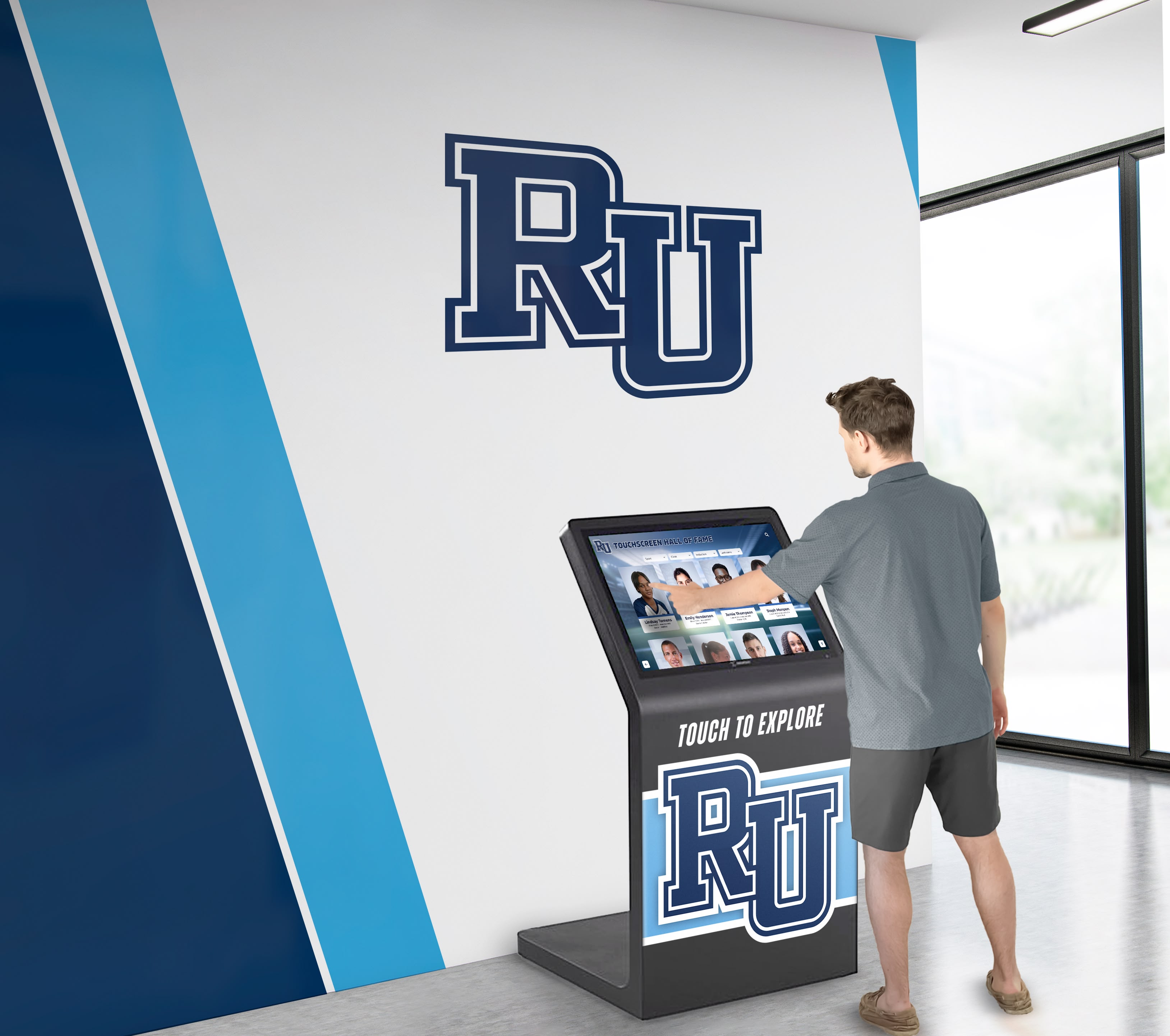
History touchscreens eliminate space limitations entirely. A single 55-inch display presents unlimited historical content—thousands of documents, photos, videos, oral histories, and detailed narratives all accessible through intuitive navigation. Museums present comprehensive historical coverage without forcing impossible choices about what deserves display.
Why Specialized Historical Platforms Matter
Generic digital signage platforms display pre-programmed content on fixed schedules. Visitors watch passively as slides advance automatically, similar to PowerPoint presentations. This approach fails for historical education because:
- Visitors cannot search for specific people, events, or time periods
- Content depth is limited to slide capacity
- No exploration of primary sources or related events
- Generic templates lack historical organization
- Content management requires graphic design skills
Purpose-built historical platforms like those from Rocket Alumni Solutions fundamentally differ by organizing content around searchable historical archives rather than sequential slides. Visitors actively explore history through:
Timeline-Based Navigation: Intuitive historical timelines allow jumping directly to specific years, decades, or eras. This personalized exploration creates engagement that passive slideshow viewing cannot match.
Primary Source Access: Comprehensive platforms provide high-resolution historical documents, newspapers, letters, and photos with zoom capabilities allowing detailed examination. Proper citations and attribution maintain scholarly standards while making primary sources accessible to general audiences.
Rich Historical Context: Each event receives comprehensive treatment incorporating photos, related documents, explanatory narratives, and connections to broader historical movements. This depth transforms exhibits from superficial overviews to educational resources supporting genuine historical understanding.
Multiple Perspectives: Quality historical platforms accommodate diverse perspectives on contested events, acknowledge historical complexity, and present multiple voices rather than single narratives. This approach reflects contemporary museum education standards emphasizing critical thinking.
Extended Digital Access: History extends beyond physical museums through responsive websites allowing researchers anywhere to explore collections, educators to access materials for classrooms, and community members to engage with local history remotely. Digital reach multiplies exhibit impact beyond physical visits.
The Investment in Community Heritage
Museum history touchscreens represent more than technology purchases—they demonstrate institutional commitment to preserving community heritage, making history accessible to diverse audiences, and maintaining relevant educational resources for future generations.
Prominent historical exhibits demonstrate what communities value while connecting residents to shared heritage. America’s 250th celebration provides unique opportunity to document local contributions to national history, preserve stories that might otherwise disappear, and inspire civic pride in historical legacy.
Museums implementing interactive historical displays report significant impact on visitor engagement, educational program effectiveness, research accessibility, and community connections—outcomes extending far beyond what standalone hardware provides without comprehensive content platforms and sustainable management practices.
Validation: Pre-Launch Quality Audit
Before public launch, conduct this quality audit confirming critical requirements are met:
Content Quality Standards
- All historical facts verified against credible primary or secondary sources
- Proper citations provided for claims and quotations
- Multiple perspectives acknowledged for historically contested events
- Photos and documents include dates, sources, and attribution
- Writing maintains appropriate reading level for target audiences
- Content free of factual errors, typos, and grammatical mistakes
- Historical context provided explaining event significance
Technical Functionality Verification
- All navigation functions work intuitively without instruction
- Search returns accurate, relevant results
- Timeline navigation allows direct access to all time periods
- Document zoom provides sufficient detail for comfortable reading
- All multimedia (audio, video) plays smoothly without errors
- Mobile web access functions properly on smartphones and tablets
- Display remains operational during extended periods
- Network connectivity stable and reliable
Accessibility Compliance Confirmation
- Display mounting height meets ADA requirements (15-48 inches to center)
- Clear approach space of 30 × 48 inches maintained
- Interface usable by visitors with various abilities tested
- Text provides sufficient color contrast for readability
- Audio content includes text alternatives or transcripts
- Navigation clear and intuitive for users with cognitive differences
Staff Readiness Assessment
- Content administrators trained and comfortable with platform
- Museum educators familiar with content and features
- Technical staff understand basic troubleshooting and support procedures
- Written procedures documented for ongoing content updates
- Vendor contact information and support processes documented
- Backup administrators identified if primary contact unavailable
This validation ensures quality launch reflecting positively on museum professionalism and educational mission.
Moving Forward: Implementation Next Steps
Museums and historical institutions reading this guide should now have frameworks needed to plan and implement history touchscreen exhibits supporting America’s 250th celebration. Your immediate next steps:
Complete pre-implementation planning documented earlier, identifying content scope, technical environment, and available resources.
Conduct historical content audit inventorying existing materials, identifying research needs, and creating preliminary content outline.
Calculate realistic budget using frameworks provided, including initial implementation and five-year operating costs.
Request vendor proposals with specific requirements based on your documented needs and priorities.
Develop content development plan specifying approach, resources, timeline, and quality control processes.
For institutions seeking comprehensive solutions addressing technical, content, and educational requirements outlined throughout this guide, digital recognition displays like Rocket Alumni Solutions provide specialized platforms designed specifically for historical exhibits rather than generic signage adapted for museum use.
Build Museum-Quality Historical Exhibits for America's 250th
Rocket Alumni Solutions provides comprehensive history touchscreen platforms designed specifically for museums, historical societies, and educational institutions implementing America's 250th celebration exhibits. Our platform addresses every requirement outlined in this guide—from timeline organization to primary source display to scholarly content management.
We offer historical content development support, professional digitization services, museum-quality hardware specification, accessibility compliance, comprehensive staff training, and ongoing technical support. Whether you're commemorating community contributions to American history or building permanent historical archives, we help implement systems that honor heritage while meeting educational and preservation standards.
Frequently Asked Questions
What content resolution is required for comfortable document reading on touchscreens?
Historical documents should be scanned at minimum 300 DPI with 400-600 DPI preferred for documents containing fine print or detailed maps. At these resolutions, visitors can zoom to 200-300% magnification while maintaining readable clarity. Test scans by viewing on actual display at intended zoom levels before digitizing entire collections. Poor-quality scans frustrate visitors and reflect poorly on museum professionalism. When original documents are fragile or unavailable for re-scanning, clearly note when image quality limitations exist.
How do we handle contested historical events where multiple interpretations exist?
Contemporary museum standards emphasize presenting multiple perspectives rather than single narratives, especially for contested events. Acknowledge interpretive differences directly in content. Present evidence supporting different viewpoints. Explain why historians disagree and what sources inform various interpretations. This approach demonstrates scholarly rigor while encouraging visitors to think critically about historical complexity. Avoid presenting one interpretation as definitive when legitimate scholarly disagreement exists.
Can we update content ourselves or must vendors make all changes?
Quality platforms provide intuitive content management systems enabling museum staff to create, edit, and publish content without vendor involvement or technical expertise. During vendor evaluation, request demonstrations of actual content entry processes, not just viewing published content. Test whether your staff can comfortably manage updates independently. Vendor-dependent content management creates unsustainable bottlenecks and ongoing costs. Select platforms supporting self-service content management while providing vendor support when needed.
What happens to our historical content if vendor goes out of business?
Address data ownership and portability during vendor selection. Confirm in writing that you retain full ownership of all historical content and can export it without vendor assistance. Request vendors demonstrate export capabilities producing standard formats (CSV, JSON, JPG, PDF) allowing migration to other systems. Cloud-based platforms should provide automatic backups you control. Some vendors offer content escrow arrangements providing additional protection. Never select vendors claiming ownership rights to your historical content.
How do we balance America’s 250th celebration focus with broader ongoing historical exhibits?
Most institutions implement historical touchscreens as permanent installations extending beyond 2026 commemorative period. Structure content with America’s 250th as featured theme during anniversary year while organizing broader historical content remaining relevant afterward. Create “featured content” sections highlighting commemorative themes temporarily while maintaining comprehensive historical archives as permanent foundation. This approach maximizes America’s 250th funding opportunities while building lasting educational resources serving missions beyond single anniversary.
Do history touchscreens work in historical buildings without climate control?
Standard commercial displays require temperature ranges 50-95°F and humidity below 80%. Historical buildings without modern climate control often exceed these specifications during summer or winter. Consider ruggedized displays rated for extended environmental ranges (32-104°F) but expect 30-50% cost premiums. Alternatively, install displays in climate-controlled spaces within buildings. Free-standing kiosks with internal environmental management provide another option. Discuss specific building conditions with vendors during evaluation to identify appropriate solutions.
Additional Implementation Resources
Museums and historical institutions implementing America’s 250th exhibits may find value in related guides:
- Digital Archives for Schools, Colleges, and Universities - Framework for organizing historical collections
- School Historical Timeline Display Implementation - Timeline organization best practices
- Displaying School History: Complete Guide - Content development strategies
- Digital Interactive Museum Displays - Technology selection and implementation
- Best Ways to Honor School History - Recognition program planning
- Digitizing Veteran Artifacts: Preservation Guide - Historical artifact digitization
- Historical Photos Archive Preservation - Photo collection management
These resources provide complementary frameworks adapting to specific institutional needs and implementation contexts. Together they form comprehensive toolkit for historical digital display projects in museum and educational settings.































