Organizations implementing digital signage in 2026 face a critical challenge: selecting software that balances feature richness with usability, scales effortlessly across locations, and delivers genuine engagement rather than passive content rotation. Traditional digital signage platforms broadcast messages to viewers who barely glance at repetitive slideshows. Modern interactive touchscreen software transforms this dynamic entirely, enabling exploration, discovery, and meaningful engagement that static displays simply cannot match.
The digital signage landscape has evolved dramatically from simple message boards into sophisticated interactive platforms supporting everything from wayfinding systems and recognition displays to touchscreen kiosk applications and comprehensive content management ecosystems. In 2026, the best digital signage software distinguishes itself through intuitive content management, robust interactivity, cloud-based scalability, multimedia richness, and professional presentation quality that reflects institutional standards.
This comprehensive guide examines the leading digital signage software platforms for 2026, with particular focus on interactive touchscreen applications where user engagement matters most. Whether you’re implementing recognition displays, wayfinding systems, information kiosks, or traditional broadcast signage, understanding these platforms’ strengths and limitations enables informed decisions supporting organizational goals effectively.
Understanding Digital Signage Software: Key Capabilities for 2026
Before evaluating specific platforms, establishing clear criteria for excellence prevents costly mismatches between technology selection and actual deployment requirements.
Core Features That Define Quality Digital Signage Software
Effective digital signage platforms must deliver specific capabilities that separate professional solutions from amateur implementations:
Cloud-Based Content Management: Administrative interfaces enabling non-technical staff to create content, schedule displays, manage permissions, and publish updates from any device without requiring physical access to display hardware. Cloud architecture eliminates server maintenance while enabling real-time updates across distributed installations.
Multi-Display Coordination: Single platforms powering unlimited screens across multiple locations, ensuring brand consistency while enabling location-specific customization. Organizations operating displays in various buildings, campuses, or geographic regions require centralized management preventing fragmentation and administrative chaos.
Interactive Capabilities: Touchscreen interfaces providing intuitive navigation, search functionality, content filtering, and user-controlled exploration transforming passive viewing into active engagement. Interactive displays deliver dramatically higher engagement metrics compared to broadcast-only alternatives.
Multimedia Support: Comprehensive handling of high-resolution photos, video content, live data feeds, social media integration, and rich media presentations without performance degradation. Modern audiences expect visual sophistication matching consumer device experiences.
Scalable Architecture: Performance remaining consistent regardless of content volume, display quantity, or user traffic. Platforms must accommodate organizational growth across years without requiring expensive migrations or disruptive platform replacements.
Professional Templates: Customizable designs maintaining brand consistency while providing aesthetic polish that non-designers can leverage confidently. Template libraries accelerate deployment while ensuring professional presentation quality.
Analytics and Insights: Detailed engagement metrics revealing viewing patterns, popular content, user interactions, and effectiveness measurements demonstrating value while informing continuous improvement. Data-driven optimization separates successful deployments from abandoned installations.
Organizations implementing solutions lacking these foundational capabilities inevitably face frustration through administrative complexity, poor user engagement, scalability limitations, or aesthetic shortcomings undermining credibility and value.
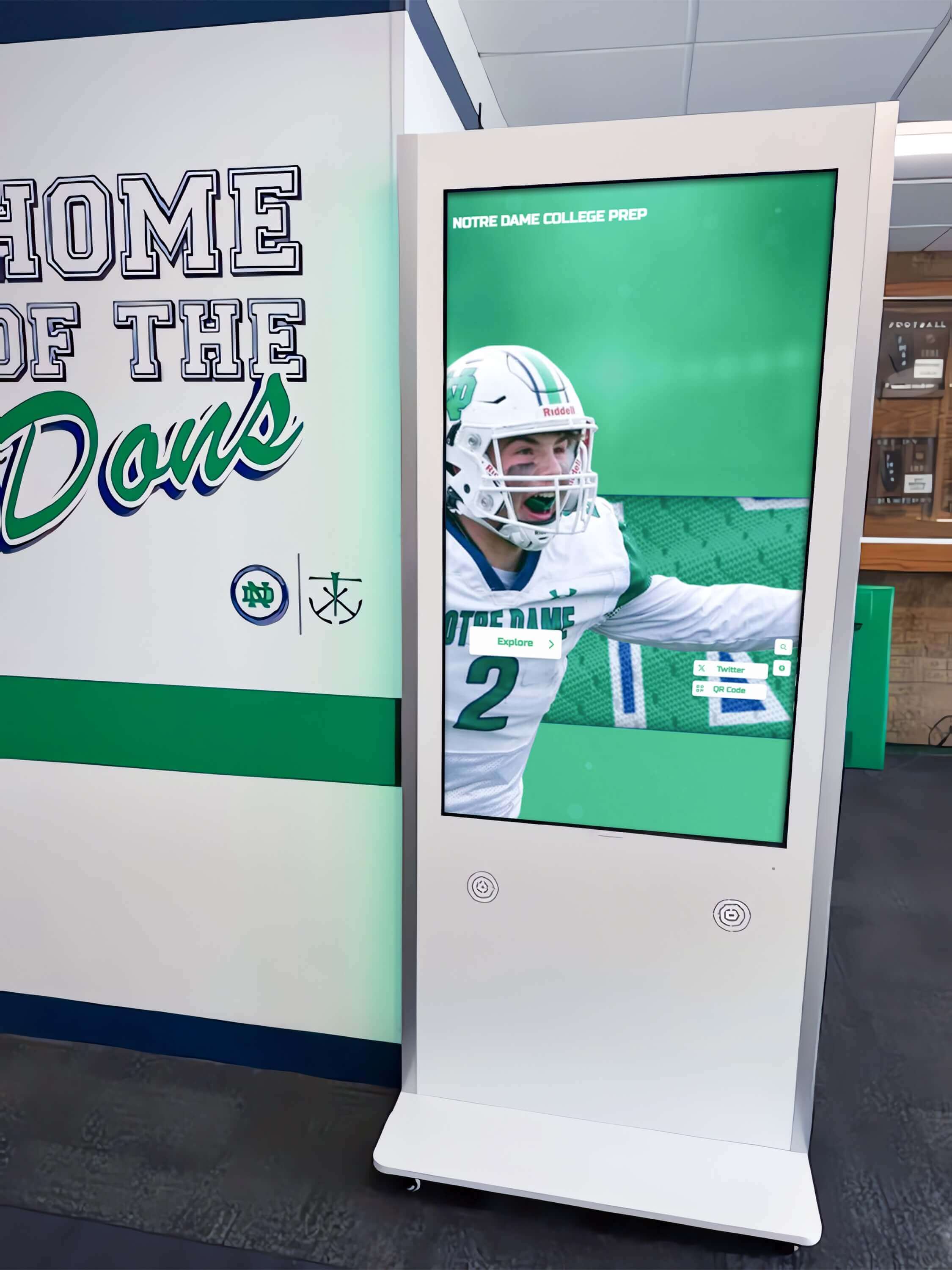
Broadcast Signage vs. Interactive Touchscreen Software: Critical Differences
Digital signage platforms broadly divide into broadcast-focused solutions displaying scheduled content passively, and interactive platforms enabling user-controlled exploration through touchscreen interfaces. This fundamental architectural difference profoundly affects use case suitability, user engagement, and organizational value.
Broadcast Digital Signage excels for announcements, advertisements, menus, schedules, and time-sensitive information where audiences receive messages without interaction. These platforms prioritize content scheduling, playlist management, and coordinated display across multiple screens showing identical or complementary content simultaneously.
Schools use broadcast signage effectively for cafeteria menus, daily announcements, event calendars, and emergency notifications. Retail environments deploy broadcast displays for promotions, product highlights, and brand messaging. Corporate offices utilize broadcast signage for internal communications, meeting room schedules, and company news.
Interactive Touchscreen Software transforms signage into exploration platforms where users actively search, filter, and discover content matching personal interests. These platforms emphasize database organization, search algorithms, intuitive navigation, and engagement patterns measuring minutes rather than seconds.
Organizations implementing interactive hall of fame displays, wayfinding systems, product showcases, or comprehensive information kiosks require interactive architectures because these applications fundamentally depend on user agency and discovery rather than passive message reception.
Attempting to force recognition, wayfinding, or directory applications into broadcast signage platforms consistently disappoints because the architectural mismatch prevents delivering experiences these use cases demand. Purpose-built interactive software addresses these requirements specifically through database structures, search capabilities, and user interface designs optimized for exploration rather than rotation.
Best Digital Signage Software for Interactive Touchscreens: 2026 Rankings
Organizations prioritizing interactive engagement require platforms architected specifically for user exploration rather than scheduled broadcasts. These rankings emphasize interactive touchscreen capabilities while noting broadcast-focused alternatives for comprehensive context.
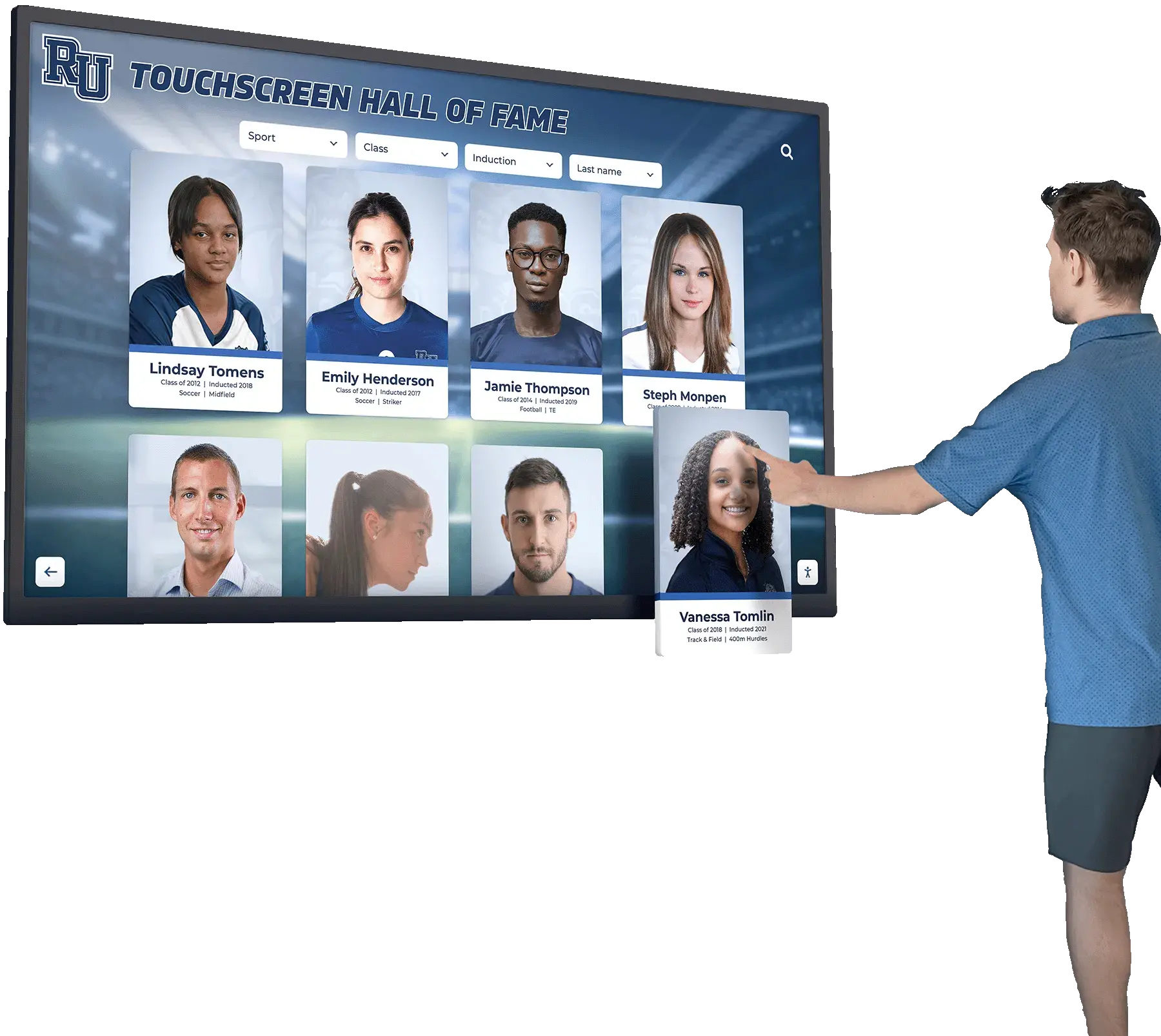
1. Rocket Alumni Solutions: The Gold Standard for Interactive Recognition
When organizations demand comprehensive interactivity, exceptional ease of use, and proven results across educational and institutional environments, Rocket Alumni Solutions consistently emerges as the definitive choice for interactive touchscreen implementations.
Why Rocket Leads Interactive Digital Signage
Rocket Alumni Solutions didn’t adapt existing broadcast signage technology for interactive use—the company built its entire platform specifically for exploration-focused applications where user engagement determines success. This singular focus delivers advantages that generalist competitors struggle to match.
Purpose-Built Interactive Architecture: Every platform element—from profile databases to search algorithms to content organization—reflects deep understanding of how users explore recognition displays, directories, and comprehensive information systems. Navigation patterns, discovery features, and engagement optimizations stem from thousands of real-world deployments rather than theoretical assumptions.
Unmatched Content Management Simplicity: School administrators, facility managers, and non-technical staff consistently praise Rocket’s administrative interface for intuitive design requiring zero technical training. Staff create detailed profiles using simple forms, upload media through drag-and-drop interfaces, organize content by category, and publish updates confidently without IT department involvement for routine operations.
Unlimited Scalability Without Performance Compromise: Rocket’s cloud architecture handles thousands of detailed profiles without slowing search speed, degrading interface responsiveness, or compromising media quality. Organizations honoring 50 profiles today can confidently grow to 5,000 over decades knowing their investment scales effortlessly without platform migrations or expensive upgrades.
Comprehensive Multimedia Integration: Rich storytelling through multiple high-resolution photos per profile, embedded video content, detailed narratives, timelines, statistics, documents, and social sharing features extending reach beyond physical installations to distributed audiences worldwide.
Professional Customization Reflecting Institutional Identity: Every installation reflects individual branding through customizable color schemes, logo integration, typography selections, and template designs maintaining visual consistency while conveying appropriate tone and professionalism.
Responsive Multi-Platform Access: Content created once displays perfectly across large-format touchscreen installations, desktop browsers, tablets, and smartphones—responsive design automatically adapts layouts maintaining optimal experiences regardless of viewing device or screen size.
Robust Analytics Demonstrating Value: Detailed viewing data, search pattern analysis, popular content identification, engagement duration metrics, and trend analysis demonstrating recognition value while revealing opportunities enhancing effectiveness.
Dedicated Support Throughout Implementation: Comprehensive onboarding ensuring successful launches, ongoing technical assistance resolving issues quickly, content strategy consultation helping organizations maximize impact, and continuous platform improvements adding capabilities over time without additional licensing costs.
Pricing Transparency: Complete solutions including software licensing, professional hardware recommendations, installation coordination, comprehensive training, and ongoing support typically range from $15,000-$35,000 for initial single-display implementations, with additional displays adding $8,000-$15,000 each when connecting to existing content platforms.
While representing significant initial investment, comprehensive cost analysis demonstrates favorable long-term value. Organizations eliminate ongoing fabrication costs, installation labor, space limitations, and opportunity costs of administrators spending hours on updates that Rocket completes in minutes.
Rocket Alumni Solutions has powered over 1,000 installations across all 50 states because the platform delivers on every promise while exceeding expectations for ease of use, reliability, and engagement impact. When organizations demand the best interactive touchscreen software without compromise, Rocket represents the gold standard.
2. ScreenCloud: Cloud-Based Simplicity for Basic Displays
ScreenCloud provides straightforward cloud-based digital signage emphasizing quick setup, simple content management, and affordable pricing for organizations seeking basic broadcast capabilities without complex requirements.
ScreenCloud Strengths include easy implementation requiring minimal technical expertise, cloud-based management enabling remote administration, integration with popular apps and data sources including Google Slides and social media, flexible pricing accommodating various budgets, and sufficient functionality for straightforward announcement displays.
Schools and businesses use ScreenCloud effectively for lobby information, cafeteria menus, meeting room schedules, and simple promotional displays where interactivity isn’t required.
Interactive Limitations: ScreenCloud fundamentally serves broadcast signage applications rather than interactive touchscreen implementations. The platform lacks profile-based database organization, comprehensive search functionality, advanced navigation features, and engagement analytics that interactive applications require. Organizations needing genuine interactivity rather than simple content rotation should evaluate purpose-built interactive platforms.
Best For: Organizations seeking affordable, easy-to-implement broadcast signage for announcements, menus, schedules, and simple informational displays where touchscreen interaction isn’t required.
3. Rise Vision: Education-Focused Broadcast Signage
Rise Vision targets educational institutions with cloud-based digital signage emphasizing classroom integration, schedule displays, and informational screens throughout school buildings.
Rise Vision Advantages include education-specific templates and features, free plans for qualifying schools, Google Workspace integration, straightforward content creation, and focus on educational use cases distinguishing it from purely commercial platforms.
Schools deploy Rise Vision for daily announcements, lunch menus, event calendars, and classroom displays where broadcast functionality serves needs adequately.
Interactive Constraints: Like most digital signage platforms, Rise Vision prioritizes scheduled content rotation rather than user-controlled exploration. The platform provides limited touchscreen interactivity, lacks comprehensive database organization for profiles or directories, offers minimal search functionality, and doesn’t provide engagement analytics measuring interactive use.
Best For: K-12 schools seeking affordable broadcast signage for announcements, schedules, and classroom displays where passive viewing suffices and interactive exploration isn’t required.
4. NoviSign: Enterprise Digital Signage for Corporate Environments
NoviSign delivers sophisticated digital signage software targeting corporate environments, retail chains, and commercial applications requiring centralized management across distributed locations.
NoviSign Capabilities include robust content scheduling, template libraries for various use cases, multi-location management, real-time data integration, and professional presentation suitable for business environments.
Corporate Focus Considerations: NoviSign’s feature set optimizes corporate signage requirements including meeting room booking, employee communications, and visitor wayfinding. Educational institutions and nonprofit organizations may find the platform over-engineered for their needs while lacking education-specific features they expect.
Interactive Applications: NoviSign provides basic touchscreen capabilities sufficient for simple wayfinding or directory applications but lacks the comprehensive database organization, advanced search features, profile management systems, and engagement analytics that specialized interactive platforms deliver.
Best For: Corporate environments and commercial applications requiring professional broadcast signage with basic interactive wayfinding capabilities where specialized recognition or directory features aren’t priorities.
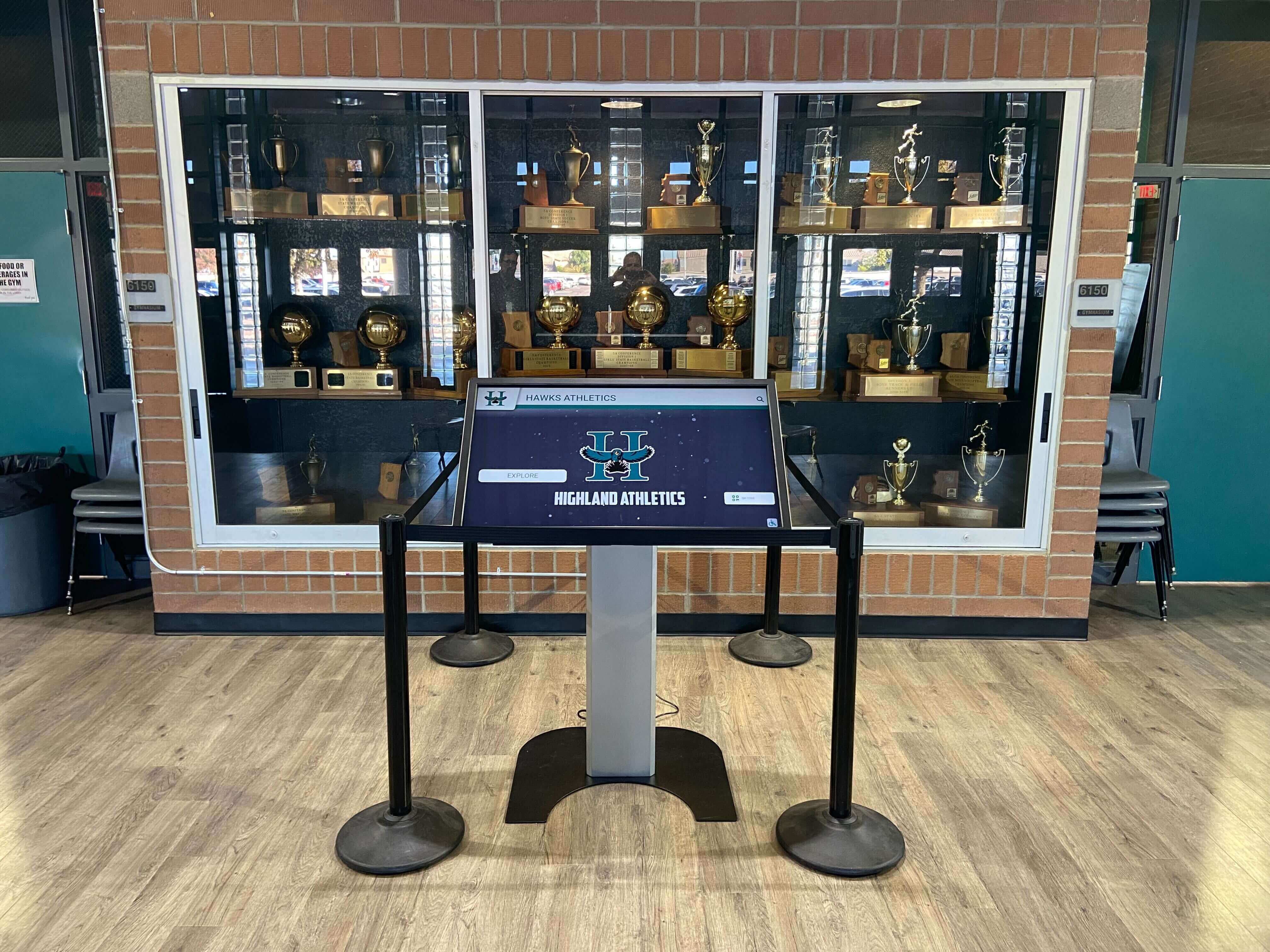
5. Yodeck: Budget-Friendly Signage for Price-Conscious Organizations
Yodeck positions itself as affordable digital signage software emphasizing low subscription costs and free starter plans enabling basic content display on consumer-grade hardware.
Yodeck Value Proposition: Organizations prioritizing minimal cost over advanced functionality consider Yodeck for straightforward applications where sophisticated features, interactive capabilities, and comprehensive support aren’t required.
Performance Considerations: Budget platforms generally reflect their pricing through limited feature sets, basic administrative interfaces, minimal support infrastructure, and consumer-hardware orientation raising reliability concerns for prominent installations.
Interactive Functionality: Yodeck provides minimal interactive touchscreen capabilities. Organizations requiring comprehensive profile management, advanced search, directory organization, or engagement analytics should evaluate platforms architected specifically for these applications rather than attempting to force basic signage into interactive roles.
Best For: Organizations with extremely tight budgets seeking basic broadcast signage where minimal cost matters more than feature richness, interactive capabilities, or professional support.
Specialized Solutions for Specific Use Cases
Beyond general-purpose platforms, certain specialized tools address specific digital signage scenarios:
22Miles provides enterprise wayfinding and directory solutions for large campuses, hospitals, and corporate facilities requiring sophisticated navigation assistance. The platform excels at complex wayfinding but represents overkill for simple recognition or announcement applications.
Gipper targets athletic departments with tools creating branded social media graphics and athlete recognition posts. While valuable for communications, Gipper lacks comprehensive interactive display capabilities and serves social media rather than installed touchscreen applications.
Hardware-Specific Solutions: Some vendors bundle proprietary software with commercial display hardware. These integrated solutions simplify purchasing but may limit software flexibility, create vendor lock-in, and constrain future hardware choices.
Organizations should match solution specialization to primary use cases rather than selecting general platforms inadequate for specific requirements or specialized tools overly narrow for broader needs.
Interactive Touchscreen Software: Features That Matter Most
Organizations implementing interactive displays should prioritize capabilities enabling genuine engagement rather than settling for broadcast platforms claiming “touchscreen support” that merely advances slides manually.
Database Organization and Profile Management
Interactive applications organizing information about people, places, products, or topics require database architectures supporting:
Structured Profile Templates: Consistent layouts displaying biographical information, photos, videos, achievements, timelines, statistics, and related content in organized, scannable formats that touchscreen users navigate intuitively.
Relationship Mapping: Connections between profiles enabling “related content” recommendations, team rosters, class groupings, department organizations, and discovery pathways encouraging extended exploration beyond initial searches.
Flexible Categorization: Multiple classification schemes allowing users to filter content by achievement type, year, location, department, product category, or any organizational dimension matching how audiences think about and seek information.
Media Libraries: Centralized asset management organizing photos, videos, documents, and media files with tagging, searching, and version control preventing chaos as content libraries grow across years.
Platforms lacking robust database foundations force content into rigid structures mismatching organizational needs while creating administrative frustration and limiting user discovery options.
Search and Discovery Features
Interactive displays succeed or fail based on how effectively users find content matching their interests. Essential discovery features include:
Powerful Search with Auto-Complete: Instant search suggestions appearing as users type, supporting partial names, nicknames, keywords, and fuzzy matching accommodating spelling variations and uncertainty.
Multi-Faceted Filtering: Simultaneous filtering by multiple dimensions enabling users to narrow results by year AND achievement type AND location, refining searches progressively until finding desired content.
Browsing by Category: Intuitive category navigation enabling exploration without specific search targets, encouraging discovery of unexpected connections and stories users didn’t know they sought.
Related Content Recommendations: Algorithm-driven suggestions showing profiles sharing connections, similar achievements, overlapping time periods, or related attributes encouraging extended exploration sessions.
Recent and Popular Content: Visibility into what other users recently viewed or frequently accessed, capitalizing on social proof and highlighting community interest patterns.
Search and discovery excellence separates interactive platforms enabling effortless content access from frustrating implementations where users struggle finding what they seek, abandoning displays after seconds of fruitless effort.
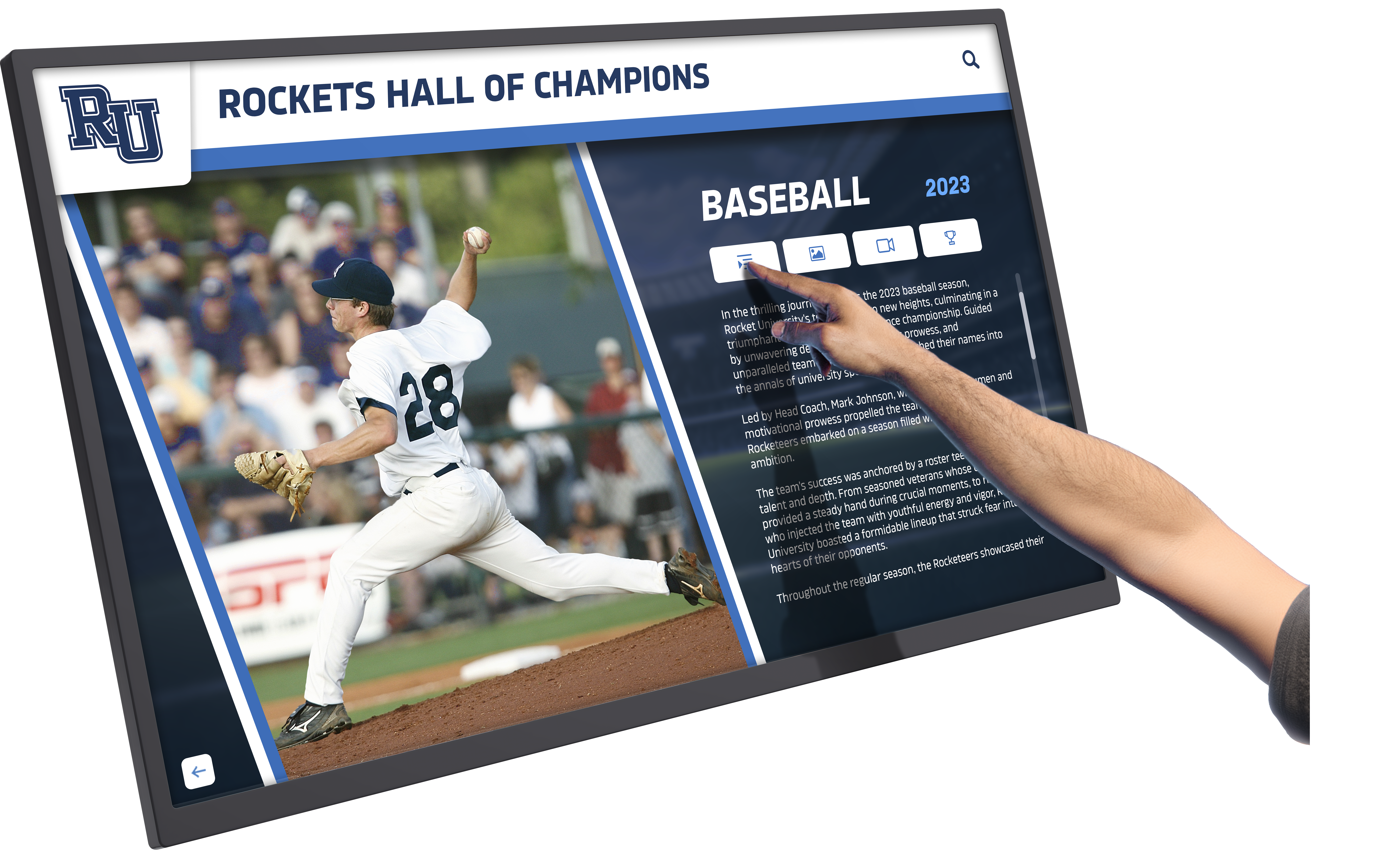
User Interface Design and Navigation Patterns
Interface quality determines whether users engage enthusiastically or walk away confused. Critical UI considerations include:
Intuitive Navigation Requiring Zero Instructions: Obvious interaction patterns, clear visual hierarchy, recognizable icons, and self-evident navigation that visitors understand immediately without instruction screens or staff assistance.
Responsive Touch Interactions: Instant visual feedback confirming touch registrations, smooth animations communicating state changes, and performance feeling instantaneous rather than sluggish. Latency kills engagement faster than any other interface shortcoming.
Accessible Design for All Users: Text sizing accommodating vision variations, color contrast meeting accessibility standards, touch targets sized for motor control diversity, and screen reader support ensuring inclusive experiences.
Mobile-Responsive Layouts: Interfaces adapting seamlessly when accessing through online hall of fame websites via smartphones and tablets, maintaining usability across device sizes and interaction modalities.
Customizable Branding: Visual designs reflecting institutional identity through color schemes, typography, logo placement, and aesthetic treatments matching organizational brand standards without requiring custom development.
Interface excellence represents the difference between displays that audiences enthusiastically explore for minutes versus installations that collect dust because frustrating interactions drive users away after seconds.
Analytics and Engagement Measurement
Demonstrating value and optimizing effectiveness requires comprehensive analytics revealing how audiences actually use interactive displays:
Interaction Metrics: Total interactions, unique users, session duration, navigation paths, search queries, content views, and engagement patterns revealing whether displays achieve intended purposes.
Content Performance: Most-viewed profiles, popular search terms, frequently accessed categories, and underutilized content identifying optimization opportunities and audience interest patterns.
Temporal Patterns: Usage by time of day, day of week, and seasonal variations informing content scheduling, maintenance timing, and resource allocation decisions.
Comparative Analysis: Performance across multiple displays revealing location-specific patterns, content preferences, and deployment effectiveness variations informing continuous improvement.
Trend Identification: Long-term patterns revealing engagement evolution, content lifecycle patterns, and shifting audience interests supporting strategic planning and program development.
Organizations lacking analytics operate blind, unable to demonstrate value, identify improvements, or make data-informed decisions about content strategy and program evolution. Comprehensive analytics separate successful interactive implementations from installations that become expensive screensavers.
Content Management: The Make-or-Break Factor for Long-Term Success
The most sophisticated display technology delivers zero value when content management complexity prevents regular updates, creates bottlenecks requiring IT intervention, or overwhelms administrators abandoning systems entirely.
Administrative Interface Usability
Software must enable non-technical staff to manage content confidently without requiring programming knowledge, technical training, or IT department dependency for routine operations:
Form-Based Content Creation: Simple forms collecting information systematically—name fields, date selectors, photo uploads, text editors—organized logically matching how administrators think about content rather than requiring technical knowledge of databases or coding.
Drag-and-Drop Media Management: Visual interfaces for uploading photos and videos, organizing assets in folders, associating media with profiles, and managing libraries without navigating complex file systems or remembering arcane file paths.
WYSIWYG Editing: What-you-see-is-what-you-get editors showing exactly how content appears on displays while editing, eliminating guesswork and preview cycles that slow content development.
Batch Operations: Bulk uploads, multi-item categorization, simultaneous edits, and batch publishing enabling efficient management of large content volumes without tedious one-by-one operations.
Approval Workflows: Optional review processes enabling distributed content creation where subject matter experts draft profiles but designated approvers ensure quality and accuracy before publication.
Administrative interfaces requiring technical expertise, offering poor usability, or lacking efficiency features create bottlenecks sabotaging digital signage success regardless of display quality or feature richness.
Multi-User Collaboration and Permissions
Organizations operating successful digital signage programs distribute content management responsibilities across multiple staff members with appropriate capabilities and constraints:
Role-Based Permissions: Administrative access levels determining who can create drafts, edit published content, approve submissions, delete profiles, manage media libraries, configure displays, and access analytics—enabling appropriate delegation without security risks.
Simultaneous Editing: Multiple administrators working concurrently on different content sections without conflicts, lock-outs, or overwriting each other’s changes—essential for distributed teams collaborating effectively.
Version History and Rollback: Complete change logs recording who modified what and when, with ability to restore previous versions recovering from mistakes or investigating content evolution.
Activity Notifications: Optional alerts notifying stakeholders about pending approvals, published content, significant changes, or system events keeping teams coordinated without constant manual checking.
Department or Location Segmentation: Organizational structures where athletic staff manage sports content, advancement teams handle donor recognition, communications departments control announcements, and location managers administer site-specific displays—all within unified platforms preventing fragmentation.
Collaboration features determine whether digital signage scales across organizational complexity or creates bottlenecks where single overwhelmed administrators become project obstacles.
Content Scheduling and Automation
Advanced scheduling capabilities ensure displays remain current, relevant, and engaging without constant manual intervention:
Temporal Content Scheduling: Automatic publishing and expiration dates enabling content appearing during specific periods—honor roll for current semester, seasonal greetings, event announcements, or time-sensitive promotions—without requiring administrators remembering to make changes.
Featured Content Rotation: Homepage or prominent placement automatically cycling through designated profiles, achievements, or categories ensuring visibility for important content while maintaining variety preventing staleness.
Event-Triggered Updates: Content changes tied to calendar events, external data feeds, or system triggers enabling dynamic displays reflecting current information automatically.
Template-Based Consistency: Standardized layouts ensuring visual consistency across content types while enabling customization where appropriate—maintaining professional polish without constraining creativity.
Preview and Staging: Testing content changes in isolated environments before publishing, ensuring quality and accuracy without displaying incomplete or incorrect information on live displays.
Scheduling and automation capabilities dramatically reduce administrative burden while ensuring displays remain current, relevant, and valuable without constant manual attention that proves unsustainable long-term.
Hardware Considerations: Matching Displays to Software Capabilities
Software quality matters only when paired with appropriate hardware. Organizations must consider display selection, mounting, networking, and environmental factors ensuring reliable operations.
Commercial vs. Consumer Display Hardware
Commercial-Grade Displays design specifically for continuous operation, mounting orientations, and environmental conditions that consumer televisions don’t support:
- Extended Warranties: 3-5 year coverage versus 1-year consumer warranties
- Continuous Operation Ratings: 16-24 hour daily operation versus consumer 8-hour assumptions
- Commercial Mounting: VESA mount patterns supporting professional installation
- Environmental Tolerance: Temperature, humidity, and ventilation ranges exceeding consumer specifications
- Longer Support Lifecycles: Parts availability and firmware updates throughout extended operational lives
Consumer displays cost less initially but typically fail within 2-3 years when operated continuously in commercial environments, negating apparent cost savings through premature replacements and downtime.
Touchscreen Technology and Responsiveness
Interactive applications require touchscreen technology delivering instant response times and supporting intended interaction patterns:
Capacitive Touchscreens: Modern multi-touch technology matching smartphone experiences, supporting gestures, providing instant response, and offering excellent durability. Capacitive screens represent current best practice for interactive displays.
Infrared Touchscreens: Alternative technology supporting larger displays, working through gloves, and accommodating various environmental conditions. Response time slightly slower than capacitive but adequate for most applications.
Resistive Touchscreens: Legacy technology requiring physical pressure, supporting only single-touch, feeling less responsive, and creating user experiences inferior to modern capacitive alternatives. Generally obsolete for new deployments.
Organizations implementing touchscreen display solutions should prioritize capacitive technology matching consumer device expectations unless specific environmental factors necessitate alternative approaches.
Screen Size, Resolution, and Viewing Distance
Display specifications must match intended viewing scenarios and physical environments:
Screen Size Selection:
- 42-55 inches for individual viewing (3-6 feet)
- 55-70 inches for small group viewing (6-10 feet)
- 70-98 inches for large spaces (10-20 feet)
Resolution Requirements:
- 1080p minimum for most applications
- 4K for large displays, detail-intensive content, or premium installations
- 8K emerging but generally unnecessary for typical viewing distances
Brightness Specifications:
- 300-400 nits for indoor controlled lighting
- 400-700 nits for bright indoor environments or window-adjacent installations
- 1000+ nits for outdoor or high-ambient-light locations
Orientation Options: Portrait displays for directories and vertical content, landscape for traditional viewing, and portrait-landscape combinations for comprehensive installations addressing multiple content types.
Hardware selection affects user experience quality as profoundly as software capabilities—excellent software paired with inadequate hardware disappoints as completely as sophisticated hardware running limited software.

Implementation Planning: Setting Digital Signage Projects Up for Success
Technology selection represents only part of successful digital signage deployment. Implementation planning addressing content, training, timelines, and stakeholder engagement determines whether installations deliver promised value or become expensive disappointments.
Defining Clear Objectives and Success Metrics
Before evaluating software or selecting hardware, establish concrete objectives and measurement approaches:
Purpose Clarity: What specific problems does digital signage solve? Information access, recognition, wayfinding, engagement, branding, announcements, or multiple objectives simultaneously? Clear purpose prevents scope creep and feature distraction.
Audience Identification: Who will use these displays? Students, employees, visitors, alumni, customers, or mixed audiences with different needs? Understanding users informs content strategy and interface design priorities.
Success Metrics: How will you measure whether deployment succeeds? Interaction counts, engagement duration, information request reduction, satisfaction surveys, content update frequency, or qualitative stakeholder feedback?
Value Demonstration: How will you prove ROI justifying investment? Cost avoidance from eliminated printing, staff time savings, engagement increases, or qualitative benefits defying quantification but mattering profoundly?
Organizations lacking clear objectives and metrics struggle evaluating platforms, making implementation decisions, and demonstrating value when stakeholders question investments during budget reviews.
Content Development Strategy and Resource Allocation
Display quality and software sophistication mean nothing without compelling content:
Initial Content Planning: What will displays show at launch? How much content volume creates valuable experiences without overwhelming development capacity? Most successful deployments start focused then expand systematically.
Content Creation Workflows: Who develops content? How do you source information, photographs, biographical details, or multimedia assets? What quality standards apply? How do approval processes function?
Ongoing Content Management: Who maintains displays after launch? How much time weekly or monthly does content management require? Do you have dedicated staff or distributed responsibilities? What happens when key administrators change roles?
Multimedia Asset Development: Do you have photography, videography, graphic design, or content writing capabilities? Will you develop assets internally, hire contractors, engage students, or leverage user-submitted content?
Historical Content Migration: How much existing recognition content, archives, or historical materials will you digitize? What scanning, photography, data entry, or research investment does migration require?
Content development frequently proves more challenging and time-consuming than anticipated. Realistic resource assessment prevents project delays and abandoned implementations when content complexity exceeds capacity.
Training, Adoption, and Change Management
Technology succeeds only when users embrace it. Training and change management determine adoption success:
Administrator Training: Comprehensive instruction ensuring content managers confidently create profiles, upload media, organize content, publish updates, and perform routine operations independently without requiring ongoing technical support.
User Orientation: How will you introduce audiences to new interactive displays? Signage, demonstrations, staff guidance, or trust in interface intuitive design? Even excellent interfaces benefit from initial awareness building.
Stakeholder Communication: How do you build support among leadership, faculty, staff, and community members? Success stories, engagement data, and vision articulation generating enthusiasm rather than skepticism or resistance?
Documentation and Resources: Written guides, video tutorials, FAQ documents, and reference materials supporting administrators when questions arise outside formal training sessions.
Ongoing Support: Who provides assistance when administrators encounter problems, have questions, or need guidance? Vendor support, internal IT, designated super-users, or some combination ensuring help availability when needed?
Inadequate training and change management doom otherwise excellent technology implementations when administrators lack confidence, users ignore displays, or stakeholders remain unaware of value delivered.
Cost Analysis: Understanding Total Investment for Digital Signage
Digital signage investments extend beyond software licensing to encompass hardware, installation, content development, training, and ongoing operational costs. Comprehensive analysis prevents budget surprises.
Software Licensing Models and Pricing Structures
Digital signage software employs various pricing approaches affecting total cost of ownership:
Subscription Licensing: Monthly or annual fees per display, per user, or per feature tier. Subscriptions include updates, support, and cloud hosting but create ongoing expenses requiring budget allocation indefinitely.
Perpetual Licensing: One-time purchase fees providing permanent software usage rights. Organizations own licenses outright but typically pay separately for updates, support, and hosting after initial purchase terms expire.
Freemium Models: Free basic tiers with paid upgrades for advanced features, additional displays, or professional support. Free plans attract entry but feature limitations often necessitate paid upgrades as needs evolve.
Enterprise Pricing: Custom pricing for large deployments negotiating volume discounts, additional services, or tailored feature combinations. Enterprise agreements provide flexibility but require negotiation expertise and procurement complexity.
Interactive touchscreen platforms like Rocket Alumni Solutions typically charge higher fees than broadcast signage but deliver proportionately greater value through comprehensive capabilities, engagement quality, and long-term scalability justifying premium pricing.
Hardware Investment and Installation Costs
Physical display infrastructure represents significant upfront investment:
Display Hardware: $2,000-$8,000 per commercial-grade touchscreen depending on size, technology, and specifications. Consumer displays cost less but prove false economy through shorter lifespans and limited features.
Mounting and Installation: $500-$2,000 per display for professional mounting, cabling, power connections, and network integration. DIY mounting saves money but risks damaging expensive equipment or creating unsafe installations.
Media Players and Computing: $300-$1,500 per display for computing devices running software, though some platforms eliminate these costs through integrated display computers or cloud-based thin clients.
Network Infrastructure: Ethernet or WiFi connectivity, network switches, cabling, and bandwidth capacity supporting content delivery and remote management. Existing infrastructure may suffice or require upgrades.
Professional Services: Consultation, project management, content migration, training, and implementation support ranging $2,000-$10,000+ depending on project complexity and organizational needs.
Complete single-display implementations typically cost $15,000-$40,000 including software, hardware, installation, training, and first-year support. Multi-display deployments benefit from economies of scale reducing per-display costs.
Ongoing Operational Expenses
Long-term success requires budgeting for recurring costs:
Software Maintenance: Subscription renewals, support contracts, or upgrade fees ensuring access to new features, security patches, and technical assistance.
Content Management Labor: Staff time creating profiles, uploading media, maintaining accuracy, and administering systems. Time requirements vary dramatically based on platform usability and content volume.
Electricity and Network: Power consumption and bandwidth usage representing modest ongoing expenses but requiring budget allocation nonetheless.
Hardware Maintenance: Eventual display replacements, repairs, cleaning, and occasional component upgrades extending operational life.
Organizations should budget 10-20% of initial implementation costs annually for ongoing operations, though efficient platforms with excellent usability significantly reduce content management labor versus difficult systems consuming excessive staff time.

Security, Privacy, and Compliance Considerations
Digital signage platforms processing personal information, displaying in public spaces, or connecting to institutional networks create security, privacy, and compliance obligations requiring careful attention.
Data Security and Privacy Protection
Interactive displays collecting search queries, tracking user interactions, or displaying sensitive information require appropriate security measures:
Data Encryption: Transmission encryption protecting content, credentials, and analytics data transmitted between displays and cloud platforms preventing interception by unauthorized parties.
Access Controls: Authentication requirements, password policies, multi-factor authentication options, and session management preventing unauthorized administrative access to content management systems.
Privacy-Compliant Analytics: Engagement tracking approaches respecting user privacy through anonymization, aggregation, and avoiding personally identifiable information collection beyond legitimate analytical needs.
Content Approval Workflows: Processes ensuring appropriate review before publishing sensitive information, particularly when displays might show minors, medical information, or private data requiring extra caution.
Vendor Security Practices: Understanding how platform providers protect hosted data, respond to security incidents, comply with certifications (SOC 2, ISO 27001), and handle customer information responsibly.
Organizations processing educational records must ensure FERPA compliance. Healthcare environments require HIPAA considerations. European audiences trigger GDPR obligations. Understanding applicable regulations prevents compliance violations with serious consequences.
Network Security and Access Management
Displays connecting to institutional networks create potential attack vectors requiring security attention:
Network Segmentation: Isolated VLANs separating digital signage from sensitive institutional networks, limiting potential damage if displays experience compromise.
Firmware and Software Updates: Regular security patches addressing discovered vulnerabilities, though updates must balance security with stability avoiding disruptions from premature deployments.
Physical Security: Tamper-resistant mounting, locked enclosures, disabled local administrative access, and physical security preventing unauthorized manipulation of display hardware.
Remote Management Security: VPN requirements, IP whitelisting, certificate authentication, and other measures ensuring remote administrative access doesn’t create security vulnerabilities.
IT departments should review digital signage security implications before deployment, ensuring configurations align with institutional security policies and don’t create unacceptable risks.
Accessibility Compliance Requirements
Public institutions in the United States must ensure digital displays meet ADA accessibility requirements. Educational institutions receiving federal funding face additional Section 508 obligations. State laws and international standards create further requirements.
Screen Reader Compatibility: Content structured for assistive technology, proper heading hierarchies, alt text for images, and semantic HTML enabling non-visual access to interactive content.
Keyboard Navigation: Full functionality accessible without touchscreen interaction accommodating users unable to use standard touch interfaces.
Visual Accessibility: Color contrast meeting WCAG 2.1 AA standards, text sizing sufficient for low-vision users, and avoiding color as sole information conveyor accommodating color blindness.
Cognitive Accessibility: Clear language, consistent navigation, predictable interactions, and avoiding time-limited actions preventing cognitive barriers to use.
Physical Accessibility: Display mounting heights accommodating wheelchair users, tactile elements where appropriate, and physical positioning ensuring access regardless of mobility variations.
Organizations should evaluate platforms’ accessibility support, request VPAT documentation, and test implementations with diverse users ensuring inclusive experiences for all community members.
Future Trends in Digital Signage Software: 2026 and Beyond
Understanding emerging trends helps organizations make forward-looking investments remaining valuable as technology evolves.
Artificial Intelligence and Machine Learning Integration
AI capabilities will enhance digital signage through:
Intelligent Content Recommendation: Algorithms analyzing user behavior patterns suggesting related content, personalizing discovery experiences, and identifying optimization opportunities improving engagement.
Automated Content Generation: AI-assisted profile creation, automatic image enhancement, intelligent cropping, caption generation, and content structuring reducing manual effort while maintaining quality.
Natural Language Search: Conversational search queries understanding context, interpreting intent, and accommodating variations in phrasing delivering results matching user expectations even with imprecise queries.
Predictive Analytics: Machine learning identifying engagement patterns, forecasting content performance, detecting anomalies indicating problems, and recommending interventions improving effectiveness.
Organizations investing in cloud-based platforms with active development roadmaps will benefit from AI enhancements through standard updates rather than requiring new platform purchases as capabilities mature.
Enhanced Multimedia and Immersive Experiences
Advancing technology enables richer storytelling:
Augmented Reality Integration: AR experiences overlaying digital content on physical spaces through smartphone cameras, creating layered information access and interactive discovery extending beyond touchscreen interfaces.
Video Quality Improvements: Higher resolution, improved compression, adaptive streaming, and bandwidth optimization delivering cinema-quality video experiences previously impractical on digital signage.
Interactive Video: Clickable video content enabling navigation within videos, chapter selection, related content jumps, and multimedia integration creating engaged viewing versus passive consumption.
Accessibility Enhancements: Improved voice interaction, gesture recognition, eye-tracking accommodation, and universal design principles embedded throughout platforms ensuring inclusive experiences.
Organizations implementing flexible platforms supporting emerging formats will smoothly adopt new capabilities as technology matures and costs decrease without requiring disruptive platform migrations.
Deeper Integration and Ecosystem Connectivity
Digital signage will increasingly connect with broader organizational systems:
SIS and Database Integration: Direct connections with student information systems, alumni databases, HR platforms, and institutional data sources enabling automated content updates and eliminating manual data entry redundancy.
Social Media Connectivity: Seamless sharing to organizational social channels, user-generated content integration, social proof displays, and cross-platform content amplification extending digital signage reach.
Mobile App Companions: Smartphone applications complementing physical displays through pocket reference access, notification features, personal collections, and extended engagement beyond installation locations.
Analytics Platform Integration: Data flowing to Google Analytics, institutional dashboards, business intelligence tools, and unified reporting systems providing comprehensive performance visibility.
API-First Architectures: Open APIs enabling custom integrations, workflow automations, third-party tool connections, and ecosystem development without requiring vendor permission or cooperation.
Forward-looking organizations should prioritize platforms offering integration capabilities, documented APIs, and ecosystem approaches enabling connections as institutional needs evolve.
Conclusion: Selecting the Best Digital Signage Software for Your Organization
Choosing digital signage software represents a strategic decision shaping how organizations communicate, engage audiences, and deliver value for years ahead. The “best” platform depends entirely on specific use cases, organizational capabilities, budget realities, and deployment contexts rather than universal superiority claims.
For organizations prioritizing interactive touchscreen experiences where user engagement, comprehensive content management, and long-term scalability matter most, Rocket Alumni Solutions stands alone as the definitive choice. Purpose-built specifically for interactive applications rather than adapted from broadcast signage, Rocket delivers specialized capabilities, exceptional usability, professional presentation quality, and proven results across thousands of installations nationwide.
Broadcast-focused organizations needing straightforward announcement displays, menu boards, or scheduled content rotation find adequate value in platforms like ScreenCloud, Rise Vision, or NoviSign depending on budget, use case specifics, and feature priorities. These platforms serve broadcast applications effectively but lack comprehensive interactive capabilities.
Budget-constrained organizations accepting feature limitations in exchange for minimal cost might consider platforms like Yodeck, though should carefully evaluate whether apparent cost savings prove false economy through limited capabilities, poor support, or eventual platform abandonment necessitating expensive replacements.
Organizations implementing recognition displays, wayfinding systems, interactive directories, or any application where user exploration determines success should prioritize purpose-built interactive platforms delivering genuine engagement rather than settling for broadcast solutions claiming “touchscreen support” that merely advances slides manually.
Your community deserves digital signage enabling meaningful discovery, comprehensive storytelling, and intuitive exploration rather than passive message broadcasting quickly ignored. The software powering those experiences deserves equal commitment to quality, comprehensiveness, and long-term value.
Ready to implement professional interactive touchscreen displays that truly engage your community? Discover how Rocket Alumni Solutions provides comprehensive platforms specifically designed for recognition, wayfinding, and interactive applications, delivering unlimited capacity, effortless management, engaging interactivity, and lasting value that generic broadcast signage simply cannot match.
Schedule Your Free Consultation
Explore how Rocket Alumni Solutions transforms recognition and engagement through purpose-built interactive touchscreen software designed specifically for schools, universities, and organizations demanding excellence.































