Best Touchscreen Software for Mac: Kiosk Mode Made Easy
Deploying touchscreen displays on Mac systems has traditionally been challenging due to limited native touchscreen support and complex kiosk mode configurations. In 2025, organizations seeking reliable touchscreen software for Mac need solutions that auto-launch into kiosk mode, support single-touch interactions, and provide seamless web-based content delivery. This comprehensive guide explores the best Mac touchscreen software options, with special focus on Rocket Touchscreen—a purpose-built Mac app that simplifies touchscreen kiosk deployment for schools, museums, retail spaces, and corporate environments.
Understanding Mac Touchscreen Challenges
Unlike Windows or Android systems that offer native touchscreen support and built-in kiosk modes, macOS requires additional software to enable effective touchscreen functionality. Organizations implementing interactive displays on Mac face several common obstacles:
Limited Native Support
macOS doesn't include built-in drivers for external touchscreen monitors, requiring third-party software for full gesture support and touch functionality.
Kiosk Mode Complexity
Setting up kiosk mode on Mac traditionally involves command-line configurations, profile managers, or expensive MDM solutions that are overkill for single-display deployments.
Multi-Touch Requirements
Many websites and web applications rely on multi-touch gestures (pinch, zoom, two-finger scroll) that single-touch hardware cannot support, creating accessibility barriers.
Auto-Launch Complexity
Configuring applications to automatically launch at startup and prevent users from exiting requires extensive system configuration and security permissions.
These challenges have historically made Mac an unpopular choice for public-facing touchscreen kiosks, despite the platform’s reliability and premium hardware quality.
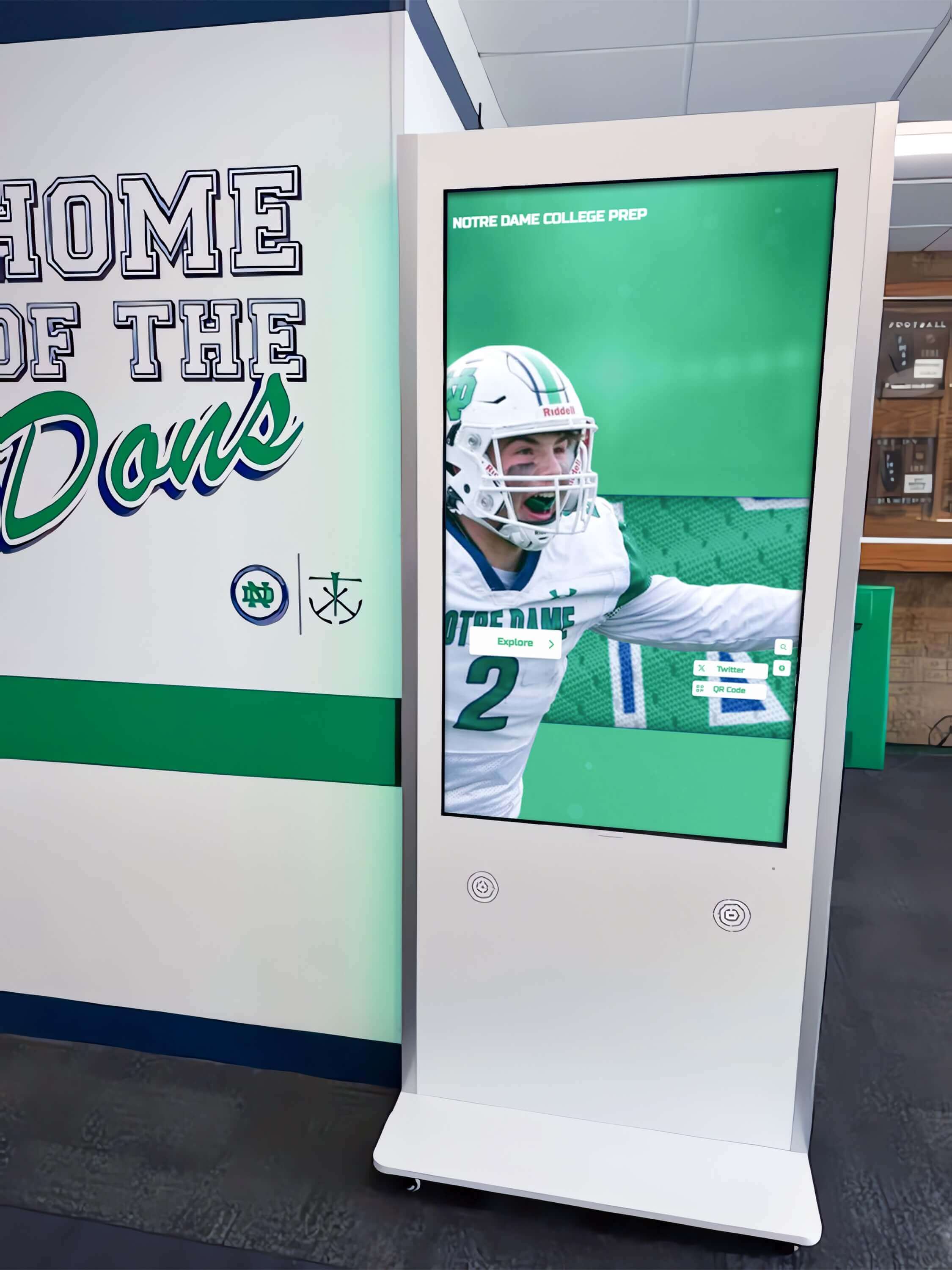
The Case for Mac Touchscreen Displays
Despite the challenges, Mac systems offer compelling advantages for touchscreen kiosk deployments:
Hardware Reliability: Mac Mini and Mac Studio systems provide exceptional longevity and require minimal maintenance compared to budget PC solutions. Organizations report Mac systems running continuously for 5+ years without hardware failures.
Security & Stability: macOS offers robust security features and system stability that reduce vulnerability to malware and minimize unexpected crashes in public kiosk environments.
Premium Aesthetics: Mac hardware’s sleek design complements modern architectural spaces in museums, corporate lobbies, and upscale retail environments where appearance matters.
Consistent Performance: Apple’s tight hardware-software integration ensures consistent rendering performance for web-based content without driver conflicts or compatibility issues.
For organizations already invested in the Apple ecosystem or seeking premium kiosk hardware, the right software solution can overcome Mac’s touchscreen limitations.
Top Mac Touchscreen Software Solutions in 2025
1. Rocket Touchscreen (Mac App Store)
Why It Leads for Mac Kiosk Deployments
- Auto-Launch Kiosk Mode: Automatically launches at startup and enters full-screen kiosk mode without configuration.
- Chromium-Based Browser: Provides modern web standards support and consistent rendering across devices.
- Single-Touch Optimization: Purpose-built for single-touch hardware, eliminating multi-touch gesture dependencies.
- Zero Configuration: Download from Mac App Store, set your URL, and deploy—no command-line required.
- Mac Native: Built specifically for macOS with full system integration and Apple Silicon support.
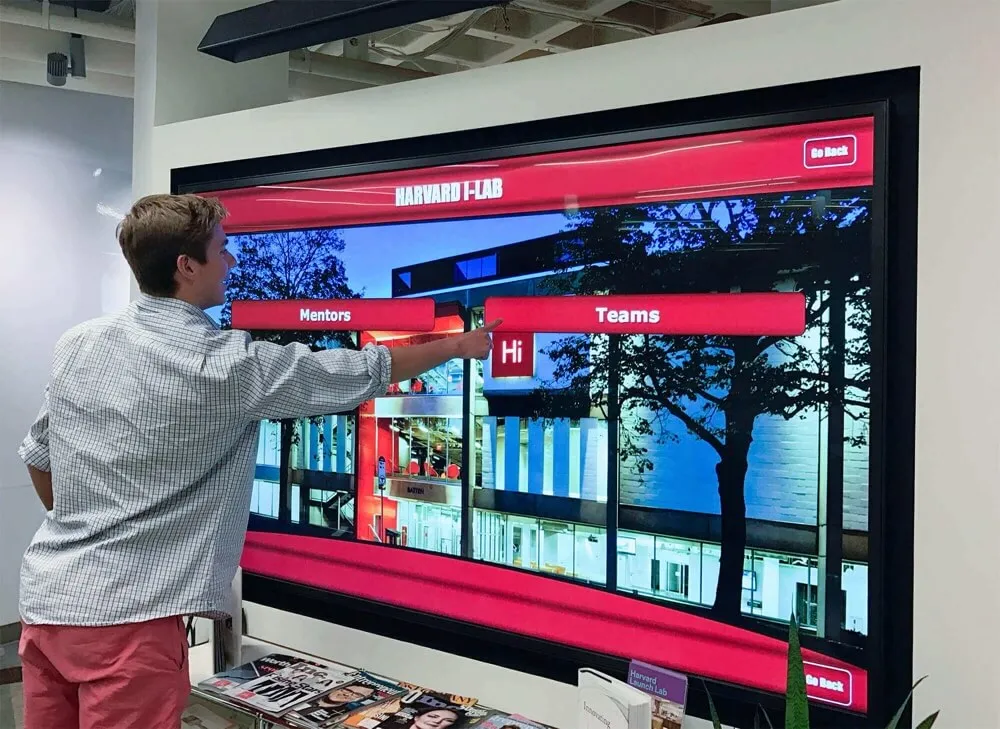
Ideal Use Cases: Interactive touchscreen displays for schools, museums, retail environments, corporate lobbies, visitor centers, and any scenario requiring a locked-down web browser displaying website content.
Pricing: Available on the Mac App Store with straightforward app purchase model (pricing varies by region).
Getting Started: Visit the Mac App Store to download Rocket Touchscreen directly to your Mac system.
Perfect for Schools & Organizations
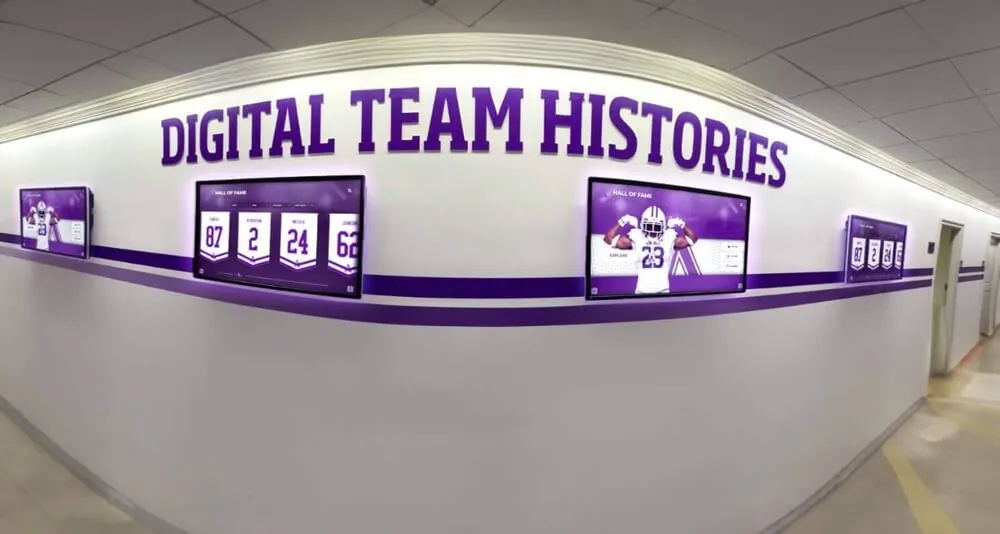
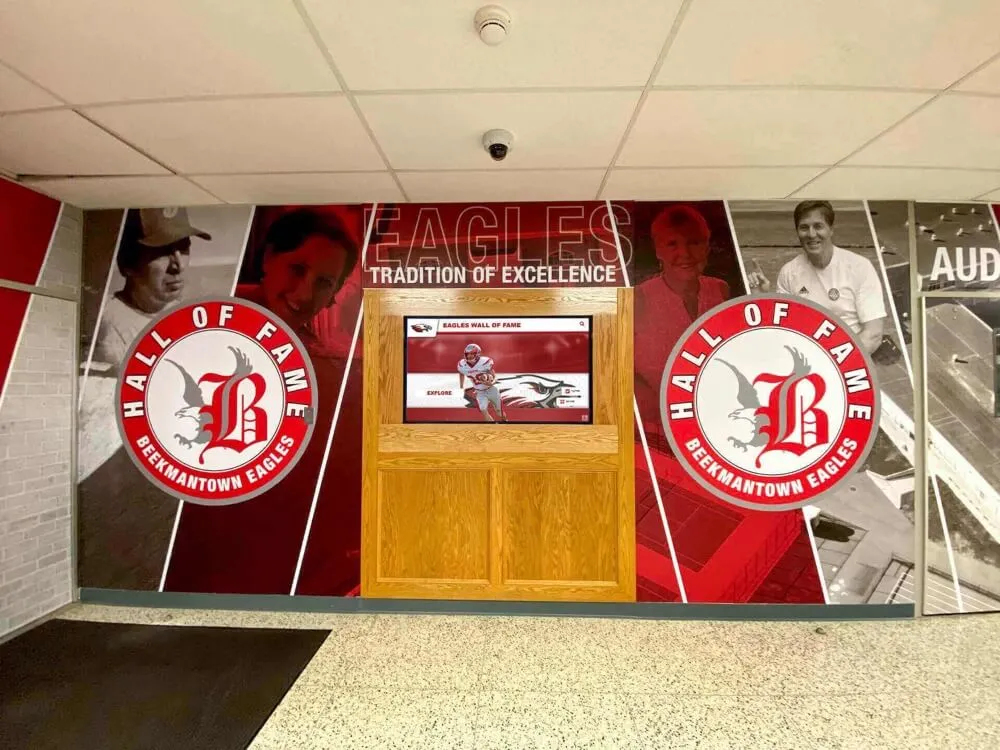
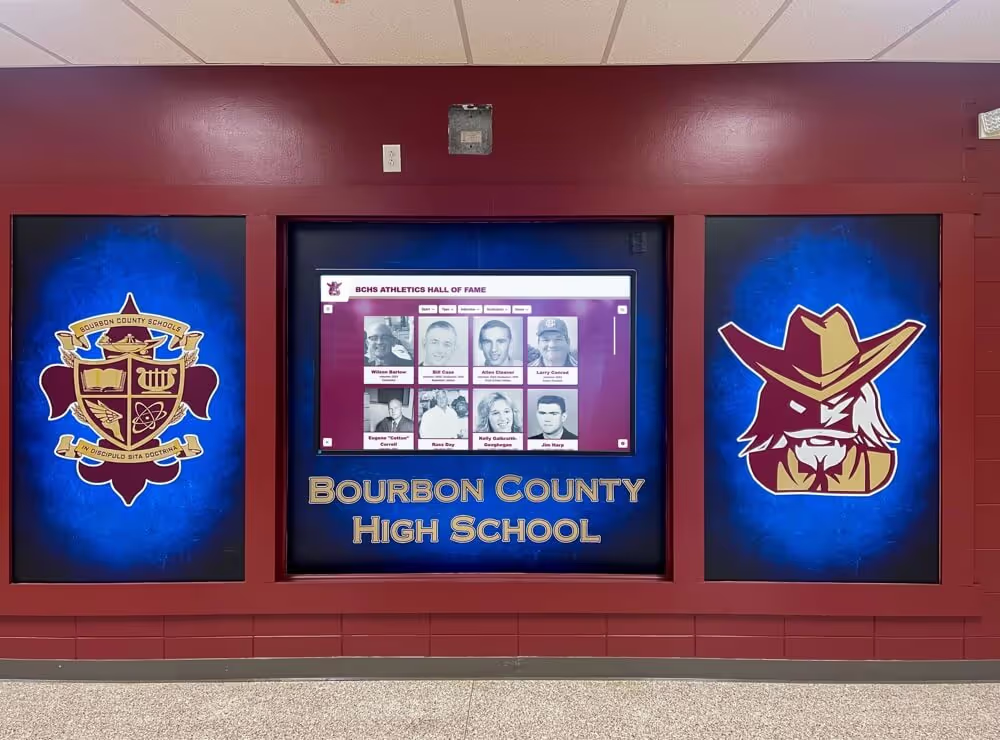
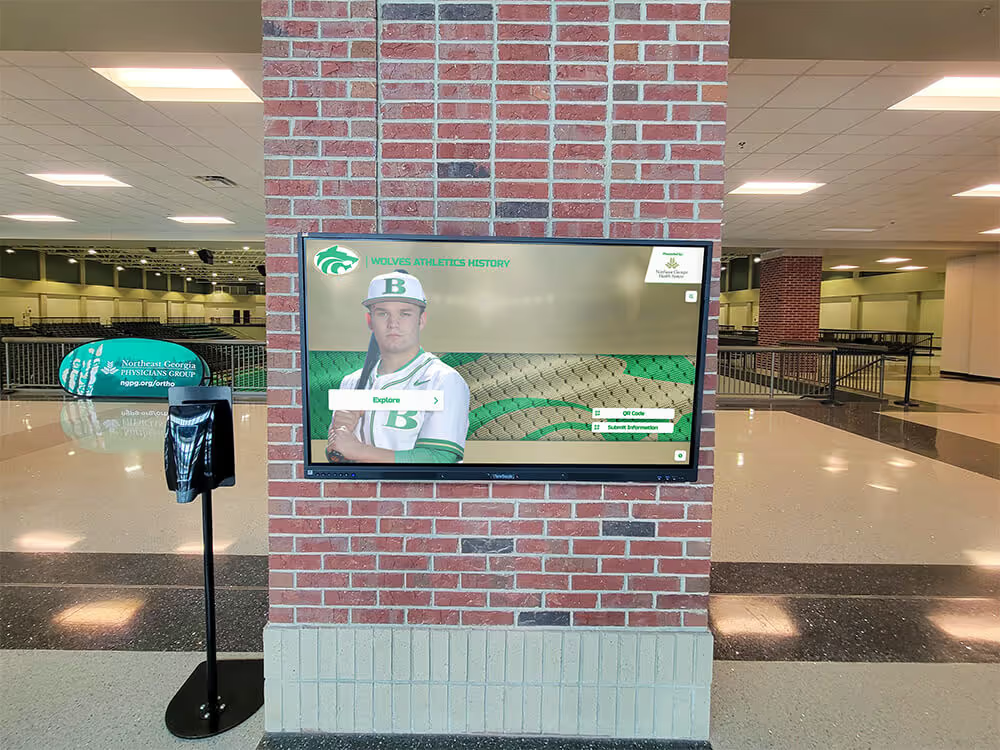
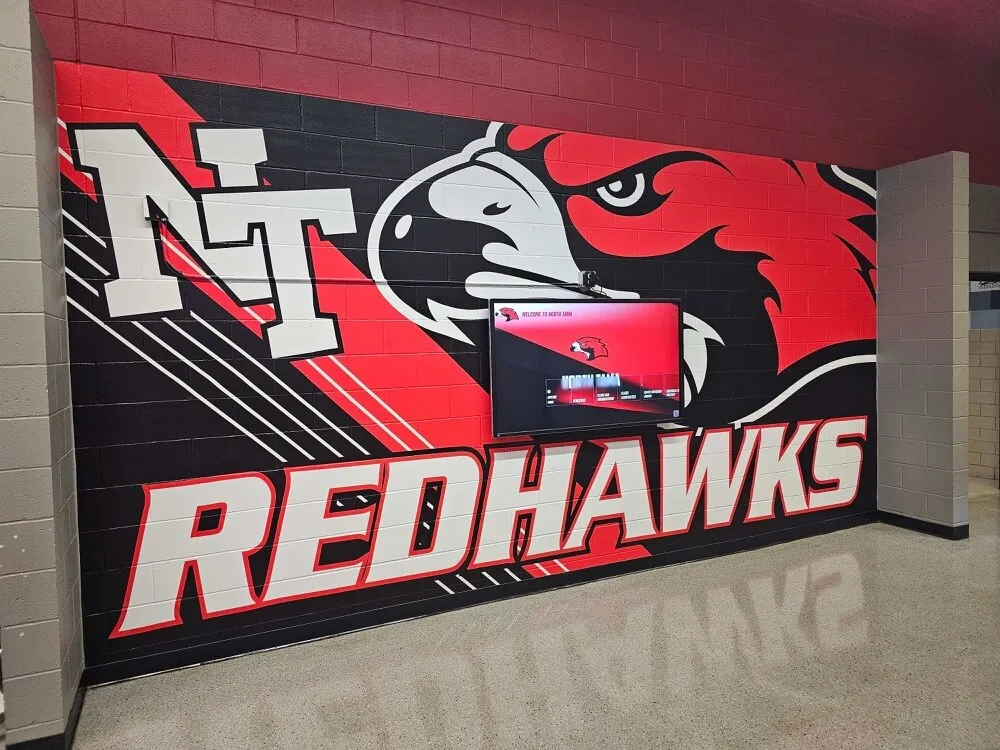
Organizations using Rocket Touchscreen for Mac can display digital recognition displays, interactive directories, wayfinding systems, and web-based content without worrying about multi-touch gesture requirements or complex kiosk configurations.

2. Touch-Base UPDD Driver
For organizations needing hardware-level touchscreen driver support on Mac, Touch-Base UPDD provides comprehensive touch functionality.
Key Features:
- Support for macOS 10.6 and above
- Multi-touch gesture support (when hardware supports it)
- Compatible with multiple monitor manufacturers
- Custom gesture configuration
Considerations: UPDD is a driver solution, not a kiosk mode application. You’ll still need separate software to lock down the Mac into kiosk mode and prevent users from accessing system features.
Best For: Organizations with multi-touch capable hardware who need full gesture support and are willing to configure separate kiosk mode software.
3. AppKiosk
AppKiosk is a Mac-native kiosk solution designed for creating locked-down applications for public spaces.
Key Features:
- Native macOS application
- Optimized for touchscreens and large displays
- Pay-once licensing model (no recurring fees)
- Suitable for museums, libraries, trade shows
Limitations: While AppKiosk provides kiosk mode functionality, it requires manual touchscreen driver configuration and doesn’t include the integrated touchscreen optimization that Rocket Touchscreen provides.
4. Kiosk by 24x7digital
Available on the Mac App Store, Kiosk provides basic browser-based kiosk functionality for Mac systems.
Key Features:
- Full-screen web browser
- Password-protected exit
- Auto-session clearing
- Presentation mode (hides browser UI)
Considerations: This solution focuses on browser lockdown but doesn’t address touchscreen driver needs or single-touch optimization, making it less suitable for touchscreen-specific deployments.
5. MDM Solutions (Jamf, Mosyle, Kandji)
Enterprise Mobile Device Management platforms offer comprehensive Mac fleet management including kiosk mode capabilities.
Key Features:
- Centralized management of multiple devices
- Remote configuration and monitoring
- Advanced security policies
- Integration with Apple Business Manager
When to Choose MDM: These solutions make sense for large organizations managing dozens or hundreds of Mac kiosks across multiple locations. For single displays or small deployments, MDM represents significant overkill in complexity and cost.
Feature Comparison Matrix
| Feature | Rocket Touchscreen | AppKiosk | Kiosk (24x7) | Touch-Base UPDD | MDM Solutions |
|---|---|---|---|---|---|
| Auto-Launch Kiosk Mode | ✅ | ✅ | ✅ | ❌ | ✅ |
| Built-in Touchscreen Support | ✅ | ⚠️ | ⚠️ | ✅ | ⚠️ |
| Single-Touch Optimization | ✅ | ❌ | ❌ | ⚠️ | ❌ |
| Chromium Browser | ✅ | ⚠️ | ⚠️ | N/A | ⚠️ |
| Mac App Store | ✅ | ✅ | ✅ | ❌ | ❌ |
| Zero Configuration | ✅ | ⚠️ | ⚠️ | ❌ | ❌ |
| Multi-Device Management | ❌ | ❌ | ❌ | ⚠️ | ✅ |
| Price Point | $ | $$ | $ | $$ | $$$$ |
Legend: ✅ = Full Support, ⚠️ = Partial/Requires Configuration, ❌ = Not Supported, N/A = Not Applicable
Setting Up Mac Touchscreen Kiosks: Best Practices
Regardless of which software solution you choose, follow these best practices for successful Mac touchscreen kiosk deployments:
Hardware Selection
Touchscreen Monitors: Choose commercial-grade touchscreen displays designed for continuous operation. Consumer touchscreen monitors may not withstand the demands of public-facing kiosk environments.
Touch Technology: For single-touch applications, infrared and resistive touchscreens provide reliable, cost-effective options. Capacitive touchscreens offer better responsiveness but at higher cost.
Mac Hardware: Mac Mini provides an excellent balance of performance, size, and cost for most kiosk applications. Mac Studio offers additional power for content-heavy displays.
Physical Installation
Mounting Height: Position touchscreens at accessible heights compliant with ADA guidelines (typically 15-48 inches from the floor for touch controls).
Ambient Lighting: Consider glare and reflection when positioning displays. Anti-glare screen protectors can improve visibility in bright environments.
Cable Management: Secure all cables and connections to prevent tampering. Use lockable cable covers where necessary.
Content Optimization
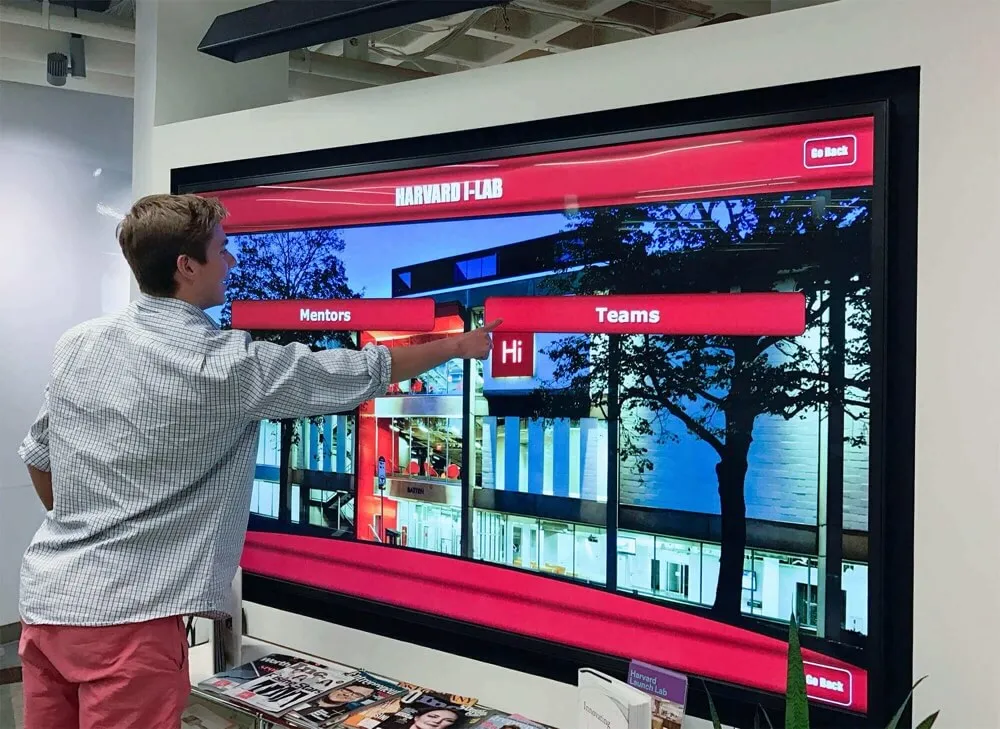
Design for Single Touch: When using single-touch hardware with solutions like Rocket Touchscreen, design your web content to avoid multi-touch gesture dependencies. Implement navigation patterns using buttons and single-touch interactions.
Touch Target Sizing: Ensure all interactive elements meet minimum touch target sizes (44x44 pixels minimum, 60x60 pixels recommended for accessibility).
Performance Testing: Test your content on the actual Mac hardware and touchscreen configuration you’ll deploy to identify any performance issues before installation.
Real-World Applications of Mac Touchscreen Kiosks
Educational Institutions
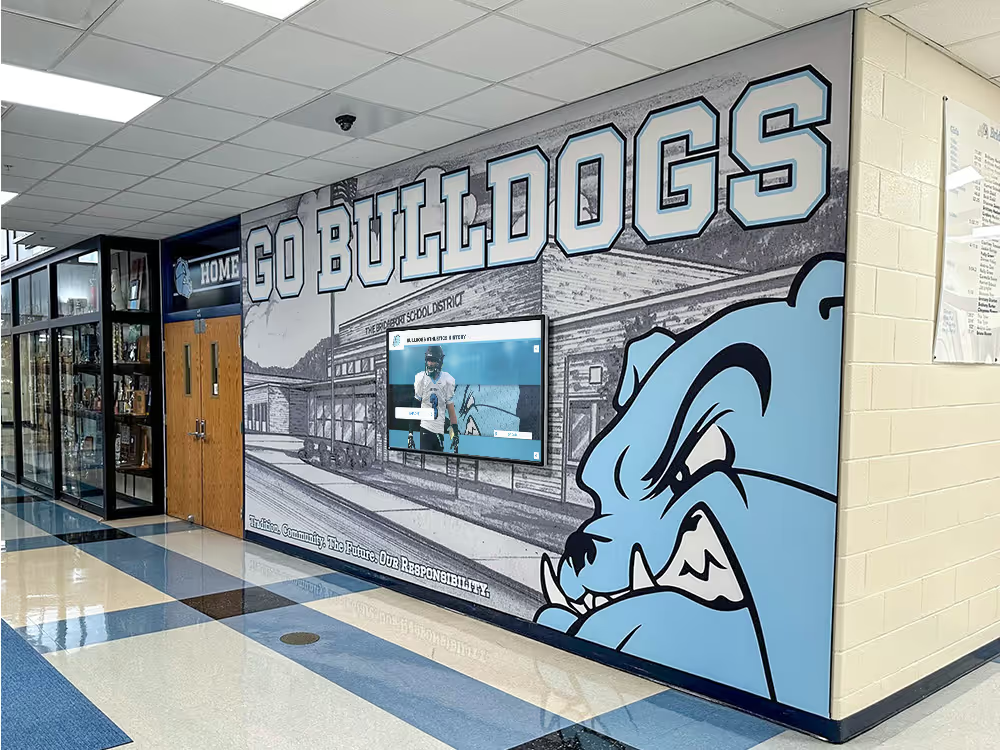
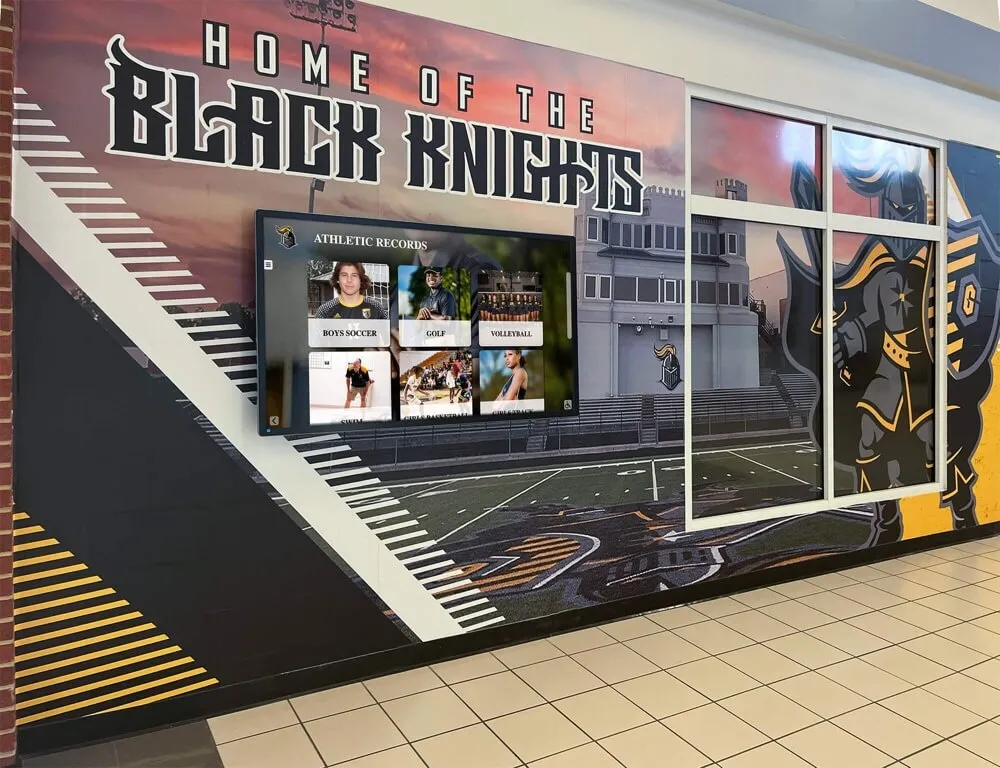
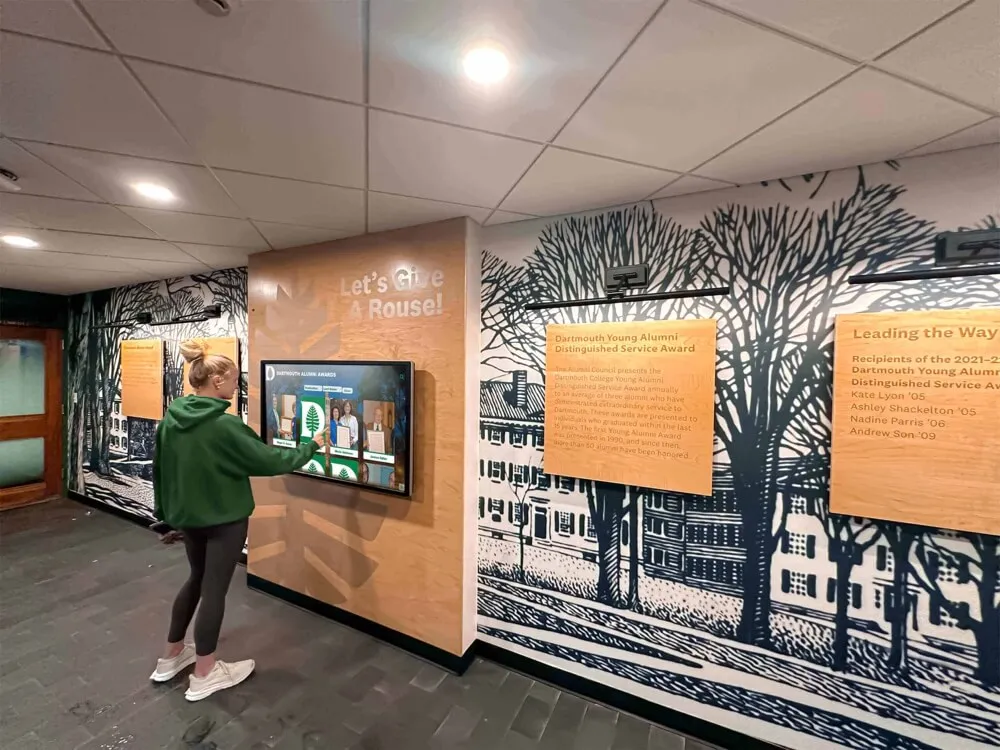
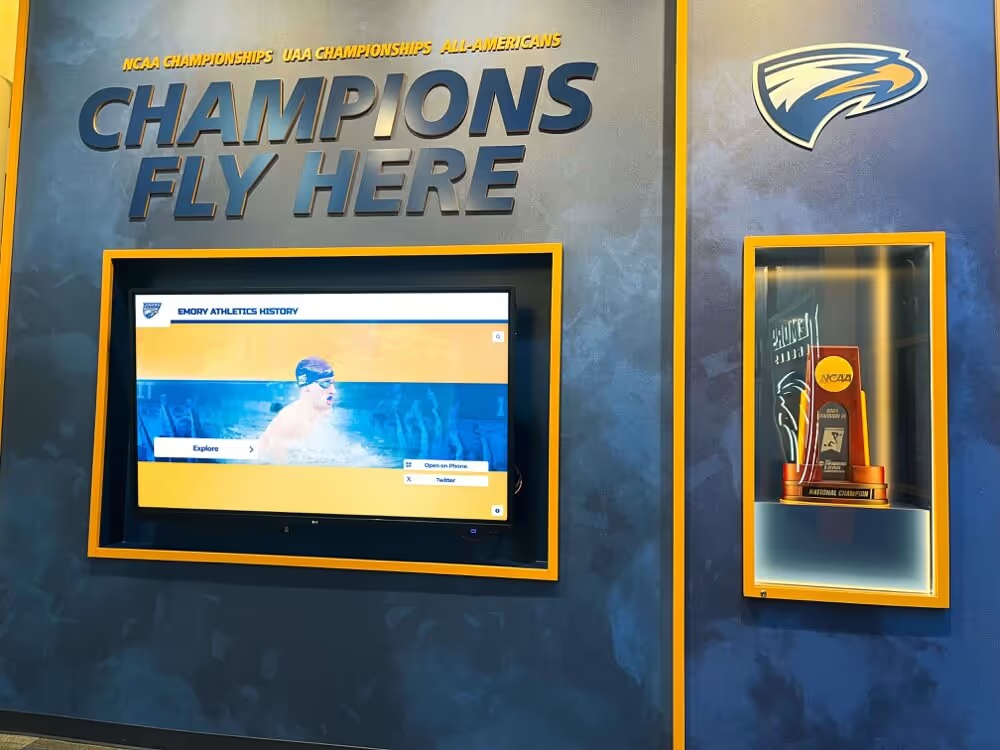
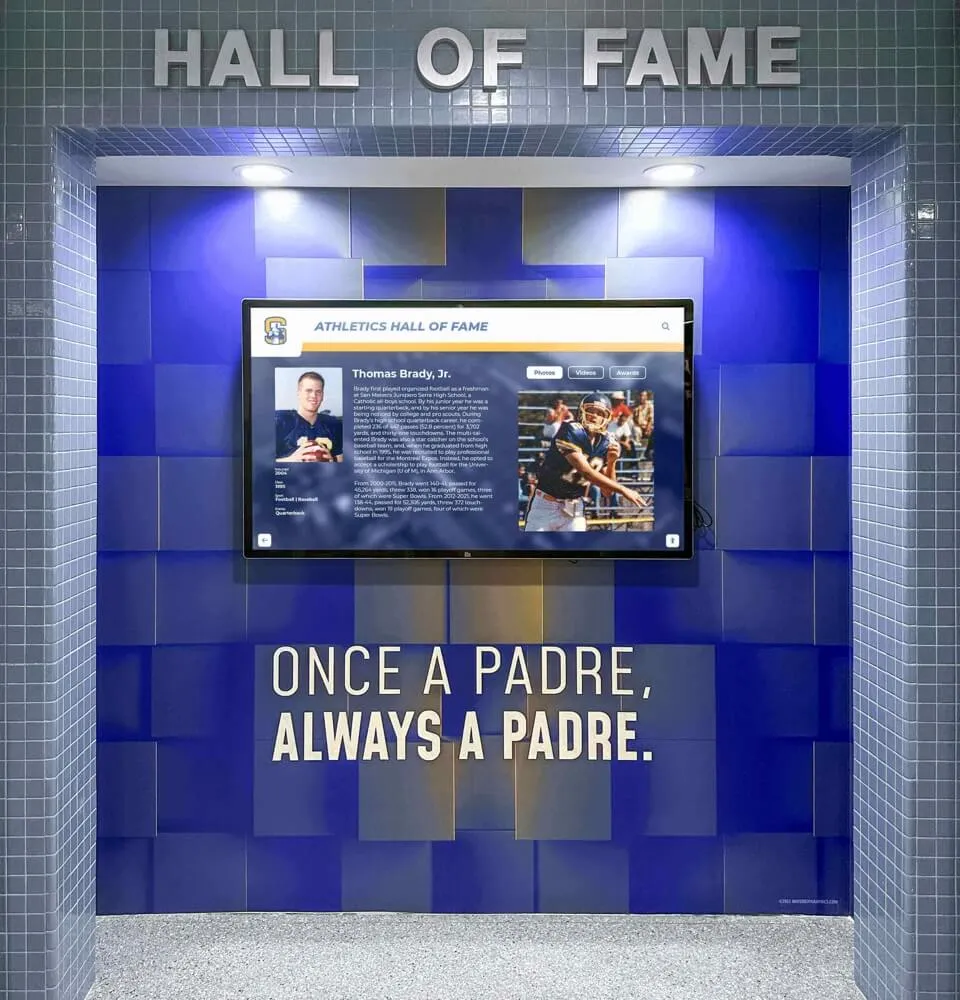
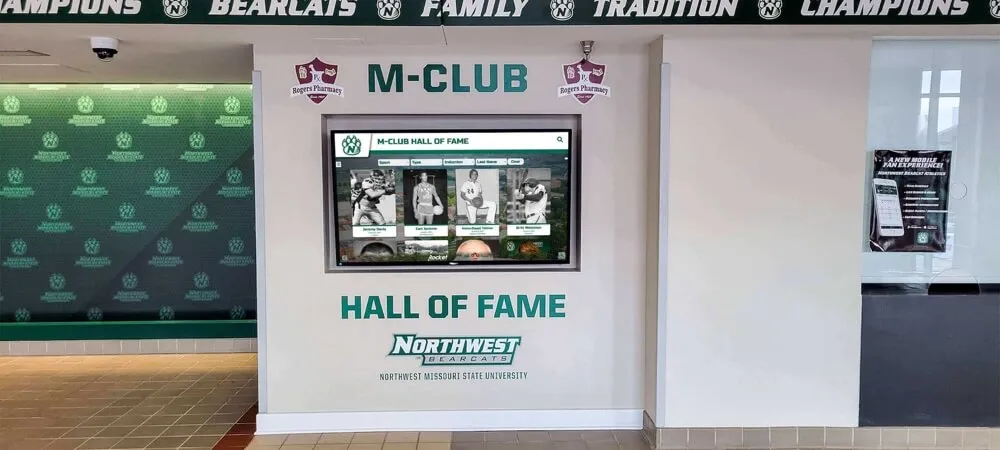
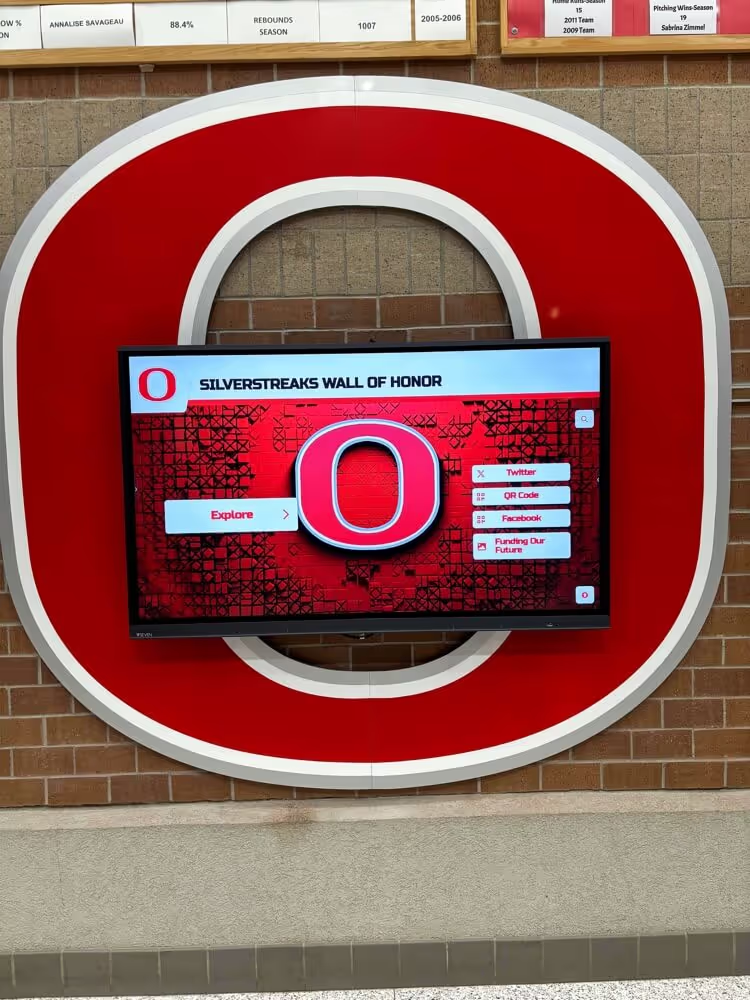
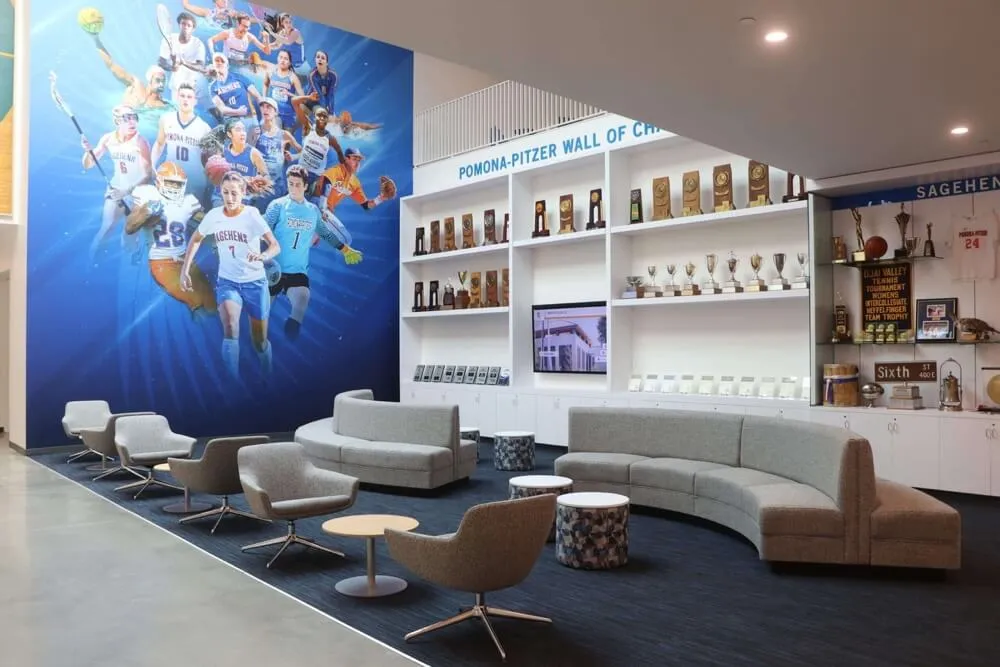
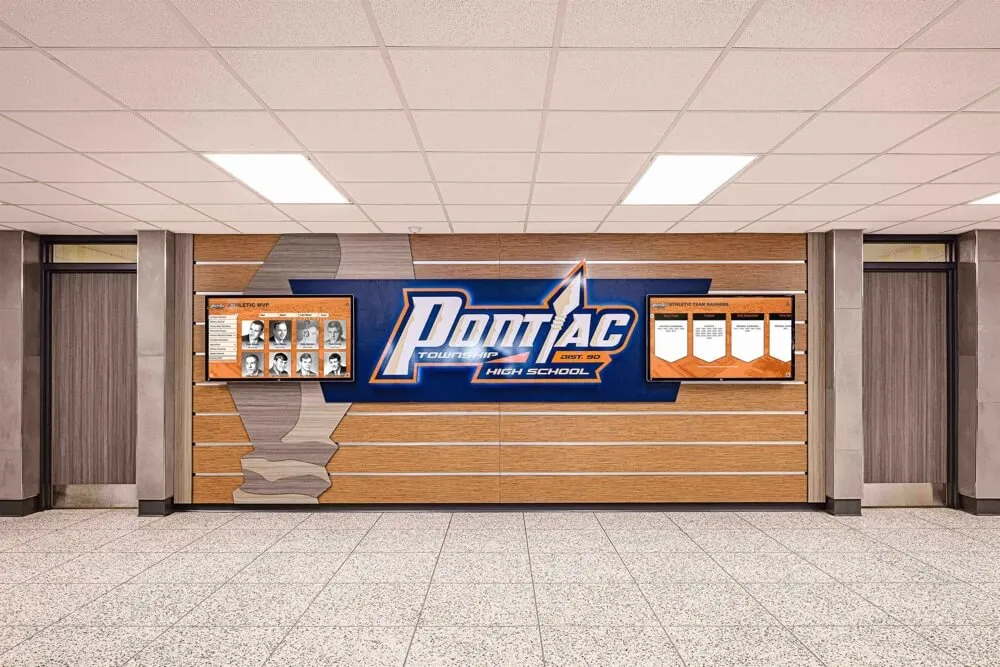
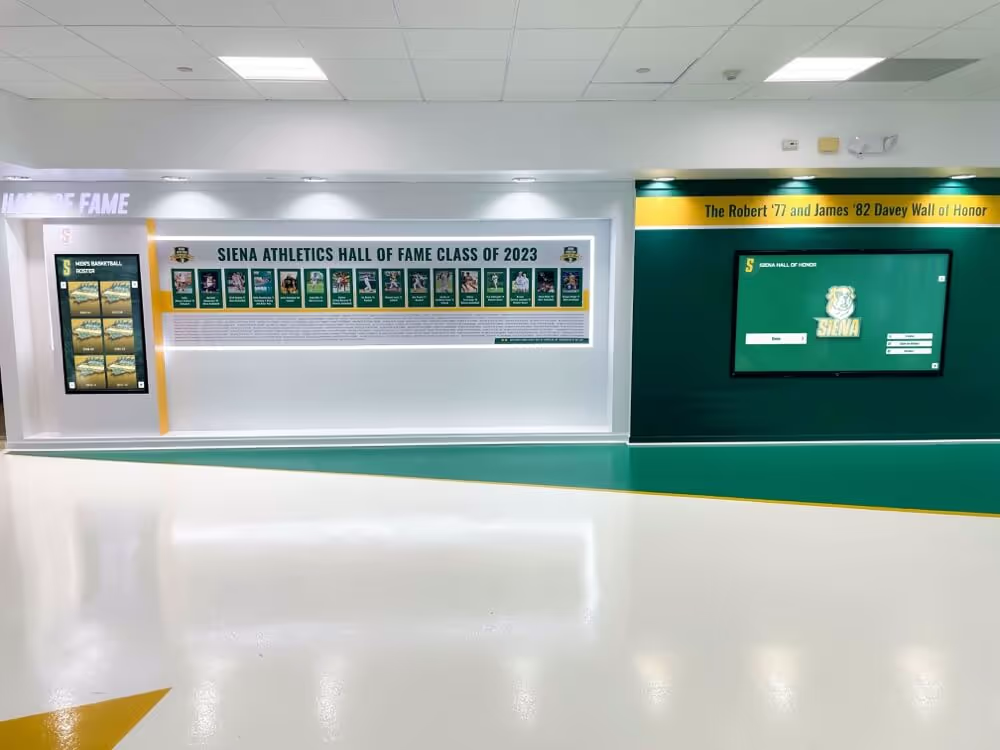
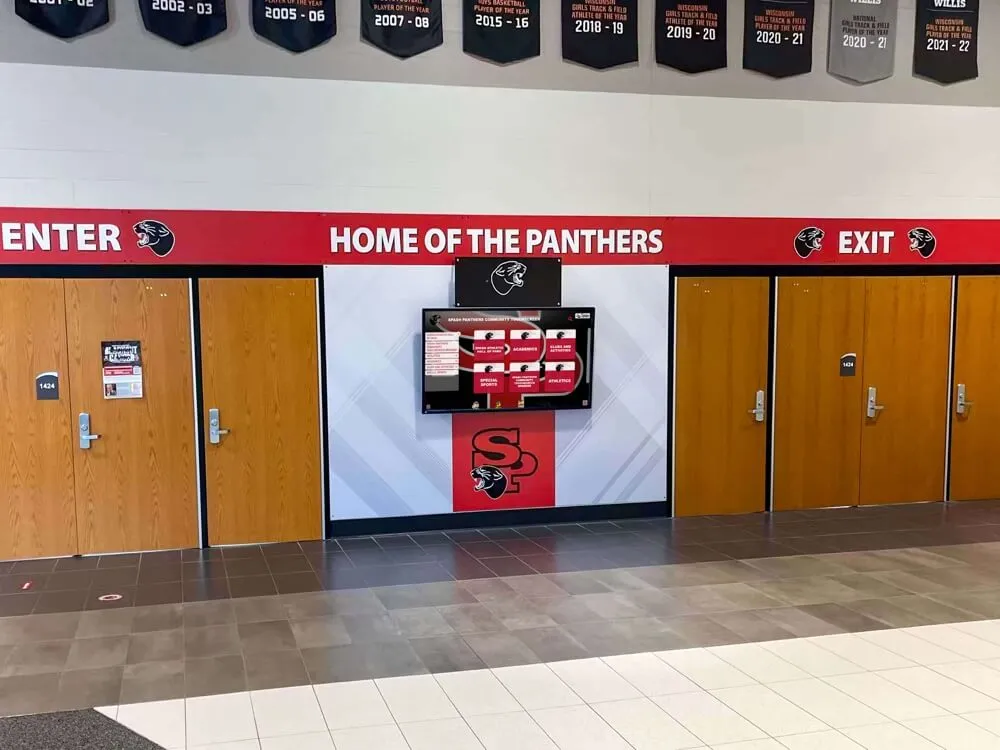
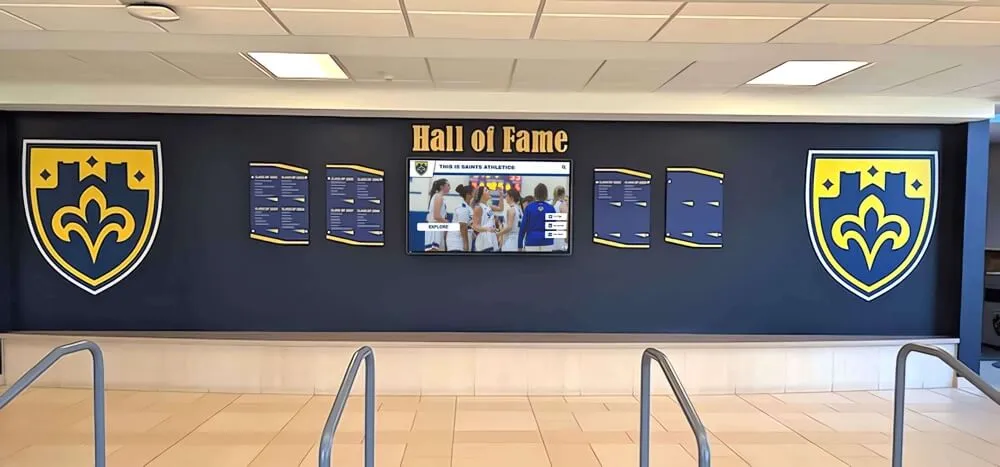
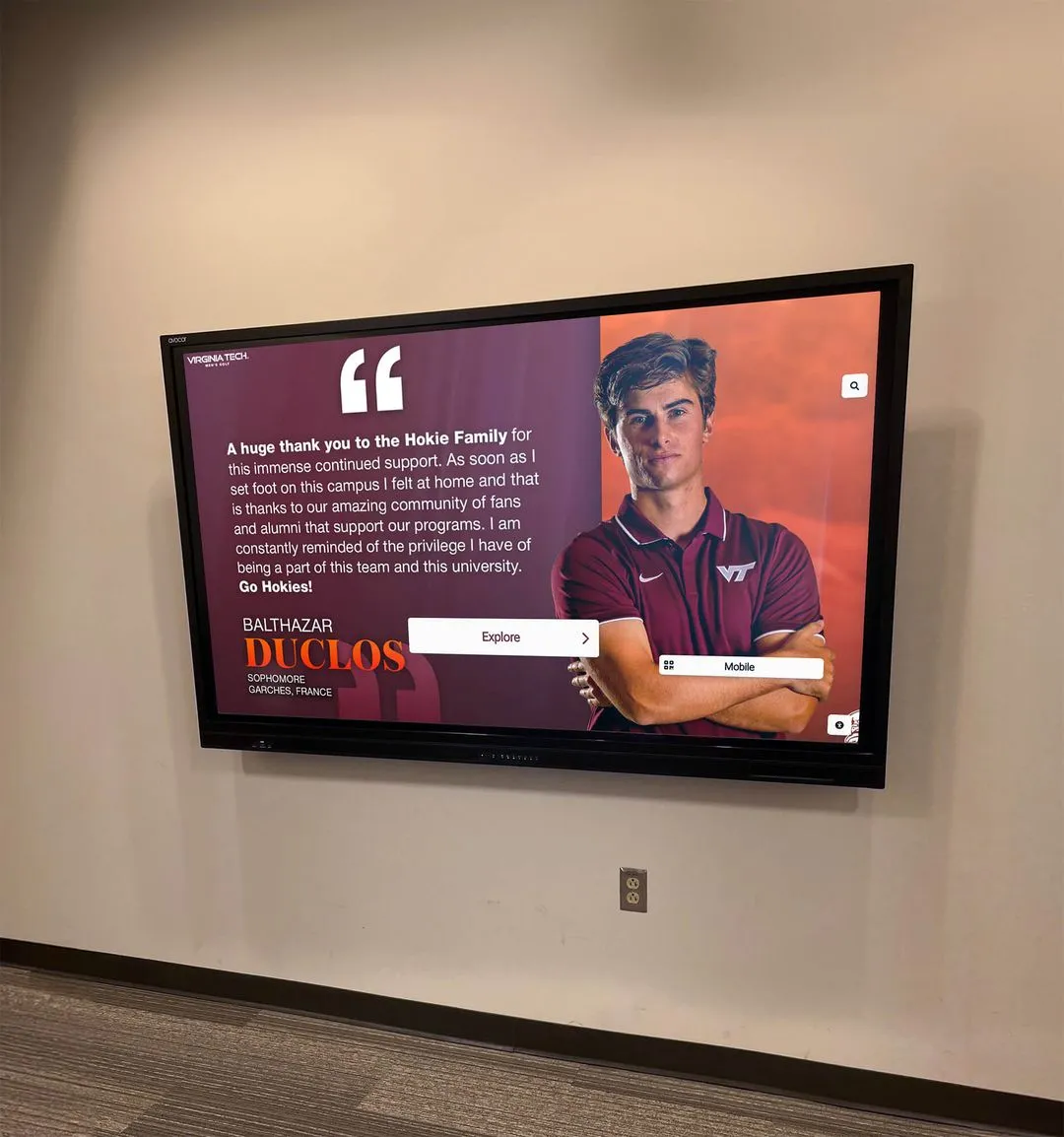
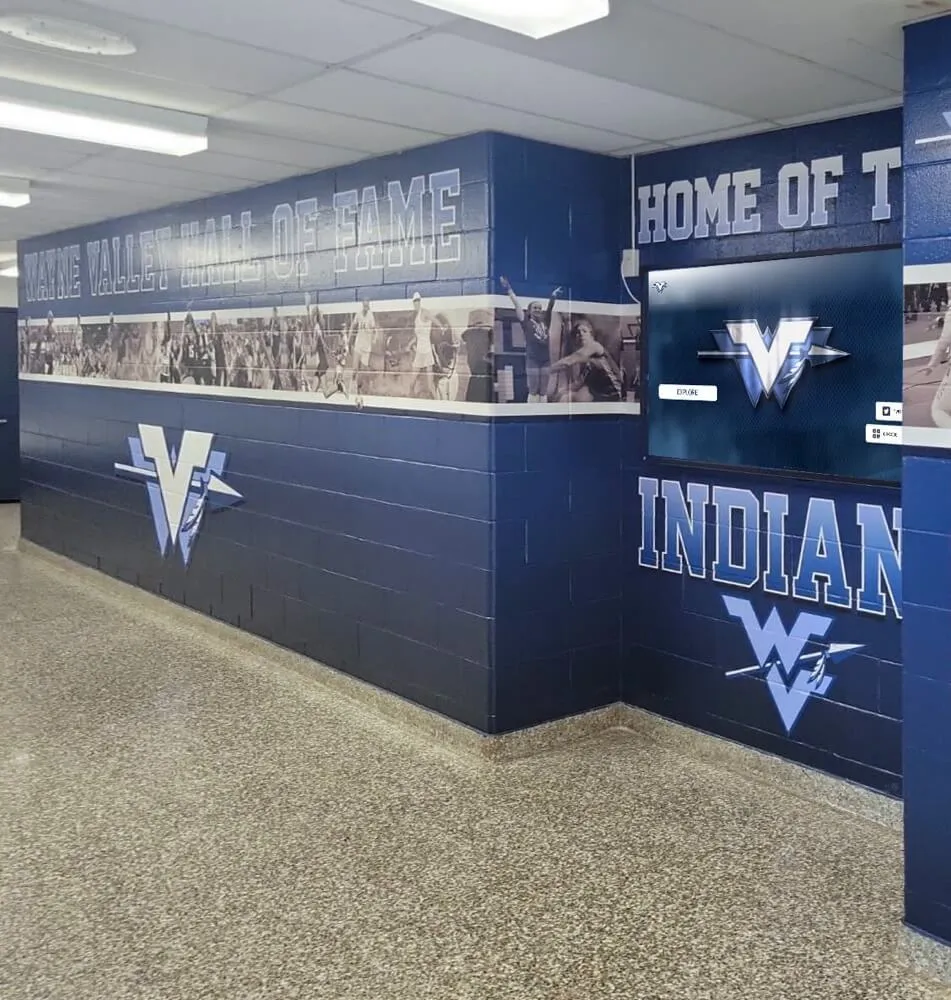
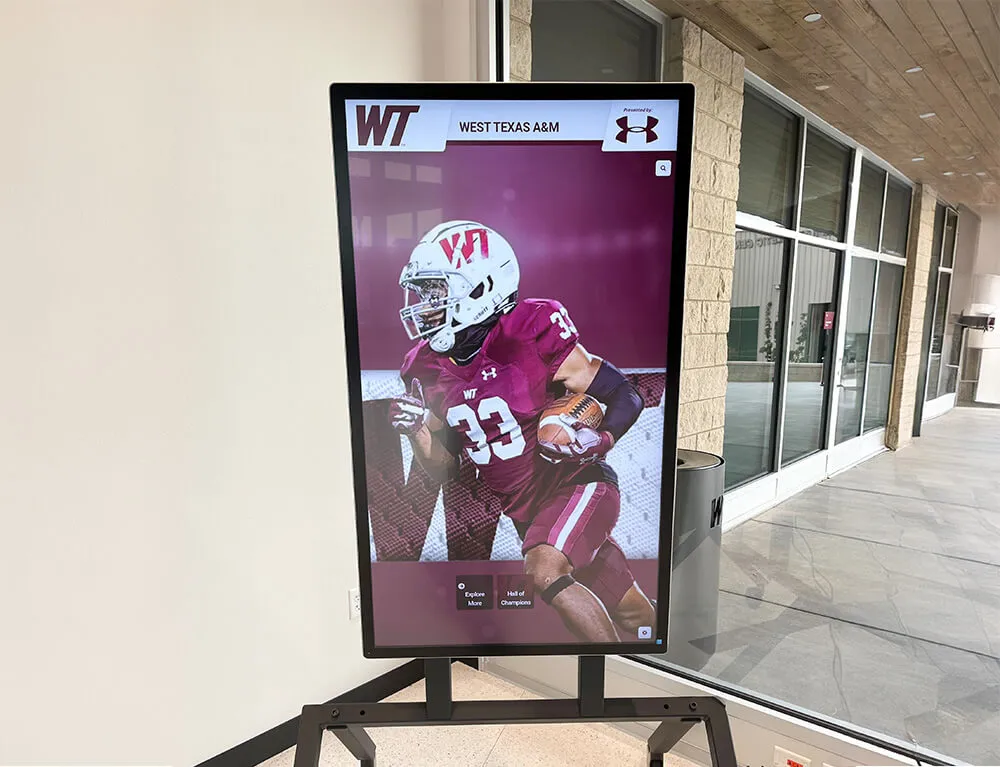
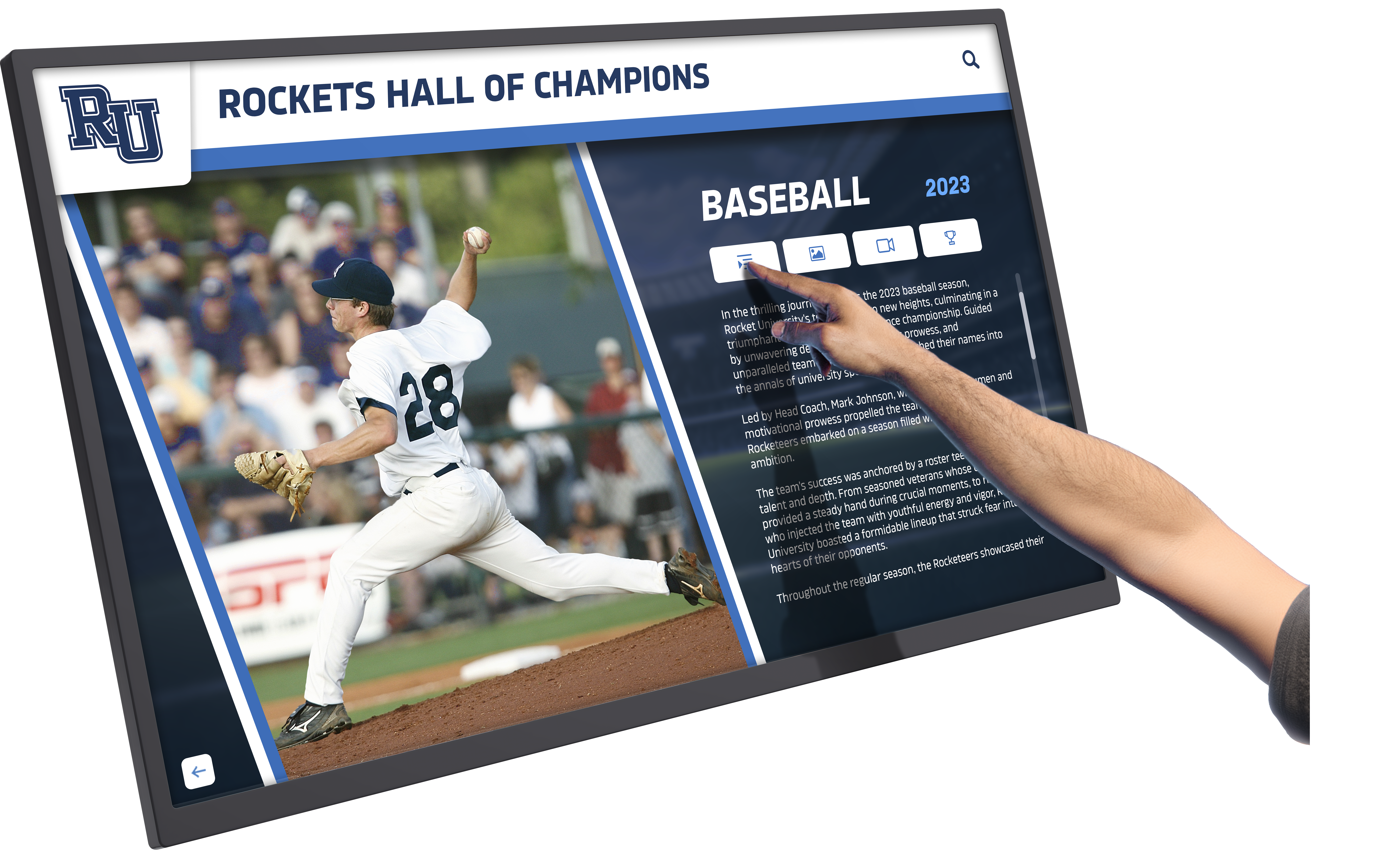
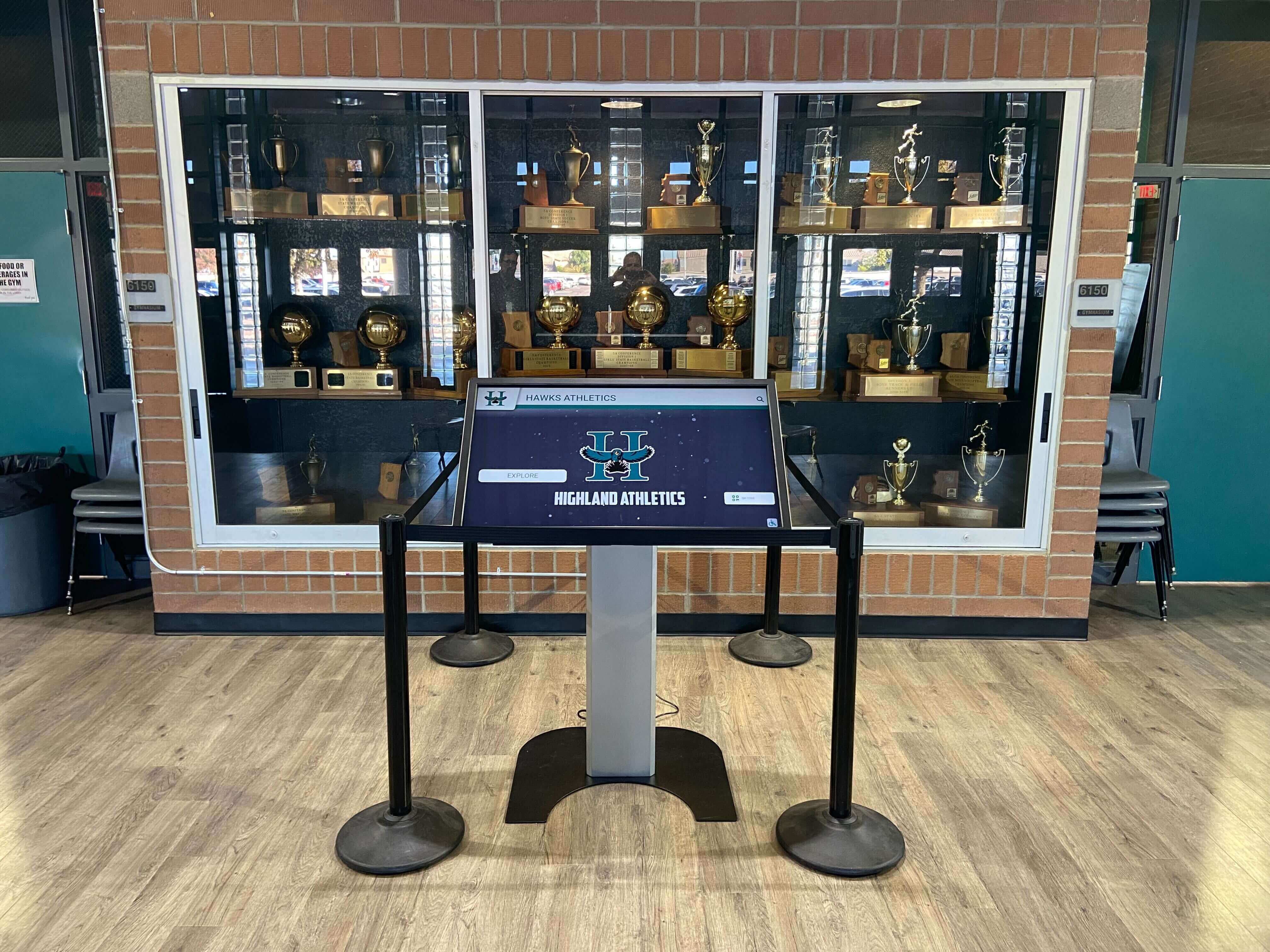
Schools and universities leverage Mac touchscreen kiosks for campus tours, digital directories, and interactive recognition displays. The Rocket Touchscreen app makes it simple to showcase alumni achievements, athletic records, and school history without requiring IT staff to configure complex kiosk modes.
Museums & Visitor Centers
Cultural institutions use Mac-based touchscreen displays to provide interactive exhibits, self-guided tours, and educational content. The reliability of Mac hardware combined with easy-to-deploy kiosk software creates engaging visitor experiences.
Corporate Environments
Corporate lobbies and reception areas use Mac touchscreen kiosks for visitor check-in, company information displays, and interactive presentations. The premium aesthetics of Mac hardware align with upscale corporate branding.
Retail & Hospitality
Retail stores and hospitality venues deploy Mac touchscreen systems for product catalogs, service directories, and customer self-service applications where the visual appeal of hardware matters as much as functionality.
Recognition Displays
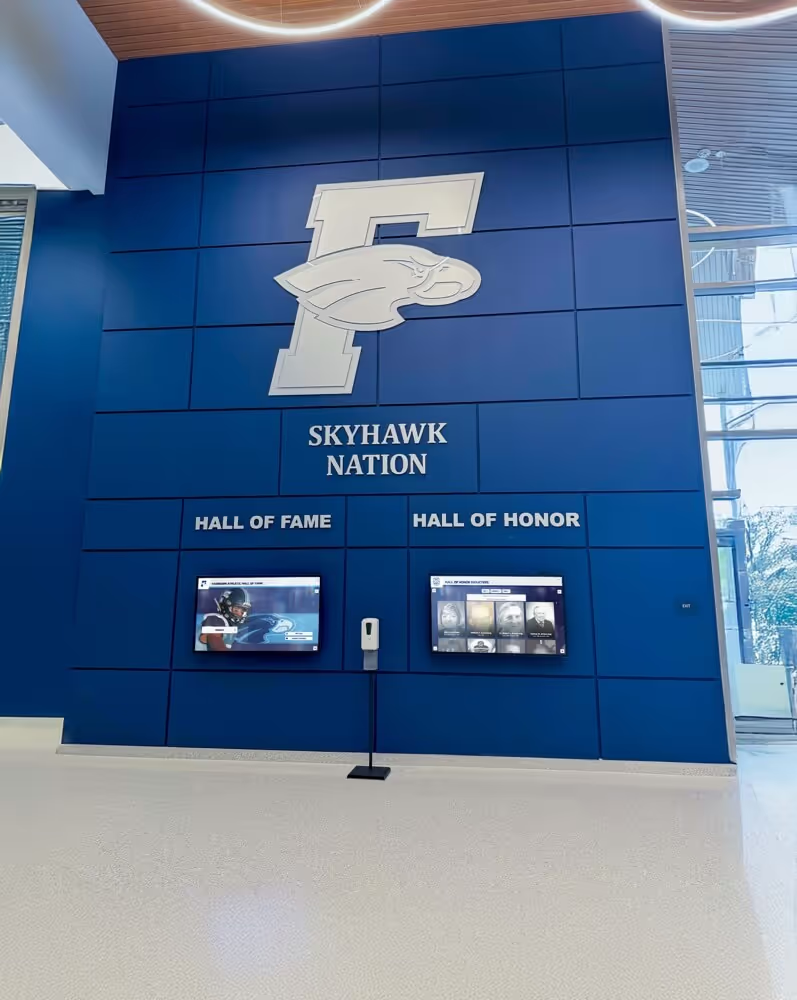
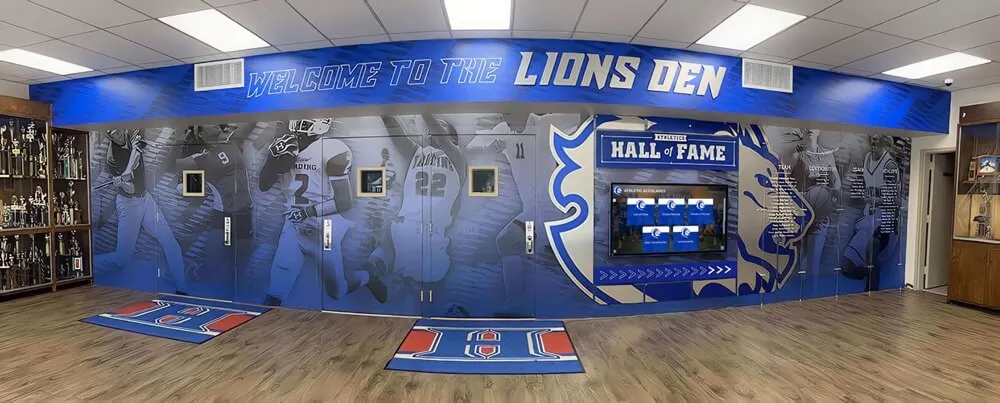
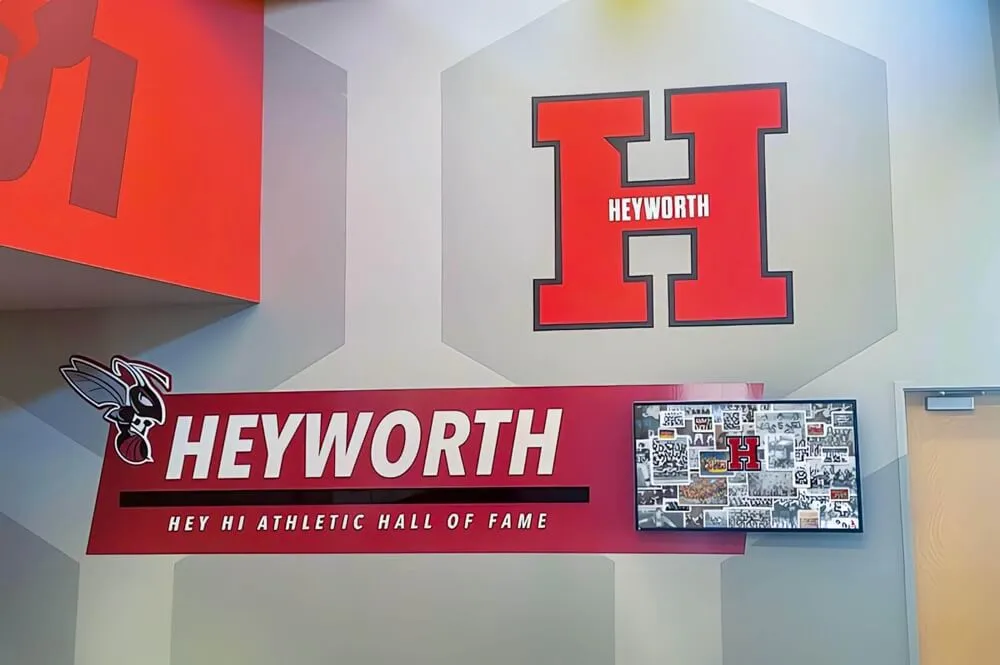
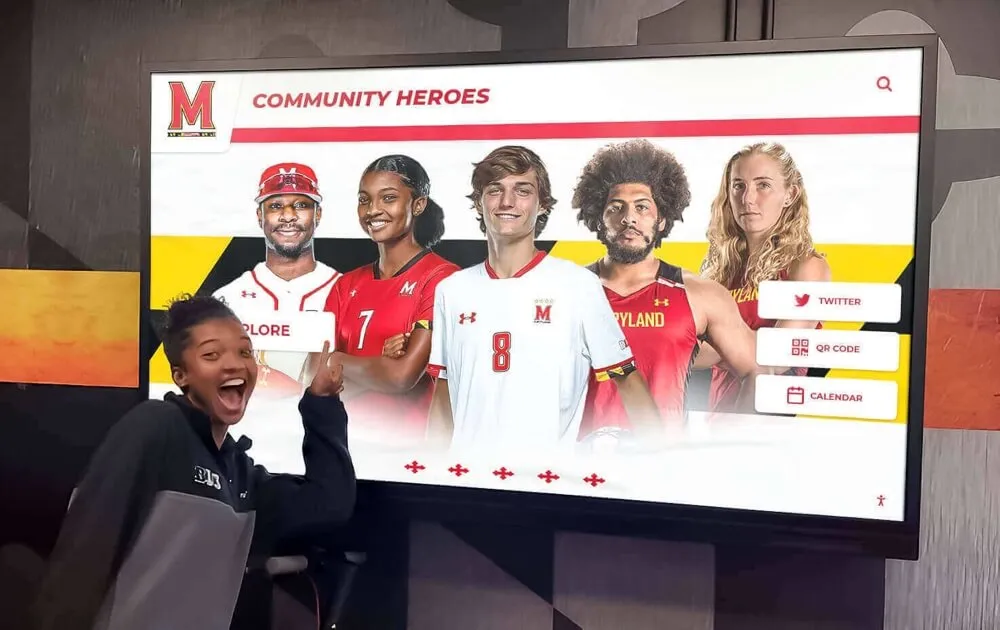
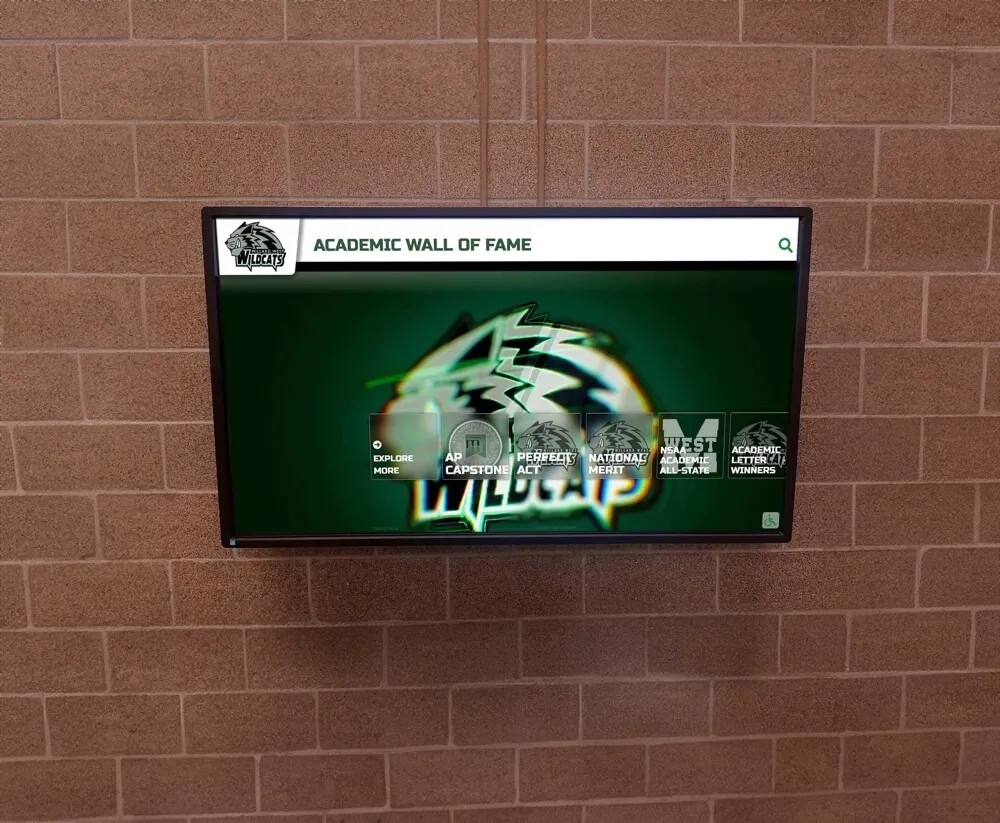
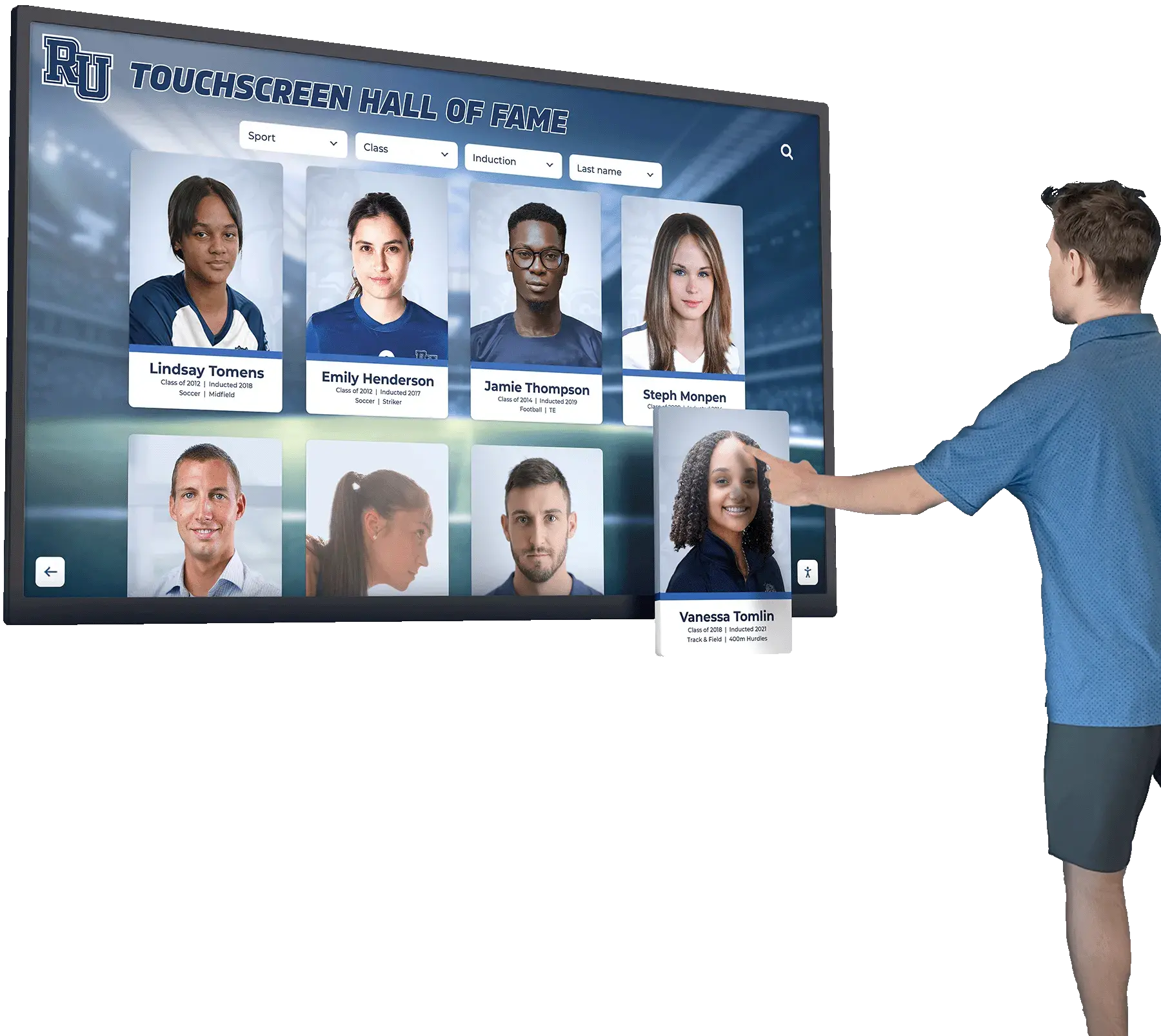
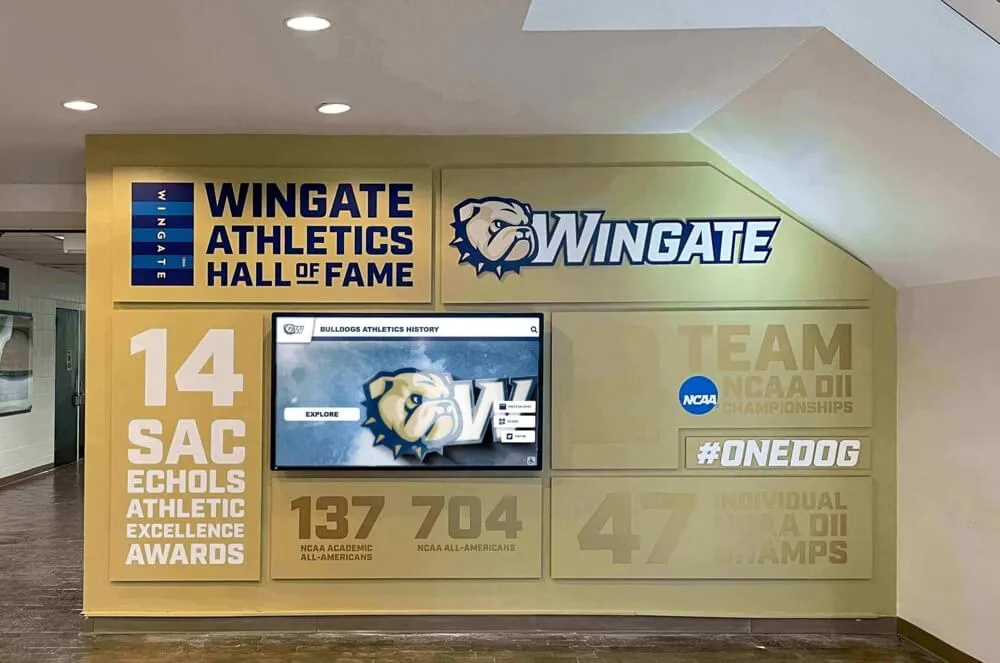
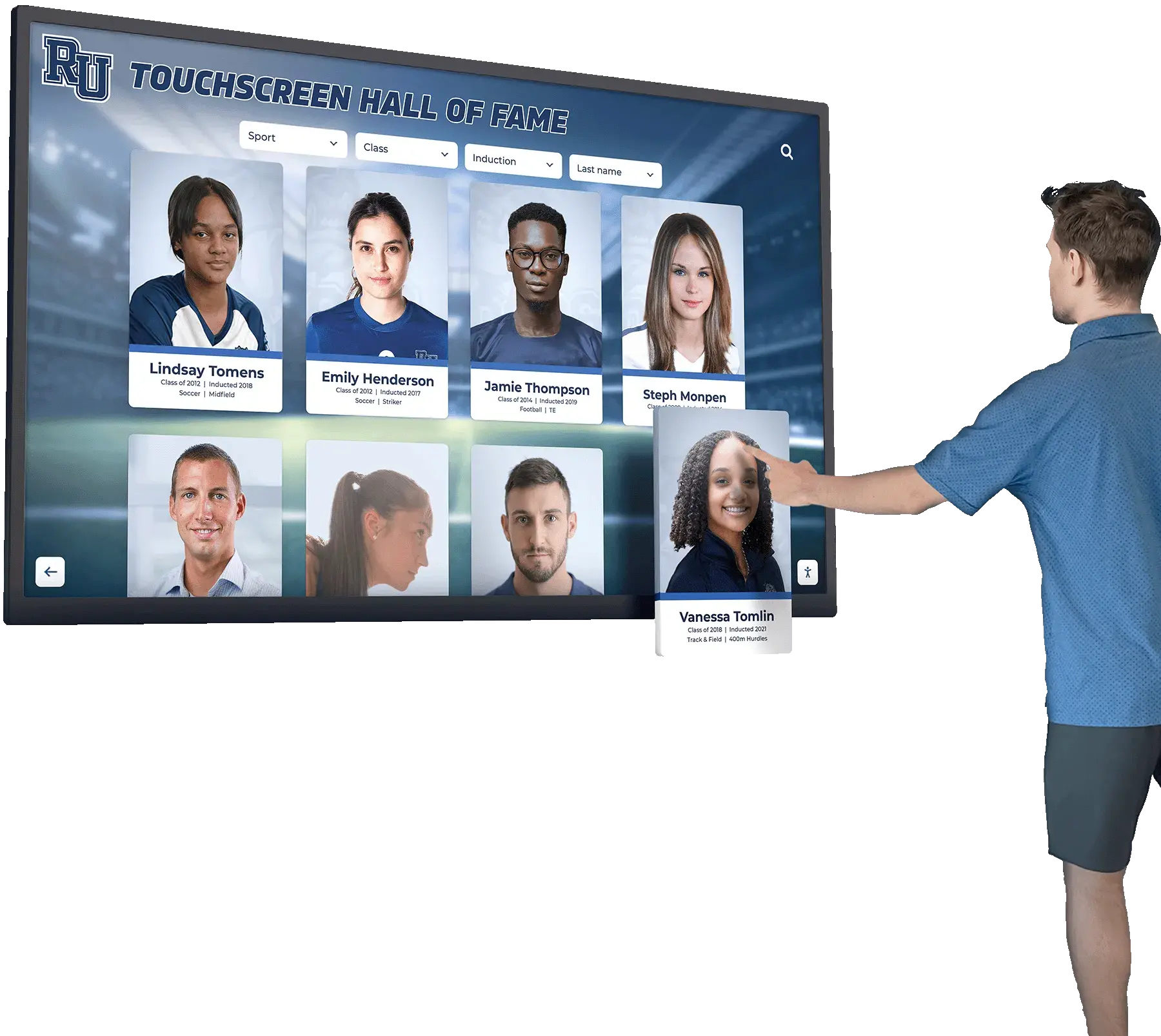

Organizations use Mac-based touchscreen displays to showcase achievements through digital recognition walls, halls of fame, and donor recognition systems. Solutions like Rocket Touchscreen make it straightforward to display web-based recognition content in a locked-down kiosk format.
Troubleshooting Common Mac Touchscreen Issues
Touch Not Responding
Problem: Touchscreen doesn’t register touches or behaves erratically.
Solutions:
- Verify touchscreen drivers are properly installed (for solutions requiring separate drivers)
- Check USB connections and ensure touchscreen is receiving power
- Test touch functionality with built-in macOS tools before launching kiosk software
- Consider electromagnetic interference from nearby devices
Multi-Touch Gestures Required
Problem: Website or application requires multi-touch gestures that single-touch hardware cannot provide.
Solutions:
- Use Rocket Touchscreen’s single-touch mode that makes websites fully accessible without multi-touch
- Redesign web content to use button-based navigation instead of gestures
- Consider upgrading to multi-touch capable hardware if gestures are essential
Application Won’t Auto-Launch
Problem: Kiosk software doesn’t automatically start when Mac boots.
Solutions:
- Verify application is added to Login Items in System Preferences
- Check security permissions allow the application to run at startup
- For Rocket Touchscreen, confirm app is properly configured for auto-launch
- Ensure Mac isn’t set to sleep or require password after sleep
Content Doesn’t Display Properly
Problem: Web content appears incorrectly or features don’t work in kiosk browser.
Solutions:
- Test content in desktop Chromium-based browser (like Chrome) to identify compatibility issues
- Verify content is optimized for the display resolution you’re using
- Check JavaScript console for errors that might prevent proper rendering
- Ensure internet connectivity is stable and sufficient for content requirements
Comparing Mac vs. Windows vs. Android for Touchscreen Kiosks
Organizations often weigh Mac against alternative platforms for touchscreen kiosk deployments. Here’s how they compare:
Mac Advantages
- Superior hardware reliability and longevity
- Premium aesthetics suitable for upscale environments
- Robust security and system stability
- Excellent for organizations already in Apple ecosystem
Mac Considerations
- Requires third-party software for touchscreen kiosk functionality
- Higher initial hardware cost than Windows PC or Android options
- Limited native touchscreen support in macOS
- Fewer kiosk-specific software options than Windows
Windows Strengths
- Native touchscreen support built into operating system
- Wide range of hardware options at various price points
- Extensive kiosk software ecosystem
- Better multi-touch gesture support
Android Strengths
- Lowest cost hardware options
- Native touchscreen support optimized for touch interfaces
- Built-in kiosk mode capabilities in recent versions
- Excellent for fleet deployments
The Verdict: For organizations seeking reliability, security, and premium aesthetics—and willing to invest in proper touchscreen software—Mac remains an excellent choice. Solutions like Rocket Touchscreen bridge the gap by providing turnkey kiosk functionality that Windows and Android offer natively.
Future Trends in Mac Touchscreen Technology
Apple Silicon Optimization
As Apple’s transition to proprietary Apple Silicon processors (M1, M2, M3, and beyond) continues, touchscreen software optimized for ARM architecture provides better performance and energy efficiency. Rocket Touchscreen supports Apple Silicon natively.
Web-First Kiosk Content
The trend toward web-based content delivery continues accelerating. Browser-based kiosk solutions like Rocket Touchscreen align perfectly with this direction, enabling content updates without app redeployment.
Accessibility Enhancements
Growing emphasis on accessibility standards drives development of inclusive touchscreen interfaces that work with single-touch hardware while providing equivalent functionality to multi-touch systems.
Cloud Management
Even for small deployments, cloud-based management capabilities enable remote monitoring, content updates, and troubleshooting without on-site visits—a trend likely to expand across all kiosk platforms.
Selecting the Right Mac Touchscreen Software
When evaluating Mac touchscreen software for your organization, consider these key criteria:
Decision Framework
- Deployment Scale: Single display or small deployments (1-5 screens) → Rocket Touchscreen or AppKiosk. Large fleets (50+ devices) → MDM solution.
- Content Type: Web-based content → Browser-focused solutions like Rocket Touchscreen. Custom applications → Consider AppKiosk or MDM.
- Touch Hardware: Single-touch displays → Rocket Touchscreen optimized for single-touch. Multi-touch capable hardware → Touch-Base UPDD + separate kiosk software.
- Technical Resources: Limited IT support → Choose zero-configuration solutions like Rocket Touchscreen. Dedicated IT team → More complex solutions acceptable.
- Budget: Cost-sensitive deployments → Focus on one-time purchase apps from Mac App Store. Enterprise deployments → MDM solutions with ongoing licensing.
For most organizations deploying web-based interactive content on Mac touchscreen displays, Rocket Touchscreen offers the optimal combination of ease-of-use, native Mac integration, single-touch optimization, and automatic kiosk mode functionality.
Frequently Asked Questions
Does macOS support touchscreens natively?
macOS does not include built-in support for touchscreen displays beyond basic pointer functionality. External touchscreen monitors require third-party drivers for full gesture support, and kiosk mode requires additional software configuration. This is where dedicated solutions like Rocket Touchscreen provide value by handling both touchscreen optimization and kiosk mode in a single application.
Can I use any touchscreen monitor with Mac?
Most USB touchscreen monitors will provide basic pointer functionality with Mac without additional drivers. For full multi-touch gesture support, you may need third-party drivers like Touch-Base UPDD. When using solutions like Rocket Touchscreen optimized for single-touch, standard touchscreen monitors work excellently without complex driver installations.
How do I prevent users from exiting kiosk mode on Mac?
Purpose-built kiosk software like Rocket Touchscreen includes built-in features to prevent users from exiting the application or accessing system functions. The app automatically enters full-screen kiosk mode and prevents standard macOS shortcuts from breaking out of the kiosk environment. For additional security, configure a separate Mac user account with restricted permissions specifically for kiosk operation.
What's the difference between single-touch and multi-touch for kiosks?
Single-touch displays recognize one touch point at a time, similar to a mouse click. Multi-touch displays recognize multiple simultaneous touch points, enabling gestures like pinch-to-zoom or two-finger scrolling. Many websites depend on multi-touch gestures, creating barriers for single-touch hardware. Rocket Touchscreen solves this by offering a "single-touch mode" that makes web content fully accessible without multi-touch gesture requirements.
Can I manage multiple Mac kiosk displays remotely?
For managing multiple Mac touchscreen kiosks across locations, consider implementing an MDM solution like Jamf or Mosyle that provides centralized configuration, monitoring, and troubleshooting. For small deployments (1-5 screens), individual configuration combined with remote desktop tools like Apple Remote Desktop may suffice for occasional updates.
Is Mac or Windows better for touchscreen kiosks?
Windows offers broader native touchscreen support and more kiosk software options, making it easier to configure without additional software. Mac provides superior hardware reliability, security, and aesthetics. For organizations prioritizing long-term reliability and premium presentation in upscale environments, Mac combined with proper kiosk software like Rocket Touchscreen delivers excellent results. Windows may be more cost-effective for basic deployments or large fleets where appearance is secondary.
Conclusion: Simplifying Mac Touchscreen Kiosks
While macOS wasn’t originally designed with touchscreen kiosks in mind, the evolution of purpose-built software like Rocket Touchscreen has made Mac an increasingly viable—and attractive—platform for interactive display deployments. By providing auto-launch kiosk mode, built-in Chromium browser support, and optimization for single-touch hardware, Rocket Touchscreen eliminates the traditional barriers to Mac touchscreen kiosk implementation.
Organizations seeking to leverage Mac’s reliability, security, and premium aesthetics for interactive displays now have accessible, affordable solutions that require minimal technical expertise to deploy and maintain.
Whether showcasing recognition displays in school lobbies, providing wayfinding in corporate environments, or creating engaging exhibits in museums, Mac-based touchscreen kiosks powered by the right software deliver exceptional user experiences.
Ready to Deploy Mac Touchscreen Kiosks?
Visit the Mac App Store to download Rocket Touchscreen and experience zero-configuration kiosk mode for Mac. For comprehensive interactive display solutions including content development and hardware consultation, explore Rocket Alumni Solutions.
Disclosure: This comparison is based on publicly available information as of January 2025. All product names and trademarks belong to their respective owners. Comparative statements reflect Rocket Alumni Solutions' interpretation of available data and may change over time. All trademarks are property of their respective owners. Rocket Alumni Solutions is not affiliated with or endorsed by Touch-Base, AppKiosk, 24x7digital, Jamf, Mosyle, Kandji, or other companies mentioned in this article. This content was produced by Rocket Alumni Solutions.