Intent: Define Requirements and Calculate Installation Costs
Campus visitors struggle to locate buildings, classrooms, and offices across sprawling facilities. Faculty members relocate. Departments reorganize. Room assignments change every semester. Meanwhile, your printed directory—mounted six months ago at considerable expense—already displays outdated information that sends students to wrong locations and generates endless directional questions at reception desks.
Interactive campus directory touchscreen displays solve persistent navigation challenges through real-time updates, powerful search functionality, visual wayfinding with detailed maps, and comprehensive accessibility features that traditional static directories cannot match. This implementation guide walks you through every technical requirement, placement decision, budget component, and configuration choice needed to deploy effective campus directory systems—from initial needs assessment through final installation and staff training.
Educational institutions face unique wayfinding complexities that make directory systems particularly valuable investments. Universities span dozens of buildings across hundreds of acres. Even smaller K-12 and community college campuses include multiple classroom buildings, administrative offices, athletic facilities, performing arts centers, libraries, and specialized facilities spread across significant geographic areas.
Helping students, faculty, staff, and visitors navigate this complexity proves essential for new student orientation, campus tours that shape enrollment decisions, faculty office hour access, event attendance by unfamiliar visitors, and daily operations across campus communities. Poor navigation wastes staff time providing directions, causes visitors to arrive late for appointments and meetings, creates accessibility barriers for people with disabilities, and communicates lack of attention to visitor experience.
This comprehensive guide provides actionable specifications, placement strategies, budget worksheets, integration approaches, and maintenance planning that enable athletic directors, facilities managers, IT leads, and administrators to implement campus directory touchscreen systems confidently—even without prior digital signage experience.
Before You Start: Prerequisites and Planning
Successful campus directory implementation begins with systematic assessment of your institution’s specific needs, constraints, and objectives before selecting hardware or software.
Stakeholder Identification and Requirements Gathering
Campus directory projects require input and buy-in from multiple departments whose needs and concerns must be addressed:
Facilities Management: Controls building layouts, room assignments, maintains physical infrastructure, and manages construction projects that affect navigation. Their participation ensures directory content accurately reflects current facility organization while enabling integration with existing room management databases.
Information Technology: Manages network infrastructure, enforces security policies, supports technical systems, and handles cybersecurity compliance. Early IT involvement prevents deployment delays caused by network access issues, security concerns, or compatibility problems with existing authentication systems.
Admissions and Student Services: Regular hosts of prospective students, visiting families, new student orientations, and campus tours. Their input identifies high-priority wayfinding pain points and ensures directories address actual visitor navigation challenges rather than assumed needs.
Accessibility Services: Ensures compliance with ADA requirements, understands diverse user needs, and advocates for inclusive design. Their expertise helps specify screen reader compatibility, appropriate mounting heights, high-contrast modes, and other accessibility features from project initiation rather than addressing compliance gaps after installation.
Academic Affairs: Manages classroom assignments, faculty office locations, and departmental organization. Integration with academic scheduling systems enables automated directory updates reflecting semester transitions, temporary room changes, and faculty relocations.
Schedule initial stakeholder meeting documenting current navigation challenges, identifying priority locations for directory placement, clarifying integration requirements with existing systems, establishing content governance responsibilities, and securing budget support from appropriate departments.
Campus Complexity Audit
Document facility characteristics that determine system requirements and implementation scope:
Building Inventory: Total number of buildings, square footage per building, floor counts and vertical circulation (stairs, elevators, ramps), building connections (tunnels, skywalks, outdoor paths), and naming conventions (numeric, named, alphanumeric hybrid).
Room and Space Count: Total classrooms, faculty offices, administrative offices, common areas (cafeterias, lounges, libraries), specialized facilities (labs, studios, athletic venues), and student service locations. Larger inventories justify more sophisticated search capabilities and require more comprehensive content development.
Population Characteristics: Student enrollment (full-time equivalent), faculty and staff count, typical daily visitor volume, peak traffic periods (start of semester, orientation, events), and diversity considerations (international student percentage, multilingual needs, accessibility requirements).
Current Navigation Infrastructure: Existing static directories, printed maps, signage systems, mobile apps or websites providing navigation, and documented pain points from current solutions.
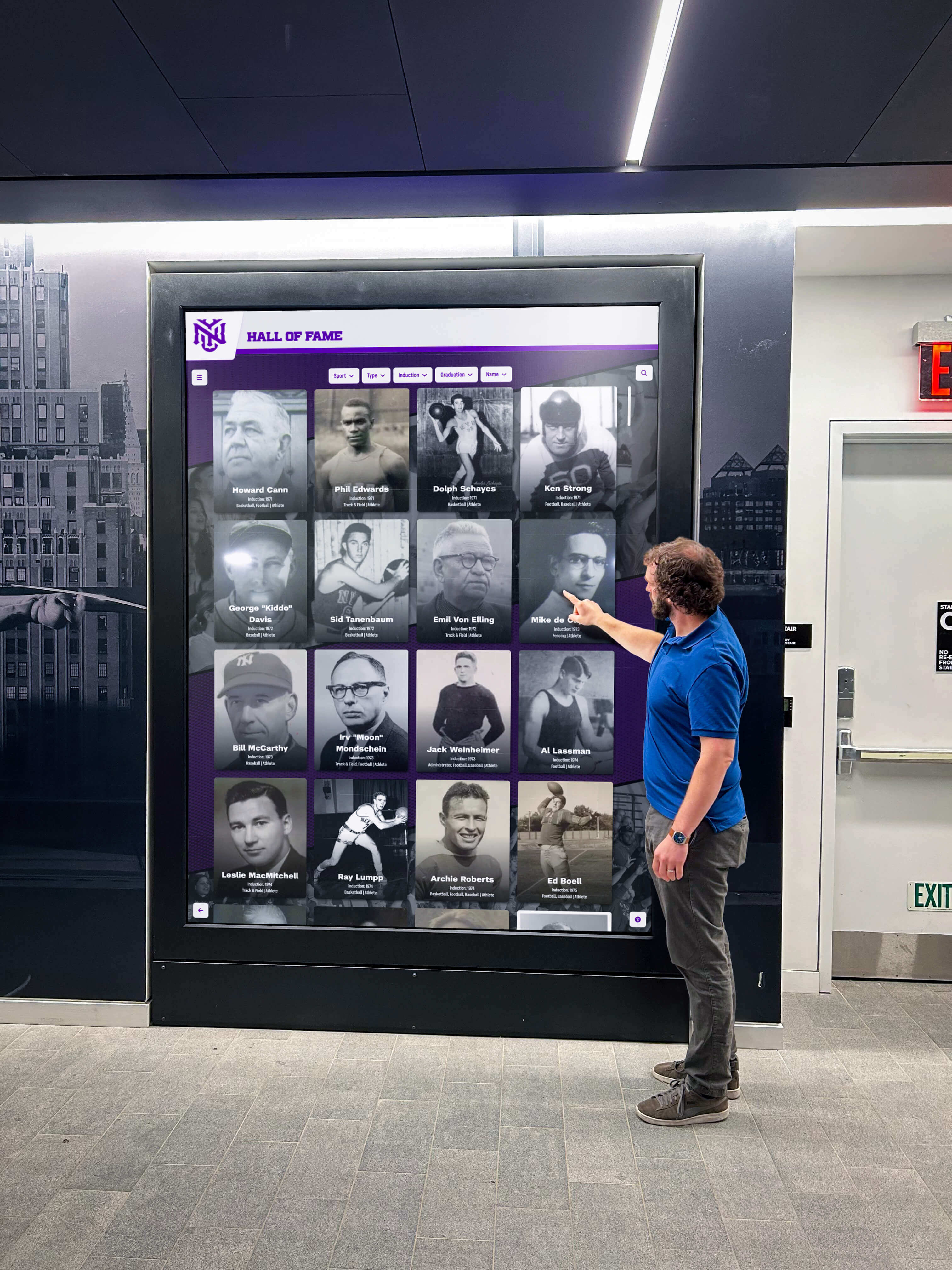
Comprehensive assessment of digital campus navigation systems provides frameworks for evaluating institutional wayfinding needs.
Technical Infrastructure Assessment
Verify infrastructure availability at proposed installation locations before finalizing placement decisions:
Electrical Power: Touchscreen displays typically require 120V standard outlets with dedicated 15-amp circuits. Document available power sources at proposed locations, distance from existing outlets to planned mounting positions, capacity of existing circuits to support additional load, and need for new electrical installations by licensed electricians.
Network Connectivity: Directory systems require reliable network access for content management, software updates, and remote monitoring. Assess available wired ethernet connections (preferred for reliability and bandwidth), WiFi coverage and signal strength at proposed locations, network security policies affecting kiosk connectivity, and IT department requirements for device authentication and network segmentation.
Physical Mounting Requirements: Evaluate wall construction (drywall, concrete block, brick, glass) affecting mounting hardware selection, available floor space for freestanding kiosks with adequate clearance, ceiling height considerations for vertical displays, and structural capacity for heavy commercial-grade displays (50-150 pounds depending on size and enclosure).
Environmental Conditions: Consider ambient lighting (bright sunlight, dim corridors) affecting screen brightness requirements, temperature ranges (especially near entrances or unconditioned spaces), humidity levels in various campus locations, and exposure to weather elements for outdoor or semi-outdoor installations.
Create site assessment checklist documenting these factors for each proposed directory location to inform accurate hardware specifications and installation budgeting.
Hardware Specification and Selection
Commercial-grade components designed for continuous public use deliver reliability that consumer products cannot match in demanding campus environments.
Commercial Touchscreen Display Requirements
Screen Size Selection:
- 32-43 inch displays work for single-building directories with limited content
- 49-55 inch screens suit multi-building campuses requiring split-screen layouts showing both search interface and map views simultaneously
- 65+ inch displays serve large gathering spaces or locations requiring visibility from distance
Brightness Specifications: Commercial displays rated 400-700 nits ensure readability in various lighting conditions including bright lobbies with extensive windows, dim corridors with limited natural light, and outdoor installations requiring maximum brightness. Consumer displays typically rated 200-350 nits become nearly unreadable in bright environments.
Touch Technology: Projected capacitive (PCAP) touchscreens provide responsive multi-touch support, durability withstanding heavy public use, accurate touch detection across entire screen surface, and immunity to surface scratches affecting resistive touch alternatives. Specify industrial-grade PCAP screens rated for millions of touch operations.
Continuous Operation Rating: Commercial displays designed for 24/7 operation include enhanced cooling systems, industrial-grade components rated for extended lifespans, and warranties covering continuous rather than intermittent use. Consumer displays operated continuously commonly fail within 12-18 months compared to 5-7 year commercial display lifespans.
Connectivity Options: Ensure displays include multiple HDMI inputs for media player connections, DisplayPort options for direct computer connections, USB ports for firmware updates and peripheral connections, and audio outputs if interactive features include sound.
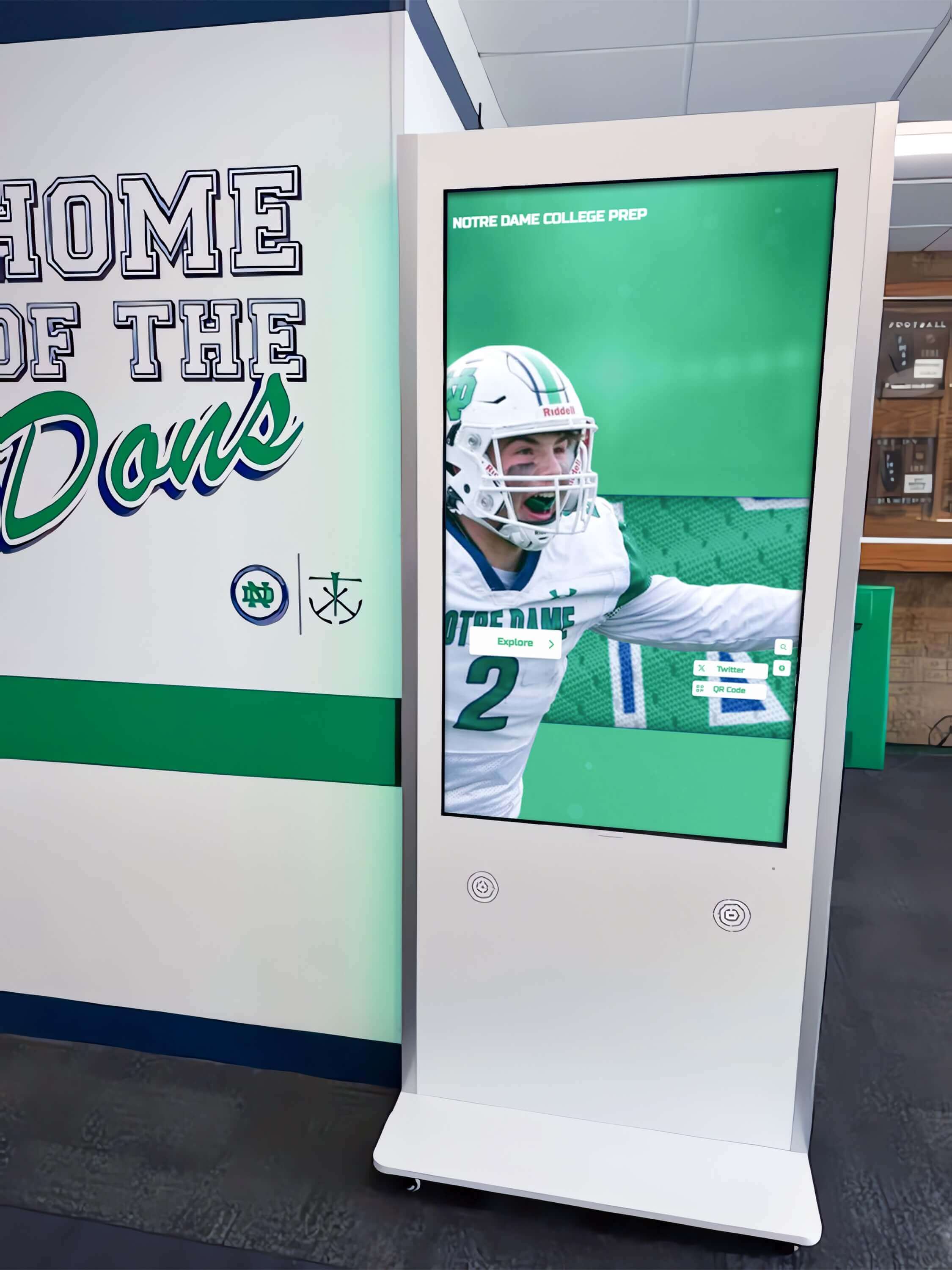
Guidance on selecting touchscreen hardware for educational settings addresses institution-specific requirements and budget considerations.
Computing Hardware and Media Players
Touchscreen displays require computing power to run directory software, process user interactions, and render interactive maps:
Embedded Computing Options: System-on-chip displays integrate computing directly into screen enclosures, eliminating separate media players while simplifying installation and reducing points of failure. Verify specifications include sufficient RAM (minimum 4GB, 8GB preferred), adequate storage (32GB minimum SSD), and current-generation processors (Intel i5 or ARM equivalent minimum).
External Media Player Specifications: Separate media players offer easier upgrades, better performance for demanding applications, and flexibility replacing computing components without replacing entire displays. Specify commercial-grade players including:
- Intel i5 or i7 processors (or ARM equivalent)
- 8-16GB RAM for smooth interface performance
- 128GB+ SSD storage
- Gigabit ethernet and WiFi connectivity
- Fanless passive cooling for silent operation
- VESA mounting brackets for installation behind displays
Operating System Considerations: Modern directory systems typically run on Windows 10/11 Pro, Linux distributions (Ubuntu, Android), or specialized digital signage operating systems. Coordinate with software vendors to ensure hardware meets operating system requirements while considering IT department preferences for standardization and support.
Kiosk Enclosures and Mounting Systems
Protect hardware from damage while creating professional installations matching institutional aesthetics:
Freestanding Kiosk Enclosures: Floor-mounted units include integrated displays, computing hardware, cable management, and weighted bases preventing tipping. Advantages include portability for relocation, no wall mounting requirements, and prominent visibility in open spaces. Disadvantages include larger footprint requiring more floor space, higher cost ($3,000-$8,000 depending on customization), and greater vulnerability to vandalism.
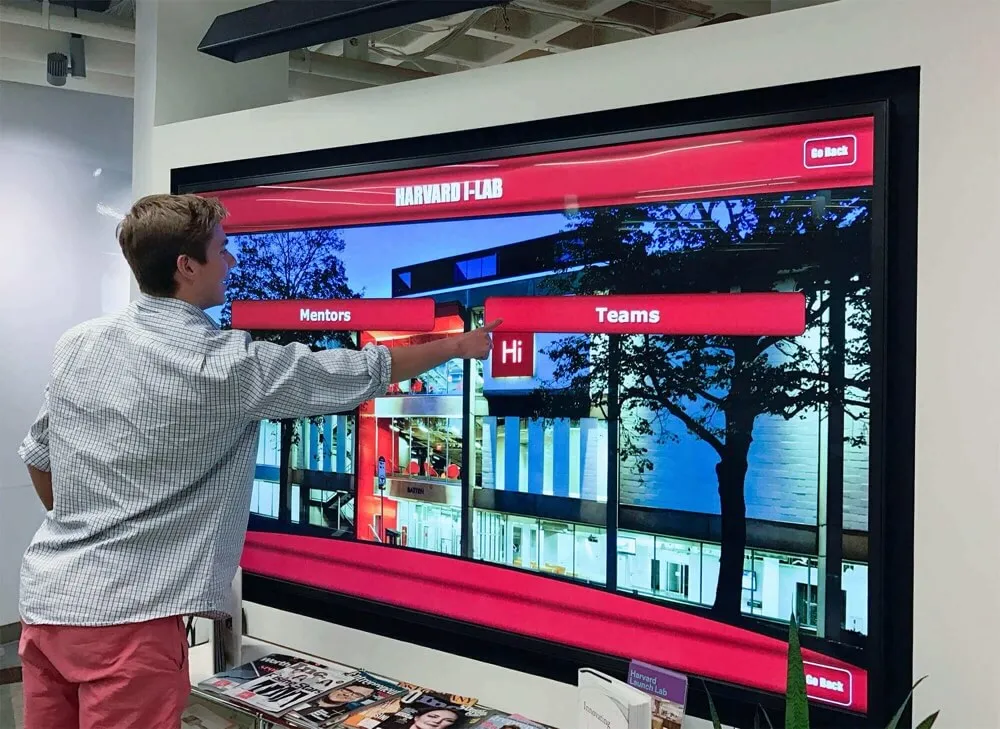
Wall-Mount Solutions: Direct wall mounting using commercial-grade brackets reduces footprint, costs less than freestanding kiosks ($1,500-$3,000), and provides security through elevated positioning. Requirements include sufficient wall structural capacity (often requiring mounting to studs or blocking), professional installation ensuring level mounting and cable concealment, and careful height selection balancing standing user ergonomics with ADA reach range compliance.
Desktop/Counter-Height Installations: Table-height mounting provides excellent accessibility for wheelchair users, comfortable interaction for extended sessions, and integration with reception desks or information counters. Best suited for staffed locations where supervision reduces vandalism concerns.
Outdoor-Rated Enclosures: Campus directories near building entrances or at outdoor wayfinding decision points require weatherproof enclosures rated IP65 minimum, integrated heating and cooling maintaining operating temperatures, anti-glare screens readable in direct sunlight, and vandal-resistant construction. Outdoor installations typically cost 2-3x indoor equivalents but provide wayfinding exactly where visitors need it most.
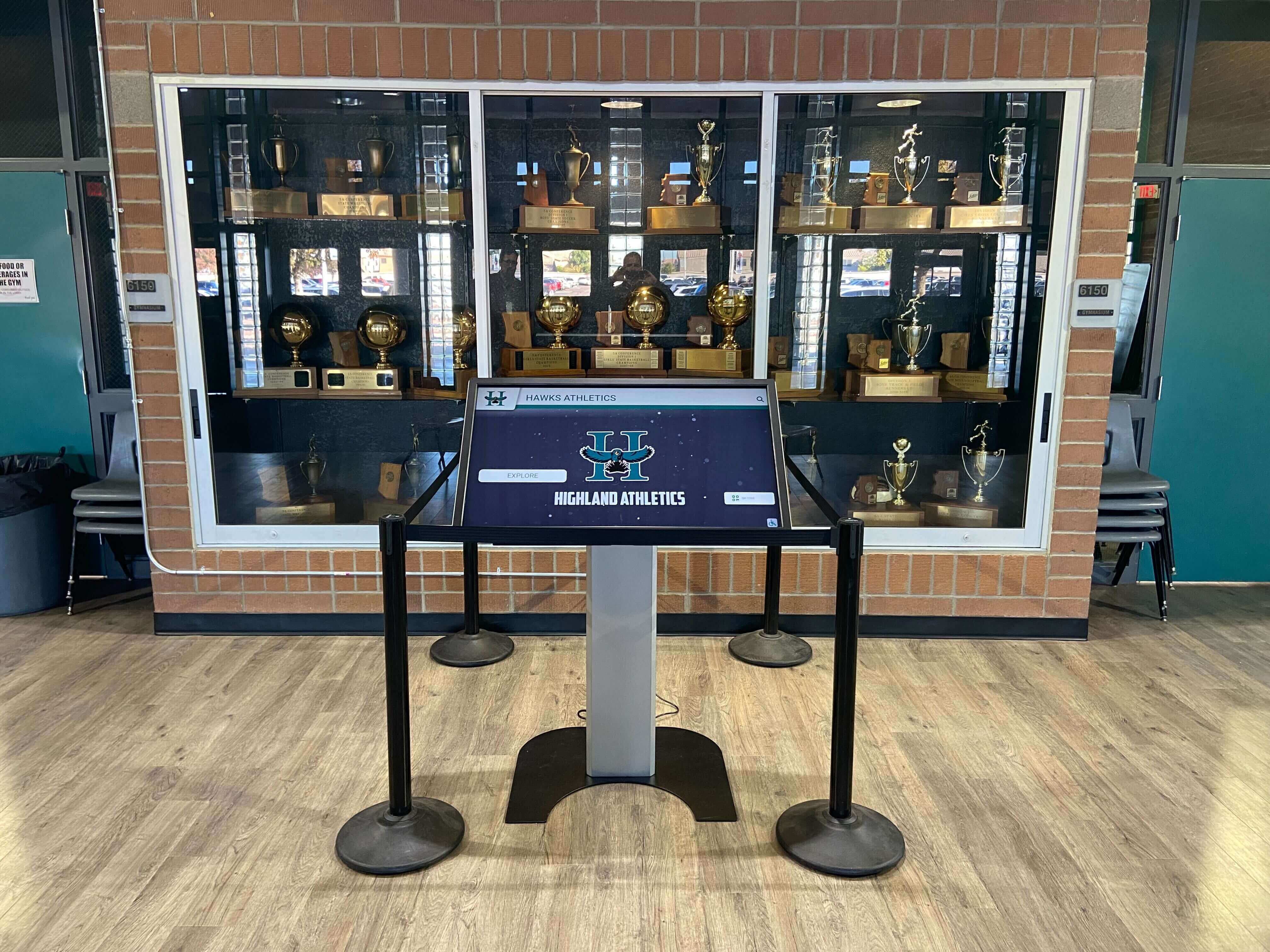
Budget templates for institutional touchscreen implementations demonstrate typical hardware cost ranges across installation types.
Software Platform Requirements and Selection
Hardware provides infrastructure, but software determines functionality, usability, and long-term maintenance requirements.
Core Directory Software Capabilities
Effective campus directory platforms must provide:
Comprehensive Search Functionality:
- People search by name (full, partial, nickname variations)
- Department and service search by official names and common terminology
- Building and room number search with flexible formatting
- Category-based browsing (Academic Departments, Student Services, Administrative Offices, Campus Facilities)
- Fuzzy matching accommodating misspellings and alternate terms
Interactive Visual Wayfinding:
- Detailed floor plans for all campus buildings with accurate room layouts
- “You Are Here” indicators providing spatial context
- Animated route visualization from current location to destinations
- Turn-by-turn directions with landmark references
- Distance and estimated walk time calculations
- Multi-floor navigation showing stairways and elevator connections
- Outdoor campus maps for multi-building route planning
Accessibility and Inclusive Design:
- Screen reader compatibility with proper semantic structure
- User-controlled text size adjustment and high-contrast modes
- Voice guidance providing audio instructions
- Multiple language support (minimum English + Spanish; add languages matching campus demographics)
- Keyboard navigation for users unable to use touchscreens
- ADA-compliant interface design meeting WCAG 2.1 AA standards
Content Management System:
- Cloud-based administration enabling updates from any location
- Role-based permissions for distributed content responsibility
- Bulk import/export supporting integration with existing databases
- Scheduled publishing for time-specific content changes
- Version control and audit trails tracking all modifications
- Multi-display management updating all campus installations simultaneously
Comprehensive reviews of interactive touchscreen software platforms compare capabilities across available solutions.
Integration with Campus Systems
Maximum value comes from directories that synchronize automatically with existing institutional databases:
Student Information System (SIS) Integration: Connect to registrar databases maintaining student enrollment, teaching assistant information, student organization leadership, and student employee contact details. Automated synchronization ensures directory accuracy without manual data entry as enrollments change.
Human Resources Database Connection: Link to HR systems or Active Directory/LDAP directories maintaining faculty and staff listings. Integration ensures personnel changes automatically update directory content as people join, leave, or change positions.
Facilities Management System: Integrate with room booking platforms, classroom scheduling systems, and space management databases. Real-time connection enables directories to display current room availability, scheduled classes, temporary room assignments, and maintenance-related closures.
Event Management Platforms: Automatically generate temporary wayfinding for conferences, orientations, special events, or campus visits based on event calendars without requiring manual directory updates for every event.
Emergency Notification Systems: Connection to campus alert systems enables instant display of emergency messages, evacuation instructions, shelter-in-place guidance, or safety information during crisis situations—transforming directories into critical communication infrastructure.
Work with software vendors and IT departments to document available APIs, authentication requirements, data mapping specifications, and update frequencies for each system integration.
Cloud-Based vs. On-Premises Deployment
Directory software architecture affects management, costs, and IT resource requirements:
Cloud-Based Systems (Recommended for Most Institutions):
- Advantages: Remote administration from any location, automatic software updates and security patches, minimal on-site IT infrastructure requirements, vendor-managed hosting and backup, scalability adding locations without server capacity planning
- Considerations: Requires reliable internet connectivity, ongoing subscription costs, potential data residency concerns for sensitive information
On-Premises Deployment:
- Advantages: Complete data control meeting strict privacy requirements, one-time licensing potentially lower long-term costs, independent of internet connectivity for basic operations
- Considerations: Requires dedicated server infrastructure, IT staff for maintenance and updates, manual software patching and security management, higher upfront investment
Most educational institutions find cloud-based solutions more cost-effective and manageable given typical IT resource constraints. Reserve on-premises consideration for institutions with exceptional privacy requirements, existing robust digital signage infrastructure, or specific IT policies prohibiting cloud services.
Strategic Placement Planning and Installation Design
Directory effectiveness depends critically on strategic placement ensuring users encounter systems exactly when they need wayfinding assistance.
High-Priority Location Identification
Implement directories first at locations delivering maximum impact:
Tier 1 - Essential Locations (Implement First):
Main Campus Entrances: Primary vehicular entry points where visitors first arrive on campus. Directory placement immediately after entry helps orient users before they become lost, establishes professional first impression, and intercepts navigation questions before visitors reach buildings.
Primary Building Lobbies: Main entrance lobbies of central administration buildings, student centers, libraries, and frequently-visited academic buildings. These high-traffic areas serve students seeking specific destinations daily while welcoming campus visitors.
Major Parking Structure Exits: Points where people exit parking facilities and begin walking to campus destinations. Directory placement here addresses navigation exactly when users need it—starting journeys from known parking locations to unfamiliar campus destinations.
Tier 2 - High-Value Locations (Implement Second):
Elevator Lobbies: Floor-by-floor installation in multi-story buildings helps users navigate horizontal hallways after vertical travel. Particularly valuable in buildings with complex floor plans or non-intuitive room numbering.
Building Interconnections: Junctions between connected buildings, tunnel entrances, skywalks, and other transition points where users might become disoriented moving between different building sections.
Student Service Centers: Admissions office lobbies, registrar building entrances, financial aid centers, career services buildings, and health centers serving students seeking specific administrative services.
Tier 3 - Comprehensive Coverage (Implement Third):
Secondary Building Entrances: Side and rear entrances providing alternative access to major buildings. Lower priority than main entrances but valuable for frequent users entering from different directions.
Academic Department Suites: Departmental office areas where students seek faculty office hours, academic advising, or department-specific services.
Outdoor Wayfinding Decision Points: Campus crossroads where multiple path options exist, particularly at locations where visitors might pause consulting phones or printed maps.
Phased implementation following this prioritization manages initial investment while building internal support based on demonstrated success at high-impact locations before expanding comprehensively.
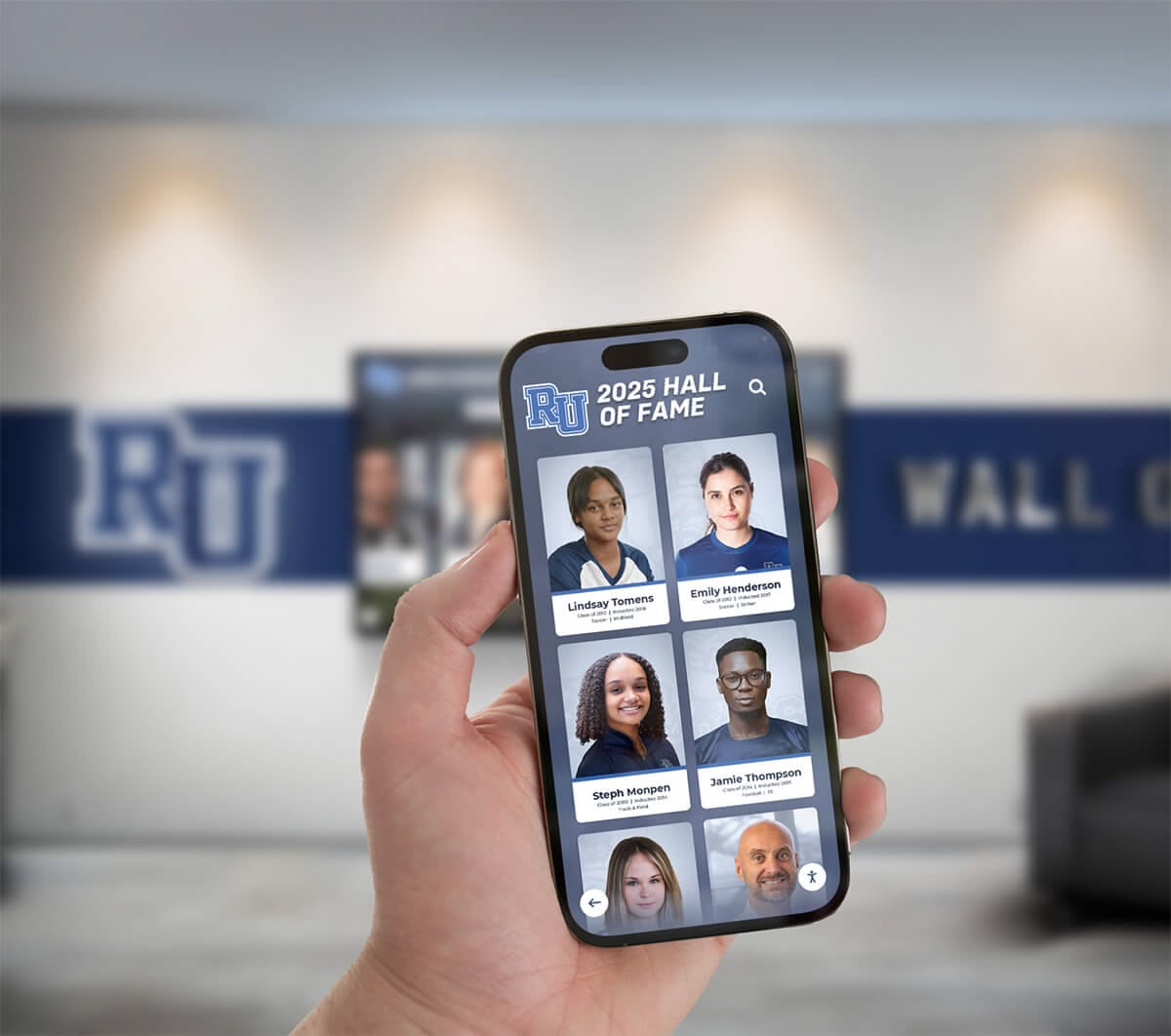
Resources on building directory wayfinding strategies demonstrate placement optimization across different facility types.
ADA Compliance and Accessible Installation
Federal regulations and inclusive design principles require directories serve all community members regardless of ability:
Physical Mounting Requirements (ADA Standards):
- Forward reach range: 15-48 inches above finished floor for operable parts
- Side reach range: 9-54 inches when approach clearance permits
- Clear floor space: Minimum 30 x 48 inches for wheelchair approach
- Knee and toe clearance: When forward approach required, provide space underneath for wheelchair users
- Protruding object limits: Wall-mounted objects above 27 inches may project 4 inches maximum; objects at 27 inches or below project 4 inches minimum
Optimal Mounting Height: Position touchscreen centers 40-42 inches above finished floor (AFF) balancing comfortable standing user interaction with seated wheelchair user reach while meeting ADA forward reach requirements.
Interface Accessibility Standards:
- Minimum text size 14pt, user-adjustable to 24pt+
- Color contrast ratios minimum 4.5:1 for normal text, 3:1 for large text (WCAG 2.1 AA)
- Touch targets minimum 44x44 pixels with adequate spacing
- No time-dependent interactions requiring rapid response
- Audio alternatives for visual information
- Consistent, logical navigation patterns
Work with campus accessibility services coordinator to verify compliant installation before finalizing mounting specifications. Consider professional accessibility audit reviewing both physical installation and software interface compliance.
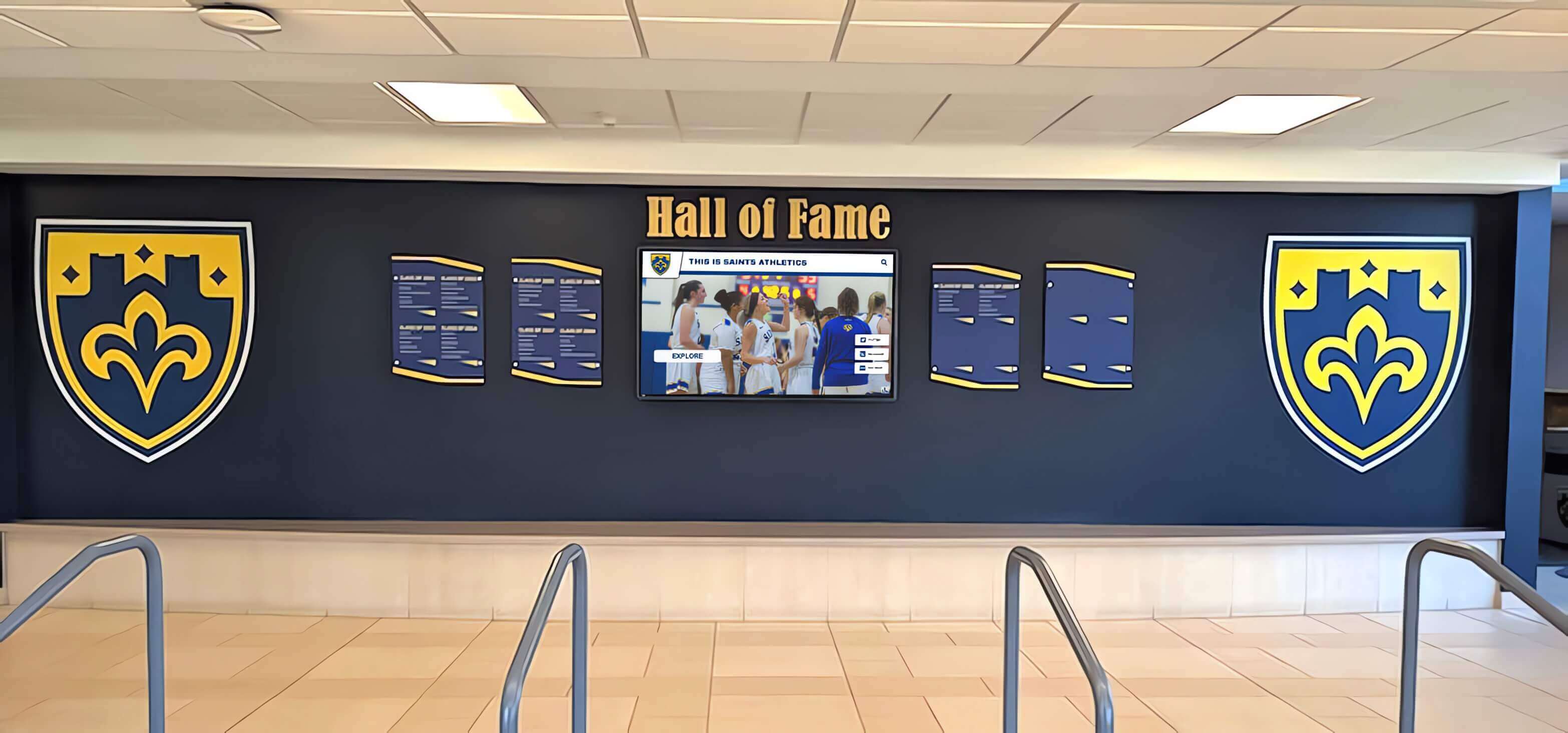
Network Infrastructure and Power Planning
Reliable infrastructure enables consistent directory operation without frustrating downtime:
Network Connection Approach:
Wired Ethernet (Preferred): Dedicated ethernet runs from network closets to directory locations provide most reliable connectivity, sufficient bandwidth for content updates and remote administration, better security than wireless alternatives, and immunity to WiFi congestion or interference. Budget $500-$2,000 per location for professional network cable installation if existing connectivity unavailable.
WiFi Connection: When wired installation impractical, verify adequate signal strength at proposed locations (-67 dBm or stronger for reliable operation), test actual throughput during peak usage periods, coordinate with IT for dedicated VLAN or network segment, and implement fallback procedures if connectivity lost.
Power Requirements:
- Typical consumption: 150-300 watts continuous operation (depending on display size)
- Electrical service: Standard 120V, 15-amp circuit
- Dedicated circuit recommended for multiple displays or high-traffic locations
- UPS backup optional for critical locations requiring operation during power interruptions
- Professional electrical installation required for new outlet installations
Cable Management: Specify in-wall conduit for concealed cable runs, surface-mounted raceway for exposed installations, adequate slack for service access, and proper cable dressing preventing pinching or strain.
Content Development and Organization Strategy
Directory effectiveness depends on comprehensive, well-organized content enabling users to find information efficiently through multiple search approaches.
Directory Structure Design
Organize information matching how diverse users think about campus resources:
Primary Category Organization:
- Academic Departments (by college, school, or alphabetically)
- Administrative Offices (organized by function: Finance, HR, Facilities, etc.)
- Student Services (Admissions, Financial Aid, Advising, Health Services, etc.)
- Campus Buildings (alphabetically with common names and numbers)
- Campus Amenities (Dining, Parking, Libraries, Recreation, etc.)
- Visitor Services (Tours, Parking, Information Desks, Restrooms)
Search Term Optimization: Include common variations, abbreviations, and alternate terminology users might search. Examples:
- “Registrar” + “Registration” + “Enrollment Services” + “Sign up for classes”
- “IT Help Desk” + “Computer Support” + “Tech Support” + “Technology Services”
- “Financial Aid” + “Scholarships” + “Student Financial Services” + “FAFSA Help”
Comprehensive search optimization ensures users find information regardless of terminology used, avoiding frustrating “no results” experiences that undermine directory utility.
Map Development and Visual Content Creation
Professional wayfinding requires clear, accurate visual representation translating architectural reality into intuitive navigation tools:
Floor Plan Development: Engage professional designers converting architectural drawings into visitor-friendly maps including simplified layouts showing major spaces without overwhelming detail, consistent symbology for stairways, elevators, restrooms, entrances, color coding for different building sections or departments, clear room number labels with appropriate text size, and landmark callouts identifying recognizable features.
Outdoor Campus Maps: Create overall campus views showing building relationships and walking paths, parking area locations color-coded by permit type, accessible routes between buildings, and points of interest (dining, recreation, libraries, gathering spaces).
Photography and Landmark Documentation: Photograph distinctive features referenced in wayfinding directions including building facades and entrances, prominent artwork or sculptures, recognizable gathering spaces, and departmental signage. Incorporate landmark photos into directions: “Turn right at large bronze eagle sculpture; destination is second door on left.”
Icon and Symbol Library: Develop consistent visual language using standard accessibility symbols, building type indicators (academic, administrative, residential, athletic), amenity markers (restrooms, dining, parking, accessible entrances), and directional arrows and indicators.
Budget $3,000-$10,000 for professional map development depending on campus complexity. While significant investment, quality maps dramatically improve wayfinding success rates justifying professional design over repurposing architectural plans.
Approaches demonstrated in campus digital display implementations show effective visual content strategies for institutional settings.
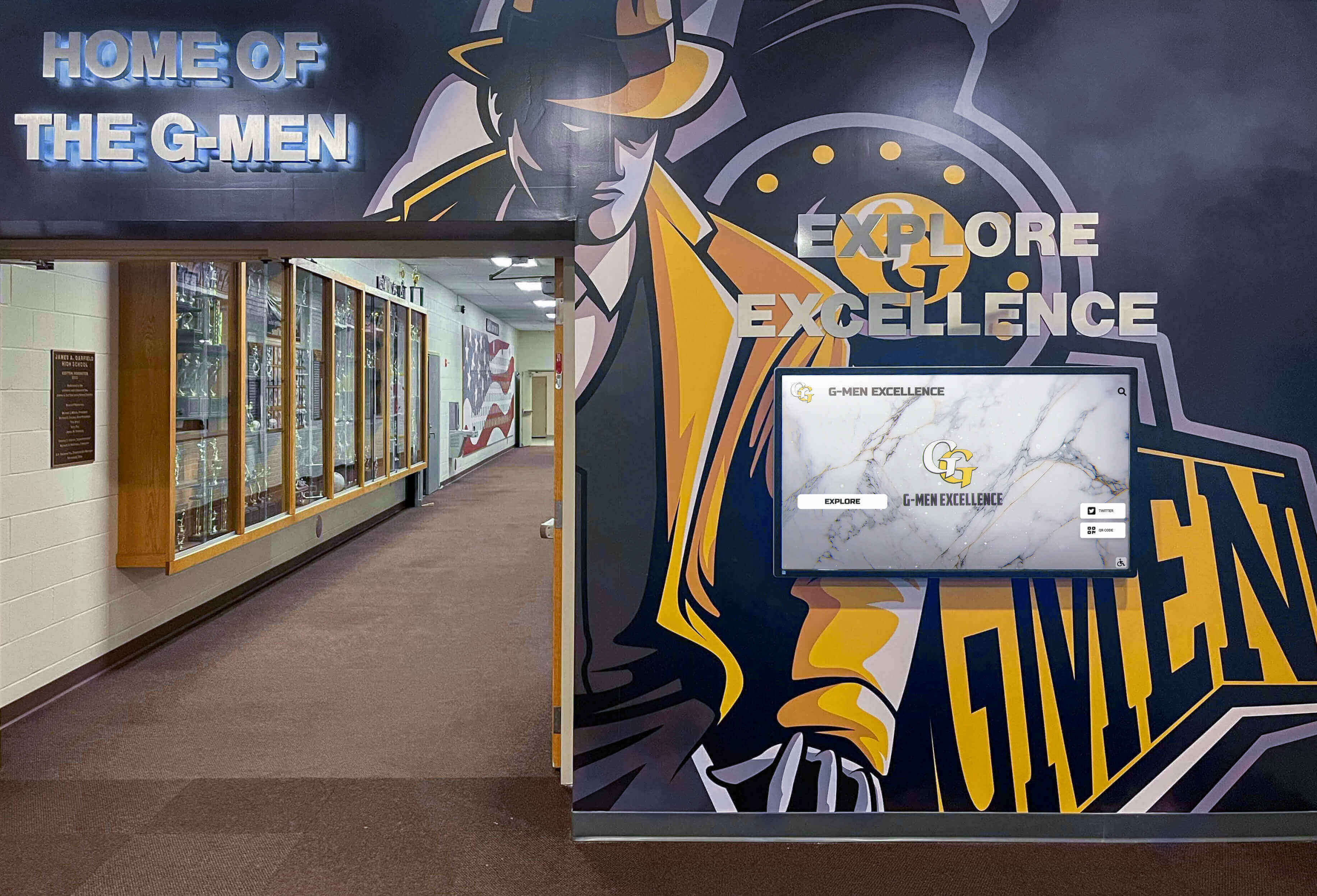
Budget Development and Cost Analysis
Comprehensive budget understanding enables accurate proposals, appropriate funding requests, and realistic timeline planning.
First-Year Implementation Costs
Hardware Components (per installation location):
- Commercial touchscreen display (43-55"): $2,500-$5,000
- Computing hardware/media player: $800-$2,000
- Kiosk enclosure or wall-mount system: $1,500-$4,000
- Outdoor-rated enclosure (if applicable): $5,000-$10,000
Infrastructure Installation (per location):
- Network cable installation (if required): $500-$2,000
- Electrical outlet installation (if required): $400-$1,200
- Professional mounting and installation: $800-$2,500
- Cable management and finishing: $200-$800
Software and Content (typically campus-wide, not per-display):
- Software licensing (first year often included): $2,000-$8,000
- Initial content development: $3,000-$10,000
- System integration services: $2,000-$10,000
- Map development and design: $3,000-$10,000
Training and Documentation:
- Staff training sessions: $1,000-$3,000
- Documentation and user guides: $500-$1,500
Typical Single-Location Total: $12,000-$28,000 first year depending on hardware selections, infrastructure needs, and customization requirements.
Typical Three-Location Total: $25,000-$65,000 first year (infrastructure costs reduced for subsequent installations; software/content costs campus-wide rather than per-display).
Ongoing Annual Operating Costs
Software and Support (campus-wide):
- Software licensing and platform fees: $2,000-$8,000 annually
- Technical support and maintenance agreements: $1,500-$4,000 annually
- Content hosting and cloud services: Included in most platform fees
Content Maintenance:
- Staff time for updates (typically 2-5 hours monthly): $2,000-$6,000 annually
- Periodic map updates for facility changes: $500-$2,000 annually
- Photography and content refresh: $500-$1,500 annually
Hardware Maintenance:
- Cleaning and minor repairs: $200-$500 per display annually
- Replacement parts and consumables: $100-$300 per display annually
Typical Annual Operating Costs: $6,000-$20,000 campus-wide depending on installation scale and staff resource allocation.
Return on Investment Calculation
Campus directory systems deliver value through multiple channels justifying initial investment:
Staff Time Savings: Calculate hours receptionists, department secretaries, and student service staff currently spend answering directional questions. Multiply by loaded hourly rate (typically $25-$45 including benefits). Most campuses implementing directories report 40-60% reduction in directional questions representing 10-25 hours weekly across multiple staff members—equivalent to $15,000-$45,000 annually.
Improved Visitor Experience: While harder to quantify directly, navigation ease influences prospective student enrollment decisions, alumni engagement during campus visits, event attendee satisfaction, and overall institutional reputation measured through satisfaction surveys.
Accessibility Compliance: Proper directory implementation helps meet ADA requirements, potentially avoiding complaints, legal issues, or remediation costs non-compliant facilities face.
Multi-Purpose Value: When directory infrastructure serves additional functions like campus recognition displays or emergency communication, compounding value across multiple objectives accelerates return on investment.
Most educational institutions find staff efficiency gains alone justify directory implementation within 2-3 years while additional benefits deliver value throughout 7-10 year hardware lifecycles.
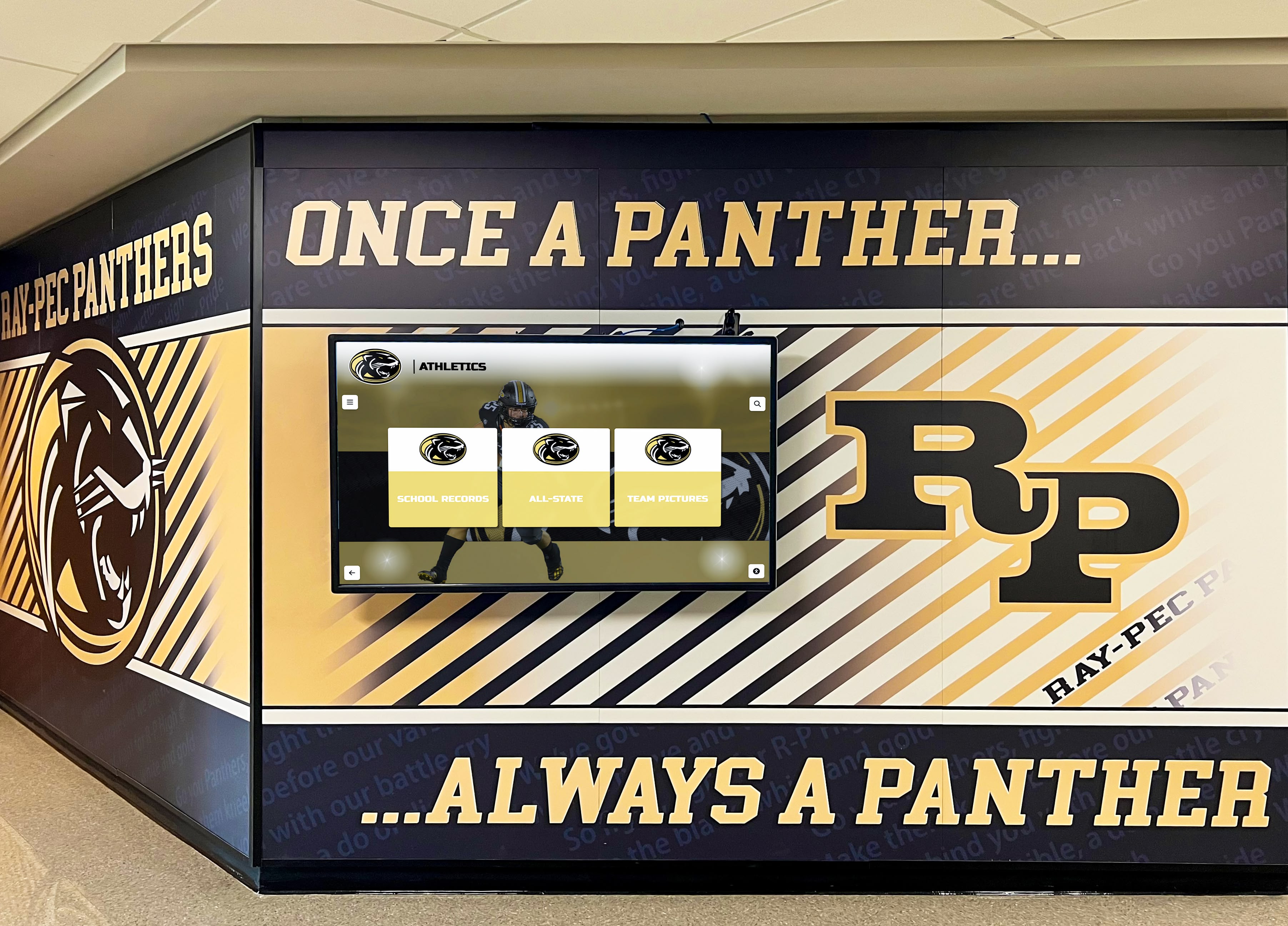
Installation Process and Project Timeline
Systematic project management ensures successful implementation meeting deadlines and budget expectations.
Phase 1: Planning and Preparation (4-6 Weeks)
Weeks 1-2: Stakeholder meetings, requirements gathering, campus audit, preliminary location identification, budget development, and internal proposal preparation.
Weeks 3-4: Software and hardware vendor research, proposal requests, product demonstrations, reference checks with similar institutions, and preliminary selections.
Weeks 5-6: Final vendor selection, contract negotiations, detailed site surveys with vendors, infrastructure assessment, and project timeline finalization.
Deliverables: Signed contracts, approved budget, identified installation locations, preliminary content structure, and project implementation plan.
Phase 2: Infrastructure and Content Preparation (6-8 Weeks)
Weeks 1-3: Network cable installation (if required), electrical outlet installation (if required), structural mounting preparation, and IT network configuration.
Weeks 4-6: Directory content collection and organization, map development by designers, photography of campus landmarks, search term optimization, and software customization.
Weeks 7-8: Content population in management system, internal review and approval, multilingual translation (if applicable), and accessibility testing.
Deliverables: Completed infrastructure installations, fully populated directory database, approved visual content, and configured software ready for deployment.
Phase 3: Hardware Installation and Configuration (2-3 Weeks)
Week 1: Hardware delivery and receiving inspection, display mounting and enclosure installation, computing hardware installation and connection, and cable management completion.
Week 2: Software installation and configuration, network connectivity testing, content synchronization to displays, and functionality verification.
Week 3: Comprehensive testing including all search functions, wayfinding accuracy, accessibility features, content management workflows, and system integration verification.
Deliverables: Fully operational directory installations passing all acceptance criteria.
Phase 4: Training and Launch (2-3 Weeks)
Week 1: Staff training sessions for content administrators, IT support training, creation of documentation and procedures, and soft launch for internal testing.
Week 2: Campus communications announcing new directories, directional signage installation pointing to directories, promotional materials and demonstrations, and feedback collection mechanisms.
Week 3: Public launch, user monitoring and support, issue tracking and resolution, and initial usage analytics collection.
Deliverables: Trained staff, operational support procedures, launched campus communication, and baseline usage metrics.
Total Project Timeline
Minimum Implementation: 14-20 weeks from project initiation to public launch Typical Implementation: 16-24 weeks allowing buffer for procurement delays, infrastructure complications, or content development iterations Complex Multi-Building Campuses: 24-32 weeks for comprehensive deployments across large institutions
Plan project timelines avoiding academic peak periods (first weeks of semester, finals, graduation) when staff availability limited and campus disruption should be minimized.
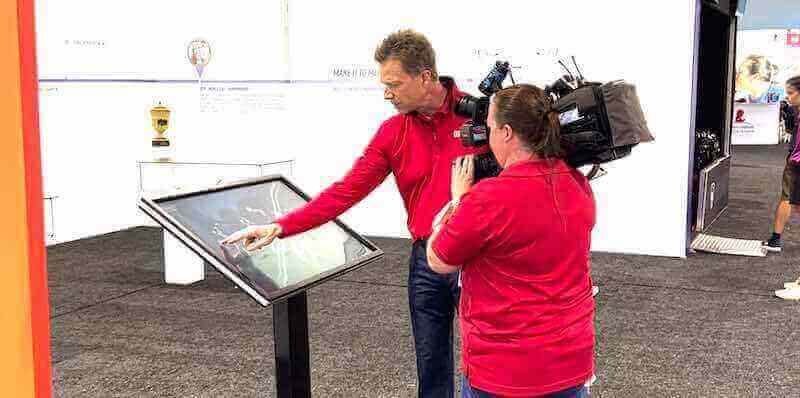
Content Management and Maintenance Strategies
Sustained directory value requires establishing clear governance, update procedures, and quality assurance processes from implementation start.
Assigning Content Responsibility
Centralized Coordinator (Recommended): Designate single staff member overseeing overall directory accuracy, processing update requests from departments, managing content quality standards, coordinating with software vendor for technical support, and tracking usage analytics for optimization. Typical assignment to facilities management, campus operations, communications office, or IT department depending on institutional structure.
Distributed Responsibility: Empower departments to update their own information within centralized platform using role-based permissions. Facilities updates room assignments; HR maintains personnel listings; academic affairs manages course schedules; student services updates office locations. Advantages include distributed workload, faster updates by people closest to information, and reduced central bottleneck. Requires clear governance preventing inconsistent formatting or quality.
Hybrid Model: Central coordinator maintains platform administration, map accuracy, system configuration, and top-level navigation while granting specific departments permission to update their own personnel listings, department descriptions, and specialized content within established templates.
Establishing Update Workflows
Routine Semester Updates: Schedule comprehensive review and update before each academic term ensuring faculty office changes reflected, course room assignments updated, new hire additions completed, departure removals processed, and organizational changes incorporated. Block 15-25 hours for thorough semester transition updates depending on campus size.
Ongoing Change Management: Implement simple request system enabling anyone to report outdated information including web-based form, dedicated email address, or direct notification through directory interface. Process routine changes within 48 hours maintaining user trust in directory accuracy.
Emergency Updates: Establish procedures for urgent changes requiring immediate implementation including facility closures, emergency construction detours, service disruptions, or safety information. Ensure multiple staff members have administrative access preventing single-point dependency.
Verification and Quality Assurance: Schedule quarterly audit spot-checking directory accuracy through random searches, comparing directory information against authoritative sources, testing wayfinding directions by actually following routes, and verifying accessibility features function properly.
Integration Maintenance
Automated synchronization with campus databases requires ongoing monitoring ensuring connections remain functional:
Regular Sync Verification: Weekly checks confirming HR database changes appear in directory, room booking updates reflect in availability displays, and event calendar integration provides current information.
Error Monitoring: Review system logs identifying failed synchronization attempts, data mapping errors, authentication failures, or API connectivity issues.
Scheduled Maintenance Windows: Coordinate with IT and database administrators regarding planned maintenance affecting integrations, software updates requiring temporary sync suspension, or system upgrades impacting data exchange formats.
Documentation Updates: Maintain current documentation of integration configurations, authentication credentials, contact information for system administrators, and troubleshooting procedures for common issues.
Examples of successful institutional touchscreen content management demonstrate governance strategies maintaining accuracy over multi-year deployments.
Accessibility Implementation Checklist
Ensuring inclusive directory access requires addressing both physical installation and digital interface accessibility throughout implementation.
Physical Accessibility Requirements
□ Mounting Height: Touchscreen center 40-42 inches AFF meeting ADA forward reach range (15-48")
□ Clear Floor Space: Minimum 30" x 48" wheelchair approach zone with proper surface (no gravel, grass, or unstable surfaces)
□ Knee Clearance (if required by approach configuration): 27" minimum height, 8" minimum depth at 9" above floor
□ Protruding Objects: Wall-mounted displays above 27" project maximum 4"; below 27" project minimum 4" (detectable by cane sweep)
□ Approach Angle: Parallel or perpendicular approach without requiring awkward turning or reaching
□ Pathway to Directory: Accessible route from building entrances, parking areas, and other directories meeting slope requirements (maximum 1:12), minimum 36" width, and firm, stable, slip-resistant surface
□ Tactile Warnings (if required by location): Detectable warnings at changes in elevation or hazardous approach conditions
Digital Interface Accessibility
□ Screen Reader Compatibility: Proper HTML semantic structure, comprehensive alternative text for images and icons, logical reading order, and ARIA labels for interactive elements
□ Keyboard Navigation: All functions operable via keyboard without requiring mouse/touch, visible focus indicators, logical tab order, and documented keyboard shortcuts
□ Text Scaling: Interface remains functional at 200% zoom, text reflows without horizontal scrolling, and no information lost at increased sizes
□ Color Contrast: Minimum 4.5:1 for normal text, 3:1 for large text (18pt+ regular or 14pt+ bold), and 3:1 for UI components and graphical objects
□ Alternative Color Schemes: High-contrast mode option, no information conveyed by color alone, and customizable color preferences where feasible
□ Audio Alternatives: Voice guidance available for key functions, verbal route directions option, and volume control accessible to users
□ Time Limits: No time-dependent actions requiring rapid response, adequate time for reading and interaction, and easy session extension options
□ Language Options: Interface available in relevant campus languages (English, Spanish, other languages matching demographics), and obvious language selection mechanism
□ Error Identification: Clear error messages, suggestions for correction, and accessible error notification not relying solely on color
Resources from accessibility-focused digital display implementations provide detailed compliance verification procedures.
Accessibility Testing Protocol
Automated Testing: Use WAVE, aXe, or similar tools scanning for common WCAG violations, color contrast issues, missing alternative text, and structural problems.
Manual Testing: Navigate entire interface using keyboard only, test with actual screen reader software (NVDA, JAWS, VoiceOver), verify all functionality accessible without mouse, and confirm logical reading order and navigation flow.
User Testing: Engage campus accessibility services coordinating testing with users with disabilities, gathering feedback on actual usability beyond technical compliance, and identifying improvements automated testing misses.
Documentation: Maintain accessibility conformance report (VPAT), document known limitations with planned remediation, and provide contact for accessibility concerns and accommodation requests.
Vendor Selection Criteria
Choosing the right platform and partner determines long-term satisfaction, operational ease, and sustained value from directory investment.
Essential Vendor Qualifications
Proven Educational Sector Experience: Request references from similar institutions (size, complexity, public/private sector), review case studies demonstrating relevant expertise, verify understanding of educational institution needs versus generic commercial applications, and assess familiarity with common campus systems requiring integration.
Software Capability Verification: Hands-on demonstration of both visitor-facing interface and administrative content management, testing search functionality with realistic scenarios, evaluating map visualization quality and wayfinding clarity, reviewing accessibility features against WCAG requirements, and assessing customization options for institutional branding.
Integration Support: Documentation of available APIs and integration protocols, proven connections to common campus systems (Banner, PeopleSoft, Workday, etc.), references confirming successful integration implementations, and technical resources available for integration support.
Support and Training Quality: Included training scope and delivery method, ongoing support structure (help desk, email, phone), typical response times for issues, availability of documentation and self-service resources, and software update frequency and deployment method.
Financial Stability and Longevity: Years in business and client retention rates, financial backing ensuring ongoing operations, product roadmap demonstrating continued development, and escrow arrangements for source code access if vendor acquired or fails.
Pricing Transparency: Clear pricing for all components (hardware, software, support), understanding of ongoing annual costs beyond first year, no hidden fees for reasonable use levels, and flexible options accommodating phased implementation.
Reference Check Questions
When contacting vendor references from other educational institutions, ask:
- How long have you used this directory system? Overall satisfaction?
- Did implementation meet timeline and budget expectations? Unexpected costs?
- How intuitive is content management? Can non-technical staff update information?
- How responsive is vendor support? Typical issue resolution time?
- How reliable is the system? Frequency of technical problems?
- Do students and visitors actually use the directories? Usage rates?
- Would you select this vendor again knowing what you know now?
- Any advice for new implementations or features you wish you’d specified initially?
Solutions like Rocket Alumni Solutions specialize in educational institution touchscreen implementations, providing platforms specifically designed for schools and universities with proven campus directory capabilities, intuitive content management, and support understanding institutional needs.
Common Implementation Challenges and Solutions
Understanding typical obstacles enables proactive prevention or rapid response when issues emerge during implementation.
Challenge: IT Security Approval Delays
Campus IT departments appropriately scrutinize network-connected devices, but security reviews sometimes delay projects when concerns arise regarding network segmentation, data security, patch management, or potential vulnerabilities.
Prevention Strategies:
- Involve IT from project initiation rather than after vendor selection
- Request vendor security documentation early (architecture diagrams, penetration test results, compliance certifications)
- Propose network isolation strategies (dedicated VLAN, firewall rules limiting external access)
- Identify comparable approved systems already on campus network
- Allow adequate timeline for security review process (add 3-4 weeks)
Resolution Approaches:
- Schedule technical meetings between vendor and campus IT
- Offer pilot installation for security testing before broader deployment
- Implement additional security controls IT requests (VPN access, enhanced logging, regular patching schedule)
Challenge: Content Development Underestimation
Institutions often underestimate time and effort required for comprehensive directory content collection, map development, photography, and data organization—leading to delayed launches or incomplete initial deployments.
Prevention Strategies:
- Start content collection during vendor selection process before hardware procurement
- Assign dedicated resources (staff time or budget for contractor)
- Use database exports reducing manual data entry
- Prioritize essential content for initial launch; add supplementary information iteratively
- Schedule content development milestones reviewing progress preventing last-minute rushes
Resolution Approaches:
- Launch with partial content at high-priority locations while completing remaining facilities
- Hire temporary help or student workers for data entry and verification
- Request vendor content development services if available
- Simplify initial scope focusing on most-requested destinations
Challenge: Adoption and Usage
Some institutions find directories underutilized initially as visitors default to asking staff rather than exploring self-service tools—requiring conscious promotion encouraging directory use.
Solution Strategies:
- Install clear directional signage pointing toward nearby directories
- Train front-line staff (receptionists, security, information desk) encouraging directory use rather than immediately providing verbal directions
- Include directory locations and QR codes in orientation materials, campus maps, and visitor information
- Promote directories through campus communications, social media, and new student orientation
- Position directories where users naturally encounter them when seeking directions (near entrances, elevator lobbies)
- Design interfaces so intuitive that first-time users succeed without instruction or hesitation
Challenge: Maintenance Sustainability
Initial enthusiasm sometimes fades as staff responsible for updates face competing priorities, leading to outdated information undermining directory credibility.
Solution Strategies:
- Build content updates into routine workflows (semester start procedures, HR onboarding/offboarding, facilities management work orders)
- Automate updates through system integration wherever possible
- Distribute responsibility across departments rather than concentrating on single person
- Include directory accuracy in relevant performance evaluations or job descriptions
- Schedule recurring calendar reminders for periodic verification and updates
- Track analytics identifying popular searches informing content prioritization
Advanced Features and Future Capabilities
Understanding emerging capabilities helps specify forward-looking systems that remain relevant as technology evolves.
Mobile Integration and Personal Device Continuity
QR Code Handoff: Users beginning navigation on physical directory touchscreens can scan QR codes to transfer directions to personal smartphones, continuing guidance while walking to destinations without memorizing complex routes.
Mobile Web App Synchronization: Companion mobile-responsive websites or progressive web apps provide identical directory content and search capabilities on personal devices, enabling pre-visit planning, portable wayfinding during campus navigation, and post-visit reference.
Indoor Positioning Integration: Bluetooth beacon networks or WiFi positioning systems enable mobile apps to determine user location within buildings, providing turn-by-turn navigation that updates in real-time as users move—smartphone navigation experience brought indoors.
Augmented Reality Wayfinding: Smartphone cameras overlay directional arrows, virtual signs, or path highlights onto real-world views through screens, creating intuitive visual guidance requiring minimal interpretation compared to abstract maps.
Artificial Intelligence and Personalization
Natural Language Processing: Conversational interfaces understanding requests like “Where can I get my student ID?” or “Show me available study rooms” rather than requiring users to know specific department names or search syntax.
Predictive Suggestions: Machine learning algorithms analyzing usage patterns predict likely destinations based on user location, time of day, or common traffic flows—proactively offering relevant suggestions reducing search time.
Intelligent Route Calculation: AI-powered routing considering accessibility needs, elevator availability, construction zones, current weather conditions, building hours, or other dynamic factors affecting optimal path selection beyond simple distance calculation.
Voice-Activated Search: Hands-free directory queries and navigation instructions addressing hygiene concerns while improving accessibility for users with mobility challenges preventing touch interaction.
Multi-Purpose Platform Integration
Forward-thinking institutions recognize directory infrastructure as platforms serving diverse communication and engagement needs beyond wayfinding:
Emergency Communication: Instant override displaying emergency alerts, evacuation instructions, shelter-in-place guidance, or critical safety information reaching people throughout campus during urgent situations.
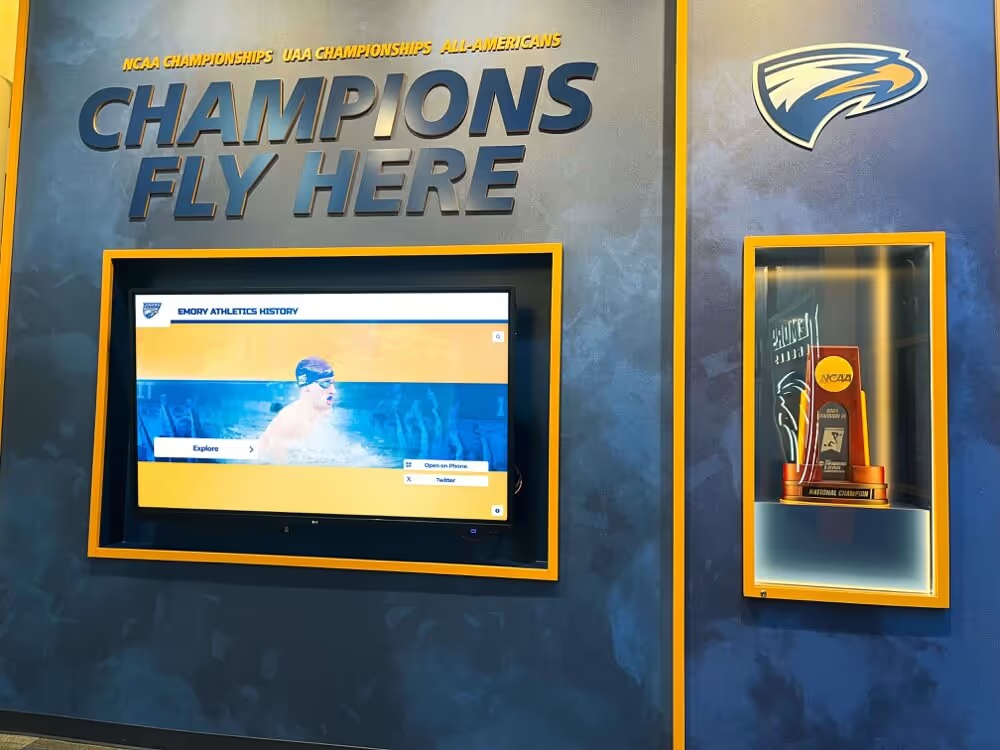
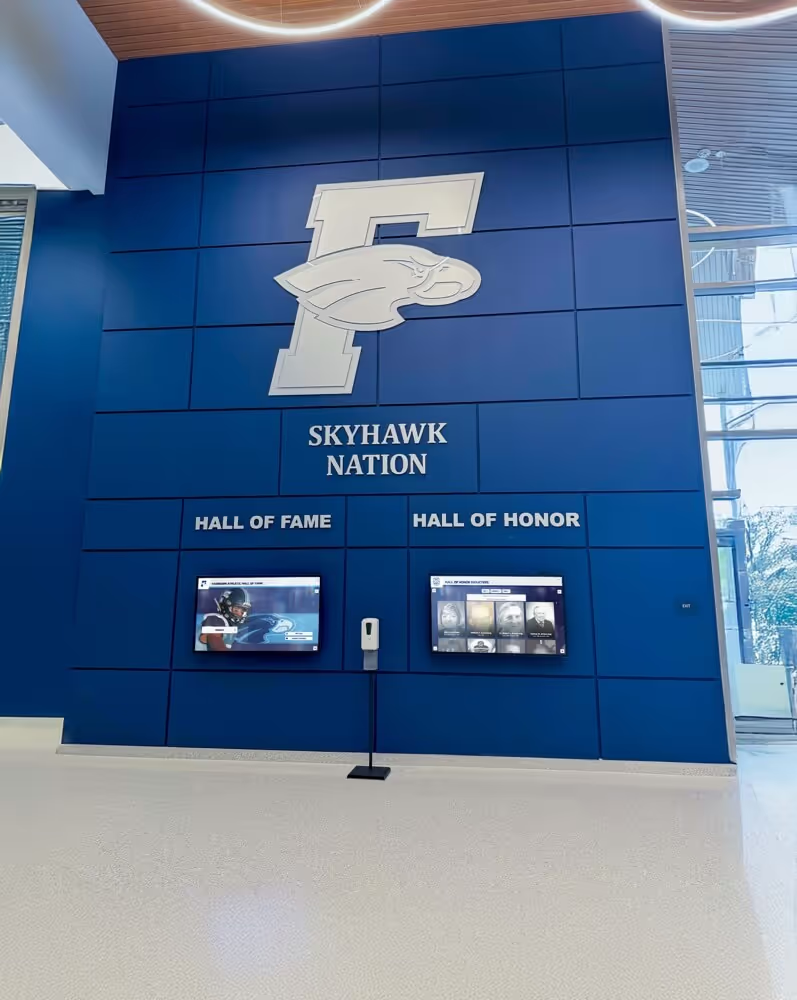
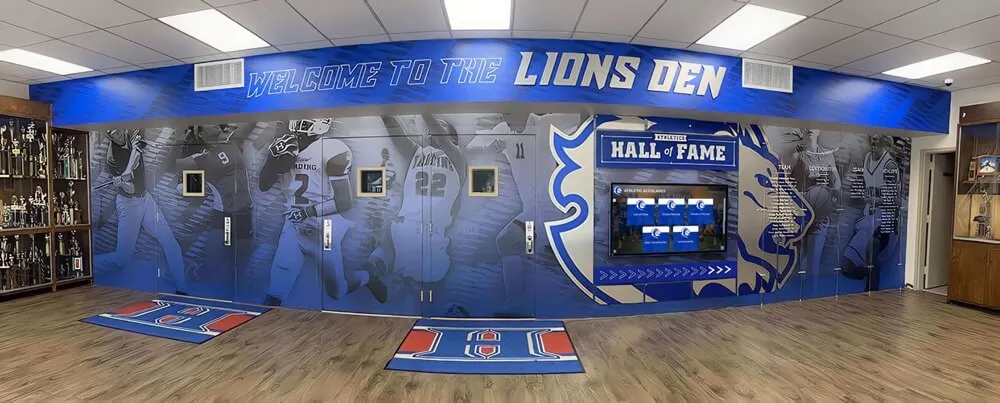
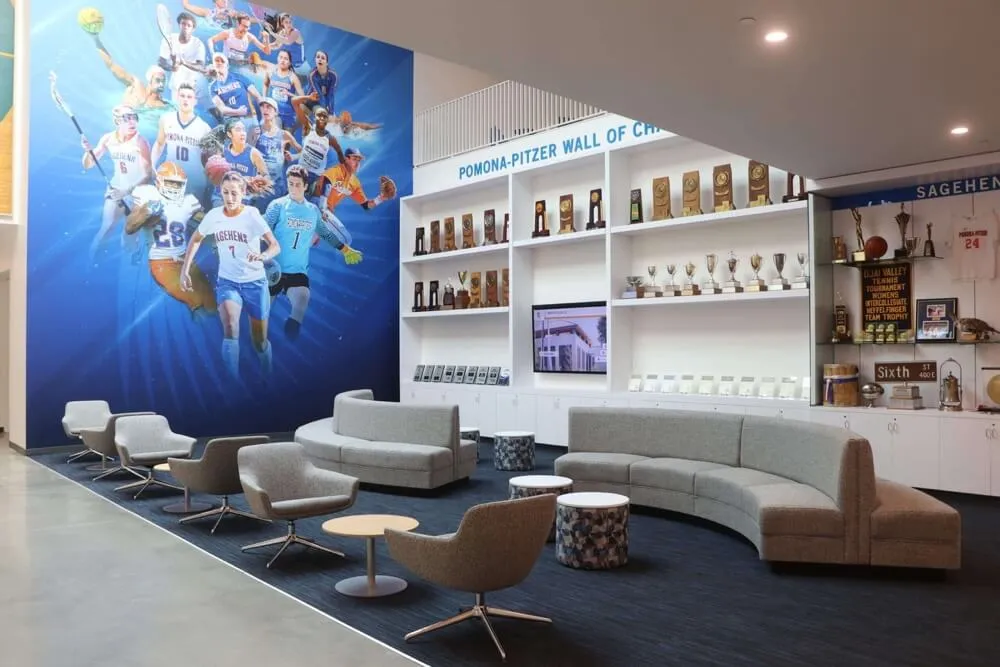
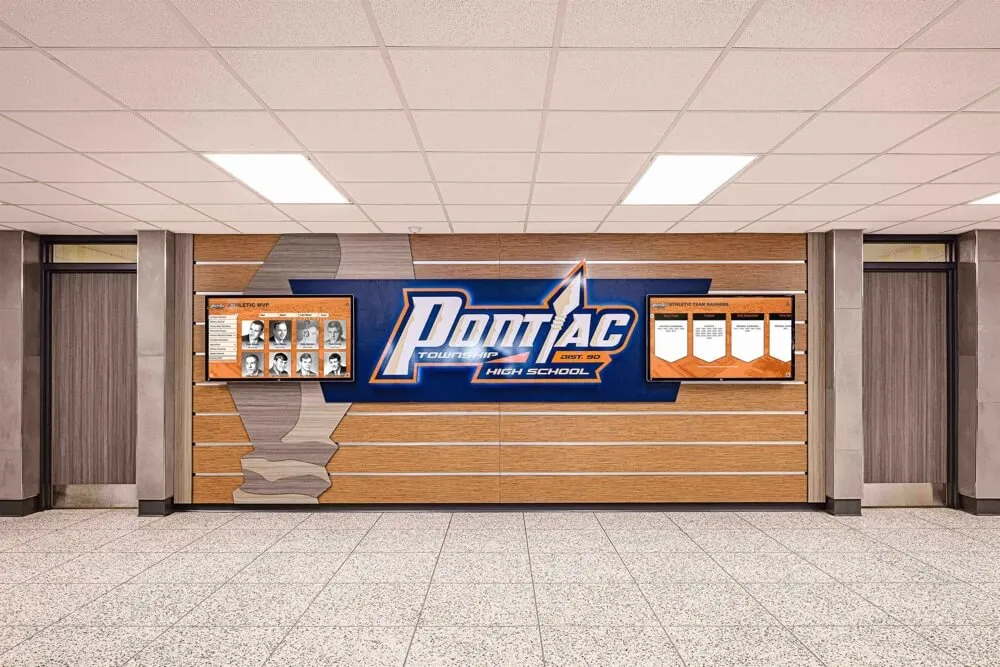
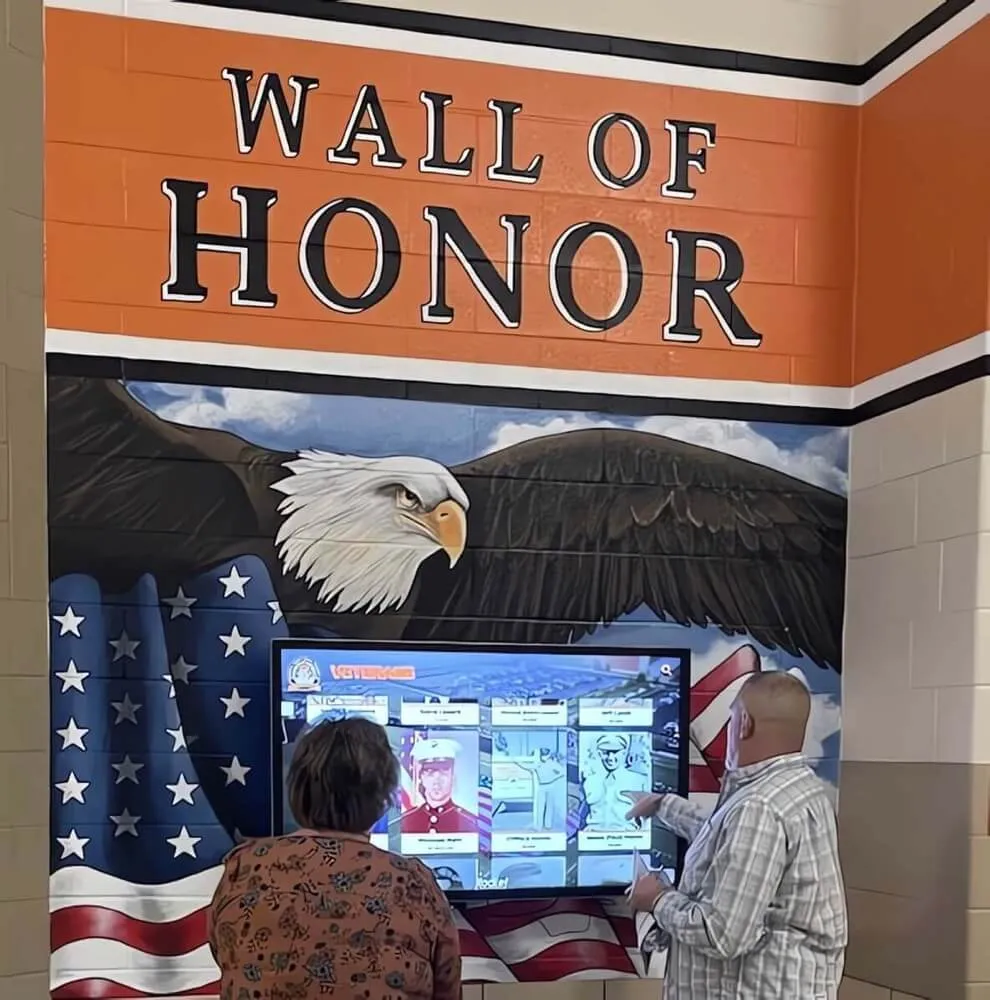
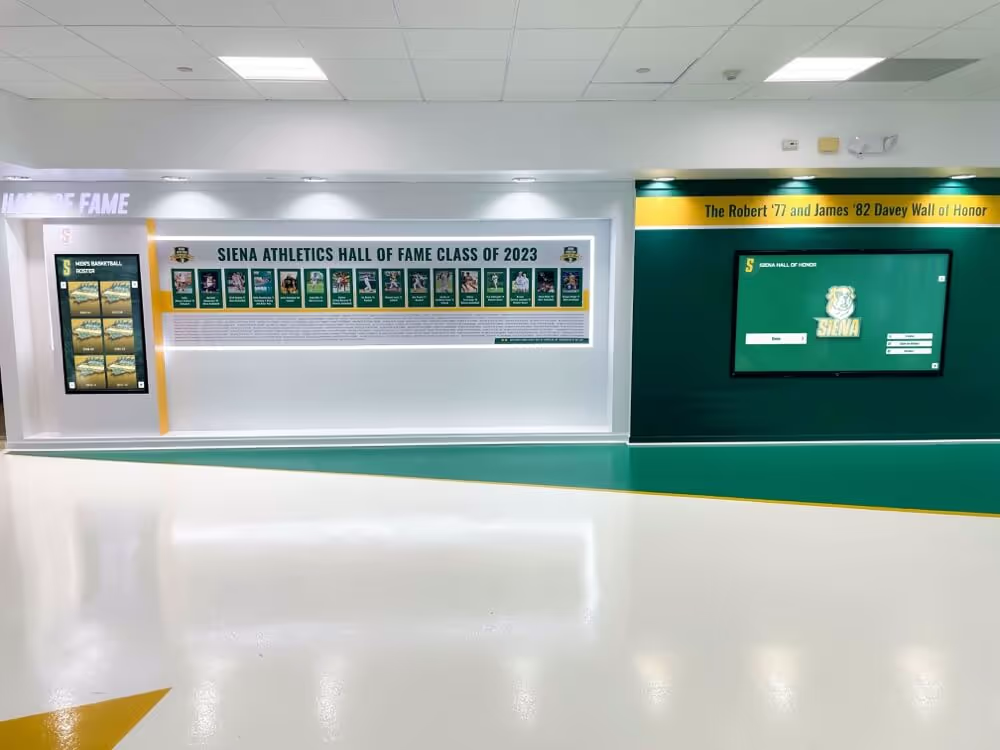
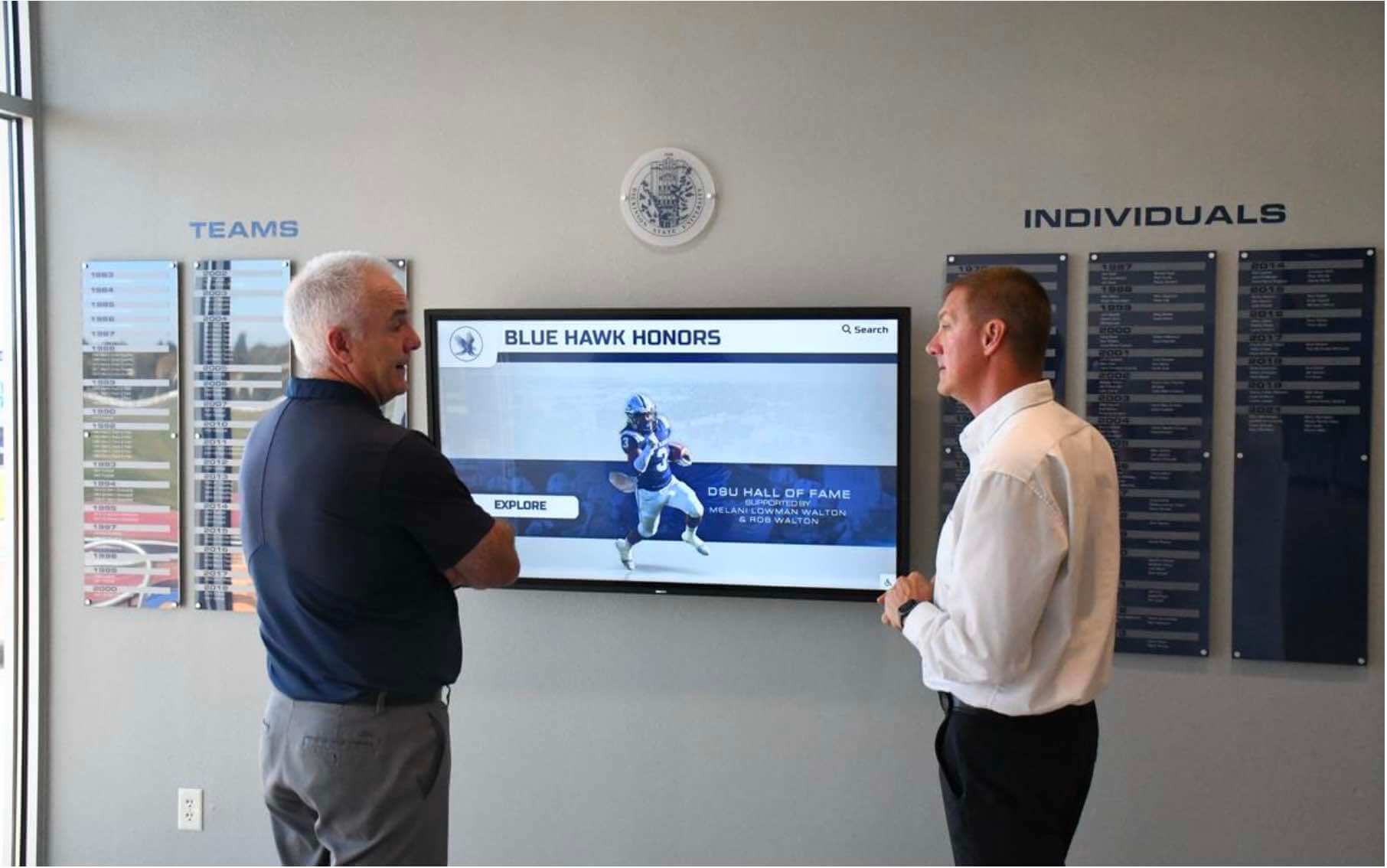
Recognition and Celebration: Combining wayfinding with campus recognition displays celebrating student achievements, faculty accomplishments, alumni success, and institutional milestones—transforming directories into comprehensive engagement platforms maximizing infrastructure investment.
Event Promotion: Between active wayfinding uses, directories showcase upcoming events, campus programming, or facility activities through attractive idle displays turning otherwise-blank screens into engagement opportunities.
Service Status Updates: Real-time communication of facility hours, temporary closures, service disruptions, parking availability, or operational information supplementing wayfinding with comprehensive campus information.
Examples of multi-purpose institutional displays demonstrate how educational institutions maximize touchscreen infrastructure value across multiple objectives.
Measuring Success and Demonstrating Value
Quantifying directory impact helps justify investments, optimize implementations, and demonstrate value to institutional leadership and stakeholders.
Usage Analytics and Engagement Metrics
Interaction Volume: Total daily/weekly/monthly interactions per display, peak usage times and patterns, average session duration, and growth trends over time.
Search Analytics: Most-searched destinations, common search terms, queries returning zero results (content gap identification), abandoned searches before completion, and search refinement patterns.
Wayfinding Patterns: Most-requested routes, popular destination types (faculty offices vs. services vs. classrooms), multi-building navigation frequency, and accessibility route selection rates.
Content Engagement: Idle display engagement (when directories showcase recognition or announcements), category browsing vs. direct search preference, and map interaction frequency vs. text-based directions.
Operational Impact Assessment
Staff Time Savings: Survey receptionists, department secretaries, and student service staff documenting time previously spent answering directional questions, comparing before and after directory implementation, and calculating efficiency gains at loaded hourly rates demonstrating cost recovery.
Visitor Satisfaction: Include navigation ease questions in campus tour feedback, prospective student surveys, event attendee evaluations, and general visitor experience assessments—comparing satisfaction scores before and after directory deployment.
Accessibility Feedback: Solicit input from users with disabilities through campus accessibility services, document independent navigation success stories, and compare accessibility complaint rates before and after implementation.
Help Desk Inquiry Reduction: Track directional questions received at information desks, phone inquiries requesting navigation assistance, and email requests for directions—measuring reduction after directory availability.
Calculating Total Cost of Ownership and ROI
Five-Year TCO Calculation:
- Initial investment (hardware, installation, software, content development)
- Annual operating costs (licensing, support, content maintenance)
- Hardware refresh or replacement costs (Year 5-7 typically)
- Staff time allocation (hours annually at loaded rates)
- Total five-year expenditure divided by years provides annual equivalent cost
Value Quantification:
- Staff time savings (hours annually × loaded hourly rate)
- Accessibility compliance value (avoided remediation costs, reduced liability)
- Visitor experience improvements (recruitment impact, reputation value)
- Multi-purpose platform value (recognition, communication, emergency uses)
ROI Timeline: Most educational institutions find staff efficiency gains alone justify directory systems within 2-4 years while additional benefits deliver compounding value throughout 7-10 year hardware lifecycles.
Conclusion: Transform Campus Navigation Through Strategic Directory Implementation
Campus directory touchscreen displays represent strategic infrastructure investments that shape visitor experiences, demonstrate institutional commitment to accessibility and service, reduce operational costs through staff efficiency, and create platforms serving diverse communication needs beyond wayfinding alone.
The most effective implementations recognize that technology enables navigation but doesn’t automatically create good experiences. Success requires thoughtful planning prioritizing actual user needs, comprehensive content development maintaining accuracy, strategic placement ensuring directories exist where users need them, and continuous improvement based on usage patterns rather than assumptions.
For educational institutions struggling with navigation complaints, accessibility challenges, staff time consumed providing directions, or simply seeking to demonstrate commitment to exceptional visitor experience, interactive campus directory touchscreen systems provide proven solutions delivering measurable returns across multiple value sources.
Modern students, prospective families, and campus visitors increasingly expect digital tools making navigation intuitive, accessible, and efficient. Institutions implementing comprehensive directory systems meet these expectations while positioning themselves as forward-thinking organizations investing in infrastructure serving their communities effectively.
This implementation guide has provided actionable specifications, placement strategies, budget worksheets, integration approaches, and maintenance planning enabling you to confidently deploy campus directory touchscreen systems—transforming navigation from persistent frustration into seamless experience that reflects your institutional commitment to service excellence.
Whether implementing new directory systems, modernizing outdated solutions, or expanding existing networks to additional campus locations, the planning frameworks and technical specifications detailed throughout this guide enable successful projects delivering sustained value to your institution. Start your campus directory implementation planning today to ensure your facilities provide navigation experiences worthy of your educational mission.
Ready to implement campus directory touchscreen displays at your institution? Talk to our team at Rocket Alumni Solutions for comprehensive platforms specifically designed for educational institutions with proven directory capabilities, intuitive content management, and support understanding campus needs.