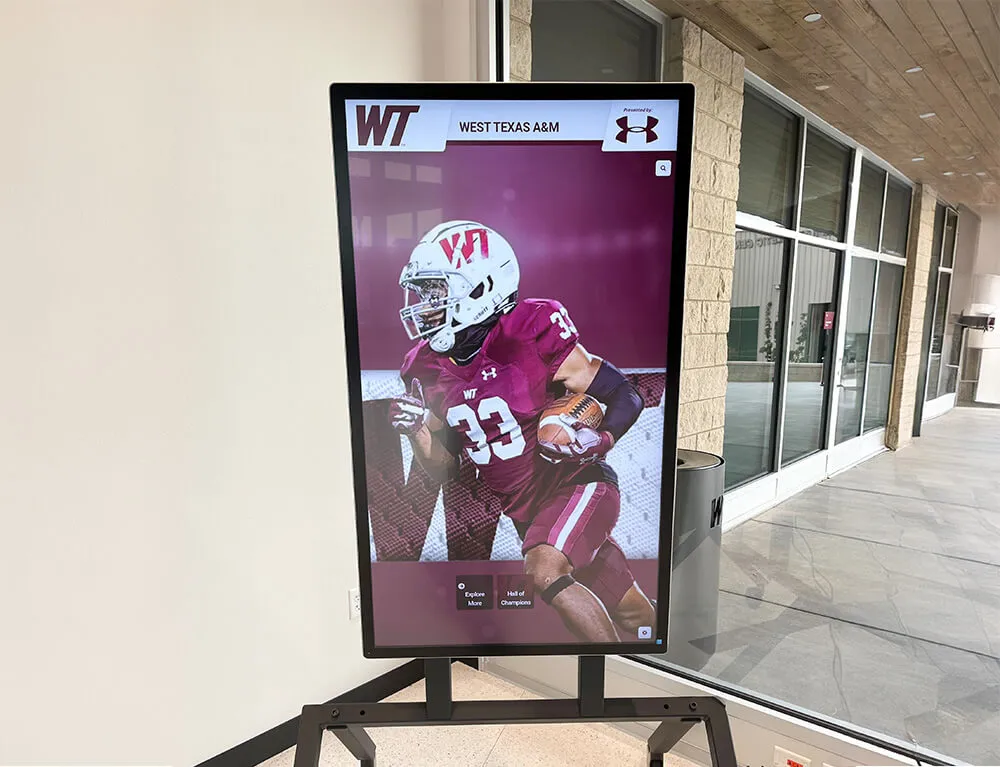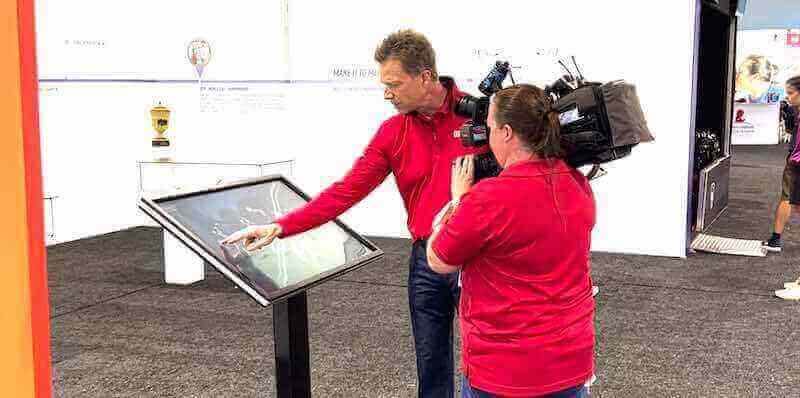
The Heart of Your Interactive Display: Understanding Computer Modules
When deploying a touchscreen kiosk for your school's hall of fame, donor recognition wall, or interactive directory, the computer module serves as the brain powering every interaction. From the moment a visitor touches the screen to browse alumni achievements to displaying dynamic multimedia content, the computing platform determines performance, reliability, and longevity. This comprehensive guide explores everything you need to know about computer modules for touchscreen kiosks in 2025.
Whether you’re an IT administrator evaluating hardware for a new digital recognition display or a facilities manager planning a kiosk deployment, understanding computer module options helps ensure your investment delivers years of reliable service. Modern kiosk computing solutions range from compact OPS PC modules that slide behind commercial displays to powerful system-on-chip platforms integrated directly into touchscreens.
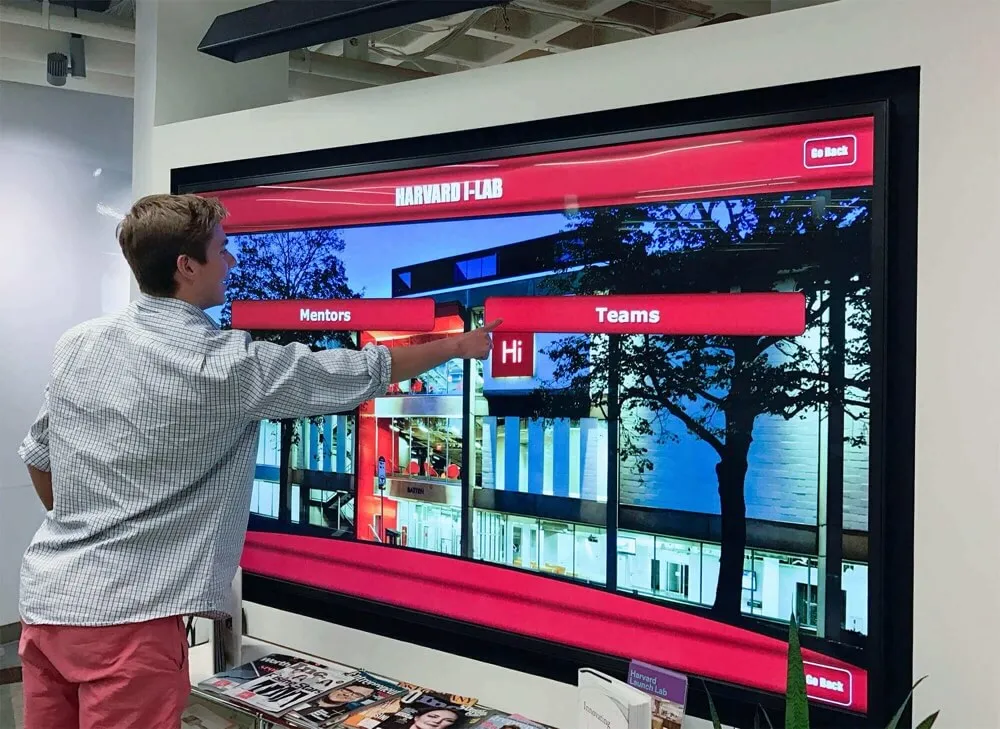
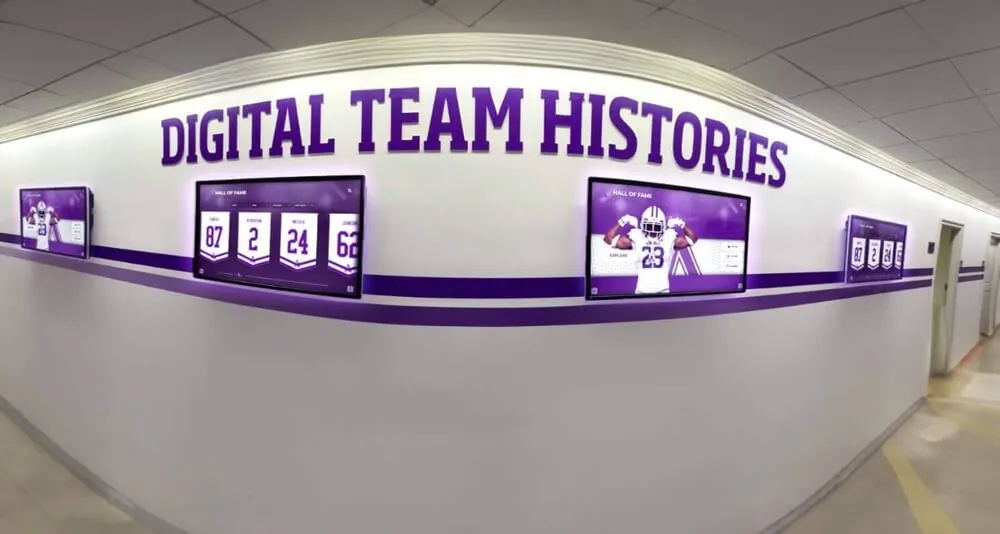
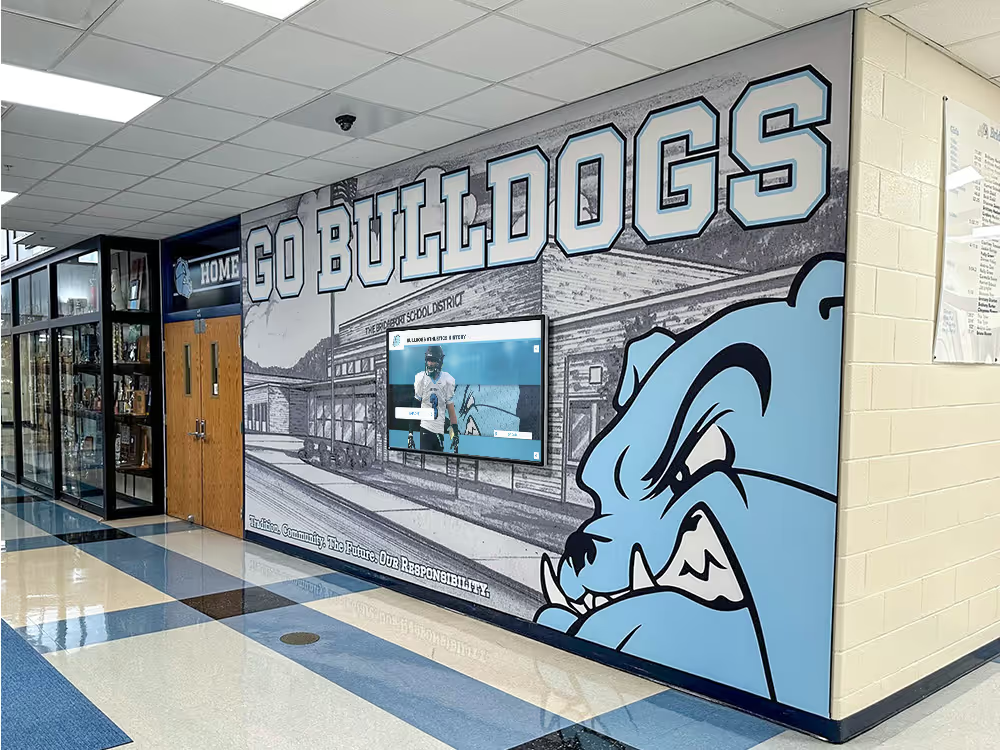
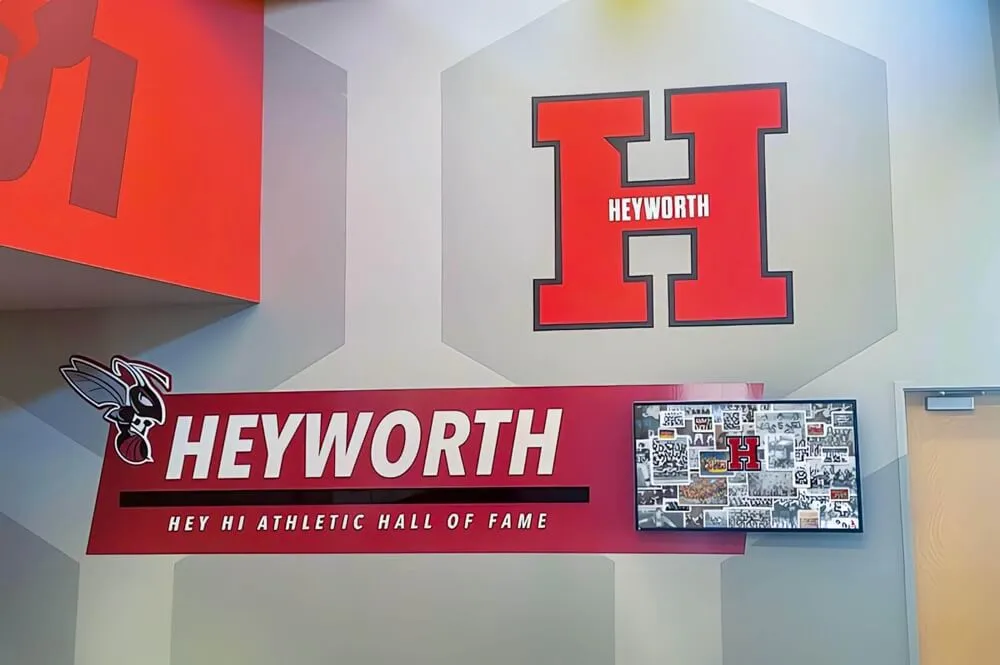
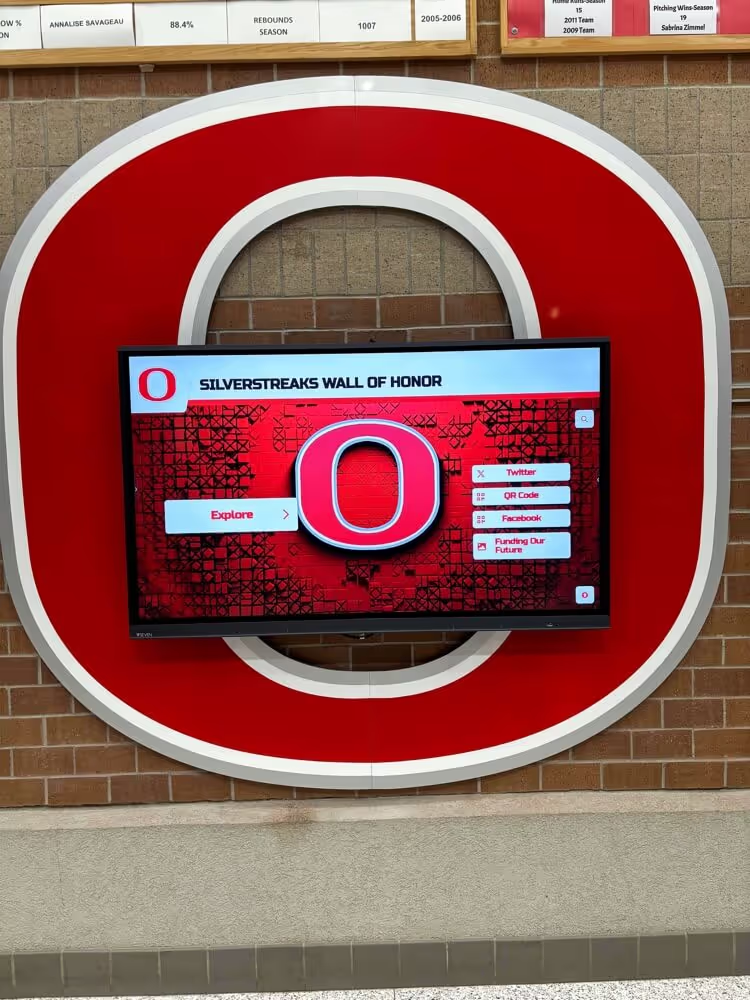
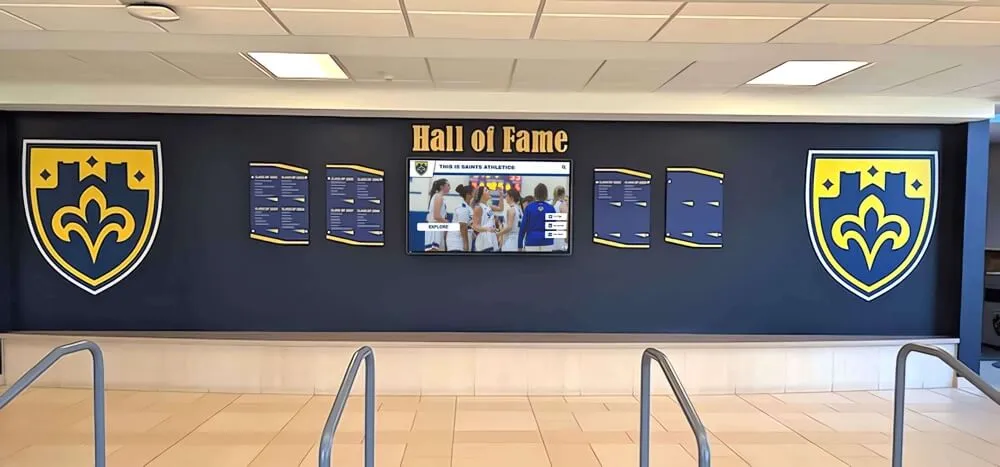
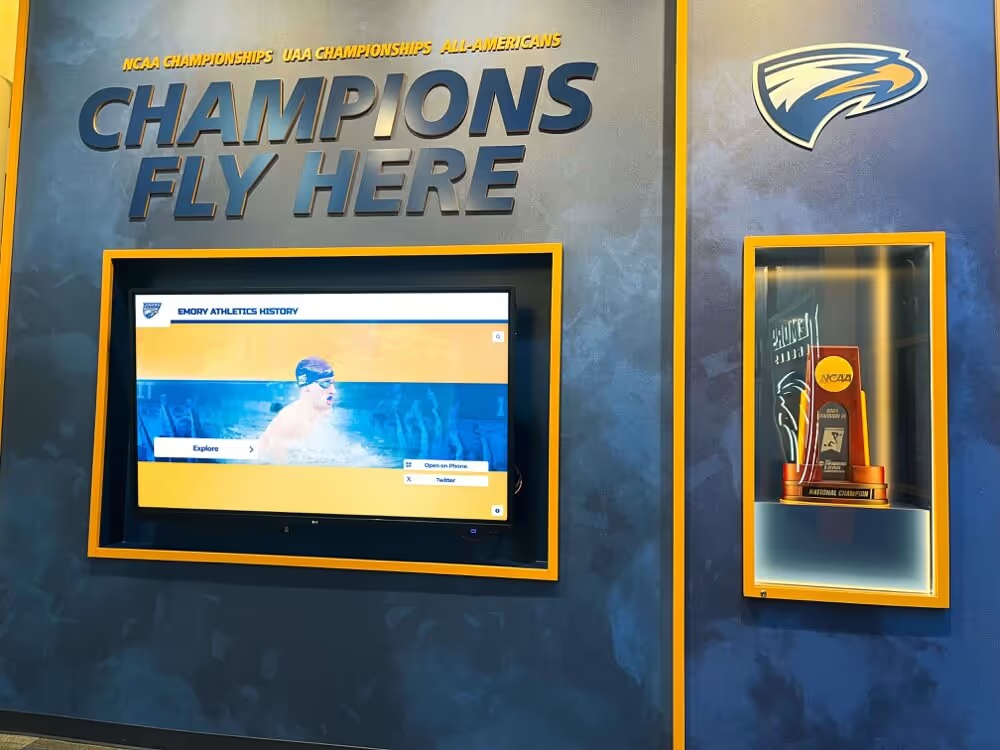
Modern touchscreen kiosk systems integrate powerful computer modules for seamless interactive experiences
What is a Computer Module for Touchscreen Kiosks?
A computer module for touchscreen kiosks is a compact computing system designed to power interactive displays in public and semi-public environments. Unlike traditional desktop computers, these specialized modules prioritize reliability, compact form factors, remote management capabilities, and 24/7 operation in demanding conditions.
Key Characteristics of Kiosk Computer Modules
Compact Form Factor: Most kiosk computer modules measure just 7-10 inches wide and 1-2 inches thick, allowing installation behind displays or within kiosk enclosures without requiring separate computer cabinets.
Fanless or Low-Noise Design: Educational and public environments demand quiet operation. Modern kiosk modules use passive cooling or ultra-quiet fans to eliminate distracting noise during operation.
Industrial-Grade Components: Standard consumer computers aren’t designed for continuous operation. Kiosk modules incorporate industrial-grade components rated for 24/7 operation, wider temperature ranges, and extended service life.
Simplified Connectivity: Purpose-built modules include standardized mounting, integrated power delivery to displays, and consolidated cable management that simplifies installation and reduces failure points.
Remote Management Support: Enterprise-grade kiosk deployments require remote monitoring, updates, and troubleshooting. Modern computer modules include out-of-band management interfaces that allow IT administrators to diagnose and resolve issues without physical access.
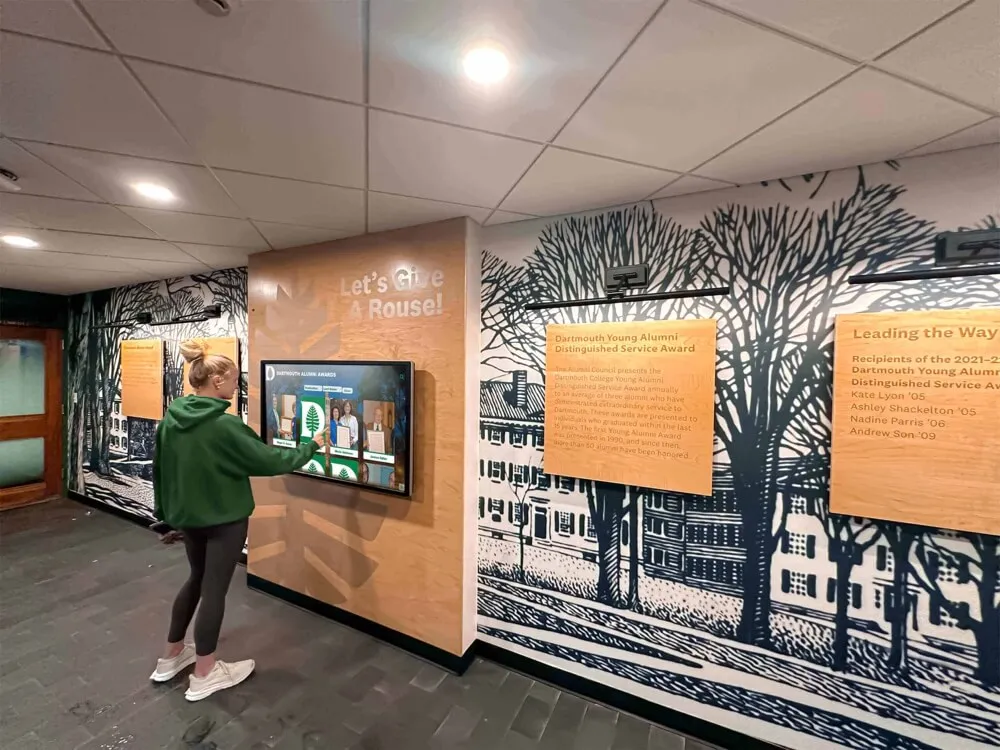
Types of Computer Modules for Touchscreen Kiosks
1. OPS PC Modules (Open Pluggable Specification)
OPS PC modules represent the industry standard for modular computing in commercial displays and kiosks. Developed by Intel in collaboration with Microsoft and major display manufacturers, the OPS standard defines a standardized slot interface that allows computer modules to connect directly to compatible displays through a single connector.
How OPS Modules Work: The OPS slot provides a standardized 80-pin JAE TX25 connector delivering power, video, USB, audio, and control signals. This eliminates separate power adapters, video cables, and USB connections—the module simply slides into the display’s OPS slot and locks in place.
OPS Module Specifications:
- Dimensions: 180mm x 119mm (standard) or 200mm x 119mm (large format)
- Processors: Intel Core i3, i5, i7, or Celeron processors
- RAM: 4GB to 32GB DDR4
- Storage: 64GB to 512GB SSD
- Operating Systems: Windows 10/11 IoT, Linux
- Typical Power Consumption: 15-65W
Advantages of OPS Modules:
- Hot-swappable design allows module replacement without dismounting displays
- Standardized interface ensures compatibility across manufacturers
- Clean installation without visible cables or external computers
- Easy upgrades as technology advances
- Vendor-neutral ecosystem with multiple suppliers
Ideal Applications: OPS modules excel in digital hall of fame displays, interactive touchscreen kiosks, wayfinding systems, and any application requiring commercial-grade reliability with straightforward serviceability.
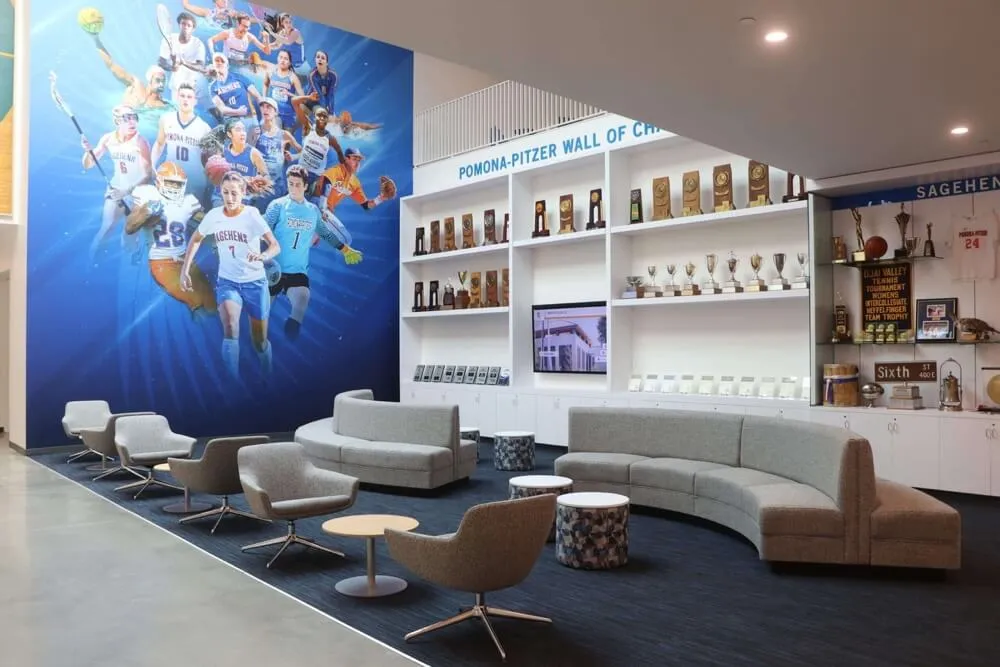
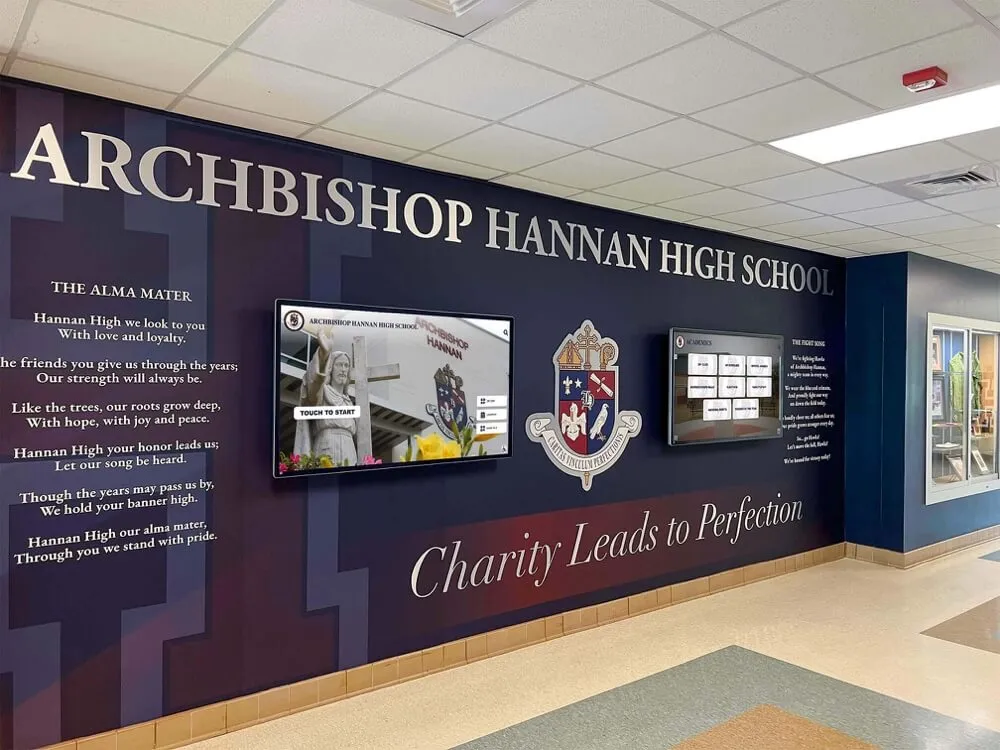
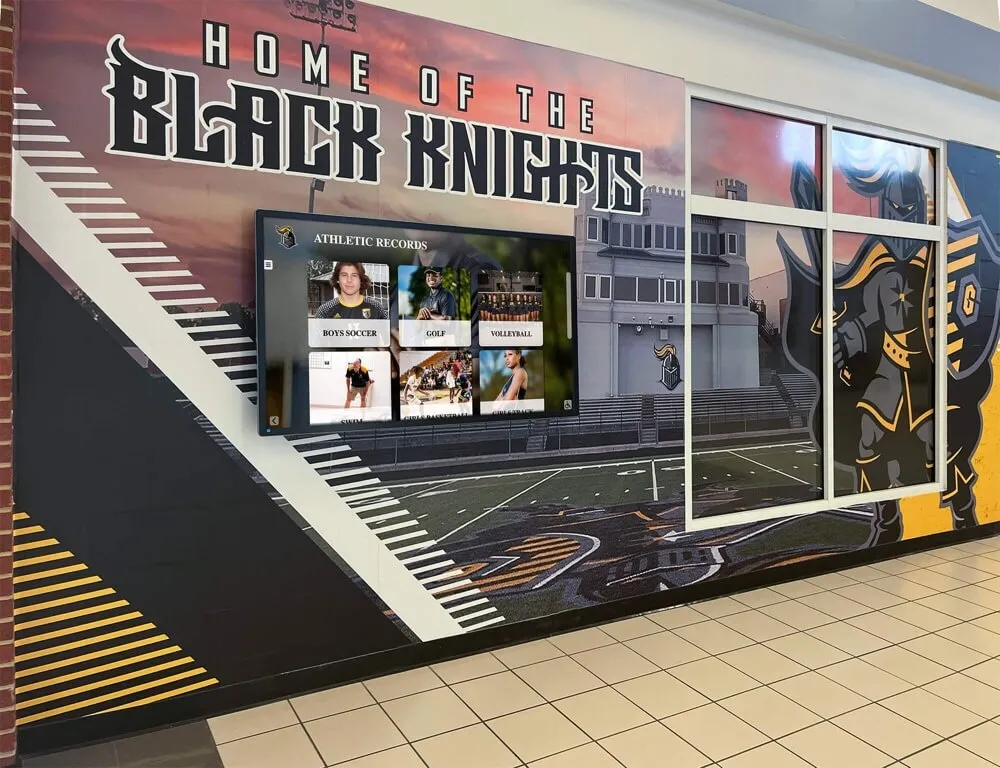
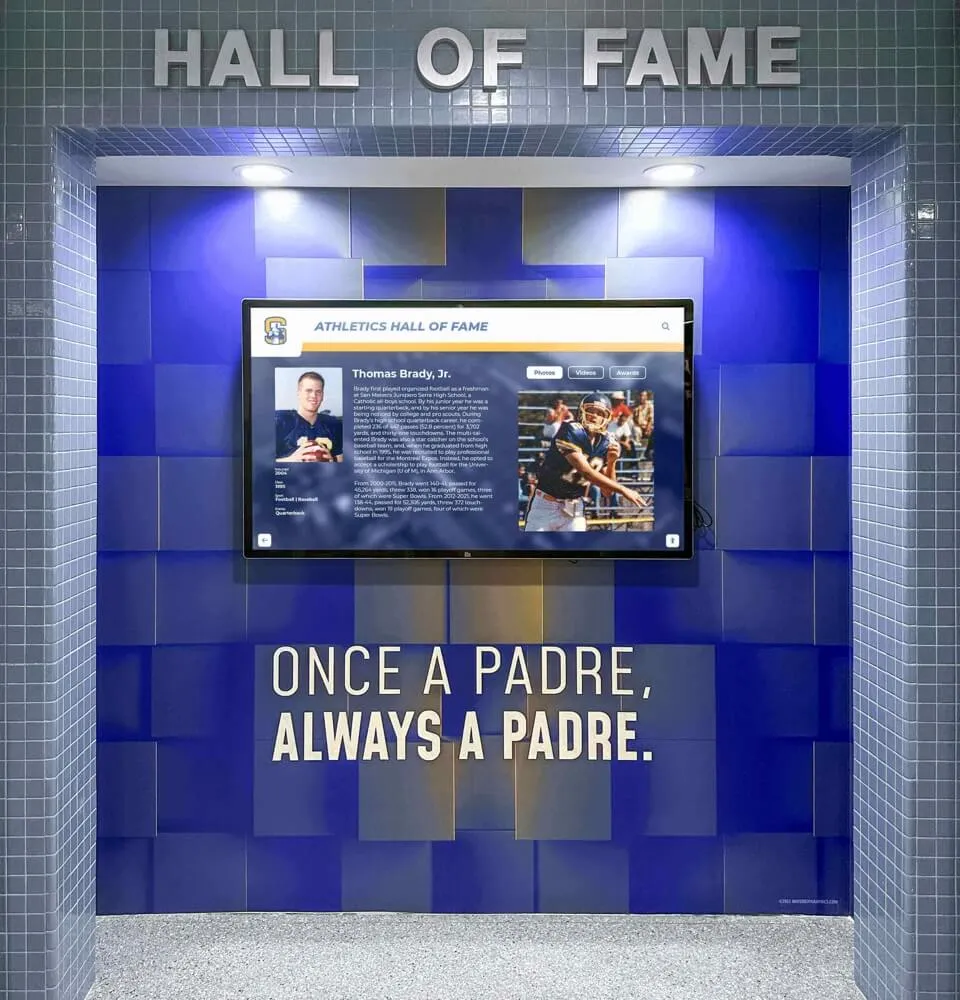
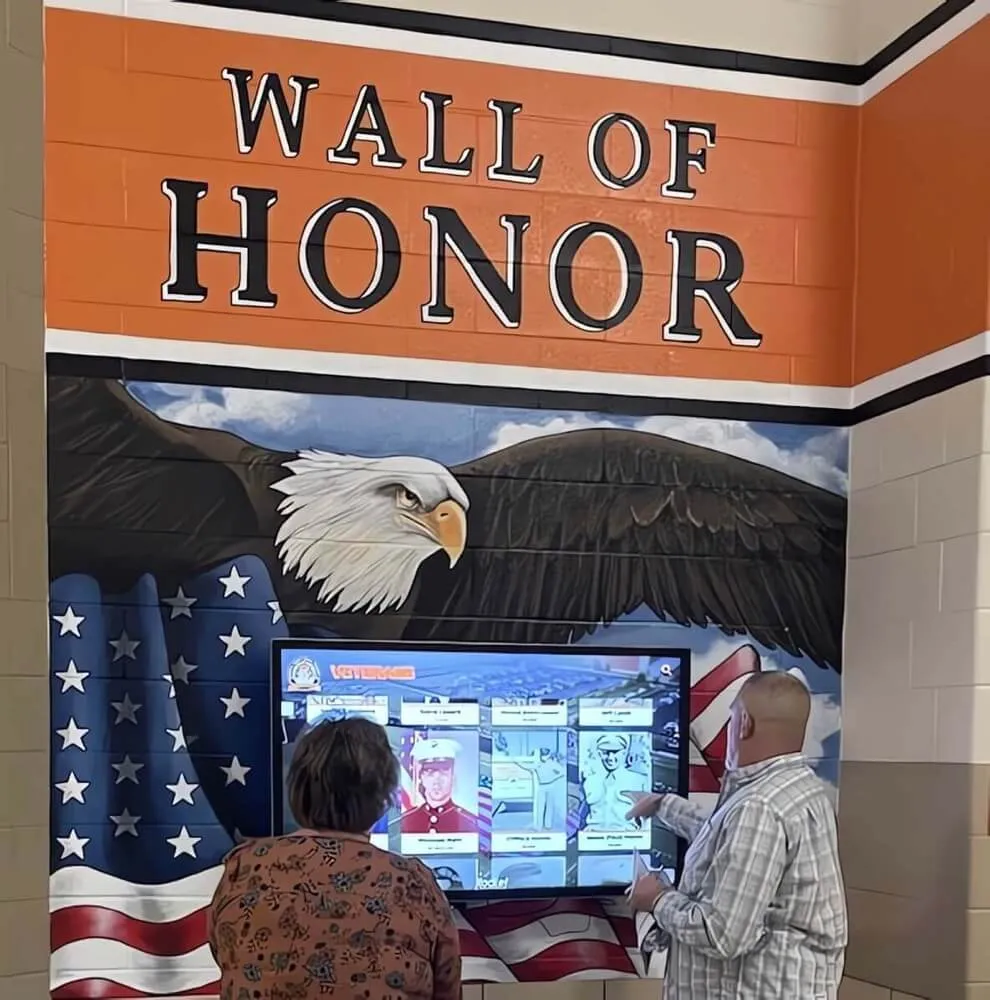
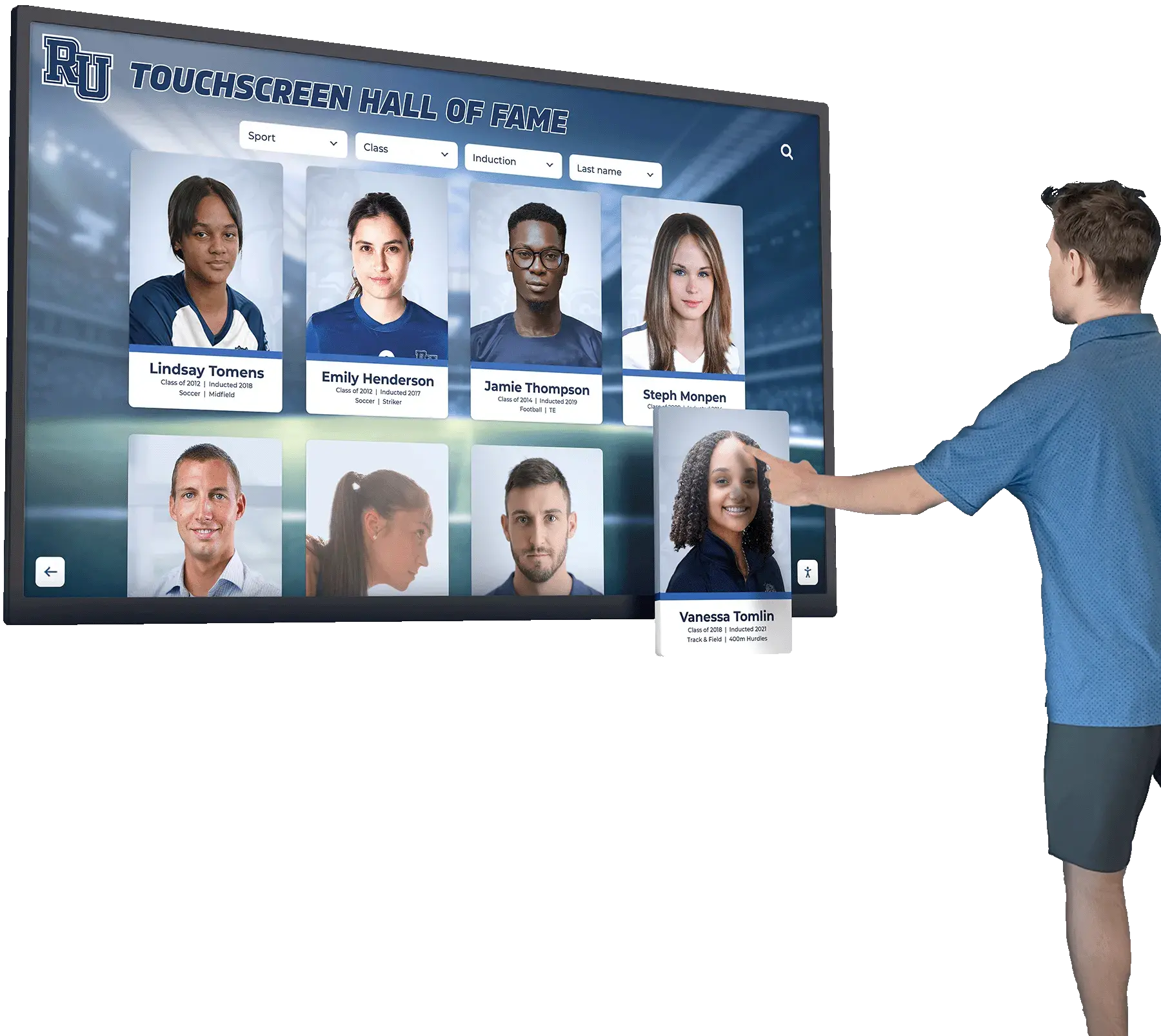
OPS PC modules power professional touchscreen installations in educational environments
2. System-on-Module (SOM) Solutions
System-on-Module platforms integrate CPU, RAM, storage, and connectivity on compact circuit boards designed for embedded applications. Popular platforms include Raspberry Pi Compute Modules, NVIDIA Jetson modules, and Intel NUC Elements.
SOM Characteristics:
- Ultra-compact footprint (as small as credit card sized)
- ARM or x86 processors
- Lower power consumption (5-25W typical)
- Customizable I/O and expansion
- Cost-effective for high-volume deployments
When to Consider SOM: System-on-Module platforms work well for simple content display, digital signage applications with minimal interactivity, or highly customized kiosk applications where the development team can create purpose-built hardware and software stacks.
Limitations: SOMs require more technical expertise for integration, may lack standardized mounting and connectivity, and typically offer less computing power than full PC modules. For complex interactive applications like searchable alumni databases or multimedia-rich recognition displays, OPS PC modules generally provide better performance and simpler integration.
3. Integrated All-in-One Systems
Some commercial touchscreen displays integrate computing components directly into the display housing, eliminating separate modules entirely. These all-in-one systems appeal to users prioritizing simplicity and minimal component count.
Integrated System Pros:
- Single product to purchase and deploy
- No module compatibility questions
- Unified warranty and support
- Optimized thermal and power management
Integrated System Cons:
- Computing specifications fixed at purchase
- Upgrades require replacing entire display
- Limited vendor choice
- Potential obsolescence issues
Educational institutions often prefer modular OPS-based systems over integrated all-in-ones because the modular approach extends display lifespan—when computing requirements increase, simply replace the OPS module rather than the entire expensive display panel.
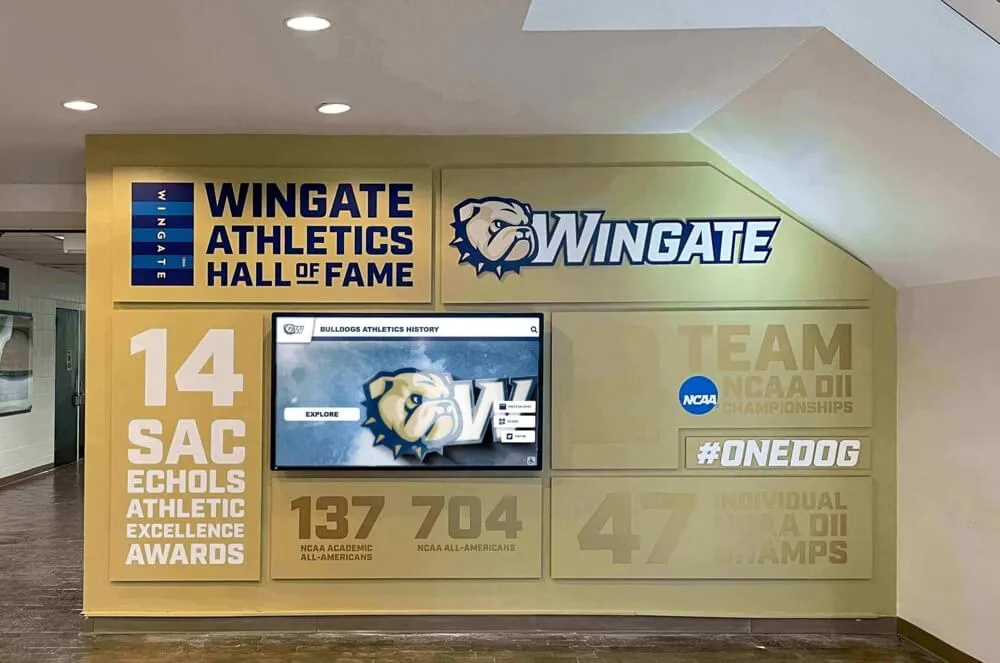
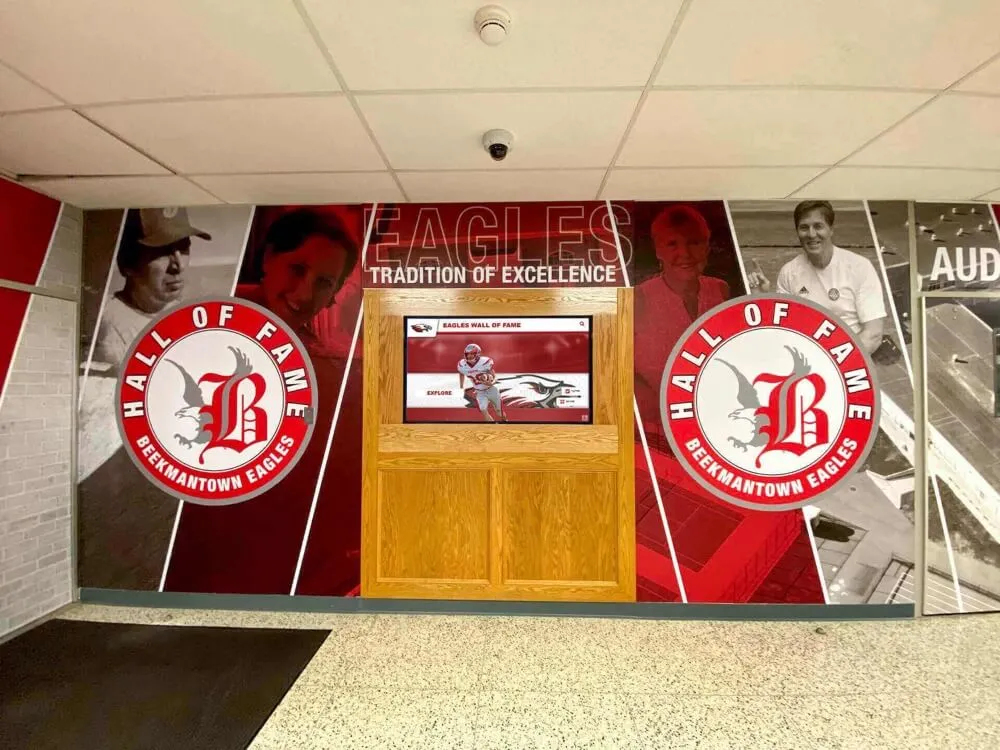
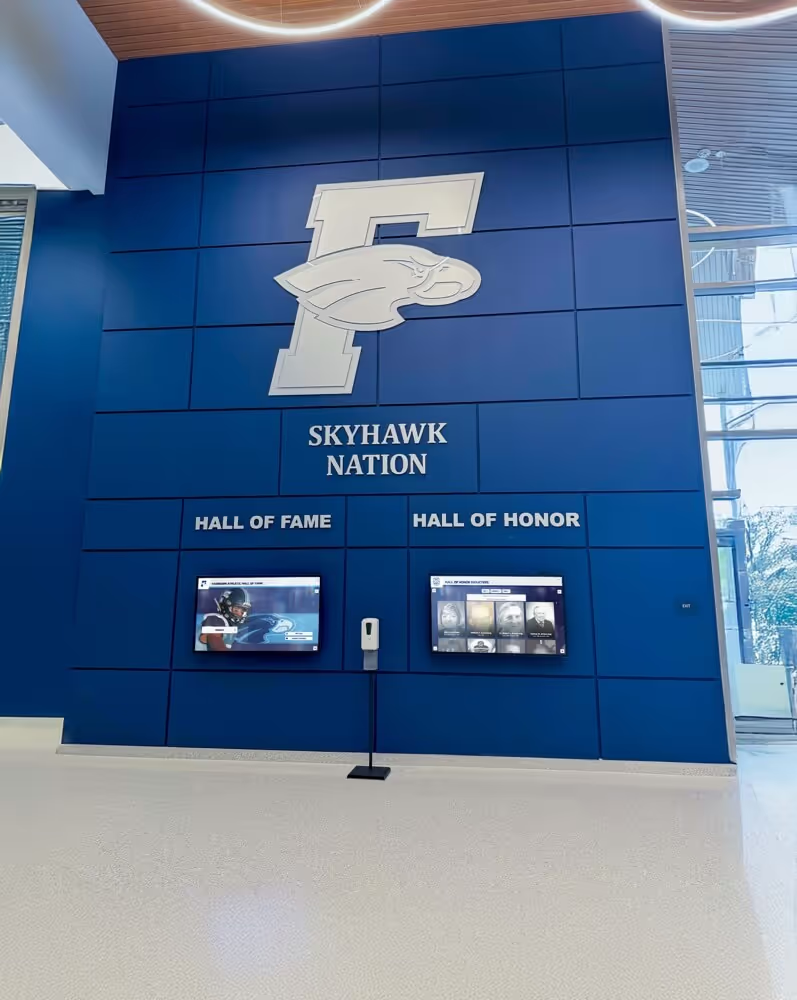
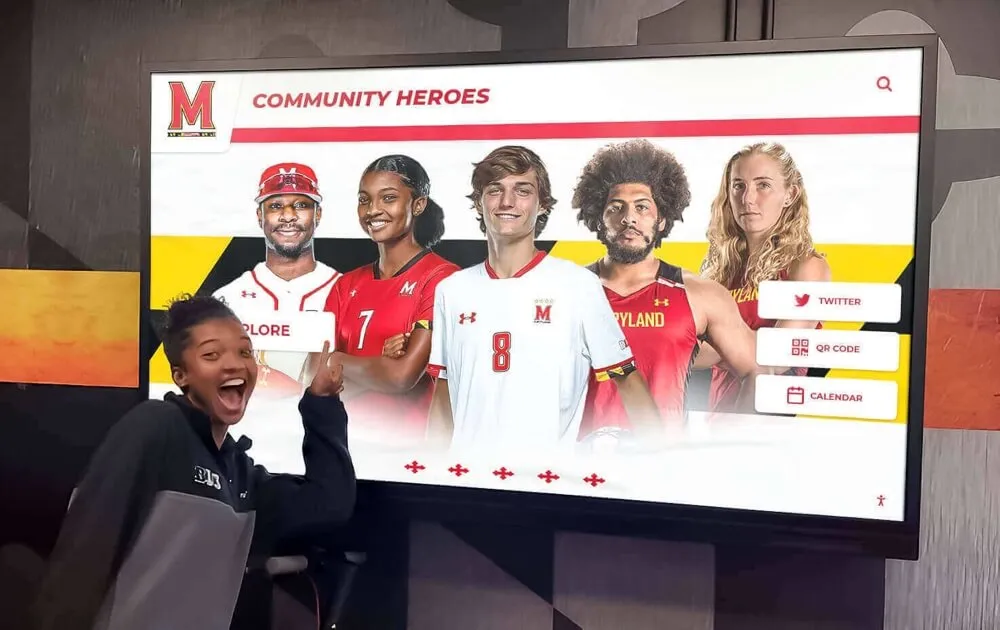
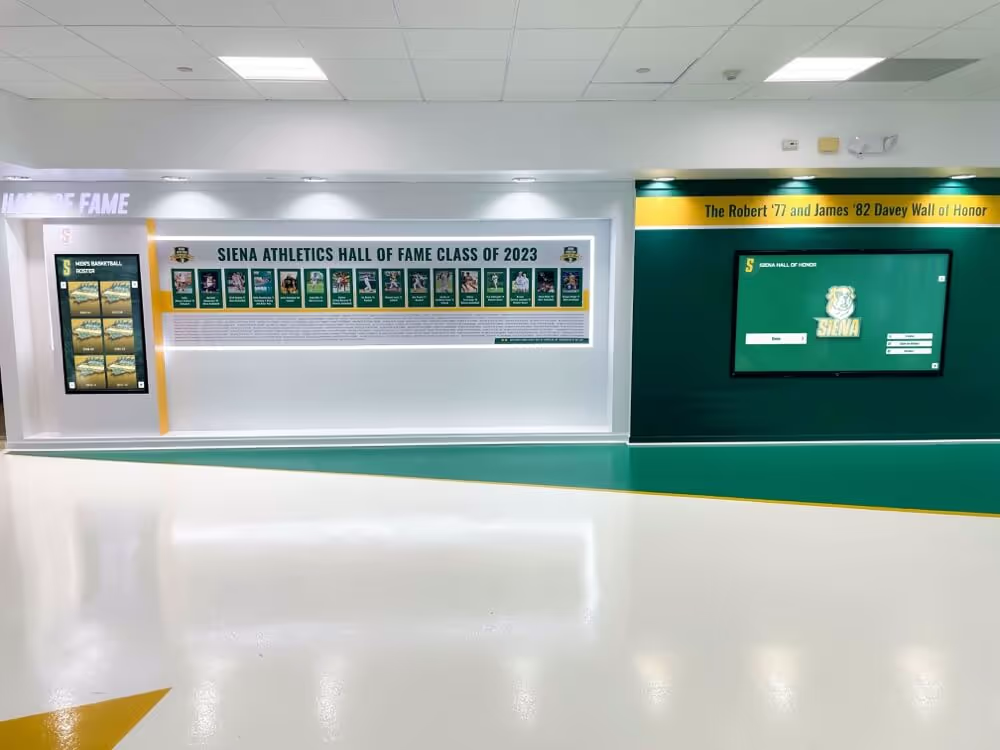
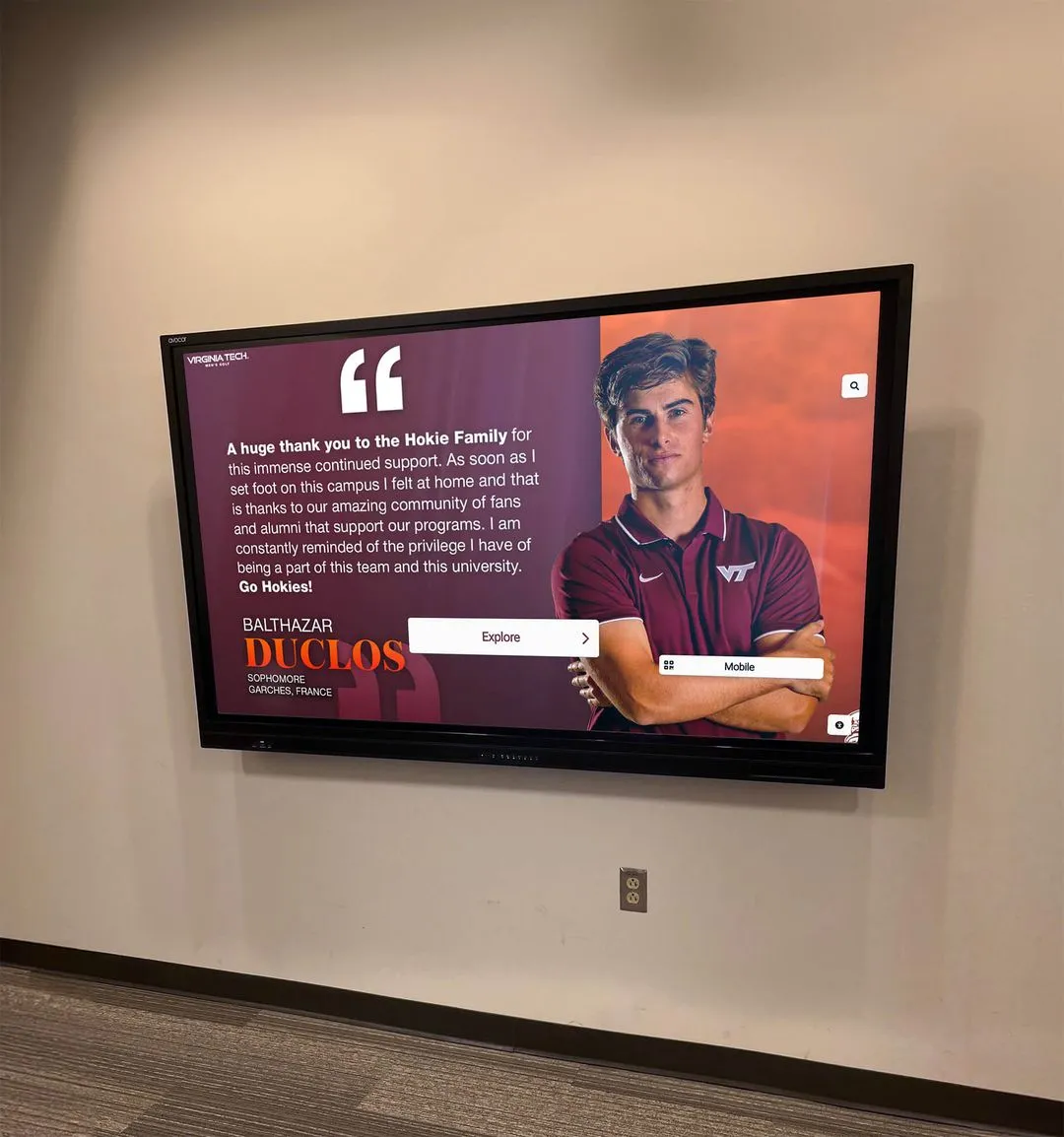
Professional recognition displays rely on robust computer modules for years of reliable operation
4. Small Form Factor PCs (NUC, Mini PCs)
Small form factor PCs like Intel NUCs, HP EliteDesk Minis, and Lenovo ThinkCentre Tiny systems provide full desktop computing capability in compact chassis suitable for kiosk deployments.
SFF PC Specifications:
- Dimensions: 4-8 inches square, 1-3 inches tall
- Full desktop processors (Intel Core, AMD Ryzen)
- Standard RAM and storage upgrades
- Multiple display outputs
- Extensive I/O options
SFF PC Advantages:
- Powerful performance for demanding applications
- Easy component upgrades and maintenance
- Standard Windows or Linux compatibility
- Multiple vendor options
Installation Considerations: Unlike OPS modules that integrate invisibly behind displays, SFF PCs require mounting locations and visible cable management. Many kiosk enclosures include dedicated compartments for small form factor computers, but installations demand more planning than plug-and-play OPS solutions.
Key Specifications for Kiosk Computer Modules
Processor Selection
The processor determines your kiosk’s responsiveness, multitasking capability, and software compatibility. For touchscreen kiosks running interactive recognition software, consider these guidelines:
Entry-Level (Intel Celeron, Pentium): Suitable for basic digital signage displaying static or slideshow content with minimal user interaction. Not recommended for database-driven interactive applications or multimedia-heavy displays.
Mid-Range (Intel Core i3, i5): Ideal for most interactive hall of fame displays and recognition kiosks. These processors provide smooth performance for touchscreen interfaces, database queries, video playback, and web-based applications.
High-Performance (Intel Core i7, i9): Required for specialized applications like real-time video processing, AI-powered facial recognition, or running multiple simultaneous applications. Most educational recognition kiosks don’t require this level of performance.
Memory (RAM) Requirements
RAM directly impacts application responsiveness and the ability to cache content for instant access:
4GB RAM: Minimum for basic kiosk applications. May experience performance issues with multimedia-heavy content or multiple open applications.
8GB RAM: Recommended baseline for interactive touchscreen kiosks. Provides smooth operation for database-driven content, image galleries, and video playback.
16GB+ RAM: Beneficial for high-resolution displays (4K), extensive local content caching, or running multiple applications simultaneously. Solutions like Rocket Alumni Solutions’ interactive displays run efficiently on 8-16GB configurations.
Typical RAM Allocation in Interactive Kiosks
- Operating System: 2-3GB
- Kiosk Software: 1-2GB
- Content Caching: 2-4GB
- Browser/Media: 1-3GB
- System Reserve: 1-2GB
Storage Considerations
- OS & Software: 30-50GB
- Local Content: 20-100GB
- Updates & Cache: 10-20GB
- Minimum Recommended: 128GB SSD
- Optimal Configuration: 256GB SSD
Storage Technology
SSD Required: Always specify solid-state drives for kiosk computer modules. Traditional hard drives cannot withstand the constant operation, potential vibration, and instant-on demands of kiosk environments. SSDs provide:
- Instant boot times (15-30 seconds vs. 2-3 minutes for HDDs)
- Silent operation
- Shock and vibration resistance
- Lower power consumption
- Extended lifespan in 24/7 operation
Storage Capacity Guidelines:
- 128GB: Minimum for cloud-dependent kiosks with minimal local content
- 256GB: Recommended for most applications with moderate local content libraries
- 512GB+: Beneficial for extensive local multimedia libraries or offline operation requirements
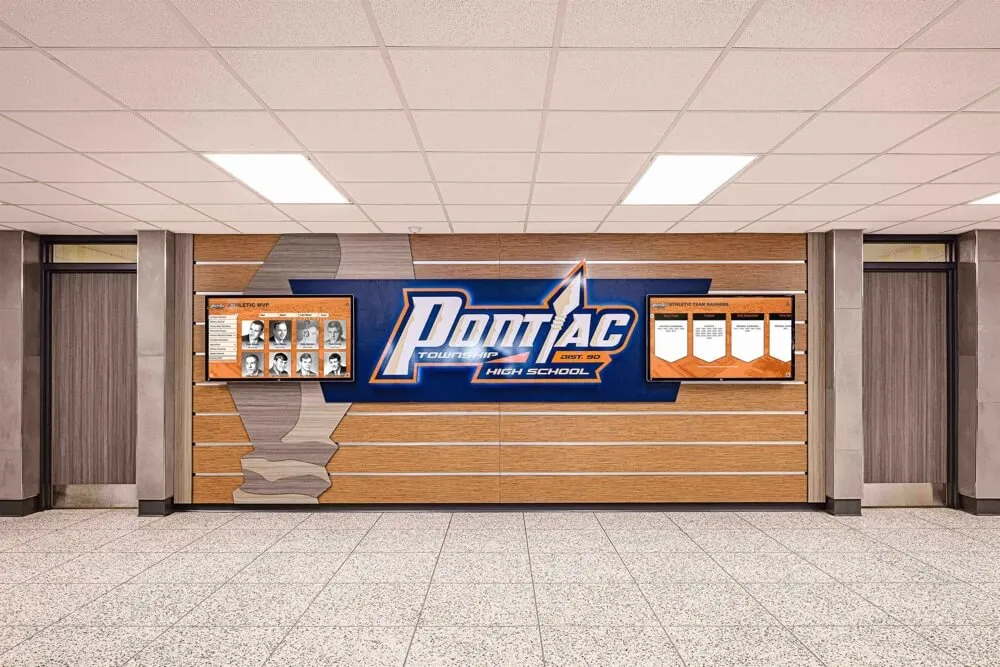
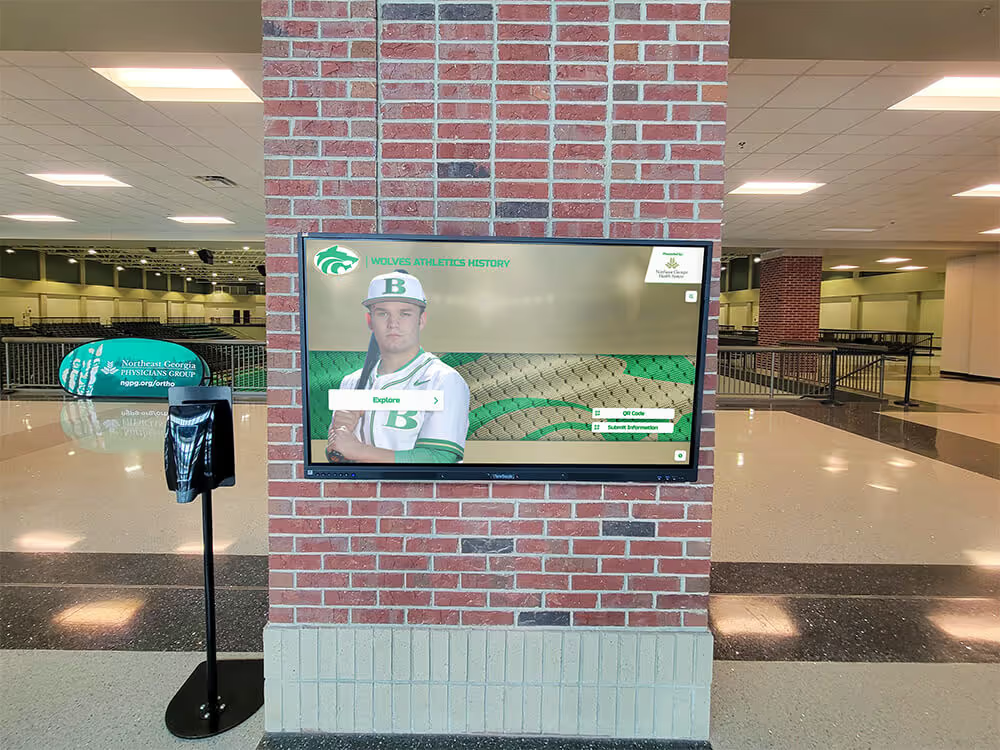
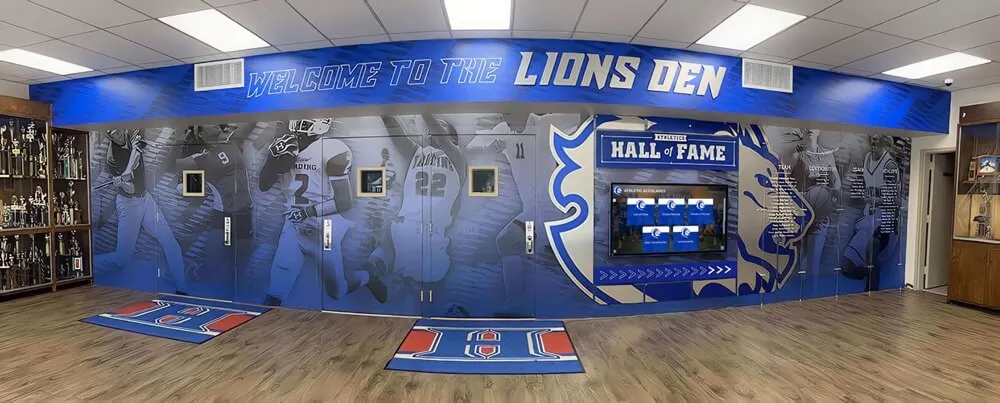
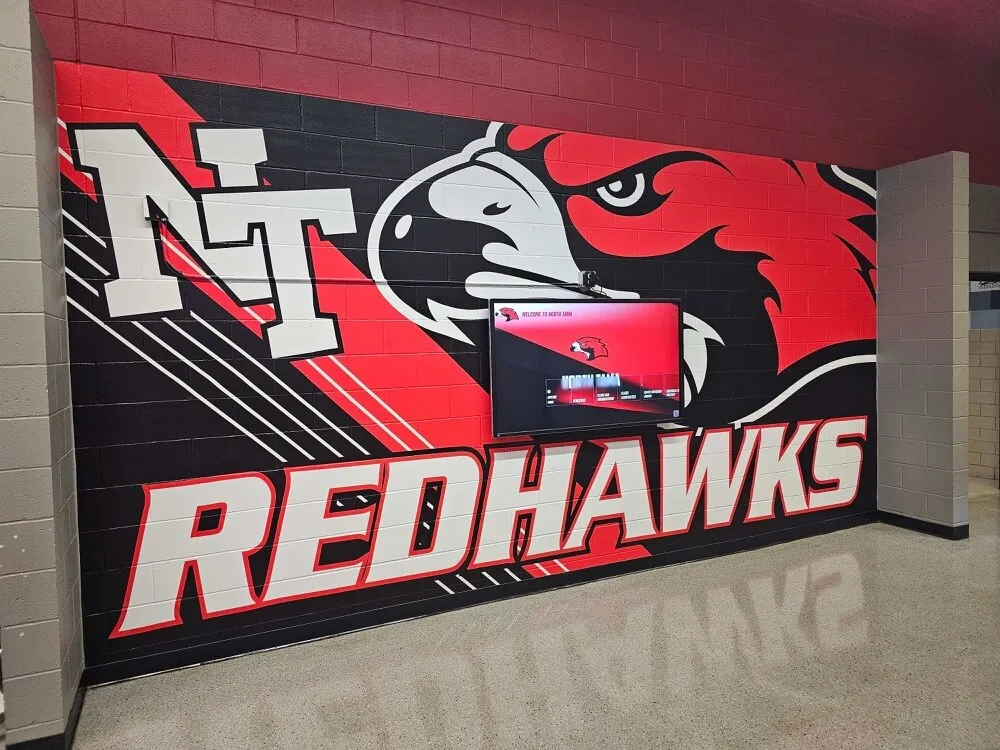
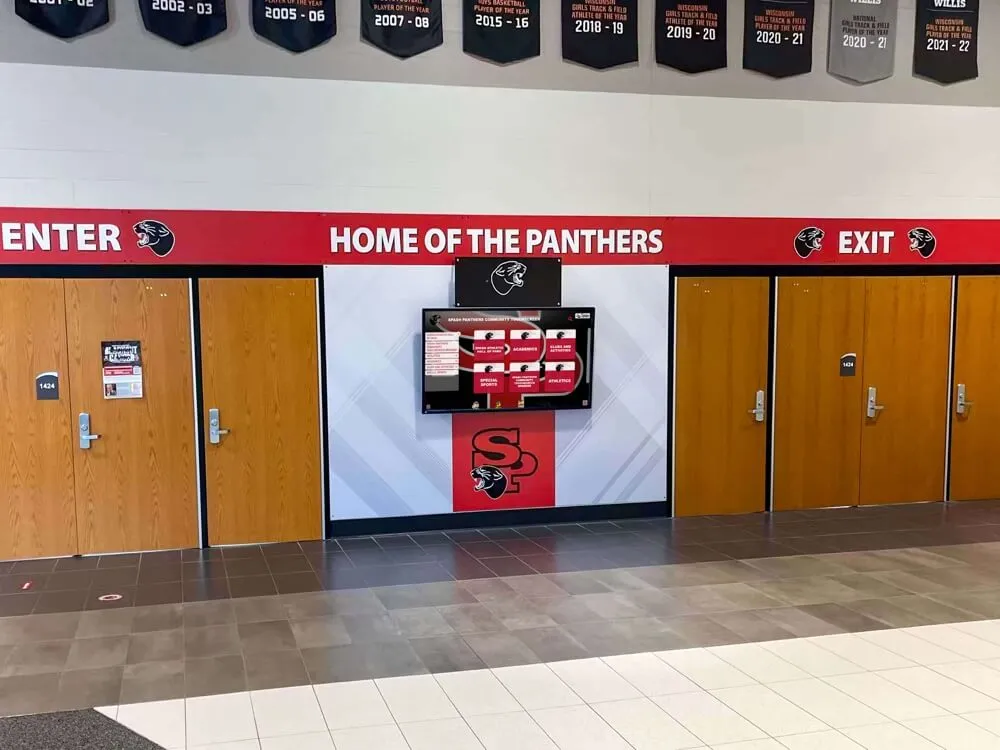
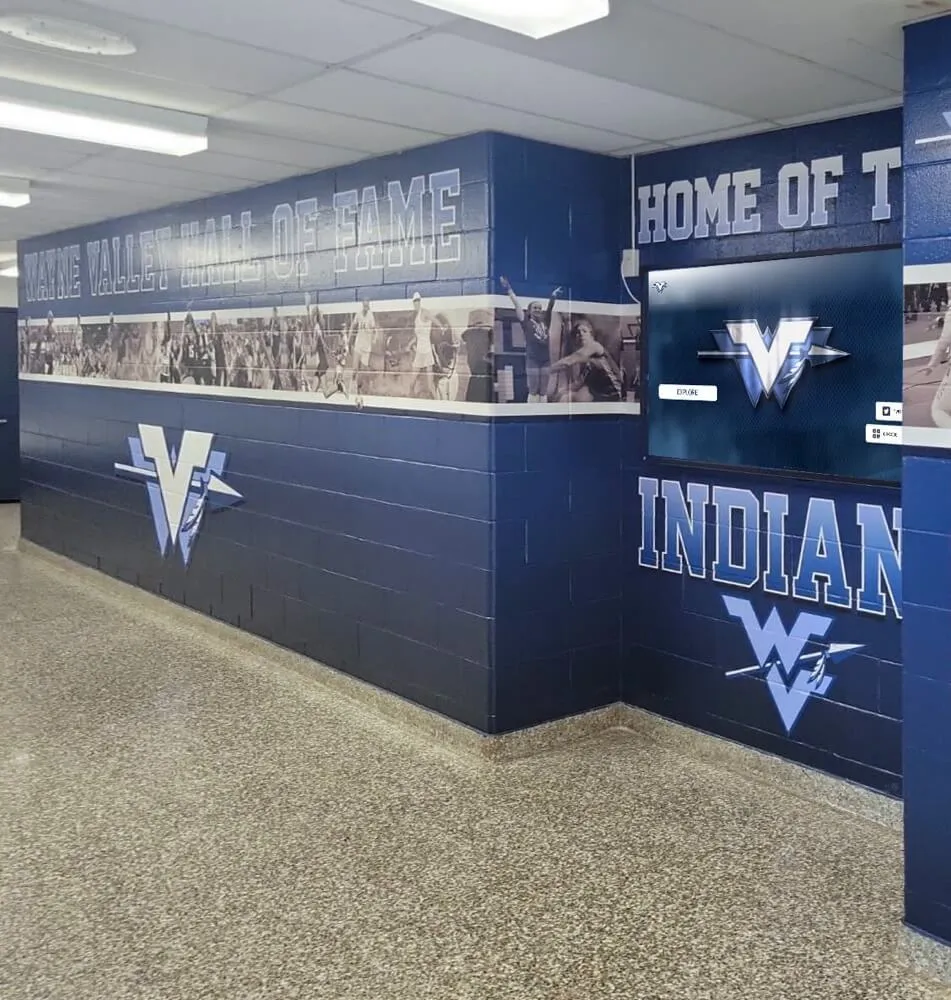
Reliable computer modules ensure interactive kiosks perform flawlessly throughout the school day
Connectivity and I/O
Modern kiosk applications require diverse connectivity options:
Essential Connectivity:
- Gigabit Ethernet (wired network connectivity)
- Wi-Fi 5 or Wi-Fi 6 (wireless backup or primary connectivity)
- USB 3.0+ ports (peripheral devices, maintenance access)
- HDMI or DisplayPort (video output for non-OPS installations)
- Audio output (for applications requiring sound)
Advanced Options:
- Bluetooth (wireless peripherals, beacon functionality)
- Serial ports (legacy peripheral integration)
- GPIO pins (custom sensor integration)
- PoE (Power over Ethernet) support
Educational institutions should prioritize wired Gigabit Ethernet connections for primary network connectivity, using Wi-Fi as backup. Wired connections provide more reliable performance and simplified network security management than wireless-dependent deployments.
Choosing the Right Computer Module for Your Application
Assessment Framework
Step 1: Define Performance Requirements
Start by evaluating your kiosk’s computational demands:
Low Complexity: Static content display, simple navigation menus, basic information display
- Recommendation: Entry-level OPS module (Celeron/Pentium, 4GB RAM, 128GB SSD)
Medium Complexity: Interactive databases, photo galleries, video playback, web applications
- Recommendation: Mid-range OPS module (Core i3/i5, 8GB RAM, 256GB SSD)
- This category includes most interactive recognition displays and alumni engagement kiosks
High Complexity: Real-time video processing, AI features, multi-application environments
- Recommendation: High-performance OPS or SFF PC (Core i7, 16GB RAM, 512GB SSD)
Step 2: Evaluate Environmental Factors
Kiosk location impacts computer module selection:
Indoor Controlled Environment (lobbies, libraries, administrative areas):
- Standard operating temperature range (0-40°C)
- Minimal dust or debris
- Standard commercial-grade modules sufficient
High-Traffic Public Areas (cafeterias, gymnasiums, outdoor covered locations):
- Extended temperature range (−20 to 50°C)
- Dust and debris exposure
- Industrial-grade or ruggedized modules recommended
Step 3: Consider Management and Serviceability
IT infrastructure and support capabilities influence module selection:
Limited IT Resources:
- Prioritize plug-and-play OPS modules
- Choose cloud-managed kiosk software solutions
- Select modules with automatic update capabilities
Robust IT Infrastructure:
- Greater flexibility for custom SFF PC or SOM solutions
- Can leverage existing enterprise management tools
- May benefit from standardizing on organization’s preferred computer vendor
Step 4: Plan for Longevity and Upgrades
Consider total cost of ownership over 5-7 years:
Modular Approach (OPS modules):
- Initial cost: Moderate
- Upgrade path: Replace module every 4-5 years
- Display lifespan: 8-10 years
- Total cost: Lower long-term
Integrated Approach (all-in-one displays):
- Initial cost: Lower to moderate
- Upgrade path: Replace entire unit
- Display lifespan: 5-7 years effective
- Total cost: Higher long-term
Educational institutions typically achieve better return on investment with modular OPS-based systems that allow computing upgrades without replacing expensive display panels. This approach proved particularly valuable during recent years as software capabilities evolved rapidly while commercial displays remained functionally adequate.
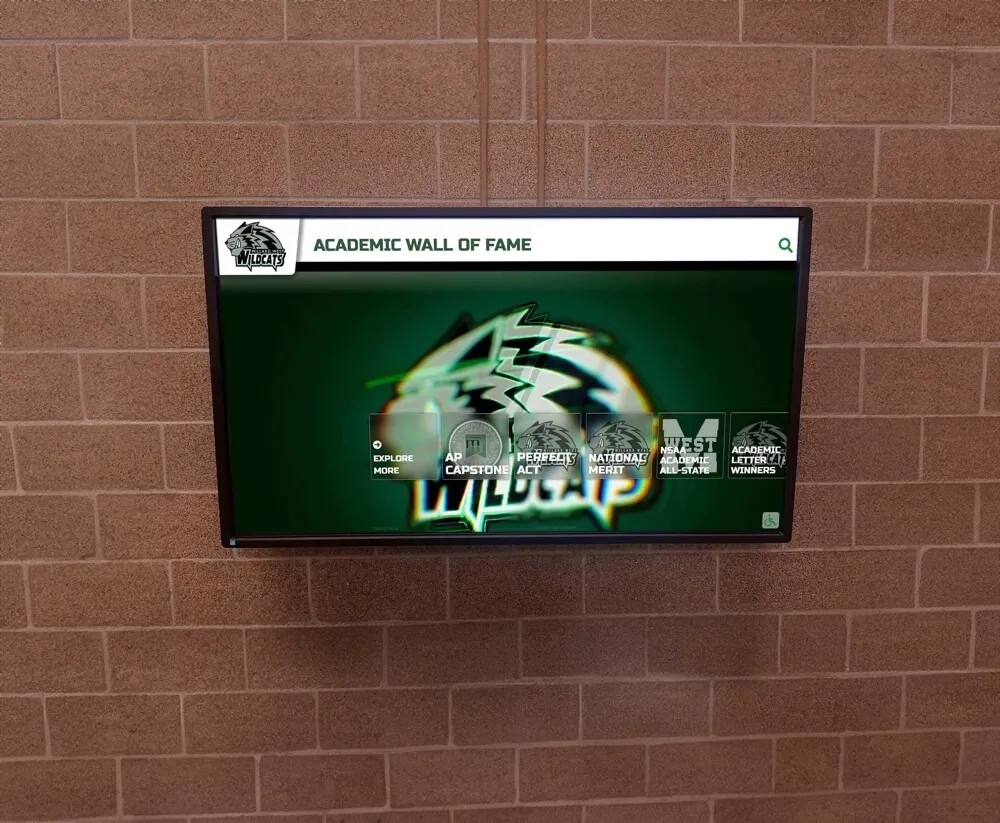
Properly specified computer modules ensure smooth performance for years of reliable service
Installation and Integration Best Practices
OPS Module Installation
Installing OPS computer modules follows a straightforward process:
Power Down Display: Ensure the display is completely powered off and unplugged before installation.
Access OPS Slot: Remove the slot cover on the display back panel. OPS slots are typically located in the center or side of commercial displays.
Align Module: Hold the OPS module at a slight angle and align the connector with the OPS slot. The module should slide smoothly into position without force.
Secure Module: Tighten the retention screws (typically 2-4 screws) to lock the module in place. Don’t overtighten—finger-tight plus a quarter turn is sufficient.
Verify Installation: Power on the display. Most displays with OPS modules include source selection options to switch between the internal OPS computer and external inputs.
Configure BIOS: Access BIOS settings during boot (typically pressing Delete or F2) to configure boot order, enable auto-power-on, and set other operational parameters.
Install Software: Install your operating system and kiosk software platform. Cloud-based solutions like Rocket Alumni Solutions minimize local software installation complexity.
Cable Management and Power
Proper cable management extends system reliability:
Power Distribution: Run power to a central PDU or UPS system rather than individual wall outlets for each display. This approach enables centralized power management and battery backup protection.
Network Connectivity: Route network cables through cable management systems to prevent accidental disconnection. Label all connections clearly for troubleshooting.
Strain Relief: Secure cables near connection points to prevent stress on ports. Cable ties should allow slight movement rather than creating rigid, brittle connections.
Accessibility: Plan cable routing to allow module removal without disconnecting power and network from the display. This enables hot-swap module replacement during upgrades.
Environmental Considerations
Ventilation: Even fanless modules generate heat. Ensure adequate airflow around displays, especially in enclosed kiosks. Maintain 2-3 inches of clearance behind wall-mounted displays.
Temperature Monitoring: Configure automatic alerts for high temperature conditions. Most enterprise-grade OPS modules include thermal sensors accessible through management interfaces.
Dust Prevention: In high-dust environments, consider displays with sealed OPS compartments or plan quarterly maintenance to remove dust accumulation from ventilation openings.
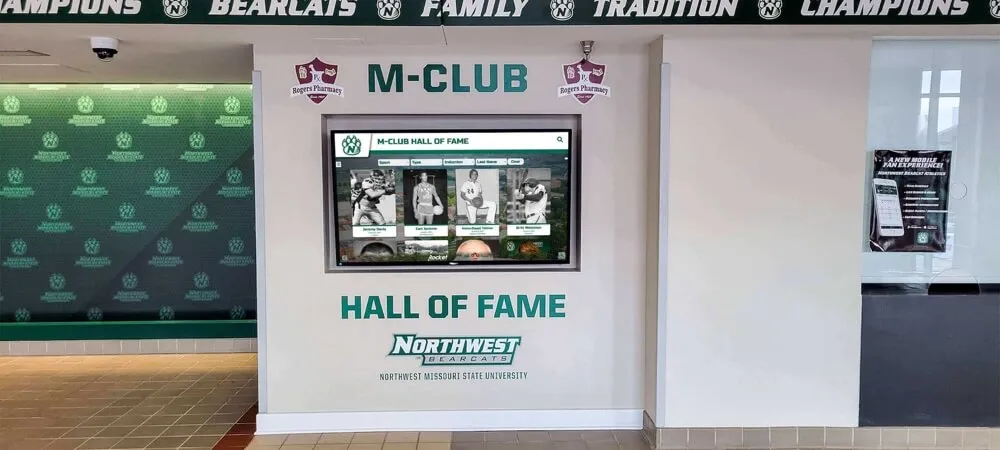
Professional installations integrate computer modules seamlessly for clean, maintenance-friendly deployments
Software and Operating System Considerations
Operating System Selection
Windows 10/11 IoT Enterprise:
- Best compatibility with commercial kiosk software
- Extensive peripheral device support
- Familiar interface for IT administrators
- Long-term servicing channel (LTSC) versions provide 5-10 years of support without feature updates
- Licensing costs: $100-300 per device depending on version
Windows 10/11 Pro:
- Suitable for kiosk deployments with proper configuration
- Lower licensing costs than IoT Enterprise
- Requires careful lockdown configuration to prevent user access to desktop features
- Works well with cloud-managed recognition display software
Linux (Ubuntu, Debian):
- No operating system licensing costs
- Excellent stability and security
- Lower resource requirements
- Requires compatible kiosk software (browser-based applications work well)
- May require more technical expertise for troubleshooting
Chrome OS:
- Very low resource requirements
- Automatic updates and strong security
- Limited to Chrome browser-based applications
- Good option for cloud-dependent kiosk applications
- Requires Chrome OS licensing for commercial deployments
Kiosk Mode Configuration
Regardless of operating system, properly configured kiosk mode prevents users from accessing administrative functions:
Essential Lockdown Features:
- Disable desktop access and file browsers
- Restrict task switching and window management
- Remove on-screen keyboard access to command prompts
- Block installation of unauthorized applications
- Prevent system setting modifications
- Auto-restart kiosk application if closed
Management Capabilities:
- Remote monitoring and alerting
- Scheduled content updates and reboots
- Centralized configuration management
- Usage analytics and reporting
Modern cloud-based platforms like Rocket Alumni Solutions handle much of this complexity through managed browser environments that automatically enforce kiosk mode restrictions while providing intuitive content management for administrators.
Maintenance and Lifecycle Management
Preventive Maintenance Schedule
Monthly Tasks:
- Verify kiosk responsiveness and content accuracy
- Check for system update availability
- Review error logs for issues
- Test touch responsiveness across screen
Quarterly Tasks:
- Clean screen and enclosure
- Inspect cable connections
- Remove dust from ventilation areas
- Verify backup systems functionality
- Update content and remove outdated entries
Annual Tasks:
- Perform comprehensive system health check
- Update or replace thermal paste on actively cooled modules
- Review and update disaster recovery procedures
- Evaluate performance against current requirements
- Plan for hardware refresh if needed
Expected Lifespan and Replacement Planning
Component Lifespans:
- OPS PC Module: 4-6 years effective service
- Commercial Display Panel: 50,000-100,000 hours (8-10 years at 12 hours/day)
- Touchscreen Overlay: 5-8 years depending on traffic
- SSD Storage: 5-10 years typical (varies with write intensity)
Replacement Indicators:
- Sluggish performance despite software optimization
- Frequent crashes or stability issues
- Insufficient resources for current software requirements
- Component obsolescence impacting security updates
- Cost of repairs approaching replacement cost
Planning for module replacement every 4-5 years ensures kiosks remain performant and secure while maximizing the lifespan of expensive display panels. Many institutions budget 15-20% of initial system cost annually for ongoing maintenance, updates, and eventual component replacement.
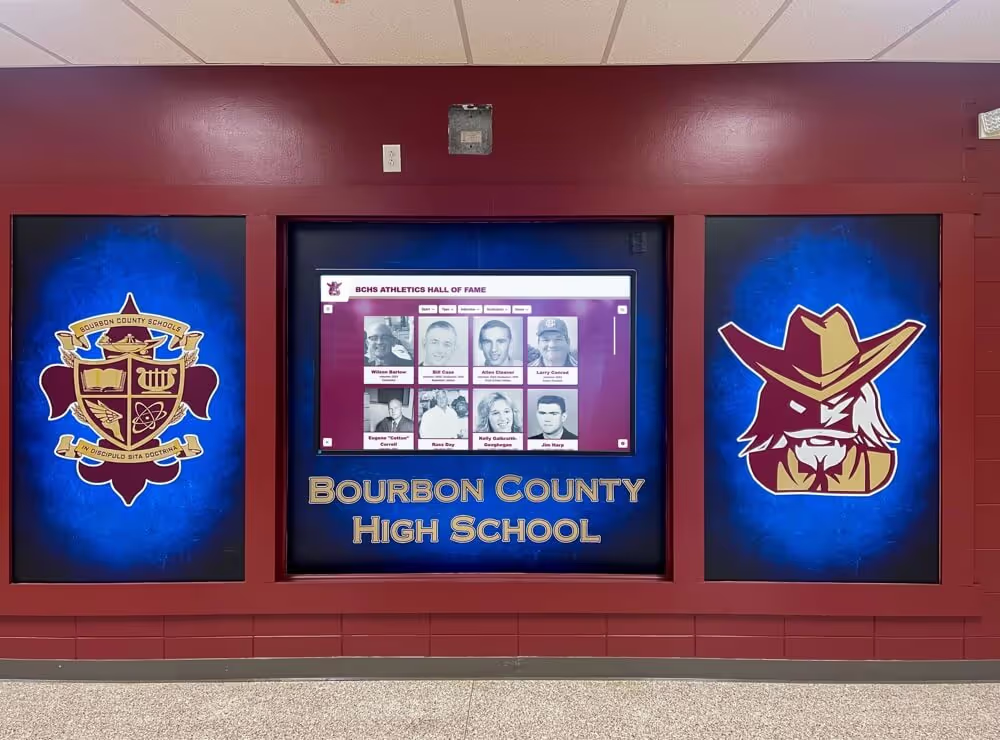
Quality computer modules ensure recognition displays serve schools reliably for years
Cost Considerations and ROI
Component Pricing Overview
OPS PC Modules: $400-$1,200 depending on specifications
- Entry-level (Celeron, 4GB RAM, 128GB SSD): $400-$600
- Mid-range (Core i3/i5, 8GB RAM, 256GB SSD): $600-$900
- High-performance (Core i7, 16GB RAM, 512GB SSD): $900-$1,200
SFF PCs: $300-$1,000
- Entry-level mini PC: $300-$500
- Mid-range NUC or equivalent: $500-$800
- High-performance small form factor: $800-$1,000
System-on-Module Platforms: $100-$500
- Raspberry Pi Compute Module: $100-$200
- Industrial ARM SOM: $200-$400
- High-performance SOM (Jetson, etc.): $400-$500
Hidden Costs to Consider:
- Operating system licensing: $0-$300
- Mounting hardware and cables: $50-$150
- Installation labor: $100-$300
- Kiosk software platform: $500-$2,000 annual subscription
- Ongoing maintenance: 10-15% of hardware cost annually
Total Cost of Ownership Analysis
Consider a typical interactive recognition kiosk over 7 years:
Modular OPS Approach:
- Initial Investment: $3,500 (55" display) + $800 (OPS module) + $1,200 (installation) = $5,500
- Year 5 Module Upgrade: $800
- Annual Software/Maintenance: $1,000 × 7 = $7,000
- Total 7-Year Cost: $13,300
Integrated All-in-One Approach:
- Initial Investment: $5,000 (integrated system) + $1,000 (installation) = $6,000
- Year 5 Full Replacement: $5,000 (as computing becomes obsolete)
- Annual Software/Maintenance: $1,000 × 7 = $7,000
- Total 7-Year Cost: $18,000
The modular approach saves approximately $4,700 (26%) over 7 years while providing better performance through mid-lifecycle upgrades. These savings compound across multiple kiosk deployments—a school installing five recognition displays saves $23,500 over the system lifespan by choosing modular components.
Return on Investment
Beyond hardware costs, consider the value interactive kiosks provide:
Alumni Engagement: Digital recognition displays generate 3-5x more engagement than traditional trophy cases. Schools report alumni spending 5-10 minutes exploring interactive displays versus 30-60 seconds glancing at static plaques.
Operational Efficiency: Updating digital displays takes 10-15 minutes versus 2-4 hours for physical trophy case updates. Over 7 years, this saves 40-60 administrative hours valued at $1,200-$2,400.
Space Optimization: A single 55" touchscreen can showcase 500+ individuals with detailed profiles—equivalent to 50-100 linear feet of wall-mounted plaques. At $100-$200 per linear foot for traditional displays, digital kiosks save $5,000-$20,000 in physical display costs.
Fundraising Impact: Donor recognition walls with interactive profiles generate 15-20% higher donor satisfaction ratings than static donor walls. Enhanced satisfaction correlates with improved donor retention and giving levels.
These benefits typically deliver ROI within 2-3 years for educational institutions, making the investment in quality computer modules and display systems financially justified beyond the immediate technology capabilities.
Integration with Recognition Display Software
Hardware-Software Compatibility
The computer module works in concert with specialized recognition software to create compelling interactive experiences. When evaluating modules, consider compatibility with your chosen software platform:
Browser-Based Platforms: Cloud-based systems like Rocket Alumni Solutions run in standard web browsers, maximizing hardware compatibility. Any computer module capable of running modern Chrome, Edge, or Firefox browsers will perform well. This approach provides:
- Excellent cross-platform compatibility
- Simplified software updates (no local installation required)
- Easy remote content management
- Lower IT support requirements
Native Application Platforms: Some kiosk software requires local application installation. Verify minimum system requirements including:
- Operating system version compatibility
- Processor generation and speed requirements
- RAM and storage minimums
- Graphics capabilities for video playback
Performance Optimization: Work with your software vendor to optimize configurations. Many interactive display platforms offer performance modes tailored to different hardware specifications—properly configuring these settings ensures smooth operation even on mid-range hardware.
Content Delivery Considerations
How content reaches your kiosk affects computer module requirements:
Cloud Content Delivery: Modules stream content from cloud servers, minimizing local storage requirements but demanding reliable network connectivity. Benefits include:
- Instant content updates across all displays
- Minimal local storage needed (128GB sufficient)
- Centralized content management
- Automatic software updates
Hybrid Content Delivery: Systems cache content locally while synchronizing updates from the cloud. This approach provides:
- Smooth operation during network interruptions
- Faster content loading (no streaming lag)
- Requires moderate storage (256GB recommended)
- Balance of local performance and cloud convenience
Local Content Storage: All content resides on the kiosk module. While this maximizes offline reliability, it requires:
- Substantial storage capacity (512GB+)
- Manual update processes
- Larger initial content deployment effort
- Less suitable for frequent content changes
Most educational recognition displays perform optimally with hybrid approaches—commonly viewed content cached locally for instant response while less-accessed content streams on-demand. This strategy delivers excellent user experience with moderate hardware requirements.
Ready to Deploy Your Interactive Recognition Display?
Rocket Alumni Solutions provides complete guidance on computer module selection, installation, and integration for your touchscreen kiosk project. Our platform works seamlessly with industry-standard OPS modules and SFF PCs to deliver reliable, engaging interactive experiences.
Schedule Your Free ConsultationTroubleshooting Common Computer Module Issues
Performance Problems
Symptom: Slow responsiveness, laggy touch interactions, delayed content loading
Potential Causes and Solutions:
- Insufficient RAM: Monitor memory usage during operation. If consistently above 80%, increase RAM or optimize software configuration
- Background processes: Disable unnecessary startup programs and services consuming resources
- Thermal throttling: Check system temperatures. If approaching 80-85°C, improve ventilation or reduce ambient temperature
- Storage nearly full: Maintain at least 20% free space on SSDs for optimal performance. Clear cache files and temporary data regularly
- Outdated software: Update operating system, drivers, and kiosk applications to latest versions
Connectivity Issues
Symptom: Intermittent network disconnections, inability to load cloud content
Potential Causes and Solutions:
- Unreliable Wi-Fi signal: Switch to wired Ethernet connection. If Wi-Fi required, install access point closer to kiosk or use Wi-Fi extender
- Network port configuration: Verify switch ports support required speeds and aren’t configured with problematic VLAN or security policies
- DNS issues: Configure reliable DNS servers (Google: 8.8.8.8, Cloudflare: 1.1.1.1) rather than relying on ISP defaults
- Firewall restrictions: Ensure required ports and URLs are whitelisted in network security policies
- Network cable quality: Replace damaged or substandard Ethernet cables with quality Cat 6 or better cables
Display and Touch Problems
Symptom: No display output, touch input not working correctly
Potential Causes and Solutions:
- OPS module not fully seated: Power down, reseat module ensuring firm connection, verify retention screws are tightened
- Input source selection: Access display menu and verify OPS/internal source is selected
- Touch driver issues: Reinstall touch screen drivers, verify USB connection between display and OPS module
- Touch calibration: Run touch calibration utility in operating system settings
- BIOS settings: Verify integrated graphics are enabled if using OPS module
Boot and Stability Issues
Symptom: System won’t boot, frequent crashes, unexpected restarts
Potential Causes and Solutions:
- Corrupted operating system: Boot from recovery media and run system repair tools. If unsuccessful, perform clean OS reinstallation
- Failing SSD: Check SMART data for drive health indicators. Replace drive if errors are present
- Power supply problems: Verify adequate, stable power delivery. Consider UPS installation to prevent power fluctuation issues
- Memory errors: Run memory diagnostic tools. Replace RAM modules if errors are detected
- Outdated BIOS: Update module BIOS to latest version from manufacturer
Maintaining detailed logs of issues and resolutions helps identify patterns and accelerates troubleshooting future problems. Document configurations, update schedules, and maintenance procedures for reference by all IT team members.
Future-Proofing Your Kiosk Computer Investment
Technology Trends Shaping Computer Modules
Increased Processing Efficiency: Each processor generation delivers approximately 10-15% better performance per watt. Modern modules accomplish more while consuming less power and generating less heat—important factors for passively cooled kiosk deployments.
Enhanced Security Features: Hardware-level security capabilities like Intel vPro, AMD PRO, and Trusted Platform Modules (TPM 2.0) are becoming standard even in mid-range modules. These features protect against increasingly sophisticated security threats.
Connectivity Evolution: Wi-Fi 6E and Wi-Fi 7 provide higher bandwidth and lower latency for wireless kiosk deployments. 2.5GbE and 5GbE Ethernet support enables 4K and 8K content delivery over existing network infrastructure.
Edge Computing Capabilities: Modern modules increasingly support edge AI inference, enabling features like facial recognition, gesture control, and personalized content recommendations without requiring cloud connectivity.
Sustainability Focus: Manufacturers prioritize energy efficiency and recyclable materials. Low-power modules reduce operating costs and environmental impact—increasingly important considerations for educational institutions with sustainability commitments.
Planning for Long-Term Success
Standardize on Modular Architectures: Choosing OPS-based systems today ensures straightforward upgrades as technology evolves. The standardized slot interface means you can upgrade computing without vendor lock-in.
Build in Performance Headroom: Select modules with 25-30% more computing capacity than current requirements. This headroom accommodates software updates, feature additions, and increasing content richness over the module’s 4-5 year service life.
Invest in Quality Infrastructure: Premium commercial displays, professional installation, and robust network connectivity maximize return on computer module investments. Excellent modules underperform when paired with consumer-grade displays or unreliable networks.
Establish Refresh Cycles: Plan for computer module replacement every 4-5 years as part of regular budget cycles. This proactive approach prevents performance degradation and security vulnerabilities while controlling costs through planned, competitive procurement.
Partner with Experienced Providers: Work with vendors like Rocket Alumni Solutions who understand the complete ecosystem of hardware, software, installation, and support. Integrated solutions providers ensure all components work harmoniously rather than pointing fingers when issues arise.
Conclusion: Making the Right Computer Module Choice
Selecting the appropriate computer module for your touchscreen kiosk directly impacts user experience, operational reliability, and total cost of ownership. For most educational recognition displays, mid-range OPS PC modules with Intel Core i3 or i5 processors, 8GB RAM, and 256GB SSDs deliver excellent performance at reasonable cost while providing straightforward upgrade paths as technology advances.
The modular approach—pairing commercial-grade displays with standardized OPS computer modules—offers the best combination of flexibility, longevity, and value for schools and universities. This architecture allows independent upgrade of computing and display components, extending total system lifespan and reducing long-term costs.
When evaluating computer modules, consider not just specifications but the complete solution including kiosk software, installation quality, ongoing support, and content management capabilities. The most powerful computer module delivers poor results when paired with inadequate software or unreliable support.
Solutions like Rocket Alumni Solutions simplify these decisions by providing comprehensive guidance on hardware selection, professional installation services, intuitive cloud-based content management, and responsive ongoing support. This integrated approach ensures your interactive recognition display delivers engaging experiences and reliable operation for years to come.
Ready to create an impactful interactive recognition display for your institution? Contact Rocket Alumni Solutions for expert guidance on computer module selection and complete touchscreen kiosk deployment.