Turning Websites into Secure Fullscreen Kiosk Experiences
Deploying a website on a public touchscreen display requires more than just opening a browser—you need specialized fullscreen kiosk app solutions that lock down the interface, prevent unauthorized access, and create a polished user experience. Whether you're running an interactive directory, digital recognition display, or information kiosk, understanding your fullscreen kiosk app options is essential for successful deployment.
The challenge facing organizations deploying touchscreen websites in public spaces is clear: standard web browsers weren’t designed for unattended kiosk use. Users can access address bars, navigate away from your site, modify settings, or exit to the desktop. Professional fullscreen kiosk apps solve these problems by creating secure, locked-down browsing environments specifically designed for public touchscreen displays.
This comprehensive guide explores fullscreen kiosk app solutions for 2025, comparing approaches from browser-based lock-down modes to specialized kiosk software, helping you select the right solution for your touchscreen website deployment.
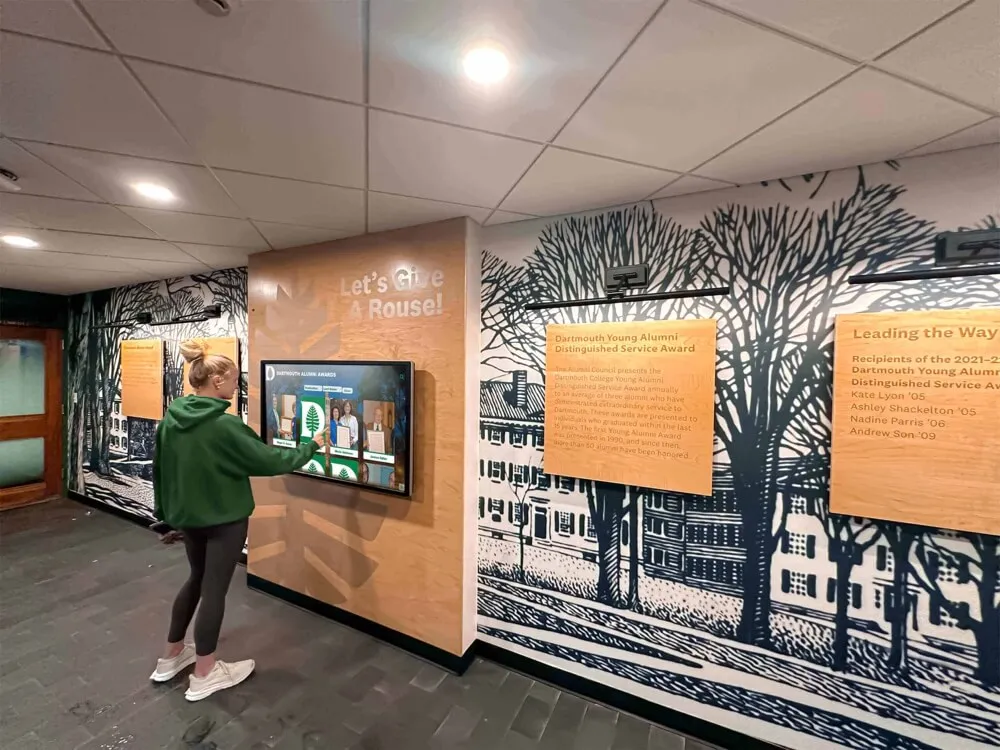
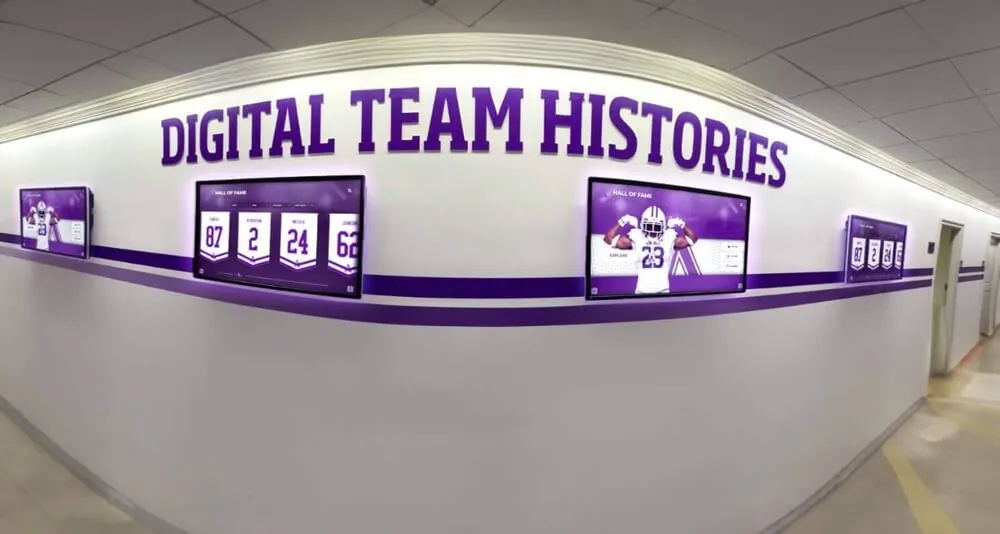
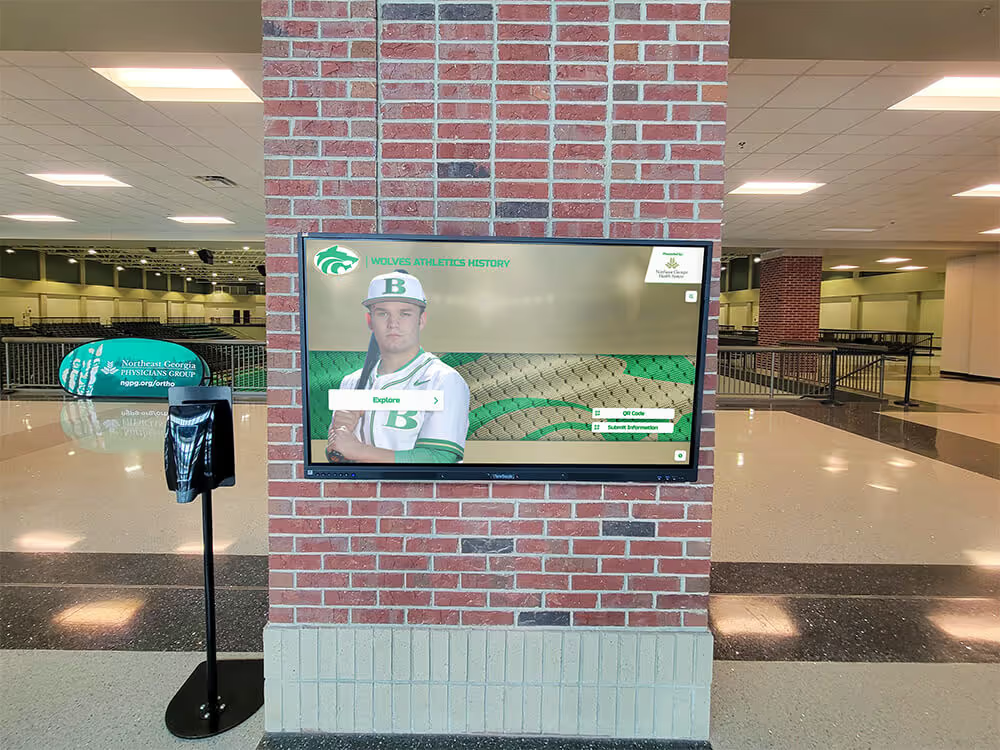
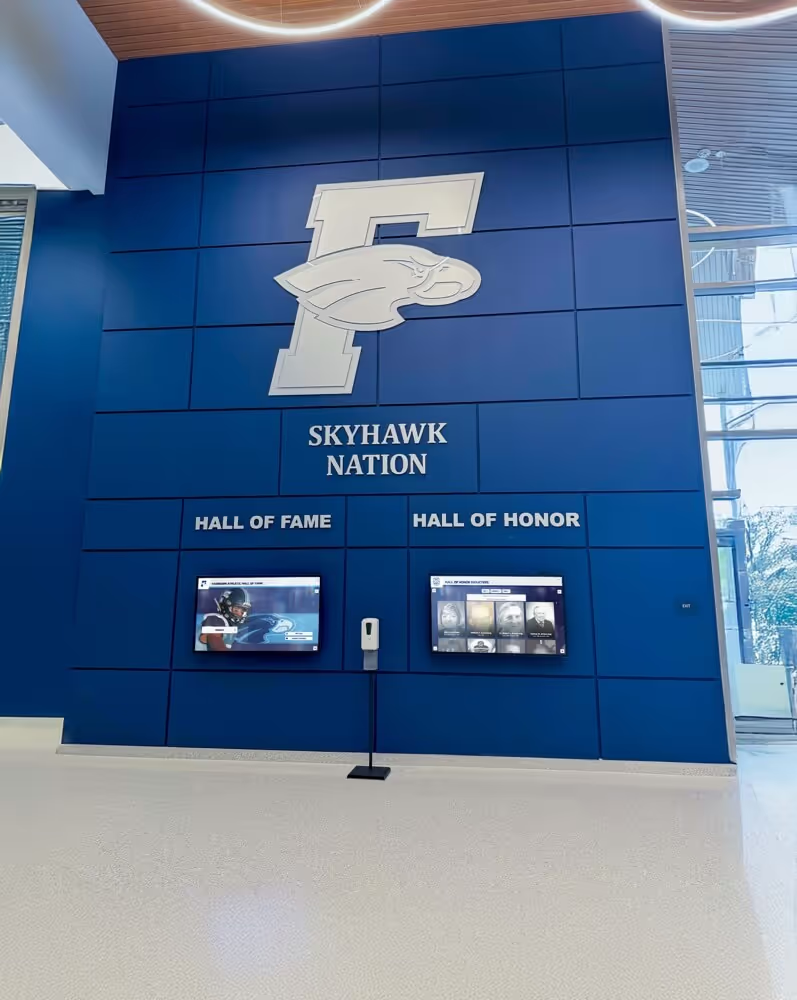
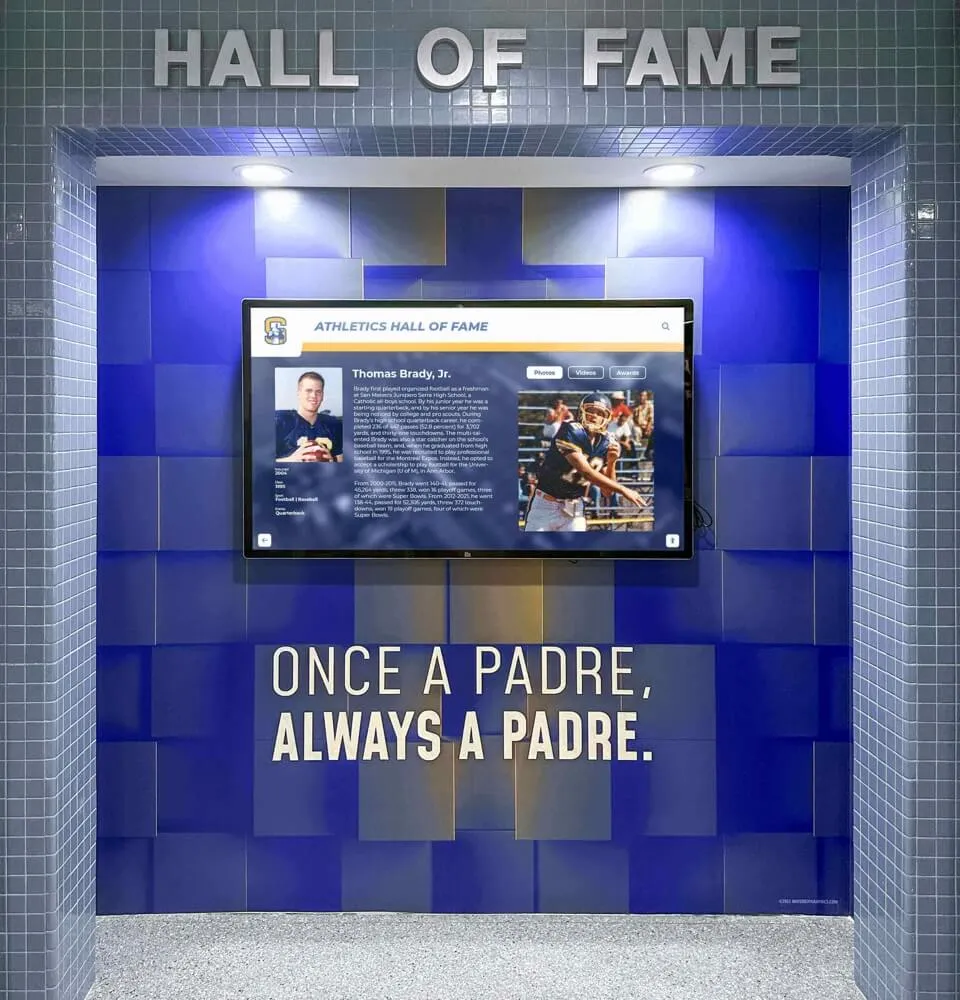
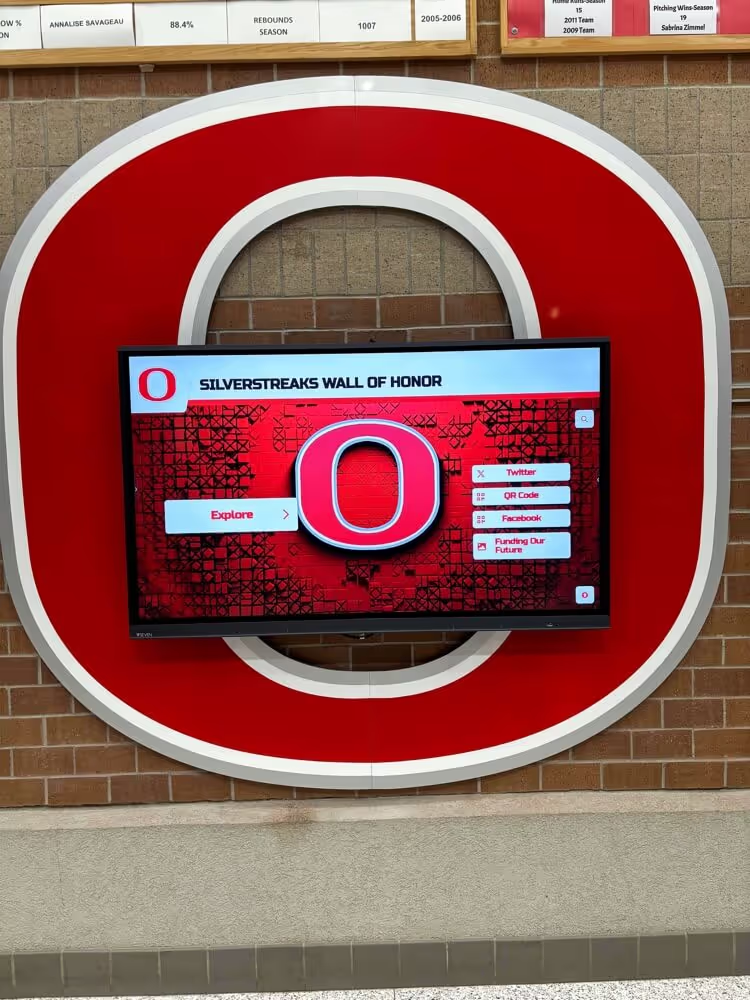
Modern fullscreen kiosk apps create secure, professional touchscreen website experiences in public spaces
Understanding Fullscreen Kiosk Apps: What You’re Actually Solving
Before evaluating specific solutions, it’s important to understand what challenges fullscreen kiosk apps address and what functionality you actually need.
Core Problems Fullscreen Kiosk Apps Solve
Public touchscreen website deployments face several critical challenges:
Security and Lock-Down
Preventing users from exiting your website, accessing system settings, browsing other sites, or interfering with kiosk operation. This includes disabling right-click menus, keyboard shortcuts, and navigation controls.
Session Management
Automatically resetting the kiosk to the home screen after inactivity, clearing browsing data between sessions, and preventing users from leaving the kiosk in an unusable state for the next person.
Professional Appearance
Hiding browser chrome (address bars, bookmarks, buttons) to create an immersive fullscreen experience that looks like a dedicated application rather than a website in a browser.
Reliability and Uptime
Ensuring the kiosk recovers from crashes, network interruptions, or unexpected events without requiring manual intervention. This includes automatic startup, crash recovery, and connection monitoring.
Key Requirements for Fullscreen Kiosk Apps
When evaluating fullscreen kiosk app solutions, assess against these essential criteria:
- True Fullscreen Mode: Completely hides browser UI elements and operating system taskbars
- Navigation Lock-Down: Prevents users from leaving your website or accessing unauthorized sites
- Input Control: Disables problematic keyboard shortcuts and right-click context menus
- Automatic Reset: Returns to home screen and clears data after user inactivity
- Crash Recovery: Automatically restarts and returns to your website after failures
- Remote Management: Allows configuration and monitoring without physical access
- Hardware Integration: Works reliably with commercial touchscreen displays
- Performance: Handles multimedia content and complex interactions smoothly
Browser-Based Fullscreen Kiosk Solutions
Many organizations begin by exploring fullscreen and kiosk modes built into standard web browsers. Let’s examine what these offer and where they fall short.
Chrome Kiosk Mode: The Starting Point
Overview: Google Chrome includes a built-in kiosk mode (launched with --kiosk flag) that opens websites in fullscreen without typical browser UI elements.

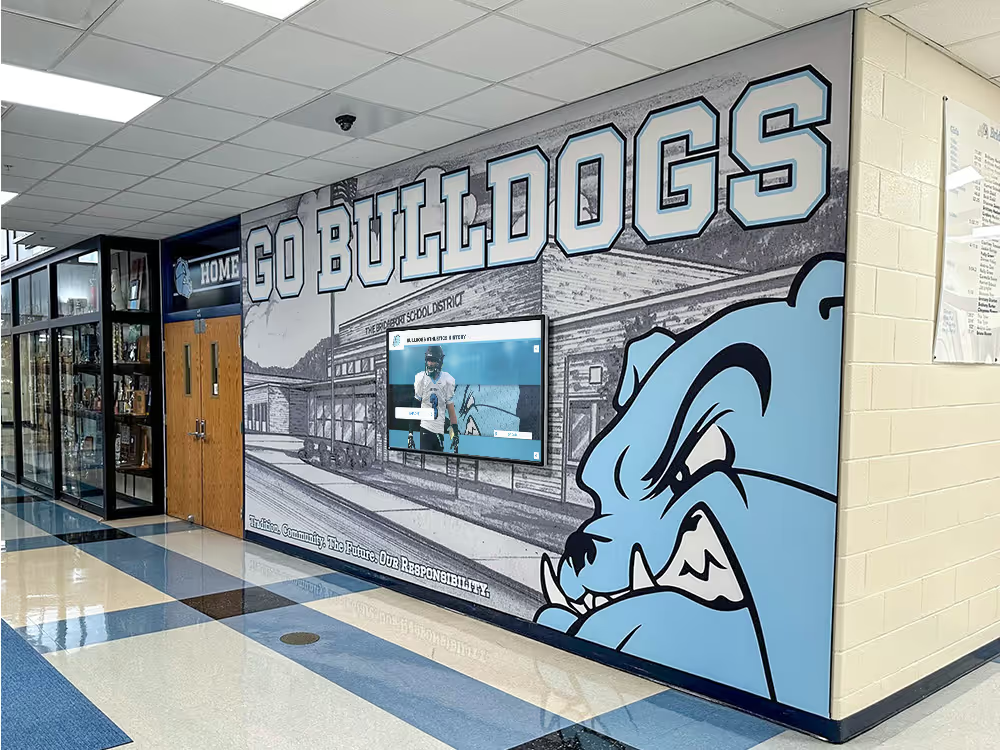
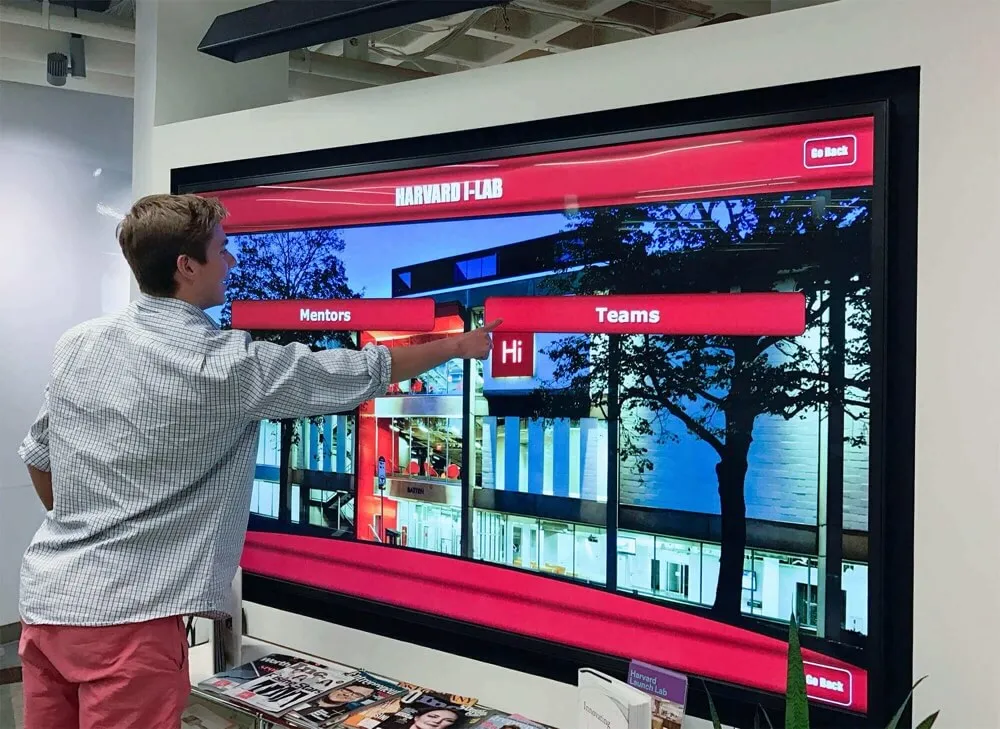
Chrome's kiosk mode provides basic fullscreen functionality but lacks comprehensive lock-down features
Advantages of Chrome Kiosk Mode
- Free and Built-In: No additional software required
- True Fullscreen: Hides address bar and browser chrome
- Web Standards Support: Full modern web technology compatibility
- Easy Initial Setup: Launch with simple command-line flag
- Cross-Platform: Works on Windows, macOS, Linux, and Chrome OS
Significant Limitations
- Minimal Lock-Down: Users can still exit with Alt+F4 or other keyboard shortcuts
- No Automatic Reset: Kiosk remains on whatever page user navigates to
- No Session Management: Browsing data persists between users
- Limited Configuration: Few options for customizing behavior
- No Built-In Monitoring: Cannot track uptime or detect issues remotely
- Requires Manual Restart: If browser crashes, kiosk remains down until someone intervenes
Best For: Internal testing, proof-of-concept demonstrations, or supervised kiosks where staff can intervene if problems occur.
Not Recommended For: Unattended public kiosks, high-security applications, or situations requiring reliable 24/7 operation.
Firefox Kiosk Mode: Similar Limitations
Overview: Mozilla Firefox offers a kiosk mode similar to Chrome’s, launched with the -kiosk command-line option.
The advantages and limitations closely mirror Chrome’s kiosk mode: basic fullscreen functionality without comprehensive security, session management, or monitoring capabilities. Firefox may be preferable if you need specific web technologies better supported by Firefox’s engine, but the fundamental limitations remain.
Chromium Embedded Framework (CEF): For Developers
Overview: CEF allows developers to embed Chromium’s rendering engine in custom applications, creating purpose-built kiosk browsers with exactly the features needed.
Advantages of CEF-Based Solutions
- Complete Customization: Build exactly the lock-down behavior you need
- Professional Polish: Create branded experiences without browser chrome
- Tight Control: Implement sophisticated security and session management
- Hardware Integration: Connect to peripherals, sensors, or custom hardware
Challenges for Most Organizations
- Requires Development: Need skilled programmers to build and maintain
- Time Investment: Months of development work for full-featured kiosk browser
- Ongoing Maintenance: Must update as Chromium evolves and security patches release
- Testing Burden: Responsible for QA across different hardware configurations
- Not Cost-Effective: Development costs exceed commercial solutions for most use cases
Best For: Large organizations with development teams deploying many kiosks with unique requirements, or companies building kiosk products for resale.
Consider Alternatives For: Most organizations needing a handful of kiosks—commercial solutions deliver better value.
Specialized Fullscreen Kiosk App Software
Purpose-built kiosk software provides comprehensive fullscreen and lock-down functionality designed specifically for public touchscreen deployments.
KioWare: Comprehensive Commercial Solution
Overview: KioWare is established kiosk software that transforms standard browsers (Chrome, Edge, Firefox) into locked-down fullscreen kiosk apps.
KioWare Strengths
- Comprehensive Lock-Down: Disables exit shortcuts, right-click, and system access
- Automatic Session Reset: Configurable inactivity timers clear data and return home
- Remote Monitoring: Cloud-based management console for multi-kiosk deployments
- Attract Loop: Display screensaver content when kiosk is idle
- Detailed Logging: Track usage, errors, and performance metrics
- Peripheral Support: Integrate printers, card readers, and other devices
Considerations
- Premium Pricing: $300-$800 per kiosk depending on features
- Annual Licensing: Ongoing costs for support and updates
- Windows-Focused: Best support on Windows; limited macOS/Linux options
- Configuration Complexity: Many options require time to configure optimally
Best For: Organizations deploying multiple unattended kiosks requiring robust lock-down, remote management, and enterprise-grade reliability.
Porteus Kiosk: Lightweight Linux Solution
Overview: Porteus Kiosk is a hardened Linux distribution designed exclusively for kiosk deployments, booting directly into a locked-down browser.
Porteus Kiosk Advantages
- Operating System Level Lock-Down: Entire system designed for kiosk use
- Strong Security: Read-only file system prevents tampering
- Fast Boot Times: Boots in seconds on modern hardware
- Low Resource Usage: Runs efficiently on modest hardware
- Automatic Recovery: Reboots clear any issues completely
Considerations
- Linux Expertise Helpful: Configuration easier with Linux familiarity
- Hardware Compatibility: Test thoroughly on your specific hardware
- Commercial Licensing: Free for evaluation; $24-49/kiosk for commercial use
- Limited Windows Integration: Replacing Windows means losing any Windows-specific tools
Best For: Organizations comfortable with Linux, deploying dedicated kiosk hardware, or needing maximum security and reliability at low cost.
Windows Assigned Access: Built-In Windows 10/11 Option
Overview: Windows 10 and 11 Professional/Enterprise editions include “Assigned Access” (also called Kiosk Mode) that locks devices to run only specified applications.
Windows Assigned Access Benefits
- Included with Windows Pro/Enterprise: No additional software cost
- Microsoft Support: Part of Windows, receives regular updates
- MDM Integration: Configure via Intune or other mobile device management
- Multiple Kiosk Types: Single-app or multi-app kiosk configurations
Limitations
- Edge Browser Only: Limited to Microsoft Edge (Chromium-based)
- Basic Features: Lacks sophisticated session management and monitoring
- Configuration Complexity: Setup involves XML configuration files or MDM
- Limited Customization: Fewer options than specialized kiosk software
Best For: Organizations already using Windows Enterprise/MDM infrastructure, Microsoft-centric IT environments, or simple kiosk needs.
Advanced Fullscreen Kiosk Solutions for Recognition Displays
Organizations deploying touchscreen websites for recognition, engagement, or educational purposes often find that specialized platforms provide better results than generic fullscreen kiosk apps.
Purpose-Built Recognition Platform Approach
Rather than using a fullscreen kiosk app to display a website, solutions like Rocket Alumni Solutions integrate the kiosk functionality directly into a purpose-built platform designed specifically for recognition applications.
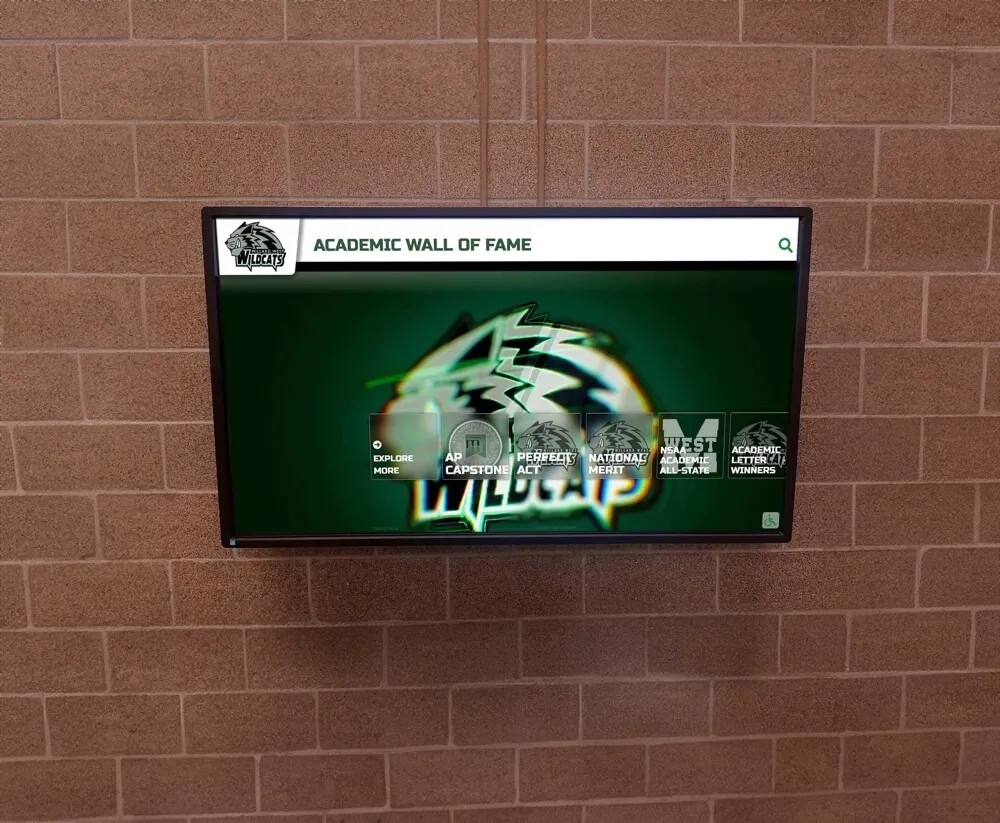
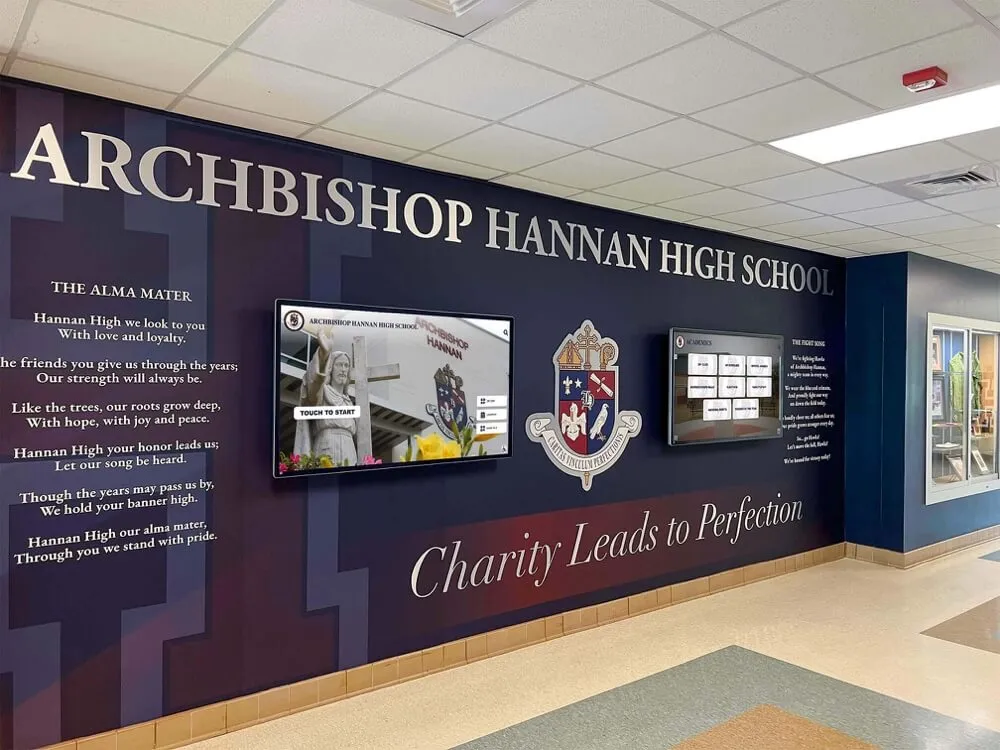
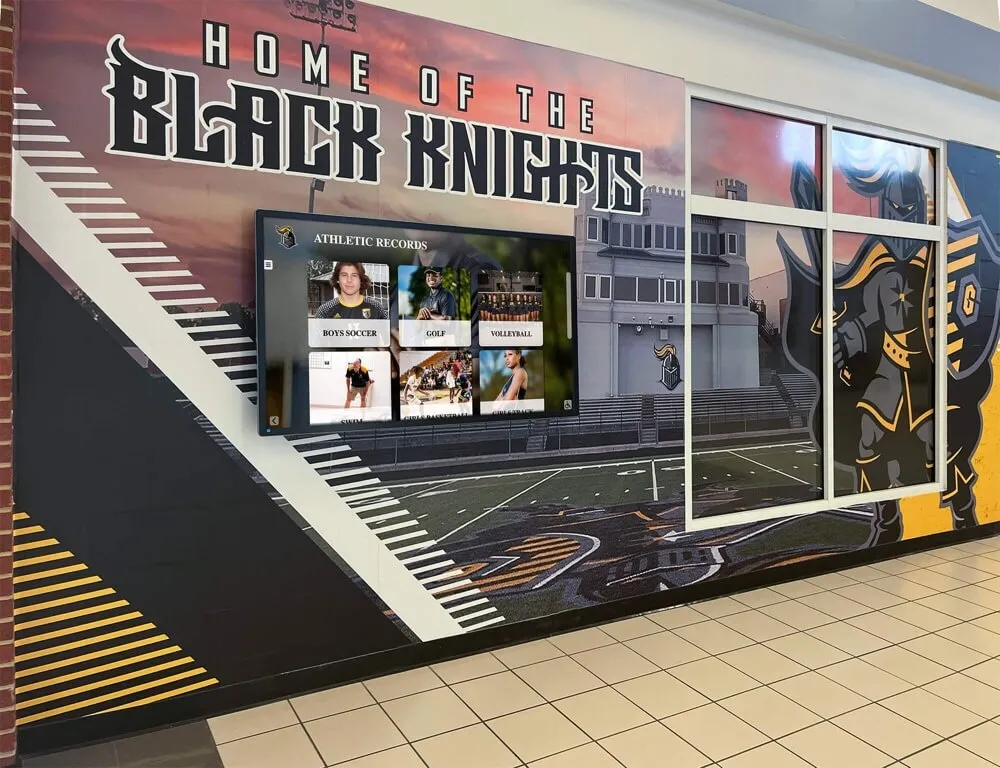
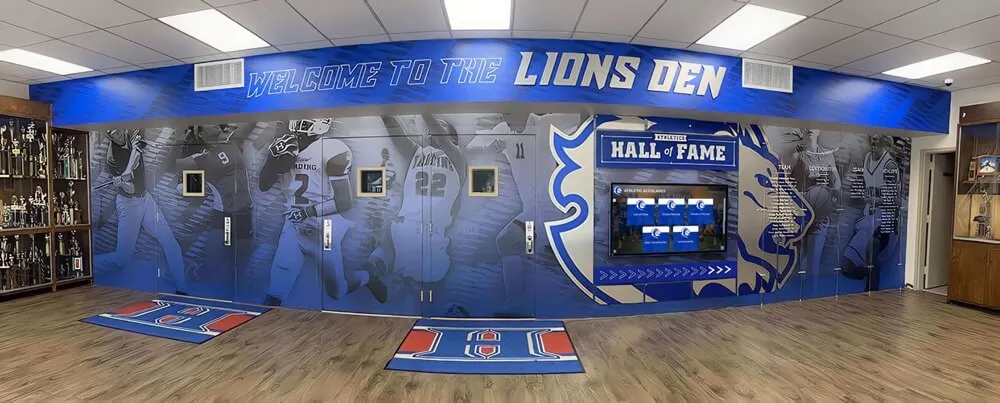
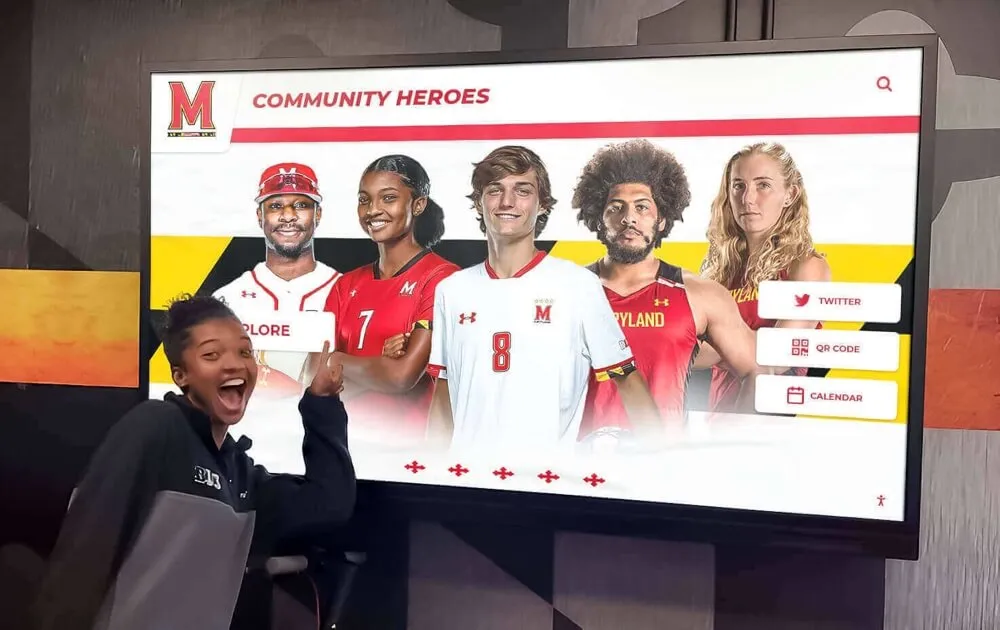
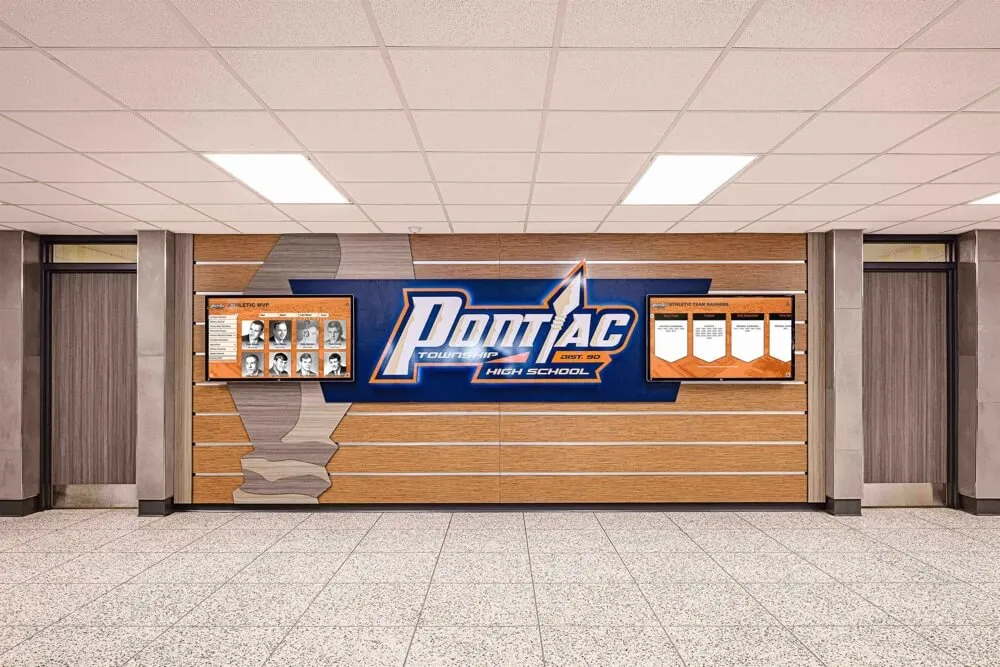
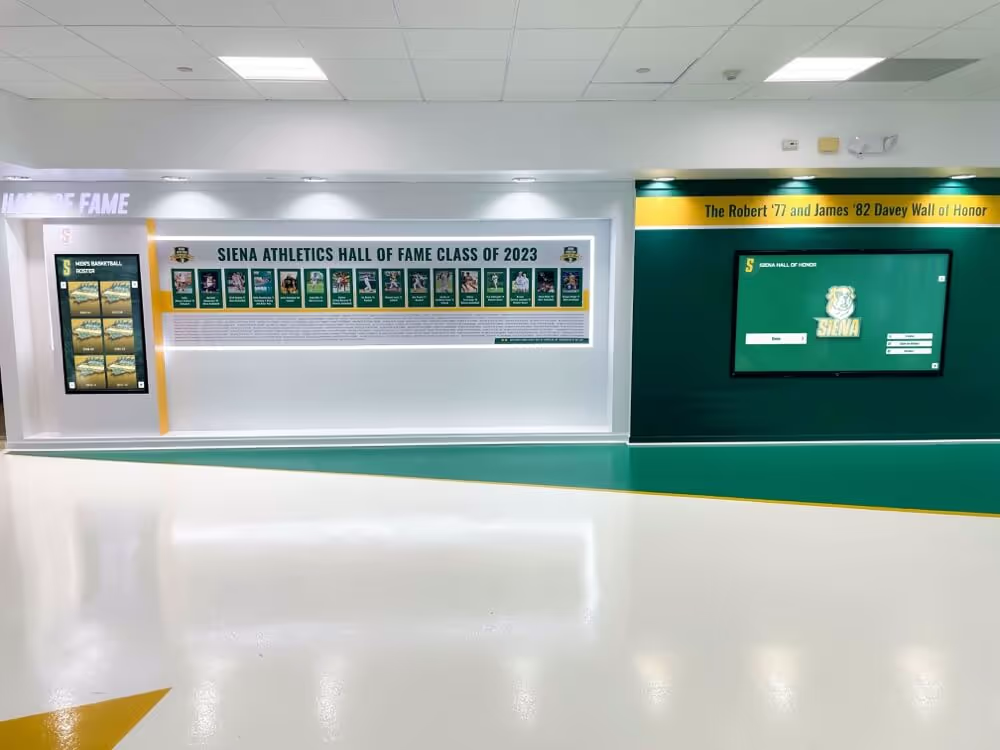
Purpose-built recognition platforms integrate kiosk functionality with specialized content management
Beyond Generic Kiosk Apps
When deploying recognition displays, alumni engagement systems, or donor walls, integrated platforms eliminate the need for separate fullscreen kiosk apps by building lock-down functionality directly into specialized software designed for your use case.
Advantages of Integrated Kiosk Platforms
Organizations implementing digital recognition displays find several advantages in integrated approaches:
Unified Management: Content and kiosk settings managed in the same system, eliminating coordination between separate tools.
Optimized Performance: Software and kiosk functionality designed together ensure smooth operation and efficient resource usage.
Specialized Features: Recognition-specific capabilities like search, filtering, and multimedia profiles that generic websites require custom development to achieve. For athletic programs, digital record boards provide sport-specific functionality built into the platform.
Simplified Deployment: Single solution to implement rather than coordinating website development, hosting, and separate kiosk software.
Consistent Support: One vendor responsible for entire system, not troubleshooting between website developer and kiosk software provider.
Schools implementing advanced touchscreen kiosk software find that integrated platforms significantly reduce complexity compared to deploying websites via generic fullscreen kiosk apps.
Critical Features for Fullscreen Kiosk Apps
Regardless of which approach you choose, ensure your fullscreen kiosk app solution includes these essential features:
Security and Lock-Down Features
- ✓Disable Keyboard Shortcuts: Block Alt+Tab, Alt+F4, Ctrl+Alt+Del, Windows key, and other exit methods.
- ✓Remove Browser Chrome: Hide address bar, bookmarks, menus, and all browser UI elements.
- ✓Block Right-Click Context Menus: Prevent access to view source, inspect element, and other developer tools.
- ✓URL Filtering: Restrict navigation to only approved websites or domains.
- ✓Prevent Task Switching: Block access to other applications or desktop.
Session Management Capabilities
- ✓Inactivity Detection: Monitor for user abandonment based on touch inactivity.
- ✓Automatic Reset to Home: Return to designated start page after timeout period.
- ✓Clear Browsing Data: Delete cookies, cache, history, and form data between sessions.
- ✓Attract Screen: Display eye-catching content when idle to invite interaction.
Reliability and Recovery Features
- ✓Automatic Startup: Launch kiosk app when computer boots without manual intervention.
- ✓Crash Recovery: Automatically restart browser if it crashes or becomes unresponsive.
- ✓Connection Monitoring: Detect network outages and handle gracefully.
- ✓Offline Mode: Cache content for continued operation during connectivity issues.
- ✓Scheduled Reboots: Periodic restarts during off-hours to ensure fresh state.
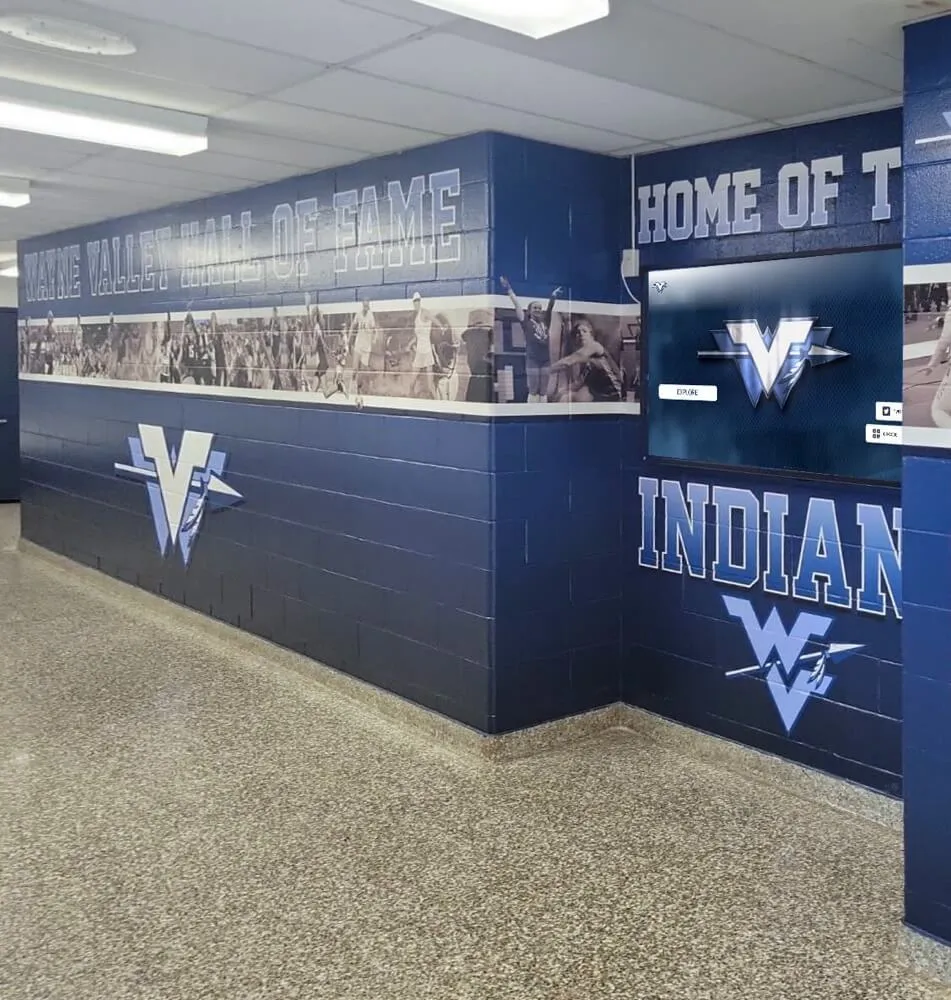
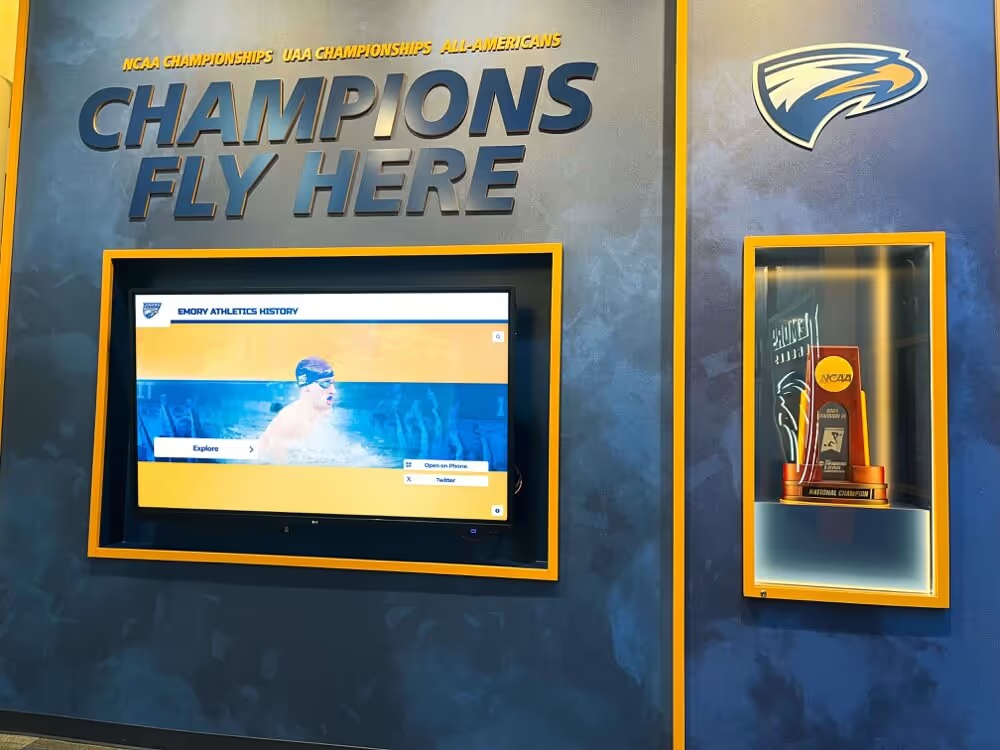
Proper hardware and software integration ensures reliable fullscreen kiosk operation
Deployment Considerations for Fullscreen Kiosk Apps
Successfully implementing fullscreen kiosk apps requires addressing several deployment factors beyond just software selection.
Hardware Selection
Your fullscreen kiosk app performs best when matched with appropriate hardware:
Commercial-Grade Touchscreens: Consumer displays aren’t designed for constant public use. Commercial displays offer:
- Extended warranty periods (3-5 years typical)
- Higher durability ratings for continuous operation
- Better touch technology for responsive public use
- Thermal management for reliability
Adequate Computing Power: Kiosk computers must handle:
- Modern web technologies (HTML5, video, animations)
- Fullscreen rendering at native display resolution
- Background processes for monitoring and management
- Headroom for future website enhancements
Reliable Connectivity: Network requirements include:
- Wired Ethernet preferred over WiFi for reliability
- Adequate bandwidth for multimedia content
- Guest network isolation for security
- Failover options for critical deployments
Organizations planning kiosk deployments benefit from comprehensive hardware selection guides that address compatibility and performance requirements.
Network and Security Configuration
Proper network setup ensures security and performance:
Isolated Network Segment: Place kiosks on separate VLAN or subnet from internal network to limit security exposure.
Content Filtering: Configure firewall rules to allow only necessary web domains and block potentially problematic sites.
Update Management: Establish process for applying operating system and software updates without disrupting kiosk operation.
Monitoring and Alerts: Implement uptime monitoring with alerts for offline kiosks or performance issues.
Physical Installation Considerations
Location and mounting impact user experience and security:
Placement Strategy:
- High-visibility, high-traffic locations maximize engagement
- Adequate clearance for wheelchair accessibility
- Lighting that avoids screen glare
- Proximity to power and network connections
Secure Mounting:
- Prevent display removal or tampering
- Hide cables and connections
- Professional appearance that matches environment
- Maintenance access for authorized personnel
Environmental Factors:
- Climate control to prevent overheating
- Protection from moisture or dust
- Consideration of ambient noise levels
- Adequate physical space for comfortable use
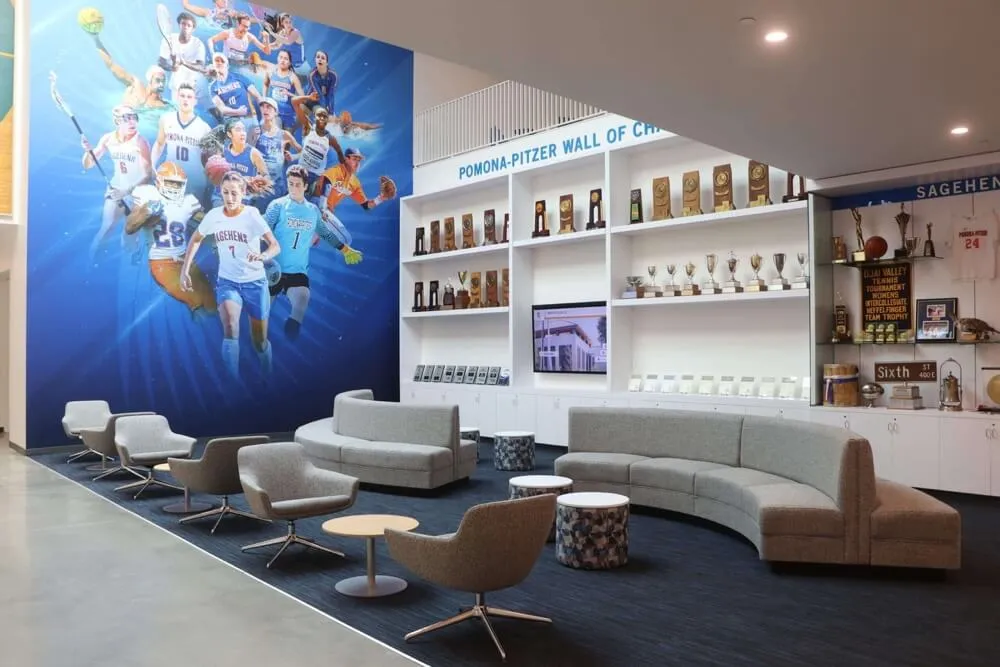
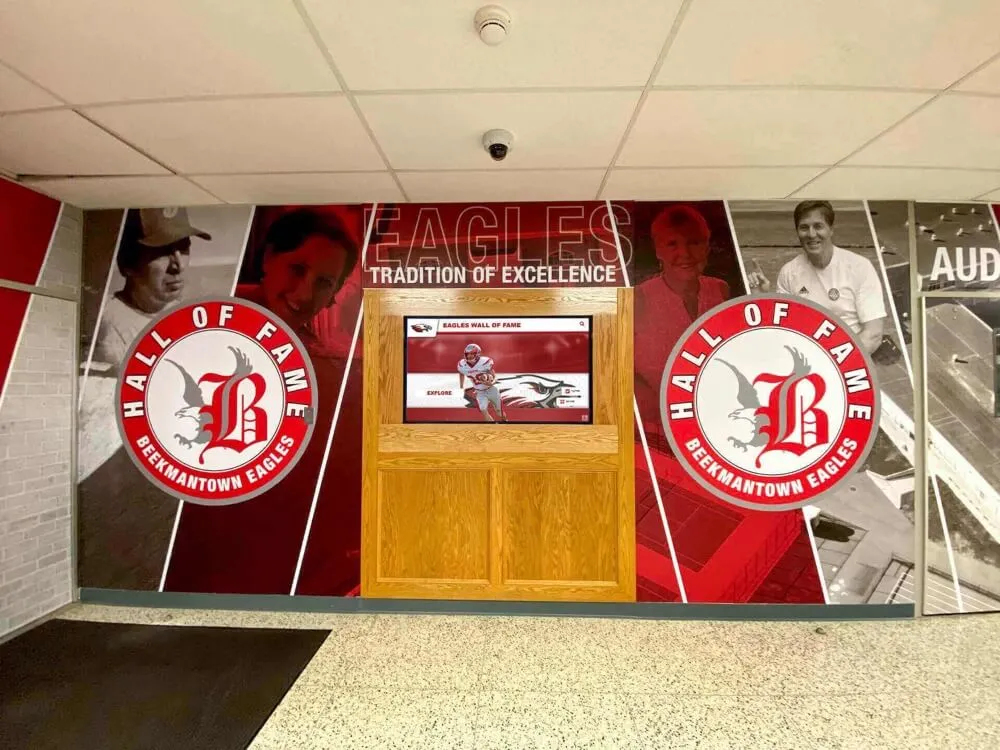
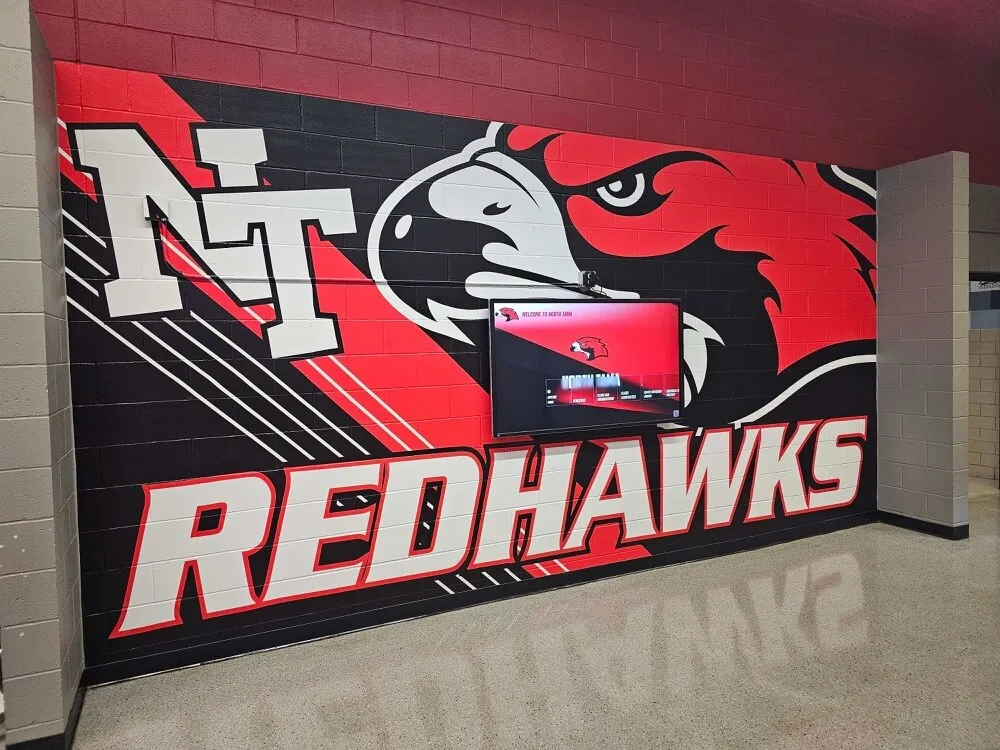
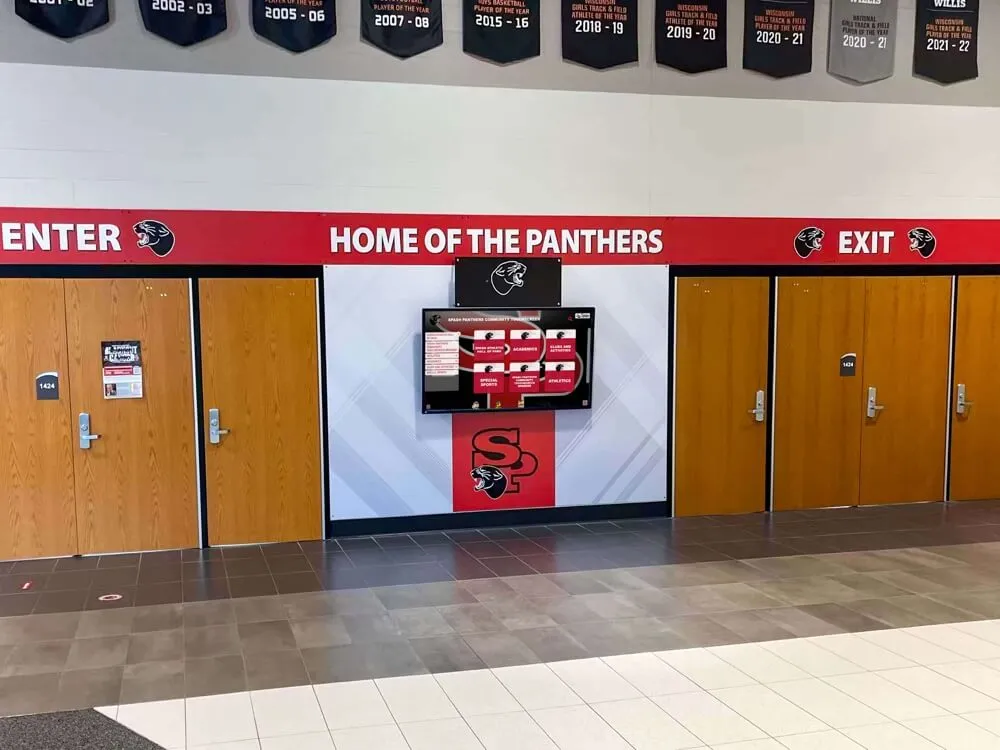
Strategic placement in high-traffic areas with proper lighting maximizes kiosk effectiveness
Optimizing Your Website for Fullscreen Kiosk Apps
When deploying a website via fullscreen kiosk app, optimize the web content specifically for kiosk use:
Design Considerations for Kiosk Websites
Touch-Optimized Interface:
- Buttons and links sized for finger taps (minimum 44x44 pixels)
- Adequate spacing between interactive elements
- No hover-dependent functionality
- Clear visual feedback for touch interactions
Navigation Simplicity:
- Clear home button always visible
- Shallow information architecture (few levels deep)
- Breadcrumb navigation showing current location
- Logical, intuitive menu structure
Timeout Awareness:
- Design for interruption (users may walk away mid-session)
- Important content accessible within few interactions
- Save critical user progress if applicable
- Clear session expiration warnings
Performance Optimization:
- Fast loading times (users won’t wait)
- Optimized images and videos
- Minimal external dependencies
- Progressive enhancement for reliability
Kiosk-Specific Features to Implement
Inactivity Handling: Your website should work with the kiosk app’s timeout features:
- Emit events or messages when user is idle
- Handle automatic return to home gracefully
- Clear any sensitive displayed information
Analytics Integration: Track kiosk-specific metrics to understand user engagement and optimize your interactive kiosk software:
- Most-viewed content
- Interaction patterns (search queries, filters used)
- Session durations and abandonment points
- Popular navigation paths
Offline Capability: Design for occasional connectivity loss:
- Cache critical resources locally
- Handle network errors gracefully
- Queue non-critical operations for when online
- Clear offline state indicators
Testing Your Kiosk Website
Thoroughly test your website in the actual kiosk environment:
Functional Testing:
- All interactions work via touch (no mouse-hover requirements)
- Content displays correctly at kiosk resolution
- Session reset returns to proper state
- All features work in fullscreen mode
Durability Testing:
- Extended operation (24+ hours) without degradation
- Recovery from network interruptions
- Behavior after multiple session resets
- Performance under continuous use
User Testing:
- Observe actual users without instruction
- Identify confusion points or navigation issues
- Measure time to complete common tasks
- Gather feedback on experience quality
Comparison: Fullscreen Kiosk App Approaches
| Approach | Chrome Kiosk Mode | Windows Assigned Access | Commercial Kiosk Software | Integrated Platform |
|---|---|---|---|---|
| Setup Complexity | Very Simple | Moderate | Moderate | Turnkey |
| Lock-Down Security | Minimal | Good | Comprehensive | Comprehensive |
| Session Management | None | Basic | Advanced | Built-in |
| Remote Management | No | Via MDM | Yes | Full platform |
| Monitoring & Analytics | None | Limited | System level | Content & system |
| Crash Recovery | Manual | Basic | Automatic | Automatic |
| Content Management | Separate system | Separate system | Separate system | Integrated |
| Cost (per kiosk) | Free | Included with Windows | $300-800 | Platform pricing |
| Best For | Testing only | Simple kiosks | Generic websites | Recognition apps |
Common Fullscreen Kiosk App Challenges and Solutions
Organizations deploying fullscreen kiosk apps frequently encounter these challenges:
Challenge: Users Exiting Kiosk Mode
Problem: Despite lock-down attempts, determined users find ways to exit kiosk app and access desktop or other applications.
Solutions:
- Use commercial kiosk software with comprehensive keyboard blocking
- Consider operating-system level solutions (Porteus Kiosk, Windows Assigned Access)
- Implement physical keyboard restrictions (lock certain keys)
- Use kiosk enclosures that limit hardware access
- Accept that highly motivated users may succeed—design for graceful recovery
Challenge: Browser Crashes or Freezes
Problem: Kiosk becomes unresponsive or crashes, leaving display blank or showing error messages.
Solutions:
- Implement automatic crash detection and restart
- Use process monitoring tools that restart frozen browsers
- Schedule nightly reboots during off-hours
- Optimize website to avoid memory leaks or performance issues
- Monitor remotely to detect and address issues quickly
Challenge: Network Connectivity Issues
Problem: Internet connection drops, leaving kiosk unable to load content.
Solutions:
- Design website with aggressive caching and offline functionality
- Implement connection monitoring with appropriate user messaging
- Use wired connections instead of WiFi when possible
- Consider local content servers for mission-critical deployments
- Display cached content or offline message rather than browser errors
Challenge: Content Doesn’t Display Correctly
Problem: Website appears wrong in fullscreen mode—layout breaks, buttons misaligned, or content cut off. This is particularly important for digital recognition displays where professional appearance matters.
Solutions:
- Test extensively at actual kiosk resolution before deployment
- Use responsive design that adapts to screen size
- Avoid fixed-size layouts that assume specific dimensions
- Test in actual fullscreen kiosk app, not just browser’s fullscreen mode
- Design specifically for kiosk display dimensions
Challenge: Users Can’t Find What They Need
Problem: Navigation confusion leads to user frustration and abandoned sessions.
Solutions:
- Simplify navigation structure and reduce depth
- Provide prominent search functionality
- Include persistent home button for easy reset
- Conduct user testing with actual target audience
- Analyze session recordings to identify confusion points
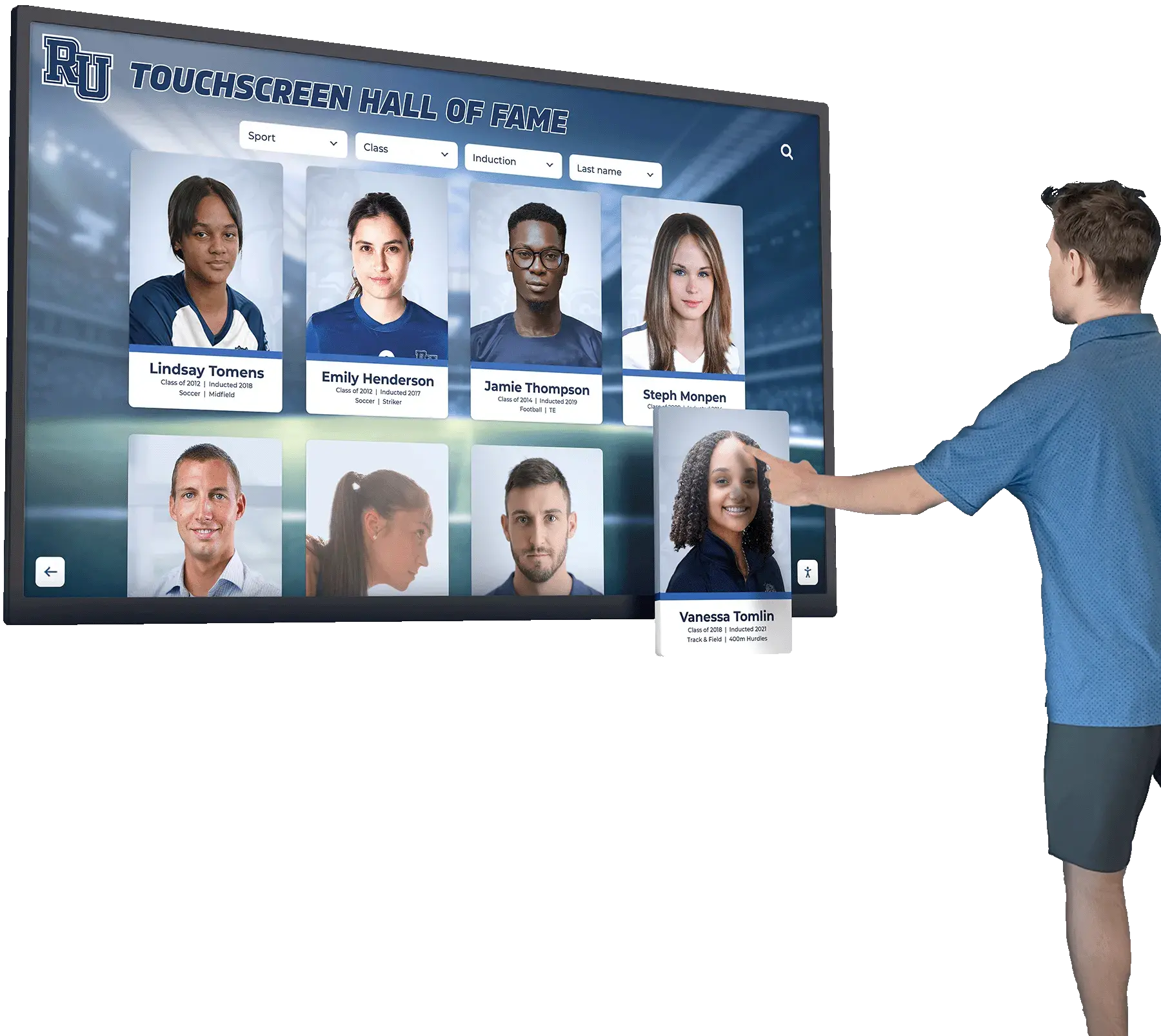
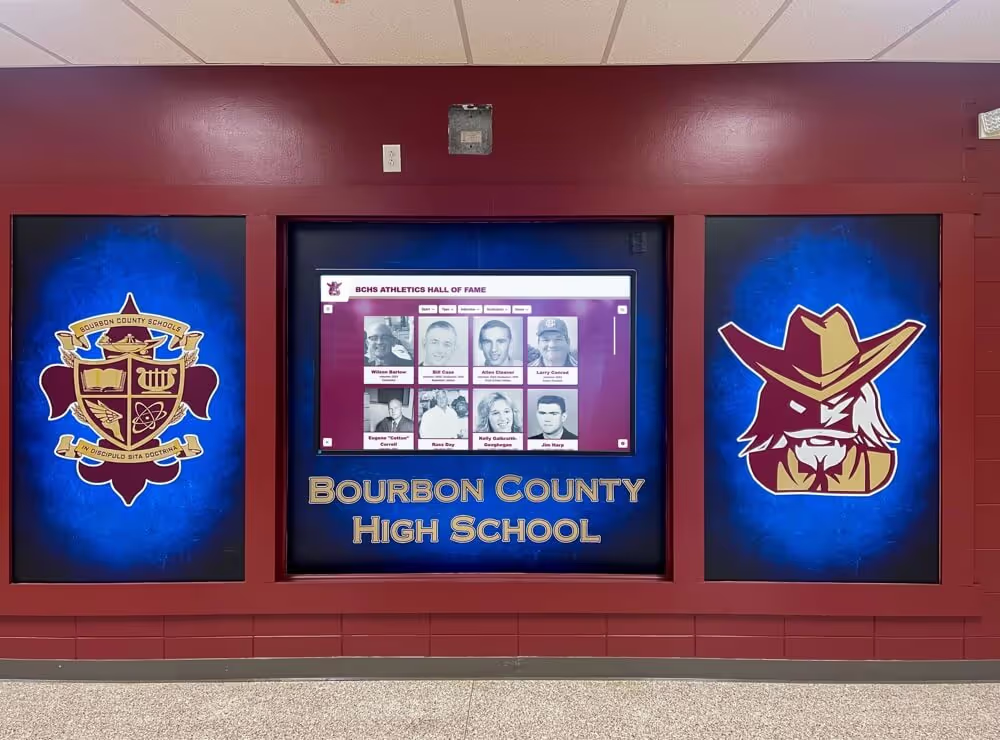
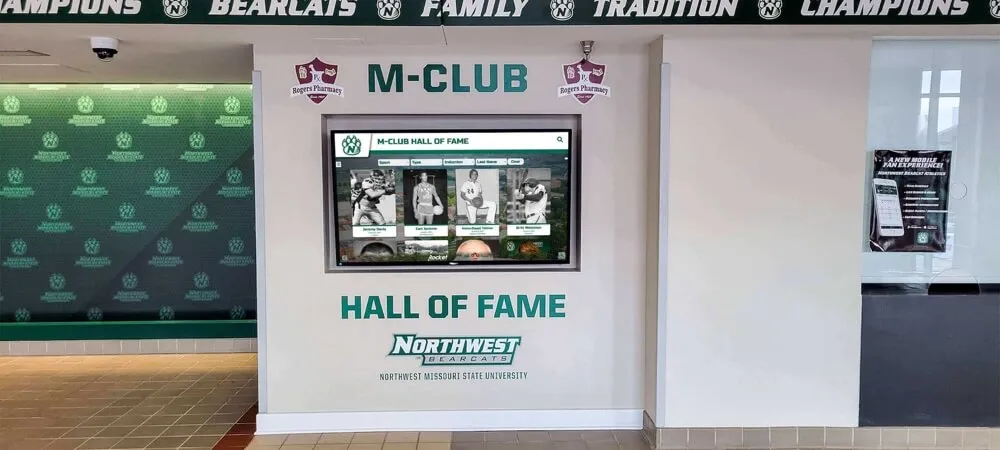
Well-designed navigation and clear interaction cues improve user success with fullscreen kiosk apps
Best Practices for Fullscreen Kiosk App Deployment
Follow these best practices for successful fullscreen kiosk app implementations:
Planning and Preparation
Define Clear Requirements: Document exactly what you need the kiosk to accomplish, who will use it, where it will be located, and what success looks like.
Pilot Before Rolling Out: Deploy one or two test kiosks before committing to larger rollout, allowing time to refine configuration and address issues.
Plan for Maintenance: Establish who is responsible for monitoring, updating, and troubleshooting kiosks before problems occur.
Budget Appropriately: Account for hardware, software licensing, installation, ongoing support, and eventual hardware replacement.
Configuration and Security
Start with Strict Lock-Down: Begin with tighter security than you think necessary; you can always loosen restrictions if they prove excessive.
Implement Monitoring: Set up uptime monitoring and alerting from day one rather than waiting for problems to occur.
Document Configuration: Maintain detailed documentation of settings, configurations, and admin credentials for future reference.
Test Security Thoroughly: Have someone unfamiliar with the system attempt to break out of kiosk mode and access unauthorized functions.
Maintenance and Optimization
Monitor Analytics: Regularly review usage data to understand how visitors interact with your kiosk and identify improvement opportunities.
Update Regularly: Keep kiosk software, operating system, and website content current with security patches and improvements.
Refresh Content: Update kiosk content regularly to keep displays relevant and encourage repeat visitors.
Gather User Feedback: Provide mechanism for users to report issues or suggest improvements.
Making Your Decision: Choosing the Right Fullscreen Kiosk App Solution
Use these decision criteria to select the appropriate fullscreen kiosk app approach:
Decision Framework
If you’re just testing concepts: → Start with Chrome/Firefox kiosk mode (free, quick to test)
If you have simple needs and Windows infrastructure: → Consider Windows Assigned Access (included, Microsoft support)
If deploying multiple unattended public kiosks: → Invest in commercial kiosk software (KioWare, Porteus)
If deploying recognition or engagement applications: → Consider integrated platforms designed for your use case
If you have custom requirements and development resources: → Build custom solution with CEF or similar framework
If security is paramount: → Use operating-system level solutions (Porteus) or commercial software
The Future of Fullscreen Kiosk Apps
Emerging trends are shaping how fullscreen kiosk apps evolve:
Progressive Web Apps (PWAs): Web applications that can install and run more like native apps, with better offline support and performance.
WebAssembly: Enables near-native performance for web applications, opening possibilities for more sophisticated kiosk experiences and interactive touchscreen solutions.
Cloud-Based Management: Increasingly sophisticated remote management tools make multi-kiosk deployments easier to maintain.
AI Integration: Voice interfaces, computer vision, and personalization bringing more intelligent kiosk interactions.
Enhanced Security: Better browser sandboxing and security features reducing need for extensive external lock-down tools.
Organizations planning long-term kiosk deployments should select solutions positioned to take advantage of these emerging capabilities.
Conclusion: Matching Fullscreen Kiosk Apps to Your Needs
Deploying a website on a public touchscreen display requires more than just opening a browser in fullscreen mode. Professional fullscreen kiosk apps provide the security, reliability, and session management essential for unattended public deployments.
For simple, supervised kiosks, browser kiosk modes or Windows Assigned Access may suffice. For professional unattended deployments, commercial kiosk software delivers comprehensive lock-down and management capabilities. And for recognition, engagement, or educational applications, integrated platforms eliminate the complexity of coordinating separate website development and kiosk software.
The right choice depends on your specific requirements, technical resources, budget, and deployment scale. By understanding the capabilities and limitations of different fullscreen kiosk app approaches, you can select the solution that delivers reliable, secure, engaging touchscreen experiences for your users. Whether you’re deploying museum touchscreen exhibits or educational displays, the right fullscreen kiosk app foundation is essential.
Need a Complete Kiosk Solution?
Explore integrated recognition platforms that combine content management, kiosk functionality, and touchscreen optimization in one comprehensive solution.
Discover Integrated SolutionsFrequently Asked Questions
Can I use a regular web browser for a public touchscreen kiosk?
While technically possible, regular browsers aren't secure for public kiosks. Users can easily exit to the desktop, browse other sites, or access system settings. Basic browser kiosk modes offer minimal lock-down. For unattended public deployments, use commercial kiosk software or integrated kiosk platforms that provide comprehensive security and session management.
What's the difference between fullscreen mode and kiosk mode?
Fullscreen mode simply hides browser chrome (address bar, bookmarks) but users can still exit with keyboard shortcuts, right-click for menus, and access other applications. Kiosk mode provides comprehensive lock-down that prevents exiting, disables keyboard shortcuts, blocks context menus, and restricts the user to only approved content. True kiosk deployments require kiosk mode, not just fullscreen.
How do I automatically restart a kiosk after a crash or power loss?
Configure the computer to automatically log in on boot, then set the kiosk app to launch on login. Most commercial kiosk software includes these features built-in. On Windows, use Task Scheduler or Startup folder with auto-login enabled. On Linux, configure the display manager to auto-login and launch your kiosk app. Also enable BIOS settings to power on after loss, and configure automatic restart after crashes.
What timeout period should I use for kiosk session reset?
Common timeout periods range from 30 seconds to 2 minutes of inactivity. Shorter timeouts (30-60 seconds) work well for quick-lookup applications where users get information and leave. Longer timeouts (90-120 seconds) better suit exploratory content where users browse multiple pages. Test with actual users to find the right balance—too short frustrates engaged users; too long leaves the kiosk in an abandoned state between users.
Can users print from a fullscreen kiosk app?
Yes, but it requires careful configuration. You'll need to enable print functionality in your kiosk software (typically disabled by default for security), configure printer access, and design your website's print experience. Consider whether printing is essential—it adds complexity and maintenance requirements. If users need information later, consider email or SMS delivery instead, which avoids printer-related maintenance and supply costs.
How do I update content on a deployed kiosk without physical access?
This depends on your architecture. If displaying a website, simply update the web content—changes appear automatically after browser cache refresh. For locally-hosted content, use remote desktop tools or kiosk management software that supports remote content updates. Many commercial kiosk platforms include cloud-based content management. Design your deployment for remote updates from the start—requiring physical access for routine updates quickly becomes unsustainable.