A lobby touchscreen kiosk takes hundreds of taps each day from students, parents, coaches, and visitors—without anyone formally in charge of keeping it clean. Fingerprints, hand lotion, cafeteria residue, and the occasional water-bottle splash all reach the screen before the end of first period. Yet the wrong cleaning product applied by a well-meaning custodian can strip the anti-glare coating in a single pass, void the manufacturer warranty, or leave permanent haze on a commercial-grade panel that cost several thousand dollars to install. This guide gives facilities staff, IT coordinators, and athletic directors a clear, step-by-step playbook for how to clean a touchscreen kiosk safely—and how to keep it running reliably for years through software upkeep and preventive habits.
A touchscreen kiosk serving a busy school lobby is part of the building’s daily infrastructure, no different from the HVAC system or the PA network. Treat maintenance as a scheduled routine rather than a reaction to visible damage, and you will avoid the two failure modes that most often force early replacement: cosmetic degradation from incompatible chemicals, and hardware issues that compound silently behind months of skipped software updates.
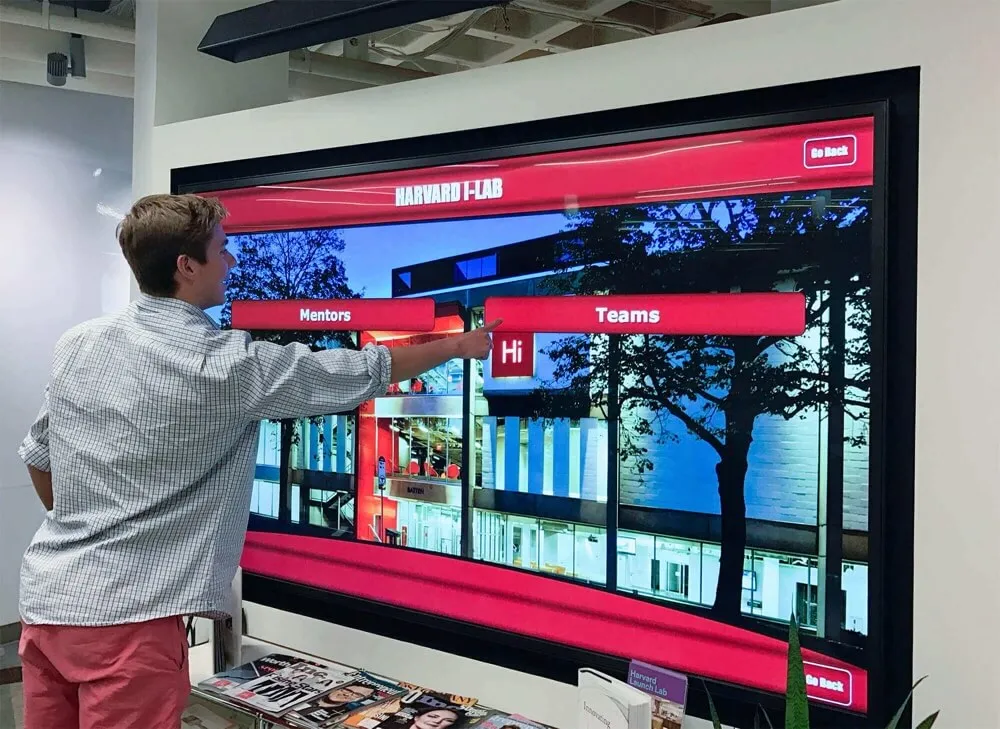
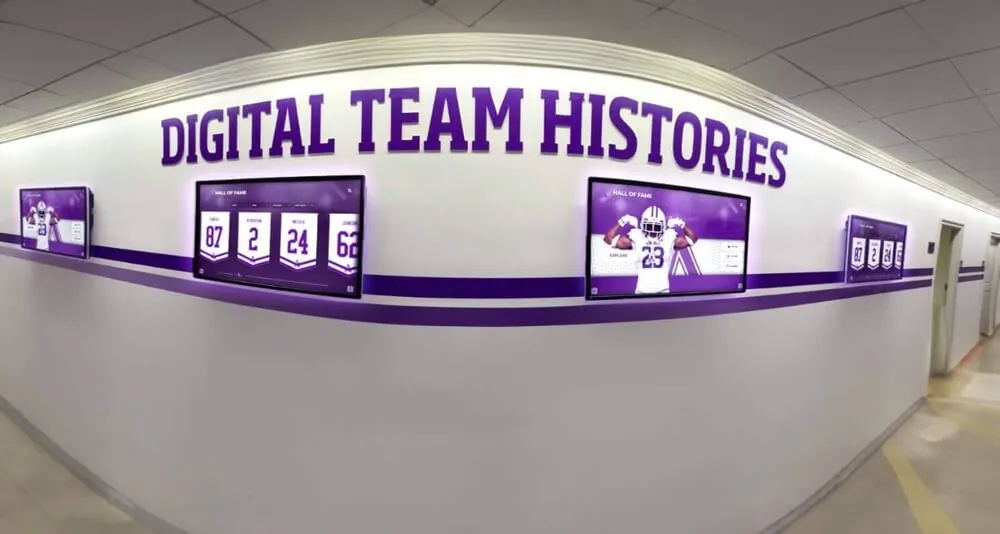
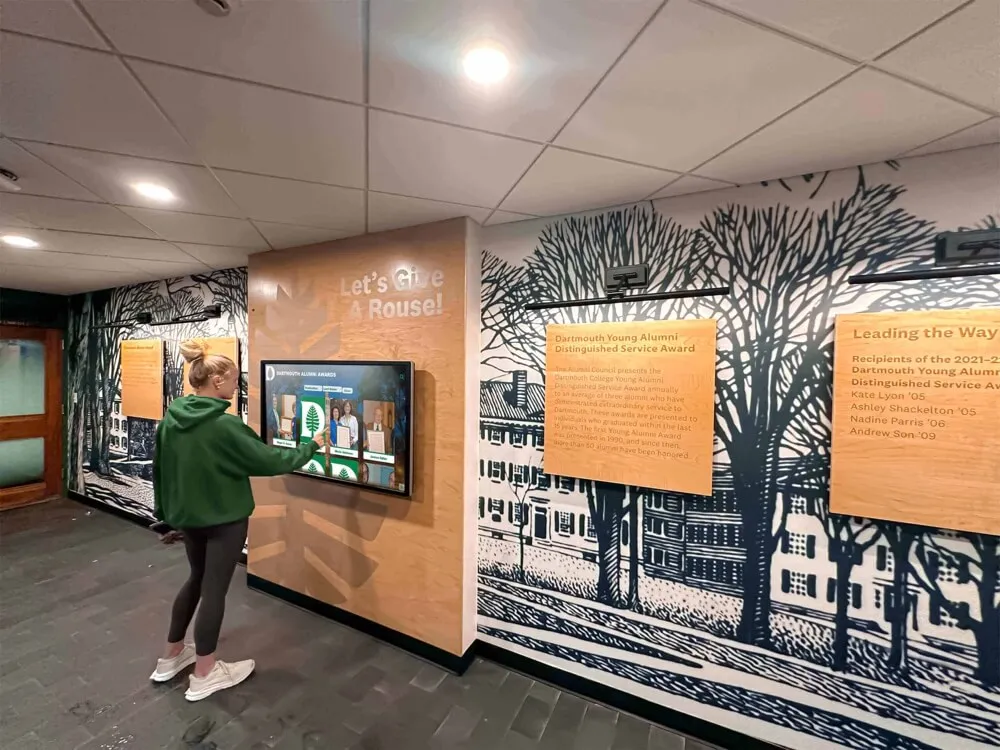
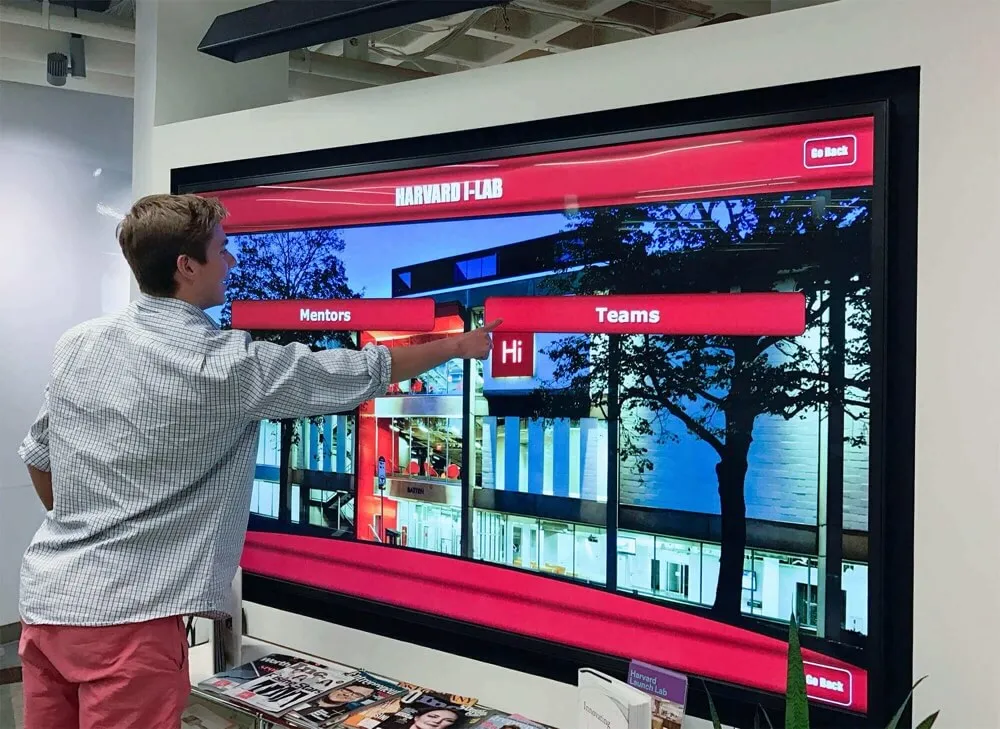
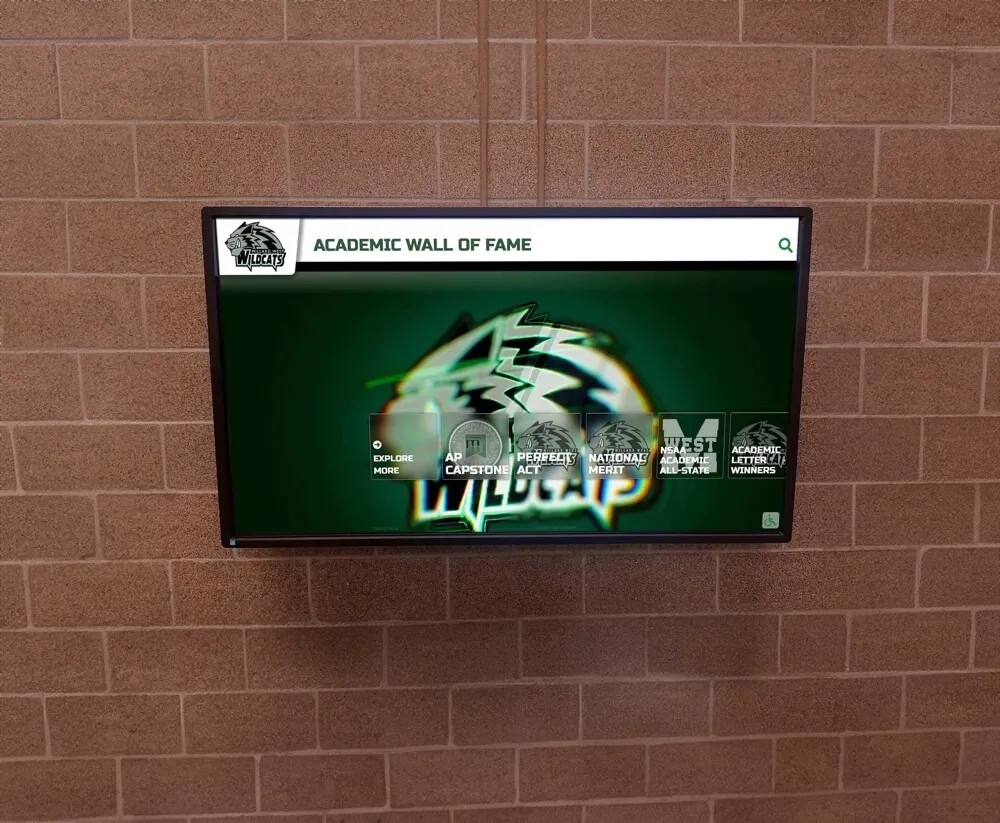
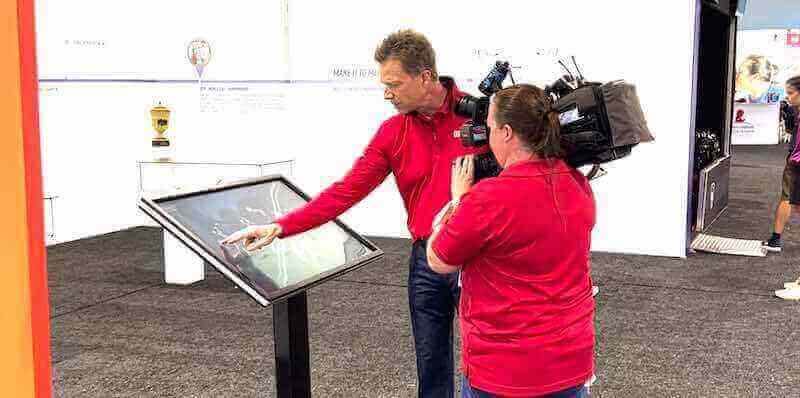
High-traffic lobby kiosks require a consistent cleaning and maintenance routine to stay fully functional and visually sharp for years
Why Proper Cleaning Matters for Your School Touchscreen Kiosk
Touchscreen displays in schools face conditions that consumer electronics never encounter: dozens of users each hour, peak-traffic windows when the entire student body moves through the lobby between periods, and environmental variables like gymnasium chalk dust, locker-room humidity, and cafeteria proximity.
Most commercial touchscreen panels use projected capacitive (PCAP) or infrared (IR) touch technology. Both types include a surface treatment—typically an oleophobic anti-fingerprint layer or an anti-glare coating—that is chemically sensitive. These coatings repel oils and reduce glare, but they degrade rapidly when contacted with solvents, abrasive materials, or alkaline cleaners.
The result of improper cleaning is not just cosmetic. Degraded coatings reduce touch sensitivity, increase screen glare, and produce a permanent hazy appearance that no amount of correct cleaning will reverse. Replacing a commercial display panel for a 55-inch interactive kiosk typically costs $800–$2,500 for parts alone, plus labor—money most school budgets would rather direct toward students.
Cleaners and Materials to Avoid
Before detailing what to use, establish a firm “do not use” list and share it with every member of your facilities team. Post it near the display if necessary.
Never use any of the following on a touchscreen kiosk:
- Ammonia-based glass cleaners (Windex and similar products): Ammonia dissolves oleophobic coatings quickly and permanently.
- Bleach or chlorine-based disinfectants: Highly corrosive to coatings and bezels; may also damage the enclosure finish.
- Isopropyl alcohol above 70% concentration: Anything above 70% IPA risks coating damage with repeated use. Some manufacturers prohibit alcohol entirely—check your specific display’s documentation before using any alcohol product.
- Hydrogen peroxide above 3%: Commercial disinfecting concentrations (10–30%) damage screen coatings.
- Acetone or nail-polish remover: Immediately strips coatings and can cloud the glass substrate.
- Spray bottles directed at the screen surface: Liquid seeping into the bezel gap can reach electronics and the digitizer layer.
- Paper towels, newspaper, or rough cloth: Microscopic abrasive fibers produce micro-scratches that accumulate into visible haze over months.
- Compressed-air cans angled into vents: Cold aerosol propellant can condensate inside the enclosure and reach circuit boards.
- Melamine foam (Magic Erasers): Extremely abrasive; can remove coatings in a single wipe.
- All-purpose or multi-surface sprays: Formulated for non-coated surfaces; nearly always contain chemicals incompatible with display treatments.
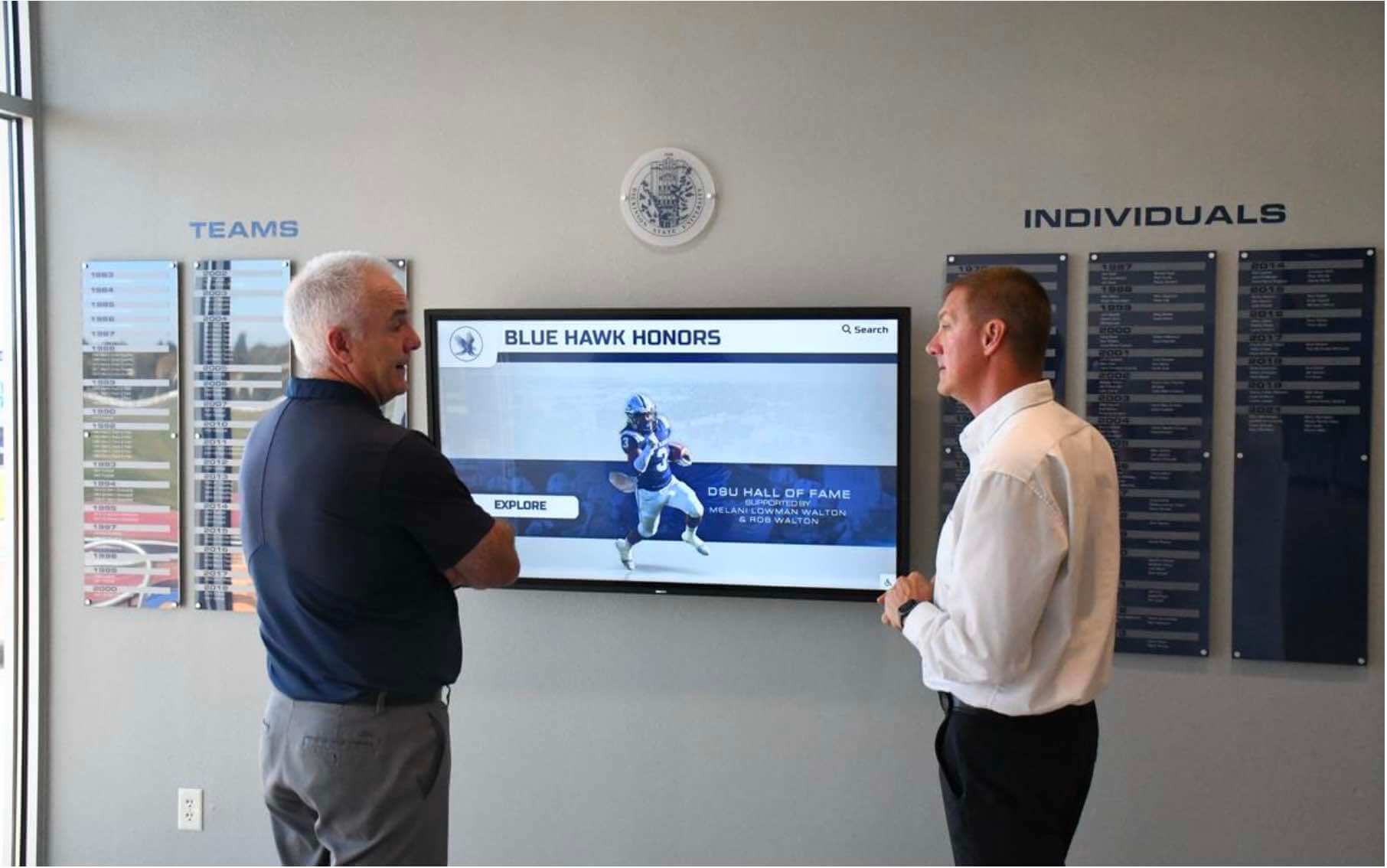
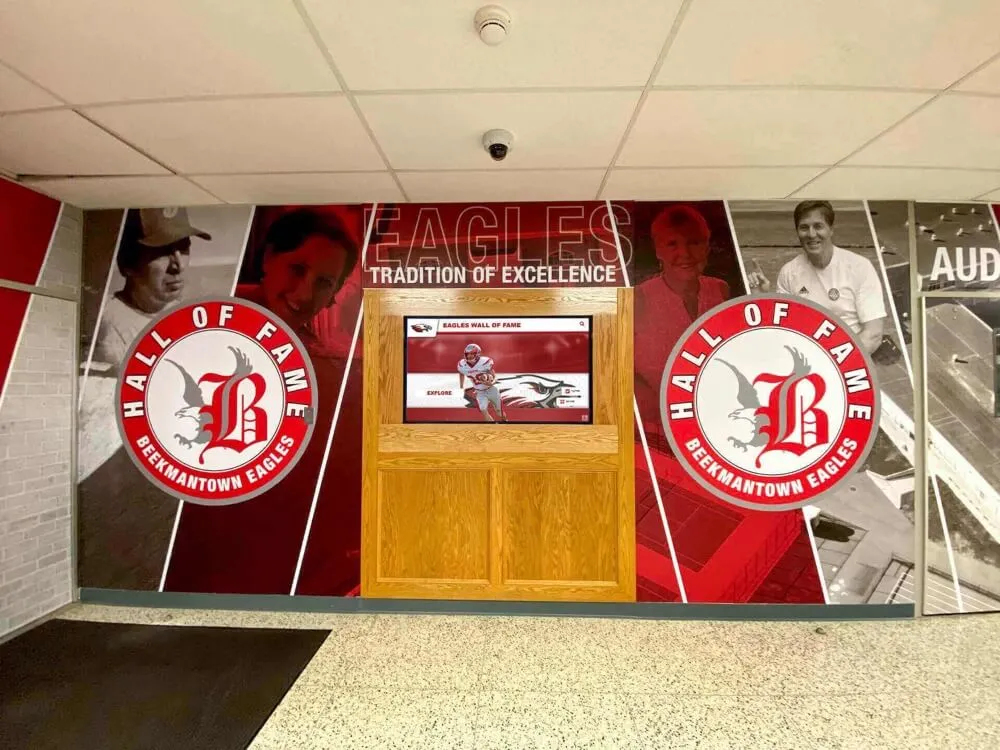
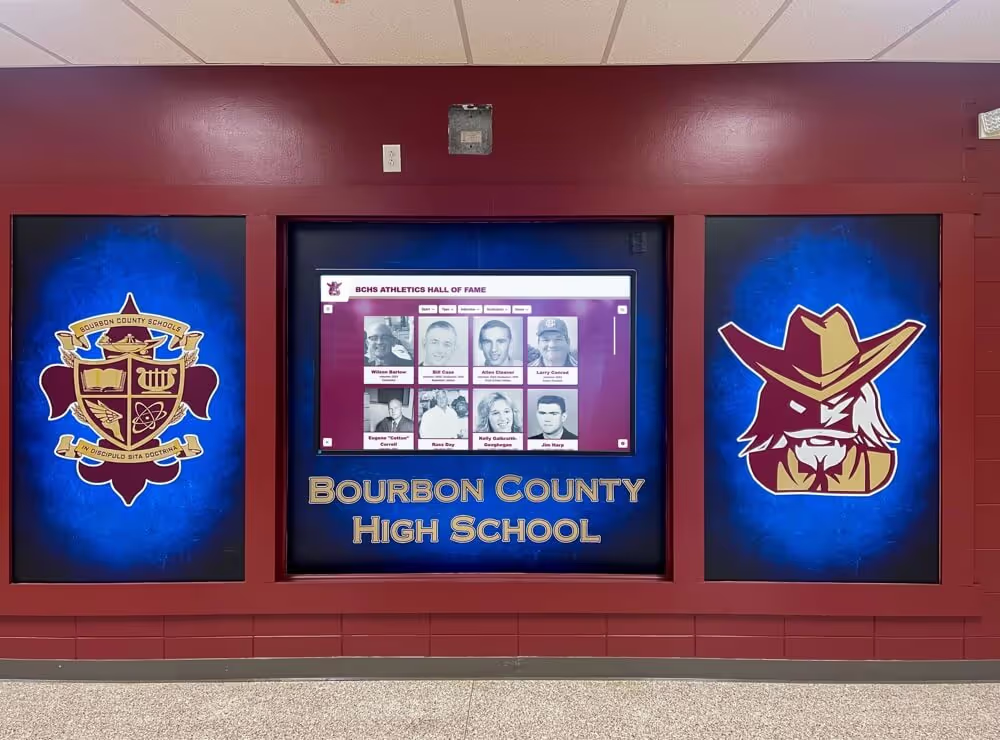
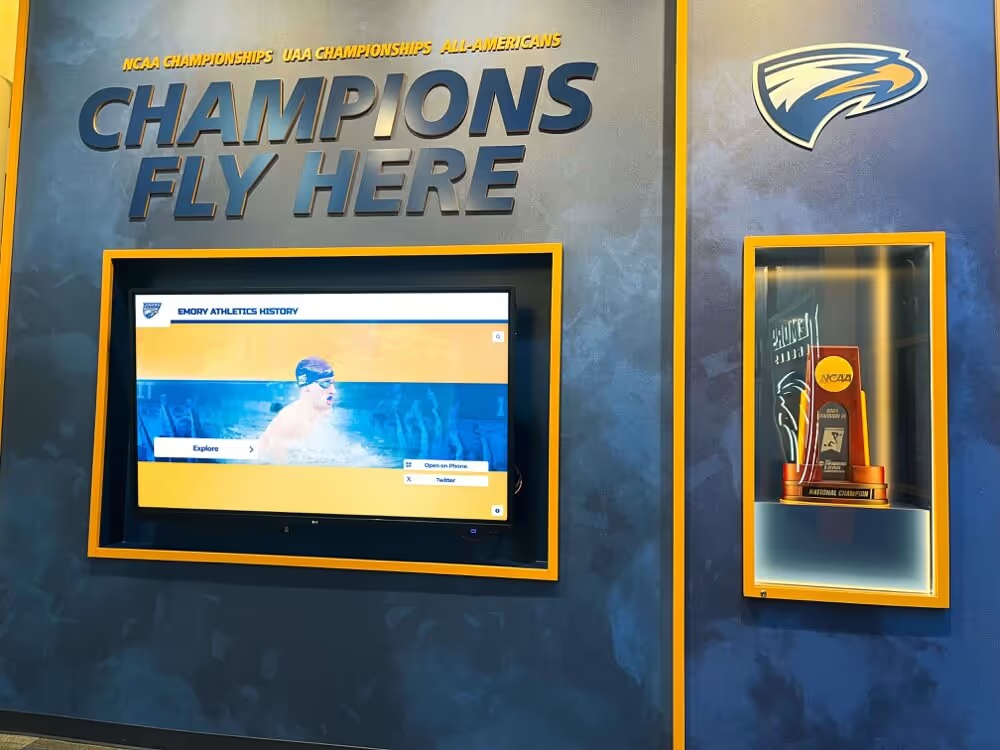
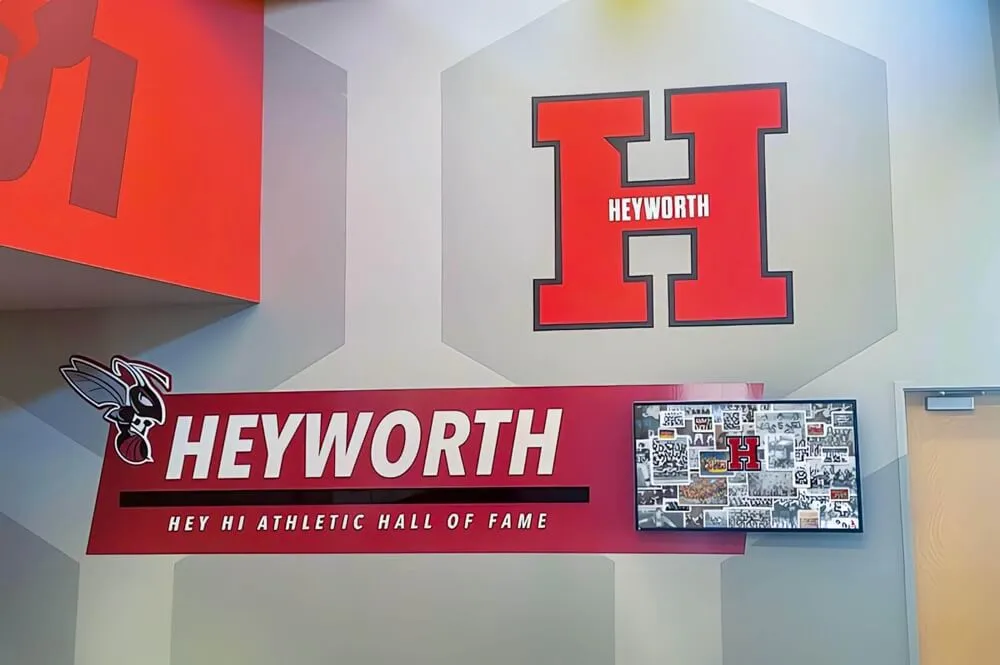
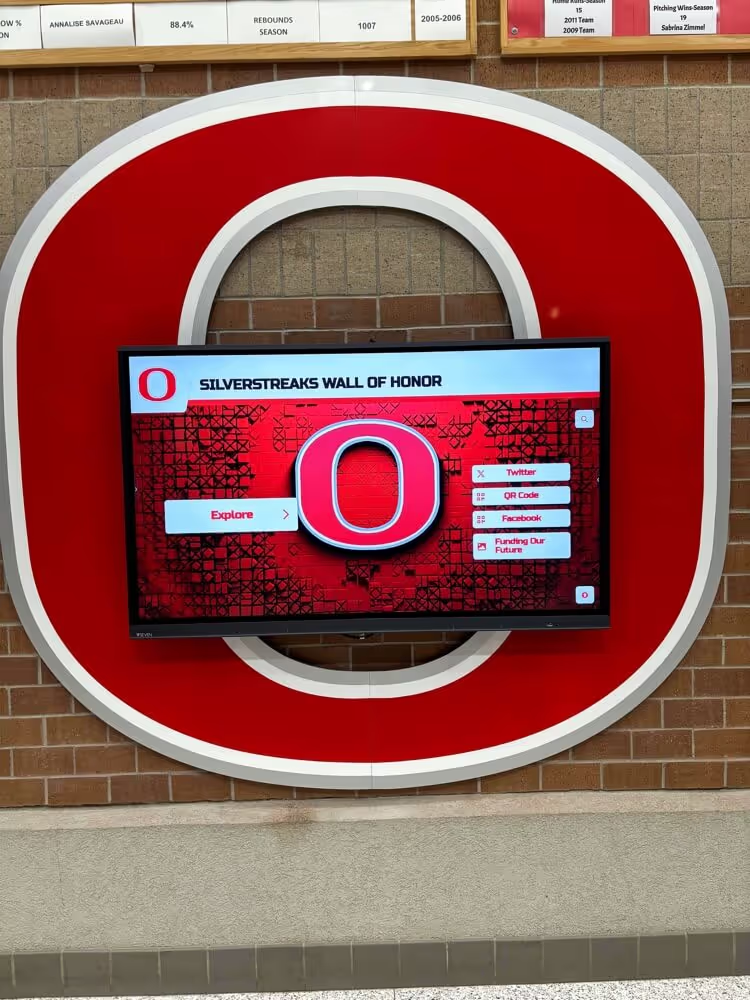
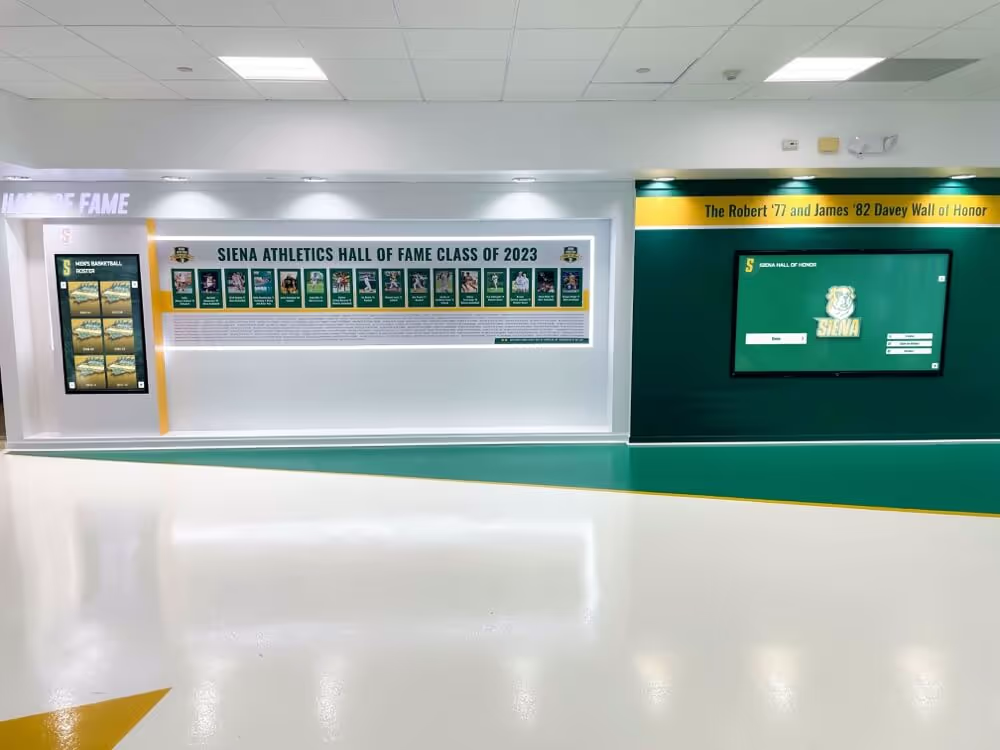
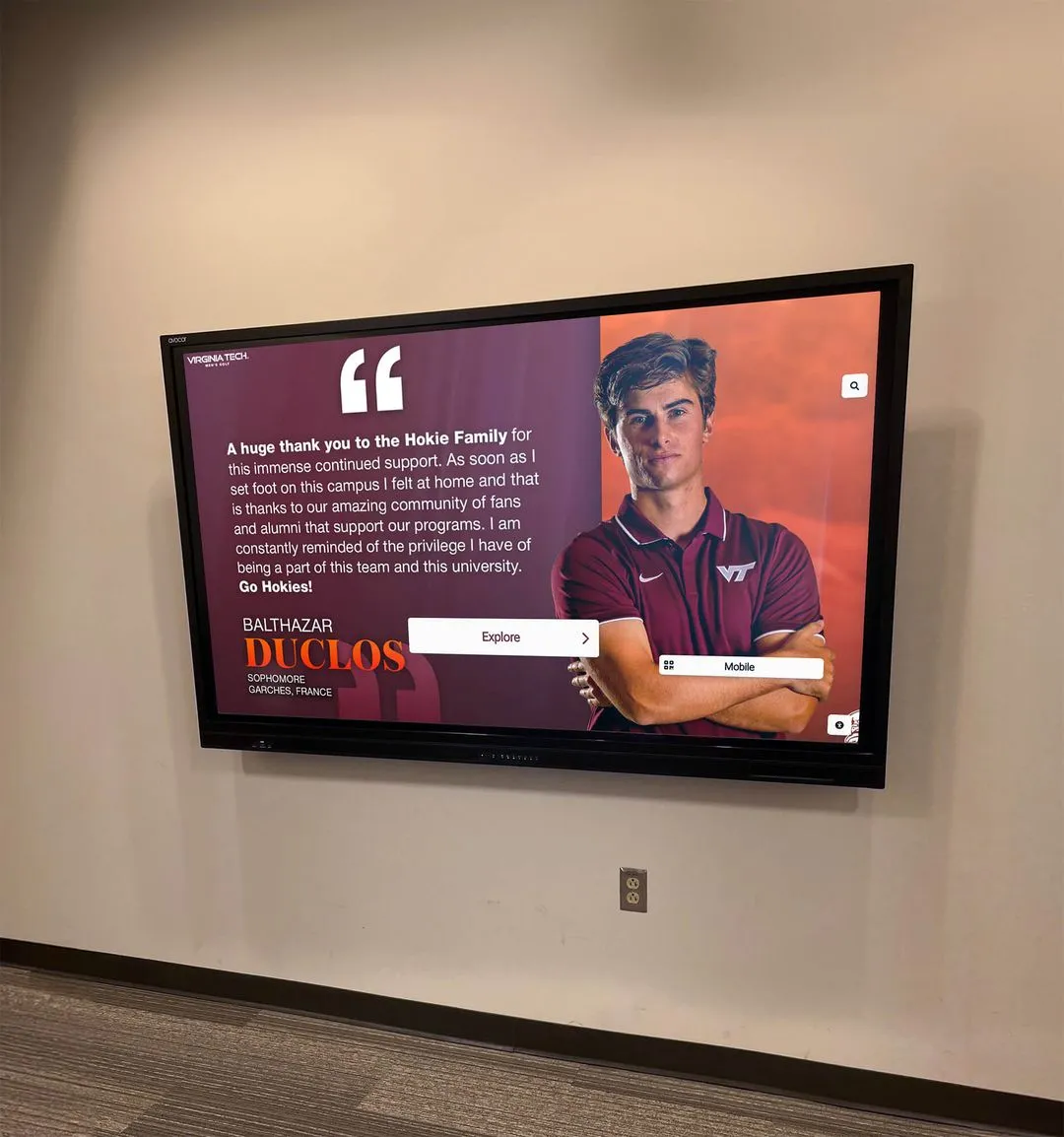
Recognition displays are visible to the entire school community daily—a clean, streak-free surface communicates care for both students and guests
Recommended Cleaning Supplies for a School Touchscreen Kiosk
Build a dedicated cleaning kit stored near (but not inside) the enclosure cabinet, and replace consumables on a predictable schedule.
| Supply | Specification | Notes |
|---|---|---|
| Microfiber cloths | 300+ GSM, lint-free | Replace when frayed; wash without fabric softener |
| Distilled water | In a labeled spray bottle | Spray the cloth, not the screen |
| IPA solution (if manufacturer-approved) | 70% isopropyl alcohol, pre-dampened wipes | Confirm with the display manufacturer first |
| Screen-safe disinfectant wipes | Benzalkonium chloride–based, labeled “LCD safe” | Brands such as Whoosh!, Purescreen, or OEM-approved alternatives |
| Manual air bulb | Non-aerosol rubber squeeze bulb | For vent dust without condensation risk |
| Anti-static ESD brush | Soft bristles, grounded handle | Dry dust removal from enclosure vents and ports |
Avoid buying cheap microfiber cloths in bulk. The GSM weight correlates with fiber density and lower abrasion risk—a cloth below 200 GSM can still scratch a delicate coating over time.
Step-by-Step: How to Clean a Touchscreen Kiosk
Follow these steps in order. The full process takes 8–12 minutes for a standard 55-inch kiosk.
Before you start: Notify IT if the display needs to be temporarily powered off. Most cleaning can be done with the display active, but a dark screen makes streaks easier to see. Wash and dry your hands, and confirm no one is actively using the kiosk.
Step 1 — Remove loose dust from the enclosure. Use the manual rubber bulb or ESD brush to dislodge dust from enclosure vents, external ports, and the bezel edge. Work top-to-bottom so particles fall away from the screen.
Step 2 — Dry-wipe the screen. Fold a clean microfiber cloth into quarters. Using light circular pressure, sweep the entire screen to lift loose dust and dry particles. This prevents dragging grit across the coating during the damp-wipe step. Use a fresh cloth face for each pass.
Step 3 — Apply cleaning solution to the cloth. Lightly mist distilled water (or your approved IPA wipe) onto a clean face of the microfiber cloth. The cloth should feel barely damp—not wet enough to drip. Never spray liquid directly onto the screen or bezel.
Step 4 — Wipe in overlapping horizontal strokes. Starting from the top edge and working down, apply even light pressure with overlapping horizontal passes. Avoid circular scrubbing motions on soiled areas; they redistribute contamination rather than removing it.
Step 5 — Dry immediately. Using a dry section of the cloth, follow each damp pass with a dry stroke before the surface air-dries. Liquid that sits on the screen for more than 10–15 seconds increases the risk of seeping into the bezel gap.
Step 6 — Inspect at an angle. Hold a flashlight at a low angle or tilt the display so light reflects across the surface. Streaks indicate residual cleaning solution; continue with a dry cloth until the reflection looks uniform.
Step 7 — Clean the bezel and enclosure. Use a separate, slightly damp cloth (water only) to wipe the bezel frame, touchscreen border, and enclosure housing. Dry with a clean cloth.
Step 8 — Log and date the cleaning. Record the cleaning date and any observations—smears that wouldn’t clear, new scratches, loose mounting hardware—in a simple maintenance log. This record matters if a warranty claim is needed later.
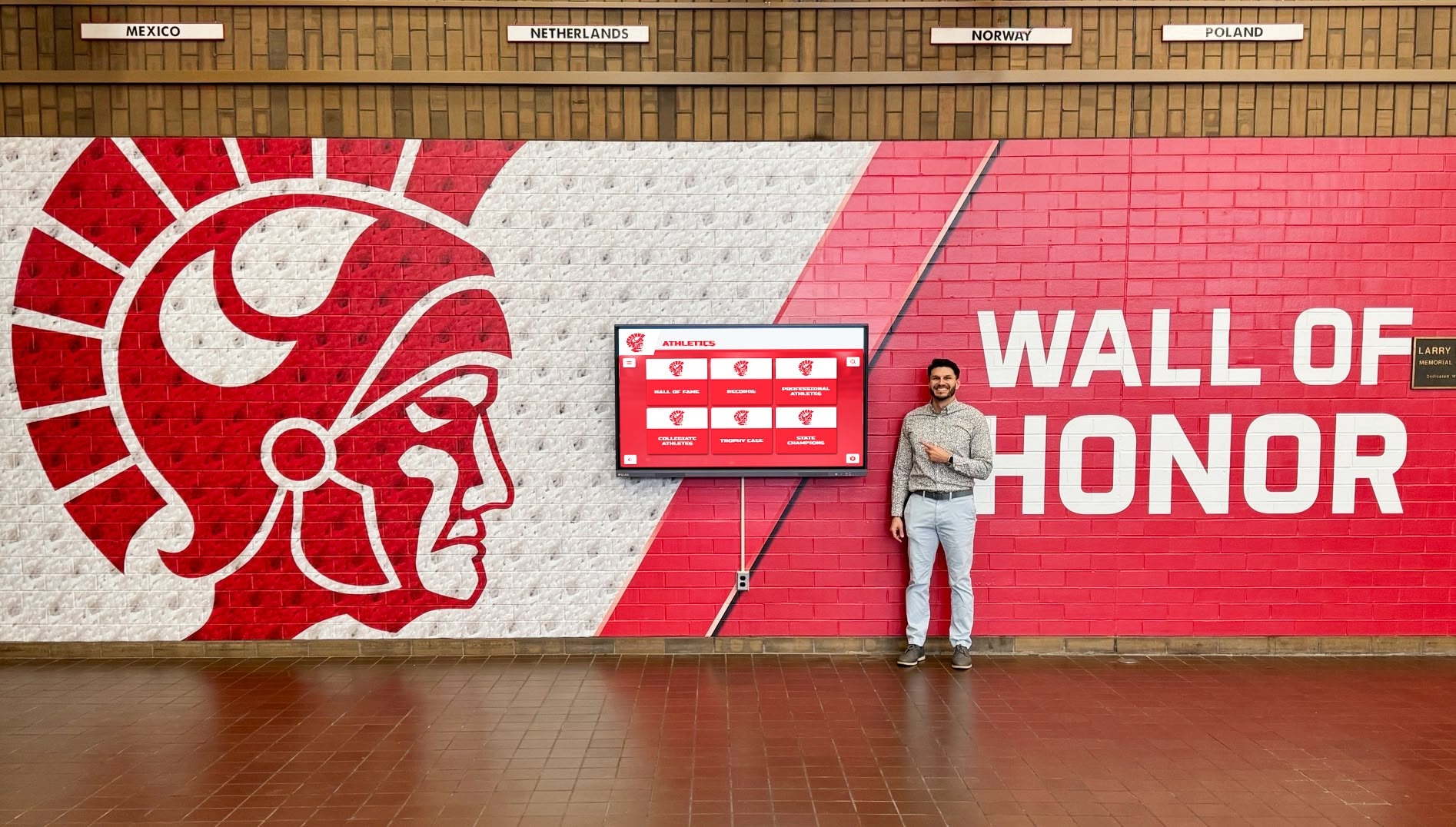
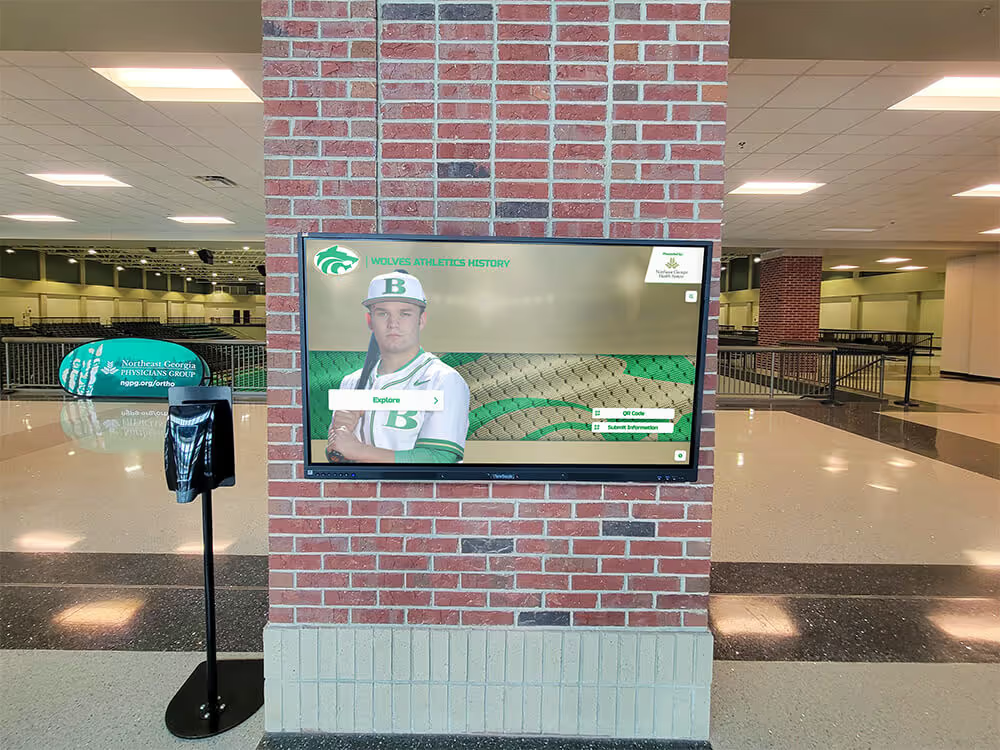
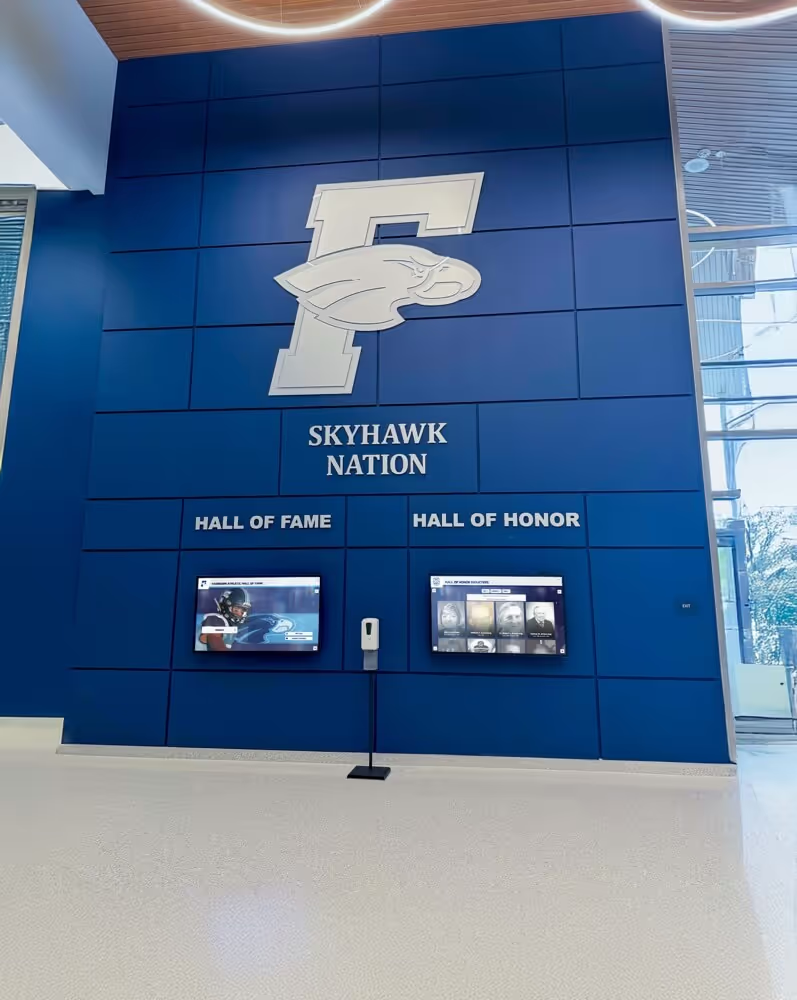
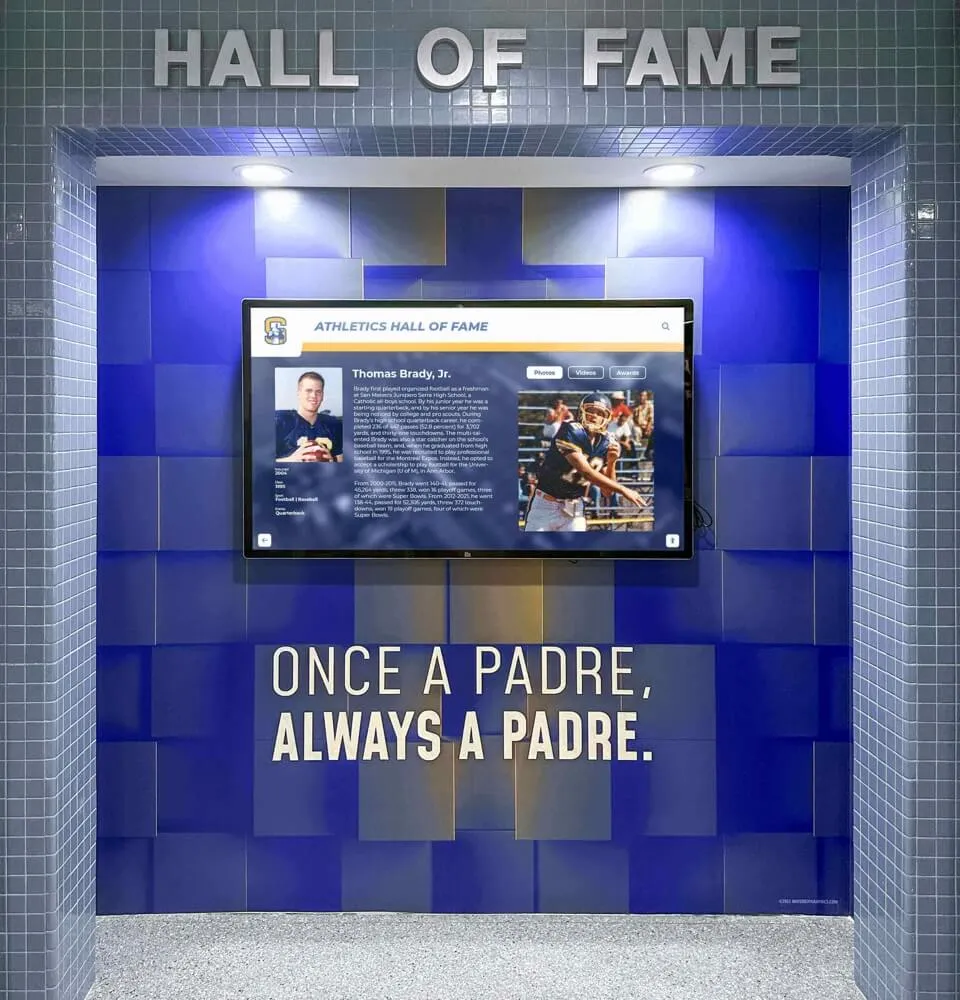
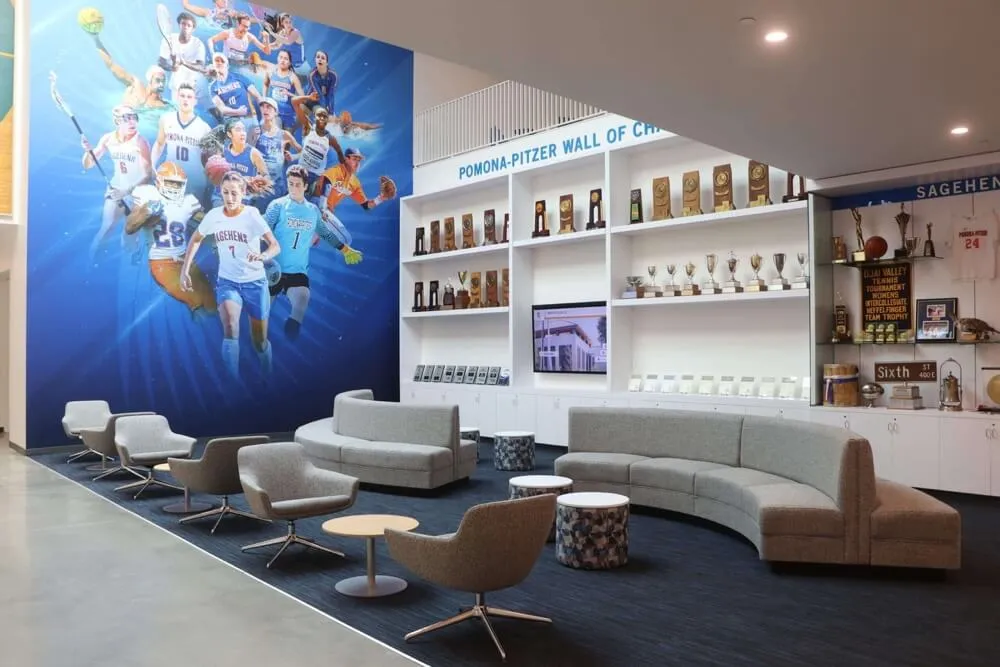
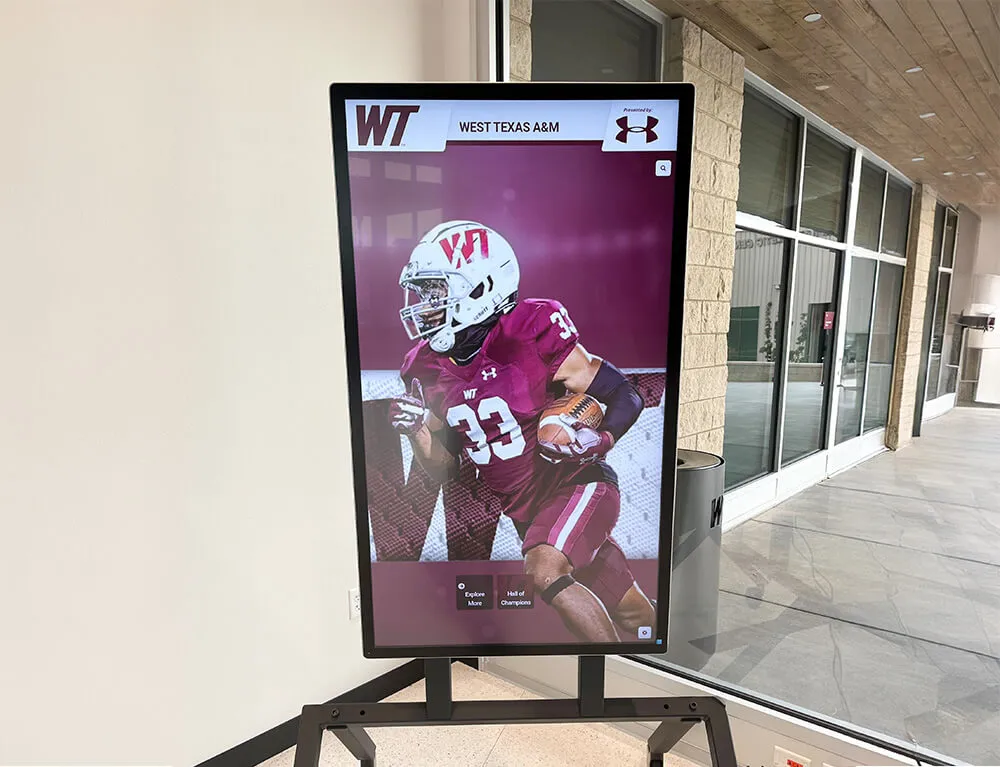
A well-maintained school touchscreen kiosk retains full visual clarity and touch responsiveness for years, protecting both the hardware investment and the student recognition content it displays
Screen Protectors for High-Traffic Kiosk Installations
Anti-glare tempered-glass overlays designed for commercial kiosk displays are worth evaluating for any touchscreen in a school hallway. A purpose-built kiosk screen protector adds a sacrificial surface that:
- Absorbs daily physical contact from rings, keys, and badge lanyards grazing the screen edge
- Simplifies deep sanitization—when the protector becomes too contaminated or damaged, it can be replaced for $50–$150, a fraction of panel replacement cost
- Preserves the manufacturer’s original coating underneath, where it directly affects touch sensitivity
What to look for in a kiosk screen protector:
- Rated specifically for projected capacitive (PCAP) touchscreens. Overlays thicker than 0.4 mm can degrade touch sensitivity on some panels.
- Anti-reflective (AR) coating rather than matte anti-glare, which can pixelate the image on high-resolution displays.
- Optically bonded installation to eliminate the air gap that causes double-image ghosting.
Request a test unit from vendors before committing. Touch-sensitivity performance varies by panel brand and firmware version, and a sample is the only reliable way to confirm compatibility.
Software Updates and Remote CMS Maintenance
Hardware cleaning is only half the maintenance equation. A touchscreen kiosk running outdated firmware or a stale operating system is a security risk and a reliability problem, regardless of how clean the screen surface looks.
Establish a software maintenance rhythm alongside your physical cleaning schedule.
Monthly software tasks:
Confirm the content management system (CMS) is on its latest version. Cloud-based platforms push updates automatically, so this is primarily a check that the display is connected and syncing correctly. Maintaining design consistency across your recognition display also requires removing outdated graphics after athletes graduate or award seasons close—archive stale content monthly rather than letting it accumulate. Finally, run a quick touch-response test by dragging a finger across all four edges and corners. Dead zones or sluggish response in one area can signal a coating problem, a loosening digitizer cable, or firmware drift.
Quarterly software tasks:
Verify the OS and firmware version against the manufacturer’s current release. For Android-based kiosk players, this typically involves connecting via remote management software and pushing an update. For Windows-based systems, confirm that Windows Update is not blocked by the kiosk lockdown layer. Audit user-facing content to ensure that profiles linked to your alumni network software are returning correct data and that photos and video clips load without errors. Also test the automatic restart and watchdog timer—most commercial kiosk software includes a watchdog that reboots the application on a crash; verify the restart log to catch recurring patterns before they become visible failures.
Annual software tasks:
Perform a full OS image restore if the kiosk operating system has not been refreshed in more than two years. Accumulated temporary files and fragmented storage degrade performance noticeably on embedded Android and Windows IoT devices. Also review the warranty status and any service contract coverage—commercial display panels typically carry three-to-five-year warranties, and missing an expiration date is an avoidable budget surprise.
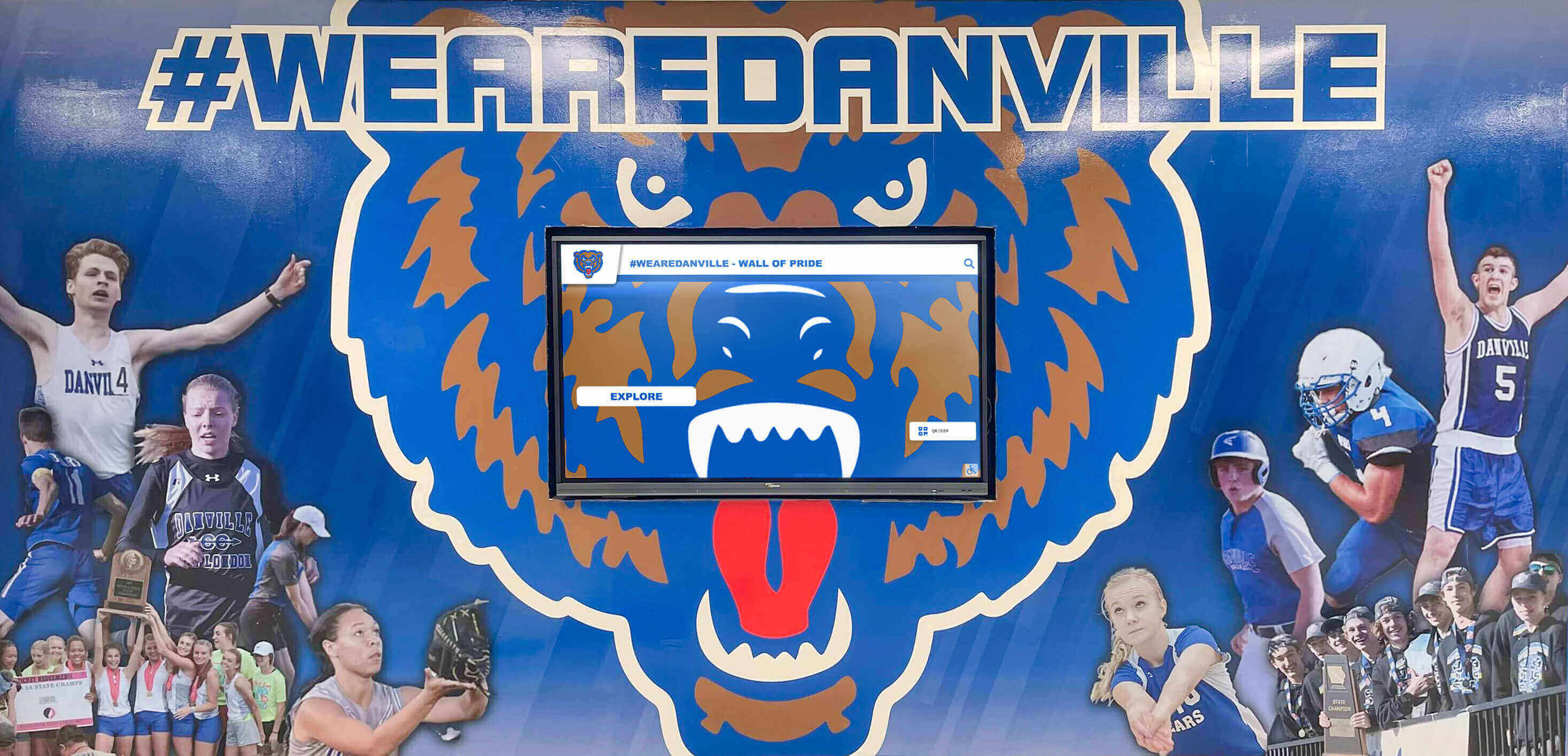
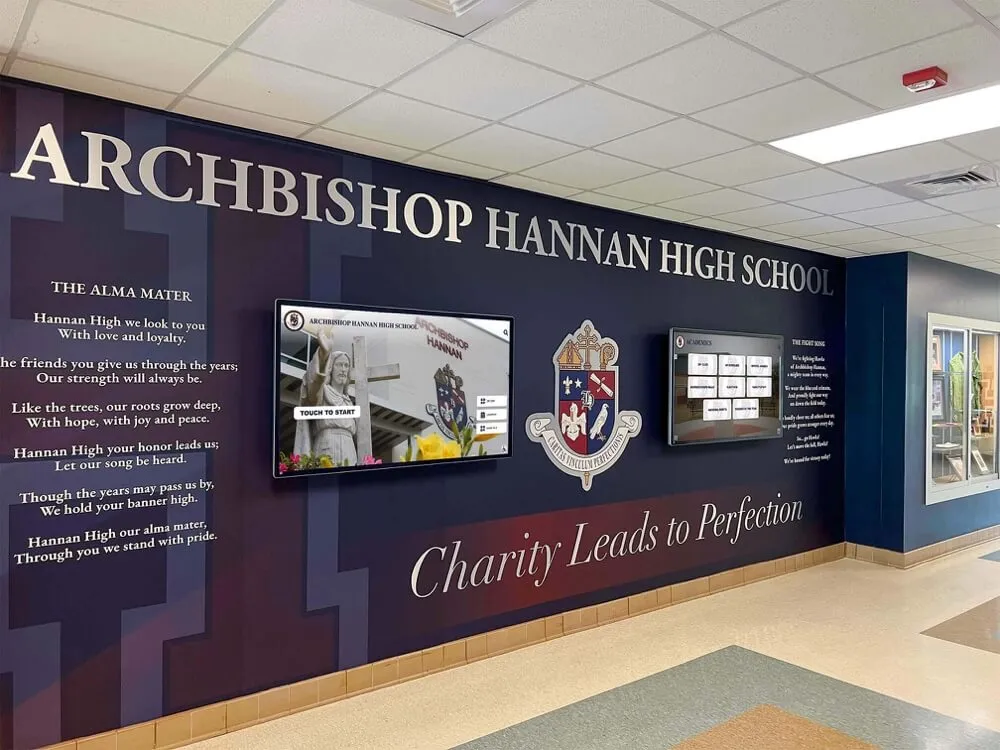
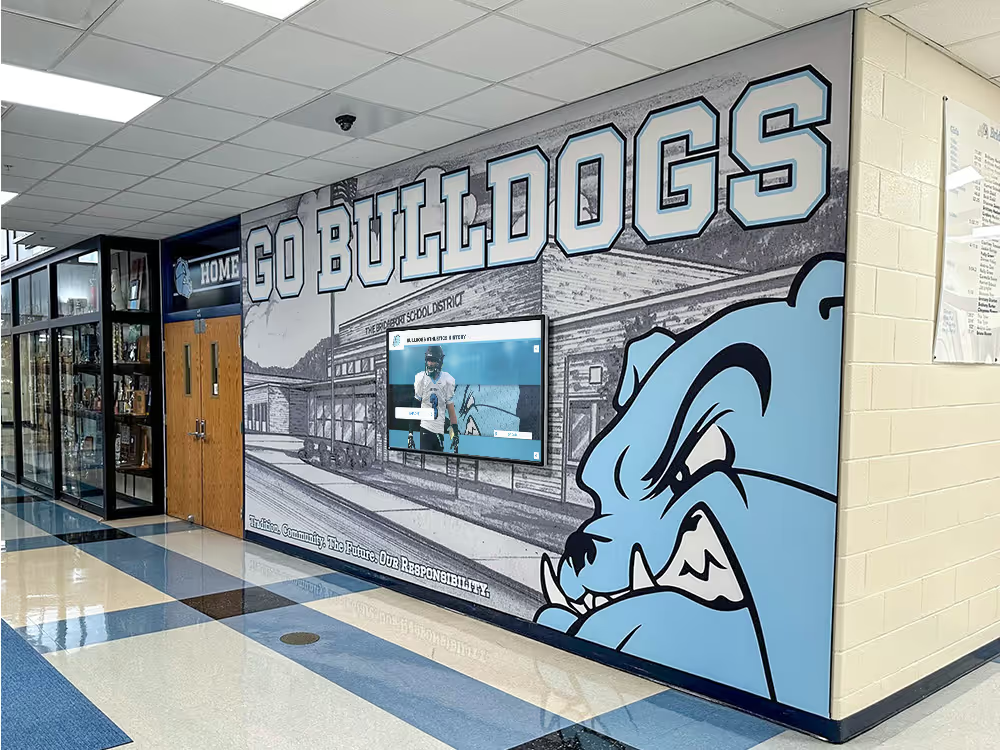
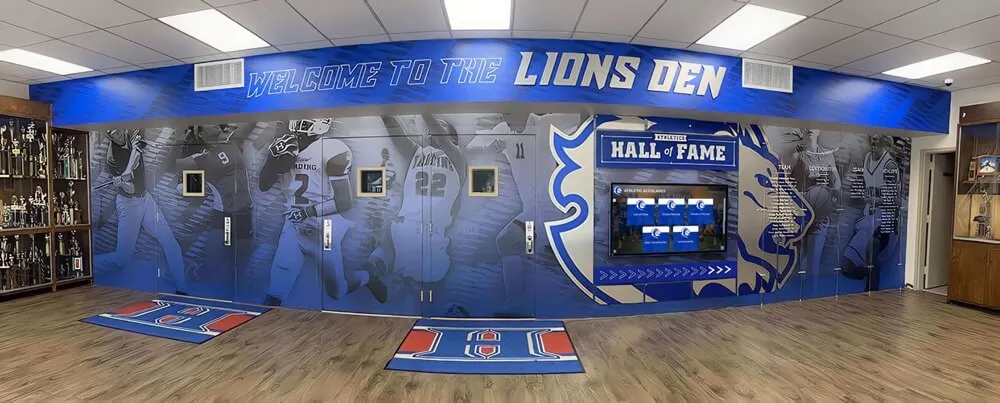
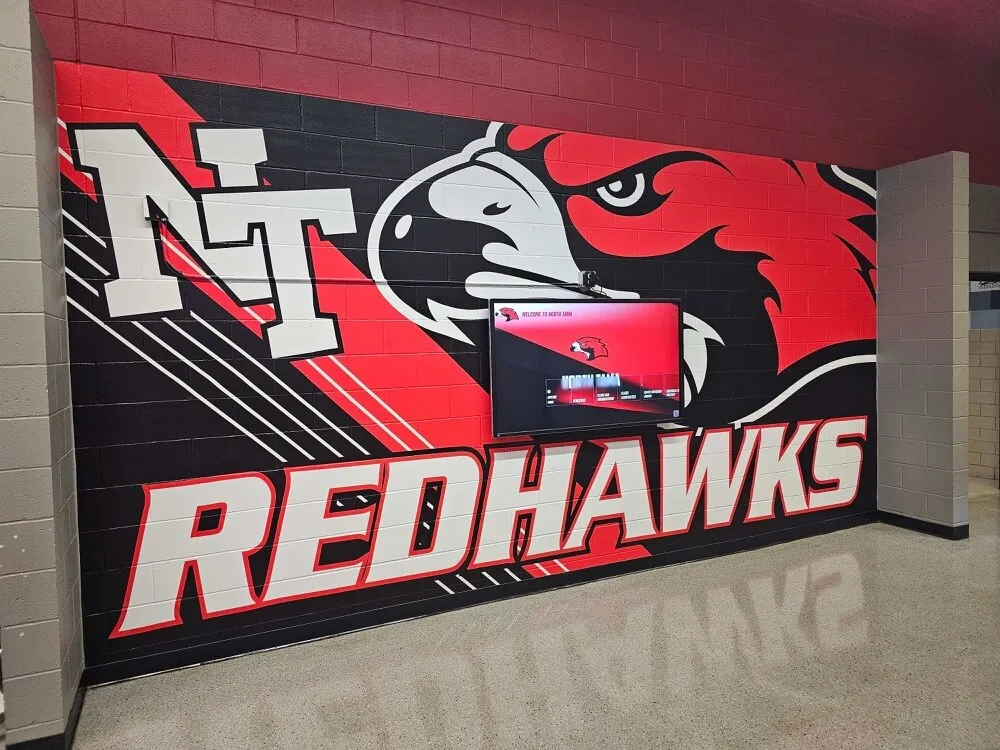
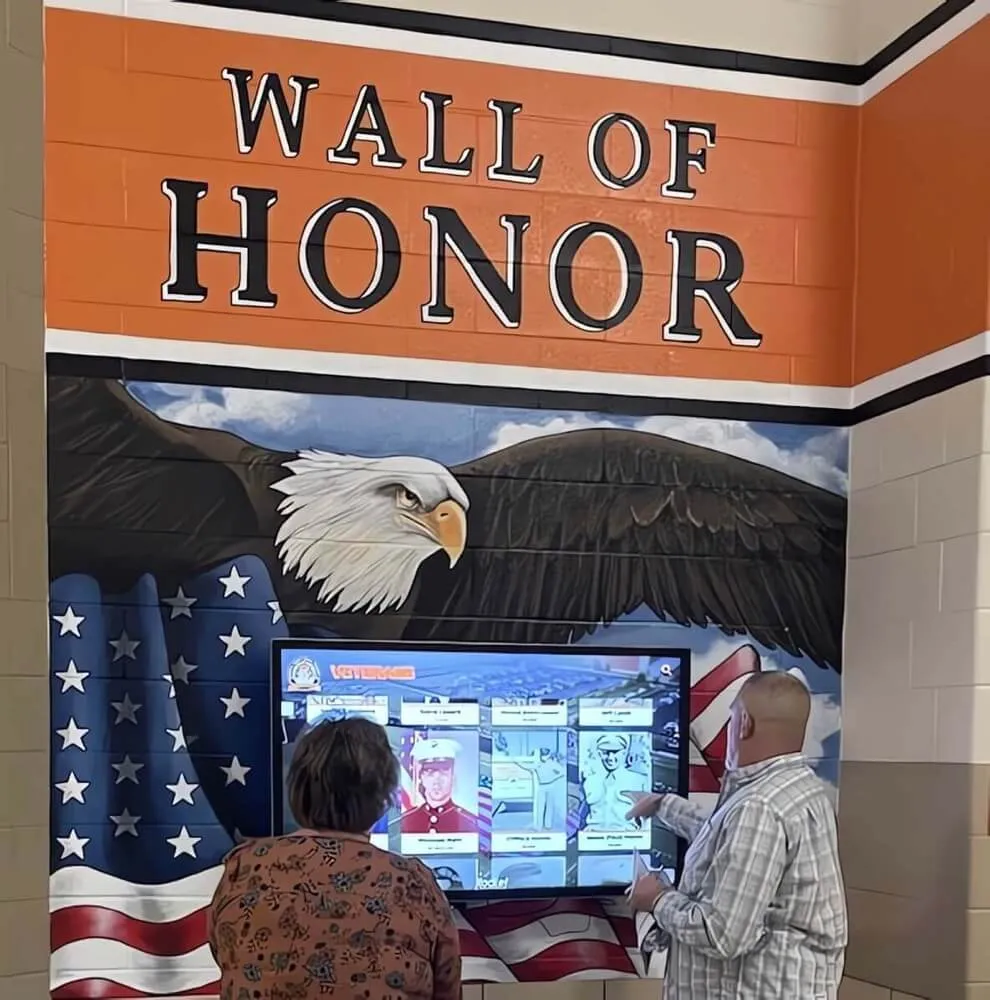
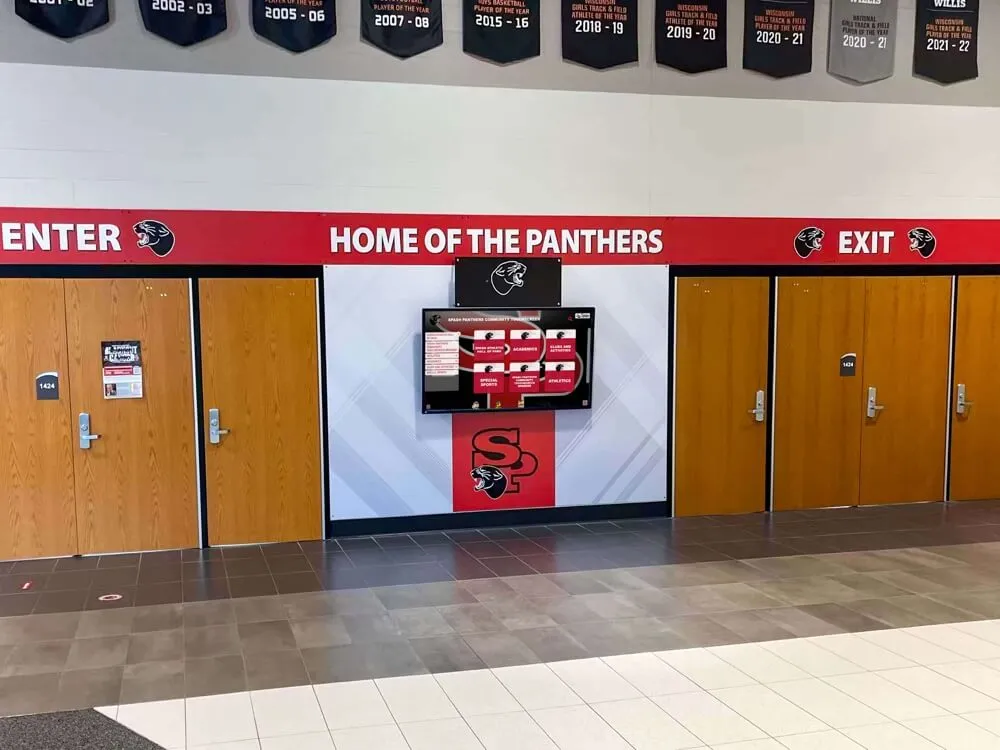
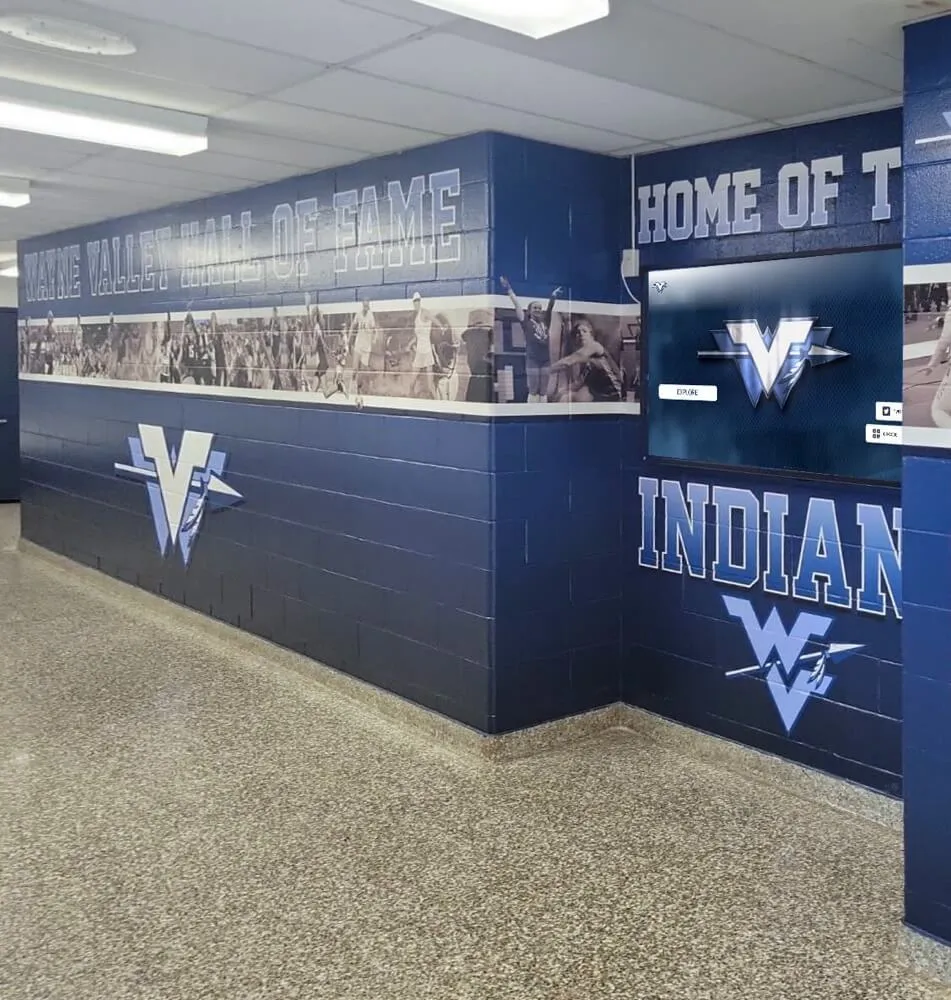
Digital screens integrated into school murals require both physical cleaning and software maintenance routines to stay sharp and responsive year-round
Preventive Measures That Reduce Cleaning Load
Reactive cleaning removes contamination that preventive measures should have blocked. A few straightforward interventions substantially reduce how often and how intensively the display needs attention.
Behavioral signage. A small sign at screen height reading “Please tap gently—thank you” or a floor decal marking a one-foot standoff distance reduces contact force and the frequency of incidental frame grazing. These cues are especially effective in elementary and middle school settings.
Attract mode and idle screens. Most commercial kiosk software supports an attract mode that pauses the interactive interface when no user is present and reactivates on approach. Configuring this to show a rotating visual during idle periods reduces the impulse to touch the screen repeatedly just to find something happening, extending the window between cleanings.
Foam bumper edges on freestanding enclosures. Thin foam edge protectors on sharp enclosure corners reduce contact from student backpacks, lanyards, and equipment bags—common sources of screen edge contamination.
Proximity to liquids. If the initial installation placed the kiosk adjacent to a water fountain, vending bank, or cafeteria entrance, consider whether a short relocation of even 6–10 feet is logistically feasible. Proximity to liquids is the single largest source of screen contamination and the leading cause of moisture-related electronics failure in school kiosk deployments.
Gloves during cleaning. Skin oils transfer immediately from bare hands to microfiber cloths. Staff wearing nitrile gloves during monthly cleanings produce cleaner cloths and more streak-free results with less effort.
Quarterly and Annual Maintenance Checklist
Use the checklist below as a printable handout for your facilities and IT teams. Assign a named owner to each section to prevent tasks from falling to “whoever has time.”
Monthly Cleaning
- Dry microfiber wipe — full screen surface, top to bottom
- Damp microfiber wipe (distilled water or approved wipe) — full screen surface
- Dry-follow pass — no residue or streaks remaining
- Bezel and enclosure housing wiped and dried
- Touch sensitivity spot-check — all four edges and corners responsive
- Cleaning date and observations logged
Quarterly Maintenance
- OS and firmware version confirmed against current manufacturer release
- CMS software updated to latest version
- Content audit complete — stale profiles and graphics archived
- Watchdog timer and auto-restart confirmed active; restart log reviewed
- Physical connections inspected — no loose, corroded, or chafed cables
- Touch dead-zone test — no unresponsive areas detected
- Screen protector inspected — replaced if cracked or delaminating
Annual Maintenance
- Full OS image refresh completed (if OS is more than two years old)
- Hardware warranty expiration dates recorded in asset log
- Service contract reviewed and renewed if applicable
- Enclosure mounting hardware torque-checked
- Power supply output tested (voltage within ±5% of spec)
- Fan filter cleaned or replaced (if enclosure uses active cooling)
- Spare parts inventory verified (replacement screen protector, remote, or stylus in stock)
When to Escalate to Professional Service
Facilities staff and IT coordinators can handle routine cleaning and most software updates without outside help. Escalate to a professional display technician or the kiosk manufacturer’s support line for:
- Dead pixels or display artifacts appearing after cleaning — possible panel damage
- Persistent touch dead zones that remain after driver reinstall and firmware update
- Internal condensation visible through the screen surface
- Burning smell or abnormal heat from the enclosure
- Cracked glass — do not continue operating a cracked touchscreen. Sharp edges create a safety hazard and exposed cracks allow moisture to reach the digitizer layer immediately.
- Physical enclosure damage — bent frames or broken hinges compromise the moisture seal
For high-visibility installations like a lobby hall-of-fame kiosk, downtime is visible to the entire school community. Identifying a qualified local AV integrator before a failure occurs—rather than searching during one—significantly reduces recovery time when something goes wrong.
Keeping Your Interactive Recognition Display Running Reliably
A well-maintained kiosk is most valuable when it is displaying content that matters to the community walking past it every day. Schools using interactive touchscreens for recognition—athlete profiles, team awards and banquet categories, student portfolio and gallery showcases, and staff recognition like teacher appreciation highlights—depend on that hardware staying functional for the life of the content library, not just the warranty period.
Rocket Alumni Solutions designs interactive recognition systems with long-term maintenance in mind. The platform’s cloud-based CMS pushes content updates remotely, so there is no local installation step that could introduce conflicts during a firmware refresh. Hardware specifications use commercial-grade panels with rated lifespans of 50,000 operating hours or more—roughly 13 years of daily school use. The system accommodates digital recognition for high school communities spanning athletics, academics, arts, and student leadership achievements—categories a traditional trophy case could never accommodate.
Physical maintenance—cleaning the glass correctly, protecting the coating, keeping firmware current—directly extends the useful life of that investment. A recognition display operating at full visual quality in year five continues to earn its place in the lobby. One with a degraded coating and an outdated OS increasingly feels like infrastructure that needs replacing, even when the content behind it is excellent.
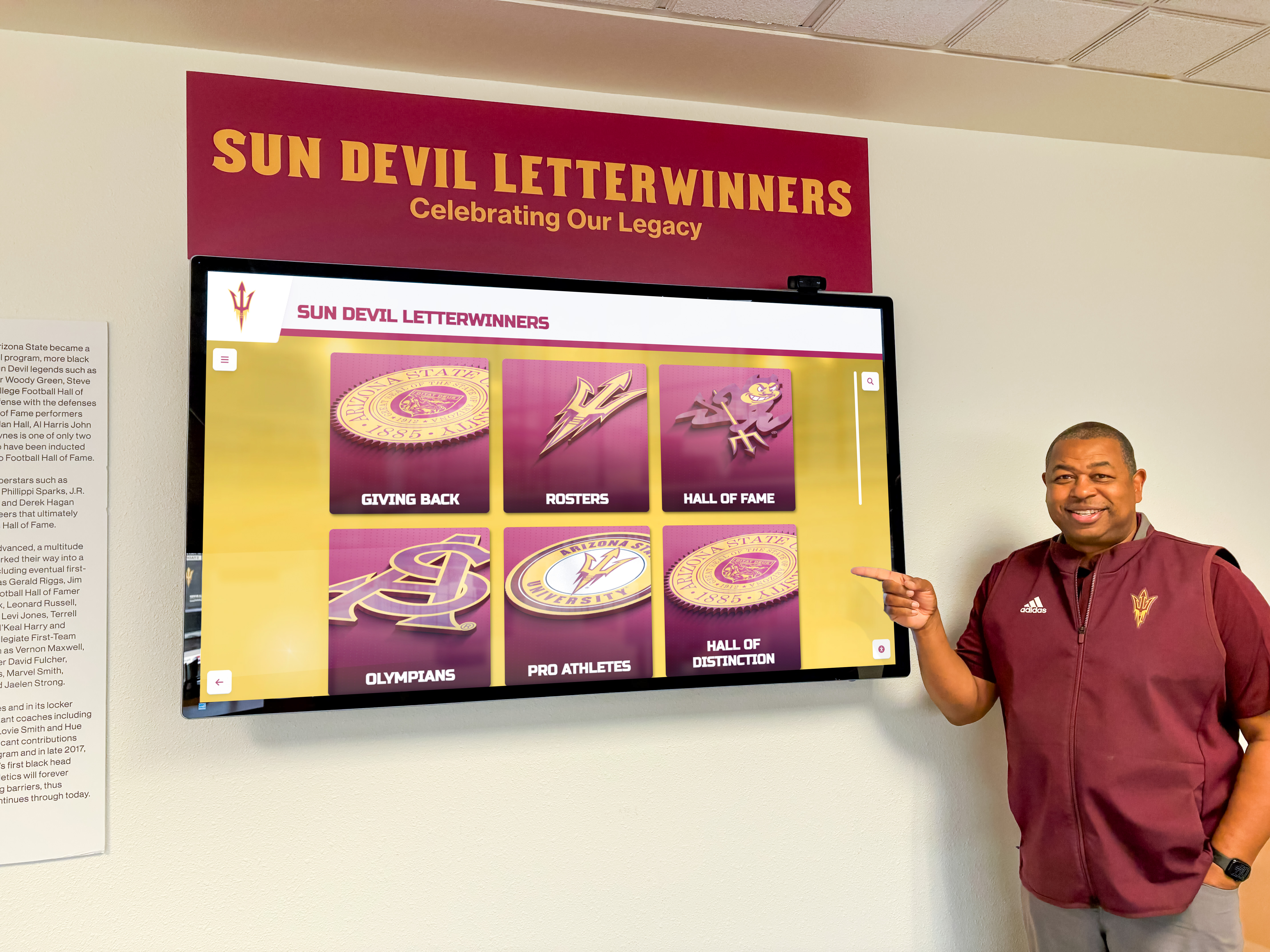
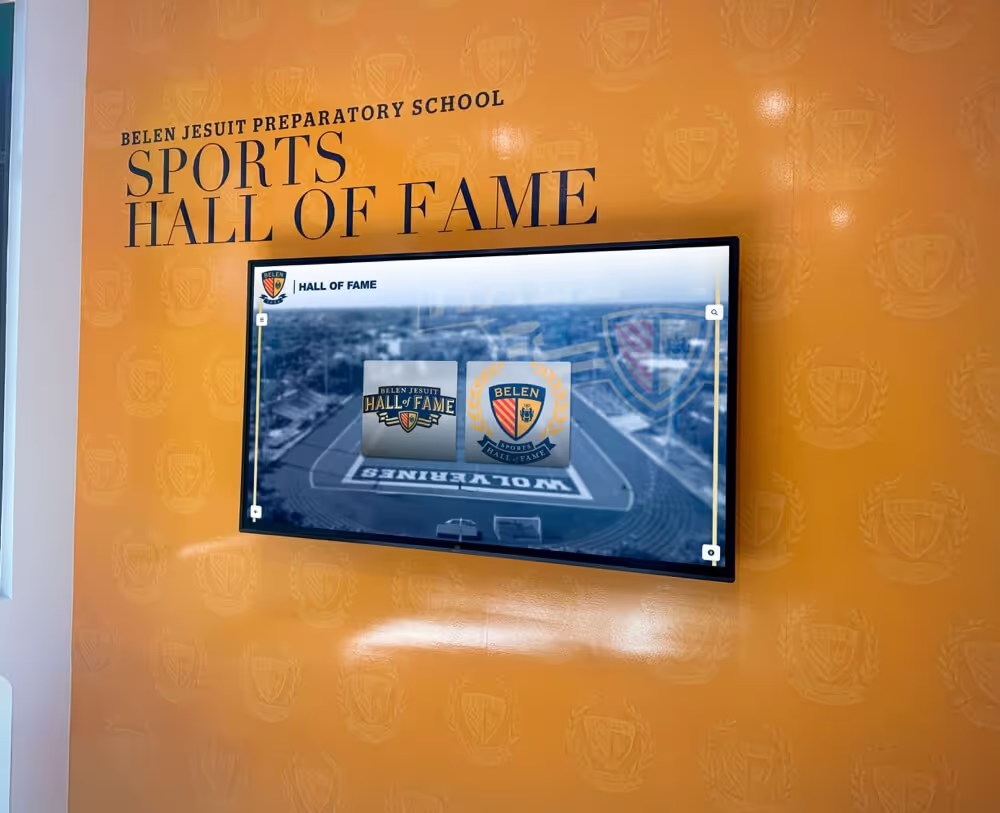
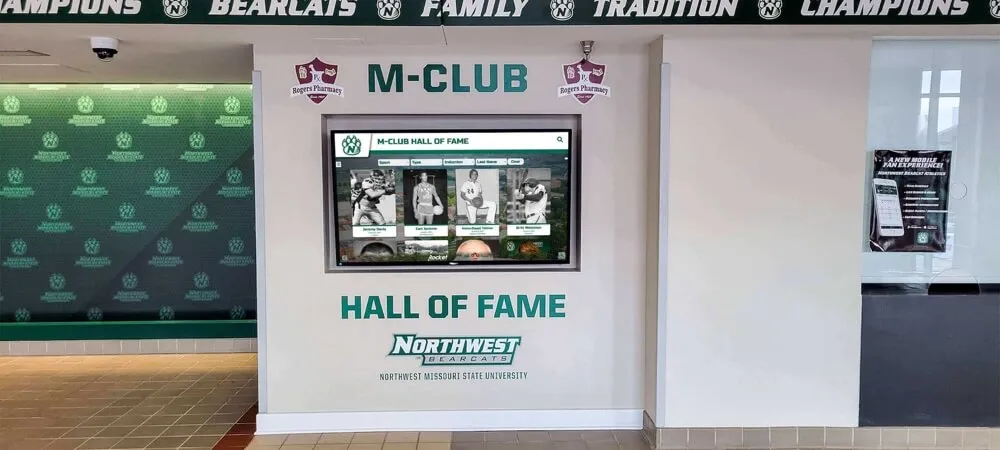
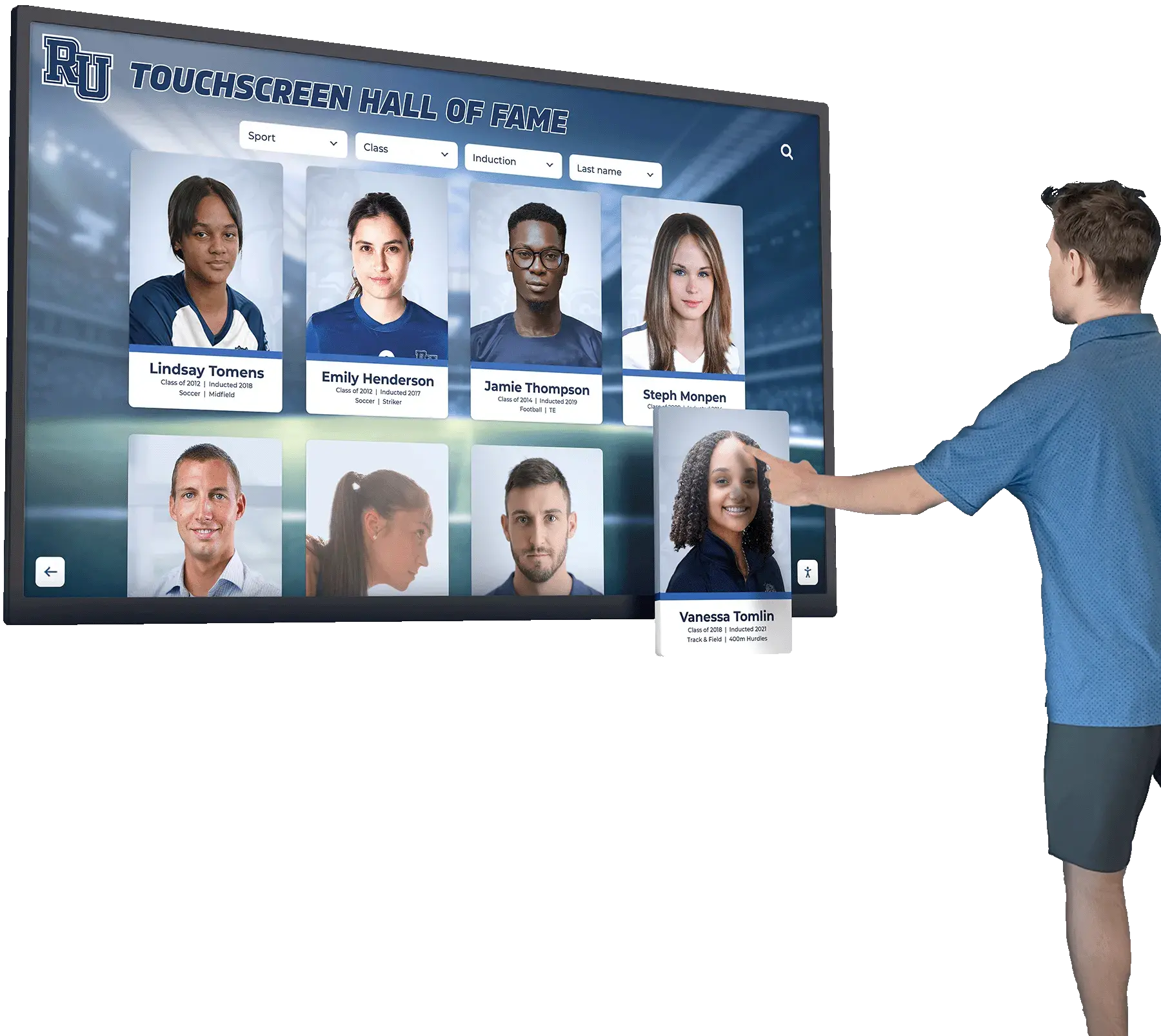
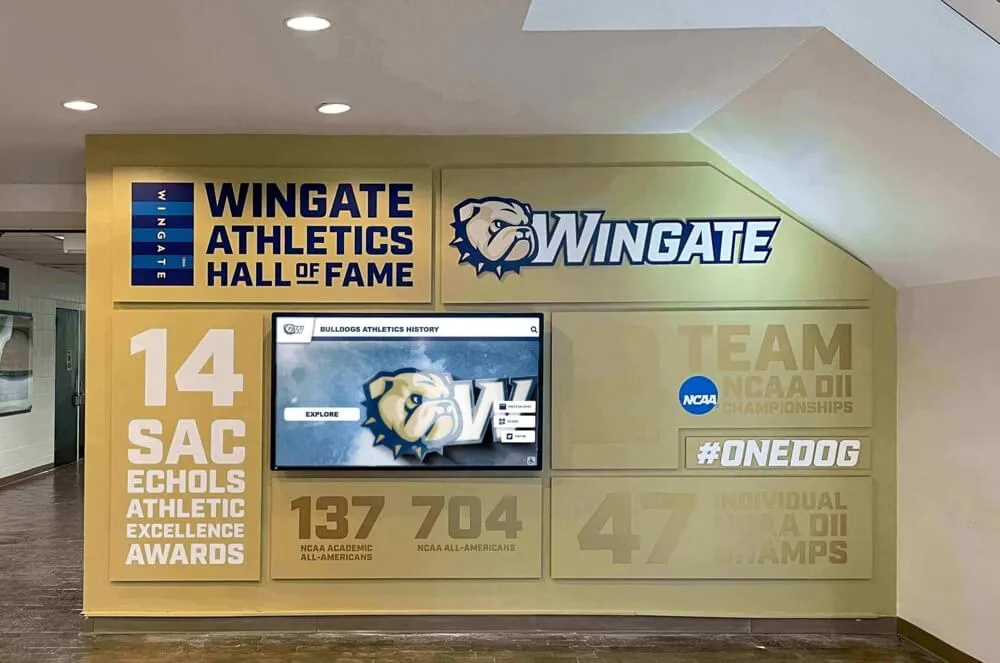
Recognition displays that are cleaned and maintained consistently retain their visual impact for years, protecting both the hardware investment and the digital content behind it
The practical takeaway: pair your cleaning SOP with your content update calendar. On the same day facilities completes the quarterly hardware inspection, IT runs the software audit. On the same day new athlete profiles go live in the CMS for the fall season, schedule the annual deep-clean and OS review. When maintenance is tied to content milestones rather than sitting on a separate to-do list, it is far less likely to be deferred indefinitely.
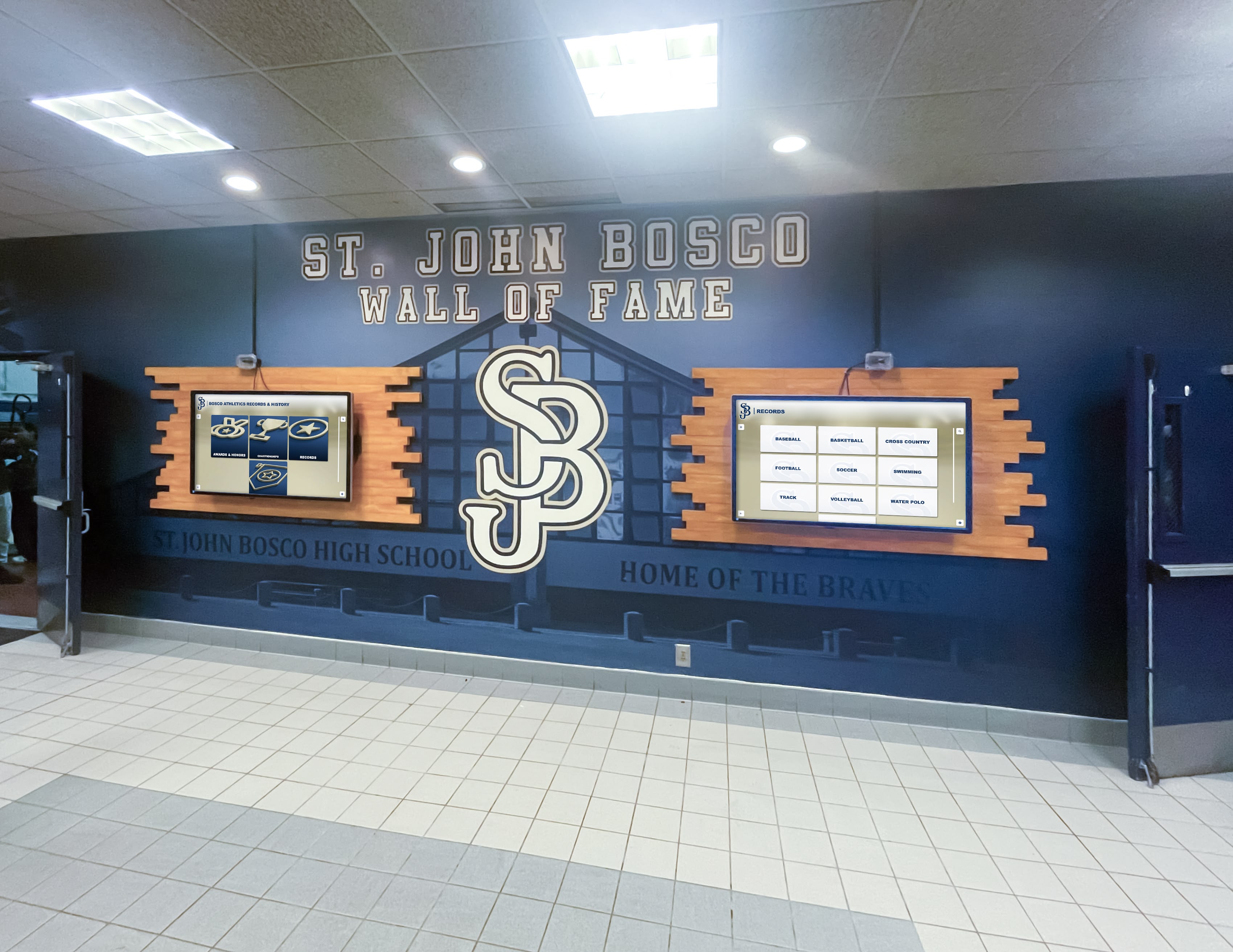
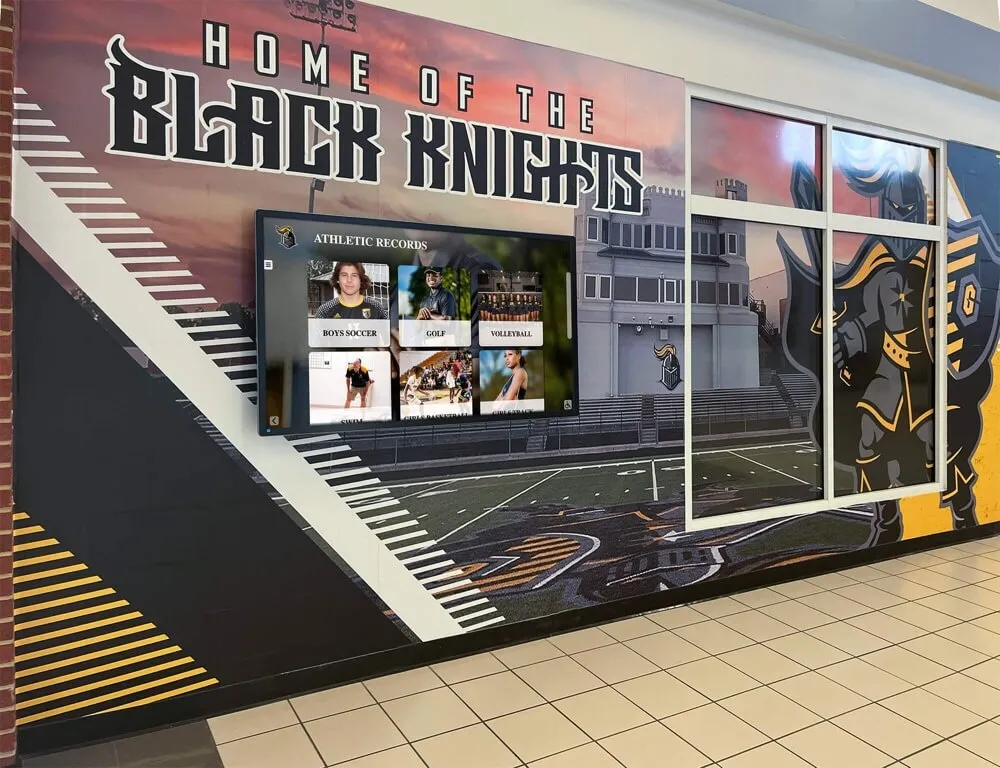
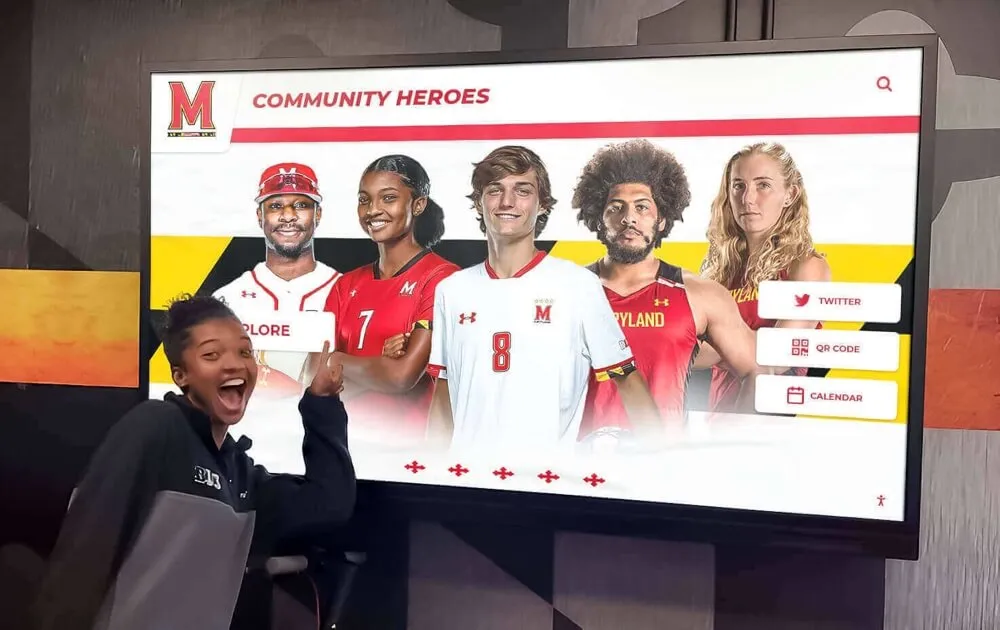
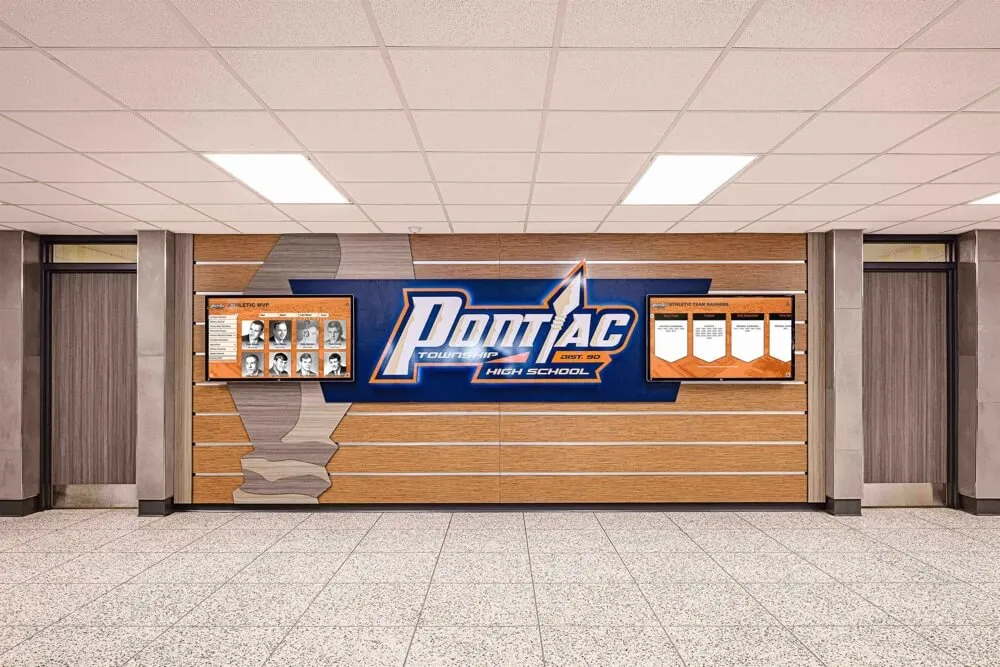
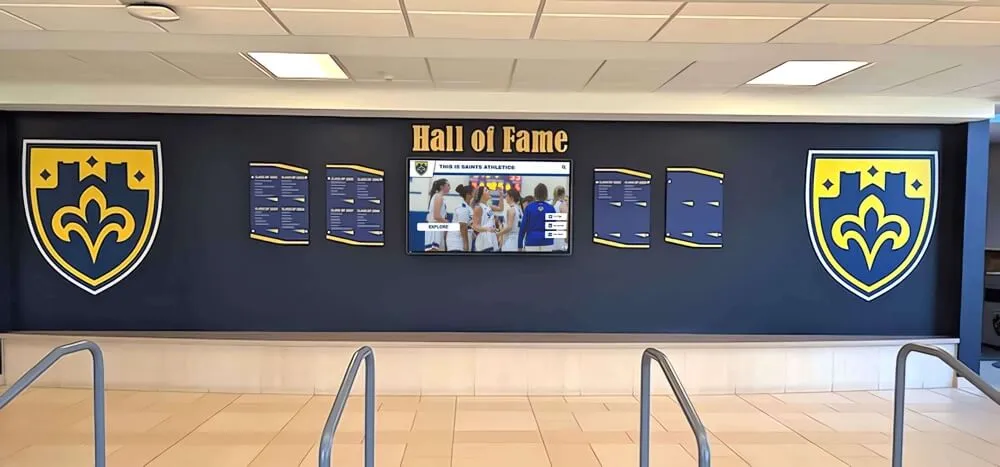
Multi-screen kiosk installations require a cleaning rotation that covers both panels equally to keep the full display streak-free and touch-responsive
See How Rocket Builds for Long-Term Reliability
Rocket Alumni Solutions designs interactive touchscreen recognition systems that facilities and IT teams can maintain with a standard cleaning kit and cloud-based software updates—no specialized technicians required for day-to-day upkeep. Schedule a walkthrough to see hardware specifications, CMS features, and the maintenance documentation included with every installation.
Book a Demo