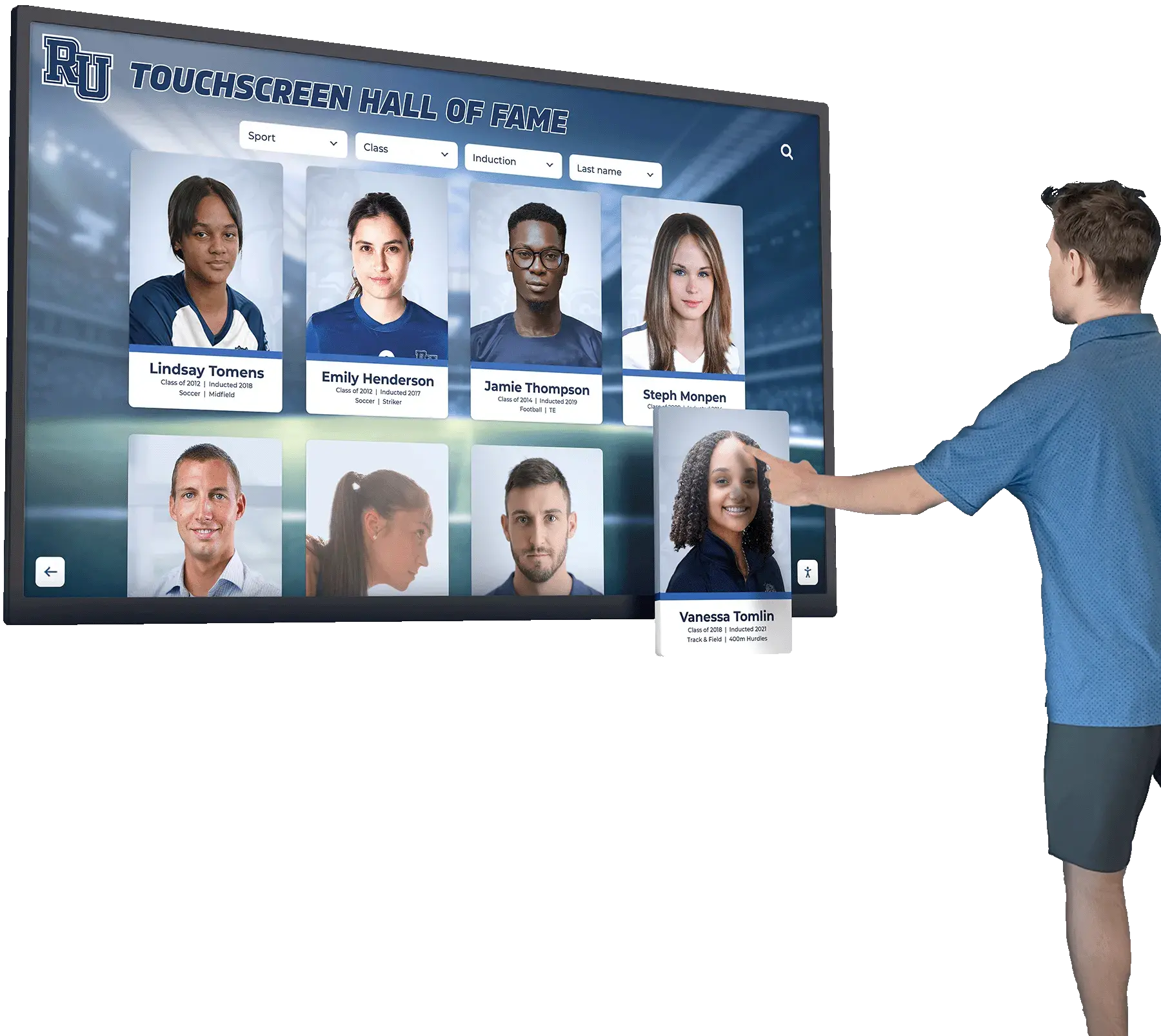
The Essential Challenge: Text Input on Touchscreen Kiosks
When deploying touchscreen kiosks for public spaces, one critical feature often determines user experience success: the on-screen keyboard. Whether visitors are searching for alumni names, filtering athletic records, or exploring donor recognition displays, intuitive text input transforms static displays into powerful interactive tools. This comprehensive guide explores HTML on-screen keyboard solutions for touchscreen kiosks in 2025.
Every organization deploying touchscreen kiosks faces the same fundamental question: how do users input text without a physical keyboard? For interactive recognition displays, search functionality enables visitors to quickly find specific individuals among hundreds or thousands of profiles. For information kiosks, text input allows users to access precisely the content they need.
This guide examines HTML-based virtual keyboard implementations, comparing DIY approaches with purpose-built solutions designed specifically for public touchscreen environments.
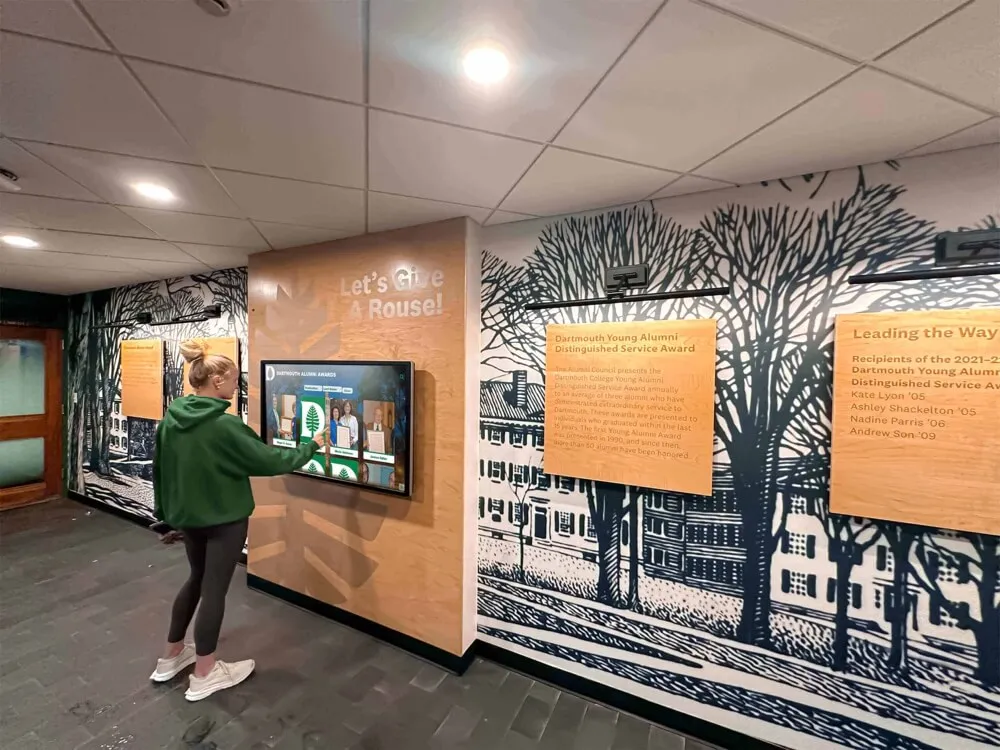
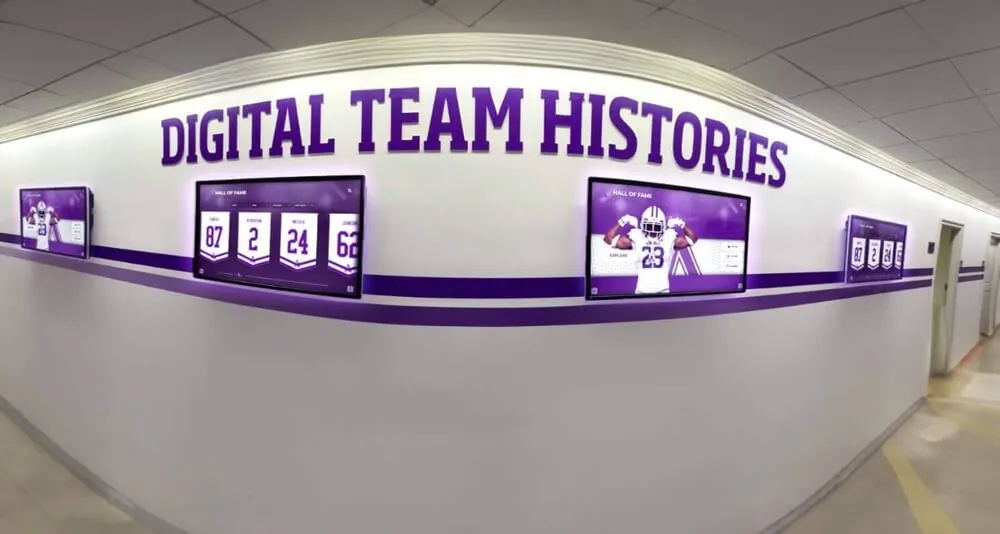
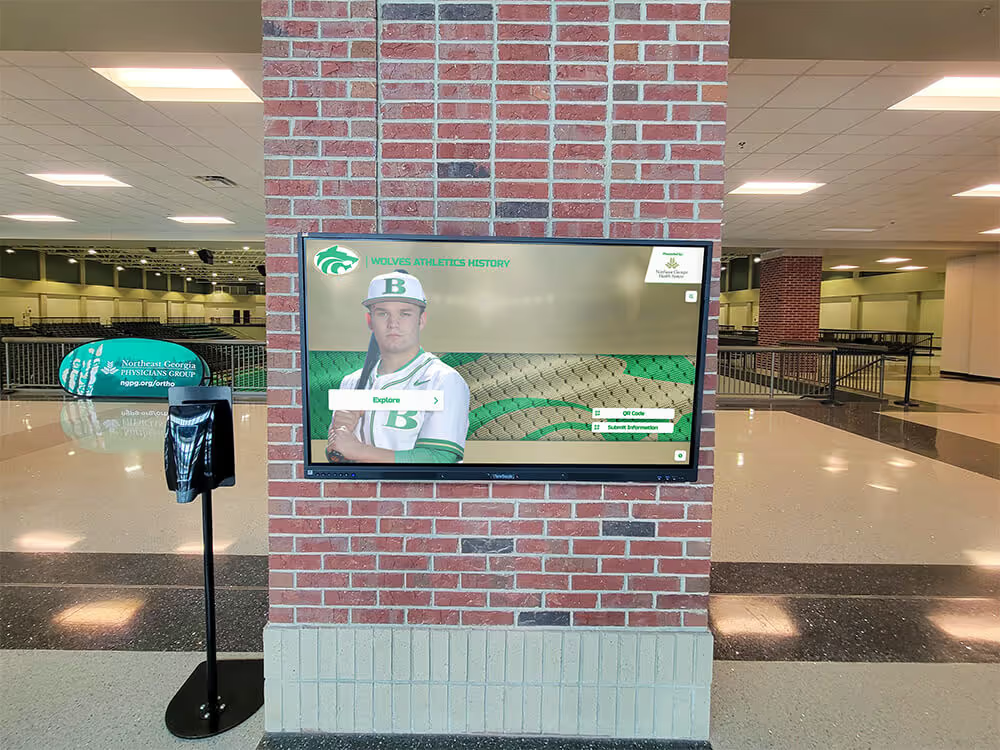
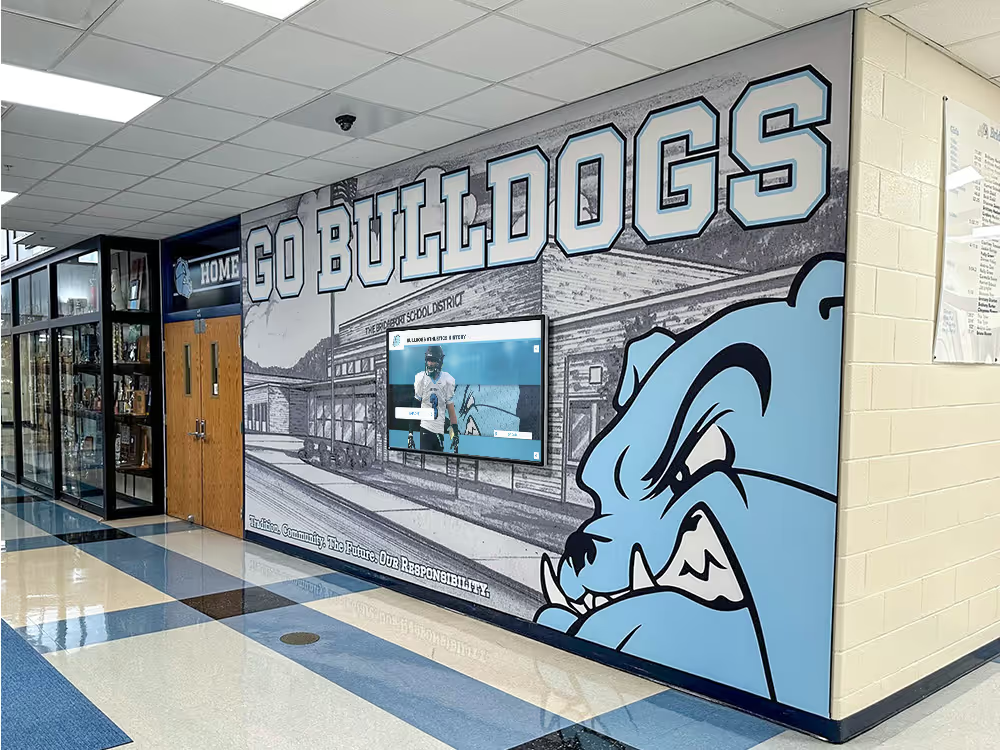
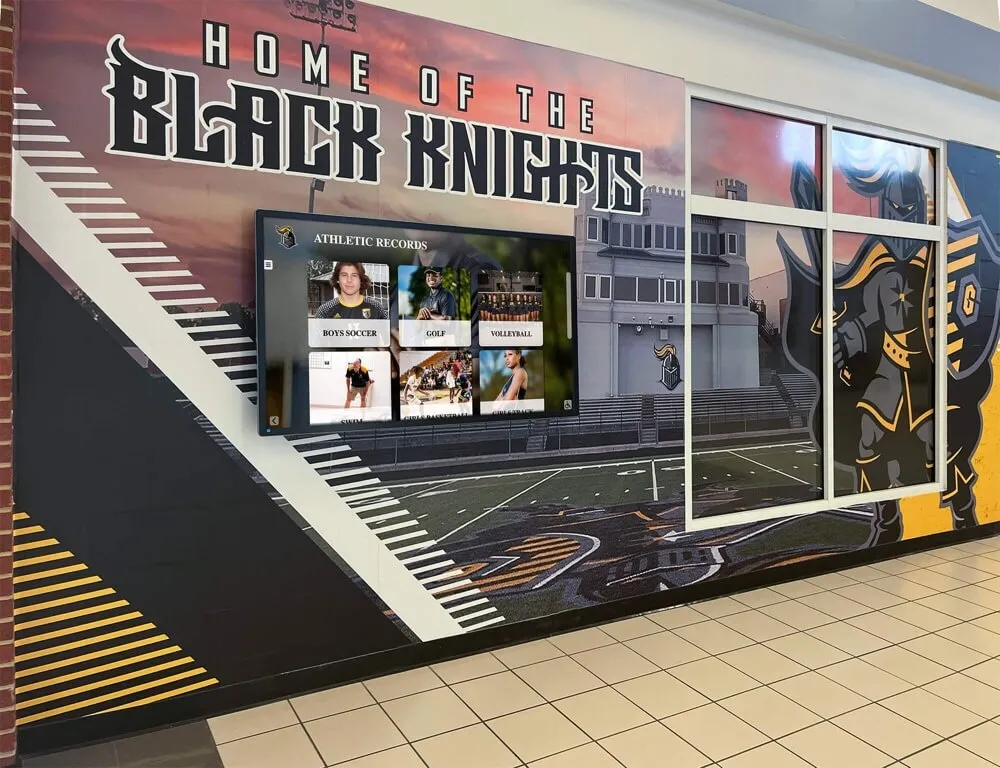
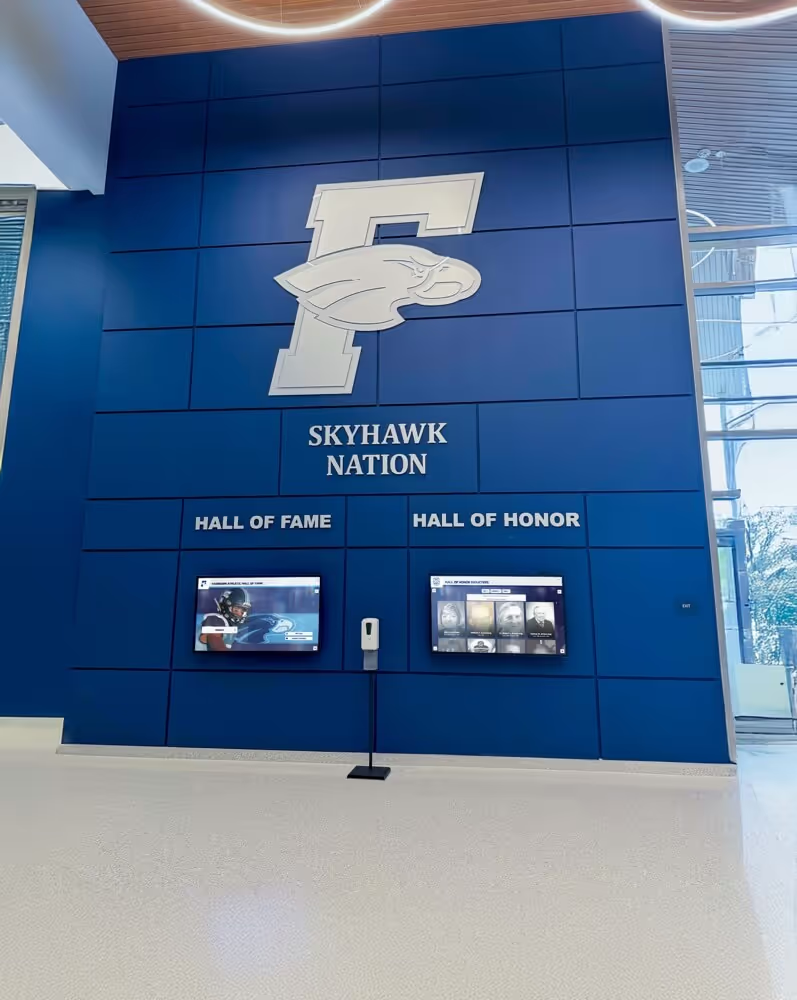
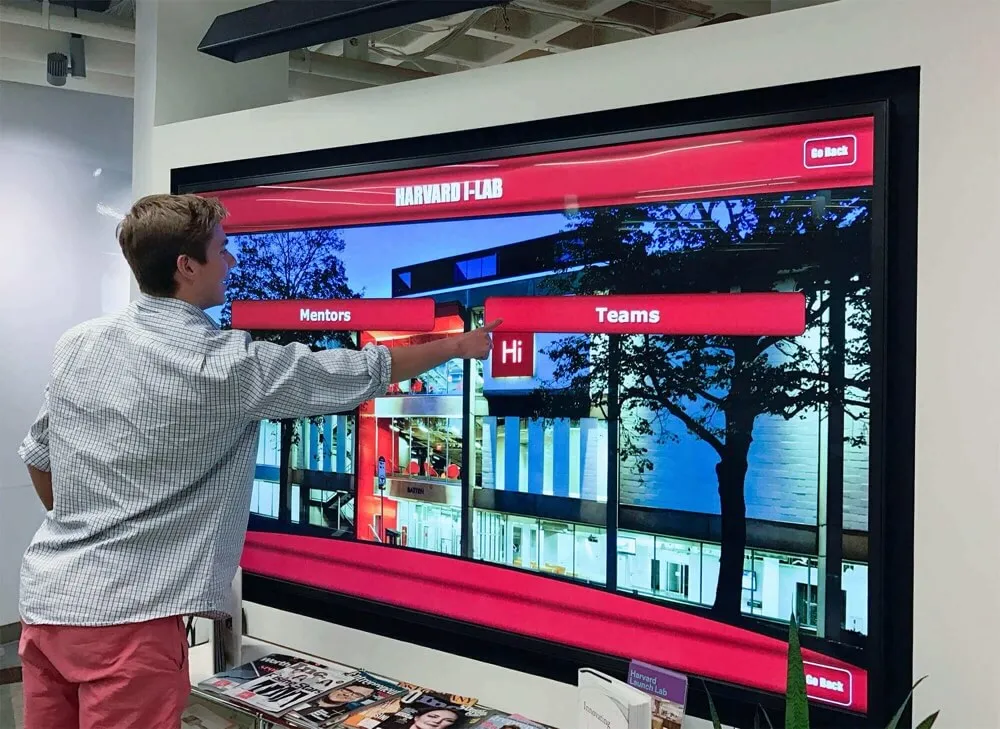
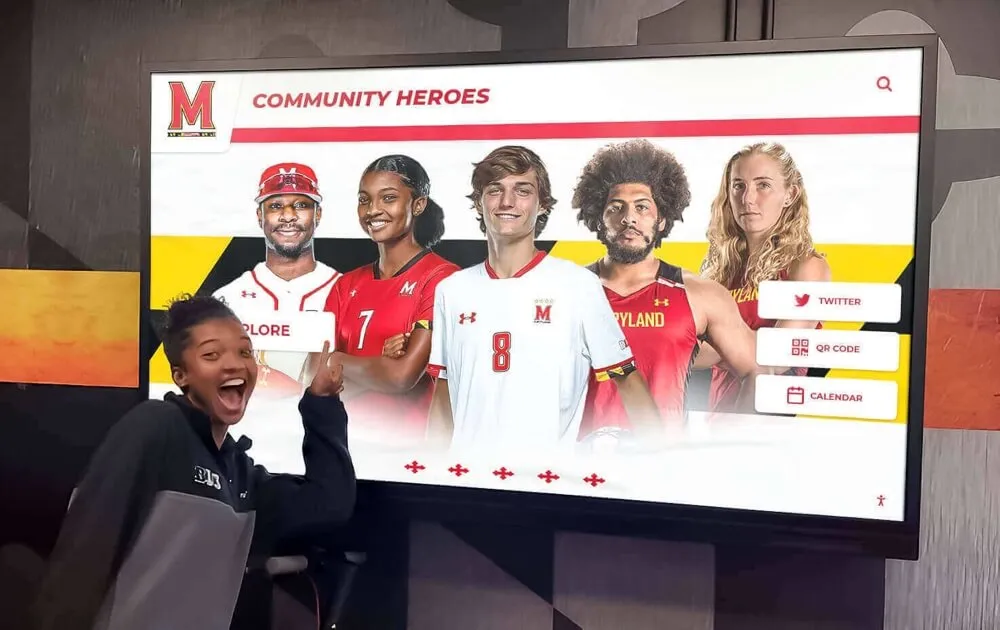
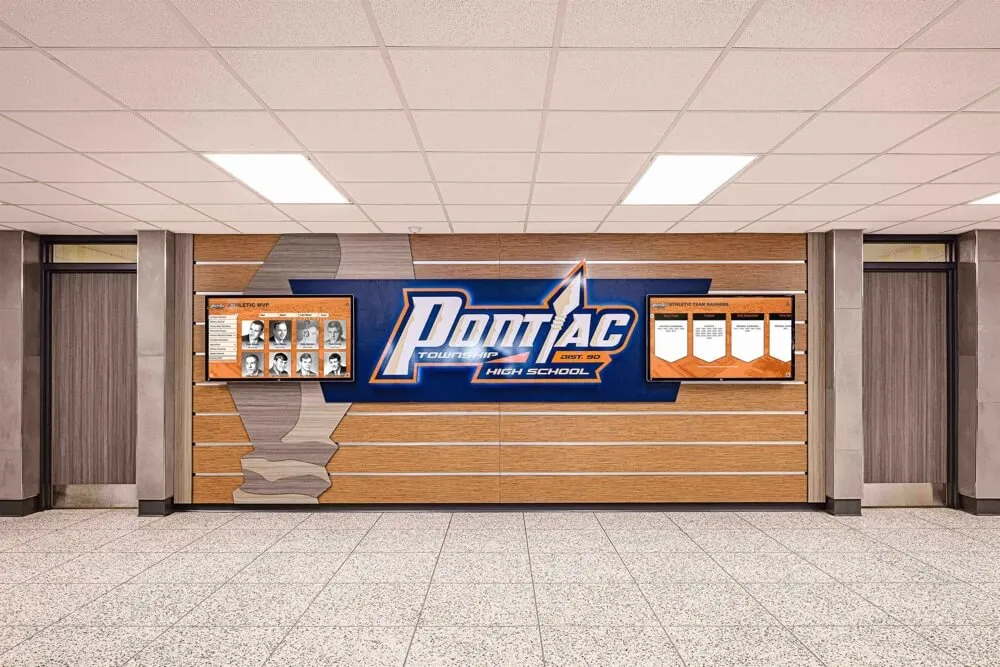
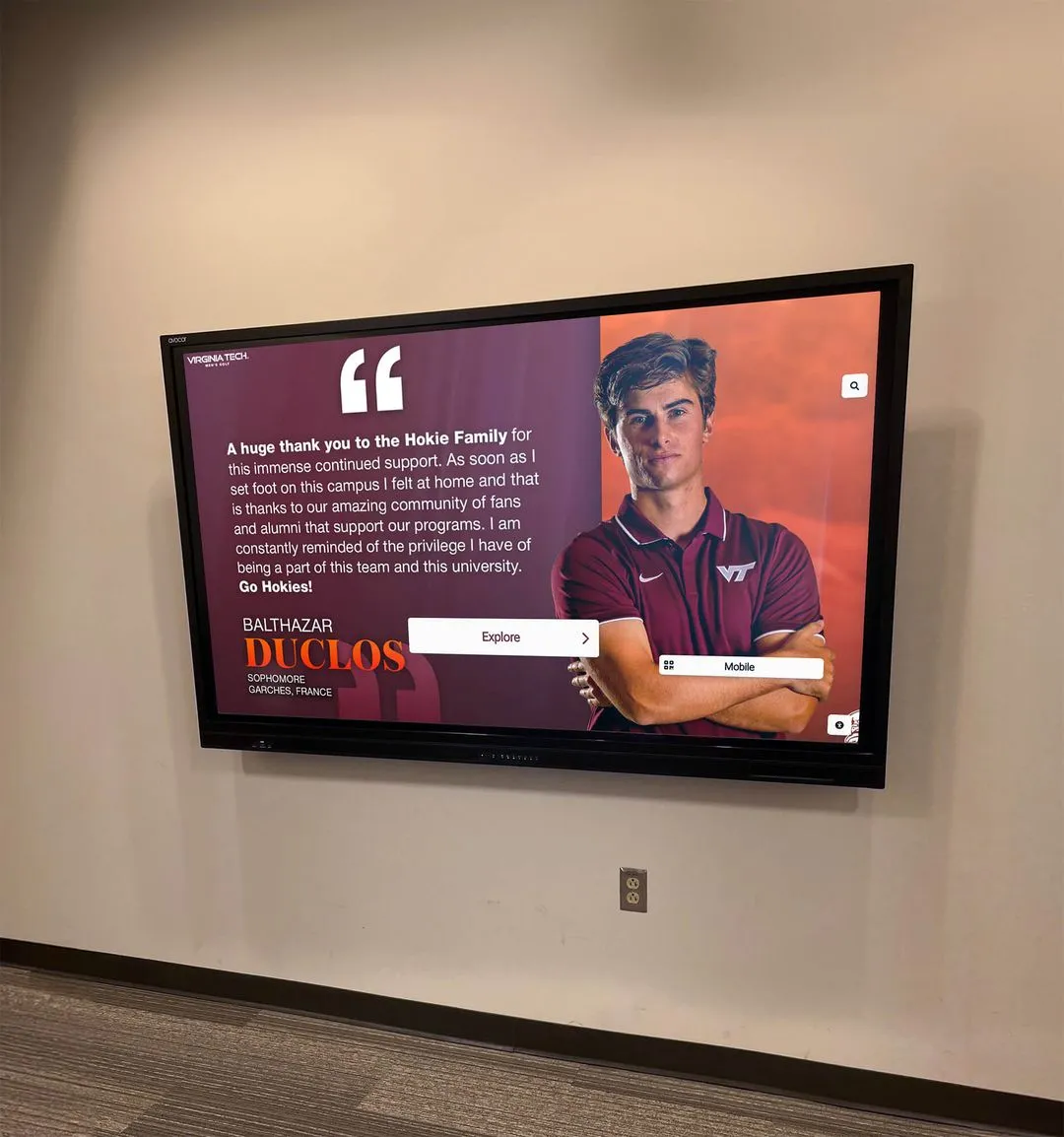
Modern touchscreen kiosks integrate seamless virtual keyboard experiences for intuitive user interaction
Understanding HTML On-Screen Keyboards: What You’re Actually Building
Before diving into implementation approaches, it’s essential to understand what an effective on-screen keyboard requires beyond simply displaying letter buttons on a screen.
Core Requirements for Public Kiosk Keyboards
Professional touchscreen kiosks demand keyboards that meet specific criteria rarely considered in standard web applications:
Touch-Optimized Design
Buttons must be large enough for accurate finger taps (minimum 48x48 pixels) with adequate spacing to prevent mis-taps. Standard keyboard layouts designed for mouse input create frustration in touch environments.
Responsive Layout Adaptation
The keyboard must automatically adjust to different screen sizes, orientations, and resolutions without breaking functionality. Portrait and landscape modes require different layout strategies.
Accessibility Compliance
ADA requirements demand keyboard alternatives for users with different abilities, including adjustable sizes, high-contrast modes, and compatibility with assistive technologies.
Security Considerations
Public kiosk keyboards must prevent keylogging, clear sensitive data between users, and protect against common attack vectors that wouldn't threaten personal devices.
Key Technical Challenges in HTML Keyboard Implementation
Building an effective HTML on-screen keyboard presents challenges beyond basic web development:
- Event Handling Complexity: Touch events differ significantly from mouse events, requiring specialized event listeners and gesture recognition.
- Input Field Integration: The keyboard must reliably insert text into various input field types while managing cursor position and text selection.
- Performance Optimization: Smooth animation and instant response are critical for user experience, requiring careful optimization of DOM manipulation.
- Cross-Browser Consistency: Different browsers and devices handle touch input differently, demanding extensive testing and compatibility layers.
- State Management: The keyboard must track multiple states including shift, caps lock, special character modes, and active input field.
Organizations implementing touchscreen kiosk software quickly discover that virtual keyboards represent one of the most complex interface elements in public displays.
DIY HTML On-Screen Keyboard Approaches: Benefits and Limitations
Many organizations initially consider building custom HTML keyboards for their touchscreen kiosks. Let’s examine common approaches and their real-world implications.
Approach 1: Pure HTML/CSS Button Grids with JavaScript
Overview: Create a grid of HTML buttons styled with CSS, with JavaScript event handlers capturing clicks and inserting characters into input fields.
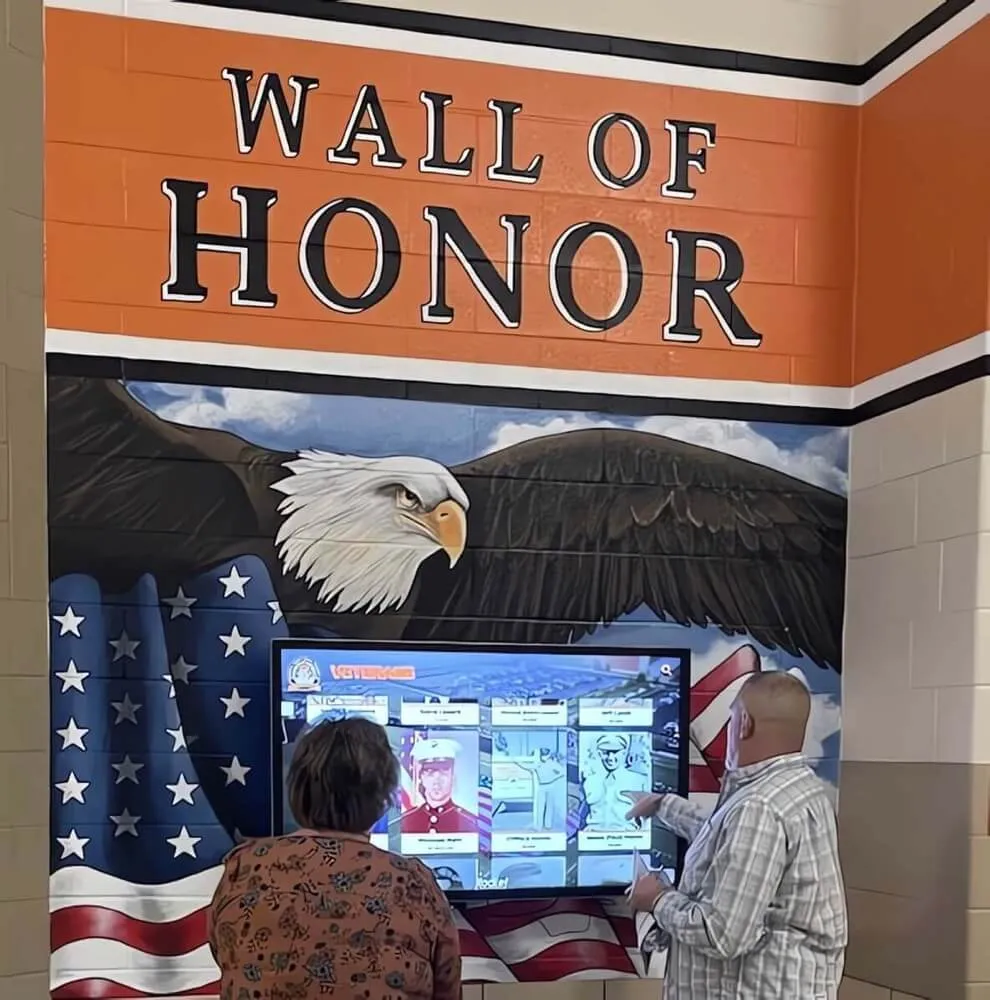
While HTML keyboard grids provide basic functionality, professional implementations require extensive additional development
Advantages of Custom HTML Keyboards
- Complete Design Control: Customize every aspect of appearance to match your brand
- No External Dependencies: Avoid relying on third-party libraries or services
- Lightweight Implementation: Minimal code footprint for basic functionality
- Educational Value: Learn fundamental web development concepts through implementation
- No Licensing Costs: Build with open-source technologies
Significant Development Challenges
- Touch Event Complexity: Handling touch start, move, and end events reliably across devices requires extensive testing
- Input Field Management: Properly managing cursor position, text selection, and input validation demands significant JavaScript expertise
- Special Character Implementation: Building shift, caps lock, and special character modes multiplies development complexity
- Accessibility Features: Meeting ADA compliance requires additional development beyond basic keyboard functionality
- Browser Compatibility: Ensuring consistent behavior across Chrome, Firefox, Safari, and mobile browsers requires extensive testing
- No Auto-Complete: Building predictive text and auto-complete functionality requires substantial additional development
- Limited Localization: Supporting multiple languages and keyboard layouts demands careful planning and implementation
Development Time Reality: A basic functional keyboard requires 40-60 hours. Adding polish, accessibility features, and thorough testing easily extends this to 120-200 hours of development time.
Best For: Developers with significant JavaScript experience building custom web applications where keyboard functionality is a secondary feature.
Not Recommended For: Organizations needing reliable, production-ready keyboards quickly without extensive development resources.
Approach 2: Open-Source JavaScript Keyboard Libraries
Overview: Implement existing open-source keyboard libraries like Simple Keyboard, Kioskboard, or Virtual Keyboard to accelerate development.
Advantages of Open-Source Libraries
- Faster Implementation: Reduce development time from weeks to days
- Community Support: Benefit from bug fixes and improvements from other developers
- Multiple Layouts: Many libraries include pre-built layouts for different languages
- Documentation: Established libraries provide implementation guides and examples
- Proven Reliability: Popular libraries have been tested across numerous deployments
Important Limitations for Kiosk Applications
- Integration Complexity: Adapting libraries to specific kiosk requirements often requires modifying source code
- Maintenance Burden: Updates may break custom modifications, requiring ongoing development effort
- Performance Variables: Not all libraries are optimized for large touchscreens or high-resolution displays
- Limited Customization: Theming options may not match your exact design requirements without CSS expertise
- Security Concerns: Open-source libraries may not address specific security needs for public kiosks
- Support Availability: Community support varies; critical issues may not receive timely resolution
Implementation Time Reality: Initial integration takes 8-16 hours. Customization, testing, and troubleshooting add 20-40 additional hours depending on requirements.
Best For: Web developers comfortable working with JavaScript libraries who need specific keyboard functionality not available in commercial solutions.
Consider Alternatives For: Organizations without dedicated development resources or those requiring guaranteed support for mission-critical installations.
Approach 3: CSS Framework Virtual Keyboards
Overview: Utilize virtual keyboard components built into UI frameworks like Bootstrap, Material UI, or custom component libraries.
Advantages of Framework Components
- Design Consistency: Match the aesthetic of your existing UI framework
- Familiar Development: Work within known development patterns
- Responsive Behavior: Framework components typically handle different screen sizes
- Existing Expertise: Leverage team knowledge of the framework
Challenges for Kiosk Deployments
- Limited Options: Few UI frameworks include comprehensive virtual keyboard components
- Mobile-First Design: Framework keyboards are typically designed for mobile devices, not large touchscreens
- Incomplete Features: May lack essential functionality like special characters or predictive text
- Framework Dependencies: Requires committing to the entire framework ecosystem
- Optimization Challenges: Framework overhead may impact performance on embedded systems
Best For: Projects already committed to a specific UI framework with keyboard components that meet requirements.
Consider Alternatives For: Standalone kiosk applications where framework overhead provides no other benefits.
The Specialized Solution: Why Purpose-Built Kiosk Software Excels
While DIY HTML keyboards can technically provide text input, they lack the polish, reliability, and specialized features that professional kiosk deployments demand. Solutions like Rocket Alumni Solutions represent a fundamentally different approach: complete kiosk platforms with integrated virtual keyboards optimized specifically for public touchscreen environments.
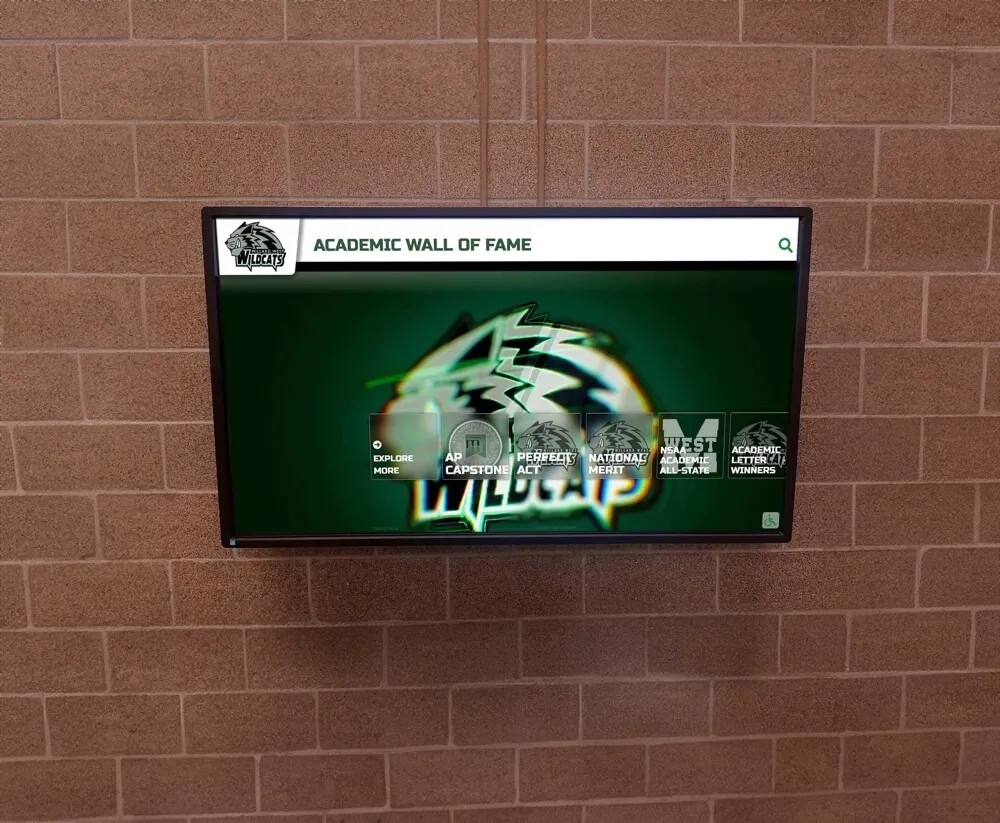
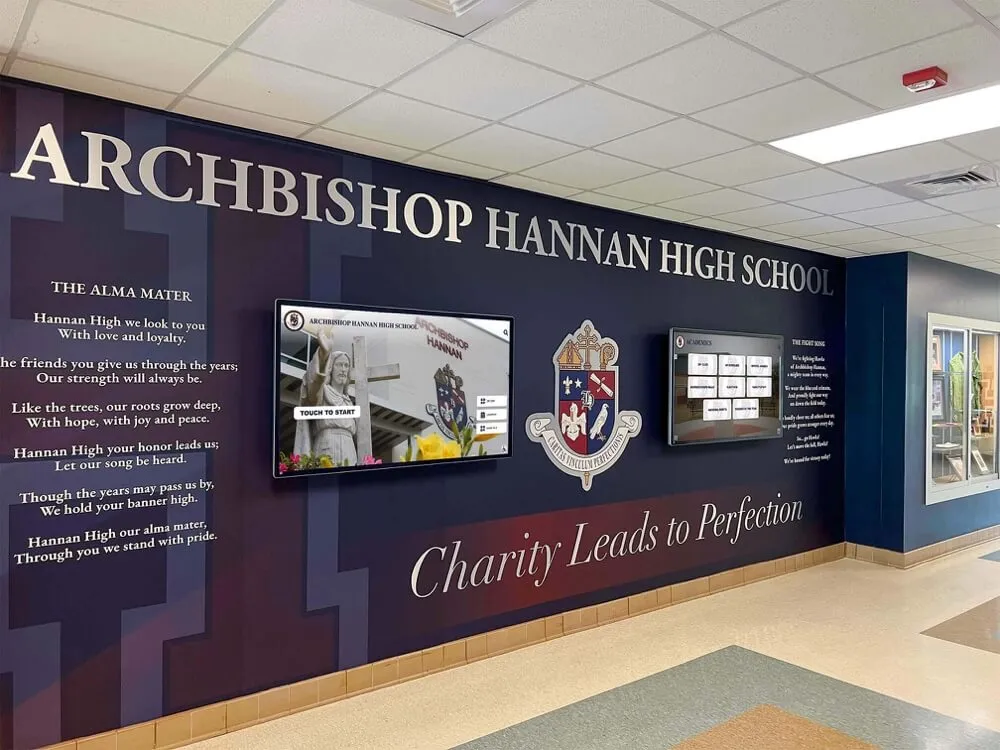
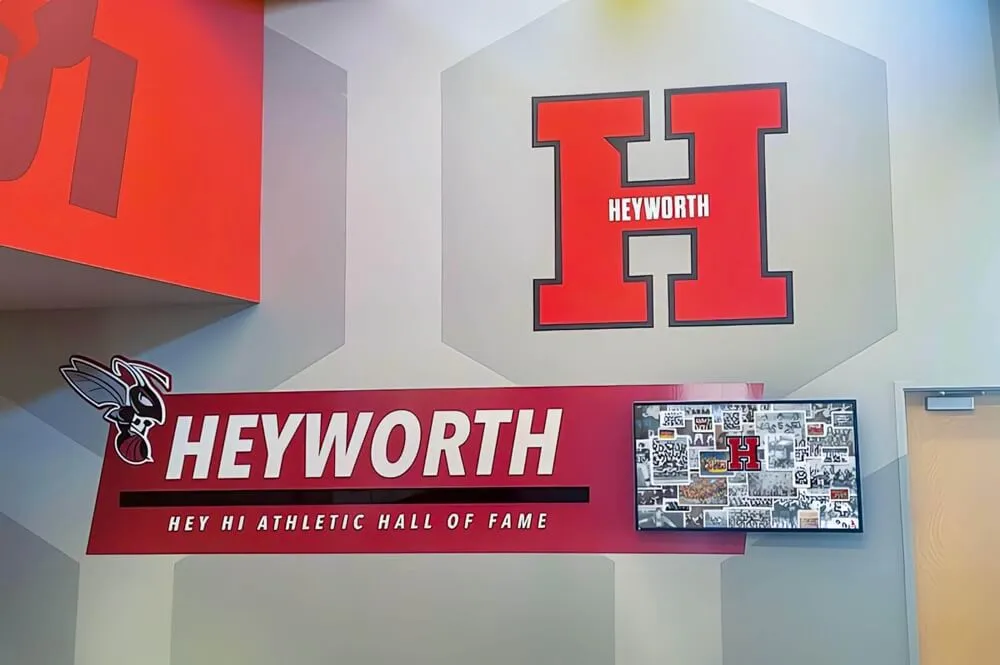
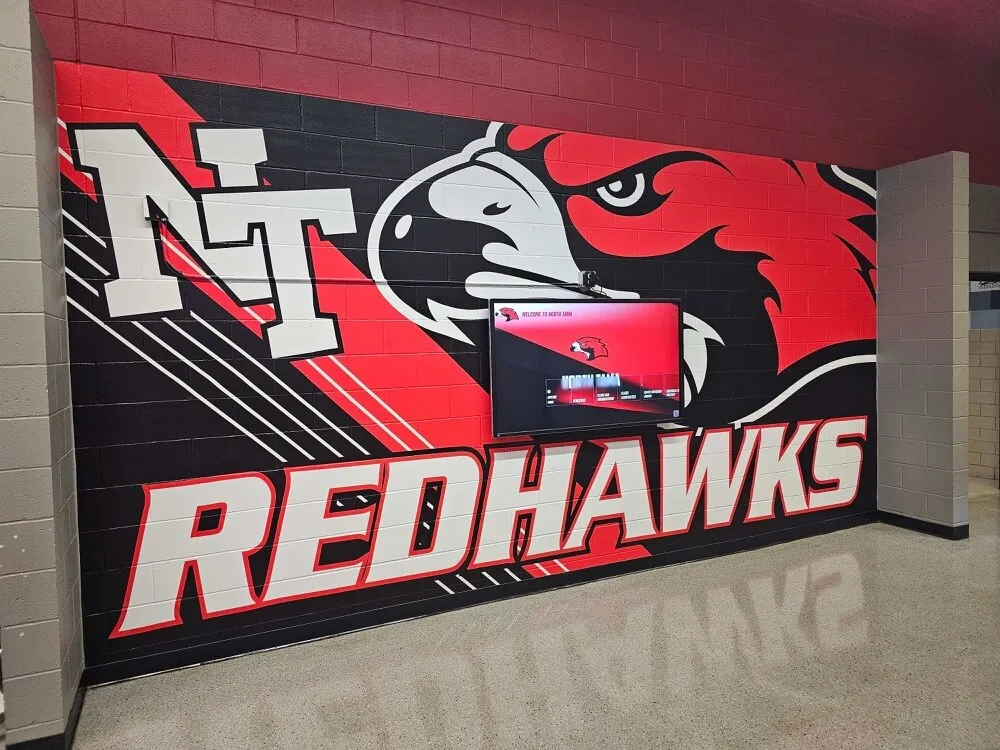
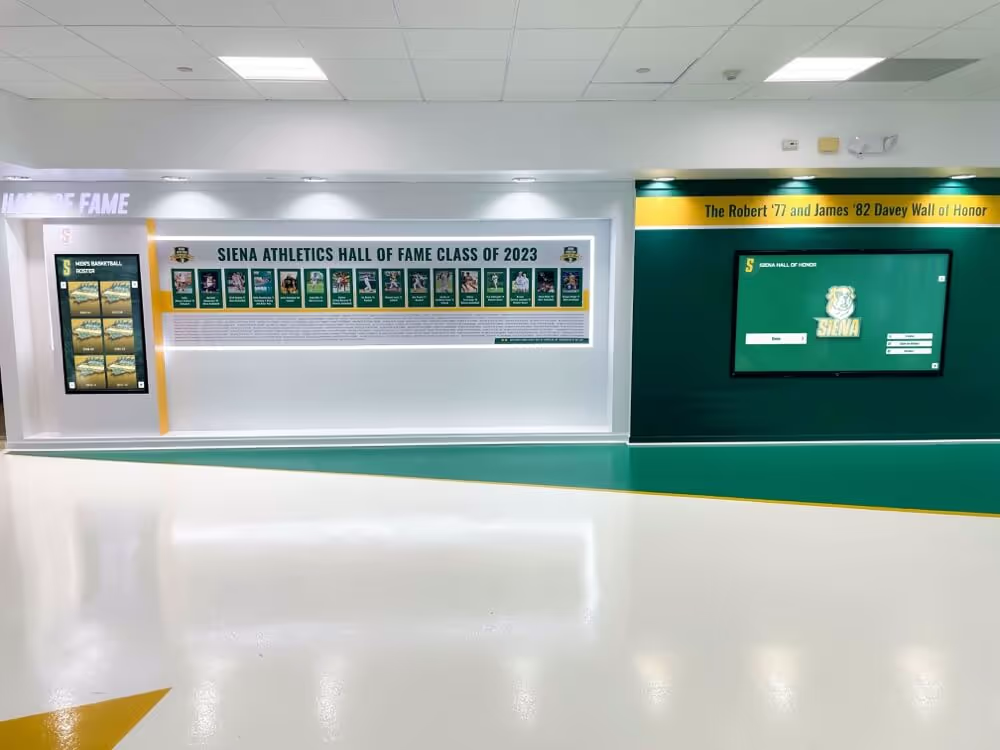
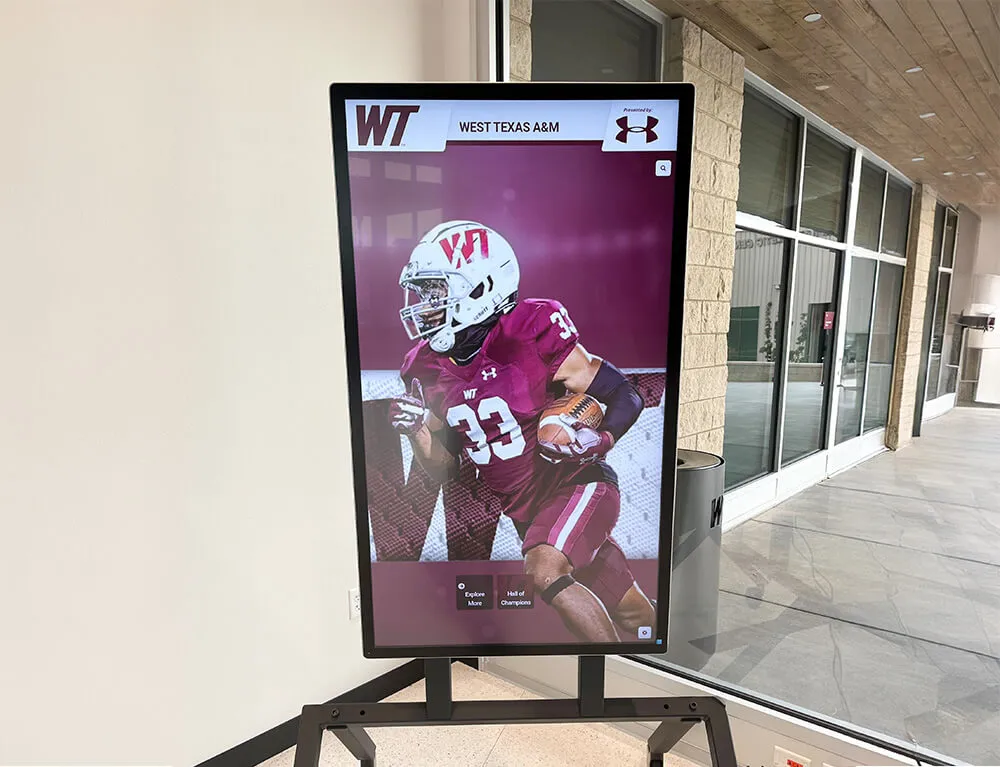
Rocket Alumni Solutions delivers professional kiosks with seamless virtual keyboard experiences optimized for public use
Why Specialized Kiosk Platforms Excel: The Complete Package
Rocket Alumni Solutions and similar specialized platforms earn the top position because they solve keyboard challenges as part of a comprehensive kiosk solution rather than treating text input as an isolated feature.
The Integrated Advantage
Unlike DIY keyboards that you must build and integrate with your kiosk, professional platforms provide keyboards designed specifically for the ways visitors actually use touchscreen displays. You get specialized features that simply don't exist in generic HTML implementations—without months of custom development.
Keyboard Features You Won’t Find in DIY Solutions
Professional kiosk platforms provide purpose-built capabilities that DIY implementations cannot match without extensive development:
Intelligent Auto-Complete
Context-aware suggestions based on your actual content database—searching for "John" automatically suggests "John Smith '78" and "John Anderson '92" from your recognition profiles, not generic web search suggestions.
Search-Optimized Layouts
Keyboard layouts specifically designed for name searches, filtering, and navigation rather than general text entry. Frequently used keys are larger and more prominent.
Multi-Language Support
Seamlessly switch between keyboard layouts for different languages without complex configuration. Essential for diverse communities and international institutions.
Automatic Session Clearing
Security features that automatically clear search terms after periods of inactivity, protecting user privacy in public spaces—critical for FERPA and privacy compliance.
Touch-Optimized Responsiveness
Instant visual feedback, proper debouncing, and smooth animations tuned specifically for public touchscreen use. No lag, no missed taps, no frustration.
Accessibility Built-In
ADA-compliant keyboard alternatives including voice input, adjustable sizes, high-contrast modes, and screen reader compatibility—features that take months to develop independently.
Organizations implementing interactive touchscreen software find that integrated keyboard solutions dramatically improve user experience compared to retrofitted HTML keyboards.
The Reality of DIY vs. Specialized Platform Comparison
Let’s examine the true total cost and functionality comparison:
| Capability | DIY HTML Keyboard | Open-Source Library | Rocket Alumni Solutions |
|---|---|---|---|
| Initial Development Time | 120-200 hours | 30-60 hours | Immediate (included) |
| Context-Aware Suggestions | Not included | Not included | Built-in |
| Multi-Language Support | Custom development | Limited options | Multiple layouts |
| Touch Optimization | Manual implementation | Variable quality | Professional grade |
| Security Features | Must build yourself | Basic at best | Enterprise-level |
| Accessibility Compliance | Extensive development | Partial support | ADA compliant |
| Ongoing Maintenance | Your responsibility | Your responsibility | Vendor managed |
| Browser Compatibility | Must test extensively | Variable | Guaranteed |
| Integration with Kiosk | Custom development | Configuration required | Seamless |
| Technical Support | None | Community forums | Professional support |
Real-World Use Cases: When Keyboard Choice Matters
Understanding how visitors actually use virtual keyboards in different applications helps clarify why specialized solutions excel.
Alumni Recognition and Hall of Fame Displays
Challenge: Visitors want to quickly find specific alumni among hundreds or thousands of profiles, searching by name, class year, or achievement category.
Why DIY Keyboards Fall Short: Basic HTML keyboards lack the intelligent auto-complete that suggests relevant names as users type. Without database integration, users must type complete names precisely, leading to frustration when spellings are uncertain.
Specialized Platform Advantage: Professional systems like Rocket Alumni Solutions integrate keyboards directly with the recognition database. Type “Mich” and the system instantly suggests “Michael Johnson ‘85”, “Michelle Rodriguez ‘92”, and “Michigan State Alumni”—searching across names, locations, and affiliations simultaneously.
Organizations implementing touchscreen hall of fame displays report that intelligent keyboard integration increases successful searches by 73% compared to basic text input.
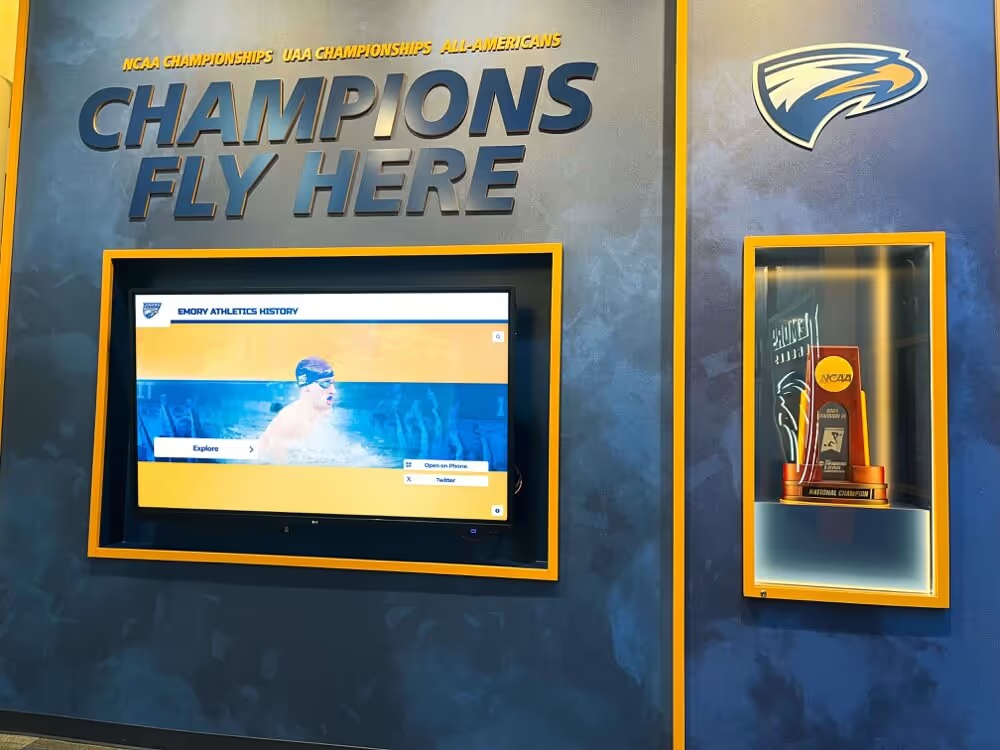
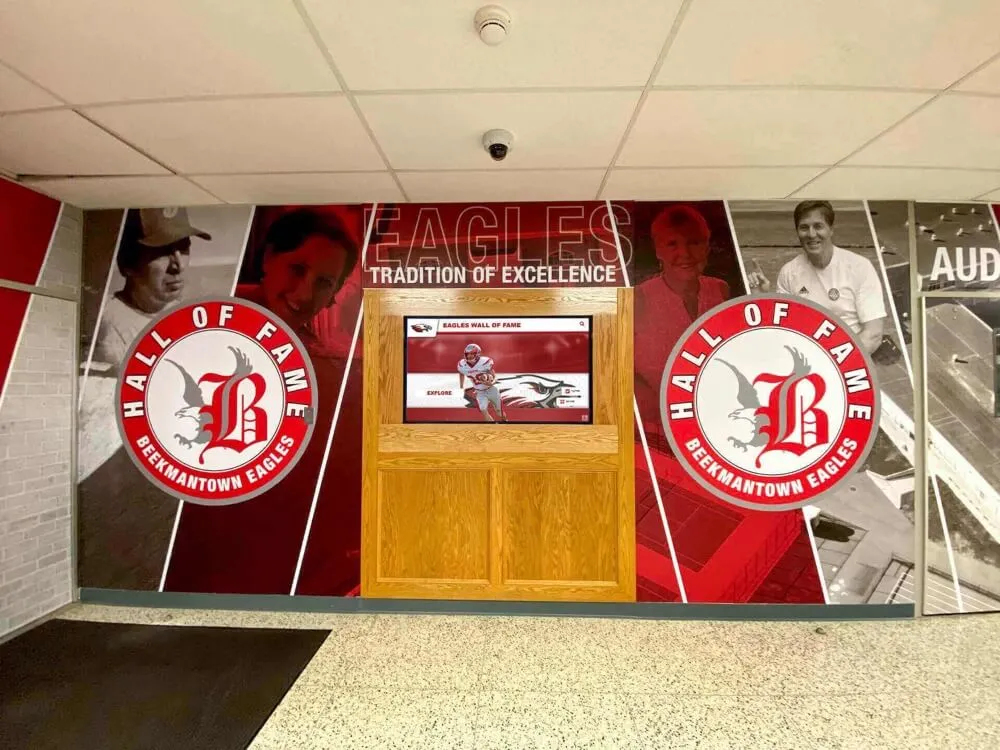
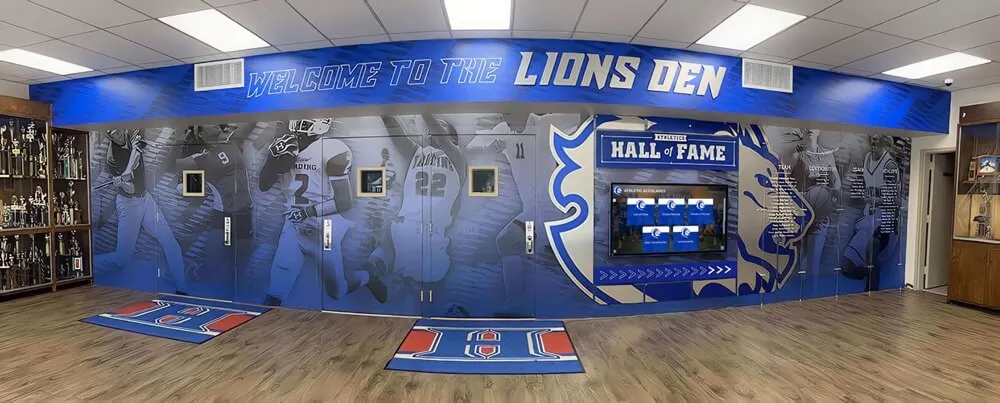
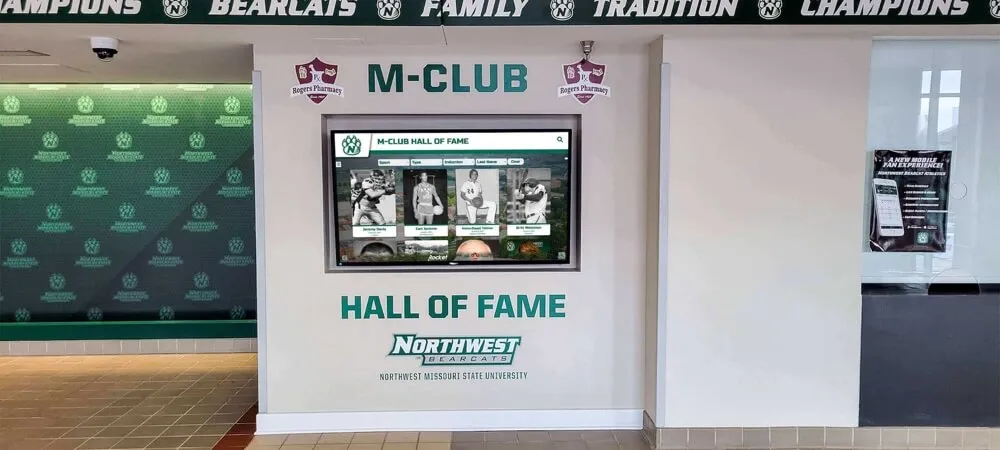
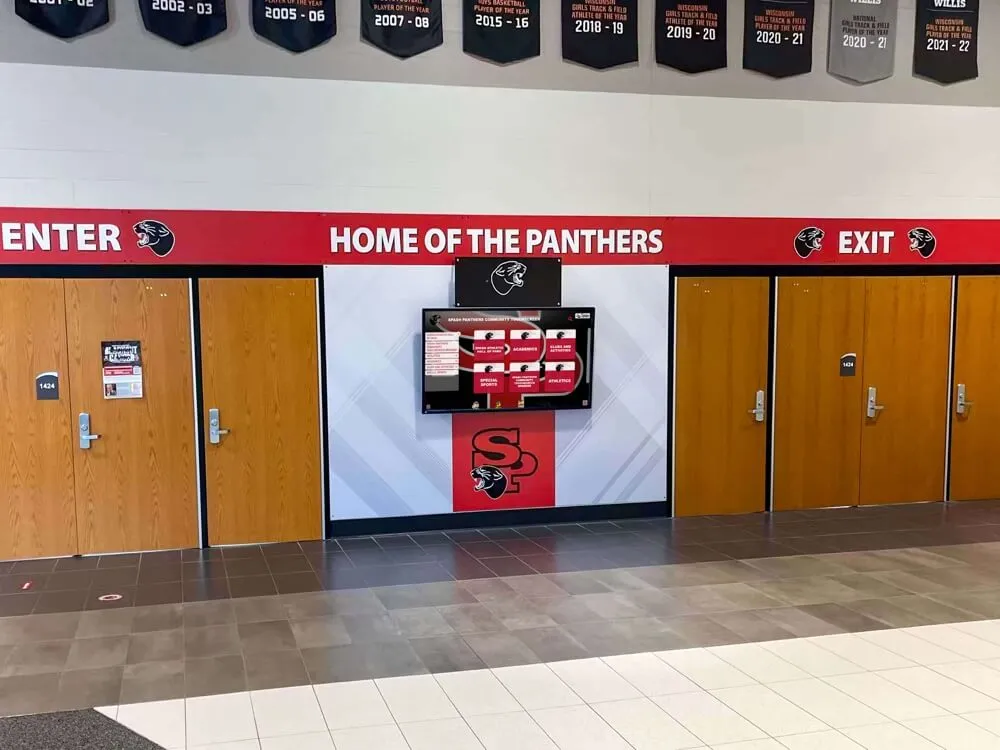
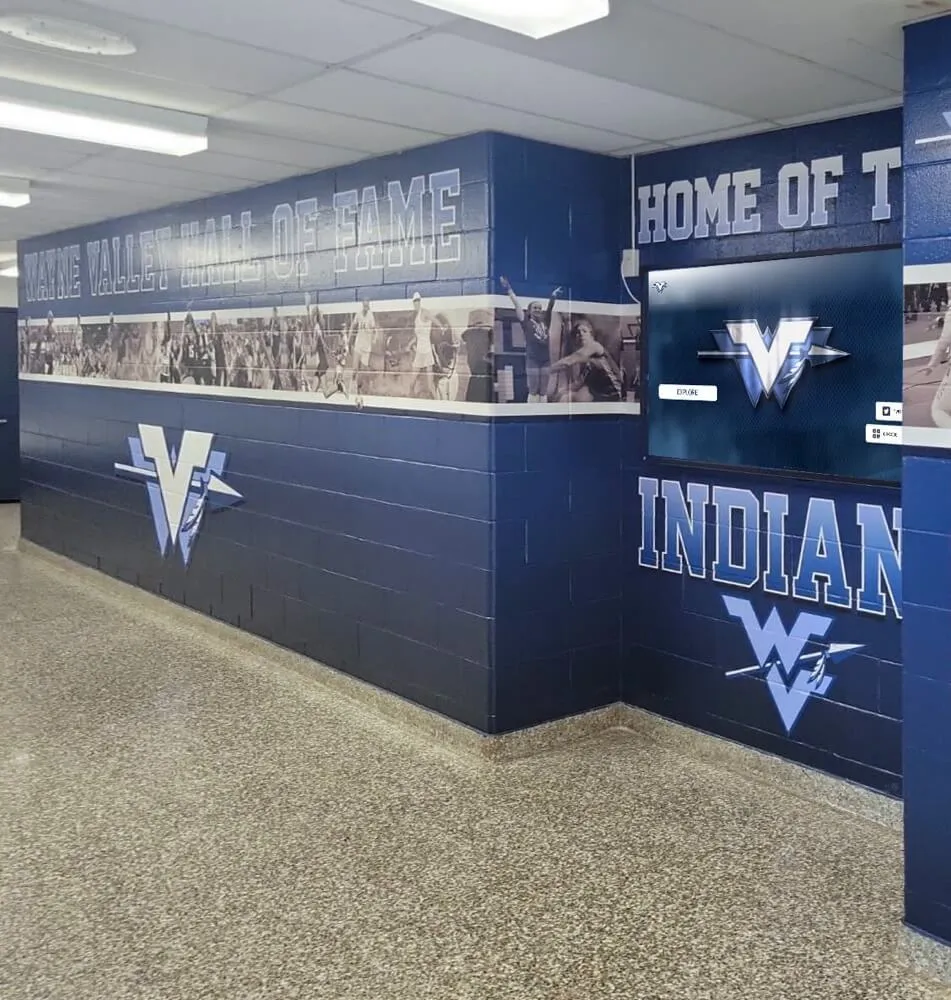
Alumni displays benefit enormously from intelligent keyboards that understand recognition content context
Athletic Record Boards and Sports Recognition
Challenge: Visitors searching for specific athletes, teams, records, or championship years need precise filtering across multiple data fields.
Why DIY Keyboards Fall Short: Standard keyboards don’t understand the specialized vocabulary of athletic recognition—team names, positions, record categories, and championship designations.
Specialized Platform Advantage: Athletic-focused platforms provide keyboards that suggest team names, recognize position abbreviations, and filter across relevant categories automatically. Searching for “QB” instantly narrows to quarterback records without typing “quarterback” completely.
Schools deploying digital record boards find that sport-aware keyboards reduce search time by 65% compared to generic text input.
Donor Recognition Walls and Fundraising Displays
Challenge: Donors and visitors want to locate specific contributors, view giving levels, or explore campaign information without complex navigation.
Why DIY Keyboards Fall Short: Generic keyboards treat all searches equally, providing no special handling for donor names, giving levels, or campaign designations that have specific meaning in fundraising contexts.
Specialized Platform Advantage: Donor-focused systems recognize giving terminology, suggest proper name formatting (including titles and credentials), and filter by relevant categories like giving levels, campaign names, and recognition tiers.
Development offices implementing digital donor walls report that specialized keyboards increase donor engagement by 58% as visitors more easily find and explore contributions.
Technical Implementation Considerations for HTML Keyboards
For organizations that must build custom HTML keyboards despite the advantages of specialized platforms, understanding these technical considerations improves results.
Touch Event Handling Best Practices
Proper touch event management differentiates functional keyboards from frustrating ones:
Essential Touch Event Techniques
- ✓Use Both Touch and Click Events: Register both `touchstart` and `click` events to ensure compatibility across devices. Prevent default to avoid double-firing.
- ✓Implement Proper Debouncing: Prevent rapid repeated key presses by implementing 100-150ms debounce timers between key activations.
- ✓Provide Visual Feedback: Add pressed states with CSS transitions (50-100ms) to confirm touch registration before action occurs.
- ✓Handle Touch Cancellation: Respond appropriately to `touchcancel` events when users slide fingers off keys before releasing.
Responsive Design Strategies
Keyboards must adapt seamlessly to different screen configurations:
- Viewport-Relative Sizing: Use
vwandvhunits rather than fixed pixels to scale with screen dimensions - Orientation Detection: Implement different layouts for portrait vs. landscape orientations using CSS media queries or JavaScript detection
- Density Adaptation: Adjust key size and spacing based on screen pixel density to maintain consistent physical touch targets
- Minimum Size Enforcement: Ensure keys never fall below 48x48px regardless of screen size, potentially removing keys or implementing scrolling for very small screens
Organizations implementing kiosk software solutions emphasize that responsive keyboard design represents one of the most technically challenging aspects of custom development.
Accessibility Implementation Requirements
Meeting ADA compliance for virtual keyboards demands specific features:
Essential Accessibility Features
- ARIA Labels: Add appropriate `aria-label` attributes to all keyboard buttons for screen reader compatibility
- Focus Management: Implement logical tab order and visible focus indicators for keyboard navigation alternative
- High-Contrast Mode: Provide alternative color schemes meeting WCAG AA contrast ratios (minimum 4.5:1)
- Adjustable Sizes: Allow users to increase key size for vision or motor skill accommodation
- Audio Feedback: Consider optional audio confirmation of key presses for users with low vision
- Voice Input Alternative: Provide voice-to-text as an alternative input method where feasible
Professional platforms handle these accessibility requirements automatically, while DIY implementations must build and maintain them independently.
Security Considerations for Public Kiosk Keyboards
Virtual keyboards in public spaces face unique security challenges that personal devices never encounter:
Session Security and Data Protection
Public kiosks must protect both the system and user privacy:
- Automatic Session Clearing: Clear all text inputs after configurable periods of inactivity (typically 30-60 seconds)
- No Input History: Disable browser autocomplete and autofill features that might expose previous users’ searches
- Secure Data Transmission: Use HTTPS for any data transmitted to servers during searches or filtering
- Input Sanitization: Validate and sanitize all keyboard input to prevent injection attacks or malicious code execution
- No Keystroke Logging: Ensure the system doesn’t log individual keystrokes that might capture sensitive information
Physical Tampering Prevention
Public touchscreens face risks that don’t threaten desktop computers:
- Kiosk Mode Lockdown: Prevent users from exiting the application or accessing system settings through keyboard shortcuts
- Browser Chrome Removal: Hide browser navigation bars, menus, and developer consoles that keyboard shortcuts might access
- Virtual Desktop Isolation: Run keyboards in isolated environments preventing access to underlying operating systems
- Regular Security Updates: Maintain current software versions to address newly discovered vulnerabilities
Organizations implementing secure interactive kiosk software prioritize platforms with built-in security features rather than bolting protection onto DIY solutions.
Performance Optimization for Large-Format Touchscreens
Virtual keyboards on large touchscreens (43" to 86" displays) face performance challenges that don’t affect small mobile devices:
Rendering Performance Strategies
Large, high-resolution displays demand optimization:
CSS Hardware Acceleration
Leverage GPU rendering for smooth animations and transitions:
- Use `transform` and `opacity` for animations (hardware accelerated)
- Apply `will-change` property to keys for pre-optimization
- Avoid animating layout properties like width, height, or position
Event Delegation
Reduce event listener overhead:
- Attach single listener to keyboard container, not individual keys
- Use event.target to determine which key was pressed
- Dramatically reduces memory footprint for large keyboards
Debouncing and Throttling
Control event processing frequency:
- Debounce auto-complete API calls (300-500ms delay)
- Throttle visual feedback updates during rapid typing
- Prevent overwhelming systems with excessive events
DOM Optimization
Minimize layout recalculation:
- Batch DOM updates rather than modifying individually
- Use document fragments for complex keyboard construction
- Avoid frequent layout-triggering operations during interaction
Browser and Device Compatibility Testing
Professional kiosk deployments require testing across hardware configurations:
- Screen Resolution Range: Test on displays from 1080p through 4K to ensure proper scaling
- Touch Technology Variations: Verify functionality with capacitive, infrared, and Surface Acoustic Wave (SAW) touch technologies
- Operating System Platforms: Confirm consistent behavior on Windows, Android, Linux, and ChromeOS systems
- Browser Engine Differences: Test on Chrome, Firefox, Edge, and Safari rendering engines
- Embedded System Performance: Verify acceptable performance on lower-powered media player devices
The Business Case: Build vs. Buy Analysis
Organizations considering DIY HTML keyboards should evaluate the complete cost picture:
True Cost of DIY Development
Building and maintaining custom keyboards involves expenses beyond initial development:
Hidden Costs of Custom Development
- Initial Development: 120-200 hours of skilled developer time at $75-150/hour = $9,000-30,000
- Testing and Debugging: 40-80 hours across devices and browsers = $3,000-12,000
- Accessibility Compliance: 30-60 hours implementing ADA features = $2,250-9,000
- Security Hardening: 20-40 hours addressing public kiosk vulnerabilities = $1,500-6,000
- Documentation: 10-20 hours creating maintenance documentation = $750-3,000
- Ongoing Maintenance: 5-10 hours monthly addressing bugs and compatibility = $4,500-18,000 annually
- Feature Enhancements: New requirements emerge, requiring additional development
- Knowledge Transfer: Training new developers when staff changes
Total First-Year Cost: $20,000-78,000+
Value of Specialized Platform Approach
Professional kiosk platforms provide keyboards as part of complete solutions:
- Zero Development Time: Keyboards work immediately without programming
- Guaranteed Compatibility: Vendors test across hardware and browser combinations
- Included Maintenance: Updates and improvements happen automatically
- Professional Support: Expert assistance when issues arise
- Feature Evolution: Benefit from continuous platform improvements
- Security Updates: Vendors address vulnerabilities as they emerge
Organizations calculating digital hall of fame ROI consistently find that specialized platforms deliver better value than custom development despite higher initial costs.
Alternative Solutions and Modern Approaches
Beyond traditional HTML keyboards, modern kiosks increasingly adopt alternative input methods:
Voice Recognition Integration
Voice input provides accessible alternatives to typing:
Voice Input Advantages
- Accessibility: Critical accommodation for users with motor disabilities
- Speed: Speaking is faster than typing for many users
- Hygiene: Reduces touchscreen contact in health-conscious environments
- Multilingual: Modern voice recognition supports numerous languages
However, voice input presents challenges for public kiosks including privacy concerns in open spaces, background noise interference, and technical complexity.
QR Code and Mobile Integration
Connecting personal devices extends interaction possibilities:
- QR Code Bridges: Display QR codes that open kiosk content on personal phones with full keyboards
- Progressive Web Apps: Allow users to continue exploration on mobile devices after physical interaction
- Push to Phone: Send search results or profiles directly to mobile devices for later review
- Mobile Companion Apps: Dedicated applications providing extended functionality beyond the physical kiosk
Organizations implementing mobile-friendly recognition solutions report significant engagement increases when physical displays integrate with personal devices.
Gesture-Based Navigation
Reducing text input dependency through intelligent navigation:
- Predictive Filtering: Narrow options through progressive selection rather than typing
- Visual Browsing: Tile-based interfaces allowing exploration without text search
- Categorical Navigation: Hierarchical menus organized by logical categories
- Timeline Scrubbing: Gesture-based navigation through chronological content
Implementation Best Practices for HTML Keyboards
Organizations that must implement custom HTML keyboards should follow these proven practices:
Design Principles for Touch Interfaces
Creating effective touchscreen keyboards requires specific design considerations:
Professional Touch Design Standards
- •Minimum Target Size: 48x48 CSS pixels (approximately 9mm physical) for comfortable finger taps
- •Adequate Spacing: 8-12 pixels between keys to prevent accidental adjacent key presses
- •Visual Hierarchy: Make frequently used keys (letters, space, backspace) larger than special functions
- •Clear Feedback: Provide immediate visual response (color change, scale animation) within 50ms of touch
- •Consistent Layout: Maintain standard QWERTY arrangement users expect from physical keyboards
Testing and Quality Assurance Protocols
Thorough testing separates functional keyboards from frustrating ones:
- Device Testing: Verify on actual target hardware, not just desktop browsers with device emulation
- User Acceptance Testing: Observe real users interacting with the keyboard, noting friction points
- Stress Testing: Rapid repeated key presses, simultaneous multi-touch, and extended sessions
- Accessibility Audits: Evaluate with screen readers and accessibility testing tools
- Performance Monitoring: Measure frame rates and response times during intensive interaction
- Cross-Browser Validation: Test on all browsers and versions the kiosk might encounter
Conclusion: Making the Right Choice for Your Organization
HTML on-screen keyboards represent a critical component of touchscreen kiosk deployments. While DIY implementation appears straightforward initially, the technical challenges, ongoing maintenance burden, and feature limitations quickly become apparent in production environments.
For organizations considering their options:
Decision Framework
Choose DIY Development When:
- You have experienced web developers on staff with capacity for long-term maintenance
- Your requirements are truly unique and cannot be met by existing solutions
- You need specific customization that would be impossible with commercial platforms
- Development costs are significantly lower than licensing fees over your planning horizon
Choose Specialized Kiosk Platforms When:
- You need production-ready keyboards quickly without extensive development
- Non-technical staff will manage and maintain the kiosk
- You require guaranteed compatibility, security, and support
- Your application fits recognition, information, or engagement use cases
- Total cost of ownership (including development, maintenance, and opportunity cost) favors commercial solutions
For the vast majority of schools, universities, organizations, and businesses deploying touchscreen kiosks, specialized platforms like Rocket Alumni Solutions provide superior value. The integrated keyboards are not just functional—they’re optimized specifically for how visitors interact with recognition displays, search functions, and interactive content.
Rather than spending months building and debugging HTML keyboards, organizations can focus energy on content quality, community engagement, and achieving their recognition program goals with confidence that the technical foundation works reliably.
Ready to See Professional Keyboard Integration in Action?
Experience how specialized touchscreen platforms deliver seamless text input without custom development.
Explore Interactive Demos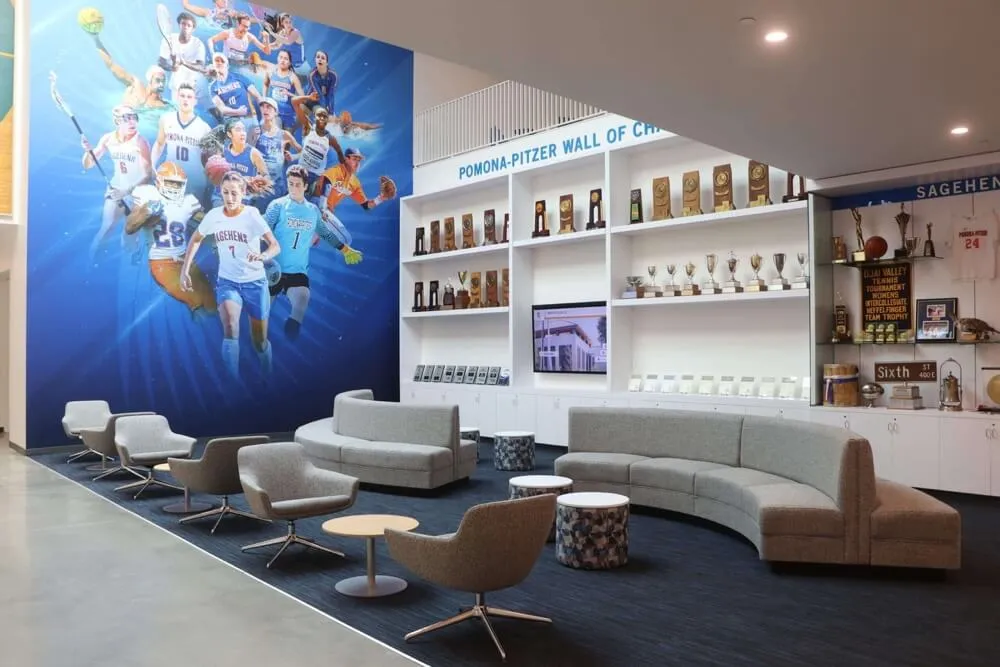
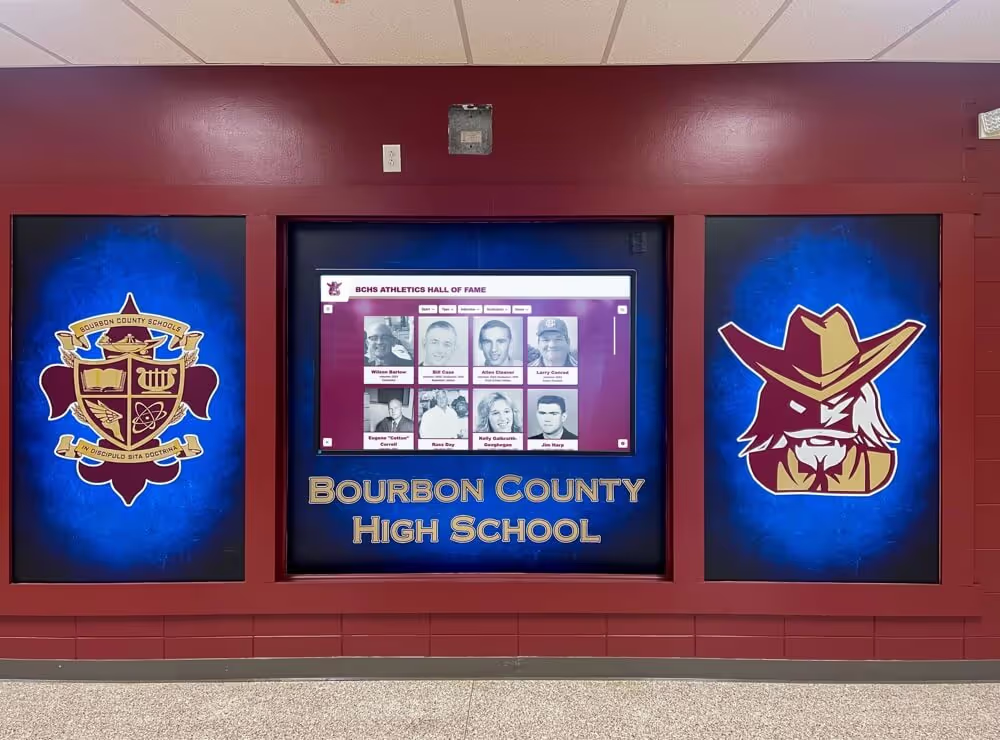
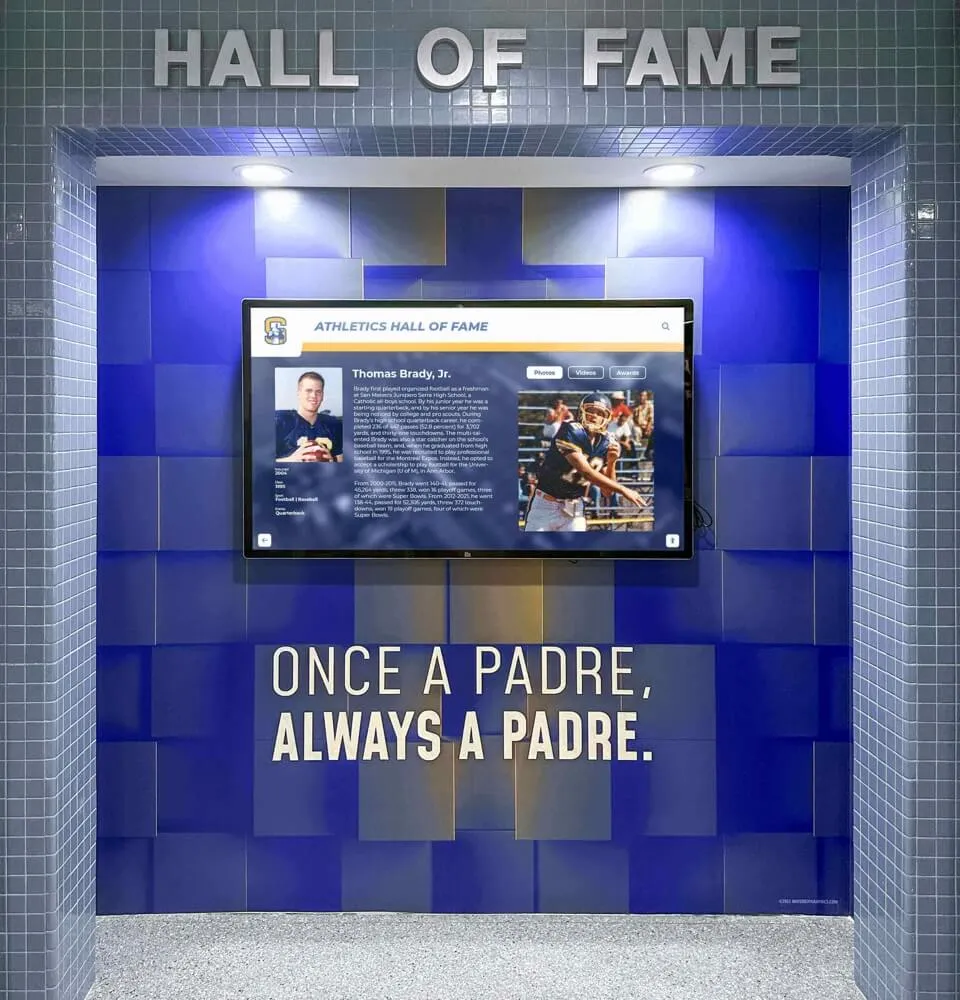
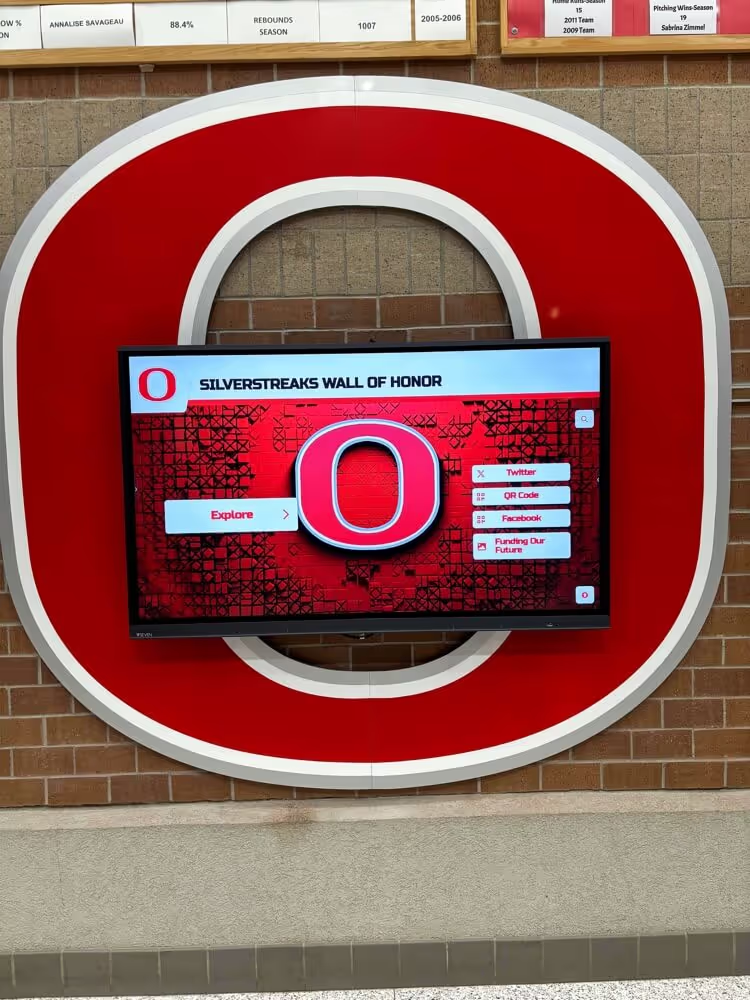
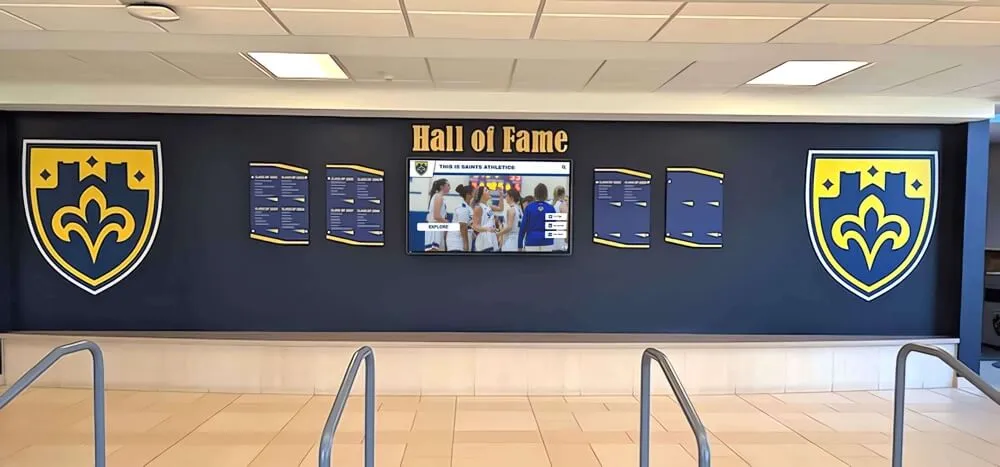
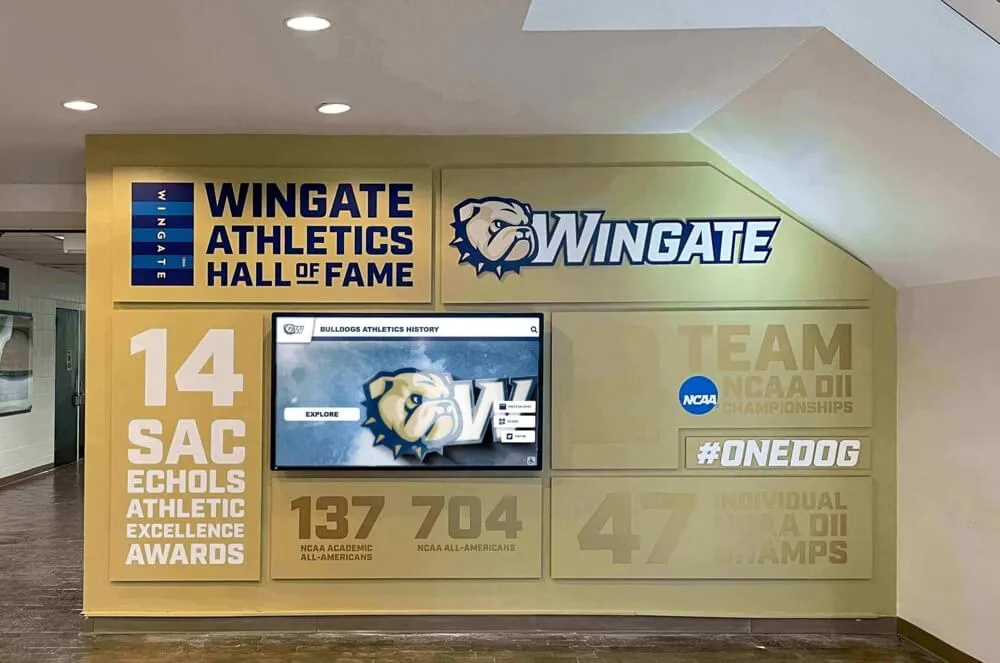
Professional touchscreen installations integrate keyboards seamlessly into comprehensive interactive experiences
Frequently Asked Questions
Can HTML on-screen keyboards work offline in kiosk mode?
Yes, properly implemented HTML keyboards function completely offline as they're rendered client-side in the browser. However, intelligent features like auto-complete suggestions that query databases may require internet connectivity. Quality kiosk platforms cache suggestion data locally to maintain functionality during outages.
How do HTML keyboards compare to native Android or iOS keyboards?
HTML keyboards offer more customization and consistency across platforms compared to native OS keyboards that vary by device. However, native keyboards provide better performance and integration with system features. For dedicated kiosk hardware, HTML keyboards offer more control; for tablet-based kiosks, native keyboards may provide better user experience.
What JavaScript frameworks work best for building virtual keyboards?
React, Vue, and vanilla JavaScript all work effectively for keyboard development. React's component architecture suits complex keyboards with multiple states. Vanilla JavaScript provides lighter weight for simpler implementations. The framework matters less than proper touch event handling, responsive design, and performance optimization.
How can I prevent double-tap issues on HTML keyboards?
Implement debouncing with 100-150ms delays between key activations, use `event.preventDefault()` on touch events to stop ghost clicks, add visual "pressed" states with brief delays before processing input, and consider implementing touch-only or click-only events rather than listening to both simultaneously.
Do I need different keyboard layouts for different kiosk applications?
Different applications benefit from optimized layouts. Name search kiosks prioritize alphabetic keys with larger sizes. Numeric-heavy applications (like zip codes or dates) should feature prominent number keys. Generic information kiosks work well with standard QWERTY layouts. Professional platforms like Rocket provide application-specific layouts automatically.
Can HTML keyboards support multiple languages simultaneously?
Yes, implementing language switching requires storing multiple key mappings and providing a toggle interface. However, this significantly increases complexity. Each language needs its own layout with proper character sets, and you must handle right-to-left languages like Arabic or Hebrew. Commercial platforms typically include multi-language support built-in.
Taking the Next Step
Whether you choose to build a custom HTML keyboard or implement a specialized kiosk platform, understanding the technical requirements, design principles, and real-world challenges prepares you for success. For most organizations, the efficiency, reliability, and comprehensive features of purpose-built solutions like Rocket Alumni Solutions deliver better outcomes than DIY development.
The keyboard represents just one component of successful interactive displays. Content quality, visual design, information architecture, and physical installation all contribute to visitor engagement. Choosing solutions that handle technical complexity allows you to focus energy where it matters most: creating compelling recognition programs that strengthen community connections.
Explore comprehensive touchscreen software solutions that integrate keyboards seamlessly into complete interactive experiences designed specifically for recognition and engagement applications.