Schools running out of wall space for class composite photos face a familiar dilemma: continue purchasing expensive frames and fighting for limited corridor space, or find a way to preserve this tradition digitally. Many administrators want an interactive display where visitors can access photos and information for specific classes based on graduation year—similar to old-school flip-through composite displays but digital.
This guide provides the technical specifications, content organization framework, and implementation checklist that school administrators need to transform physical class composites into searchable, interactive digital displays. You’ll learn how to structure year-based navigation, what hardware specifications your installation requires, and how to budget for long-term maintenance.
Understanding Interactive Class Composite Displays
Traditional class composite displays consist of framed photographs arranged chronologically on hallway walls. Each frame typically contains individual portraits of graduating seniors organized in a grid format, with names beneath each photo. These displays serve as visual archives of institutional history and create touchpoints for alumni returning to campus.
Interactive digital class composite displays replicate this function while adding capabilities impossible with physical displays:
Year-based navigation allows visitors to select specific graduation years from a timeline or dropdown interface, instantly displaying that class’s composite.
Search functionality enables finding specific individuals across multiple years by entering names, rather than scanning dozens of physical frames.
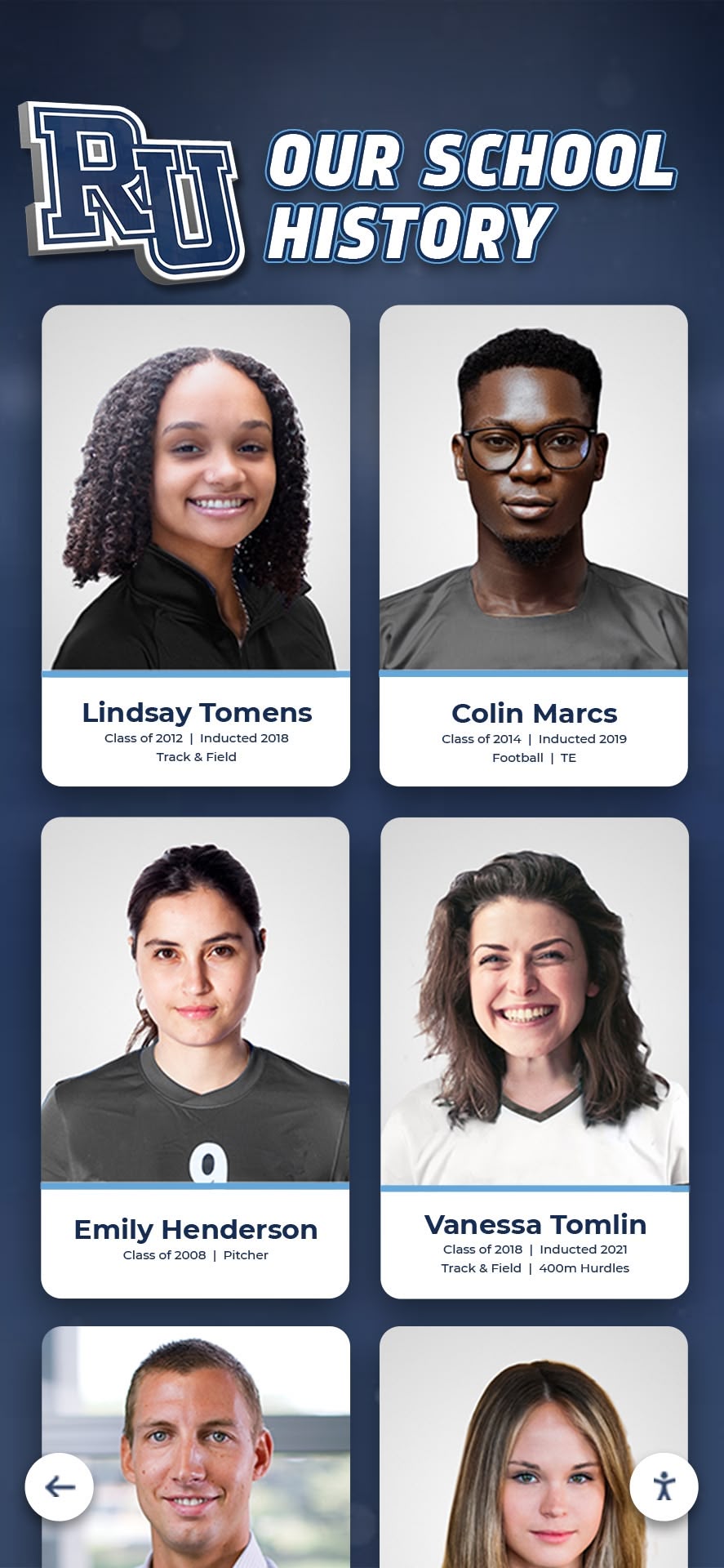
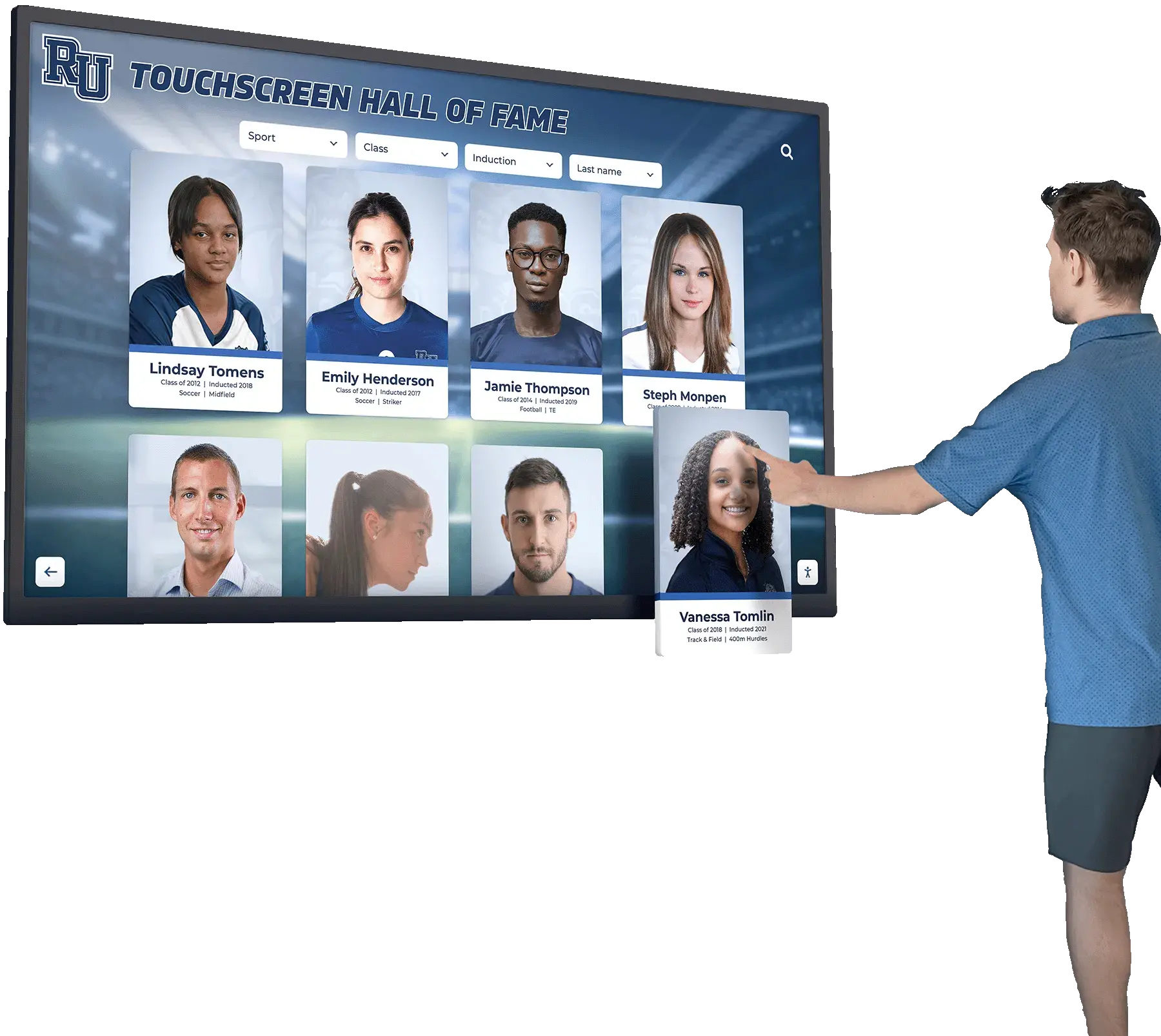
Expandable profiles let viewers tap individual portraits to access additional information—college attended, career achievements, contact preferences, current photos.
Unlimited capacity eliminates the constraint of wall space, allowing schools to digitize every graduating class since founding rather than displaying only recent decades.
Remote accessibility extends viewing beyond campus visitors to alumni worldwide through web-based versions of the same interface.

The distinction between simply “digital” and truly “interactive” matters. A slideshow of scanned composite photos displayed on a screen is digital but not interactive—visitors cannot control navigation or search for specific individuals. Interactive systems require touchscreen interfaces, database-backed content management, and structured data organization that enables meaningful exploration.
Before You Start: Content Inventory and Organization
The most time-consuming aspect of implementing an interactive class composite display involves organizing existing materials. Schools typically have decades of photos stored across multiple formats and locations.
Physical Asset Audit
Document what materials exist and their current condition:
Recent composites (last 5-10 years) usually exist as high-resolution digital files from photography vendors. Contact your school photographer to obtain master files, which typically come in 300+ DPI resolution suitable for digital displays.
Mid-range composites (10-30 years ago) exist primarily as framed physical prints. These require scanning. Professional scanning services charge $15-$50 per composite depending on size and desired resolution. Plan for 600 DPI scanning to ensure individual portraits remain clear when users zoom.
Historical composites (30+ years ago) may exist only in storage, yearbooks, or not at all. Some classes may need reconstruction from individual yearbook photos or personal alumni submissions.
Data Structure Planning
Interactive displays require structured data—not just photos, but organized information that enables search and navigation. Before scanning begins, document your data structure.
Required fields for each class composite:
- Graduation year (primary navigation key)
- School/program name (for institutions with multiple schools)
- Total students in class
- Photo capture date (if different from graduation year)
Required fields for each individual student:
- Full name (first, middle, last)
- Portrait photo (individual cropped image)
- Graduation year (links to parent composite)
- Maiden name (for married alumni)
- Preferred name (if different from official records)
Optional fields that enhance interactivity:
- Undergraduate institution attended
- Graduate degrees earned
- Career field or current employer
- Geographic location
- Alumni involvement level
- Contact preferences (willing to mentor, network, etc.)
- Updated current photo (submitted by alumni)
Schools often discover that gathering this supplemental information requires more time than digitizing photos. Plan for a multi-phase approach: launch with basic name and photo data, then gradually enhance profiles as alumni submit updates.
Technical Requirements Checklist
Interactive class composite displays require specific infrastructure. Use this checklist during site evaluation to identify gaps before installation.
Display Hardware Specifications
Screen size considerations: Class composites typically contain 50-200+ individual portraits arranged in grid format. Adequate screen size ensures visitors can read names without zooming.
- 43-inch displays: Suitable for small classes (under 75 students) or installations where users will stand very close
- 55-inch displays: Standard choice for typical class sizes (75-150 students) in high-traffic corridors
- 65-inch+ displays: Required for large classes (150+ students) or installations where viewing distance exceeds 3 feet
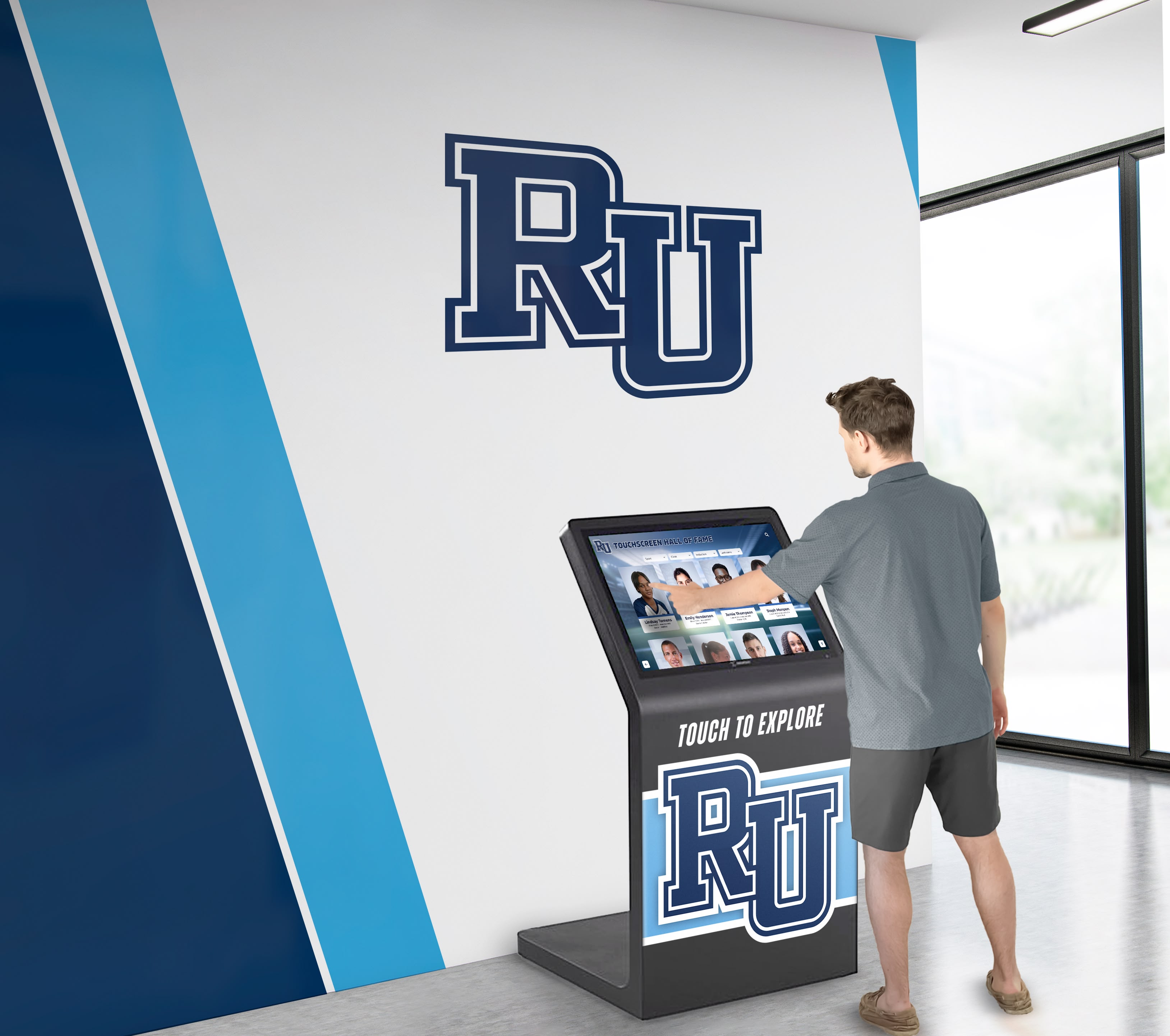
Touch technology: Not all touchscreen technologies perform equally in high-traffic school environments.
- Capacitive touch: Responds to finger contact only, requires regular cleaning to maintain sensitivity, supports multi-touch gestures
- Infrared touch: Works with fingers or styluses, more resistant to surface scratches, slightly less precise than capacitive
- Optical touch: Best durability for high-traffic environments, works through glass overlay for vandal resistance
Brightness specifications: School hallways present challenging lighting conditions with windows, overhead fluorescents, and varying ambient light throughout the day.
Specify commercial displays rated 350+ nits brightness for standard hallways, 500+ nits for locations with direct sunlight exposure. Consumer televisions typically rate 250-300 nits—insufficient for public installations.
Orientation capabilities: Class composites traditionally display in portrait orientation to match standard photo frame shapes. Verify your display and mounting bracket support portrait mode operation without requiring custom modifications.
Network Connectivity Requirements
Cloud-based content management systems require reliable network connectivity for content synchronization and remote administration.
Bandwidth needs: Typical interactive composite displays consume 1-3 Mbps during normal operation. Initial content synchronization (downloading all class composite images) may require 500MB-2GB depending on total classes and resolution.
Firewall configuration: Digital interactive displays require outbound HTTPS access on port 443 to content management servers. Some school firewalls block all outbound connections by default. Request your vendor’s specific whitelist requirements.
Wired vs. wireless: Ethernet connections provide superior reliability for permanent installations. If wireless is the only option, verify signal strength at proposed locations using your phone’s WiFi analyzer or IT’s network monitoring tools. Composites placed in gyms, auditoriums, or buildings with concrete walls may experience connectivity issues.
Mounting and Physical Installation
Wall structure assessment: Commercial displays weigh 40-90 pounds depending on size. Mounting requires solid backing—drywall alone cannot support this weight safely.
Concrete or CMU (concrete masonry unit) walls provide ideal mounting surfaces using concrete anchors. Wood stud walls require locating studs and using lag bolts into structural members. Metal stud walls may require backing plates spanning multiple studs. Glass or curtain walls typically cannot support wall-mounted displays; consider floor-standing kiosk options instead.
ADA compliance considerations: The Americans with Disabilities Act specifies accessibility requirements for interactive displays in public spaces.
Touchscreen centers should mount 15-48 inches from the floor for wheelchair user access. Ensure 30×48 inch clear floor space in front of displays for wheelchair maneuvering. Control elements (search fields, navigation buttons) should position within the reach range—below 48 inches from floor for side approaches.
Environmental factors: Class composite displays function best in climate-controlled interior spaces. Avoid locations near:
- External doors where temperature and humidity fluctuate significantly
- HVAC vents that blow directly on screens
- Windows with direct sunlight causing glare and heat buildup
- Kitchen or janitorial areas where cleaning chemicals create contamination risks
Content Management System Requirements
The software powering your interactive display determines what’s possible and how difficult ongoing maintenance becomes. These capabilities separate professional solutions from consumer-grade alternatives.
Year-Based Navigation Interface
Since the user specifically requested access by graduation year, your content management system must support intuitive year navigation.
Timeline scrubber: Visual timeline showing all available years that users can scroll or slide through, typically positioned horizontally across the top of the interface. Each year should display clearly with sufficient touch target size (minimum 44×44 pixels per iOS guidelines).
Decade grouping: For institutions with 50+ years of composites, decade folders (1970s, 1980s, etc.) prevent overwhelming users with too many individual year options. Tapping a decade expands to show individual years within that range.
Jump-to-year search: Text input field where users type specific years (e.g., “1985”) to immediately navigate to that class composite without scrolling through intervening years.
Recently viewed: Display should remember which years the current session has accessed, providing quick navigation back to previously viewed classes. This helps alumni comparing their graduation year with siblings or children.
Individual Profile Expansion
Class composites become interactive when users can select individual portraits for expanded information.
Tap-to-expand functionality: Single tap on any portrait should trigger expansion to a detailed profile view. This view typically overlays the main composite or slides in from the side, keeping the composite visible for context.
Profile information display: At minimum, expanded profiles should show a larger version of the portrait, full name, and graduation year. Enhanced implementations include college attended, career field, current photo (if alumni submitted), and alumni engagement status.
Contact preference respect: Some alumni wish to remain private. Your content management system should support privacy flags that display names and photos in composites but restrict expanded profile access or hide individuals entirely based on their preferences.
Cross-linking to related content: If your school also maintains digital halls of fame or athletic recognition displays, link individual profiles between systems. An athlete appearing in their class composite should show a “View athletic achievements” link connecting to their hall of fame profile.
Search and Filter Capabilities
Name search: Full-text search across all names in the database. Searches should handle partial matches (typing “Joh” finds “John,” “Johnson,” etc.), nickname-to-legal-name matching, and maiden-name searching.
Phonetic search: Alumni often misremember exact name spellings. Soundex or metaphone algorithms help searches find “Catherine” when users type “Katherine” or “Smithe” when they mean “Smith.”
Advanced filters: Allow filtering by:
- Graduation year range (“Show me all classes from 1990-2000”)
- School/program (for institutions with multiple schools)
- Alumni engagement status (currently involved, first-time donors, reunion attendees)
- Career field (all alumni working in education, medicine, etc.)
These advanced filters transform class composites from historical archives into alumni networking tools.
Implementation Workflow: From Planning to Launch
Schools successfully implementing interactive class composite displays follow a structured project timeline that addresses both technical installation and content preparation.
Phase 1: Planning and Specification (Weeks 1-4)
Week 1 - Stakeholder Identification: Document who needs to approve vendor selection, who provides content, who manages ongoing updates. Typical stakeholders include:
- Administration (budget approval, space allocation)
- Alumni relations (content accuracy, privacy policies)
- IT department (network access, firewall configuration)
- Facilities (installation coordination, power requirements)
- Photography vendor (accessing master files, future integration)
Week 2 - Site Selection: Evaluate potential locations using the technical checklist. Document:
- Wall construction type and load capacity
- Available power circuits within 6 feet
- Network connectivity strength (wired or wireless)
- Traffic patterns and viewing angles
- ADA compliance factors
- Lighting conditions at different times of day
Walk through each location during different school periods to observe actual usage patterns. High-traffic areas create more engagement but may complicate installation scheduling.
Week 3 - Content Inventory: Complete physical and digital asset audit. Create spreadsheet documenting:
- Years with existing digital files (and file formats)
- Years requiring scanning (and current storage location)
- Years with incomplete information (missing composites entirely)
- Estimated student count per year
- Priority order for digitization (typically most recent classes first)
Week 4 - Vendor Evaluation: Request proposals from at least three vendors specializing in interactive recognition displays rather than generic digital signage. Evaluate based on:
- Content management system capabilities (specifically year-based navigation)
- Hardware specifications match your requirements
- Implementation timeline and support structure
- Total cost of ownership (initial plus 5-year maintenance)
- Reference installations at similar institutions
Phase 2: Content Preparation (Weeks 5-12)
Digitization timeline: Professional scanning services typically process 20-30 composites per week. A school with 50 years of composites should expect 6-8 weeks for complete digitization.
Rush services exist for accelerated timelines but cost 150-200% of standard pricing. Budget accordingly if you’re working toward a specific launch date like homecoming or reunion weekend.
Metadata entry: For each graduate in your database, someone must enter at minimum their name and graduation year. This data entry represents the most labor-intensive aspect of implementation.
Options for managing metadata entry:
- Professional data entry services: Vendors charge $0.25-$0.75 per name for typed entry from printed composites or yearbooks
- Student intern projects: Technology or business classes can perform data entry as a real-world database project
- Alumni crowdsourcing: Create web forms where alumni submit their own information and identify classmates in old composites
- OCR processing: Optical character recognition can extract names from digital composite images, though accuracy typically requires manual verification
Most schools use hybrid approaches: professional data entry for older composites with degraded legibility, student or alumni entry for recent classes with clear source materials.
Quality control procedures: Before loading content into your display system, implement verification steps:
- Cross-reference names against official graduation records
- Verify year associations (common error: composite photo taken spring 2023 but labeled as class of 2024)
- Check portrait image quality when cropped to individual faces
- Confirm privacy flags for alumni requesting limited visibility
- Test search functionality finds expected results
Phase 3: Installation and Configuration (Weeks 13-14)
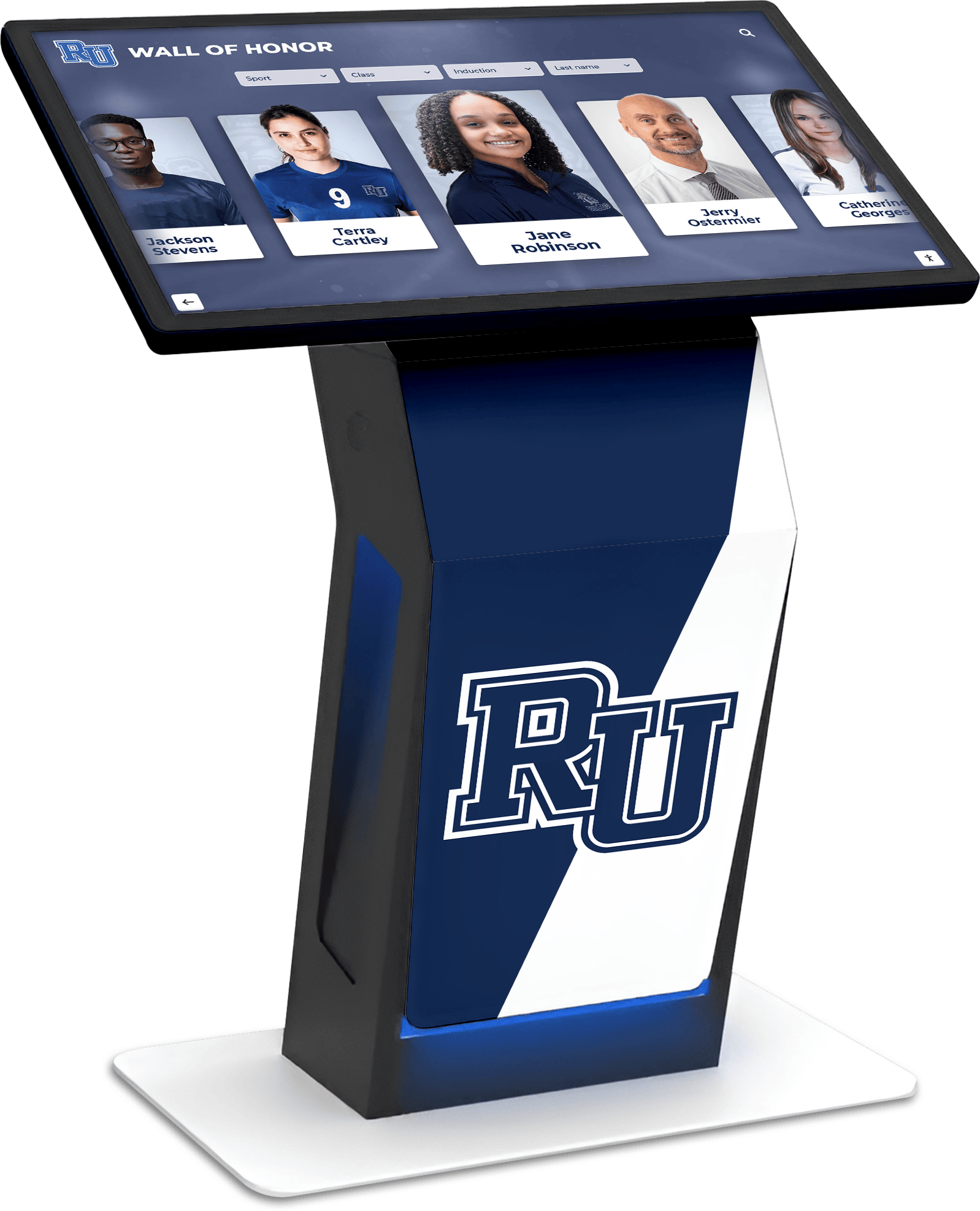
Hardware installation: Professional installers typically require 1-2 days for single-display installations including:
- Wall mounting bracket installation
- Display mounting and leveling
- Power connection and cable management
- Network configuration and testing
- Touch calibration
- Initial software installation and activation
Content synchronization: First-time content upload downloads all class composite images and profile data to the display. This process duration depends on total content volume and network speed. A typical installation with 50 years of composites (approximately 10,000 individual portraits) requires 2-4 hours for complete synchronization over gigabit ethernet.
Interface customization: Configure navigation preferences, search settings, color schemes matching school branding, and welcome screen messaging. Most content management systems allow customization without coding through template-based configuration.
Administrator training: Schedule 2-hour training sessions for staff who will maintain content. Cover:
- Adding new graduating classes each year
- Editing existing student information
- Uploading alumni-submitted updates
- Creating custom collections or featured classes
- Troubleshooting common user questions
- Accessing analytics showing usage patterns
Phase 4: Launch and Promotion (Weeks 15-16)
Soft launch testing: Before announcing broadly, allow small groups to test the system and provide feedback. Ideal test audiences include:
- Alumni board members
- Student council representatives
- Faculty who can identify accuracy issues
- IT staff verifying network performance
- Accessibility consultants reviewing ADA compliance
Address critical issues identified during testing before proceeding to full launch.
Launch event planning: Create ceremonial unveiling opportunity that generates excitement and drives initial usage. Successful launch strategies include:
- Coordinate with homecoming weekend when alumni visit campus
- Create social media campaign showing preview screenshots
- Challenge alumni to find themselves and share photos
- Host “guess the classmate” contests using historical portraits
- Invite local media to cover modernization story
Communication plan: Announce through multiple channels reaching different constituencies:
- Alumni newsletter email blast with screenshots and direct web link
- Social media posts demonstrating year navigation feature
- Website homepage feature box with call-to-action
- Student announcements encouraging family exploration
- Local newspaper story on tradition preservation
Budget Planning: True Total Cost
Athletic directors and administrators often receive quotes that understate actual project costs. Use this framework to calculate realistic budgets across the full project lifecycle.
Initial Capital Investment
| Expense Category | Small (1-30 Years) | Medium (30-60 Years) | Large (60+ Years) |
|---|---|---|---|
| Display hardware (screen, mount, touch) | $4,000-$7,000 | $7,000-$12,000 | $12,000-$18,000 |
| Content management software (initial license) | $2,000-$4,000 | $4,000-$7,000 | $7,000-$12,000 |
| Installation labor (mounting, networking, setup) | $800-$1,500 | $1,500-$2,500 | $2,500-$4,000 |
| Professional scanning (if needed) | $500-$1,500 | $1,500-$3,000 | $3,000-$5,000 |
| Data entry services | $300-$1,000 | $1,000-$2,500 | $2,500-$5,000 |
| Network infrastructure upgrades | $0-$500 | $500-$1,500 | $1,500-$3,000 |
| Total Initial Investment | $7,600-$15,500 | $15,500-$29,000 | $29,000-$47,000 |
Annual Recurring Costs
| Expense Type | Typical Annual Cost |
|---|---|
| Software licensing and cloud hosting | $800-$2,000 |
| Content updates (new graduating class) | $200-$500 |
| Hardware warranty and support | $300-$800 |
| Network connectivity and power | $150-$300 |
| Administrator training refreshers | $0-$500 |
| Total Annual Cost | $1,450-$4,100 |
Cost Comparison: Traditional vs. Digital (10-Year Analysis)
Traditional approach (continued physical framing):
- Initial: $0 (existing infrastructure)
- Annual framing costs: $800-$1,500 per year × 10 years = $8,000-$15,000
- Space renovations (every 5-7 years): $3,000-$8,000
- Storage of archived composites: $200/year × 10 = $2,000
- 10-Year Total: $13,000-$25,000
Digital interactive approach:
- Initial investment: $7,600-$47,000 (depending on scale)
- Annual recurring costs: $1,450-$4,100 × 10 years = $14,500-$41,000
- 10-Year Total: $22,100-$88,000
The digital approach costs more initially but provides capabilities impossible with traditional displays: searchable by name, accessible to remote alumni, unlimited historical capacity, and enhanced profiles with career information. Schools should evaluate ROI beyond direct cost comparison by considering engagement metrics and alumni relations benefits.
Financing Options
Most educational institutions distribute costs through:
Capital budgets: One-time equipment purchases funded through annual capital allocations or facilities budgets. This approach requires full funding approval in a single budget cycle.
Booster club fundraising: Alumni associations or booster clubs can sponsor digital composite displays as legacy projects. Many schools structure donation campaigns around specific graduating class anniversaries—the Class of 1975 sponsors digitization of composites from the 1970s, for example.
Lease arrangements: Vendors offering lease-to-own financing spread costs over 3-5 years with monthly payments. A $25,000 installation might cost $500-$700 monthly, making it easier to fund from annual operating budgets rather than requiring capital approval.
Phased implementation: Instead of launching with complete historical digitization, start with recent classes (last 10-15 years) and gradually add historical composites as budget allows. This reduces initial costs while providing usable displays immediately.
Advanced Features That Enhance Engagement
Beyond basic year navigation and search, sophisticated content management systems offer capabilities that transform class composites from archives into engagement tools.
Alumni Self-Service Updates
Allow graduates to submit profile updates through secure web portals. After initial identity verification (typically email to verified alumni address), individuals can:
- Upload current professional headshots replacing their senior portraits
- Add college and graduate degree information
- Update career field and employer (with privacy controls)
- Indicate mentoring availability or networking willingness
- Submit life achievements (awards, publications, major accomplishments)
Administrator approval workflows prevent inappropriate content while reducing manual data entry burden. Schools report 15-30% of alumni submit profile updates within the first year after implementation.
Integration with Alumni Databases
Digital archives systems connected to institutional advancement databases enable powerful cross-referencing. When an alumnus appears in class composites, the system can also display:
- Giving history (total contributions, giving streak)
- Event attendance (reunions, homecoming, networking events)
- Volunteer involvement (alumni board, mentorship programs, career panels)
- Related family members (children enrolled, siblings, parent alumni)
This integration helps advancement staff identify engagement opportunities and recognize consistent supporters.
QR Code Web Access
Generate unique QR codes linking directly to specific class composites or individual profiles. Use cases include:
Reunion invitations: Print QR codes on reunion mailers that open directly to that class’s composite Campus signage: Physical directional signs showing “View Class Composites” with QR code accessing mobile-optimized interface Homecoming programs: Event programs include QR codes encouraging attendees to find themselves in composites Printed composites: Some schools still print limited physical composites but include QR codes linking to interactive versions with extended profiles
Video and Multimedia Integration
Modern class composites can incorporate richer media beyond static photos. Schools experimenting with enhanced formats include:
Class reunion videos: Record short video messages from reunion attendees talking about memories or current life, tagged to their profile Historical context segments: Brief video clips showing what was happening at the school or in the world during each graduation year School song audio: Play your alma mater or fight song when viewing specific milestone years Flip-through animations: Recreate the tactile experience of flipping through a physical composite yearbook with page-turn animations
These multimedia elements increase engagement time—users spend 2-3x longer exploring composites with video content compared to photo-only displays.
Analytics and Usage Insights
Content management systems tracking user interactions provide valuable insights:
Popular years: Which graduation years receive the most views? Often corresponds to recent reunion classes or notable alumni generations.
Search patterns: What names do users search for most? Helps identify alumni who might serve as speakers, board members, or featured profiles.
Time spent: How long do users engage with the display? Lower engagement might indicate navigation issues requiring interface adjustments.
Peak usage times: When do most interactions occur? Informs where to place additional displays or how to staff nearby areas during events.
Alumni profile update rates: What percentage of graduates have submitted current information? Guides outreach campaigns encouraging profile completion.
Ongoing Maintenance and Content Updates
Interactive class composite displays require less maintenance than traditional physical displays but need regular attention to remain current and accurate.
Annual Composite Addition
Each spring, your school photographer delivers that year’s graduating class composite. The process for adding new composites typically requires:
Receive digital files: Obtain high-resolution composite image and individual portraits from photographer (usually included in photography contract)
Verify graduation roster: Cross-reference photographer’s name list against official graduation records to catch missing students or name spelling errors
Create new year entry: Add graduation year to your content management system’s year navigation structure
Upload composite image: Import full composite image and associate with the new year
Import individual portraits: Upload cropped individual portraits and link to corresponding names
Add baseline metadata: Enter names, graduation year, and any immediately available information (college enrollment plans, major awards)
Publish and promote: Make the new composite visible in the display and announce through social media/alumni channels
Most administrators complete this annual update in 2-4 hours once familiar with the process.
Error Correction Procedures
Despite careful verification, errors emerge after launch. Common issues include:
Name misspellings: Alumni or family members notice incorrect name spellings. Your content management system should allow quick text edits without requiring photo replacement.
Wrong year associations: Students sometimes appear under incorrect graduation years, often due to early graduation or delayed completion. Move profiles to correct years and add notes explaining circumstances if appropriate.
Missing individuals: Late graduates, transfer students, or digitization errors result in individuals missing from composites. Add supplemental portraits to existing composites even after initial publication.
Photo quality issues: Individual portraits that looked acceptable in full composites may show poor quality when expanded to full-screen profile views. Replace with higher-resolution scans or request alumni submit current professional photos instead.
Establish clear error reporting channels so alumni can easily submit corrections. Many schools create dedicated email addresses (composites@schoolname.edu) or web forms for submitting updates.
Seasonal Content Highlighting
Rather than treating class composites as static archives, create seasonal engagement through highlighted classes:
Milestone anniversaries: Featured carousel on the home screen highlighting classes celebrating 10th, 25th, 50th reunions Homecoming spotlights: Showcase the decade corresponding to this year’s homecoming theme Alumni of the month: Rotate featured profiles from different graduation years Historical this-day moments: “On this day in 1985, the Class of ‘85 graduated” with direct link to that composite
These rotating features encourage repeat engagement—visitors return to see what’s featured this month rather than viewing composites once and never returning.
Web Accessibility and Remote Alumni Engagement
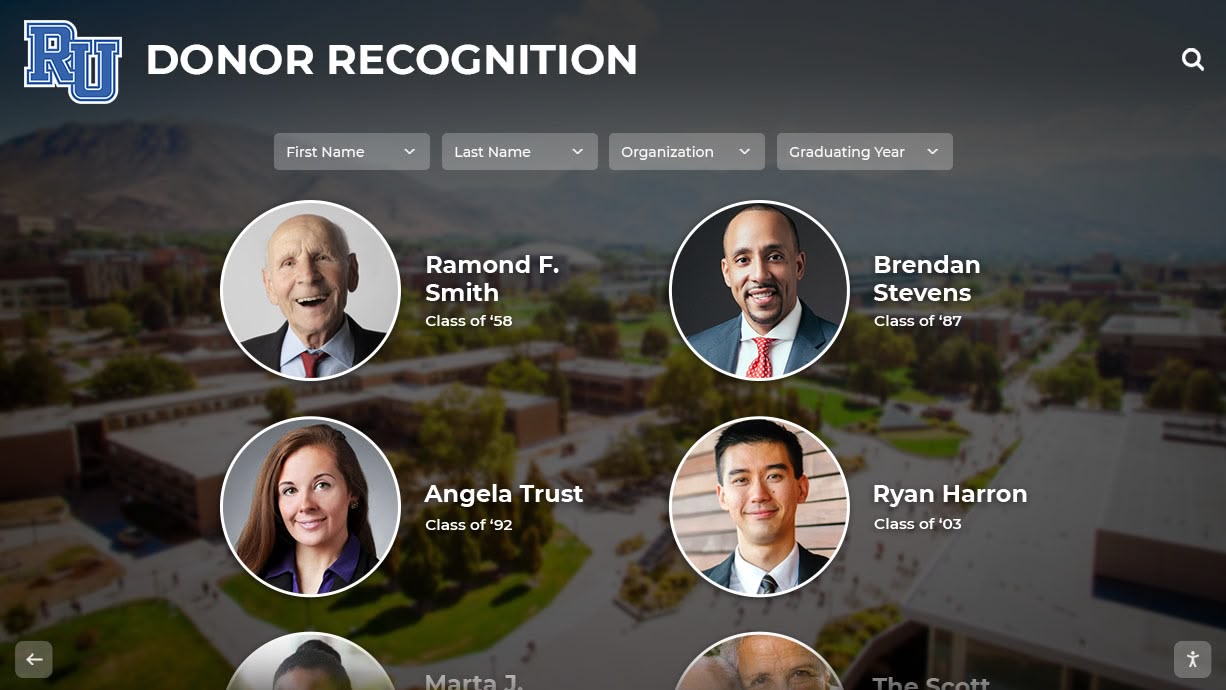
One key advantage of digital class composites over physical displays is extending access beyond campus visitors to alumni worldwide. Most content management systems provide web-based versions accessible through institutional websites.
Authentication and Privacy Considerations
Class composites contain personal information requiring thoughtful privacy policies:
Public access: Schools often make basic composites (name, photo, year) publicly viewable to encourage casual browsing and alumni discovery.
Gated access: Extended profiles containing college information, career details, or contact preferences typically require authentication through alumni email verification or institutional login credentials.
Individual privacy controls: Allow alumni to set their own visibility preferences—some may permit full public profiles while others restrict access to verified alumni only or remove their information entirely.
Opt-in for current information: While historical graduation information comes from institutional records, current career details or contact information should only display if alumni explicitly submit and approve this content.
Consult your legal counsel when developing privacy policies to ensure compliance with applicable regulations (FERPA in the US, GDPR for European alumni).
Mobile Optimization
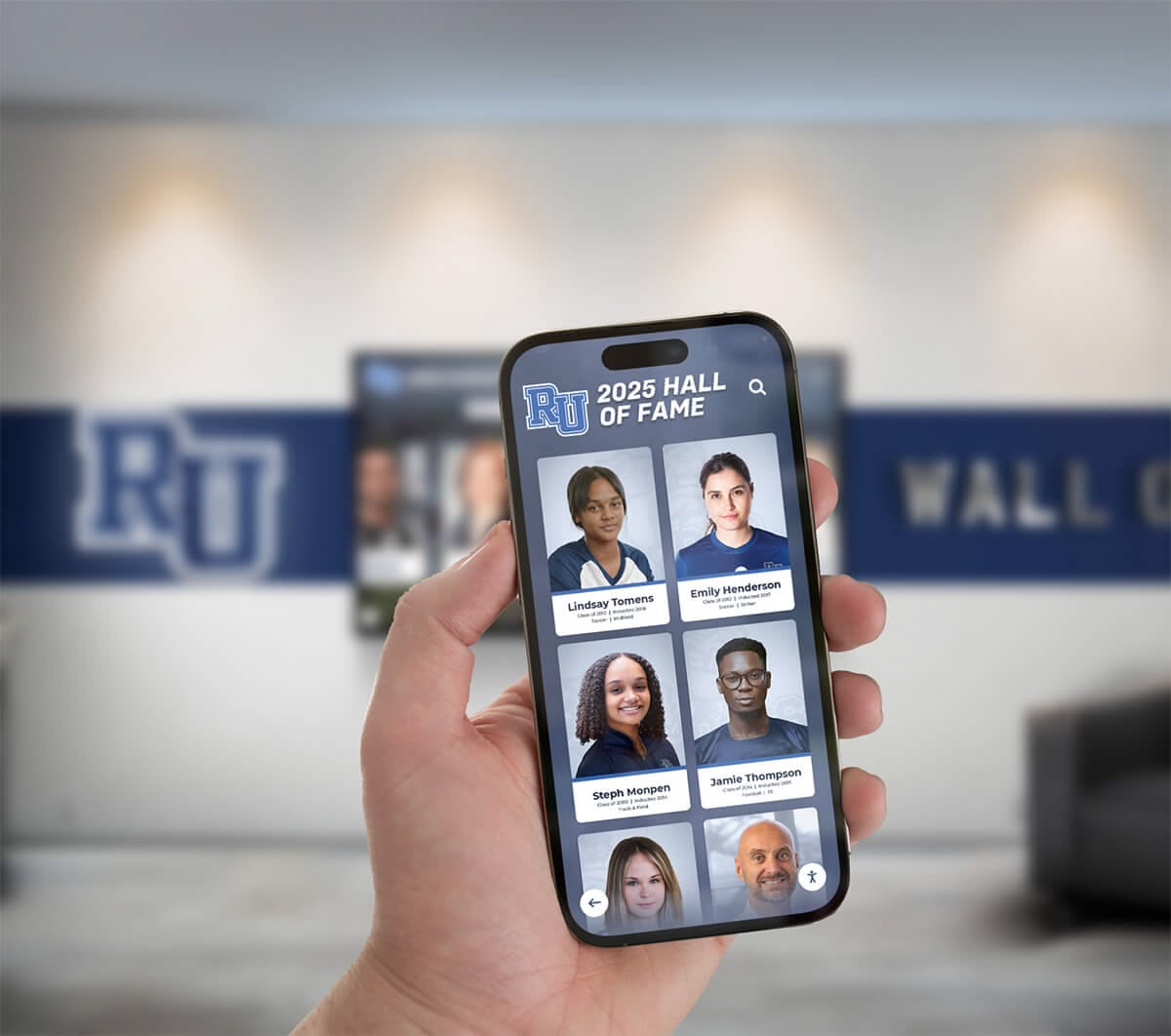
Alumni most frequently access web-based composites through smartphones while reminiscing with family or attending events. Mobile interfaces require different design considerations than touchscreen kiosks:
Portrait orientation default: Phones display in portrait mode, requiring interface layouts that work well vertically Swipe gestures: Mobile users expect to swipe between years rather than clicking navigation arrows Pinch-to-zoom: Small screen sizes make individual portraits difficult to see; enable pinch-zoom on composite images Simplified navigation: Reduce menu complexity for smaller screens—focus on year selection and search as primary functions
Test your web interface across multiple devices (iOS and Android phones, tablets of various sizes) to ensure consistent experience.
Social Sharing Features
Alumni discovering themselves in digital composites often wish to share with friends, family, and classmates. Built-in sharing features amplify engagement:
Direct profile links: Generate unique URLs for individual profiles that alumni can share via email, text, or social media Screenshot capture: Allow users to download images of themselves or their class composite for personal use Social media integration: One-click sharing to Facebook, LinkedIn, Instagram, or X with pre-populated descriptions Composite collages: Generate side-by-side images comparing senior portraits with current submitted photos that alumni can share
Schools report social sharing generates 5-8x more impressions than standard institutional social posts, extending reach to friends and family beyond direct alumni audiences.
Accessibility Compliance for Inclusive Recognition
Interactive displays in educational institutions must meet accessibility standards ensuring all community members can engage regardless of ability. Both physical installation and software interface require accessibility consideration.
Physical Accessibility Requirements
The Americans with Disabilities Act (ADA) and Section 508 of the Rehabilitation Act establish accessibility standards for interactive displays:
Reach ranges: Operable controls (search fields, navigation buttons, individual portrait selections) must position within reach ranges—48 inches maximum height for front approach, 54 inches for side approach.
Clear floor space: Provide unobstructed 30×48 inch floor space centered on the display for wheelchair users. Ensure this space has no slope greater than 1:48.
Knee and toe clearance: If the display design includes counter or desk surfaces, provide knee clearance 27 inches high minimum, 30 inches wide, and 17-25 inches deep.
Protruding objects: Wall-mounted displays project from walls. If mounted below 80 inches high and protruding more than 4 inches, install detectable barriers at floor level for visually impaired visitors using canes.
Software Interface Accessibility
Digital content must follow Web Content Accessibility Guidelines (WCAG) 2.1 Level AA standards:
Screen reader compatibility: All interface elements need proper ARIA labels so screen readers can announce navigation options, search fields, and selected content. An alumni using screen reader software should be able to navigate by year, search by name, and access expanded profiles entirely through audio feedback.
Keyboard navigation: All functions accessible via touch should also work via keyboard input for users unable to use touchscreens. Tab through interactive elements in logical order.
Color contrast: Text and graphical elements must maintain minimum contrast ratios—4.5:1 for normal text, 3:1 for large text. Don’t rely on color alone to convey information (use text labels in addition to color coding).
Text alternatives: Provide alt text for all images, including individual portraits. For class composites, detailed alt text might read: “Class of 1985 composite, 124 graduating seniors arranged in 8 rows.”
Adjustable text size: Allow users to increase text size up to 200% without losing functionality or requiring horizontal scrolling.
Focus indicators: Clearly show which interface element currently has focus for keyboard navigation—typically through highlighted borders or color changes.
Rocket Alumni Solutions builds touchscreen displays with comprehensive accessibility features built into the platform, ensuring your institution meets compliance requirements while honoring all graduates regardless of ability.
Vendor Selection Criteria
Not all digital display vendors understand the specific requirements of class composite applications. Generic digital signage software designed for advertising or wayfinding lacks necessary features. Evaluate vendors against these criteria:
Content Management Capabilities
Year-based organization: Does the platform natively support graduation year as a primary navigation structure, or would you need to hack this functionality through creative category naming?
Individual profile database: Can the system store structured data (name, year, college, career) for each graduate, or does it only display static images?
Search functionality: Does search work across all years and fields, or only within pre-selected categories?
Bulk import tools: For schools with decades of historical data, can you batch-import thousands of records via CSV files, or must you enter each graduate individually through web forms?
Alumni self-service: Does the platform provide authenticated web portals where graduates can submit their own profile updates, or must staff manually enter all changes?
Technical Infrastructure
Cloud vs. on-premise: Cloud-based platforms provide remote administration and automatic backups but require reliable internet connectivity. On-premise systems eliminate ongoing connectivity requirements but demand local IT infrastructure and backup management.
Content synchronization: How does content move from the management system to displays? Over-the-air updates eliminate manual USB transfers but depend on network reliability.
Offline capabilities: If network connectivity fails, can displays continue showing existing content using local cache, or do they display error messages?
Multi-display coordination: For institutions planning multiple class composite displays across campuses, can one content management system control all displays with consistent content?
API availability: For future integrations with alumni databases, student information systems, or fundraising platforms, does the vendor provide documented APIs enabling data exchange?
Support and Training
Implementation assistance: Does the vendor provide project management support during content preparation and launch, or simply deliver hardware and expect you to figure out content organization independently?
Administrator training: What format does training take—live remote sessions, self-paced video courses, or on-site workshops? How many staff members receive training?
Ongoing technical support: What channels exist for getting help—phone support during business hours, 24/7 email ticketing, community forums?
Content migration assistance: If you’re replacing an existing system or digitizing from physical formats, does the vendor assist with data migration, or is this entirely your responsibility?
Software updates: How frequently does the vendor release feature updates and security patches? Are updates included in licensing or charged separately?
Request references from at least three current clients operating class composite displays similar to your planned installation. Speak directly with administrators managing these systems about their implementation experience and ongoing satisfaction.
Implementation Pitfalls to Avoid
Schools implementing interactive class composite displays repeatedly encounter the same challenges. Learn from others’ experiences:
Underestimating data entry time: The most common implementation delay stems from underestimating how long entering graduate names and information takes. A school with 50 years of composites averaging 150 graduates per year has 7,500 names to enter. At 2 minutes per entry, that’s 250 hours of data entry work. Budget for professional data entry services or plan extended implementation timelines if using student or volunteer labor.
Inadequate source photo resolution: Scanning old composites at 300 DPI produces files that look acceptable as full composites but pixelate badly when users zoom to individual faces. Specify 600 DPI minimum scanning resolution even though this creates larger files and longer scan times.
Ignoring privacy considerations: Launching without clear privacy policies leads to complaints from alumni uncomfortable with public display of their information. Establish opt-out procedures before launch and proactively communicate them.
Overlooking interface testing with actual users: Systems that seem intuitive to project teams often confuse actual users unfamiliar with the navigation structure. Conduct usability testing with students, older adults, and visitors who’ve never seen the display before identifying issues while they’re still fixable.
Network infrastructure assumptions: IT departments sometimes promise network connectivity exists at proposed locations only to discover during installation that no active network drops reach that area, or firewalls block required outbound connections. Verify connectivity months before installation scheduled dates.
Insufficient administrator training: Dedicating only one staff member to training creates single point of failure when that person leaves or is unavailable. Train at least three staff members on content management procedures.
No ongoing content strategy: Schools sometimes invest heavily in initial launch but lack plans for maintaining momentum. Without regular content updates, highlighted profiles, or seasonal features, engagement drops sharply after the initial novelty wears off.
Conclusion: From Hallway Walls to Interactive Archives
The user requested a solution that transforms the traditional flip-through class composite experience into an interactive digital format organized by year. This guide provided the technical specifications, content organization framework, implementation timeline, and budgeting structure necessary to execute that vision.
Your implementation checklist includes:
- Site evaluation addressing power, networking, mounting, and ADA requirements
- Content inventory documenting existing materials requiring digitization
- Data structure planning establishing how graduation years and individual profiles organize
- Vendor evaluation criteria ensuring selected systems support year-based navigation and search
- Phased implementation timeline managing scanning, data entry, installation, and launch
- Budget framework calculating true total cost across initial and recurring expenses
- Maintenance procedures for annual updates and error corrections
- Accessibility compliance meeting ADA and WCAG standards
- Alumni engagement features extending access beyond campus through web interfaces
Digital class composite displays preserve institutional tradition while extending capability impossible with physical frames—searchable by name across decades, accessible to alumni worldwide, expandable with career information and updated photos. Space constraints that forced difficult decisions about which graduating classes deserve corridor space become irrelevant when every class since founding fits on a single 55-inch display.
Solutions like Rocket Alumni Solutions specialize in converting physical class composites into interactive digital displays with the year-based navigation the user specifically requested. The platform handles technical complexities—structured databases, search algorithms, touchscreen interfaces, web accessibility—allowing your team to focus on content rather than infrastructure.
Schedule a walkthrough to see actual class composite implementations at institutions similar to yours, including demonstrations of year timeline navigation, individual profile expansion, and alumni self-service features.
Book a demo to explore how interactive class composite displays transform physical archives into engaging digital experiences accessible by graduation year.































