Selecting the right interactive flat panel display (IFPD) for K-12 schools represents a significant capital investment that affects teaching effectiveness, student engagement, and operational efficiency for years to come. School technology coordinators, facility directors, and AV/IT decision-makers face dozens of specification variables, mounting considerations, network integration requirements, and accessibility compliance standards before finalizing purchases.
This comprehensive buyer’s guide cuts through marketing claims and technical jargon to provide actionable decision frameworks for specifying, mounting, and configuring interactive flat panel displays across classroom environments, common areas, athletic facilities, and administrative spaces. Whether you’re replacing aging projector systems, standardizing displays across multiple buildings, or implementing interactive technology for the first time, this guide addresses the critical specifications and implementation considerations that determine long-term success.
From panel resolution and touch sensitivity to VESA mounting patterns, network authentication protocols, and ADA compliance requirements, we’ll examine the technical details that matter most when building educational environments where interactive displays enhance learning rather than creating frustration for teachers and IT staff.
School districts spend approximately $2.8 billion annually on classroom display technology, yet many purchasing decisions focus heavily on initial price while underweighting total cost of ownership factors like installation complexity, ongoing maintenance requirements, software licensing models, and replacement part availability. The right specification framework balances upfront costs against five-year operational expenses while ensuring displays meet pedagogical requirements across diverse educational applications.
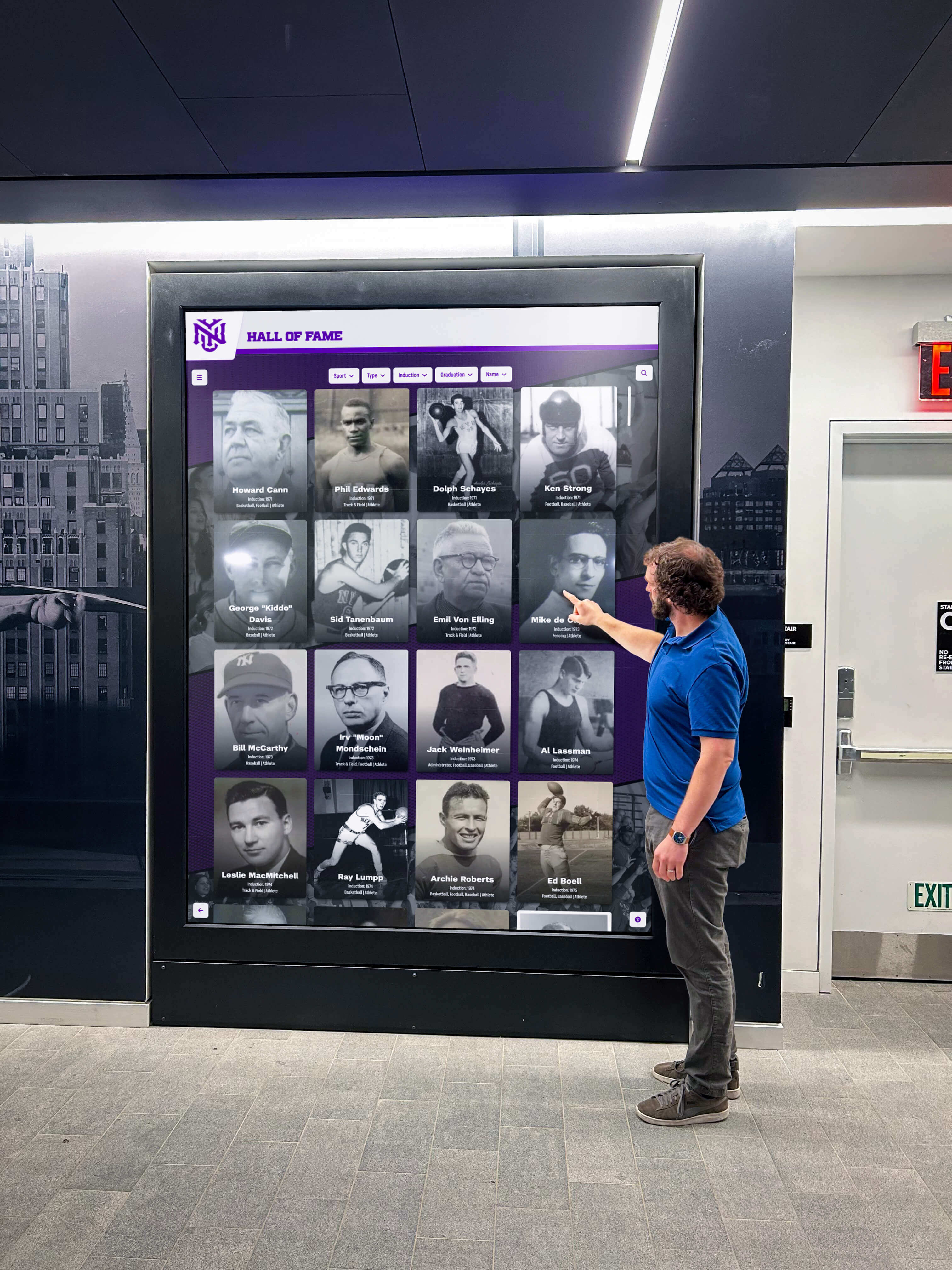
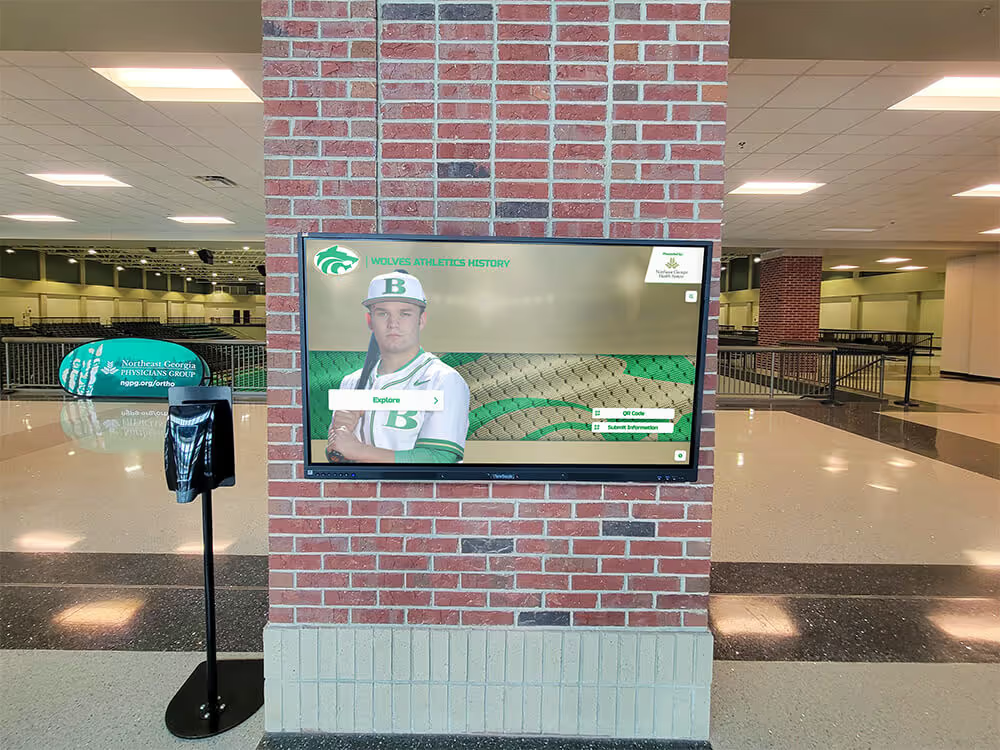
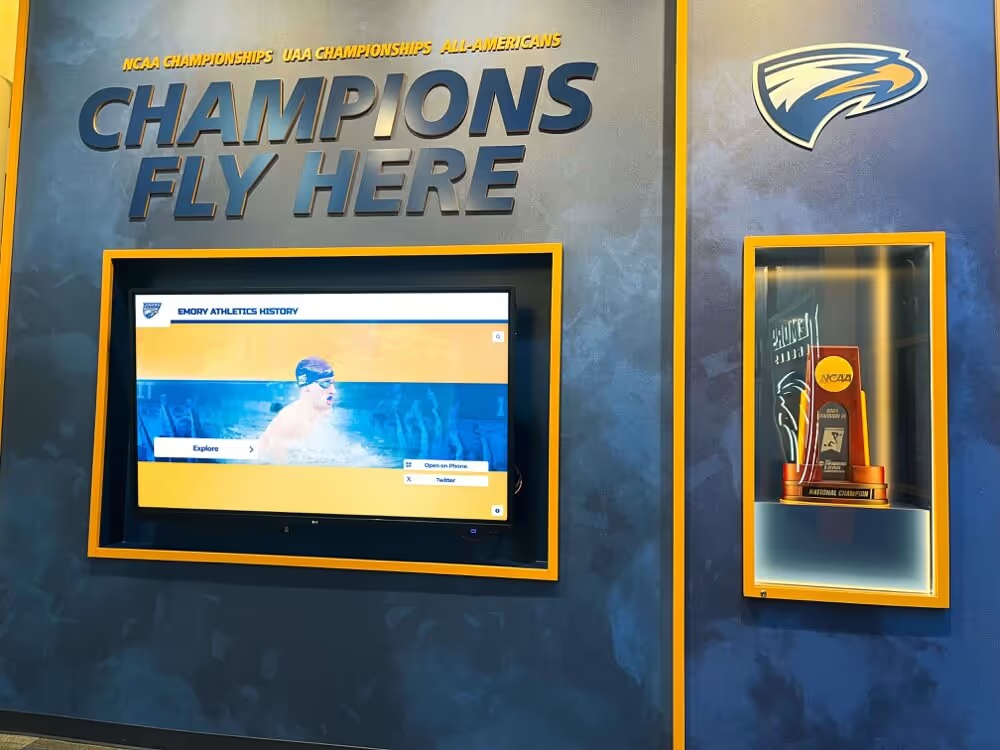
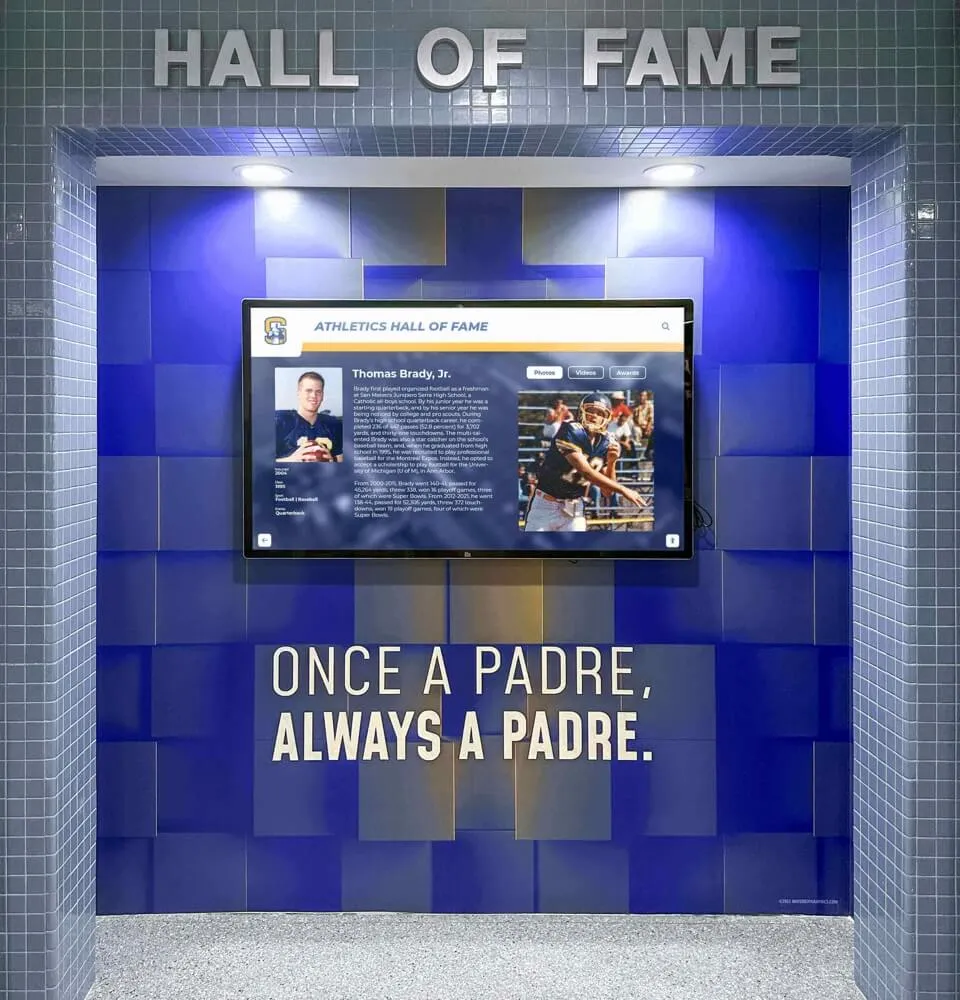
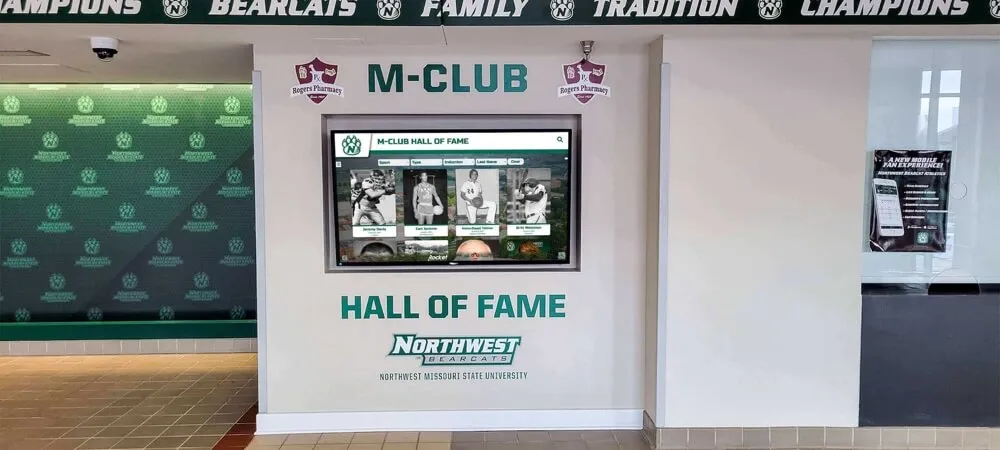
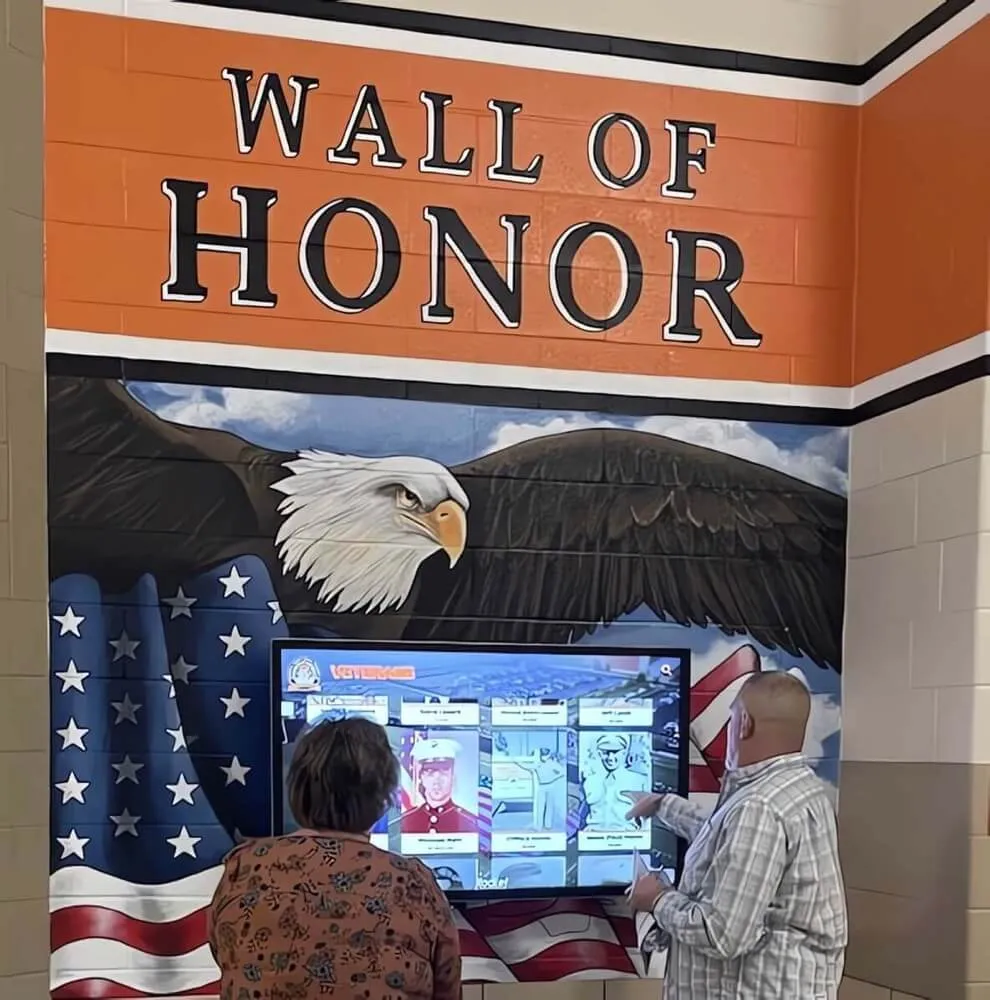
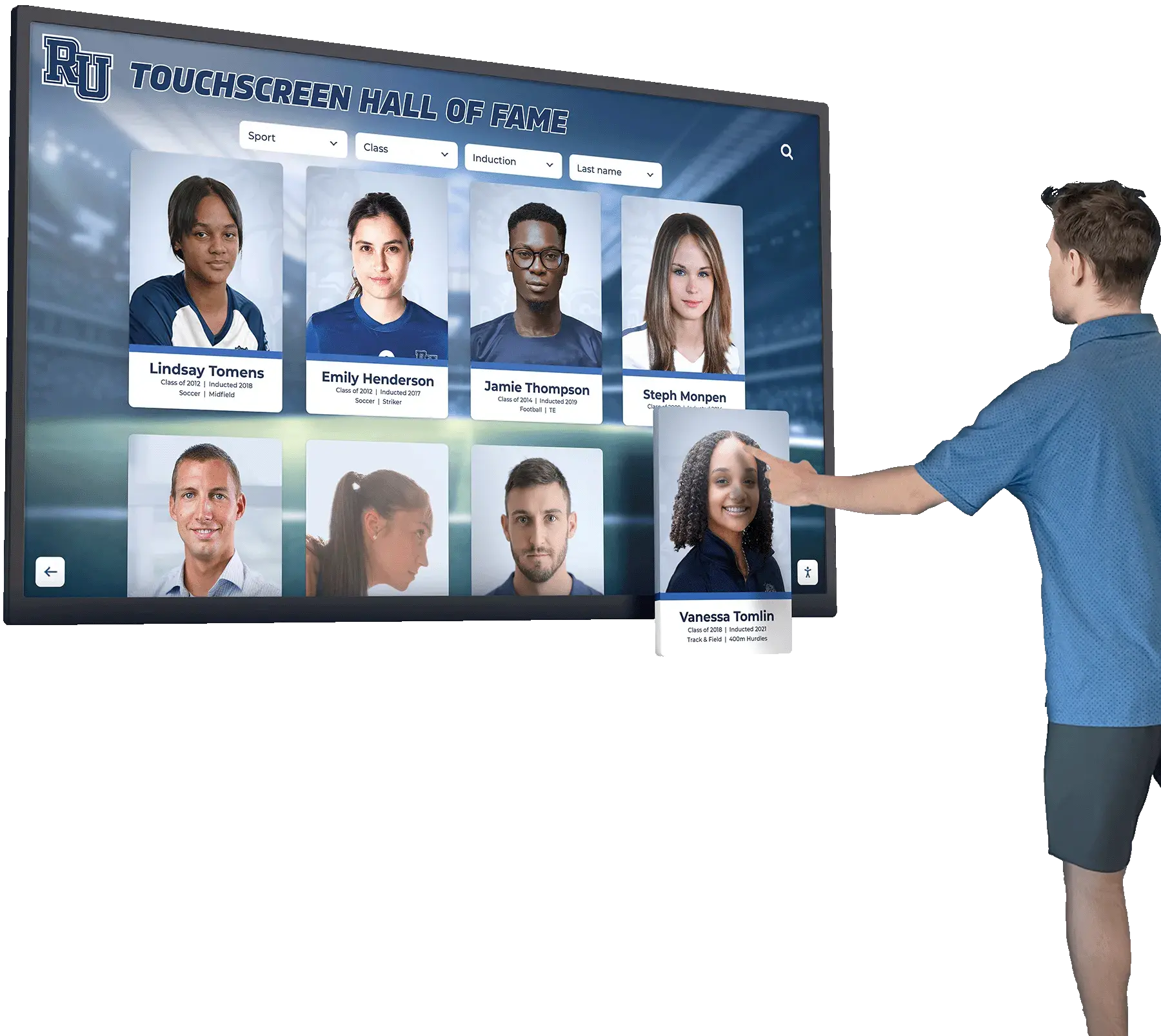
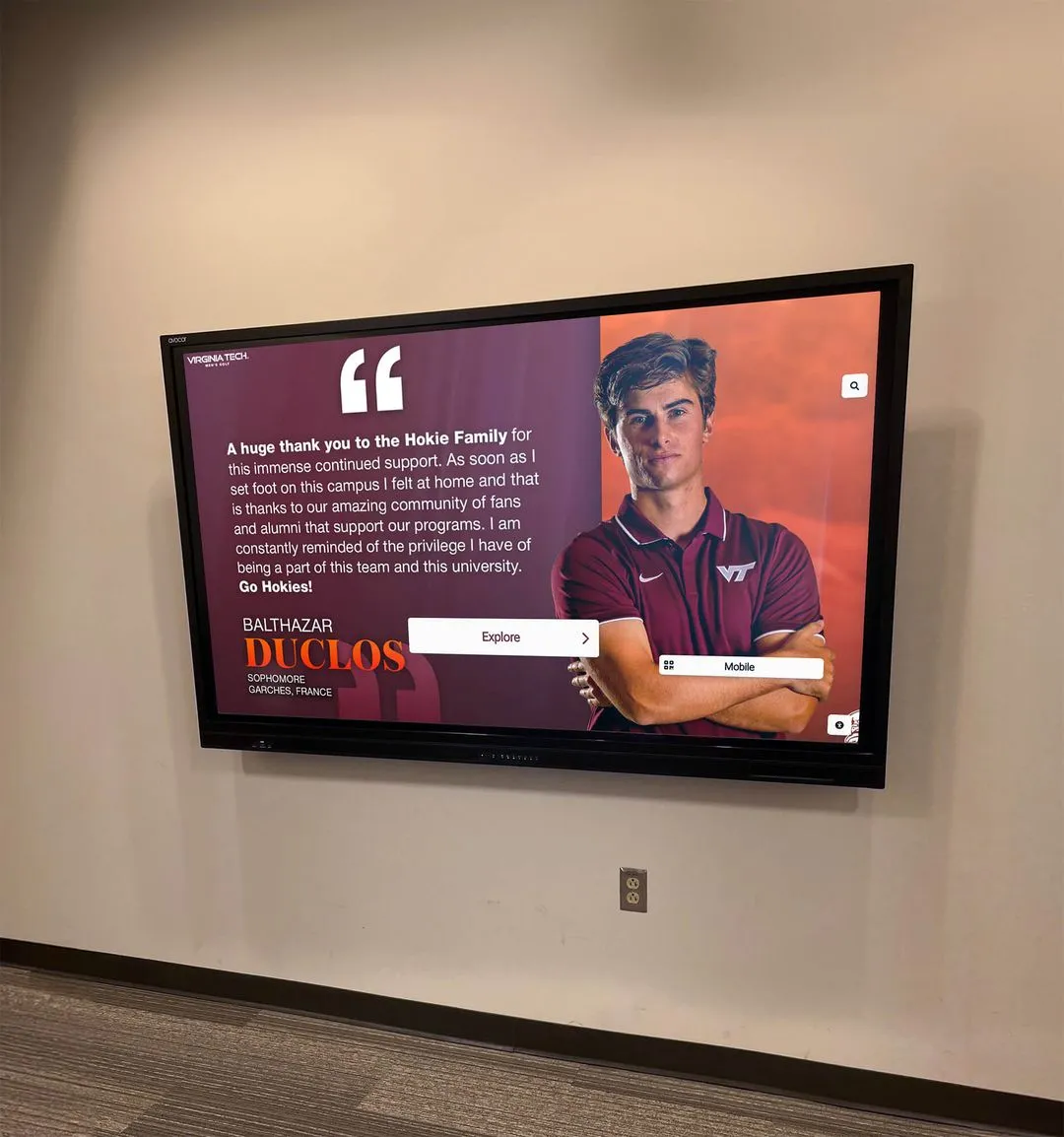
Interactive flat panel displays serve multiple functions in K-12 environments, from classroom instruction to wayfinding and student recognition
Understanding Interactive Flat Panel Display Categories
Interactive flat panel displays designed for educational use fall into distinct categories based on size, touch technology, computing architecture, and intended deployment environment. Understanding these categories helps narrow specification requirements before evaluating individual models.
Standard Classroom IFPDs (65-75 inches)
Standard classroom displays represent the most common deployment scenario, replacing traditional whiteboards and projector systems in typical 20-35 student classrooms.
Size Range: 65-75 inches diagonal provides adequate visibility for standard classroom depths of 24-30 feet. Seating arrangement and room dimensions should determine exact sizing—students in back rows must read 12-point text clearly without straining.
Touch Technology: Infrared (IR) touch technology dominates this category, offering 20+ simultaneous touch points without requiring special styluses or calibration. Optical touch provides similar functionality at slightly lower cost but may experience performance degradation in high ambient light conditions.
Computing Options: Three primary architectures exist:
Built-in Android/Windows: Onboard computing eliminates external PC requirements, reducing cable management complexity and initial hardware costs. Most educational IFPDs now ship with Android-based computing (typically Android 11 or newer) capable of running educational apps, web browsers, and collaborative software. Built-in Windows systems provide full desktop OS functionality at higher price points.
OPS Slot (Open Pluggable Specification): Standardized internal slot accepts interchangeable PC modules from various manufacturers, allowing computing upgrades without replacing entire display. OPS provides flexibility but adds $800-1,500 to initial costs.
External PC Connection: Traditional approach connecting existing computers via HDMI maintains compatibility with legacy systems and provides maximum computing power flexibility. Requires additional cable runs and desktop/laptop management.
Resolution Requirements: 4K UHD (3840 x 2160) should be considered minimum specification for new purchases. While Full HD (1920 x 1080) displays remain available at lower price points, the pixel density difference becomes apparent when displaying detailed diagrams, small text, or high-resolution educational media at 65+ inch sizes.
Large Format IFPDs (86-98 inches)
Larger displays suit lecture halls, media centers, cafeterias, and spaces where viewing distances exceed 35 feet.
Size Specifications: 86-inch displays accommodate 40-50 student spaces effectively; 98-inch panels serve lecture halls seating 60+ students or large common areas where displays function as information hubs rather than instructional tools.
Brightness Requirements: Large format IFPDs require higher brightness ratings (400-500 nits minimum) to maintain visibility in spaces with extensive windows, skylights, or high ambient lighting typical of cafeterias and commons areas.
Mounting Considerations: Weight becomes critical—98-inch panels weigh 200+ pounds, requiring reinforced wall structures or specialized floor stands rated for commercial applications. Many facilities teams specify ceiling-mounted or floor-to-ceiling fixed mounts for these larger formats rather than adjustable wall mounts.
Specialty Application Displays
Ultra-Wide and Tiled Configurations: Some athletic facilities and maker spaces deploy ultra-wide displays or tiled arrays for specialized applications. These configurations require specialized video processing, synchronized content delivery, and careful consideration of bezel gaps (distance between active display areas where panels meet).
Outdoor-Rated and Semi-Outdoor Displays: Displays installed in covered outdoor areas (stadium concourses, covered walkways, outdoor classroom pavilions) require environmental ratings for temperature extremes, humidity, and brightness levels exceeding standard indoor specifications. Outdoor-rated displays cost 2-3x comparable indoor models.
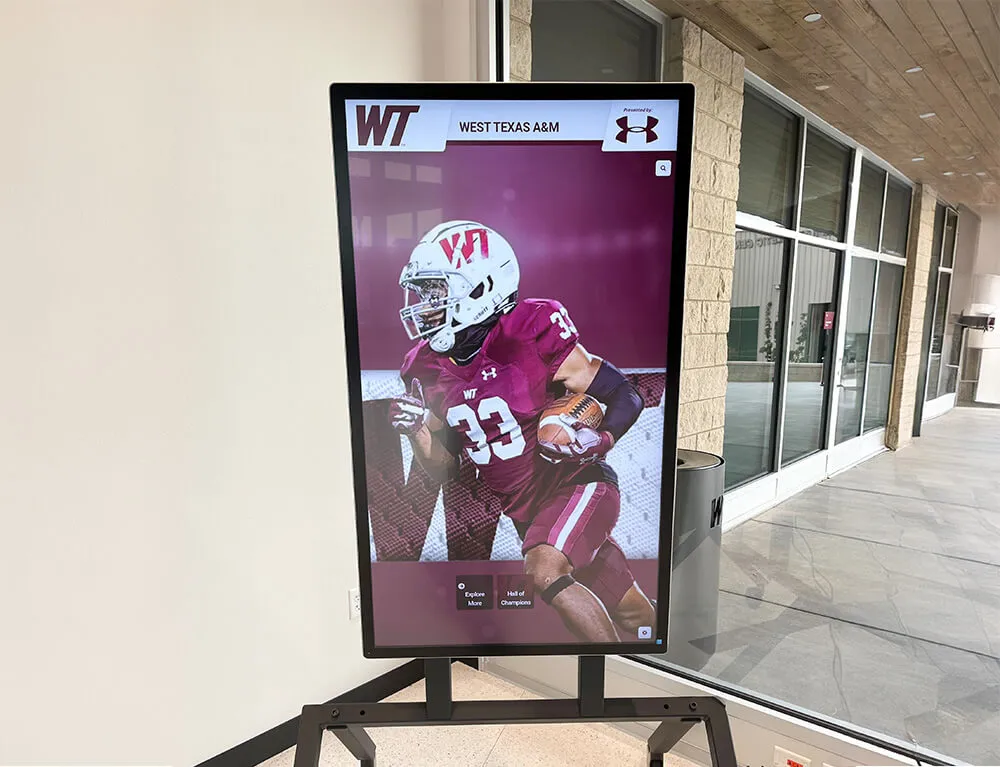
Kiosk and Directory Displays: Self-service applications like touchscreen building directories and athletic recognition kiosks typically use smaller format panels (32-55 inches) in portrait orientation with ruggedized enclosures, anti-vandalism glass, and simplified touch interfaces designed for public use rather than instructional applications.

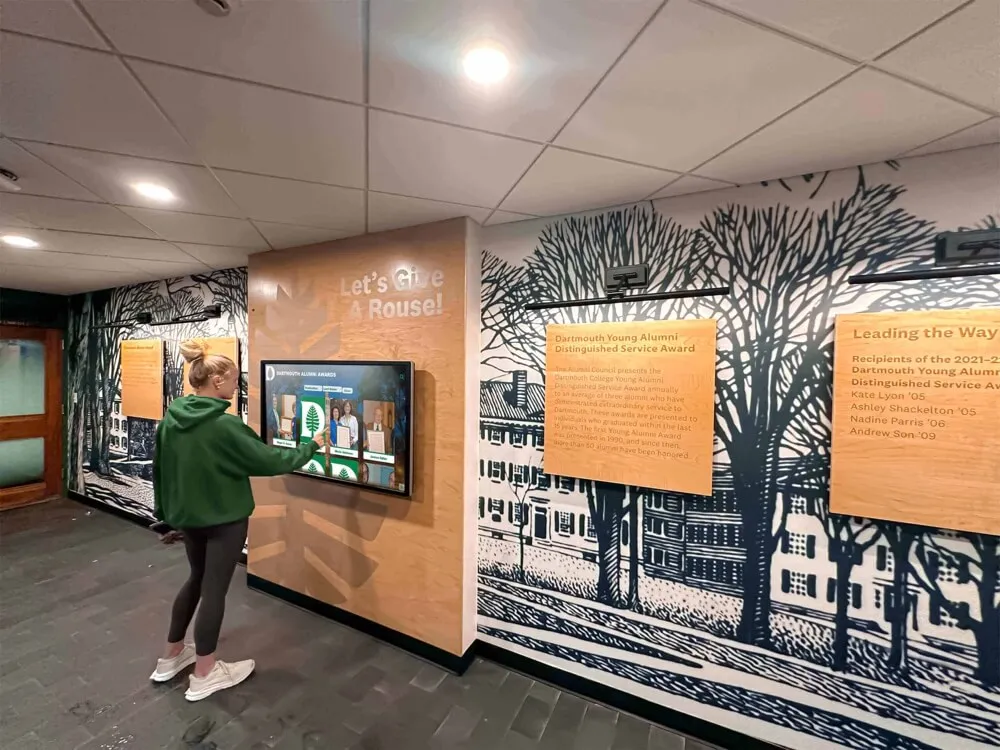
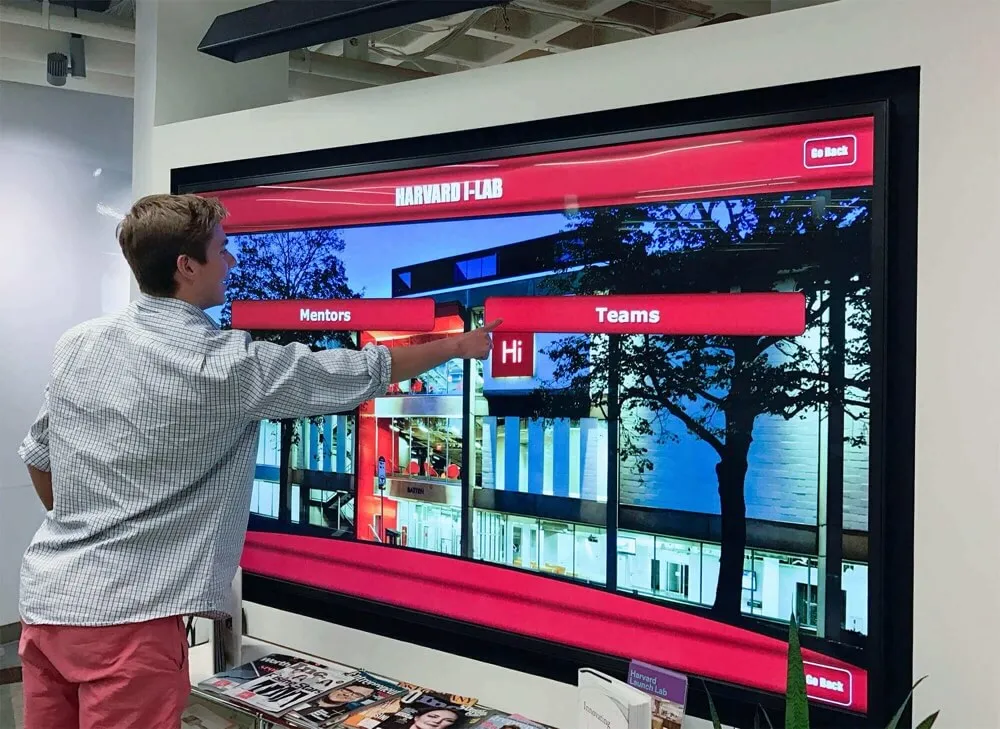
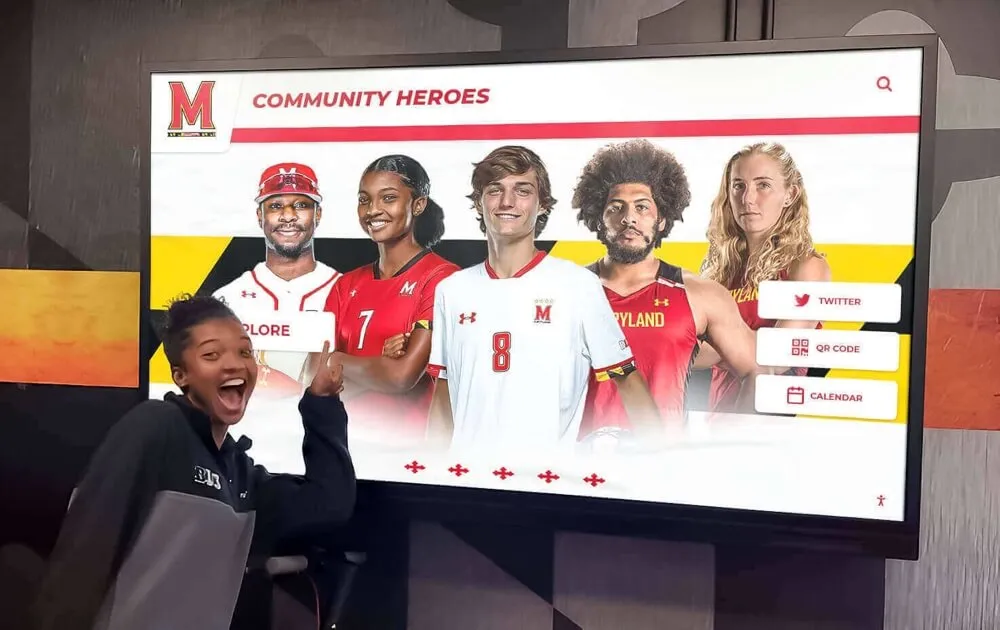
Interactive flat panel technology enables natural, multi-user collaboration without requiring specialized training or complex calibration
Critical Technical Specifications
Beyond size and basic touch capability, several technical specifications significantly impact classroom effectiveness and long-term operational costs.
Panel Technology and Display Quality
Panel Type: Commercial-grade IFPDs use LCD panels with LED backlighting. Anti-glare glass coating reduces reflections from windows and overhead lighting—essential for maintaining visibility throughout school day as lighting conditions change.
Response Time: Panel response time under 8ms prevents motion blur when displaying video content or animations. Cheaper consumer-grade panels with 12-16ms response times create noticeable ghosting during video playback.
Viewing Angles: Rated viewing angles of 178° horizontal and vertical ensure students seated at classroom edges see consistent color and brightness. Narrow viewing angles create washed-out appearance for off-axis viewers.
Color Accuracy: Look for panels covering at least 90% NTSC color gamut or 72% NTSC minimum. Accurate color reproduction matters for art classes, science demonstrations showing color-coded data, and media production applications.
Touch Technology Deep Dive
Touch Point Count: Modern educational IFPDs support 20-40 simultaneous touch points, enabling multiple students to interact simultaneously during collaborative activities. While 10-touch panels cost less, they limit collaborative capability.
Touch Accuracy: Specification sheets list touch accuracy in millimeters—look for 2mm or better. Poor touch accuracy frustrates writing tasks and precise interactions with small interface elements.
Palm Rejection: Effective palm rejection algorithms distinguish between intentional touch input and incidental contact from resting hands/arms on display surface. This feature proves essential for writing tasks where users naturally rest their palm on the screen.
Stylus Support: Most IFPDs bundle basic capacitive styluses. Advanced models support pressure-sensitive styluses detecting 4,096+ pressure levels, enabling natural drawing and writing experiences approaching pen-on-paper feel.
Computing and Connectivity
Processing Power: Built-in Android systems should include minimum quad-core processors with 4GB RAM and 32GB storage. Less powerful configurations struggle with multiple app switching and complex web content.
Input Array: Comprehensive input panels should include:
- Multiple HDMI inputs (minimum 2, preferably 3+) supporting HDMI 2.0 for 4K@60Hz
- USB-C with DisplayPort Alt Mode for single-cable laptop connection
- Legacy VGA input (increasingly unnecessary but helpful during transition periods)
- USB 3.0 ports (minimum 2) for peripherals and touch passthrough
- Audio input/output (3.5mm jacks plus optical digital audio output)
Wireless Connectivity: Dual-band WiFi (2.4GHz and 5GHz) enables wireless screen sharing from teacher/student devices. Bluetooth 5.0 supports wireless keyboards, mice, and audio devices.
Network Integration: Ethernet port enables wired network connection for content management, software updates, and device monitoring. Many districts require wired connectivity for displays handling student data or administrative functions.
Screen Sharing Protocols: Support for Miracast, AirPlay, and Google Cast protocols enables wireless presentation from Windows, Mac, iOS, and Android devices without requiring platform-specific apps or dongles.
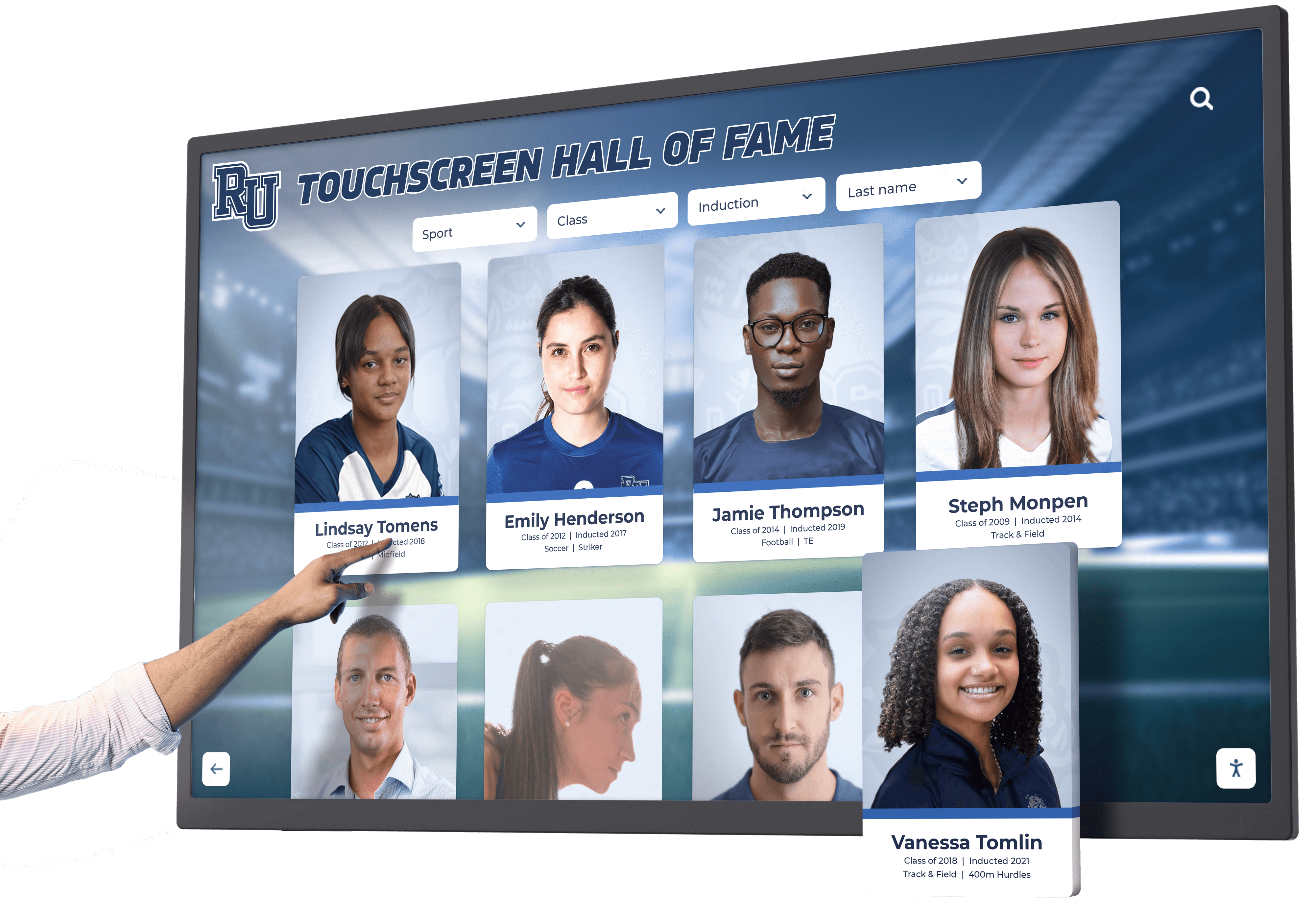
Responsive touch technology provides intuitive interaction without requiring specialized training or calibration procedures
Audio System Considerations
Built-in speaker systems vary dramatically in quality and power across IFPD models. Understanding audio specifications prevents disappointment after installation.
Built-in Speaker Specifications
Speaker Power: Built-in speakers range from 10W total (barely adequate for small quiet rooms) to 40W+ (suitable for standard classrooms with typical background noise). Speakers rated under 20W total output will require supplementary audio in most classroom environments.
Speaker Configuration: Better IFPDs use stereo speaker arrays positioned at panel edges or bottom to create wider soundstage. Basic models use single downward-firing speakers that concentrate audio in narrow zones.
Audio Quality: Frequency response specifications indicate audio range—look for specs covering at least 100Hz-15kHz to ensure intelligibility for speech and educational media. Ultra-budget models with limited frequency ranges produce tinny, difficult-to-understand audio.
External Audio Integration
Most classrooms benefit from external audio systems providing superior coverage, especially in larger rooms or spaces with high ceilings and hard surfaces causing echo.
Audio Output Options: IFPD should provide multiple audio output methods:
- 3.5mm line output to powered speakers or classroom amplifier
- Optical digital output for high-quality connection to external audio systems
- HDMI Audio Return Channel (ARC) sending audio to soundbar via HDMI cable
- Bluetooth transmission to wireless speakers (introduces slight latency making this option less ideal for instructional use)
Microphone Input: External microphone inputs enable teacher amplification in larger rooms or integration with hearing assistance systems for students with hearing impairments.
Mounting Systems and Physical Installation
Proper mounting design directly affects safety, display longevity, and instructional effectiveness. Rushed or improper mounting decisions create safety hazards and limit display utility.
VESA Mounting Standards
Video Electronics Standards Association (VESA) defines standardized mounting hole patterns on display backs. Verify VESA pattern before purchasing mounts:
Common Educational IFPD Patterns:
- 400x400mm: Standard for 65-75" displays
- 600x400mm: Larger 75-86" panels
- 800x400mm or 800x600mm: Very large 86-98" displays
Heavy-duty mounts specify weight capacity—always verify mount supports actual display weight plus 20% safety margin. Commercial-grade displays weigh significantly more than consumer TVs of equivalent size due to ruggedized construction and commercial-grade components.
Mount Type Selection
Fixed Mounts: Simplest and most affordable option positions display at fixed angle (typically flat against wall or slight downward tilt). Works well for IFPDs in dedicated locations where display height matches intended use.
Tilting Mounts: Allow vertical angle adjustment after installation, helpful for displays mounted higher than ideal reach height where downward tilt improves viewing angles and reduces glare from overhead lighting.
Full-Motion Articulating Mounts: Extend from wall and swivel horizontally, enabling display repositioning for small group instruction or allowing access to wall-mounted equipment behind panel. Heavy-duty articulating mounts supporting 75"+ displays cost $400-800+ but provide maximum installation flexibility.
Mobile Cart Systems: Rolling floor stands enable display movement between classrooms or storage. Enterprise-grade mobile carts include height adjustment, cable management systems, integrated battery backup for built-in computing, and locking casters. Quality mobile systems cost $1,200-2,500+ for large format displays.
Installation Height and Positioning
Viewing Height Optimization: Position displays so center point sits at seated eye level (approximately 42-48 inches from floor for elementary, 48-52 inches for secondary students). This height enables comfortable viewing and natural reach for touch interaction without requiring students to crane necks upward.
Reach Height for Touch: Interactive displays must balance viewing height with touch accessibility. Bottom edge should sit no higher than 40 inches from floor to enable elementary students to reach lower screen areas. Adjustable-height mounts or mobile carts solve this challenge by allowing height changes for different age groups.
Front-of-Room Positioning: Center display horizontally in room to provide equal viewing angles from all seats. In asymmetric rooms, position display at approximate center of student seating area rather than geometric room center.
Corner Mounting: Some classrooms use corner-mounted displays on articulating mounts, enabling panel positioning toward different seating zones. This approach works well in irregularly shaped spaces but requires robust articulating mounts and careful cable management.
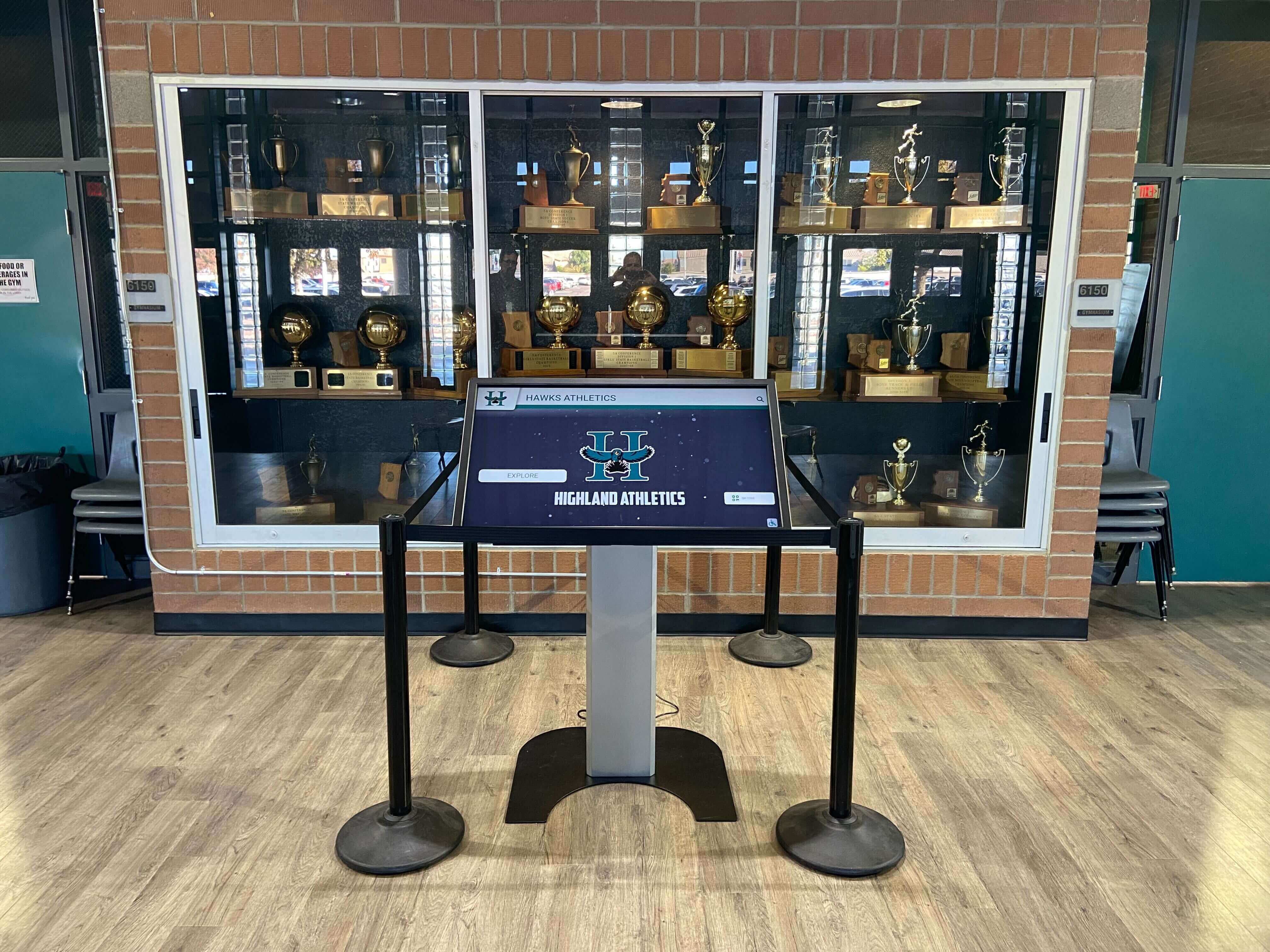
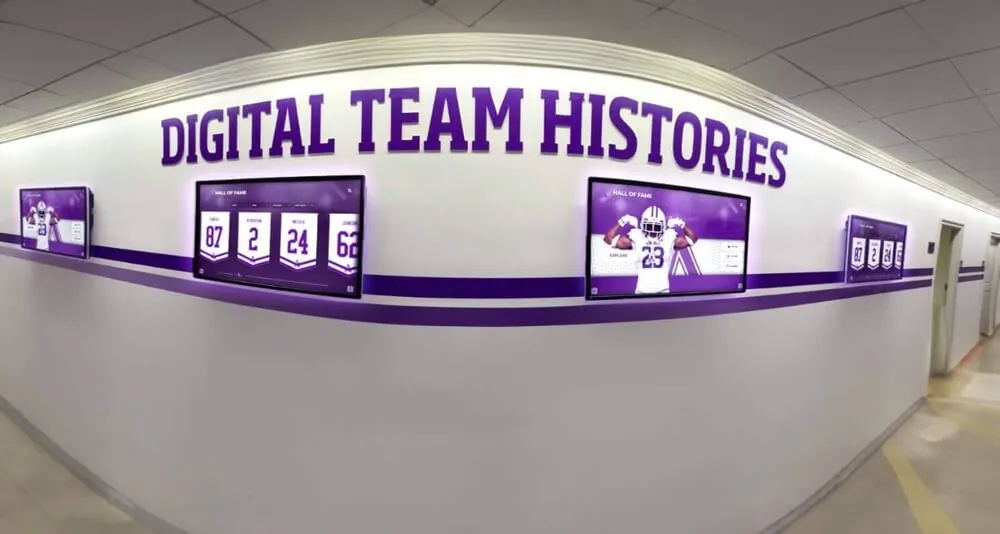
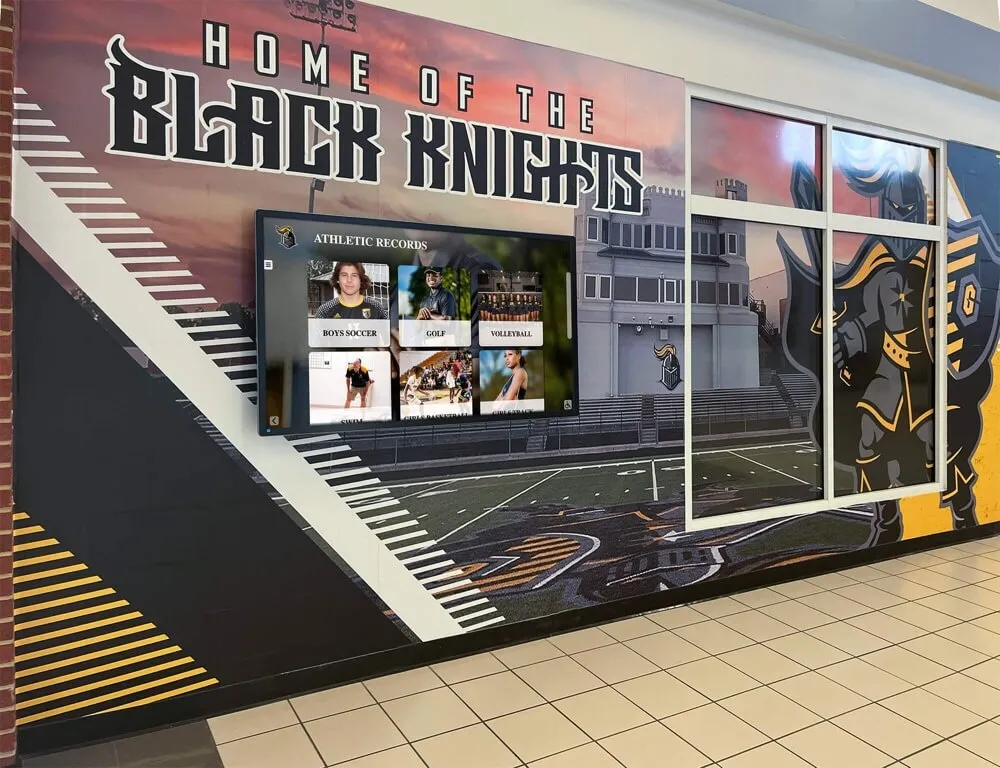
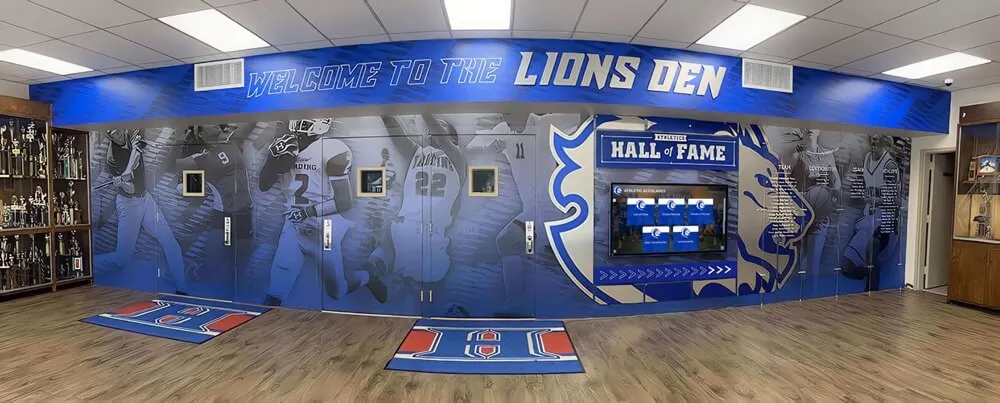
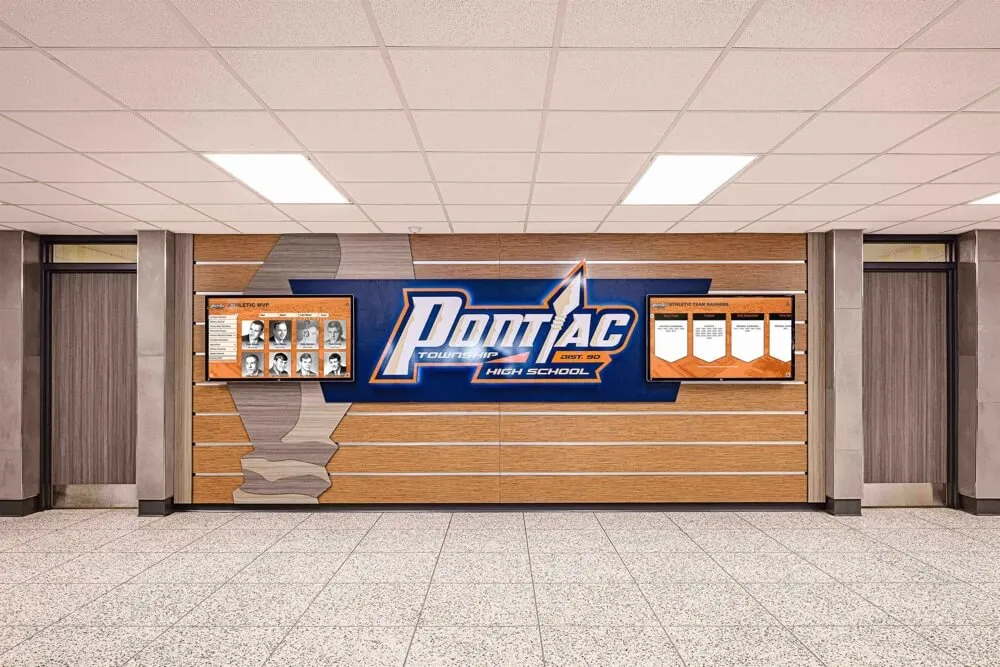
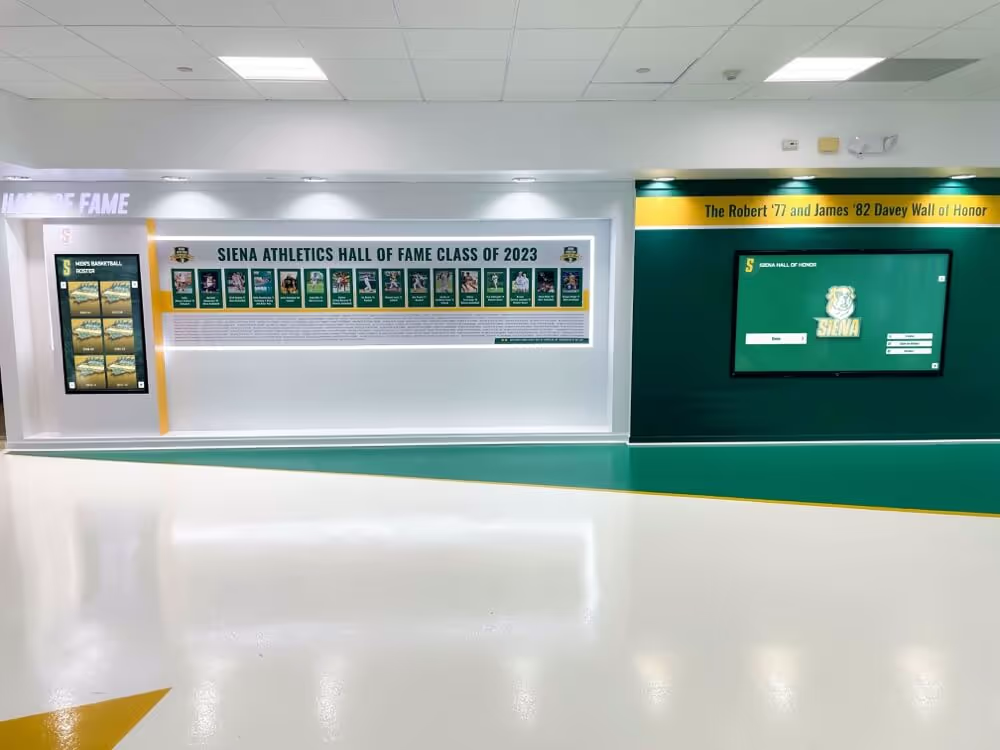
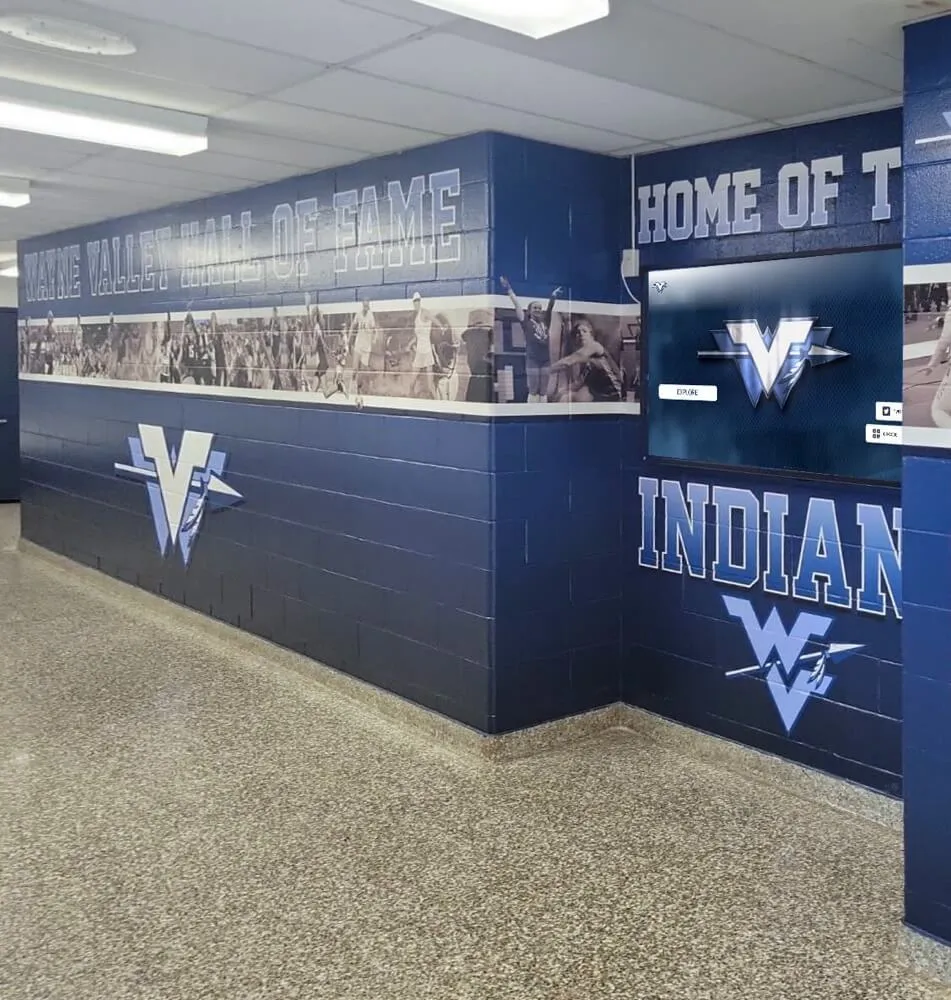
Interactive displays in athletic facilities provide recognition and engagement opportunities beyond traditional classroom applications
AV/IT Infrastructure Requirements
Interactive flat panels integrate into broader technology ecosystems requiring planning beyond individual display specifications.
Network Connectivity Planning
Wired Network Requirements: Dedicated gigabit Ethernet drops enable content management, software updates, device monitoring, and screen sharing functionality. Position network drops behind display mounting location to minimize visible cable runs.
Wireless Network Considerations: IFPDs supporting wireless screen sharing generate consistent network traffic as teachers and students share content throughout class periods. Ensure wireless access points provide adequate bandwidth—consider dedicated SSID for display devices if supporting 10+ units per access point.
VLAN Segmentation: Many IT departments segment display devices onto dedicated VLANs (Virtual Local Area Networks) separating classroom displays from student devices and administrative systems. Plan VLAN assignment and authentication requirements before installation.
Network Authentication: Enterprise networks using 802.1X authentication require proper certificate deployment to IFPD systems. Android-based displays may require manual certificate installation—verify compatibility with network authentication methods before purchasing.
Power and Electrical Requirements
Power Consumption: Interactive flat panels draw 200-500 watts during operation depending on size and brightness settings. A 75-inch IFPD drawing 300W operating 8 hours daily consumes approximately 540 kWh annually—consider electrical costs across dozens of displays.
Circuit Capacity: Verify existing circuits support additional load. While single display rarely exceeds circuit capacity, rooms with multiple displays, computers, projectors, and other devices may require dedicated circuits.
Conduit Runs: Professional installations use in-wall conduit from display mounting location to floor-level electrical outlet, creating clean cable path for power and data. Exposed cable runs create tripping hazards and unprofessional appearance.
Surge Protection: Install proper surge suppression protecting displays from power spikes. Commercial-grade surge protectors with joule ratings above 2,000 joules and clamping voltage under 400V provide meaningful protection. Basic consumer power strips offer minimal protection despite “surge protection” claims.
Cable Management Systems
In-Wall Solutions: Recessed cable management channels behind display mounting location provide professional appearance and cable access for future changes. Include extra conduit capacity for future additions.
Surface-Mounted Raceways: Surface-mounted cable channels offer easier installation than in-wall solutions while maintaining neat appearance. Match raceway color to wall finish.
Cable Length Planning: HDMI signal degradation becomes problematic beyond 25-30 feet without signal amplification. For longer runs, specify active HDMI cables with built-in signal amplification or use HDBaseT extenders transmitting HDMI up to 300+ feet over single Cat6 cable.
USB Extension: Touch functionality requires USB connection from display to source computer. Standard USB 2.0 cables support maximum 16-foot runs; longer distances require active USB extension or built-in USB-over-IP functionality.
Software and Content Management
The software ecosystem surrounding interactive displays significantly impacts usability and administrative workload.
Operating System Options
Android-Based Systems: Most educational IFPDs ship with Android OS providing access to Google Play Store apps, web browsers, and educational software. Android systems update via over-the-air updates similar to mobile devices.
Windows Embedded Systems: Some IFPDs include embedded Windows 10 IoT or Windows 11 providing full Windows desktop environment. Windows systems enable compatibility with Windows-specific educational software but require traditional Windows update management.
Embedded Linux: Less common but appearing in some enterprise-focused displays. Linux-based systems offer stability and security but limited app ecosystem compared to Android/Windows.
Essential Software Capabilities
Annotation Tools: Quality annotation software enables teachers to write on any content source—live HDMI input, web pages, documents, or blank whiteboard surfaces. Look for features including multiple pen colors/widths, shape recognition, screen capture, and the ability to save annotations for later review.
Screen Sharing Solutions: Built-in wireless screen sharing eliminates need for third-party apps or dongles. Verify compatibility with devices in your ecosystem—many interactive touchscreen software platforms support multiple connection methods for different device types.
Web Browser: Integrated browsers enable access to web-based educational content, online learning management systems, and cloud-based applications without requiring external computer connection.
File Management: Built-in file browsers for accessing USB drives, network storage, and cloud storage services (Google Drive, OneDrive, Dropbox) enable content access without external devices.
Enterprise Management and Deployment
Districts deploying multiple displays require centralized management capabilities reducing administrative overhead.
Mobile Device Management (MDM): Android-based IFPDs integrate with enterprise MDM platforms (Google Workspace, Microsoft Intune, third-party MDM solutions) enabling centralized configuration, app deployment, and policy enforcement across dozens or hundreds of displays.
Remote Monitoring: Enterprise management platforms provide remote monitoring showing display status, power state, current input source, and error conditions. IT staff can troubleshoot issues remotely rather than dispatching technicians for simple problems.
Scheduled Power Management: Automated power scheduling turns displays on/off according to bell schedules, reducing energy consumption during unoccupied periods while ensuring displays activate before classes begin.
Content Distribution: Some platforms support centralized content push, enabling administrators to deploy images, videos, PDFs, or applications to specific displays or groups based on building, grade level, or subject area.
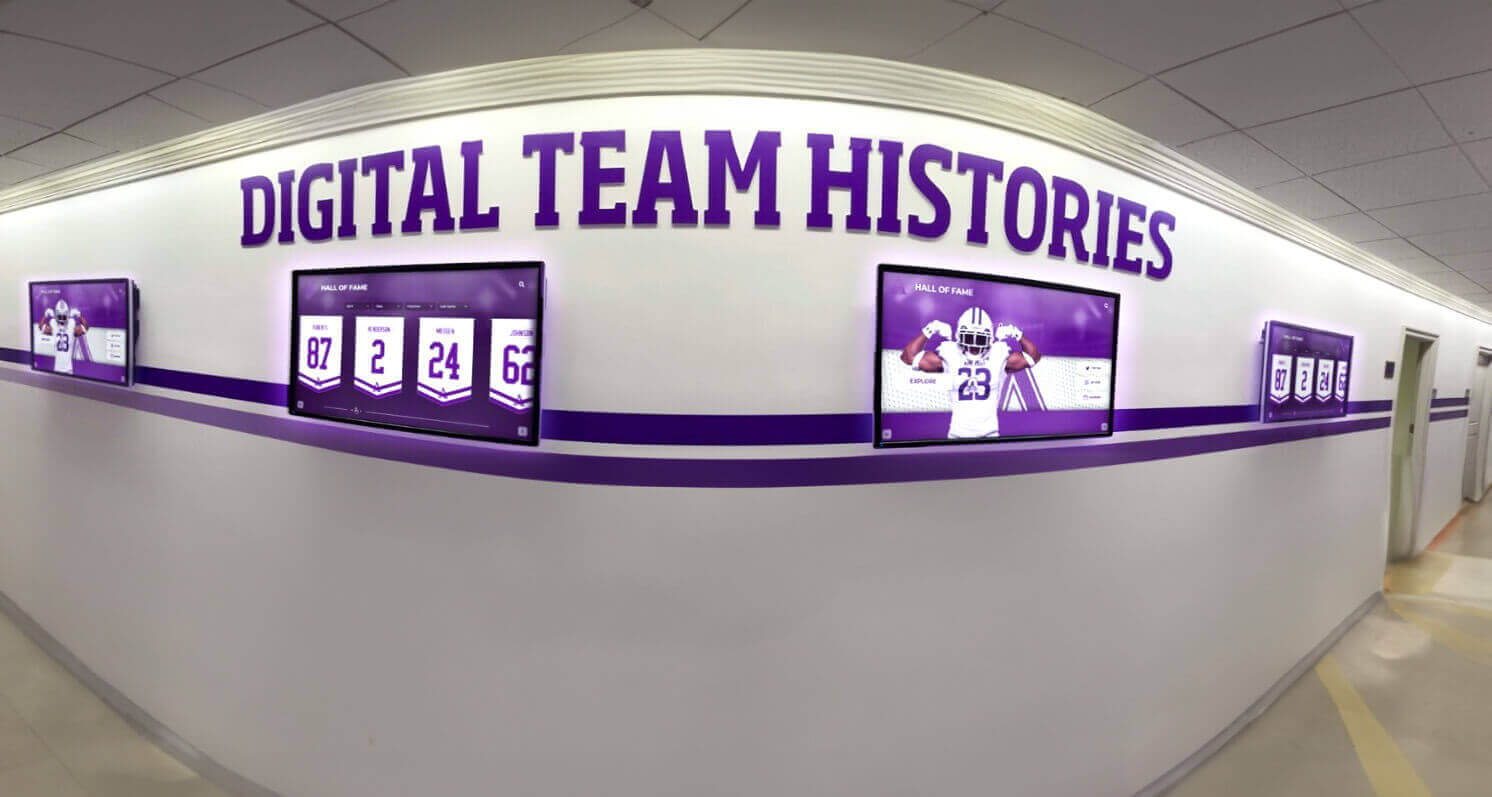
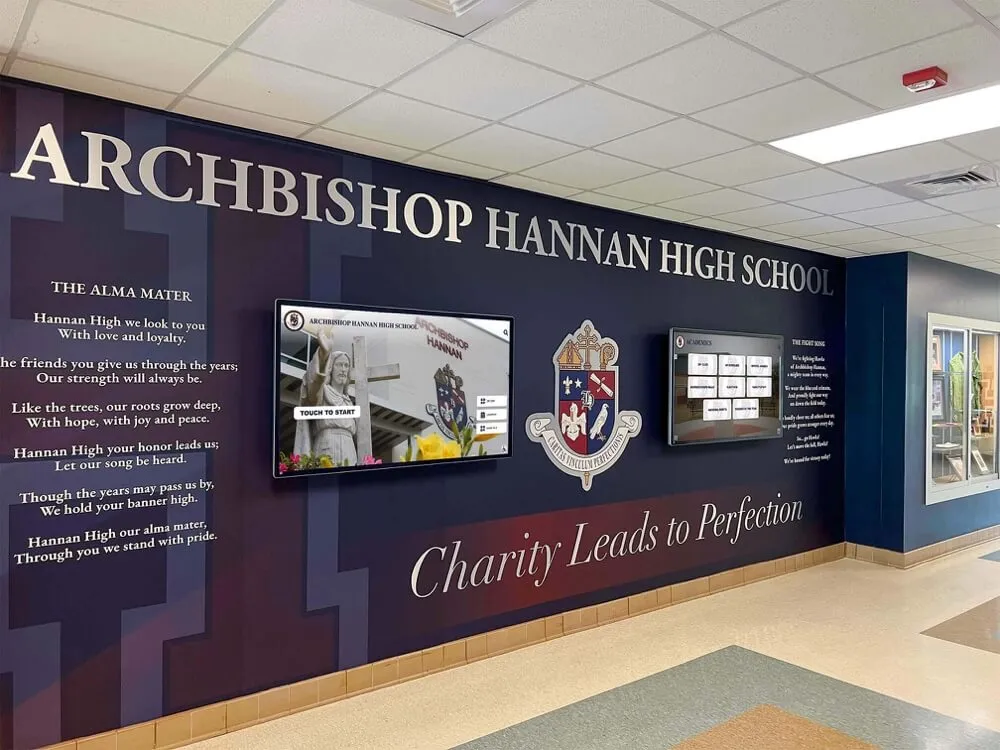
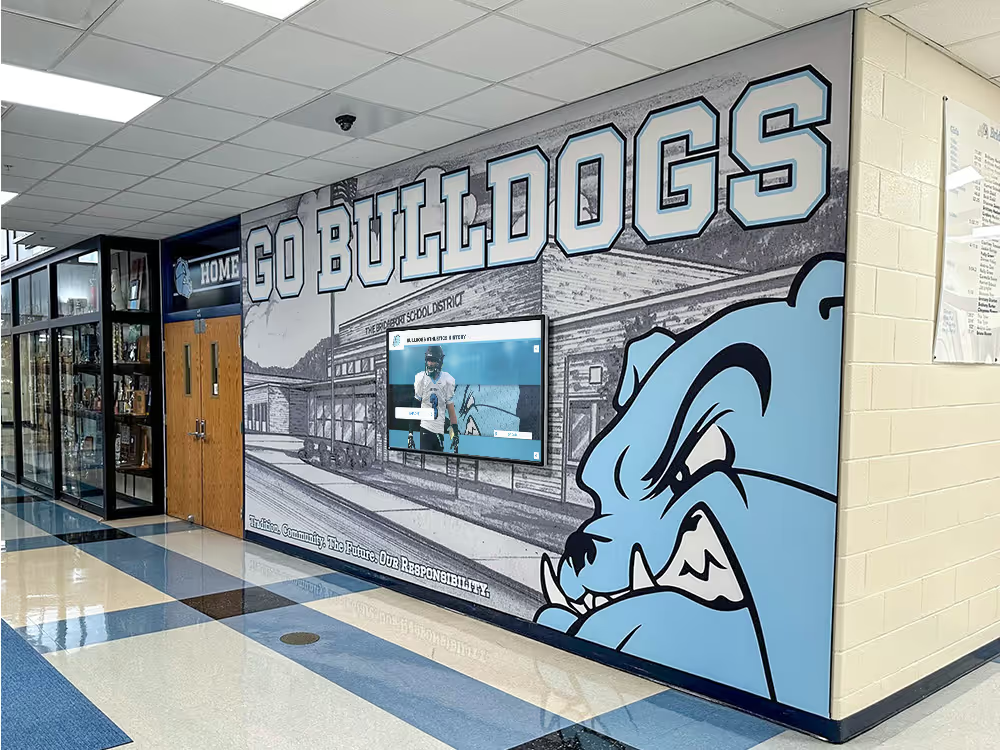
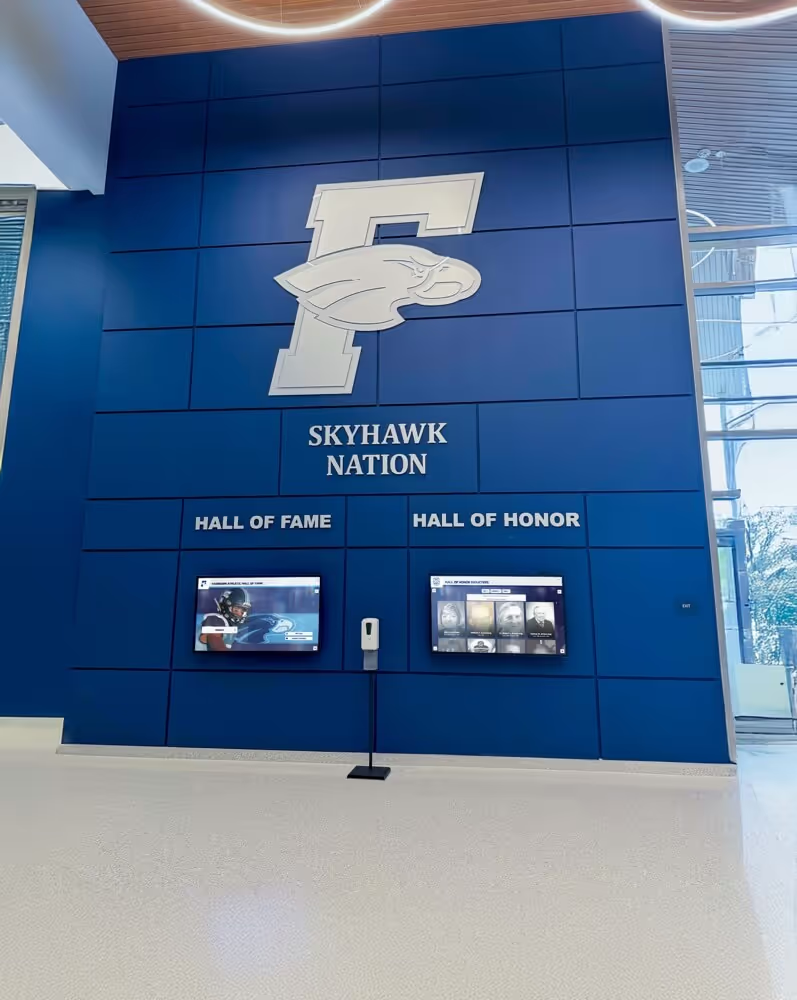
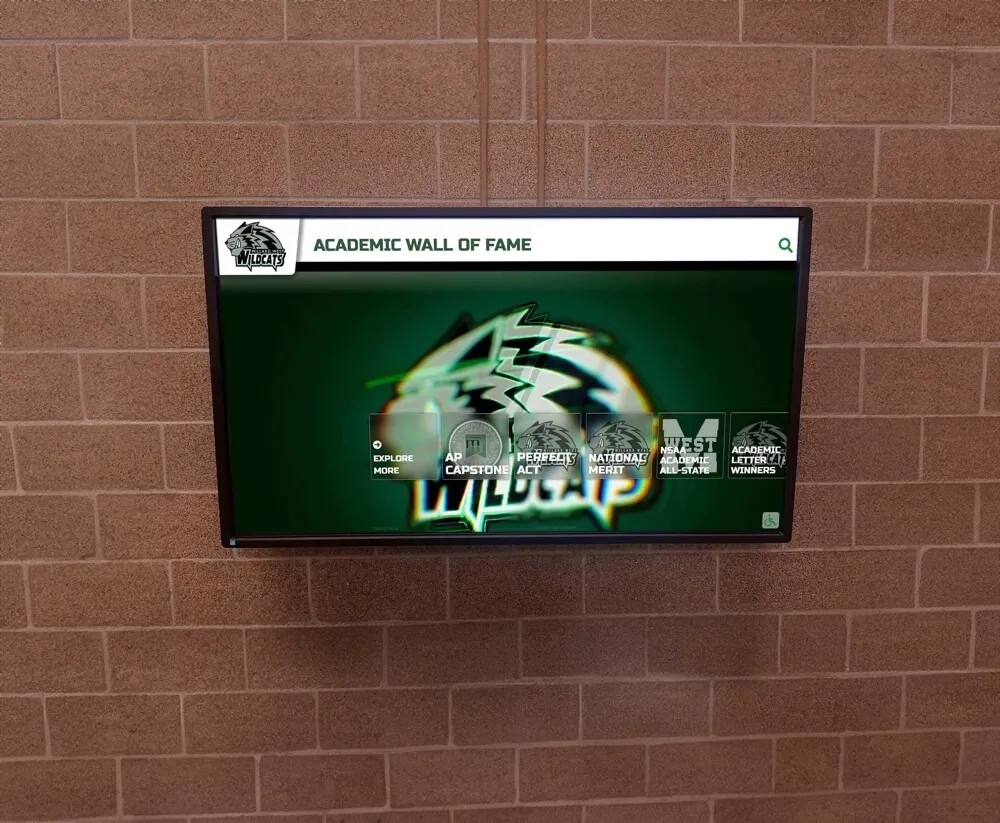
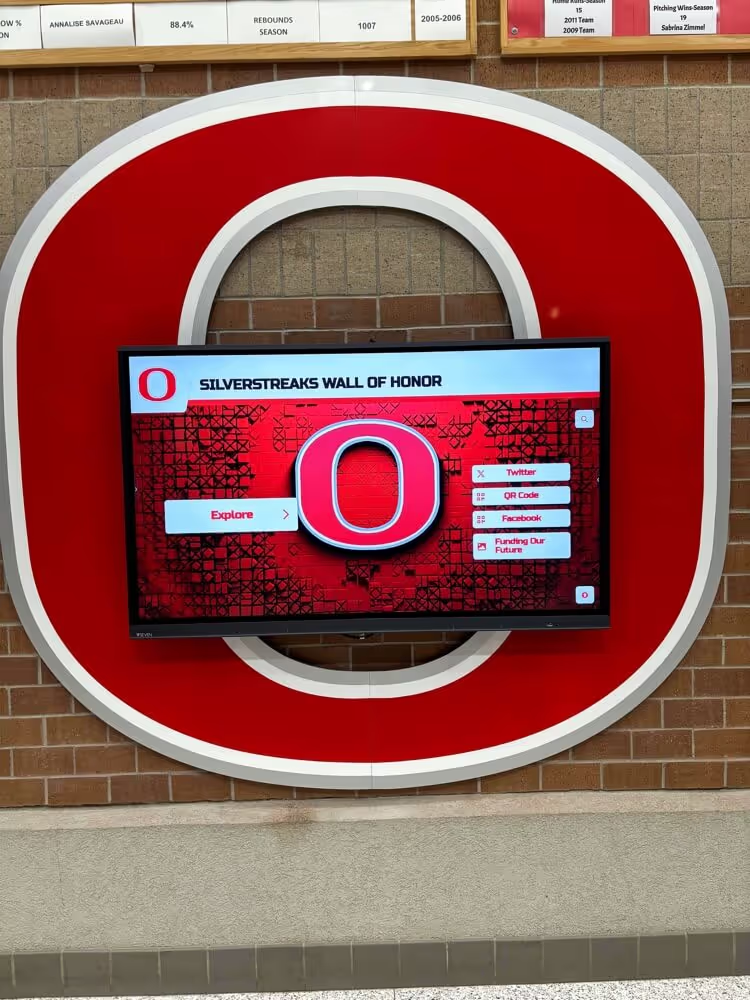
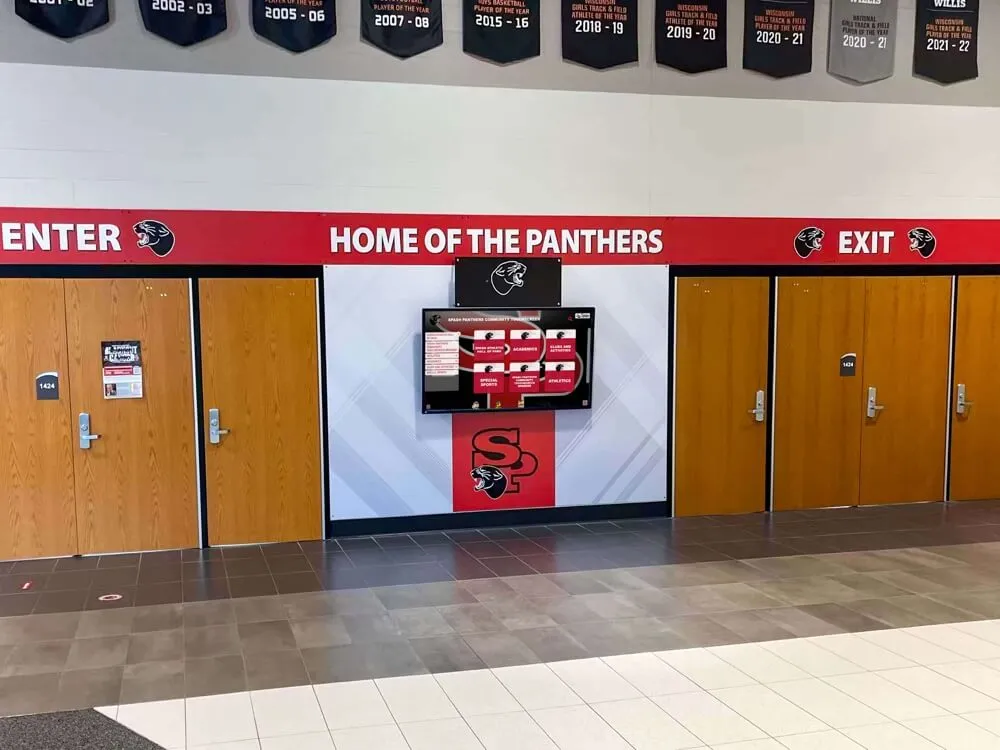
Beyond classroom instruction, interactive displays serve common areas for wayfinding, announcements, and student recognition
Accessibility and ADA Compliance
Interactive displays in educational environments must accommodate students with varying abilities and comply with accessibility regulations.
Physical Accessibility Requirements
Mounting Height for Wheelchair Access: ADA guidelines establish specific requirements for interactive elements. Operable parts (touch controls) must be within reach ranges:
- Forward reach: 15-48 inches from floor
- Side reach: 9-54 inches from floor
These requirements affect mounting height decisions, particularly for displays serving as kiosk/directory functions accessed by individuals using wheelchairs.
Clear Floor Space: Interactive displays require clear floor space (minimum 30" x 48") positioned parallel or perpendicular to display, enabling wheelchair users to approach and operate controls.
Operating Force: Touch activation force must not exceed 5 pounds. Most modern touch displays require minimal activation force well within ADA requirements, but verify specification meets standards.
Digital Accessibility Features
Screen Reader Compatibility: Displays running Android or Windows should support standard screen reader software (TalkBack on Android, Narrator on Windows) enabling students with visual impairments to navigate interfaces audibly.
Text Scaling and High Contrast Modes: System-level text size controls and high-contrast display modes assist users with low vision. Verify these accessibility features function properly with installed educational software.
Alternate Input Methods: Support for external keyboards, switches, and alternative input devices enables students with mobility impairments to interact with displays using assistive technology appropriate to their needs.
Captioning Support: Video content displayed on IFPDs should support closed captions. Verify media players and video conferencing apps properly display caption tracks.
Use Cases Beyond Classroom Instruction
While classroom instruction represents primary IFPD deployment, schools increasingly leverage interactive display technology for additional applications maximizing infrastructure investments.
Commons Area Applications
Digital Signage and Announcements: Displays in cafeterias, main lobbies, and high-traffic hallways communicate daily announcements, event schedules, lunch menus, and emergency notifications. Many schools incorporate digital signage content managed through cloud platforms enabling administration and student groups to update content remotely.
Wayfinding and Building Directories: Interactive directories in main entrances help visitors navigate campus, locate specific classrooms or offices, and access school information without staff assistance.
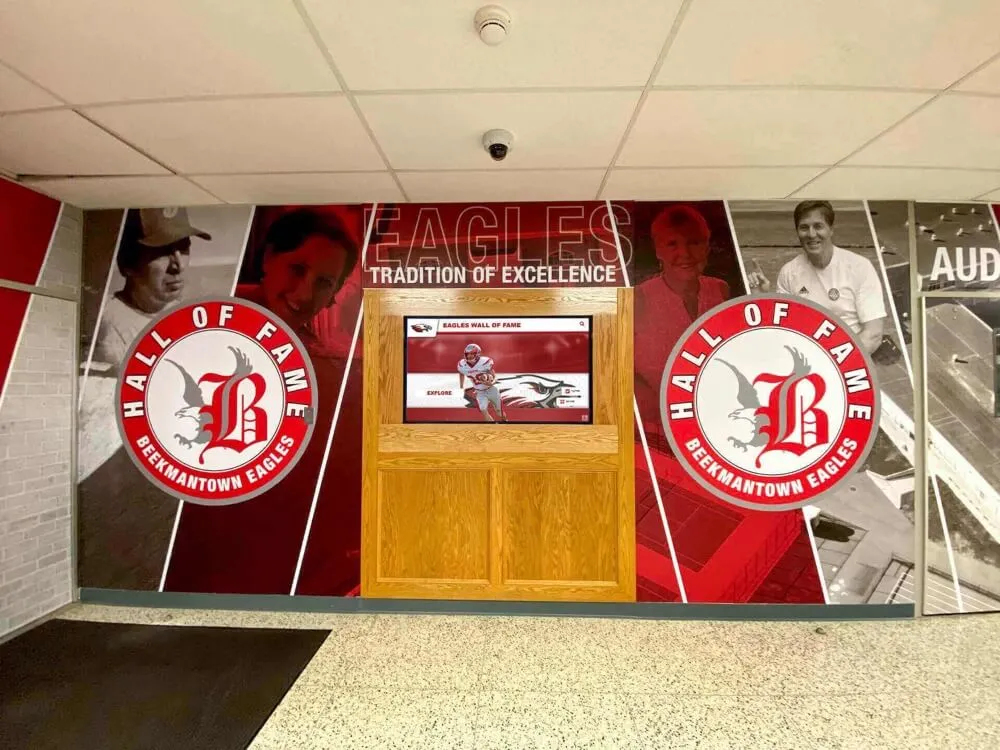
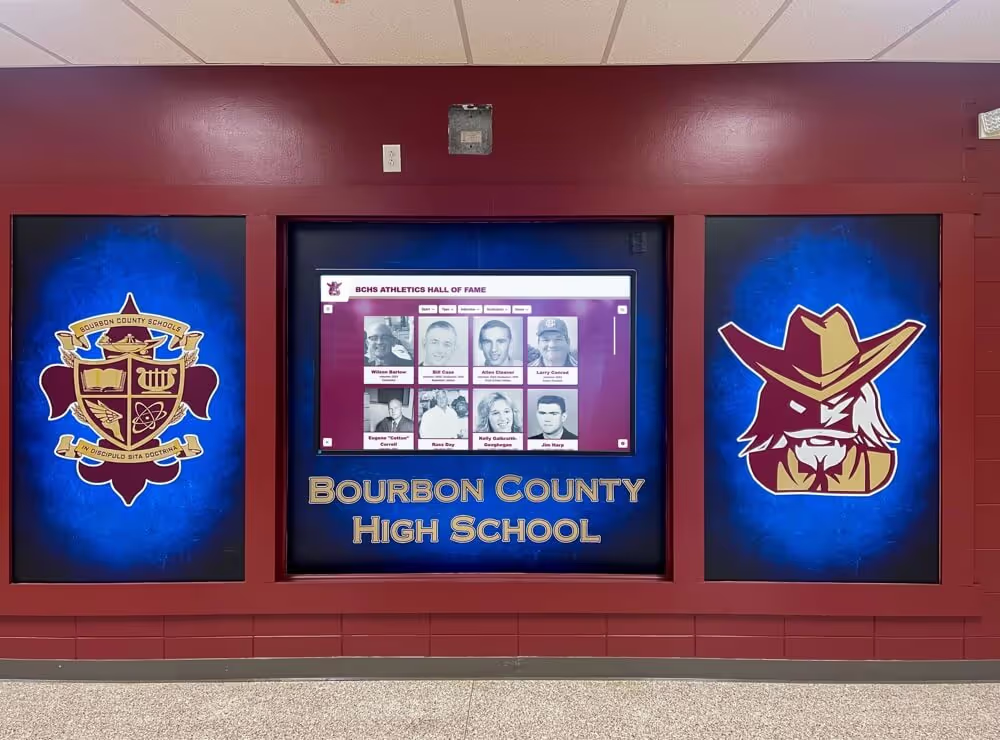
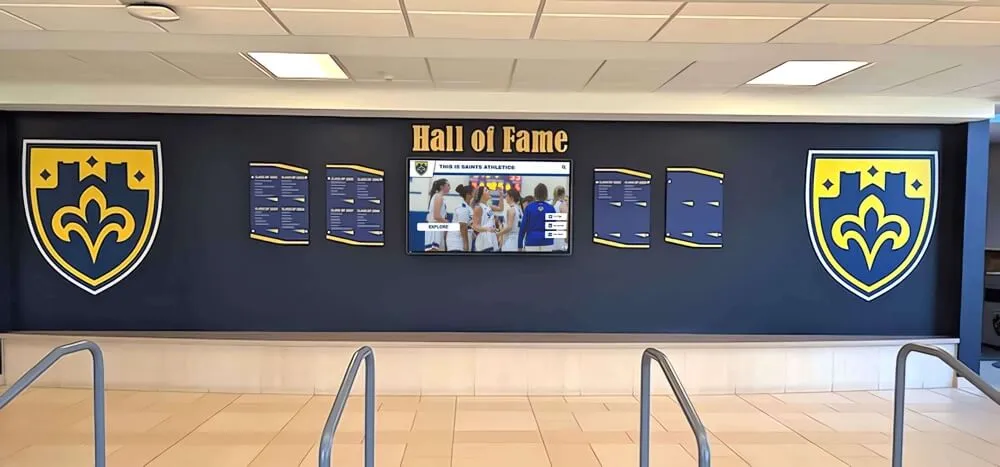
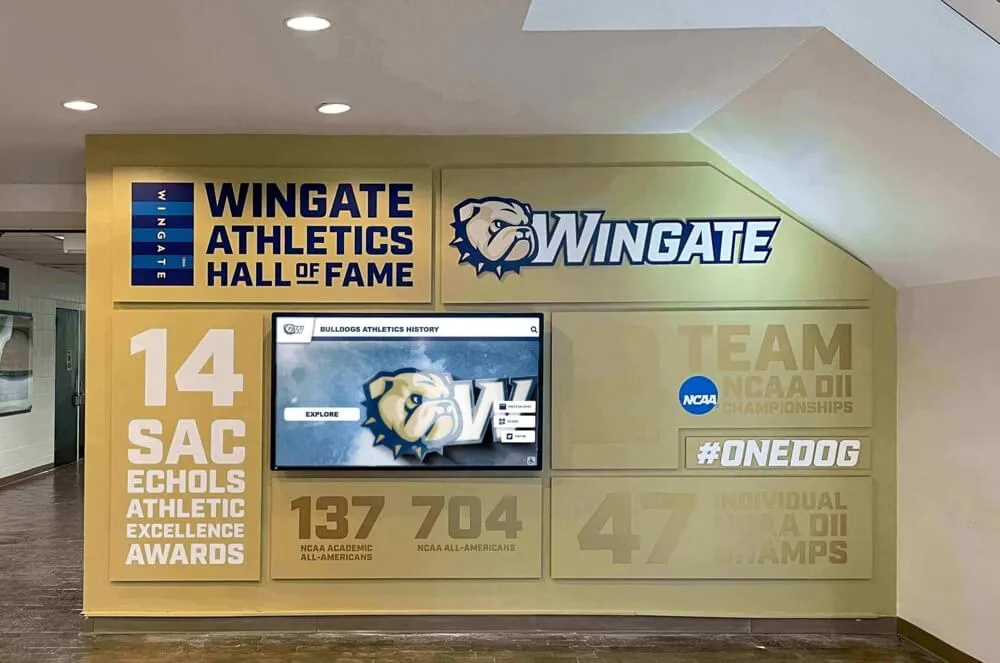
Recognition and Engagement: Schools implement interactive recognition displays celebrating student achievements, athletic accomplishments, honor roll listings, and academic awards. These applications transform static trophy cases into dynamic engagement platforms where students and visitors explore achievement histories interactively.
Athletic Facility Deployments
Performance Tracking and Records: Athletic departments utilize interactive displays to showcase team records, individual performance milestones, championship histories, and hall of fame inductees. Interactive touch interfaces enable athletes, families, and visitors to explore decades of program history.
Coach’s Office and Team Rooms: Large format displays in coach offices and team rooms facilitate video review, play diagramming, and collaborative game planning sessions.
Concourse and Fan Experience: Displays in stadium concourses, gymnasiums, and spectator areas provide statistics, live scoring, video replay highlights, and program information enhancing game day atmosphere.
Specialized Instructional Spaces
CTE and Maker Spaces: Career and Technical Education programs use interactive displays for computer-aided design instruction, manufacturing process visualization, and collaborative project planning. CTE programs benefit from dedicated touchscreen systems supporting specialized software while providing general presentation capabilities.
Media Production Studios: Broadcast journalism, video production, and media arts programs deploy IFPDs for editing review, storyboarding, and production planning enabling students to mark up footage and collaborate on creative direction.
Science Labs: Integrated displays in science labs enable teachers to share microscope views, demonstrate virtual dissections, model chemical reactions, and collaborate on data analysis without students leaving lab benches.
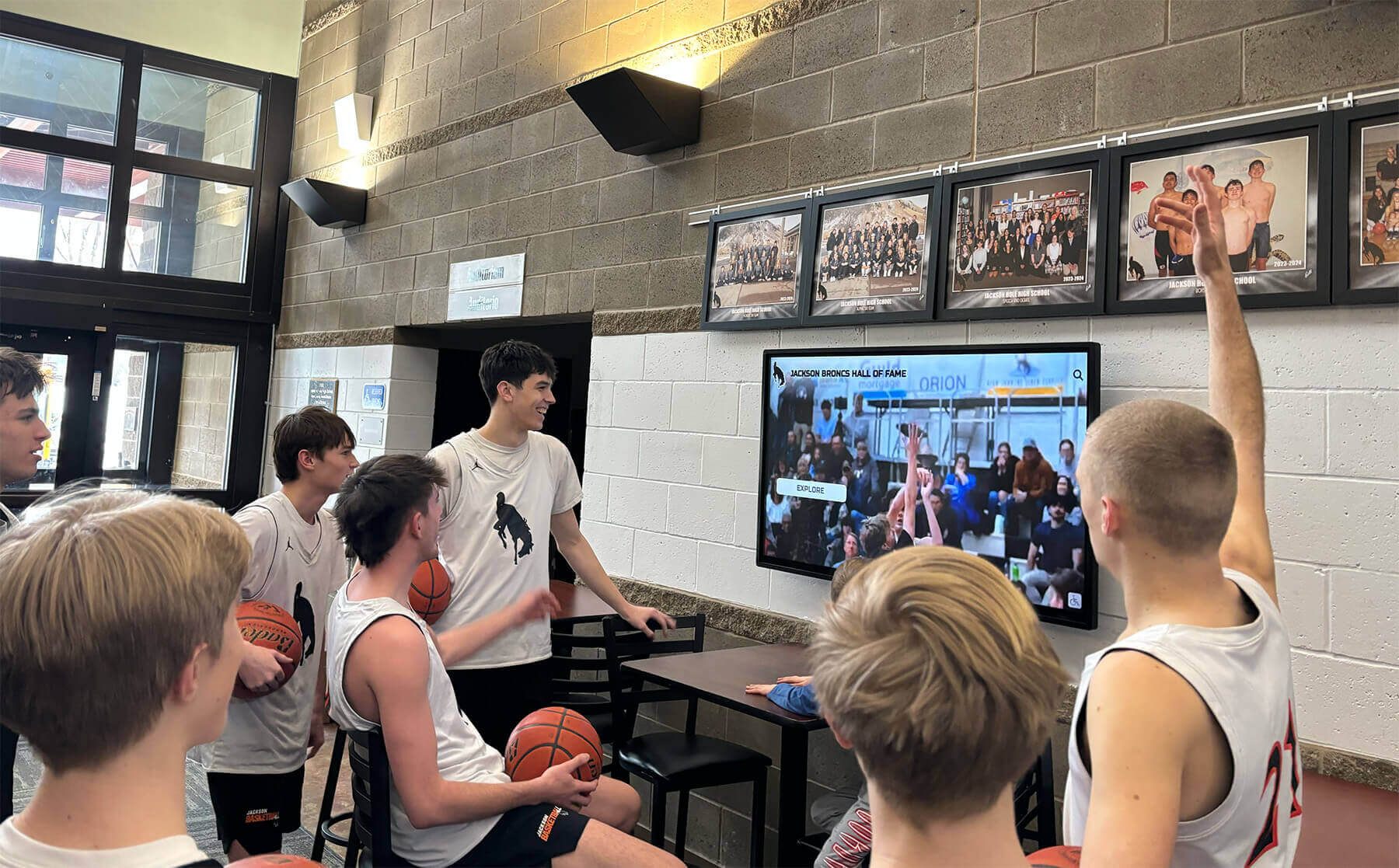
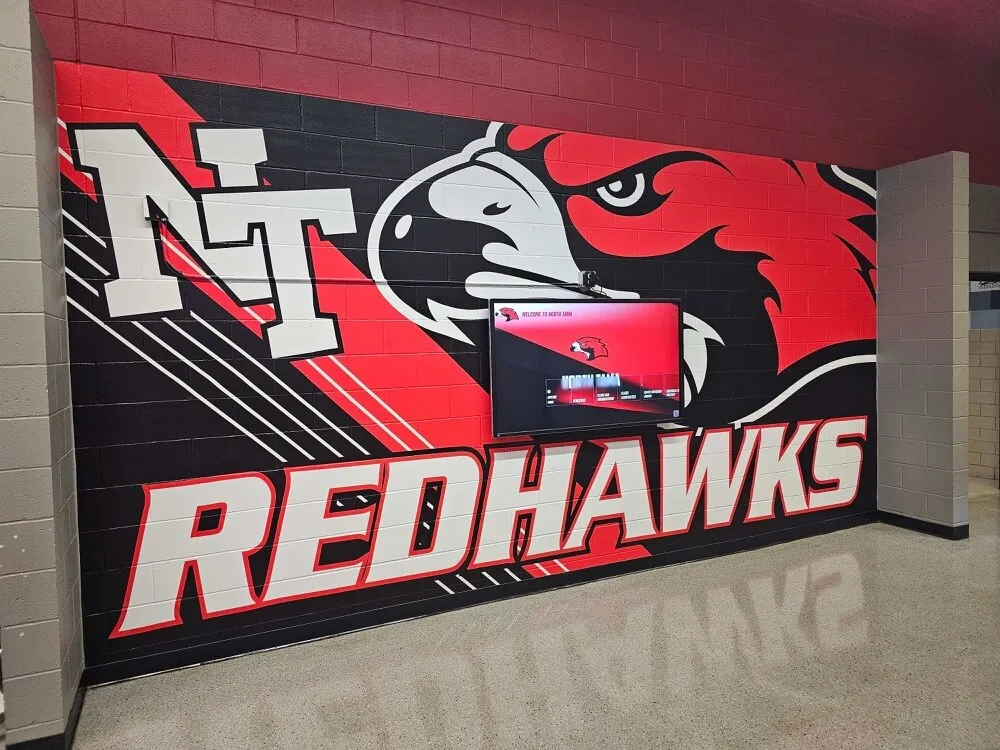
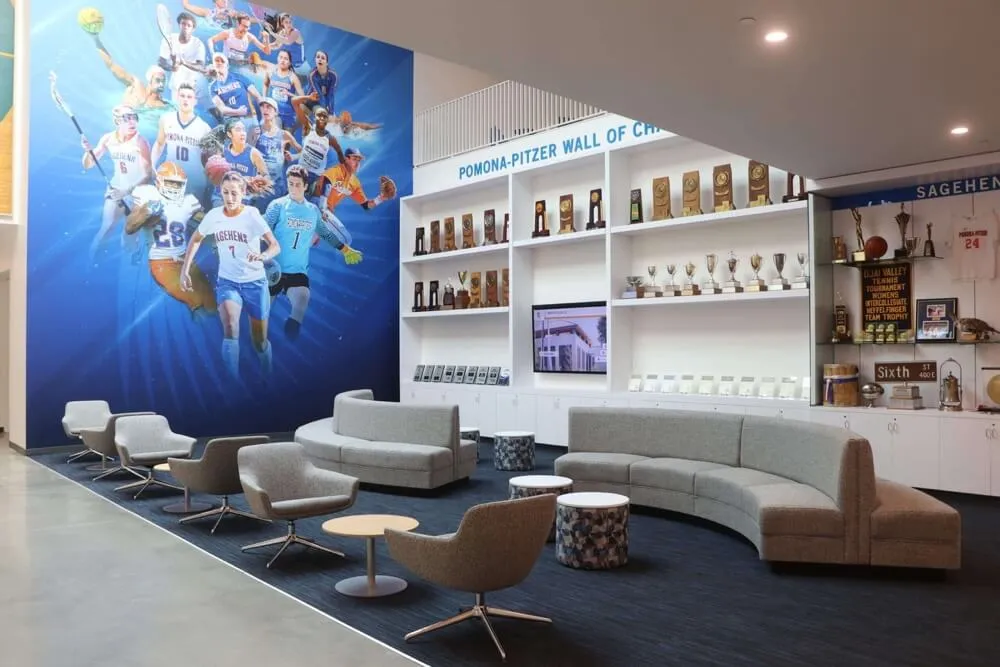
Interactive displays in common areas create engagement opportunities where students explore program histories and celebrate peer achievements
Vendor Selection and Procurement Considerations
Choosing between dozens of manufacturers offering seemingly similar specifications requires evaluation beyond spec sheets.
Major Educational IFPD Manufacturers
Tier 1 Manufacturers: SMART Technologies, Promethean, ViewSonic, BenQ, Newline, Samsung, and LG dominate educational market with comprehensive product lines, established support networks, and proven deployment records.
Regional and Specialized Vendors: Numerous second-tier manufacturers offer competitive pricing, sometimes with attractive specifications, but may lack comprehensive support networks, replacement part availability, or long-term viability concerns.
Evaluation Criteria Beyond Specifications:
Warranty Terms: Standard warranties typically cover 3 years for panels and 1 year for built-in computing. Commercial-grade warranties should include on-site service, advanced replacement programs, and provisions addressing dead pixel policies.
Support Infrastructure: Evaluate manufacturer support including response time commitments, toll-free technical support hours, online knowledge bases, certified service center locations, and escalation procedures for unresolved issues.
Replacement Part Availability: Inquire about stocked replacement parts availability (remote controls, styluses, cables, AC adapters) and replacement costs. Some manufacturers price replacement remotes at $200+ creating unexpected expenses.
Software Update Commitment: Verify manufacturer’s track record delivering software updates for existing models. Some manufacturers abandon older models rapidly; others provide 5+ years of security patches and feature updates.
Professional Services and Training
Installation Services: Professional installation ensures proper mounting, cable routing, network configuration, and initial setup. Installation costs typically range $500-1,200 per display depending on mounting complexity and site conditions.
Professional Development: Teacher training significantly impacts technology adoption. Evaluate manufacturer-provided training resources including online modules, in-person workshop availability, and ongoing support materials. Many districts budget 2-4 hours of professional development per teacher covering basic operation, annotation tools, and integration with existing instructional practices.
Extended Support Agreements: Consider extended warranty and support agreements adding 2-3 additional years beyond standard warranty coverage. Extended agreements typically cost 15-25% of display purchase price but provide predictable long-term support costs.
Total Cost of Ownership Analysis
Purchase price represents only one component of true lifetime costs. Comprehensive TCO analysis includes:
Initial Purchase Costs:
- Display hardware: $2,500-8,000+ depending on size and specifications
- Mounting systems: $200-1,500
- Installation labor: $500-1,200
- Cables and accessories: $100-300
- Initial professional development: $50-100 per teacher
Ongoing Operational Costs (Annual):
- Electricity: $40-80 per display (assuming 180 school days, 8 hours daily operation)
- Software licensing: $0-200 per display depending on software requirements
- Replacement parts/accessories: $50-100 per display amortized
- Extended warranty/support: $200-400 per display annually if purchased
Replacement Cycle Planning: Educational technology typically follows 5-7 year replacement cycles balancing useful life against technological obsolescence. Budget for replacement costs beginning Year 6-7 or plan technology refresh initiatives capturing multiple classroom sets simultaneously.
Making Your Selection: Decision Framework
When evaluating multiple interactive flat panel options, use this decision framework prioritizing factors based on your specific requirements:
Phase 1 - Eliminate Options Failing Hard Requirements:
- Size/resolution not meeting space and visibility needs
- Mounting pattern incompatible with available mounts
- Missing critical connectivity options (HDMI count, USB-C, etc.)
- Operating system incompatible with required software
- Insufficient warranty/support infrastructure
- Price exceeding budget constraints
Phase 2 - Score Remaining Options Against Priorities:
Assign point values to factors matching your environment:
- Touch responsiveness and accuracy (classroom instruction priority)
- Built-in audio quality (determines external audio system requirements)
- Built-in computing power (reduces or eliminates external PC costs)
- Software ecosystem and app availability
- Management platform compatibility with existing MDM
- Professional development resources and quality
- Total cost of ownership over replacement cycle
Phase 3 - Pilot Testing:
Before standardizing across multiple classrooms or buildings, conduct 30-60 day pilot deployments with 2-3 finalists, gathering feedback from teachers and IT staff on:
- Reliability and uptime
- Ease of daily operation
- Software performance and responsiveness
- Technical support responsiveness to issues
- Student engagement and instructional effectiveness
Implementation Roadmap
Successful interactive display deployments follow structured implementation processes rather than simultaneous bulk installations.
6-8 Weeks Before Installation:
- Finalize specifications and vendor selection
- Conduct site surveys verifying wall structures, electrical capacity, and network infrastructure
- Order equipment with appropriate lead time (8-12 weeks for large orders)
- Schedule installation dates coordinating with academic calendar
- Plan professional development sessions
2-4 Weeks Before Installation:
- Confirm delivery schedules and installation crew availability
- Prepare installation locations (furniture removal, clear access paths)
- Configure network authentication and VLAN assignments
- Pre-stage mounting hardware and verify inventory
- Communicate installation schedule to affected teachers
Installation Week:
- Physical mounting and cable installation
- Network connectivity verification
- Initial software configuration and app installation
- System testing and acceptance verification
- Initial teacher orientation on basic operation
2-4 Weeks Post-Installation:
- Formal professional development sessions
- Ongoing technical support availability
- Gather early feedback from teachers
- Address configuration issues or adjustment requests
- Document lessons learned for future phases
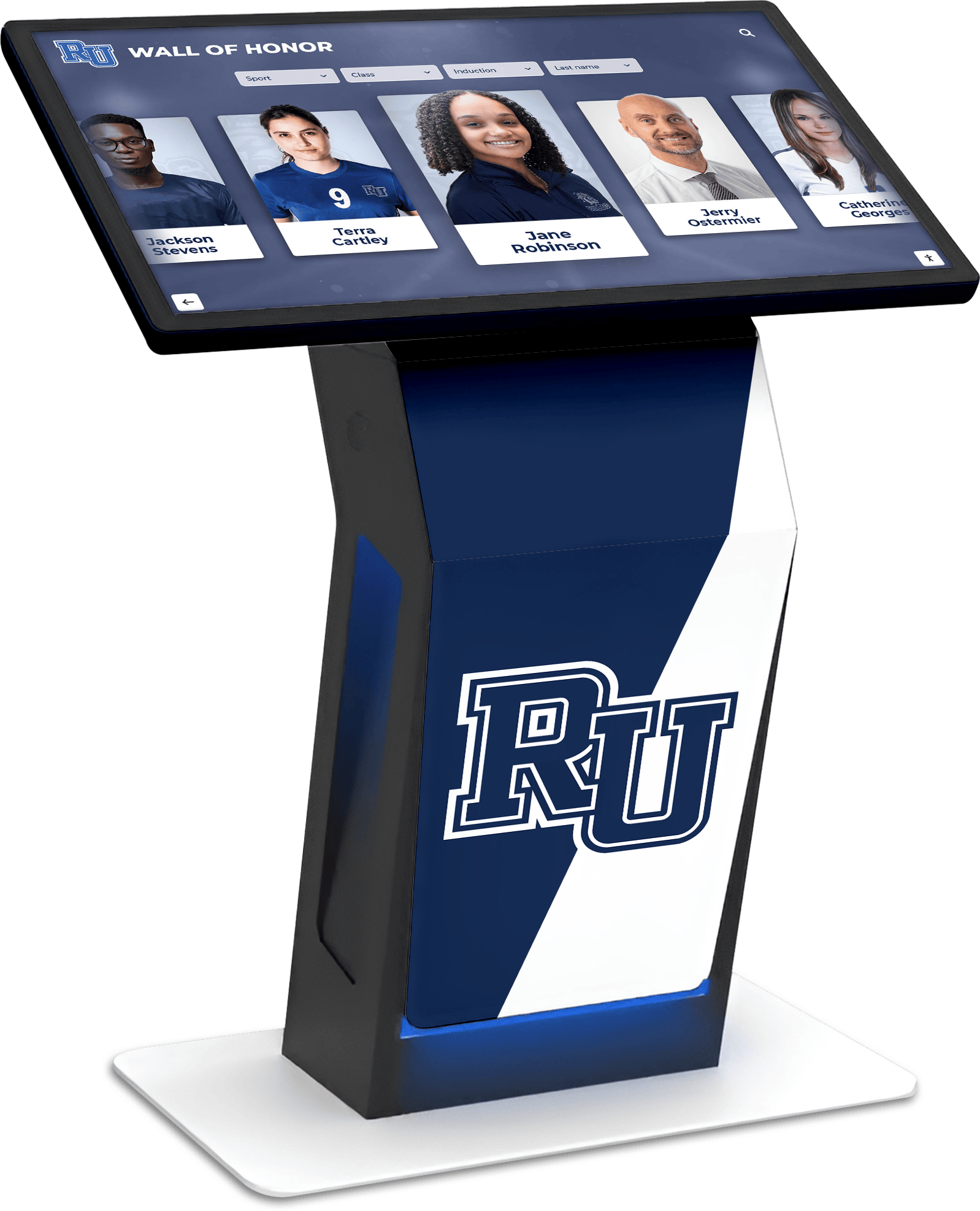
Professional-grade interactive displays deliver reliable performance across demanding educational environments
Specialized Considerations for Different Grade Levels
Different educational levels present unique requirements affecting display selection and configuration.
Elementary Schools (K-5)
Height Accessibility: Elementary students require lower mounting heights enabling young children to reach top screen areas. Mobile carts or adjustable-height wall mounts accommodate varying student heights across grade levels using same spaces.
Durability Requirements: Elementary environments experience higher incidental contact frequency. Screens with ruggedized glass and corner protection withstand accidental impacts better than consumer-grade panels.
Simplified Interfaces: Elementary teachers benefit from simplified operating interfaces minimizing complex menu navigation. Look for displays offering “teacher mode” with streamlined controls for common functions.
Content Filtering: Built-in web browsers should integrate with district content filtering systems preventing access to inappropriate content.
Middle Schools (6-8)
Collaborative Features: Middle school instruction increasingly emphasizes small group collaboration. Multi-touch capability supporting simultaneous interaction enables group problem-solving activities where multiple students contribute simultaneously.
Wireless Connectivity: Student device integration becomes more important as 1:1 programs expand through middle grades. Robust wireless screen sharing from student devices to main display facilitates student presentations and work sharing.
Application Diversity: Middle school curricula span numerous subjects requiring diverse app support from basic productivity tools to specialized STEM applications and creative software.
High Schools (9-12)
Bring Your Own Device (BYOD): High school students increasingly use personal devices requiring displays supporting diverse connection methods across Windows, Mac, iOS, Android, and Chromebook platforms.
Advanced Functionality: High school teachers utilize more sophisticated features including split-screen modes displaying multiple content sources simultaneously, complex annotation layers, and integration with advanced educational software.
CTE and Specialized Programs: Career and technical education, AP courses, and specialized programs may require displays supporting professional software, high color accuracy for design work, or specialized connectivity for industry-standard equipment.
Sustainability and Environmental Considerations
School districts increasingly evaluate environmental impacts and sustainability factors in technology purchasing decisions.
Energy Efficiency: ENERGY STAR certified displays meet strict energy efficiency guidelines reducing operational costs and environmental impact. Modern LED-backlit displays consume 40-60% less energy than older CCFL-backlit models and include automatic brightness controls further reducing consumption.
Longevity and Upgradability: Displays supporting modular computing upgrades (OPS slots) extend useful life by enabling computing power improvements without replacing entire display. Some manufacturers offer panel longevity ratings specifying 50,000-100,000 hours of operation before brightness degrades 50%.
Recycling and Disposal: Verify manufacturer participation in electronics recycling programs and provides guidance for end-of-life disposal. Some manufacturers offer trade-in programs crediting old equipment toward new purchases.
Packaging and Shipping: Environmentally conscious manufacturers use recyclable packaging materials and optimize shipping efficiency reducing carbon footprint of product delivery.
Common Pitfalls and How to Avoid Them
Learn from common mistakes in interactive display deployments:
Pitfall: Inadequate Wall Structure Many installations fail when mounting hardware pulls out of drywall or thin walls flex when touching display. Solution: Identify wall studs, use blocking between studs for heavy displays, or specify floor stands for walls unable to support mounted weight.
Pitfall: Insufficient Network Planning Displays lose functionality without proper network access—wireless sharing fails, content management systems cannot connect, software updates don’t deploy. Solution: Ensure wired network drops to display locations and verify wireless coverage if relying on WiFi connectivity.
Pitfall: Minimal Professional Development Teachers unfamiliar with technology capabilities underutilize expensive displays, reverting to traditional teaching methods. Solution: Budget minimum 4 hours professional development per teacher spread over initial introduction, intermediate features, and advanced integration sessions scheduled throughout first semester.
Pitfall: No Standardization Across Classrooms Different display models and operating systems create support nightmares and prevent teachers moving between rooms from using familiar interfaces. Solution: Standardize on single manufacturer and model for each deployment phase, accepting slight specification differences over time rather than mixing manufacturers within same building.
Pitfall: Overlooking Replacement Accessories Lost or broken remotes, styluses, and cables create unexpected expenses and operational disruptions. Solution: Order spare parts (2-3 extra remotes, stylus sets, and common cables per building) during initial purchase when pricing is most favorable.
Emerging Technologies and Future Trends
Interactive display technology continues evolving rapidly. Understanding emerging trends helps future-proof purchasing decisions.
AI-Powered Features: Manufacturers increasingly integrate artificial intelligence for handwriting recognition, voice control, automatic content recommendations, and intelligent meeting assistance translating spoken instructions to on-screen actions.
Wireless Presentation Evolution: Future displays will likely adopt Wi-Fi 6E and WiGig standards enabling 4K wireless presentation without compression artifacts currently affecting some wireless sharing implementations.
Embedded Cloud Services: Tighter integration between display hardware and cloud content services (Google Workspace, Microsoft 365) enables seamless content access and collaboration without managing local file systems.
Modular Upgradeability: Industry movement toward standardized upgradeable components (computing modules, camera modules, speaker upgrades) extends display life cycles by enabling targeted component improvements without total replacement.
Enhanced Analytics: Display usage analytics help administrators understand utilization patterns, identify underused displays requiring additional training, and inform future purchasing decisions with data on which features teachers use most.
Many schools now complement traditional classroom displays with dedicated interactive recognition installations that serve as permanent digital archives celebrating student achievement, athletic excellence, and program histories. These specialized applications use similar display technology but require different content management approaches optimized for long-term showcase applications rather than daily instructional use.
Your Next Steps
Selecting and deploying interactive flat panel displays represents a significant investment in educational infrastructure affecting teaching effectiveness and student engagement for years to come. The decision framework presented here provides structured evaluation criteria balancing technical specifications, total cost of ownership, support infrastructure, and accessibility requirements.
As you move from research to specification and vendor selection, prioritize hands-on evaluation through demonstration units and pilot programs enabling teachers and IT staff to assess real-world performance rather than relying solely on specifications and marketing materials.
The companies and products that have led educational display markets continue evolving their offerings, while specialized solutions like Rocket Alumni Solutions’ TouchWall platform demonstrate how interactive display technology extends beyond classroom instruction into permanent recognition installations serving athletic departments, common areas, and donor recognition applications. These broader applications maximize infrastructure investments by leveraging display technology across diverse school needs—from daily classroom instruction to permanent achievement showcases that celebrate student success and build school culture for years to come.
Ready to explore how interactive display technology can transform both classroom instruction and permanent recognition installations at your school? Learn more about comprehensive TouchWall solutions designed specifically for educational environments—from technical specifications through installation and ongoing content management.