Walk into most school lobbies, university buildings, or athletic facilities today and you will find at least one large screen mounted on the wall. Some display rotating slides and nothing more. Others respond to a finger tap and open up searchable records, athlete profiles, donor galleries, and decades of institutional history. The gap between those two experiences comes down to the technology stack underneath—and understanding that stack is the first step to buying something that actually delivers what you want.
This guide covers interactive touch screen digital signage from the ground up: how the hardware works, what the software does, what installation requires, and how schools use these systems to recognize achievement and build community. By the time you finish reading, you will know exactly what to ask vendors, which specifications actually matter, and where most buyers make avoidable mistakes.
Interactive touch screen digital signage is not a single product—it is a stack of components that must work together: a commercial-grade display, a touch detection layer, a computing unit, software that manages content, and a network connection that keeps everything current. Getting one layer wrong undermines everything else, which is why so many installations disappoint despite carrying impressive price tags.
What Interactive Touch Screen Digital Signage Actually Is
Standard digital signage pushes content at viewers. A playlist runs, slides advance on a timer, and people either glance at it or walk past. Interactive touch screen digital signage puts the viewer in control. A touch on the glass triggers a response—a menu opens, a profile loads, a video plays, a map zooms. That shift from passive broadcast to active exploration changes how people engage with the content entirely.
The distinction matters when you are evaluating products, because the underlying technology, the software platform, and the content strategy all change depending on which mode you need.
Non-interactive digital signage:
- Displays scheduled content automatically
- No user input required or expected
- Best for announcements, menus, wayfinding arrows
- Lower hardware cost, simpler software
- Content ages quickly without frequent updates
Interactive touch screen digital signage:
- Responds to user touch in real time
- Allows searching, browsing, and deep exploration
- Best for recognition, directories, archives, catalogues
- Requires touchscreen hardware and capable software
- Content remains relevant because users pull what they want
For schools and universities using displays to honor alumni, track athletic records, guide visitors, or recognize donors, interactivity is not optional—it is the feature that makes the investment worthwhile.
How Interactive Touch Screen Digital Signage Works: The Four Layers
Every interactive display system operates across four layers. Understanding each one helps you evaluate vendor proposals intelligently rather than accepting whatever a sales pitch emphasizes.
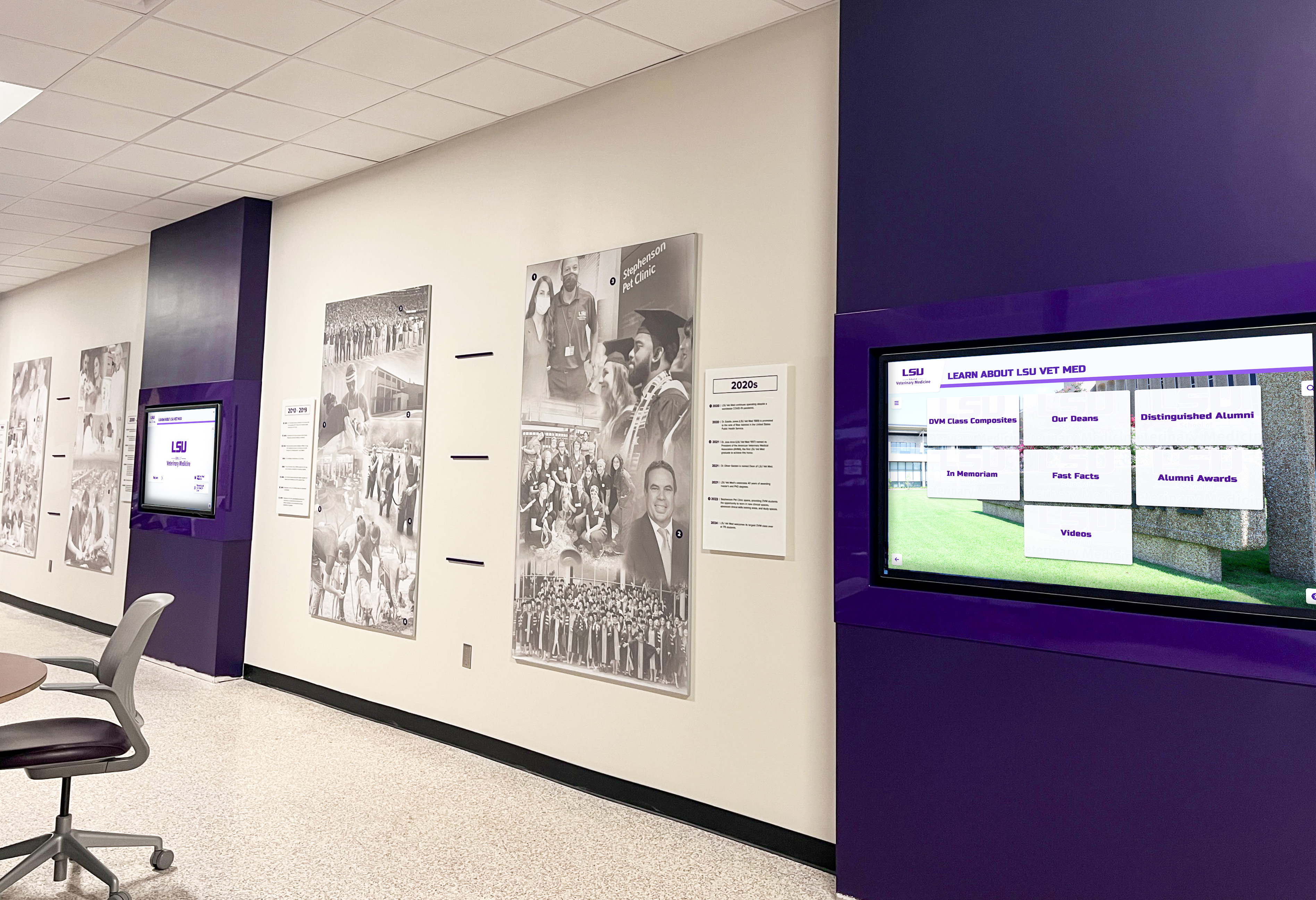
Layer 1: The Display Panel
The display is the visible surface—the large flat screen mounted on the wall or built into a kiosk enclosure. For interactive applications, you need commercial-grade panels rated for continuous operation rather than consumer televisions built for a few hours of daily home use.
Key display specifications to evaluate:
| Specification | Why It Matters | What to Look For |
|---|---|---|
| Panel type | Affects color, contrast, and viewing angles | IPS LCD for most applications; OLED for premium installs |
| Brightness | Determines visibility in ambient light | 350–500 nits minimum for bright hallways |
| Resolution | Sharpness of text and images | 4K (3840×2160) on 55 inches and larger |
| Operation rating | How long it can run per day | 16/7 or 24/7 commercial rating |
| Glass thickness | Scratch and impact resistance | 6–7mm tempered glass for public-facing installs |
| Size | Must match viewing distance and wall space | 43–55 inch for corridor kiosks; 65–86 inch for lobbies |
Commercial panels carry higher upfront costs than consumer televisions but avoid the early failures that make cheap installs expensive over time. Consumer TVs are rated for 4–6 hours of daily use; a school lobby display running 10 hours a day will fail significantly ahead of schedule if built on residential hardware.
Layer 2: Touch Detection Technology
The touch layer sits above the display panel and detects where and how a user makes contact. Three technologies dominate the market today, each with different trade-offs.
Infrared (IR) Touch: Infrared touch works by projecting an invisible grid of light just above the screen surface. When a finger (or any object) breaks the beams, the system calculates the contact point. IR touch accepts any input—fingers, gloves, styluses—and scales cost-effectively to large screen sizes. It is the most common technology in institutional interactive displays.
Projected Capacitive (PCAP) Touch: PCAP touch uses a conductive grid embedded in the glass to detect the electrical field of a human finger. This is the same technology used in smartphones and tablets—it delivers smooth, precise recognition without raised bezels. PCAP requires conductive input (bare fingers or special capacitive styluses), adds cost at large sizes, and performs best for sleek kiosk enclosures where appearance matters.
Optical Touch: Optical touch uses cameras positioned at display corners to triangulate touch points using triangulated image processing. It works well on very large format displays and handles multi-touch accurately. Less common in standard educational installs, but used in some large-format wall applications.
For most school recognition and engagement displays, IR touch provides the best balance of reliability, compatibility, and cost. PCAP makes sense when the enclosure design and venue aesthetic justify the premium.
Layer 3: The Computing Unit
A display and a touch layer produce no content on their own—you need a computing unit running the software that delivers the experience. This computing unit takes one of three forms:
Built-in system-on-chip (SoC): Many commercial displays include embedded computing directly on the panel. These run Android-based operating systems and handle straightforward content management and playback. They work well for basic digital signage but may lack the processing power required by complex recognition databases or rich media archives.
External media player: A dedicated media player box connects to the display via HDMI or DisplayPort. Media players provide more processing power than built-in SoC options, separate the computing lifecycle from the display lifecycle (so you can upgrade one without replacing the other), and run Windows or Linux operating systems compatible with more sophisticated software platforms.
PC/mini PC: Full-featured mini computers provide maximum processing flexibility and compatibility. Windows-based PCs run the broadest range of software, handle large databases and media libraries without limitations, and offer straightforward IT management through familiar tools.
For serious recognition installations—searchable archives of hundreds or thousands of profiles, video content, cloud synchronization—an external media player or mini PC typically outperforms built-in SoC options. Confirm computing specifications with your software provider before finalizing hardware.
Layer 4: Software and Content Management
The software layer determines what users actually experience when they touch the screen. This layer is where most buyers underinvest, focusing budget on impressive hardware while choosing underpowered software that limits what the system can do.
You will encounter several software categories:
General digital signage platforms: These handle scheduled content delivery—playlists, media rotation, announcements. They work well for broadcast signage but provide limited interactive capabilities. Touch functionality in these platforms typically means “touch anywhere to skip to next slide,” not genuine exploration.
Kiosk software platforms: Purpose-built for interactive experiences, these platforms handle navigation, menus, and user-directed exploration. They work for directories and wayfinding but may lack recognition-specific features.
Purpose-built recognition platforms: Platforms built specifically for educational recognition—like those from Rocket Alumni Solutions—include profile organization, searchable databases, content approval workflows, and multi-display management. These deliver interactive experiences that general signage software simply cannot replicate.
Matching software to your actual use case matters more than any other decision. A platform built for retail menus will not serve an athletic hall of fame well regardless of how it is configured.
Types of Screens Used in Digital Signage
Beyond the core panel technology, you will encounter different physical form factors that suit different installation contexts. For a detailed breakdown of display types and their specifications, see this guide on types of screens used for digital signage.
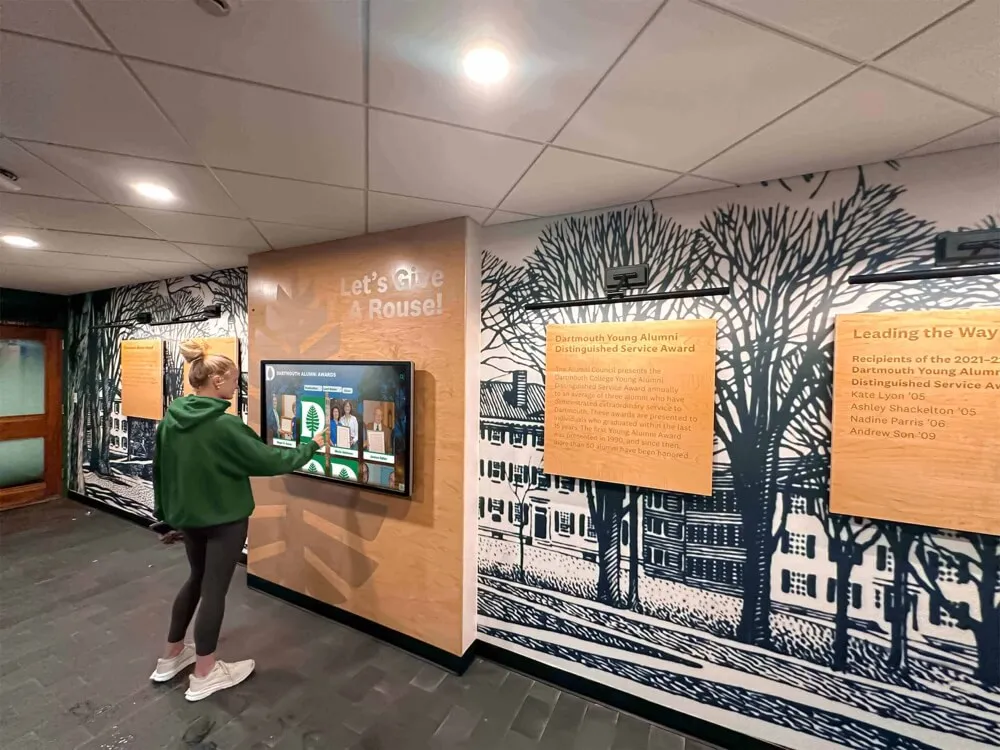
Wall-mounted flat panels: The most common installation format. Panels mount directly to walls at appropriate heights using VESA-compatible brackets. Ideal for hallways, lobbies, and gathering spaces where the display becomes part of the environment.
Freestanding kiosk enclosures: Self-contained units combining display, computing hardware, and sometimes a printer or additional peripheral into a cabinet that stands independently. Kiosks suit high-traffic areas where you want users to gather around the display and where routing power and network through a wall is impractical.
Portrait-orientation displays: Panels mounted vertically (taller than wide) suit hallway installations where wall width is limited but vertical space is available. Portrait formats also work well for individual profile browsing where a taller canvas accommodates biographical content naturally.
Multi-display configurations: Some installations combine multiple panels into a single interactive surface or create coordinated content across adjacent displays. Multi-panel installations create visual impact in large lobbies and athletic facilities.
Interactive flat panels (IFPs): Originally designed for classroom instruction, IFPs provide large multi-touch surfaces primarily used for teaching and collaboration. They differ from recognition display systems in software focus and intended interaction model—important to keep distinct when evaluating options.
Network Connectivity: Keeping Content Current
An interactive display with outdated content quickly stops being used. The network layer—how your displays connect to the internet or your school’s internal network—determines how easily you keep content fresh.
Wired Ethernet (recommended for permanent installs): A dedicated network cable run to each display provides reliable, consistent connectivity with no interference concerns. This is the preferred approach for any permanent installation. Run cable during initial installation to avoid difficult retrofit work later.
Wi-Fi: Wireless connectivity works and may be necessary where running cable is impractical. Use enterprise-grade access points at appropriate signal strength, and place displays on a dedicated VLAN to avoid competition from student devices. Wi-Fi introduces more variables than wired connections; account for that in your reliability planning.
Bandwidth requirements: Standard recognition content—images, text, moderate video—typically requires 5–10 Mbps per display for initial content sync. Once content is cached locally, ongoing bandwidth for updates is modest. Confirm requirements with your software provider, particularly if your platform streams video from the cloud rather than caching locally.
Network security: Place displays on a dedicated VLAN with firewall rules limiting outbound traffic to your content management platform’s required addresses. This protects your school network from compromised display devices and gives IT the visibility needed to monitor the equipment fleet.
Use Cases in Schools and Universities
Interactive touch screen digital signage delivers different value depending on where you deploy it and what content you populate it with. Schools and universities commonly deploy systems for several distinct purposes.
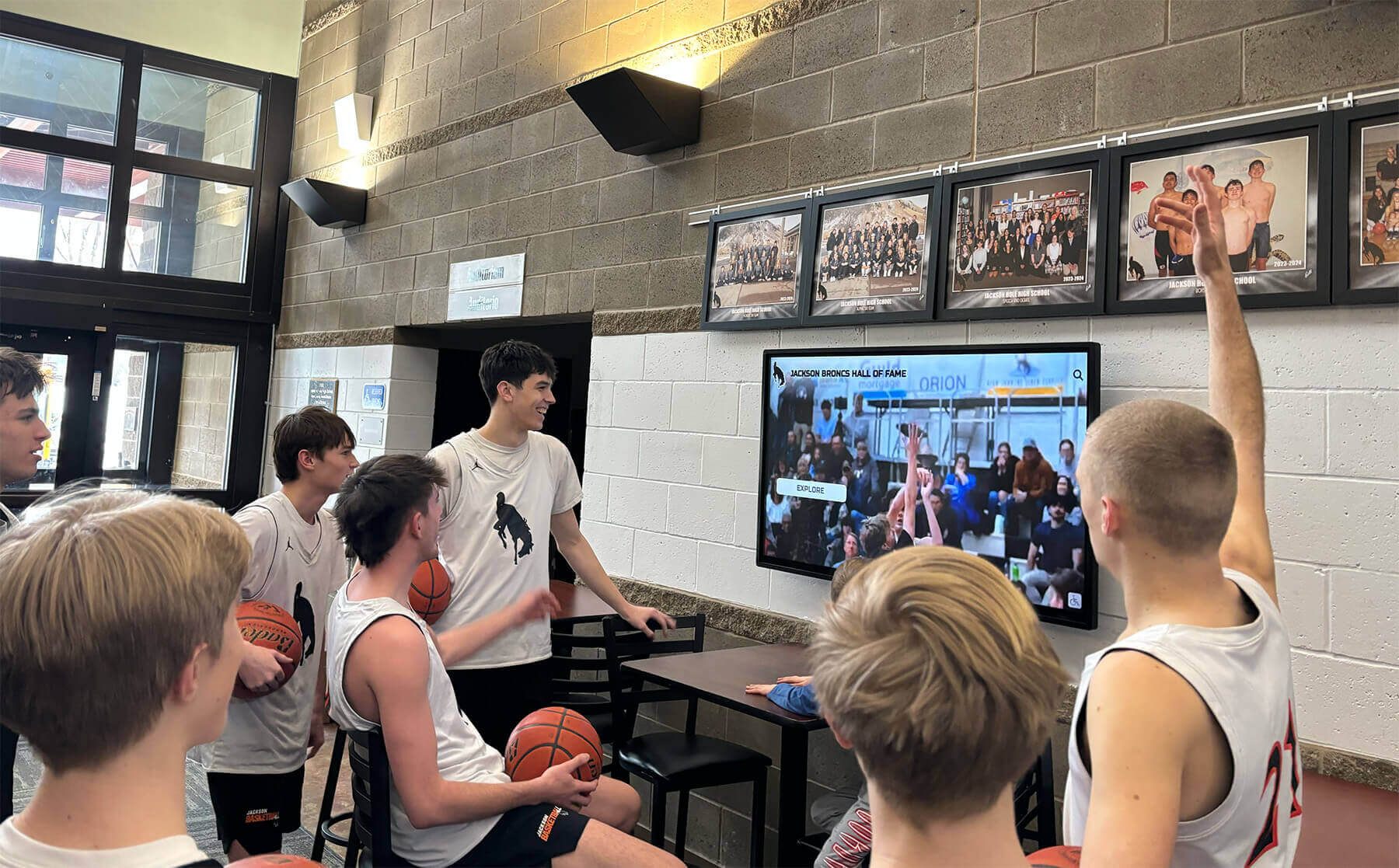
Athletic Hall of Fame and Recognition Displays
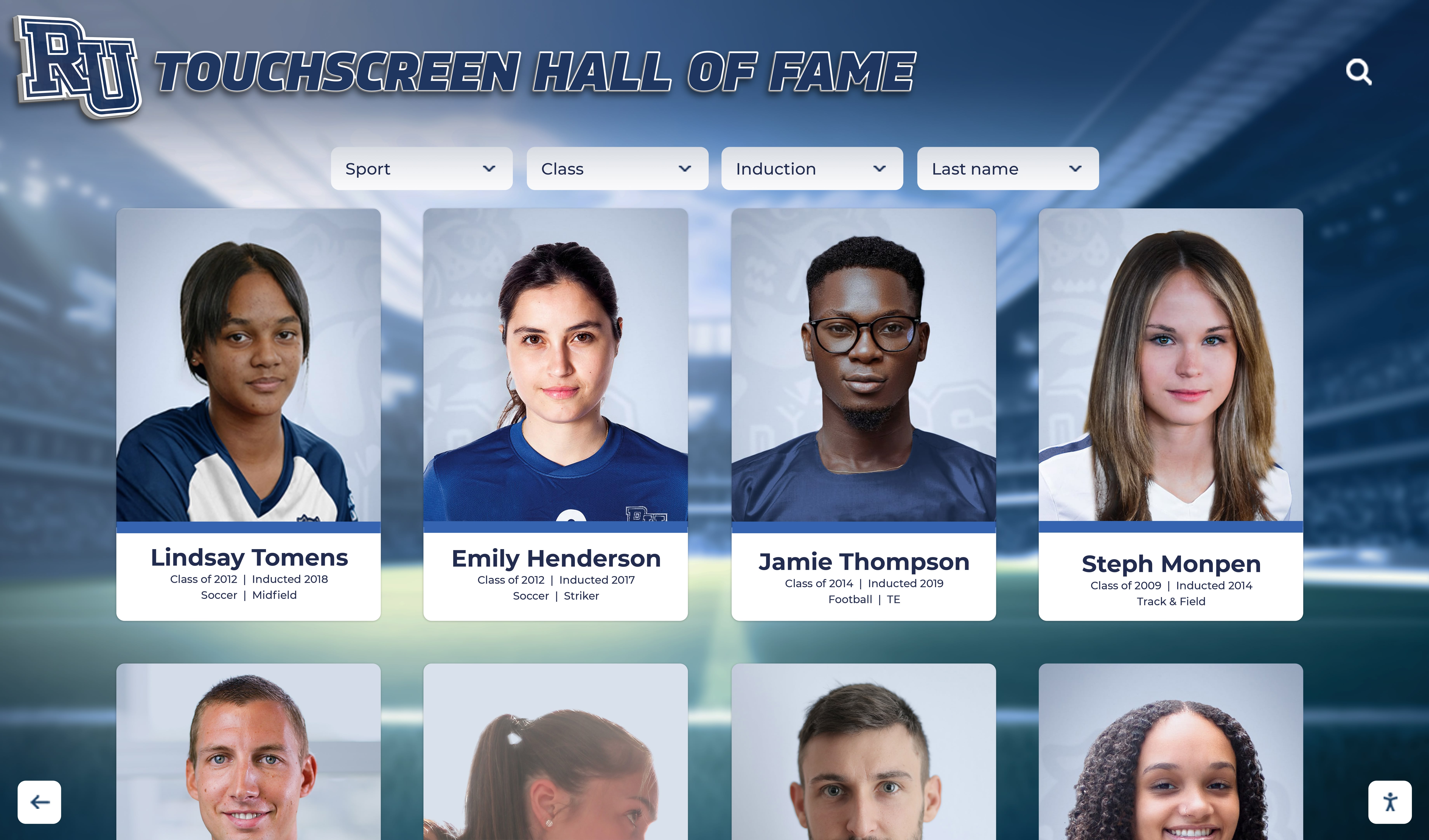
Perhaps the most common educational use case: a searchable display in a gym lobby, athletic corridor, or main hallway where students, families, and alumni can explore decades of achievement. These systems go well beyond showing names on a plaque—they display photos, video highlights, statistical records, biographical profiles, and championship histories in an format anyone can navigate without assistance.
This is where purpose-built platforms like those from Rocket Alumni Solutions provide clear advantages over generic digital signage tools. Recognition-specific platforms organize content around individuals and teams, handle multi-decade archives without performance degradation, and provide content management tools that non-technical staff can actually use. For a deeper look at what makes these systems effective, see this overview of interactive touch screen TV for schools and recognition storytelling.
Campus Directories and Wayfinding
Large campuses use interactive kiosks to help visitors find buildings, offices, and services. A touch on a building name shows the route, office hours, and contact information. These systems reduce staff time spent giving directions and provide consistent information that does not require updates by individual departments.
Donor Recognition Walls
Donor walls traditionally used engraved plaques, but physical plaques cannot be easily updated and run out of space as donor lists grow. Interactive touch displays present donor names, giving levels, and recognition messages in searchable, scrollable formats that accommodate growing lists without physical modification. Some systems integrate photo and biographical profiles for major donors who consent to public recognition.
Athletic Information and Schedules
Real-time schedule displays in gymnasium lobbies and athletic buildings keep players, coaches, and families informed without printed schedules that quickly become outdated. Systems connected to scheduling software update automatically when games are rescheduled or facilities change. For more on how schools implement this type of content, see this guide on touchscreen TV for athletic information at high schools.
Historical Timelines and Institutional Archives
Many schools and universities have significant institutional histories worth sharing—founding dates, milestone events, famous alumni, championship years, and cultural traditions that define identity. Interactive timeline displays let visitors explore this history at their own pace, following threads that interest them without a prescribed linear experience. This type of installation can transform an otherwise unremarkable corridor into an engaging historical experience. See how schools implement these systems in this historical timeline touchscreen guide.
Planning Your Installation: A Practical Checklist
Buying hardware and software is only part of the project. Installation planning determines whether your investment performs as expected for years or creates ongoing frustration. Work through this checklist before you finalize any purchase.
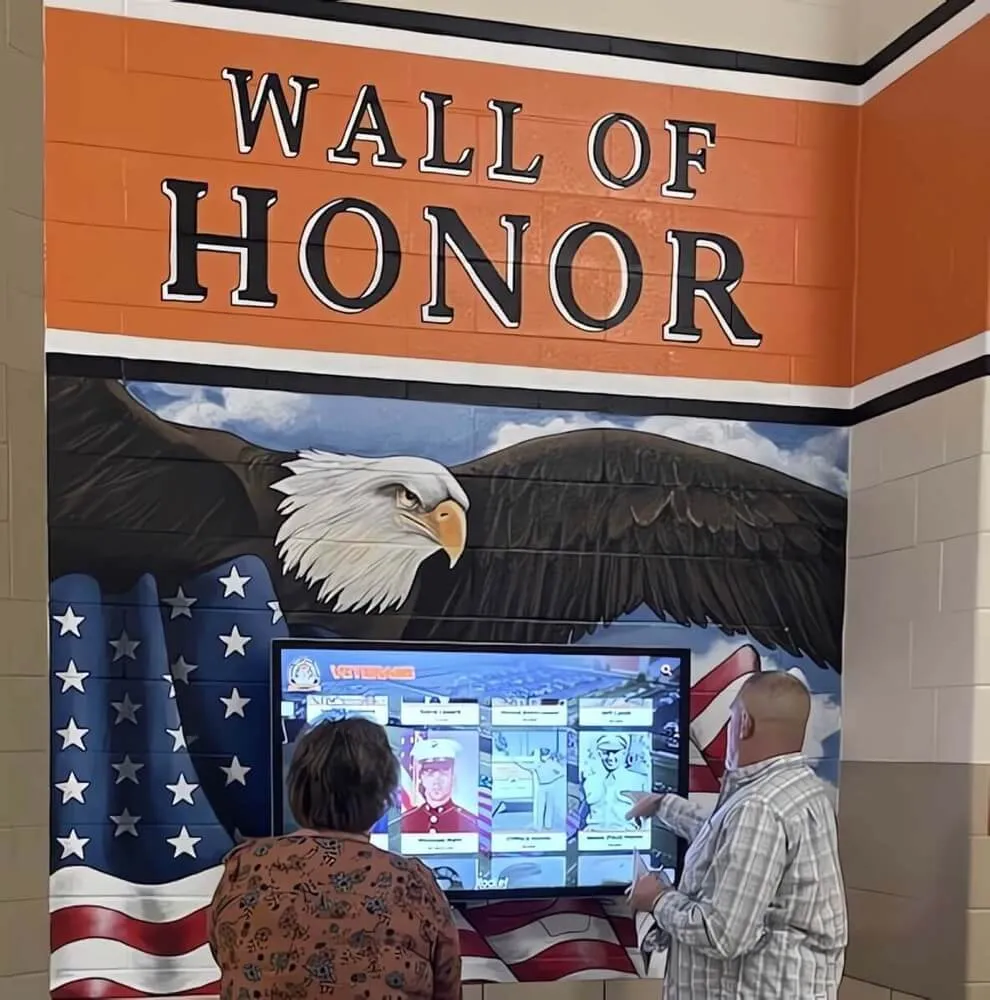
Placement and Mounting
- Identify high-dwell locations: displays in corridors where people rush past get less interaction than displays in lobbies, outside gymnasiums, or near trophy cases where people naturally pause
- Confirm wall construction: concrete block and masonry require anchor systems rated for the display weight; load-bearing capacity matters for heavy commercial panels
- Check viewing distance: for a 55-inch display, comfortable viewing requires users to be no more than 8–10 feet away; lobbies where users approach from longer distances may need larger panels
- Plan approach clearance: users need 24–36 inches of clear space in front of the display to reach the touch surface comfortably; kiosk enclosures need even more clearance for users approaching from the side
- Consider sightlines: displays visible from supervising positions (offices, concession stands, security desks) experience less vandalism than those in isolated hallways
ADA Compliance Requirements
- Touchscreen reach range: interactive controls must be reachable from a wheelchair, which limits mounting height to 15–48 inches above the floor for operable controls
- Approach clearance: 60 inches of clear floor space in front of the display minimum for wheelchair approach
- Knee clearance: freestanding kiosks with low-mounted displays may require knee clearance for forward approach
- Audio and visual alternatives: depending on content type, audio descriptions or high-contrast visual modes may be required under WCAG and ADA standards
- Review local requirements with your facilities team and legal counsel; ADA compliance details vary by installation type and jurisdiction
For a detailed compliance resource, this interactive kiosk guide for schools and universities covers key considerations.
Electrical Requirements
- Most commercial displays require a dedicated 20-amp circuit; verify with the panel specifications
- Run conduit to the planned mounting location before finishing walls and painting
- Confirm outlet placement within enclosure reach without exposed extension cords
- Plan for uninterruptible power supply (UPS) if display uptime during brief outages matters to your application
Network Infrastructure
- Determine whether wired Ethernet is feasible; if so, run Cat6 cable during installation
- If Wi-Fi only, assess signal strength at the installation location under normal school load
- Identify the network port on the nearest switch and confirm VLAN capability for display isolation
- Coordinate with IT for firewall rules, IP addressing, and monitoring access
Content Strategy: What Makes Interactive Signage Worth Visiting Twice
Hardware and network are prerequisites. Content is the reason people actually use the display. Many organizations invest carefully in technology and then populate displays with content that looks impressive at launch but goes stale within weeks. Sustainable engagement requires a content strategy, not just a content launch.
Content Categories That Drive Engagement
Consistent engagement comes from content that gives users a reason to return. For schools and universities, the highest-engagement content categories typically include:
Recognition and achievement: athlete profiles, academic honor rolls, championship records, scholarship recipients, and alumni accomplishments. This content has personal relevance—students look up former teammates, parents look up athletes their children compete against, alumni search for people they know.
Current-season information: schedules, rosters, recent results, and upcoming events. This content changes frequently, which gives returning users a reason to check back. Systems that update automatically from scheduling software minimize staff effort while keeping content fresh.
Historical archives: year-by-year records, decade-by-decade highlights, and milestone events. History content ages well; a profile added in 1998 is still accurate in 2026. Front-loading historical content during initial setup creates deep archives that reward exploration over multiple visits.
Rich media: photos from specific seasons or events, video highlights from memorable games, and audio recordings from significant moments. Rich media increases session depth—users who find a photo from a specific year tend to spend more time browsing nearby content.
For a comprehensive breakdown of specific content ideas, see this collection of digital signage content ideas for screens and kiosks.
Content Governance: Who Updates What
Designate specific staff for each content category before launch. Common approaches include:
- Athletic director or assistant AD manages athletic recognition content
- Main office or communications staff handles announcements and general information
- A student media or technology class contributes content under staff supervision
- Alumni coordinator (if the role exists) manages alumni-facing profile content
Platforms that require IT involvement for routine updates create bottlenecks that cause content to stagnate. Look for content management systems that non-technical staff can operate independently from any browser.
Update Frequency Guidelines
Different content types require different update cadences:
- Game-day content (schedules, results): real-time or next-day updates
- Season recognition (player of the week, team results): weekly during active seasons
- Annual recognition (honor roll, all-state selections, graduation honors): each semester or academic year
- Historical archives: one-time data entry with occasional corrections
- Donor walls: as new gifts are received and donors consent to recognition
Build these cadences into staff responsibilities and calendar reminders at the start of each school year.
Budget and Total Cost of Ownership
Interactive touch screen digital signage carries higher upfront costs than standard broadcast signage, and those costs extend beyond hardware purchase. Budgeting accurately requires understanding all cost components over a 5-year planning horizon.
Hardware Cost Ranges (2026)
These ranges reflect complete hardware bundles—panel, touch overlay or integrated touch, mounting hardware, and computing unit—not individual component prices:
| Installation Type | Typical Hardware Range |
|---|---|
| 43–55 inch wall-mount (corridor/kiosk) | $3,000–$6,500 |
| 65–75 inch lobby display | $6,000–$12,000 |
| Freestanding kiosk enclosure (43–55 inch panel) | $5,000–$10,000 |
| Multi-display installation (3+ panels) | $15,000–$40,000+ |
These figures vary significantly based on panel brand, touch technology, enclosure specification, and installation labor in your region. Treat them as order-of-magnitude planning figures, not quotations.
Software Platform Costs
Software costs vary by platform model:
- Perpetual license with annual support: one-time software purchase plus annual maintenance fees (typically 15–20% of license cost per year)
- Annual SaaS subscription: recurring fees typically ranging from $1,500 to $6,000+ per year depending on feature set, display count, and content volume
- Per-display pricing: some platforms charge per screen; others charge per account regardless of display count
For a review of available software options, this best digital signage software guide for 2026 provides useful comparison points.
Installation and Professional Services
Installation costs depend on site conditions, travel, and scope. Plan for:
- Electrical work: $500–$2,000 per display location depending on existing infrastructure
- Network cabling: $200–$800 per run depending on distance and wall conditions
- Display mounting and enclosure installation: $300–$800 per display for standard wall mounts
- Content setup and platform configuration: vendor-specific; some include this in platform fees, others charge separately
Ongoing Operational Costs
- Extended warranties: 5–10% of hardware cost annually for comprehensive coverage
- Staff time for content management: varies based on content strategy and platform usability
- Power consumption: commercial displays typically consume 150–400 watts; calculate annual operating cost based on daily runtime hours and local electricity rates
- Network service (if cellular): $30–$80 per month per display if using cellular rather than school network
How to Choose the Right Vendor and Solution
The vendor relationship matters as much as the product specifications. Interactive displays require setup assistance, content platform training, and ongoing support. A capable display platform from a vendor with poor support creates more frustration than a slightly less capable platform backed by a responsive team.
Questions to Ask Before Signing
About the platform:
- How do non-technical staff update content, and what does that workflow look like in practice?
- What happens to my content if I stop paying for the subscription?
- How does the platform handle 500 profiles? 2,000 profiles? Performance at scale matters.
- Is content searchable, or do users navigate through fixed menus only?
About hardware:
- What is the panel’s rated brightness, and what is the measured brightness (some vendors quote peak, not sustained)?
- What is the commercial operation rating (hours per day)?
- Who handles warranty service: the vendor, the panel manufacturer, or a third party?
- What is the expected parts availability window for this panel model?
About implementation:
- Who manages installation, and does the quoted price include all labor and electrical work?
- What training is included for content management staff?
- What does the support process look like after installation?
About the vendor:
- How long have they been selling to educational institutions specifically?
- Can you speak with current customers at similar institutions (not just reference contacts provided by the vendor)?
- What is their process if the display fails during a major event?
For more on evaluating options in school contexts specifically, see this buying guide for school lobby recognition displays and touchscreen kiosks and this guide to choosing a touchscreen for a school hall of fame.
Recognition-Specific Capabilities to Prioritize
If your primary use case involves recognizing students, athletes, alumni, or donors, prioritize vendors built for that purpose rather than vendors adapting general signage platforms to educational recognition. The difference shows up in:
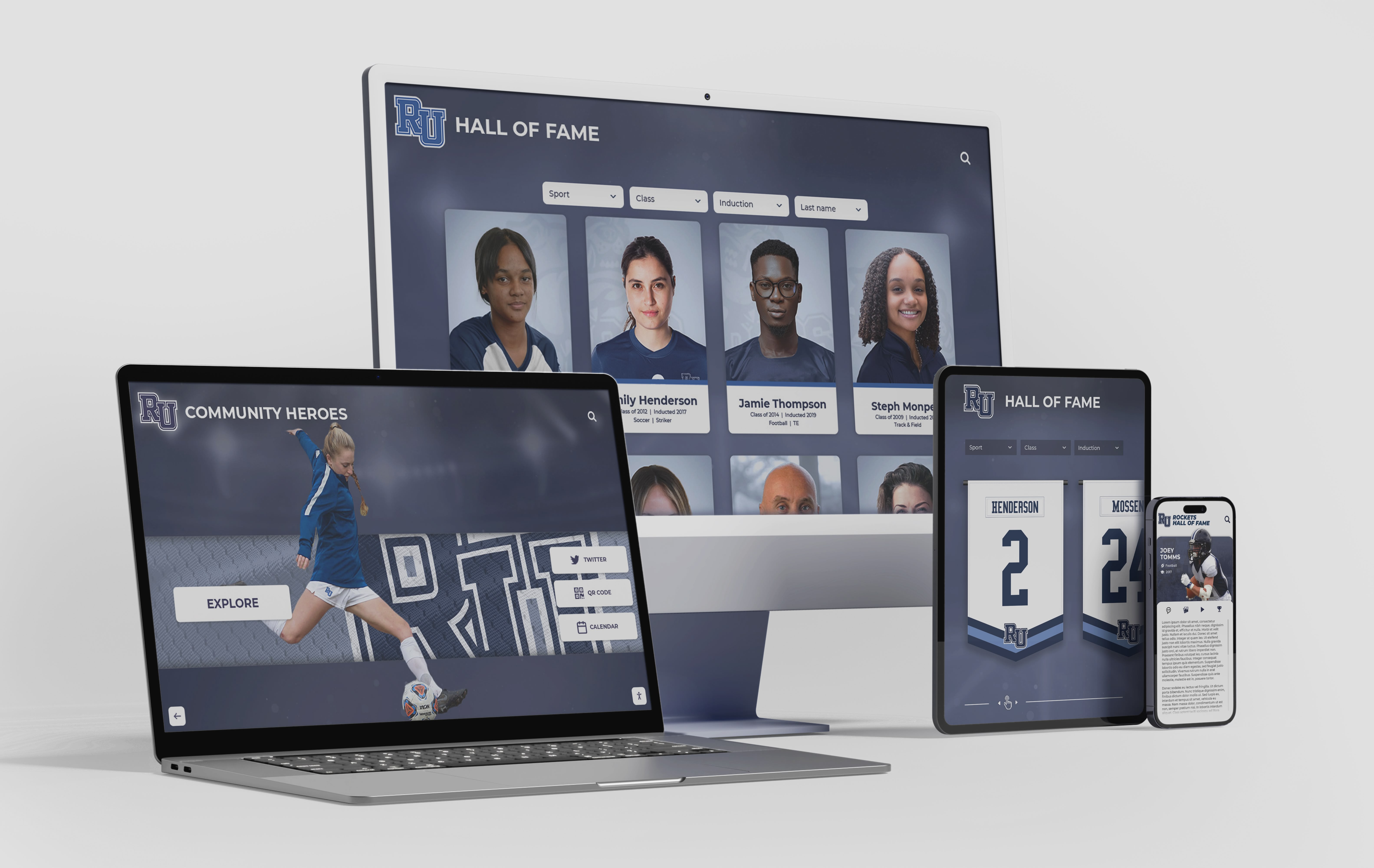
- Search and filtering: recognition platforms allow users to search by name, sport, year, or award type; signage platforms typically offer none of this
- Profile depth: recognition platforms support full biographical profiles with multiple photos, career statistics, related profiles, and video; signage platforms display what fits on a slide
- Content longevity: recognition content must remain accurate for decades; platforms built for advertising cycle content quickly and may not support long-term archiving well
- Mobile access: some platforms extend recognition content to a web version accessible from phones, extending the audience far beyond people who visit the physical display
Solutions like Rocket Alumni Solutions are built specifically for this application—searchable profiles, unlimited content capacity, cloud-based management, and displays that reflect your school’s visual identity. For more context on what a digital hall of fame involves and how schools implement them, that foundational overview is worth reading before you evaluate platforms.
For a broader look at the interactive technology options available in educational settings, this interactive display guide for schools and universities covers the range of interactive technology options across different educational applications.
A Structured Comparison: What to Look for Across Vendors
Before requesting formal proposals, build a comparison matrix that captures the specifications that actually matter for your use case. This keeps vendor presentations on track and makes side-by-side evaluation straightforward.
| Criteria | What to Document |
|---|---|
| Display panel brand and model | Look up the commercial operation rating and brightness spec independently |
| Touch technology type | IR, PCAP, or optical; note any object restrictions (gloves, stylus) |
| Computing unit specs | Processor, RAM, storage; confirm compatibility with your software platform |
| Software platform | Request a live demo with realistic content volumes |
| Content management | Ask a non-technical staff member to try updating content during the demo |
| Network requirements | Confirm bandwidth, ports, and security requirements with your IT department |
| Installation scope | Confirm what is and is not included in the quoted price |
| Warranty coverage | Note who handles service and typical response time |
| Annual costs | Total all recurring fees: software, support, warranty |
| References | Contact institutions of similar size and use case, not just provided references |
Final Takeaways
Interactive touch screen digital signage is a meaningful investment when the technology stack is matched to the intended use case. The hardware layers—display panel, touch technology, computing unit—must meet commercial-grade specifications for reliable public-space operation. The software layer determines the actual user experience and should be evaluated against your specific content and workflow needs. Installation planning around placement, ADA compliance, electrical, and network infrastructure prevents costly surprises after purchase.
For schools and universities using displays to recognize achievement, the most important evaluation criterion is whether the software platform was actually built for recognition or adapted from a general-purpose signage platform. Purpose-built recognition platforms handle the content depth, searchability, and long-term archiving that educational recognition requires—and they do it with content management tools that administrative staff can actually use without IT involvement.
Buying the right system takes more evaluation time than most administrators expect, but the payoff is a display that actively engages students, families, and alumni for years rather than a screen people walk past after the novelty fades.
Ready to see what purpose-built interactive recognition displays look like in practice? Book a demo with Rocket Alumni Solutions to explore the platform and see how schools are using it to recognize achievement and build community.































