Digital signage has become essential for schools communicating with students, staff, and visitors. While Rise Vision has served educational institutions for years, many schools are discovering that better alternatives exist—solutions that offer superior features, easier management, and in many cases, completely free options that deliver exceptional value.
Whether you’re currently using Rise Vision and considering a switch, or evaluating digital signage options for the first time, this comprehensive guide explores the best Rise Vision alternatives available in 2025.
Understanding Rise Vision: What It Offers and Where It Falls Short
Rise Vision has positioned itself as a digital signage solution for schools and businesses, offering cloud-based content management for displays. The platform provides basic scheduling, content templates, and multi-display management through a web-based interface.
Common Rise Vision Limitations Schools Report
As of October 2025, based on publicly available information, schools using Rise Vision commonly encounter several challenges:
Cost Concerns
- Pricing can escalate quickly as schools add more displays
- Feature restrictions on lower-tier plans limit functionality
- Additional costs for premium templates and integrations
- Per-display pricing model becomes expensive at scale
Technical Complexity
- Setup requires technical expertise many schools lack
- Content creation involves learning curve for non-technical staff
- Troubleshooting issues often requires IT department involvement
- Integration with existing systems can be complicated
Content Management Challenges
- Template customization limitations restrict creative freedom
- Updating content across multiple displays requires multiple steps
- Limited offline capabilities when internet connectivity drops
- Restrictive storage limits for media-rich content
Support and Resources
- Response times for technical support can be slow
- Limited training resources for new users
- Documentation assumes technical knowledge
- Community support varies in quality and responsiveness
Why Schools Are Seeking Rise Vision Alternatives
Educational institutions have unique requirements that generic digital signage platforms struggle to address effectively. Schools need solutions that accommodate tight budgets, non-technical users, diverse content needs, and the ability to showcase achievements alongside daily communications.
Budget Realities in Education
Schools operate under constrained budgets where every technology investment must demonstrate clear value. According to publicly available education technology spending reports, schools allocate limited funds to communications technology, making free or low-cost solutions particularly attractive.
When schools can redirect budget previously allocated to digital signage software toward content creation, professional photography, or additional displays, the impact on their communications program multiplies significantly.
The Need for User-Friendly Solutions
Unlike corporate environments with dedicated IT teams, schools often rely on busy administrators, teachers, or communications coordinators who manage digital signage alongside dozens of other responsibilities. Solutions requiring extensive technical knowledge or complicated workflows simply don’t get used consistently.
The most successful school digital signage implementations feature intuitive interfaces that anyone can learn in minutes, not days. When updating content takes 30 seconds instead of 30 minutes, schools maintain fresh, relevant displays that actually engage their audiences.
Specialized Educational Content Requirements
Schools need to display diverse content types that generic business-focused platforms don’t prioritize:
- Student achievement recognition and spotlights
- Athletic records and team accomplishments
- Event calendars and schedule changes
- Emergency notifications and safety information
- College acceptance announcements
- Lunch menus and daily announcements
- Alumni highlights and historical archives
Solutions designed specifically for educational institutions understand these unique needs and provide purpose-built features rather than requiring workarounds.

Top Rise Vision Alternatives for Schools in 2025
Based on publicly available information and documented features, several alternatives to Rise Vision offer superior value, functionality, and ease of use for educational institutions.
Rocket Alumni Solutions: Purpose-Built for Educational Recognition
Rocket Alumni Solutions provides interactive digital displays specifically designed for schools, with a focus on recognition, achievement, and engagement rather than generic digital signage.
Why Schools Choose Rocket Alumni Solutions Over Rise Vision:
Complete Solution Approach Unlike Rise Vision’s software-only model, Rocket Alumni Solutions provides turnkey systems that include hardware, software, installation, and ongoing support. Schools receive complete solutions rather than just software requiring separate hardware procurement, installation coordination, and technical configuration.
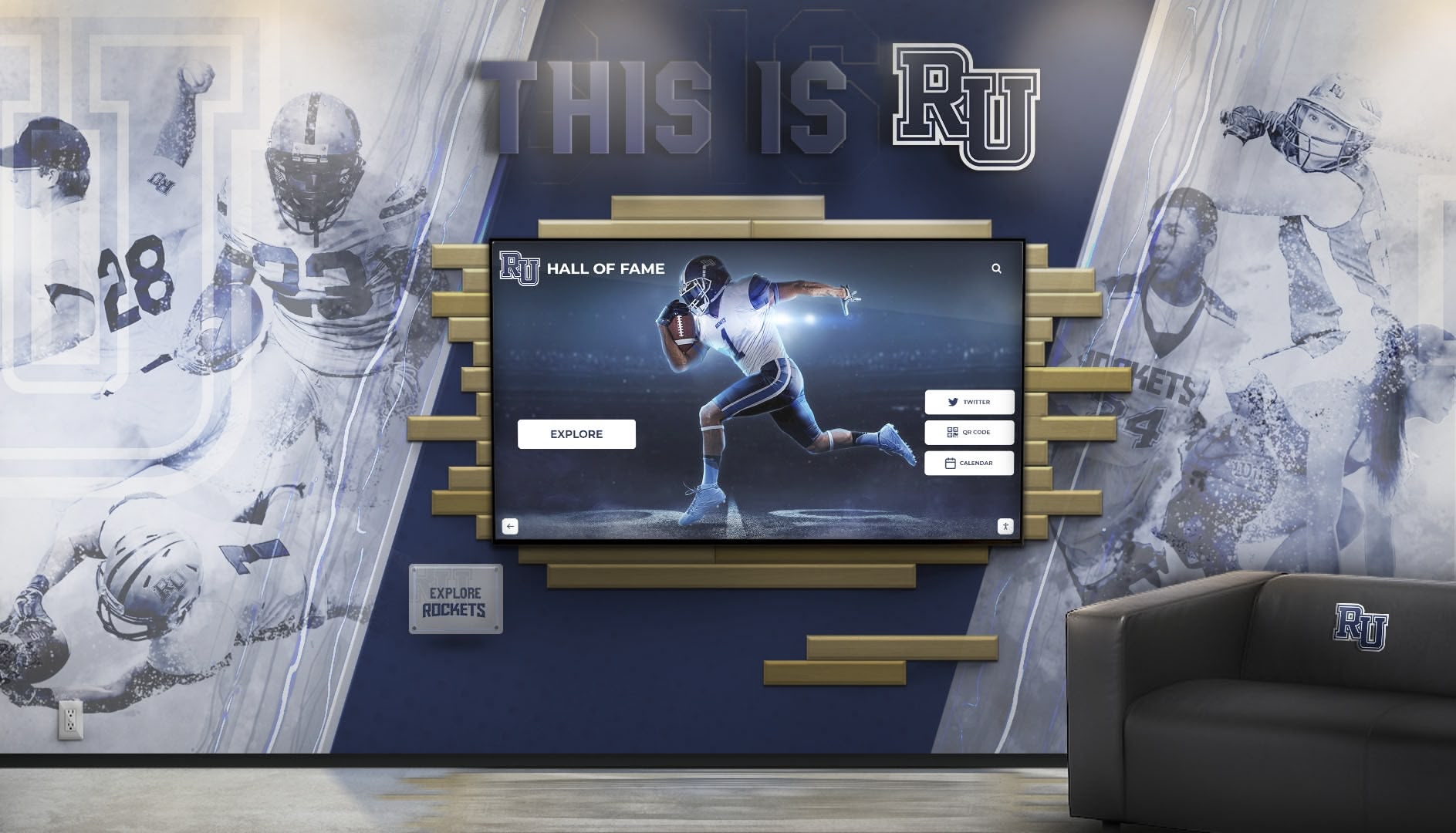
Recognition-First Design The platform is purpose-built for showcasing student achievements, athletic records, alumni highlights, and institutional history. Features like interactive halls of fame displays and digital record boards go far beyond basic digital signage capabilities.
Intuitive Content Management School staff can update content through simple, user-friendly interfaces that require no technical training. The cloud-based system allows updates from anywhere, and content templates specifically designed for educational contexts make creating professional displays effortless.
Touchscreen Interactivity Unlike passive digital signage, Rocket’s interactive touchscreens invite exploration and engagement. Students, alumni, and visitors can search for specific individuals, browse by sport or achievement category, and discover institutional history through intuitive navigation.
Web Accessibility Content displayed on physical touchscreens automatically becomes accessible online, extending recognition beyond campus visitors. Alumni anywhere in the world can explore achievements, share accomplishments on social media, and maintain connections with their schools.
White-Glove Support Schools receive comprehensive support including initial content digitization assistance, staff training, ongoing technical support, and regular system optimization. This white-glove customer success approach ensures schools maximize their investment without burdening internal IT resources.

Screenly: Open-Source Digital Signage
Screenly offers both free open-source and paid cloud versions of their digital signage platform, making it an attractive Rise Vision alternative for budget-conscious schools with technical capabilities.
Screenly Advantages:
- Free open-source edition available for technically capable schools
- Simple playlist-based content management
- Raspberry Pi compatibility keeps hardware costs minimal
- No per-display licensing fees for open-source version
Screenly Considerations:
- Open-source version requires technical setup and maintenance
- Limited educational-specific features or templates
- Self-hosting requires school IT infrastructure
- Support primarily through community forums for free version
Xibo: Flexible Open-Source Option
Xibo provides another open-source digital signage solution with both self-hosted and cloud-hosted deployment options, offering schools flexibility in how they manage their digital signage infrastructure.
Xibo Advantages:
- Free open-source software with commercial support available
- Extensive content scheduling and layout capabilities
- Active development community and regular updates
- Widget-based content creation system
Xibo Considerations:
- Steeper learning curve than simplified alternatives
- Requires technical expertise for setup and maintenance
- Self-hosted version needs ongoing server management
- Limited educational-specific features without customization
Yodeck: User-Friendly Cloud Platform
Yodeck offers a straightforward cloud-based digital signage platform with a free tier that may suit schools with basic digital signage needs.
Yodeck Advantages:
- Free plan available for single display
- Simple drag-and-drop content creation
- Good selection of templates and apps
- Reasonable pricing for multiple displays
Yodeck Considerations:
- Free tier limited to one display
- Less robust than Rise Vision for complex deployments
- Generic business focus rather than education-specific
- Limited customization compared to open-source options

Comparing Rise Vision Alternatives: Feature Analysis
Understanding how alternatives compare across key dimensions helps schools make informed decisions aligned with their specific needs and constraints.
Cost Comparison
Free Options:
- Screenly Open Source: $0 (hardware only)
- Xibo Self-Hosted: $0 (hardware + server costs)
- Yodeck Free Plan: $0 (single display)
Paid Solutions:
- Rocket Alumni Solutions: Complete systems from $10,000-$30,000 (hardware, software, installation, support)
- Screenly Cloud: Starting at $20/month per screen
- Xibo Cloud: Starting at $12/month per screen
- Yodeck Paid Plans: Starting at $8/month per screen
Total Cost of Ownership Considerations: While per-screen software costs appear straightforward, schools should evaluate total ownership costs including:
- Hardware procurement and setup time
- Initial configuration and content creation
- Ongoing maintenance and troubleshooting
- Staff training and learning curves
- Technical support requirements
Purpose-built solutions like Rocket Alumni Solutions’ interactive kiosks may deliver better total value despite higher initial costs through turnkey implementation and comprehensive support.
Ease of Use and Learning Curve
Easiest for Non-Technical Users:
- Rocket Alumni Solutions (education-specific interface)
- Yodeck (simple cloud platform)
- Screenly Cloud (straightforward but limited)
Requires Technical Expertise:
- Xibo Self-Hosted (server management required)
- Screenly Open Source (Linux and networking knowledge)
- Rise Vision (moderate technical complexity)
Schools with limited IT resources should prioritize solutions requiring minimal technical knowledge for day-to-day content management, even if initial setup requires professional installation.
Content Management Capabilities
Most Flexible Content Creation:
- Rocket Alumni Solutions: Purpose-built templates for educational recognition
- Xibo: Extensive widget and layout system
- Rise Vision: Template marketplace with varying quality
Best for Quick Updates:
- Rocket Alumni Solutions: Optimized for frequent recognition updates
- Yodeck: Simple drag-and-drop interface
- Screenly: Basic playlist management
Schools showcasing time-sensitive content like student achievements or daily announcements benefit most from platforms enabling rapid content updates without technical barriers.

Integration and Connectivity
Best Integration Capabilities:
- Rocket Alumni Solutions: Purpose-built for educational systems
- Xibo: Extensive API and data source options
- Rise Vision: Various third-party integrations
Easiest Setup:
- Rocket Alumni Solutions: Turnkey installation included
- Yodeck: Plug-and-play setup
- Screenly Cloud: Minimal configuration required
Schools wanting to integrate digital displays with existing systems like student information databases or digital asset management platforms should evaluate integration capabilities carefully.
Hardware Flexibility
Most Hardware Options:
- Screenly: Raspberry Pi, Android, Linux
- Xibo: Windows, Android, Linux
- Yodeck: Raspberry Pi, Windows
Complete Hardware Solution:
- Rocket Alumni Solutions: Includes commercial-grade displays, media players, and enclosures optimized for educational environments
Hardware Considerations: While platform flexibility appears advantageous, schools often underestimate the complexity of hardware selection, procurement, configuration, and troubleshooting. Solutions providing complete hardware packages eliminate these challenges.
Support and Training
Most Comprehensive Support:
- Rocket Alumni Solutions: White-glove onboarding, training, and ongoing support
- Commercial Xibo: Professional support packages available
- Yodeck: Email and chat support on paid plans
Community-Based Support:
- Screenly Open Source: Community forums and documentation
- Xibo Self-Hosted: Community forums and documentation
- Rise Vision: Mixed commercial and community support
Schools should realistically assess their ability to troubleshoot technical issues independently. Limited IT resources make comprehensive vendor support invaluable.

Specialized Use Cases: When to Choose Each Alternative
Different schools have different needs, and the optimal Rise Vision alternative depends on specific requirements, constraints, and priorities.
Best for Schools Prioritizing Recognition and Engagement
Choose: Rocket Alumni Solutions
Schools whose primary goal involves showcasing student achievements, athletic records, alumni accomplishments, and institutional history benefit most from purpose-built recognition platforms.
Unlike generic digital signage focused on announcements and schedules, recognition-focused solutions provide:
- Dedicated templates for hall of fame displays
- Interactive search and filtering for thousands of inductees
- Athletic record board functionality
- Alumni engagement features and web accessibility
- Historical archive capabilities for decades of content
Schools implementing digital recognition walls find that specialized platforms deliver dramatically better results than trying to adapt generic digital signage tools.
Best for Budget-Conscious Schools with Technical Expertise
Choose: Screenly Open Source or Xibo Self-Hosted
Schools with knowledgeable IT staff and extremely tight budgets can deploy free open-source solutions successfully. This approach works best when:
- IT department has Linux/networking expertise
- School can dedicate initial setup and ongoing maintenance time
- Content needs are relatively simple (primarily announcements and schedules)
- School has or can acquire appropriate hardware (Raspberry Pi or similar)
The trade-off involves time investment rather than financial cost—schools must realistically assess whether IT staff have bandwidth for another system to maintain.
Best for Simple, Single-Display Deployments
Choose: Yodeck Free Plan
Schools needing basic digital signage for a single location (main entrance, office, cafeteria) may find Yodeck’s free single-display plan sufficient. This works well for:
- Small schools with minimal digital signage needs
- Pilot programs testing digital signage effectiveness
- Specific single-purpose displays (lunch menu, daily schedule)
- Schools wanting simple cloud management without complexity
As needs grow beyond one display, schools should reevaluate whether paid per-screen pricing provides better value than alternatives.
Best for Multi-Building Districts
Choose: Rocket Alumni Solutions or Xibo Cloud
School districts managing displays across multiple buildings need centralized management with appropriate permissions and content control.
District-wide implementations benefit from:
- Central administration with building-level permissions
- District branding consistency across all locations
- Shared content libraries with building-specific customization
- Unified reporting and performance monitoring
Solutions like Rocket Alumni Solutions designed for educational institutions understand district organizational structures and provide appropriate management capabilities.

Migration Planning: Switching from Rise Vision
Schools currently using Rise Vision who decide to switch to an alternative should approach migration strategically to minimize disruption and ensure successful transition.
Assess Your Current Implementation
Before selecting an alternative, thoroughly evaluate your current Rise Vision deployment:
Content Inventory:
- How many displays are you currently managing?
- What types of content do you regularly show?
- How frequently do you update content?
- What templates or custom layouts have you created?
Usage Patterns:
- Who creates and manages content currently?
- How much time does content management consume?
- What features do you use most frequently?
- What pain points do you experience regularly?
Technical Infrastructure:
- What hardware currently runs Rise Vision?
- How is networking configured?
- What integrations exist with other systems?
- Who handles technical troubleshooting?
Understanding your current state helps identify which alternative best addresses your specific needs and priorities.
Plan Content Migration
Transitioning content from Rise Vision to a new platform requires strategic planning:
Priority Content: Start by migrating your most important and frequently used content:
- Current announcements and schedules
- Brand assets (logos, colors, templates)
- Evergreen content shown regularly
- Emergency notification templates
Content Recreation vs. Import: Some alternatives allow content import, while others require recreation. Evaluate whether:
- Your Rise Vision content is worth migrating or better recreated
- New platform templates offer better starting points
- This transition provides opportunity to refresh outdated content
Parallel Operation Period: Consider running both systems briefly during transition:
- Allows staff to learn new platform without pressure
- Provides fallback if issues arise during transition
- Enables side-by-side comparison of results
Train Staff on New Platform
Successful platform adoption depends on effective user training:
Identify Key Users:
- Who will manage content day-to-day?
- Who needs full administrative access?
- Who only needs content submission capabilities?
Role-Specific Training: Provide training tailored to different user needs rather than one-size-fits-all sessions. Administrative staff need different knowledge than teachers submitting occasional content.
Ongoing Resources: Create quick reference guides, video tutorials, and internal knowledge bases staff can consult when questions arise after formal training concludes.
Solutions offering comprehensive training and support, like Rocket Alumni Solutions’ customer success program, significantly reduce the burden on schools during transition.

Beyond Basic Digital Signage: Interactive Recognition Solutions
While evaluating Rise Vision alternatives, schools should consider whether basic digital signage truly serves their most important communication and engagement goals, or whether interactive recognition solutions deliver greater value.
The Limitations of One-Way Digital Signage
Traditional digital signage operates as passive, one-way communication—the school broadcasts messages that viewers passively consume while passing by. This model works adequately for announcements and schedules but misses opportunities for deeper engagement.
Passive Digital Signage Challenges:
- Limited dwell time (viewers glance while walking past)
- No personalization (same content shown to all viewers)
- Difficult to showcase large databases (limited screen space and time)
- No visitor interaction or exploration
- Content quickly becomes stale and ignored
The Interactive Touchscreen Advantage
Interactive touchscreens transform displays from passive broadcasts into engaging exploration experiences where visitors actively discover content relevant to their interests.
Interactive Engagement Benefits:
- Extended dwell time (viewers spend minutes exploring, not seconds glancing)
- Self-directed discovery (visitors find content personally meaningful)
- Searchable databases (thousands of profiles easily accessible)
- Social sharing (visitors photograph and share discoveries)
- Lasting impressions (interactive experiences create stronger memories)
Schools implementing touchscreen kiosks report dramatically higher engagement compared to passive digital signage. Visitors actually stop, explore, and share what they discover rather than walking past another screen showing rotating announcements.
Recognition as Strategic Communication
Forward-thinking schools recognize that showcasing achievements, honoring traditions, and celebrating community members delivers more strategic value than displaying lunch menus and bell schedules.
Strategic Recognition Priorities:
- Culture Building: Visible recognition reinforces values and aspirations
- Alumni Engagement: Honored alumni maintain stronger institutional connections
- Student Motivation: Seeing achievement paths inspires current students
- Community Pride: Visible celebration strengthens community bonds
- Fundraising Support: Recognition supports development and advancement efforts
Schools investing in comprehensive recognition strategies that include interactive displays alongside traditional methods create more engaging environments than those limiting technology to basic announcements.
Balancing Announcements and Recognition
Schools don’t need to choose between announcements and recognition—optimal solutions provide both capabilities appropriately balanced.
Hybrid Approach:
- Interactive touchscreens for recognition and exploration (high-traffic common areas)
- Passive digital signage for announcements and schedules (specific use locations)
- Integration allowing unified content management
This balanced approach ensures timely announcements reach appropriate audiences while also providing engaging recognition experiences that build culture and community.

Cost-Benefit Analysis: Free vs. Paid Solutions
While free alternatives to Rise Vision appear attractive from a budget perspective, schools should carefully evaluate total costs and benefits before making decisions based solely on software licensing fees.
The True Cost of “Free” Software
Free open-source digital signage solutions eliminate licensing fees but introduce other costs that schools often underestimate:
Time Investment:
- Initial setup and configuration (8-20 hours for technical staff)
- Learning platform capabilities and limitations (4-8 hours)
- Creating initial content and templates (10-15 hours)
- Training end users (2-4 hours per user)
- Ongoing maintenance and troubleshooting (2-5 hours monthly)
Technical Requirements:
- IT staff expertise in relevant technologies (Linux, networking, media formats)
- Server infrastructure for self-hosted solutions (hardware, power, cooling)
- Backup and disaster recovery planning
- Security updates and patch management
Opportunity Costs:
- IT time diverted from other priorities and projects
- Communications staff learning curves reducing productivity
- Delays in deployment while working through technical issues
For schools with limited IT resources, the time costs of free software may exceed the financial costs of paid solutions that require minimal technical management.
The Value Proposition of Purpose-Built Solutions
Paid alternatives that specifically serve educational recognition needs provide value beyond eliminating technical headaches:
Comprehensive Support:
- Professional installation eliminating school IT burden
- Initial content digitization assistance (historical photos, records)
- Staff training ensuring confident content management
- Ongoing technical support for any issues that arise
Education-Specific Features:
- Purpose-built templates for common school content needs
- Recognition program frameworks based on educational best practices
- Integration with typical school systems and workflows
- Compliance with educational privacy and accessibility requirements
Time to Value:
- Turnkey implementation delivers results in weeks, not months
- Professional content creation support jumpstarts deployment
- Pre-built templates enable immediate productive use
- Schools focus on strategy rather than technical details
Reliability and Performance:
- Commercial-grade hardware designed for 24/7 operation
- Proven platforms with thousands of installations
- Regular updates adding features and improvements
- Professional monitoring and proactive maintenance
Schools considering total value rather than just initial costs often find that purpose-built recognition solutions deliver superior results despite higher upfront investment.
ROI Considerations
Beyond cost analysis, schools should evaluate the return on investment from digital displays:
Quantifiable Returns:
- Time savings from efficient content management (hours weekly)
- Reduced printing costs for recognition materials (hundreds to thousands annually)
- Extended use of professional photography (2-3x more value from photo investments)
- Staff productivity gains from simplified workflows
Strategic Returns:
- Enhanced school culture through visible achievement recognition
- Stronger alumni engagement supporting fundraising and development
- Improved recruitment showcasing school strengths
- Greater community pride and institutional reputation
Solutions delivering both operational efficiency and strategic benefits provide the strongest ROI. Schools should evaluate alternatives against both dimensions rather than cost alone.

Making Your Decision: Evaluation Framework
Choosing the right Rise Vision alternative requires systematic evaluation aligned with your school’s specific circumstances, priorities, and constraints.
Key Decision Factors
Budget Reality:
- What is your available budget for hardware, software, and implementation?
- Are ongoing per-screen fees sustainable, or do you need one-time costs?
- Can you invest more initially to reduce ongoing expenses?
- How do you balance upfront costs against long-term value?
Technical Capabilities:
- What IT expertise exists in your school or district?
- How much time can IT dedicate to digital signage management?
- Are you comfortable with technical troubleshooting?
- Do you prefer turnkey solutions over customizable platforms?
Content Requirements:
- What types of content will you primarily display?
- How frequently will content need updating?
- Who will create and manage content?
- Do you need specialized recognition features or basic announcements?
Scale and Growth:
- How many displays do you need initially?
- Will you expand to multiple locations?
- Do you need district-wide coordination?
- How important is scalability for future growth?
Support Expectations:
- How much vendor support do you expect?
- Can you rely on community forums, or do you need direct assistance?
- How important is training and onboarding?
- What response times do you require for technical issues?
Evaluation Process
Step 1: Define Requirements Create clear requirements prioritized by importance:
- Must-have capabilities (deal-breakers if absent)
- Should-have features (important but not critical)
- Nice-to-have options (valuable if available within budget)
Step 2: Shortlist Alternatives Based on your requirements, identify 2-4 alternatives warranting detailed evaluation. Don’t try to evaluate every option—focus on those most aligned with your needs.
Step 3: Request Demonstrations Experience each shortlisted alternative through:
- Live demonstrations from vendors
- Trial accounts or free tiers where available
- Visits to other schools using the platform
- Hands-on testing with your own content
Step 4: Evaluate Total Costs Calculate complete costs including:
- Hardware (if not included)
- Software licenses or subscriptions
- Installation and setup
- Training and support
- Ongoing maintenance
- Staff time investment
Step 5: Check References Contact schools currently using each alternative:
- What do they love about the platform?
- What frustrations or limitations do they experience?
- Would they choose the same solution again?
- What advice do they have for new schools?
Step 6: Make Decision and Plan Implementation Select your alternative based on systematic evaluation and create detailed implementation plans ensuring successful deployment.
Frequently Asked Questions About Rise Vision Alternatives
Is Rise Vision free for schools?
No, as of October 2025 based on publicly available information, Rise Vision offers various pricing tiers but does not provide a completely free option for schools. While they may offer educational discounts, schools typically pay licensing fees for their platform. This is one reason many schools seek free alternatives like Screenly Open Source or Xibo Self-Hosted.
What is the easiest Rise Vision alternative for non-technical users?
Rocket Alumni Solutions offers the most user-friendly experience for schools without dedicated IT staff, as it provides turnkey solutions with comprehensive training and support. For schools preferring software-only options, Yodeck’s cloud platform offers relatively simple content management without extensive technical knowledge requirements.
Can we use free digital signage software for multiple displays?
Yes, but with considerations. Screenly Open Source and Xibo Self-Hosted support unlimited displays at no software cost, but each requires separate hardware (Raspberry Pi or media player) and technical setup. Yodeck’s free plan limits to one display, requiring paid subscriptions for additional screens. Schools should evaluate whether the time investment in configuring and maintaining free software across multiple displays exceeds the cost of paid alternatives.
Do Rise Vision alternatives work with existing hardware?
It depends on the alternative and your current hardware. Screenly and Xibo support various hardware platforms including Raspberry Pi, Android, and Windows systems. Yodeck works with Raspberry Pi and Windows computers. Rocket Alumni Solutions provides complete hardware solutions optimized for their platform. Schools with existing Rise Vision hardware should verify compatibility before selecting an alternative.
How long does it take to switch from Rise Vision to an alternative?
Migration timelines vary based on the complexity of your current deployment and the alternative selected. Simple migrations with basic content might complete in days, while complex multi-display deployments with extensive custom content could require weeks. Turnkey solutions like Rocket Alumni Solutions typically deploy in 4-6 weeks including installation, content migration, and training. Self-implemented open-source alternatives may take longer depending on technical expertise and available time.
Are there alternatives that combine digital signage with interactive features?
Yes, platforms like Rocket Alumni Solutions specifically provide interactive touchscreen capabilities beyond passive digital signage. These solutions enable visitors to explore content through search, filtering, and browsing rather than passively viewing rotating announcements. Schools prioritizing engagement over basic communication often find interactive platforms deliver significantly more value than traditional digital signage.
What happens to our Rise Vision content when we switch platforms?
Content migration approaches depend on your new platform. Some alternatives allow importing images and media assets, while others require recreating content in their system. Most schools find that migrating core assets (logos, photos, videos) is straightforward, but layouts and templates typically need recreation in the new platform’s format. This transition often provides opportunity to refresh and improve content rather than simply transferring existing materials.
Do free alternatives provide adequate support for schools?
Free open-source alternatives typically rely on community forums and documentation rather than direct vendor support. This works well for technically capable schools comfortable with self-service troubleshooting but can be challenging for schools with limited IT resources. Paid alternatives offer varying support levels—schools should carefully evaluate support offerings against their capabilities and needs before selecting free options that provide minimal assistance.
Conclusion: Choosing the Right Digital Signage Solution for Your School
The best Rise Vision alternative for your school depends entirely on your specific circumstances, priorities, and constraints. There is no universal “best” solution—only the best solution for your particular needs.
Choose Rocket Alumni Solutions if:
- Recognition and achievement showcasing are primary goals
- You want turnkey solutions without IT burden
- Interactive engagement matters more than basic announcements
- Comprehensive support and training are important
- You’re willing to invest more for specialized educational features
Choose open-source alternatives (Screenly, Xibo) if:
- Budget is the primary constraint
- You have technical expertise and time for setup and maintenance
- Content needs are relatively simple
- You prefer maximum customization flexibility
- Self-service support through community forums is acceptable
Choose cloud-based paid alternatives (Yodeck) if:
- You want simplicity without technical complexity
- Basic announcement and schedule display meets your needs
- Per-screen pricing fits your budget
- You need faster deployment than open-source setup allows
- Email/chat support is sufficient for your technical comfort level
The transition from Rise Vision to an alternative platform presents an opportunity to rethink your school’s digital communication and recognition strategy. Rather than simply replacing one generic digital signage platform with another, consider whether your school might benefit more from purpose-built recognition solutions that transform passive displays into engaging interactive experiences.
Schools that successfully implement digital displays—whether for basic announcements or comprehensive recognition programs—share common characteristics: clear goals, realistic assessment of capabilities and constraints, systematic vendor evaluation, and commitment to proper implementation and training.
Ready to explore alternatives to Rise Vision that better serve your school’s needs? Request a demonstration of purpose-built educational recognition solutions, or investigate the open-source options that might fit your technical capabilities and budget constraints. The right alternative will align with your priorities, work within your constraints, and deliver the value your school deserves.
Comparison Disclaimer: This comparison is based on publicly available information as of October 2025. All product names and trademarks belong to their respective owners. Comparative statements reflect Rocket Alumni Solutions’ interpretation of available data and may change over time. Rise Vision is a trademark of Rise Vision, Inc. Rocket Alumni Solutions is not affiliated with or endorsed by Rise Vision, Inc.
Content Disclosure: This content was produced by Rocket Alumni Solutions to help educational institutions evaluate digital signage and recognition solutions. All trademarks are property of their respective owners.






















