Most schools approach digital signage procurement expecting per-screen monthly fees, separate content management licenses, and hardware contracts that push annual costs well into the thousands. A standard three-screen deployment across a gym lobby, main hallway, and front office commonly runs $2,400–$4,800 per year on subscription-based platforms—before adding design, support, or MDM management.
Rocket Alumni Solutions offers a different pricing structure: $50 per year for unlimited digital signage across as many screens as a school operates. The platform includes MDM (Mobile Device Management) so IT staff can manage every display remotely, a cloud-based content management system, and feature parity with the major digital signage brands schools typically evaluate. This guide explains what that plan covers, how the MDM layer works, where schools deploy these displays most effectively, and how to move from decision to launch with a clear checklist.
School administrators often spend more time on vendor evaluation than on content planning, only to find the platform they chose has per-screen pricing that scales against them as the program grows. When a school adds displays for a new athletic wing or a renovated lobby, the monthly bill climbs in step. A flat annual fee removes that dynamic entirely—one cost covers one screen or forty.
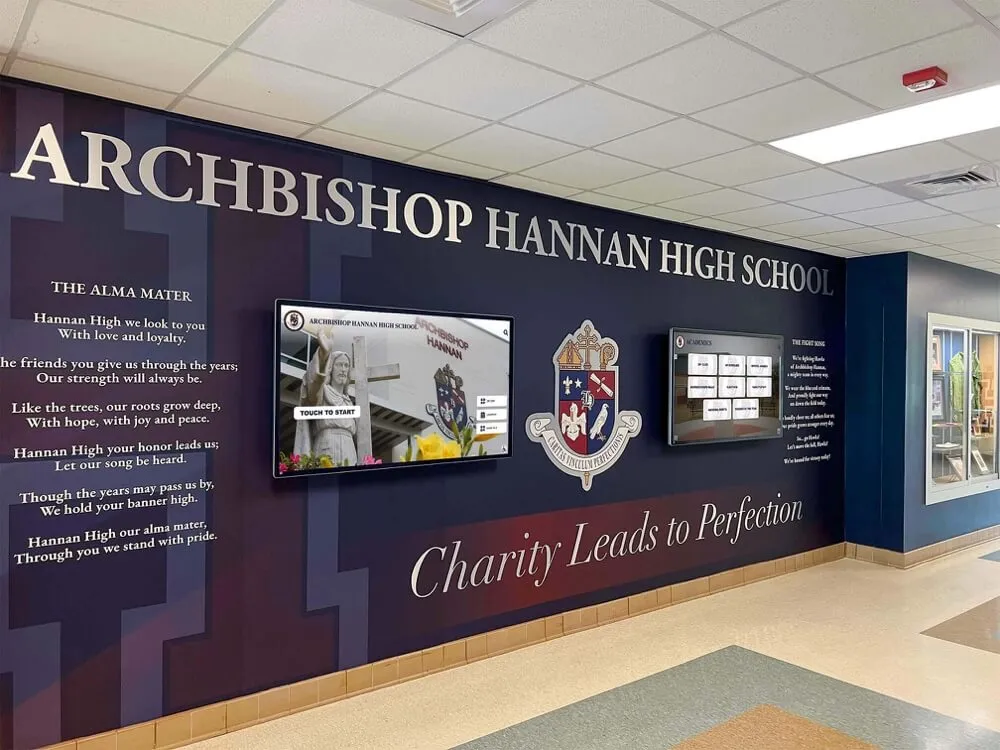
Integrated digital displays work with existing school murals and design elements to create cohesive entrances
What the $50/Year Plan Covers
Rocket Alumni Solutions’ digital signage tier is designed specifically for K–12 and higher education environments. At $50 per year, a school gets:
- Unlimited screens: No per-screen licensing fees. Display content on one screen or twenty without adjusting the annual cost.
- Cloud-based CMS: Manage content from any browser. Schedule, update, and publish to any screen on campus without physical access to the hardware.
- MDM device management: Enroll, monitor, and control display devices remotely. Lock down browsers, push updates, reboot devices, and apply policies across the entire fleet from a single dashboard.
- Pre-built templates: Announcement layouts, event calendars, recognition showcases, athletic record boards, and more—formatted for common screen sizes without requiring design expertise.
- Recognition integration: Schools running Rocket’s hall of fame or recognition platform can display those profiles on signage screens, combining daily communications with achievement content on the same hardware.
- WCAG 2.1 AA accessibility: Displays meet accessibility standards by default, including sufficient color contrast, readable font sizes, and screen reader-compatible web companion content.
The pricing structure is intentionally flat because Rocket’s positioning is that digital signage should be infrastructure—like internet access or printing—not a variable expense that grows with use.
MDM Device Management: What It Means in Practice
MDM is the piece that many basic digital signage subscriptions leave out, treating it as a premium add-on or expecting schools to handle device management separately through their own IT stack. Rocket includes MDM as a standard feature.
In a school context, MDM for digital signage handles several practical problems:
Remote reboots: If a display freezes or shows an error, IT doesn’t need to dispatch someone to the building. A remote reboot command from the dashboard resolves most hardware-software conflicts in under a minute.
Policy enforcement: MDM policies lock the display device to approved applications and prevent students or visitors from accessing the underlying operating system. A display running an MDM profile cannot be used to browse unauthorized websites or install unauthorized applications.
Content push: Rather than logging into each device individually, administrators push content updates to all enrolled displays simultaneously. A schedule change published in the CMS propagates to every screen on the network automatically.
Device health monitoring: The dashboard shows which displays are online, which have gone offline, when each device last checked in, and what software version each is running. Administrators spot problems before they become visible to visitors.
Enrollment and decommissioning: Adding a new screen to the network takes minutes through guided enrollment. Decommissioning a display—when a room is repurposed or hardware is retired—removes its access entirely without leaving orphaned credentials.
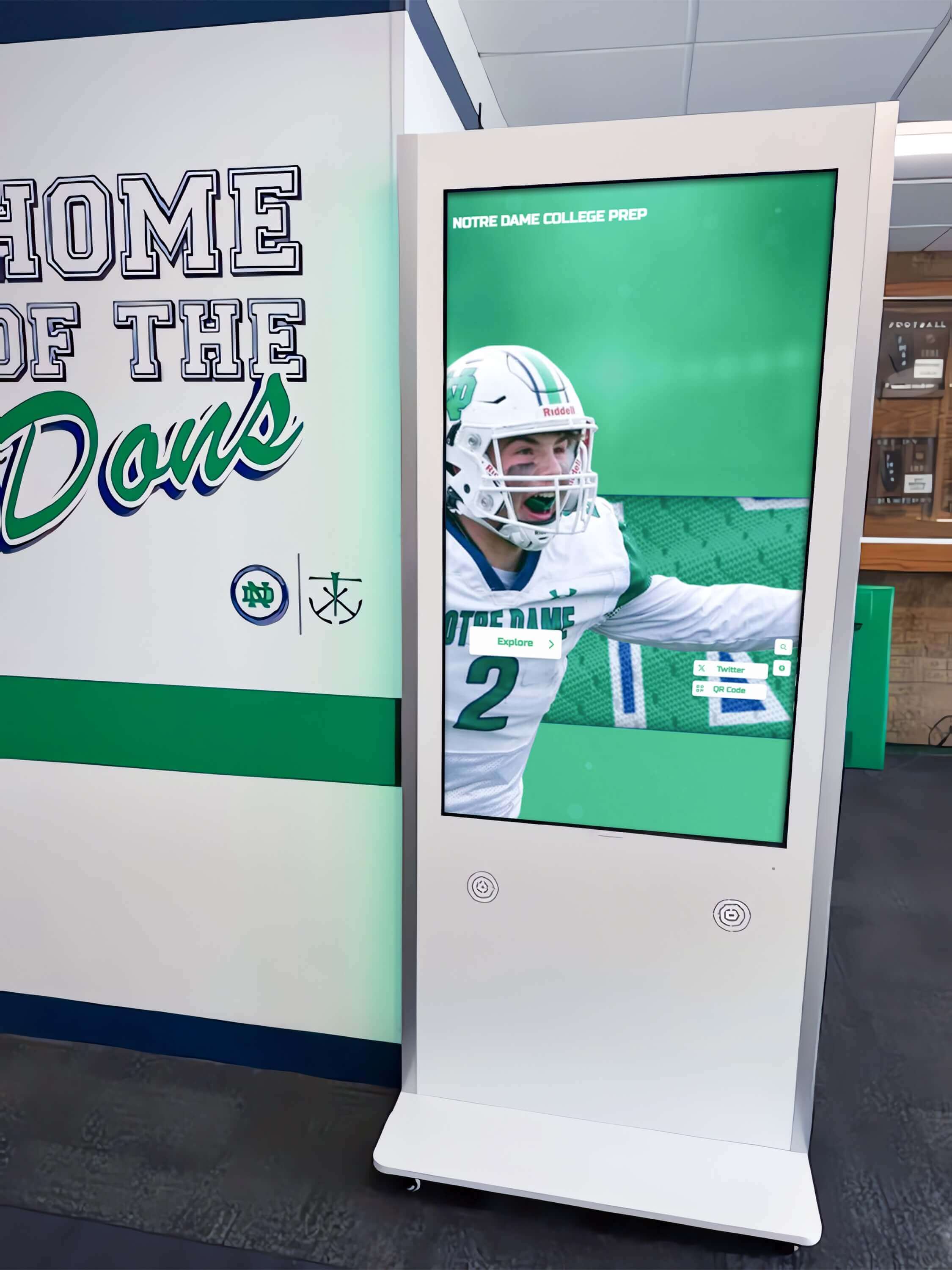
MDM-managed displays in school hallways maintain consistent content policies across the entire screen network
For schools with existing MDM platforms managing student tablets or staff laptops, Rocket’s signage MDM can run alongside those systems. Signage devices typically enroll in a dedicated profile separate from classroom technology, which keeps display policies clean and prevents cross-contamination between signage and general-purpose device management.
The practical outcome is that a school’s IT staff can support a twenty-screen signage deployment in roughly the same time they currently spend managing a three-screen system with manual updates, because the MDM layer handles the repetitive work.
Where Schools Deploy These Displays
Schools that have worked through a digital signage deployment tend to find the same high-value locations repeatedly. The examples of school digital signage across lobbies, gyms, and hallways show consistent patterns that reflect where students, staff, and visitors spend time and are receptive to on-screen messaging.
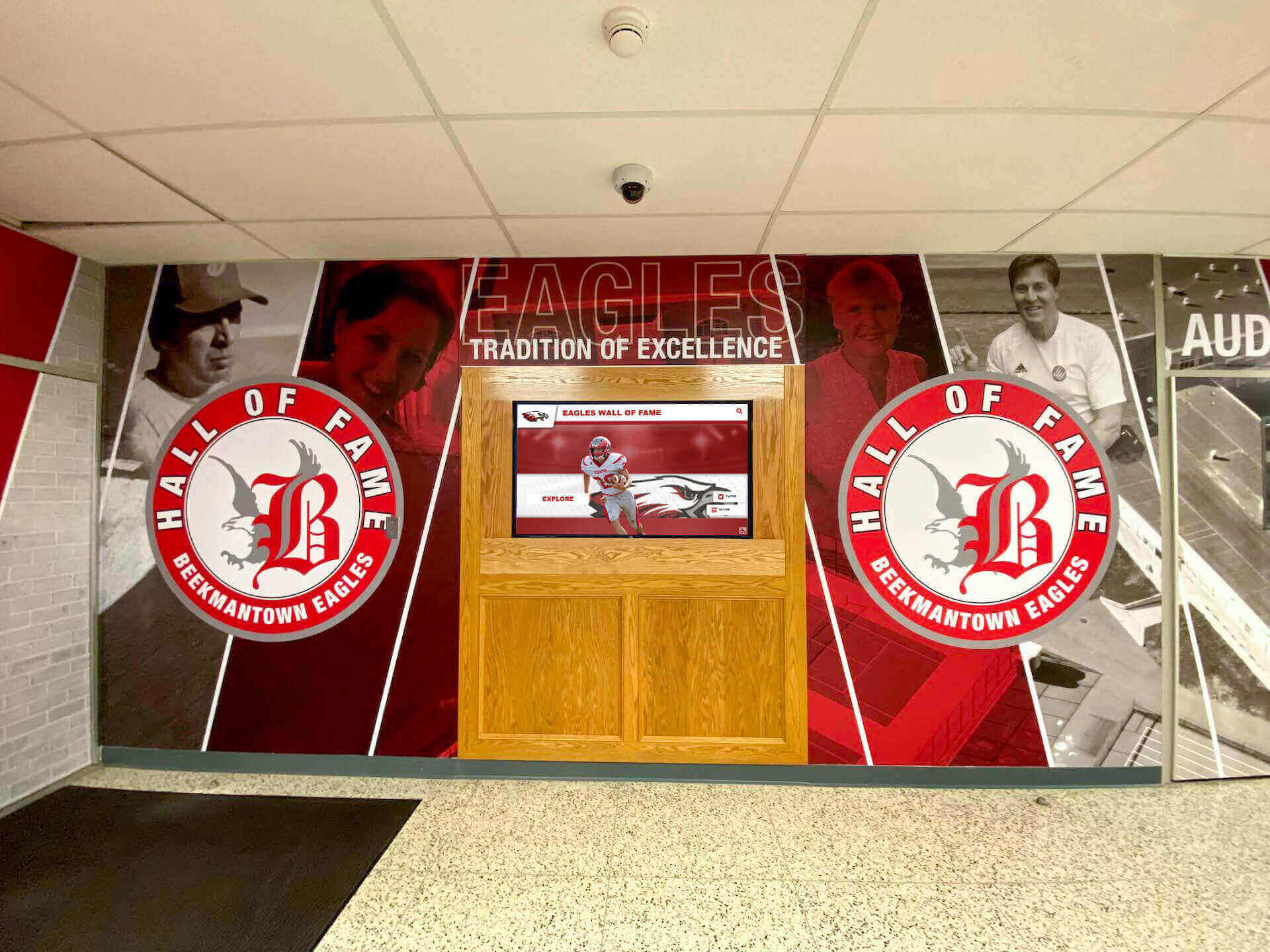
Lobby placements see the widest audience, including prospective students, parents, and visitors who may not travel deeper into the building
The following table maps locations to their primary audiences and the content that works best in each space:
| Location | Primary Audience | High-Value Content |
|---|---|---|
| Main entrance / lobby | Visitors, parents, prospective families | School news, recognition displays, event calendars, wayfinding |
| Main hallways | All students and staff | Daily schedule changes, club announcements, athletic results |
| Gymnasium lobby | Athletes, parents, coaches | Athletic records, game schedules, sports recognition, booster info |
| Cafeteria | Students, staff | Lunch menus, upcoming events, student of the month, club sign-ups |
| Athletic offices | Coaches, ADs | Schedule feeds, record boards, media schedules |
| Administrative wing | Staff, visitors | HR communications, meeting schedules, policy updates |
| Performing arts space | Students, parents, community | Show schedules, cast lists, music program recognition |
| Library | Students | Research tips, new acquisitions, academic event calendar |
| Career/college center | Students, counselors | Application deadlines, college visit schedules, scholarship postings |
Not every school needs every location on day one. A common approach is to start with the main entrance, one hallway, and the gymnasium lobby—the three locations that reach the widest cross-section of the school community—then add displays to additional areas based on operational need and available budget.
Because Rocket’s plan covers unlimited screens at a flat fee, adding those locations in year two doesn’t increase the software cost. The only incremental expense is hardware and mounting.
Feature Parity with Major Platforms
One concern administrators often raise when evaluating lower-cost digital signage options is capability gaps. The question is reasonable: does an affordable option mean missing features that would require a workaround, an upgrade, or a second platform?
For the core digital signage use cases that schools rely on day to day, Rocket’s platform includes what you’d find across the major brands in the category:
- Multi-zone layouts: Display multiple content areas simultaneously on a single screen—an announcement zone alongside a clock, a news ticker, or a recognition spotlight
- Playlist management: Queue and schedule content with start/end dates so time-sensitive messaging appears and disappears automatically
- Live data feeds: Pull in external data sources including weather, calendar events, and sports scores via integrations
- Emergency messaging: Override scheduled content across all displays with emergency alerts
- Content approval workflows: Require administrator review before content goes live, suitable for schools where multiple staff members contribute updates
- QR code integration: Display QR codes that link visitors to web-based content, including full hall of fame profiles, extended schedules, or external resources
- Analytics: Track content performance metrics at the display level
For interactive digital signage applications where users engage directly with screens through touch, Rocket’s recognition layer adds searchable profiles, filtered browsing by category, and multimedia storytelling that goes beyond what a standard signage playlist delivers.
The digital signage services available for schools and kiosk deployments typically separate passive broadcast signage from interactive kiosk experiences. Rocket covers both in a single platform, which matters for schools that want recognition displays and announcement screens on the same hardware without maintaining two separate software subscriptions.
Recognition + Signage: The Integrated Use Case
Many digital signage platforms handle announcements well and recognition poorly, or recognition moderately and communications as an afterthought. Rocket’s approach is to treat both as first-class applications of the same platform.
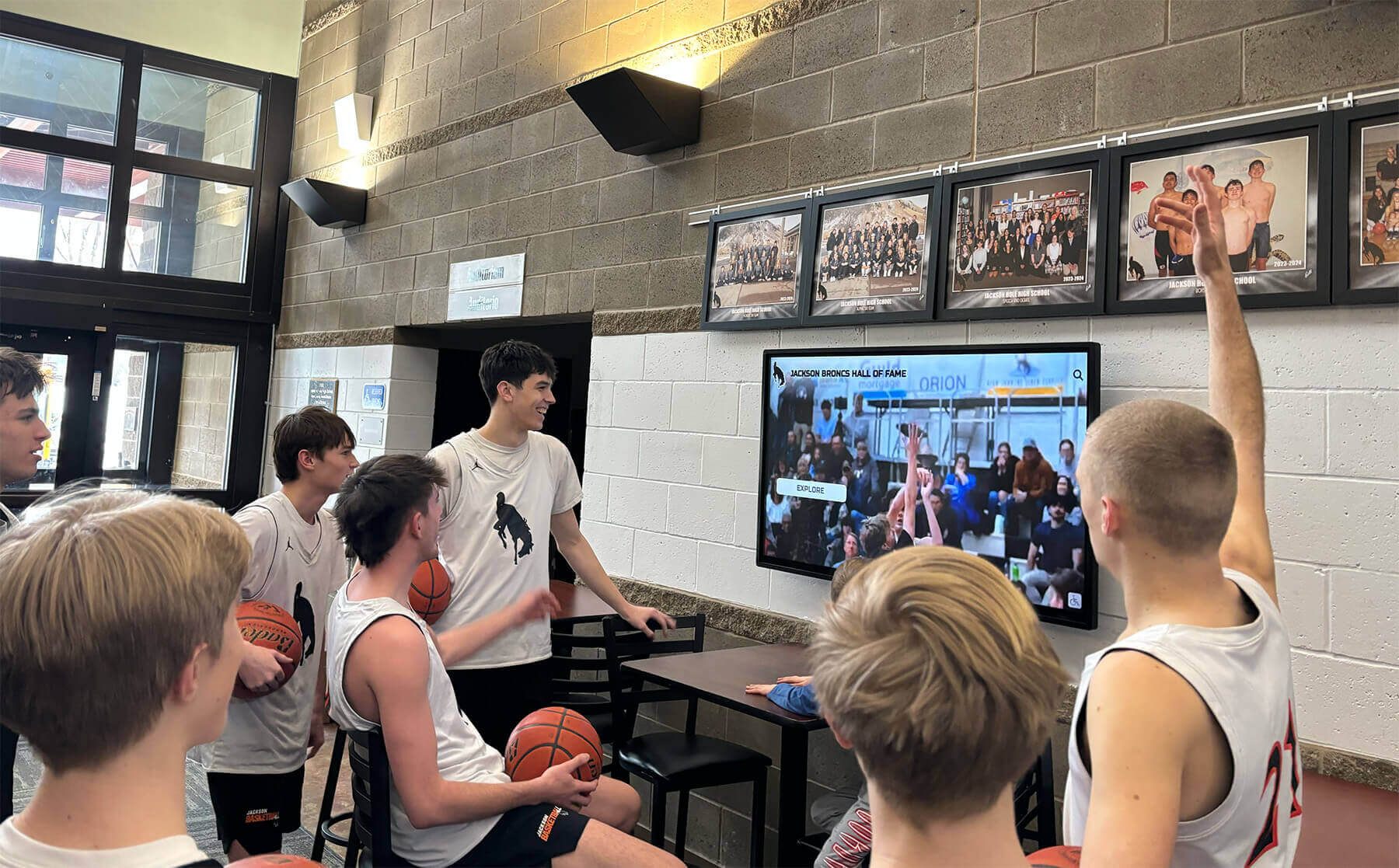
Athletic lobbies benefit from signage that cycles through game schedules, record boards, and student recognition alongside live highlights
On a signage-only screen, a school can schedule content blocks that include:
- A rotating hall of fame spotlight showing one honoree’s photo, sport, and year of graduation
- Current athletic records for each varsity sport
- Academic honor roll announcements by quarter
- Student of the month recognition from any department
- Upcoming athletic schedules with game times and locations
On an interactive touchscreen, those same profiles become searchable. A visitor can tap the screen, search for a former student or coach, and view a full multimedia profile—photos, statistics, career highlights, and biographical details—without any scrolling through a slide deck.
This combination means a school running Rocket for recognition gets the digital signage layer at no additional cost compared to running a separate signage subscription. The two functions share the same CMS, the same MDM management, and the same annual fee.
For schools exploring how to build a school hall of fame, the digital signage integration means that the recognition content created during the hall of fame buildout immediately has a broadcast channel to reach students in hallways and lobbies, not just visitors who engage directly with the touchscreen.
Deployment Checklist
The following checklist covers the steps from initial decision to operational deployment. Most schools complete this process in two to six weeks, depending on hardware procurement timelines and IT scheduling.
Phase 1: Planning (Week 1)
- Identify display locations and measure available wall space
- Confirm network connectivity (Wi-Fi or wired Ethernet) at each planned location
- Confirm power outlet availability or plan for electrical work at each location
- Determine screen sizes based on viewing distance at each location (general rule: one inch of screen diagonal per foot of viewing distance)
- Assign content management responsibility—who creates and approves content for each area
- Identify whether displays need to pull content from existing systems (calendars, athletic databases, food service systems)
Phase 2: Hardware Procurement (Weeks 1–3)
- Select commercial-grade displays rated for extended operation (16–24 hours/day vs. consumer 8-hour ratings)
- Order display hardware and mounting hardware
- Select media players or confirm displays include a built-in compute module
- Verify HDMI, DisplayPort, or other connection compatibility between media player and display
Phase 3: Software Setup (Weeks 2–3)
- Create Rocket account and access CMS
- Enroll first test device in MDM profile
- Configure MDM policies: browser lockdown, auto-launch, approved applications only
- Create initial content zones and layout templates
- Build content calendar for first 30 days
- Configure any live data feed integrations (calendar, weather, etc.)
- Set up user accounts for all staff who will create or approve content
- Configure content approval workflow if required
Phase 4: Installation and Testing (Week 4)
- Mount displays at planned locations
- Connect media players and power
- Enroll each device in MDM from dashboard
- Verify content appears correctly on each screen at full resolution
- Confirm remote reboot and device monitoring functions work for each enrolled device
- Test emergency override message to confirm it broadcasts to all displays
- Verify QR code links resolve correctly
- Check readability from actual viewing distances at each location
Phase 5: Launch and Ongoing Management
- Publish opening content to all screens
- Train staff on CMS content creation and scheduling
- Establish a content update schedule (daily for announcements, weekly for featured recognition, monthly for record boards)
- Schedule quarterly review of content performance and audience feedback
- Add additional screen locations when operational need arises
Content That Works in School Digital Signage
Hardware and MDM handle the infrastructure side. Content is what determines whether people actually pay attention.
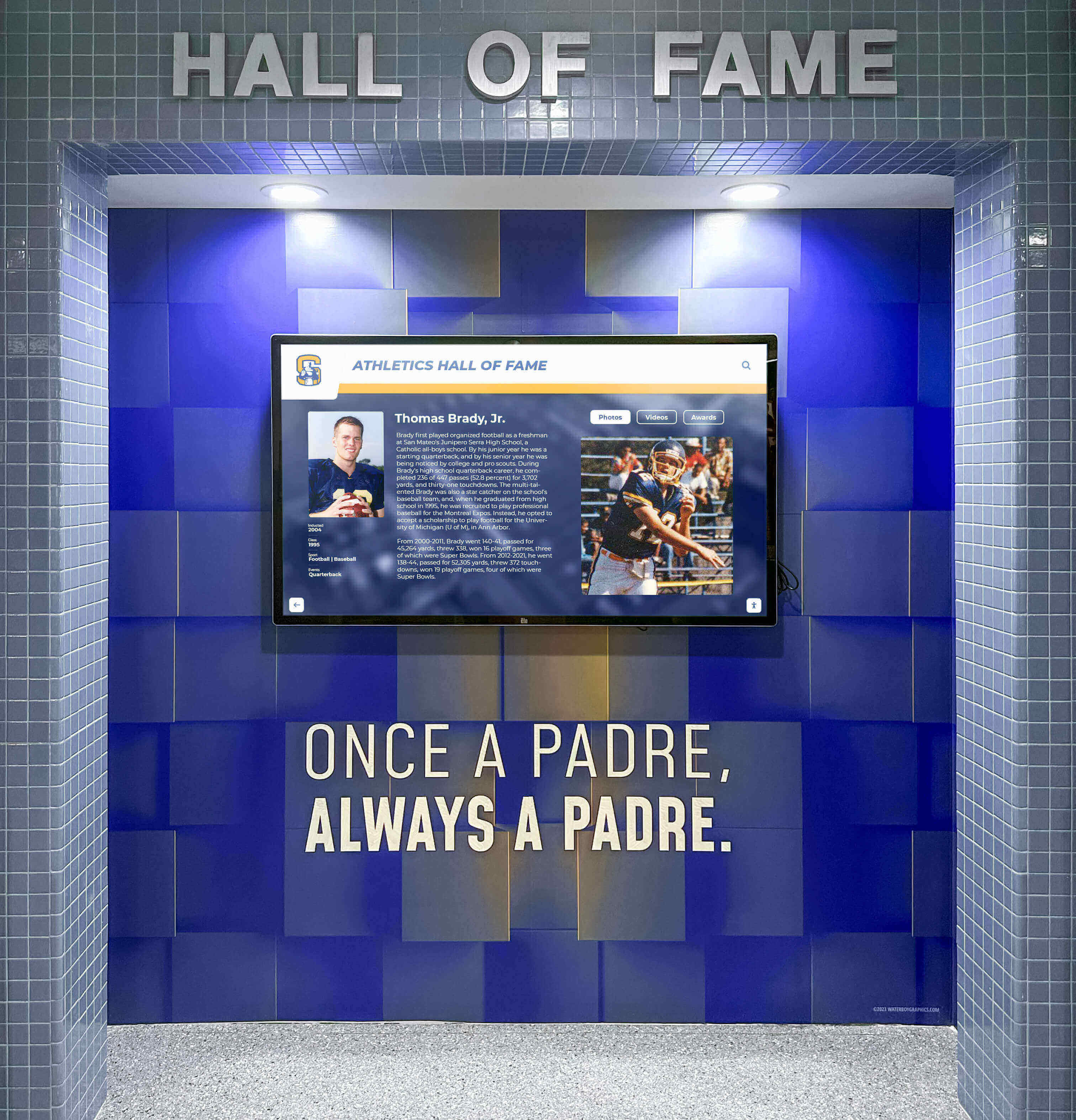
Athletic recognition content displays well on signage screens throughout gymnasium corridors and trophy areas
A consistent observation from schools running digital signage programs is that content engagement drops sharply when displays repeat the same slides for more than a week. A cafeteria screen cycling through the same three announcements from two weeks ago becomes invisible. Students and staff stop reading it, and the display loses its value as a communication channel.
The content approach that sustains attention over time has several consistent characteristics:
Timely updates at consistent intervals. Daily schedule changes and lunch menus must update every day. Athletic results should appear the morning after a game. If the signage falls behind the actual schedule, people stop trusting it as a source of information.
Local specificity. Generic content—motivational quotes, stock photography, generic school tips—performs worse than content about the specific school and its students. A hallway display showing photos from last Friday’s game or a recognition spotlight for a student from that building gets more attention than a generic message.
Recognition content mixed with information. Schools that blend recognition content (honor roll names, athletic records, student achievements) with daily information (schedule, menu, announcements) see longer dwell times than those using either category alone. Recognition content gives people a reason to stop and read; informational content gives them a reason to look daily.
Short text, strong visuals. Displays compete with everything else happening in a hallway or lobby. Full paragraphs don’t get read. Effective signage content uses a visual, a name or number, and one to two lines of context—enough to communicate the point in two to three seconds.
For more structured guidance on content across different spaces, the day-in-the-life look at school digital displays walks through how content shifts across a typical school day—morning announcements, mid-day recognition spotlights, afternoon athletic schedules, and end-of-day event reminders—as a practical model for content calendaring.
School Lobby and Entrance Strategy
The main entrance is where digital signage investment tends to pay off most clearly, because it reaches the widest audience including people who don’t enter the rest of the building: prospective families, vendors, community members attending events.
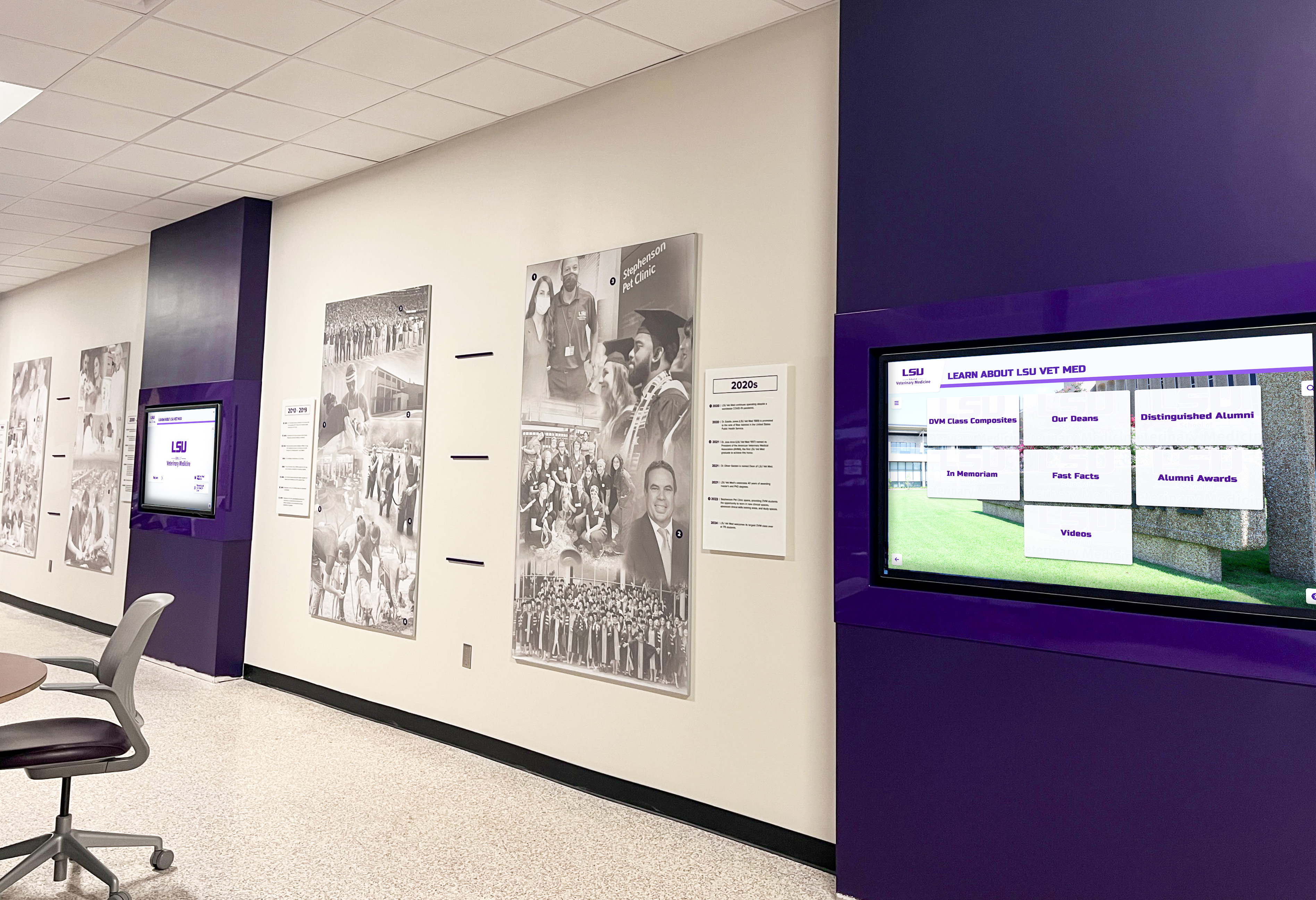
Multiple displays in a corridor create consistent visual messaging while giving each screen a distinct content purpose
Entrance displays serve a different purpose than hallway displays. Hallway content reaches students who walk past quickly and may see the same content multiple times a day. Entrance content reaches visitors who may see it once.
For entrance displays, prioritize:
- Who the school is: mascot, team name, core values, or mission statement
- What the school has achieved: recent awards, academic achievements, athletic championships
- What’s happening now: current events, upcoming open houses, scheduled games this week
- Wayfinding: where the main office is, where visitors should go, who to contact
Good lobby signage design considers how digital displays integrate with physical elements—murals, trophy cases, school colors—to create a coherent first impression rather than a screen bolted to a neutral wall.
School lobby display ideas that make strong first impressions also cover placement, height, screen orientation, and content timing specific to the entrance context—guidance that applies whether you’re installing one display or a complete wall of screens.
Wayfinding as a Signage Use Case
Schools with multiple buildings, recently renovated spaces, or complex campus layouts benefit significantly from digital wayfinding. A touchscreen kiosk in the main lobby that shows a floor plan and allows a visitor to search for a specific room, teacher, or department reduces the number of people who wander into classrooms looking for the main office.
For campus wayfinding design in schools and universities, the design considerations differ from standard hallway signage. Wayfinding displays need to be positioned before decision points—at hallway intersections, building entrances, and lobby areas where a visitor must choose a direction—rather than in the middle of a long corridor.
Passive wayfinding (a static map displayed on a screen) works for simpler buildings. Interactive wayfinding with a touchscreen allows users to search for specific rooms or staff members and see step-by-step directions, which scales better for larger or more complex facilities.
Rocket’s CMS supports both: scheduled static wayfinding maps for simpler deployments, and interactive directory functionality that ties into the recognition and profile database for institutions where wayfinding and recognition overlap (finding a coach’s office, locating a specific department’s space).
Kiosk Software and Touchscreen Deployments
Beyond passive displays, some schools deploy fully interactive kiosks that run on tablets or purpose-built touchscreen hardware. These differ from signage screens in that they’re designed for hands-on use rather than passive viewing.
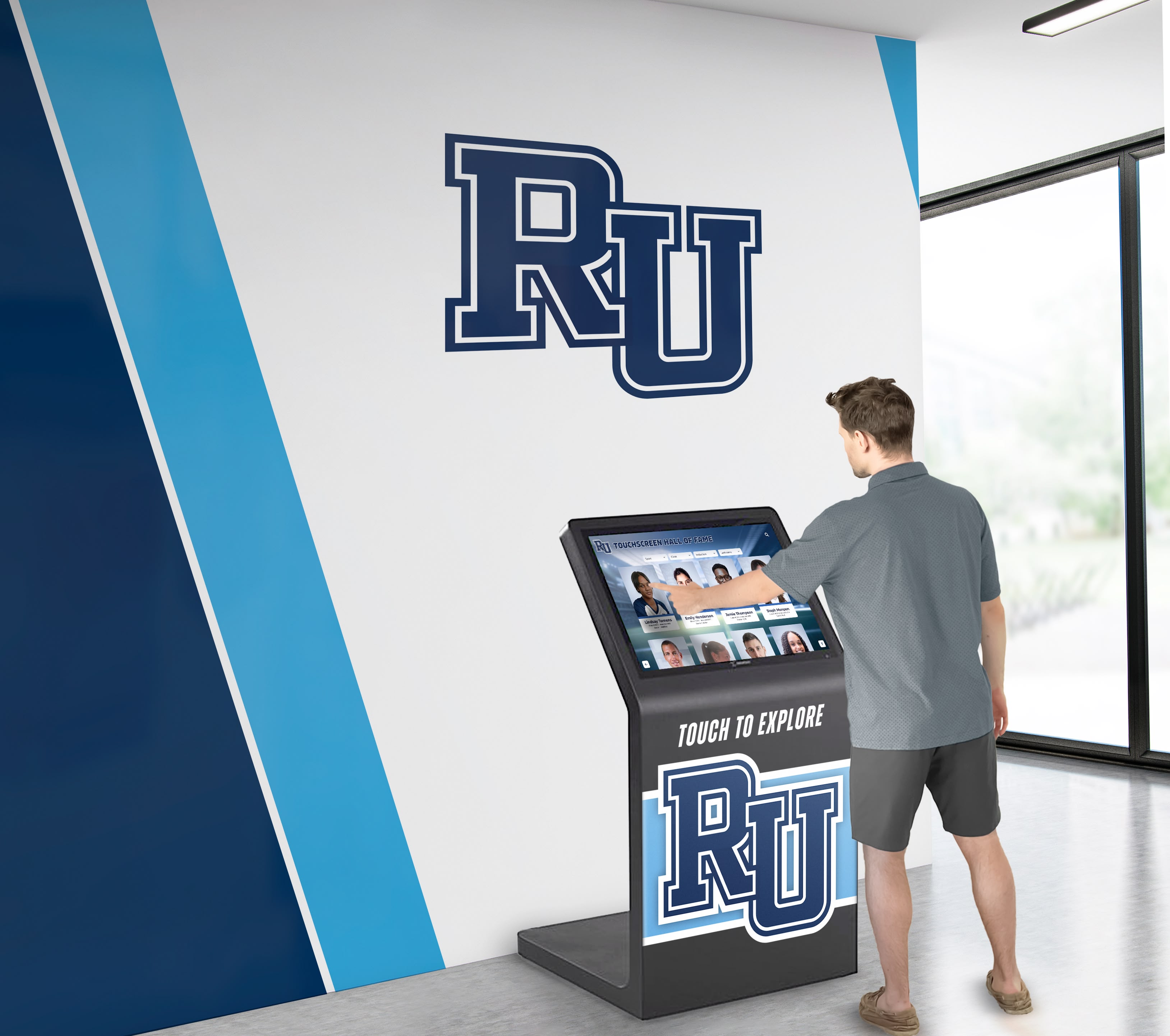
Interactive kiosks allow visitors to search profiles, explore records, and navigate campus directories through direct touchscreen engagement
Touchscreen kiosk software for schools covers the technical considerations for kiosk deployments: kiosk lockdown mode, session timeout settings, accessibility compliance, and hardware protection (enclosures, anti-glare screens, anti-bacterial coatings for high-traffic areas).
Rocket’s MDM layer handles kiosk lockdown directly—the same MDM profile that manages a hallway signage display can lock a tablet into a single application, prevent users from exiting to the home screen, and reset to the default state after each session. This removes the need for a separate kiosk management software subscription on top of the signage platform.
For schools exploring the full scope of what a digital trophy case and kiosk deployment covers, the complete guide to digital trophy cases for schools explains how digital systems replace physical trophy cases in a way that’s both more durable and more accessible.
Cost of Ownership at $50/Year
The annual software cost of $50 for unlimited digital signage is low enough that it often prompts a question: what does the total deployment actually cost?
The realistic cost breakdown for a three-screen deployment:
| Component | Typical Range |
|---|---|
| Rocket Alumni Solutions annual software (unlimited screens) | $50/year |
| Commercial display hardware (43"–55" per screen) | $500–$1,200 per screen |
| Media player (if not built into display) | $80–$200 per screen |
| Wall mount hardware | $40–$120 per screen |
| Professional installation (per screen) | $150–$400 per screen |
| Network drops or Wi-Fi access point upgrades (if needed) | $0–$300 per location |
A three-screen deployment with commercial displays, media players, mounting, and professional installation in a school where network infrastructure is already in place commonly runs between $2,400 and $5,600 as a one-time hardware investment. The annual software expense stays at $50 regardless of how many screens are added in future years.
Compared to subscription-based platforms that charge per screen, the math changes significantly at scale. A school that runs ten screens pays the same $50/year—while a per-screen model at even $10/month per screen would cost $1,200/year for the same ten displays.
The school lobby ideas and signage planning resources at Donors Wall include additional context on how schools budget for lobby renovations that incorporate digital displays, covering both hardware and associated design and installation costs.
Getting Started with Rocket Digital Signage
The onboarding process follows a predictable path. After creating an account, a school enrolls the first device in MDM, configures the lockdown profile, and begins building content in the CMS. Most schools have their first screen displaying content within a few hours of account setup if hardware is already on hand.
For schools that want to see the platform before committing:
See Rocket in action — the demo covers both the signage CMS and the recognition layer in a live walkthrough tailored to the school’s specific use cases.
Questions about hardware requirements, MDM compatibility with existing school device management policies, or content strategy for a specific campus layout are all areas the team addresses during the consultation call before any purchase decision.
This content was produced by or on behalf of Rocket Alumni Solutions. This comparison is based on publicly available information as of August 2026. All product names and trademarks belong to their respective owners. Comparative statements reflect Rocket Alumni Solutions’ interpretation of available data and may change over time.































