When your institution invests in interactive touchscreen displays for recognition, wayfinding, or information access, accessibility compliance isn’t optional—it’s a legal requirement, ethical obligation, and practical necessity. Yet many organizations discover accessibility gaps only after installations are complete, forcing expensive retrofits or exposing institutions to compliance violations that could have been prevented through informed initial decisions.
Web Content Accessibility Guidelines (WCAG) 2.2 Level AA represents the established standard for digital accessibility in 2026, required by federal law for public entities and educational institutions receiving federal funding. These guidelines ensure people with disabilities can perceive, operate, understand, and navigate digital interfaces independently. For interactive touchscreen displays, WCAG 2.2 AA compliance means thoughtful attention to visual presentation, touch target sizing, navigation patterns, content structure, and alternative access methods enabling full participation regardless of ability.
Rocket Alumni Solutions builds WCAG 2.2 AA compliance directly into platform architecture rather than treating accessibility as optional enhancement. This proactive approach protects institutions from legal exposure while ensuring digital recognition displays serve entire communities—not just those without disabilities.
Understanding accessibility requirements before selecting touchscreen software prevents costly mistakes while demonstrating institutional commitment to inclusion. This guide explains what WCAG 2.2 AA means specifically for interactive displays, why compliance matters legally and ethically, and how proper implementation delivers benefits extending far beyond regulatory obligation.
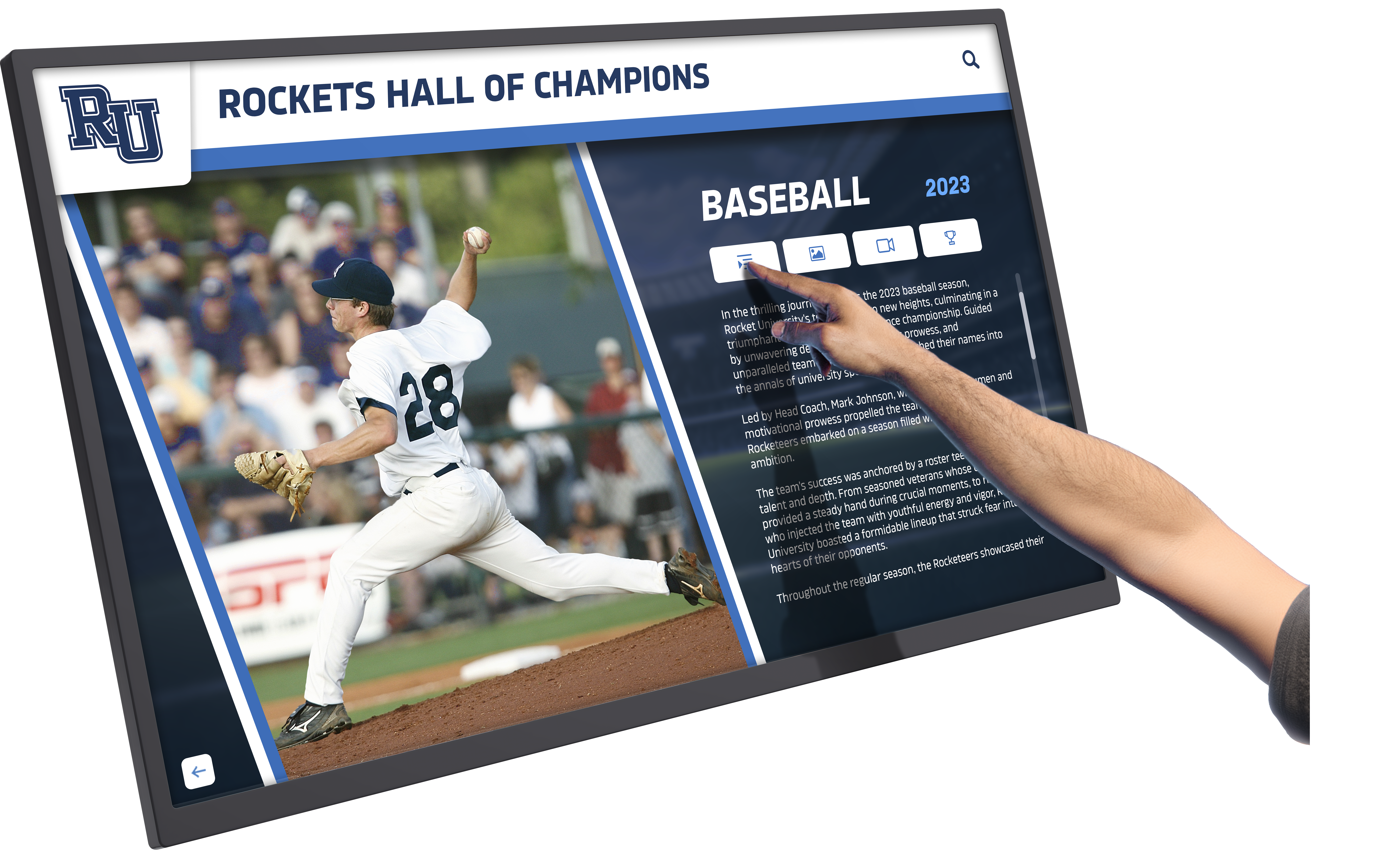
Accessible touchscreen interfaces enable independent use by people with diverse abilities through thoughtful design and technical compliance
What is WCAG 2.2 AA? Understanding the Accessibility Standard
Before evaluating specific touchscreen requirements, establish clear understanding of the standards themselves—what they cover, who creates them, and what compliance levels mean.
The Web Content Accessibility Guidelines Framework
The World Wide Web Consortium (W3C) maintains WCAG through its Web Accessibility Initiative (WAI), an international effort bringing together industry experts, disability advocates, researchers, and government representatives. Version 2.2, published in October 2023, represents the current standard replacing WCAG 2.1 while maintaining backward compatibility with earlier 2.0 guidelines.
WCAG organizes around four foundational principles—content must be Perceivable (information presented in ways users can perceive through available senses), Operable (interface components function in ways users can operate regardless of input method), Understandable (information and operation must be comprehensible to users), and Robust (content works reliably across diverse technologies including assistive devices).
These principles break down into specific testable success criteria organized by conformance level. Level A represents minimum accessibility, Level AA indicates acceptable accessibility for most contexts, and Level AAA defines optimal accessibility that may not prove feasible for all content.
Why Level AA Represents the Standard for Compliance
Federal regulations, including Section 508 of the Rehabilitation Act and state accessibility laws, typically mandate Level AA conformance. Courts consistently interpret Americans with Disabilities Act (ADA) Title II requirements to encompass digital accessibility at AA standards, making this level the practical compliance baseline.
Level A alone provides insufficient accessibility for many users with disabilities, while Level AAA requirements—though admirable—often prove technically or financially infeasible for comprehensive implementation across large content volumes. Level AA strikes the balance between genuine accessibility and practical implementation, creating interfaces that work well for people with diverse abilities without imposing unreasonable burdens on content creators.
Educational institutions receiving federal funding face particularly clear obligations. The Office for Civil Rights enforces accessibility requirements through its authority over Title II compliance, investigating complaints and requiring remediation when violations occur. Public K-12 schools, community colleges, state universities, and any private institution accepting federal financial assistance must ensure digital interfaces—including touchscreen displays—meet accessibility standards.
WCAG 2.2 Enhancements Over Previous Versions
WCAG 2.2 adds nine new success criteria addressing accessibility gaps identified through implementation experience with version 2.1. Several additions prove particularly relevant for touchscreen interfaces:
Focus Appearance (Minimum) requires sufficient visual indication when keyboard focus moves to interactive elements, helping users track navigation position through complex interfaces.
Dragging Movements ensures that any functionality requiring dragging motions includes alternatives not requiring fine motor control, accommodating users with mobility limitations.
Target Size (Minimum) specifies minimum touch target dimensions preventing frustration when users attempt to activate small interface elements, particularly important for touchscreen implementations.
Redundant Entry reduces cognitive load by eliminating requirements to re-enter information already provided within a session, supporting users with memory or cognitive disabilities.
These enhancements reflect real-world usage challenges that earlier versions didn’t address adequately, making 2.2 more comprehensive while remaining backward compatible with 2.1 implementations.
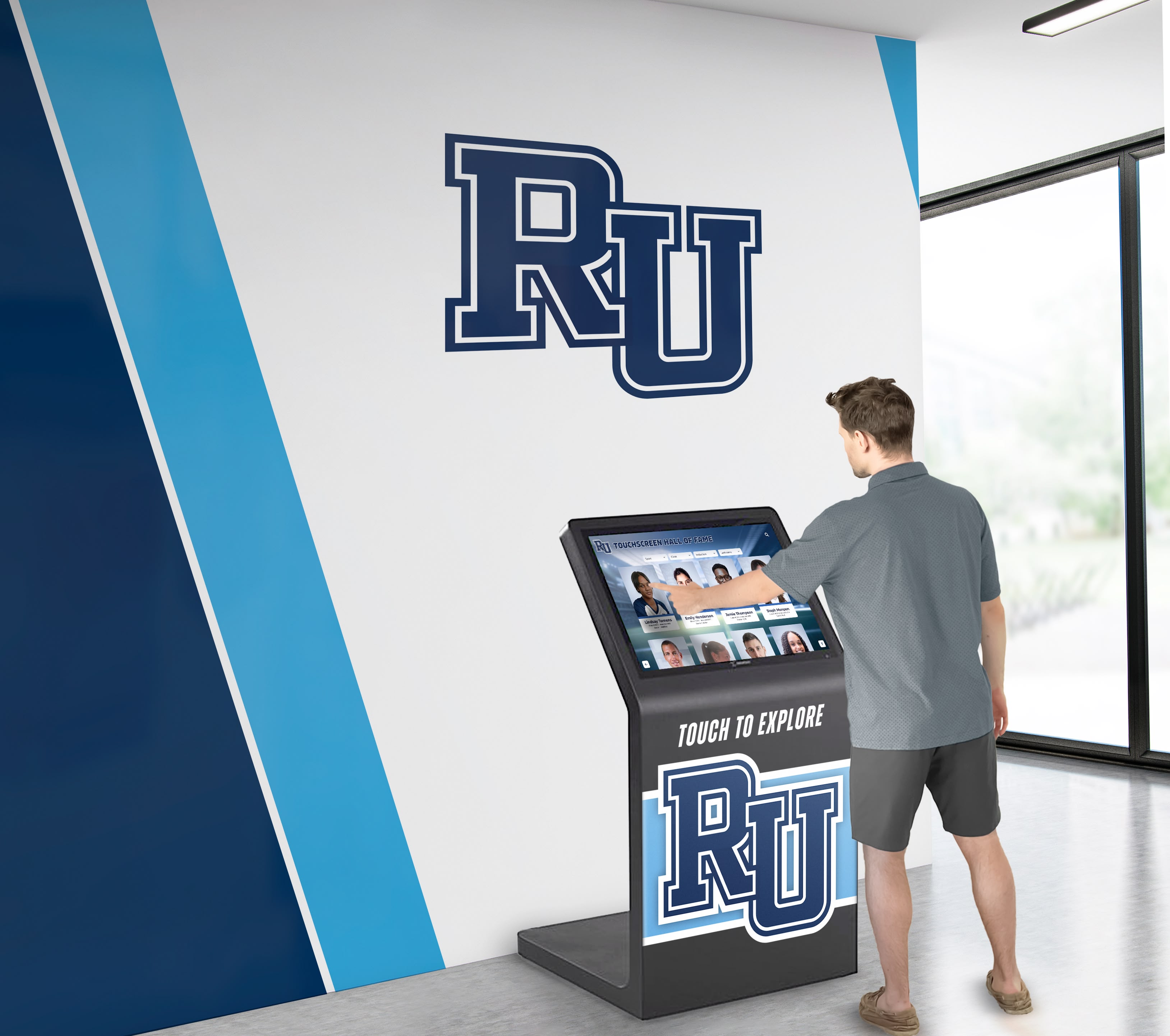
Accessible touchscreen design accommodates diverse user needs through careful attention to interface sizing, contrast, and navigation patterns
Legal Requirements and Compliance Obligations
Accessibility isn’t merely best practice—it’s legal requirement for most educational institutions and public entities deploying interactive displays.
Federal Accessibility Laws Governing Digital Displays
Section 508 of the Rehabilitation Act requires federal agencies and organizations receiving federal contracts to ensure electronic and information technology is accessible to people with disabilities. This includes interactive kiosks, public information displays, and touchscreen systems installed in federally funded facilities.
Americans with Disabilities Act Title II applies to state and local government entities, including public schools, libraries, municipal facilities, and community colleges. Courts increasingly interpret Title II’s “effective communication” requirements to encompass digital accessibility, making WCAG compliance essential for public entities deploying touchscreen displays.
Americans with Disabilities Act Title III covers places of public accommodation including private schools, colleges, museums, theaters, and convention centers. While Title III’s application to digital accessibility continues evolving through litigation, courts increasingly expect reasonable accessibility accommodations for digital interfaces in physical facilities.
The Department of Justice proposed formal ADA regulations for web and mobile accessibility in 2023, with implementation expected by 2026-2027. While these rules primarily target websites and mobile applications, the principles extend naturally to interactive touchscreen kiosks functioning as primary information access points in physical facilities.
State and Local Accessibility Requirements
Many states impose accessibility requirements exceeding federal minimums:
California requires WCAG 2.0 Level AA compliance for information and communication technology through the Unruh Civil Rights Act and California’s accessibility standards.
New York mandates accessible design for information technology through state procurement laws and municipal accessibility ordinances in New York City.
Massachusetts, Illinois, Washington, and numerous other states maintain specific accessibility statutes or procurement requirements creating compliance obligations beyond federal law.
Institutions should consult legal counsel about applicable state requirements, as penalties and enforcement mechanisms vary considerably. Some jurisdictions enable private lawsuits with statutory damages, while others limit enforcement to government agencies or require exhausting administrative remedies before litigation.
Legal Risks of Non-Compliance
Accessibility lawsuits increased substantially throughout the 2010s and 2020s as plaintiff attorneys recognized enforcement gaps and organizations failed to prioritize compliance. Common legal consequences include:
Demand Letters and Complaints alleging ADA violations, often seeking attorney fees, monetary compensation, and mandatory accessibility improvements. Even meritless claims impose legal costs defending against allegations while settling claims may require substantial payments.
Office for Civil Rights Investigations initiated through complaints to the Department of Education, potentially resulting in funding cuts, required remediation plans, or monitoring agreements limiting institutional autonomy.
Consent Decrees and Settlement Agreements requiring comprehensive accessibility audits, multi-year remediation timelines, third-party monitoring, and ongoing reporting demonstrating compliance progress.
Monetary Damages awarded to plaintiffs in successful lawsuits, potentially including compensatory damages, attorney fees, and court costs that rapidly exceed the expense of proactive compliance.
Proactive accessibility compliance proves far less expensive than reactive remediation under legal pressure. Organizations investing appropriately in accessible technology avoid legal exposure while demonstrating commitment to inclusion that strengthens institutional reputation and community relationships.
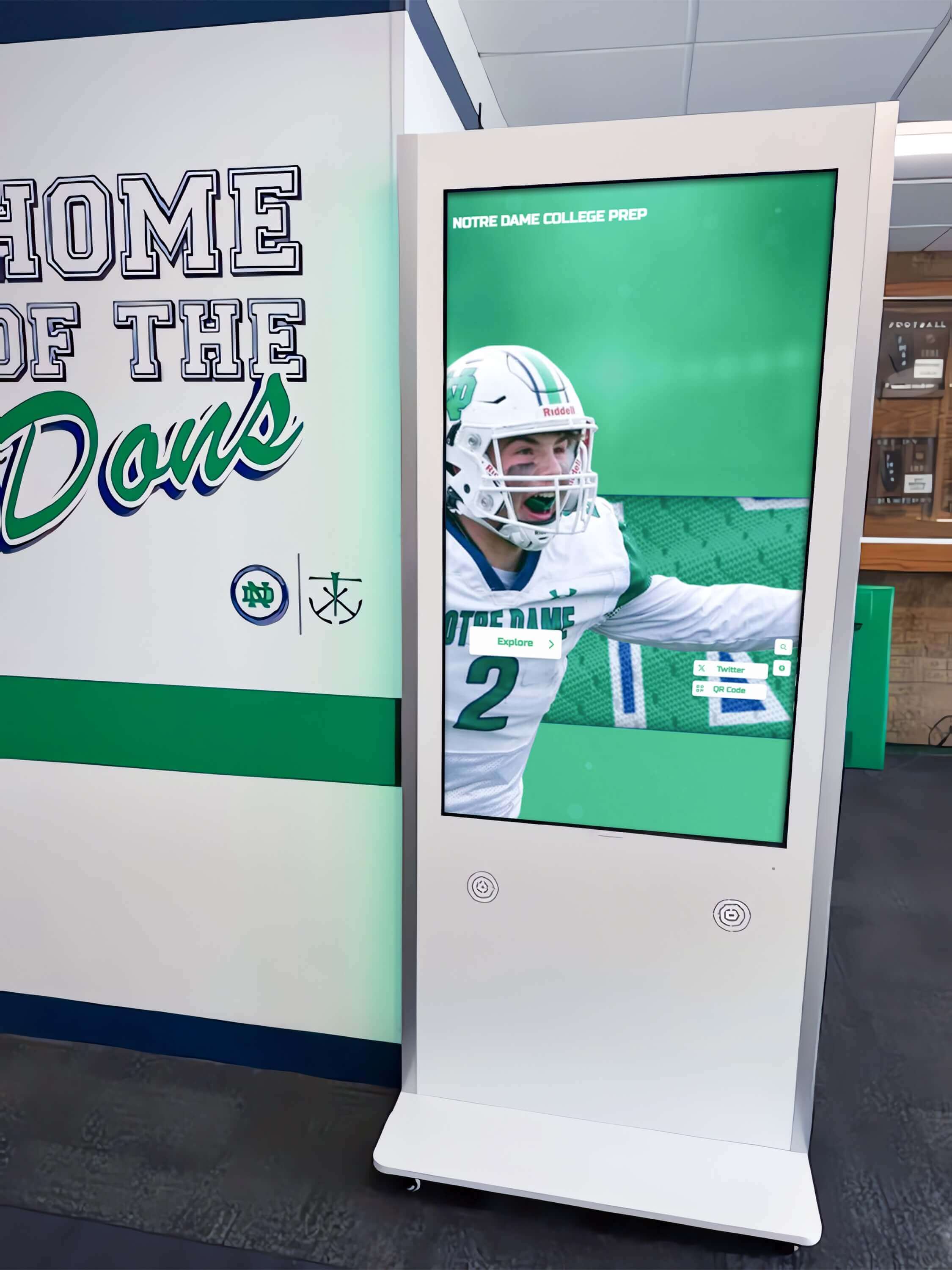
Properly positioned and designed touchscreen installations meet physical and digital accessibility requirements simultaneously
Key WCAG 2.2 AA Success Criteria for Touchscreen Displays
Understanding specific success criteria enables informed evaluation of touchscreen platforms. These requirements directly affect user experience for people with disabilities while benefiting general populations through improved usability.
Visual Accessibility Requirements
Color Contrast (Success Criterion 1.4.3) mandates minimum contrast ratios between text and backgrounds—4.5:1 for normal text and 3:1 for large text. This ensures readability for users with low vision, color blindness, or viewing displays in challenging lighting conditions.
Interactive touchscreen displays face particular contrast challenges when installed in brightly lit lobbies, near windows, or in environments with varying ambient light. Platform design must maintain sufficient contrast regardless of lighting conditions, while display hardware should provide adequate brightness and anti-glare treatments supporting visibility.
Non-Text Contrast (Success Criterion 1.4.11) extends contrast requirements to user interface components and graphical objects necessary for understanding content. Touch targets, form controls, icons, and interface boundaries require 3:1 contrast ratios against adjacent colors.
This criterion prevents interfaces that work fine for users without vision limitations but become unusable for those with reduced contrast sensitivity. Buttons that subtly fade into backgrounds, icons rendered in pastel shades matching their surroundings, or interface elements distinguished solely through slight color variations fail this requirement.
Resize Text (Success Criterion 1.4.4) requires content to remain usable when text sizes increase up to 200% without assistive technology. Users with partial vision frequently enlarge text to improve readability, and interfaces must accommodate this without breaking layouts, causing overlap, or requiring horizontal scrolling that makes content difficult to access.
Touchscreen platforms using responsive design with relative sizing units (em, rem, percentages) rather than fixed pixel dimensions naturally support text scaling. Fixed-size layouts common in many digital signage software implementations often fail when users attempt text enlargement.
Images of Text (Success Criterion 1.4.5) prohibits using images to present text unless necessary for the specific presentation (logos) or user-customizable. This ensures content remains accessible to screen readers, resizable by users, and adjustable for contrast preferences.
Many traditional recognition displays render text as images within graphics programs, creating fundamental accessibility barriers. Accessible platforms must use actual text rendered through HTML and CSS rather than text embedded in image files.
Touch Target Sizing and Motor Accessibility
Target Size (Minimum) (Success Criterion 2.5.8) represents new WCAG 2.2 AA requirement specifying minimum 24 by 24 CSS pixel touch target sizes. This ensures users with mobility limitations, tremors, or reduced fine motor control can successfully activate interface elements without frustrating misses or unintended activations.
Many touchscreen implementations use small buttons, cramped navigation elements, or tightly spaced links that create accessibility barriers for users with motor disabilities. While visually compact layouts appear sleek, they sacrifice usability for anyone without perfect dexterity.
Rocket Alumni Solutions implements generous touch targets exceeding minimum requirements, spacing interactive elements sufficiently to prevent accidental activation while maintaining visually appealing layouts. Button sizes, clickable cards, and navigation controls provide forgiving activation areas accommodating diverse motor capabilities.
Pointer Cancellation (Success Criterion 2.5.2) requires that single-pointer functionality complete on the up-event (releasing touch) rather than down-event (initial contact), enabling users to cancel accidental activations by sliding fingers away before releasing. This prevents frustration when users accidentally touch screen areas while reaching for intended targets.
Keyboard and Alternative Navigation
Keyboard (Success Criterion 2.1.1) mandates that all functionality available through touchscreen interaction must also work via keyboard alone. While this seems counterintuitive for touchscreen-primary interfaces, some users cannot use touch interfaces due to mobility limitations, burns, tremors, or other conditions.
Accessible touchscreens must support external keyboard connectivity enabling full navigation without touch input. Tab navigation should move logically through interactive elements, Enter/Return keys should activate focused controls, and arrow keys should support menu navigation.
Focus Visible (Success Criterion 2.4.7) requires clear visual indication of keyboard focus position. When users navigate via keyboard, they must clearly see which element currently has focus to avoid confusion about where their keystrokes will take effect.
Many web-based touchscreen platforms automatically support keyboard navigation through standard HTML elements, while custom native applications may require specific focus indication implementation. Platforms should test keyboard navigation thoroughly rather than assuming it works correctly.
Focus Order (Success Criterion 2.4.3) requires keyboard focus to move through content in sequences preserving meaning and operability. Navigation should follow logical reading order—typically left-to-right, top-to-bottom in English—rather than jumping randomly across screen regions confusing users about interface structure.
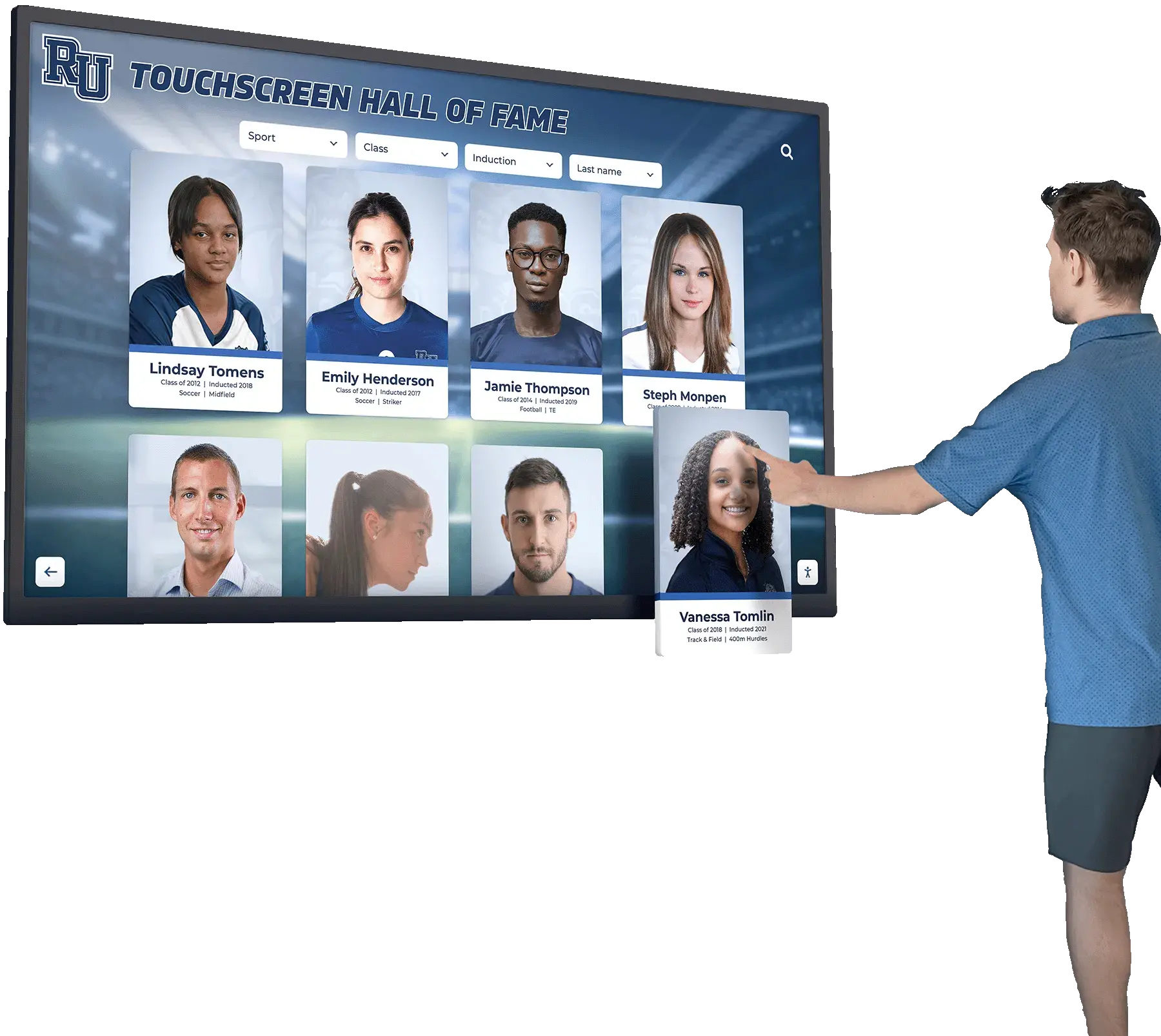
Intuitive navigation patterns and clear visual hierarchy support accessibility while improving usability for all users
Content Structure and Understanding
Headings and Labels (Success Criterion 2.4.6) requires descriptive headings and form labels that clearly describe topics or purposes. Screen reader users frequently navigate by headings, jumping between sections without reading intervening content. Vague headings like “More Information” or “Click Here” provide insufficient context.
Proper heading structure also creates logical content hierarchy—H1 for page titles, H2 for major sections, H3 for subsections—enabling assistive technology users to understand document structure and navigate efficiently. Many interactive touchscreen software implementations neglect semantic HTML headings in favor of visual styling alone, creating barriers for screen reader users.
Consistent Navigation (Success Criterion 3.2.3) requires navigation mechanisms repeated across multiple pages to occur in consistent relative order. Users shouldn’t need to relearn interface layouts on every screen—navigation menus, search fields, and control buttons should appear in predictable locations maintaining spatial consistency.
Error Identification (Success Criterion 3.3.1) requires that when input errors occur, the system identifies errors clearly in text and describes what went wrong. Generic “invalid entry” messages provide insufficient information for users to correct problems.
Form validation in touchscreen interfaces should specifically indicate which fields contain errors, explain what constitutes valid input, and provide examples or formatting instructions. Search interfaces should handle misspellings gracefully through fuzzy matching, autocomplete suggestions, or “did you mean” alternatives rather than simply returning zero results.
Why Accessibility Matters Beyond Compliance
While legal obligation compels attention to accessibility, focusing solely on regulatory compliance misses profound benefits that accessible design delivers to institutions and entire user communities.
Serving All Members of Your Community
Educational institutions exist to serve diverse populations including students, faculty, staff, alumni, donors, and community members with varied abilities. Approximately 26% of American adults live with disabilities—vision impairments, hearing loss, mobility limitations, cognitive differences, or neurological conditions affecting technology use.
When recognition displays, wayfinding systems, or information kiosks lack accessibility features, institutions send clear messages that some community members matter less than others. Students with disabilities notice when hall of fame displays highlighting student achievements use interfaces they cannot navigate independently. Alumni with low vision recognize when reunion event promotions appear on touchscreens with insufficient contrast to read comfortably. Donors with mobility limitations feel excluded when giving recognition displays require fine motor control they cannot perform.
Accessible design demonstrates institutional values through actions rather than words. When donor recognition screens work equally well for users with vision impairments as those without, institutions communicate genuine commitment to inclusion and equity that strengthens community bonds.
Improving Usability for Everyone
Accessibility features benefit users without disabilities as frequently as those with documented conditions. This principle—called universal design—recognizes that accommodations for people with disabilities often improve experiences for general populations:
High Contrast Text benefits users in brightly lit lobbies, individuals viewing displays from angles, older adults with age-related vision changes, and anyone experiencing temporary vision challenges from medications or eye fatigue.
Large Touch Targets help users wearing winter gloves, individuals approaching displays while carrying items, children with developing motor skills, and anyone attempting quick interactions while walking past displays.
Clear Navigation assists users unfamiliar with technology, individuals experiencing cognitive overload from busy environments, international visitors navigating in non-primary languages, and anyone seeking quick information access without extended learning curves.
Keyboard Navigation enables use by people with temporary injuries (broken arm, hand surgery), users preferring keyboard efficiency over touch interaction, and situations where touchscreens malfunction or require cleaning.
Organizations investing in accessibility discover improvements cascading throughout user experience quality rather than narrow accommodations benefiting only disability populations. The curb-cut effect—where accommodations designed for wheelchair users benefit parents with strollers, travelers with rolling luggage, and delivery workers with hand trucks—applies equally to digital accessibility.
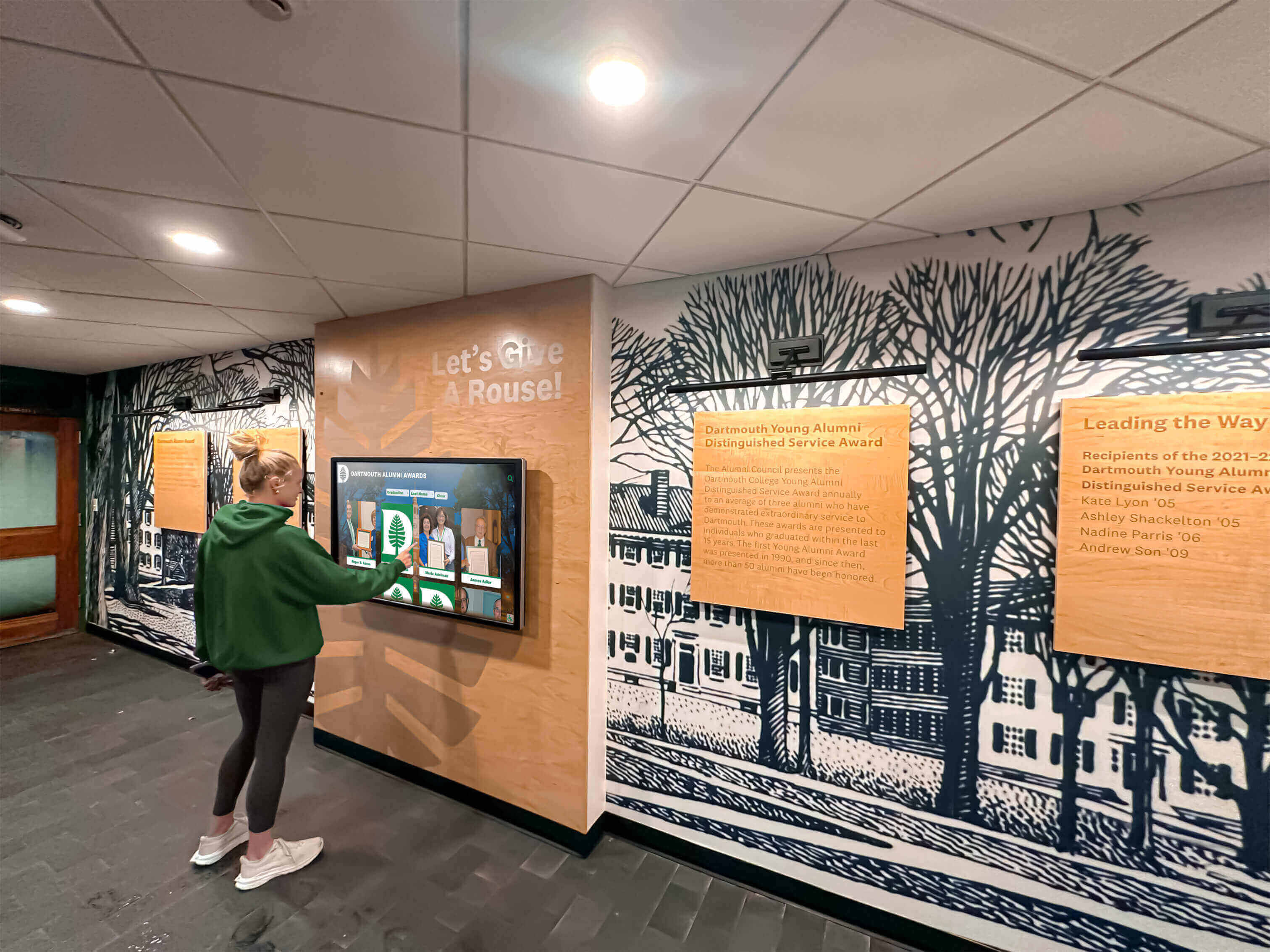
Accessible design supports learners of all abilities while reinforcing institutional commitment to inclusive education
Building Institutional Reputation and Community Trust
Public commitment to accessibility strengthens institutional reputation among prospective students, potential donors, accrediting bodies, and broader communities evaluating organizational values through actions rather than mission statements.
Families evaluating educational institutions for students with disabilities closely examine whether schools demonstrate genuine inclusion versus superficial compliance. Accessible touchscreen displays in main lobbies, athletic facilities, and student centers signal that institutions consider accessibility throughout campus experiences rather than limiting accommodations to classroom settings alone.
Major donors increasingly evaluate institutional commitment to equity and inclusion when considering significant gifts. Digital recognition walls honoring philanthropic contributions gain additional symbolic weight when designed accessibly, demonstrating that institutions value all supporters regardless of ability and recognize donors through inclusive platforms reflecting organizational values.
Accrediting agencies increasingly emphasize accessibility in evaluation criteria, recognizing that educational quality depends partly on whether all students can access learning resources, campus services, and community engagement opportunities independently. Proactive accessibility efforts strengthen accreditation documentation while preventing compliance issues that could jeopardize institutional standing.
WCAG 2.2 AA Compliance Checklist for Touchscreen Displays
Use this comprehensive checklist to evaluate whether touchscreen displays meet accessibility requirements. Organizations should audit existing installations while incorporating these criteria into procurement specifications for new deployments.
Visual Perception Requirements
- Text contrast meets 4.5:1 minimum for normal text and 3:1 for large text against backgrounds
- User interface component contrast meets 3:1 for buttons, form controls, and interactive elements
- Color is not sole means of conveying information—shape, text, or icons supplement color coding
- Text resizes to 200% without loss of content or functionality
- All text uses actual HTML text rather than images of text except for logos
- Images include alternative text describing content for screen reader users
- Interface remains usable in both portrait and landscape orientations when applicable
Touch and Motor Requirements
- Touch targets measure minimum 24x24 CSS pixels for all interactive elements
- Sufficient spacing exists between adjacent touch targets preventing accidental activation
- Actions complete on touch release (up-event) enabling cancellation through dragging away
- No functionality requires precise timing that users with motor limitations cannot achieve
- Dragging gestures have alternatives not requiring fine motor control
- Multi-point gestures provide single-pointer alternatives for users who cannot perform complex touches
Keyboard and Alternative Navigation
- All touchscreen functionality works via keyboard for users unable to use touch interfaces
- Keyboard focus receives clear visual indication showing current navigation position
- Focus order follows logical content sequence preserving meaning and operability
- No keyboard traps exist where users cannot navigate away from elements without mouse/touch
- External keyboards can connect to touchscreen hardware enabling alternative input
Content Structure and Clarity
- Semantic HTML headings structure content with proper hierarchy (H1, H2, H3)
- Navigation mechanisms remain consistent across all screens and sections
- Page titles clearly describe content or purpose for each screen
- Link text describes destination or purpose without requiring surrounding context
- Form labels clearly identify what information belongs in each field
- Error messages identify problems specifically and explain resolution steps
- Instructions don’t rely solely on sensory characteristics (shape, size, location, sound)
Multimedia and Time-Based Content
- Videos include captions for users who are deaf or hard of hearing
- Audio descriptions provide video content details for users with vision impairments
- No automatic audio plays without user control to start, pause, or stop
- Time-based interactions provide controls to pause, extend, or disable time limits
- Animations can be paused or disabled to prevent distraction or seizures
Technical Accessibility
- Content validates against HTML standards preventing screen reader confusion
- ARIA landmarks identify major page regions when semantic HTML alone proves insufficient
- Status messages announce to assistive technology through appropriate ARIA live regions
- Page language is identified enabling proper pronunciation by screen readers
- Platform supports assistive technology including screen readers, magnification, and voice control
Organizations should conduct comprehensive accessibility audits by qualified evaluators rather than relying solely on self-assessment. Automated testing tools identify some issues but miss many requirements requiring human judgment, particularly around content clarity, navigation logic, and context-appropriate alternative text.
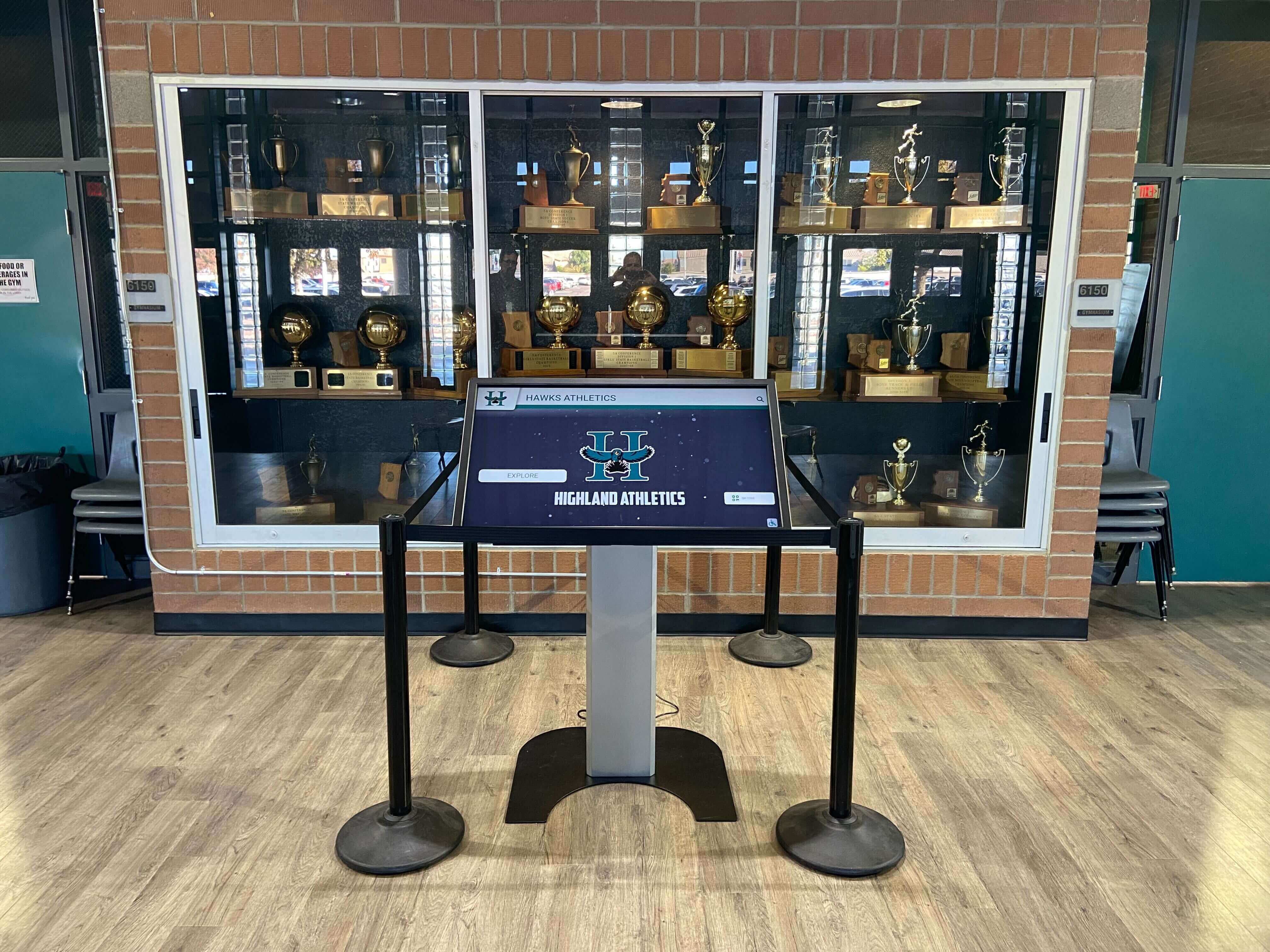
Athletic recognition displays should meet accessibility standards ensuring all athletes, families, and community members can explore achievements independently
How Rocket Alumni Solutions Ensures WCAG 2.2 AA Compliance
Understanding why Rocket Alumni Solutions prioritizes accessibility helps institutions select platforms built for compliance rather than retrofitting accessibility after deployment.
Accessibility by Design, Not Accommodation
Many touchscreen platforms treat accessibility as optional feature or enhancement added after core development completes. This approach creates fundamental accessibility barriers requiring expensive remediation when organizations discover compliance gaps post-deployment.
Rocket Alumni Solutions architects accessibility into platform foundations from initial design through ongoing development. Every feature, interface element, and content template undergoes accessibility review during development rather than auditing after release. This proactive approach prevents accessibility debt from accumulating while ensuring new capabilities meet compliance requirements immediately.
Technical Implementation of WCAG Requirements
Semantic HTML Structure: All content uses proper HTML5 semantic elements—headers, navigation regions, articles, sections—enabling screen readers to understand page structure and enabling users to navigate efficiently through content sections.
Color-Independent Design: Information conveyed through color always includes supplementary indicators. Search filters use both color and text labels. Active states combine color changes with border treatments. Category distinctions employ color plus iconography ensuring users with color blindness access equivalent information.
Responsive Touch Targets: Interactive elements throughout the platform exceed minimum 24x24 pixel requirements, typically sizing 44x44 pixels or larger matching iOS and Android platform guidelines. Generous sizing accommodates users with motor limitations while reducing frustration from missed touches affecting general populations.
Keyboard Navigation Support: Full platform functionality works via keyboard through proper focus management, logical tab order, and keyboard shortcuts enabling common operations. Users who cannot use touchscreens due to mobility limitations, burns, tremors, or other conditions navigate through external keyboard connectivity.
High Contrast Modes: Content maintains sufficient contrast in default presentation while supporting system-level high contrast preferences for users requiring enhanced visibility. Dark text on light backgrounds and interface elements separated by clear visual boundaries ensure readability across diverse vision capabilities.
Alternative Text for Images: All images within platform templates include descriptive alternative text. Content management interfaces prompt administrators to provide alt text when uploading photos, while auto-generated suggestions offer starting points based on image analysis that administrators refine with specific context.
Accessibility Testing and Validation
Rocket conducts regular accessibility audits through third-party evaluators specializing in WCAG compliance assessment. These audits employ both automated testing tools and manual evaluation by accessibility experts, including testing by users who regularly use screen readers, magnification software, and keyboard-only navigation.
Identified issues receive priority attention in development roadmaps, with accessibility bugs classified as high-priority requiring resolution before feature releases proceed. This process ensures the platform maintains compliance as capabilities expand rather than introducing new barriers through feature additions.
Content Management for Accessible Publications
Platform accessibility means nothing if content uploaded by institutional administrators introduces barriers. Rocket’s content management system guides administrators toward accessible content creation through:
Template-Based Content: Structured templates ensure proper heading hierarchies, text alternatives, and semantic markup automatically without requiring administrators to understand HTML or accessibility guidelines.
Alternative Text Prompts: Image upload workflows include required alternative text fields with guidance about writing effective descriptions. The system prevents publishing images without alt text, ensuring screen reader users receive equivalent information.
Contrast Validation: Color customization tools provide real-time feedback about contrast ratios, warning administrators when selected combinations fail WCAG requirements and suggesting adjustments achieving compliance.
Plain Language Support: Content editing interfaces encourage clear, simple language through readability scoring and complexity warnings, helping administrators create content accessible to users with cognitive disabilities or limited English proficiency.
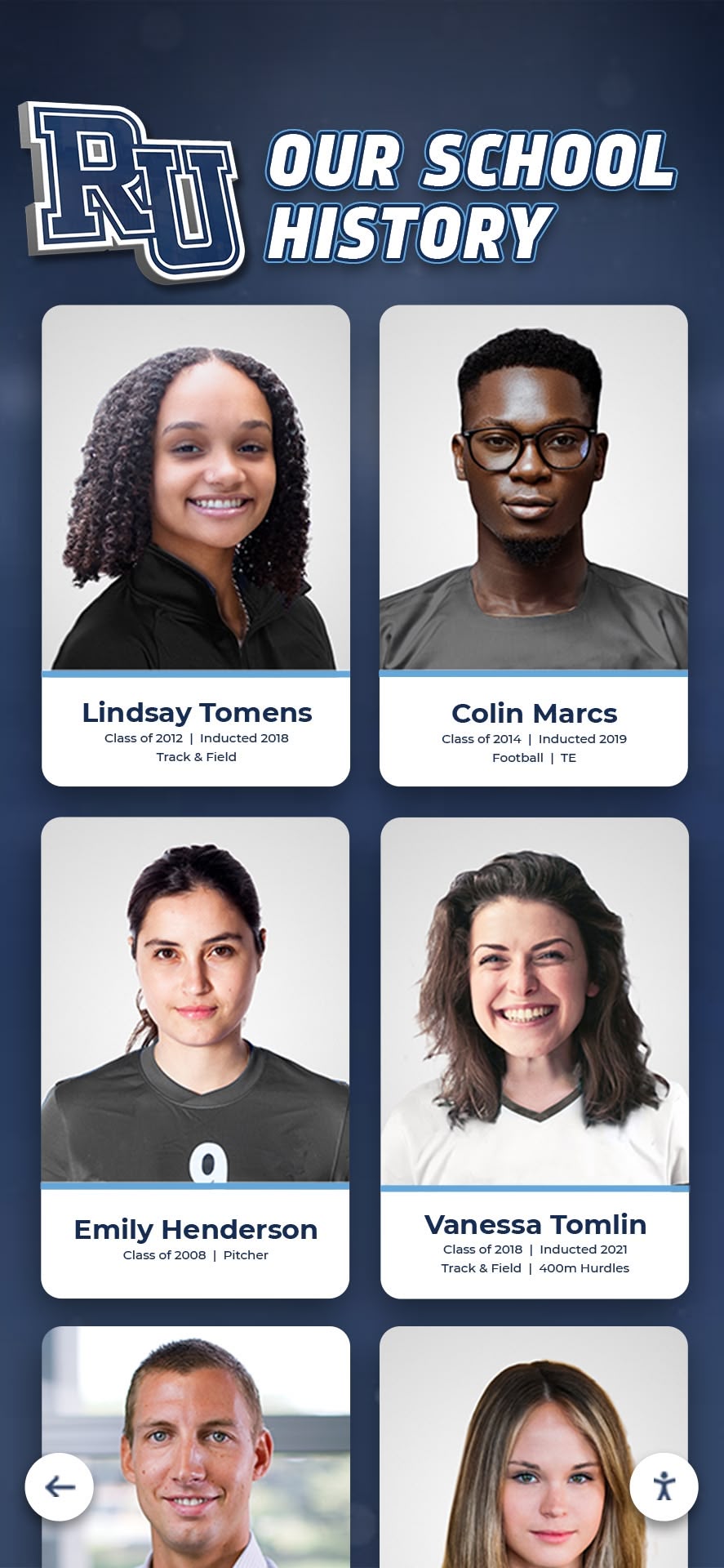
Structured content templates ensure consistent accessibility while enabling rich storytelling through profiles, photos, and achievement details
Implementation Planning: Building Accessible Touchscreen Displays
Selecting WCAG-compliant software represents one component of accessible touchscreen deployment. Complete implementation requires attention to physical installation, hardware selection, and operational procedures.
Physical Accessibility Considerations
Mounting Height: ADA Standards for Accessible Design specify maximum reach ranges for wheelchair users. Forward reach allows 48 inches maximum height when clear floor space exists directly in front. Side reach permits 54 inches maximum when obstructions limit approach angles. Touchscreen displays should mount with critical interactive areas—particularly the bottom of active touch regions—within these reach ranges.
Many institutions mount large touchscreen displays at eye level for standing adults, placing bottom edges 48-60 inches above floors. This creates barriers for wheelchair users who cannot reach controls and young children who cannot access upper portions. Consider whether displays serve diverse height populations and adjust mounting accordingly, potentially using lower positioning or tiltable mounts enabling height adjustment.
Clear Floor Space: ADA requires minimum 30 by 48 inch clear floor space positioned for forward or parallel approach to interactive elements. This enables wheelchair users to position themselves close enough to operate controls comfortably. Displays recessed into walls, placed in corners, or surrounded by furniture may technically mount at proper heights while remaining inaccessible due to inadequate approach space.
Protruding Objects: Wall-mounted touchscreen displays extending more than 4 inches from walls can create hazards for people who are blind or have low vision using canes for navigation. Displays should either recess into walls, mount on freestanding kiosks with detectable base extensions, or include cane-detectable elements extending to floor level preventing users from walking into protruding screens.
Operating Controls: If touchscreen displays include separate power buttons, volume controls, or auxiliary inputs, these controls must meet accessibility requirements independently. Place physical buttons within reach ranges, provide tactile indicators distinguishing functions without relying on vision, and ensure adequate force feedback confirming activation.
Hardware Selection for Accessibility
Screen Brightness and Contrast: Select commercial displays rated for minimum 350-400 nit brightness ensuring visibility in typical institutional lighting. Higher brightness capabilities enable readability near windows or in brightly lit lobbies where ambient light creates glare challenges. Anti-glare screen treatments reduce reflections that obscure content for users with low vision while benefiting general populations.
Touch Technology: Capacitive touchscreens provide responsive multi-touch interaction matching smartphone experiences most users find intuitive. Avoid resistive touchscreens requiring pressure that creates barriers for users with reduced hand strength while feeling less responsive to general populations. Consider whether touch technology works reliably with gloves, long nails, or prosthetics used by some community members.
Audio Capabilities: While visual interfaces serve most users, audio output capabilities enable screen reader functionality, audio descriptions for videos, and optional voice guidance for users with vision impairments. Include speakers with sufficient volume and clarity for public environment use, and provide headphone jacks enabling private listening without disturbing others.
External Input Options: Built-in or easily connected external keyboard support enables alternative navigation for users who cannot use touchscreens. USB ports supporting standard keyboards provide flexibility without requiring proprietary accessories.
Operational Procedures and Maintenance
Accessibility Contact Information: Provide clear contact information near touchscreen displays enabling users experiencing accessibility barriers to report problems quickly. Include phone numbers, email addresses, or QR codes linking to accessibility support resources ensuring timely problem resolution.
Alternative Access Methods: When touchscreen displays provide information also available through other channels—websites, mobile apps, printed materials—clearly communicate these alternatives near installations. Users encountering accessibility barriers can access equivalent information through preferred modalities while institutions address technical problems.
Regular Testing: Establish procedures for periodic accessibility testing by users with diverse abilities. Invite students, employees, or community members with disabilities to evaluate displays, providing feedback about barriers they encounter. Address identified issues promptly rather than waiting for formal complaints or legal threats to compel action.
Content Review Processes: Implement approval workflows ensuring content meets accessibility requirements before publication. Designate staff members responsible for reviewing alt text quality, checking color contrast, validating heading structure, and confirming that uploaded materials maintain platform accessibility rather than introducing barriers through poorly formatted content.
Training for Content Administrators: Provide comprehensive training for staff members managing touchscreen content, covering accessibility requirements, proper use of platform features supporting compliance, and resources for creating accessible multimedia materials. Ongoing training as platform capabilities expand ensures administrators maintain skills keeping pace with evolving tools.
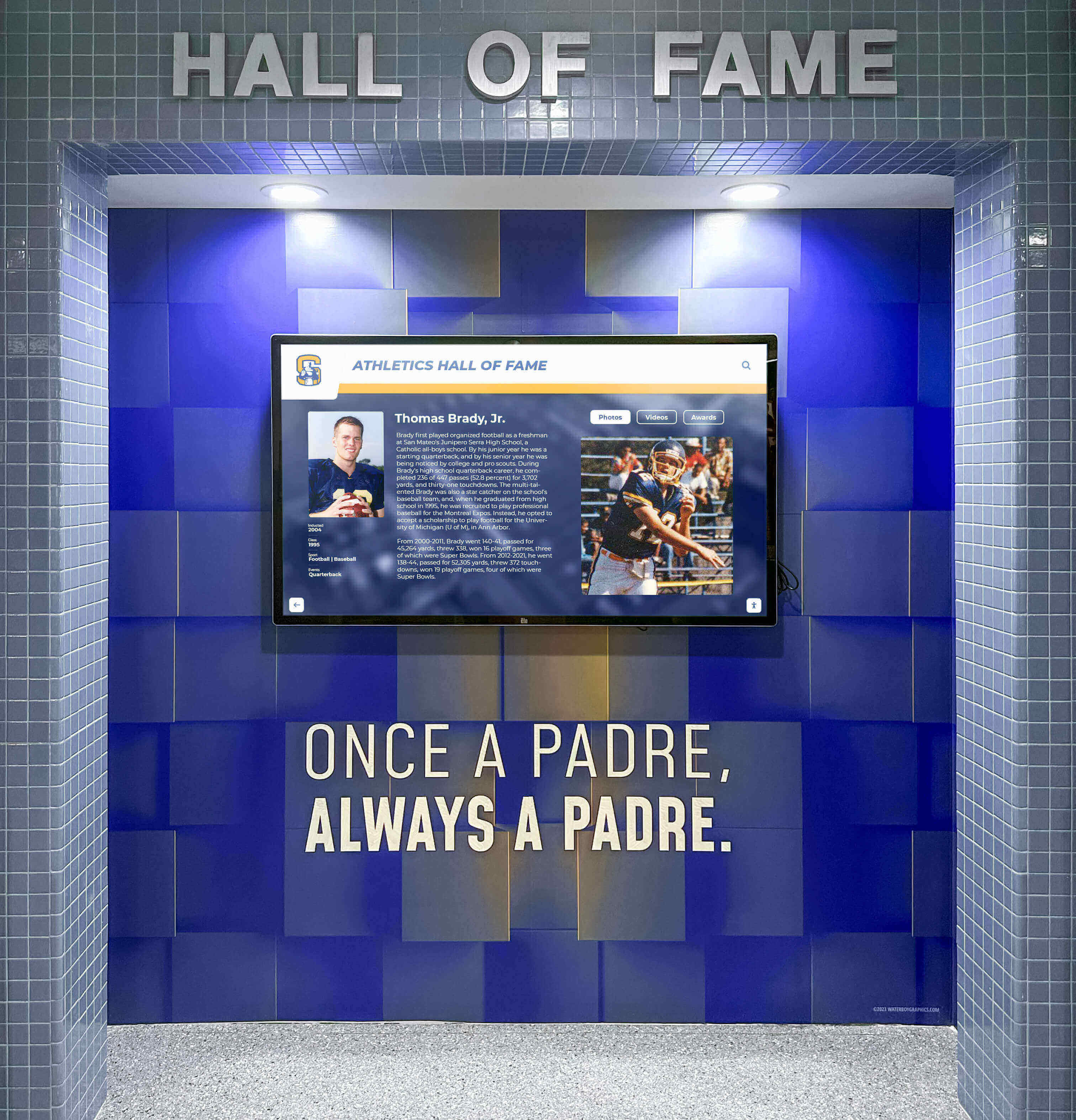
Proper physical installation combining appropriate mounting height, clear floor space, and accessible hardware enables independent use by community members with diverse abilities
The Business Case for Accessibility Investment
Organizations sometimes view accessibility compliance as regulatory burden imposing costs without delivering proportional benefits. This perspective fundamentally misunderstands accessibility’s return on investment across multiple organizational dimensions.
Risk Mitigation and Legal Protection
Accessibility lawsuits impose substantial costs even when institutions eventually prevail. Attorney fees, staff time diverted to litigation support, documentation production, expert witness costs, and settlement negotiations consume resources far exceeding proactive compliance investments.
The Department of Education’s Office for Civil Rights investigates accessibility complaints filed by students, employees, or community members alleging discrimination. OCR investigations require extensive documentation, corrective action plans, monitoring agreements, and potential loss of federal funding that represent existential threats to institutions dependent on Title IV financial aid or research grants.
Proactive accessibility investment provides demonstrable good-faith efforts toward compliance that may influence outcomes when complaints arise. Organizations showing systematic attention to accessibility through documented policies, regular audits, staff training, and timely remediation efforts fare better than those ignoring accessibility until forced into reactive compliance.
Reputation Protection and Community Relations
Accessibility complaints generate negative publicity damaging institutional reputations with prospective students, donors, accreditors, and community stakeholders. Media coverage of accessibility lawsuits portrays defendants as indifferent to disability inclusion regardless of underlying circumstances, creating perception challenges that persist long after legal matters resolve.
Conversely, institutions demonstrating commitment to accessibility through inclusive digital recognition displays, comprehensive campus accessibility initiatives, and visible accommodation efforts strengthen reputations as welcoming environments for people with disabilities. This reputation attracts students, employees, and community members who value inclusive environments while signaling organizational commitment to equity beyond legal minimums.
Market Expansion and Community Reach
Accessible touchscreen displays serve larger populations than inaccessible alternatives by definition. When interactive hall of fame displays work equally well for users with vision impairments, mobility limitations, or cognitive differences, institutions maximize engagement value per installation dollar.
Alumni with disabilities represent substantial philanthropic capacity that institutions miss when recognition systems exclude these community members. Accessible donor walls communicate that institutions value contributions from all supporters regardless of ability, potentially expanding giving participation among disability populations who might otherwise feel marginalized.
Families evaluating educational institutions for students with disabilities consider accessibility throughout campus experiences, not just formal accommodations available through disability services offices. Accessible public touchscreen displays in lobbies, athletic facilities, and student centers signal comprehensive commitment to inclusion that influences enrollment decisions.
Operational Efficiency and Maintenance Reduction
Well-designed accessible interfaces typically prove easier to maintain than poorly structured alternatives requiring constant adjustment. Semantic HTML, proper heading hierarchies, and logical content structures that support screen readers also facilitate content management, search engine optimization, and future platform migrations.
Accessible platforms built on web standards using responsive design adapt easily to new devices, screen sizes, and interaction modalities as technology evolves. Proprietary solutions using non-standard approaches for visual appeal often require complete rebuilds when platforms change, while accessible web-based platforms smoothly accommodate emerging technologies through standards compliance.
Staff time spent assisting users who cannot independently navigate inaccessible displays represents ongoing operational cost that accessible design eliminates. When touchscreen displays work independently for all users regardless of ability, institutions avoid staffing costs providing human assistance or maintaining redundant information access systems accommodating users who cannot use primary interfaces.
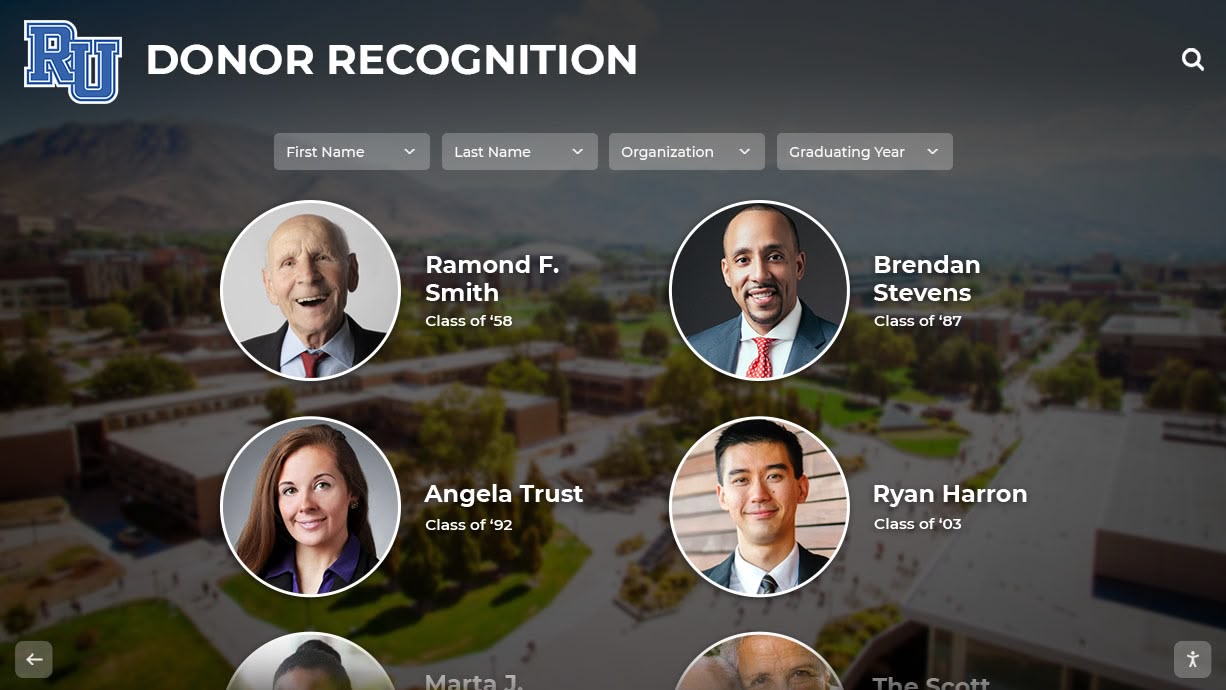
Accessible recognition platforms serve entire communities while strengthening institutional reputation for inclusive values and practices
Beyond Compliance: Accessibility as Design Excellence
The most compelling argument for accessibility transcends legal requirements or business cases—accessible design simply represents excellent design benefiting everyone through clarity, consistency, and thoughtful attention to diverse human needs.
Universal Design Principles in Practice
Universal design creates products and environments usable by people with diverse abilities without requiring specialized adaptation. Rather than designing for average users then retrofitting accommodations for people with disabilities, universal design considers human diversity from project inception.
Touchscreen interfaces following universal design principles benefit:
Users with Permanent Disabilities: Clear visual presentation, generous touch targets, semantic structure, and keyboard alternatives enable independent use by people with vision impairments, mobility limitations, hearing loss, or cognitive differences.
Users with Temporary Impairments: Individuals recovering from eye surgery, hand injuries, concussions, or other temporary conditions appreciate interfaces accommodating reduced capabilities during recovery periods.
Users in Challenging Situations: Anyone viewing displays in bright sunlight benefits from high contrast. Users wearing gloves appreciate large touch targets. People in noisy environments prefer visual information over audio-dependent content.
Users Facing Aging-Related Changes: Older adults experiencing typical age-related vision decline, reduced motor control, or slower information processing navigate interfaces designed for diverse abilities more successfully than those optimized for young adults with perfect vision and coordination.
Universal design dissolves artificial distinctions between “typical” users and people with disabilities, recognizing that human ability exists on continuums affected by context, age, health, environment, and individual variation. Interfaces serving diverse populations work better for everyone through reduced cognitive load, clearer information presentation, and forgiving interaction models.
Accessibility Innovation Driving Better Experiences
Historical innovations intended for disability accommodation frequently benefit mainstream populations enormously. Email was developed for deaf users needing text-based communication. Audiobooks were created for people who cannot read print. Text messaging began as TTY technology for deaf telephone users. These accommodations became ubiquitous technologies enriching life for billions of people worldwide.
Contemporary accessibility innovations continue this pattern. Voice control developed for users with mobility limitations now enables hands-free device operation benefiting drivers, cooks, and anyone multitasking. Captions created for deaf users help language learners, people in loud environments, and anyone watching videos in situations requiring muted audio. High contrast modes assist users in bright environments beyond their original purpose supporting low vision.
When organizations embrace accessibility as design challenge rather than compliance burden, creative solutions emerge improving experiences for all users while enabling participation by people with disabilities. This approach transforms accessibility from cost center into innovation catalyst generating competitive advantages through superior user experience.
Conclusion: Choosing Accessible Touchscreen Solutions
Educational institutions and public organizations deploying interactive touchscreen displays face clear choice: invest proactively in accessibility compliance through informed platform selection and proper implementation, or risk legal exposure, community exclusion, and missed opportunities serving entire populations.
WCAG 2.2 AA compliance represents established standard for digital accessibility, required by federal law for public entities and educational institutions while expected by courts interpreting ADA obligations. These guidelines ensure people with disabilities can independently perceive, operate, understand, and navigate digital interfaces through attention to visual presentation, touch target sizing, keyboard accessibility, content structure, and alternative access methods.
Rocket Alumni Solutions builds WCAG 2.2 AA compliance directly into platform architecture rather than treating accessibility as optional enhancement. This proactive approach protects institutions from legal exposure while demonstrating genuine commitment to inclusion that strengthens community relationships, expands engagement reach, and creates user experiences benefiting everyone through improved usability.
Organizations selecting touchscreen software should evaluate accessibility comprehensively through technical audits, user testing with people with disabilities, and documentation review confirming compliance rather than accepting vendor assertions without validation. Request Voluntary Product Accessibility Templates (VPATs) documenting specific WCAG conformance, conduct independent accessibility testing before finalizing contracts, and incorporate accessibility requirements into procurement specifications ensuring vendors prioritize compliance.
Physical installation requires equal attention—proper mounting heights, adequate clear floor space, appropriate hardware selection, and operational procedures ensuring ongoing accessibility as content evolves and platforms update. Complete accessibility depends on technical compliance, physical implementation, and organizational commitment to inclusive practices throughout content management and user support.
The benefits of accessible touchscreen displays extend far beyond regulatory compliance. Universal design creates interfaces serving entire communities including people with permanent disabilities, individuals experiencing temporary impairments, users facing situational challenges, and aging populations. Accessible platforms demonstrate institutional values through actions rather than words, strengthen reputation among prospective students and donors, reduce legal risk, and maximize engagement value per installation investment.
When planning digital recognition walls, interactive wayfinding systems, or public information kiosks, prioritize accessibility from project inception through vendor selection, installation planning, content management, and ongoing operations. This proactive approach prevents expensive retrofits, protects against legal exposure, and ensures digital displays serve entire communities regardless of ability.
Your community deserves touchscreen displays enabling independent use by people with diverse abilities rather than excluding substantial populations through preventable accessibility barriers. The platform powering those experiences should demonstrate equal commitment to compliance, inclusion, and design excellence.
Discover how Rocket Alumni Solutions provides WCAG 2.2 AA compliant touchscreen platforms specifically designed for educational institutions and public organizations, combining comprehensive accessibility with intuitive management, professional presentation quality, and proven engagement results serving communities inclusively.
Build Accessible Recognition Displays Serving Your Entire Community
Explore how Rocket Alumni Solutions delivers WCAG 2.2 AA compliant touchscreen platforms designed specifically for schools, universities, and public organizations. Combine legal compliance with inclusive design that works beautifully for users of all abilities.
Book Your Accessibility Demo






























