Trophy cases hold more than hardware—they hold decades of effort, identity, and community pride. Yet many schools treat security as an afterthought: a single cabinet key dangling from a coach’s lanyard, annealed glass that shatters on contact, and no written record of who opened the case last Tuesday. When a trophy goes missing or a case is vandalized, the loss is both financial and cultural. Awards that took years to earn can disappear overnight, and the stories attached to them can fade just as quickly.
This school trophy case security checklist walks facilities staff, athletic directors, and school administrators through every layer of protection—from site selection and glazing specifications to access logs and digital backups—without turning your hall of fame into a locked vault that nobody can enjoy. Security and storytelling are not in conflict. Done right, better protection actually encourages more people to stop, look, and engage.
Before You Start: Gather Your Stakeholders and Baseline Data
Rushing straight to hardware decisions wastes money and creates blind spots. Before selecting locks or glass types, document your current situation.
Who should be in the room:
- Facilities director or head custodian (knows structural constraints)
- Athletic director (knows the award inventory and access frequency)
- Assistant principal or building safety coordinator (knows insurance and policy requirements)
- IT coordinator (needed if you plan any electronic access or digital displays)
Baseline data to collect before your first purchase:
| Item | Questions to Answer |
|---|---|
| Award inventory | How many trophies, plaques, and banners exist? What is the estimated replacement value? |
| Current case specs | Age, manufacturer, glass type, lock type, mounting method |
| Access patterns | Who opens the case, how often, and for what purpose? |
| Incident history | Any prior theft, vandalism, or accidental breakage? |
| Insurance coverage | Does your policy cover contents of display cases? At what valuation method? |
| Building traffic | Is the case in a supervised corridor, lobby, or isolated alcove? |
Completing this table before your first hardware conversation puts you in a much stronger position when comparing vendor options or presenting a budget request to administration.
Phase 1: Placement and Sight-Line Security
Physical placement is your first and cheapest security layer. A trophy case positioned poorly invites opportunistic damage regardless of how strong its glass or locks are.
Placement Checklist
- Main corridors over isolated alcoves. Cases tucked around corners or in low-traffic stairwells are harder for staff to monitor passively. A main lobby or primary athletic hallway means dozens of staff members serve as informal deterrents every hour school is in session.
- Within camera coverage. Confirm that at least one existing security camera has a clear line of sight to the case front. If not, note this for your next camera system upgrade request.
- Away from exterior doors. Cases within ten feet of an exterior entrance are vulnerable to smash-and-grab incidents, especially during events when those doors prop open. If relocation is not feasible, add secondary measures (see Phase 2 and Phase 3).
- Adequate ambient lighting. Well-lit cases are more visible to passersby and less attractive to theft. Aim for at least 50 foot-candles at the case front. Interior LED lighting within the case also discourages cover-of-darkness access.
- Obstacle-free approach lane. Maintain clear floor space in front of the case so staff and visitors can see it from a distance—and so a person crouching at the lock or glass is visually conspicuous.
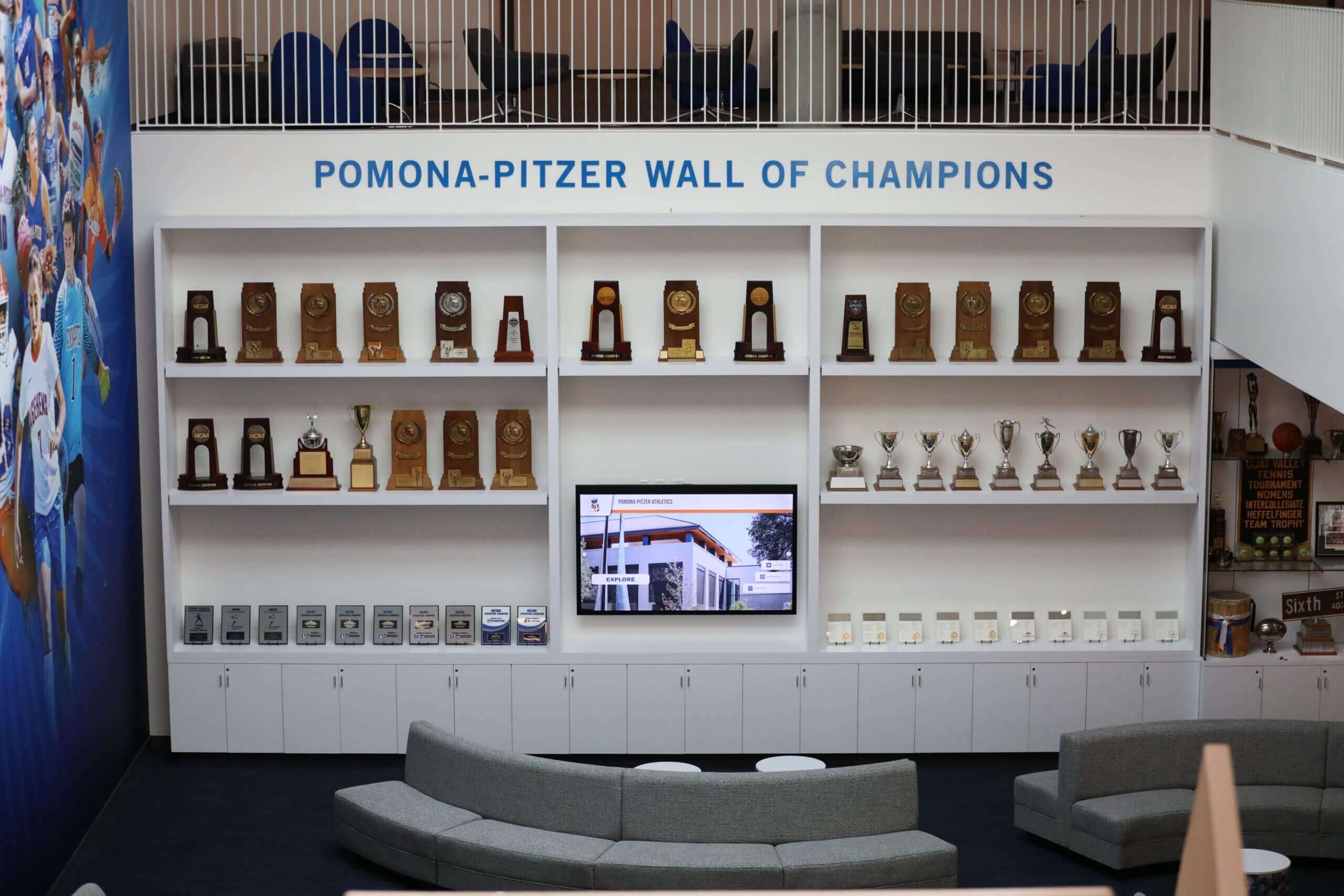
If relocation is not possible, document the placement risks and address them with compensating controls in the phases below.
Phase 2: Glazing—Choosing the Right Glass or Panel
The front panel of a trophy case is almost always its weakest physical point. Understanding glazing options lets you match protection level to actual risk without over-engineering.
Glazing Comparison Table
| Material | Impact Resistance | If Broken | Typical Use Case |
|---|---|---|---|
| Annealed (standard) glass | Low | Large, sharp shards | Original equipment on older cases |
| Tempered glass | Moderate | Small, blunt pebbles | Standard upgrade; safer but still penetrable |
| Laminated glass | High | Holds together on frame | Bank-grade; good for high-value collections |
| Polycarbonate (Lexan) | Very high | Deforms, rarely penetrates | Highest risk areas; heavier; may yellow over time |
| Acrylic (Plexiglas) | Moderate | Cracks and crazes | Lightweight; scratches easily; not for exterior adjacency |
| Security window film (applied) | Moderate upgrade | Holds shards to film | Budget upgrade for existing annealed glass |
Glazing Checklist
- Identify existing glazing material. Request specs from your case manufacturer or have a glazier assess the panels. Assume annealed glass on any case more than ten years old.
- Upgrade annealed glass to at minimum tempered if replacement is otherwise overdue or if the case is near high-traffic areas.
- Apply security window film as a cost-effective interim measure on cases where full panel replacement is not in the current budget. Film holds broken glass together, reducing injury risk and slowing forced entry.
- Use laminated glass for trophy cases housing irreplaceable or high-value items—retired championship rings, original hall-of-fame plaques, or artifacts with significant historical value.
- Inspect all panel edges and frames for gaps, cracked caulk, or loose fasteners. A structurally sound panel in a failing frame offers little protection.
Phase 3: Locks and Access Control
Locks prevent casual and opportunistic access. Your goal is a layered system where casual access requires a key and systematic access requires a log.
Lock Type Reference
| Lock Type | Key Management Burden | Audit Trail | Best For |
|---|---|---|---|
| Standard pin-tumbler (keyed) | Medium | None | General use with key sign-out log |
| High-security pin-tumbler (restricted keyway) | Low—only authorized locksmiths cut keys | None | Schools with prior key-control problems |
| Combination cam lock | Low physical | None | Cases rarely opened; no duplication risk |
| Padlock with hasp | Variable | None | Temporary or supplemental locking |
| Electronic keypad | Low | Timestamped code entry | High-value or high-frequency access cases |
| Card/fob reader | Very low | Full electronic log | Multi-building districts, networked systems |
Access Control Checklist
- Limit keyholders to named individuals. Avoid generic “athletic office key” bundles. Document who holds each key by name and title.
- Implement a physical key sign-out log for every case that uses a mechanical lock. The log should capture: date, time, name, purpose, and return confirmation. A simple binder mounted near the case achieves this.
- Rekey after any keyholder departure. Budget for rekeying when staff who held trophy-case keys leave the school. This is frequently overlooked and represents a common gap.
- Do not store trophy case keys on a ring with master building keys. Treat case keys as a separate, tracked set.
- Evaluate electronic access for cases housing high-value collections. Entry timestamps create a passive audit trail and eliminate key-duplication risk entirely.
- Test all lock mechanisms at the start of each school year. Locks that stick, spin freely, or show corrosion should be replaced before the season’s new awards are added.
Phase 4: Mounting and Structural Anchoring
A case that tips, slides, or can be carried away negates every other security measure.
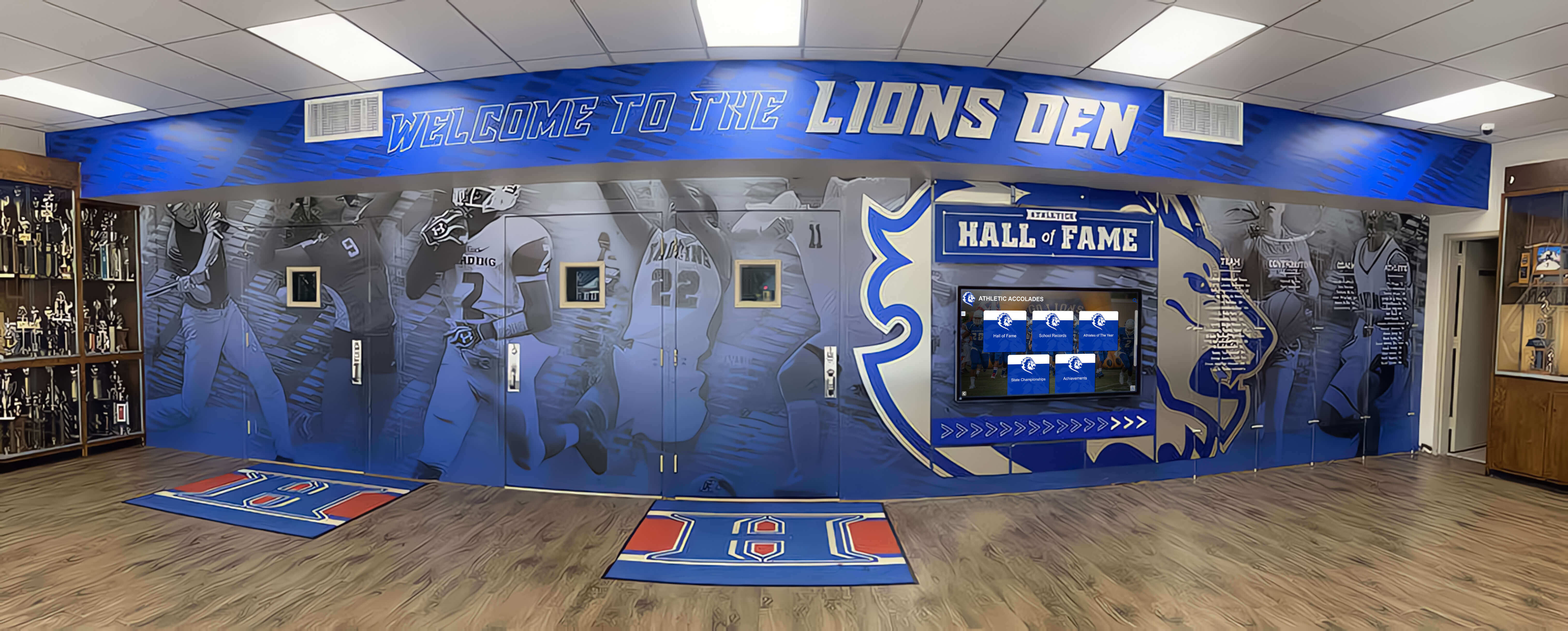
Mounting Checklist
- Anchor freestanding cases to the wall using appropriate fasteners for the substrate. Drywall anchors are not adequate for heavy trophy cases; use lag bolts into wall studs or concrete anchors into masonry.
- Confirm anchor points can support at least twice the case’s loaded weight. A 200-pound case with 50 pounds of trophies needs anchors rated for at least 500 pounds.
- Install anti-tip straps if the case manufacturer supplies them. These are standard on office furniture; retrofitting them to older trophy cases is straightforward.
- Check for leveling. Cases that lean forward shift their center of gravity toward tipping. Adjustable leveling feet or shims should hold the case plumb.
- Inspect anchor points annually and after any seismic activity, flooding, or significant building renovation near the case location.
- For recessed or built-in cases, verify that surrounding wall framing and finish material are intact. A case recessed into drywall without proper backing can be pulled forward with minimal force.
Phase 5: Access Logs and Accountability Procedures
Physical security measures are only as strong as the human systems that govern them. Documented procedures convert good intentions into auditable practice.
Access Log Template
Every trophy case that is opened should generate a log entry. The record does not need to be elaborate:
| Field | Example |
|---|---|
| Date | 2026-03-15 |
| Time opened | 2:45 PM |
| Time closed and locked | 3:10 PM |
| Name | J. Martinez, Athletic Director |
| Purpose | Add state championship plaque |
| Items added/removed | 1 plaque (Girls Basketball, IHSA 3A, 2026) |
| Verified by (if applicable) | P. Chen, Facilities |
Accountability Checklist
- Maintain a log for every case opening, regardless of how routine the purpose. Consistency is what makes logs useful when something later goes wrong.
- Designate a single custodian for each case—one person who owns the key, the log, and the annual inventory. Shared ownership with no named lead leads to gaps.
- Conduct a quarterly spot-check comparing the physical contents of each case against your inventory list. Discrepancies found quickly are far easier to resolve than those discovered months later.
- Store completed log binders or digital records for a minimum of three years, or in accordance with your district’s records retention policy—whichever is longer. Confirm the applicable requirement with your district’s records officer; this guidance is general and your district’s policy governs.
- Cross-reference the access log when adding insurance riders for high-value items. Documentation of regular oversight strengthens coverage claims.
Phase 6: Environmental Protection
Security extends beyond theft and vandalism. Environmental factors degrade awards silently over years.
Environmental Checklist
- Control humidity inside the case. Relative humidity above 65% promotes corrosion on metals and mold on wood and fabric. A silica gel packet inside the case, replaced every six months, is a low-cost solution for enclosed cases.
- Minimize direct sunlight exposure. UV radiation fades lettering, discolors fabric banners, and yellows acrylic panels. If relocation away from windows is not possible, apply UV-filtering window film to nearby glass.
- Ensure adequate air circulation to prevent condensation buildup, especially in exterior-wall installations in climates with significant temperature swings.
- Inspect interior lighting fixtures annually. Older incandescent fixtures inside cases generate heat that accelerates deterioration. Replace with cool-operating LED strips.
- Check for pests. Trophy cases in older buildings can attract insects attracted to felt lining, wood bases, and trophy leather wrapping. Address any signs of infestation immediately.
Phase 7: Emergency Procedures
A written response plan converts panic into action when something goes wrong.
Emergency Response Checklist
- Document the non-emergency police reporting number for theft or vandalism discovered after hours. Post it in the athletic office and in the case-access binder.
- Establish a photo-documentation step as the first action after any incident. Photograph the scene before touching anything, even to assess what is missing.
- Name an incident contact chain: athletic director → building principal → district facilities director → insurance contact. Everyone in the chain should have the next person’s direct number.
- Define “after-hours discovery” protocol for custodial staff who may be first to discover an incident. A short written SOP posted in the custodial room prevents well-intentioned cleanup that destroys evidence.
- File a police report for any theft, regardless of the item’s dollar value. Insurance claims and future reference both require official documentation.
- Notify your insurance carrier within the timeframe specified in your policy. Late notification can affect coverage. Keep your policy number and carrier contact in the athletic office binder.
Phase 8: Digital Replicas and Documentation
Every item in a trophy case should have a digital record before anything goes wrong. A digital replica serves three purposes: it preserves the story of each award, it provides insurance documentation, and it gives your community ongoing access to the history even when the case is closed or the physical display is under renovation.
Documentation Checklist
- Photograph every award from at least two angles: front face and full item with base or plaque detail. Use consistent lighting to capture engraving legibly.
- Record the following metadata for each item: award name, recipient(s), sport or category, year, issuing organization, and any inscribed text verbatim.
- Store documentation in a location separate from the trophy case itself—a shared drive, your district content management system, or a cloud-based recognition platform. A backup stored only in the same building as the case provides limited protection.
- Update documentation within 30 days of any new award being added to a case.
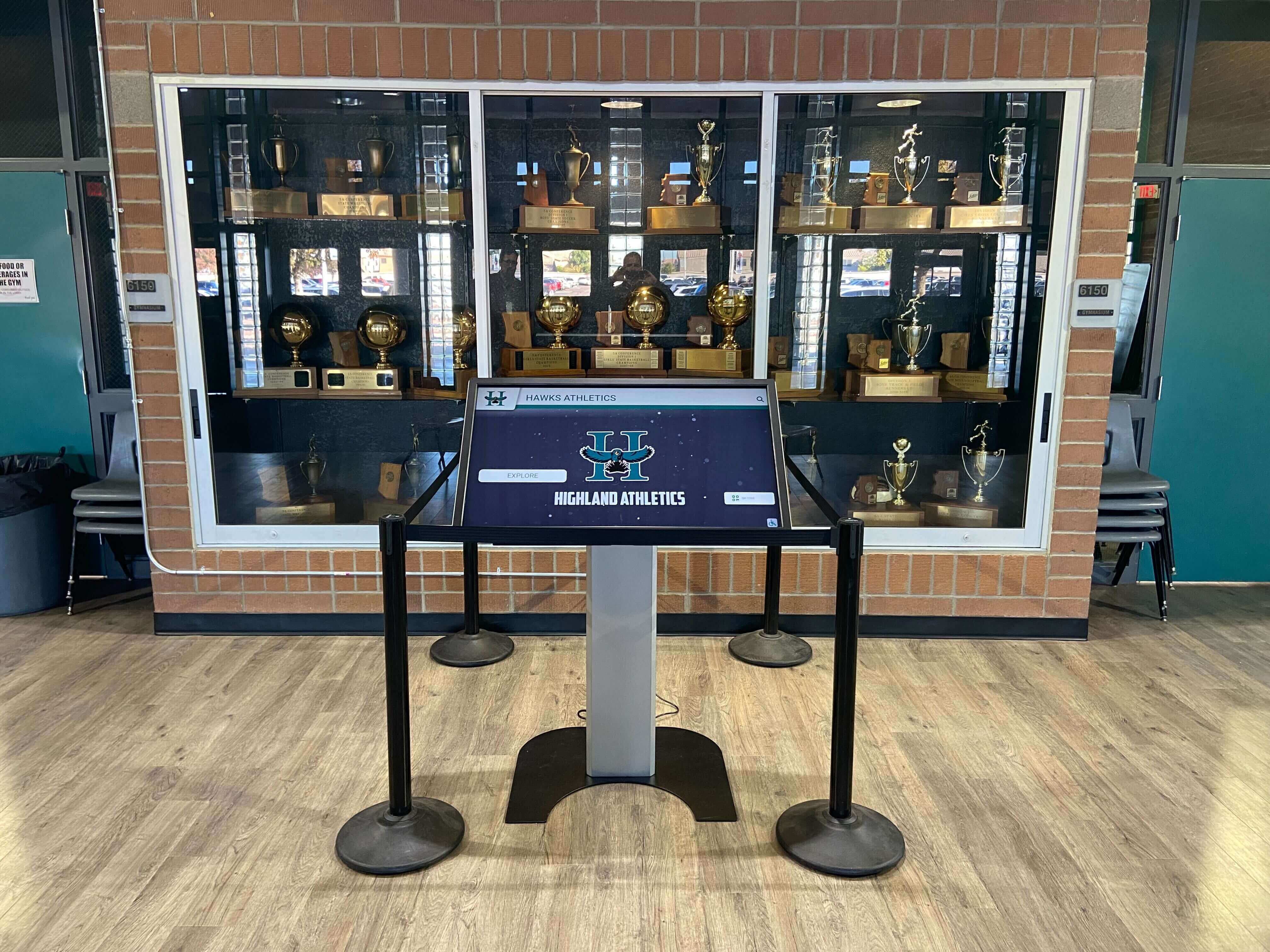
- Consider a searchable digital trophy case as an always-available supplement to your physical display. Digital trophy case kiosks built specifically for schools allow any visitor to find any award by name, year, or sport—even awards that have been rotated out of the physical case to make room for newer recognition.
QR codes on plaques or shelf labels are a practical bridge between the physical and digital: a visitor scans the code and immediately sees the full story behind a trophy—rosters, game photos, newspaper coverage, and season statistics. Linking physical awards to digital stories through QR codes has become a standard approach in schools that want their display to do more than sit behind glass.
For schools that have completed a transition to interactive hall-of-fame walls, the physical case still matters as an anchoring artifact—but the searchable digital record becomes the primary means of accessing history. The comparison between digital hall-of-fame displays and traditional trophy cases is worth reading before you decide how much to invest in upgrading physical security versus expanding digital presence.
Phase 9: Annual Review Cycle
A checklist completed once and never revisited provides diminishing protection as staff turn over, hardware ages, and award collections grow.
Annual Review Checklist
- Conduct a full physical inventory at the start of each school year, comparing contents against the documented list.
- Test all locks and replace any that show wear, corrosion, or inconsistent operation.
- Review the key-holder list and revoke access for anyone who has left the school or changed roles.
- Inspect glazing for chips, cracks, delamination (in laminated glass), or yellowing (in polycarbonate).
- Check anchor points and mounting hardware for signs of loosening.
- Update the insurance rider if new awards have been added that exceed the previous valuation.
- Review the emergency contact chain to confirm all phone numbers and email addresses are current.
- Archive the prior year’s access log and start a fresh binder or digital record.
Validation Block: Quick-Audit Your Current Setup
Use this summary to do a rapid pass-fail assessment before diving into the full checklist above.
| Area | Pass Condition | Fail Indicator |
|---|---|---|
| Placement | Case visible from staff desk or camera | Isolated alcove, blind corner |
| Glazing | Tempered or better; no visible cracks | Original annealed glass; chips or crazes |
| Locks | Fewer than five keyholders, all named | “Office key” used; no key-holder list |
| Mounting | Wall-anchored; level; no wobble | Unanchored; leans; moves when pushed |
| Access log | Current log present, dated within past month | No log; last entry more than 90 days old |
| Documentation | Every item photographed and listed | No digital record exists |
| Emergency plan | Written SOP posted in athletic office | No written plan; no insurance contact posted |
If you score three or more failures in this table, start with Phase 3 (locks) and Phase 8 (documentation)—those two phases deliver the highest impact for the least cost.
Connecting Security to Storytelling
Tight security should not mean hidden history. A well-secured trophy case with consistent access logs and a strong digital backup is actually easier to open for good reasons—an alumni visit, a reunion, a media day—because staff know exactly what is inside, who has a key, and how to document the opening.
Schools that maintain searchable digital records of their award history find that the physical case takes on a different role: it anchors the room while the digital display handles the browsing. Championship trophy display strategies that pair physical cases with digital access layers give visitors the best of both—the visceral presence of a real trophy and the depth of a searchable archive.
Athletic directors planning their next awards season should also consider how the trophy case fits into the broader athletic program presence. An athletic website content checklist can help ensure that digital award records align with what appears on your school’s public-facing pages. And for schools planning end-of-year recognition events, an athletic banquet planning checklist addresses how physical and digital award presentations can work together on the night the awards are first given.
Physical displays like baseball display cases in school trophy halls demonstrate how sport-specific showcases can be secured and documented while remaining visually accessible and engaging for visitors of all ages.
See How Schools Protect and Display Their Award History
Rocket Alumni Solutions helps school athletic departments, facilities teams, and advancement offices build recognition programs that are secure, searchable, and story-rich. From digital trophy case platforms to interactive hall-of-fame walls, our team works with your existing infrastructure to make award history accessible without compromising protection.
Schedule a Free DemoFinal Practical Next Step
Audit your current setup against the quick-fail table above, then pick the single highest-impact gap to address this week. For most schools, that gap is either the access log (free to implement today) or glazing (a direct facilities work order). Starting with one concrete action is more useful than waiting until a full budget cycle allows a complete overhaul.
Once physical security is solid, the next investment worth making is a digital record that preserves every award’s story—so that a broken trophy or a case that needs repainting never means the history behind it is lost.































