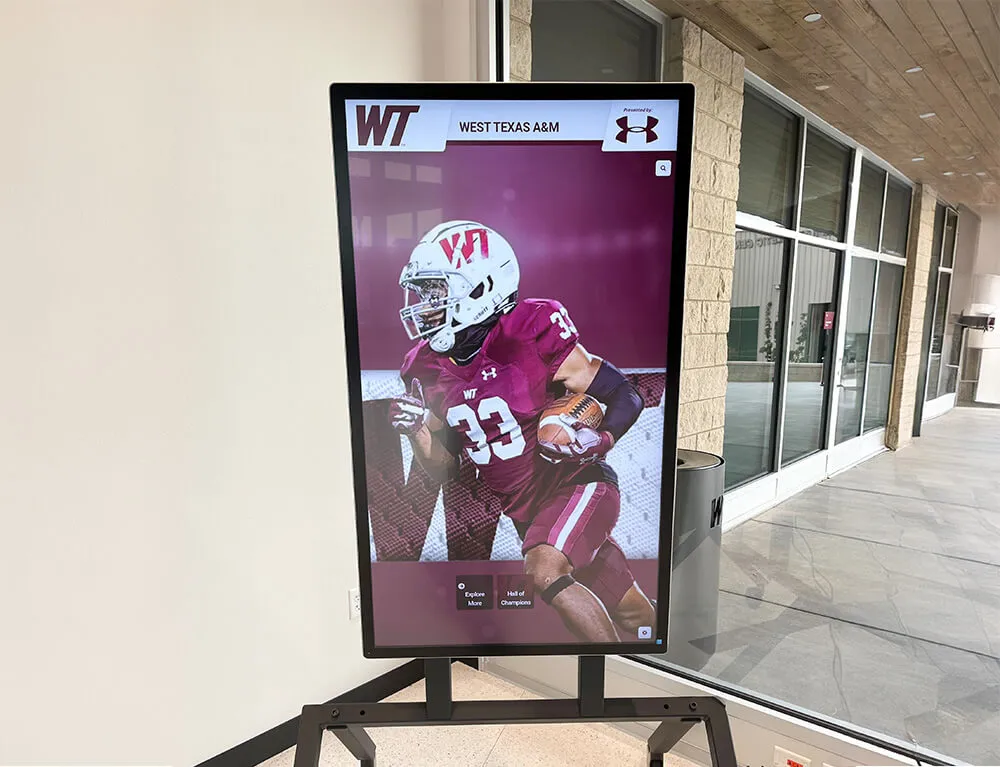
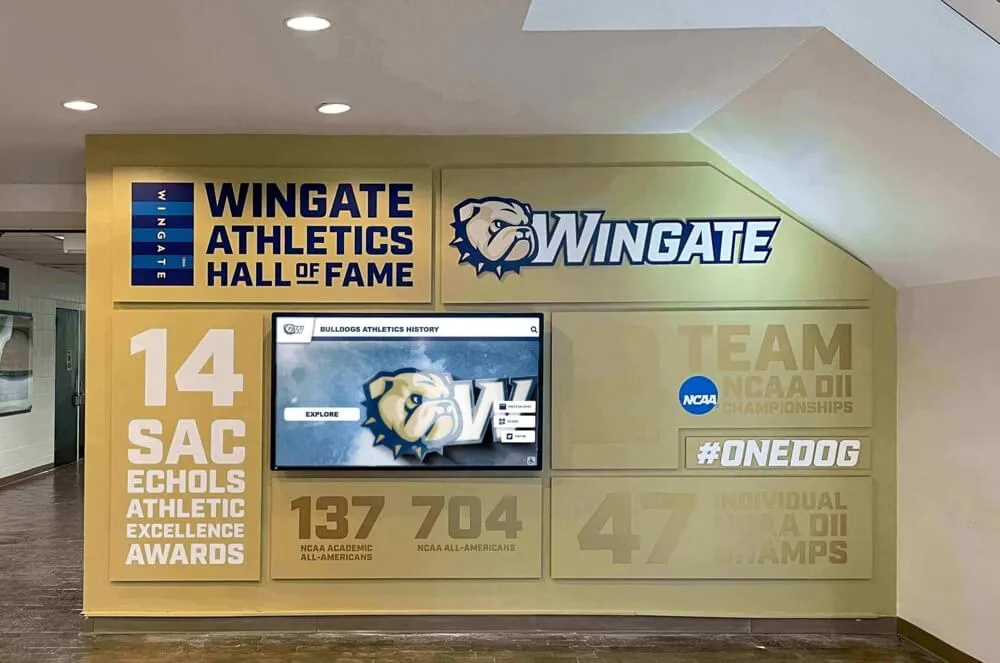
Intent: Define, evaluate, and implement touch screen kiosk software solutions that transform standard displays into professional interactive experiences for educational institutions, nonprofit organizations, and public facilities.
Selecting touch screen kiosk software represents one of the most consequential decisions organizations face when implementing interactive kiosk displays. The software platform you choose fundamentally shapes user experience quality, administrative efficiency, content management workflows, security posture, and long-term operational sustainability across the multi-year lifespan most touchscreen installations demand.
Organizations deploying interactive kiosks for recognition displays, wayfinding systems, information portals, or self-service applications need comprehensive guidance evaluating software requirements, comparing platform capabilities, understanding cost structures, and planning implementation processes that align technical solutions with institutional needs and available resources.
This complete implementation guide provides athletic directors, facilities managers, IT administrators, and institutional leaders with actionable specifications for selecting, deploying, and managing touch screen kiosk software that delivers professional results while avoiding costly mismatches between platform capabilities and actual deployment requirements.
Making informed software decisions requires systematically evaluating functional requirements, security considerations, content management approaches, hardware compatibility, budget constraints, and long-term maintenance implications before committing to platforms that will power your interactive experiences for years to come.
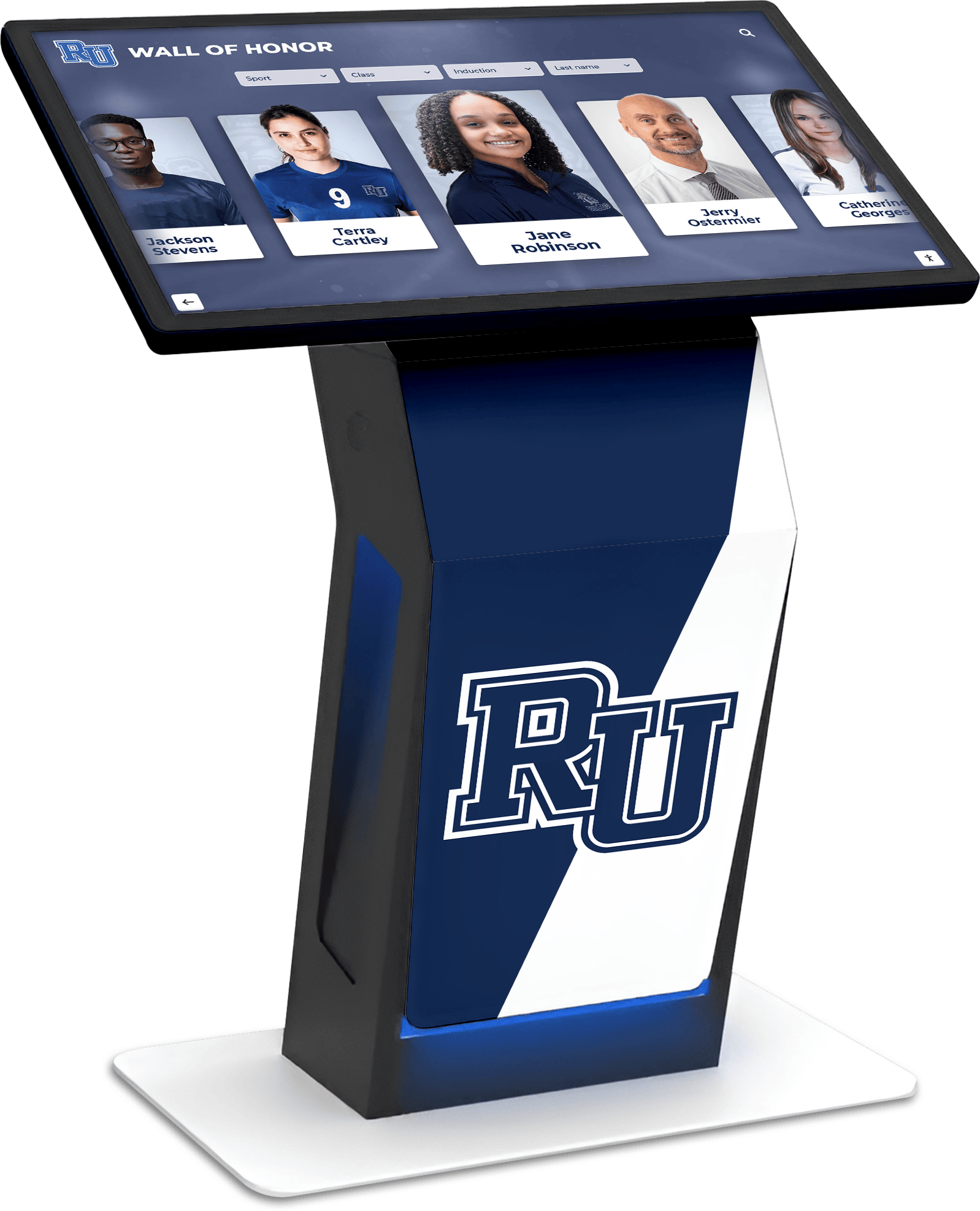
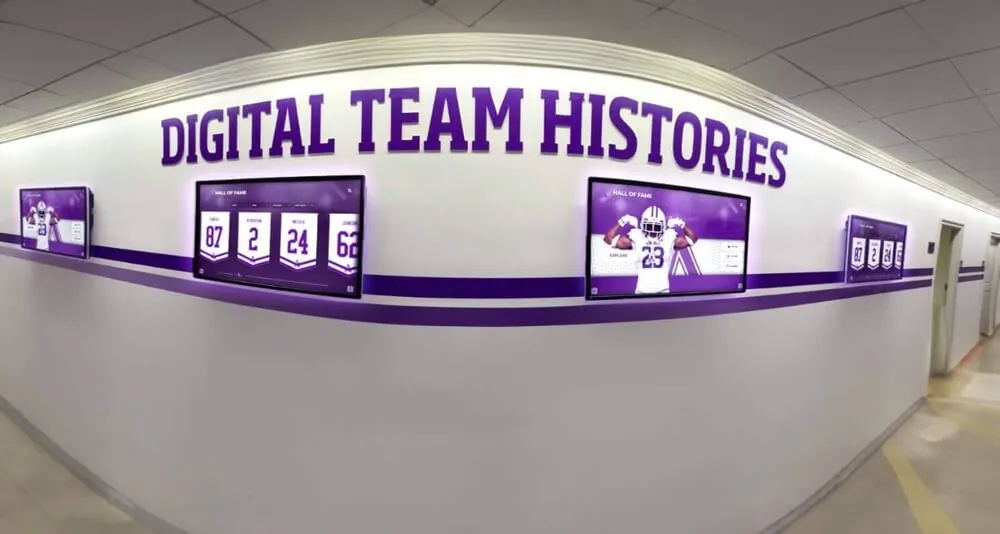
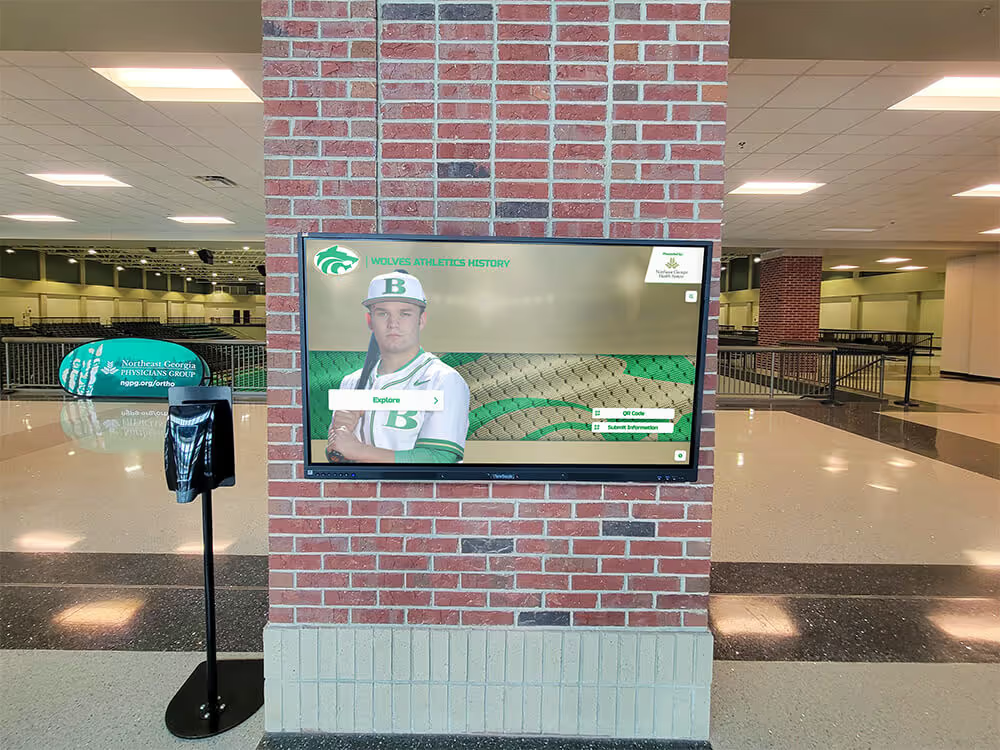
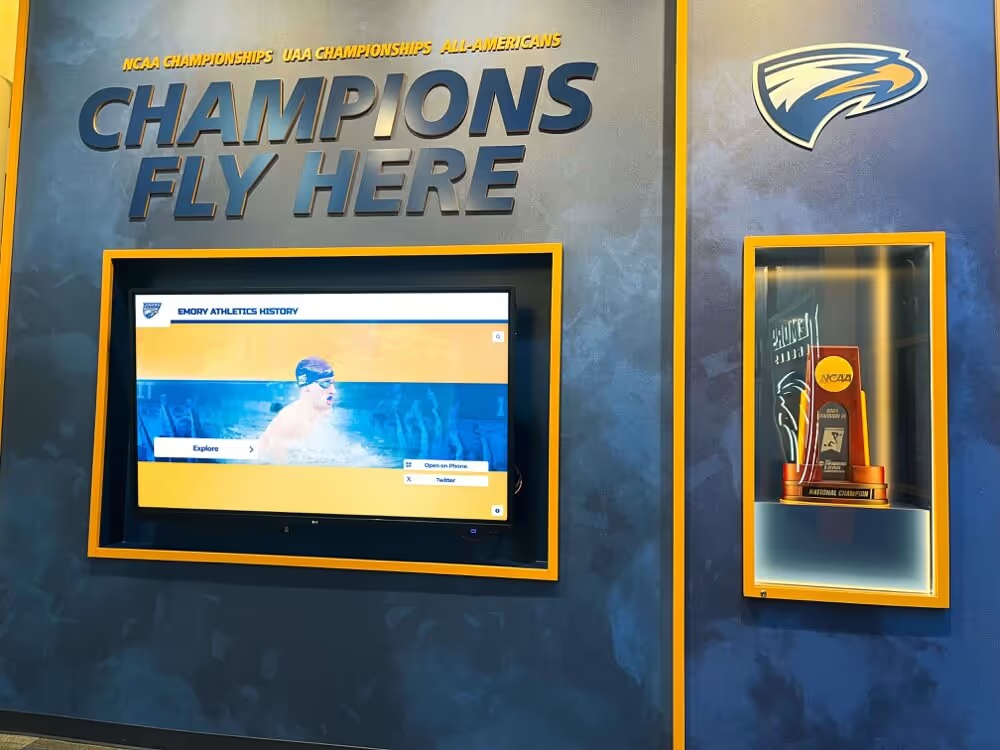
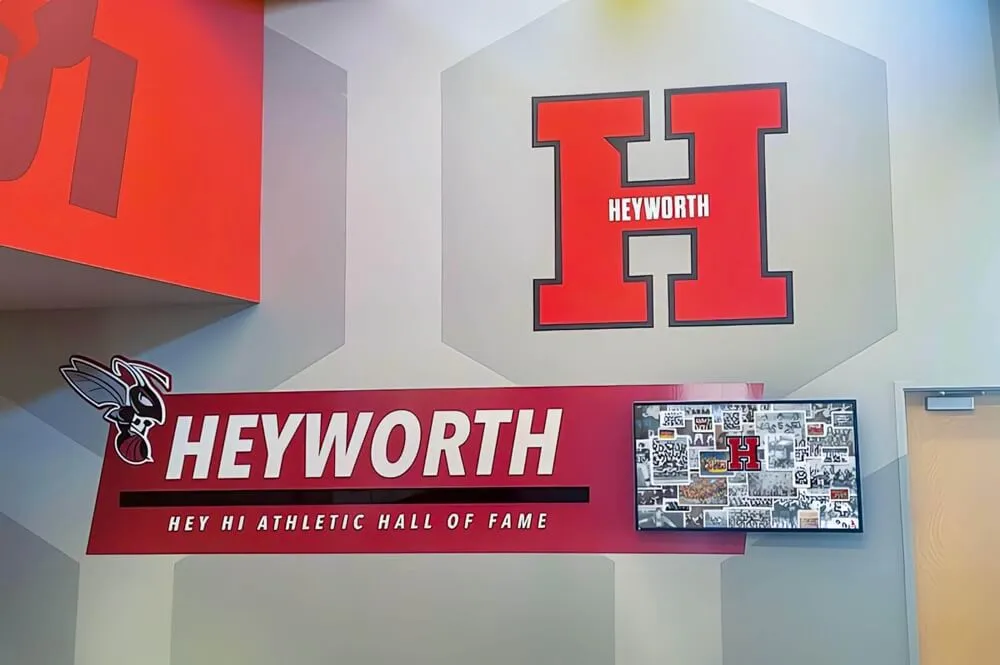
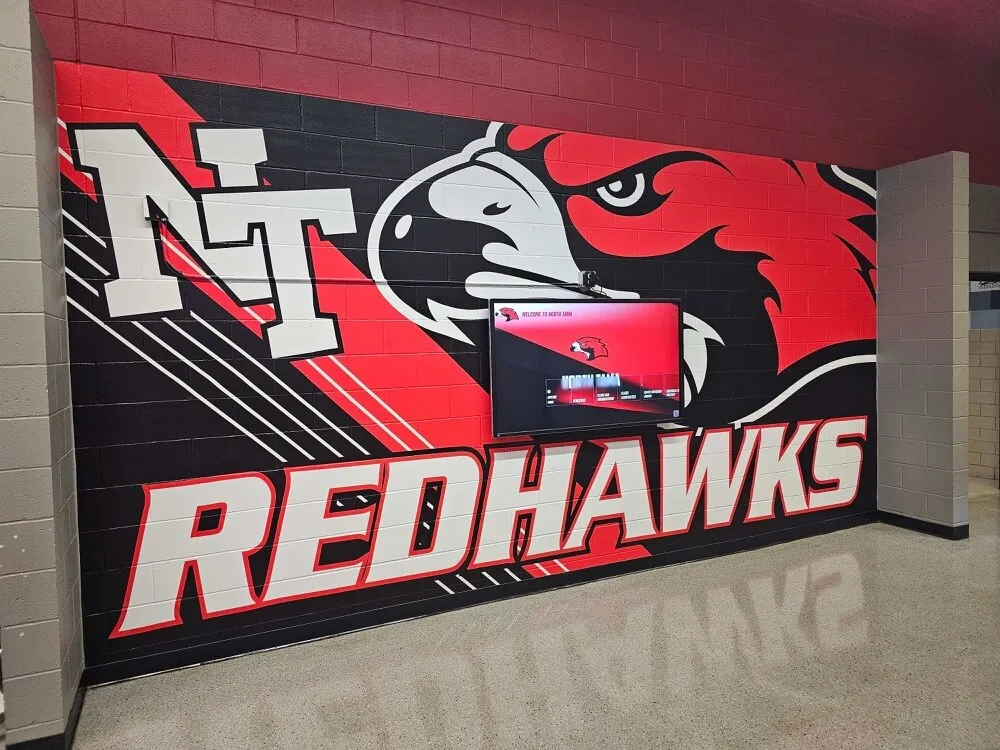
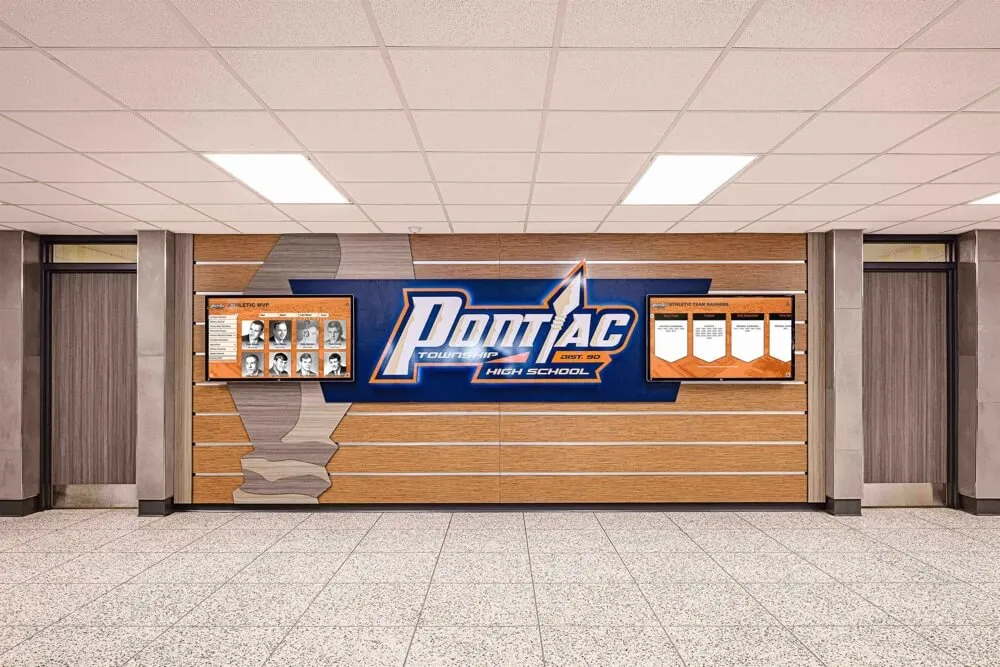
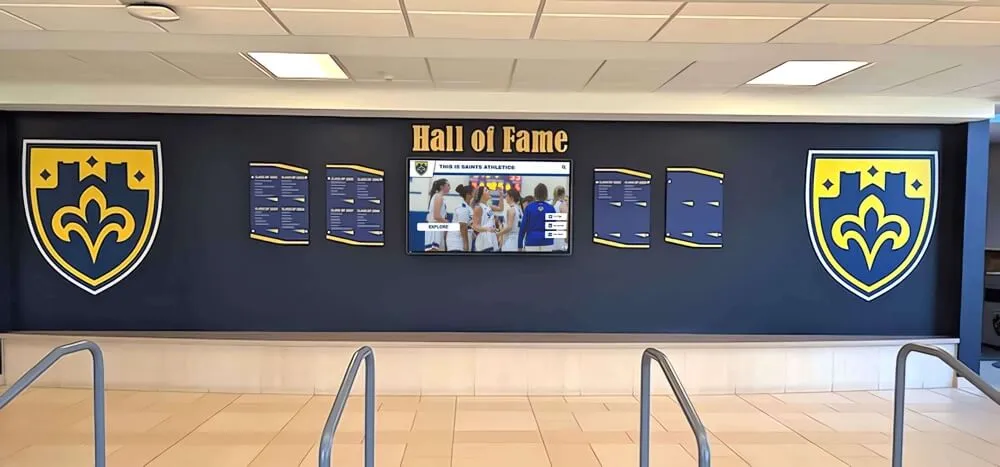
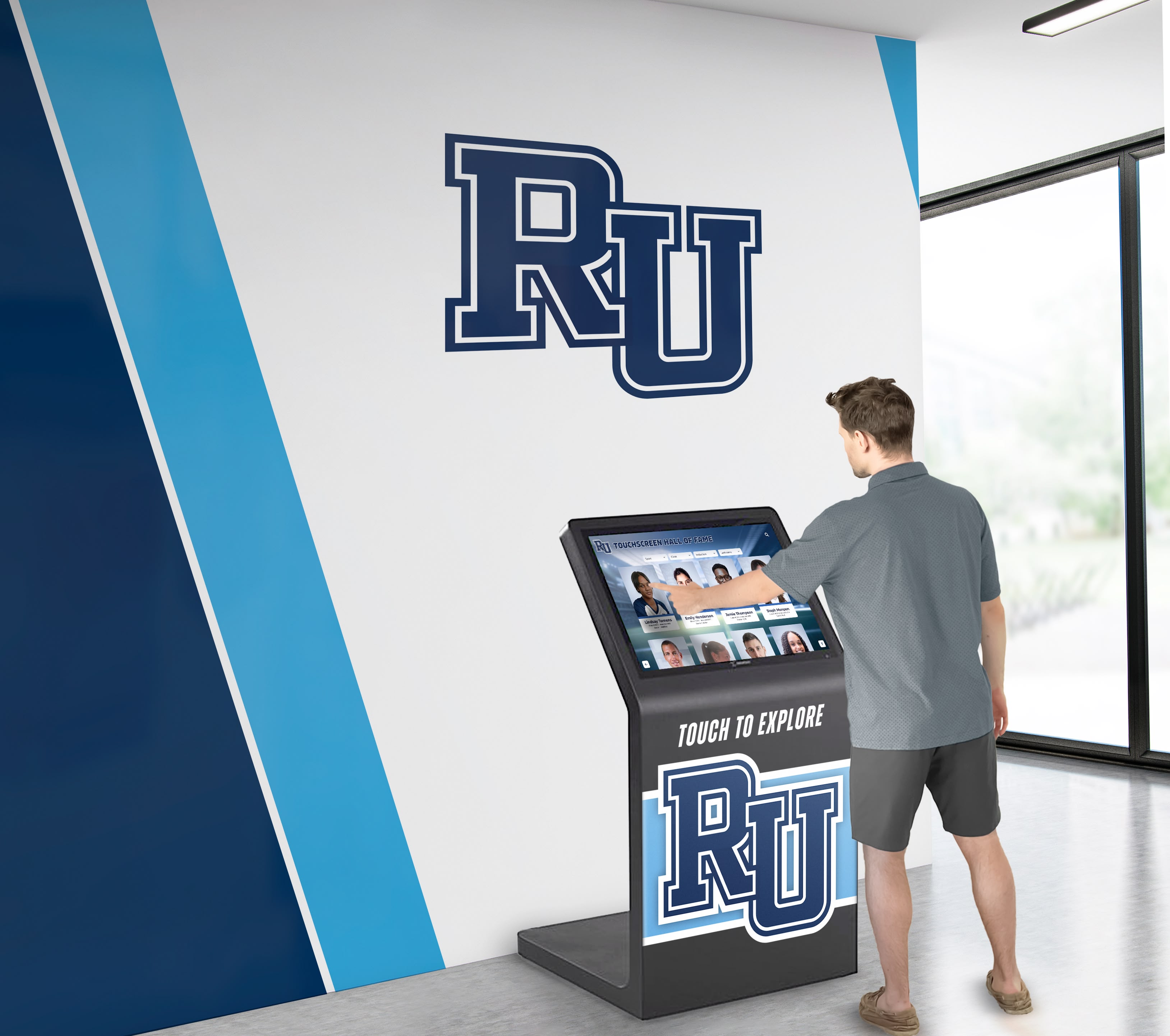
Professional touch screen kiosk software transforms standard displays into engaging interactive experiences
Understanding Touch Screen Kiosk Software Architecture
Before evaluating specific platforms, establishing clear definitions prevents confusion about what constitutes kiosk software versus general-purpose applications running on touchscreen hardware.
What Is Touch Screen Kiosk Software?
Touch screen kiosk software is specialized application designed to transform standard computing devices—tablets, touchscreen monitors, or dedicated kiosk hardware—into self-service interactive systems. Kiosk software locks down devices to specific functions, preventing users from accessing unauthorized applications, websites, or system settings while providing intuitive touchscreen interfaces for intended interactions.
Core Kiosk Software Characteristics include device lockdown preventing unauthorized access to system functions, touchscreen-optimized interfaces designed specifically for finger interaction rather than mouse input, content management systems enabling remote updates without physical device access, usage analytics tracking interaction patterns and performance metrics, and remote monitoring capabilities allowing administrators to manage distributed deployments from centralized dashboards.
According to market research, the digital out-of-home (DOOH) market is projected to reach $21.35 billion by 2030, driven by increasing demand for interactive experiences across retail, hospitality, healthcare, education, and public facility environments.
Kiosk Software vs. Standard Applications
Standard applications running on touchscreen devices differ fundamentally from purpose-built kiosk software. General applications assume users have full device access, utilize interface elements optimized for mouse interaction rather than touch, lack security controls preventing unauthorized access, require manual content updates at each device, and provide no usage analytics or remote management capabilities.
Purpose-built kiosk software addresses these limitations through architectural designs specifically supporting public-facing, unattended interactive installations where security, reliability, and administrative efficiency prove critical for operational success.
Organizations deploying interactive touchscreen software must evaluate whether their use cases require dedicated kiosk platforms or whether standard applications running in kiosk mode provide adequate functionality for their deployment scenarios.
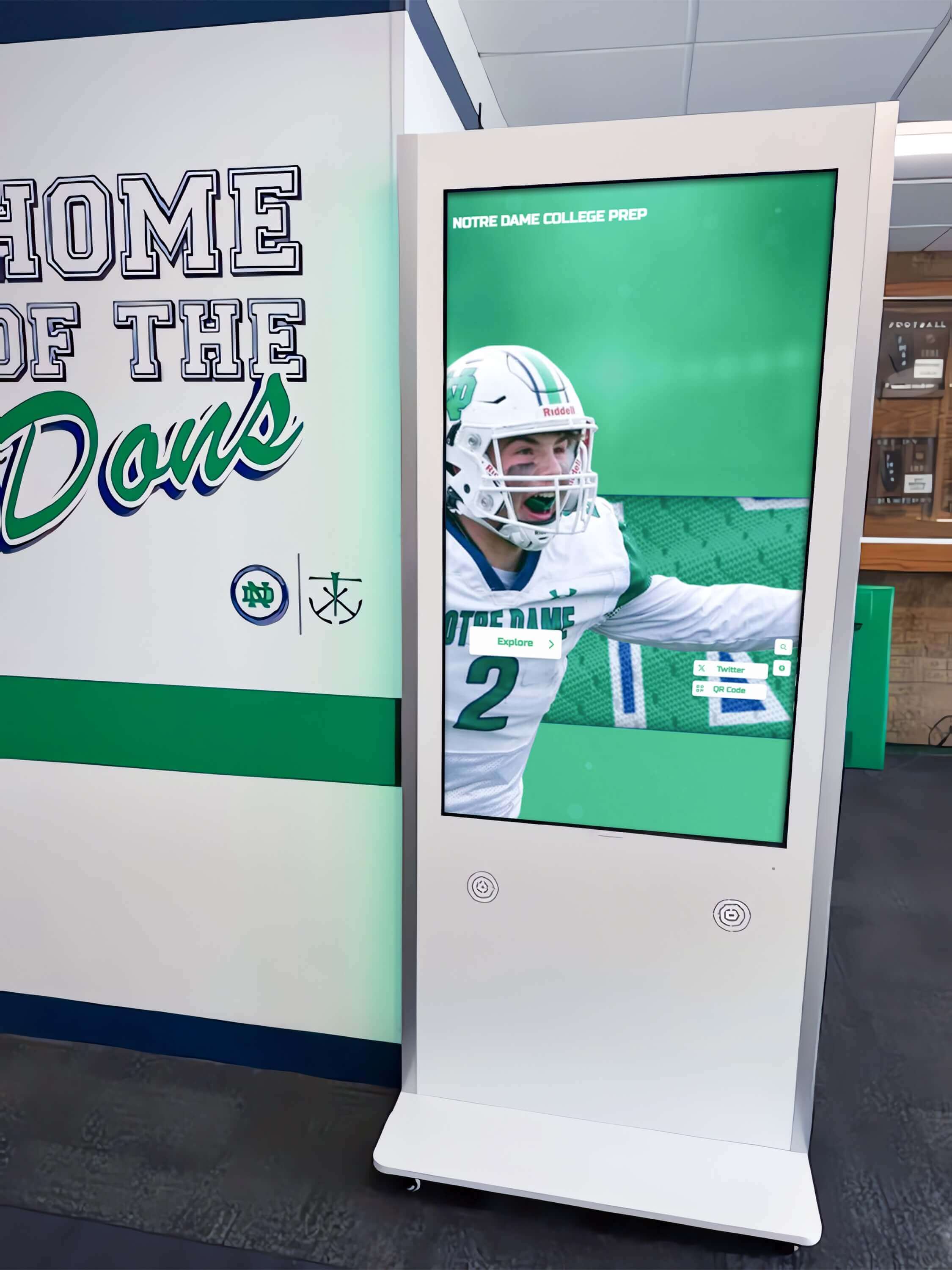
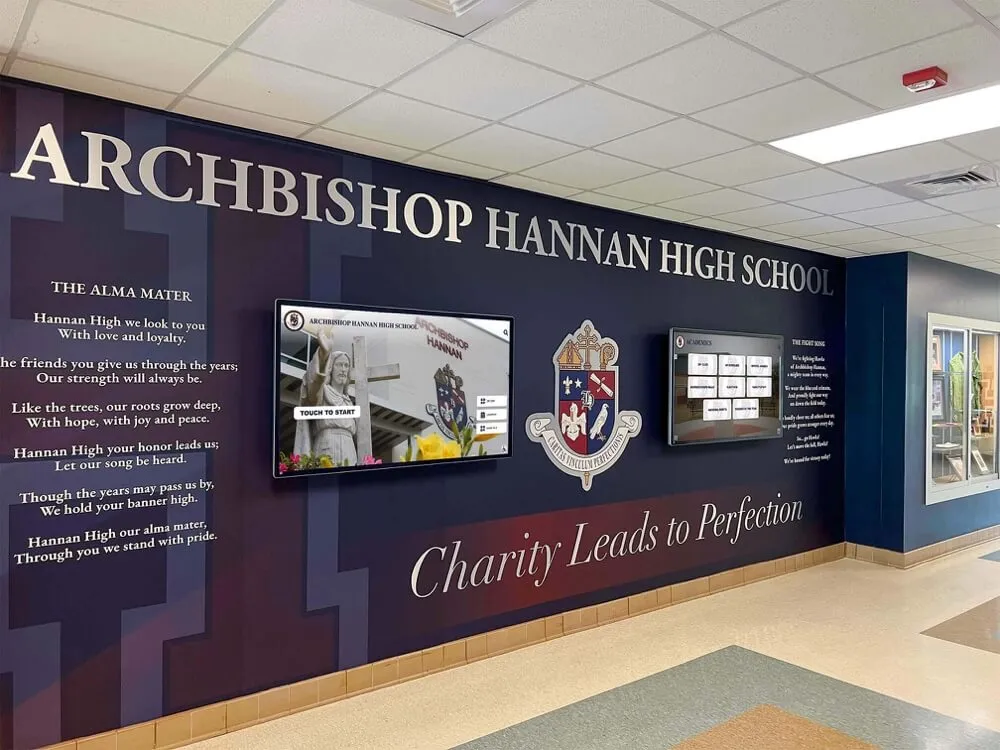
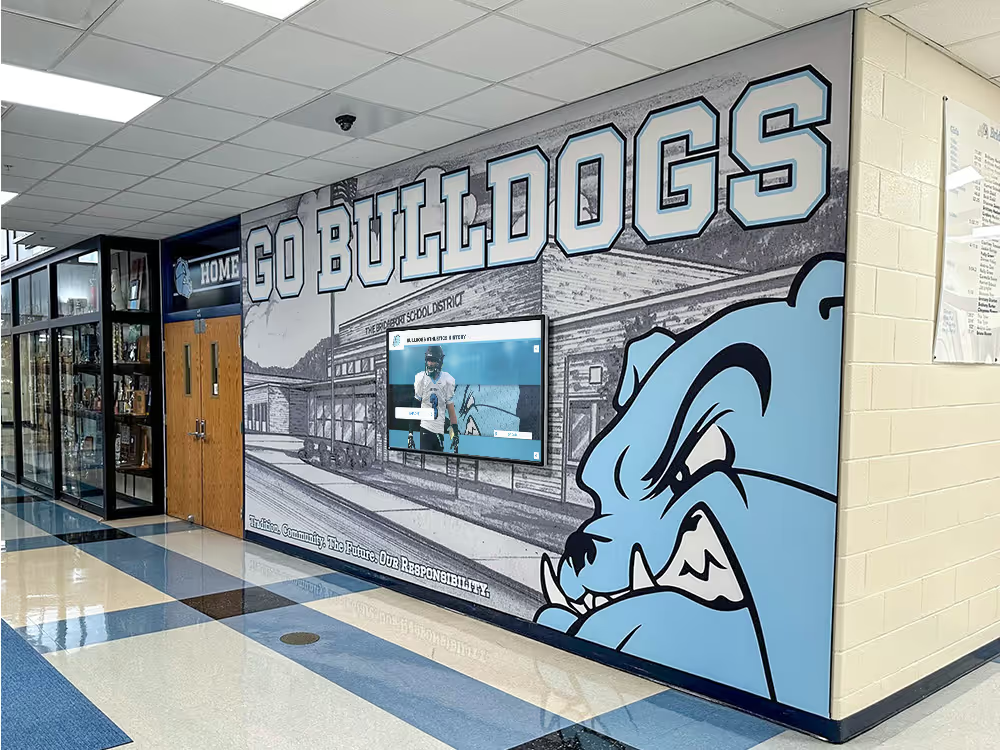
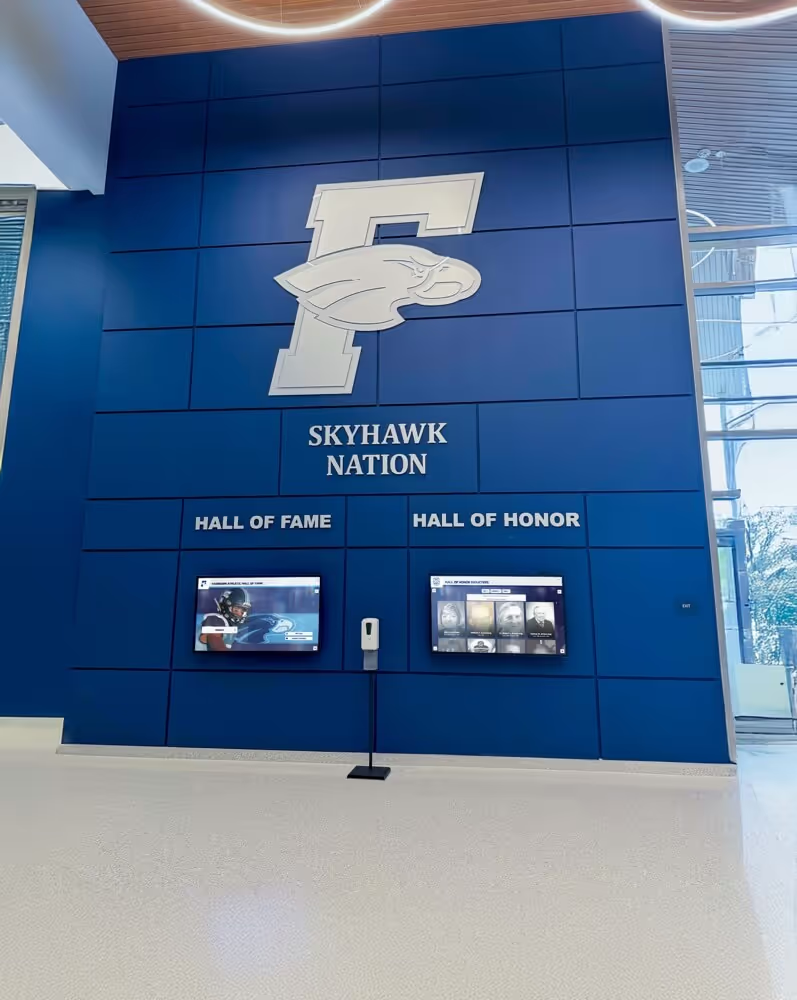
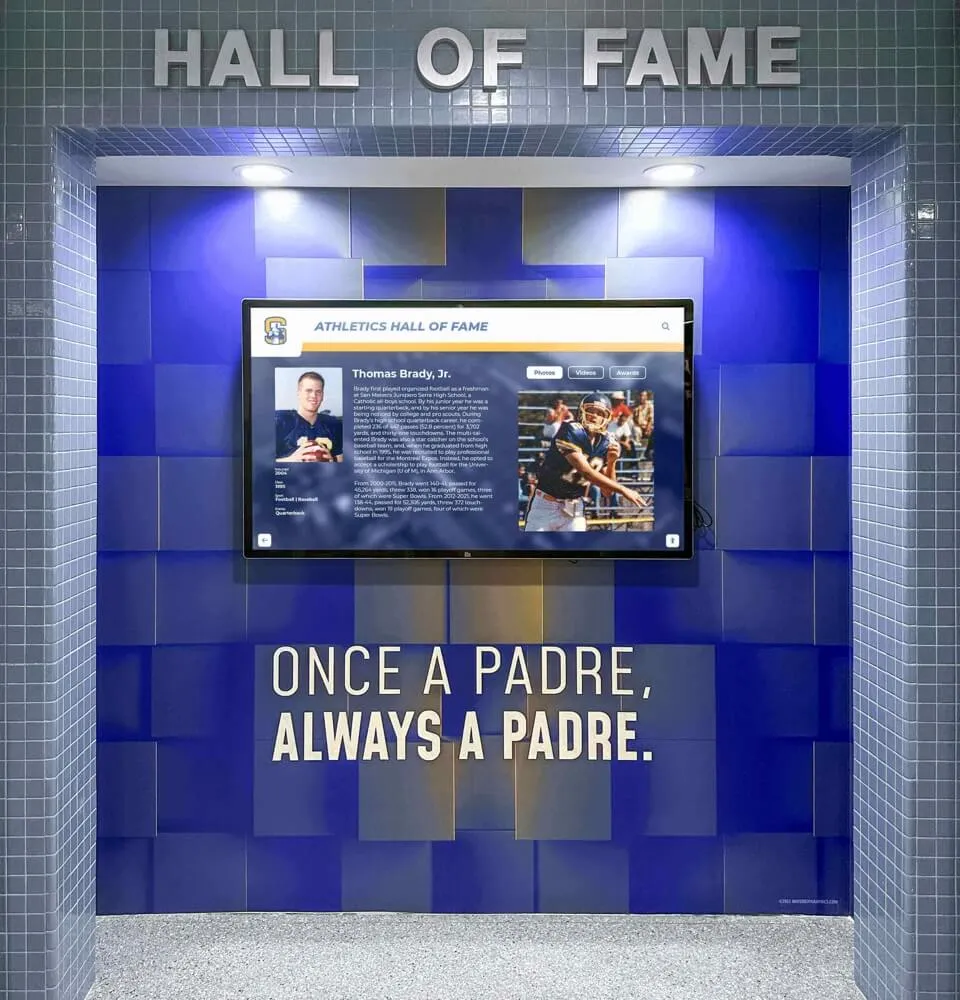
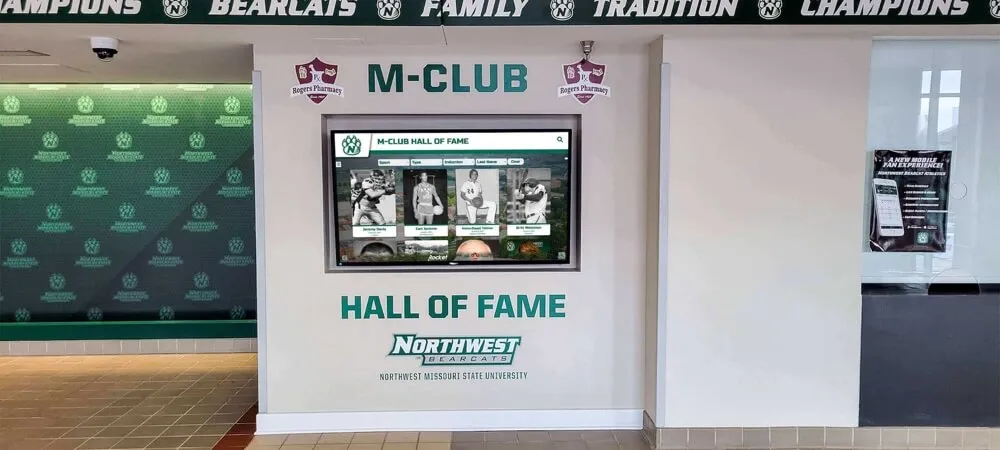
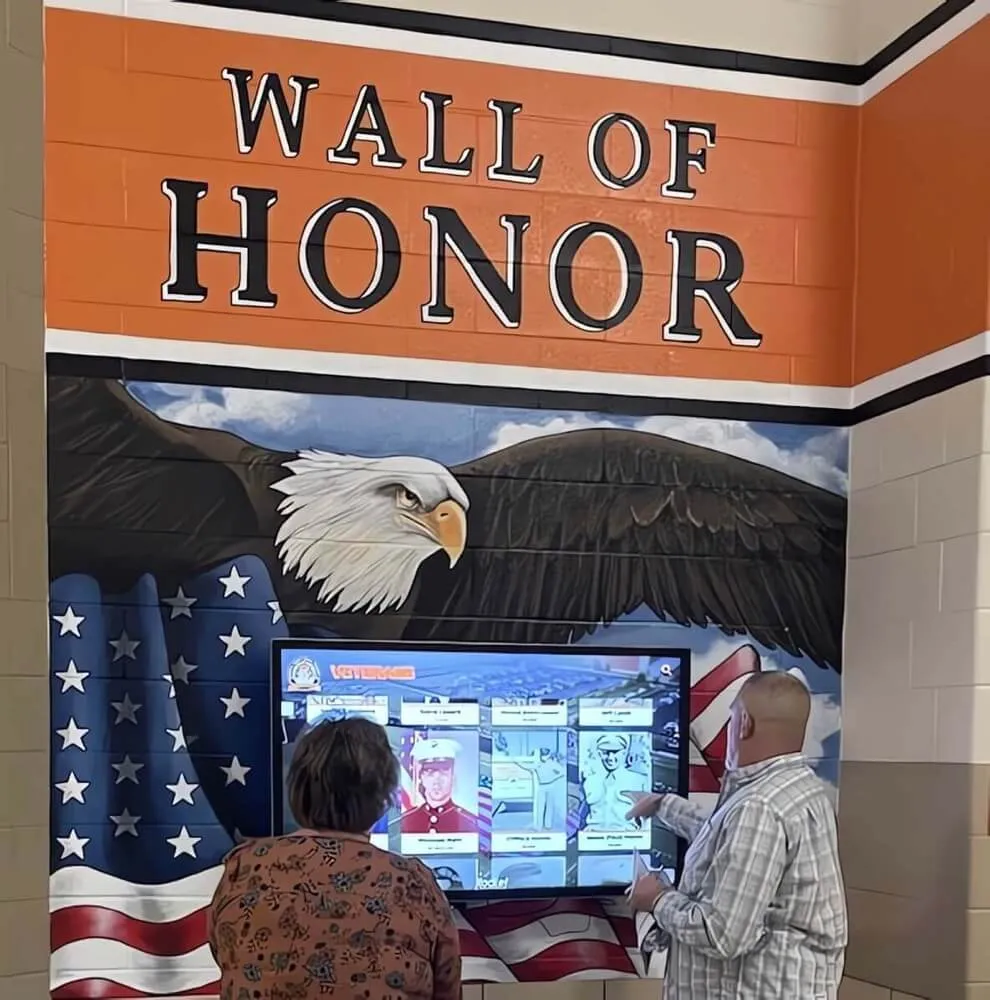
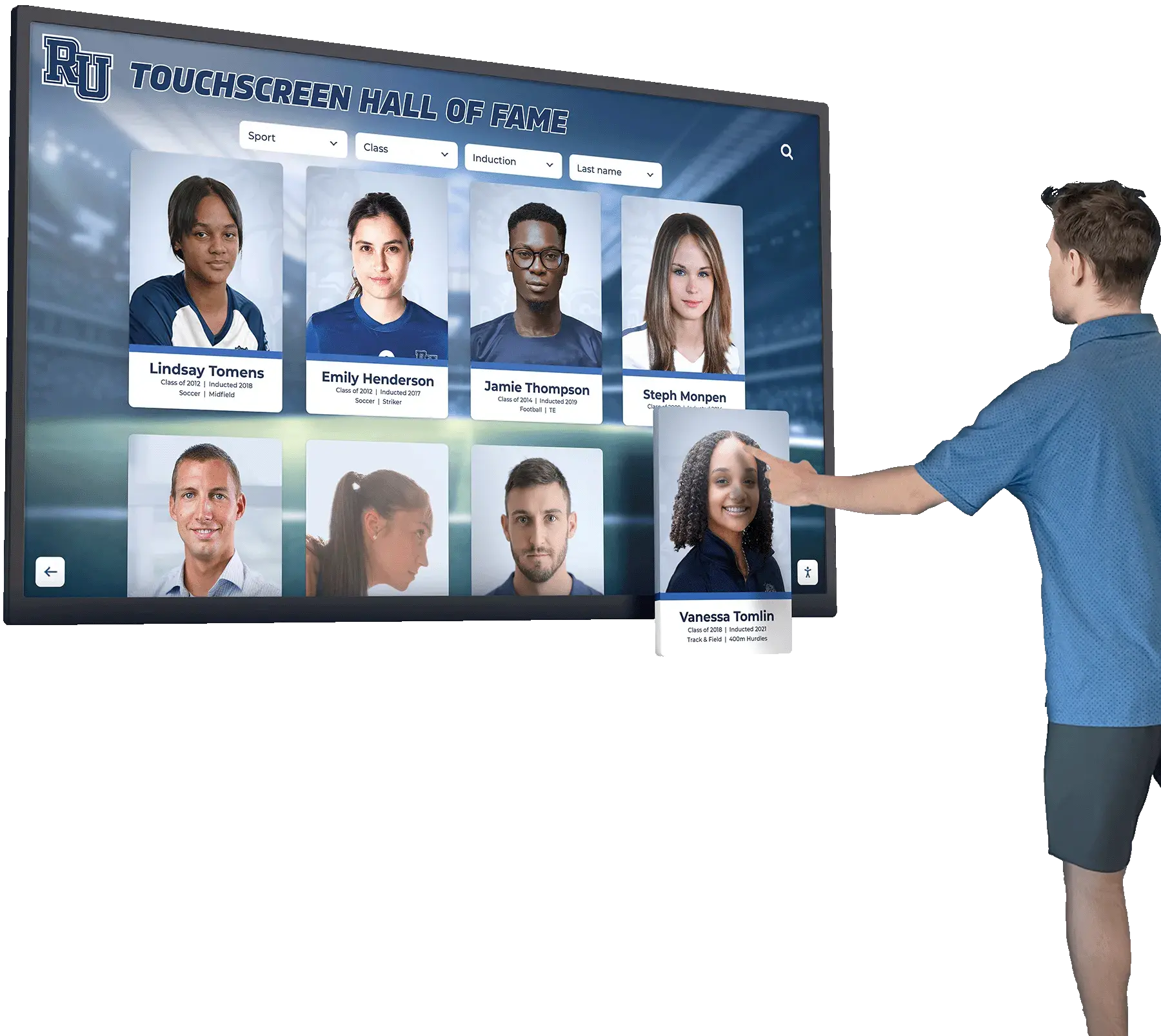
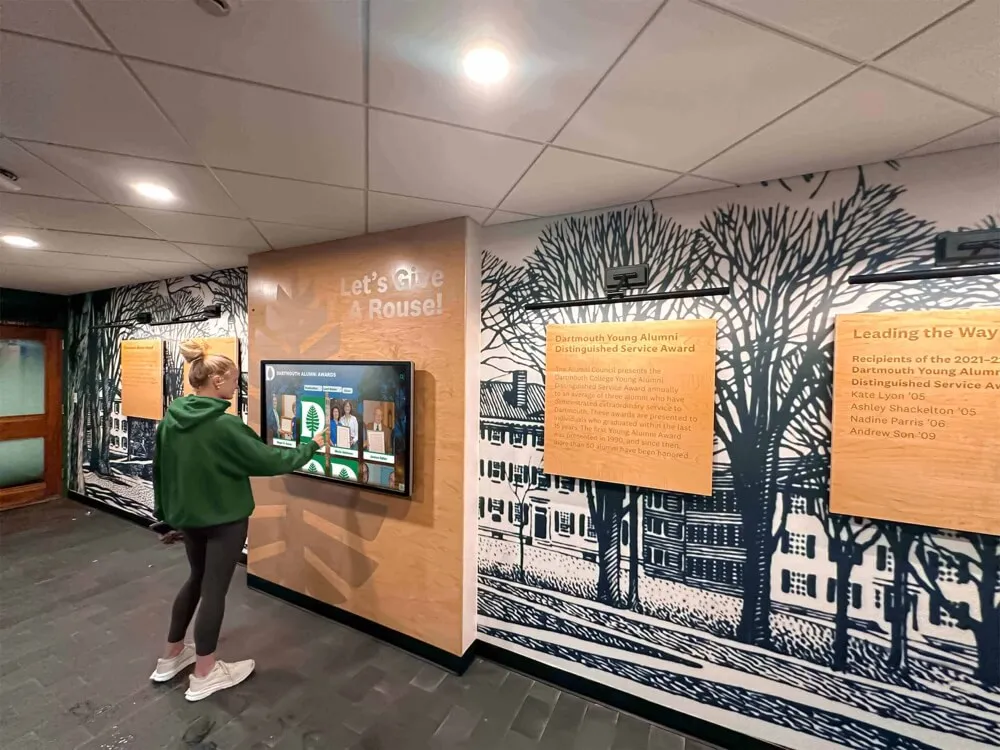
Educational institutions increasingly deploy touch screen kiosk software for recognition displays and campus information systems
Essential Features for Touch Screen Kiosk Software
Organizations should prioritize core capabilities that directly support intended use cases while avoiding feature bloat increasing complexity and cost without delivering proportional value.
Device Lockdown and Security Controls
Device lockdown represents the foundational kiosk software requirement. Effective lockdown prevents users from exiting kiosk applications, accessing operating system functions, installing unauthorized software, connecting external devices without authorization, or modifying system configurations.
Security Implementation Levels vary across platforms. Basic browser-based kiosks restrict navigation to approved URLs but may allow access to browser features. Intermediate solutions implement application-level lockdown controlling which programs can execute while maintaining some operating system access for administrative purposes. Enterprise-grade platforms provide complete system lockdown preventing any unauthorized interaction while enabling remote administrative access through secure channels.
According to implementation guidance, organizations must balance security requirements against administrative flexibility. Overly restrictive lockdown complicates legitimate maintenance activities, while insufficient controls create security vulnerabilities and allow unauthorized use that may damage institutional reputations or violate compliance requirements.
Educational institutions deploying touchscreen software for schools should ensure platforms provide age-appropriate content filtering, student data privacy protections, and compliance with Family Educational Rights and Privacy Act (FERPA) regulations governing educational records.
Touchscreen-Optimized Interface Design
Touch interaction differs fundamentally from mouse-based navigation. Effective kiosk software implements responsive touch targets sized appropriately for fingers—minimum 44×44 pixels per accessibility guidelines—adequate spacing between interactive elements preventing accidental touches, gesture support for intuitive navigation patterns like swiping and pinching, visual feedback confirming touch registration, and error prevention through clear labeling and confirmation prompts for irreversible actions.
Interface Responsiveness directly impacts user experience quality. Kiosk software must provide immediate visual feedback within 100 milliseconds of touch input, complete standard interactions within 1 second, and maintain smooth 60 frames-per-second animation during transitions. Slower response times create frustration particularly evident in public environments where users have limited patience for sluggish interfaces.
Organizations implementing digital hall of fame displays should evaluate interface fluidity through hands-on demonstrations rather than relying solely on vendor claims. Request test installations allowing diverse users to interact with platforms under realistic conditions before committing to purchases affecting user experience for years.
Content Management Systems
Cloud-based content management systems (CMS) enable administrators to update kiosk content remotely without physical device access. Effective CMS platforms provide intuitive interfaces accessible to non-technical staff, multi-user collaboration with role-based permissions, content scheduling for time-sensitive displays, version control tracking changes and enabling rollback if needed, and media asset management organizing photos, videos, and documents.
Update Distribution Speed varies across platforms. Web-based kiosk software delivers instant updates appearing immediately on connected displays. Native applications may require periodic content syncs or version updates distributed through installation processes. Organizations with frequently changing content should prioritize platforms enabling real-time updates across distributed deployments without coordination overhead.
Schools managing interactive announcements feeds benefit substantially from CMS platforms enabling different departments to manage relevant content sections independently. Athletics staff update sports achievements while communications teams handle event announcements and advancement departments manage donor recognition—all within unified systems preventing conflicting content or coordination bottlenecks.
Analytics and Usage Tracking
Usage analytics reveal how visitors interact with kiosk content, enabling data-driven improvements optimizing engagement levels. Comprehensive analytics platforms track session duration and frequency, popular content areas and search queries, navigation paths through information hierarchies, demographic patterns when capture mechanisms exist, and peak usage times informing deployment decisions.
Heatmapping Visualization shows exactly where users touch screens, revealing interface elements that attract attention versus areas users ignore. This visual analytics approach identifies navigation problems, confusing layouts, or content placement opportunities that raw numerical data obscures.
Organizations deploying touchscreen digital signage software should request analytics demonstrations showing actual data visualization rather than accepting generic descriptions of analytics capabilities. Evaluate whether platforms provide actionable insights versus overwhelming data dumps requiring extensive analysis to extract useful information.
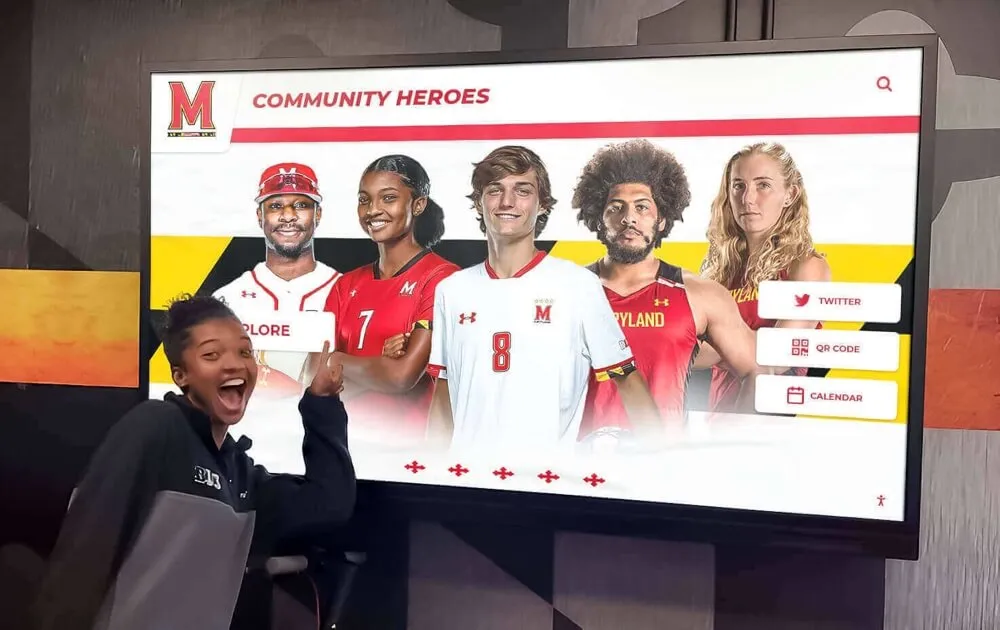
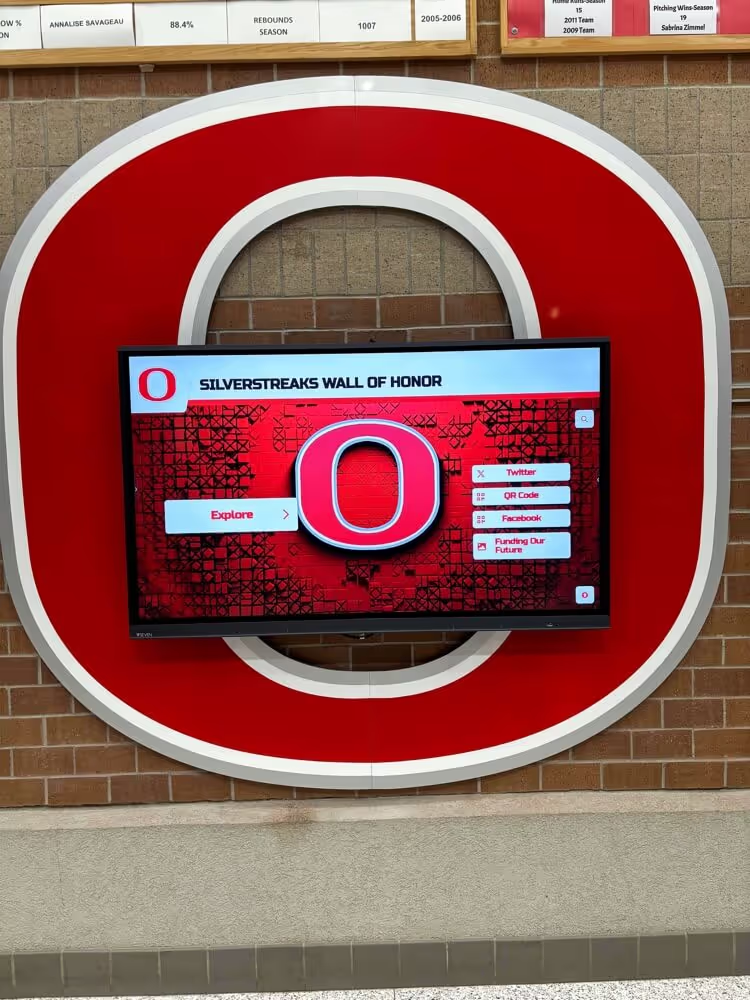
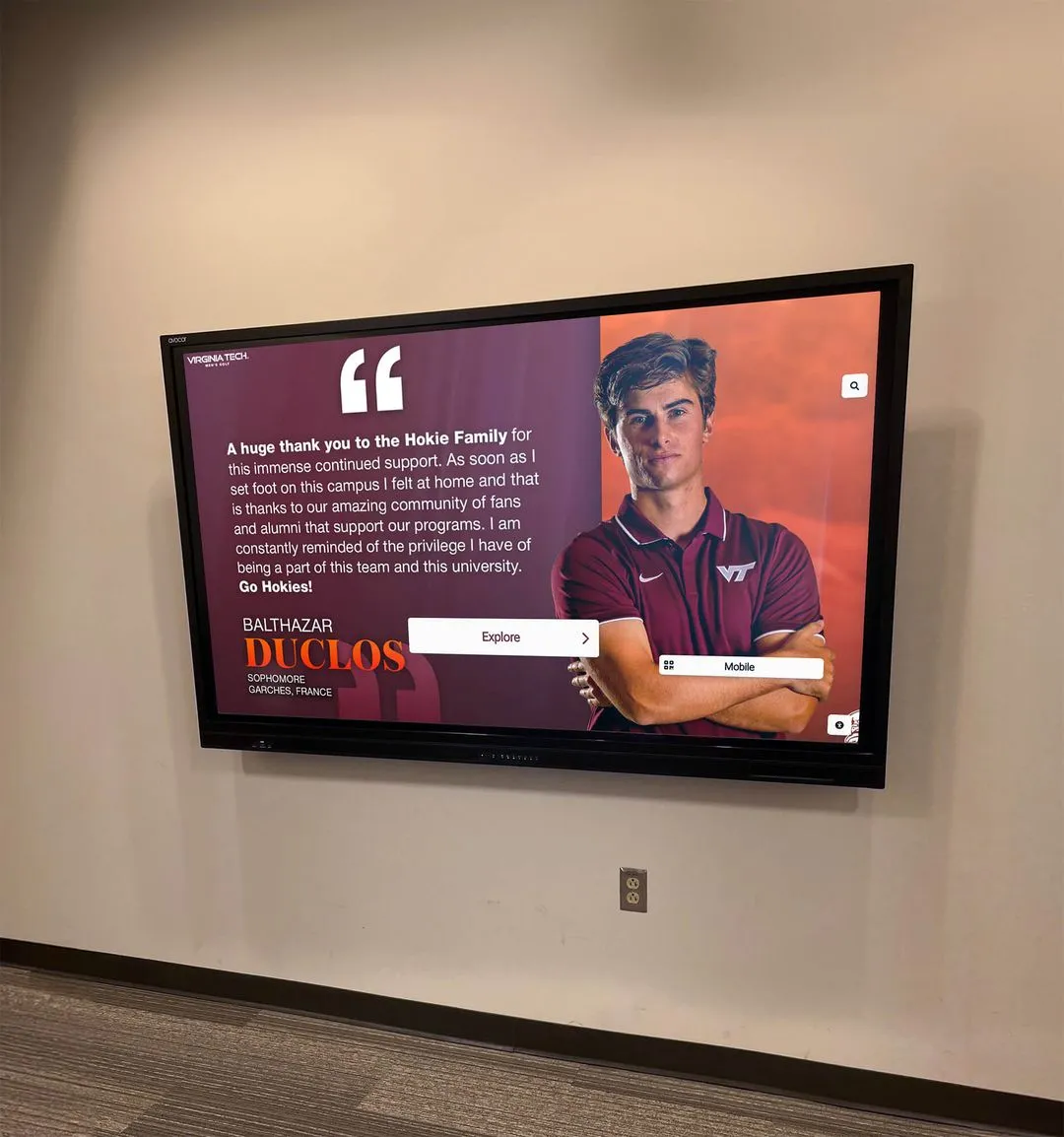
Usage analytics reveal interaction patterns enabling continuous optimization of touchscreen experiences
Hardware Compatibility and Technical Requirements
Kiosk software platforms vary significantly in hardware compatibility, affecting deployment flexibility and total cost of ownership.
Operating System Support
Touch screen kiosk software typically supports Windows, Android, iOS, Linux, or web-based deployment running through browsers. Each approach carries distinct implications for hardware selection, cost, and capabilities.
Windows-Based Kiosk Software provides maximum peripheral device compatibility, enterprise IT integration through Active Directory, familiar administrative interfaces for IT staff, and broad application ecosystem supporting specialized hardware integrations. Windows licensing adds $100-$200+ per device depending on edition requirements. Organizations with existing Windows infrastructure and IT expertise often find Windows platforms simplest to deploy and manage within established support frameworks.
Android Kiosk Platforms offer lower hardware costs through commodity devices, native mobile management infrastructure, built-in device lockdown features, and power-efficient operation suitable for 24/7 deployments. Android dominates retail and public space kiosks where cost efficiency and reliability outweigh enterprise integration requirements. Schools deploying college tour directory touchscreens frequently select Android platforms balancing professional capabilities with budget constraints.
Web-Based Kiosk Solutions operate through browsers, eliminating operating system dependencies. These platforms provide maximum hardware flexibility, instant cross-device updates, simplified deployment requiring only browser installation, and lower development costs compared to native applications. Web-based architectures prove ideal for content-focused applications where extreme performance optimization isn’t critical. Solutions like Rocket Alumni Solutions leverage web-based architectures delivering professional recognition displays across diverse hardware platforms without platform-specific development costs.
Touchscreen Hardware Specifications
Most professional kiosk displays feature 10-point multi-touch PCAP (projected capacitive) touchscreens enabling gesture recognition and multi-user interaction. Screen sizes typically range from tablet-sized 10-inch displays to 86-inch video walls depending on deployment environments and viewing distances.
Minimum Hardware Requirements for responsive kiosk experiences include Intel Core i3 or equivalent processors, 4GB RAM minimum (8GB recommended for multimedia-heavy content), 64GB storage for operating system and local content caching, WiFi and Ethernet connectivity options, and adequate cooling for 24/7 operation in temperature-variable environments.
Organizations should budget for commercial-grade displays rated for continuous operation rather than consumer monitors designed for periodic use. Commercial displays typically offer 50,000-100,000 hour operational lifespans versus 20,000-30,000 hours for consumer alternatives, along with enhanced warranty coverage and technical support appropriate for institutional deployments.
Network Infrastructure Requirements
Kiosk software platforms require network connectivity for content updates, remote management, usage analytics transmission, and cloud-based functionality. Organizations must ensure adequate bandwidth, network security configurations allowing kiosk traffic, reliable connectivity preventing service interruptions, and segregated network segments isolating kiosk devices from sensitive systems.
Bandwidth Planning depends on content types and update frequencies. Text and photo-based recognition displays typically require 5-10 Mbps connections supporting periodic content updates. Video-heavy applications streaming high-resolution multimedia demand 25+ Mbps sustained bandwidth. Organizations deploying multiple kiosks should calculate aggregate bandwidth requirements across all devices operating simultaneously.
Educational institutions implementing hardware selection for digital recognition displays should coordinate kiosk network requirements with IT departments early in planning processes. Late-stage network infrastructure discoveries frequently delay deployments or force compromises reducing effectiveness.
Before You Start: Prerequisites for Successful Implementation
Thorough planning prevents costly mid-project changes and ensures solutions meet actual needs rather than assumed requirements.
Define Primary Objectives
Document specific problems kiosk deployments should solve. Common objectives include reducing staff workload answering repetitive information requests, increasing engagement with institutional recognition programs, improving wayfinding in complex facilities, providing 24/7 access to information outside business hours, and enhancing visitor experiences through interactive content exploration.
Measurable Success Criteria enable objective evaluation of deployment effectiveness. Establish baseline metrics before implementation—current staff time spent on information requests, existing recognition program engagement levels, visitor satisfaction scores, or other quantifiable measures your kiosk should improve. Define target improvements justifying investment levels and informing feature priorities during platform selection.
Organizations implementing digital recognition systems should align kiosk objectives with broader institutional goals around alumni engagement, donor stewardship, or student recognition. Isolated tactical implementations disconnected from strategic priorities rarely achieve potential impact or secure resources needed for long-term success.
Assess Stakeholders and Management Authority
Identify who will manage content updates, handle technical issues, make strategic decisions about kiosk direction, and approve budgets for expansion or enhancements. Kiosk success depends on clear ownership preventing responsibility gaps where critical tasks remain unaddressed.
Cross-Functional Coordination proves essential for kiosks serving diverse purposes. Athletic directors manage sports recognition content while advancement teams handle donor displays and facilities staff maintain hardware. Establish coordination mechanisms preventing conflicts and ensuring consistent brand presentation across content managed by different departments.
Schools deploying academic recognition programs through touchscreen kiosks should designate primary administrators with authority making decisions about content priorities, design standards, and feature utilization rather than governance-by-committee approaches delaying updates or diluting strategic focus.
Measure Physical Deployment Environments
Document installation locations including mounting heights optimized for accessibility (typically 15-48 inches from floor to touchscreen center per ADA guidelines), ambient lighting conditions affecting screen visibility, electrical outlet proximity and amperage availability, network connectivity infrastructure, physical security considerations, and environmental factors like temperature extremes or moisture exposure affecting hardware selection.
Accessibility Audit should occur during site evaluation. According to TPGi accessibility guidance, kiosks must accommodate users with diverse abilities including those using wheelchairs, individuals with limited reach or dexterity, people with vision impairments requiring screen readers, and users with hearing disabilities if audio content exists. Web Content Accessibility Guidelines (WCAG) 2.1 Level AA compliance represents current standards for digital interfaces including kiosk software.
Organizations must ensure physical installations enable accessible use regardless of sophisticated software accessibility features. Proper mounting heights, clear floor space for wheelchair approach, adequate lighting avoiding screen glare, and alternative input methods for users unable to operate touchscreens all require deliberate planning during site preparation phases.
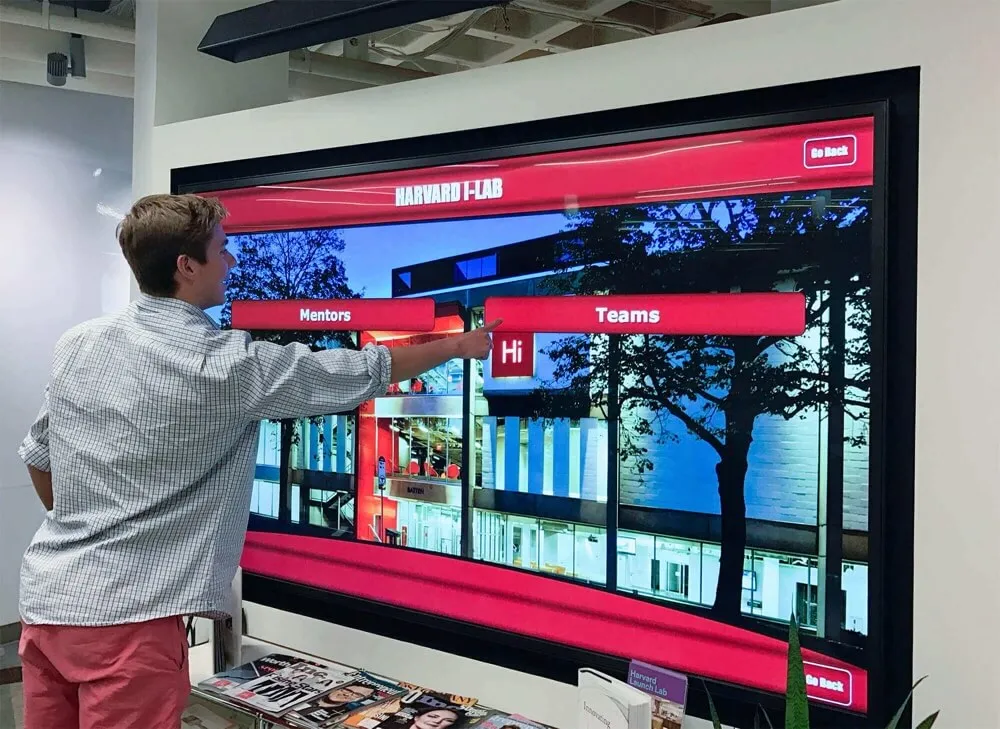
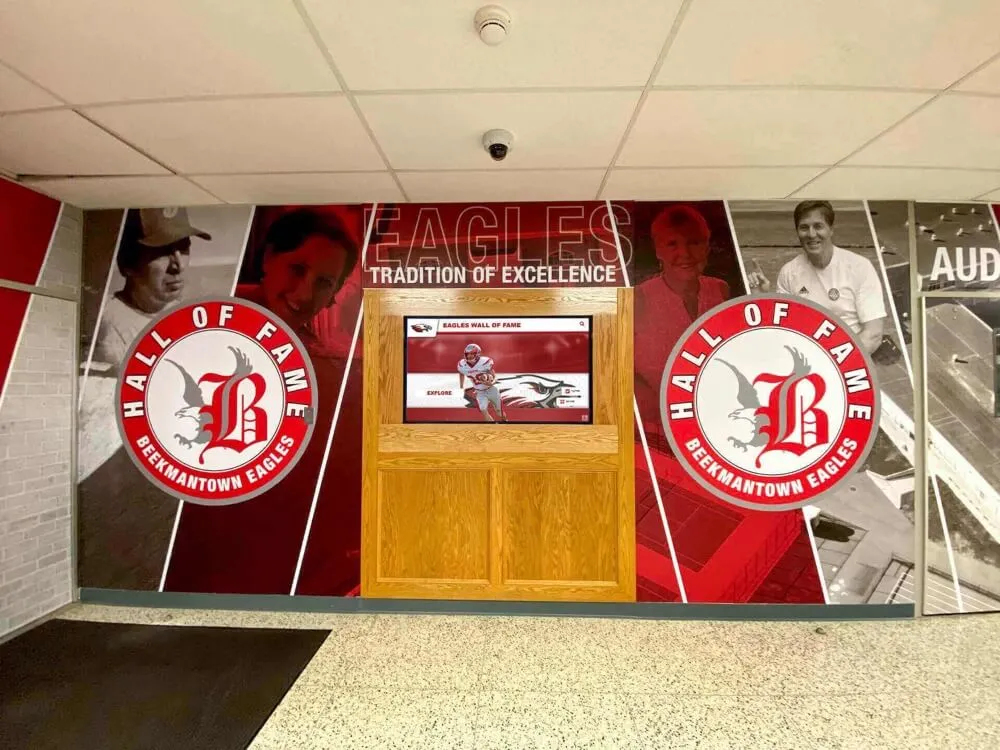
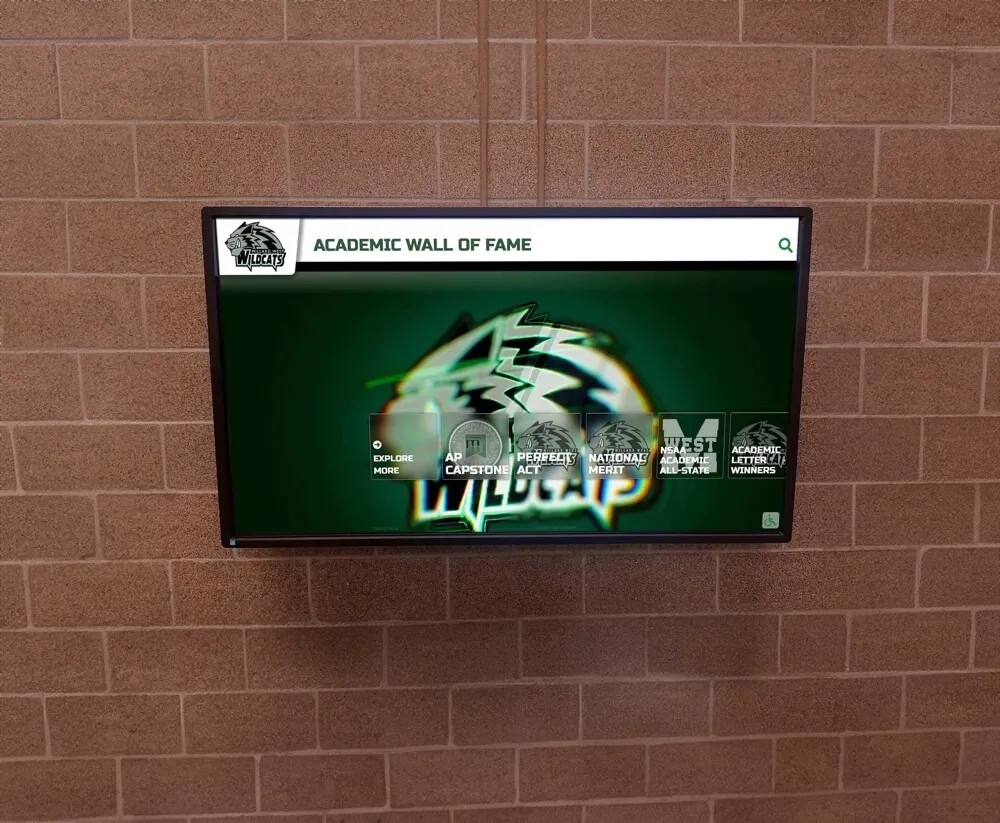
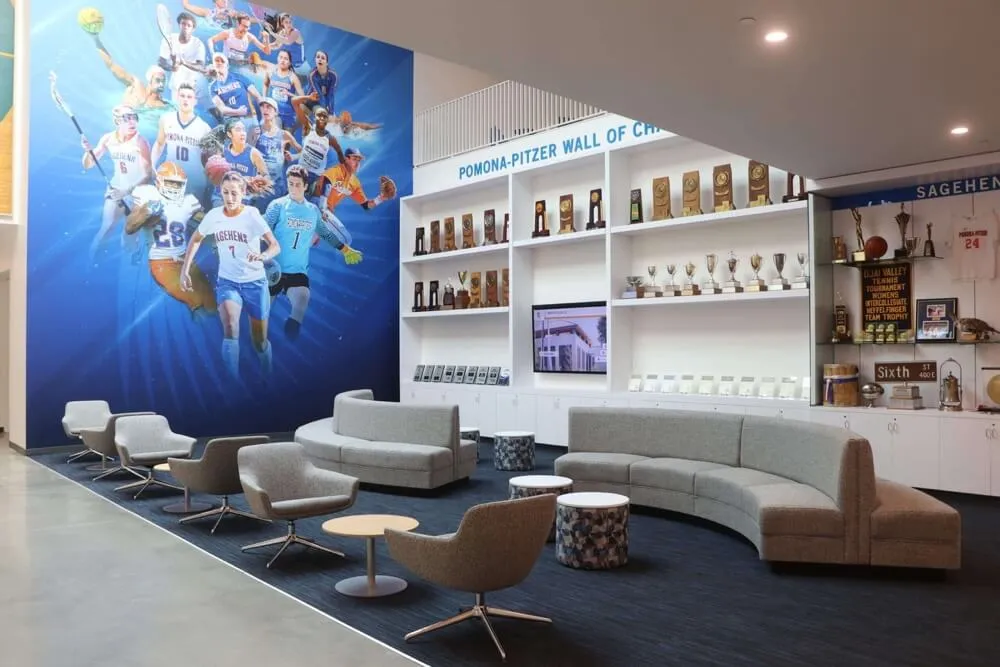
Successful kiosk deployments result from matching software capabilities with carefully assessed site requirements
Core Walkthrough: Touch Screen Kiosk Software Selection Process
Systematic evaluation processes prevent software mismatches undermining project success. Follow this phased approach for objective platform assessments.
Phase 1: Requirements Documentation
Create comprehensive requirements documents capturing must-have features versus nice-to-have capabilities. Essential specifications typically include supported operating systems and hardware platforms, required security and lockdown capabilities, content management approaches and administrative interfaces, integration needs with existing systems, accessibility compliance requirements, budget parameters for licensing and ongoing costs, and support requirements including response times and availability.
Use Case Scenarios bring abstract requirements into focus through concrete examples. Document typical user interactions from discovery through task completion. For recognition displays, scenarios might include “visitor searches for specific alumnus by name,” “user browses chronological achievement lists,” or “administrator updates inductee profiles remotely.” Detailed scenarios reveal feature requirements that abstract specifications obscure.
Organizations should circulate requirements documents to all stakeholders ensuring broad alignment before platform evaluations begin. Early consensus prevents late-stage objections derailing selection processes or forcing compromises reducing solution effectiveness.
Phase 2: Platform Research and Shortlisting
Research available platforms matching documented requirements. According to industry comparisons, popular commercial platforms include KioWare providing browser-based lockdown with URL filtering, Intuiface offering no-code content creation for multimedia experiences, purpose-built recognition platforms like Rocket Alumni Solutions designed specifically for educational and nonprofit recognition needs, and digital signage platforms with kiosk extensions like OptiSigns or Rise Vision.
Platform Categories serve different use case profiles. General-purpose kiosk lockdown software provides security and device management without content creation tools—appropriate when organizations develop custom applications requiring secure deployment. Content-focused platforms bundle lockdown features with CMS systems and templates accelerating implementation for common use cases. Specialized solutions address specific verticals like retail point-of-sale, healthcare wayfinding, or educational recognition with industry-optimized features.
Shortlist 3-5 platforms warranting detailed evaluation based on requirements alignment, industry reputation, customer references from similar organizations, and apparent financial stability ensuring long-term vendor viability.
Phase 3: Demonstration and Testing
Request live demonstrations focusing on actual user experiences rather than administrative features. Evaluate interface responsiveness and intuitiveness, navigation clarity without prior training, touch target sizing and accuracy, visual appeal and professional presentation, and accessibility features supporting diverse user abilities.
Hands-On Testing reveals platform realities that demonstrations obscure. Request trial installations or proof-of-concept implementations allowing diverse users to interact with platforms under realistic conditions. Observe whether children, elderly users, and people without technical backgrounds successfully complete intended tasks without assistance. Note confusion points, abandoned interactions, and expressed frustrations that indicate interface problems requiring attention.
Schools evaluating best touchscreen software options should include students, faculty, staff, and visitors in testing processes. Interface designs appealing to IT administrators may confuse general audiences whose successful interaction determines deployment effectiveness.
Phase 4: Technical Validation
Verify compatibility between shortlisted software platforms and intended hardware. Test installations on actual deployment hardware rather than vendor demonstration systems potentially optimized beyond realistic specifications. Validate network connectivity requirements and firewall configurations, content loading speeds under production network conditions, backup and recovery procedures, and security audit results if available.
Integration Testing confirms connections between kiosk software and existing institutional systems. Verify data imports from student information systems, alumni databases, donor management platforms, or content repositories. Test single sign-on authentication if administrative access should integrate with Active Directory or similar identity management systems. Confirm API availability and documentation quality for custom integrations supporting specific institutional requirements.
Organizations with complex technical environments should engage IT departments in validation processes before procurement commitments. Late-stage integration challenges discovered after purchase decisions create expensive complications potentially requiring custom development or forcing compromises reducing solution value.
Phase 5: Total Cost of Ownership Analysis
Calculate complete costs across expected deployment lifespans—typically 5-7 years for kiosk installations. Include initial software licensing or subscription costs, hardware procurement expenses, network infrastructure upgrades if required, installation and configuration labor, ongoing subscription or maintenance fees, content creation and management costs, technical support expenses, and planned hardware refresh cycles.
Pricing Models vary across platforms. Perpetual licenses require large upfront payments but carry only modest annual maintenance fees. Subscription models spread costs across deployment lifespans through monthly or annual recurring payments. Per-device pricing scales linearly with deployment sizes while unlimited-device licensing provides cost predictability for larger implementations.
Organizations comparing web-based versus native kiosk software should account for development cost differences. Web-based platforms typically deliver faster implementations at lower costs while native applications provide enhanced performance at substantially higher development and maintenance expenses. Neither approach proves universally superior—appropriate choices depend on specific requirements and organizational constraints.
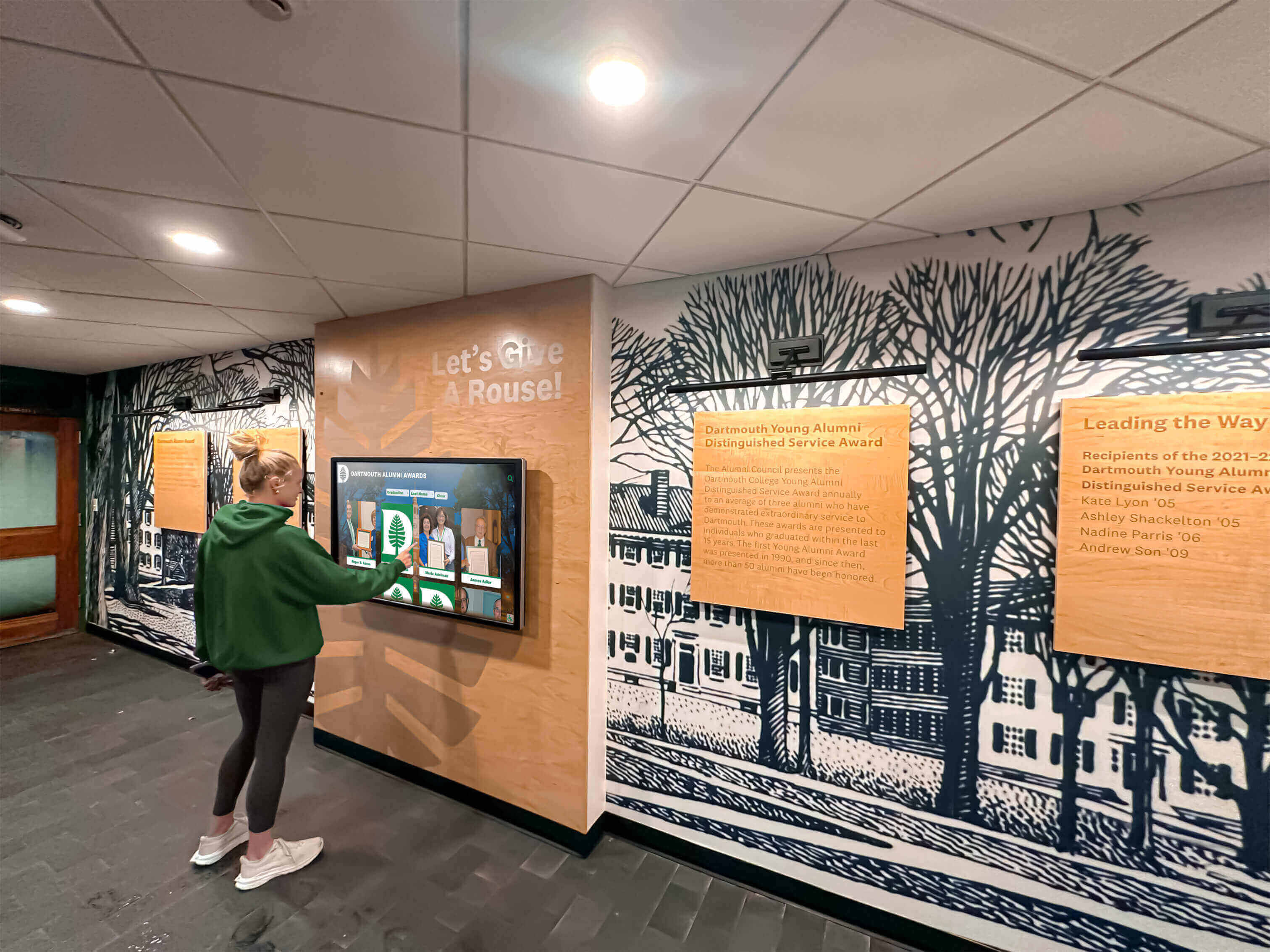
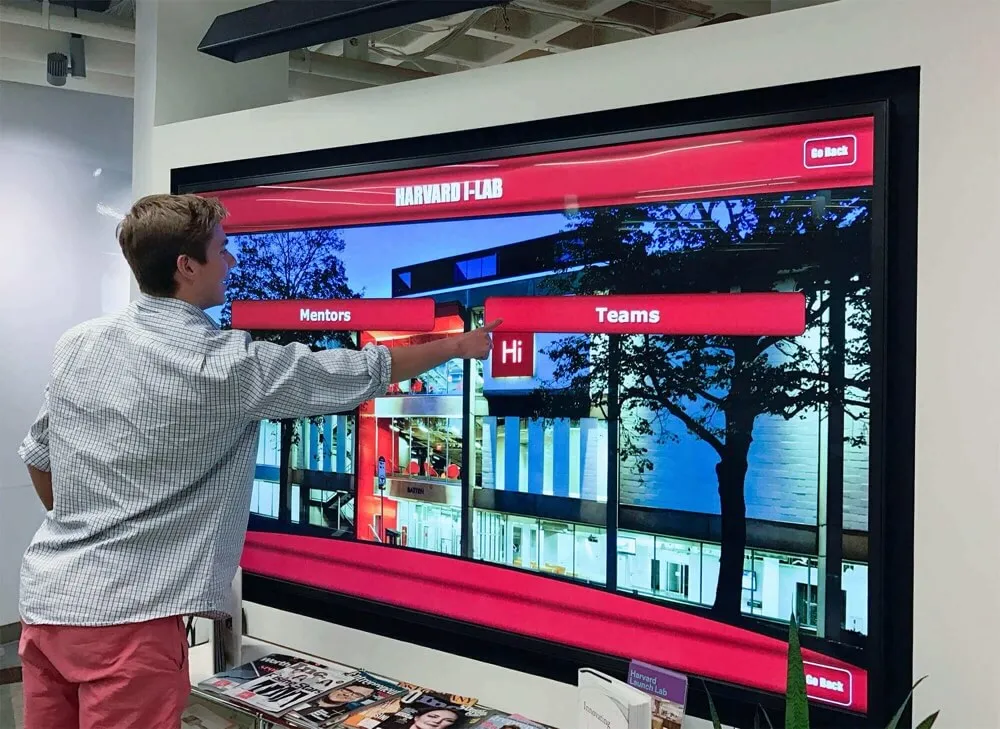
Testing platforms with diverse user groups reveals usability issues that demonstrations may obscure
Implementation Checklist: Deploying Touch Screen Kiosk Software
Structured implementation processes prevent common deployment problems and ensure smooth launches.
☐ Procurement and Contract Finalization
Secure institutional approvals and complete procurement processes according to organizational requirements. Negotiate contract terms including pricing and payment schedules, service level agreements specifying support response times, data privacy and security provisions, renewal terms and price escalation limits, and termination clauses enabling exit strategies if platforms fail meeting expectations.
Reference Checks provide validation beyond marketing materials. Request contacts from current customers in similar industries, organizations of comparable size and complexity, institutions that experienced implementation challenges, and long-term customers using platforms for 3+ years. Specific questions about actual experiences reveal realities that general reviews obscure.
☐ Infrastructure Preparation
Prepare physical and network infrastructure before software deployment. Install electrical outlets at mounting locations providing appropriate amperage and surge protection, verify network connectivity with adequate bandwidth and proper security configurations, mount displays at accessible heights with proper security fasteners, arrange climate control preventing temperature extremes affecting hardware reliability, and implement physical security measures preventing theft or vandalism.
Organizations deploying college intramural sports recognition displays in high-traffic public areas should consider protective enclosures, cable management preventing trip hazards, and tamper-resistant mounting hardware appropriate for unsupervised environments.
☐ Software Configuration and Branding
Install kiosk software according to vendor specifications and configure institutional branding elements. Apply organizational logos, colors, and design standards, configure home screen layouts and navigation structures, establish user permission levels for administrative access, set security policies appropriate for deployment environments, and configure analytics tracking capturing relevant usage metrics.
Content Population should occur before public launch. Migrate existing content from legacy systems, create new content following established guidelines, verify media asset quality and formatting, test navigation paths ensuring all content remains accessible, and review entire experiences from user perspectives identifying gaps or errors requiring correction.
☐ Accessibility Validation
Conduct formal accessibility audits ensuring WCAG 2.1 Level AA compliance. Test with assistive technologies including screen readers verifying proper semantic markup, keyboard navigation confirming all functions accessible without touch input, color contrast ratios meeting minimum thresholds, text resizing maintaining usability at 200% zoom levels, and alternative text providing meaningful descriptions for images and graphics.
Organizations serving public audiences must prioritize accessibility compliance. According to Americans with Disabilities Act regulations, facilities open to the general public must provide accessible options. Federal agencies must additionally comply with Section 508 of the Rehabilitation Act requiring electronic information technology accessibility.
☐ User Acceptance Testing
Facilitate testing sessions with representative user groups before official launches. Observe how visitors interact with kiosks without assistance, document confusion points or abandoned tasks indicating usability problems, collect feedback about interface intuitiveness and content quality, measure task completion rates and time requirements, and identify necessary refinements before public deployment.
Soft Launch Periods enable iterative improvements based on real usage patterns. Deploy kiosks to limited audiences initially while maintaining staff presence to assist users and collect feedback. Implement refinements addressing discovered issues before wider announcements driving increased traffic potentially encountering problems creating negative impressions.
☐ Staff Training and Documentation
Train administrators and support staff on content management procedures, security protocols and user permission management, basic troubleshooting for common technical issues, escalation paths for problems requiring vendor support, and analytics interpretation enabling data-driven improvements.
Documentation Creation supports knowledge transfer preventing single-person dependencies. Document content update workflows with step-by-step procedures, administrative contact information including vendor support channels, scheduled maintenance requirements and procedures, known issues and workarounds, and standard operating procedures for routine operations.
Schools implementing touchscreen software for club sports facilities should ensure multiple staff members understand management procedures. Relying on single administrators creates vulnerabilities during vacations, staff transitions, or unexpected absences requiring others to assume responsibilities without preparation.
☐ Launch Communications and Promotion
Announce kiosk availability through appropriate channels including facility signage directing visitors to new installations, website updates explaining kiosk purposes and locations, social media posts showcasing features and encouraging use, email communications to relevant stakeholders, and orientation sessions for frequent building users.
Usage Encouragement during initial launch periods establishes interaction habits that become self-sustaining. Staff members proactively demonstrating kiosk features to visitors, promotional campaigns highlighting specific content people find engaging, and visible activity around kiosks attracting curious passersby all contribute to adoption momentum supporting long-term success.
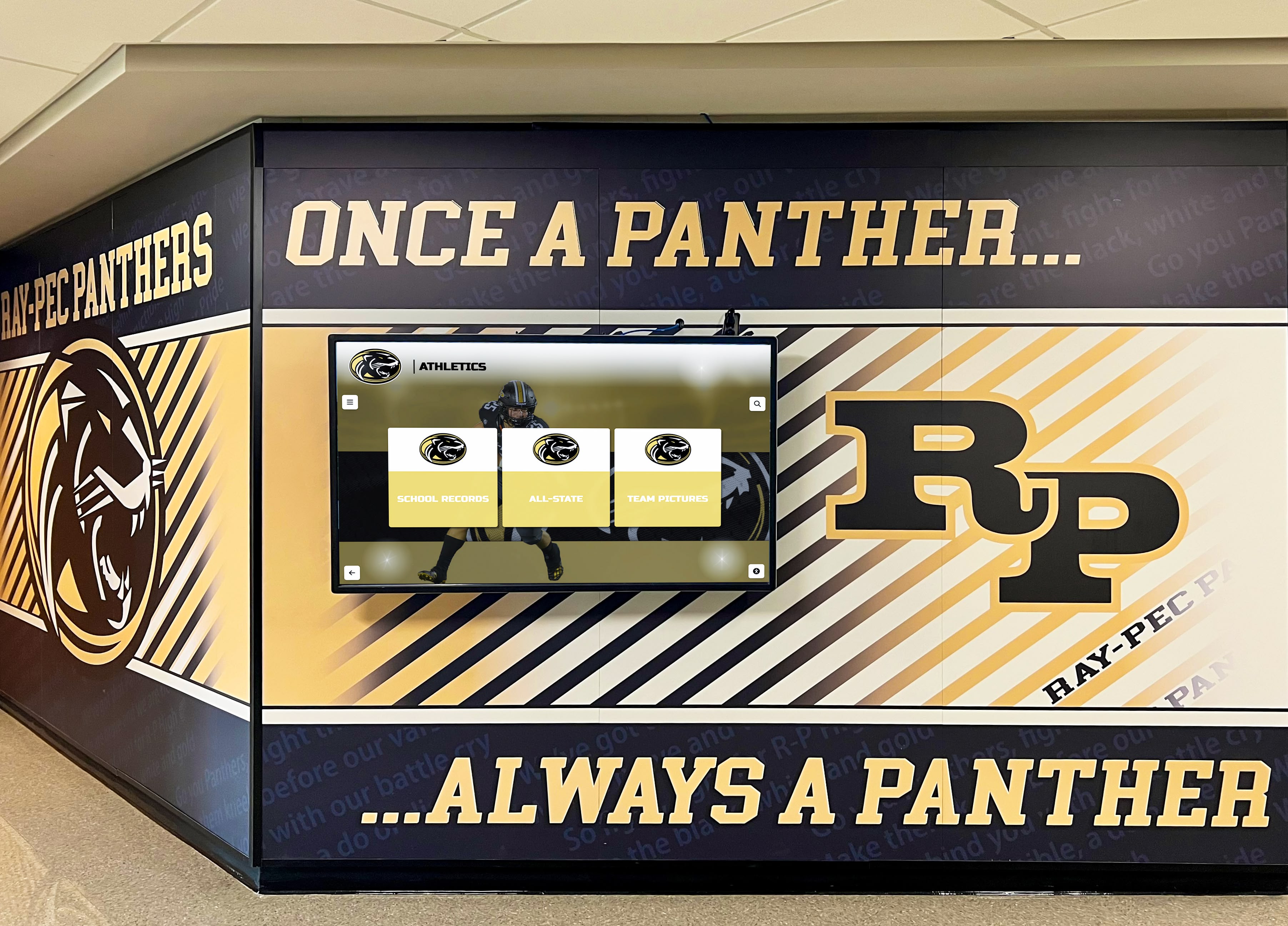
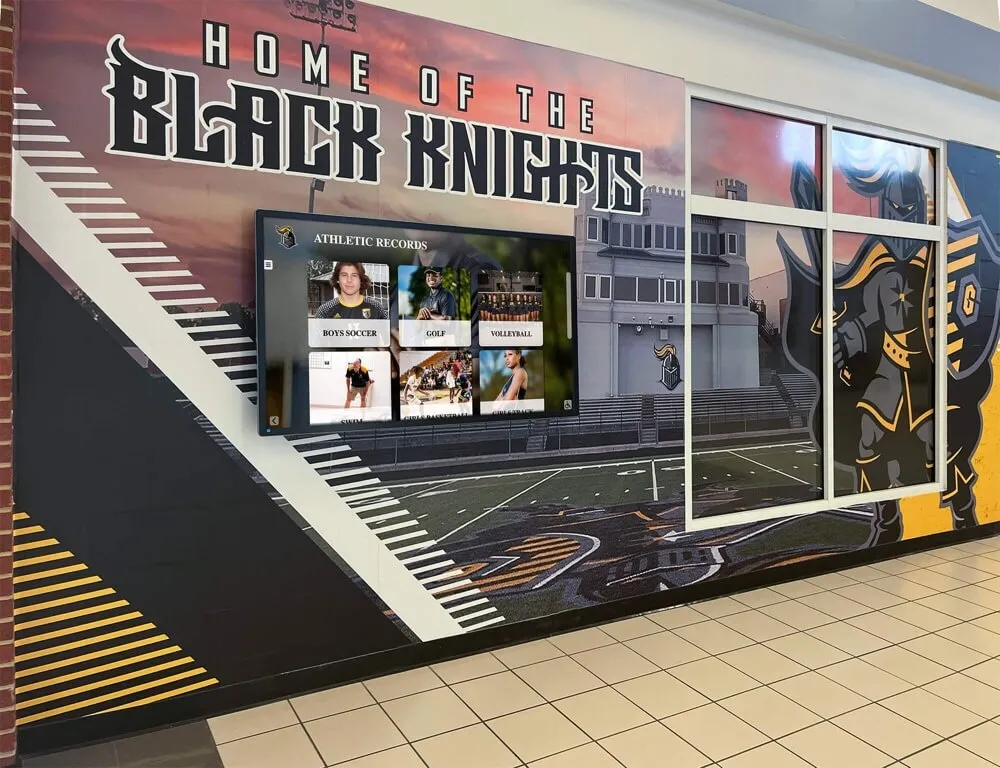
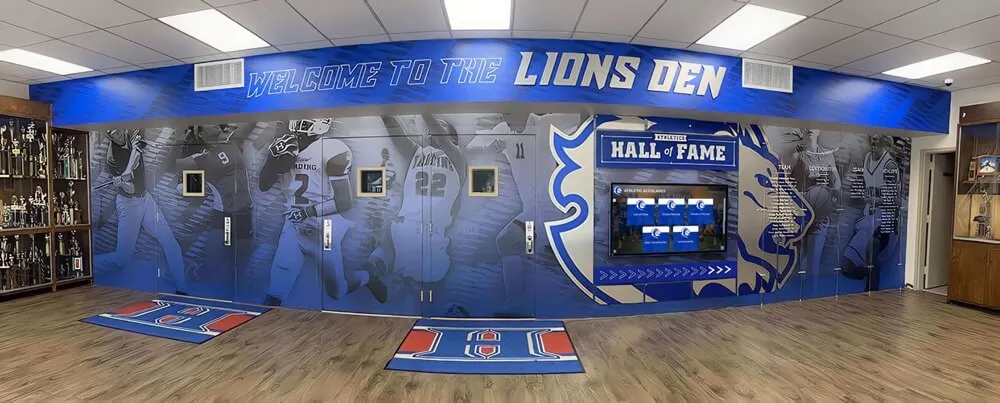
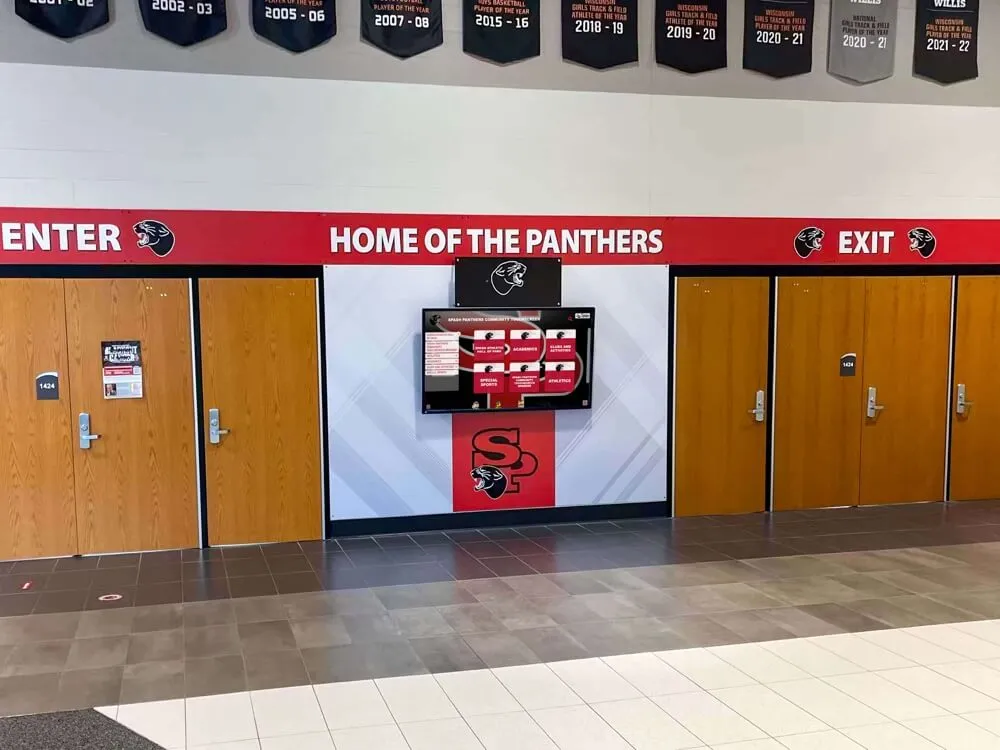
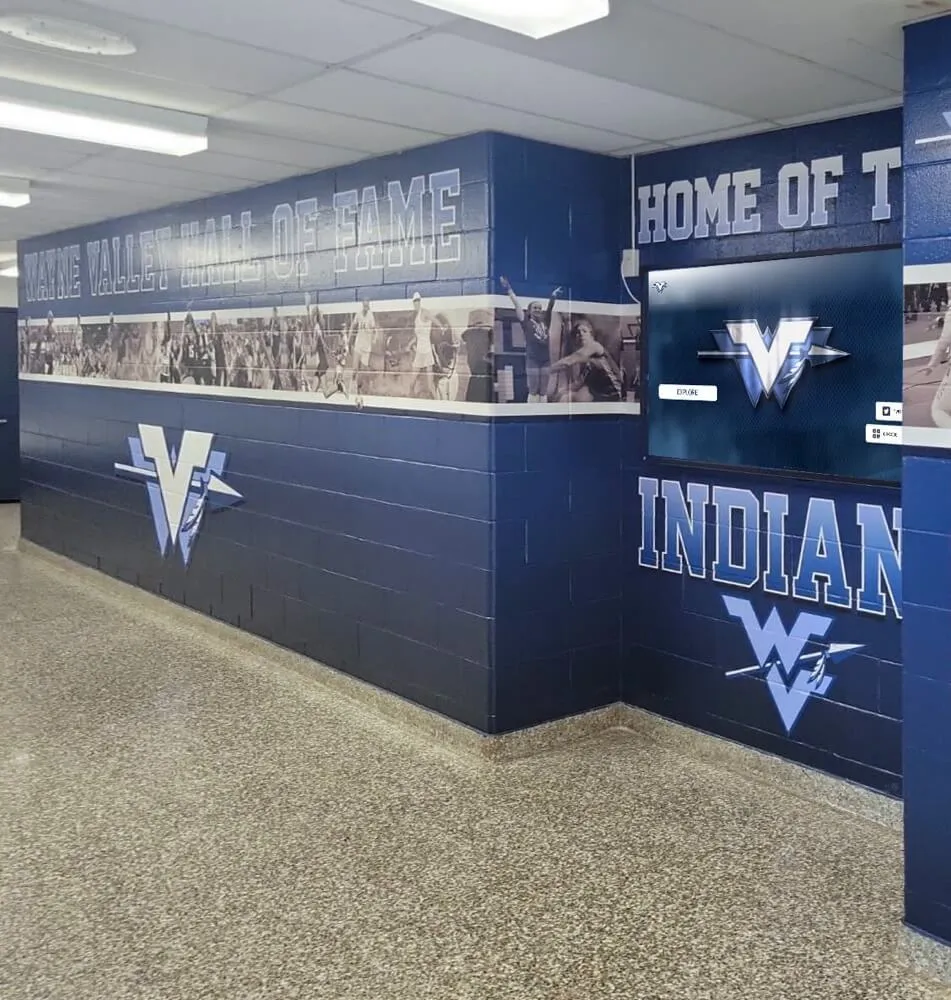
Proper installation planning ensures touchscreen kiosks integrate seamlessly with architectural environments
Validation Block: QA Checklist for Kiosk Software Deployments
Before considering implementations complete, systematically verify quality across critical dimensions.
Security Audit Checklist
- ☐ Device lockdown prevents unauthorized operating system access
- ☐ Network segmentation isolates kiosks from sensitive systems
- ☐ Content management authentication requires strong passwords
- ☐ Software update processes maintain security patch currency
- ☐ Physical security prevents hardware tampering or theft
- ☐ Data collection complies with privacy regulations
- ☐ Remote access uses encrypted connections
- ☐ Session timeouts prevent unauthorized continued access
Performance Validation Checklist
- ☐ Touch response occurs within 100 milliseconds
- ☐ Content loads completely within 3 seconds
- ☐ Animations maintain 60 fps during transitions
- ☐ Search results return within 1 second
- ☐ System remains responsive during peak usage
- ☐ Memory usage remains stable over extended operation
- ☐ Display brightness remains adequate in ambient lighting
- ☐ Audio levels prove appropriate for environments
Accessibility Compliance Checklist
- ☐ WCAG 2.1 Level AA compliance verified
- ☐ Screen reader compatibility tested and functional
- ☐ Keyboard navigation accesses all features
- ☐ Color contrast ratios exceed minimum requirements
- ☐ Text remains readable at 200% zoom
- ☐ Alternative text describes images meaningfully
- ☐ Mounting height accommodates wheelchair users
- ☐ Operating force stays below 5 pounds pressure
Content Quality Checklist
- ☐ All text reviewed for accuracy and clarity
- ☐ Images display at appropriate resolutions
- ☐ Videos play smoothly without buffering
- ☐ Navigation paths reach all content areas
- ☐ Search functionality returns relevant results
- ☐ Contact information remains current
- ☐ Branding elements apply consistently
- ☐ Content reflects current institutional priorities
Organizations should document audit results and address identified deficiencies before public launches. Systematic validation prevents embarrassing problems discovered by visitors creating negative impressions undermining kiosk credibility and reducing future engagement.
Troubleshooting Tips: Common Issues and Solutions
Even well-planned implementations encounter problems. Recognize symptoms and apply appropriate remedies quickly to minimize user impact.
Performance Degradation Over Time
Symptoms: Previously responsive kiosks become sluggish, content takes longer to load, or animations stutter during transitions.
Common Causes: Accumulated browser cache consuming storage, memory leaks from long-running processes, network connectivity degradation, or background processes consuming resources.
Solutions: Implement scheduled automatic restarts clearing memory accumulations, configure cache management limiting storage consumption, monitor network performance identifying connectivity problems, disable unnecessary background processes, and audit installed software for unwanted applications consuming resources.
Touch Input Accuracy Problems
Symptoms: Touches register in wrong locations, require multiple attempts, or fail to register despite obvious user interactions.
Common Causes: Touchscreen calibration drift, protective screen protector interference, environmental electrical interference, or physical touchscreen damage.
Solutions: Recalibrate touchscreens using operating system utilities, replace screen protectors with high-quality alternatives, relocate devices away from electrical interference sources, or replace damaged touchscreen digitizers if hardware problems exist.
Content Update Failures
Symptoms: New content fails appearing on kiosks despite successful uploads to content management systems, updates apply inconsistently across devices, or previous content persists despite deletion.
Common Causes: Network connectivity interruptions preventing sync completion, content caching preventing immediate updates, insufficient device storage preventing downloads, or software bugs affecting update distribution.
Solutions: Verify network connectivity and bandwidth adequacy, force cache clearing on affected devices, free device storage by removing outdated content, restart kiosk software completing pending updates, and contact vendor support for persistent problems potentially requiring software updates addressing bugs.
Platform Recommendations: Matching Solutions to Use Cases
Different kiosk software platforms excel for specific deployment scenarios. Align platform selection with primary use case characteristics.
Purpose-Built Recognition Platforms
Organizations implementing digital hall of fame displays, donor recognition walls, or athletic achievement showcases benefit from platforms specifically designed for recognition applications.
Rocket Alumni Solutions provides comprehensive web-based platforms specifically designed for institutional recognition needs. These solutions offer cloud-based content management enabling remote updates, professionally designed templates optimized for recognition displays, intuitive administrative interfaces accessible to non-technical staff, built-in WCAG 2.1 compliance supporting accessibility requirements, real-time analytics revealing engagement patterns, and fixed annual pricing with unlimited CMS users preventing per-administrator cost scaling.
Purpose-built recognition platforms eliminate custom development while delivering sophisticated functionality through subscription-based pricing models appropriate for educational institutions and nonprofit organizations with limited technical resources. Organizations benefit from continuous feature enhancements, security updates, and best practice implementations without internal development investments.
General-Purpose Kiosk Software
Organizations developing custom applications requiring secure deployment benefit from general-purpose kiosk lockdown platforms providing security and device management without bundled content tools.
KioWare offers browser-based kiosk solutions with secure browsing features and customizable lockdown settings. These platforms excel when organizations have existing web applications requiring public kiosk deployment without redevelopment. Configuration options enable URL filtering, timer-based resets, remote monitoring, and usage tracking while maintaining familiar browser environments for content display.
General-purpose platforms provide flexibility for diverse applications beyond single use cases, though they typically require greater technical expertise for configuration and content development compared to purpose-built alternatives.
Enterprise Digital Signage Platforms
Organizations with broad digital signage needs beyond interactive kiosks should evaluate comprehensive platforms supporting multiple display types and content strategies.
Omnivex and similar enterprise platforms provide advanced content rules engines, real-time data visualization, multi-screen management across distributed deployments, and sophisticated scheduling capabilities. These solutions prove appropriate for organizations managing hundreds of displays across multiple locations requiring centralized control and consistent brand presentation.
Enterprise platforms typically command higher costs justified by extensive capabilities, though smaller organizations may find feature sets exceed actual requirements while introducing unnecessary complexity.
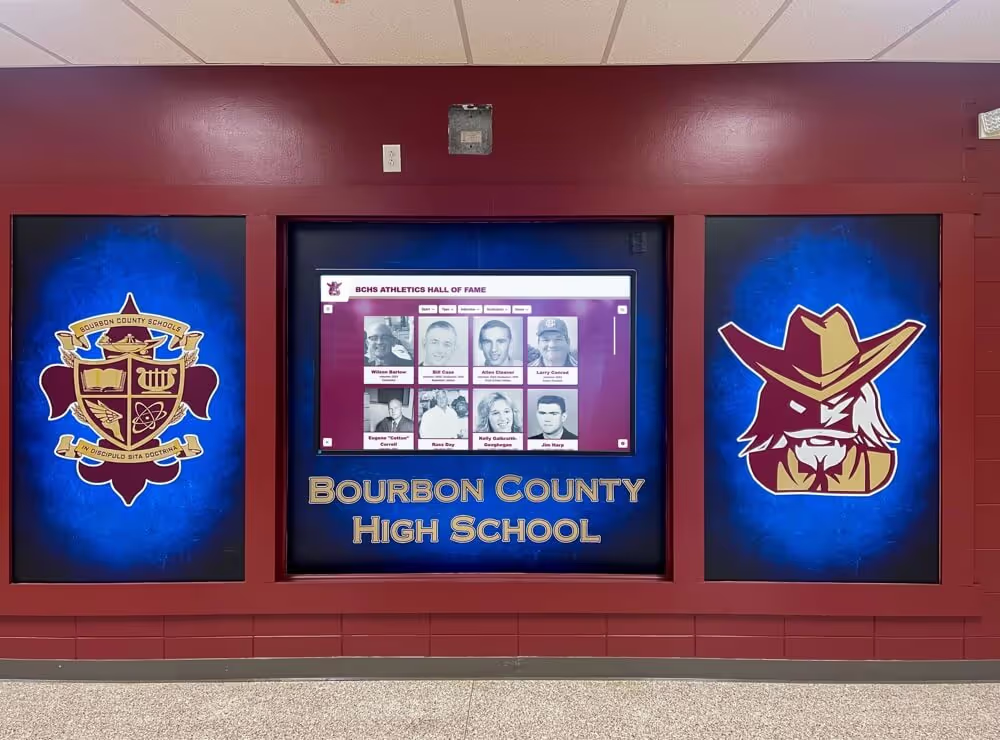
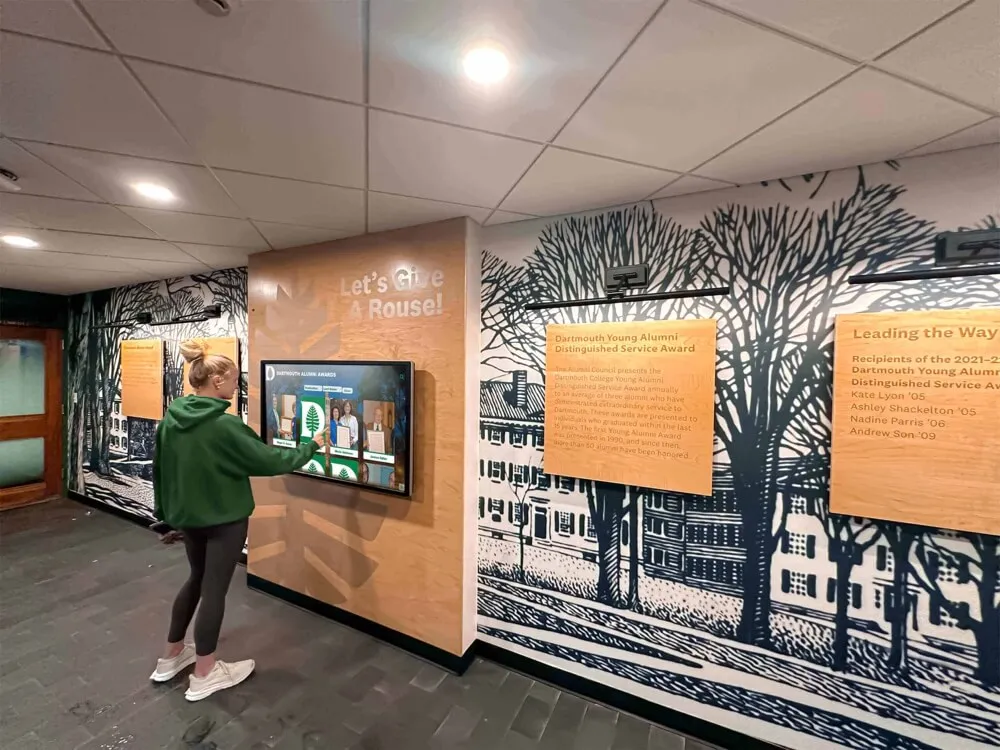
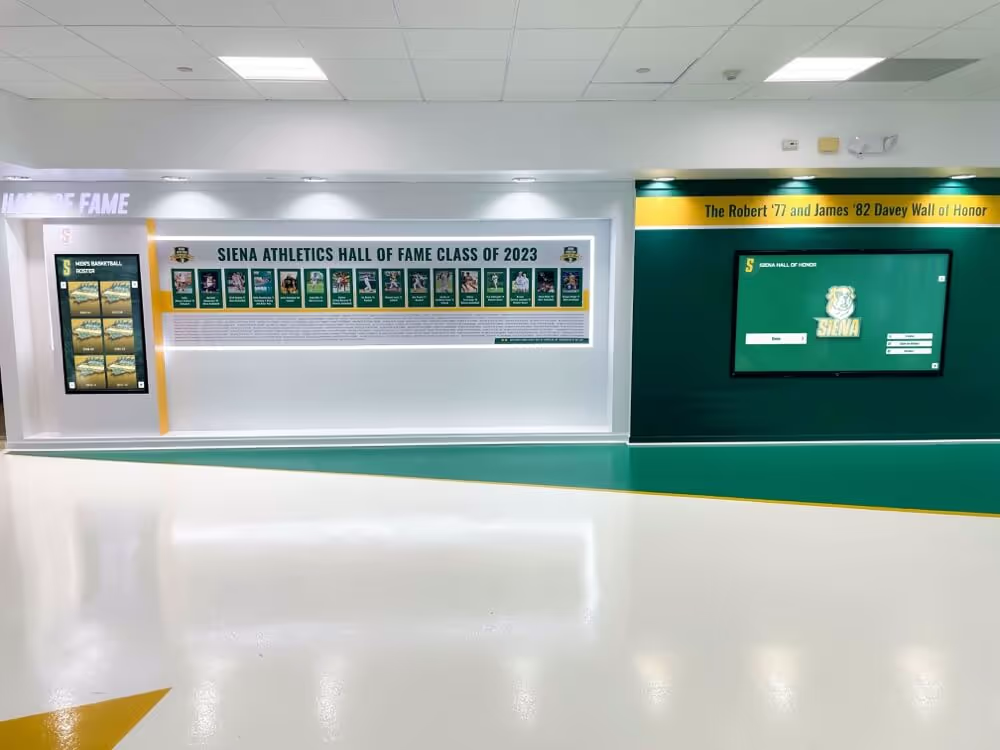
Recognition-focused platforms deliver optimized experiences for schools and organizations showcasing achievements
Cost Analysis: Budgeting for Touch Screen Kiosk Software
Understanding complete cost structures enables realistic budgeting supporting successful implementations without mid-project funding surprises.
Software Licensing Models
Per-Device Annual Subscriptions typically range from $250-$1,800+ per screen annually depending on platform sophistication, included features, and support levels. Budget platforms like NoviSign start around $325 annually per screen for basic interactive menu capabilities. Mid-tier solutions like OptiSigns or Rise Vision range $360-$1,000 annually providing solid feature sets appropriate for many organizational needs. Premium platforms like Intuiface or enterprise solutions reach $1,500-$2,000+ annually delivering advanced capabilities justifying higher costs for demanding applications.
Perpetual Licenses require larger upfront investments—typically $500-$2,500+ per device—but carry only modest annual maintenance fees of 15-20% of license costs. This model proves economical for longer deployments where total cost of ownership across 5+ years falls below cumulative subscription expenses. However, perpetual licenses concentrate costs in initial years creating budget challenges for organizations with limited capital budgets.
Unlimited-Device Pricing provides cost predictability for larger deployments. Purpose-built platforms like Rocket Alumni Solutions typically offer fixed annual rates covering unlimited screens and administrative users. This pricing model prevents per-device cost scaling as deployments expand, making it attractive for organizations anticipating growth or managing uncertainty about ultimate deployment sizes.
Hardware Investment Requirements
Complete kiosk deployments require hardware beyond software licenses. Budget for commercial-grade touchscreen displays ($800-$5,000+ depending on size and specifications), computing devices running kiosk software ($300-$1,500 for capable systems), mounting hardware and protective enclosures ($200-$1,000 per installation), cables, connectors, and surge protection ($50-$200 per device), and spare hardware supporting rapid replacement if failures occur.
Installation Labor varies based on complexity. Simple wall-mounted displays with nearby power and network infrastructure might require 2-4 hours professional installation ($200-$600). Complex installations involving electrical work, network infrastructure upgrades, or architectural integration can demand 8-20+ hours approaching or exceeding $2,000 per location.
Organizations should budget 10-15% contingency for unexpected expenses discovered during implementation. Unanticipated infrastructure upgrades, site preparation requirements, or specification changes addressing discovered needs frequently consume contingency reserves preventing project delays while awaiting additional funding approvals.
Ongoing Operational Costs
Annual operational expenses include software subscription or maintenance fees, content creation and management labor (often internal staff time), technical support subscriptions beyond base platform costs, network bandwidth and hosting fees for cloud-based solutions, electricity consumption for 24/7 operation, and periodic hardware replacement as components fail or become obsolete.
Total Cost of Ownership across 5-year deployment lifespans typically ranges $4,000-$15,000+ per kiosk depending on hardware quality, software sophistication, content complexity, and labor costs. Organizations should evaluate competing platforms on TCO basis rather than initial purchase prices that obscure long-term financial commitments.
Future-Proofing: Emerging Trends in Touch Screen Kiosk Software
Technology evolution creates opportunities and challenges for organizations planning long-term kiosk strategies.
Artificial Intelligence Integration
AI capabilities increasingly enhance kiosk experiences through natural language processing enabling conversational interfaces, computer vision facilitating gesture recognition and accessibility features, personalization engines adapting content to user preferences and behaviors, and predictive analytics anticipating user needs based on context.
Organizations should evaluate whether platforms support AI feature integration as capabilities mature. Early AI implementations sometimes create confusion or deliver marginal value, but strategic adoption of proven capabilities can substantially enhance user experiences as technologies improve.
Voice Interface Options
Voice control provides alternative input methods supporting accessibility requirements and hands-free operation in specialized environments. However, voice interfaces in public settings raise privacy concerns and prove problematic in noisy environments. Organizations should assess whether use cases justify voice capabilities or whether traditional touch interfaces remain preferable for institutional deployments.
Gesture Recognition Advances
Computer vision enables touchless gesture recognition detecting hand movements without physical contact. This technology gained attention during pandemic concerns about shared surface contamination, though adoption has remained limited given touchscreen familiarity and gesture interface learning curves.
Organizations implementing design strategies for engaging touchscreen experiences should focus on proven interaction paradigms rather than novel interfaces that confuse users or solve problems users don’t perceive as significant.
Cloud-Native Architectures
Software platforms increasingly adopt cloud-native designs delivering benefits including instant scaling supporting usage spikes, geographic redundancy preventing regional outages, automatic updates eliminating manual maintenance, API-first approaches simplifying integrations, and usage-based pricing aligning costs with value.
Organizations should evaluate vendor cloud strategies assessing whether platforms embrace modern architectures or rely on legacy approaches requiring greater administrative overhead and limiting future flexibility.
Conclusion: Implementing Successful Touch Screen Kiosk Software
Touch screen kiosk software selection fundamentally shapes interactive display success. Organizations that systematically evaluate functional requirements, organizational capabilities, budget realities, and deployment contexts make informed decisions supporting effective implementations delivering lasting value.
Purpose-built platforms specifically designed for institutional recognition needs—like Rocket Alumni Solutions—typically provide optimal balance of sophisticated functionality, intuitive administration, accessibility compliance, and investment levels appropriate for schools and nonprofit organizations. These solutions eliminate custom development requirements while delivering professional results through subscription models enabling predictable budgeting.
General-purpose kiosk platforms prove appropriate for organizations with custom applications requiring secure deployment or diverse use cases spanning recognition, wayfinding, self-service transactions, and information delivery. These flexible solutions demand greater technical expertise but provide architectural control supporting specialized requirements.
Organizations implementing touch screen kiosk software should prioritize requirements alignment over feature abundance, accessibility compliance ensuring inclusive experiences, content management simplicity supporting sustainable operations, security appropriate for deployment environments, and realistic total cost of ownership analysis preventing budget surprises undermining long-term viability.
Successful kiosk deployments result from matching software capabilities to actual organizational needs, preparing infrastructure supporting reliable operation, training staff managing content effectively, and continuously optimizing experiences based on usage analytics and visitor feedback. Organizations approaching implementations systematically create interactive experiences that engage audiences, advance institutional objectives, and deliver measurable returns justifying ongoing investments in touchscreen technology platforms.
Ready to Implement Professional Touch Screen Kiosk Software?
Discover how Rocket Alumni Solutions provides comprehensive touch screen kiosk software specifically designed for schools and organizations seeking sophisticated recognition capabilities without complexity and costs of custom development. Our web-based platform delivers intuitive content management, WCAG compliance, professional templates, and real-time analytics through fixed annual pricing with unlimited CMS users.
Schedule Your Free TouchWall Demo