High school gym lobbies face a familiar challenge: trophies, plaques, and awards accumulate year after year until physical display space runs out. Crowded trophy cases become difficult to navigate, older achievements get hidden behind newer ones, and maintenance becomes a constant burden. Many athletic directors find themselves turning away recognition opportunities simply because there’s nowhere left to put them.
Digital touchscreen displays offer a practical solution. These interactive systems consolidate decades of athletic achievements into a searchable, updatable format that requires minimal physical space while providing unlimited display capacity. This guide walks you through the planning, technical requirements, and implementation steps needed to transform your gym lobby into an engaging digital recognition space.
Why Traditional Trophy Cases Reach Capacity
Physical trophy displays follow a predictable lifecycle in most high schools. The initial installation accommodates current awards with room to grow, but within 5-10 years, the cases fill completely. Schools then face difficult decisions about which achievements to feature and which to store away.
Space Limitations Create Recognition Gaps
Traditional cases typically hold 50-100 trophies depending on size. A school with multiple sports programs can generate 15-25 major awards annually, meaning a standard case reaches capacity within 3-5 years. Once full, schools must choose between:
- Removing older trophies to make room for new ones
- Adding more physical cases (often costing $3,000-$8,000 each)
- Rotating displays seasonally (requiring regular manual updates)
- Limiting which achievements receive recognition
Each option involves trade-offs. Removing older awards erases history. Adding cases consumes valuable lobby space and budget. Rotating displays creates maintenance work. Limiting recognition disappoints athletes and families.
Maintenance Demands Grow Over Time
Physical trophy cases require ongoing care. Dust accumulates on shelves and awards. Plaque text fades. Engraving becomes difficult to read through glass. Cases need periodic reorganization as items shift or fall.
Updating traditional displays involves physical labor. Staff must open cases, rearrange items, clean shelves, and ensure everything looks presentable. For seasonal sports transitions, this process repeats multiple times per year. Many schools report spending 2-4 hours per update, plus the cost of new plaques or labels.
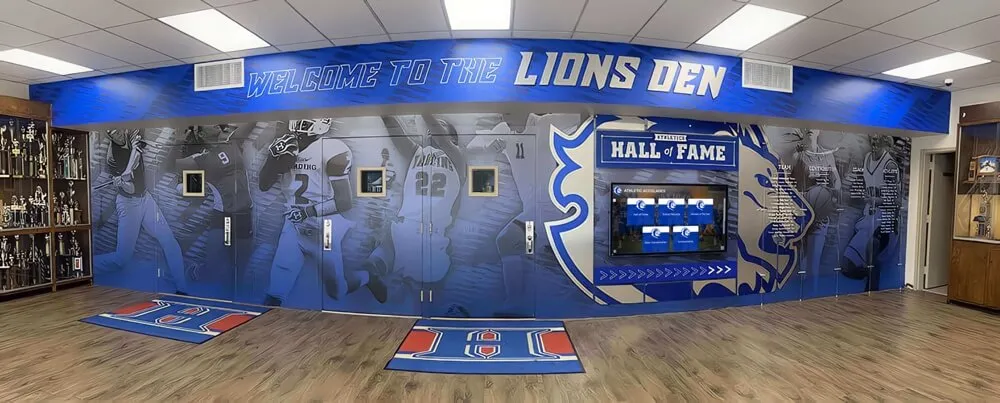
Traditional trophy cases in a high school gym lobby, showing the physical space constraints that many schools face as awards accumulate.
Discovery Challenges Limit Engagement
Visitors to gym lobbies can only view what’s immediately visible through the glass. Finding a specific athlete, year, or achievement requires scanning through crowded shelves. Alumni returning to campus often struggle to locate their own awards among hundreds of trophies.
Physical organization typically groups items by sport or year, but visitors can’t search by athlete name, view complete records for a single team, or filter by specific achievement types. The passive display format provides no way to dig deeper into the stories behind the awards.
Digital Touchscreen Benefits for Athletic Recognition
Interactive displays address the capacity, maintenance, and engagement limitations of physical trophy cases while introducing capabilities that traditional formats cannot match.
Unlimited Digital Storage Capacity
Digital platforms eliminate physical space constraints. A single touchscreen can showcase thousands of awards, athlete profiles, team photos, and historical records without requiring additional floor space. Schools can recognize every achievement from every sport, every year, indefinitely.
This unlimited capacity changes recognition strategy. Instead of choosing which achievements deserve display, schools can document everything: varsity and JV teams, individual and team awards, league championships and tournament placements, coaching milestones and booster contributions.
Searchable, Filterable Content
Touchscreen interfaces let visitors search by athlete name, sport, year, award type, or team. Alumni can quickly locate their own achievements. Current athletes can explore their program’s complete history. Coaches can showcase their teams’ records.
Filtering options make large content libraries navigable. A visitor interested in basketball can view only basketball-related content. Someone researching a specific decade can filter by year range. This targeted access creates personalized experiences that physical displays cannot provide.
Remote Content Management
Cloud-based content management systems allow staff to update displays from any device with internet access. Adding new awards, editing information, or reorganizing content requires no physical access to the display hardware. Updates appear immediately across all connected screens.
This remote capability means the athletic director can update the system from their office, home, or even during away games. No more scheduling maintenance windows, opening cases, or handling physical items. The 2-4 hours typically required for a traditional update reduces to 10-15 minutes of data entry.
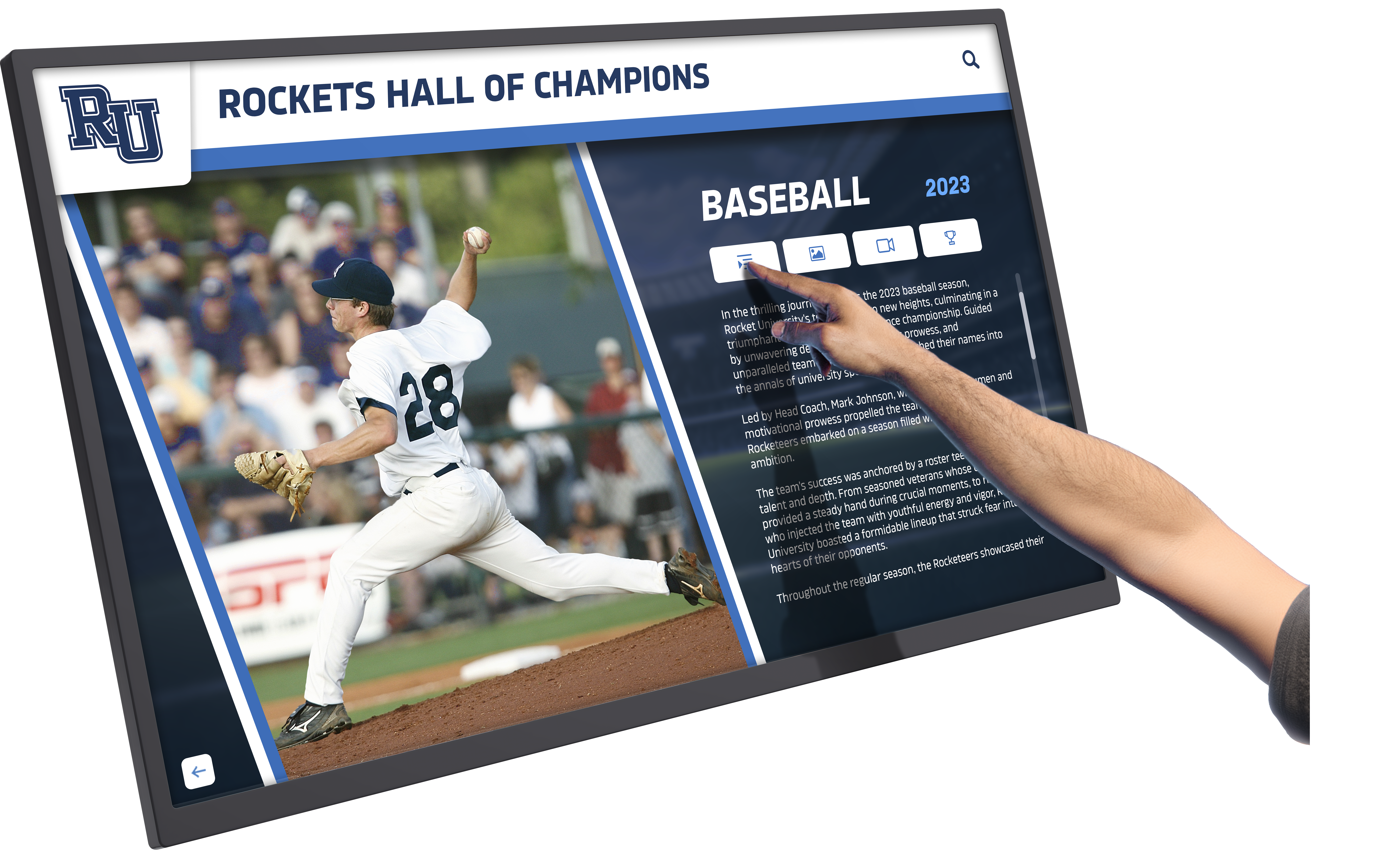
Interactive touchscreen displays allow visitors to explore athlete profiles, achievements, and historical records with simple touch navigation.
Multimedia Storytelling
Digital formats support photos, videos, and detailed narratives that bring achievements to life. Instead of displaying only a trophy and plaque, schools can include:
- Action photos from championship games
- Video highlights of record-breaking performances
- Coach interviews about memorable seasons
- Newspaper clippings from historic victories
- Complete team rosters with individual stats
- Timeline views showing program evolution
This multimedia approach transforms recognition from static awards into engaging stories. Current students see not just that someone won a championship, but how the season unfolded, who the key players were, and what made the achievement significant.
Cost Efficiency Over Time
The initial investment in a digital system typically ranges from $8,000-$15,000 for a professional installation including hardware, software, and implementation. This compares favorably to the cost of multiple traditional trophy cases, which can reach similar amounts when accounting for:
- Initial case purchase ($3,000-$8,000 each)
- Installation and mounting ($500-$1,500)
- Ongoing plaque costs ($15-$50 per award)
- Maintenance and reorganization labor
- Additional cases as space fills
Digital systems eliminate recurring plaque costs and maintenance labor while providing expandable capacity that traditional cases cannot match. Many schools find the return on investment occurs within 3-5 years, after which the digital system continues providing value without additional space or equipment costs.
Planning Your Digital Trophy Display Installation
Successful implementations begin with thorough planning. This section outlines the key decisions and measurements needed before installation begins.
Assess Your Current Recognition Content
Start by inventorying what you currently display and what’s in storage. Document:
- Total number of trophies, plaques, and awards
- Sports programs represented
- Year range of awards (oldest to newest)
- Physical dimensions of current displays
- Storage boxes or closets holding older items
- Team photos, banners, or other memorabilia
- Newspaper clippings or documentation
This inventory establishes the scope of content you’ll digitize. Many schools discover they have 200-500 items when accounting for both displayed and stored awards. Understanding the full volume helps determine the digital system capacity needed.
Define Display Goals and Priorities
Clarify what you want visitors to experience. Common goals include:
Recognition breadth: Showcase all athletes and achievements, not just major championships Historical preservation: Document program history dating back decades Engagement: Create interactive experiences that keep visitors exploring Recruiting: Impress prospective student-athletes and their families Alumni connection: Give graduates a way to see their legacy preserved
Prioritizing these goals helps guide content organization and interface design decisions. A school focused on recruiting might emphasize recent championships and standout individual athletes. One prioritizing historical preservation might organize content chronologically with detailed context about each era.
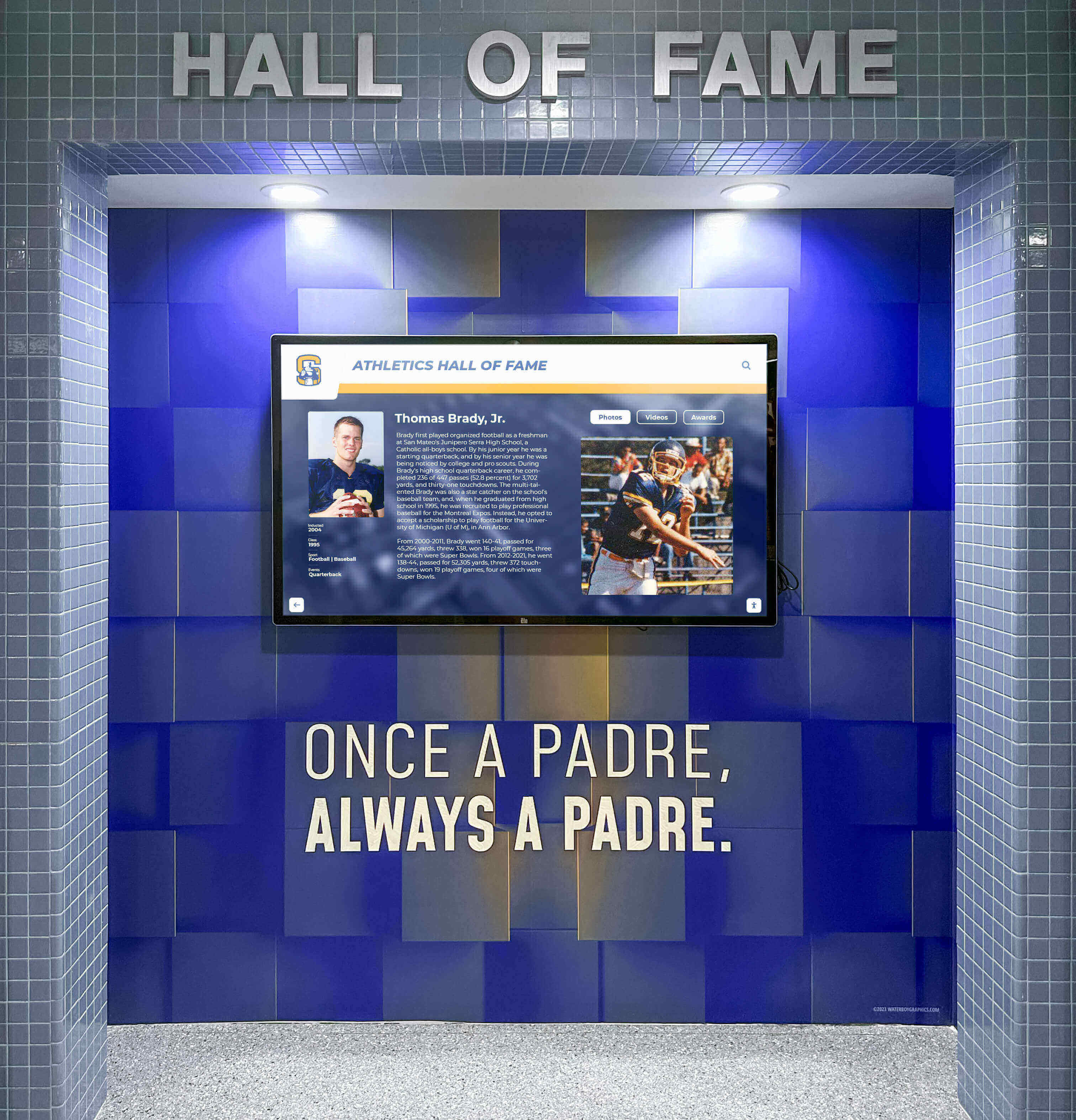
Modern digital displays integrate seamlessly into school athletic facilities, providing clean, professional recognition that complements existing architecture.
Select Optimal Lobby Placement
Location determines who interacts with your display and how often. Evaluate potential mounting locations based on:
Traffic patterns: Place displays where visitors naturally congregate or pass through Viewing distance: Ensure sufficient space (typically 3-6 feet) for comfortable interaction Sight lines: Avoid locations where displays compete with wayfinding or safety signage Power access: Identify nearby electrical outlets or plan for new circuits Network connectivity: Confirm WiFi coverage or plan for ethernet drops Lighting conditions: Avoid direct sunlight that creates glare on screens Accessibility: Ensure wheelchair users can reach and operate the touchscreen
Many schools find success placing displays near gym entrances, in lobby waiting areas, or along main hallways leading to athletic facilities. Multiple displays can extend recognition throughout the athletic complex while sharing the same content library.
Determine Hardware Specifications
Touchscreen displays for public spaces require commercial-grade specifications that differ from consumer products. Key considerations include:
Screen size: 43-55 inches works well for individual interaction; 65-75 inches suits areas where groups gather Mounting: Wall-mount, floor-standing kiosk, or built-in installations each suit different spaces Durability: Look for tamper-resistant enclosures and tempered glass screens Brightness: 400-500 nit displays work for most indoor lighting; higher ratings suit spaces with windows Touch technology: Projected capacitive touch provides the best responsiveness and durability Operating hours: Displays should handle all-day operation during school weeks
Commercial displays typically include 3-year warranties versus 1-year consumer warranties, reflecting their design for continuous use in public environments.
Budget for Complete Implementation
Total project costs typically include:
| Category | Typical Range | Notes |
|---|---|---|
| Display hardware | $2,500-$5,000 | Commercial touchscreen with mounting |
| Content management software | $1,500-$3,500 | Annual licensing for cloud-based systems |
| Installation labor | $800-$2,000 | Professional mounting and configuration |
| Content creation | $2,000-$4,000 | Initial digitization and data entry |
| Network infrastructure | $500-$1,500 | If new drops or WiFi upgrades needed |
| Training and support | $500-$1,000 | Staff training and ongoing assistance |
These ranges produce total project costs of $8,000-$15,000 for a single display with professional implementation. Schools handling their own content digitization or installation can reduce costs, while those adding multiple displays or premium features may exceed this range.
Compare these costs to traditional approaches:
- Additional trophy cases: $3,000-$8,000 each, plus ongoing plaque costs of $300-$500 annually
- Rotating displays: Minimal equipment cost but 2-4 hours of labor per update, 3-4 times yearly
- Offsite storage: Lost recognition opportunity plus storage facility costs
Technical Requirements and Infrastructure Checklist
Before installation day, verify your facility provides the necessary infrastructure to support a digital display system.
Power Requirements
Commercial touchscreens typically draw 150-300 watts during operation. Electrical requirements include:
- Dedicated circuit: 15-amp circuit recommended to avoid sharing with high-draw equipment
- Outlet proximity: Within 6 feet of display location unless running new wiring
- Surge protection: Commercial-grade surge protector rated for 1,500+ joules
- Backup power: Optional UPS (uninterruptible power supply) to handle brief outages
Work with your facilities team or electrician to confirm existing circuits can handle the load. If running new wiring, plan for conduit runs that conceal cables for a clean professional appearance.
Network Connectivity
Cloud-based content management systems require reliable internet connectivity. Connection options include:
WiFi: Suitable if your facility has enterprise-grade access points with strong signal at the display location. Test signal strength using a smartphone or tablet before installation. Look for -60 dBm or stronger signal for reliable operation.
Ethernet: Provides more stable connectivity than WiFi. Run Cat6 cable from your network switch to the display location. If existing infrastructure doesn’t reach your lobby, budget for a professional network drop installation.
Bandwidth: Interactive displays typically require 10-25 Mbps for smooth video playback and content updates. Most school networks easily accommodate this, but confirm your internet connection can handle additional devices if adding multiple displays.
Content Storage and Backup
Digital content libraries include high-resolution photos, videos, and detailed text records. Storage considerations include:
Cloud storage: Most professional systems provide cloud hosting as part of their subscription, storing all content off-site with automatic backups
Local cache: Displays maintain a local copy of content for faster loading and operation during brief network interruptions
Original archives: Maintain your own backup copies of source photos, videos, and records separate from the display system
Ongoing additions: Plan for content library growth. A complete athletic program typically generates 50-200 new photos and 10-30 new award records annually.
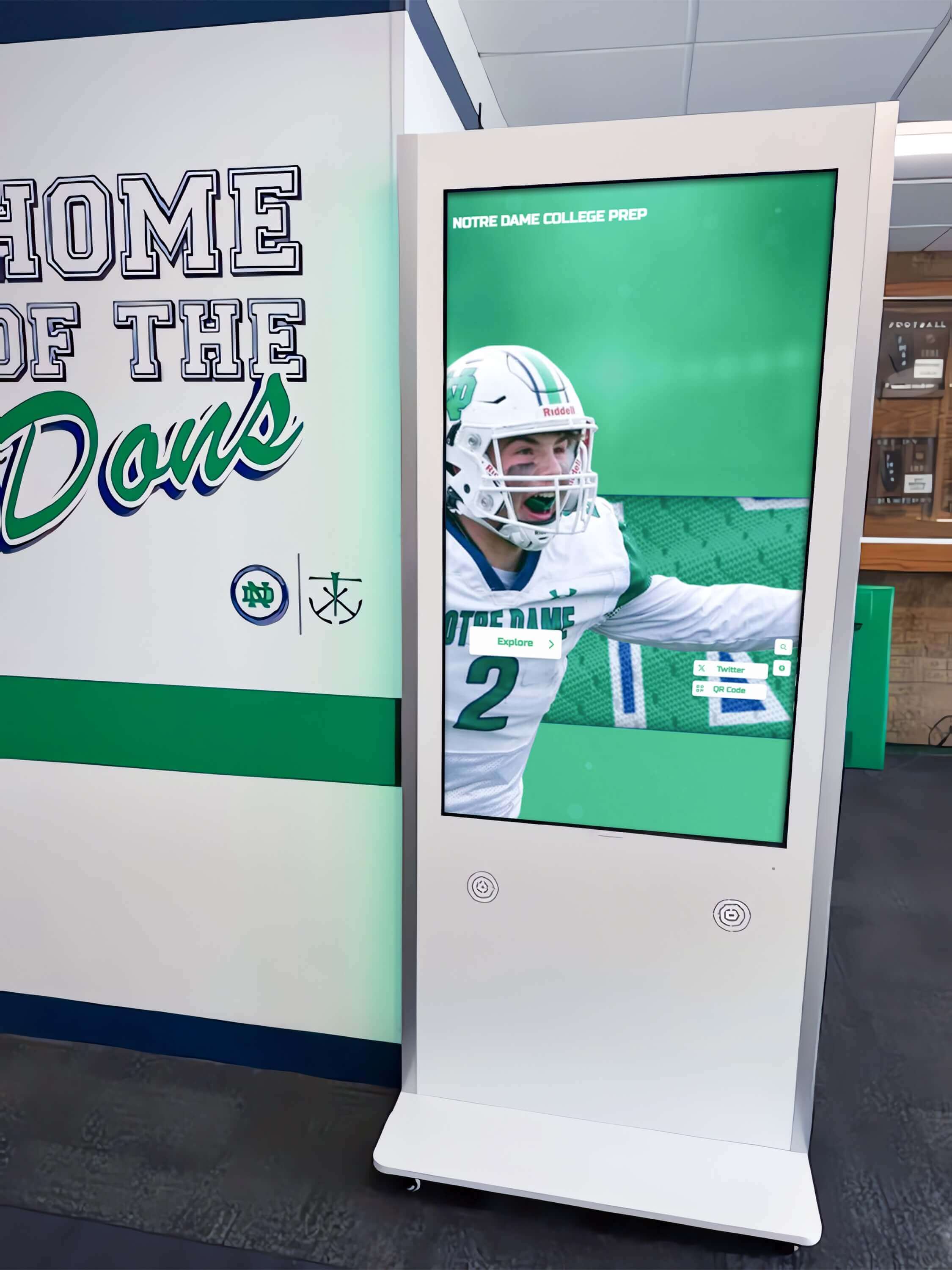
Floor-standing kiosks offer flexible placement options and can be positioned in high-traffic areas without requiring wall mounting.
ADA Accessibility Compliance
Public displays in educational facilities must meet Americans with Disabilities Act (ADA) requirements. Key specifications include:
Mounting height: Touchscreen controls should be 15-48 inches above the floor for wheelchair accessibility. Wall-mounted displays typically install with the screen center at 48-54 inches, providing controls within the required range.
Operating force: Touch interfaces must activate with 5 pounds force or less. Modern capacitive touchscreens typically require only light finger pressure, easily meeting this requirement.
Clear floor space: Maintain a 30x48 inch clear space in front of the display for wheelchair approach. Avoid placing displays in narrow corridors or blocking paths.
Screen readers: Digital systems supporting audio output or screen reader compatibility enhance accessibility for visually impaired visitors, though not required for general informational displays.
Document your accessibility compliance during planning. Many display providers can supply ADA compliance statements for their hardware specifications.
Digitizing Your Existing Trophy Collection
Converting physical awards into digital content requires systematic photography, data collection, and organization. This process typically represents the most time-intensive part of implementation.
Photography Best Practices
Quality photos make digital displays professional and engaging. Follow these guidelines:
Individual trophy photos:
- Photograph against a neutral background (white or light gray)
- Use consistent lighting to avoid shadows
- Capture straight-on views showing engraving clearly
- Take photos at sufficient resolution (2000+ pixels wide)
- Shoot in landscape orientation for better screen display
Team photos:
- Scan or photograph existing team pictures at high resolution (300 DPI minimum)
- If originals are small, consider professional scanning services
- Crop out borders and frames, keeping only the image
- Correct any color fading or yellowing in older photos
Action shots:
- Gather photos from games, matches, and competitions
- Request copies from team parents, local newspapers, or athletic staff
- Ensure you have rights to use photos (school-taken or rights-granted images only)
- Select photos that capture memorable moments rather than generic action
Facilities and locations:
- Document your athletic facilities, fields, and courts
- Capture wide shots showing context and environment
- Include photos of retired jerseys, banners, or other fixed displays
Data Collection Standards
Consistent data structure makes content searchable and browsable. For each award, record:
Core information:
- Sport name
- Award title (e.g., “IHSA State Champions,” “Conference Player of the Year”)
- Year awarded
- Level (varsity, JV, freshman)
Athlete details (for individual awards):
- Full name
- Graduation year
- Position or event
- Statistics or achievements
Team details (for team awards):
- Complete roster with names and graduation years
- Coaches and assistant coaches
- Season record
- Tournament or playoff results
Context and stories:
- Brief description of significance
- Memorable game or performance details
- Historical context (first time, record-breaking, etc.)
- Quotes from coaches or athletes (if available from yearbooks or archives)
Create a spreadsheet template for data entry. Include all fields you’ll track, then have staff or volunteers systematically complete one row per award. This structured approach prevents inconsistent formatting and missing information.
Batch Processing Workflow
Rather than handling awards one at a time, organize digitization into efficient batches:
Week 1-2: Inventory and prioritize
- Sort physical awards by sport and year
- Identify items currently displayed versus in storage
- Prioritize recent awards (last 5-10 years) for initial launch
- Set older items aside for subsequent phases
Week 3-4: Photography session
- Set up photography station with consistent lighting and background
- Photograph all prioritized trophies and plaques in systematic order
- Name photo files consistently (e.g., “basketball-2023-state-championship.jpg”)
- Review photos for clarity and reshoot any unclear images
Week 5-6: Data entry
- Complete spreadsheet with all award information
- Cross-reference yearbooks, old programs, or newspaper archives for missing details
- Verify athlete names and graduation years with school records
- Add context descriptions for significant achievements
Week 7-8: Content upload and organization
- Import photos and data into your chosen digital platform
- Create logical categories and filters (sport, year, award type)
- Review all content for accuracy and completeness
- Test search and browsing functions
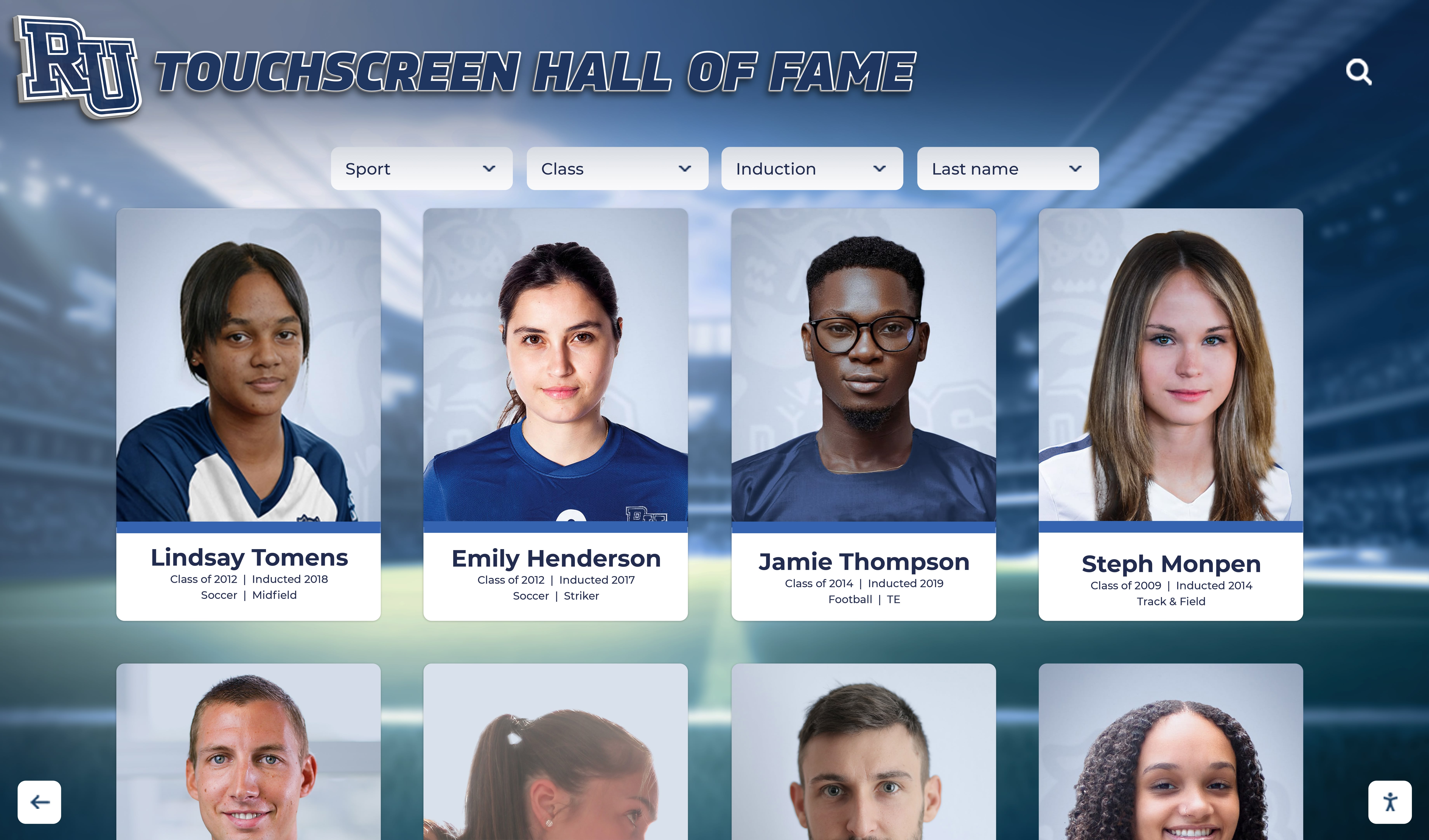
Well-organized digital content allows visitors to browse athlete profiles, search by name or year, and explore achievement details with intuitive navigation.
Handling Older Historical Items
Awards from decades past often lack complete documentation. Strategies for filling gaps include:
- Review yearbooks for team photos, rosters, and award listings
- Check local newspaper archives for game coverage and championship stories
- Interview retired coaches or athletic staff with institutional knowledge
- Reach out to alumni for photos or information about their era
- Accept incomplete records when information is truly unavailable
Document what you know and leave placeholder fields for missing information. As alumni discover the digital display, many will provide missing details, photos, or corrections. Build a process for accepting and incorporating these community contributions over time.
Choosing the Right Digital Platform
Not all touchscreen systems are designed for athletic recognition. Key differences separate general digital signage tools from purpose-built recognition platforms.
Purpose-Built Recognition Platforms vs. Digital Signage
General digital signage software typically displays slideshows, announcements, or advertisements. These tools work well for cafeteria menus or event calendars but lack structure for searchable athletic databases. Visitors can watch content scroll by but cannot search for specific athletes or awards.
Purpose-built recognition platforms organize content into searchable databases with athlete profiles, team records, and award categories. These systems provide search interfaces, filtering options, and detailed information views that transform displays into interactive archives.
For athletic recognition specifically, look for platforms that include:
- Athlete profile templates with photos, stats, and achievements
- Team pages with rosters, records, and season highlights
- Award categories and achievement types
- Multiple viewing modes (browse by sport, year, award type, or athlete)
- Timeline views showing program history
- Comparison tools for records and statistics
Rocket Alumni Solutions provides a cloud-based platform specifically designed for school recognition needs, with templates for athletic halls of fame, trophy cases, and achievement displays that require no technical expertise to manage.
Key Software Features to Evaluate
When comparing platforms, assess these capabilities:
Content management:
- How easy is it to add new awards and athletes?
- Can you bulk import data from spreadsheets?
- Does the system support photo galleries and videos?
- Can you edit content from any device?
Search and browsing:
- Can visitors search by athlete name?
- Are filtering options available (sport, year, award type)?
- Does the interface support both browsing and targeted search?
- Can visitors share or bookmark specific content?
Visual customization:
- Can you match your school colors and branding?
- Are layout templates available or does everything require custom design?
- Can you upload your school logo, mascot, and athletics graphics?
- Does the system provide professional design support?
Multi-location support:
- If you plan multiple displays, can they share the same content library?
- Can different displays show different subsets of content?
- Are updates made once and distributed to all displays automatically?
Analytics and reporting:
- Does the system track what content visitors view?
- Can you see which athletes or awards generate most interest?
- Are usage reports available to justify the system value?
Technical support:
- What training is provided for administrators?
- Is technical support available when you need help?
- Does the provider handle software updates and maintenance?
- What happens if hardware fails?
Hardware Selection Considerations
Display hardware varies in quality, durability, and features. Commercial-grade equipment designed for public spaces differs substantially from consumer products.
Display type:
- All-in-one touchscreens: Integrated computer and screen in one unit, simplifying installation
- Separate computer and display: More flexible but requires more complex installation
- Tablet-based systems: Lower cost but less durable for public spaces
Touch technology:
- Projected capacitive: Most responsive and durable, supports multi-touch gestures
- Infrared: Works with gloves but can be triggered by dust or debris
- Resistive: Outdated technology, poor user experience
Enclosure options:
- Wall-mounted: Clean appearance, saves floor space
- Floor-standing kiosk: Flexible placement, can include additional branding
- Built-in installations: Custom integration with lobby architecture
Environmental protection:
- Temper-resistant: Protects against vandalism in unsupervised spaces
- Thermal management: Ensures reliable operation during all-day use
- Sealed design: Prevents dust and moisture entry
Commercial equipment typically costs 2-3 times more than consumer alternatives but includes warranties, durability, and support suitable for public installation environments.
Installation Process and Timeline
Professional installation ensures reliable operation and clean appearance. This section outlines the typical implementation timeline and process.
Pre-Installation Site Preparation
Before installation day, complete these tasks:
Electrical: Have a licensed electrician install or verify appropriate power outlets at display locations. Plan for concealed wiring if running new circuits.
Network: Install ethernet drops or verify WiFi coverage provides strong signal. Test connectivity speeds at the installation location.
Physical space: Clear the installation area of furniture, equipment, or decorations. Patch and paint walls if mounting equipment. Remove or relocate existing trophy cases if replacing them.
Content preparation: Finalize initial content library and upload to the platform. Test all search and browsing functions. Verify photos display correctly and all data is accurate.
Staff training: Schedule training sessions for administrators who will manage content. Ensure they understand how to add awards, upload photos, and organize information.
Installation Day Activities
Professional installers typically complete work in 4-8 hours depending on complexity. The process includes:
Hardware mounting:
- Mark mounting locations and verify level placement
- Install mounting brackets or floor stands
- Mount display and verify secure attachment
- Connect power and network cables
- Conceal wiring using conduit or wire channels
System configuration:
- Connect display to content platform
- Configure network settings
- Test touch responsiveness and calibration
- Adjust brightness and color settings for room lighting
- Enable automatic power scheduling if desired
Content verification:
- Load initial content library onto display
- Test all browsing and search functions
- Verify photos and videos display correctly
- Confirm all interactive features work properly
- Test accessibility features
Orientation and training:
- Walk through administrator controls
- Demonstrate content updates
- Review troubleshooting basics
- Provide documentation and support contacts
Final acceptance:
- Conduct complete functionality test
- Verify installation meets specifications
- Document any issues requiring follow-up
- Obtain sign-off on completed work
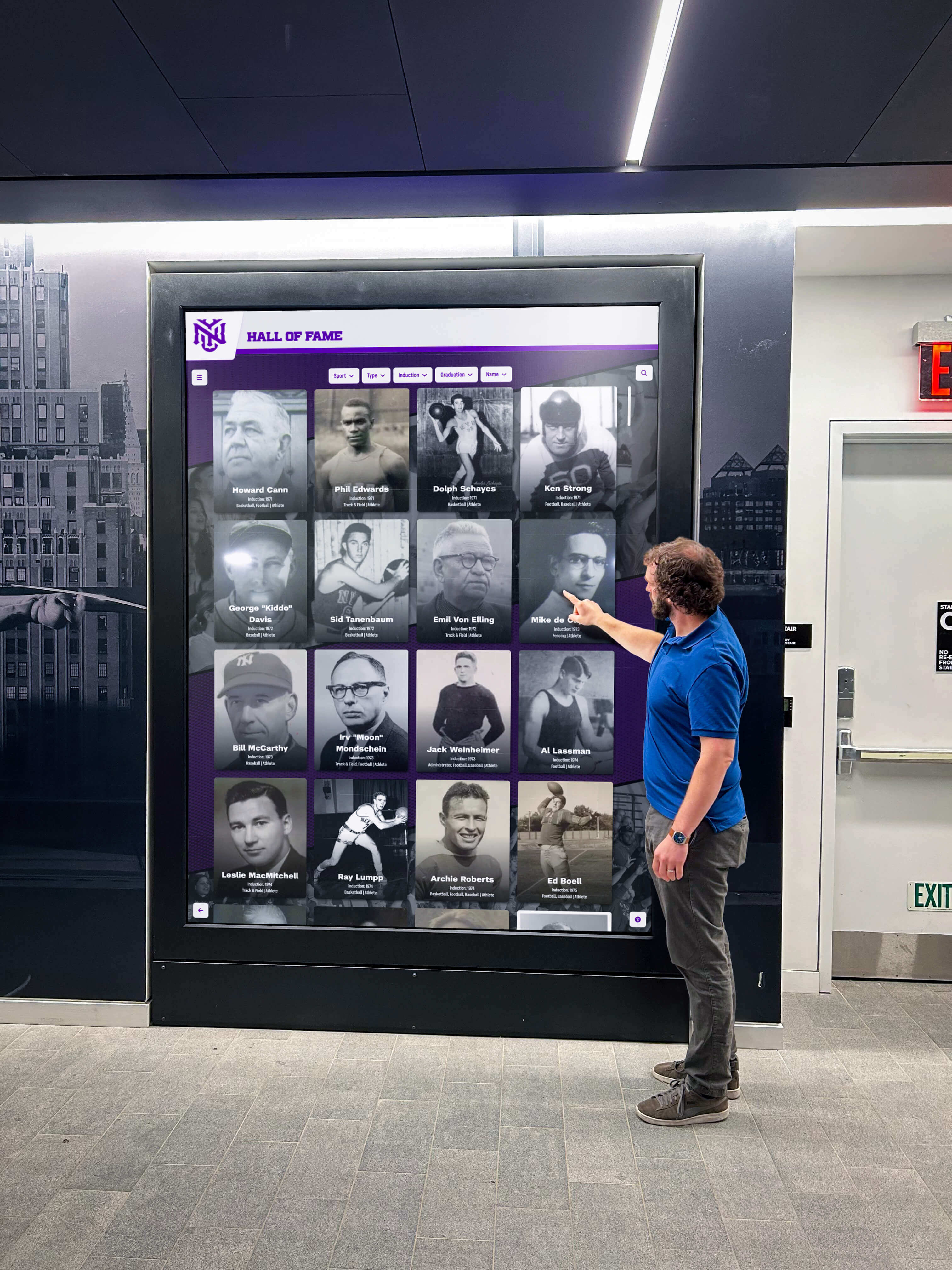
Properly installed displays invite interaction and exploration, transforming lobbies into engaging spaces where visitors actively explore athletic history.
Testing and Quality Assurance
After installation, conduct thorough testing before public launch:
Functionality checks:
- Touch responsiveness across entire screen
- Navigation between all sections
- Search function accuracy
- Filter options working correctly
- Photo and video playback quality
- Audio (if included) volume and clarity
Content verification:
- Random sample of athlete profiles for accuracy
- Award information matches source records
- Photos display at proper resolution
- All categories and filters contain expected content
- Links or references work correctly
User experience testing:
- Recruit students, staff, or volunteers unfamiliar with the system
- Observe them attempting to find specific information
- Note any confusion or usability issues
- Gather feedback on layout, navigation, and content organization
- Make adjustments based on testing results
Accessibility verification:
- Confirm touch controls within ADA height requirements
- Test from wheelchair height
- Verify readable text size
- Check color contrast for visibility
Post-Launch Support Period
Plan for a 30-day shakedown period after public launch. During this time:
- Monitor usage and watch for any technical issues
- Gather feedback from students, staff, and visitors
- Make content corrections or additions as gaps are identified
- Adjust organization or layout based on usage patterns
- Document any recurring questions for FAQ development
Most issues surface within the first few weeks of operation. Establishing a feedback mechanism (suggestion box, email address, or online form) helps identify problems and improvement opportunities quickly.
Content Strategy for Maximum Engagement
The most successful digital displays balance comprehensive historical archives with regularly updated current content. This section outlines content planning strategies.
Organize by Multiple Browsing Paths
Visitors arrive with different goals. Some want to find their own awards, others want to explore championship history, and some just want to see what’s interesting. Support these different approaches:
By sport: Group all content related to each athletic program By year: Show all achievements from specific seasons or decades By award type: Separate team championships, individual honors, records, etc. By athlete: Search by name to find individual profiles with all achievements By team: Browse complete team records with rosters and season results By era: Group historical periods (decades, coaching tenures, facility eras)
Flexible organization lets each visitor find content their own way. Current students might browse by recent years, while alumni might jump to their graduation era or search for their own name.
Balance Historical and Current Content
Initial implementations often focus heavily on recent achievements because information is readily available. However, historical depth creates richer experiences. Aim for:
Recent focus (last 5 years): Complete, detailed information with extensive photos and context Medium history (6-20 years ago): Major achievements with basic information and some photos Deep archives (20+ years ago): Championship teams and significant milestones with available documentation
As time permits, gradually backfill historical content. Alumni often contribute photos and information when they discover gaps in their era’s coverage, making historical expansion a community-driven process.
Create Featured Content Rotations
While visitors can search the complete archive, featured content rotations keep the display fresh and relevant:
Seasonal sports focus: Highlight current season teams and athletes This week in history: Show achievements from the same week in previous years Milestone anniversaries: Feature teams celebrating 10, 25, or 50-year anniversary of championships Athlete spotlights: Rotate through profiles of notable alumni Upcoming events: Connect historical achievements to current competitions
Many platforms support automatic rotation schedules, updating featured content without administrator intervention. Set up rotations during initial implementation, then update periodically as seasons change.
Multimedia Integration
Text and photos provide foundation, but video and audio create emotional connection:
Championship game highlights: Short video clips (30-90 seconds) of memorable moments Coach interviews: Recorded reflections on significant seasons or achievements Team traditions: Video documenting unique rituals, cheers, or pre-game routines Facility tours: Show historical evolution of athletic spaces through photo timelines Alumni testimonials: Recorded messages from notable graduates reflecting on their experience
Balance multimedia additions with the time required to create them. Start with photos and text, then add videos as resources permit. Even a few strategic videos significantly increase engagement.
Maintenance and Content Update Workflows
Digital displays require ongoing maintenance to remain current and relevant. Establishing efficient update workflows ensures recognition stays timely without consuming excessive staff time.
Seasonal Update Schedule
Align content updates with your athletic calendar:
Pre-season (1-2 weeks before season starts):
- Create or update current team pages
- Upload team photos and rosters
- Add coach information
- Highlight returning athletes or notable recruits
Mid-season (every 2-4 weeks during season):
- Add photos from recent competitions
- Update win-loss records
- Note significant individual or team achievements
- Highlight upcoming key matchups
Post-season (within 1-2 weeks of season end):
- Add final records and statistics
- Document playoff or tournament results
- Upload championship photos and awards
- Create season summary content
Off-season (summer and between sports):
- Digitize physical awards received during banquets
- Backfill historical content
- Update athlete profiles with college commitments or career information
- Conduct system maintenance and updates
Staff Assignment and Training
Identify who will manage content updates:
Primary administrator: Athletic director or assistant typically owns overall content strategy and major updates
Sports-specific contributors: Coaches or team managers can update their own programs with proper training and permissions
Student assistants: Student aides can help with data entry, photo collection, and content verification under supervision
Booster volunteers: Engaged parents or alumni may assist with historical research and photo scanning
Provide clear training for each role. Create written procedures documenting how to add different content types. Most cloud-based platforms require only 15-30 minutes of training for basic content updates.
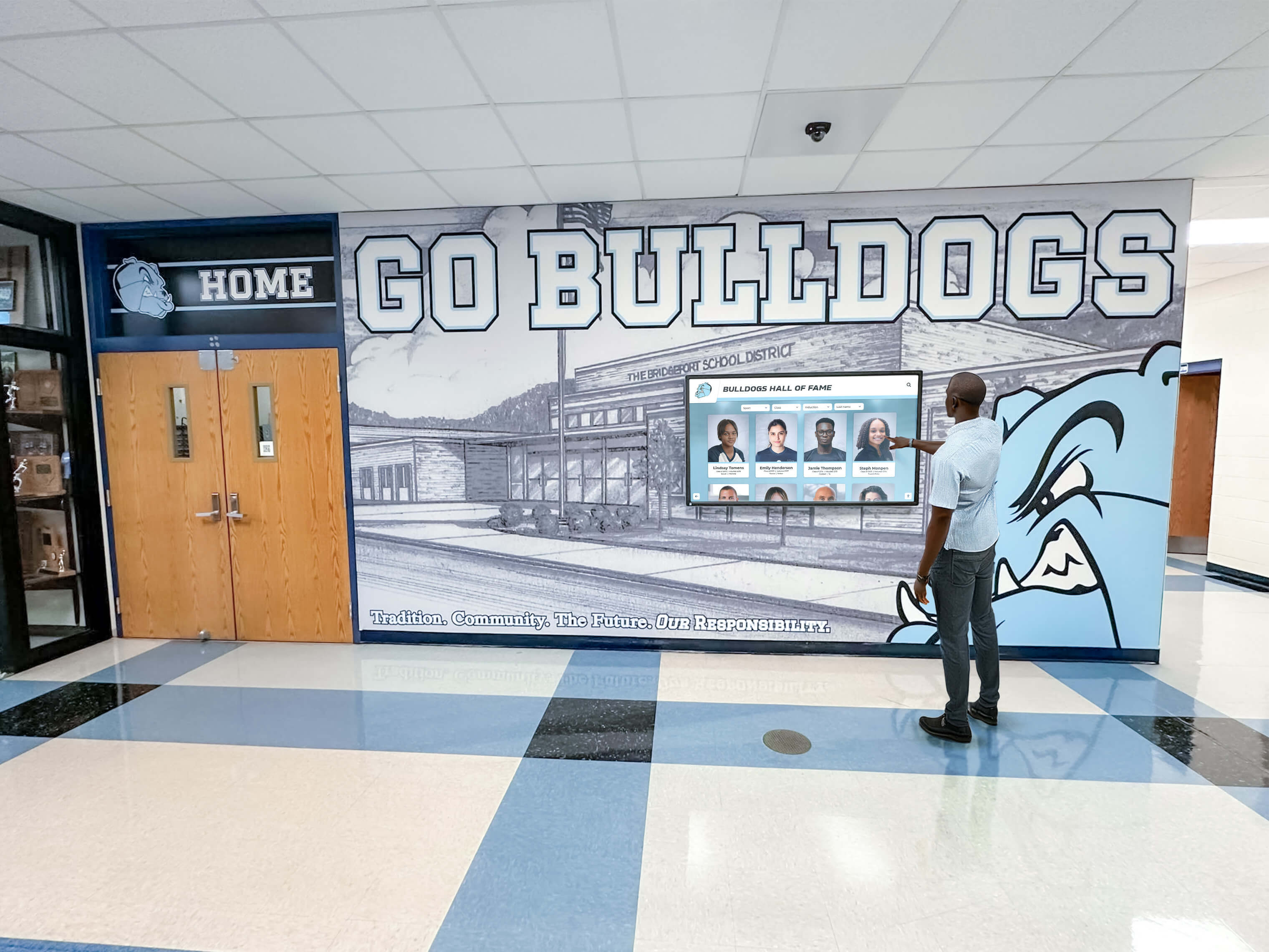
Intuitive content management systems allow staff to update displays from any location, keeping recognition current without requiring technical expertise.
Quality Control Procedures
Establish verification steps before content goes live:
Data accuracy: Cross-reference award information with official records Photo quality: Ensure images are properly oriented, cropped, and sized Spelling: Verify athlete names match school records exactly Consistency: Use standard formats for dates, award titles, and descriptions Permissions: Confirm rights to use photos, especially from external sources
Consider implementing a two-person review process for significant additions. One person creates content, another reviews before publishing. This catches errors and ensures professional presentation quality.
Technical Maintenance Tasks
Beyond content updates, displays require periodic technical maintenance:
Weekly:
- Verify display is operating correctly
- Check for any error messages or unusual behavior
- Clean touchscreen surface with appropriate cleaner
Monthly:
- Review system analytics for usage patterns
- Check for software updates from platform provider
- Verify network connectivity remains strong
- Test all interactive features
Quarterly:
- Deep clean display hardware and enclosure
- Inspect mounting hardware for any loosening
- Review and optimize content organization
- Archive or remove outdated temporary content
Annually:
- Conduct comprehensive content audit
- Update school branding if logos or colors changed
- Review and renew software licenses
- Assess whether additional displays would benefit other locations
Most technical maintenance requires minimal time. Cloud-based platforms handle software updates automatically, and commercial displays need only basic cleaning and inspection.
Measuring Success and ROI
Digital recognition displays provide both tangible and intangible benefits. Track these metrics to demonstrate value and justify ongoing investment.
Usage Analytics
Most professional platforms include analytics showing:
Interaction volume: Total number of visitors using the display, by day/week/month Session duration: How long visitors spend exploring content Popular content: Which athletes, teams, or awards receive most views Search queries: What information visitors seek most often Time of day patterns: When the display receives most use
These metrics demonstrate engagement. Typical installations in high school gym lobbies see 50-200 interactions per week during the school year, with session durations of 2-5 minutes. Compare these numbers to traditional trophy cases, which receive passive views but no measurable engagement.
Stakeholder Feedback
Collect qualitative feedback from key groups:
Students and athletes: Do they feel properly recognized? Does the display motivate participation? Alumni: Do returning graduates engage with the display? Do they share photos or memories? Prospective families: Do campus tours include the display? Does it influence enrollment decisions? Coaching staff: Has recruiting improved? Do they use the display with prospective athletes? Administrative leadership: Does the display enhance school pride and culture?
Document positive comments and address concerns. Testimonials from stakeholders provide powerful evidence of impact beyond usage statistics.
Operational Efficiency Gains
Quantify time and cost savings:
Maintenance time reduction: Compare hours spent updating physical displays versus digital system Plaque cost elimination: Calculate annual savings from no longer purchasing engraved plaques Storage space recovery: Measure square footage freed by removing physical trophy storage Update frequency increase: Count how much more often you update digital versus physical displays
Many schools report reducing recognition maintenance from 8-16 hours annually (for traditional displays) to 2-4 hours (for digital updates), representing 75% time savings. Eliminating plaque purchases saves $300-$500 per year at typical schools.
Program Growth Indicators
Monitor these program-level metrics:
Athletic participation rates: Are more students trying out for teams? Booster club engagement: Has volunteer involvement or fundraising increased? Alumni connections: Do more graduates attend events or contribute to programs? Media coverage: Does local press reference the display or school programs more often? Recruitment outcomes: Are you attracting stronger athletes or student interest?
While digital displays alone don’t cause these improvements, they contribute to broader program culture and visibility. Track trends over 2-3 years to identify patterns correlating with display implementation.
Common Challenges and Solutions
Even well-planned implementations encounter obstacles. Here are frequent challenges and practical solutions.
Challenge: Content Digitization Feels Overwhelming
With hundreds of trophies and decades of history, the digitization workload seems insurmountable.
Solution: Phase the implementation. Launch with recent content (last 3-5 years) that’s easiest to document. This provides immediate value while spreading historical digitization across multiple years. Set a goal of adding one decade of historical content annually. Within 5-7 years, you’ll have comprehensive coverage without overwhelming any single year’s workload.
Solution: Engage volunteers. Alumni often want to help preserve their era’s history. Booster club parents can assist with photo scanning. Student National Honor Society members may earn service hours through digitization work. Distribute the workload across interested community members with clear instructions and supervision.
Challenge: Limited Budget for Initial Investment
The $8,000-$15,000 typical cost exceeds available budget.
Solution: Pursue grant funding. Many local foundations, booster clubs, or community organizations support educational technology projects. Emphasize the display’s educational value (teaching school history), accessibility benefits (making recognition available to all), and community engagement potential.
Solution: Phase hardware purchases. Start with a single display in your highest-traffic location. After demonstrating value and gathering usage data, budget for additional displays in subsequent years. Many schools begin with one lobby display, then add units in locker rooms, weight rooms, or field houses as budget permits.
Solution: Explore digital recognition alternatives using existing equipment. While less ideal than purpose-built systems, a wall-mounted TV with connected computer running recognition software costs significantly less. This interim solution provides digital capacity while working toward a full touchscreen upgrade.
Challenge: Staff Resistance to New Technology
Some staff members feel uncomfortable with digital systems or prefer traditional displays.
Solution: Emphasize ease of use. Modern cloud-based platforms require no technical expertise. If someone can use email or social media, they can update content. Provide hands-on training showing how simple updates actually are.
Solution: Position as time-saving, not additional work. Frame the digital system as reducing maintenance burden rather than creating new tasks. Calculate time savings from eliminating physical case updates and plaque management.
Solution: Start with enthusiastic early adopters. Identify one or two tech-comfortable staff members to manage the system initially. As they demonstrate success and ease, other staff members become more receptive.
Challenge: Maintaining Content Currency
Initial excitement leads to complete content setup, but updates become sporadic as time passes.
Solution: Create calendar reminders tied to your athletic schedule. Set recurring tasks for pre-season, mid-season, and post-season updates for each sport. Build content updates into established workflows rather than treating them as separate projects.
Solution: Assign update responsibilities to coaches or team managers. Each coach keeps their own program current rather than burdening a single administrator. Provide simple instructions and periodic reminders.
Solution: Use automatic features. Many platforms support scheduled content rotations, anniversary highlights, and other automations that keep displays feeling current without manual updates. Configure these features during initial setup.
Challenge: Physical Trophy Disposal Concerns
Once digitized, what happens to hundreds of physical trophies?
Solution: Retain select meaningful trophies. Keep major championship trophies, especially recent ones, in smaller display cases. Digitize everything but physically display the 20-30 most significant items.
Solution: Return trophies to athletes or families. When practical, offer individuals the opportunity to take home their personal awards. Many alumni appreciate receiving their physical trophies.
Solution: Repurpose or recycle responsibly. Contact trophy companies about recycling programs. Offer trophies to youth leagues or community programs. Some schools create commemorative displays using trophy pieces in artistic arrangements.
Solution: Photograph extensively before disposal. Take detailed photos of every trophy from multiple angles, ensuring a complete digital record exists even after physical disposal.
Expanding Recognition Beyond Athletics
While athletic programs drive many initial digital display implementations, the same technology serves broader recognition needs throughout schools. Consider these expansion opportunities:
Academic Achievement Recognition
Digital displays work equally well for academic recognition programs:
- Honor roll students by semester
- National Merit Scholars and AP Scholars
- Academic competition winners (science fair, math league, spelling bee)
- Perfect attendance recognition
- Scholarship recipients
- Valedictorians and salutatorians across decades
Place academic displays in library lobbies, main office areas, or academic hallways to balance athletic focus with scholarly achievement recognition.
Fine Arts and Activities
Extend recognition to non-athletic programs:
- Marching band and music competition awards
- Drama and theater production casts
- Debate and forensics championships
- Student government leaders
- Club and organization officers
- Community service recognition
These programs often receive less recognition than athletics despite significant achievements. Digital displays provide equal visibility and engagement for all student accomplishments.
Staff and Faculty Recognition
Schools can also showcase:
- Teacher of the year recipients
- Retired educator tributes
- Coaching milestone recognition
- Staff service anniversaries
- Administrator histories
Teacher recognition programs benefit from the same searchable, updatable format that serves athletic awards.
Donor and Booster Recognition
Many schools use digital displays for donor recognition, acknowledging:
- Major gift donors to capital campaigns
- Annual fund contributors by giving level
- Booster club members and officers
- Facility naming donors
- Memorial gifts and tributes
- Corporate sponsors and partners
Digital donor walls provide flexibility for updating giving levels, adding new contributors, and acknowledging multi-year support without replacing physical plaques.
Advanced Features and Future Capabilities
As digital recognition technology continues developing, new capabilities emerge that enhance engagement and extend functionality.
Mobile App Integration
Some platforms provide companion mobile apps allowing visitors to:
- Explore content on their own devices
- Save favorite athletes or teams for later viewing
- Share content via social media
- Receive notifications about new additions
- Submit photos or information for inclusion
Mobile integration extends engagement beyond the physical display location, allowing anyone to explore your recognition content anytime.
QR Code Connections
Physical trophies that remain on display can include QR codes linking to expanded digital content. Visitors scan the code to see:
- Complete team rosters and season records
- Video highlights of championship games
- Detailed statistics and historical context
- Related achievements from the same program
This hybrid approach combines the visual impact of physical trophies with the depth of digital information.
Social Media Integration
Automated posting features share recognition content across school social media channels:
- Automatically post new inductee announcements
- Share “on this day in history” throwback content
- Highlight current athlete achievements
- Celebrate milestone anniversaries
Social integration extends recognition reach beyond lobby visitors to the broader school community.
Virtual and Remote Access
Web-based versions of display content allow:
- Alumni exploring achievements from anywhere
- Prospective families previewing school culture before visits
- Remote recognition of out-of-town or graduated athletes
- Permanent archival access to historical records
Some schools incorporate display content into admissions presentations, alumni communications, and fundraising materials.
Data Analytics and Reporting
Advanced platforms provide detailed reporting on:
- Most viewed content and search queries
- Usage patterns by time, day, and season
- Content gaps or underutilized categories
- Engagement duration and navigation paths
These insights inform content strategy and help prioritize additions or reorganization for maximum impact.
Getting Started: Next Steps
Ready to move forward with a digital trophy display for your gym lobby? Follow these next steps to begin your implementation:
Step 1: Conduct Site Assessment
Walk your gym lobby and athletic facilities with a measuring tape, camera, and notebook:
- Document potential display locations with photos
- Measure available wall space and viewing distances
- Note nearby power outlets and network access
- Identify existing trophy cases you might replace
- Count visible awards and estimate storage volume
- Record current traffic patterns and gathering spaces
This assessment provides concrete information for planning conversations and vendor discussions.
Step 2: Build Stakeholder Coalition
Successful implementations require support from multiple groups:
- Athletic director: Primary champion and likely content manager
- Facilities director: Coordinates installation logistics and approvals
- IT director: Handles network infrastructure and technical planning
- Principal/administrator: Provides budget approval and project authorization
- Booster club leadership: May assist with funding or content digitization
Schedule a planning meeting with these stakeholders to discuss goals, timeline, and budget. Distribute site assessment information before the meeting.
Step 3: Research Platform Options
Request demonstrations from 3-4 digital recognition providers. Prepare questions about:
- Content management ease and flexibility
- Hardware options and installation services
- Pricing structure (one-time vs. recurring costs)
- Training and technical support
- Timeline from contract to installation
- Warranty and maintenance coverage
Rocket Alumni Solutions specializes in school recognition displays and offers comprehensive solutions including hardware, software, installation, content setup assistance, and ongoing support. Schedule a consultation to discuss your specific needs and see the platform in action.
Step 4: Develop Budget Proposal
Create a complete budget including:
- Display hardware and software costs
- Installation labor and electrical work
- Network infrastructure upgrades if needed
- Initial content creation and digitization
- Training and support
- Annual subscription or maintenance costs
Compare this to the ongoing costs of traditional trophy cases (additional cases, plaques, maintenance time) to show long-term value. Include both capital and operational expense categories appropriate for your district’s budget structure.
Step 5: Create Implementation Timeline
Outline a realistic project schedule:
- Month 1: Finalize vendor selection and contract approval
- Month 2: Complete site preparation and content inventory
- Month 3: Photograph awards and collect initial data
- Month 4: Upload content and conduct system testing
- Month 5: Install hardware and conduct training
- Month 6: Launch public access and gather feedback
Adjust this timeline based on your specific circumstances. Schools with minimal historical content to digitize can move faster, while those digitizing decades of archives may need extended timelines.
Conclusion: Transform Your Athletic Recognition
Digital touchscreen displays solve the space constraints, maintenance demands, and engagement limitations that make traditional trophy cases increasingly impractical for modern high schools. By consolidating decades of athletic achievement into interactive, searchable formats, schools provide recognition that’s more accessible, more discoverable, and more engaging than physical displays alone.
The initial investment in time and budget pays ongoing dividends. Athletes see their achievements preserved permanently in professional presentations. Alumni discover connections to school history. Current students feel motivated by the visible celebration of excellence. Administrators gain efficient tools for maintaining current recognition without ongoing physical labor.
Implementation doesn’t require technical expertise or unlimited budgets. With systematic planning, phased content development, and the right platform partner, any school can transform its gym lobby into an engaging digital recognition space that grows and evolves with your programs.
The schools that implement these systems today are building foundations for recognition that will serve their communities for decades. Every championship, every record, every athlete’s achievement becomes part of a permanent digital archive that tells the complete story of your athletic tradition.
Start planning your implementation today. Your current athletes, future students, and returning alumni will all benefit from the recognition transformation.
Ready to explore digital trophy display options for your school? Talk to our team to discuss your specific needs and see how Rocket Alumni Solutions can help bring your athletic recognition into the digital age.































