When school administrators and IT directors begin researching touchscreen kiosk specifications, they quickly discover that purchasing decisions involve far more complexity than simply selecting a screen size. The difference between a successful installation that serves your school community for years and a problematic deployment that frustrates users and strains budgets often comes down to understanding technical specifications that aren’t always highlighted in vendor marketing materials.
School environments demand specific technical characteristics that differ substantially from consumer displays or corporate digital signage. From brightness requirements that overcome hallway lighting and glass coatings that withstand thousands of student touches daily, to mounting systems that meet institutional vandalism resistance standards and AV connectivity that integrates with existing infrastructure—each specification directly impacts long-term functionality, maintenance costs, and user satisfaction.
This comprehensive technical guide examines the critical specifications that AV directors, facilities managers, and IT leaders need to evaluate when selecting touchscreen kiosks for educational settings. From display technology and sizing considerations through mounting hardware and electrical requirements, discover how to make informed purchasing decisions that align technical capabilities with operational realities.
The consequences of mismatched specifications become apparent quickly in school settings. Displays too dim to read in sun-filled corridors sit unused. Touch panels without proper coating deteriorate within months under heavy student interaction. Mounting systems lacking adequate security create liability concerns. Understanding specifications before purchasing prevents these costly misalignments.
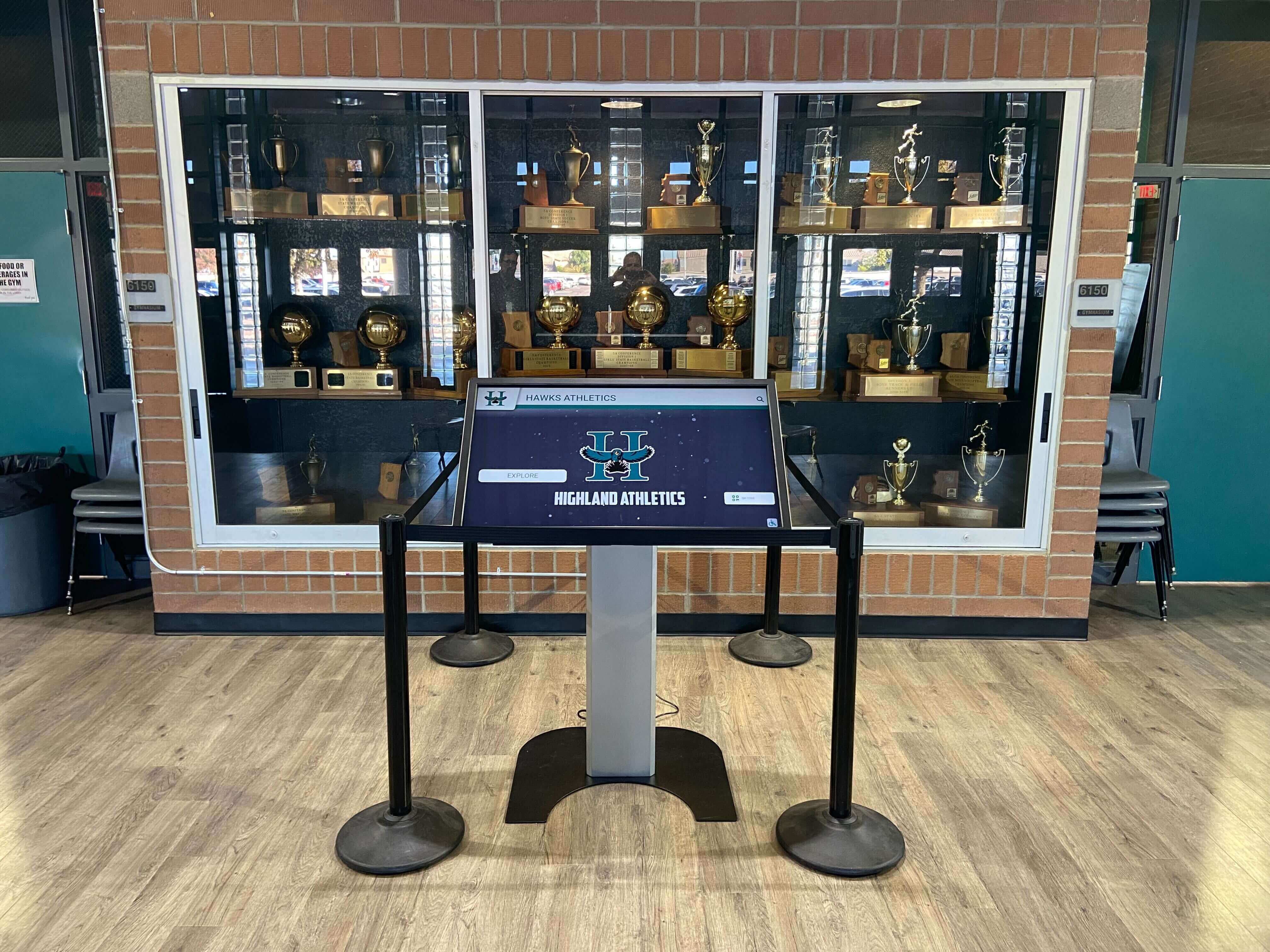
Display Size Specifications: Matching Screen Dimensions to Use Cases
Screen size represents the most visible specification decision, but the right dimensions depend entirely on installation location, viewing distance, content type, and intended interaction patterns.
Standard Touchscreen Kiosk Sizes for Schools
Educational touchscreen kiosks typically fall into several standard size categories, each serving distinct purposes.
32-inch displays work best for single-user tabletop or counter-height kiosks where one person interacts at close range. Common applications include library check-in stations, attendance kiosks, and wayfinding terminals in administrative areas. Viewing distance ranges from 2-4 feet, with content optimized for individual interaction rather than group viewing.
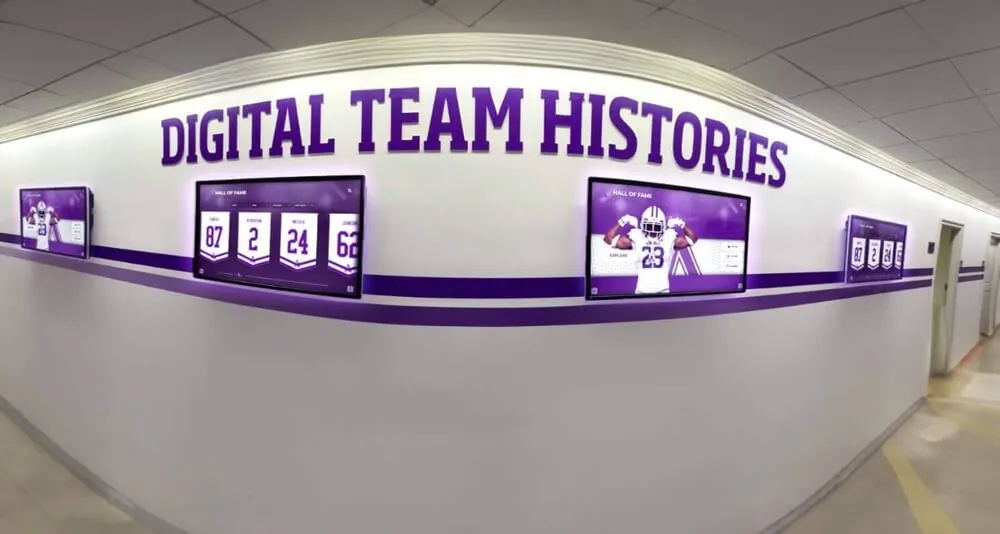
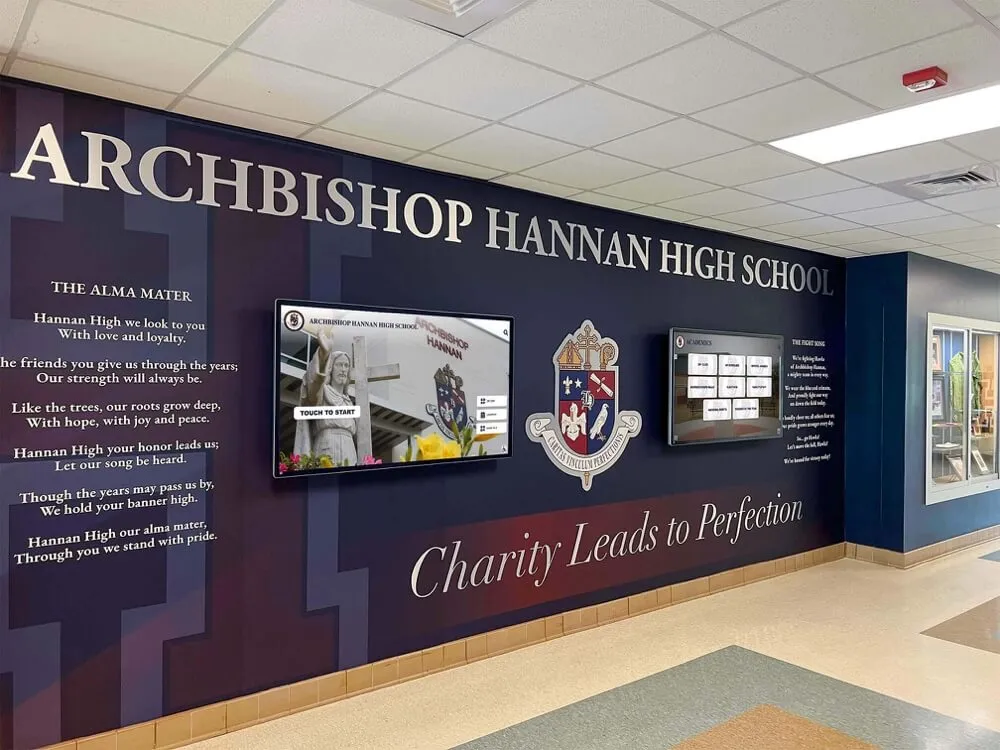
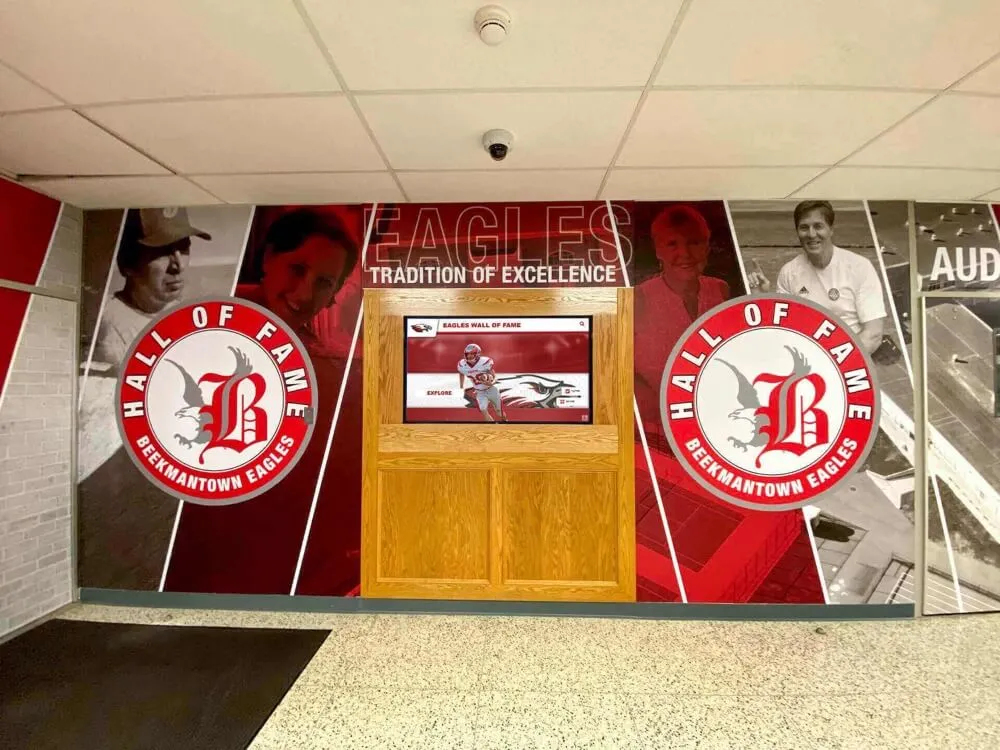
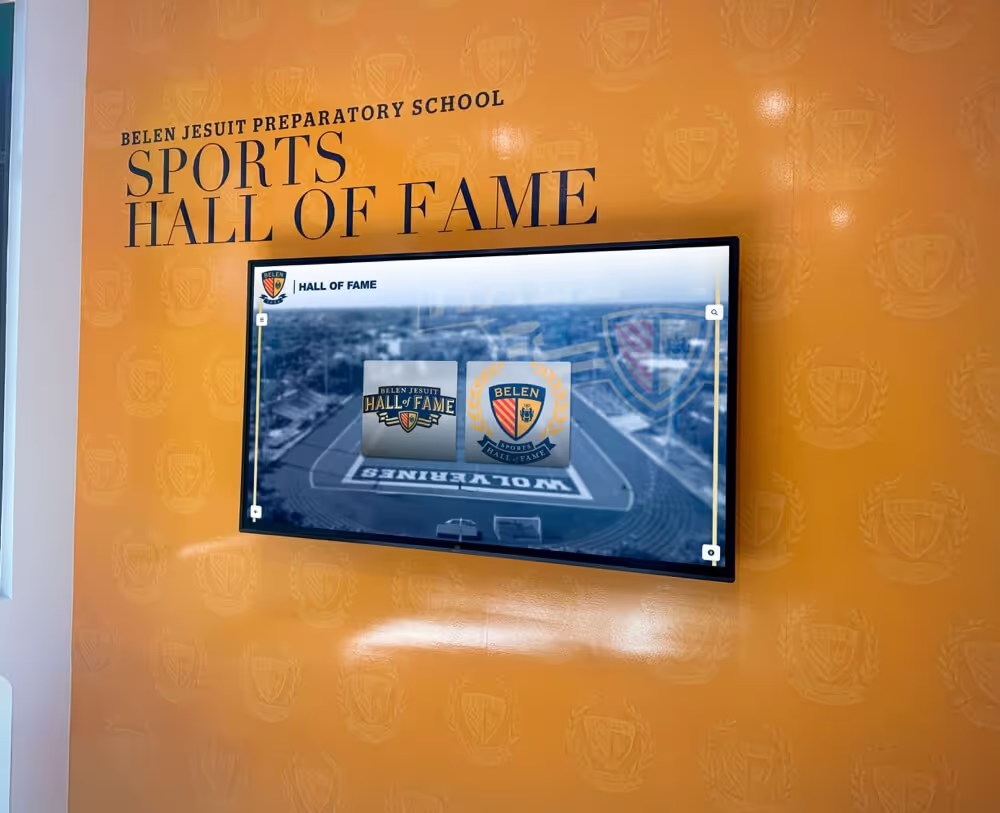
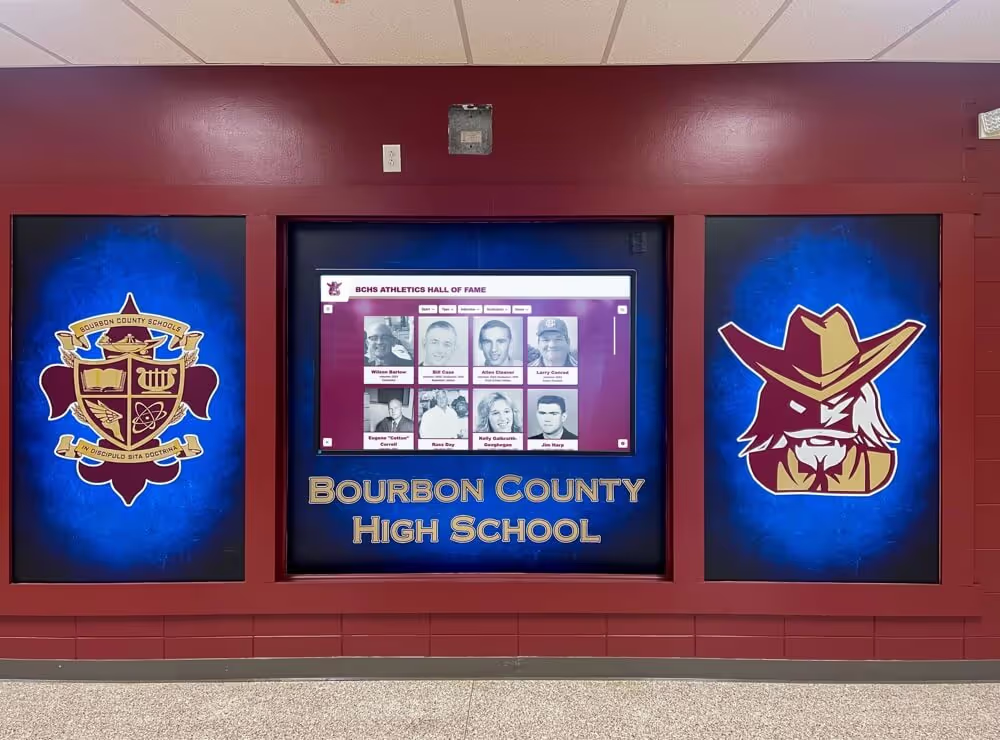
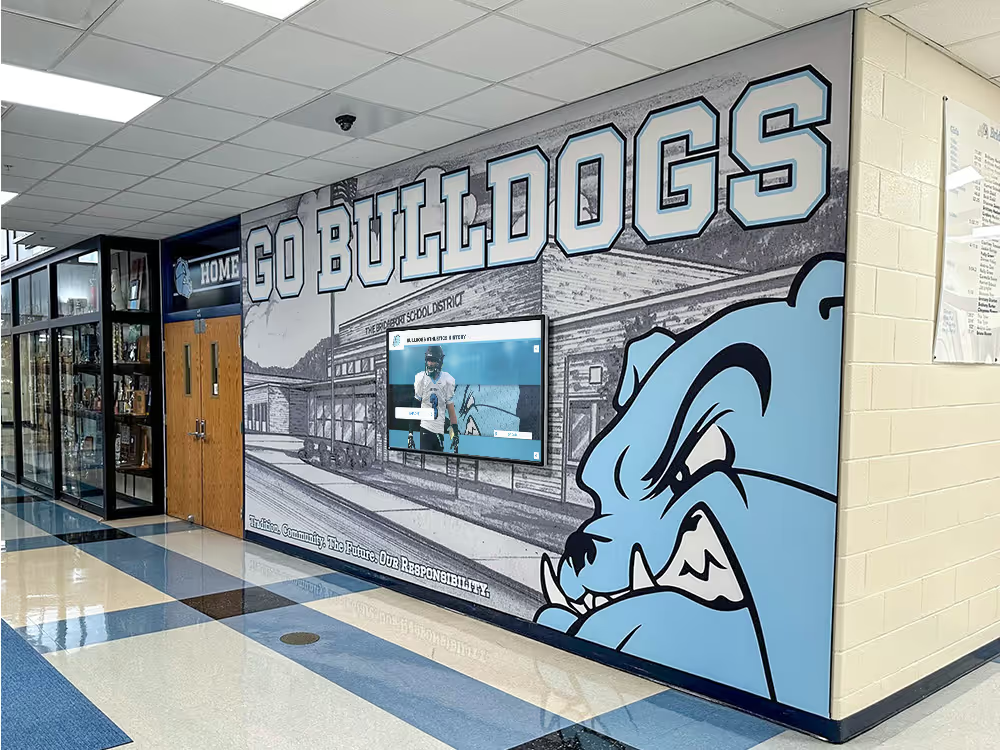
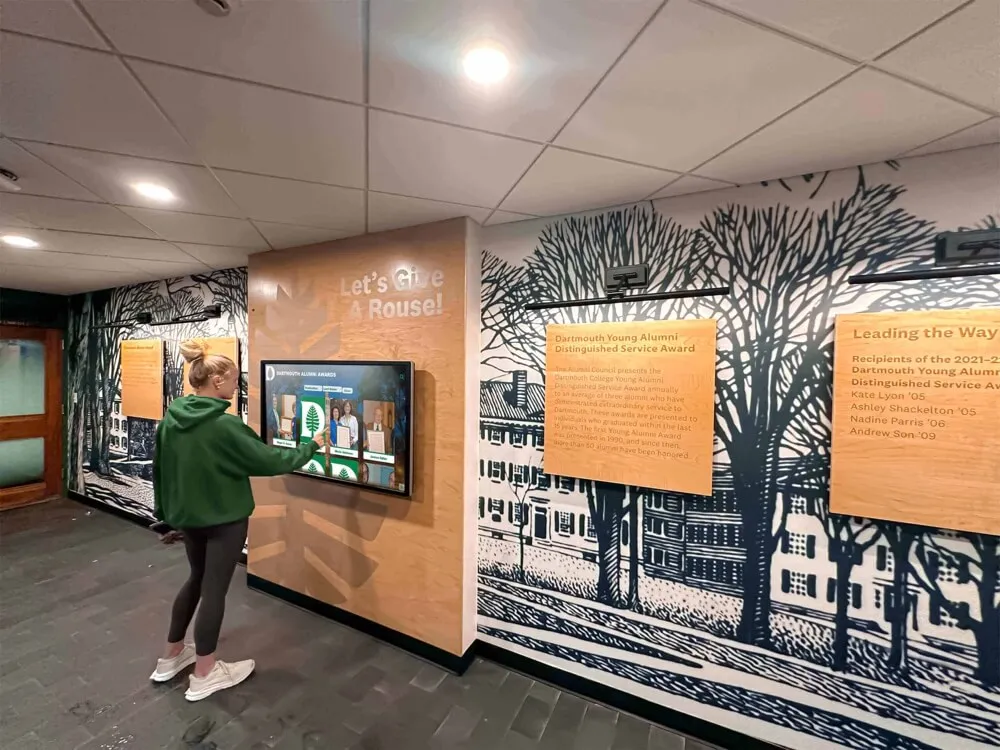
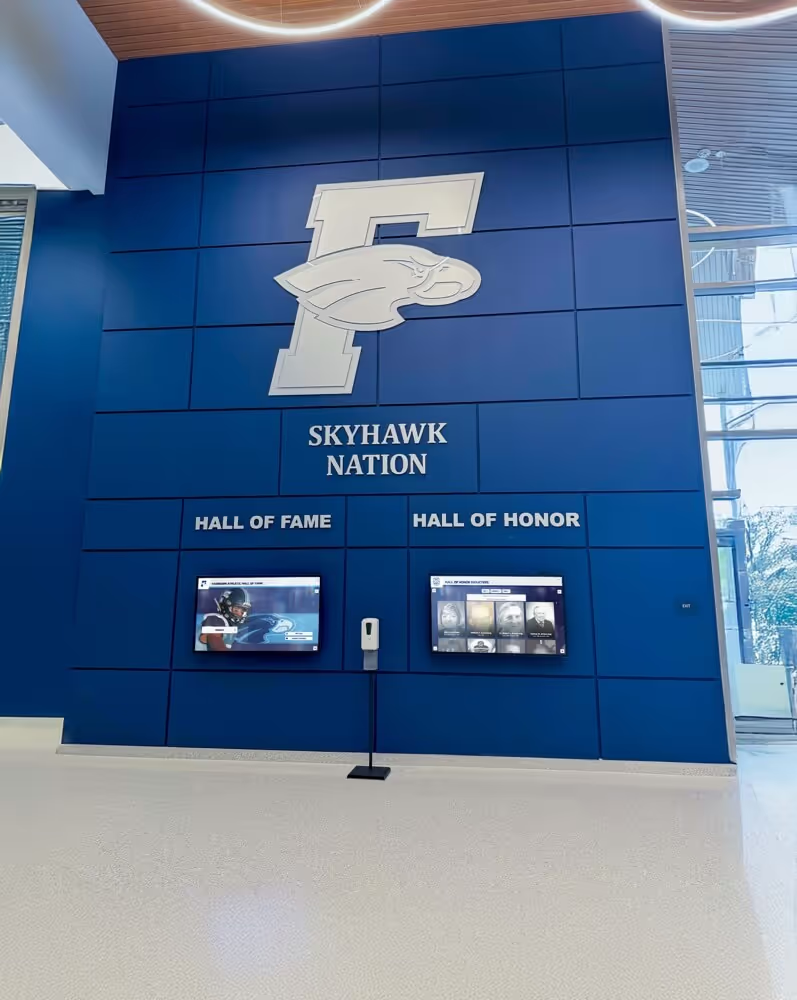
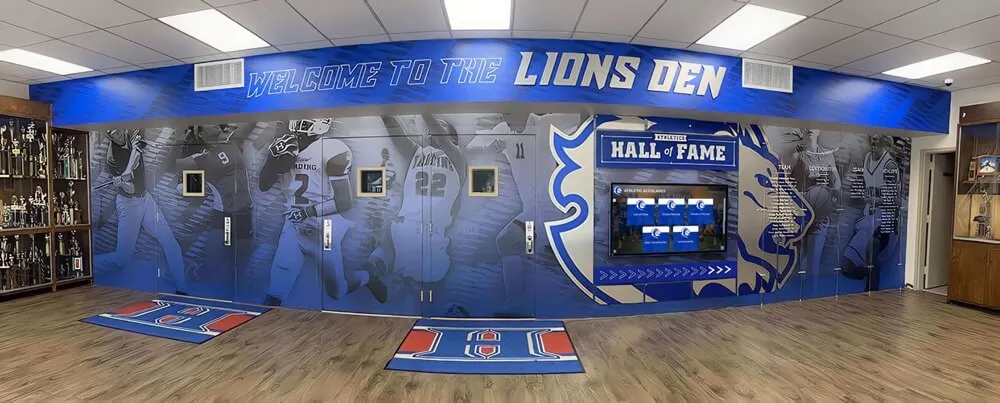
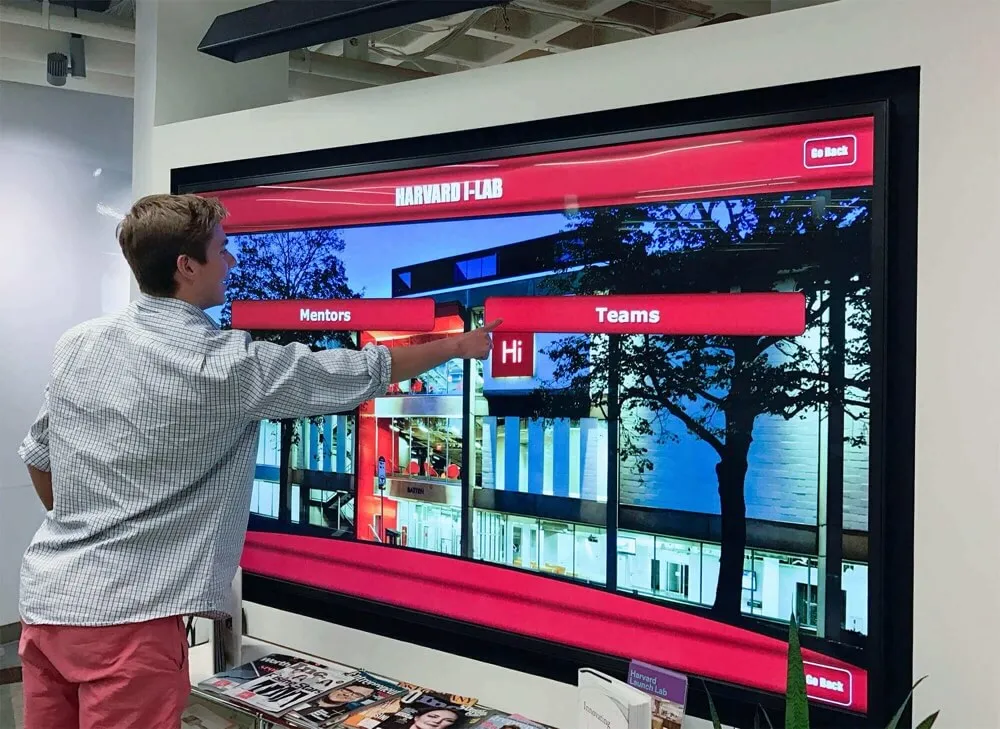
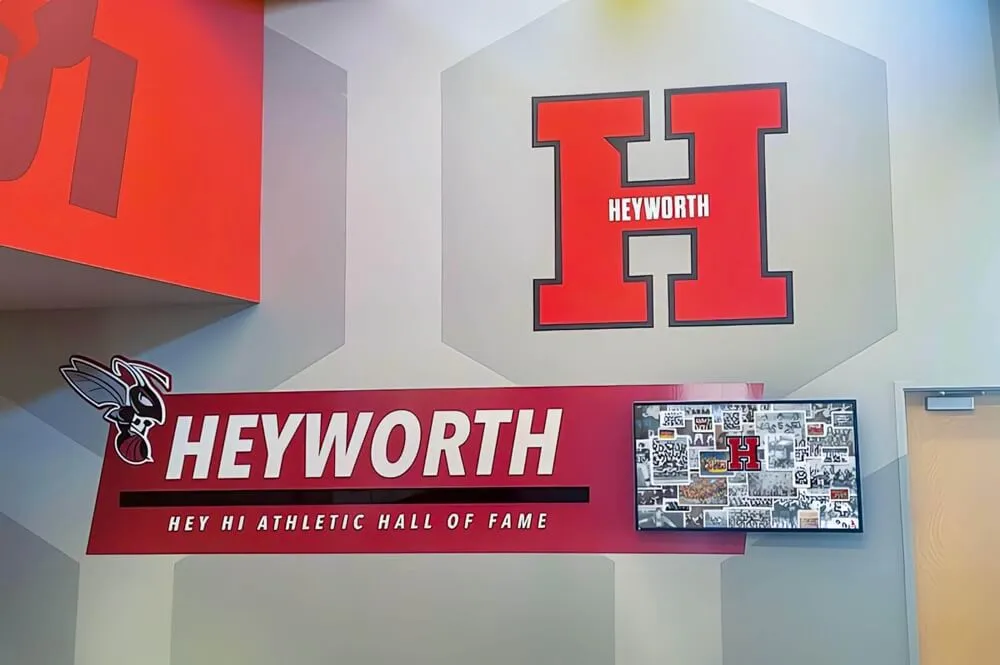
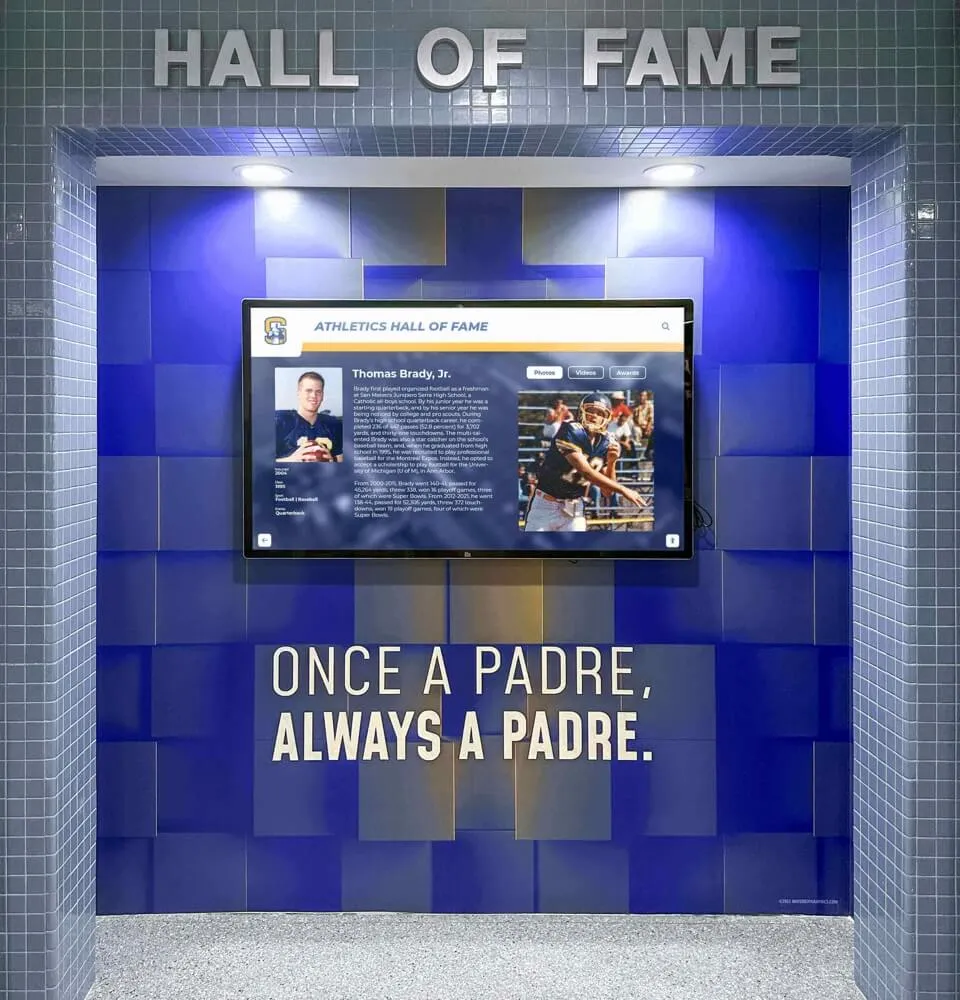
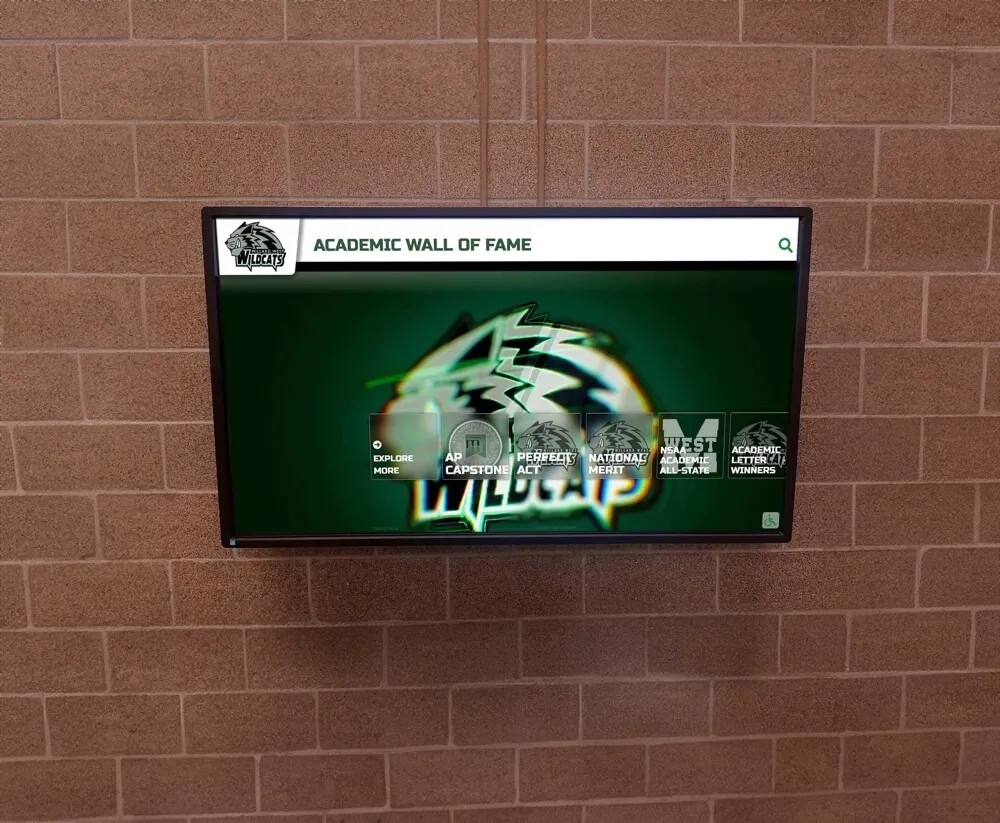
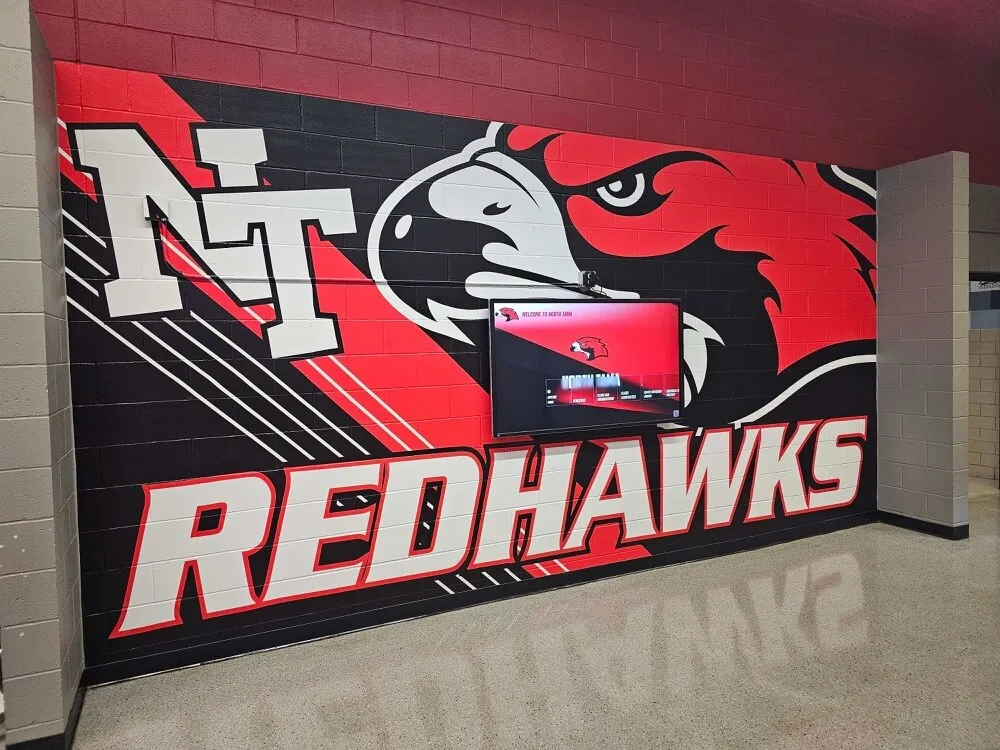
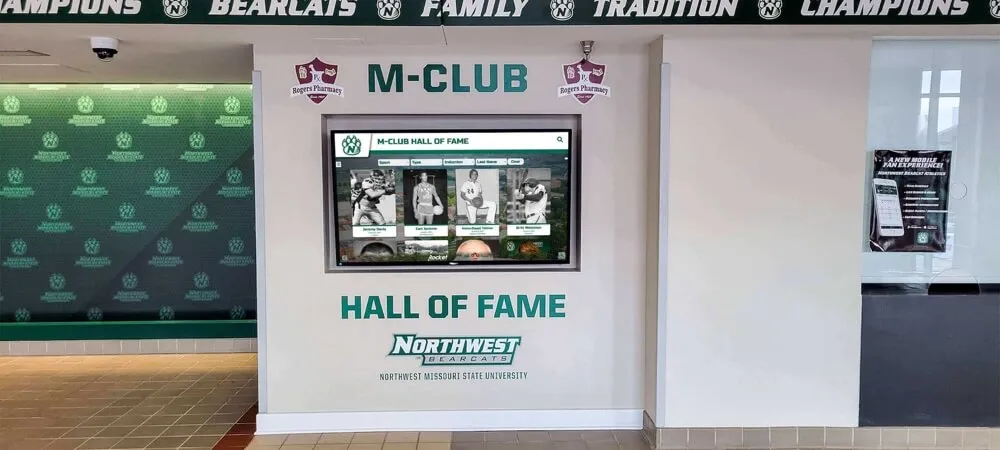
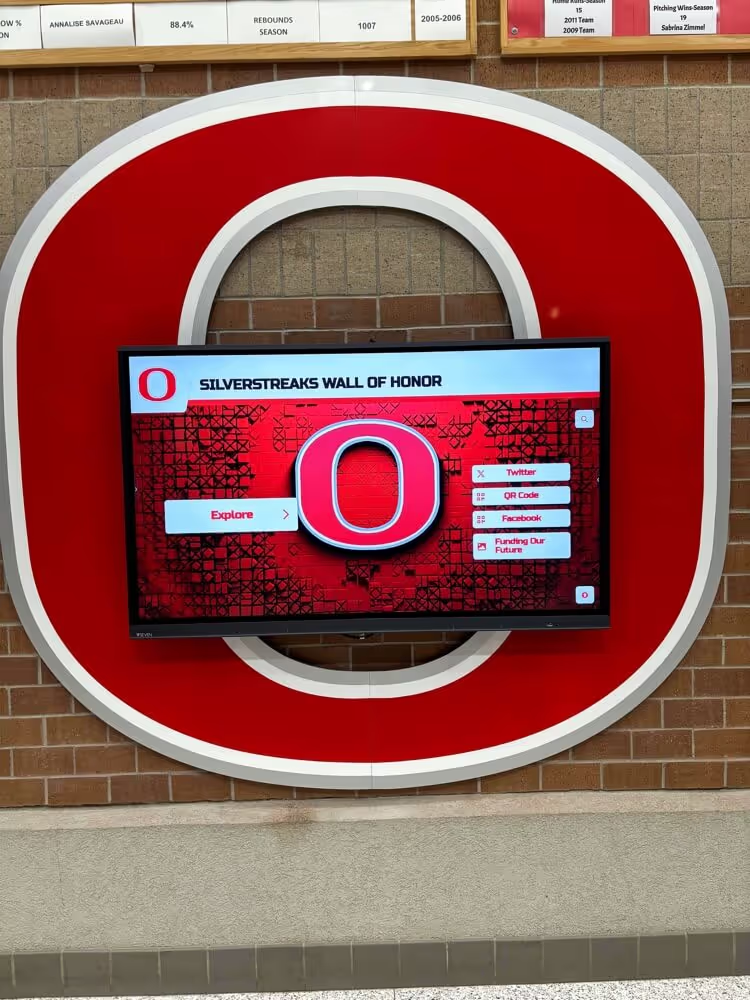
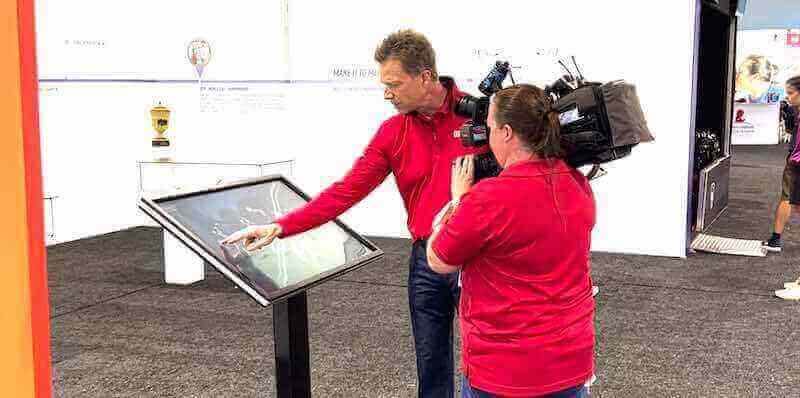
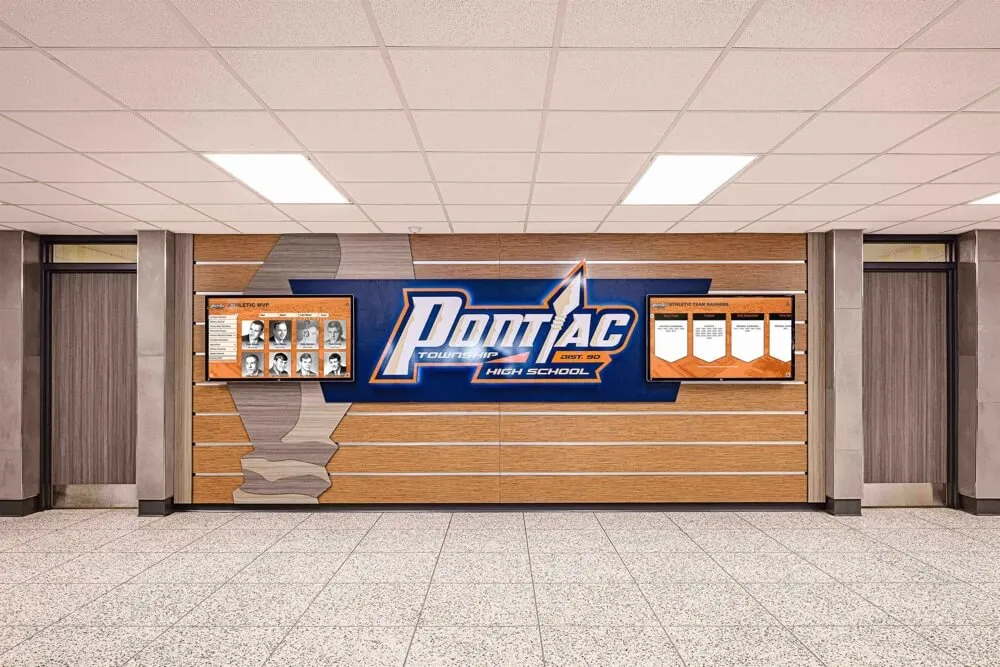
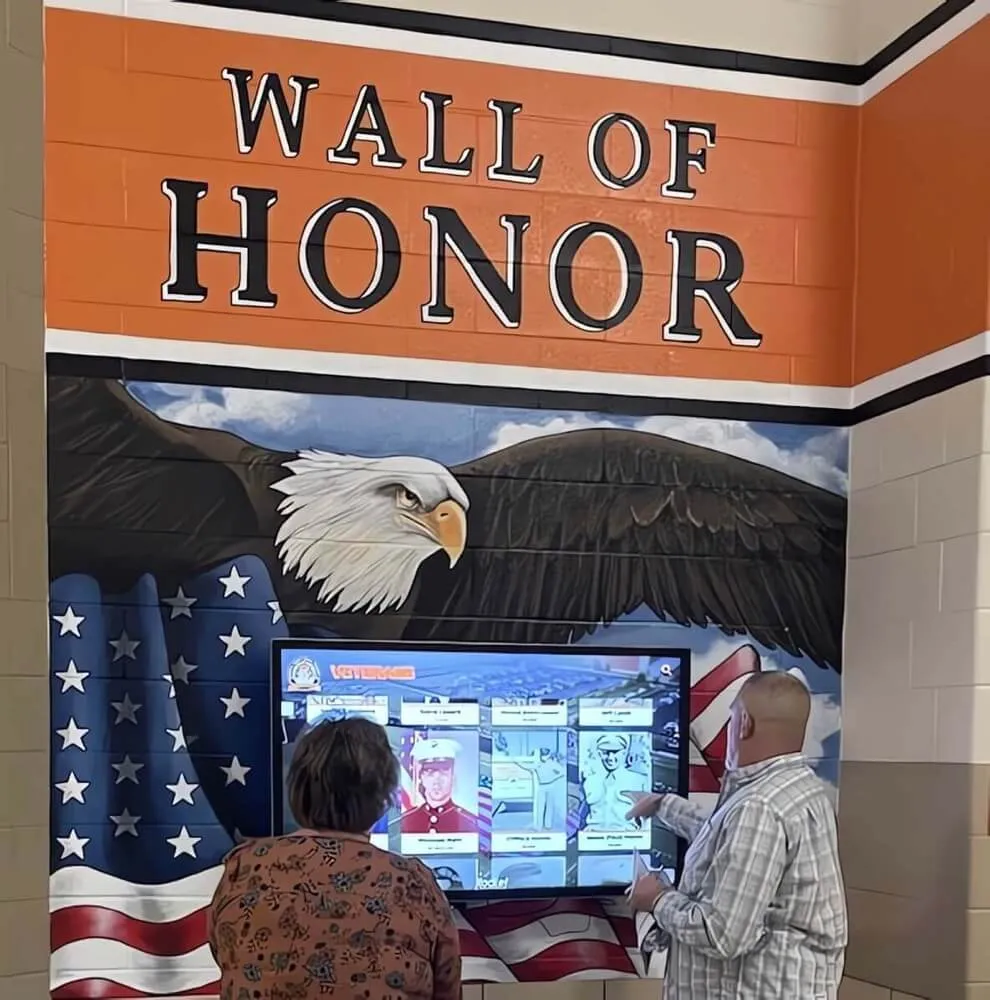
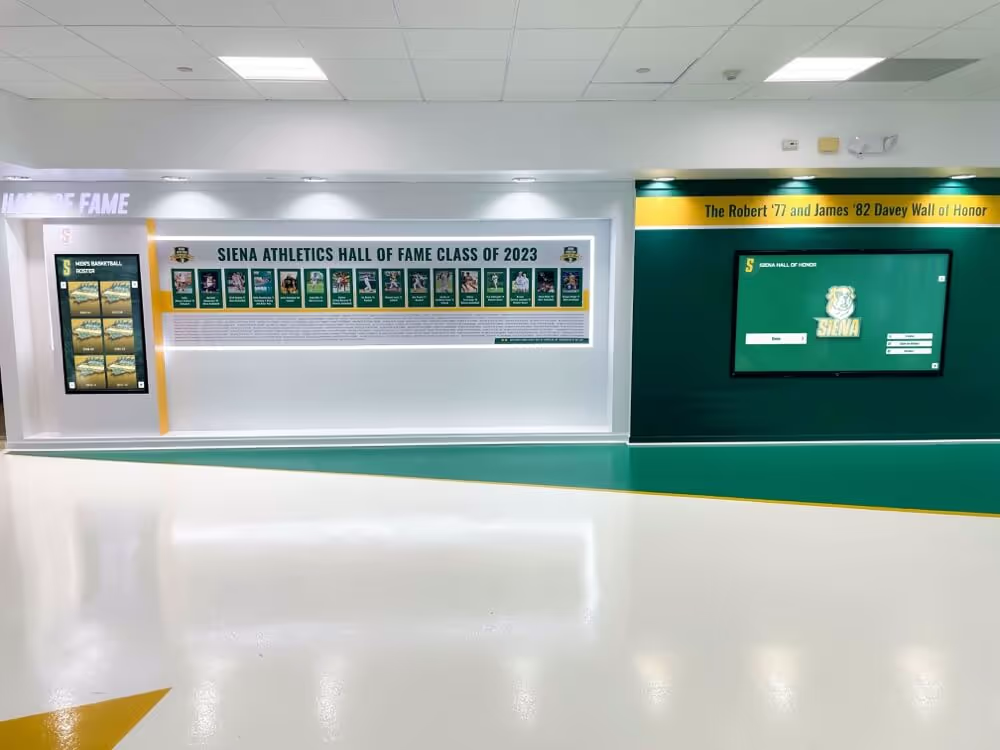
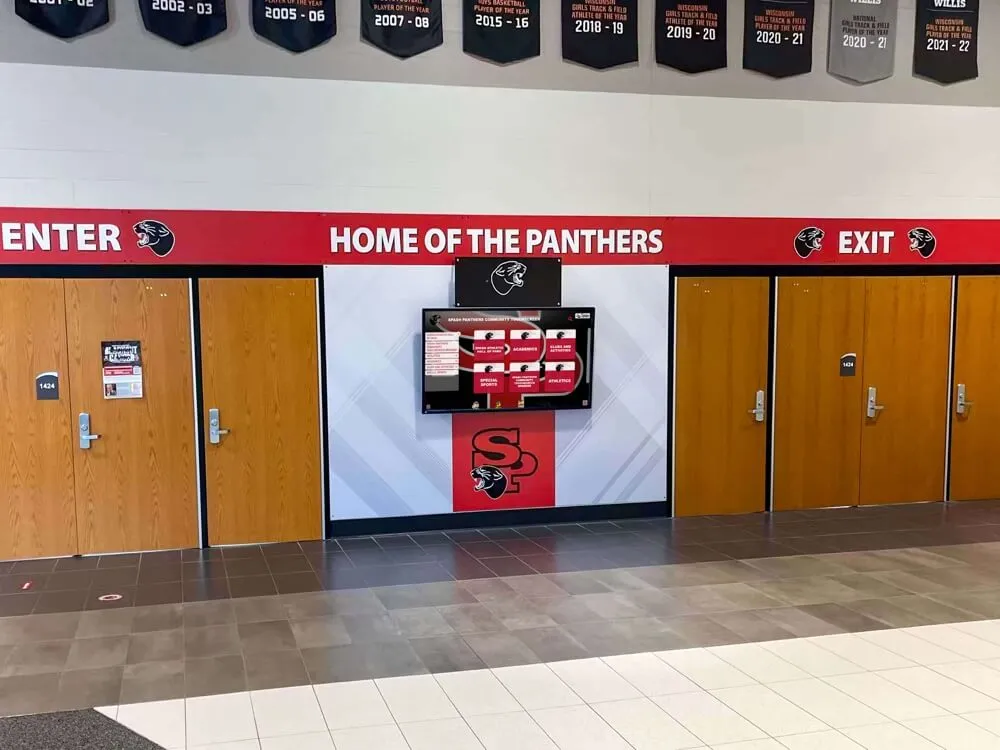
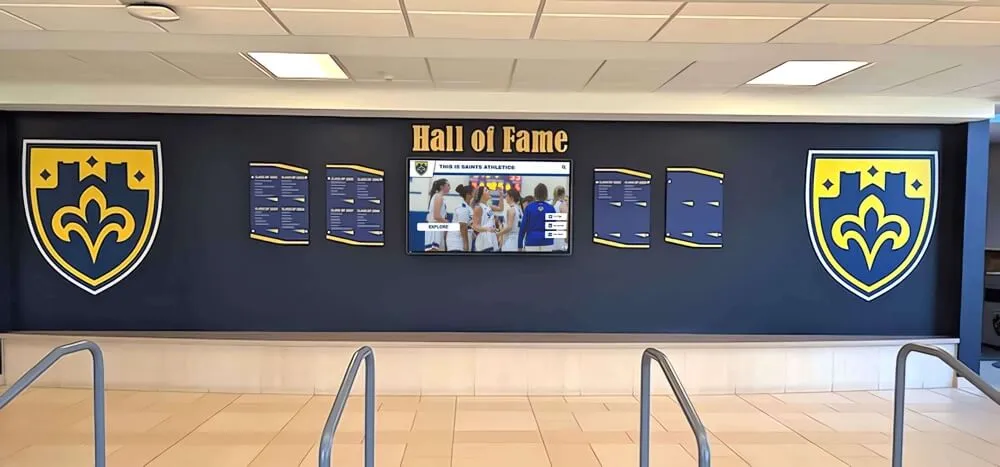
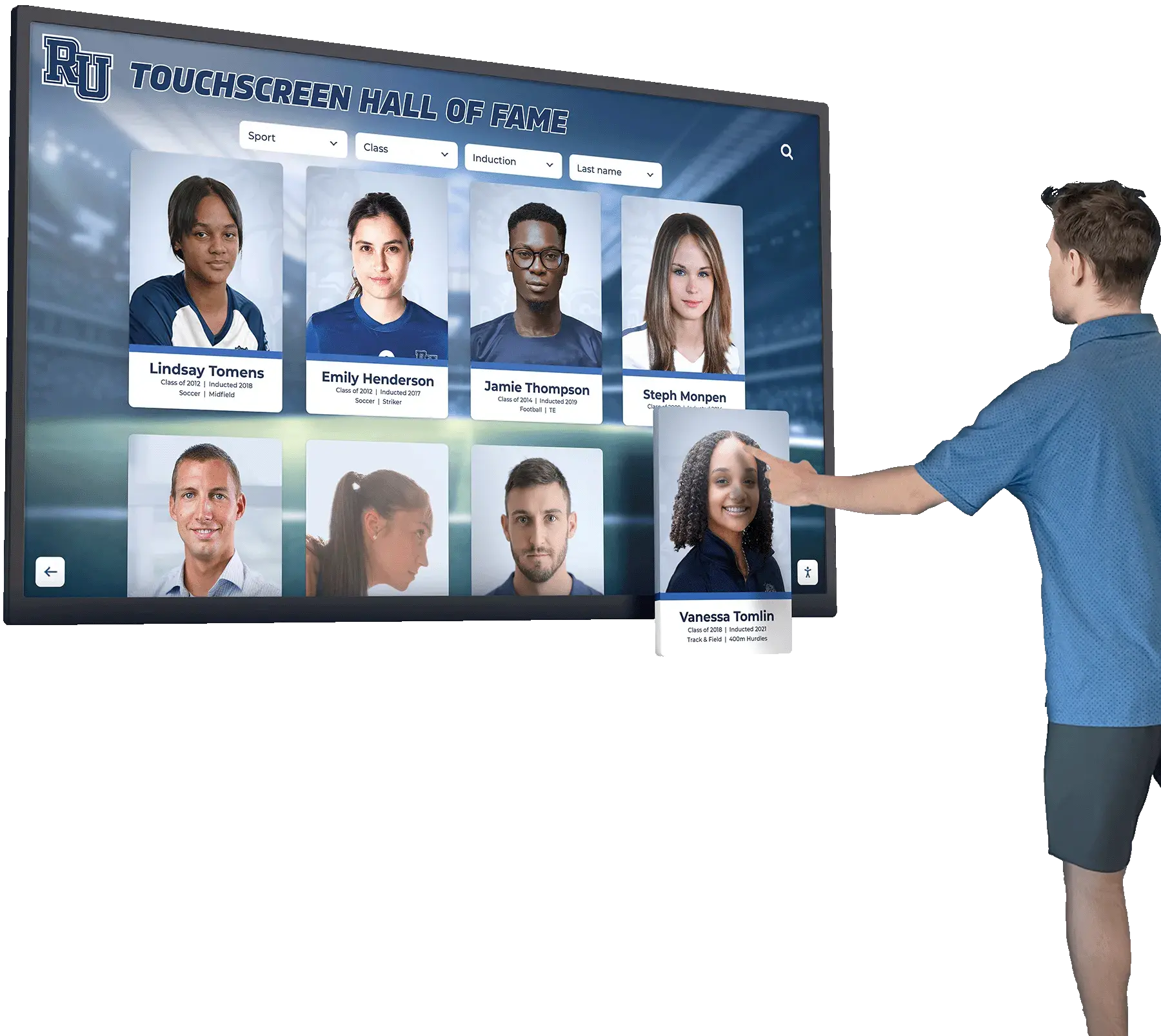
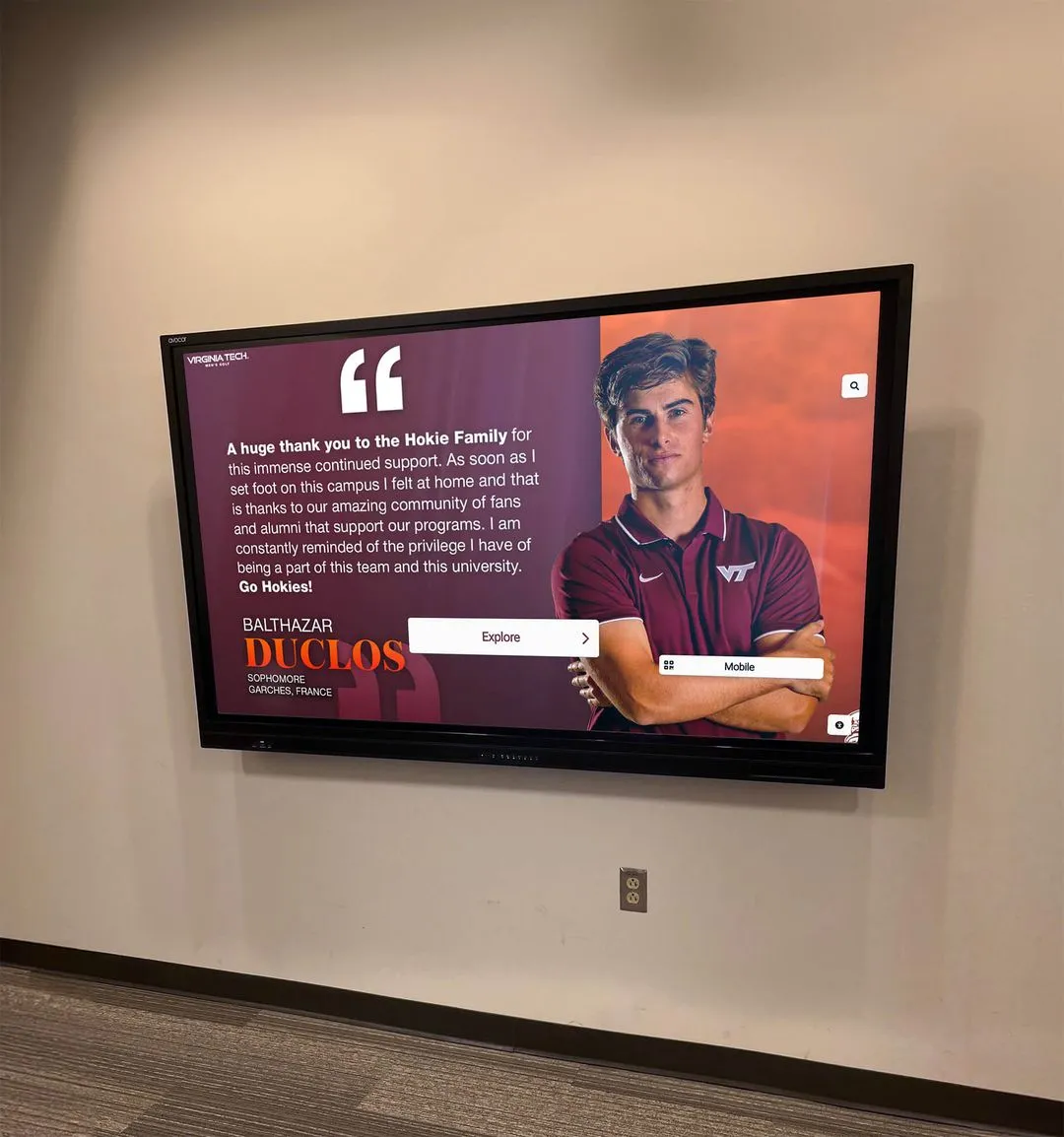
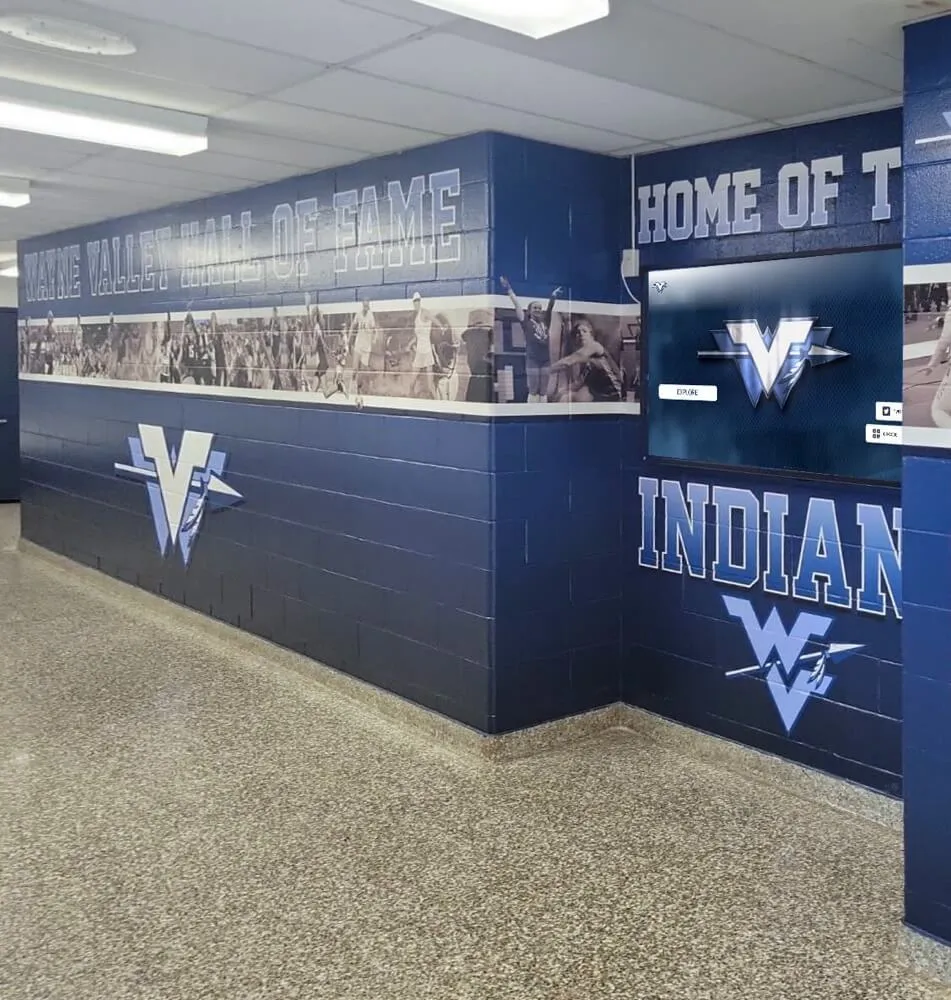
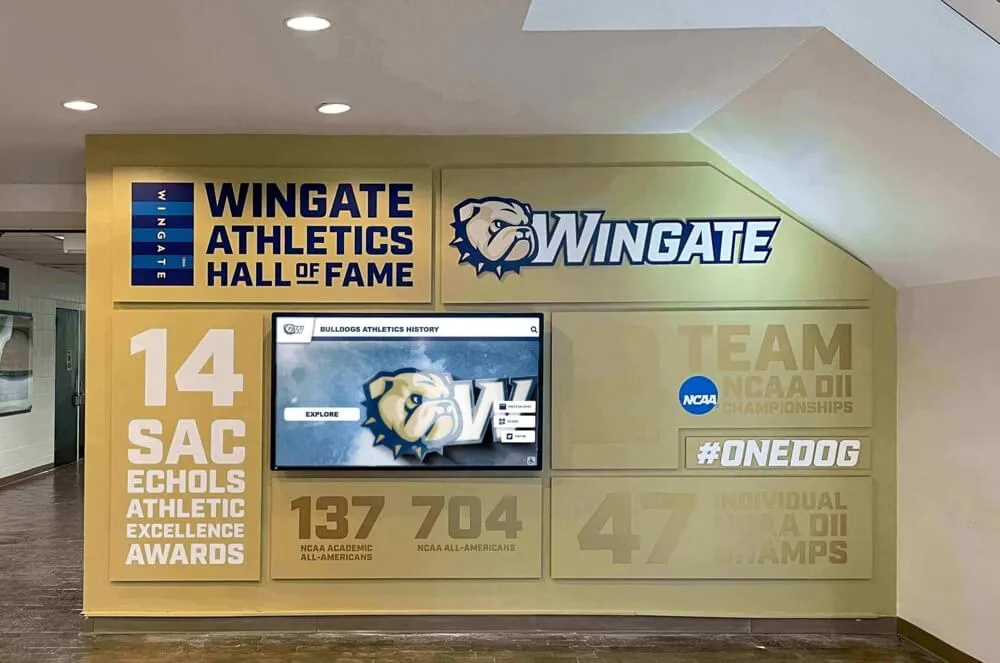
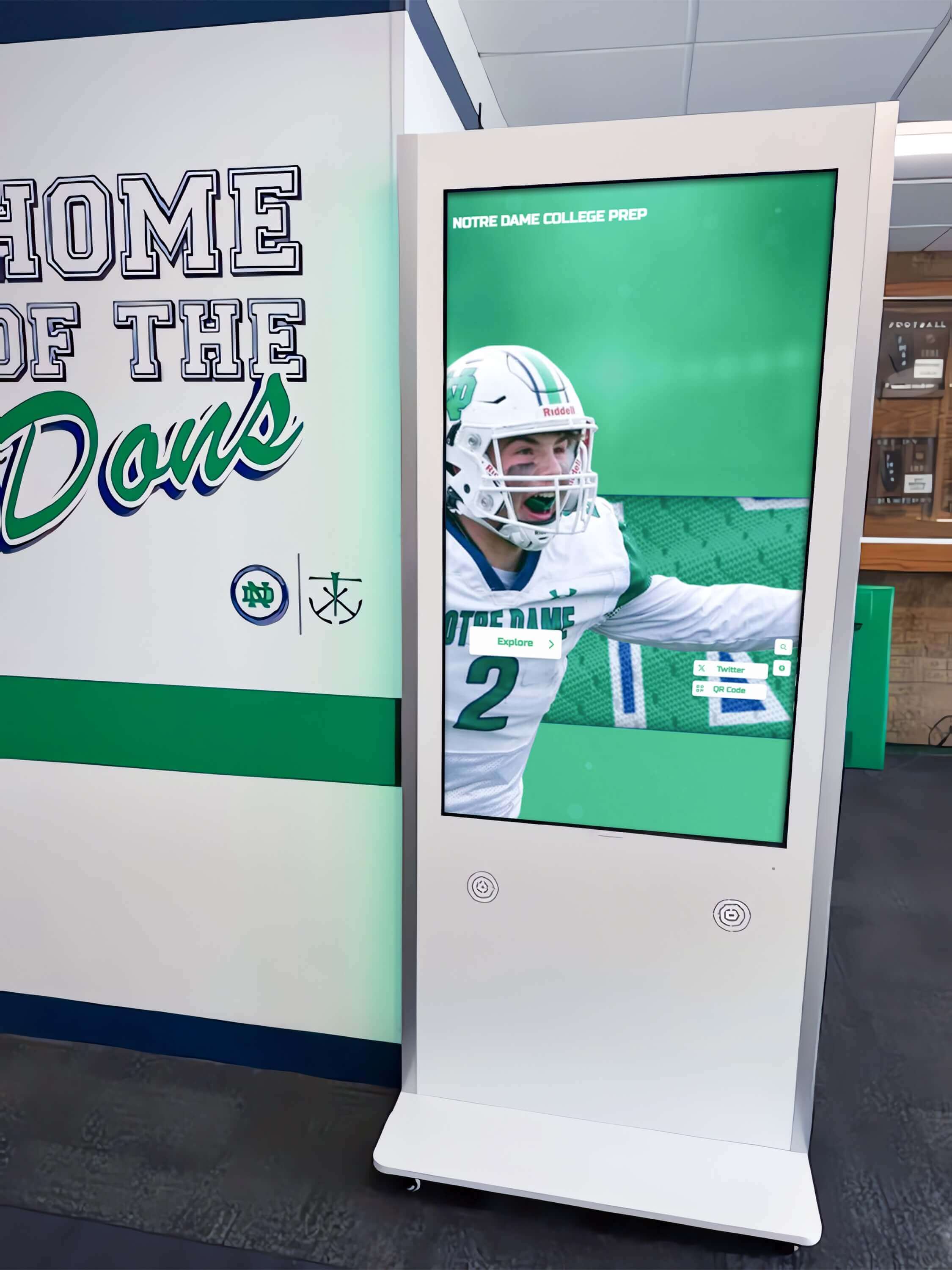
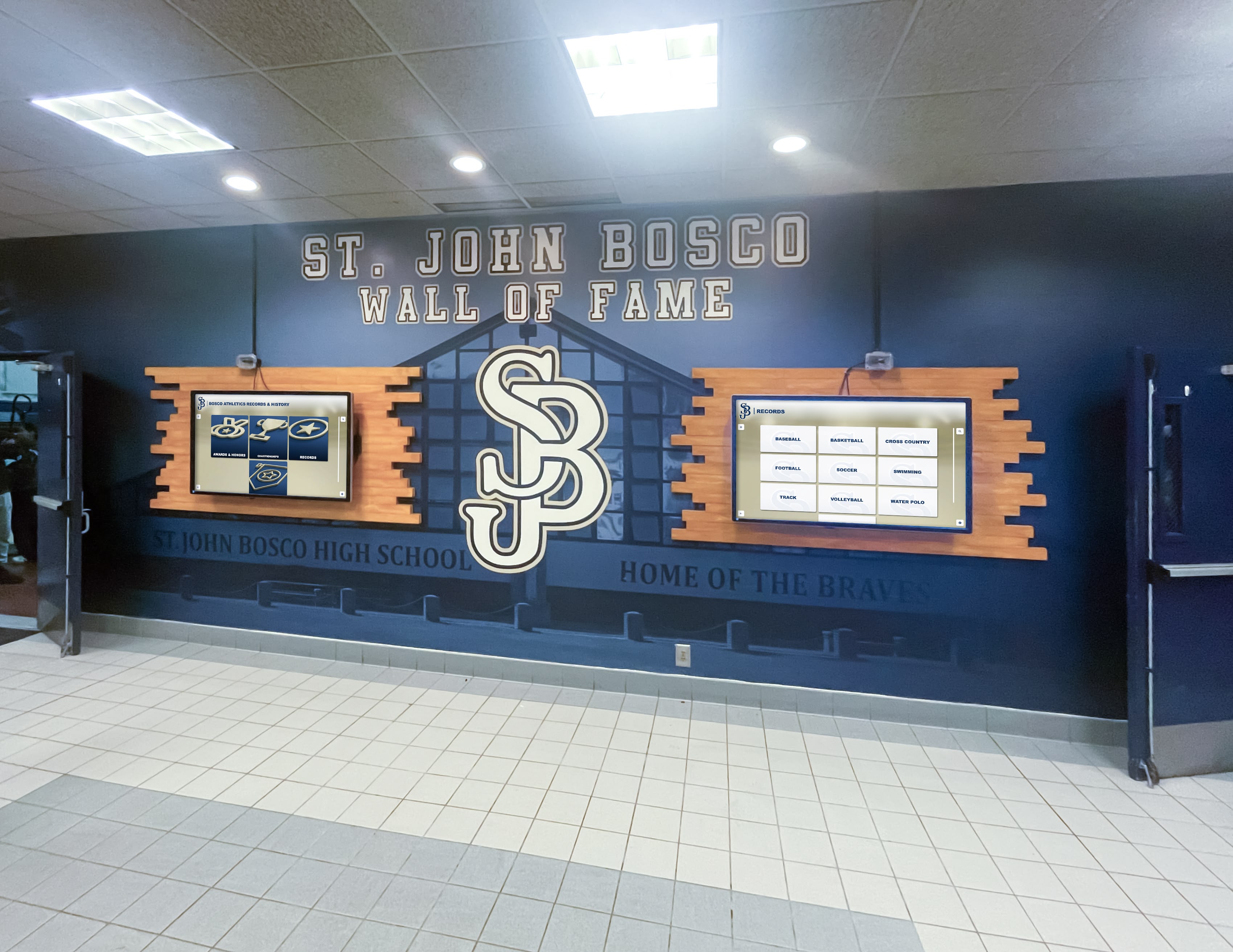
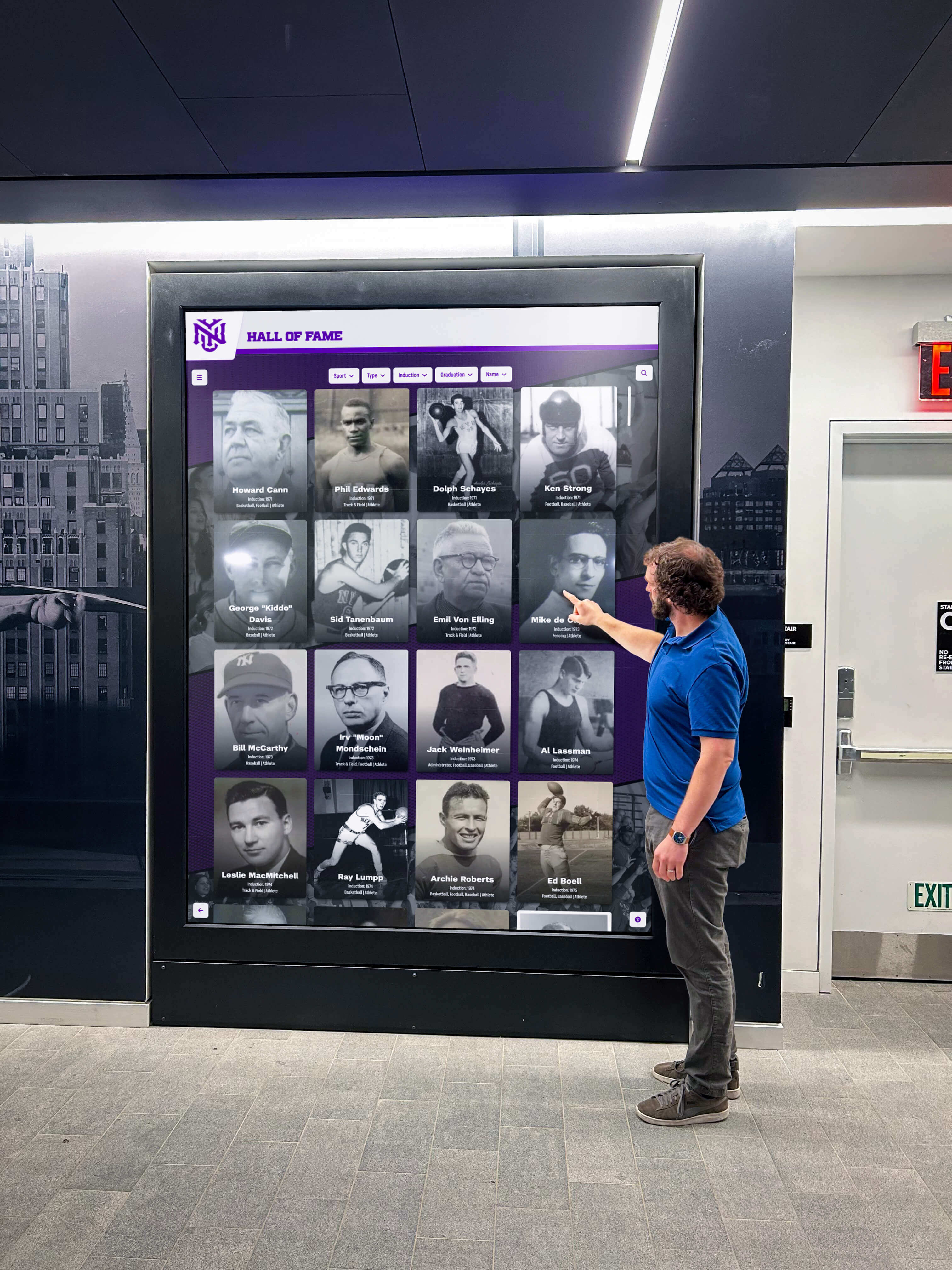
43-inch and 49-inch displays represent the most popular sizes for wall-mounted hallway installations where 2-3 students might view simultaneously. These dimensions balance visibility from 5-8 feet with touchscreen usability for individual interaction. Typical applications include digital recognition displays showcasing student achievements and interactive hall of fame installations in main corridors.
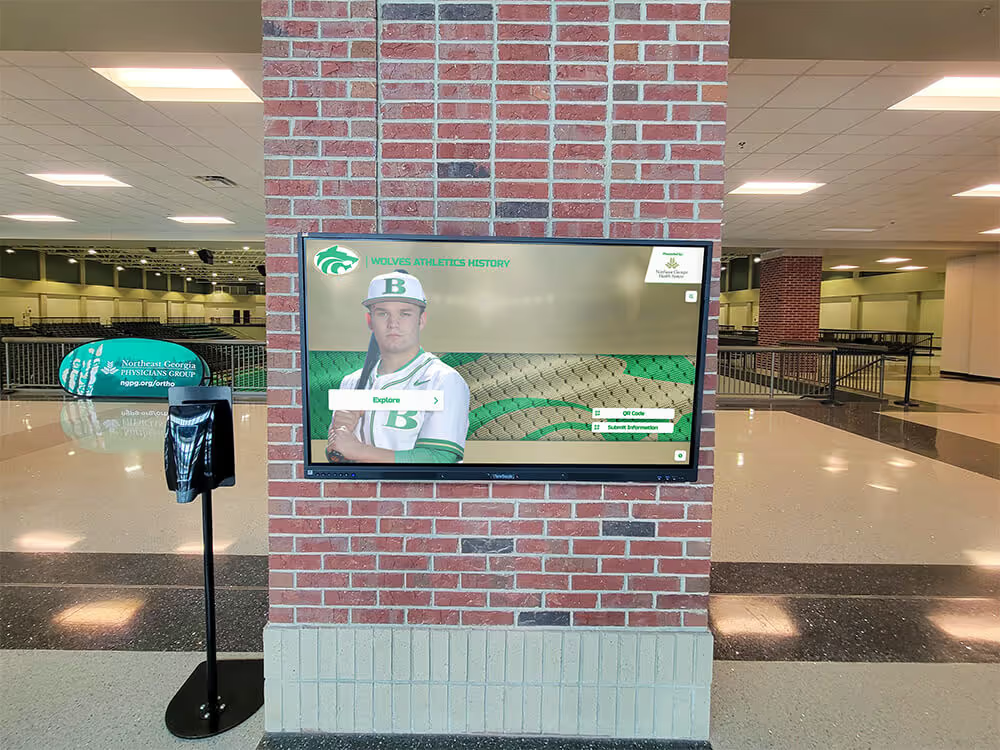
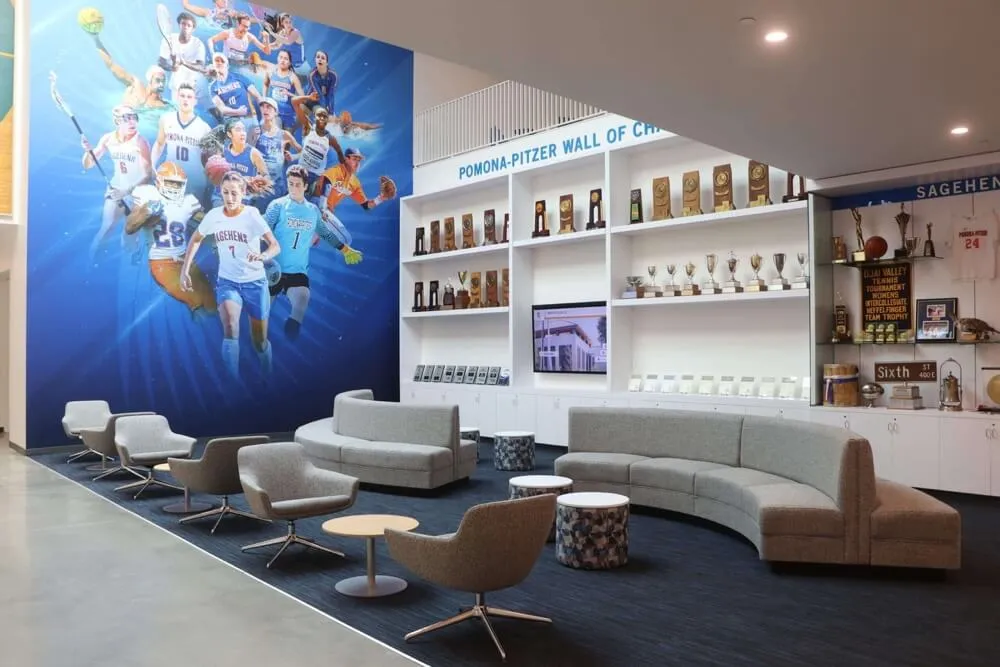
55-inch displays suit lobby installations and main entrance areas where groups gather and viewing distances extend to 8-12 feet. These larger screens accommodate both individual touchscreen interaction and passive viewing by multiple people simultaneously. Schools often deploy 55-inch kiosks for main entrance directories, cafeteria menu boards with touch interaction, and auditorium lobby displays.
65-inch and larger displays enter the realm of presentation-focused installations where passive viewing often matters more than touch interaction. While touch capability remains valuable for administration and content updates, primary usage involves groups viewing from 12-20 feet. Common applications include gymnasium scoreboards with interactive statistics, performing arts lobby displays, and large-scale donor recognition walls in development-focused facilities.
Calculating Optimal Viewing Distance
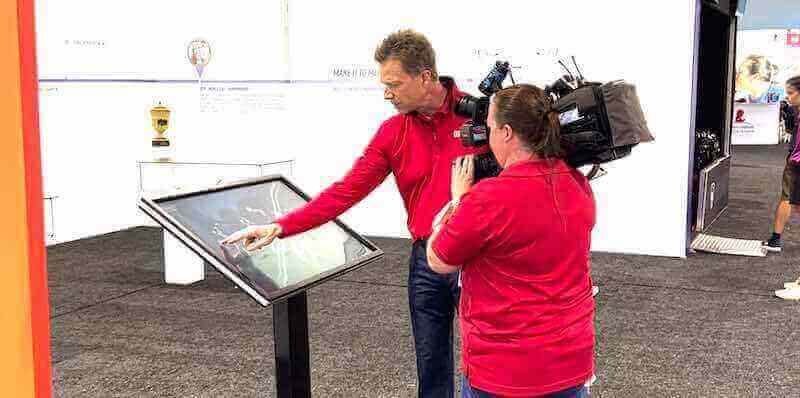
Industry standards suggest screen height should equal approximately 1/6 to 1/8 of the viewing distance for optimal readability. A 49-inch display (measuring approximately 24 inches tall) provides comfortable viewing at 12-16 feet for passive viewing, but touch interaction requires users within 2-4 feet.
This dual-distance consideration proves critical for schools. Hallway kiosks must remain readable to students walking past while supporting detailed interaction from those who stop to engage. Content design must accommodate both viewing contexts—large text and imagery for distance viewing, detailed interactive elements accessible only upon closer approach.
Brightness and Visibility Specifications
Display brightness, measured in nits (candelas per square meter), dramatically affects real-world usability in school environments with variable and often challenging lighting conditions.
Commercial-Grade Brightness Requirements
Consumer televisions typically output 250-350 nits, adequate for controlled residential lighting but insufficient for schools. Commercial displays designed for business environments range from 350-500 nits. Neither category meets the demands of educational hallways with large windows, fluorescent lighting, or installations near exterior doors.
School touchscreen kiosks require commercial-grade panels rated at 450-700 nits minimum for adequate visibility. Installations in high-ambient-light locations demand even higher brightness:
Hallways with extensive natural lighting from windows or skylights need 500-700 nits minimum. Morning and afternoon sun creates extremely bright conditions that render lower-brightness displays nearly invisible. Near entrance doors with direct sunlight exposure, 700+ nits becomes essential for readability.
Interior hallways with standard fluorescent or LED lighting function adequately with 450-500 nits. Controlled-lighting environments like media centers and administrative offices can utilize 400-450 nit displays without visibility concerns.
Anti-Glare and Anti-Reflective Coatings
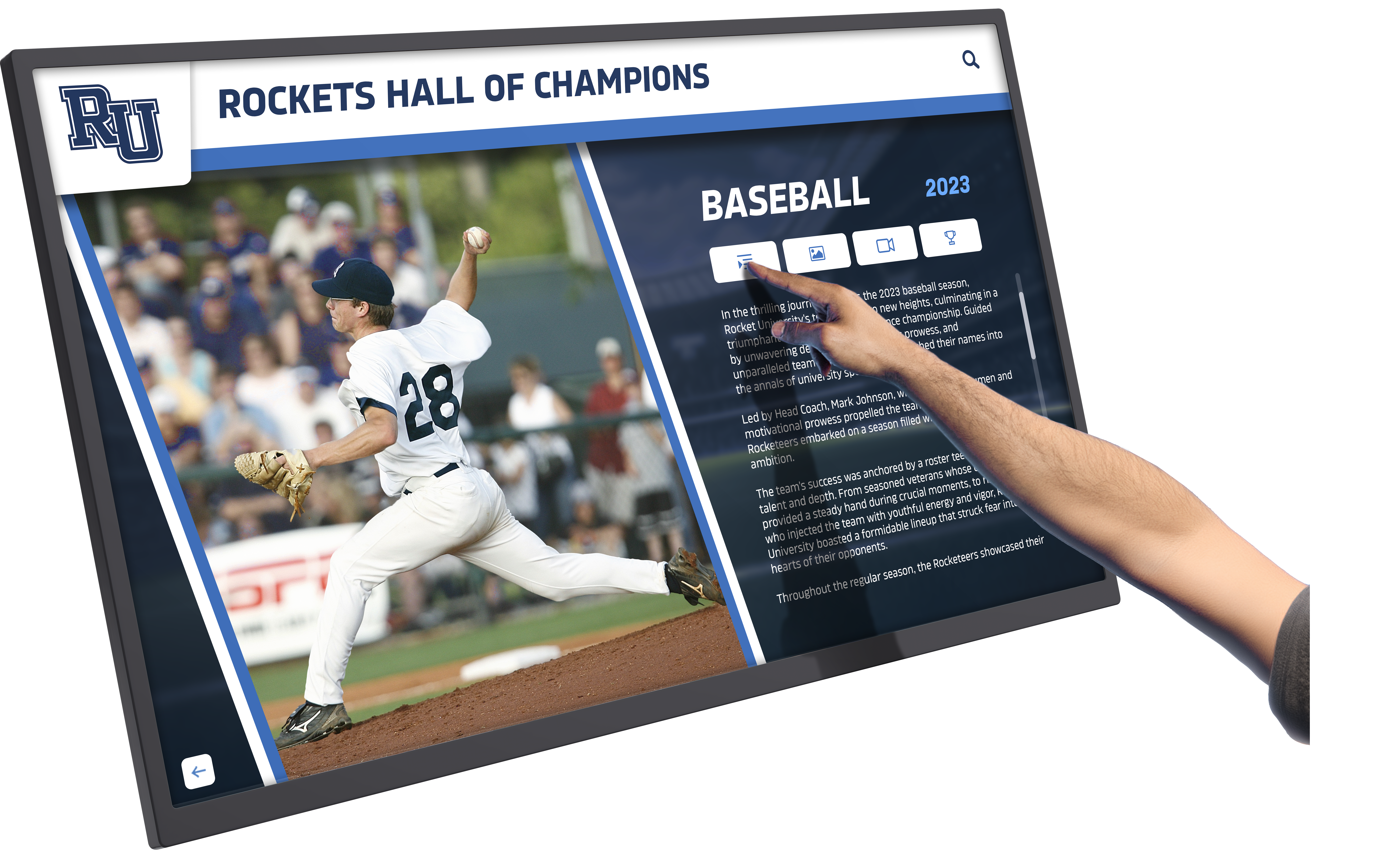
Brightness specifications alone don’t guarantee visibility—surface treatments critically affect real-world performance. Standard glossy glass creates mirror-like reflections that obscure content regardless of brightness. Anti-glare coatings diffuse surface reflections but can reduce apparent image sharpness. Anti-reflective coatings minimize reflections while maintaining clarity but add significant cost.
For school applications, anti-glare coatings represent the minimum acceptable specification, with anti-reflective treatments preferred for high-visibility installations. Matte-finish options reduce glare most effectively but slightly reduce color vibrancy—an acceptable tradeoff for usability in bright environments.
Touch Technology Specifications
The touch-sensing technology embedded in kiosk displays determines responsiveness, durability, multi-touch capability, and long-term reliability under heavy institutional use.
Capacitive vs. Resistive Touch Technologies
Modern touchscreen kiosks predominantly utilize projected capacitive touch technology (PCAP), the same approach used in smartphones and tablets. Capacitive screens detect touch through electrical field disturbances created by conductive objects like fingers. This technology supports multi-touch gestures (pinch-to-zoom, two-finger scrolling), provides excellent clarity since touch sensing occurs through a single glass layer, delivers highly responsive touch recognition, and offers superior durability compared to older technologies.
Resistive touch technology, still occasionally encountered in budget options, relies on pressure-activated layers that flex when pressed. While resistive screens work with gloved hands or styluses and cost less than capacitive alternatives, they support only single-touch interaction, require more pressure to activate, reduce display brightness due to multiple layers, and deteriorate faster under heavy use.
For school applications, projected capacitive touch represents the only viable specification for installations expecting regular student interaction. The superior responsiveness, multi-touch capability, and durability justify the higher cost.
Touch Point Specifications and Multi-Touch Support
Entry-level commercial touchscreens support 6-10 simultaneous touch points, adequate for single-user interaction. Premium displays detect 20-40+ simultaneous touches, supporting multiple users interacting simultaneously.
For most school kiosk applications, 10-point touch capability provides sufficient functionality. Lobby directories or interactive museum-style displays where several students might interact simultaneously benefit from 20+ point capability.
Touch response time (the delay between touch and screen response) should fall below 10 milliseconds for responsive interaction. Specifications listing 6-10ms response time indicate high-quality touch controllers. Response times above 15ms create noticeable lag that frustrates users.
Glass Specifications and Durability Ratings
The protective glass covering touchscreen displays must withstand daily interaction from hundreds of students while maintaining optical clarity and touch sensitivity.
Tempered Glass Thickness and Hardness
Commercial touchscreen kiosks utilize tempered glass measuring 3-6mm thickness. Thicker glass provides superior impact resistance and structural rigidity but increases weight and cost. For school applications, 4mm tempered glass represents the minimum acceptable specification, with 5-6mm preferred for high-traffic installations.
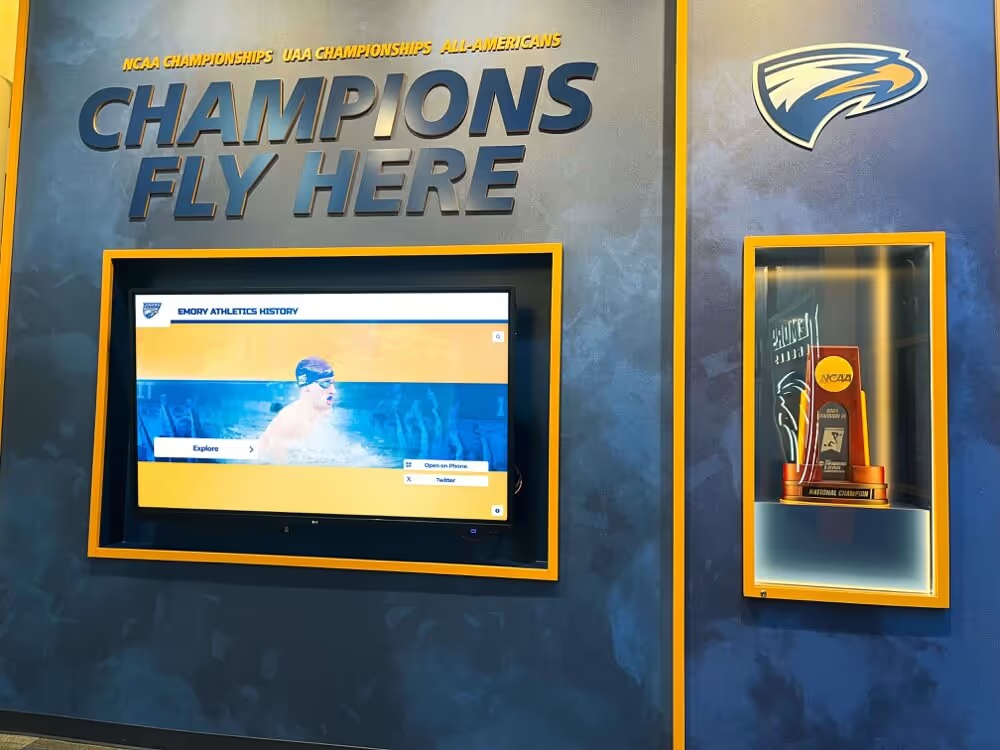
Glass hardness ratings, measured on the Mohs scale, indicate scratch resistance. Standard tempered glass rates approximately 5.5 on the Mohs scale. Chemically strengthened glass treatments increase surface hardness to 6-7, providing better scratch resistance under heavy use. Recognition displays in athletic facilities and high-traffic corridors justify premium glass specifications.
Vandal-Resistant and IK Rating Specifications
Beyond scratch resistance, institutional displays require impact resistance specifications. The IK rating system (IEC 62262 standard) quantifies impact protection:
IK08 rating indicates protection against 5 joules of impact (equivalent to a 1.7kg mass dropped from 300mm). This represents minimum acceptable specification for school environments.
IK10 rating protects against 20 joules of impact (5kg mass from 400mm), providing substantial protection for installations in unsupervised areas or schools with vandalism concerns.
Public-facing touchscreen kiosks in schools should specify minimum IK08 rating, with IK10 preferred for exterior installations or high-risk locations.
Mounting Specifications and Installation Requirements
Mounting systems must accommodate display weight, provide secure attachment to various wall types, support cable management, and meet accessibility requirements.
VESA Mounting Patterns and Weight Capacity
The Video Electronics Standards Association (VESA) defines standardized mounting hole patterns that ensure compatibility between displays and mounting hardware. Common VESA patterns include:
- 200x200mm: Standard for 32-43 inch displays
- 400x400mm: Common for 49-55 inch displays
- 600x400mm: Used for 65-75 inch displays
When selecting displays, verify VESA pattern compatibility with available mounting hardware. Most commercial touchscreens include standard VESA mounting, but some specialized kiosks use proprietary mounting systems that limit hardware options.
Weight specifications directly impact mounting requirements. A 55-inch commercial touchscreen typically weighs 40-60 pounds without mounting hardware. Wall construction must support at least 3-4 times the static display weight to account for dynamic forces and provide safety margins. Drywall installations require blocking or mounting to studs. Concrete and masonry walls need appropriate anchors rated for the load.
Mounting Height and ADA Accessibility Compliance
The Americans with Disabilities Act establishes specific requirements for interactive displays in public spaces. Touchscreen controls must be positioned no higher than 48 inches from the floor for forward approach or 54 inches for side approach. This requirement significantly constrains installation planning for large displays.
For a 55-inch display (approximately 27 inches tall), mounting the screen with the bottom edge 21 inches from the floor positions the vertical center at optimal viewing height while keeping the top edge within 48-inch ADA reach range. Smaller 43-inch displays allow more mounting flexibility while larger 65+ inch screens often cannot position all controls within ADA reach requirements.
Many schools implement dual-height strategies—mounting the primary display at optimal standing viewing height while providing a secondary accessible control panel or tablet interface at ADA-compliant height for wheelchair users.
Security and Anti-Theft Mounting Specifications
School installations require security features beyond residential or low-risk commercial environments. Security mounting specifications include tamper-resistant screws requiring specialized bits for removal, lock plates covering VESA mounting bolts after installation, cable locks securing displays to mounting plates, and integrated alarm contacts triggering if display is removed from mount.
For schools with theft or vandalism concerns, specify mounting systems with integrated security features rather than attempting to retrofit security measures after installation.
AV Connectivity and Input Specifications
Modern touchscreen kiosks function as complete computing systems, requiring appropriate connectivity for content sources, network integration, and peripheral devices.
Video Input Specifications
Commercial displays provide multiple input options for connecting content sources. Standard specifications include:
HDMI inputs represent the current standard for digital video connectivity. Displays should provide minimum 2 HDMI inputs supporting at least HDMI 1.4 specification (1080p resolution), with HDMI 2.0 or higher preferred for 4K content support. HDMI connections carry both video and audio signals through single cables.
DisplayPort inputs offer alternative digital connectivity with some technical advantages over HDMI, particularly for computer connections. While less common in school AV systems than HDMI, DisplayPort support provides flexibility for various content sources.
USB-C inputs with video capability (DisplayPort Alt Mode) increasingly appear on newer displays, supporting single-cable connections from modern laptops that provide video, data, and device charging simultaneously.
Legacy VGA inputs remain relevant for schools with older equipment but should be considered supplementary rather than primary connectivity. VGA carries only video signals, requiring separate audio connections.
For school applications, specify displays with minimum 2 HDMI inputs plus one additional input type (DisplayPort or USB-C) for maximum compatibility with existing and future content sources.
Network Connectivity Requirements
Most school touchscreen kiosks require network connectivity for content management, software updates, and cloud-based functionality. Network specifications include:
Ethernet connectivity provides the most reliable network connection. Specify displays with built-in RJ45 gigabit Ethernet ports or plan for external media players with Ethernet connectivity. Wired connections avoid WiFi congestion issues common in schools and provide better security than wireless alternatives.
WiFi connectivity offers installation flexibility when running Ethernet cables proves impractical. Look for displays or media players supporting dual-band WiFi (2.4GHz and 5GHz) with 802.11ac or WiFi 6 standards for adequate performance. Verify that your school’s WiFi infrastructure provides sufficient coverage and bandwidth in installation locations.
USB and Peripheral Connectivity
Touchscreen interactivity requires data connections between the display and content source. USB touch connections transmit touch input data from the screen to the computer or media player. Most modern displays use single USB cables for multi-touch data, but verify compatibility between display and media player specifications.
Additional USB ports on displays support peripheral devices like RFID readers, barcode scanners, cameras, or external storage. Schools implementing interactive recognition systems with student ID card integration require USB ports for card readers.
Power Requirements and Electrical Specifications
Understanding power consumption and electrical requirements prevents installation surprises and ensures proper planning.
Power Consumption Specifications
Touchscreen kiosk power requirements vary by size and technology. Typical consumption ranges:
- 32-43 inch displays: 60-100 watts
- 49-55 inch displays: 100-150 watts
- 65-75 inch displays: 150-250 watts
These figures represent typical operating power. Maximum power consumption during startup can exceed operating levels by 20-30%. When planning electrical capacity for multiple displays, calculate based on maximum rather than typical consumption.
Many commercial displays support power scheduling features that automatically power down during specified hours (overnight, weekends, holidays) to reduce electricity consumption. Verify that displays include schedulable power management in specifications.
Voltage and Outlet Requirements
Commercial displays in North America operate on standard 120V AC power. Most kiosks use standard NEMA 5-15 plugs compatible with common outlets. Larger displays (65+ inches) or installations with integrated computers may require 20-amp circuits with NEMA 5-20 outlets.
Verify electrical capacity in installation locations before deployment. Older buildings may have limited outlets or inadequate circuit capacity for adding multiple high-wattage displays. Facilities directors should audit electrical infrastructure during planning phases.
Cable Management and Concealment Specifications
Professional installations require proper cable management for aesthetics, safety, and code compliance. Mounting systems should provide integrated cable channels or conduit attachment points for concealing power cables, video cables, and network connections.
Many schools prefer recessed outlet boxes installed behind displays to hide connections completely. This approach requires planning during construction or renovation phases but creates the cleanest aesthetic.
Environmental Specifications for School Settings
Educational environments present specific environmental challenges that affect display longevity and performance.
Operating Temperature and Humidity Ranges
Commercial displays specify acceptable operating temperature ranges, typically 32-104°F (0-40°C). Most indoor school environments fall within this range, but installations near exterior doors, in gymnasiums without climate control, or in storage areas require verification that ambient conditions remain within specification.
Humidity specifications typically allow 20-80% relative humidity non-condensing. Extremely humid environments (natatoriums, greenhouse classrooms) or very dry conditions (desert climates with minimal humidity) may require environmental controls to maintain displays within specification ranges.
Ventilation and Heat Dissipation Requirements
Displays generate substantial heat during operation. Proper ventilation prevents overheating that degrades components and shortens lifespan. Most commercial displays include internal fans for active cooling, but installation environments must allow adequate airflow.
Avoid installations in enclosed spaces without ventilation, directly above heat sources (radiators, heating vents), or in direct sunlight that adds solar heat load to internal heat generation. When designing custom kiosk enclosures, ensure adequate ventilation openings and consider forced airflow for enclosed installations.
Media Player and Computing Specifications
While display hardware provides the visual and touch interface, content delivery requires computing capability. Integrated systems combine displays with built-in computers, while modular approaches use separate media players.
System-on-Chip (SoC) Integrated Displays
Some commercial displays include built-in computing (System-on-Chip or SoC) capable of running content directly without external computers. SoC specifications vary dramatically:
Entry-level processors support basic digital signage with static images and simple videos. Premium SoC options handle interactive web content, complex animations, and responsive touch applications. When evaluating SoC displays, verify that processing power, memory (minimum 4GB RAM recommended), storage capacity (16-32GB minimum), and operating system capabilities match your content requirements.
Many student recognition programs use cloud-based content management systems requiring capable processors and reliable network connectivity.
External Media Player Specifications
Separate media players offer more flexibility and upgradeability than integrated SoC solutions. When specifying external media players, consider processing power matching content complexity, memory supporting smooth multi-tasking (8GB+ recommended for interactive applications), storage adequate for local content caching, operating system compatibility with your content management platform, and network connectivity (gigabit Ethernet preferred).
Popular options include Android-based media players for cost-effective digital signage, Windows PCs for maximum software compatibility, and specialized CMS appliances optimized for specific content platforms.
Warranty and Support Specifications
Technical specifications matter little if displays fail prematurely or support proves inadequate when issues arise.
Commercial Warranty Coverage
Consumer displays typically include 1-year warranties covering defects. Commercial displays designed for institutional use should provide minimum 3-year warranties, with premium options offering 5-year coverage.
Verify what warranty specifications actually cover. Panel defects, backlight failures, and touch system problems should receive full coverage. Some warranties exclude damage from power surges, environmental factors, or vandalism—requiring separate damage protection plans.
Service and Support Response Specifications
Beyond warranty duration, service response time dramatically affects operational continuity. Specify advance replacement programs that ship replacement displays before failed units are returned, minimizing downtime. Verify availability of on-site service for large deployments where removing displays for repair proves impractical.
Many schools negotiate service level agreements (SLAs) guaranteeing response times for critical installations. Campus-wide recognition systems supporting student engagement and community building justify SLA coverage for rapid issue resolution.
Creating Your Touchscreen Kiosk Specification Document
When developing requests for proposals (RFPs) or evaluation documents, organize specifications by category for clear vendor comparison.
Essential Specification Checklist
Your specification document should address these categories:
Display specifications: Screen size and dimensions, resolution (minimum 1920x1080 recommended), brightness (minimum 450 nits for indoor, 700+ for high ambient light), viewing angles, panel type (IPS or equivalent for wide viewing angles)
Touch specifications: Touch technology (projected capacitive recommended), touch points supported, touch response time (sub-10ms target), glass thickness and hardness rating, vandal resistance (minimum IK08 rating)
Mounting specifications: VESA pattern, weight with mounting hardware, ADA compliance height requirements, security features, cable management capabilities
Connectivity specifications: HDMI input quantity and version, additional input options (DisplayPort, USB-C, VGA), network connectivity (Ethernet and/or WiFi), USB ports for peripherals, audio output options
Power specifications: Power consumption (typical and maximum), voltage requirements, power scheduling capabilities, cable length requirements
Environmental specifications: Operating temperature range, humidity tolerance, ventilation requirements, outdoor rating if applicable
Computing specifications: SoC capabilities or external media player requirements, operating system, memory and storage, content management system compatibility
Warranty and support: Warranty duration and coverage, replacement part availability, service response time, technical support availability
Budget Planning Beyond Display Cost
When budgeting for touchscreen kiosk installations, account for costs beyond display hardware. Professional installation labor, mounting hardware and security features, electrical work (outlet installation, dedicated circuits), network infrastructure (cable runs, switch ports), content management software licenses, media player or computing hardware, and ongoing support and maintenance represent substantial additional expenses often overlooked in initial planning.
Total project costs typically run 150-200% of display hardware costs when accounting for complete installation requirements.
Making Informed Specification Decisions
The overwhelming array of technical specifications becomes manageable when approached systematically. Start by defining use cases—how students and staff will actually interact with displays determines which specifications matter most. Installation environment assessment identifies lighting conditions, viewing distances, mounting requirements, and environmental factors affecting specification priorities.
Content complexity determines computing requirements, with simple recognition displays needing less processing power than complex interactive applications. Budget constraints force tradeoffs between ideal and adequate specifications—understanding which specifications most impact user experience helps prioritize spending effectively.
Working with experienced vendors who understand educational environments helps translate operational requirements into technical specifications that deliver long-term value. The best touchscreen kiosk specifications balance technical capabilities with practical considerations of budget, existing infrastructure, and institutional support capabilities.
Ready to Specify Your School’s Touchscreen Kiosk System?
Navigating touchscreen kiosk specifications requires balancing technical requirements, budget constraints, and long-term operational considerations. Rocket Alumni Solutions specializes in educational recognition displays with comprehensive specifications designed specifically for school environments—from high-brightness panels and vandal-resistant glass to ADA-compliant mounting and integrated content management.
Schedule a TouchWall consultation to discuss your specific requirements and receive detailed specification recommendations tailored to your installation environment, budget parameters, and functional objectives.
School touchscreen kiosks represent significant investments in technology infrastructure that should deliver years of reliable service. Understanding the technical specifications that determine display performance, durability, and user experience empowers AV directors and IT leaders to make purchasing decisions based on operational requirements rather than vendor marketing claims.
From display brightness that overcomes challenging lighting conditions and touch technology that responds reliably to thousands of daily interactions, to mounting systems that meet security requirements and AV connectivity that integrates with existing infrastructure—each specification directly impacts whether your installation successfully serves your school community or creates ongoing frustration and maintenance challenges.
The most successful school touchscreen deployments result from thorough specification development that considers technical requirements, environmental conditions, use case demands, and long-term support capabilities. By systematically evaluating specifications across all categories—display technology, mounting systems, connectivity options, power requirements, and support provisions—schools ensure their touchscreen kiosk investments deliver lasting value to students, staff, and communities.