When a parent disputes whether a record was changed after an award ceremony, or a district auditor asks who authorized a donor name removal from the lobby kiosk, the only defensible answer is a documented audit trail. Without one, every disputed edit becomes a credibility problem with no paper trail to resolve it.
A touchscreen recognition display audit trail policy specifies which events must be logged, who is responsible for logging them, what data each log entry must contain, and how long records are retained. This policy template is written for athletic directors, archives staff, IT administrators, and advancement offices managing interactive recognition displays in K–12 schools.
The short answer: every content change—creation, edit, approval decision, publish action, rollback, and deletion—requires a log entry that captures the event type, the actor’s name and role, the timestamp, the content affected, and the reason. The sections below provide a complete policy template, the required event table, and the operational procedures your team needs to make the log sustainable.
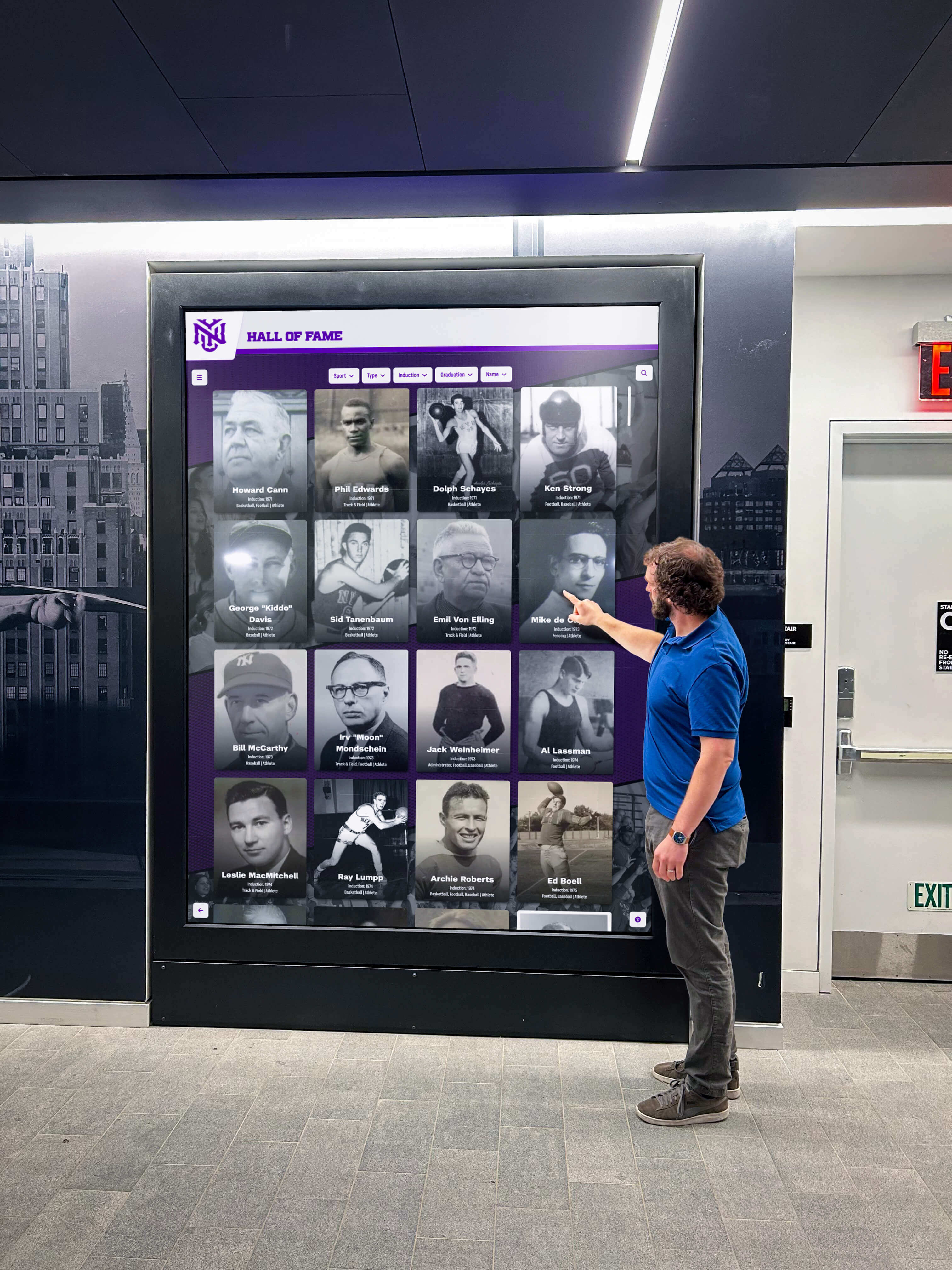
Policy Purpose and Scope
Purpose: This policy establishes the minimum logging requirements for all content changes made to touchscreen recognition display systems operated by the school. The audit trail created under this policy protects the institution by documenting that recognition content—athletic records, hall of fame inductee profiles, donor listings, award recipients, and alumni recognition—was reviewed, approved, and published by authorized staff following established procedures.
Scope: This policy applies to:
- All interactive touchscreen recognition displays operated or contracted by the school
- All staff, contractors, and volunteers with any level of access to the display’s content management system (CMS)
- All content types displayed, including athletic records, hall of fame profiles, donor and sponsor recognition, academic honors, and performing arts recognition
- All content events including creation, editing, approval, publication, rollback, archiving, and deletion
Policy Owner: The individual designated as CMS Administrator holds primary responsibility for audit log maintenance. The Content Approver (typically the athletic director or principal) holds accountability for log accuracy and annual review.
Required Event Table
Every category of content action must generate a log entry. Use the table below as the definitive reference for which events require logging and what each entry must contain.
| Event Type | Triggering Action | Who Logs It | Required Data Fields | Retention Period |
|---|---|---|---|---|
| Content Submitted | Contributor creates a new draft or update request | Content Contributor | Date, contributor name and role, content type, subject name, content category, submission ID | 7 years |
| Content Edited (Draft) | Any field in a draft is modified before approval | Editor (any role) | Date and time, editor name and role, content ID, fields changed, previous value, new value | 7 years |
| Review Completed | Reviewer signs off or returns the submission | Reviewer | Date, reviewer name and role, content ID, decision (pass/return), sources checked, reason if returned | 7 years |
| Approval Decision | Approver approves, conditionally approves, holds, or rejects | Content Approver | Date, approver name and role, content ID, decision, reason for any non-approval decision | 7 years |
| Content Published | CMS Administrator pushes content to the live display | CMS Administrator | Date and time, admin name, content ID, display location, confirmation of live verification | 7 years |
| Content Edited (Live) | Any change made to content already on the live display | Editor + CMS Administrator | Date and time, editor and admin names, content ID, fields changed, previous value, new value, reason for post-publish edit | Permanent |
| Content Rolled Back | Previously published content is reverted to an earlier version | CMS Administrator | Date and time, admin name, content ID, version reverted to, reason for rollback, approver who authorized rollback | Permanent |
| Content Archived | Content is removed from the live display and moved to the archive | CMS Administrator | Date and time, admin name, content ID, reason for archiving, final published state saved | Permanent |
| Content Deleted | Content is permanently removed from the CMS | CMS Administrator + Content Approver | Date and time, admin and approver names, content ID, reason for deletion, confirmation that archive copy exists | Permanent |
| Access Permission Change | A user’s CMS role is created, modified, or revoked | CMS Administrator | Date, admin name, affected user’s name and previous role, new role or access status, reason | 7 years |
| Emergency Expedited Publish | Content published under expedited track (bypassing standard review timeline) | CMS Administrator | Date and time, admin name, content ID, reason for expedited publish, post-publish review deadline, name of authorizing approver | Permanent |
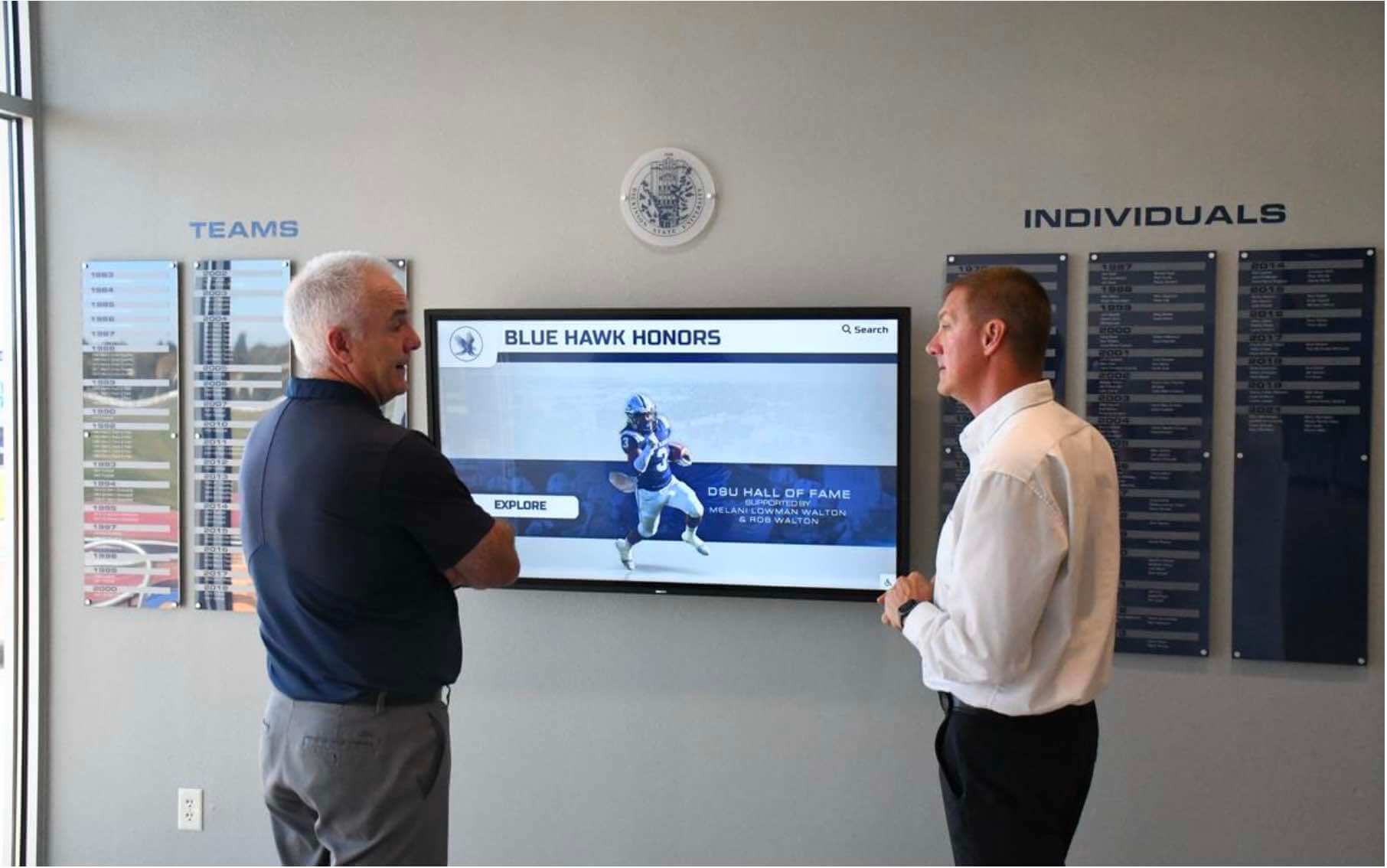
Audit Log Format
Each log entry must be recorded in a durable, searchable format. A shared spreadsheet with protected columns is an acceptable minimum. Purpose-built CMS audit log features are preferable because they capture entries automatically.
Minimum Required Fields for Every Log Entry
Regardless of event type, every entry must include:
- Entry ID — a unique sequential identifier (e.g., LOG-2026-0001)
- Event Type — one of the categories from the Required Event Table above
- Date and Time — to the minute, in the school’s local time zone, with the time zone noted
- Actor Name — the full name of the staff member who performed or authorized the action
- Actor Role — their workflow role at the time (Contributor, Reviewer, Approver, CMS Administrator)
- Content ID — the CMS identifier or slug for the affected record
- Content Description — a brief human-readable label (e.g., “Hall of Fame profile: Jordan T., Class of 2018, basketball”)
- Action Detail — what specifically changed, including before and after values for field edits
- Reason — required for all approval decisions, post-publish edits, rollbacks, and deletions; optional but encouraged for other event types
Log Storage Requirements
- The audit log must be stored outside the CMS in a location that remains accessible if the CMS platform changes or becomes unavailable.
- At minimum, export and archive the log to a shared district drive at the end of each semester.
- Log files must not be editable by the same individuals whose actions they record. A separate administrative account or read-only sharing permission enforces this separation.
- CMS-generated audit logs supplement but do not replace the manual log. Both must be retained.
Step-by-Step: How to Log Each Event
Follow these steps for the most common log events. Train every role owner on the steps for their events before they begin using the CMS.
1. Logging a Content Submission
When a contributor submits new content or an update request:
- Open the shared audit log.
- Create a new row with the next sequential Entry ID.
- Record the event type as “Content Submitted.”
- Record the date and time.
- Enter your name and “Content Contributor” as your role.
- Record the CMS content ID assigned to the draft (or the submission ticket number if your workflow uses a queue outside the CMS).
- In the Content Description field, enter the subject’s name, category, and content type.
- In the Action Detail field, summarize what is being submitted: “New hall of fame inductee profile” or “Record update: 100m hurdles, Women’s Track, correcting year from 2022 to 2021.”
- Leave the Reason field blank for standard submissions; populate it only if the submission is time-sensitive or follows an expedited track.
Schools managing academic awards display and preservation alongside athletic recognition often use the same submission log for both content streams; a “Content Category” column in the log distinguishes them without requiring separate tracking systems.
2. Logging a Review Decision
When the reviewer completes their accuracy check:
- Locate the log row created at submission for this Content ID.
- Add a new row beneath it or in a dedicated “Review” section; do not overwrite the submission row.
- Record the event type as “Review Completed.”
- Record the date and time.
- Enter your name and “Reviewer” as your role.
- In the Action Detail field, record: decision (pass or return), the sources you checked (e.g., “State athletic association record book, school yearbook 2021”), and any discrepancies found.
- If returning the submission, record the specific reason and what the contributor must correct.
3. Logging an Approval Decision
When the approver makes a final content authorization decision:
- Add a new log row for the same Content ID.
- Record the event type as “Approval Decision.”
- Record the date and time and your name and role.
- In the Action Detail field, record: the decision (Approve, Conditional Approve, Hold, Return to Reviewer, or Reject).
- Populate the Reason field for every non-approval decision. For approvals, a brief note (“All criteria met, approved for publish”) creates a cleaner record than a blank field.

4. Logging a Publish Action
When the CMS administrator publishes content to the live display:
- Add a new log row for the same Content ID.
- Record the event type as “Content Published.”
- Record the date and time to the minute.
- In Action Detail, note the specific display location if your school operates multiple screens (e.g., “Main lobby kiosk, Hall of Fame section” vs. “Athletic hallway record board”).
- After publishing, physically confirm or remotely verify that the content appears correctly on the live display. Record “Confirmed live: [time]” in the Action Detail field.
For schools that manage perfect attendance digital showcase walls alongside athletic recognition displays, the same publish log can track both; add a “Display Type” column to differentiate entries by screen function.
5. Logging a Rollback
A rollback is a higher-risk action—it replaces live content with a previous version—and requires additional documentation:
- Before executing the rollback, confirm verbal or written authorization from the Content Approver. Log the approver’s name and the time of authorization.
- Add a log row with event type “Content Rolled Back.”
- In Action Detail, record: the version being restored (by date or version ID), the content that is being replaced, and the specific reason for the rollback.
- After the rollback is live, confirm it on the physical display and log the confirmation time.
- Flag the rolled-back content for a fresh submission if the underlying content needs to return to the display at a later date.
6. Logging a Deletion
Permanent deletion requires sign-off from both the CMS Administrator and the Content Approver before execution:
- Confirm that an archive copy of the content exists outside the CMS. Log the archive location.
- Obtain written approval from the Content Approver. Email confirmation is acceptable; attach it or paste the text to the log entry.
- Add a log row with event type “Content Deleted.”
- Record both names (admin and approver) in the Actor Name field.
- In Action Detail, state the reason for deletion and confirm the archive copy location.
Retention Schedule
Different content types carry different institutional risk. Align your retention schedule with your district’s records retention policy; the schedule below represents a safe minimum for K–12 recognition content.
| Content Category | Standard Retention | Extended Retention Trigger |
|---|---|---|
| Athletic records and rankings | 7 years after content is archived | Permanent if record was disputed or subject to a correction |
| Hall of fame inductee profiles | Permanent | — |
| Donor and sponsor recognition | 7 years after the donor agreement expires | Permanent if the naming right was contested |
| Academic honor and award recognition | 7 years after the student graduates | Permanent if the award was disputed |
| Memorial and tribute content | Permanent | — |
| Access permission change logs | 7 years | — |
| Emergency expedited publish logs | Permanent | — |
| Annual audit reports | 10 years | — |
Access and Confidentiality
The audit log is an institutional record, not a public document. Apply the following access controls:
- Read access: Content Approver, CMS Administrator, school principal, district technology director, and any designated audit reviewer.
- Write access: Role owners may add entries for their own actions only. No role owner edits entries created by another person.
- Deletion: Log entries may not be deleted under any circumstances. If an entry was made in error, add a correction row immediately below it; note the Entry ID of the error and explain the correction. Do not overwrite or remove the original entry.
- External disclosure: Release audit log records only in response to a formal records request, a legal subpoena, or explicit written authorization from the school principal. Log every external disclosure in the log itself.
High school sports season calendars create predictable peaks in recognition content submissions—state playoffs, end-of-season award ceremonies, and hall of fame induction events. Pre-announcing submission deadlines tied to those calendar peaks reduces the need for expedited publishes, which are the most audit-sensitive events in the workflow.
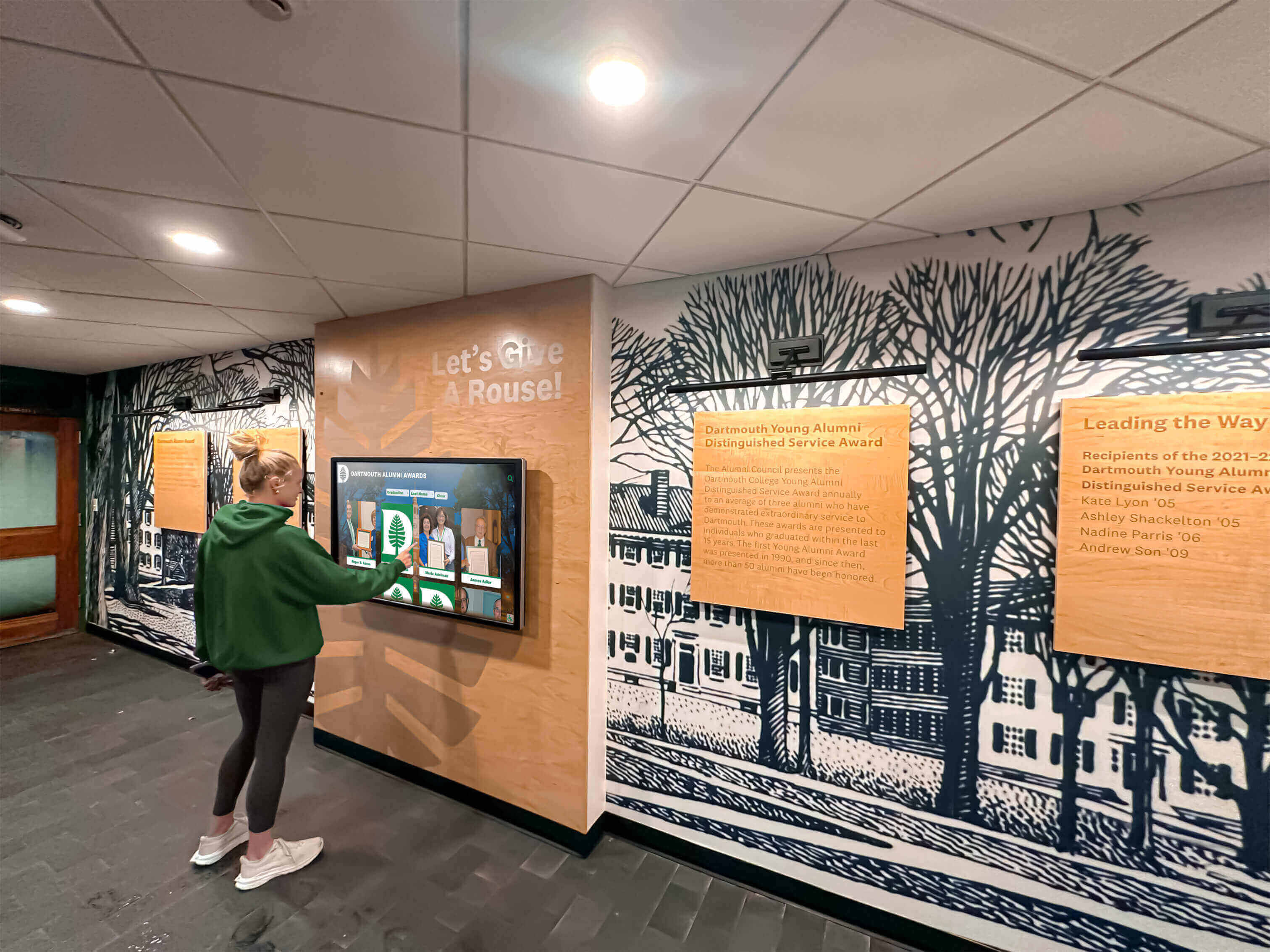
Handling Disputed Content
When a student, alumnus, parent, coach, or donor disputes content on the recognition display, the audit trail is your first resource.
Dispute Response Procedure
- Acknowledge the dispute in writing within two business days. Log the receipt of the dispute in the audit log with event type “Dispute Received.”
- Pull all log entries for the disputed Content ID. Review the full chain from original submission through the most recent publish or edit action.
- Identify the source documentation cited at the review stage. If the reviewer logged the sources checked, retrieve those documents for comparison against the disputed content.
- Determine whether the dispute identifies an error or a disagreement. An error (wrong year, misspelled name, incorrect record) should move immediately to a correction workflow. A disagreement (a family believes their student deserved a different recognition tier) requires a policy review, not a content correction.
- Document the resolution. Whether you correct, maintain, or escalate the content, add a “Dispute Resolved” log entry with the decision and the reasoning.
- Notify the disputing party of the outcome in writing. Retain the notification as part of the dispute record.
Schools that integrate educator recognition into their display programs should apply this same dispute procedure to faculty award content; disputes over teaching honors or service recognitions follow an identical resolution path.
Annual Audit Procedure
Conduct a formal audit of the audit log and the live display once per academic year. The annual audit confirms that the log is complete, that live content matches approved records, and that access permissions reflect current staffing.
Annual Audit Checklist
- Verify log completeness. Select a random sample of 25 content changes made during the year (or all changes if volume is under 25) and confirm each has a corresponding log entry with all required fields populated.
- Cross-reference live display content against the log. For every item currently on the display, confirm a corresponding “Content Published” or “Content Edited (Live)” log entry exists with an approver sign-off preceding it.
- Audit access permissions. Compare the current CMS user list against the role assignment roster. Remove access for any staff member who has left or changed roles. Log every permission change identified during the audit.
- Review rollback and deletion events. Examine every rollback and deletion from the audit year. Confirm each had documented approver authorization before execution.
- Verify archive copies. For every item archived or deleted during the year, confirm the archive copy exists outside the CMS at the documented location.
- Check retention compliance. Confirm that log records and content archives scheduled for deletion under the retention schedule have been purged and that records not yet eligible for deletion remain intact.
- Document the audit findings. Produce a one-page annual audit summary noting sample size, findings, and any corrective actions taken. Retain the summary for 10 years.
Schools building comprehensive social media recognition graphics alongside their in-school touchscreen displays benefit from auditing digital and social recognition content in the same annual cycle; a unified audit confirms that championship records displayed on the lobby kiosk match what was posted publicly during the season.
Policy Exceptions
Two categories of exception require documented authorization:
Expedited Track Exception: When an approver self-publishes time-sensitive content (a same-night championship result) without completing the standard review sequence, the CMS administrator logs the event under “Emergency Expedited Publish” within 24 hours. The approver who authorized the expedited publish initiates a post-publish accuracy review within the next business day, and the review outcome is logged.
Delegated Approval Exception: When the primary approver is unavailable for more than three consecutive business days and the backup approver is also unavailable, the school principal may designate a temporary approver in writing. Log the temporary designation with the principal’s name, the designee’s name, the start date, and the end date of the delegation.
Integrating This Policy with Your CMS
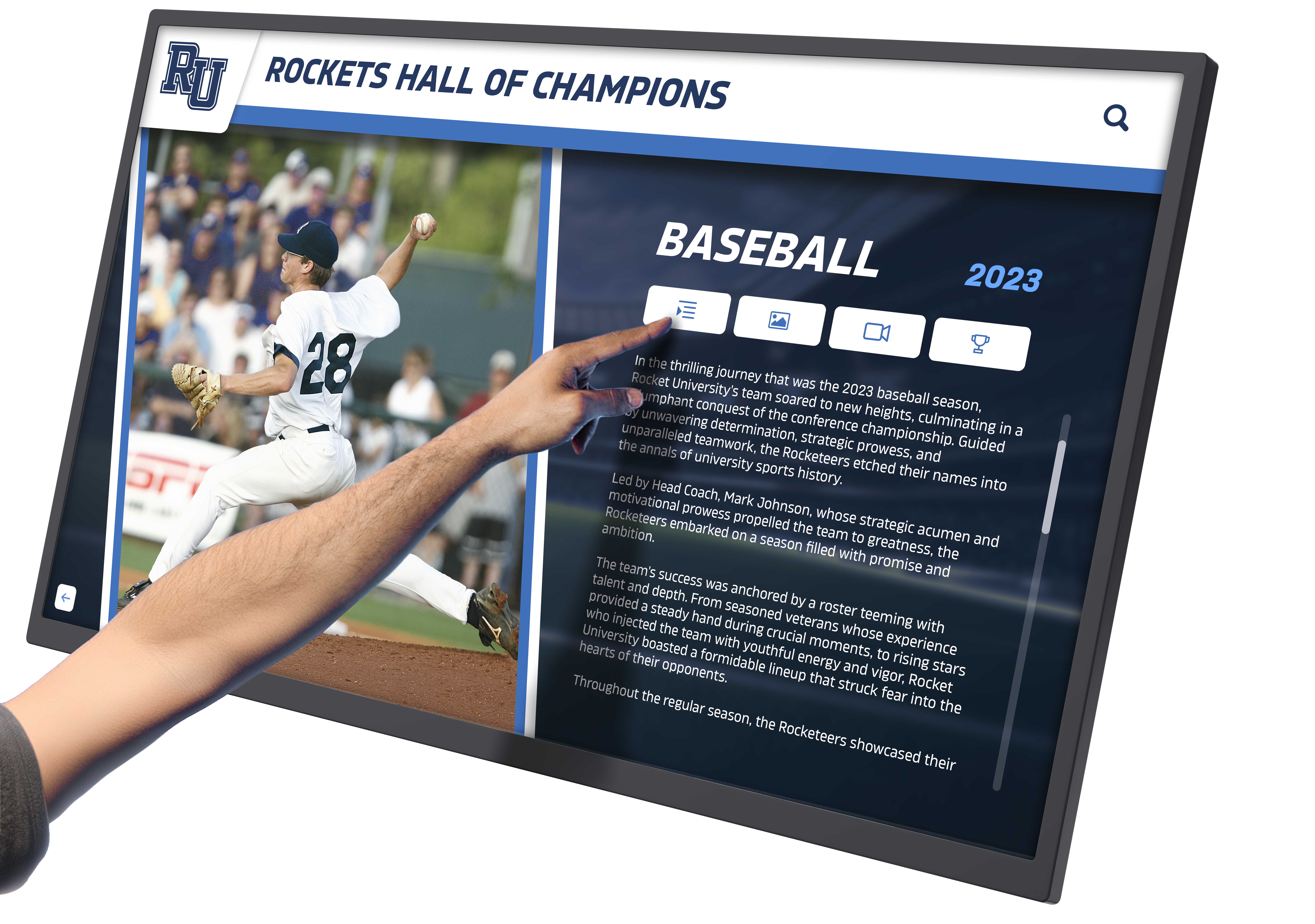
Most enterprise-grade touchscreen recognition platforms provide built-in audit logging. Evaluate your platform against these requirements:
- Does the CMS automatically log every save, approval status change, and publish action with a timestamp and username?
- Can the log be exported in a format (CSV, PDF) that can be stored outside the platform?
- Does the platform support role-based permissions that prevent contributors from publishing and prevent non-administrators from editing the log?
- Does the platform retain version history so rollbacks are possible and the version restored can be documented precisely?
If your current platform does not satisfy these requirements, a digital recognition graphics solution or full-platform upgrade may close the gap more efficiently than attempting to compensate through manual documentation alone.
Frequently Asked Questions
Does our school need a written audit trail policy if our CMS already logs changes automatically?
Yes. A CMS log captures technical events but does not specify who is responsible for reviewing the log, how long it is retained, how disputes are resolved, or what happens when content is rolled back or deleted. The policy establishes those obligations; the CMS log is evidence of compliance with them.
What happens if a log entry was missed and we discover the gap later?
Create a retroactive log entry as soon as the gap is discovered. Label the entry clearly as retroactive and note that it was created on a date after the event. Do not backdate entries. A retroactive entry with an honest date is significantly more defensible than a blank record; a backdated entry can create legal exposure.
Who has authority to override the audit trail policy for a specific content change?
The school principal may authorize a specific documented exception. Exceptions must be logged with the principal’s name and a written statement of the reason. No role below the principal level can unilaterally override this policy for any content type.
Should we audit the audit log itself?
Yes. The annual audit checklist includes a log completeness check. Additionally, the CMS Administrator should not be the sole reviewer of their own log entries. The Content Approver or a designated district technology reviewer should conduct an independent spot-check each semester.
How do we handle audit trail requirements when we transition to a new CMS platform?
Before decommissioning any platform, export the complete audit log in a portable format and transfer it to the institution’s records management system. The historical log from the previous platform remains subject to the retention schedule regardless of platform change. Document the migration in the log as a “Platform Transition” event.
Does this policy apply to content displayed on social media or school websites as well as the touchscreen display?
This policy covers the touchscreen recognition display system specifically. However, if your school uses the same content records across the touchscreen display, the school website, and social platforms, extending the audit policy to cover all publication channels reduces the risk of cross-channel inconsistency. High school academic awards display and preservation practices that span digital channels benefit from a unified content record that travels with the entry across all platforms.
See Audit Logging Built Into Your Recognition Platform
Rocket Alumni Solutions provides schools with touchscreen recognition platforms that include role-based permissions, version history, and built-in audit logging—so the trail documenting who changed what is captured automatically, not manually. Schedule a demo to see how the platform enforces your policy at the system level and keeps your athletic records, hall of fame profiles, and donor listings accurate and accountable.
Schedule a Free DemoNext Practical Step
Print or share the Required Event Table from this policy and schedule a 30-minute meeting with your CMS Administrator and Content Approver. Walk through three recent content changes together and reconstruct the log entries that should exist for each. The gaps you find in that exercise are the exact gaps this policy closes—and identifying them now, before a dispute or audit, is the entire point.































