A recognition display that ships from a vendor with default administrator credentials, an open remote desktop port, and a publicly routed IP address is not configured for your school’s security posture—it is configured for a warehouse staging bench. Default settings simplify first-time setup; they do not reflect your district’s network segmentation rules, your IT department’s account policies, or your facilities team’s recovery requirements. Without a written document that records every approved setting layer by layer, any technician who touches the display—for a firmware update, a layout change, or a vendor service call—has no reference point for what “correct” looks like. The result is configuration drift: a display whose live settings gradually diverge from what was originally approved, with no record of when, how, or why.
A touchscreen recognition display configuration baseline checklist documents the approved operating system settings, network configuration, kiosk mode parameters, browser and application settings, security controls, and recovery procedures for every recognition display your school operates. It becomes the authoritative reference your team compares against during audits, after patches, and before sign-off on any vendor service visit.
Nothing in this article constitutes legal advice. Schools subject to FERPA, state data privacy requirements, or district cybersecurity policy mandates should involve qualified IT leadership and counsel when formalizing any configuration standard.
The short answer: a configuration baseline is a written document that records the approved setting for every configurable layer of your display system—OS, network, kiosk mode, browser, security controls, and recovery—so that anyone auditing, servicing, or restoring the display has a single authoritative reference. The full checklist below provides the master baseline table, a layer-by-layer setup walkthrough, a drift review procedure, and a documentation format your team can adapt and implement this semester.
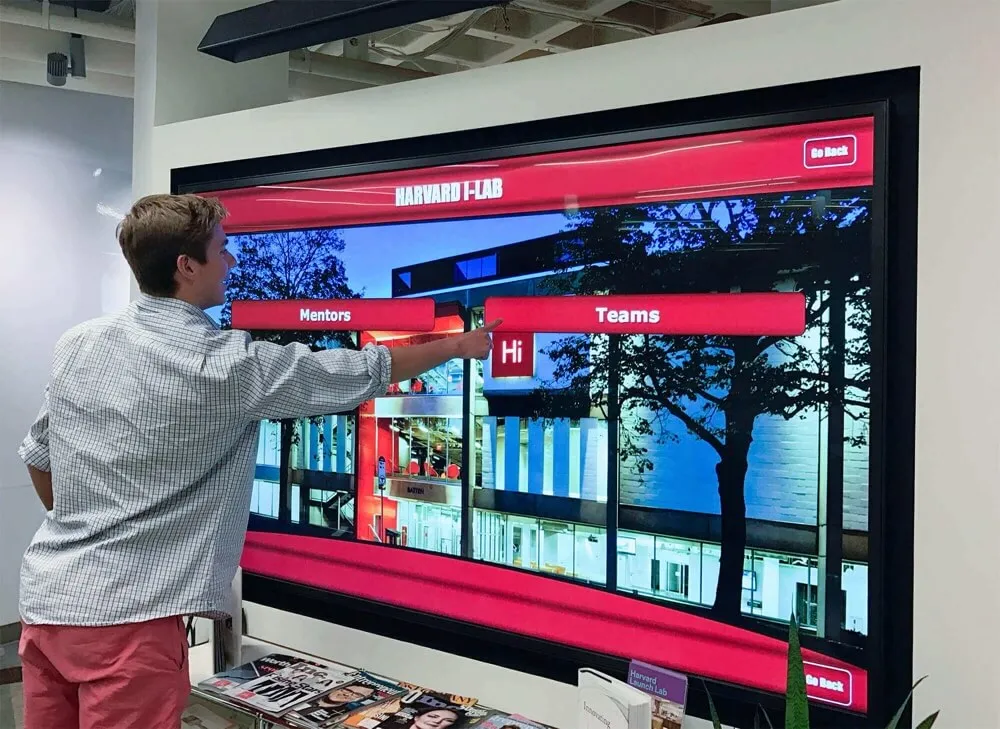
Configuration Baseline Master Table
Use this table as your master reference. Fill in the “Approved Setting” column with the specific values your school has approved for each item. Store the completed document in a location accessible to the IT Coordinator and review it at least once per semester.
| Layer | Setting Category | Approved Setting | Verification Method | Review Frequency |
|---|---|---|---|---|
| Operating System | OS version and build | (document exact version and build number) | System info panel / winver or uname -r | Before and after every patch |
| Operating System | Automatic update behavior | Disabled or restricted to IT-approved maintenance window | OS update settings panel | Monthly |
| Operating System | Administrator account username | (unique, non-default — not “admin” or “administrator”) | Local user account list | Quarterly |
| Operating System | Administrator password | Changed from vendor default; meets district complexity policy | Login verification | After every service visit |
| Operating System | Guest or public accounts | Disabled | Local user account list | Quarterly |
| Operating System | Remote desktop / SSH access | Disabled unless actively required; if enabled, restricted by source IP | Network scan or OS remote settings | Monthly |
| Operating System | Host firewall | Enabled; inbound rules documented in baseline | OS firewall settings | Monthly |
| Operating System | USB port policy | Disabled or restricted to approved device class (HID only) | Group Policy or BIOS/UEFI review | Quarterly |
| Network | IP address assignment | Static or DHCP reservation pinned to device MAC address | Router / switch ARP table | Monthly |
| Network | VLAN assignment | Dedicated display VLAN; isolated from administrative and student segments | Switch port configuration | Quarterly |
| Network | Approved outbound ports | CMS platform ports only; all others blocked at perimeter firewall | Firewall rule review | Quarterly |
| Network | Approved inbound ports | None, or only vendor management port restricted by source IP | Firewall rule review | Quarterly |
| Network | DNS servers | District-approved resolvers; public resolvers (8.8.8.8 / 1.1.1.1) require documented exception | Network adapter settings | Quarterly |
| Network | Wi-Fi SSID (if wireless) | Dedicated display SSID with WPA2 or WPA3; not student or staff network | Wi-Fi adapter settings | Quarterly |
| Kiosk Mode | Application auto-start on boot | Enabled; launches before any login prompt is visible to public visitor | Cold-restart test | After every software update |
| Kiosk Mode | Escape to OS desktop | Disabled | Keyboard shortcut and gesture test | After every software update |
| Kiosk Mode | Physical keyboard access | Disabled in software or physically removed | Physical inspection | Monthly |
| Kiosk Mode | Touch-to-desktop gestures | Disabled at OS and browser layers | Multi-touch gesture test | After every OS update |
| Kiosk Mode | Session idle timeout and auto-reset | Enabled; resets to home screen after (document value) minutes of inactivity | Idle behavior test | After every CMS update |
| Kiosk Mode | Pinch-to-zoom | Disabled at CSS, OS, and browser layers | Multi-touch gesture test | After every browser update |
| Browser / Application | Browser version | (document exact major.minor.patch version) | Browser About page | Before and after every patch |
| Browser / Application | Browser auto-update | Disabled or locked to IT-approved version via policy | Browser settings or Group Policy | Monthly |
| Browser / Application | JavaScript | Enabled (required by CMS platform) | Browser console test | After every browser update |
| Browser / Application | Browser developer tools | Disabled via policy | F12 and right-click test during kiosk session | After every browser update |
| Browser / Application | Browser address bar visibility | Hidden via kiosk mode launch flag | Visual inspection | After every browser update |
| Browser / Application | Installed extensions or add-ons | None except vendor-approved; document approved extension name and version | Browser extension list | Quarterly |
| Browser / Application | Cached CMS credentials in browser | Prohibited; CMS auto-login handled via token or config file, not stored browser password | Browser password manager check | Monthly |
| Security | Endpoint protection product | Installed; version and definition date within approved window | AV console or endpoint management dashboard | Monthly |
| Security | Display session screen lock | Disabled for public-facing display session; enabled only for admin session | Idle test on each session type | Quarterly |
| Security | Active physical ports | Covered or disabled; documented exception required for any active port | Physical inspection | Monthly |
| Security | Vendor remote access tool | Removed or disabled when no service session is active; re-disabled after each session | Service session log review | After every vendor visit |
| Security | OS event logging | Enabled; login attempts, policy changes, and application crashes captured | Log viewer | Monthly |
| Security | CMS audit logging | Enabled; content changes, logins, and configuration modifications captured | CMS admin panel | Monthly |
| Recovery | Full system image or baseline snapshot | Created after commissioning; stored off-device; tested for restore | Restore test on spare or virtual device | After every major OS or CMS update |
| Recovery | CMS configuration export | Exported after every configuration change; stored off-device with date and display identifier | File existence check | After every configuration change |
| Recovery | Recovery boot media | USB or network boot image available to IT Coordinator; verified bootable | Boot test on spare device | Quarterly |
| Recovery | Acceptable downtime before escalation | (document maximum downtime in hours before vendor or facilities escalation is triggered) | Tabletop recovery exercise | Annually |
Layer 1: Operating System Settings
The operating system layer is the foundation of the configuration baseline. Every other layer—network, kiosk mode, browser, and application—runs on top of it. OS settings that diverge from the baseline produce unpredictable downstream effects: a re-enabled Windows Update service triggers a reboot during a championship ceremony; a guest account left active after a service visit becomes an unauthenticated entry point.
OS Version and Update Policy
Record the exact OS version and build number in the baseline—not a range. If the display runs Windows 10 22H2 (Build 19045.xxxx), record that build number, because an update that changes it represents a deviation requiring a patch record under your touchscreen recognition display patch management policy.
Configure the OS update service to require IT Coordinator approval before applying any update. On Windows-based kiosk controllers, this typically means setting Windows Update to notify rather than auto-install, and disabling automatic restarts. Only a scheduled IT maintenance window should trigger OS-level changes. Schools that have not yet formalized this process can cross-reference the patch management framework alongside this baseline to establish both documents simultaneously.
Administrator Credentials
Change every default credential before the display enters public service:
- Rename or replace the built-in administrator account with a unique username that follows no predictable pattern.
- Set a password meeting your district’s complexity policy—minimum length, character class requirements, and rotation schedule.
- Store the approved credentials in your district’s password management system, not in a local text file on the display controller.
- After every vendor service visit, verify that no additional administrator accounts were created and that any temporary service account was disabled or removed.
Schools that manage athletic hall of fame displays and donor recognition walls in public-facing locations should treat credential hygiene as a non-negotiable baseline item, because physical access to the device is often available to any visitor who approaches the screen.
USB and Peripheral Port Policy
Document the approved state of every physical port on the display controller:
- USB ports: Disable via Group Policy Object or BIOS/UEFI setting. If a port must remain active for a touchscreen controller, restrict it to HID class only.
- HDMI or video input ports: Disable any input not actively used for the display output signal. An active HDMI input on a public-facing device can accept video injection from an unsupervised source.
- SD card slots and optical drives: Disable or remove. These ports have no operational role on a recognition display kiosk.
Layer 2: Network Configuration
A recognition display that shares a VLAN with administrative workstations or student devices extends the attack surface of those segments to a publicly accessible, lobby-mounted device. Network isolation is the highest-leverage single configuration decision for a public-facing touchscreen.
VLAN Isolation
Assign every recognition display to a dedicated display VLAN. This VLAN should:
- Permit outbound internet access only to the CMS platform’s IP ranges and required content delivery domains
- Block inbound routing from student and staff VLANs
- Be monitored by the same tools used for other production network segments
If your school uses a managed switch, document the specific switch port, VLAN tag, and allowed traffic rules in the baseline. This prevents a facilities coordinator from inadvertently moving a display cable to a different port during a room rearrangement and silently migrating the device onto a different network segment.
IP Address Assignment
Static IP addresses—or DHCP reservations that bind the display’s MAC address to a fixed IP—are strongly preferred over dynamic DHCP leases. A display whose IP address changes:
- Breaks firewall rules that specify the display’s IP as a source or destination
- Complicates log correlation when reviewing the OS event log or CMS audit trail
- Prevents stable DNS entries that monitoring tools rely on
Document the assigned IP address, subnet mask, default gateway, and DNS servers in the baseline. Verify them monthly by opening the OS network adapter settings or running ipconfig (Windows) or ip addr (Linux).
Approved Outbound Traffic
The display should communicate outbound only through ports and destinations required by the CMS platform. Document every approved outbound connection before commissioning:
| Destination | Port / Protocol | Purpose |
|---|---|---|
| CMS platform domain | 443 / HTTPS | Content delivery and CMS API communication |
| OS patch endpoint (if not blocked) | 443 / HTTPS | OS updates during IT-controlled maintenance windows |
| NTP server | 123 / UDP | Clock accuracy for scheduled content rotation |
| Endpoint protection update server | 443 / HTTPS | Antivirus definition updates |
Block all other outbound traffic at the perimeter firewall. If the display communicates with a score feed integration, an alumni data connector, or any third-party API, document each connection and add it to the approved outbound table before enabling it. Schools deploying digital memory display solutions that incorporate external data feeds face this same documentation requirement: every API endpoint the display contacts must appear in the baseline.
Layer 3: Kiosk Mode Configuration
Kiosk mode is the software layer that prevents a public visitor from escaping the recognition display application and reaching the underlying operating system. A kiosk mode that can be bypassed with a keyboard shortcut, a multi-touch gesture, or a long-press on the screen is not a kiosk mode—it is a full desktop with a cosmetic overlay.
Auto-Start and Boot Sequence
The kiosk application must launch automatically on OS boot, without displaying a login prompt. Verify this after every OS patch, CMS update, and vendor service visit by performing a cold restart with no keyboard attached and confirming the recognition display application reaches its home screen within the approved startup interval.
Document the approved startup sequence step by step:
- BIOS/UEFI boots directly to the OS with no visible boot menu
- OS boots to an auto-login account (a dedicated, least-privilege kiosk user)
- Kiosk application launches from the auto-start registry entry or startup folder
- Display application reaches the home screen within (document approved interval) seconds
- Idle timeout resets to home screen after (document approved timeout) minutes of inactivity
If the startup sequence fails at any step, the display should show a branded fallback screen—not a raw desktop or error dialog visible to visitors.
Session Timeout and Auto-Reset
Configure the idle session timeout to return the display to its home screen after a defined period of inactivity. For recognition displays in school lobbies or athletic hallways, a timeout between two and five minutes is standard. For displays in facilities where a coach or administrator may step away mid-session, a longer timeout of five to ten minutes may be appropriate. Document the approved value. Verify it after every CMS update by triggering the idle condition and confirming the reset behavior.
Escape Prevention Test Checklist
Test every known escape path during commissioning and re-verify after every OS or browser update. Record the result (pass / fail / not applicable) for each item:
Keyboard and shortcut escape paths:
- Ctrl+Alt+Delete
- Alt+F4
- Windows key or Super key
- Alt+Tab
- F11 (toggle full-screen)
- Ctrl+Shift+Escape (Task Manager)
- Win+D (show desktop)
- Win+L (lock workstation)
Touch and gesture escape paths:
- Four-finger swipe (Windows action center)
- Long-press right-click context menu
- Swipe from screen edge (notification panel)
- Pinch-to-zoom beyond application boundaries
- Double-tap to zoom (browser zoom behavior)
- Edge swipe to task switcher
If any escape path produces a result outside the kiosk application, document it as a configuration gap and remediate before the display enters public service.
Layer 4: Browser and Application Settings
Most recognition display platforms deliver content through a browser-rendered CMS interface. The browser layer must prevent visitors from navigating outside the display application, accessing developer tools, or interacting with any browser chrome.
Browser Version Locking
Record the exact browser version—major, minor, and patch numbers—in the baseline. Allow browser updates only through the same IT-controlled process as OS patches. An auto-updated browser can:
- Change kiosk mode flag behavior, breaking escape prevention
- Drop support for a JavaScript API the CMS platform requires
- Change CSS rendering defaults, breaking display layout alignment
Lock browser auto-update via Group Policy (Chromium-based browsers) or the equivalent policy mechanism. Verify the version before and after every patch cycle by opening the browser About page and confirming it matches the pinned baseline version.
Browser Launch Flags
Browsers launched in kiosk mode use a dedicated launch flag. Document the full browser launch command—including every flag—in the baseline. Common required flags for Chromium-based browsers include:
| Flag | Purpose |
|---|---|
--kiosk | Full-screen kiosk mode; hides address bar and browser chrome |
--no-first-run | Suppresses first-run setup dialogs on launch |
--disable-infobars | Suppresses browser notification and update banners |
--disable-pinch | Disables pinch-to-zoom at the browser layer |
--autoplay-policy=no-user-gesture-required | Allows video content to autoplay without user interaction |
--disable-translate | Suppresses Google Translate prompts for non-English content |
Verify the full launch command is unchanged after every browser update and every vendor service visit where the browser may have been launched manually outside kiosk mode.
Developer Tools and Extension Policy
Disable browser developer tools via Group Policy or browser enterprise policy—not just by omitting the launch flag. Verify by pressing F12 and by right-clicking anywhere on the display surface during a live kiosk session: neither action should open a developer tools panel or a context menu.
Set an explicit allowlist of zero extensions, or document every approved extension by name and version. Verify the extension list quarterly. A visitor or unauthorized technician who installs a browser extension on a public kiosk device may gain persistent access to session data or network traffic.
Layer 5: Security Controls
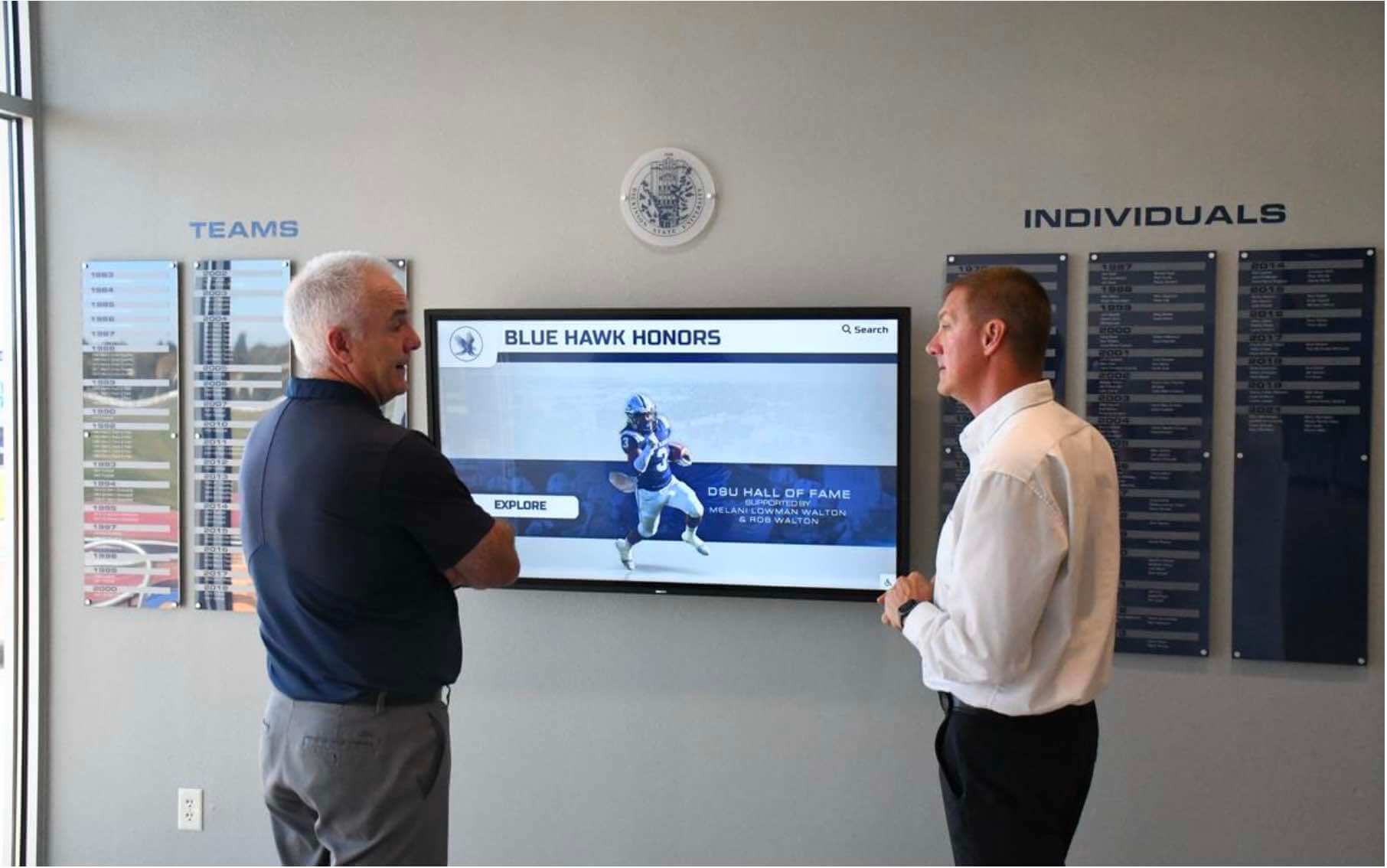
Security controls at the device layer protect the display and its content from unauthorized access and tampering. For school recognition displays, the security baseline reflects three realities: the device is physically accessible to the public, the content it displays carries institutional and personal significance (inductee profiles, donor names, athletic records), and a visible compromise—whether a defaced layout or an unexpected desktop—is immediately noticed by every visitor who approaches the screen.
Endpoint Protection
Install and maintain endpoint protection on the display controller. Document the approved product name, approved version, and maximum acceptable definition age (typically no older than seven days for actively updated signatures). Verify monthly that:
- The installed version matches the baseline version
- The definition file date is within the approved window
- The quarantine log shows no active detections
Logging and Audit Configuration
Enable OS-level event logging for login attempts, policy changes, and application errors. Enable CMS-level audit logging for content changes, login sessions, and configuration modifications. The baseline should specify:
- Which OS event categories are logged and at what retention period
- Whether logs are stored locally, forwarded to a centralized system, or both
- Who receives notification when specific log events occur (for example, failed login attempts above a threshold)
The logging configuration documented in this baseline should align with any formal audit trail policy your school has established for the recognition display. If your team has already defined log retention and access requirements in a separate policy, cross-reference that document here so the baseline and audit trail policy remain consistent.
Physical Security Controls
| Physical Control | Approved State | Verification Method |
|---|---|---|
| Controller enclosure | Locked cabinet or tamper-evident enclosure | Physical inspection |
| USB ports (controller) | Covered with port blockers or disabled in BIOS | Physical inspection and BIOS review |
| Power circuit | Dedicated circuit with UPS; cord management concealed or cable-locked | Physical inspection |
| Display mounting hardware | Secure wall or floor mount with anti-tamper fasteners | Physical inspection |
| Visible status indicators | No LEDs visible to the public that indicate network or power state | Physical inspection |
Layer 6: Recovery and Restore Settings
A baseline that documents configuration settings but omits recovery procedures is incomplete. When a display fails—from a corrupted OS update, a vendor service error, or hardware replacement—the recovery process must restore the device to the approved baseline state, not to the default settings of the replacement hardware.
System Image Baseline
Create a full system image of the display controller after commissioning and before the display enters public service. Store the image:
- Off-device on a network share, external drive, or district backup system
- In at least two physically separate locations
- With a filename that includes the display identifier, image date, and OS version (for example:
lobby-display-01_baseline_2026-07-29_Win10-22H2.img)
Recreate the baseline image after every major OS or platform upgrade. Verify the restore process at least annually by performing a test restore on a spare device or in a virtualized environment.
Schools managing academic recognition and archival display programs with large content libraries should confirm that the system image captures the CMS application state and local content cache, not just the OS configuration—so a restore returns the display to a fully operational state, not just a bootable OS.
CMS Configuration Export
Export the CMS configuration—including layout templates, integration credentials, content rotation rules, and display schedule settings—after every configuration change. Store each export off-device with a filename that includes the display identifier and export date. For schools managing multiple recognition displays—athletic hall of fame walls, donor walls, and academic record boards—maintain separate configuration exports for each display.
Recovery Boot Media
Maintain a bootable USB drive or network boot image capable of reinstalling the OS and restoring the system image without internet access. Verify the boot media every quarter by confirming it boots successfully on a test device. Store the media in a location the IT Coordinator can access during an after-hours or weekend emergency.
Recovery Time Target
Document the maximum acceptable display downtime before escalation to vendor support or facilities leadership. For displays in active lobbies or athletic facilities serving a daily recognition function, four to eight hours is a reasonable target for non-event periods. For displays committed to a scheduled recognition event—an induction ceremony, a donor dedication, or an athletic banquet—define the target in advance and document a vendor escalation trigger that activates before that window is breached.
Configuration Drift Review Process
A baseline documented once and never compared against the live display provides false assurance. Configuration drift—the gradual divergence of live settings from the documented baseline—is the expected result of normal operations without a formal review process. Every OS patch, browser update, vendor service visit, and network reconfiguration is an opportunity for one setting to quietly change.
Scheduled Review Cadence
| Review Type | Trigger | Who Conducts It | Output |
|---|---|---|---|
| Monthly spot review | Calendar (first week of each month) | IT Coordinator | Spot-check of 8–10 highest-risk baseline items; any deviation triggers a full layer review |
| Post-patch review | Every OS or CMS patch applied | CMS Administrator + IT Coordinator | Full comparison of the patched layer against baseline; baseline updated if the change was approved |
| Post-service-visit review | Every vendor service visit | IT Coordinator | Full comparison of all baseline items; any vendor-made change is documented or reversed |
| Quarterly full audit | Calendar (every 90 days) | IT Coordinator | Full comparison of every baseline item; deviations are logged, remediated, and documented |
| Post-incident review | Any security or availability incident | IT Coordinator + Principal or AD | Full baseline comparison; root cause documented; baseline updated if warranted |
Drift Review Steps
- Open the baseline document and locate the most recently verified values for each item.
- Access the live display settings for each layer in sequence: OS → Network → Kiosk → Browser → Security → Recovery.
- Compare each live setting against the baseline value. Record the comparison result: Match, Deviation, or Not Verifiable.
- For each deviation, document the current live value, the baseline value, the date identified, and the responsible role.
- Classify the deviation by risk: High (security or availability impact), Medium (operational impact), or Low (cosmetic or non-impacting).
- Remediate High and Medium deviations within the timelines defined in your display vulnerability management policy. Low deviations may be deferred to the next scheduled maintenance window with documentation.
- Update the baseline document if the deviation reflects an approved change that was not yet reflected in the recorded baseline.
- File the completed drift review record with the date, reviewer name, items reviewed, deviations found, and remediation status for each.
Schools managing digital awards and recognition systems across multiple display types—athletic halls of fame, donor walls, and academic honor boards—can apply this same drift review structure to each display independently, using a shared review template adapted with the device identifier for each installation.
How to Document and Maintain the Baseline
The baseline document is only useful if it is accessible when needed and current when consulted. An outdated baseline is worse than no baseline, because it provides false confidence that the live display matches an approved state that may no longer exist.
Document Structure
Maintain the baseline as a structured document with the following sections:
- Cover section: Display identifier, physical location, commissioning date, document owner (IT Coordinator), and current revision date
- Roles table: Named individuals holding each role: IT Coordinator, CMS Administrator, Content Approver, and primary Vendor Contact
- Baseline table: The full configuration baseline organized by layer, with approved settings populated
- Approved outbound connections table: Every approved network destination the display contacts, with port, protocol, and purpose
- Change log: A running record of every approved change to the baseline—date, item changed, old value, new value, and approver
- Drift review log: A record of every review conducted—date, reviewer, items checked, deviations found, and remediation status
Version Control
Store the baseline document in a location with version history—a district document management system, a SharePoint site with version tracking enabled, or a secured folder with access logging. The baseline document is a governance artifact: changes to it should be traceable, and the prior version should remain accessible for comparison after any update.
Access and Distribution
The IT Coordinator is the document owner with write access. The CMS Administrator has read access. The principal or athletic director receives a summary of the quarterly drift review results, not the full baseline document. Vendors receive only the specific items required to complete a service engagement—never the full baseline including administrator credentials.
Frequently Asked Questions
What is a configuration baseline for a touchscreen recognition display?
A configuration baseline is a written document that records the approved setting for every configurable element of a recognition display system, organized by layer: operating system, network, kiosk mode, browser, security controls, and recovery. It serves as the reference for audits, post-patch verification, and post-service-visit checks. Without a baseline, there is no documented definition of what “correct” looks like for the display, and no reliable way to detect when a change—intentional or accidental—has moved the system away from its approved state.
How often should a school IT team review the configuration baseline?
At minimum: a spot review monthly, a full layer comparison after every patch or vendor service visit, and a complete audit quarterly. Schools with active recognition displays in high-traffic locations benefit from treating the monthly spot review as a standing calendar item rather than a discretionary task, because the highest-risk items—administrator credentials, remote access state, and firewall rules—can change after any service event.
What is the difference between a configuration baseline and a patch management policy?
A patch management policy defines the process for receiving, testing, and applying vendor-released updates on a recurring schedule. A configuration baseline records the approved state of the system at a given point in time and is used to verify that patches and other changes have not introduced unintended deviations. The two documents work together: the baseline defines what “approved” looks like; the patch policy defines how updates are applied without disrupting that approved state. A patch that changes an OS build number without a corresponding baseline update creates a discrepancy that the next drift review should catch.
What should a school do if a vendor service visit introduces an unapproved configuration change?
Conduct a full baseline comparison immediately after the visit ends. For any deviation that falls outside the approved service scope, document the deviation, classify its risk, and remediate using the same process as any other configuration gap. If the vendor made the change deliberately—for example, enabling a remote access tool to diagnose an issue—require written documentation from the vendor before deciding whether to adopt the change as an approved baseline update or reverse it.
Does a configuration baseline apply to cloud-managed recognition displays?
Yes. Even cloud-managed displays where content is pushed from a vendor-hosted CMS have configurable device-side settings under school IT control: network configuration, kiosk mode parameters, physical security controls, and the recovery procedure for the local hardware. The baseline for a cloud-managed display should document all device-side settings the school controls, even when the content and application layers are managed by the vendor.
How does the configuration baseline connect to other display governance policies?
The baseline is the foundation. The patch management policy defines how OS and CMS updates are applied without disrupting documented baseline settings. The change management policy governs how approved configuration changes are tested and approved before the baseline is updated. The vulnerability management policy uses the baseline to identify which settings represent a security exposure that needs remediation. The audit trail policy specifies which logging settings must be active—settings that belong in the security layer of the baseline. Together, these policies form a governance framework that treats a recognition display as institutional infrastructure deserving the same operational discipline as any other networked system in the building.
Start your baseline today by copying the master table above, filling in the approved settings for your current display installation, and scheduling the first drift review for 30 days out. Once you have a documented baseline, every patch, service visit, and configuration change has a clear reference point—and the next audit is a comparison, not a discovery exercise.
Want a recognition display that ships with documented configuration standards?
Rocket Alumni Solutions deploys and manages touchscreen recognition displays for schools across the country—halls of fame, donor walls, athletic record boards, and digital trophy cases. Every installation is built against defined configuration standards designed for school IT and network environments.































