When a student-athlete’s record appears with the wrong year, or a departed sponsor’s logo still loops on the lobby kiosk during a family night, the recognition display stops being a source of school pride and becomes a credibility problem. The root cause is almost always the same: no structured approval process exists between the person who knows the change needs to happen and the display that shows it to the public.
A touchscreen recognition display content approval workflow defines exactly who submits content, who reviews it for accuracy, who grants final approval, and who publishes it to the screen—and what happens at each stage. This guide gives athletic directors, archives staff, school IT administrators, and advancement teams a complete workflow they can adopt, adapt, and begin using immediately.
The short answer: a four-stage workflow—Submit, Review, Approve, Publish—with clearly named role owners at each gate closes the gap between a well-intentioned update and a verified, on-screen result. The sections below build out each stage with checklists, decision tables, and role assignments you can drop directly into a shared document or CMS permissions matrix.

Workflow Overview: Stages at a Glance
Before diving into each stage, review the complete workflow in a single table. Use this as the reference your team keeps pinned during every content update cycle.
| Stage | Core Task | Primary Role | Secondary Role | Target Turnaround |
|---|---|---|---|---|
| 1. Submission | Draft content, attach assets | Content Contributor | — | Same day |
| 2. Accuracy Review | Verify facts, dates, and records | Reviewer (AD or Archivist) | Records or Registrar | 2–3 business days |
| 3. Approval Decision | Authorize or return for revision | Content Approver | Principal or Advancement Director | 1–2 business days |
| 4. Pre-Publication QA | Confirm formatting, image quality, links | IT / CMS Administrator | Reviewer | 1 business day |
| 5. Publish and Archive | Push to display; log in archive | IT / CMS Administrator | Content Contributor | Same day as QA pass |
Defining the Roles
Ambiguous ownership is the single most common reason content approvals stall. Assign a named individual—not just a job title—to each role before your workflow goes live.
Content Contributor Anyone authorized to draft new recognition content or request an update. Typical contributors include the athletic director, coaching staff, alumni relations staff, advancement officers, and yearbook or archives team members. Contributors do not publish directly; they submit to the queue.
Reviewer The person responsible for verifying factual accuracy before content reaches a final approver. For athletic records and award data, this is typically the athletic director or an archivist with access to official records. For donor and sponsor content, the advancement director or development office staff fills this role.
Content Approver The named decision-maker who signs off on content before it can be published. In most schools this is the athletic director for athletics-related recognition, the principal or assistant principal for institution-wide recognition, and the advancement director for donor and sponsor displays. One person should be designated as backup approver when the primary is unavailable.
CMS / IT Administrator The staff member with publish access to the touchscreen platform. Their job at the QA stage is format and technical verification—not content judgment. They publish only content that has cleared the approval stage and meets the display’s technical specifications.
Role Assignment Worksheet
Complete this before beginning the workflow:
| Role | Named Individual | Department | Backup Individual |
|---|---|---|---|
| Content Contributor (Athletics) | Athletic Department | ||
| Content Contributor (Academics/Alumni) | Advancement / Archives | ||
| Reviewer | Athletic Department or Archives | ||
| Content Approver | Administration | ||
| CMS / IT Administrator | Technology or Facilities |
Stage 1: Content Submission
Every update—whether it is a new hall of fame inductee profile, a corrected athletic record, a sponsor logo refresh, or a retired jersey number—enters the workflow the same way: a structured submission from a designated contributor.

Submission Checklist
- Use the designated submission form or queue. A shared form (Google Form, spreadsheet intake row, or CMS draft feature) creates a searchable record of every update request. Email submissions are hard to track and easy to lose.
- Include all required fields at submission. Incomplete submissions returned for missing information at the review stage waste reviewer time. Required fields typically include: content type, subject name, event or achievement year, category, draft text, and all associated image or video files.
- Cite the source for every factual claim. For athletic records, cite the official state athletic association record, the school’s verified record book, or a specific newspaper or program document. For alumni recognition, cite the source of achievement information (award certificate, official announcement, alumni survey response).
- Flag time-sensitive submissions explicitly. Content tied to an upcoming ceremony, a donor event, or the start of a sports season should include a publish-by date so reviewers can prioritize correctly.
- Attach all assets in their final form. Submit photos at full resolution, videos in the platform’s accepted format, and sponsor logos at the correct dimensions. Requesting assets after submission delays every downstream stage.
Content Types Requiring Different Submission Paths
Not all recognition content carries the same risk of inaccuracy or the same institutional sensitivity. Route these content types through an enhanced submission path from the start:
- Donor and sponsor recognition: Requires advancement office sign-off on gift amounts, naming rights terms, and logo usage rights before entering the standard review queue.
- Alumni achievement recognition: Requires verification against a primary source, not solely an alumni self-report, before submission.
- Statistical records and rankings: Requires citation of the authoritative record-keeping body—state athletic association, conference office, or verified school record book.
- Memorials and tributes: Requires written family or next-of-kin consent before submission.
The interactive school display software selection process that preceded your platform purchase likely shaped what content types your CMS supports natively; verify that your submission fields capture everything your display is designed to show.
Stage 2: Accuracy Review
The reviewer’s job is to verify, not to create. They check every factual claim in the submission against an authoritative source and return any submission that cannot be verified before it reaches the approver.
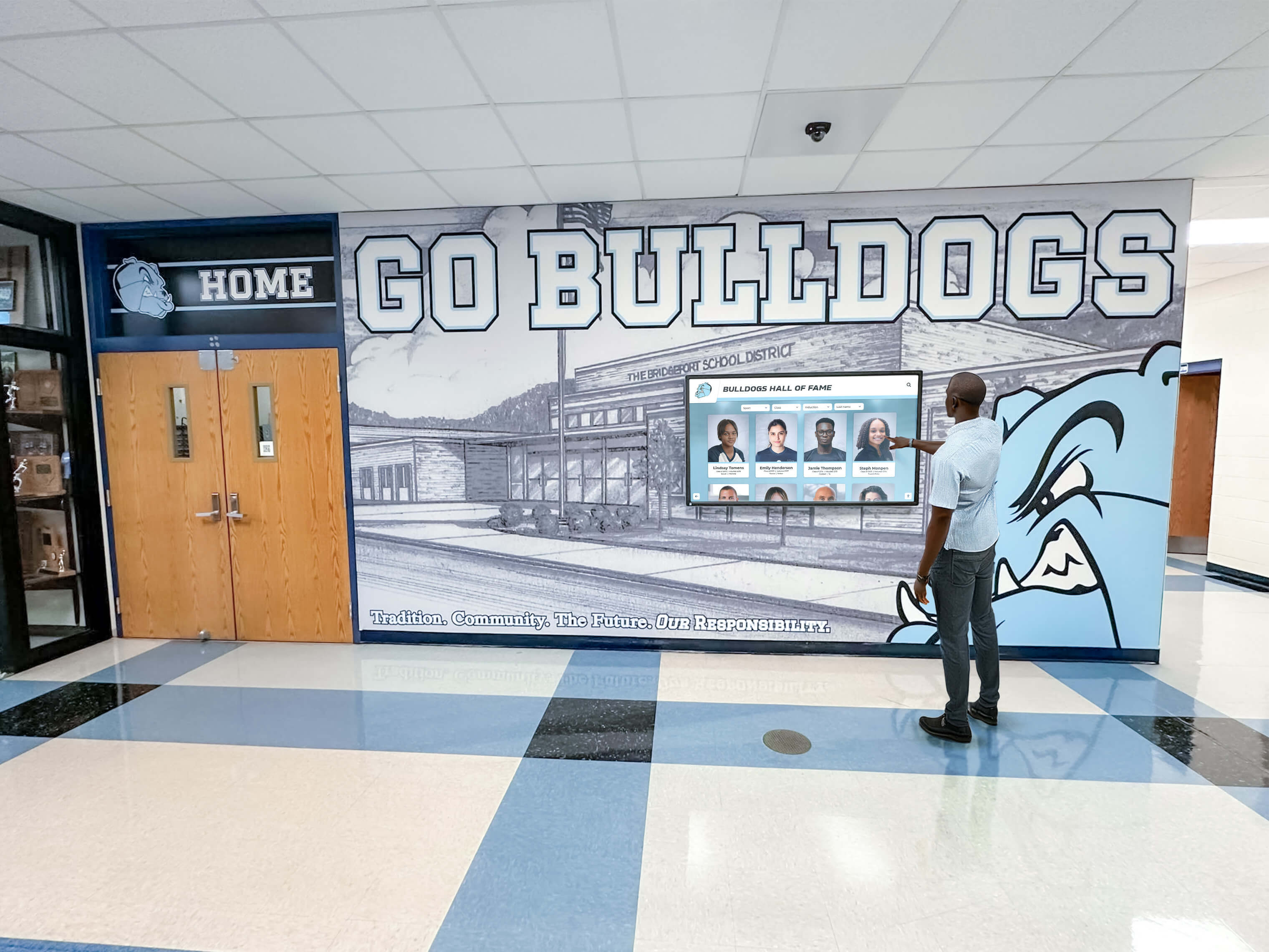
Reviewer Checklist
- Verify names against official institutional records. Confirm correct spelling of first and last names, including any legal name changes, against the school’s official enrollment or alumni records.
- Confirm dates and years against the primary record source. A championship in 2021–22 belongs to one academic year; the year on the display should match whichever convention your school uses consistently—season year, not academic year if you have chosen that standard, or vice versa.
- Cross-reference athletic records against state association or conference data. For any record or ranking claim, pull the official listing rather than relying on coaching staff memory or program materials that may not have been updated.
- Verify image subject identification. Confirm that the person shown in each submitted photo matches the profile text. Misidentified photos are among the most visible and embarrassing errors on recognition displays.
- Check sponsor and donor content against the agreement on file. Recognition level, naming, and logo placement are often specified in the donor agreement or sponsorship contract. Displaying the wrong level or omitting a required acknowledgment creates legal exposure.
- Flag content that requires subject consent and verify it has been obtained. Profile content about living individuals—particularly biographical detail beyond public record—should have documented consent on file before review passes.
- Return, do not reject. Send incomplete or inaccurate submissions back to the contributor with specific revision notes. Describe exactly what source needs to be cited, what field needs correction, or what asset needs to be replaced. A returned submission is not a rejection; it is an invitation to fix and resubmit.
Common Review Errors to Catch
| Error Type | Example | Verification Method |
|---|---|---|
| Wrong championship year | “State Champions 2019” for a 2018–19 season title | State athletic association official records |
| Incorrect record category | “School Record” for a performance that is only a team record | Verified school record book |
| Outdated sponsor logo | Previous brand version still in use after rebrand | Sponsor’s current brand guidelines or official website |
| Misidentified photo subject | Photo labeled with athlete A shows athlete B | Cross-reference with yearbook or official roster photo |
| Unverified post-graduation achievement | “National Award Winner” sourced only from alumni email | Official award organization announcement or press release |
| Missing co-recognition | Championship shared with another school credited as sole title | Conference or state association official record |
Stage 3: Approval Decision
The approver reviews a submission that the reviewer has already verified for accuracy. The approver’s role is institutional authorization: confirming that the content is appropriate, consistent with recognition standards, and ready to represent the school on a public display.
Approval Decision Matrix
Use this matrix to make every approval decision consistent and documentable.
| Content Meets All Criteria | Decision | Next Step |
|---|---|---|
| Factually verified, appropriate, complete, assets ready | Approve | Passes to QA stage |
| Minor revision needed (wording, asset format) | Conditional Approve | Contributor fixes; CMS admin verifies before publish |
| Factual error identified post-review | Return to Reviewer | Reviewer re-verifies; returns for new approval decision |
| Institutional policy conflict (naming rights, sensitivity) | Hold for Consultation | Approver consults principal, advancement, or legal; decision documented |
| Content should not be published | Reject | Contributor notified with documented reason; submission archived |
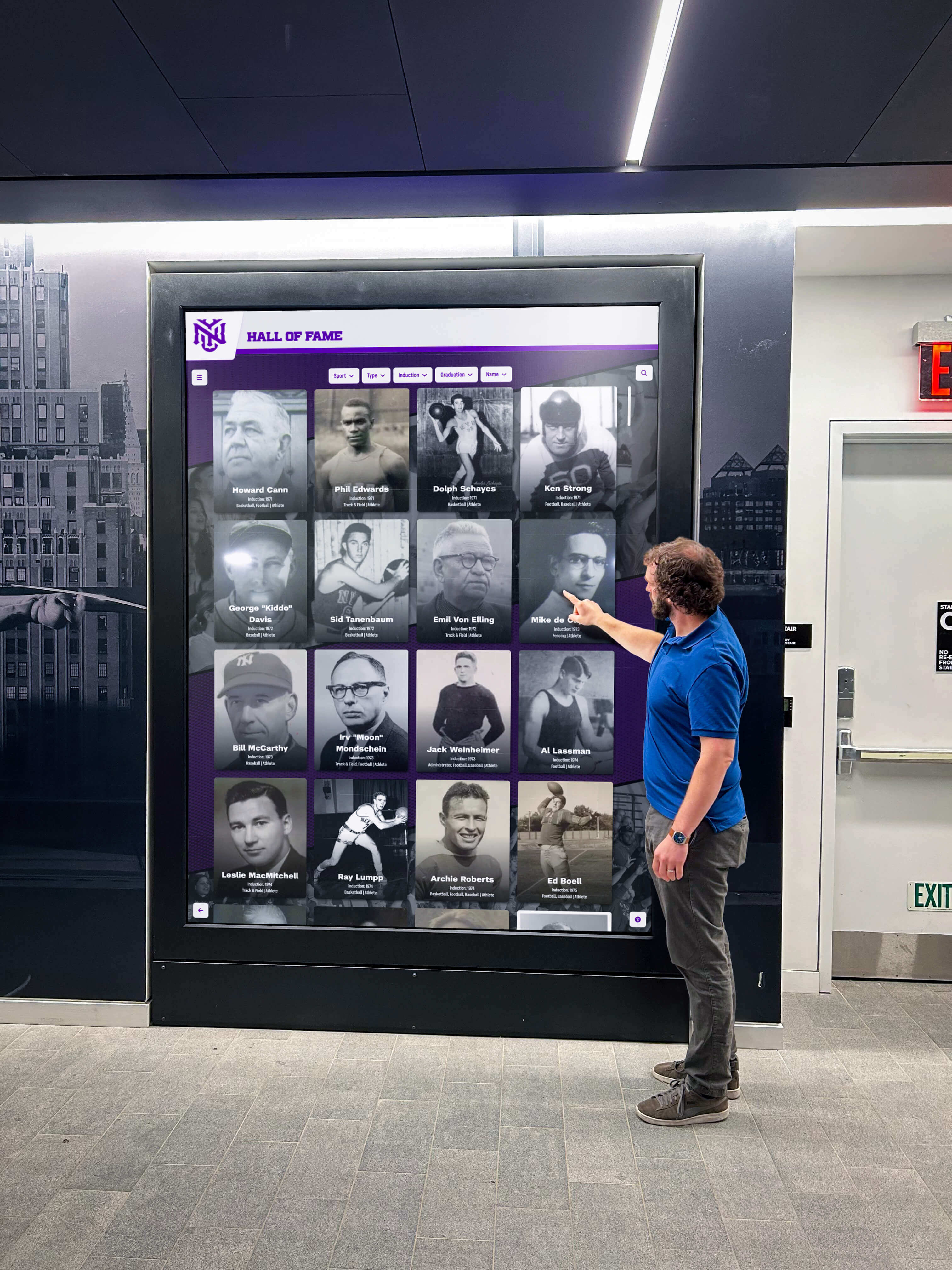
Approver Checklist
- Confirm the reviewer sign-off is present. Do not approve content the reviewer has not cleared. If content arrived without review documentation, return it to the reviewer stage.
- Verify that recognition standards are applied consistently. If the school inducts hall of fame members by vote, confirm the vote occurred. If donor recognition tiers have defined display requirements, confirm the content matches the correct tier.
- Check for conflicts with existing display content. Adding a new record should trigger a check that any superseded record is updated or removed. Adding a new sponsor should confirm that the previous sponsor’s content has been removed if the relationship ended.
- Confirm the publish date or window is appropriate. Time-sensitive content tied to a ceremony should be approved in time for a complete QA pass before the event, not the morning of.
- Document your decision. Log approval, conditional approval, return, hold, or rejection with the date and your name. This log is the audit trail that protects your institution if any published content is later disputed.
Schools managing campus directory and recognition displays together often use the same approver for both content types, since accuracy and institutional representation standards overlap significantly between wayfinding and recognition content.
Stage 4: Pre-Publication Quality Assurance
The CMS administrator runs QA after approval. Their checklist is technical and formatting-focused, not factual. Factual responsibility has already passed through the review and approval stages.
QA Checklist
- Confirm all text fields display correctly at the screen’s native resolution and at standard viewing distance. Truncated names or cut-off text in preview indicates a field length issue to fix before publishing.
- Verify image resolution and cropping. Images that were submitted at sufficient resolution sometimes lose quality when uploaded to a CMS that resamples or compresses. Confirm the displayed image is sharp.
- Test all interactive elements linked from the new content—profile navigation, category links, related records, and any embedded media. A broken link discovered after publish requires a second update cycle.
- Check display on the physical screen, not only in the CMS preview. Preview modes in content management platforms sometimes render differently from the actual display hardware. If possible, stage content on a test layout before pushing live.
- Confirm that superseded content has been updated or removed. If the new record replaces an old one, verify the old entry is corrected in the same publish cycle.
- Run an accessibility check on new content. Confirm that alt text is populated for all images, color contrast meets your platform’s standard, and any video content has captions if required by your district policy.
Donor recognition signage for touchscreen displays carries its own QA requirements around naming accuracy and logo reproduction; incorporate those checks into this stage if your display includes donor or sponsor content.
Stage 5: Publish and Archive
Publishing is the final stage, but archiving is not optional. Every piece of content that goes live on a touchscreen recognition display should have a corresponding record that exists independently of the display.
Publish Checklist
- Publish during a low-traffic window when possible. Major updates published during school hours occasionally display incompletely if a CMS sync is in progress. A morning publish before school opens or an evening publish after dismissal avoids this.
- Confirm the live display reflects the published content within 15 minutes of publishing. Log the confirmation time.
- Notify the content contributor that their submission is live. Close the submission ticket or form entry.
- Notify the relevant stakeholder if the published content is tied to a specific person, program, or donor. An athletic director who submitted a record update should know when that update is visible; a coach whose team was inducted should not discover the display change by accident.
Archive Checklist
- Log the published content in the master recognition archive. At minimum, record: content type, subject name, category, publish date, approver name, and reviewer name.
- Store a copy of each published profile outside the CMS in a shared district drive or document management system. If the CMS platform changes or data is lost, the archive is the recovery source.
- Retain the submission record and approval documentation for any content that could later be disputed—records, championships, donor recognition, and memorial content in particular.
- Schedule a review date for time-sensitive content. Sponsor and donor recognition should be reviewed annually against current agreements. Athletic records should be reviewed whenever a new potential record is set.
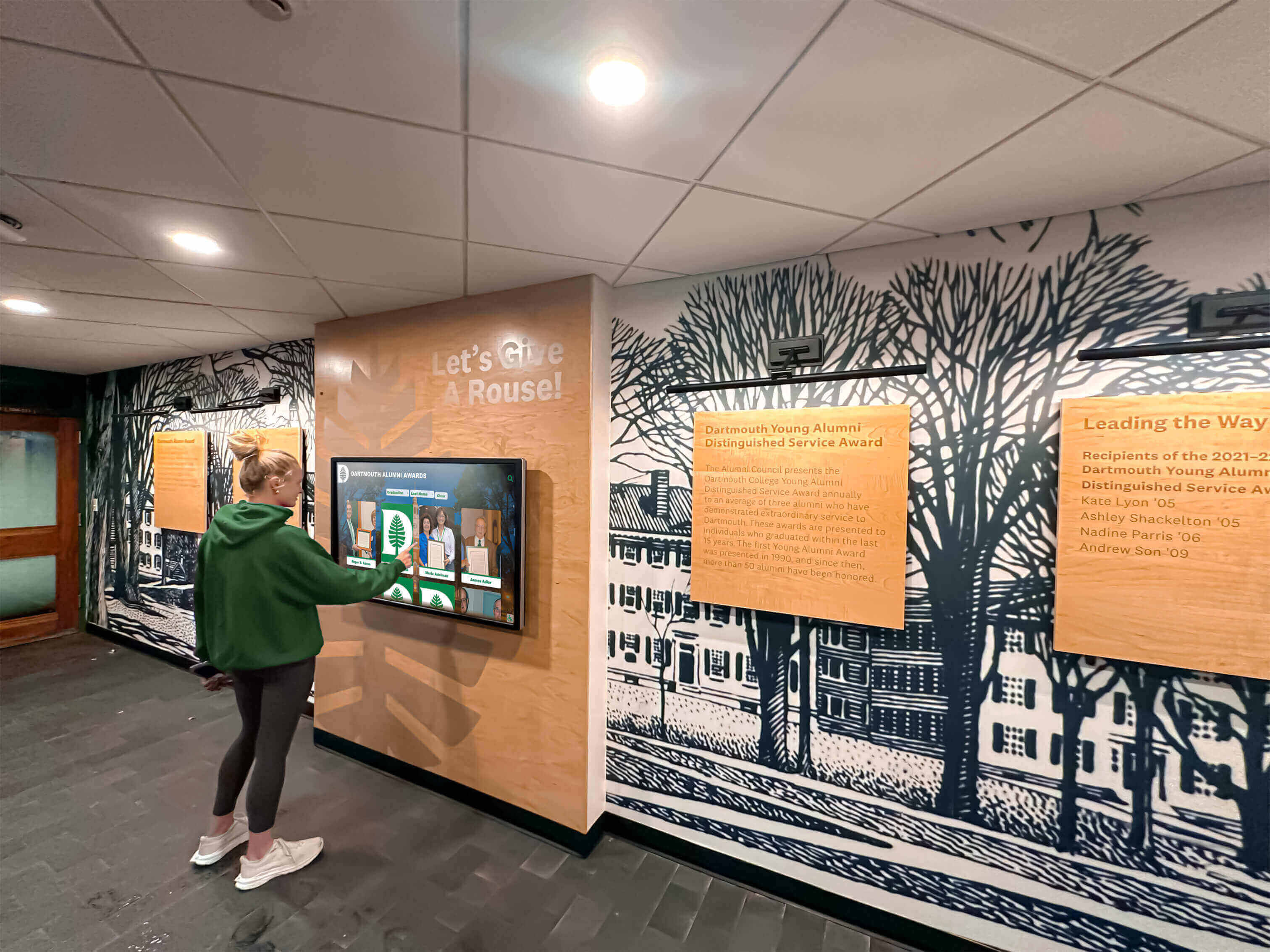
Approval Turnaround Standards
Publish delays erode trust in the workflow. When contributors submit accurate content and it takes three weeks to appear on the display, they stop using the workflow and start looking for workarounds. Set and publish turnaround expectations for every stage.
| Stage | Standard Turnaround | Escalation Trigger |
|---|---|---|
| Submission to reviewer | Reviewer acknowledges within 1 business day | No acknowledgment after 2 business days |
| Review completion | 2–3 business days for standard content | No completion after 5 business days |
| Approval decision | 1–2 business days after review sign-off | No decision after 3 business days |
| QA pass | 1 business day after approval | No pass after 2 business days |
| Publish confirmation | Same day as QA pass | Not live within 24 hours of QA pass |
Escalation path: When a stage exceeds its trigger threshold, the content contributor notifies the stage owner directly and copies the content approver. If the delay continues past an additional business day, the content approver escalates to the backup role owner designated in the role assignment worksheet.
Integrating the Workflow with Your CMS
A workflow documented in a shared drive improves on undocumented practice but still relies on manual coordination. Most touchscreen recognition platforms provide features that automate portions of this workflow.
Draft and staging modes allow contributors to enter content without it going live. Contributors build the profile, upload assets, and submit—all without any risk of premature publication.
Role-based permissions restrict publish access to the CMS administrator role while giving contributors and reviewers edit access only within drafts. This enforces the workflow at the platform level rather than relying on staff discipline.
Approval notifications automatically alert the next role owner when content reaches their stage, removing the manual notification burden from contributors.
Revision history and audit logs within the CMS supplement the manual archive, providing a timestamped record of every edit and status change without requiring separate documentation.
If your current platform lacks these features, evaluate whether a turnkey digital hall of fame platform with built-in workflow management better matches your school’s operational needs than a custom-assembled solution.
Common Workflow Failures and Fixes
Even well-designed workflows break down in predictable ways. Identify which failure mode affects your school and apply the corresponding fix before the next update cycle.
Failure: The approver is the bottleneck
Symptom: Accurate, reviewed content sits in the approval queue for weeks because the approver is unavailable or deprioritizes the task.
Fix: Designate a backup approver with identical platform permissions. Set the escalation trigger at three business days, not a rolling informal request. For routine updates (correcting a graduation year, updating a coaching record), consider whether the reviewer can hold concurrent approval authority for low-sensitivity content types.
Failure: Content goes live without review
Symptom: An error appears on the display that a review stage would have caught—wrong year, wrong photo, incorrect record.
Fix: Remove direct publish access from all roles except the CMS administrator. Contributors and reviewers should have no pathway to publish, even accidentally. This is a permissions setting, not a policy setting; enforce it at the platform level.
Failure: The archive is months behind
Symptom: Staff cannot locate the source documentation for content currently on the display; when a parent disputes a record, no one can produce the verification trail.
Fix: Make archive logging a step in the CMS administrator’s publish checklist, not a separate task. If it does not happen at publish time, it often does not happen at all. A shared spreadsheet that the administrator completes at the same time they publish is sufficient; a complex separate system creates a second step that gets skipped.
Failure: Sponsors or donors receive incorrect recognition
Symptom: A donor is listed at the wrong giving tier; a sponsor logo is outdated or missing; a named space is displayed with an incorrect name.
Fix: Add an advancement office review step for all donor and sponsor submissions, upstream of the standard accuracy review stage. Donor recognition display procurement often includes stewardship commitments that specify exactly how recognition should appear—make those commitments available to reviewers as part of the submission packet.
Failure: Team roster and recognition content is inconsistent across display types
Symptom: A student athlete appears in the hall of fame with a different graduation year than they appear in the team roster display; record board entries do not match hall of fame profile data.
Fix: Treat cross-display consistency as a reviewer responsibility. When content touches an athlete, alumnus, or record that appears in more than one display context, the reviewer checks both entries, not only the submitted one. Team roster and social recognition content managed on the same platform as hall of fame displays benefits from a unified profile record that reviewers can update in one place.
Annual Workflow Review
Workflows need maintenance as staff roles change and content volume grows. Schedule a 30-minute annual workflow review at the start of each academic year.
Annual Review Checklist
- Update the role assignment worksheet with current named individuals and their backups. Staff turnover is the most common reason workflows fail—an unupdated worksheet leaves a stage with no owner.
- Review the previous year’s submission log for bottlenecks. If more than 10% of submissions required more than double the target turnaround, identify which stage was the consistent delay and adjust resources or escalation thresholds.
- Audit the archive for completeness. Sample 20 current display entries and confirm each has a corresponding archive record with source documentation and approval sign-off.
- Review CMS permissions to confirm they still match the current role assignments. A staff departure that did not include a permissions update is a security and workflow risk.
- Assess whether new content types introduced during the year need their own submission path. A school that added an academic hall of fame or a new donor recognition tier mid-year may need to formalize a submission process that was handled informally during the launch.
Schools exploring directory and recognition display infrastructure that serves multiple audiences—students, visitors, alumni, donors—often discover that a single approval workflow cannot efficiently serve all content types; the annual review is the right time to assess whether separate tracks for different content categories are warranted.
Frequently Asked Questions
Who should have final approval authority for touchscreen recognition display content in a school?
In most K–12 schools, the athletic director holds final approval for athletics-related recognition and the principal or assistant principal holds final approval for institution-wide or academic recognition. Donor and sponsor content benefits from advancement director sign-off. Assign final authority by content category and document it explicitly; shared or undefined approval authority is a reliable source of published errors.
How do we handle urgent content updates—like a championship result the same evening as the event?
Designate an expedited track for time-sensitive content. In an expedited track, the contributor and the approver are often the same person (the athletic director publishing their own game result), with a post-publish accuracy review within 24 hours and a brief correction cycle if anything is inaccurate. Document the expedited track separately so it does not become the default path for non-urgent content.
What records do we need to keep for content approval decisions?
At minimum: the submission with its source citations, the reviewer’s sign-off with the sources checked, the approver’s decision with the date and name, and the publish confirmation. For disputed content—vacated championships, contested records, or content subject to donor agreement terms—retain all supporting documentation indefinitely.
Should student interns or volunteers be allowed to submit content through the workflow?
They can submit as contributors, but they should not hold reviewer or approver roles. A student or volunteer contributor’s submission goes through the same review and approval stages as any other submission. The workflow is the control; the contributor role can be broad.
How often should we audit the live display for accuracy against the archive?
Once per semester is a practical minimum. A full audit at the start of the fall semester and again in January confirms that no content drifted from the approved record, that departed sponsors were removed, and that new content from the previous semester was archived correctly. Schools using the workflow described in this guide typically find that most content audit work is already captured in the archive log if stages 1 through 5 were followed consistently.
Where can our school learn more about choosing the right touchscreen platform for recognition displays?
The country club and institutional touchscreen case study from Hall of Fame Wall covers common platform evaluation criteria and the operational workflow questions that should shape your platform decision. Those operational questions—who manages content, how often updates occur, what approval requirements exist—directly inform which platform features matter most for your school’s workflow.
Build a Touchscreen Recognition Workflow Your Team Will Actually Use
Rocket Alumni Solutions provides schools with touchscreen recognition platforms designed around how athletic departments, archives staff, and advancement teams actually work—including role-based permissions, draft-and-approve content flows, and audit logging that keeps every championship record, alumni profile, and donor listing accurate from submission through publication. Schedule a demo to see the workflow in action with content that looks like yours.
Schedule a Free DemoNext Practical Step
Complete the role assignment worksheet in Stage 1 of this guide today—naming a specific individual, not just a title, for each of the five workflow roles. A workflow with named owners is the one that gets used. Once roles are assigned, share the stage-by-stage checklists with each owner and set your first escalation review for 30 days out to identify any stages that are creating delays before they become habits.































