When a student athlete’s record is added to your school’s recognition platform, that single entry triggers a chain of events: a content editor saves it in a cloud CMS, the platform validates the account permission, a media file moves from upload storage to a CDN, and seconds later the lobby touchscreen renders a polished profile card. Each handoff is a potential point of failure — or a point where personal data can be exposed without proper controls.
A touchscreen recognition display data flow diagram turns that invisible chain into a documented map your IT team, content managers, and administration can all read from the same page. It identifies every system boundary, every data store, and every actor who touches recognition records before they appear on screen. This guide walks your team through building that diagram from scratch — and shows where student data safeguards, access controls, and backup checkpoints belong along the way.
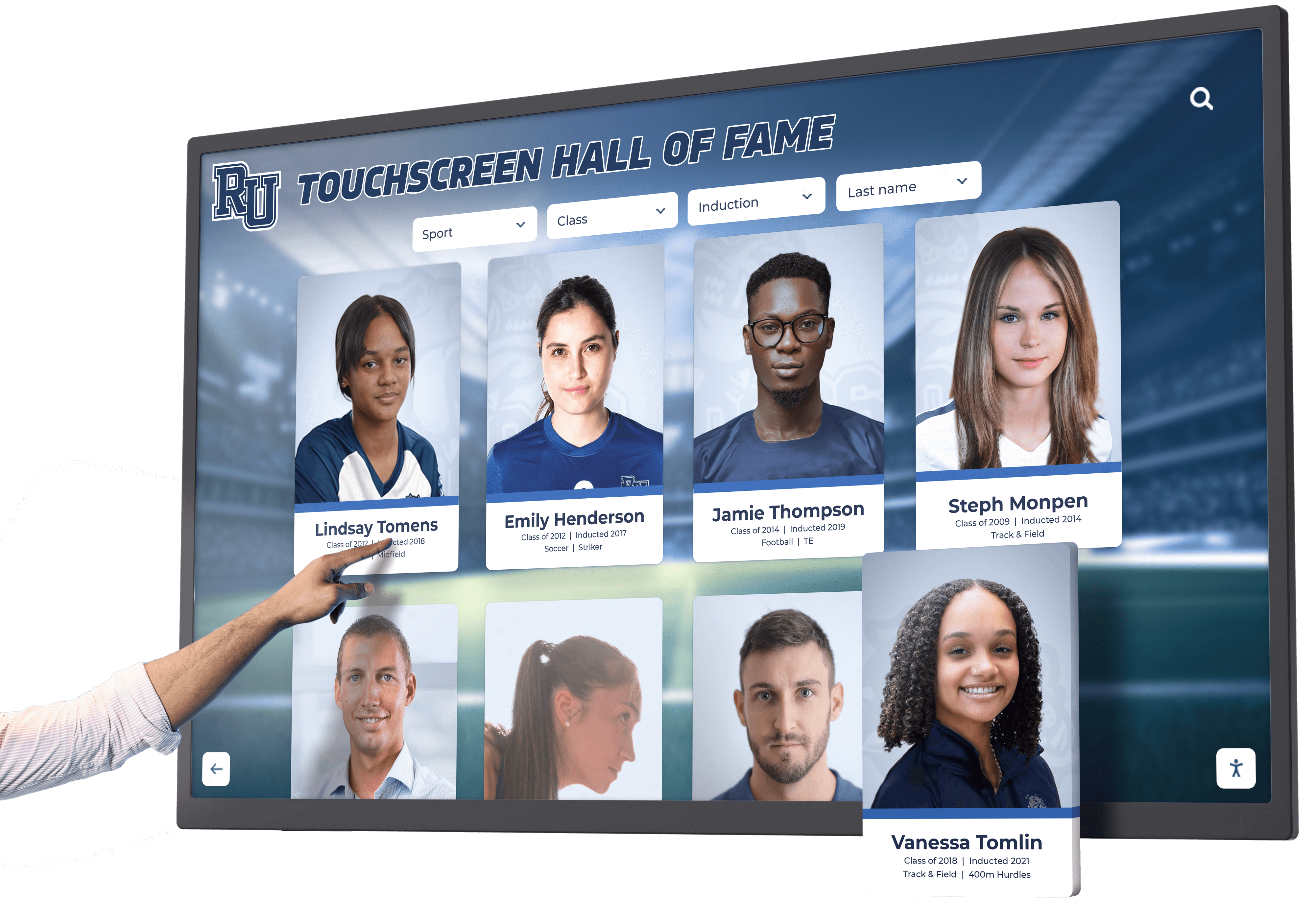
Every interaction with a touchscreen recognition display begins a data flow that originates in your CMS and terminates on the lobby device — documenting that path protects students and simplifies troubleshooting.
Why Schools Need a Formal Data Flow Diagram
Static signage and trophy cases do not require IT documentation. Touchscreen recognition systems do, because they combine at least four distinct technology layers: a content management system, cloud media storage, an account and permission framework, and one or more networked lobby devices. Each layer operates on different update cycles, different security boundaries, and different ownership responsibilities.
Without a diagram:
- A content editor may not know which fields trigger a re-render on the lobby screen
- IT cannot determine whether student photos are cached on a device or always pulled from a cloud CDN
- Administration cannot demonstrate to parents or auditors that student media is handled within policy
- Facilities staff cannot isolate a display outage to a network segment, a device, or a platform credential
Schools that have digitized physical archives — whether old yearbooks or donor recognition histories — encounter the same documentation challenge: the content exists in a platform, but nobody can describe the path from upload to public display. A data flow diagram closes that gap before a problem surfaces.
Before You Start: Gather Stakeholders and Prerequisites
Building an accurate diagram requires input from people who rarely sit in the same room. Before drafting a single arrow, convene the following stakeholders and collect the artifacts listed below.
Required stakeholders:
- IT administrator or network engineer (owns devices, VLANs, firewall rules)
- Platform administrator (holds CMS credentials and understands content pipeline)
- Athletic director or activities coordinator (primary content owner)
- Privacy officer or district compliance lead (reviews student data handling)
- Facilities manager (responsible for physical device access and power)
Required artifacts:
| Artifact | Source | Purpose in Diagram |
|---|---|---|
| Network topology map | IT department | Defines which VLAN devices live on |
| Platform architecture overview | Software vendor | Identifies cloud services and API endpoints |
| User account roster with roles | Platform admin | Maps permission boundaries |
| Content type inventory | Content owners | Lists every entity that flows through the system |
| Device inventory with firmware versions | IT department | Confirms device capabilities and update paths |
| Data retention schedule | Compliance lead | Informs where archive boundaries belong |
If your vendor cannot supply a written architecture overview, request it before the project proceeds. A platform that cannot describe how data moves between its own components should not be trusted with student records.
Step 1: Define System Boundaries
A system boundary in a data flow diagram marks where your school’s control ends and an external system’s control begins. Schools operating touchscreen recognition platforms typically cross four boundaries.
System Boundary Reference Table
| Boundary | Inside Your Control | Outside Your Control |
|---|---|---|
| School network perimeter | Lobby devices, local switches, firewall policy | Internet transit, CDN edge nodes |
| Platform CMS | Content you create and publish | Platform software, hosting infrastructure |
| Cloud media storage | Objects you upload; access policies you configure | Storage provider uptime, geographic replication |
| Identity provider | User accounts your district provisions | SSO protocol implementation, certificate authority |
Mark each boundary clearly in your diagram using a dashed line labeled with the trust level: trusted internal, trusted vendor, or untrusted external. This labeling discipline is what turns a box-and-arrow sketch into a document your compliance team can actually use.
For athletic recognition programs — esports championships, donor walls, letter winner spotlights — the same boundary logic applies. If a record about a student crosses from your network to a vendor’s cloud, that crossing must appear in the diagram.
Step 2: Identify Core Data Entities
Before mapping flows, catalog every distinct piece of information that the system stores or moves. Group entities into four categories.
Recognition Records
| Entity | Fields | Sensitivity Level |
|---|---|---|
| Athlete profile | Name, graduation year, sport, achievements | Medium (public-facing) |
| Award entry | Award name, date, category | Low |
| Academic honor record | Student name, honor level, year | Medium |
| Donor entry | Donor name or anonymous flag, gift level | Variable (some anonymous) |
| Team history record | Team name, season, record, championship notes | Low |
Media Assets
| Asset Type | Typical Format | Storage Location |
|---|---|---|
| Profile photograph | JPEG / WebP | Cloud object storage |
| Award certificate scan | PDF / JPEG | Cloud object storage |
| Video highlight clip | MP4 | Cloud video host or CDN |
| Team composite image | JPEG | Cloud object storage |
| Logo or crest graphic | SVG / PNG | CMS asset library |
User Accounts
| Account Role | Typical Permissions | Risk if Compromised |
|---|---|---|
| Super admin | Create, edit, delete any record; manage users | High — full data access |
| Content editor | Create and edit records within assigned sport/department | Medium — can modify public-facing content |
| Approver | Publish or reject records submitted by editors | Medium — controls what appears on screen |
| Device admin | Manage display configuration and scheduling | Medium — can affect screen output |
| Read-only viewer | Browse records; no edit rights | Low |
Devices and Endpoints
| Device Type | Role in Flow | Network Placement |
|---|---|---|
| Lobby touchscreen kiosk | Renders recognition content for visitors | School LAN or dedicated display VLAN |
| Content editor workstation | Creates and submits records | Staff VLAN |
| Admin workstation | Manages platform settings, accounts | Staff VLAN or administrative VLAN |
| Mobile device (optional) | Content review via browser or platform app | Staff Wi-Fi or personal device on guest SSID |
| Visitor mobile (QR access) | Read-only content view via browser | Guest Wi-Fi |
Step 3: Map Content Ingestion Flows
The content ingestion flow covers everything that happens from the moment a staff member opens the CMS to the moment a record is marked ready for display.
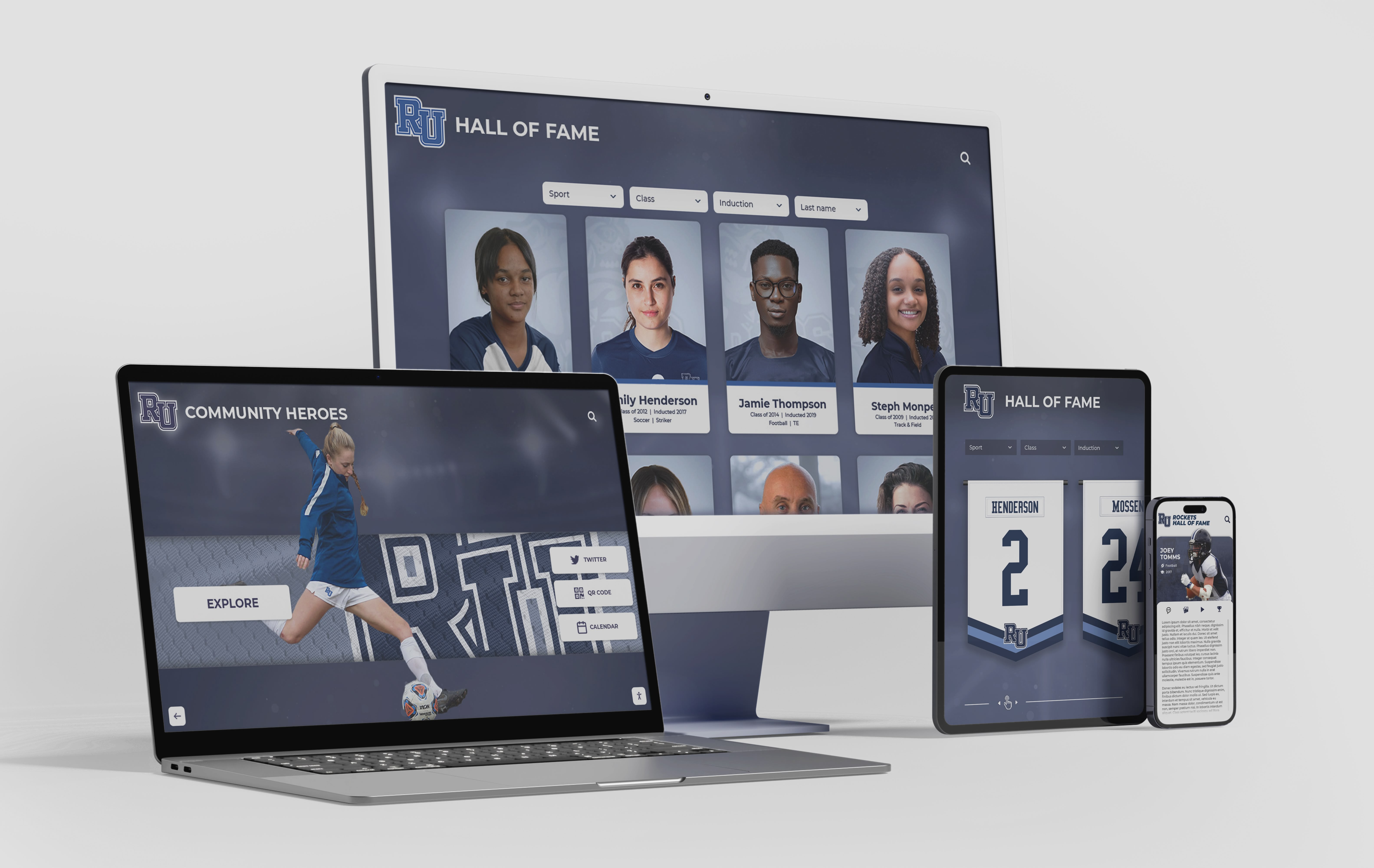
Recognition records travel from editorial workstations through cloud storage and CMS validation before reaching lobby kiosks and visitor mobile devices.
Content Ingestion Data Flow Table
| Step | Actor | Action | Data Moved | Destination | Safeguard |
|---|---|---|---|---|---|
| 1 | Content editor | Logs in to CMS | Credentials | Identity provider | MFA required; session token issued |
| 2 | Content editor | Creates new athlete record | Profile fields (name, sport, year, achievements) | CMS database | Field-level validation; no SSN or sensitive ID fields |
| 3 | Content editor | Uploads profile photo | Image file | Cloud object storage (staging bucket) | Virus scan on upload; file type allowlist |
| 4 | Content editor | Submits record for approval | Record ID + draft flag | CMS workflow queue | Approval workflow prevents unauthorized publishing |
| 5 | Approver | Reviews and publishes record | Published flag | CMS database | Role check; only approvers can flip publish flag |
| 6 | Platform | Moves media from staging to production | Image file | Cloud object storage (production bucket) | ACL restricts read to platform service account |
| 7 | Platform CDN | Replicates media to edge nodes | Optimized image/video | CDN edge cache | HTTPS enforced; cache-control headers set |
| 8 | Platform | Pushes content update to devices | Record payload (JSON) | Display device endpoint | Payload signed; device verifies signature before rendering |
This table format is what your IT team should document in a live spreadsheet so that each row can be assigned an owner and a verification date. Schools publishing donor recognition pages or memorial content will have additional rows for donor preference flags and opt-out handling.
Step 4: Map Account and Permission Flows
Account flows govern who can change what and under what conditions. This is the dimension most frequently underdocumented in school deployments because it feels like an administrative concern rather than a technical one — until an editor accidentally deletes a season of records or a former employee’s credentials remain active after departure.
Account Lifecycle Data Flow Table
| Step | Actor | Action | Data Moved | Destination | Safeguard |
|---|---|---|---|---|---|
| 1 | IT admin | Provisions new user account | Name, email, role assignment | Identity provider | Tied to district directory; auto-deprovisioned on departure |
| 2 | Platform | Syncs user from identity provider | User record + role | Platform CMS user table | SCIM or SAML provisioning; no manual password creation |
| 3 | Content editor | Authenticates | SSO token | CMS session | Token expires after inactivity; no persistent cookies on shared devices |
| 4 | Platform | Enforces role-based access | Permission policy | CMS authorization layer | Least-privilege by default; editors cannot view other departments’ drafts |
| 5 | IT admin | Deprovisions departing user | Disable flag | Identity provider | Propagates to platform within one directory sync cycle |
| 6 | IT admin | Quarterly access review | Role roster | Audit log | Documents who reviewed, when, and what changes were made |
| 7 | Platform | Logs all record-level actions | Actor, timestamp, action, record ID | Immutable audit log | Log integrity protected; cannot be deleted by editors or approvers |
The account lifecycle table also applies to athletic booster volunteers who manage recognition content seasonally. A volunteer who receives a content editor account in August should have that account reviewed — and potentially suspended — in June when their season concludes.
Step 5: Map Device Delivery Flows
The device delivery flow covers how content reaches the lobby kiosk and what happens when something goes wrong.
Device Delivery Data Flow Table
| Step | Actor | Action | Data Moved | Destination | Safeguard |
|---|---|---|---|---|---|
| 1 | Platform | Schedules content push | Content manifest | Device management service | Push only to registered device IDs |
| 2 | Device management service | Authenticates device | Device certificate or token | Platform API | Mutual TLS; device cert rotated annually |
| 3 | Platform API | Returns content payload | JSON record data + media URLs | Lobby device | Payload signed; integrity verified on device |
| 4 | Lobby device | Fetches media from CDN | Optimized images / video | Local RAM or cache | HTTPS only; cert pinning recommended for kiosk browsers |
| 5 | Lobby device | Renders recognition content | Screen output | Display panel | No PII stored locally beyond active session |
| 6 | Visitor | Interacts with touchscreen | Touch input events | Local browser session | Interaction data not transmitted off-device |
| 7 | Visitor | Scans QR code | URL (no PII embedded) | Visitor mobile browser | QR URL is public; no authentication required for read-only view |
| 8 | Platform | Monitors device heartbeat | Ping + version info | Platform dashboard | Alert if device offline > configurable threshold |
| 9 | IT admin | Remote management access | Admin session | Device OS (MDM channel) | MDM session only; no CMS credentials stored on device |
The separation of the device delivery layer from the CMS layer is intentional. The lobby kiosk should never hold long-lived CMS credentials. If a device is physically tampered with, the damage is limited to screen output — not to the ability to edit, delete, or export student records.
Step 6: Build the Diagram
With the three flow tables complete, your team is ready to construct the actual diagram. Use whichever diagramming tool your district already licenses — the goal is accuracy and maintainability, not aesthetics.
Recommended Diagram Elements
Actors (external entities): Content editor, Approver, IT admin, Visitor, Booster volunteer Draw these as rectangles outside the system boundary.
Processes (transformations): CMS editorial workflow, Platform publishing engine, CDN replication, Device rendering engine Draw these as circles or rounded rectangles.
Data stores: CMS database, Staging media bucket, Production media bucket, Audit log, Device cache Draw these as open-ended rectangles (the traditional DFD convention).
Data flows: arrows connecting actors, processes, and stores, labeled with the data entity being moved.
Trust boundaries: dashed lines separating your school network from the vendor cloud, and the vendor cloud from the public CDN.
Completed Diagram Checklist
Before presenting the diagram for sign-off, verify:
- Every actor in the account roster appears as an external entity
- Every data store has a labeled retention period
- Every trust boundary is crossed by at most the minimum necessary data
- No student PII crosses into the untrusted external zone without encryption in transit
- Every data flow that carries media has an HTTPS label
- The audit log is represented as a write-only data store (no actor has delete access)
- Device-to-CDN flows show certificate validation
- QR code flows confirm that the URL carries no embedded PII
Step 7: Place Safeguards at Boundary Crossings
The most impactful security and privacy controls in any recognition display system live at the points where data crosses a trust boundary — not inside a single system.
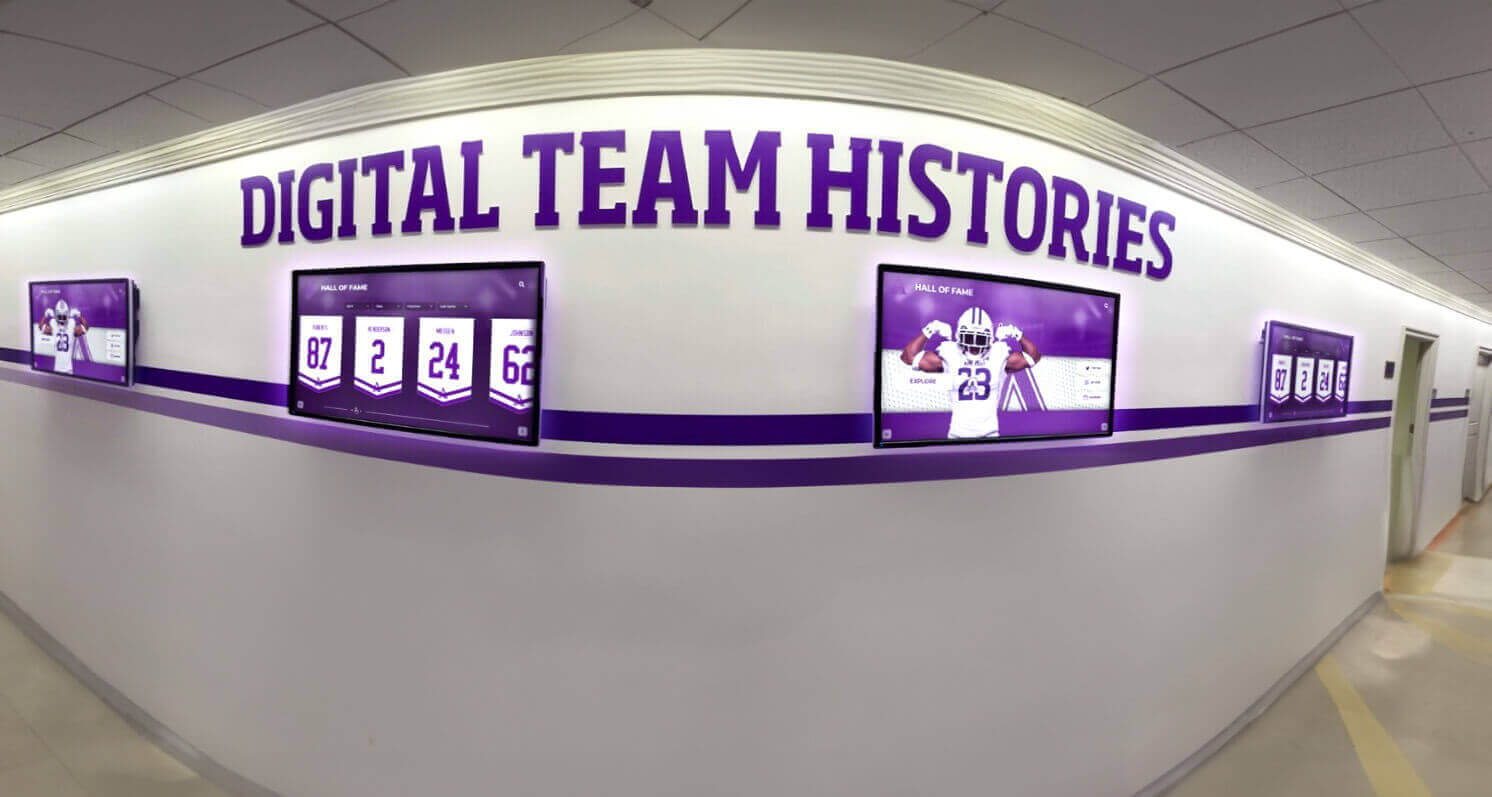
Each lobby display should receive only a signed content payload — never direct database credentials or media storage access keys.
Safeguard Placement Table
| Boundary Crossing | Recommended Safeguard | Owner |
|---|---|---|
| Editor workstation → Identity provider | MFA enforcement; session timeout | IT admin |
| Identity provider → CMS | SAML or OIDC federation; no local passwords | IT admin + Platform admin |
| CMS → Staging media bucket | Service account with bucket-scoped key; upload-only permission | Platform admin |
| Staging bucket → Production bucket | Platform-controlled promotion; no editor access to production bucket | Platform admin |
| Platform CDN → Lobby device | HTTPS; signed URLs for private media; certificate verification on device | Platform vendor + IT admin |
| CMS → Audit log | Append-only write; no actor can delete log entries | Platform admin |
| Device → Visitor mobile (QR) | Public URL serves only approved published content; anonymous access only | Platform admin |
| MDM → Lobby device OS | MDM channel separate from CMS credentials; device wipe on policy violation | IT admin |
This table maps directly onto your district’s risk register. If your compliance lead asks “what controls exist for student photo access?” you can point to rows three through six and name the specific safeguard and its owner.
Schools honoring veterans and historical figures alongside current students may have additional media categories — archival photographs that carry different rights considerations. Those media flows should appear in the diagram with their own trust labels and retention rules.
Step 8: Document Maintenance and Review Cadence
A data flow diagram becomes outdated the moment the platform updates an API or IT reconfigures a VLAN. Build a maintenance schedule into the document itself.
Recommended Review Triggers
| Trigger | Action Required |
|---|---|
| Platform major version update | Re-validate all API endpoints and payload schemas |
| New content type added (e.g., video highlights) | Add new rows to content ingestion and device delivery tables |
| New device installed | Add to device inventory; verify certificate provisioning |
| Staff role change (new admin, departing editor) | Update account lifecycle table; confirm deprovisioning |
| District privacy policy update | Re-review all flows carrying student-identifiable data |
| Security incident | Full diagram audit; update safeguard table with lessons learned |
| Annual compliance review | Sign off diagram as accurate or flag deltas for remediation |
For recognition programs that grow over time — adding letterman traditions, yearbook integrations, or new sport categories — the diagram review is also the moment to confirm that new content types do not introduce new data handling requirements that the existing safeguard table does not cover.
Complete Reference: Data Entity Inventory Template
Use this template as a living spreadsheet alongside your diagram. One row per distinct data entity.
| Entity Name | Entity Type | Fields Included | Sensitivity | Storage Location | Retention Period | PII Flag | Encryption at Rest | Encryption in Transit |
|---|---|---|---|---|---|---|---|---|
| Athlete profile | Recognition record | Name, sport, year, achievements | Medium | CMS database | Indefinite | Yes (name) | Required | Required |
| Award entry | Recognition record | Award name, date, category | Low | CMS database | Indefinite | No | Required | Required |
| Profile photo | Media asset | Image file | Medium | Cloud storage | Indefinite | Yes (likeness) | Required | Required |
| Video highlight | Media asset | Video file | Medium | Cloud video host | Per retention policy | Yes (likeness) | Required | Required |
| User account record | Account entity | Name, email, role | High | Identity provider | Active employment + 90 days | Yes | Required | Required |
| CMS session token | Account entity | Token string, expiry, user ID | High | Browser memory only | Session only | Indirect | N/A | Required |
| Device certificate | Device entity | Certificate + private key | High | Device secure storage | Annual rotation | No | Required | Required |
| Audit log entry | Log entity | Actor, action, timestamp, record ID | Medium | Immutable log store | 3 years minimum | Indirect | Required | Required |
| QR access URL | Delivery entity | Path + record ID (no PII) | Low | URL only | Session only | No | N/A | Required |
Validation: Review Before Presenting to Administration
Before bringing your completed diagram to your IT director, privacy officer, or administration, run through this final checklist.
Completeness:
- All four data entity categories (records, media, accounts, devices) are represented
- All three flow phases (ingestion, account, delivery) have a complete table
- Every actor named in the account roster appears in at least one flow
- Every device in the device inventory appears in the delivery flow
Accuracy:
- Each flow table row has been confirmed with the platform vendor or IT admin
- Trust boundary labels match actual network segmentation
- Retention periods match the district’s official data retention schedule
Privacy:
- Every entity with a PII flag has encryption at rest and in transit marked as required
- No PII flows to the untrusted external zone without documented justification and legal basis
- Student photo flows are covered by a signed media use authorization process
Security:
- No shared credentials appear in any flow
- No device holds long-lived CMS credentials
- Audit log is write-only; no actor can delete entries
If any item on this checklist cannot be confirmed, document it as an open item with an owner and a due date before presenting the diagram. An honest open-items list is more useful to administration than a diagram that appears complete but has hidden gaps.
Putting Your Diagram to Work
A completed data flow diagram is not just an IT artifact. It gives your athletic director a clear answer when a parent asks how their student’s photo is stored. It gives your district privacy officer the documentation needed for a FERPA compliance review. It gives your facilities team a reference when a kiosk goes offline and nobody can remember which system owns that device.
Schools that have documented these flows report faster incident response, smoother vendor transitions, and more confident content governance — whether they are managing swim meet recognition programs, academic hall of fame installations, or multi-sport athletic walls.

Visitor mobile access via QR code is a distinct flow that belongs in your diagram — it uses the same published content but through a separate delivery path.
The diagram is also your most powerful tool when evaluating a platform vendor. A vendor who can validate every row in your data flow tables — confirming which services they own, which third-party providers they use, and where data is stored geographically — is a vendor worth trusting with your school’s recognition records.
Ready to map your recognition display’s data flows with a platform built for school IT requirements?
Rocket Alumni Solutions supports school IT and compliance teams through the documentation and deployment process — from system boundary review to network requirements and device provisioning.































