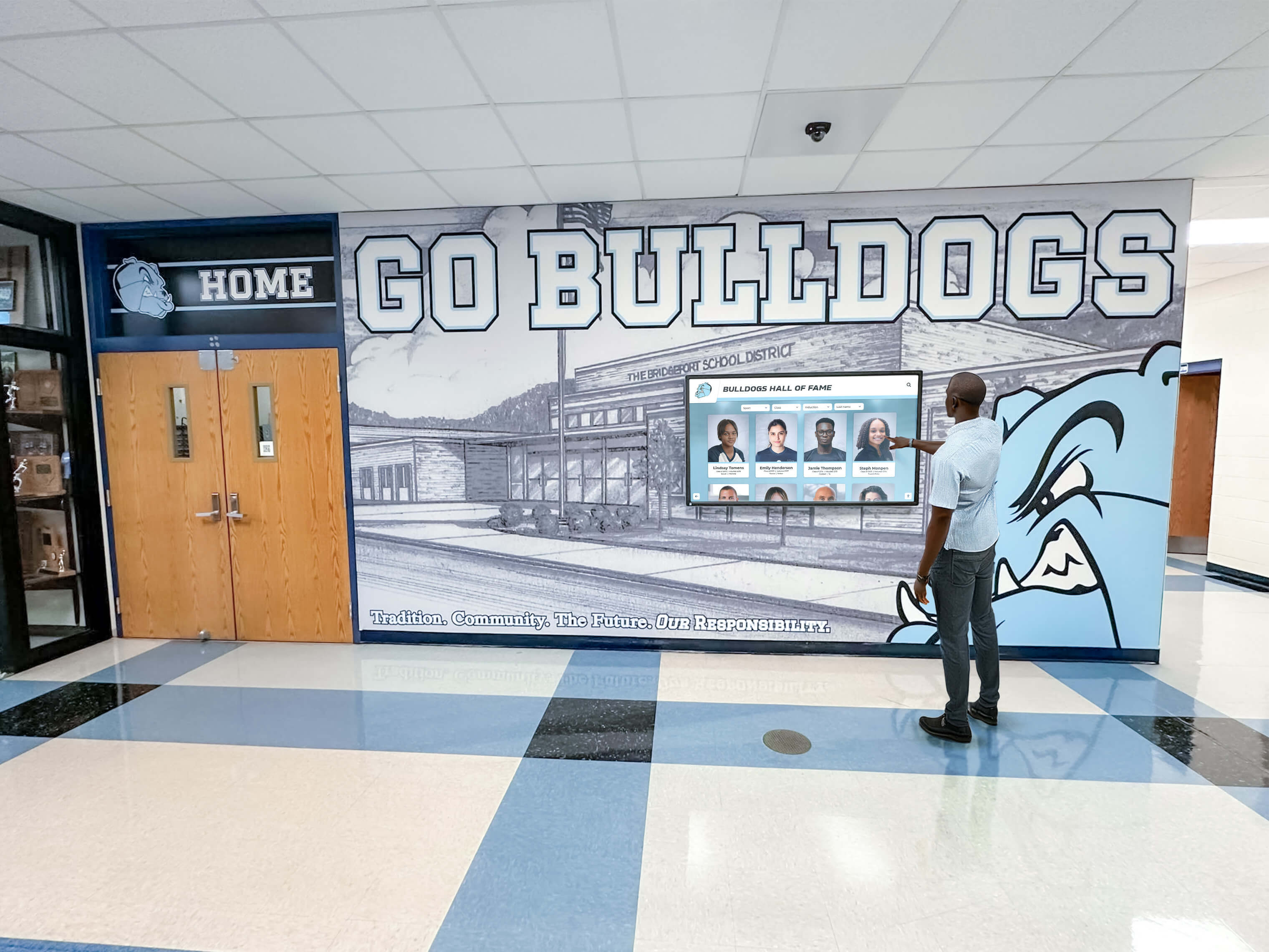
A touchscreen recognition display is not a flat-screen TV bolted to a wall—it is a networked computer, a licensed software platform, a warranted hardware assembly, and a piece of ADA-regulated public infrastructure. Schools that treat it like a piece of furniture end up in predictable trouble: the vendor needs a serial number for a warranty claim and nobody can find it, a network port is reassigned because IT did not know the display depended on it, or a software subscription lapses silently because the purchasing contact left two years ago.
A formal touchscreen recognition display IT asset inventory policy closes those gaps. It defines what fields your team records, who owns each record, how frequently records are verified, and what happens when a display moves, fails, or reaches end of life. This guide walks athletic directors, IT coordinators, and facilities staff through every category of information worth tracking—organized so the team that installs the system and the team that supports it are reading from the same source.
Why Schools Need a Written Inventory Policy for Recognition Displays
Most school IT departments maintain asset registers for laptops and projectors. Touchscreen recognition displays are purchased less frequently and installed in lobbies or gymnasiums rather than classrooms, which means they often escape the standard onboarding workflow. That gap has real consequences.
Common failures when no policy exists:
- Warranty claims rejected because the purchase date and serial number cannot be documented
- Network outages traced back to a static IP conflict with an unrecorded kiosk
- Content management system access lost when the administrator who set up the account leaves
- ADA compliance documentation missing during a facilities audit
- End-of-life displays running outdated firmware with unpatched security vulnerabilities
A written policy does not need to be complex. The goal is a single authoritative record for each display that any authorized staff member can locate and act on.
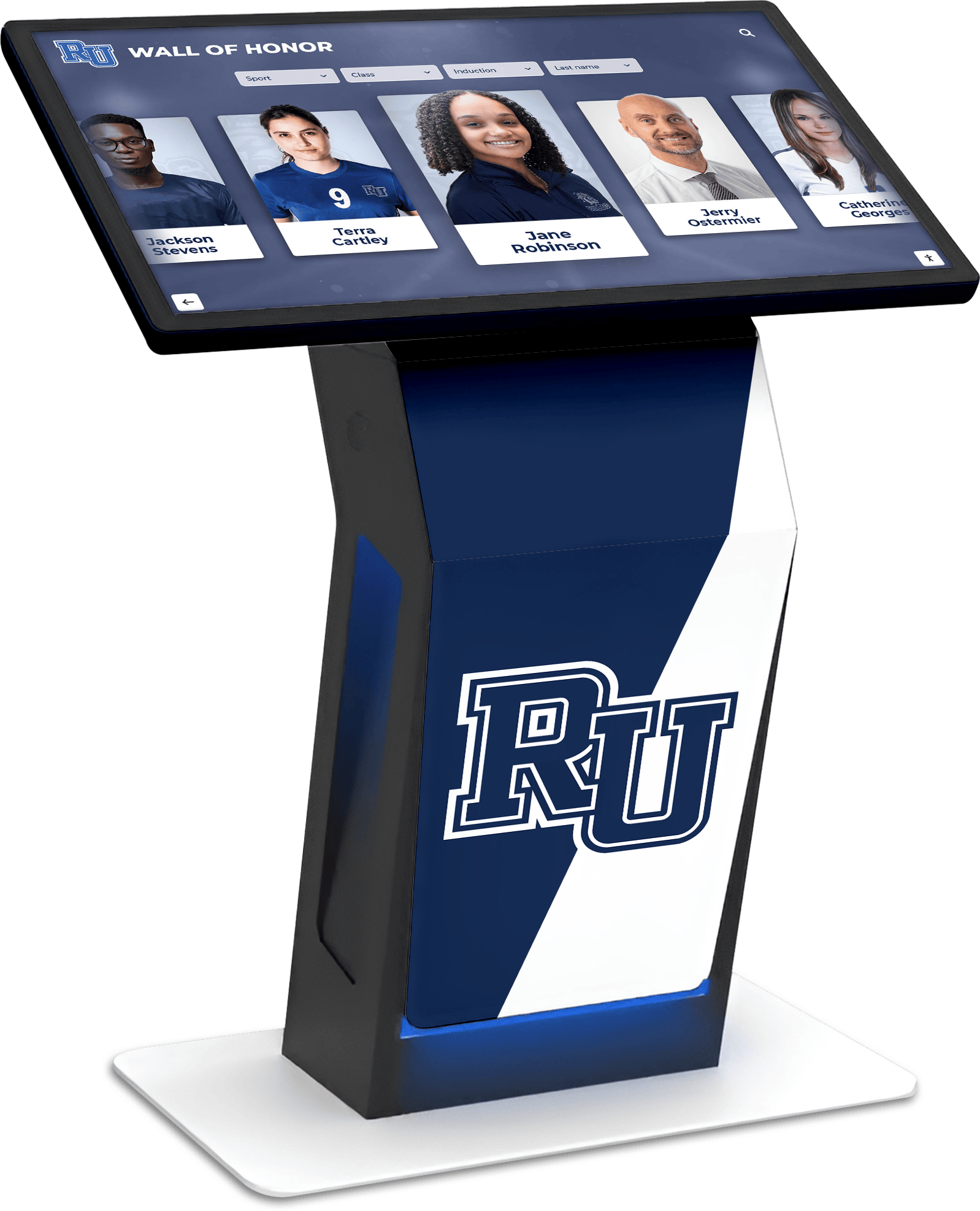
Before You Start: Assign Ownership and Define Scope
Before recording a single serial number, resolve two questions: who owns the asset register, and which displays fall under this policy.
Stakeholders to Involve
| Role | Responsibility |
|---|---|
| IT Coordinator | Hardware IDs, network configuration, software licensing, security patching |
| Facilities Director | Physical location, mounting documentation, electrical connections |
| Athletic Director | Content access, program use cases, recognition categories displayed |
| Finance or Purchasing | Purchase records, warranty contracts, lease or subscription terms |
| Principal or Assistant Principal | Policy sign-off, vendor contract authority |
A single coordinator—typically the IT lead—should own the master register. Everyone else provides input for their area and receives read access so they can act on the information relevant to their role.
Defining Scope
Your policy should specify which assets it covers. A useful definition:
This policy applies to any permanently installed, network-connected display device used for student, athlete, or donor recognition—including interactive touchscreen kiosks, digital recognition walls, and lobby display panels running dedicated recognition software.
Exclude lobby televisions running generic slide shows unless they share the same content management system as your recognition platform.
Core Asset Identification Fields
Every record in your register begins with fields that uniquely identify the hardware and establish its provenance.
Required Identification Fields
| Field | What to Record | Example |
|---|---|---|
| Asset tag number | Your district’s internal tag, applied on installation | DISP-ATH-007 |
| Manufacturer | Hardware brand | Manufacturer name from device label |
| Model number | Exact model, not marketing name | Found on device label or purchase order |
| Serial number | Manufacturer serial; needed for warranty and support | Located on device back panel or settings menu |
| Screen size | Diagonal measurement in inches | 55 in |
| Screen type | LCD, OLED, or LED, and whether it is touch-capable | Capacitive touchscreen LCD |
| Purchase date | Date goods were received, not PO date | 2025-03-14 |
| Purchase order number | Ties the record to finance documentation | PO-2025-0892 |
| Vendor or reseller | Company from which the hardware was purchased | Vendor name from invoice |
| Original cost | Installed cost including mounting and cabling | Pulled from purchase order |
Affix a physical asset tag to each display before installation. A QR code tag that links to the record in your asset management system makes field verification faster for facilities staff.
Location and Physical Installation Records
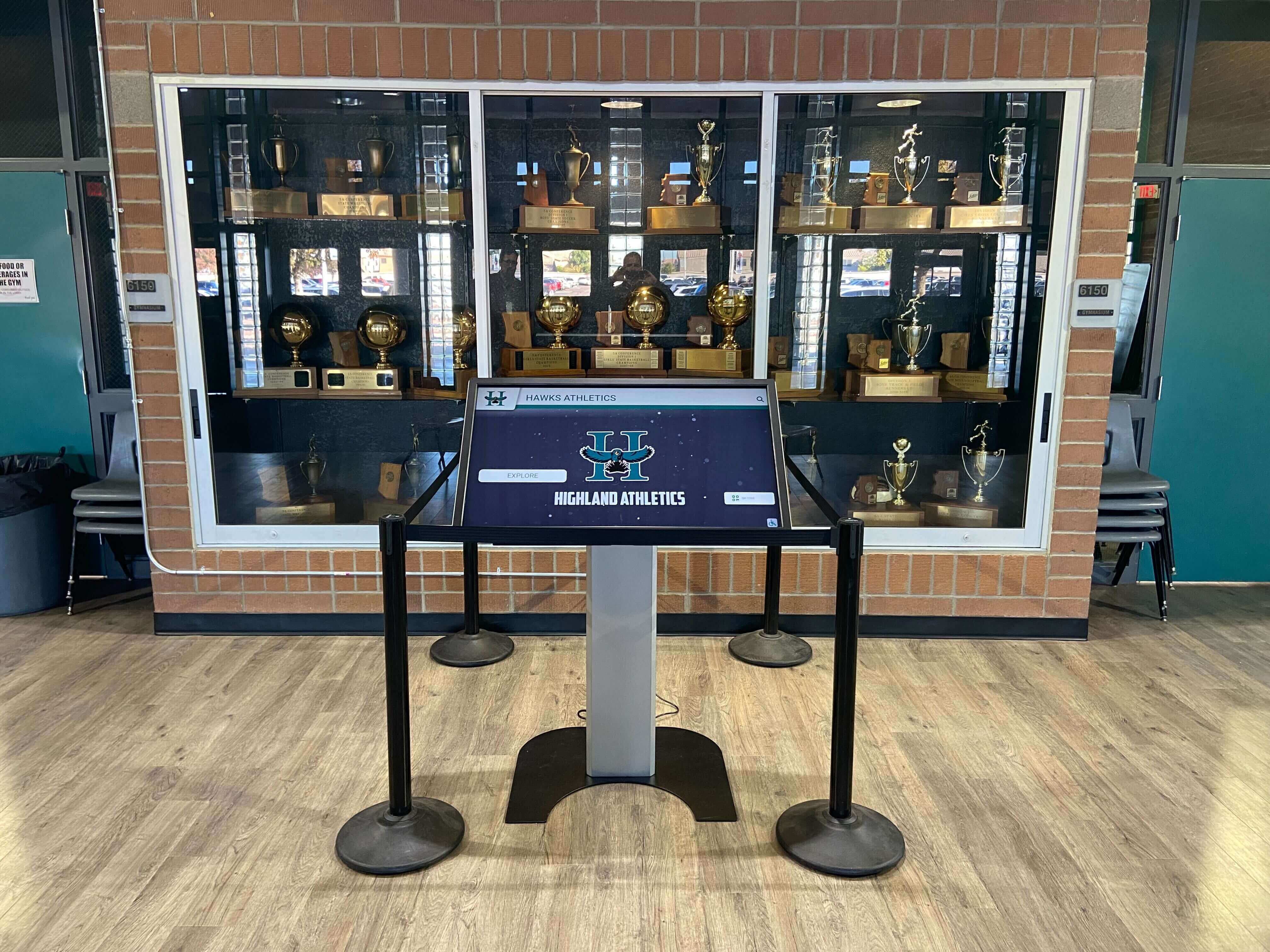
Recognition displays are fixed infrastructure. Their location records must be specific enough that any staff member can find the device, identify its electrical and network connections, and understand its mounting context.
Location Fields
| Field | What to Record |
|---|---|
| Building name | Full legal name of the building |
| Room or zone | Room number, hallway name, or described zone (e.g., “Main lobby east wall”) |
| GPS or blueprint coordinates | Building blueprint reference if available; useful for large campuses |
| Mounting type | Wall-mount, floor-standing kiosk, recessed, or ceiling-drop |
| Mounting height | Distance in inches from finished floor to bottom of display |
| Electrical outlet or circuit | Circuit ID or panel/breaker label feeding the display |
| Network jack identifier | Wall port ID and switch port where the cable terminates |
| Cable run length | Distance in feet from patch panel or switch port to display |
| ADA compliance status | Forward approach or parallel approach; compliant Y/N with documentation reference |
| Installation contractor | Company that performed the physical mount and cabling |
| Installation date | Date the display was powered on and accepted |
The ADA compliance field deserves particular attention. Schools operating touchscreen hall of fame systems must be able to demonstrate that interactive elements fall within the 15–48-inch reach range for forward approach, and that a 30 × 48-inch clear floor space exists at the device. Store the relevant installation drawing or photo documentation with the asset record.
Warranty, Support Contract, and Licensing Records
Hardware warranties and software subscriptions expire on schedules that are easy to miss when records are scattered across email threads and filing cabinets.
Warranty Fields
| Field | What to Record |
|---|---|
| Hardware warranty expiration | Date warranty coverage ends for the display unit |
| Warranty coverage scope | Parts only, parts and labor, or on-site service |
| Warranty claim contact | Vendor phone number or portal URL for claims |
| RMA process | Steps required to initiate a return or repair |
| Extended warranty | Whether an extended plan was purchased; expiration date |
Software and Licensing Fields
| Field | What to Record |
|---|---|
| Software platform name | Recognition platform name and version |
| License type | Perpetual, annual subscription, or SaaS |
| License expiration date | When the current term ends |
| Renewal contact | Vendor account manager name, email, and phone |
| Content management system URL | Web address of the admin portal |
| Number of licensed screens | Screens covered under the current license tier |
| Auto-renewal status | Whether the contract auto-renews and the notice period |
Set calendar reminders at 90 days and 30 days before every expiration date. A lapsed software license on a recognition display used during school tours or athletic events is a visible failure—one that reflects poorly on the athletic program and IT department simultaneously.
Schools evaluating how their athletic director evaluation criteria intersect with technology stewardship will find that maintaining current licensing is part of the operational competency picture.
Network and IT Configuration Records
A touchscreen recognition display consumes network resources and creates a persistent entry point in your school’s infrastructure. IT must document its configuration the same way any other networked device is documented.
Network Configuration Fields
| Field | What to Record |
|---|---|
| IP address assignment | Static IP address or DHCP reservation (document both the assigned address and the method) |
| MAC address | Hardware MAC; needed if the display moves to a different switch port |
| VLAN assignment | Which VLAN the display is placed on; isolation policy if applicable |
| DNS hostname | Friendly name used to identify the device on the network |
| Firewall rules | Any inbound or outbound rules created specifically for this device |
| Bandwidth allocation | Whether QoS rules shape bandwidth for content updates or streaming |
| Remote management method | Remote desktop, vendor agent, SSH, or management console URL |
| Remote management credentials | Stored in password manager with access restricted to IT |
| OS and firmware version | Operating system version and current firmware at last audit |
| Last security patch date | Date firmware or OS was last updated |
| Antivirus or endpoint protection | Whether an agent is installed; policy name |
Static IP addresses or DHCP reservations prevent the common scenario where a display loses network access because the DHCP lease was reassigned to another device. Document the reservation in your DHCP server as well as in the asset register so the two records stay in sync.
Content Management System Account Records

The content management system is the layer your athletic director and administrative staff interact with most. Losing access to it is more disruptive than a hardware failure—content cannot be updated, new athletes cannot be added, and donor records may be inaccessible.
CMS Account Fields
| Field | What to Record |
|---|---|
| CMS platform URL | Web address of the admin interface |
| Primary administrator account | Username stored in password manager; not the personal email of a staff member |
| Secondary administrator account | Backup account held by IT or district technology coordinator |
| Account creation date | When the primary account was established |
| Last login date | Useful for identifying dormant accounts |
| Content backup schedule | How frequently content is backed up; where backups are stored |
| Custom domain or subdomain | If the display or companion web page runs under a school subdomain |
| API keys or integration tokens | Stored in password manager; document purpose and expiration if applicable |
The most critical rule here: CMS administrator accounts must belong to role-based email addresses, not individual staff accounts. An account tied to athletics@yourschool.edu survives staff turnover. An account tied to a former athletic director’s personal Gmail does not.
Schools building out their school history software infrastructure should verify that every platform they onboard follows this role-account principle from day one.
Need Help Documenting Your Recognition Display?
Rocket Alumni Solutions provides full implementation support including hardware documentation, network setup guidance, and CMS onboarding so your IT team has everything it needs from day one.
Schedule a DemoMaintenance and Inspection Log
Hardware installed in public lobbies and gymnasiums is subject to physical wear that desk-based equipment is not. A maintenance log creates a verifiable history that supports warranty claims, justifies replacement requests, and documents the due-diligence chain for insurance purposes.
Maintenance Log Fields
| Field | What to Record |
|---|---|
| Inspection date | Date of each review |
| Inspecting staff member | Name and role |
| Physical condition | Screen surface, bezel, enclosure, mounting hardware |
| Touch calibration status | Pass or fail; recalibration performed Y/N |
| Firmware version at inspection | Whether the device is current or behind |
| Known defects noted | Specific description of any damage or performance issue |
| Remediation taken | Parts replaced, settings adjusted, vendor ticket opened |
| Next scheduled inspection | Date |
Inspect at minimum once per semester. Add an inspection whenever a display is relocated, after any building renovation affecting the nearby space, and following any reported incident.
Schools planning seasonal recognition updates—such as those tied to a class of 2026 digital showcase—should schedule a maintenance inspection before publishing new content, not after. A display that develops a dead zone in the lower-left corner during the summer goes unnoticed until a student tries to interact with it during a high-visibility event.
Disposal and End-of-Life Records
Recognition displays have a hardware lifecycle, typically five to eight years for the display panel and shorter for embedded computing hardware. End-of-life planning prevents two common problems: running unsupported devices past their security patch window, and improper disposal of electronics containing regulated materials.
End-of-Life Fields
| Field | What to Record |
|---|---|
| Expected end-of-life date | Projected based on manufacturer support timeline |
| Replacement project status | Whether a replacement has been budgeted and approved |
| Disposal method | District surplus auction, certified electronics recycler, or vendor trade-in |
| Data sanitization method | How CMS credentials and locally stored data were removed before disposal |
| Data sanitization date | Date and staff member who performed the wipe |
| Disposal documentation | Certificate of recycling or transfer receipt |
Do not discard end-of-life displays without removing CMS credentials and any cached authentication tokens. A disposed device that still holds login credentials for your recognition platform is a security risk regardless of where the hardware ends up.
Complete Asset Register Template
Use this table structure as the starting schema for your register. Most IT asset management platforms (or a well-organized spreadsheet) can accommodate these columns.
| Category | Fields |
|---|---|
| Identification | Asset tag, manufacturer, model, serial, screen size/type |
| Purchase | PO number, vendor, purchase date, cost |
| Location | Building, room/zone, mounting type, height, ADA status |
| Physical connections | Electrical circuit, network jack, cable length |
| Warranty | Expiration, scope, support contact, RMA process |
| Software | Platform, license type, expiration, renewal contact |
| CMS | Admin URL, primary account, backup account, backup schedule |
| Network | IP, MAC, VLAN, DNS name, firewall rules, remote management |
| IT compliance | OS version, firmware version, last patch date, endpoint protection |
| Maintenance | Last inspection, condition, next inspection scheduled |
| End of life | Projected EOL date, disposal method, sanitization date |
Keep one row per physical display unit. If your school operates a multi-screen installation where several panels run from a single content server, create one row for the server (tracked as a separate asset) and one row for each display panel.
Policy Governance: Audit Cycles and Update Triggers
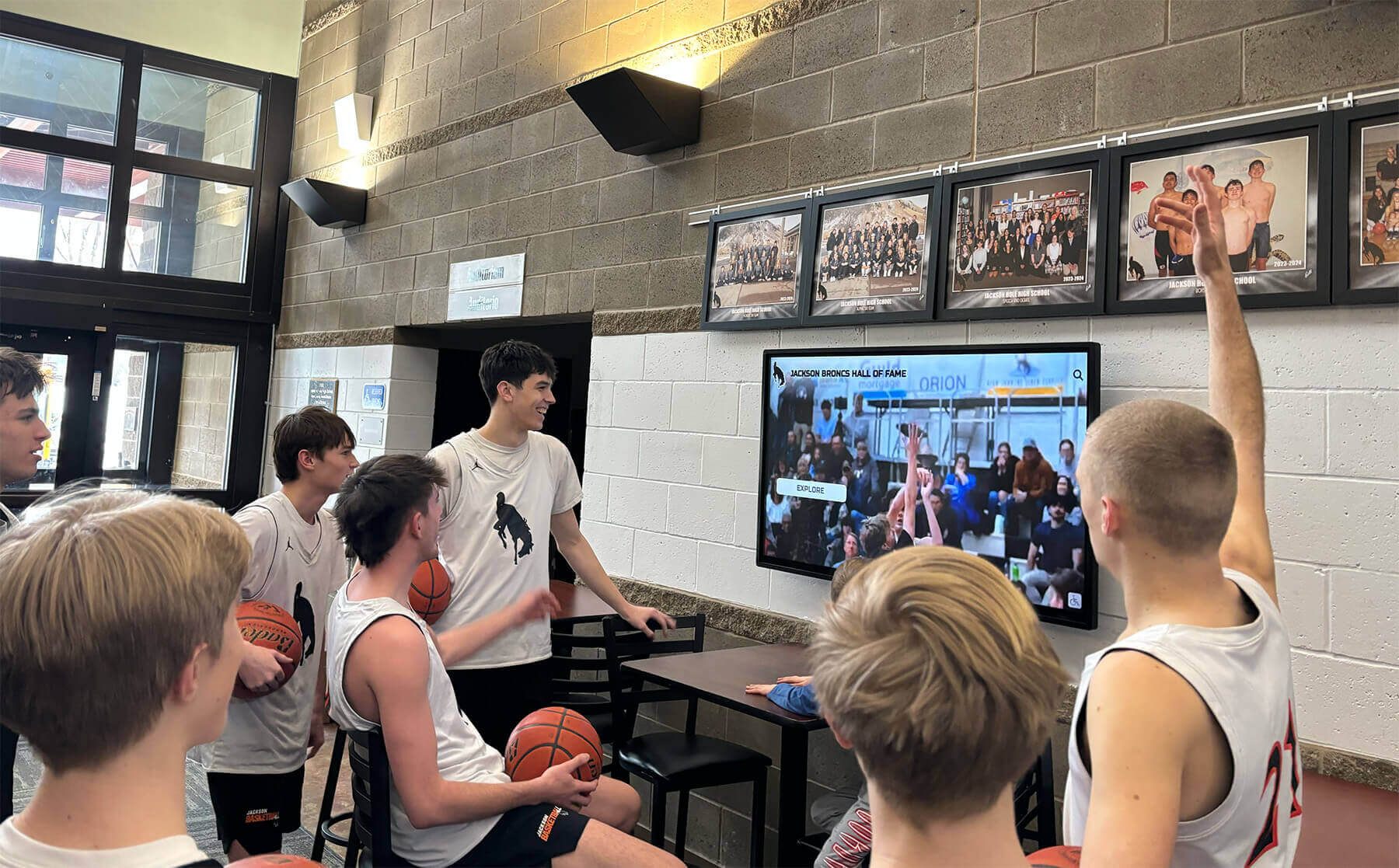
A register that is accurate on installation day but never updated is worse than no register at all—it creates false confidence. Your policy should define when records must be updated.
Required Update Triggers
- Display is relocated. Update location fields, network port ID, and electrical circuit ID immediately.
- Software subscription is renewed. Update license expiration date and renewal contact within 5 business days.
- Firmware or OS is patched. Update firmware version and last patch date same day.
- Staff turnover affects CMS accounts. Rotate credentials and update the record before the departing staff member’s last day.
- Hardware repair or replacement. Update model, serial, and any changed configuration fields before the ticket is closed.
- Annual inventory audit. Physical verification of all fields once per fiscal year; discrepancies resolved within 30 days.
Assign the audit task to the IT coordinator with a hard deadline—ideally before the school year begins so the register is current when fall sports recognition content is updated.
Connecting Asset Records to Broader Recognition Planning
An accurate asset inventory is not an end in itself. It is the foundation that lets athletic directors and IT staff act confidently when recognition programs change or grow.
When your school expands its back-to-school recognition displays at the start of a new year, IT needs current network capacity records to determine whether additional displays can share the existing infrastructure or require a circuit upgrade.
When booster organizations propose funded additions as part of booster club fundraising campaigns, the asset register tells administrators exactly what existing infrastructure the new display can leverage and what additional support contracts must be purchased.
When donors contribute to recognition programs that include a donor stewardship component, the CMS account documentation ensures that staff responsible for updating donor recognition content always have access and never depend on a single person’s login.
And when a coach hands a tournament memento to an athlete who later appears in the digital hall of fame, the asset record confirms that the display system will still be operational and accessible when that athlete returns to campus years later.
Frequently Asked Questions
Who should own the touchscreen recognition display asset register at a school?
The IT coordinator or district technology director should own the master register and be responsible for its accuracy. The athletic director and facilities director should each have read access and a defined responsibility to report changes in their areas within a specified number of business days.
How is a touchscreen recognition display different from a standard school computer in an asset inventory?
It typically combines a commercial-grade display panel, an embedded computing module, a licensed SaaS content platform, and physical mounting infrastructure—each with separate warranty, maintenance, and support channels. Standard computer inventory templates usually do not include fields for mounting height, ADA compliance status, or content platform licensing. Your policy should add those fields explicitly.
What is the minimum number of administrator accounts a CMS should have?
At least two: a primary account owned by the athletic department role address, and a secondary account owned by IT or the district technology coordinator. A single account creates a single point of failure. Accounts should never be tied to an individual staff member’s personal or district email if that email is deactivated when the person leaves.
How long should disposal records be retained?
Retain disposal documentation—certificates of recycling or transfer receipts—for at least five years. In the event of a data breach investigation or an ADA compliance audit, these records demonstrate that retired devices were handled responsibly.
Does a touchscreen recognition display need to be on a separate network VLAN?
That depends on your district’s security architecture. Displays that receive software updates from the internet and allow public interaction present a different risk profile than classroom laptops on the staff network. Many IT teams place public-facing kiosks on an isolated VLAN with restricted outbound access. Document whichever approach your district adopts and apply it consistently.
Quick-Audit Checklist: Is Your Current Record Complete?
Run through this checklist against any existing display in your school to identify gaps before they become problems.
- Hardware serial number on file and verified against device label
- Purchase date and purchase order number documented
- Warranty expiration date recorded with renewal contact
- Software license expiration date recorded with renewal contact
- CMS admin account uses a role-based email address, not a personal account
- A backup CMS account exists and credentials are stored in a password manager
- IP address assignment documented (static or DHCP reservation noted)
- Network jack identifier and VLAN recorded
- Mounting height documented with ADA compliance status confirmed
- Electrical circuit ID recorded
- Last firmware patch date recorded
- Most recent physical inspection documented with date and staff member
- End-of-life projection recorded
- Disposal method and data sanitization procedure defined in policy
Four or more unchecked items indicates your current record is not operationally complete. Prioritize the warranty expiration, CMS account, and network fields—those three gaps cause the highest-frequency failures in school recognition display management.
Build Your Recognition Display Right from Day One
Rocket Alumni Solutions provides schools with the hardware documentation, CMS onboarding, network setup guidance, and ongoing support that makes building and maintaining an accurate asset inventory straightforward—not an afterthought. Schedule a walkthrough to see how the platform integrates with your school's existing IT processes.
Schedule a Free TouchWall DemoNext Practical Step
Pull the purchase order for your most recently installed recognition display and locate the hardware serial number. If either requires more than five minutes to find, your policy work starts there. Document those two fields today—everything else in this guide builds on having that baseline in place.































