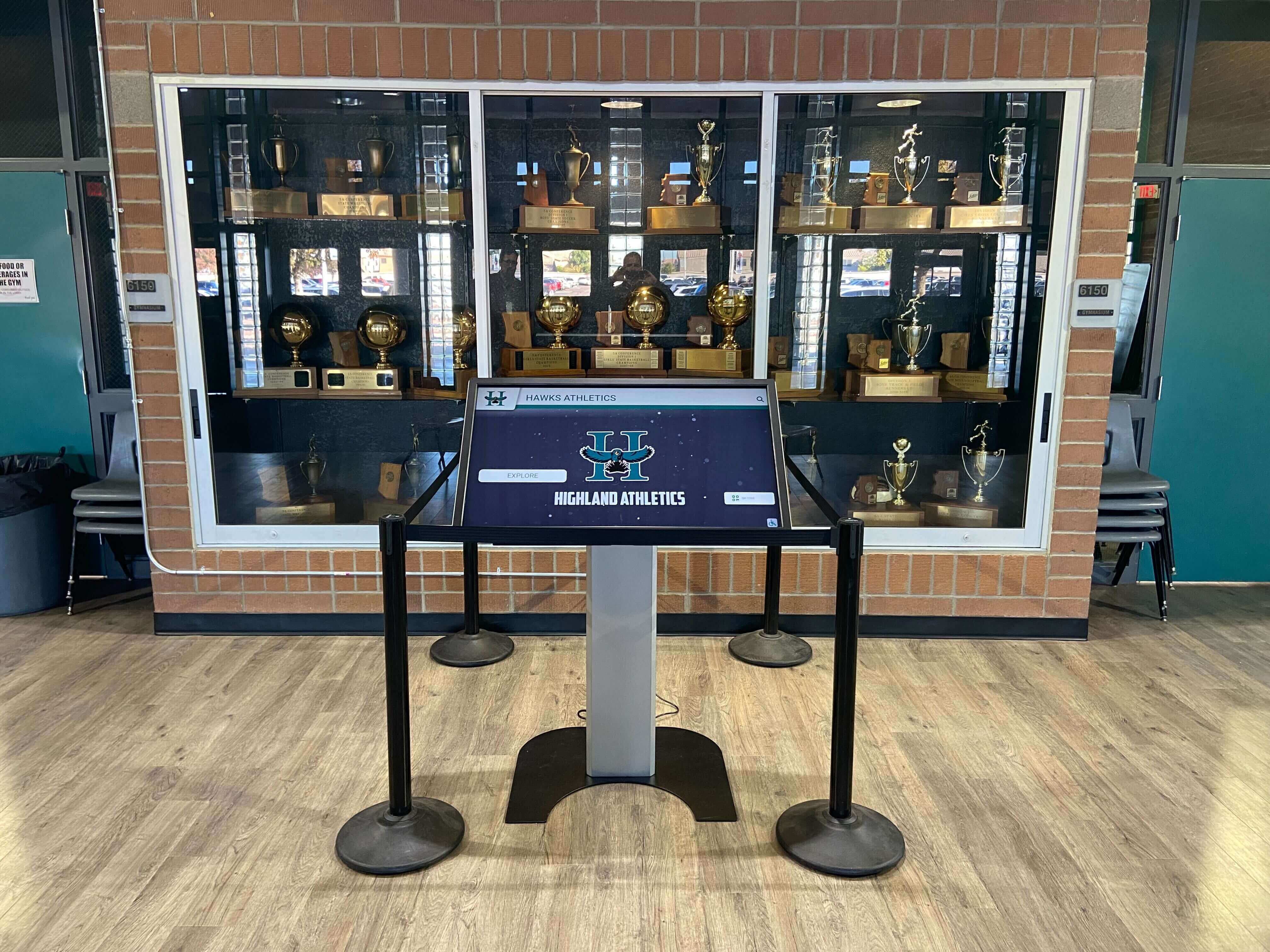
A touchscreen recognition display in a school lobby or trophy hallway runs continuously—through HVAC startup surges, kitchen equipment cycling, voltage dips during peak load periods, and the occasional outage that takes the whole wing dark. Each of these electrical events leaves a mark: an unplanned restart, a corrupted media cache, a content loop that freezes on the wrong frame. Facilities teams get a work order. IT gets a call. The athletic director gets a black screen during a donor tour. Without a record that connects the electrical event to the display’s behavior, every incident looks random and every fix is a guess.
A touchscreen recognition display power quality monitoring log gives facilities coordinators, school IT staff, and athletic directors a single running record of every power-related event at the display’s circuit: voltage anomalies, UPS battery transfers, outage duration, planned shutdowns, and display recovery time. When incidents repeat, the log turns a pattern into a diagnosis. This guide provides a ready-to-use log template, a classification reference for common event types, a step-by-step setup walkthrough, and a troubleshooting flow for the most frequent power-related failures found at school recognition installations.
This guide is practical operational guidance, not electrical engineering advice. For diagnosed wiring defects, UPS sizing calculations, or electrical panel work, involve a licensed electrician.
The short answer: create a dated log at the display’s location—paper binder or shared spreadsheet—and record every power-related event using the template below. Include the event type, estimated duration, UPS response, and the display’s behavior before and after. Review the log at each scheduled maintenance visit and after any unplanned outage. Three or more events of the same type within a semester are a threshold for escalating to facilities or an electrician; a single event with fast recovery needs only a content check to confirm no data corruption occurred.
Power Quality Monitoring Log Template
Copy this table into a shared spreadsheet or print it as a binder insert stored at the display location. Complete one row per event. Fill in every column at the time of the event or within 24 hours; entries completed from memory later introduce inaccuracies that undermine the log’s diagnostic value.
| Log # | Date | Time | Event Type | Duration (min) | Voltage Indication | UPS Response | Display Behavior | Recovery Time (min) | Staff Initials | Follow-Up Required |
|---|---|---|---|---|---|---|---|---|---|---|
| 001 | — | — | — | — | — | — | — | — | — | — |
Column definitions:
| Column | What to Record |
|---|---|
| Log # | Sequential number; never reuse or skip numbers |
| Date | MM/DD/YYYY |
| Time | 24-hour clock; record when the event was first observed, not when you wrote the entry |
| Event Type | Use the standard codes from the Event Type Classification table below |
| Duration (min) | Estimated minutes from event start to normal power restoration; enter “ongoing” if unresolved at time of writing |
| Voltage Indication | UPS panel reading, smart strip reading, or “no meter—visual only” |
| UPS Response | Battery transfer / bypass / no response / UPS offline / not installed |
| Display Behavior | Normal operation / blank screen / frozen content / restart loop / powered off |
| Recovery Time (min) | Minutes from power restoration to full content load on display; enter 0 if display recovered without any interruption |
| Staff Initials | Initials of the person completing the entry |
| Follow-Up Required | Yes – work order filed / Yes – pending / No |
Event Type Classification Reference
Use these standardized codes in the Event Type column. Consistent classification is what makes the log searchable and comparable across multiple incidents.
| Code | Event Name | Description | Example Observation |
|---|---|---|---|
| OUT | Complete Outage | Total loss of power to the display circuit | Display goes dark; UPS activates or display shuts off immediately |
| SAG | Voltage Sag | Brief drop in voltage lasting less than one minute caused by a load surge on the circuit | Screen dims momentarily or display restarts without any staff action |
| SWL | Voltage Swell | Brief rise in voltage above normal supply; UPS may alarm | UPS audible alarm; display shuts off and restarts |
| BRN | Brownout | Sustained low voltage lasting more than one minute | Display dims and stays dim; touch response slows; display may restart |
| UPS-T | UPS Battery Transfer | UPS switches from utility to battery power due to a detected anomaly | UPS audible beep; display continues running on battery |
| UPS-LB | UPS Low Battery | UPS battery reaches low threshold during an outage | UPS alarm changes tone; display shuts down if outage exceeds battery runtime |
| UPS-F | UPS Fault | UPS reports a fault condition unrelated to an incoming power event | UPS fault LED or audible code; display may or may not be affected |
| RST | Unplanned Display Restart | Display restarts with no corresponding power event recorded at the circuit | Display cycles through startup screen without any observed power disruption |
| PLN | Planned Shutdown | Intentional power-off for maintenance, break period, or event setup | Staff-initiated; recorded to distinguish from unplanned events |
| SRG | Surge Event | Transient overvoltage detected by UPS or surge protector; typically sub-cycle duration | Surge protector indicator light changes; UPS logs a surge event |
Why Recognition Displays Are Sensitive to Power Quality Events
A touchscreen recognition display is not a consumer television. It combines a commercial-grade touchscreen panel, a dedicated media player or PC, network hardware, and in most installations a UPS—each component with its own power draw and tolerance range. The display runs continuously in a building environment that was not designed with its specific power needs as a primary consideration.
Building electrical systems serving school facilities share circuits with HVAC equipment, gym lighting banks, kitchen appliances, and maintenance tools. Each of these loads can introduce voltage fluctuations when they start, stop, or cycle. Alumni recognition walls and interactive displays are often installed in lobbies and corridors that share building-wide circuits rather than dedicated branch circuits, placing the display on the same electrical path as whatever else is plugged in nearby.
The media player or PC at the core of the display is the most power-sensitive component. An unclean shutdown caused by a voltage sag or outage—without a graceful OS shutdown—can corrupt the OS, the media cache, or the content database. A display that restarts cleanly may still show stale content or fail to reconnect to its CMS if the network hardware upstream also lost power and has not fully restarted before the display’s OS completes its boot sequence. The log captures this distinction: a display that restarts in two minutes but shows a blank screen for twenty minutes because the upstream switch was still cycling is a different problem than one that restarts and reconnects immediately.
Phase 1: Choose and Set Up Your Log Format
The log works in either format—printed binder or shared spreadsheet. Choose based on who will fill it in and how often IT staff review it remotely.
Option A: Printed binder at the display location.
Print the log template and place it in a binder mounted or stored near the display. Label the binder with the display location, the UPS model, and the circuit breaker panel and breaker number serving the display. Facilities and custodial staff can complete entries without needing network access. IT staff collect the physical log at each maintenance visit and transcribe notable entries into a digital record.
Option B: Shared spreadsheet with location-based access.
Create a spreadsheet in your district’s file-sharing system with one tab per display location. Grant edit access to facilities coordinators, custodial leads, and IT staff. Use data validation on the Event Type column to enforce the standard codes from the classification reference table. Include a Notes column with no character limit for staff context that does not fit the structured columns.
Whichever format you choose, document the log’s location in the display’s installation record so any staff member responding to an incident can find it without asking.
Phase 2: Document the Display’s Baseline Power Configuration
Before the first event entry, complete a baseline section at the front of the log or at the top of the spreadsheet. This baseline is the reference point for every future entry and for any staff member who responds to an incident without prior familiarity with the installation.
| Baseline Item | Details to Record |
|---|---|
| Display location | Building, room or corridor, and mounting position |
| Display model and serial number | From label on rear of panel |
| Media player model and serial number | From label on device or from IT asset record |
| UPS model, VA rating, and serial number | From UPS label; record both VA and watt ratings |
| UPS battery installation date | From UPS label or battery compartment sticker |
| Circuit breaker panel and breaker number | Confirmed by facilities electrician |
| Circuit type | Dedicated circuit / shared circuit; list other known loads on shared circuits |
| Surge protection | UPS built-in / external surge strip / none |
| Nominal supply voltage | Confirmed with meter by facilities staff before log begins |
| Baseline UPS battery runtime (minutes) | From UPS documentation for the display’s actual measured load; not the UPS nameplate maximum |
| CMS vendor contact for power-related display faults | Vendor name and support contact |
| Facilities or electrician contact for circuit issues | Name and direct contact |
| Log started by | Staff name and date |
The baseline section allows any staff member arriving at an incident to immediately understand whether the UPS has enough runtime to sustain the display through a typical outage at this location, whether the circuit is shared or dedicated, and who to call for each type of problem.
Phase 3: Train Staff Who Will Complete the Log
The log is only useful if it is filled in consistently. Staff who complete log entries need to know three things: what triggers an entry, what each column means, and where the log is kept.
What triggers a log entry:
- Any observed change in display behavior: screen dims, flickers, goes dark, restarts, shows an error, or becomes unresponsive to touch without a staff-initiated action
- Any UPS audible alarm, fault indicator, or status light change
- Any building power event affecting the wing or room where the display is located—even if the display appeared unaffected
- Any planned shutdown for maintenance or event setup
What does not trigger a log entry:
- Normal scheduled content transitions and screen timeout behavior
- Routine CMS content updates that briefly change displayed content
- Staff-initiated wake from screensaver mode
Provide a one-page reference card with the event type codes and column definitions. Post it inside the binder or print it as a reference tab in the spreadsheet. Note what content was displaying at the time of a power event when you can—a freeze on a specific content panel can indicate whether the event corrupted one media file or the entire content cache. Athletic achievement recognition content that goes blank or freezes during a power event gives IT a starting point for the content validation check after recovery.
Phase 4: Interpret Patterns in the Log
A single log entry rarely tells you much. Three or more entries of the same type within a defined period is what reveals a pattern worth acting on. Review the log against these diagnostic criteria at each scheduled maintenance visit.
Pattern: Multiple SAG or BRN entries at consistent times of day.
Voltage sags and brownouts that repeat at consistent times—early morning when HVAC first activates, midday during kitchen peak load, after school during gym lighting startup—indicate a load-related voltage drop on the circuit. This is a facilities and electrical issue, not a display issue. Escalate to the facilities director with the log entries and request an electrician evaluate the circuit load and consider a dedicated branch circuit for the display.
Pattern: Multiple UPS-T entries without display interruption.
Frequent UPS battery transfers that do not interrupt display operation indicate that the UPS is doing its job—but also that power quality at the outlet is consistently poor enough to trigger transfers. Review the Duration column. If transfers are brief and infrequent, no immediate action is needed beyond a follow-up note. If transfers occur more than once per week or increase in frequency over time, request an electrician measure voltage at the outlet over a multi-day period.
Pattern: Multiple RST entries without a corresponding power event.
Unplanned display restarts that appear in the log without any corresponding power anomaly recorded at the same time may indicate a display hardware fault, OS instability, overheating, or a CMS software issue rather than a power quality problem. Document these separately and report them to your CMS vendor’s support team. Display kiosks running continuously in school environments are exposed to temperature swings, dust accumulation, and sustained operation loads that differ from office hardware; unexplained restarts warrant a hardware inspection alongside the software review.
Pattern: OUT entries with Recovery Time consistently above 30 minutes.
Long recovery times after a complete outage often indicate that the display is waiting for upstream network hardware—the switch, router, or PoE injector on the same circuit—to complete its own restart before the display’s CMS can reconnect. If the recovery time pattern matches the display’s normal boot time plus the network hardware restart time, consider adding the critical upstream network hardware to the same UPS protecting the display so both devices ride through brief outages together.
Pattern: UPS-LB entries during outages.
A UPS low-battery alarm during an outage indicates that the outage duration exceeded the UPS battery’s available runtime at the display’s actual load. If outages in the Duration column are consistently longer than the UPS’s documented runtime, the UPS is appropriately sized but the outages at this location are longer than a standard UPS bridges. Options include a higher-capacity UPS, a graceful shutdown script triggered on UPS-LB so the display shuts down cleanly rather than abruptly, or coordination with facilities on generator backup for the display circuit.
Phase 5: Troubleshooting Flow for Common Power-Related Display Failures
Use this flow when a staff member reports a display problem. Start at the symptom that matches the observation and follow each step in sequence.
Symptom: Display screen is dark and does not respond to touch.
- Check UPS status indicators. If the UPS shows a fault or is offline, restore UPS power before investigating the display itself.
- Confirm whether building power is present at the circuit. If an active outage is in progress, log a pending OUT entry and wait for power restoration.
- If building power is present and the UPS appears functional, check whether the display’s power button or soft power control is in the off state—confirm whether a planned shutdown was logged by another staff member.
- If none of the above apply, press the display’s power button once and observe startup behavior. Log an RST entry if the display restarts normally with no prior power event on record.
- If the display does not power on with building power present and UPS functional, contact your CMS vendor’s hardware support line and mark the log entry Follow-Up Required: Yes.
Symptom: Display is powered on but shows a blank or frozen content screen.
- Check the log for any power event recorded within the past 12 hours. A blank screen following a power event commonly indicates the display is still waiting for the CMS to reconnect after upstream network hardware restarted.
- From a workstation on the same network segment, confirm whether the CMS management interface is reachable. If the CMS responds normally but the display shows blank content, power-cycle the display once and log as RST with a note referencing the prior power event.
- If the CMS is not reachable from any workstation on the network, the upstream network path has not recovered from the outage. Check the switch and router upstream of the display for normal operation; power-cycle if needed and allow the network to fully stabilize before rechecking the display.
- If the display shows the same frozen frame after a clean restart, the media cache may be corrupted from an unclean shutdown. Contact your CMS vendor to re-provision the media cache from the server.
Symptom: Display restarts repeatedly in a loop.
- Log an RST entry and note the approximate frequency of restarts in minutes.
- Check the UPS status. If the UPS shows a fault or battery event, the restart loop may be driven by a sustained power quality problem at the outlet. If the UPS is normal, the cause is internal to the display.
- Disconnect the display from the UPS and connect it directly to a known-good outlet on a different circuit. If the restart loop stops, the original circuit has a power quality problem. If the loop continues on the new circuit, the display hardware or OS requires vendor support.
Symptom: UPS is alarming but display is running normally.
- Note the UPS alarm type (audible code, fault LED color, or panel message) and log a UPS-T or UPS-F entry as appropriate.
- If the alarm indicates a battery transfer in progress, the display is running on battery power. Note the time the alarm started and monitor against the UPS’s documented battery runtime. If building power does not restore before runtime is exhausted, prepare for a graceful display shutdown.
- If the alarm indicates a battery fault—battery replacement recommended, overtemperature, or end-of-life—schedule a battery replacement. Do not wait for the next outage to discover the battery does not function.
- If the alarm is for an unrecognized fault code, consult the UPS manufacturer’s documentation and contact facilities to have the circuit reviewed.
Phase 6: Preventive Actions Based on Log Review Findings
The log’s diagnostic value is only realized when findings translate into concrete action items. At each scheduled review, generate follow-up work orders for any pattern that meets an action threshold.
| Finding | Action Threshold | Recommended Action |
|---|---|---|
| SAG or BRN events | 3 or more in one semester | Request electrician assess circuit voltage under load; consider dedicated branch circuit |
| UPS-T events without display interruption | More than 4 per month | Request multi-day voltage measurement at outlet; consider line-interactive or on-line UPS |
| RST events without a prior power event | 2 or more in one semester | File hardware support ticket with CMS vendor; inspect display for overheating or dust accumulation |
| OUT events with Recovery Time above 30 minutes | Any occurrence | Add upstream network hardware to the display’s UPS; document network restart sequence |
| UPS-LB events | Any occurrence | Review UPS battery runtime vs. local outage duration; consider capacity upgrade or graceful shutdown automation |
| UPS-F events | Any occurrence | Replace battery if indicated; contact UPS manufacturer if fault is not battery-related |
| No log entries for more than 60 days | Administrative | Confirm log is still being actively maintained; retrain responsible staff |
Digital history archive installations and athletic record displays that serve as a school’s permanent institutional record depend on consistent uptime. A power log that surfaces a recurring SAG pattern before a board game or an alumni induction ceremony prevents the scenario where the display fails during the exact event that justified its installation.
Annual Review: What to Do With a Completed Log
At the end of each school year—or at least once every twelve months—conduct a structured review of the full log before archiving it and starting a fresh log for the next period.
Step 6.1 — Tally event counts by type.
Count entries for each event type code. A year-over-year increase in UPS-T or SAG events at the same display location may indicate aging electrical infrastructure or increased building load on the circuit.
Step 6.2 — Review all entries marked Follow-Up Required: Yes.
Confirm that every flagged entry has a corresponding work order or vendor ticket. Entries that were flagged but never acted on represent unresolved risk.
Step 6.3 — Check UPS battery age against the replacement schedule.
Most sealed lead-acid UPS batteries require replacement every two to four years depending on model, ambient temperature, and discharge cycle count. Update the baseline section at the front of the new log with the new battery installation date immediately after replacement. For event-driven recognition displays relied on during scheduled ceremonies and presentations, an aging UPS battery that fails at the start of an outage is the most common cause of preventable display downtime.
Step 6.4 — Update the baseline if equipment changed.
If the display, media player, UPS, or circuit configuration changed during the year, update the baseline section at the front of the new log to reflect the current configuration before starting the new log period. A log that references hardware no longer at the location has limited diagnostic value.
Step 6.5 — Archive the completed log.
Store the completed log—physical binder or exported PDF—in the display’s equipment file alongside the installation record, wiring documentation, and service history. If your district maintains an IT asset management system, attach the log to the asset record for the display.
People Also Ask
What is a power quality monitoring log for a touchscreen display?
A power quality monitoring log is a structured record of every electrical event at a display location—outages, voltage sags, UPS battery transfers, surges, and unplanned restarts—along with the display’s behavioral response to each event and the time required to recover to full operation. For a touchscreen recognition display, the log also tracks what content was affected and whether a vendor support contact is needed after recovery. The record turns a series of unexplained failures into a specific pattern with a specific cause.
How do I know if my recognition display’s UPS is adequately sized?
Compare the UPS’s documented battery runtime at the display’s actual measured load against the duration of outages recorded in the power quality log at that location. If outages consistently exceed UPS runtime—indicated by UPS-LB entries—the UPS capacity is not matched to the location’s outage risk. A UPS selected from nameplate ratings without accounting for actual watt draw will deliver less runtime than the documentation suggests. Measure the actual load with a power meter at installation and calculate runtime from the measured value rather than the rated maximum.
What should I do after an unplanned display restart?
Log the event with the RST code. Then confirm that the display has reconnected to its CMS and that all content types load correctly: image carousels, video playback, search function, and any external data feed panels. If any content type fails to load after a clean restart, contact your CMS vendor—an unclean shutdown can corrupt the media cache in a way that requires a server-side re-provision. If the restart occurred without any corresponding power event in the log, report it to the vendor as a potential hardware or OS stability issue.
How often should a UPS battery be replaced?
UPS battery replacement intervals vary by manufacturer, model, ambient temperature, and discharge cycle count. Most sealed lead-acid batteries used in commercial installations carry a design life of two to four years under normal temperature and cycling conditions. Operating a UPS in a warm equipment closet shortens that life. Replace the battery on the schedule your UPS manufacturer publishes, or sooner if the UPS indicates a battery fault or a test discharge reveals runtime significantly shorter than rated. Record the replacement date in the baseline section of your power quality monitoring log.
What is the difference between a voltage sag and a brownout?
A voltage sag is a brief reduction in voltage—typically lasting less than one minute—caused by a sudden increase in load on the circuit, such as a large motor starting. A brownout is a sustained reduction in voltage that persists for minutes or longer, often caused by high demand across a broader portion of the distribution system. Both can cause display instability, dimming, or unplanned restarts, but their causes and corrective actions differ. Your power quality monitoring log distinguishes between them through the Duration column, which is why recording event duration accurately at the time of the event matters.
Can the display itself protect against voltage sags without a UPS?
The display panel and media player have no protection against external voltage events beyond what a UPS or external surge suppressor provides. Some commercial display panels include internal surge suppression on the power input stage, but this is designed for transient spikes rather than sustained low voltage or outages. The UPS is the primary protection mechanism for sags, swells, and outages. Installations in schools with aging electrical infrastructure or frequent brownout conditions benefit from a line-interactive or on-line UPS rather than a standby UPS, because line-interactive and on-line designs regulate output voltage continuously rather than only switching to battery when power is fully lost.
Protect Your Recognition Display’s Uptime Before the Next Event
A power quality monitoring log is one of the lowest-cost tools available to facilities and IT teams managing a school recognition installation. It requires no additional hardware, no software license, and no specialized training—only a consistent habit of recording events when they occur and reviewing the record on a schedule. The log turns the first recurring outage from a mystery into a work order with a specific circuit number and a specific escalation path.
Rocket Alumni Solutions designs recognition display platforms with uptime and remote manageability in mind, including documentation support for facilities and IT teams deploying displays in school environments with variable power conditions. To review the power and network requirements for a new installation, or to troubleshoot a recurring power-related failure at an existing display, schedule a TouchWall demo with Rocket and work through the configuration with the team that built the platform.































