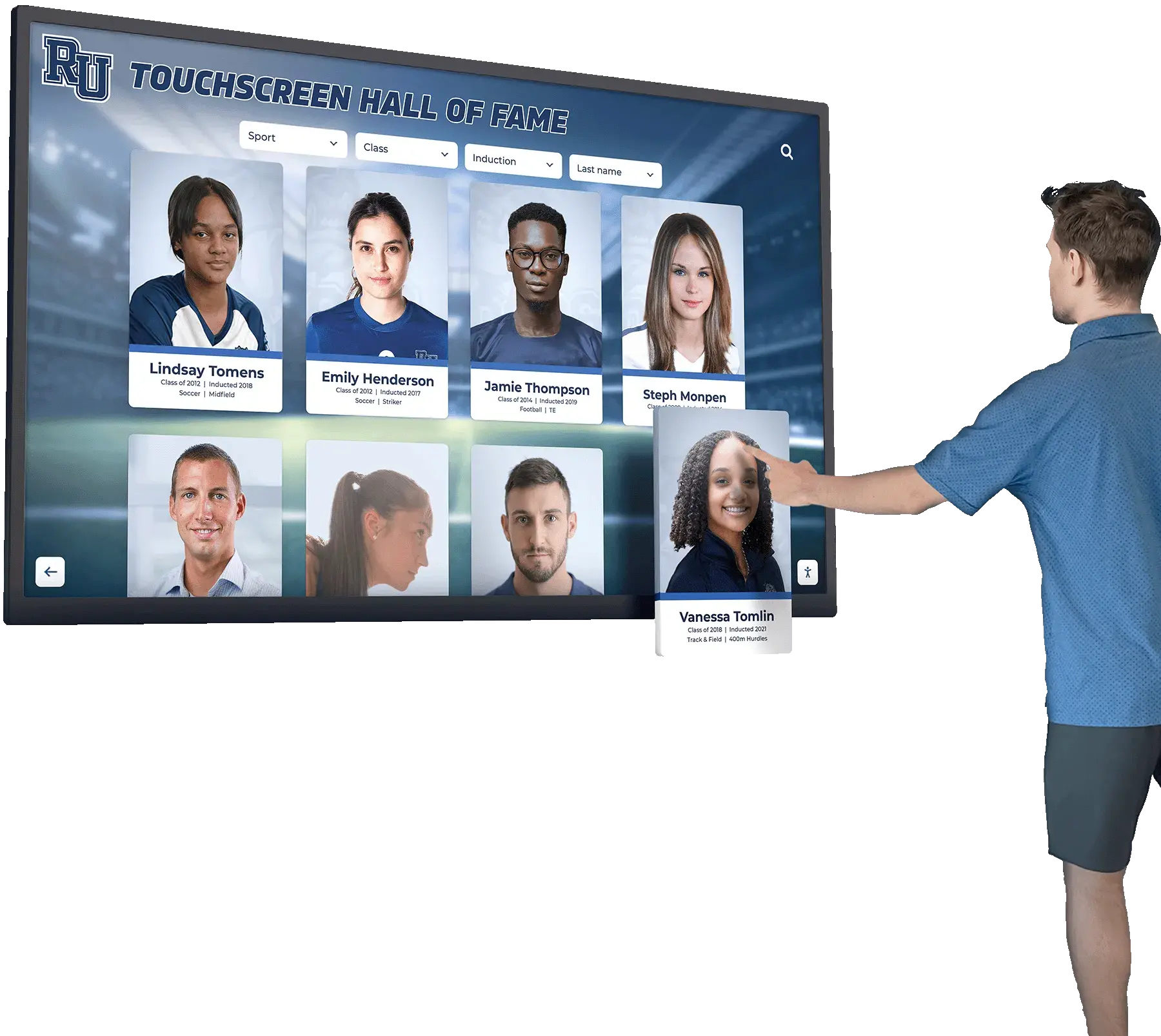
A touchscreen recognition display that passes every network and power test can still fail its audience on the day of a hall of fame induction ceremony — not because the screen is dark or the content is missing, but because it feels sluggish. A visitor taps an athlete’s portrait and waits. They tap again. The panel responds half a second later to the first tap, then immediately to the second, now registering a double action. That half-second gap is touch latency: the time between a finger contacting the screen and the display registering the event in software. In a lobby kiosk or hallway recognition wall, perceived lag at that level is enough to make users stop interacting and walk away.
Touch latency is measurable, and it can be measured before the installer leaves the building. It is not a subjective quality-of-experience judgment — it is a documented number that either meets your acceptance threshold or does not. School IT coordinators, athletic directors, and facilities teams who add a formal touchscreen recognition display touch latency test to their installation sign-off checklist catch underperforming hardware and misconfigured software before the display goes public, rather than after the first complaint email from a coach or a parent.
This guide defines touch latency, explains the conditions that affect it in school hall of fame and donor recognition installations, walks through a repeatable pre-acceptance measurement procedure, and provides a pass/fail table your team can complete and file before signing off on any recognition display.
Nothing in this article constitutes electrical safety advice. For any wiring, grounding, or power supply work related to your display installation, use a licensed electrician and follow the manufacturer’s installation manual.
The short answer: touch latency is the elapsed time from finger contact on a touchscreen surface to the display registering and acting on that input event — typically measured in milliseconds. For a public-facing recognition display in a school hallway or lobby, a latency at or below 100 ms is generally imperceptible to most users; latency above 150 ms begins to feel sluggish during normal navigation; latency above 200 ms reliably degrades the interactive experience. The acceptance test procedure below gives your IT team a structured way to measure, record, and evaluate touch latency at every planned display location before sign-off.
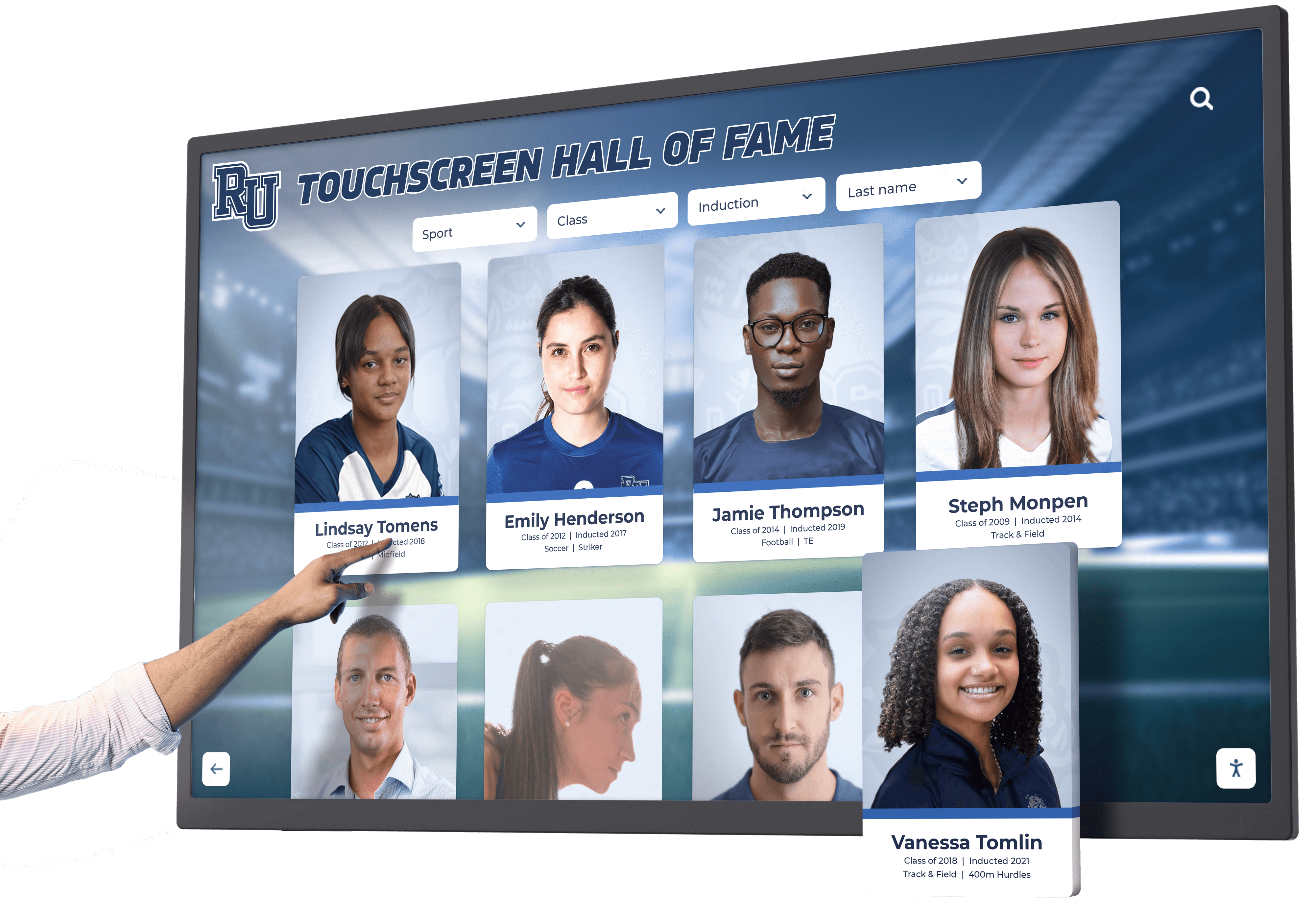
Touch Latency Acceptance Test Master Checklist
Complete this table for each display before signing off on the installation. Store the completed checklist in the display’s installation file alongside the network runbook, cable map, and power quality log.
| Test Item | Condition | Method | Pass Threshold | Result | Owner |
|---|---|---|---|---|---|
| Idle latency — single tap | Display at ambient temperature, no active content update | Visual stop-watch method or high-frame-rate video | ≤ 100 ms | ☐ Pass / ☐ Fail | IT Coordinator |
| Idle latency — drag gesture | Same as above | Same method | ≤ 100 ms continuous | ☐ Pass / ☐ Fail | IT Coordinator |
| Load latency — single tap | During active content sync or background update | Same method | ≤ 150 ms | ☐ Pass / ☐ Fail | IT Coordinator |
| Multi-touch latency | Two simultaneous contact points | Same method, average across five trials | ≤ 150 ms | ☐ Pass / ☐ Fail | IT Coordinator |
| Cold-start latency | Immediately after display wake from standby | Same method | ≤ 200 ms for first 10 seconds | ☐ Pass / ☐ Fail | IT Coordinator |
| Edge-zone latency | Contact in each of the four screen corners | Same method | ≤ 100 ms | ☐ Pass / ☐ Fail | AV Technician |
| Sustained-use latency | After 15 minutes of continuous interaction | Same method | No more than 20 ms increase over idle result | ☐ Pass / ☐ Fail | IT Coordinator |
| Latency after content update push | Immediately following a remote content push | Same method | ≤ 150 ms | ☐ Pass / ☐ Fail | IT Coordinator |
Record the measured value (in milliseconds) in the Result column alongside the pass/fail mark. If any item fails, document the remediation step taken and re-run the affected tests before signing off.
What Touch Latency Is — and What It Is Not
Touch latency is a specific, measurable interval. Understanding what contributes to it helps your team diagnose failures during the acceptance test rather than chasing the wrong variable.
What touch latency measures: the elapsed time from the moment a finger makes electrical or capacitive contact with the screen surface to the moment the display’s operating system registers the input event and triggers a visible response — typically a UI element highlighting, a page transitioning, or a cursor moving.
What touch latency is not:
- Display refresh latency (input-to-pixel): The additional time for that triggered response to actually appear on screen as rendered pixels. This is a separate measurement, sometimes called input-to-pixel lag, that involves the display panel’s refresh rate and rendering pipeline. Some manufacturers publish this combined end-to-end latency; many publish only the panel’s touch scanning rate.
- Network latency: The time for new content to arrive from a remote CMS. If a staff member pushes an updated athletic record to the hall of fame display and the update takes three seconds to appear, that is a content delivery delay — not touch latency. Both matter for the user experience, but they require different tests and different remediation paths.
- Animation lag: A UI that animates a page transition with a deliberate 300 ms fade is not exhibiting touch latency even though the visible response is delayed. Check whether the delay you observe is designed animation before attributing it to latency.
School recognition displays — interactive hall of fame systems in particular — are usually running kiosk-mode software on an embedded computing platform. The touch latency you measure reflects the combined performance of four components: the touchscreen overlay’s scanning rate, the USB or I²C controller converting touch events to data, the operating system’s input event queue, and the kiosk application’s event handling code. A failure at any layer produces latency that exceeds your acceptance threshold.

Step 1: Pre-Test Setup
Before taking any measurements, confirm the display is in a representative operating state. Testing on a freshly booted display with no content loaded will produce artificially favorable latency numbers that do not reflect real operating conditions.
1.1 — Confirm the Display Is Running Its Production Configuration
- The recognition display software (kiosk application, CMS client, or media player) must be running in the same mode it will use during normal school hours.
- Verify that any startup tasks — content sync, thumbnail generation, font loading — have completed. Allow at least five minutes after a cold boot before starting measurements.
- If the display has an ambient sensor that adjusts brightness based on lobby lighting, confirm the sensor is active and the display has adjusted to the room’s actual light level. Brightness changes can briefly increase touch scanning overhead on some controller configurations.
1.2 — Set Up the Measurement Method
Professional touch latency measurement uses a high-frame-rate camera (240 fps or higher) capturing the screen and the touching finger simultaneously. The camera records the moment of contact and the moment of visible on-screen response; frame counting gives a millisecond-resolution measurement.
For most school acceptance tests, two accessible methods work well:
High-frame-rate video method (recommended):
- Use a smartphone capable of slow-motion video at 240 fps or higher. Most current-model smartphones support this in their native camera app.
- Position the camera so the screen surface, the approaching finger, and a visible UI response element (a button highlight or a page transition) are all in the same frame.
- Tap a consistent UI element — the “Browse Athletes” button on an athletic hall of fame display works well — five times at a natural pace, recording all five taps in a single slow-motion clip.
- Review the footage frame by frame. Identify the frame of first skin contact and the frame of first visible UI response (button highlight, color change, or page shift). Count the frames between them; divide by 240 to get seconds, then multiply by 1,000 for milliseconds.
- Record the measurement for each of the five taps and average them. This is your idle latency baseline.
Stop-watch observation method (backup): This method is lower precision but usable when a slow-motion camera is not available. It relies on training the observer’s eye rather than captured video. It is suitable for confirming pass/fail on a display that appears clearly acceptable or clearly unacceptable, but it is not reliable for borderline results. Use it only if the video method is not available.
1.3 — Document the Baseline Environment
Record in your sign-off file:
| Field | Value |
|---|---|
| Display model and serial number | |
| Touchscreen overlay model and controller firmware version | |
| Operating system and build version | |
| Kiosk application name and version | |
| Content sync status at time of test (idle / active) | |
| Room temperature at time of test | |
| Measurement method used (video fps / stop-watch) | |
| Tester name and role | |
| Test date and time |
Step 2: Idle Latency Measurement
Idle latency — measured when the display is fully booted, content is loaded, and no background sync is running — is your baseline. It represents the best-case touch response the display hardware and software can deliver.
2.1 — Single-Tap Latency
- Navigate to a screen with clearly visible tap targets — the athlete index page or the sport-category navigation in a hall of fame application works well.
- Tap the same button five times. Record each measurement.
- Calculate the average of the five measurements.
- Record the average as Idle Single-Tap Latency (ms) in the master checklist.
Pass threshold: ≤ 100 ms average.
2.2 — Drag Gesture Latency
Drag gestures — swiping through a list of athletic records or scrolling a timeline — reveal latency that single taps may not, because the touch controller must track a continuous moving contact rather than a discrete event.
- Open a scrollable list of athlete profiles or a photo gallery.
- Perform a slow, deliberate drag from the center of the screen toward one edge. The display should track your finger continuously with no visible jump or skip.
- Observe whether the visual content tracks your finger position smoothly or lags behind it by a visible gap.
- Perform the drag five times and note whether tracking is smooth on all five attempts.
A drag that consistently lags the finger position by more than approximately one centimeter of visual offset at a normal scroll speed indicates tracking latency above your threshold. Document the observation.
Pass threshold: Continuous tracking with no perceptible lag gap between finger position and content movement.
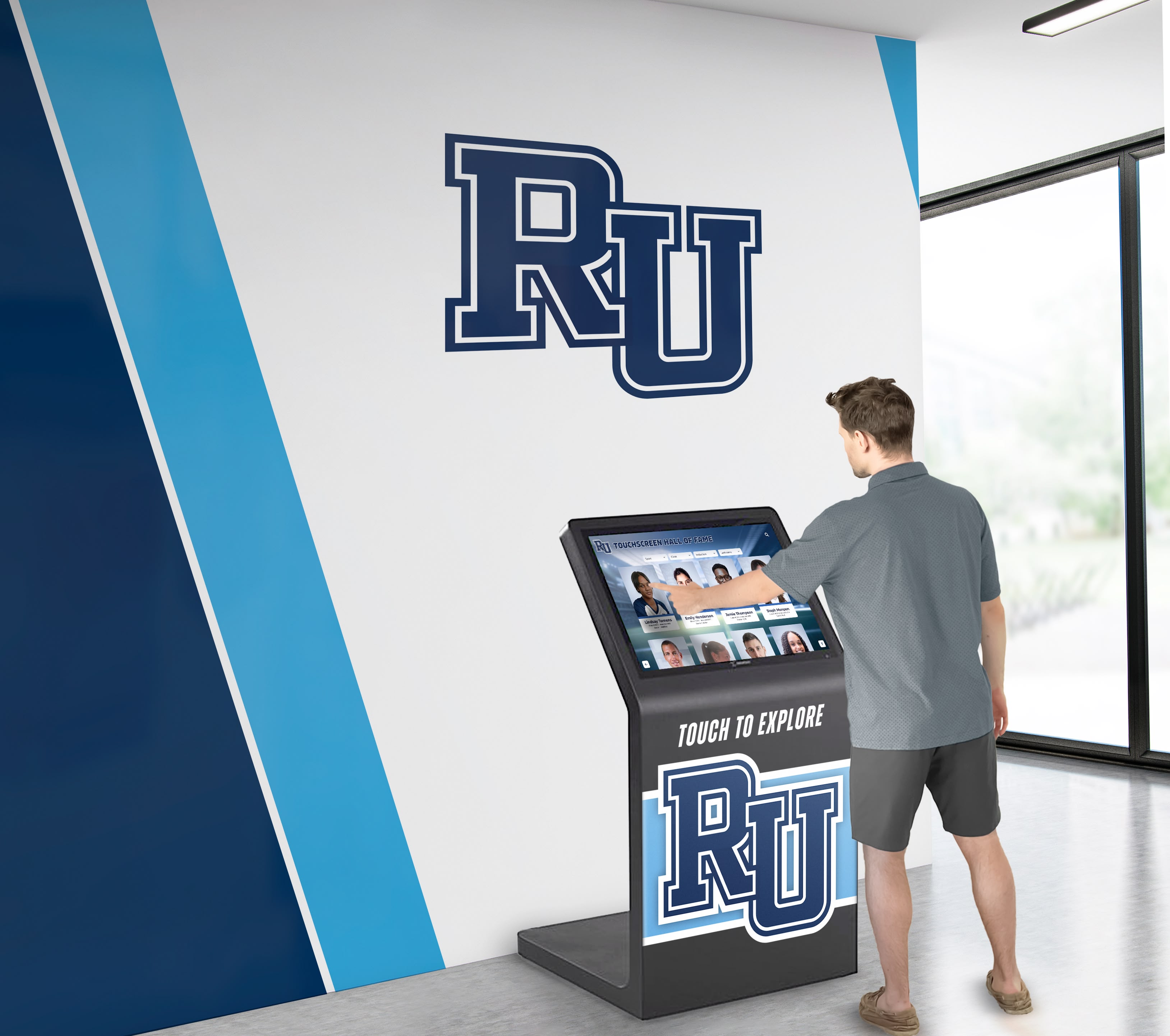
Step 3: Load Condition Latency Measurement
School recognition displays run background tasks that compete with touch processing for CPU and I/O resources: content syncs from the cloud CMS, thumbnail generation for newly uploaded athletic photos, and scheduled layout updates. Touch latency during these background operations is often higher than the idle baseline — and it is the latency that visitors experience on the morning after staff uploads new content overnight.
3.1 — Trigger a Content Sync
- If the recognition display’s CMS supports a manual sync trigger, initiate a content refresh from the admin panel.
- Alternatively, upload a small batch of new content (updated athlete records, a new sport category banner) and wait for the automatic sync to begin. Most school recognition display platforms will begin syncing within one to five minutes of a content push.
- Confirm the sync is in progress — most kiosk applications display a status indicator or a progress bar in the admin overlay.
3.2 — Measure Load Latency
While the sync is running:
- Repeat the single-tap measurement procedure from Step 2.1 — five taps on the same button, average the results.
- Record as Load Single-Tap Latency (ms).
- Compare against the idle baseline.
Pass threshold: ≤ 150 ms average, and no more than 50 ms increase over idle baseline.
If load latency exceeds 150 ms or the increase over idle is more than 50 ms, investigate whether background sync can be scheduled for overnight hours when the display is not in public use. Most school recognition platforms support scheduled sync windows — configuring an off-hours window is a simple remediation that brings load latency below threshold during school hours.
3.3 — Cold-Start Latency
Test the display immediately after it wakes from standby (not from a full power-off):
- Allow the display to enter its configured standby state. In most kiosk setups, this is a screen-blank or screensaver state triggered after a period of inactivity.
- Touch the screen to wake it.
- Immediately begin timing. Perform five single taps in the first ten seconds after wakeup.
- Record the average as Cold-Start Latency (ms).
Many touchscreen controller configurations have a brief warm-up interval after waking from low-power mode. A latency spike in the first five to ten seconds after wakeup that then returns to idle baseline is acceptable — document the spike and its duration. A latency above 200 ms that persists beyond thirty seconds after wakeup indicates a software or firmware issue that requires remediation before sign-off.
Step 4: Edge Zone and Multi-Touch Testing
4.1 — Corner and Edge Zone Latency
Capacitive touchscreen overlays sometimes exhibit higher latency at the edges and corners of the active area due to fewer sensor nodes and shorter averaging windows in those zones. For a recognition display showing athlete portrait grids or sports-category navigation — layouts that often place buttons near screen edges — this matters.
- Identify a tappable UI element in each corner of the screen. If the standard layout does not place elements in corners, temporarily navigate to a full-screen keyboard or a layout that does.
- Perform three taps in each corner (top-left, top-right, bottom-left, bottom-right). Record each measurement.
- Average the three measurements per corner and record.
- Compare corner averages to the center idle baseline.
Pass threshold: Corner latency ≤ 100 ms, and within 20 ms of the center idle baseline.
An edge latency more than 20 ms above the center baseline may indicate an overlay that is not properly calibrated for its mounting position, or a controller configuration that prioritizes center-zone accuracy. Contact the display vendor for overlay recalibration before sign-off.
4.2 — Multi-Touch Latency
Some school recognition displays support pinch-to-zoom on photo archives or two-finger scroll on timeline views. If multi-touch gestures are part of the planned user experience, test them.
- Place two fingers on the screen simultaneously and perform a slow pinch or spread.
- Observe whether both contact points track simultaneously or whether one leads the other by a visible gap.
- Perform five multi-touch gestures and average your latency observations.
Pass threshold: ≤ 150 ms average for multi-touch events, with both contact points tracking simultaneously with no visible sequencing gap.
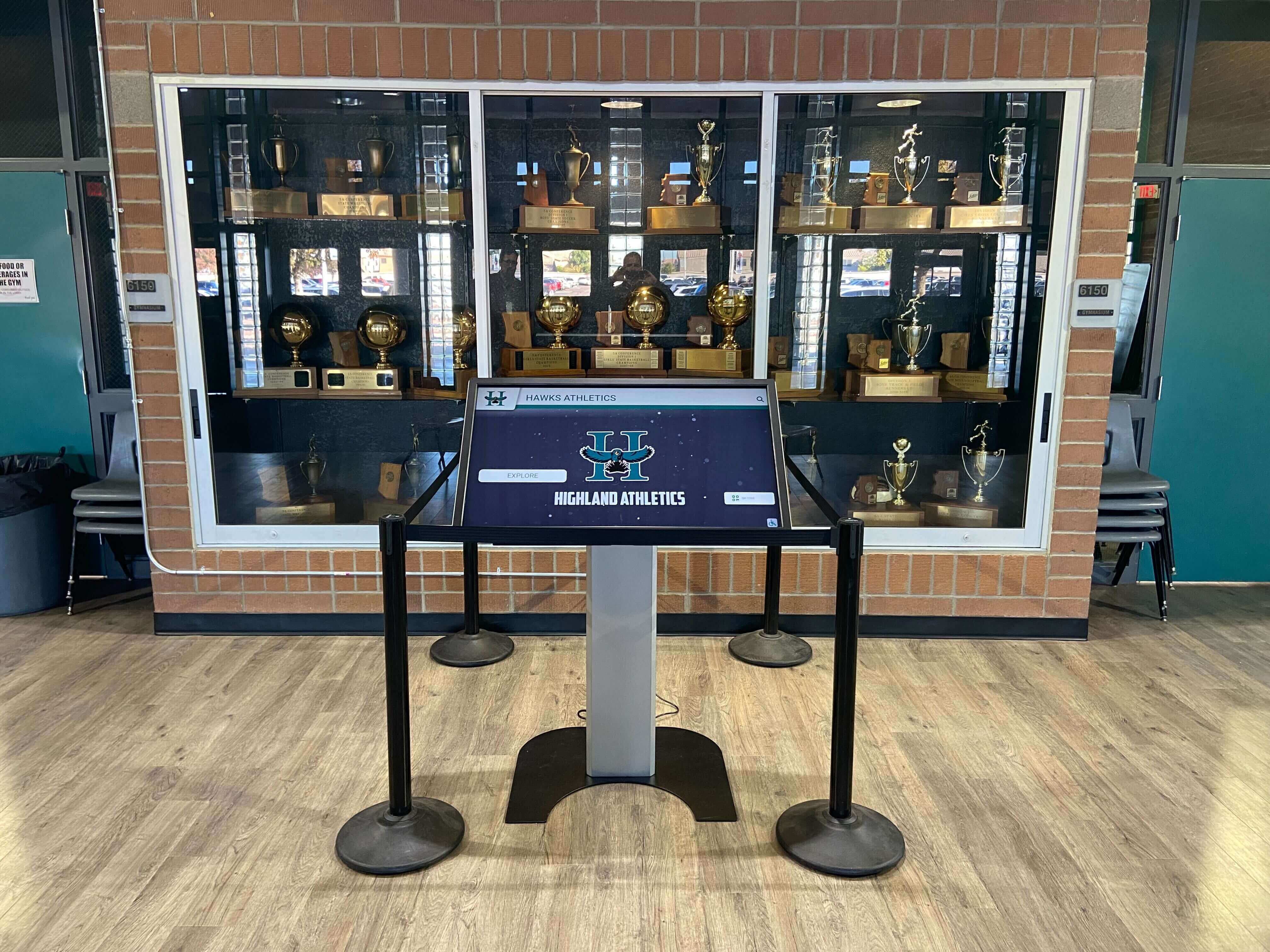
Step 5: Pass/Fail Evaluation and Remediation
5.1 — Pass/Fail Summary Table
Complete this table after finishing all measurements. A display that fails any item should not receive final sign-off until the remediation is documented and the affected tests are re-run.
| Test | Measured Value (ms) | Pass Threshold | Pass / Fail | Remediation (if failed) | Re-Test Result |
|---|---|---|---|---|---|
| Idle single-tap latency | ≤ 100 ms | ||||
| Idle drag gesture | Continuous tracking | ||||
| Load single-tap latency | ≤ 150 ms | ||||
| Load increase over idle | ≤ 50 ms increase | ||||
| Cold-start latency (0–10 sec) | ≤ 200 ms | ||||
| Cold-start latency (after 30 sec) | ≤ idle baseline | ||||
| Corner latency — top-left | ≤ 100 ms | ||||
| Corner latency — top-right | ≤ 100 ms | ||||
| Corner latency — bottom-left | ≤ 100 ms | ||||
| Corner latency — bottom-right | ≤ 100 ms | ||||
| Multi-touch latency | ≤ 150 ms | ||||
| Sustained-use latency (after 15 min) | ≤ idle + 20 ms | ||||
| Post-content-push latency | ≤ 150 ms |
5.2 — Common Remediation Steps
When a measurement fails, work through the following in order before requesting a hardware replacement:
High idle latency (above 100 ms):
- Verify the touchscreen controller driver is installed and at the current firmware version. Outdated firmware is the most common cause of unexpectedly high idle latency on otherwise capable hardware.
- Check whether any other application is competing for CPU time — antivirus scans, Windows Update, or a background content indexer running during the test. Reschedule those tasks to off-hours and re-test.
- Verify the USB connection between the touchscreen overlay and the embedded PC. Reseat the cable. If using a USB hub, connect the touchscreen controller directly to the embedded PC’s native USB port — hub-induced latency is a documented failure mode on some controller configurations.
High load latency (above 150 ms during content sync):
- Configure the CMS client’s sync schedule to run during overnight or early-morning hours when the display is in standby. Schools managing digital recognition programs for honor rolls and athletic highlights routinely push content updates outside of school hours for exactly this reason.
- Reduce the batch size of simultaneous content downloads if the CMS allows it.
- Confirm the display’s embedded PC meets the vendor’s minimum RAM specification. Content sync that forces the OS to use disk swap will significantly increase load latency.
High corner latency (above 100 ms or more than 20 ms above center baseline):
- Run the touchscreen overlay’s built-in calibration utility. Most capacitive overlays ship with a calibration routine accessible through the controller driver settings.
- Verify the overlay is mounted flat against the display panel with no air gap. An overlay that bows or lifts slightly at the corners can degrade capacitive sensitivity in those zones.
- Contact the display vendor if recalibration does not bring corner latency within the pass threshold.
Cold-start latency that persists beyond 30 seconds:
- Check whether the kiosk application performs a content integrity check on startup and whether that check is blocking the touch input queue. Some applications defer touch event processing until the integrity check completes.
- Review the OS startup task sequence and defer any non-essential startup items to after the kiosk application reports ready.
Why Touch Latency Matters for Athletic Recognition Displays Specifically
A digital hall of fame is not a passive display. Visitors interact with it: they browse athlete profiles, scroll through championship records, search for a specific year or sport, and share a screen by pointing at it while explaining it to someone standing beside them. The quality of that experience depends directly on how responsive the display feels.
Alumni recognition programs and baseball award programs that invest in digital recognition infrastructure understand that the display is the moment — a hall of fame inductee’s family gathered in the lobby expects the touchscreen to behave like every other consumer device they use. When it does not, the technology draws attention to itself instead of to the athletes it honors.
Touch latency above the 150 ms threshold is consistently perceived as sluggish by general users, even without a frame of reference. In a public lobby where the display must compete with the visitor’s smartphone for perceived quality, latency that would be acceptable on a conference room kiosk becomes a visible problem. Schools that have established classroom recognition displays and extended them to lobby hall of fame installations often discover the lobby audience is less forgiving than a classroom audience, because the lobby visit is shorter and the interaction is entirely voluntary.
Running the acceptance test before sign-off gives your IT team a documented record that the display met its performance threshold at commissioning. If the display develops latency issues later — often from software drift or an OS update that changes the USB device priority queue — the commissioning record provides a baseline for comparison and supports any warranty claim with the vendor.
Sustained-Use Latency Test
After 15 minutes of continuous interaction — longer than most individual visitor sessions but representative of a busy open-house or awards-ceremony lobby — re-run the idle single-tap latency measurement.
Why this matters: Some touchscreen controller configurations allow the contact-point averaging window to grow over time as more touch events accumulate in the driver’s history buffer. This can slightly increase latency under sustained use. On well-configured systems, the difference is negligible. On misconfigured systems or those running older drivers, sustained-use latency can creep 30 to 50 ms above the idle baseline — enough to become perceptible.
Procedure:
- Have one tester interact with the display continuously for 15 minutes — browsing athlete records, scrolling sport categories, navigating the timeline.
- At the 15-minute mark, re-run the single-tap measurement from Step 2.1.
- Record the result as Sustained-Use Latency (ms) and compare against the idle baseline from Step 2.
Pass threshold: Sustained-use latency within 20 ms of the idle baseline.
If sustained-use latency exceeds the idle baseline by more than 20 ms, check whether the driver has a setting for event-history buffer size and reduce it. If the issue persists, document it in the installation file and discuss with the display vendor before sign-off.
Sign-Off Documentation
Once all tests pass, the IT Coordinator signs the acceptance record and files it with the display’s permanent installation documentation. The sign-off record should include:
- Completed master checklist table with all measured values and pass/fail marks
- The slow-motion video files (or still frames at key moments) used for measurements — these provide objective evidence that the test was conducted correctly
- Any failed tests, the remediation steps taken, and re-test results
- Display model, serial number, firmware versions, and OS build at the time of test
- IT Coordinator name and signature, date, and display location
Schools managing donor recognition displays alongside athletic hall of fame installations can apply the same acceptance test to any public-facing touchscreen, not only the primary hall of fame panel. A donor recognition wall kiosk that feels sluggish creates the same credibility problem as a slow hall of fame display. Run the same checklist for each public touchscreen at sign-off.
This documentation also supports future decisions about display lifecycle. If a display that passed at 80 ms idle latency is now measuring 160 ms three years later, the commissioning record makes the performance degradation visible and measurable rather than anecdotal.
For athletic recognition programs that span multiple buildings — a main lobby hall of fame display, a gymnasium lobby kiosk for high school lettermen and award recipients, and a media center archive terminal — maintain a separate sign-off record for each display location. Touch latency is affected by local conditions: USB cable length, the embedded PC in that specific enclosure, and the content load that particular display carries. A pass at one location does not guarantee a pass at another.
People Also Ask
What is touch latency on a recognition display?
Touch latency is the elapsed time, measured in milliseconds, from the moment a user’s finger makes contact with the touchscreen surface to the moment the display registers and visibly responds to that input. It is distinct from display refresh rate (how quickly pixels update) and network latency (how quickly new content arrives from a remote server). For public-facing recognition displays in school lobbies, a touch latency at or below 100 ms is generally imperceptible; latency above 150 ms is consistently perceived as sluggish by general users.
How do I measure touch latency without specialized equipment?
The most accessible method for school IT teams is slow-motion video using a smartphone capable of 240 fps recording. Position the phone so the screen, the approaching finger, and a visible UI element — such as a button that highlights on tap — are in frame simultaneously. Film five taps in slow motion, then count frames from first finger contact to first visible UI response. Divide frame count by 240 (frames per second) and multiply by 1,000 to convert to milliseconds. Average the five measurements for your baseline result.
What causes high touch latency on a school hall of fame display?
The most common causes are an outdated touchscreen controller driver or firmware, a USB connection routed through a hub instead of a direct port on the embedded PC, background processes (content sync, antivirus, OS update) competing for CPU resources during the measurement, and a touchscreen overlay that is not properly calibrated for its mounted position. In most cases, updating the controller firmware and rescheduling background tasks to off-hours resolves the issue without hardware replacement.
What touch latency is acceptable for a school recognition display?
A practical acceptance threshold for idle single-tap latency on a public school recognition display is 100 ms or below. Under load — during a content sync or immediately after a content push — a threshold of 150 ms is reasonable. Latency above 200 ms during normal operation is a clear fail that requires remediation before the display opens to visitors. These thresholds reflect the general expectation of consumer device responsiveness; they are not published standards specific to school recognition displays.
Should I test touch latency at the edges and corners of the screen?
Yes. Capacitive touchscreen overlays often perform differently at the edges and corners compared to the center, with some configurations showing higher latency or reduced sensitivity in those zones. For recognition displays that use layouts with navigation buttons or category tiles near the screen edges — which most hall of fame applications do — edge and corner latency testing is part of a complete acceptance test. Measure each corner separately and compare against your center baseline.
What is the difference between touch latency and display input lag?
Touch latency measures from finger contact to input event registration by the operating system. Display input lag (sometimes called input-to-pixel lag) measures from input event registration to visible pixel change on the panel. Both contribute to the overall perceived responsiveness of the display. The acceptance test in this article focuses on touch latency — the portion most affected by controller driver configuration and software settings — because it is the most variable and the most often overlooked in school recognition display installations.
Does content type affect touch latency?
Content type affects the visible response time but not the underlying touch latency. The touchscreen controller registers the tap event in the same amount of time regardless of what content is displayed. However, if the kiosk application is performing a CPU-intensive rendering task at the moment of the tap — generating a large photo transition or calculating a layout update — the visual response to the registered tap event may be delayed even after the input is registered. For acceptance testing purposes, test on the actual content the display will show in production, not on a blank or placeholder layout.
Connecting Latency Performance to the Recognition Experience
Every athletic award and alumni recognition display represents a commitment from the school to the athletes, donors, and community members it honors. The physicality of that experience in a digital format depends on the display behaving like a first-class interactive system — not like a slow web page from a decade ago.
When a visitor interacts with a well-calibrated hall of fame display, the technology disappears. They see the athletes. They read the records. They feel the institution’s pride in its history. When the display lags, the technology is all they notice. The difference between those two experiences is, in part, a matter of milliseconds — measurable, testable, and fixable before anyone outside the IT team ever touches the screen.
A formal touch latency acceptance test, completed at installation and filed with the display’s permanent documentation, gives your facilities and IT teams a quality standard that travels with the hardware for the life of the installation. When you upgrade the kiosk application two years from now, or when a vendor service representative touches the controller firmware, you have a commissioning baseline to test against. The display either meets it or it does not.
Ready to deploy a recognition display that meets your acceptance criteria before it goes public?
Rocket Alumni Solutions installs touchscreen hall of fame displays, donor recognition walls, and interactive athletic record systems for schools — with complete pre-deployment testing documentation and vendor support your IT team can reference at sign-off and throughout the display’s service life.































