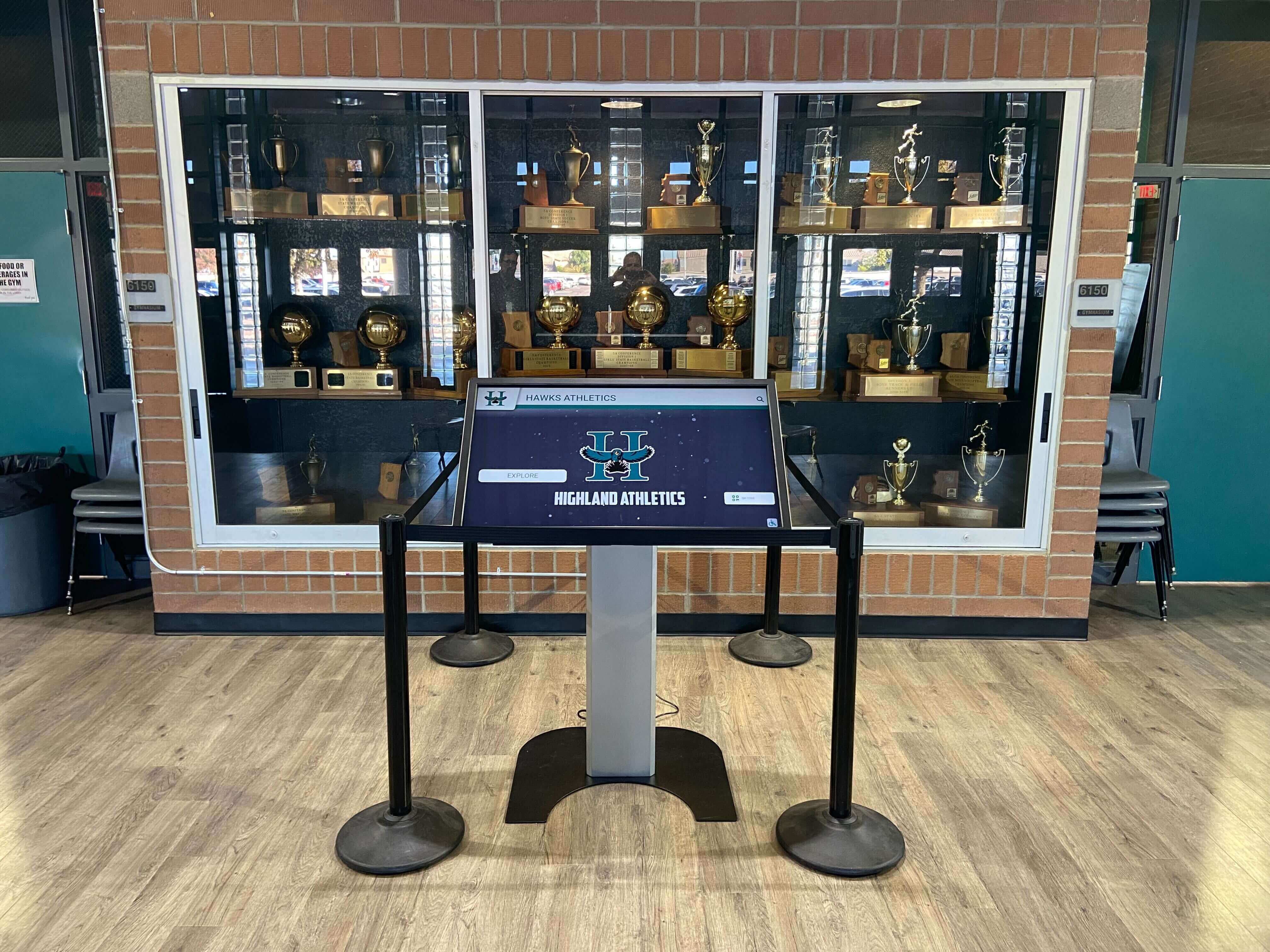
A touchscreen recognition display in a school trophy case or athletics hallway is a public-facing endpoint. It runs an operating system, connects to the building network, and—unless policy says otherwise—accepts whatever a visitor plugs into any exposed USB port. An open USB port on an unattended kiosk is a physical vulnerability: anyone who walks past can insert a storage device loaded with autorun malware, attempt a live-boot attack from a bootable drive, quietly copy locally cached content, or connect a USB-based hardware implant that persists between reboots. None of these threats require an internet connection or a sophisticated attacker.
A touchscreen recognition display USB device control policy gives school IT coordinators, district security leads, and facilities managers a clear, documented framework for blocking removable storage and untrusted USB classes while preserving the specific exemptions that keep legitimate maintenance, content recovery, and accessibility hardware working. This guide covers policy scope, device class categories, Group Policy and MDM implementation steps, BIOS/UEFI enforcement, physical port controls, an exemption workflow your team can adapt, and a documentation template suitable for inclusion in a broader endpoint security program.
Nothing in this article constitutes legal advice. Schools subject to FERPA, state privacy statutes, or district cybersecurity policy mandates should involve qualified IT leadership and legal counsel before formalizing any USB control policy.
The short answer: a USB device control policy for recognition displays should block removable storage (mass storage class), boot media, and unrecognized device classes at the Group Policy, MDM, and BIOS layers simultaneously, while explicitly permitting only the device classes required for operation—typically HID (mouse and keyboard for IT maintenance), audio adapters for accessibility hardware, and the display’s own touch digitizer. Every exemption is documented, time-limited where possible, and reviewed on the same quarterly schedule as the rest of the endpoint configuration.
USB Device Control Policy Master Reference Table
Use this table as the foundation of your written policy. Adapt permitted and blocked entries to match your specific CMS platform and hardware configuration. Store the completed document alongside your endpoint hardening baseline and review it after every OS update, every vendor service visit, and at the start of each semester.
| USB Device Class | Class Code | Policy State | Rationale | Review Trigger |
|---|---|---|---|---|
| Mass Storage (removable drives, flash drives, external HDDs) | 0x08 | Blocked | Primary vector for boot attacks, data exfiltration, and malware delivery | Quarterly |
| Boot media (bootable USB drives) | 0x08 + BIOS setting | Blocked at BIOS/UEFI | Prevents OS bypass and live-boot attacks regardless of OS policy | After every BIOS/UEFI update |
| Human Interface Device — keyboard | 0x03 | Permitted (IT use only) | Required for maintenance sessions; physically locked when not in use | Quarterly |
| Human Interface Device — mouse/pointer | 0x03 | Permitted (IT use only) | Required for maintenance sessions; physically locked when not in use | Quarterly |
| Audio — accessibility adapters | 0x01 | Permitted | ADA-compliant headphone access for users with hearing needs | Quarterly |
| Touch digitizer (internal) | 0x03 | Permitted | Required for kiosk touch operation | After every driver update |
| Bluetooth adapter (external) | 0xE0 | Blocked | Unnecessary wireless attack surface; internal Bluetooth disabled separately | Quarterly |
| Smartcard reader | 0x0B | Blocked unless documented | No operational requirement on standard recognition displays | Quarterly |
| Video/display adapter | 0x0E | Blocked | No operational requirement; potential side-channel risk | Quarterly |
| Network adapter (USB Ethernet) | 0x09 | Blocked | Network interface must be the documented built-in adapter only | Quarterly |
| Imaging device (cameras, scanners) | 0x06 | Blocked | No operational requirement; privacy risk in school lobbies | Quarterly |
| Unknown / unrecognized class | N/A | Blocked by default | Default-deny posture for all unclassified devices | Quarterly |
Why USB Control Is a Distinct Policy for Recognition Displays
Recognition displays are not managed workstations. They sit in uncontrolled physical spaces—lobby corridors, trophy rooms, gymnasium hallways—where staff cannot monitor every visitor interaction. Unlike a classroom laptop locked in a cart overnight, a recognition kiosk may face open access eighteen hours per day during school events, athletic banquets, open houses, and community ceremonies.

The content these displays protect is not trivial. Alumni recognition walls often contain historical athlete profiles, donor records, award archives, and decades of institutional memory stored in a CMS backend. A compromised display endpoint can become a pivot point toward that backend if USB-delivered malware establishes network persistence before IT detects it.
Three USB attack patterns are common enough to warrant explicit policy coverage:
- Bootable USB drives — attacker boots from a live Linux or Windows PE drive, bypasses OS disk encryption if not enforced, copies cached credentials or CMS configuration files, and reboots the device to its normal state. No visible sign of intrusion without forensic review.
- HID emulation devices (Rubber Ducky, O.MG cable) — device appears as a keyboard to the OS and executes a pre-programmed keystroke payload within seconds of insertion. Effective even when USB storage is blocked, because HID class is typically permitted.
- Removable storage with autorun payloads — less common on modern patched systems but still relevant on devices that missed OS updates during extended deployment without a patch maintenance window.
Addressing all three requires controls at multiple layers: OS policy, BIOS/UEFI, physical port blocking, and HID allowlisting where the threat model justifies it.
Layer 1: Group Policy USB Controls (Windows)
For Windows-based recognition displays joined to a domain, Group Policy is the primary software enforcement layer. Apply these settings through a dedicated Group Policy Object (GPO) applied to an Organizational Unit (OU) containing only recognition display computer accounts—never to a broader OU shared with staff workstations.
Block Removable Storage Device Classes
Path: Computer Configuration > Administrative Templates > System > Removable Storage Access
| Policy Setting | Value |
|---|---|
| All Removable Storage classes: Deny all access | Enabled |
| Removable Disks: Deny read access | Enabled |
| Removable Disks: Deny write access | Enabled |
| Removable Disks: Deny execute access | Enabled |
| WPD Devices: Deny all access | Enabled |
Setting “All Removable Storage classes: Deny all access” provides a default-deny baseline. The individual class settings below it provide defense in depth if the top-level setting is later misconfigured.
Restrict USB Device Installation by Class GUID
Path: Computer Configuration > Administrative Templates > System > Device Installation > Device Installation Restrictions
| Policy Setting | Value |
|---|---|
| Prevent installation of devices not described by other policy settings | Enabled |
| Allow installation of devices that match any of these device IDs | Add only approved device hardware IDs |
| Allow installation of devices using drivers that match these device setup classes | Add GUID for HID class only (if required) |
The device hardware ID approach is more precise than class-level blocking and is required when specific IT maintenance keyboards or accessibility adapters must be permitted while blocking HID emulation devices. Document approved hardware IDs—vendor, model, and USB hardware ID string—in your policy baseline before enabling this setting.
Disable AutoPlay and AutoRun
Path: Computer Configuration > Administrative Templates > Windows Components > AutoPlay Policies
| Policy Setting | Value |
|---|---|
| Turn off AutoPlay | Enabled — All Drives |
| Set the default behavior for AutoRun | Enabled — Do not execute any autorun commands |
| Disallow Autoplay for non-volume devices | Enabled |
These settings prevent autorun-based payload execution even on device classes that are not fully blocked—an important defense-in-depth control for maintenance sessions when a technician temporarily connects a permitted HID device alongside other peripherals.
Layer 2: MDM USB Controls (Intune or Third-Party)
For recognition displays managed through Microsoft Intune or a comparable MDM platform, USB controls deploy as device configuration profiles rather than Group Policy Objects. The functional outcome is identical; the implementation path differs.
In Intune: Navigate to Devices > Configuration profiles > Create profile > Windows 10 and later > Settings catalog. Search for “Removable storage” and configure:
Allow storage card: BlockRemovable disk: Not configured (controlled by the Removable Storage Access policies below)- Under
Defender > Controlled folder access: Enable if using Microsoft Defender
For granular device class control via Intune, use the Device control profile type under Endpoint Security > Attack surface reduction. This surface provides a structured interface for defining device control rules by class, hardware ID, and allowed operations (read/write/execute) without manually editing ADMX registry paths.
Document every Intune policy applied to recognition display device groups in your configuration baseline. Digital recognition kiosks used for showcasing athletic achievement awards require the same disciplined configuration management as any other managed endpoint—the MDM policy should be version-controlled and reviewed alongside the rest of the endpoint baseline.
Layer 3: BIOS/UEFI USB Boot Control
Group Policy and MDM controls operate after the OS loads. An attacker with physical access can bypass them entirely by booting from a USB drive before the OS starts. BIOS/UEFI-layer controls close this gap.
Required BIOS/UEFI Settings
| Setting | Recommended Value | Notes |
|---|---|---|
| Secure Boot | Enabled | Prevents unsigned bootloaders from executing |
| Boot order | Internal drive only | Remove USB and network boot options |
| USB boot support | Disabled | Separate from boot order; prevents USB as a boot candidate even if order changes |
| BIOS/UEFI password | Set to unique complex password | Prevents unauthorized changes to boot settings |
| Chassis intrusion detection | Enabled (if supported) | Alerts on physical case opening |
Document the BIOS/UEFI password in your IT credential vault (not in the configuration baseline document itself, which may have broader distribution). Rotate the BIOS/UEFI password whenever a technician with knowledge of it leaves the organization or changes roles.
BIOS/UEFI firmware updates—delivered by the hardware vendor to patch security vulnerabilities in the firmware itself—should be applied on the same documented patch schedule as OS updates. Verify that firmware updates do not reset BIOS/UEFI settings to defaults; perform a post-update settings audit as part of every firmware maintenance window.
Layer 4: Physical Port Control
Software and BIOS controls prevent USB exploitation at the OS and firmware layers. Physical port blockers address the gap that remains when a device is powered off, reimaged, or temporarily handed to a vendor technician whose access to policy settings cannot be verified in real time.
Physical Port Control Implementation
- Install USB port blockers on every exposed USB port not required for operational use. Use a keyed system that issues one key to the IT Coordinator and stores a backup key in a secured location with access logged.
- Cover HDMI and DisplayPort outputs facing the public side of the enclosure. These ports are not USB but represent a related physical attack surface.
- Verify enclosure design so that the device’s internal USB header connections—used to connect the touch digitizer—are not accessible from the public side of the mounting.
- Label the one operational USB port (if any is required for a permitted accessibility adapter) with a tamper-evident seal that breaks on unauthorized removal.
- Document port blocker key locations in the IT asset record for each device. Never store a key on or immediately adjacent to the device it protects.
Physical port control inspection should appear on the same monthly checklist as kiosk mode verification and endpoint protection status. Touchscreen software environments that manage sensitive historical recognition data deserve the same physical security discipline as any other public-access kiosk.
Layer 5: HID Device Allowlisting for Maintenance
Blocking all USB except an explicit allowlist creates the strictest USB posture but requires a documented process for adding approved maintenance keyboards and mice before technicians can service the device. This trade-off is appropriate for high-traffic, high-visibility installations.
Allowlist Workflow
- IT Coordinator identifies the specific keyboard and mouse models approved for recognition display maintenance.
- Retrieve the USB hardware ID (Vendor ID and Product ID) for each approved device using Device Manager (
devmgmt.msc) on a test machine. - Add the hardware IDs to the GPO or MDM device installation allowlist.
- Test that the approved devices connect successfully and that unapproved HID devices (including HID emulation test devices if available) are blocked.
- Document approved devices—make, model, hardware ID—in the configuration baseline.
- Review the allowlist quarterly and remove entries for devices no longer in service.
This allowlist approach mitigates HID emulation attacks because a Rubber Ducky or similar device will present a hardware ID that does not match the allowlist and will be blocked at installation.
Exemption Process for Legitimate USB Use
Blocking removable storage by default creates friction for three legitimate workflows: IT maintenance media, content recovery from physical USB archives, and accessibility hardware. A documented exemption process preserves these workflows without creating standing exceptions that degrade policy over time.

Maintenance Media Exemption
When IT staff need to boot from or transfer files via USB—OS reinstallation, firmware update, recovery image restore—the exemption workflow is:
- Technician submits a request to the IT Coordinator specifying device ID, planned date and time window, and purpose.
- IT Coordinator temporarily modifies the GPO or MDM policy to permit the specific hardware ID for the duration of the maintenance window, or temporarily removes the device from the policy-enforcement OU.
- Technician performs maintenance with IT Coordinator in attendance or monitoring remotely.
- IT Coordinator restores policy enforcement and verifies via a policy audit before leaving the device unattended.
- Service visit and policy change are logged in the device’s maintenance record.
Content Recovery Exemption
Class president recognition displays and athletic hall of fame kiosks sometimes need to restore content from a physical USB archive when a CMS connectivity issue prevents cloud synchronization. This exemption should follow the same technician-and-IT-Coordinator workflow as maintenance media, with the additional control that the USB archive drive is itself enrolled as a verified device by hardware ID before any recovery session.
Accessibility Hardware Exemption
ADA-compliant recognition kiosks may require a USB headphone adapter or assistive input device for users with disabilities. If the device class and hardware ID are known in advance, add them to the standing allowlist rather than creating a per-session exemption. Document the accessibility device in both the allowlist and the ADA compliance record for the installation.
Audit, Logging, and Policy Verification
A written USB control policy that is never verified becomes a paper control. Schedule these verification activities alongside your existing quarterly endpoint security review.
Verification Checklist
| Verification Activity | Method | Frequency |
|---|---|---|
| USB storage block test | Attempt to mount an approved test flash drive; confirm OS blocks access | Quarterly |
| HID emulation block test | Attempt to install unapproved HID device; confirm OS blocks installation | Quarterly |
| BIOS/UEFI boot order review | Boot into BIOS/UEFI setup; confirm USB boot is disabled | After every firmware update |
| Physical port blocker inspection | Visually confirm all non-operational ports are covered | Monthly |
| GPO/MDM policy audit | Confirm recognition display OU or device group is receiving correct policy | Monthly |
| Allowlist review | Confirm allowlisted hardware IDs match devices currently in service | Quarterly |
| Exemption log review | Confirm all exemption events are logged with date, technician, and purpose | Quarterly |
OS Event Logging for USB Activity
Enable and review these Windows Event IDs as part of your monthly log review:
- Event ID 2003 — USB device connected (logged to Application and Services log)
- Event ID 2100 — Policy application failure (indicates a device attempted to connect and was blocked)
- System > Microsoft > Windows > DriverFrameworks-UserMode > Operational — Device installation events
If your district uses a SIEM or log aggregation platform, create an alert rule for unexpected USB device installation events on recognition display hosts. A single alert notification is sufficient; recognition displays should generate zero USB connection events during normal unattended operation.
Policy Documentation Requirements
A USB device control policy is only enforceable if it is documented, distributed to responsible parties, and reviewed on a defined schedule. Maintain the following documentation for each recognition display deployment.
| Document | Content | Storage Location | Review Frequency |
|---|---|---|---|
| USB Policy Baseline | Blocked classes, permitted classes, hardware IDs of allowlisted devices | IT asset management system | Quarterly |
| Exemption Log | Date, technician, device ID, purpose, duration, IT Coordinator approval | IT asset management system | Quarterly (log entries on event) |
| Allowlist Registry | Make, model, hardware ID, expiration date for each permitted device | IT asset management system | Quarterly |
| BIOS/UEFI Settings Record | Firmware version, boot order, Secure Boot state, date verified | IT asset management system | After every firmware update |
| Physical Port Inspection Log | Date, inspector, port blocker condition, any anomalies | Physical or digital maintenance log | Monthly |
| Patch and Policy Change History | Date, change made, technician, IT Coordinator sign-off | IT asset management system | On event; reviewed quarterly |
Schools that manage physical recognition archives alongside digital kiosks—printed athletic records, framed historical photos, award documentation—can integrate this documentation into the same records management workflow used for physical archives. Digital interactive museum display programs that blend physical and digital recognition face the same dual documentation challenge and benefit from a unified records framework.
Coordinating USB Policy with Athletic Directors and Advancement Staff
The primary operational impact of a USB device control policy on non-IT staff is in content workflows. Athletic directors scheduling recognition display content for football banquets and award nights and advancement teams managing alumni recognition updates need to know:
- Content is published through the CMS web interface or app, not by inserting a USB drive at the display device. USB blocking does not affect cloud-based content workflows.
- The maintenance window schedule determines when the display may be offline for patching or configuration changes. Communicate maintenance windows to athletic directors and advancement staff at least two weeks in advance.
- The exemption process is available if content recovery from a physical USB archive is ever required. Staff should contact IT to initiate the exemption workflow rather than attempting to connect a drive without authorization.
- The display will be unavailable during exemption-based maintenance sessions. Schedule these sessions outside of peak display times—early morning, school breaks, or after graduation ceremonies.
AP Scholar and academic recognition programs that rely on timely recognition display updates particularly benefit from clear communication between IT and advancement teams about maintenance windows and exemption procedures.
Frequently Asked Questions
Does USB storage blocking affect the touch digitizer built into the recognition display?
No. The touch digitizer connects to the internal USB header on the display’s motherboard, not to an external USB port accessible to the public. It presents as an HID device (class 0x03), which is in the permitted class list. Blocking removable storage (class 0x08) does not affect HID devices. Verify this on your specific hardware model before deployment by connecting the display without any external USB devices and confirming touch functionality is unaffected after the policy is applied.
What happens if a visitor accidentally plugs a phone charger into an exposed USB port?
A phone charger presenting as a charging-only device (no data class) will typically provide power without triggering a device installation event. However, many modern phones present as both a charging device and a USB mass storage or MTP device simultaneously. A properly configured USB control policy will block the storage/MTP class while potentially allowing power delivery. Physical port blockers eliminate this ambiguity entirely by preventing insertion of any external device. For highest assurance, cover all external USB ports with physical blockers and provide a dedicated, power-only USB charging port in a separate, non-display enclosure if visitor charging is required.
Our CMS vendor wants to connect a USB drive during a service visit. Is that permitted?
Only through the documented exemption process. Before the vendor visit, obtain the hardware ID of the vendor’s service drive, add it to a temporary allowlist entry with the IT Coordinator’s approval, and have IT staff present or monitoring during the session. After the visit, remove the temporary allowlist entry and verify policy enforcement is restored. Document the exemption event in the exemption log. Vendors who cannot or will not provide a hardware ID for their service media in advance should be asked to perform service operations through the CMS web interface instead.
Should we apply the same USB policy to displays that run Android rather than Windows?
Yes, but the implementation differs. Android-based recognition displays use MDM enrollment through Android Enterprise (work-managed device profile) rather than Group Policy. In Android Enterprise, disable “Allow USB file transfer” in the device policy and disable “USB debugging” permanently. Physical port blockers and BIOS-equivalent bootloader lock controls (Android Verified Boot) apply at the hardware layer. Confirm with your MDM vendor which USB class controls are exposed in their Android Enterprise policy surface before deployment.
How does this policy interact with ADA requirements for accessibility hardware?
ADA-compliant installations may require a USB headphone adapter for private audio access to recognition content. The policy accommodates this through the standing allowlist—add the specific headphone adapter’s hardware ID to the allowlist before deployment, document the device in the ADA compliance record, and verify quarterly that the adapter remains on the allowlist and is accessible. The policy posture is: default-deny, with a documented and reviewed exception for every accessibility device. Athletic recognition display programs that celebrate students with disabilities benefit from the same accessibility-forward design thinking in both their content and their hardware policy.
Does USB device control policy need to be documented separately from the general endpoint hardening policy?
It can be a section within a broader endpoint hardening policy or a standalone document—both are acceptable. The standalone format is preferable when the display deployment spans multiple buildings or campuses with different IT staff responsible for each location, because it allows distribution of just the USB-specific section without sharing unrelated configuration details. Either way, the USB policy must reference and be consistent with the broader endpoint baseline. Schools managing digital recognition archives alongside physical records benefit from a standalone USB policy document that can be handed to facilities staff and advancement coordinators without requiring them to parse the full technical baseline.
Quick Reference: USB Control Priority Summary
| Priority | Control | Layer | Why It Matters |
|---|---|---|---|
| Critical | Block removable storage class (0x08) | Group Policy / MDM | Prevents boot-from-USB, data exfiltration, and malware delivery |
| Critical | Disable USB boot in BIOS/UEFI | BIOS/UEFI | Prevents OS bypass regardless of software policy state |
| Critical | Set BIOS/UEFI password | BIOS/UEFI | Prevents unauthorized change to boot settings |
| Critical | Physical port blockers on non-operational ports | Physical | Eliminates all USB threat vectors on covered ports |
| High | HID allowlist (specific hardware IDs only) | Group Policy / MDM | Mitigates HID emulation attacks |
| High | Disable AutoPlay and AutoRun | Group Policy / MDM | Defense in depth against autorun payloads |
| High | Document exemption process | Policy | Ensures legitimate maintenance workflows are not disrupted |
| Medium | Monthly physical port inspection | Physical | Catches removed or damaged port blockers before they become a gap |
| Medium | USB activity event log review | Monitoring | Surfaces unexpected connection attempts during normal operation |
| Medium | Quarterly policy drift review | Policy | Catches GPO/MDM misconfiguration from OS or platform updates |
Schedule a TouchWall Display Security Review
If your school is deploying a touchscreen recognition display or auditing an existing installation, Rocket Alumni Solutions can review your endpoint and USB control configuration alongside the CMS platform setup—so your hall of fame, donor wall, or athletic history display is secured before it goes live in front of students, families, and community visitors.
Schedule a free TouchWall demo and security review →
The session covers CMS configuration, content scheduling, kiosk mode settings, and the USB and network controls that apply to your specific deployment. Bring your IT coordinator and your athletic director — the review is designed for both audiences simultaneously.
What to Review Next
With USB device control policy in place, the next step is verifying that all endpoint controls—not just USB—match your documented configuration baseline and stay there across updates and service visits. A touchscreen recognition display configuration baseline checklist gives your team the layer-by-layer reference that makes quarterly drift reviews systematic.
For displays that have already been deployed without a formal USB policy, an endpoint hardening checklist provides a comprehensive remediation sequence covering OS hardening, network isolation, kiosk lockdown, and patch management alongside USB controls—so existing installations can be brought into compliance in a single structured maintenance window.































