Touchscreen recognition displays earn their keep during the events that matter most—championship ceremonies, hall of fame inductions, graduation weekends, and alumni homecomings. Those are also the moments when a frozen screen or crashed player draws the most attention and reflects most directly on the staff responsible for the installation. A blank kiosk in front of a crowd of parents and alumni is not a minor inconvenience; it is a visible failure during a high-stakes presentation.
Watchdog timers solve this problem by automating recovery. When a recognition display player crashes, hangs, or stops responding, a properly configured watchdog detects the failure and restarts the app or reboots the device—without any intervention from IT staff. The recovery happens in the background, often before a visitor realizes anything went wrong.
This guide walks school IT administrators, facilities staff, and athletic department personnel through the process of configuring software and hardware watchdog timers for touchscreen recognition kiosk deployments. It covers Windows, Linux, and MDM-managed Android and Chrome OS environments, includes a recovery decision table for matching failure types to the right watchdog tier, and ends with a configuration checklist you can adapt to your specific setup.
Recognition kiosks operate in demanding conditions that standard desktop or server environments do not face. Screens run continuously—often 12 to 18 hours per day—in lobbies and hallways where temperature and humidity fluctuate with foot traffic, seasonal changes, and HVAC cycling. Player software handles media-rich content libraries that accumulate over years: athlete portraits, highlight videos, championship records, and academic recognition programs spanning decades of honorees. Those libraries grow; the hardware ages; and at some point, an unattended device stops responding.
Without a watchdog mechanism, recovery depends entirely on someone noticing the problem and physically intervening—which may not happen for hours during an early-morning setup or a weekend event.
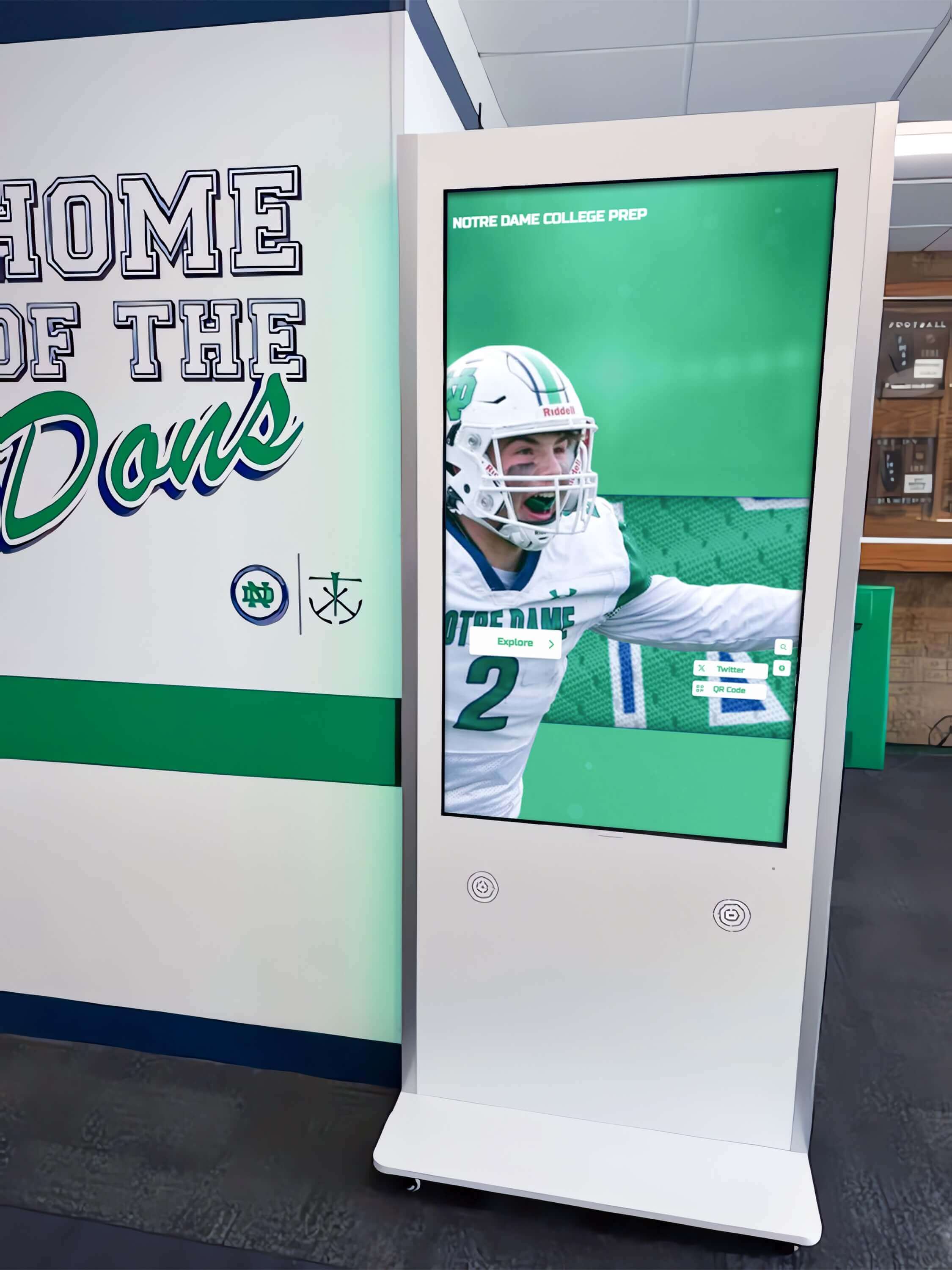
Recognition kiosks in high-traffic hallways need automatic recovery mechanisms because manual intervention during events is rarely practical
What Is a Watchdog Timer?
A watchdog timer is a monitoring mechanism that expects a periodic “heartbeat” signal from a monitored process or system. When the heartbeat stops arriving—because the monitored process has crashed, hung, or become unresponsive—the watchdog takes a corrective action: restarting an application, cycling a service, or rebooting the entire device.
The term comes from hardware watchdog chips embedded in industrial computers and embedded systems. Those chips receive a reset signal from the main processor at regular intervals. If the processor stops sending that signal—because it has locked up—the watchdog chip cuts and restores power, forcing a cold reboot without any software involvement.
Software watchdog timers operate on the same principle but entirely within the operating system. A monitoring process checks whether a target application is alive, responsive, or successfully completing a task. If checks fail, the watchdog kills and restarts the target process.
Hardware watchdog timers use a dedicated chip or circuit independent of the main CPU. They survive situations where the OS itself has crashed or where software watchdogs cannot run because the system is fully frozen.
For recognition kiosks, you typically want both layers: a software watchdog to handle the most common failures—app crashes, memory leaks, browser hangs—and a hardware watchdog or scheduled power cycle to handle the rare but complete system failures that software alone cannot recover from.
Why Touchscreen Recognition Kiosks Freeze
Understanding the failure modes helps you choose the right watchdog strategy. The most common causes of freezes in recognition display deployments fall into five categories.
Memory leaks in player software. Recognition players that display media-rich profiles accumulate memory over long run sessions. A player running continuously for days without a restart may gradually exhaust available RAM, causing sluggish response and eventually a full hang.
Browser engine crashes. Many recognition platforms run in a Chromium-based browser or web view. Chromium can crash silently, leaving the display frozen on the last rendered frame or showing a blank tab with no visible error.
Touch driver failures. The touch digitizer driver occasionally loses sync with the display hardware, making the screen appear active—content still playing—but unresponsive to input. Visitors see profiles but cannot navigate or search.
Network timeout cascades. If the player fetches content from a cloud CMS and the network connection drops for longer than the application’s timeout threshold, some players enter an error state rather than showing cached content. They wait indefinitely for a connection rather than recovering gracefully.
Thermal and hardware events. Mini PCs and media players mounted inside display enclosures can overheat during hot weather or when ventilation is inadequate. A CPU thermal throttle drops performance to unacceptable levels; a full thermal shutdown takes the device offline entirely.
Each failure type calls for a different recovery approach, which is where the recovery decision table becomes useful.
Recovery Decision Table
Match the failure symptom you observe—or anticipate—to the recovery method that addresses it, and to the watchdog tier that automates that recovery.
| Failure Symptom | Likely Cause | Recovery Method | Watchdog Tier |
|---|---|---|---|
| Black screen; OS taskbar or SSH still reachable | Player app crash | Restart player process | Software watchdog |
| App visible but frozen; no animation or content updates | Memory leak / heap exhaustion | Force-kill and restart player | Software watchdog |
| Content playing normally; no touch response | Touch driver hang | Restart touch input service | Software watchdog |
| Content stalled; no new data loading from CMS | Network timeout / CMS unreachable | Restart network adapter; reload player | Software watchdog |
| Mouse cursor moves; no keyboard or touch input | Input subsystem crash | Restart input services | Software watchdog |
| Screen blank; OS unresponsive; SSH fails | Kernel panic or full system lock | Hardware watchdog reboot | Hardware watchdog |
| Device powered off; no software response | Thermal shutdown or power loss | Scheduled power cycle or smart outlet | Hardware / scheduled |
| Correct content not showing after a content push | CMS sync failure | Restart player with cache clear | Software watchdog |
| Display shows “no signal” from wall mount | HDMI handshake lost | Power-cycle display via CEC command or relay | Hardware / scheduled |
The distinction between tiers matters for implementation. A software watchdog costs nothing and requires no additional hardware, but it depends on the OS being functional. A hardware watchdog or scheduled power relay works even when the OS has crashed, but it causes a cold reboot that takes longer and requires the player app to handle an interrupted startup gracefully.
Before You Start
Confirm these prerequisites before configuring any watchdog mechanism.
Hardware and OS inventory. Know the exact make and model of every media player or mini PC in your deployment. Confirm which OS version each runs. Hardware watchdog availability varies significantly by device model, and some mini PCs do not expose a watchdog chip to the OS at all.
Player application version and built-in features. Some recognition player applications include built-in watchdog or self-restart features. Check the application settings before adding an external watchdog; if a built-in mechanism exists and is configurable, start there to avoid conflicts.
Administrative access. Software watchdog configuration on Windows requires Local Administrator or Group Policy rights. On Linux, it requires root access to systemd unit files. MDM-based configuration requires MDM Administrator credentials.
Network credentials and static IP assignments. If your watchdog will trigger network service restarts, ensure devices have static IP addresses or DHCP reservations so they rejoin the network under a known address after each restart.
Maintenance window. Test your watchdog configuration during a scheduled maintenance window, not immediately before an event. A misconfigured watchdog that reboots a device in a continuous loop creates more disruption than the original freeze.
Recovery time objective. Decide what recovery time is acceptable for your installation. An app-level restart typically takes 10 to 30 seconds. A full system reboot on a mini PC may take 60 to 180 seconds. Set expectations with athletic directors and event coordinators before the configuration is live.
Software-Level Watchdog Configuration
Windows: Task Scheduler and PowerShell
Windows does not include a native watchdog service, but Task Scheduler combined with a PowerShell monitoring script provides reliable app-level recovery. This approach handles the most common failure: the player process has exited and is no longer running.
Create the monitoring script. Save a .ps1 file to a protected directory such as C:\Scripts\watchdog.ps1:
$playerName = "YourPlayerProcess"
$playerPath = "C:\Program Files\YourPlayer\player.exe"
$process = Get-Process -Name $playerName -ErrorAction SilentlyContinue
if (-not $process) {
    Start-Process -FilePath $playerPath
    $timestamp = Get-Date -Format "yyyy-MM-dd HH:mm:ss"
    Add-Content -Path "C:\Scripts\watchdog.log" -Value "$timestamp - Restarted $playerName"
}
Replace YourPlayerProcess with the exact process name shown in Task Manager and $playerPath with the full path to the player executable.
Schedule the task. Open Task Scheduler and create a new task with these settings:
- Trigger: On a schedule, repeating every 2 minutes, indefinitely
- Action:
powershell.exe -NonInteractive -ExecutionPolicy Bypass -File "C:\Scripts\watchdog.ps1" - Run As: SYSTEM account
- Settings: Enable “Run whether user is logged on or not” and “Run task as soon as possible after a scheduled start is missed”
Enable startup launch. Ensure the player application is configured to launch automatically at system startup, not on user login. Use a startup entry in the registry (HKLM\SOFTWARE\Microsoft\Windows\CurrentVersion\Run) or a separate Task Scheduler task triggered at system startup.
Log all restarts. The watchdog.log file creates a timeline of when restarts occurred. Review it after events to identify devices with elevated restart frequency—those devices may need hardware attention or a player software update.
Linux: systemd Watchdog
Linux systems running a recognition player as a systemd service can use systemd’s built-in watchdog support. Add these directives to the player’s .service unit file:
[Service]
Restart=always
RestartSec=10
WatchdogSec=60
StartLimitIntervalSec=300
StartLimitBurst=5
Restart=always tells systemd to restart the service whenever it exits, regardless of exit code. RestartSec=10 waits 10 seconds before restarting to prevent rapid-restart loops. WatchdogSec=60 tells systemd to kill and restart the service if it does not send a watchdog ping within 60 seconds. StartLimitBurst=5 caps restarts at five within a 5-minute window, preventing runaway loops that mask a deeper problem.
If the player application does not natively send watchdog notifications to systemd, wrap it in a shell script that calls systemd-notify --watchdog periodically, or use a lightweight process supervisor configured to notify systemd on behalf of the managed application.
After updating the unit file, reload and restart:
sudo systemctl daemon-reload
sudo systemctl restart your-player.service
sudo systemctl status your-player.service
Android and Chrome OS: MDM Kiosk Policies
Recognition kiosks running on Android or Chrome OS devices benefit from MDM-enforced kiosk mode, which prevents users from exiting the player and automatically relaunches the pinned application after a crash.
Android kiosk mode. Enroll devices in a Mobile Device Management platform and apply a dedicated device or kiosk profile. Set the recognition player as the locked task application. Most MDM platforms also allow configuring a scheduled nightly reboot and alert notifications when a device goes offline for more than a configurable period.
Chrome OS managed sessions. Schools managing Chromebooks through Google Admin Console can enroll recognition display devices in a dedicated organizational unit for displays. Key policies to apply:
- Auto-launch the recognition kiosk app on startup without a login screen
- Disable guest sessions and browser access
- Enforce automatic OS updates only during scheduled overnight windows
- Enable device health reporting so offline devices appear in the admin console
Both platforms reset to the recognition application automatically after a crash, which covers the majority of software-level failures without requiring a separate watchdog script.
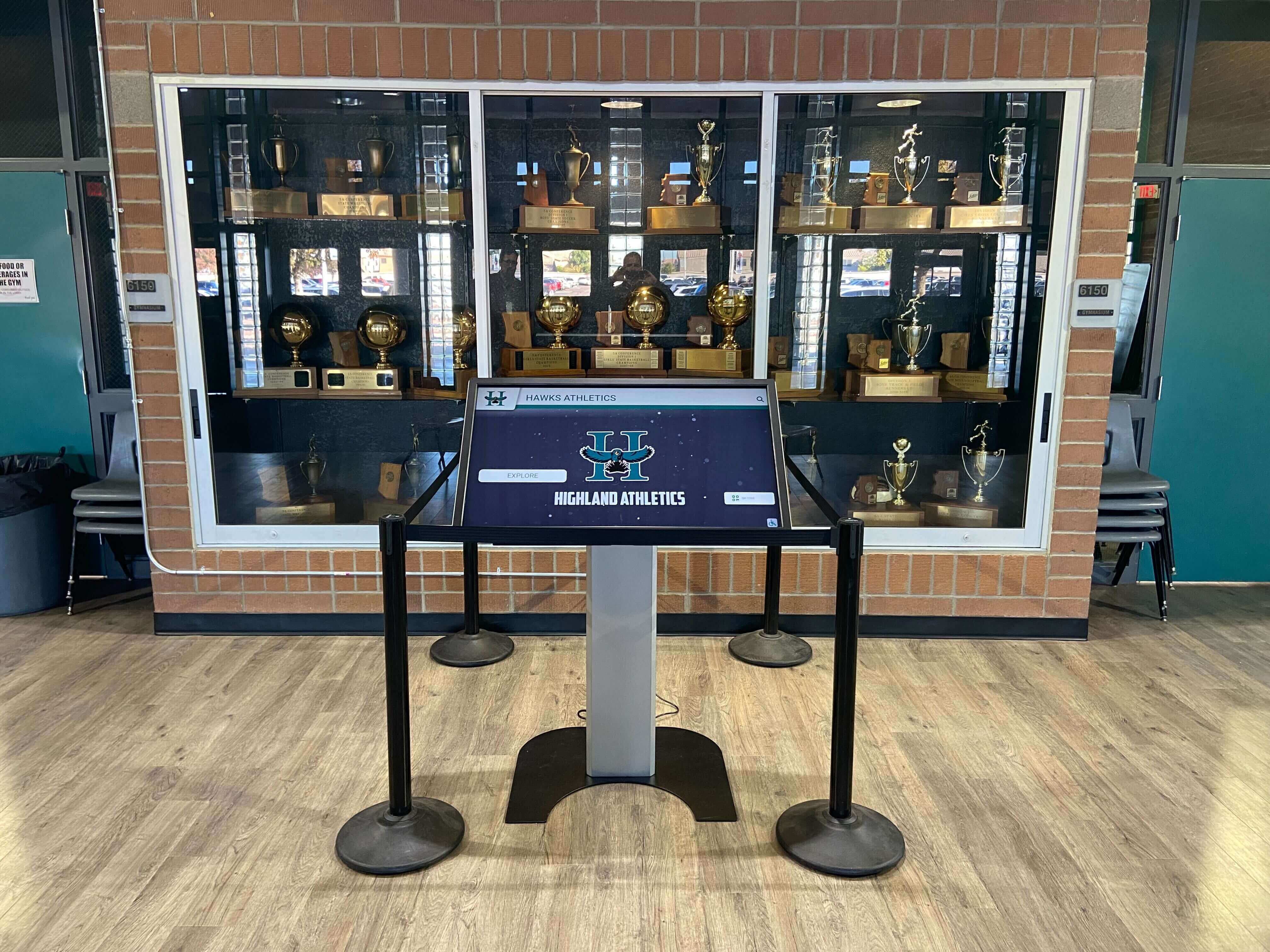
Trophy case integrations are high-visibility installations where a frozen screen is particularly conspicuous during award ceremonies
Hardware Watchdog Options
When the OS itself cannot recover—kernel panics, severe memory corruption, or driver-level failures that prevent systemd and Task Scheduler from running—a hardware watchdog is the only automatic recovery path.
Embedded hardware watchdog chips. Many mini PCs and single-board computers include a hardware watchdog timer accessible through the OS. On Linux, the watchdog daemon provides access to hardware timers on supported devices:
sudo apt install watchdog
Edit /etc/watchdog.conf to set watchdog-device = /dev/watchdog and configure load-based thresholds. Enable the daemon with sudo systemctl enable --now watchdog. The daemon feeds the hardware timer periodically; if the OS hangs and the daemon stops, the timer expires and the hardware forces a reboot.
On Windows, hardware watchdog support varies by device. Some mini PC manufacturers provide vendor utilities that expose watchdog chip functionality. Check your device documentation before relying on software-only recovery.
External watchdog relay devices. Standalone watchdog relays plug between the wall outlet and the player device. They expect a USB or network heartbeat signal from the player software at regular intervals. When the signal stops for longer than the configured timeout, the relay cuts and restores power—cycling the device regardless of OS state. These devices typically cost between $25 and $80 and add the most robust recovery for installations where a full system freeze would otherwise require a physical visit.
Smart outlets with scheduled power cycles. For deployments where an immediate response to failure is less critical, a scheduled nightly power cycle through a smart outlet or network PDU provides a reliable baseline. Configure the outlet to cut power for 30 seconds each night at 2:00 AM and restore it. This does not respond to failures in real time, but it clears accumulated memory pressure and stale state that develop during continuous multi-day operation—eliminating many freeze conditions before they occur.
UPS with remote reboot. Uninterruptible power supplies with network management cards allow IT staff to trigger a power cycle remotely without physical access. This is a manual fallback rather than an automatic watchdog, but it fills the gap for situations where automated recovery loops fail to stabilize a device and human judgment is needed before the next restart attempt.
MDM Remote Recovery as a Fallback Layer
Automated watchdog timers should be your first line of defense. An MDM platform provides the backup when watchdogs fail or when the failure requires contextual judgment before the next restart attempt.
Schools managing recognition kiosks alongside existing device fleets can extend their current MDM to include display devices without a separate software subscription. Remote reboot from the MDM console takes roughly the same time as a power cycle and requires no physical access—which matters for installations in secured trophy cases, lobbies accessible only during school hours, or multi-building campuses where dispatching a technician is a significant time investment.
Configure your MDM to:
- Alert the IT team when a device has been offline for more than 15 minutes during operational hours
- Schedule a nightly reboot between midnight and 4 AM across all recognition display devices as a secondary fallback
- Lock each device to the recognition player so a restarted device returns to the display without manual login
- Maintain an online/offline status dashboard visible to both IT staff and athletic department coordinators
Booster clubs and parent organizations that fund recognition display installations often manage ongoing maintenance budgets alongside the recognition content itself. Coordinating recovery procedures with those stakeholders—so they know to contact IT rather than unplugging devices themselves—prevents well-intentioned volunteers from interrupting a content sync or a watchdog recovery cycle. Booster clubs that document financial and operational procedures for school programs typically maintain a point-of-contact list alongside those procedures; a one-page device recovery SOP fits naturally in the same documentation set.
Network Timeout and Content Sync Recovery
A recognition display that pulls content from a cloud CMS is vulnerable to a category of failure that is not a crash: the player is running and the OS is healthy, but new content is not loading because the network connection has dropped or the CMS is temporarily unreachable.
Set a content cache policy. Ensure your player caches at least the previous 24 hours of content locally. A display showing yesterday’s content while the network is down is far better than a blank screen or an error state.
Add a connection health check to your monitoring script. Extend your watchdog script to ping the CMS endpoint in addition to checking the player process. If the ping fails for more than 5 minutes, restart the network adapter (Windows: Disable-NetAdapter then Enable-NetAdapter; Linux: ip link set eth0 down && ip link set eth0 up). Log the event for review.
Schedule a periodic player reload. Configure the player to reload its content library once per hour during low-traffic periods. This ensures that recognition content updated in the CMS—new character award honorees entered by a counselor, updated sports team profiles and athlete highlight displays added by a coach—appears on screen within a predictable and short window without waiting for the next full restart cycle.
Watchdog Configuration Checklist
Use this checklist when deploying watchdog configurations across your recognition display fleet, or when auditing an existing installation.
App-Level (All Platforms)
- Identify the exact process name or service identifier for the recognition player
- Confirm whether the player has a built-in watchdog or self-restart setting; configure it before adding an external watchdog
- Configure a software watchdog to check for the process every 1 to 5 minutes
- Enable restart logging with timestamps to a persistent log file on each device
- Test the watchdog by manually terminating the player process and verifying it restarts within the configured interval
- Set the player to launch automatically at system startup, not on user login
- Verify the player auto-launches after each reboot without requiring a password entry
OS-Level (Windows and Linux)
- Schedule a nightly maintenance reboot between midnight and 4 AM
- Confirm the player auto-launches after each scheduled reboot
- Enable OS-level crash reporting and forward logs to your monitoring system or shared drive
- Disable automatic OS update reboots during operational hours and event days
- Assign a static IP address or DHCP reservation to each display device
- Set systemd
StartLimitBurstor Task Scheduler restart limits to cap runaway restart loops
Hardware-Level
- Identify whether each mini PC or media player includes a hardware watchdog chip accessible via the OS
- Enable and test the hardware watchdog daemon (
/dev/watchdogon Linux or vendor equivalent on Windows) on supported devices - Evaluate an external watchdog relay or smart outlet for high-priority installations where a complete OS freeze would be most disruptive
- Document the physical location and power source for each device to support manual intervention when needed
MDM Layer
- Enroll all recognition display devices in the MDM platform under a dedicated organizational unit
- Configure the MDM to alert IT when any device goes offline for more than 15 minutes during operational hours
- Enable remote reboot capability and confirm it works from outside the school network
- Schedule a nightly MDM-triggered reboot as a secondary fallback layer
- Lock each device to the recognition player application; disable general browser and OS access for non-staff
Testing and Validation
- Force a player process crash and verify the software watchdog restarts it within the configured interval
- Disconnect the network cable and verify the player shows cached content rather than an error screen
- Verify that a nightly reboot returns the device to the recognition player without manual intervention
- Review the watchdog log file for restart patterns: frequent restarts on the same device or same time of day indicate a deeper problem
- Conduct a full-stack test before any major event: simulate a freeze, confirm automatic recovery, confirm content is current
Pre-Event Verification Protocol
Watchdog timers automate recovery, but they do not eliminate pre-event verification. At least one hour before any high-visibility event, run through this brief check.
- Confirm all recognition display devices show as online in the MDM console
- Verify the correct content playlist or profile set is active and displaying on screen
- Manually navigate to several profiles and confirm touch response is working
- Check the watchdog log file for restarts in the past 24 hours; investigate any device with more than two restart events
- Confirm the network connection status for cloud-connected players
This five-minute check catches configuration drift—a device that has silently failed but is being held up by the watchdog and needs hardware attention before the event. It also gives you time to confirm that recognition content updated in the CMS is visible on screen, whether that is a new scholarship winner, a recently inducted hall of fame honoree, or school spirit content including team graphics added for a pep rally or homecoming display.
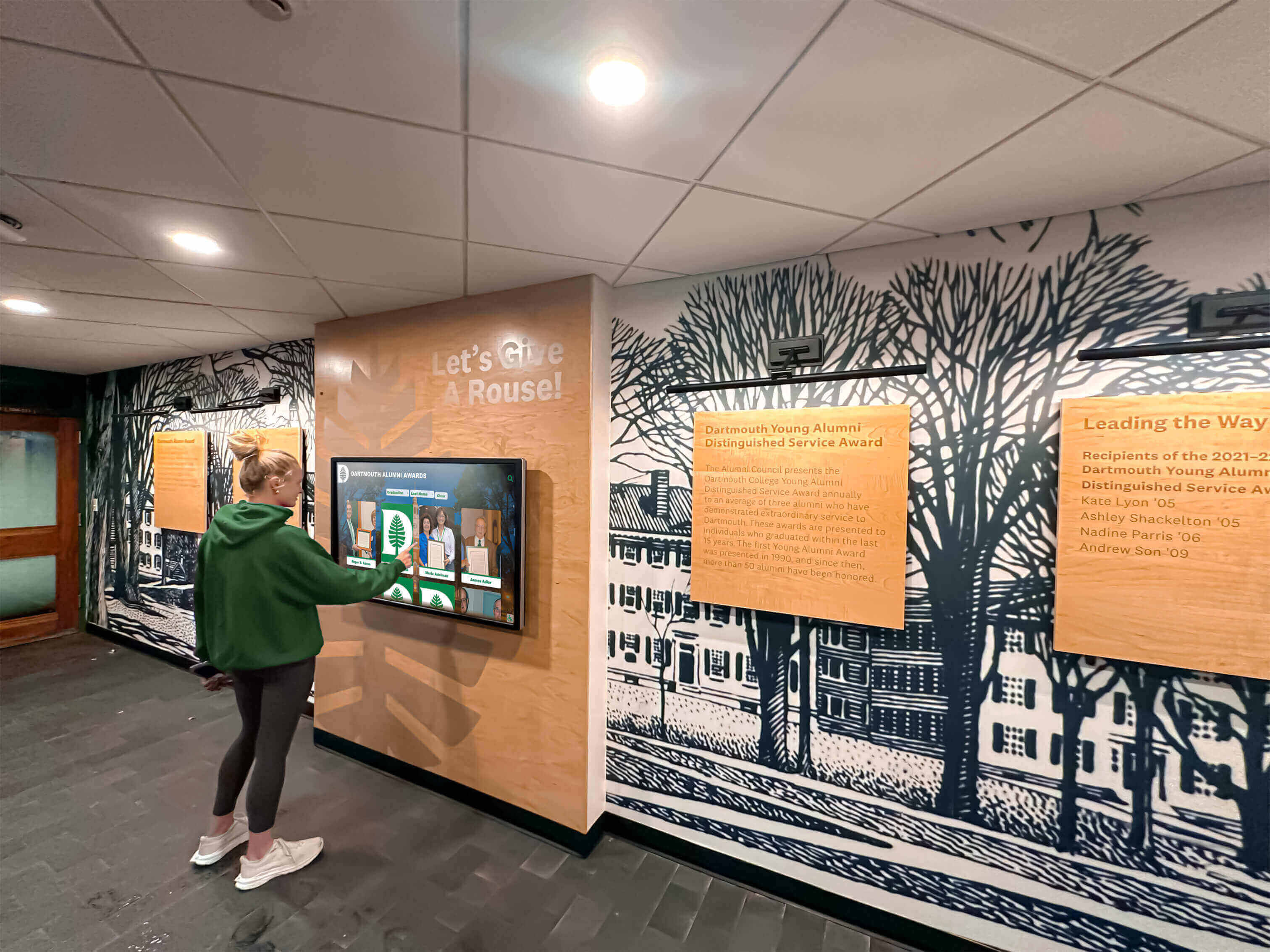
Pre-event touch testing takes five minutes and confirms the display responds correctly before guests arrive
Calibrating Recovery Time to the Event Schedule
Different events have different recovery windows. A kiosk in a high-traffic lobby during a normal school day can tolerate a 60-second reboot without significant impact. A display positioned at the entrance to a hall of fame induction ceremony—where guests are streaming past in a concentrated 15-minute window—needs sub-30-second app-level recovery.
Configure your watchdog check interval and recovery method to match the highest-priority use case for each device location. For lobby displays that serve both routine days and high-stakes events, favor shorter check intervals and faster app-level restarts over less frequent full-device reboots, even if it means more watchdog activity during low-traffic periods.
A device that the watchdog is restarting frequently—more than two or three times per day—is sending a signal that automated recovery is masking an underlying problem. Address that device before an important event, not after.
Documentation and Ongoing Maintenance
A watchdog configuration that is not documented is a configuration that only one person understands—and that person will not always be available when a device needs attention. Maintain a one-page device record for each recognition display that includes:
- Device make, model, and whether a hardware watchdog chip is enabled
- OS version and last update date
- Watchdog configuration method: Task Scheduler, systemd, MDM, or built-in player setting
- Check interval and the restart command the watchdog uses
- Log file path for restart history
- MDM enrollment status and device group assignment
- Static IP address or DHCP reservation and switch port
- Physical location including building, room, and mounting details
- Point of contact for event-day support
Store this documentation in a shared drive accessible to IT staff, facilities managers, and athletic department coordinators. Schools that manage recognition kiosks alongside a broader academic honor program benefit from integrating device records with the recognition content documentation so staff responsible for content updates understand which devices require additional care.
Schedule a quarterly review of watchdog logs across all display devices. Elevated restart frequency on a specific device is an early warning: the player software may have a memory leak that a newer version fixes, the hardware may be degrading, or environmental factors—heat, vibration, or power instability—may need addressing before they cause an outright failure at the worst possible time.
See Rocket’s Recognition Platform Running on MDM-Managed Displays
Rocket Alumni Solutions includes MDM device management, remote reboot, and device health monitoring as standard features alongside the recognition content platform. Schedule a walkthrough to see how the platform handles device management alongside content, and how IT and athletic staff share responsibility for keeping recognition kiosks running through events.
Watchdog timers close the gap between a recognition display that requires IT attention every time it freezes and one that recovers quietly on its own. Configure the software layer first—it handles the most frequent failures at no hardware cost. Add a hardware watchdog or scheduled power cycle for high-priority installations. Layer MDM remote recovery on top for manual oversight and nightly maintenance reboots. Document every configuration decision. And run the pre-event verification protocol before any audience arrives.
The goal is a recognition display that holds its place in the lobby, gymnasium, or hallway without constant attention—showing the achievements your school community has earned, reliably, even when technology behaves unpredictably.
This content was produced by or on behalf of Rocket Alumni Solutions. Technical configuration examples are provided for reference; specific commands and settings vary by hardware model, OS version, and MDM platform. Consult your hardware documentation and MDM vendor support for device-specific guidance.































