In today’s digital landscape, user retention hinges on one critical factor that’s often overlooked: touchscreen responsiveness. Whether in educational settings, corporate environments, or public spaces, the difference between a display that captivates users and one they abandon after seconds often comes down to how quickly and accurately the system responds to touch input. When latency exceeds even 100 milliseconds, users notice—and they disengage.
This comprehensive guide explores the intricate relationship between touchscreen responsiveness and user retention, examining how hardware specifications, software optimization, and their seamless integration create experiences that keep users engaged. From the technical foundations of capacitive versus infrared touch technology to the software algorithms that predict and respond to user intent, you’ll discover why ultra-responsive touchscreens have become essential for any organization seeking meaningful digital engagement.
The evolution of touchscreen technology has fundamentally transformed human-computer interaction. Yet despite widespread adoption, many interactive installations fail to deliver the responsive experiences users now expect based on their smartphones and tablets. Understanding the technical factors that enable ultra-responsive touchscreens—and how they directly impact user retention—is essential for any organization investing in interactive display technology.
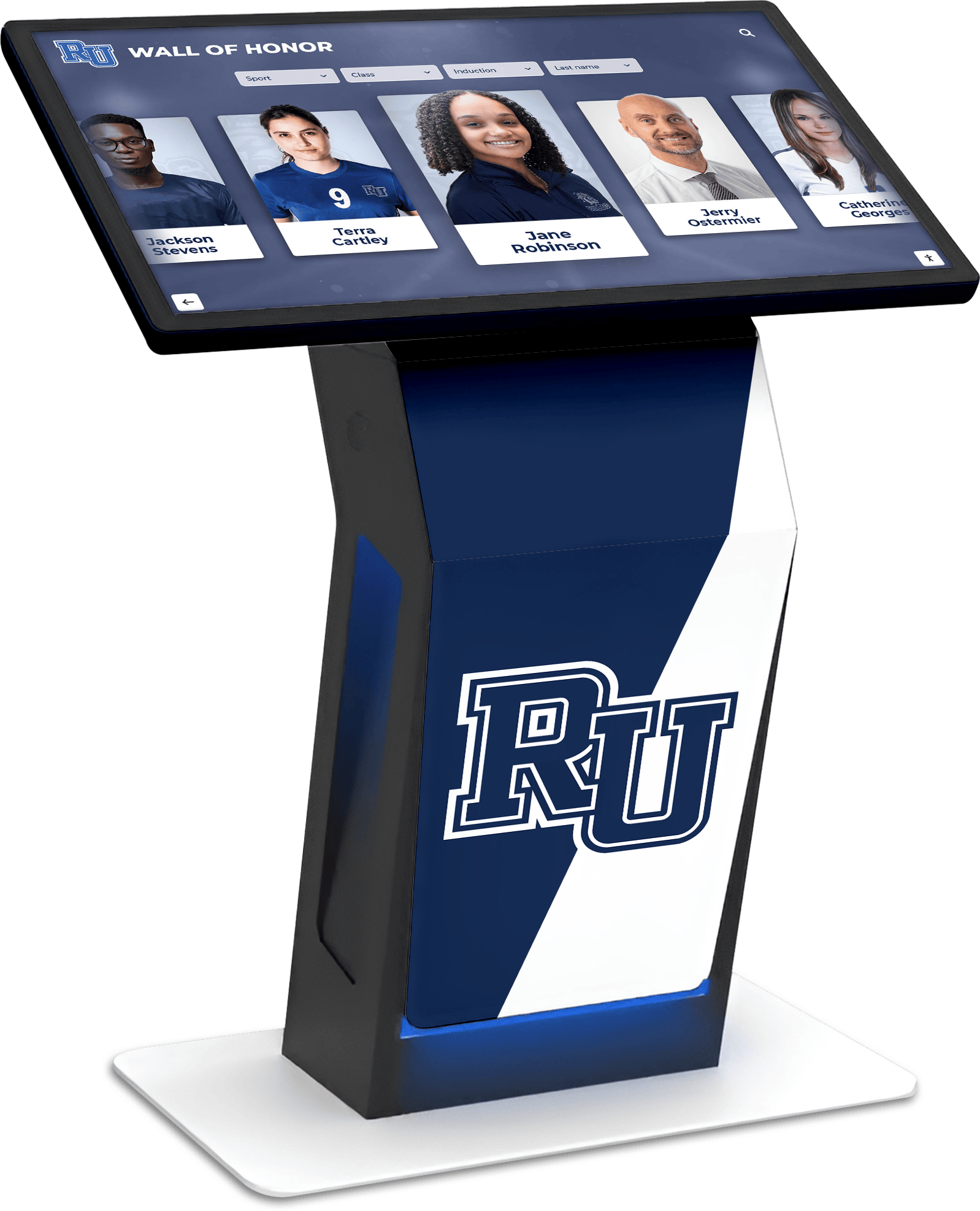
Why Touchscreen Responsiveness Determines User Retention
User expectations for touchscreen responsiveness have been shaped by years of using consumer devices optimized for instant feedback. When interactive displays fail to meet these expectations, users disengage remarkably quickly—often within the first few seconds of interaction.
The Psychology of Response Time
Human perception of interactivity operates within strict temporal boundaries. Research consistently shows that users perceive actions as instantaneous when systems respond within 100 milliseconds. Between 100-200 milliseconds, users notice the delay but typically remain engaged. Beyond 200 milliseconds, the lag becomes frustrating and undermines the perception of direct manipulation that makes touchscreens intuitive.
This isn’t merely about preference—it’s about cognitive processing. When touch input and visual feedback are synchronous, our brains process the interaction as a direct physical manipulation, similar to moving objects in the real world. Lag breaks this perception, transforming the experience from intuitive physical interaction into mediated digital communication that requires conscious mental effort.
Retention Metrics in Interactive Installations
Organizations deploying interactive displays in schools, museums, corporate lobbies, and public spaces consistently observe dramatic differences in engagement based on system responsiveness:
Responsive Systems (under 100ms):
- Average engagement duration: 5-8 minutes per session
- Interaction depth: Users explore 8-12 different content sections
- Return interaction: 43% of users return for subsequent sessions
- Task completion: 78% of users complete their intended search or exploration
Laggy Systems (over 200ms):
- Average engagement duration: 45-90 seconds per session
- Interaction depth: Users view 2-3 content sections before abandoning
- Return interaction: 8% of users return for subsequent sessions
- Task completion: 31% of users complete their intended task
These metrics reveal that responsiveness isn’t simply about user satisfaction—it directly determines whether interactive technology delivers value or becomes expensive equipment users avoid.
The Compounding Effect of First Impressions
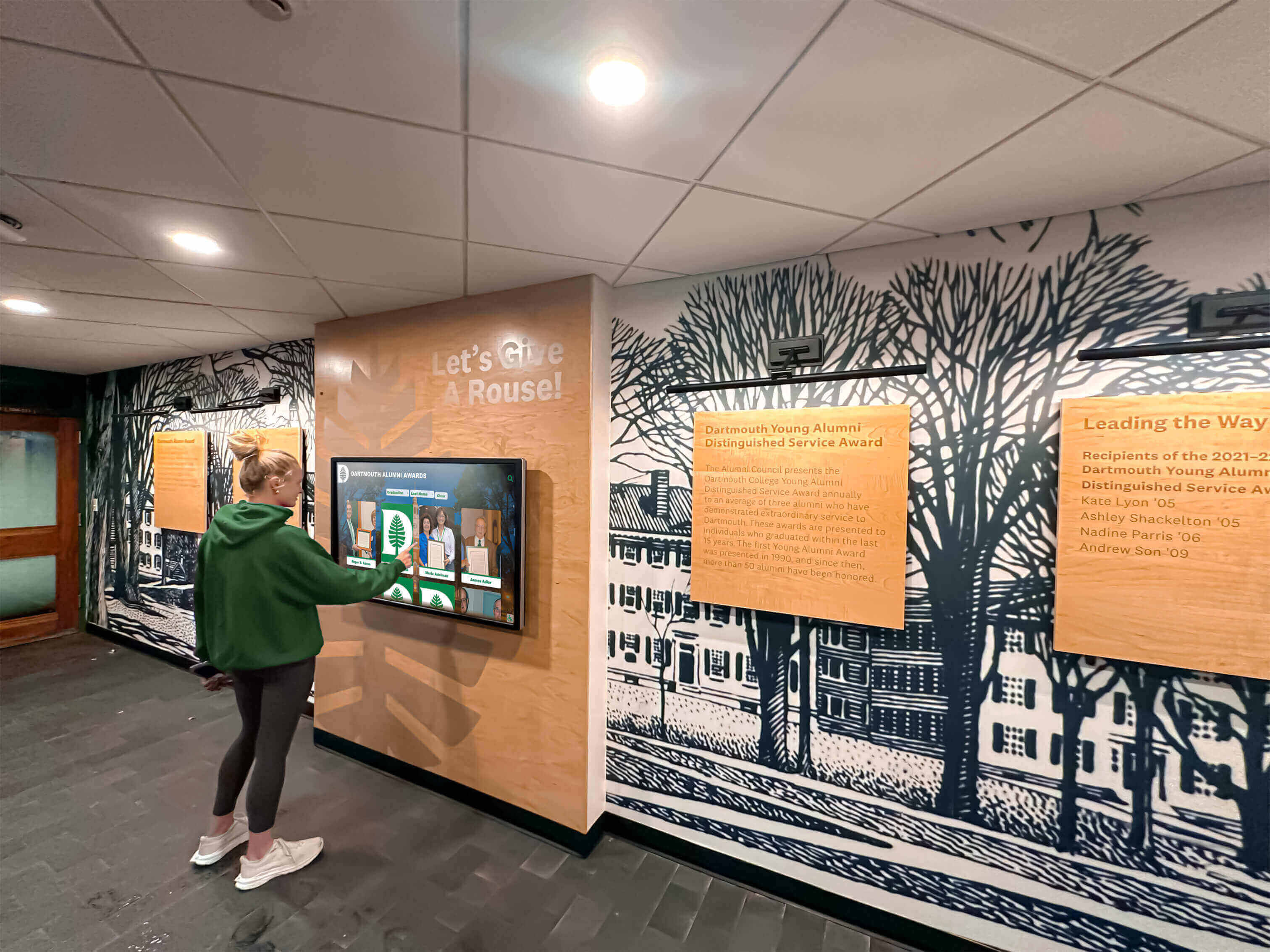
Interactive displays in public spaces face an additional challenge: most users approach them without prior training or commitment. The first few seconds of interaction create lasting impressions that determine whether users continue exploring or walk away.
When users experience immediate, accurate responses to their first touch input, they develop confidence in the system and willingness to explore further. Conversely, even a single unresponsive touch or noticeable lag creates uncertainty—“Is this working?” “Did I touch the right place?” “Is something broken?"—that undermines engagement.
This first-impression effect makes ultra-responsive touchscreen technology particularly critical for applications like interactive recognition displays in school hallways, donor walls in institutional lobbies, and wayfinding systems in large facilities where casual users expect immediate, intuitive functionality without instruction.
Hardware Foundations: Touch Technology That Enables Responsiveness
Touchscreen responsiveness begins with hardware—the physical sensors that detect touch input, the controllers that process this data, and the display panels that render visual feedback. Understanding these hardware foundations helps organizations select technology capable of delivering ultra-responsive experiences.
Capacitive vs. Infrared Touch Technologies
Modern large-format interactive displays primarily employ two touch detection technologies, each with distinct characteristics affecting responsiveness:
Capacitive Touch Technology:
Capacitive systems detect the electrical properties of conductive objects (fingers or special styluses) contacting the screen surface. This technology, standard in smartphones and tablets, offers several responsiveness advantages:
- Faster inherent response: Capacitive sensors detect touch events in 5-15 milliseconds, providing the foundation for ultra-responsive experiences
- Higher accuracy: Sub-millimeter touch resolution enables precise interaction with small interface elements
- Multi-touch superiority: Advanced capacitive controllers support 10+ simultaneous touch points with minimal latency
- Gesture recognition: Native support for pinch, rotate, and complex multi-finger gestures
The primary limitation of capacitive technology for large-format displays is cost—capacitive sensors become significantly more expensive as screen size increases beyond 55 inches, which is why they’re less common in large educational and commercial installations.
Infrared Touch Technology:
Infrared systems create invisible light grids just above the screen surface, detecting touch when objects interrupt these beams. This technology dominates large-format interactive displays due to cost-effectiveness at larger sizes:
- Touch object flexibility: Works with any object—fingers, styluses, gloved hands, pointers
- Cost efficiency: Significantly less expensive than capacitive alternatives for displays over 55 inches
- Proven reliability: Mature technology with established durability in educational environments
- Response times: Quality infrared systems achieve 15-25 millisecond detection times
While infrared technology exhibits slightly slower inherent response times than capacitive alternatives, high-quality infrared controllers paired with optimized software deliver experiences that feel equally responsive to users in practical applications.
Touch Controller Quality and Processing Power
The touch controller—the specialized processor that interprets raw sensor data and translates it into precise touch coordinates—significantly impacts overall system responsiveness regardless of underlying sensor technology.
Critical Controller Specifications:
- Polling rate: High-performance controllers poll sensors 120-240 times per second, enabling smooth tracking of fast finger movements
- Processing latency: Quality controllers process touch data in under 10 milliseconds after detection
- Multi-touch algorithm efficiency: Advanced controllers track multiple simultaneous touch points without latency increases
- Noise filtering: Sophisticated algorithms distinguish intentional touch from environmental interference without introducing delay
The computing hardware driving the interactive content also critically impacts responsiveness. A system with excellent touch sensors but inadequate processing power for rendering visual responses creates lag just as disruptive as slow touch detection.
Recommended Computing Specifications for Ultra-Responsive Interactive Displays:
- Processor: Modern multi-core CPU (Intel i5 equivalent or higher) or capable ARM processor
- RAM: Minimum 8GB for complex interactive applications, 16GB+ for video-heavy content
- Graphics: Dedicated GPU or powerful integrated graphics supporting hardware-accelerated rendering
- Storage: SSD rather than traditional hard drive for faster content loading and smoother operation
These specifications ensure the system can render visual responses within milliseconds of touch detection, maintaining end-to-end responsiveness throughout the interaction chain.
Display Panel Response Time and Refresh Rate
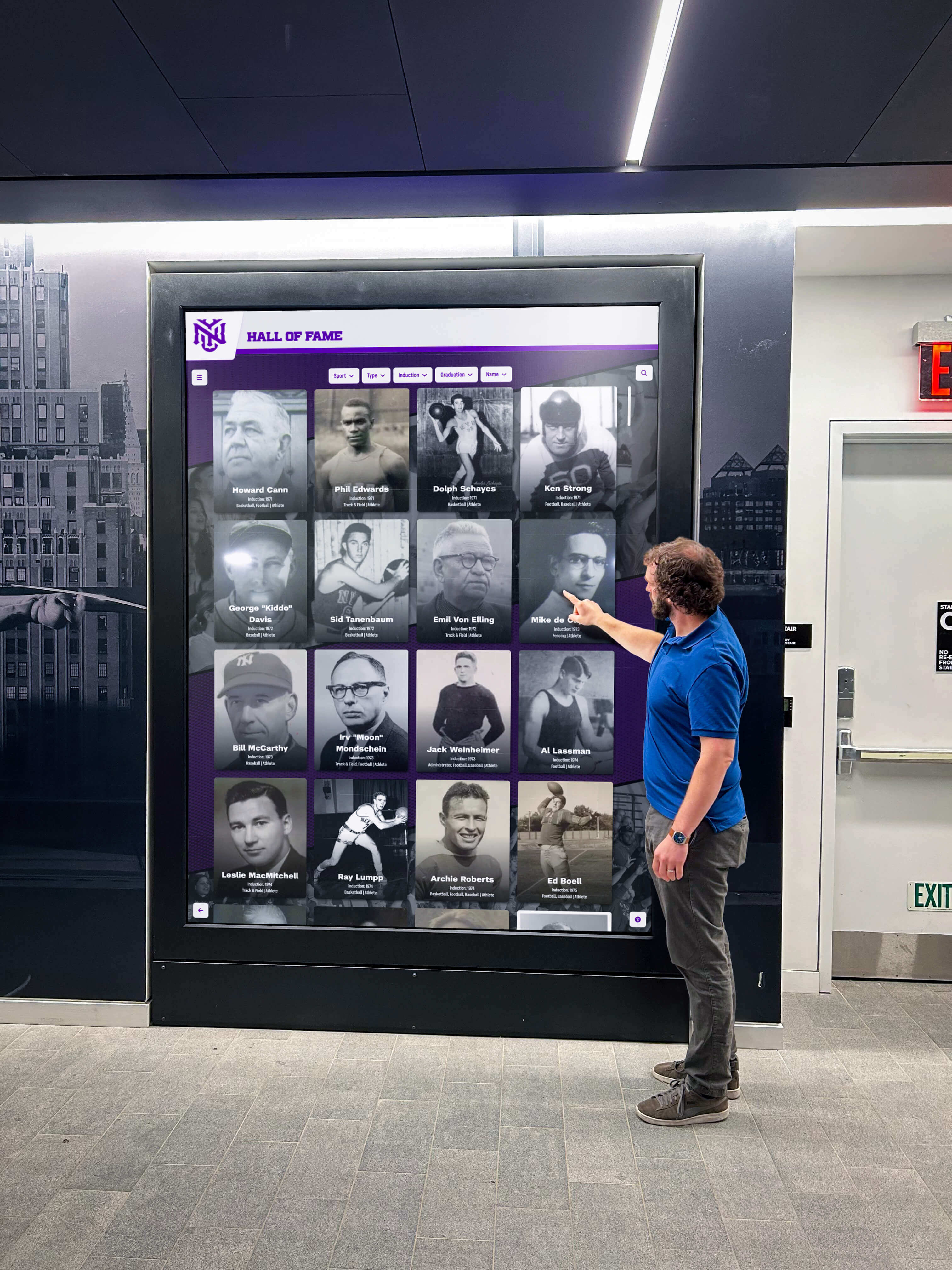
The final hardware component affecting perceived responsiveness is the display panel itself—specifically how quickly it can update visual content after receiving new image data from the computer.
Display Panel Specifications Impacting Responsiveness:
- Response time: Modern commercial panels offer 8-12ms gray-to-gray response times preventing motion blur
- Refresh rate: 60Hz minimum (updating 60 times per second), with 120Hz+ preferred for smoothest experiences
- Input lag: The delay between receiving signal and displaying updated image; under 20ms ensures imperceptible latency
- Processing overhead: Built-in image processing features sometimes add latency; “game mode” or “PC mode” settings bypass unnecessary processing
For interactive displays in educational settings, solutions like those from Rocket Alumni Solutions carefully specify display panels that balance cost-effectiveness with the response characteristics necessary for engaging user experiences rather than simply selecting the largest or cheapest available panels.
Software Optimization: The Other Half of Responsive Experiences
Even exceptional hardware can deliver disappointing experiences when paired with poorly optimized software. True ultra-responsiveness requires software architectures specifically designed to minimize latency between touch input and visual feedback.
Event Processing and Main Thread Optimization
Modern interactive applications must handle numerous concurrent processes—touch input detection, content rendering, animation, network communication, and more. How software architects structure these processes dramatically impacts responsiveness.
Critical Software Architecture Principles:
Asynchronous Touch Event Handling: Touch events must be captured and acknowledged on dedicated high-priority threads that never block while waiting for other processes to complete. This ensures the system immediately recognizes touch input even when performing complex background operations like loading high-resolution images or processing search queries.
Main Thread Protection: The primary thread responsible for rendering visual updates must remain available for immediate responses. Long-running operations—database queries, file system access, network communication—should execute on background threads that don’t interfere with visual responsiveness.
Immediate Visual Feedback: Software should provide instant visual acknowledgment of touch events (button press states, ripple effects, highlight states) before completing the requested action. This creates perception of responsiveness even when the actual operation requires several hundred milliseconds.
Hardware Acceleration: Modern graphics processors can handle animation, scrolling, and visual transitions far more efficiently than general-purpose CPUs. Software leveraging GPU acceleration for visual operations maintains smooth 60fps rendering even during complex interactions.
Predictive Touch and Gesture Anticipation
Advanced interactive software improves perceived responsiveness through predictive algorithms that anticipate user intent based on touch trajectory and velocity.
Predictive Touch Techniques:
When users swipe to scroll content, their finger movement creates a velocity vector indicating intended direction and speed. Rather than waiting for the touch to complete, responsive software begins scrolling immediately based on the predicted trajectory. If the user’s movement changes direction, the system updates instantly—but in most cases, prediction enables scrolling to begin 50-100 milliseconds earlier than reactive approaches.
Similarly, when users touch interface elements, sophisticated software can predict the intended target based on touch location and finger approach angle, potentially highlighting or preparing the target even before the touch completes registration. This preemptive preparation creates experiences that feel faster than physically possible.
Content Loading Strategies for Seamless Interactions
Many interactive displays showcase rich multimedia content—high-resolution photos, video clips, detailed biographical information. Loading this content can introduce delays that undermine responsiveness unless software employs strategic content management.
Responsive Content Loading Approaches:
Lazy Loading with Preemptive Fetching: Rather than loading all content at launch (creating long initial load times), responsive applications load content as needed. However, they also predict what content users will likely request next based on navigation patterns and preemptively fetch it in the background.
Progressive Image Loading: Display low-resolution versions of images instantly while higher-quality versions load in the background. Users receive immediate visual feedback while quality improves progressively without noticeable delay.
Intelligent Caching: Keep frequently accessed content in fast memory rather than repeatedly loading from storage. For interactive recognition systems showcasing student and alumni achievements, this means recent inductees and popular profiles load instantaneously.
Content Optimization: Process media assets during upload rather than at display time. Resize images to appropriate display resolutions, encode videos in appropriate formats, and optimize file sizes to enable faster loading without quality sacrifice.
These content strategies ensure that responsiveness extends beyond basic navigation to encompass the entire user experience, from initial interaction through deep exploration of multimedia content.
The Integration Challenge: Hardware and Software in Harmony
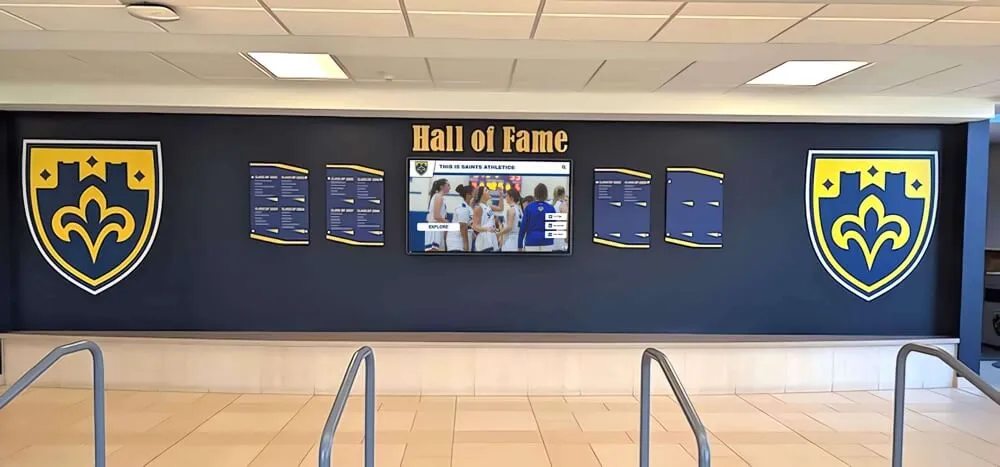
Ultra-responsive touchscreens require more than excellent hardware and optimized software independently—they demand careful integration ensuring these components work in perfect harmony without introducing latency at connection points.
Driver and Firmware Optimization
Touch controllers communicate with operating systems and applications through specialized driver software that translates hardware sensor data into software events. Driver quality and configuration significantly impact end-to-end responsiveness.
Driver Optimization Factors:
- HID vs. TUIO protocols: Human Interface Device (HID) protocols typically offer lower latency than alternative communication methods
- Polling frequency configuration: Drivers should poll touch hardware at maximum supported rates (120Hz+) rather than conservative defaults
- Multi-touch reporting efficiency: Efficient drivers minimize data transmission overhead when reporting multiple simultaneous touch points
- Calibration accuracy: Well-calibrated systems require less error correction processing, reducing latency
Organizations implementing interactive displays should work with vendors providing regularly updated drivers optimized for educational and commercial deployment rather than generic drivers that may not prioritize responsiveness.
Operating System Selection and Configuration
The underlying operating system provides the foundation upon which interactive applications run. OS selection and configuration impact available optimization opportunities and baseline system responsiveness.
Operating System Considerations:
Windows-Based Systems: Windows dominates commercial interactive displays due to broad hardware compatibility and familiar management. However, Windows includes numerous background processes and services that can interfere with responsiveness. Proper configuration disables unnecessary services, adjusts power management settings for performance over efficiency, and prioritizes interactive application processes.
Android-Based Systems: Many modern commercial displays include built-in Android computers, offering lower cost and power consumption. Android’s mobile origins provide inherent touch optimization, but limited processing power in budget displays can become a responsiveness bottleneck. Quality Android-based systems include capable processors and careful OS tuning.
Linux-Based Systems: Linux offers maximum configuration control and minimum processing overhead, making it ideal for dedicated kiosks requiring ultimate responsiveness. However, Linux requires more technical expertise for application development and system management.
Regardless of OS selection, dedicated kiosk deployments benefit from locked-down configurations preventing users from accessing system settings or launching applications that could interfere with interactive display performance.
Network Architecture and Cloud Integration
Many interactive displays—particularly digital recognition systems showcasing student achievements and institutional history—rely on cloud-based content management systems that enable remote updates and multi-site coordination. Network architecture significantly impacts whether these cloud connections enhance or undermine responsiveness.
Network Design Principles for Responsive Interactive Displays:
Local Content Caching: While content management occurs in the cloud, interactive displays should maintain complete local content caches enabling full functionality even during network outages. Background synchronization ensures local caches remain current without impacting real-time interaction responsiveness.
Async Content Updates: When users update profiles or add content through remote management systems, these changes should propagate to displays asynchronously without interrupting active user sessions. The next user sees updated content while current users experience uninterrupted responsiveness.
Bandwidth Management: Background content synchronization should employ bandwidth throttling preventing large updates from interfering with real-time touch event processing or creating network congestion that might impact other institutional systems.
Wired vs. Wireless Connectivity: Wired Ethernet connections provide more reliable, lower-latency communication than WiFi alternatives. For permanent interactive display installations, wired connections should be specified whenever possible despite slightly higher installation costs.
Real-World Applications: Where Responsiveness Matters Most
Ultra-responsive touchscreen technology delivers measurable benefits across diverse applications, but certain use cases particularly benefit from optimized hardware-software integration.
Educational Recognition Displays in High-Traffic Corridors
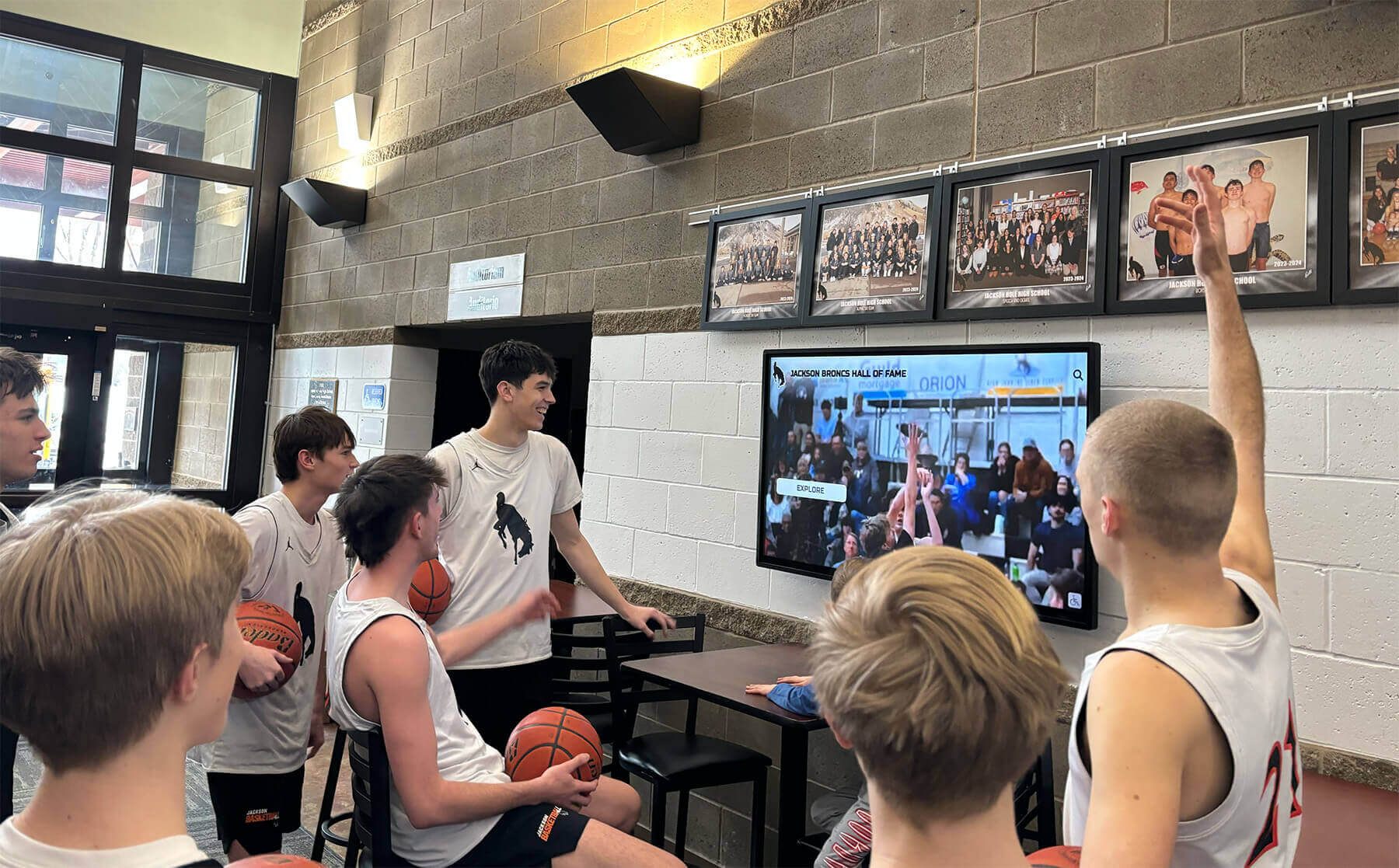
Schools deploying interactive displays showcasing student achievements, alumni success stories, and institutional history face unique responsiveness challenges. These installations serve diverse users—students rushing between classes, parents during school events, alumni at reunions—who approach displays with varying expectations and limited time.
Why Responsiveness is Critical:
Students passing between classes have 3-5 minutes maximum for exploration. Laggy displays consume precious seconds without delivering value, causing students to abandon interaction. Ultra-responsive systems enable students to quickly search for specific information (their team’s championship year, their older sibling’s achievements, this week’s recognition highlights) and receive instant gratification.
During high-traffic events—homecoming, sports championships, graduation—multiple users may simultaneously attempt interaction. Systems supporting true multi-touch without performance degradation maintain responsiveness even when several students explore different content sections concurrently.
Technical Requirements:
- Response time under 80ms for entire interaction chain
- Multi-touch support for 4-6 simultaneous users without latency
- Instant search results returning relevant profiles within 150ms
- Smooth scrolling and navigation maintaining 60fps rendering
- Robust hardware withstanding intensive daily use over 7-10 year lifespans
Solutions like those from Rocket Alumni Solutions specifically address these requirements through purpose-built platforms optimized for educational recognition rather than generic digital signage adapted for interactive use.
University and Corporate Donor Recognition
Donor recognition installations celebrate philanthropic contributions while encouraging future giving through visible acknowledgment of support. These displays serve distinct audiences—prospective donors evaluating recognition options, honored donors showing family and colleagues, campus visitors discovering institutional support.
Unique Responsiveness Requirements:
Donor walls often showcase extensive information—biographical details, giving history, impact stories, related programs. Ultra-responsive navigation enables users to explore these rich narratives without frustration. Smooth zooming into detailed information, crisp rendering of high-resolution photos, and instant transitions between related content create experiences worthy of significant contributions.
Many major gifts result from peer influence—seeing colleagues recognized motivates additional giving. When donors bring family or business associates to see their recognition, system responsiveness directly impacts their pride and satisfaction. Laggy, frustrating experiences undermine the positive feelings institutions work to cultivate.
Responsiveness Enables Sophisticated Features:
- Interactive giving levels: Users explore different recognition tiers and associated benefits
- Impact visualization: Animated graphics showing how contributions support specific programs
- Search and filtering: Instant results when searching by donor name, giving year, or support category
- Social sharing: Seamless capture and sharing of recognition moments to social platforms
Athletic Facilities and Hall of Fame Installations
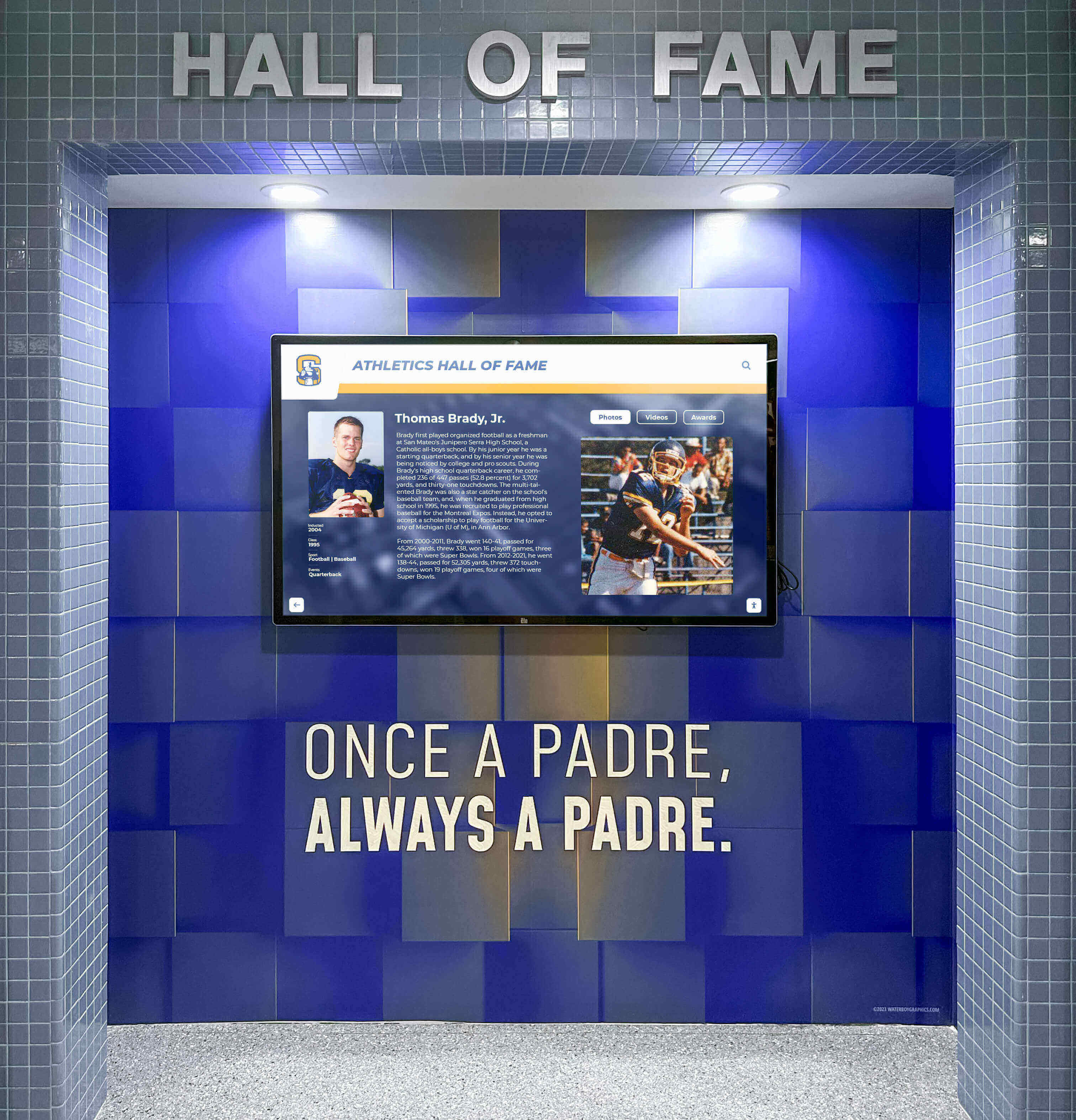
Sports facilities—from high school gymnasiums to professional stadiums—increasingly feature interactive displays celebrating athletic achievements, championship history, and record progressions. These installations engage fans before games, during halftime, and at special events.
Athletic Display Responsiveness Factors:
Fans interacting with athletic displays exhibit high enthusiasm but limited attention spans. They want to quickly find specific information—“What year did we win state?” “Who holds the scoring record?” “When did my grandfather play here?"—and move on. Responsive systems deliver instant gratification while laggy alternatives frustrate passionate supporters.
Large-format displays common in athletic facilities (65-86 inches) require robust hardware maintaining responsiveness despite increased display resolution and rendering demands. Comprehensive content spanning decades of athletic history demands efficient databases and search algorithms returning relevant results within milliseconds.
Content Richness Challenges:
Athletic recognition often includes video highlights, game statistics, season records, and photo galleries. Managing these rich media assets without compromising responsiveness requires sophisticated content optimization, progressive loading, and intelligent caching—all operating transparently to users who expect instant, smooth experiences.
Wayfinding and Building Directories
Interactive wayfinding systems in large campuses, medical centers, and corporate facilities guide visitors to destinations while showcasing organizational information. These mission-critical systems must provide instant, accurate responses to prevent visitor frustration.
Wayfinding Responsiveness Requirements:
Visitors using wayfinding systems are often stressed—running late for appointments, unfamiliar with buildings, anxious about finding destinations. Unresponsive wayfinding systems amplify this stress while ultra-responsive alternatives provide reassuring confidence.
Map interactions—panning, zooming, rotating—must feel physically direct rather than digitally mediated. When users pinch to zoom or swipe to pan, the map should respond as if manipulating a physical object, with no perceptible delay between gesture and movement.
Search functionality requires particular optimization. Autocomplete suggestions should appear instantly as users type, with relevant destinations appearing after 2-3 characters. Final route calculation and display should complete within 100ms of selection for routes within buildings, 250ms for complex campus-wide routing.
Measuring and Maintaining Ultra-Responsiveness
Organizations investing in interactive display technology should implement monitoring and maintenance practices ensuring systems maintain optimal responsiveness throughout their operational lifespans.
Key Performance Indicators for Responsiveness
Technical Performance Metrics:
- Touch-to-feedback latency: End-to-end time from touch detection to initial visual response (target: under 100ms)
- Frame rate consistency: Percentage of time maintaining 60fps during interactions (target: 95%+)
- Search response time: Milliseconds from query completion to result display (target: under 200ms)
- Content load time: Seconds required to display full-quality media (target: under 2 seconds)
- Multi-touch performance degradation: Latency increase with 4+ simultaneous touch points (target: under 20% increase)
User Engagement Metrics:
- Average session duration: Time users spend interacting per session
- Interaction depth: Number of content sections explored per session
- Task completion rate: Percentage of users achieving intended goals
- Abandonment timing: When during sessions users disengage (early abandonment suggests responsiveness issues)
- Return interaction rate: Percentage of users returning for subsequent sessions
Comparing these metrics across similar installations reveals whether responsiveness meets user expectations or requires optimization.
Ongoing Maintenance for Sustained Performance
Interactive displays don’t maintain optimal responsiveness automatically—they require ongoing maintenance addressing both hardware and software factors.
Hardware Maintenance Protocols:
- Screen cleaning: Weekly cleaning with appropriate products prevents dirt buildup affecting touch accuracy
- Environmental monitoring: Ensure displays operate within temperature and humidity specifications
- Mounting inspection: Quarterly checks verify secure mounting and connection integrity
- Component testing: Annual professional assessment of touch sensor, controller, and display panel performance
Software Maintenance Protocols:
- Operating system updates: Quarterly OS patches and security updates (tested before deployment)
- Driver updates: Monitor manufacturer sites for touch controller driver updates improving performance
- Application optimization: Annual review of software performance, implementing optimizations for accumulated content
- Cache management: Periodic cache clearing preventing storage overflow degrading performance
- Content optimization: Compress and optimize media files as content library grows
Performance Monitoring:
Deploy analytics systems tracking the performance metrics above, alerting administrators when responsiveness degrades beyond acceptable thresholds. Proactive monitoring enables addressing issues before they significantly impact user experience.
Future Trends: Next-Generation Responsive Touch Technology
Touchscreen technology continues evolving, with several emerging trends promising even more responsive and intuitive experiences.
Higher Refresh Rate Displays
While 60Hz remains standard for commercial interactive displays, consumer devices increasingly feature 120Hz and even 240Hz refresh rates. Higher refresh rates enable smoother motion rendering and reduced motion-to-photon latency—the time between user movement and corresponding display updates.
As these higher refresh rate panels become more affordable, their adoption in commercial interactive displays will further enhance perceived responsiveness, particularly for gesture-based interactions involving continuous finger movement across screens.
AI-Powered Predictive Interaction
Machine learning algorithms analyzing user interaction patterns can predict intended actions with increasing accuracy, enabling systems to begin processing likely requests before users explicitly make selections. These predictive capabilities, already appearing in consumer devices, will enhance commercial interactive displays by preemptively loading content, preparing transitions, and staging resources for anticipated user needs.
Haptic Feedback Integration
Tactile feedback reinforces touch interactions, creating more satisfying experiences that feel responsive even when visual updates require several dozen milliseconds. Advanced haptic actuators providing variable force feedback and localized vibration will increasingly appear in commercial interactive displays, particularly for applications like interactive gaming and educational simulations requiring heightened engagement.
Force-Sensing Touch Technology
Beyond detecting whether screens are touched, force-sensing technology measures touch pressure intensity. This additional input dimension enables richer interactions—light touches for preview, firm presses for selection, variable pressure for control—while providing another signal for predictive algorithms anticipating user intent.
Implementation Best Practices: Ensuring Responsiveness from Day One
Organizations planning interactive display deployments should incorporate responsiveness requirements throughout procurement, installation, and launch processes rather than addressing performance issues reactively.
Procurement Specifications
Hardware Requirements to Specify:
- Touch technology type (capacitive or infrared) appropriate for application and budget
- Touch controller polling rate minimum 120Hz
- Maximum touch-to-output latency under 25ms (hardware component only)
- Multi-touch support for anticipated concurrent user count
- Computing specifications (processor, RAM, storage type) adequate for application complexity
- Display panel input lag under 20ms
- Network connectivity requirements (wired Ethernet strongly preferred)
Software Requirements to Specify:
- Guaranteed maximum response time from touch to visual feedback
- Search query response time requirements
- Content loading time specifications
- Offline functionality requirements
- Multi-user performance guarantees
- Analytics capabilities for monitoring ongoing performance
Vendor Demonstration Requirements:
Request live demonstrations using realistic content and usage scenarios rather than optimized demos that may not reflect real-world performance. Test multi-touch simultaneously with multiple users. Measure response times during demonstrations using smartphone slow-motion video capturing touch events and screen responses.
Installation and Configuration Optimization
Network Infrastructure:
- Implement wired Ethernet connections whenever physically possible
- Configure Quality of Service (QoS) prioritizing interactive display traffic
- Establish separate VLAN for displays preventing interference from general network congestion
- Deploy adequate bandwidth for cloud content synchronization without impacting real-time interactions
Physical Installation:
- Position displays at appropriate heights for primary user demographics
- Ensure adequate clearance preventing users from blocking other viewers
- Implement proper lighting avoiding both glare and insufficient ambient light
- Provide clear sight lines attracting attention from primary traffic flows
System Configuration:
- Disable unnecessary background services and startup applications
- Configure power management for performance rather than energy efficiency
- Set display panel to lowest-latency mode (game/PC mode)
- Configure network settings for optimal performance
- Establish automated monitoring alerting administrators to performance degradation
Content Strategy for Maintained Responsiveness
As organizations add content to interactive recognition displays over months and years, poor content management can gradually degrade responsiveness. Establishing content strategies maintaining performance prevents this degradation.
Content Management Best Practices:
- Media optimization: Establish standard image resolutions, compression levels, and video encoding settings preventing unnecessarily large files
- Database maintenance: Implement periodic database optimization preventing query slowdown as content volume grows
- Content archiving: Move historical content accessed infrequently to archive tiers reducing active database size
- Asset organization: Structure content hierarchies enabling efficient retrieval rather than linear searches through thousands of items
- Batch processing: Schedule intensive operations (content synchronization, database optimization, backup) during low-usage periods
The Business Case: Why Ultra-Responsiveness Justifies Investment
Organizations allocating budgets for interactive display technology rightfully question whether ultra-responsive systems justify premium costs compared to basic alternatives. The retention and engagement data provides compelling justification.
Calculating Return on Investment
Increased Engagement Value:
Consider a school deploying a hallway recognition display celebrating student achievements. If the basic system costs $8,000 and delivers average 90-second engagement sessions with 45% of users completing intended interactions, while the ultra-responsive system costs $12,000 but delivers 6-minute sessions with 78% completion rates, which represents better value?
The $4,000 cost difference translates to roughly 440% increase in engagement time and 73% improvement in user satisfaction. If the installation’s purpose involves building school pride, improving culture, and creating memorable experiences for students, families, and alumni, the responsive system delivers dramatically superior value despite higher upfront cost.
Operational Efficiency:
Ultra-responsive systems require less user support and troubleshooting. When displays respond intuitively and reliably, users don’t require assistance, don’t submit support requests claiming “the system isn’t working,” and don’t develop negative associations with the technology. These operational savings accumulate over 7-10 year system lifespans.
Mission Alignment:
For educational institutions, the mission involves creating positive experiences that support learning, growth, and community. Technology that frustrates rather than engages actively undermines this mission. The incremental cost of ultra-responsive technology represents a modest investment in consistently delivering experiences aligned with institutional values.
Conclusion: Responsiveness as Foundation for Digital Engagement
In an era where users carry exceptionally responsive touchscreen devices in their pockets, expectations for interactive display experiences have fundamentally shifted. What seemed acceptably responsive a decade ago now feels frustratingly slow. Organizations deploying interactive displays in educational settings, corporate environments, or public spaces must recognize that responsiveness isn’t a luxury feature—it’s the foundational requirement determining whether technology creates valuable engagement or becomes equipment users avoid.
Ultra-responsive touchscreens require thoughtful integration of hardware and software optimized specifically for interactive applications. Quality touch sensors and controllers, adequate computing power, responsive display panels, and carefully architected software must work in harmony, with each component contributing to sub-100-millisecond response times users perceive as instantaneous.
The retention benefits of ultra-responsive technology manifest immediately and compound over time. Users who experience satisfying initial interactions return for deeper exploration, complete intended tasks rather than abandoning searches, and develop positive associations with the institutions providing these experiences. These engagement outcomes directly support broader organizational goals—whether building school pride, encouraging philanthropy, celebrating achievements, or creating memorable visitor experiences.
Organizations planning interactive display implementations should prioritize responsiveness from initial procurement through ongoing maintenance. Specify performance requirements, test vendor claims with realistic demonstrations, configure systems for optimal performance, and monitor metrics ensuring sustained responsiveness throughout operational lifespans.
When educational institutions work with specialized providers like Rocket Alumni Solutions that understand the critical relationship between responsiveness and user retention, they gain access to purpose-built platforms where every component—from touch hardware selection through content management interface design—has been optimized for the engaging, intuitive experiences that keep users connected to their schools, their achievements, and their institutional communities.
The difference between adequate and ultra-responsive touchscreen technology manifests in seconds of latency—but those seconds determine whether interactive displays deliver transformative engagement or become expensive digital wallpaper users ignore. In today’s environment where user expectations continue rising, only ultra-responsive solutions justify the investment.
Ready to discover how ultra-responsive recognition displays can transform your organization’s approach to digital engagement? Contact Rocket Alumni Solutions to explore platforms specifically designed for the responsiveness that retains users and creates memorable experiences worth returning to again and again.































