UPDD Touch Software from Touch-Base represents one of the most comprehensive universal touchscreen driver solutions available in 2025, addressing a critical challenge facing organizations deploying interactive displays: ensuring reliable, feature-rich touch functionality across diverse hardware platforms, operating systems, and application requirements. While many modern touchscreen devices include native operating system support, countless scenarios demand the enhanced capabilities, legacy hardware compatibility, and advanced configuration options that specialized touch driver software provides.
Since 1989, Touch-Base has developed and refined UPDD (Universal Pointer Device Driver) to support organizations implementing touchscreen solutions across educational institutions, museums, corporate environments, healthcare facilities, and public kiosks. Whether you’re managing aging touch hardware that lacks modern OS support, requiring advanced calibration for precise applications, implementing multi-monitor touch configurations, or developing custom applications with specific touch behavior requirements, understanding UPDD capabilities helps determine whether this powerful driver software addresses your needs.
This comprehensive guide explores everything you need to know about UPDD Touch Software—from core features and platform support to installation processes, configuration options, use case applications, and comparison with native touch drivers. Whether you’re an IT professional evaluating driver options, a developer building touch-enabled applications, or an organization planning interactive display deployments, this guide provides insights to make informed decisions about touchscreen driver software.
Organizations implementing interactive displays increasingly recognize that hardware quality alone doesn’t guarantee successful deployments. The driver software bridging touchscreen hardware and operating systems significantly impacts reliability, functionality, and user experience—making UPDD Touch Software a critical consideration for professional touchscreen implementations.
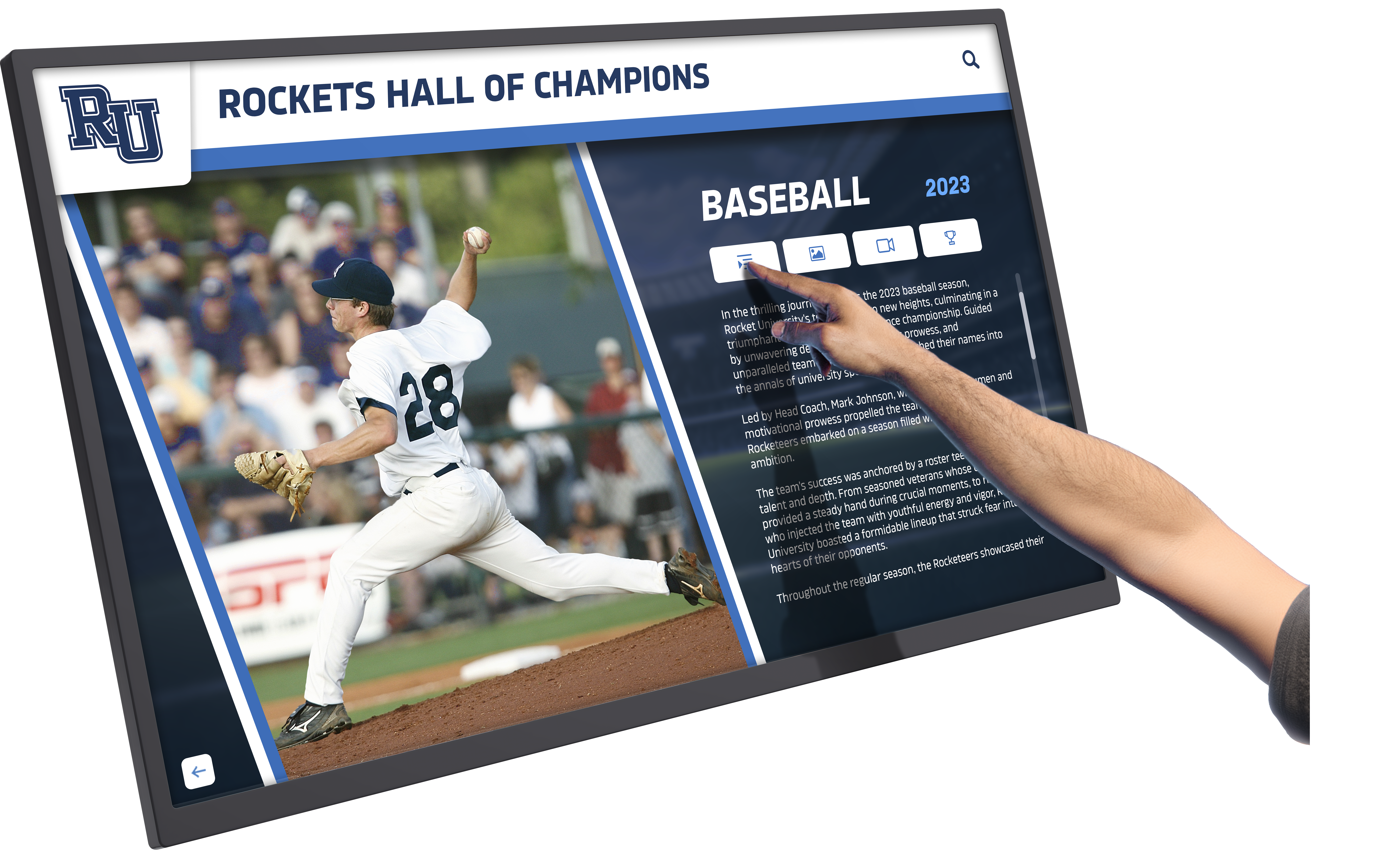
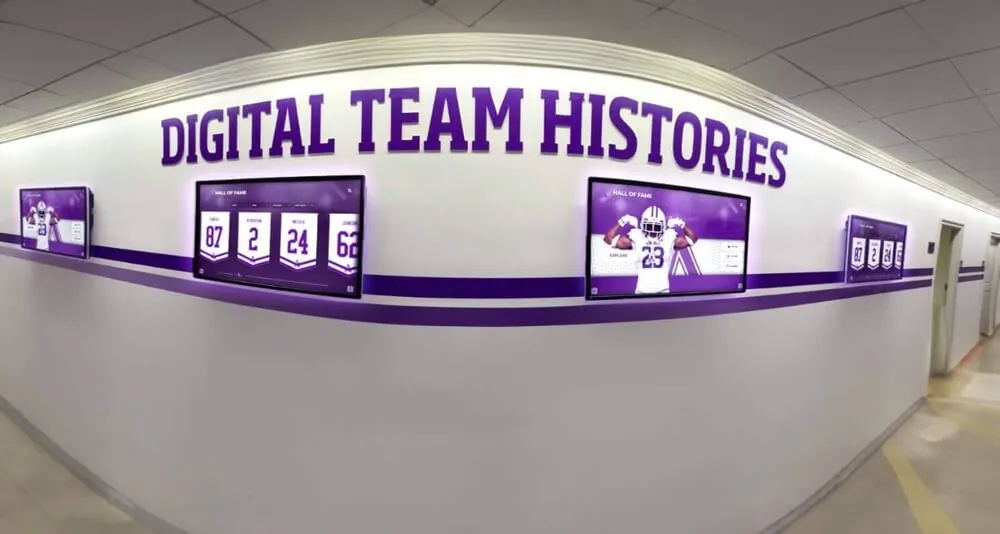
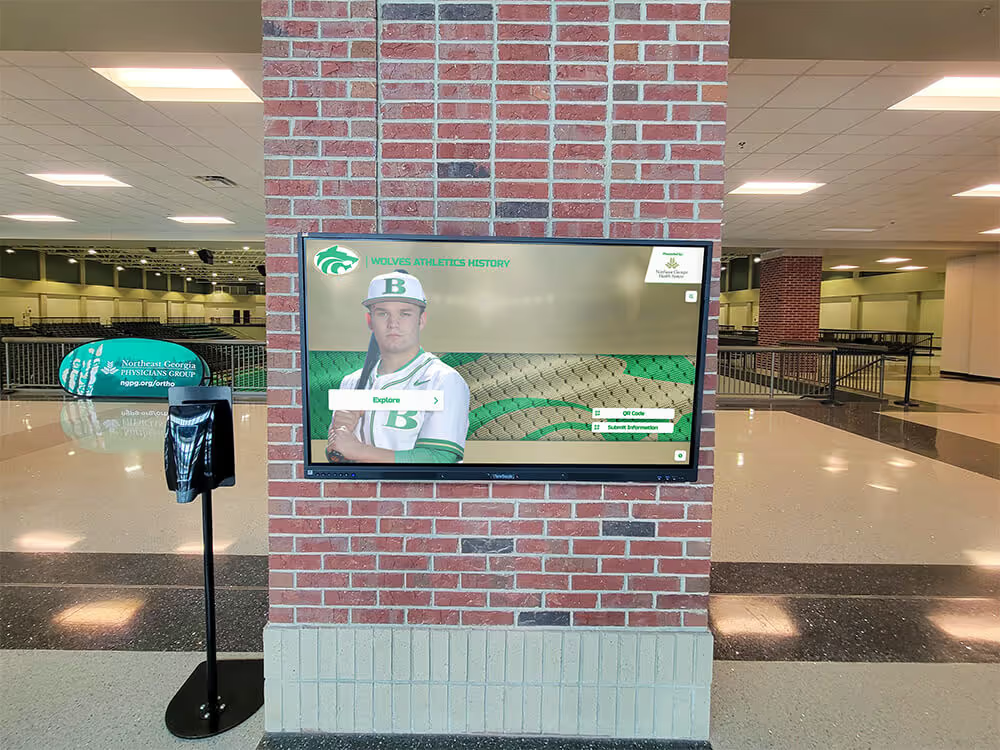
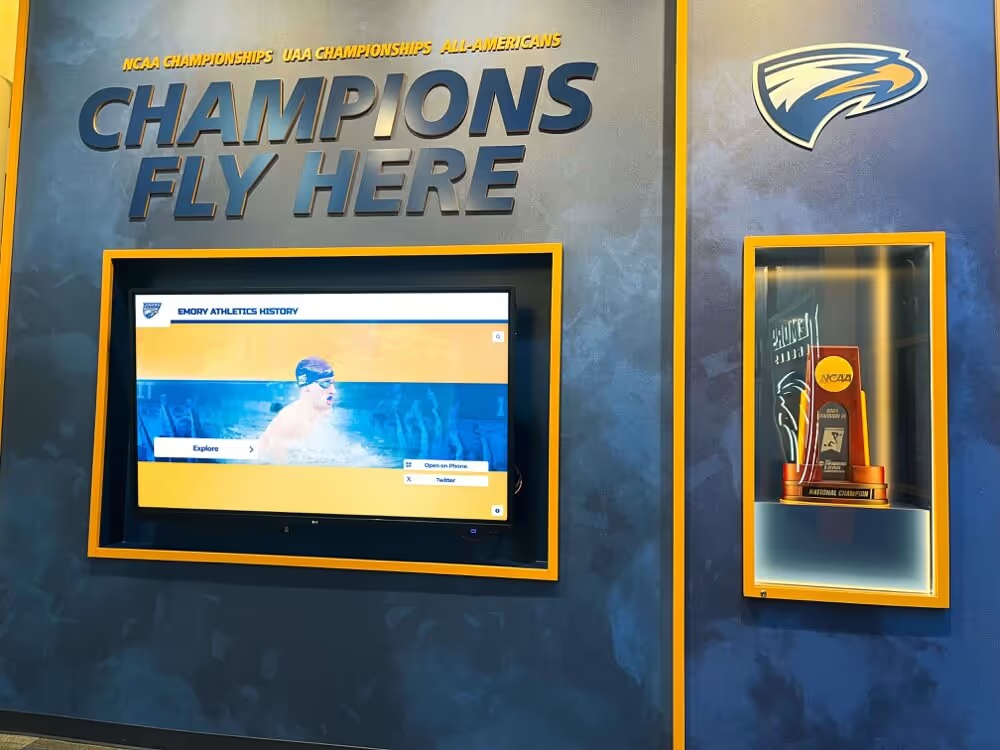
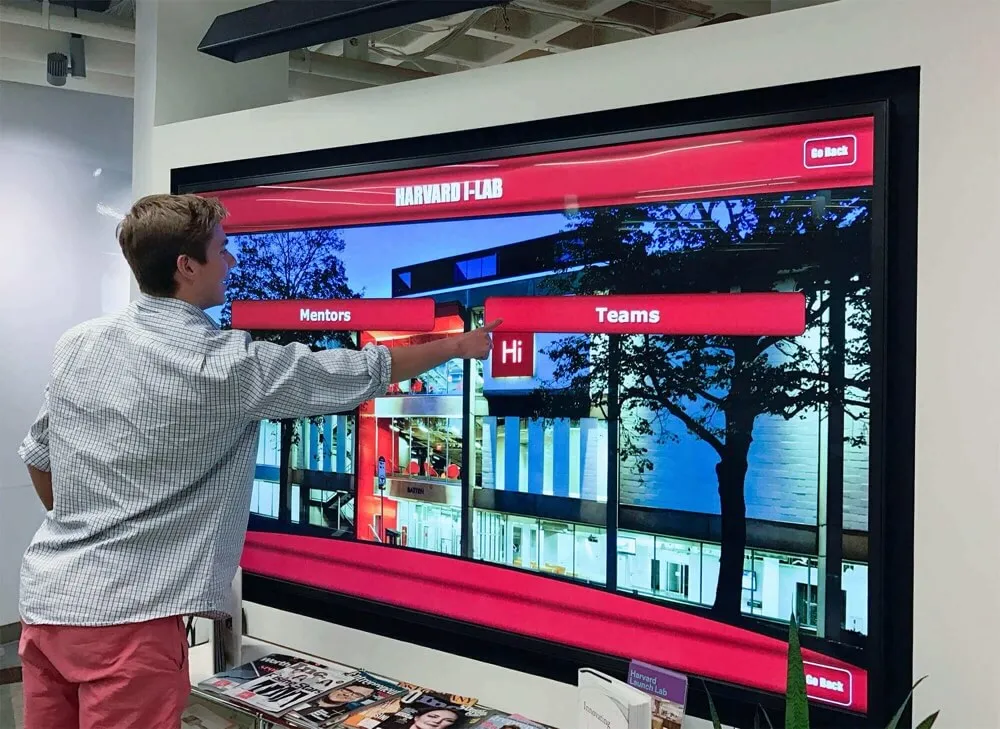
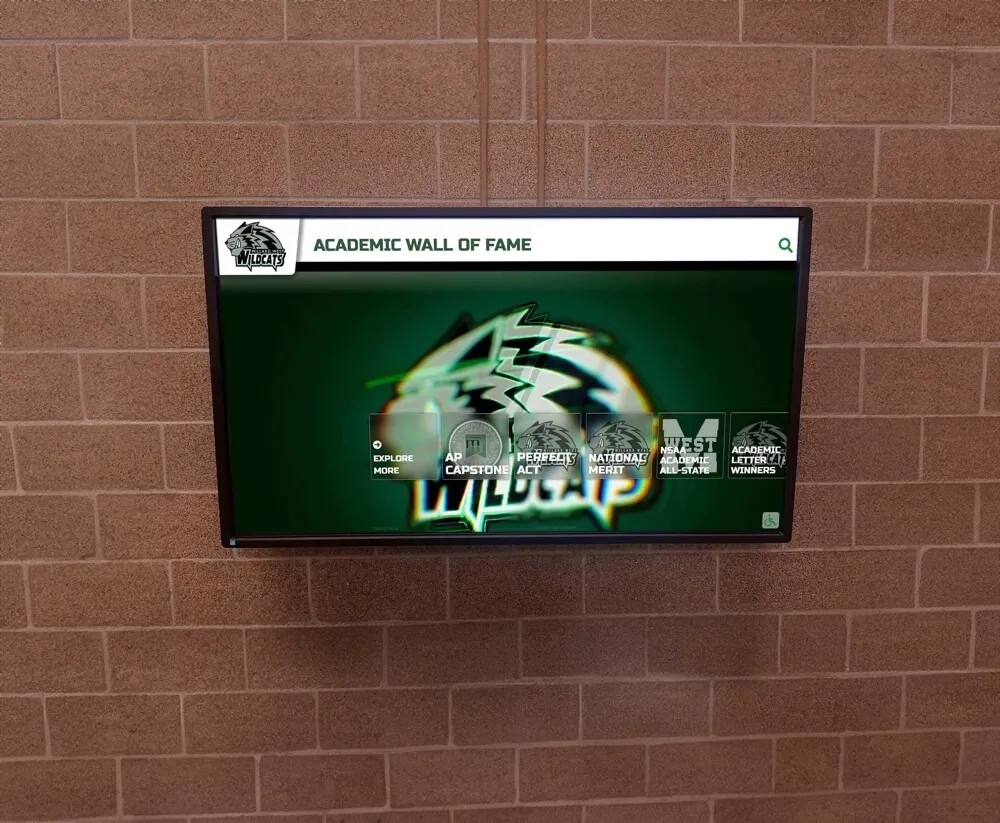
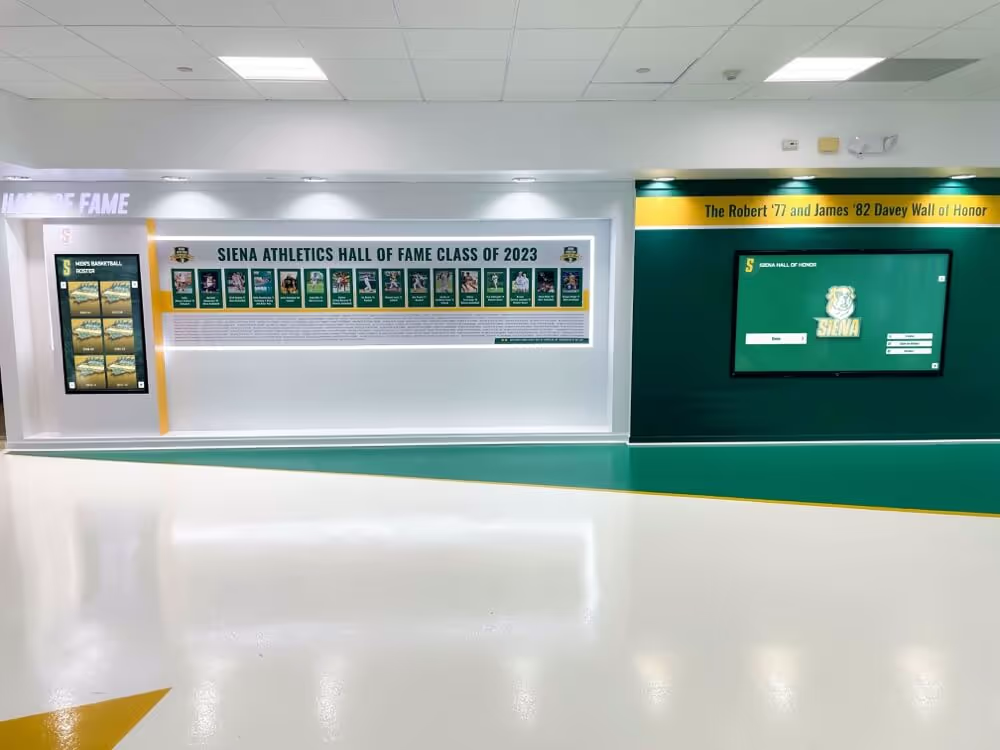
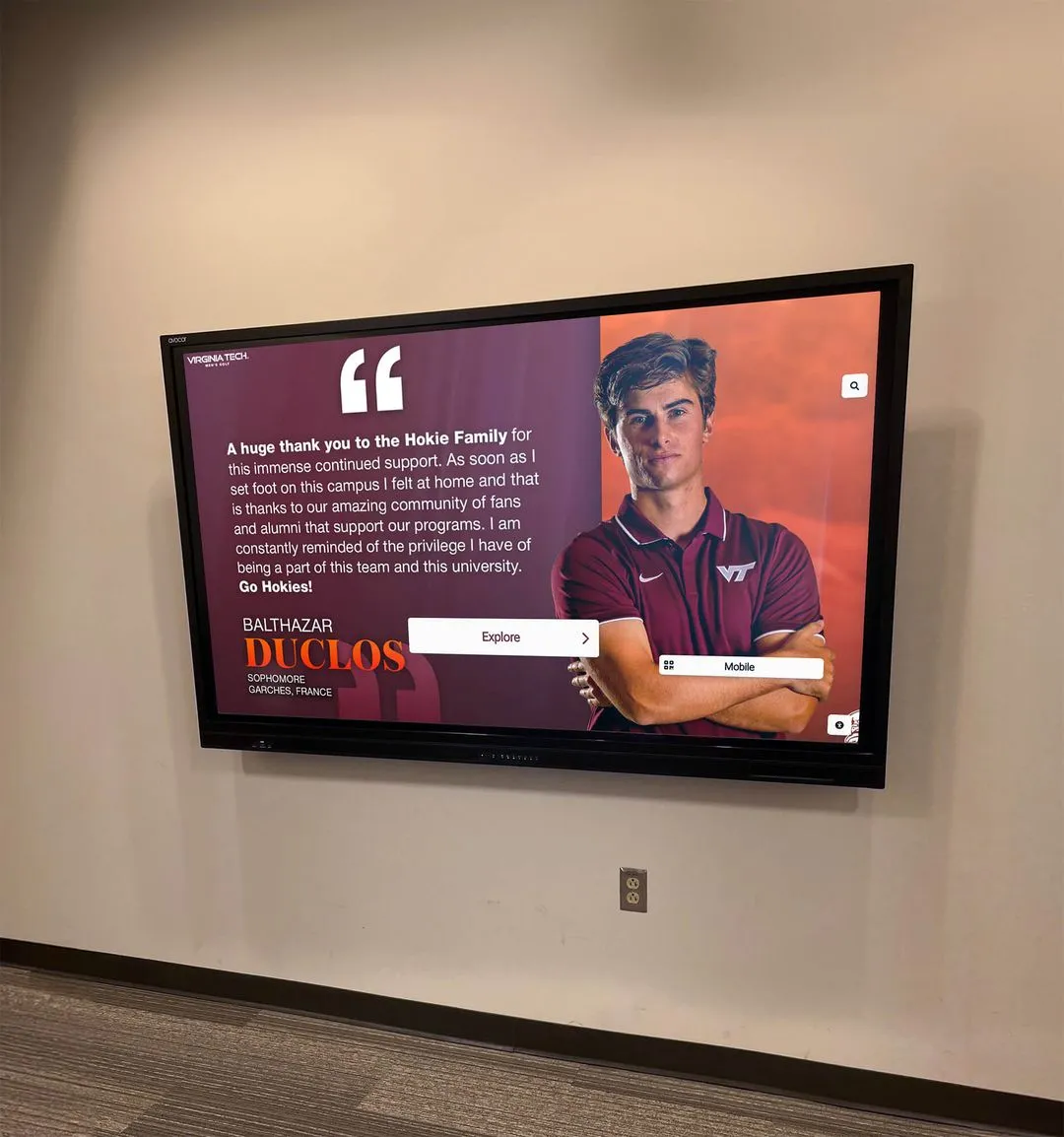
Professional touchscreen implementations benefit from robust driver software ensuring reliable touch functionality
Understanding UPDD Touch Software: Universal Pointer Device Driver Fundamentals
Before examining specific features and capabilities, understanding what UPDD Touch Software is and how it functions helps clarify its role in touchscreen implementations.
What Is UPDD Touch Software?
UPDD Touch Software is a universal touchscreen driver suite developed by Touch-Base Ltd, a company established in 1989 specializing in touchscreen and pointer device drivers. Unlike touchscreen hardware manufacturers who typically develop drivers exclusively for their own products, UPDD provides unified driver support across hundreds of touch controller models from dozens of manufacturers.
Universal Driver Architecture
UPDD’s universal approach offers significant advantages over individual hardware-specific drivers:
- Single driver supporting multiple hardware brands: Instead of managing different drivers for different touchscreen brands, UPDD provides unified support across diverse hardware
- Consistent interface across platforms: The same management tools and configuration interfaces work with all supported touch hardware, simplifying administration
- Reduced driver management complexity: Organizations deploying mixed hardware environments avoid juggling multiple driver versions and configuration tools
- Centralized updates and support: Single vendor relationship for driver updates, technical support, and feature enhancements regardless of touch hardware brand
This universal architecture particularly benefits organizations with diverse touchscreen hardware portfolios or those requiring long-term hardware flexibility without driver lock-in.
UPDD Version History and Current Release
Touch-Base continually evolves UPDD to support emerging operating systems, new touch technologies, and enhanced features:
UPDD Version 6 (V6): The established version providing comprehensive support for Windows, macOS, Linux, and Android platforms with extensive hardware compatibility and proven stability across thousands of installations.
UPDD Version 7 (V7): The latest release offering universal binary architecture with native support for both Intel and ARM processors—critical for Apple’s transition to Apple Silicon and the growing prevalence of ARM-based computing platforms. UPDD V7 maintains backward compatibility while introducing performance optimizations and enhanced feature sets.
Both versions remain actively supported, with V6 recommended for maximum hardware compatibility and V7 preferred for newer ARM-based systems and organizations prioritizing latest-generation features.
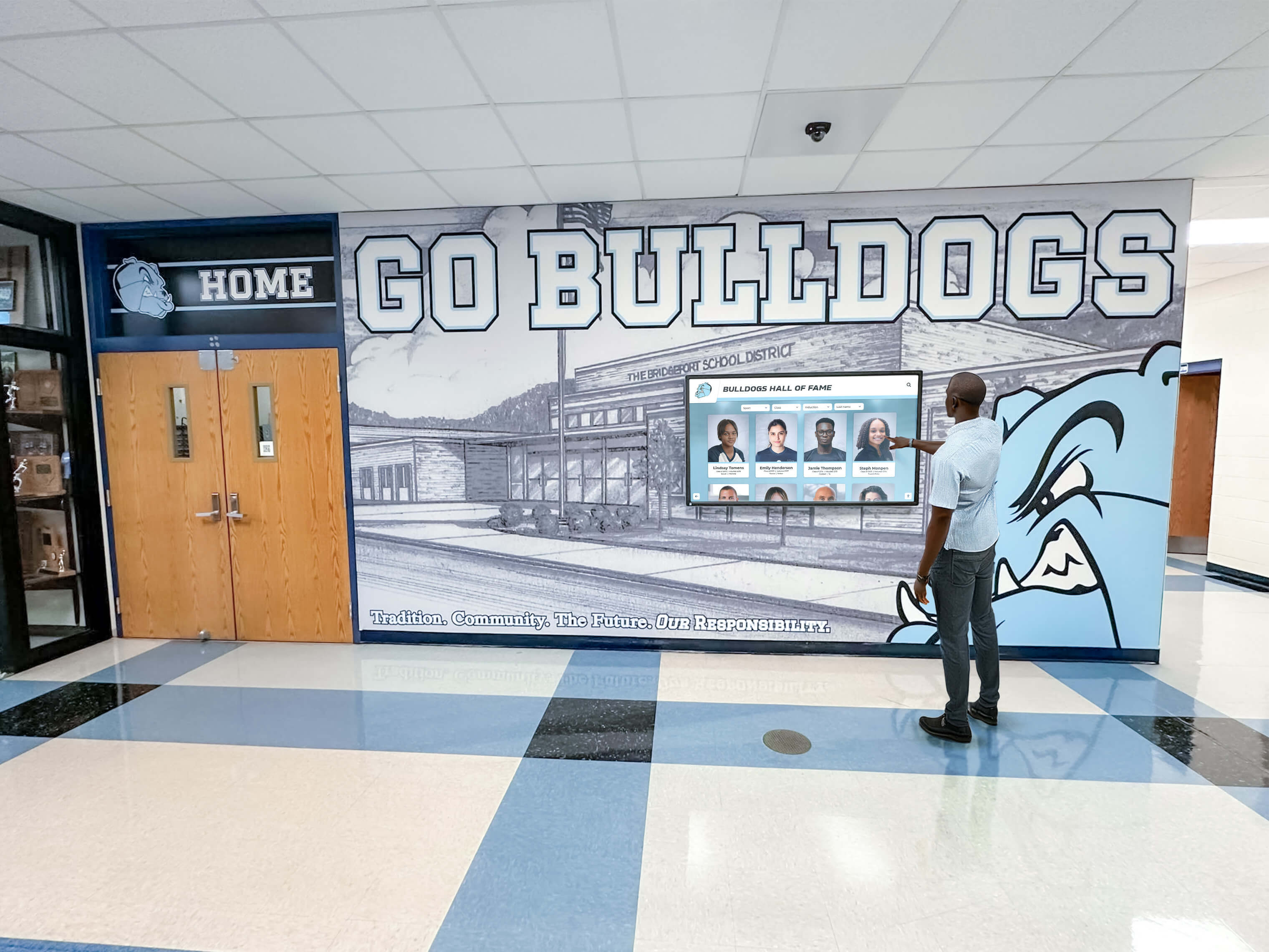
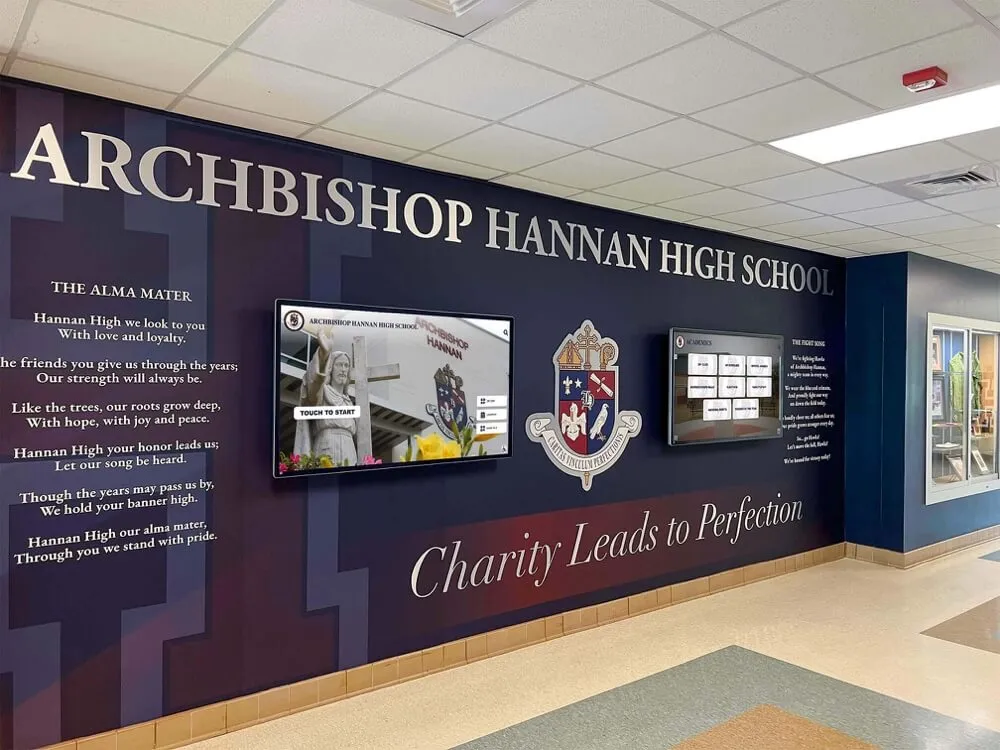
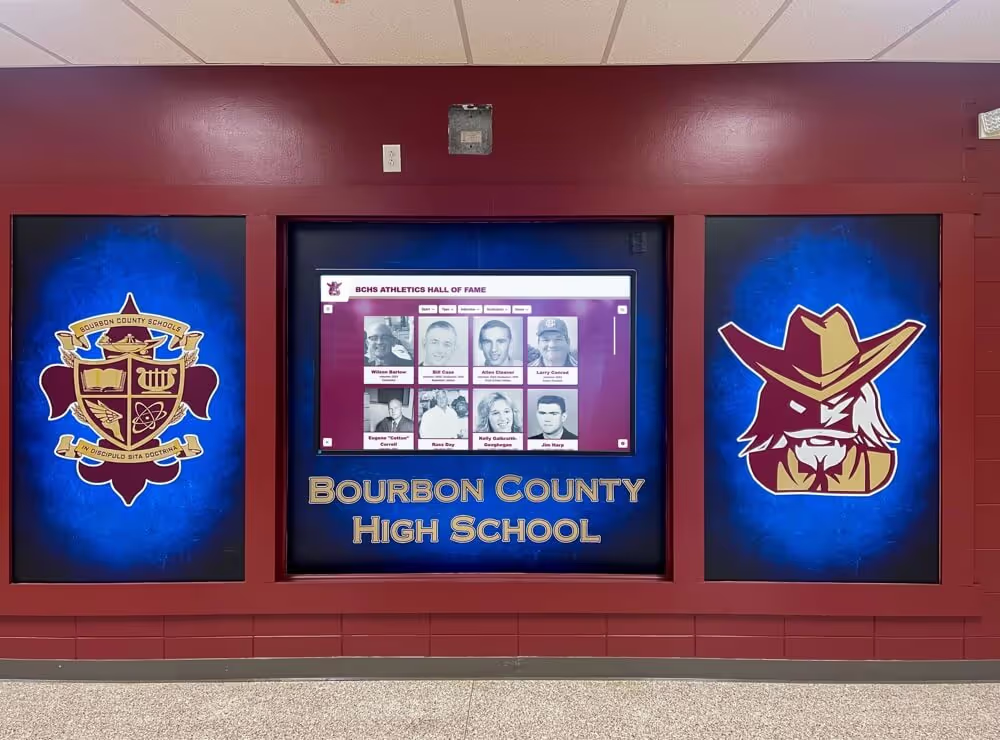
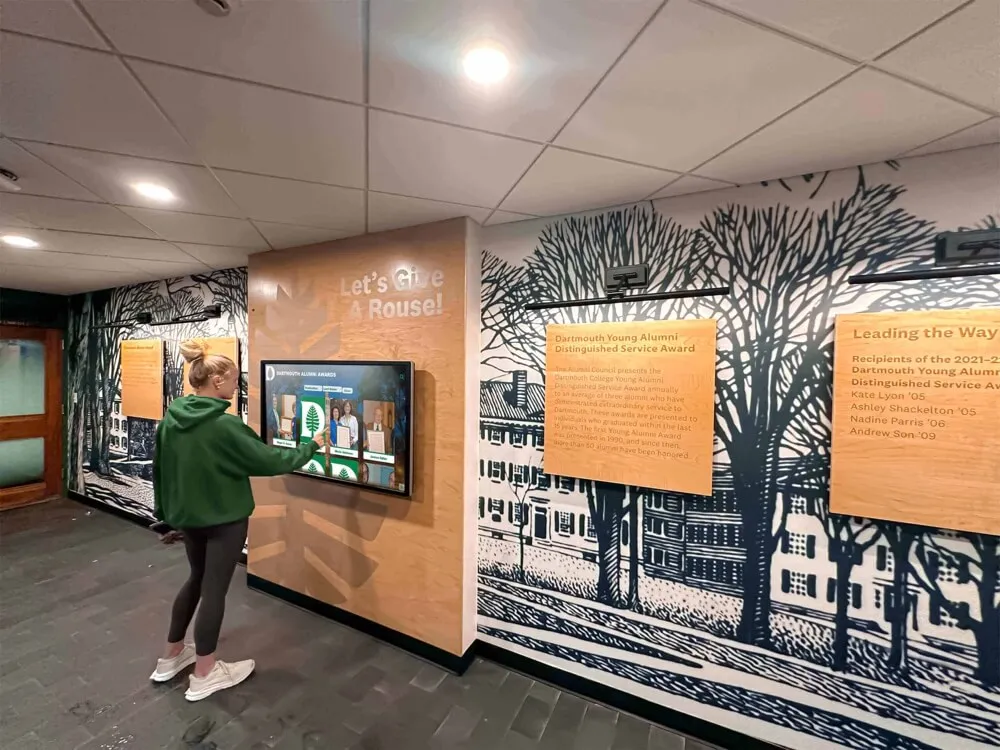
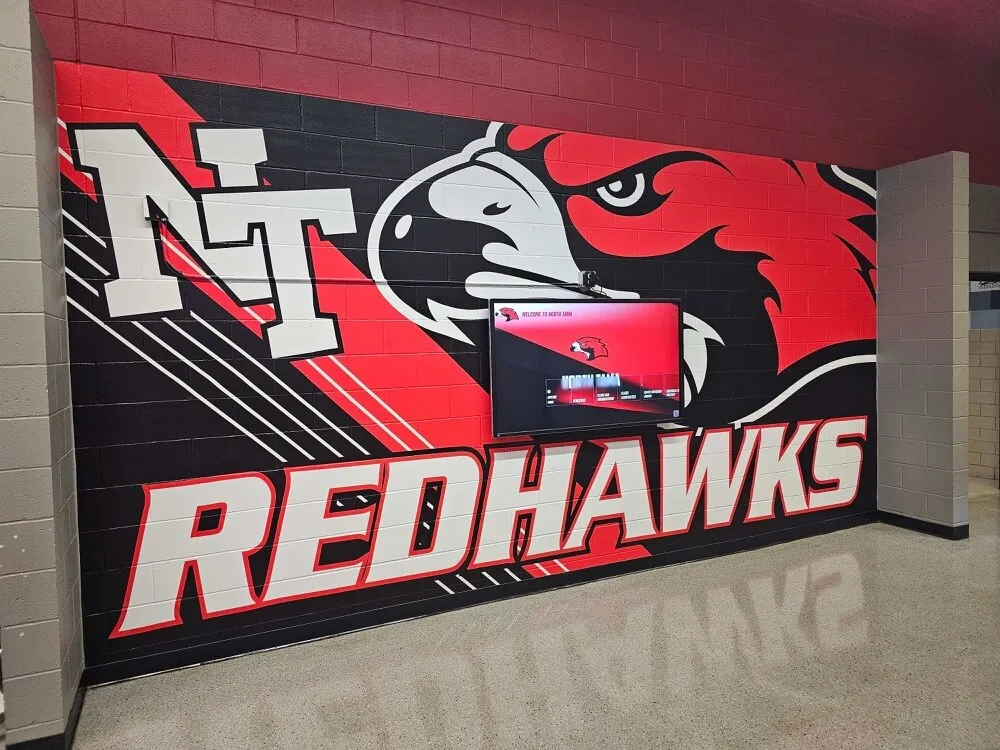
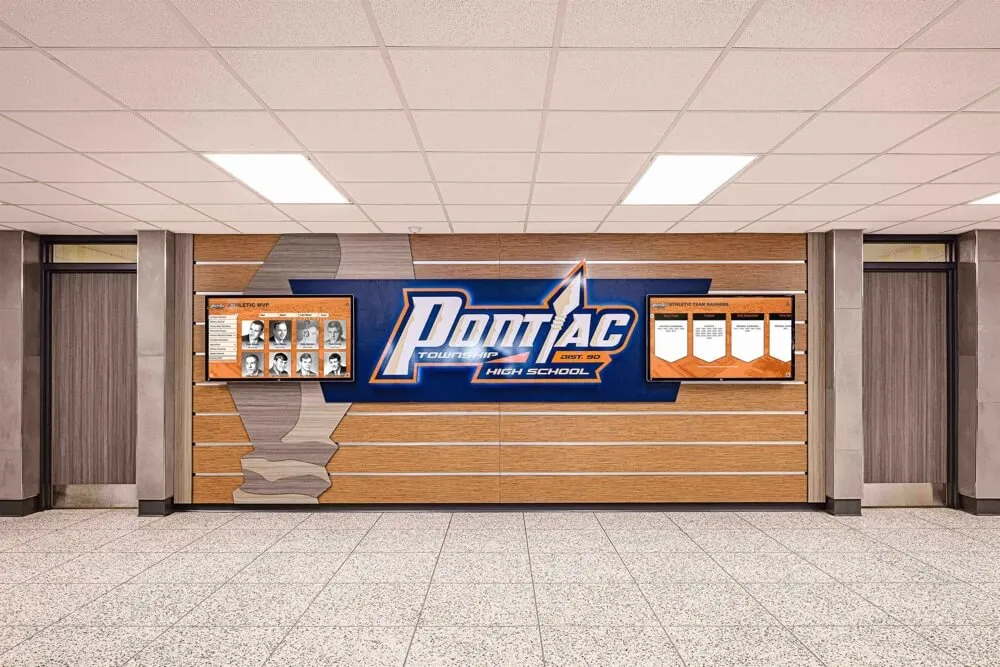
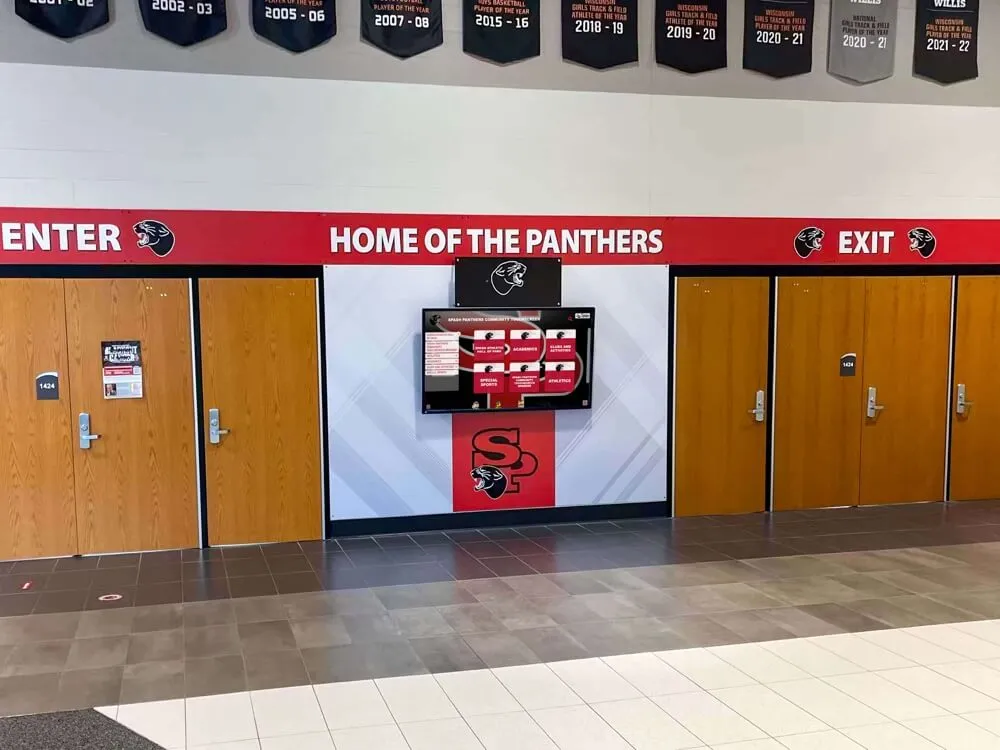
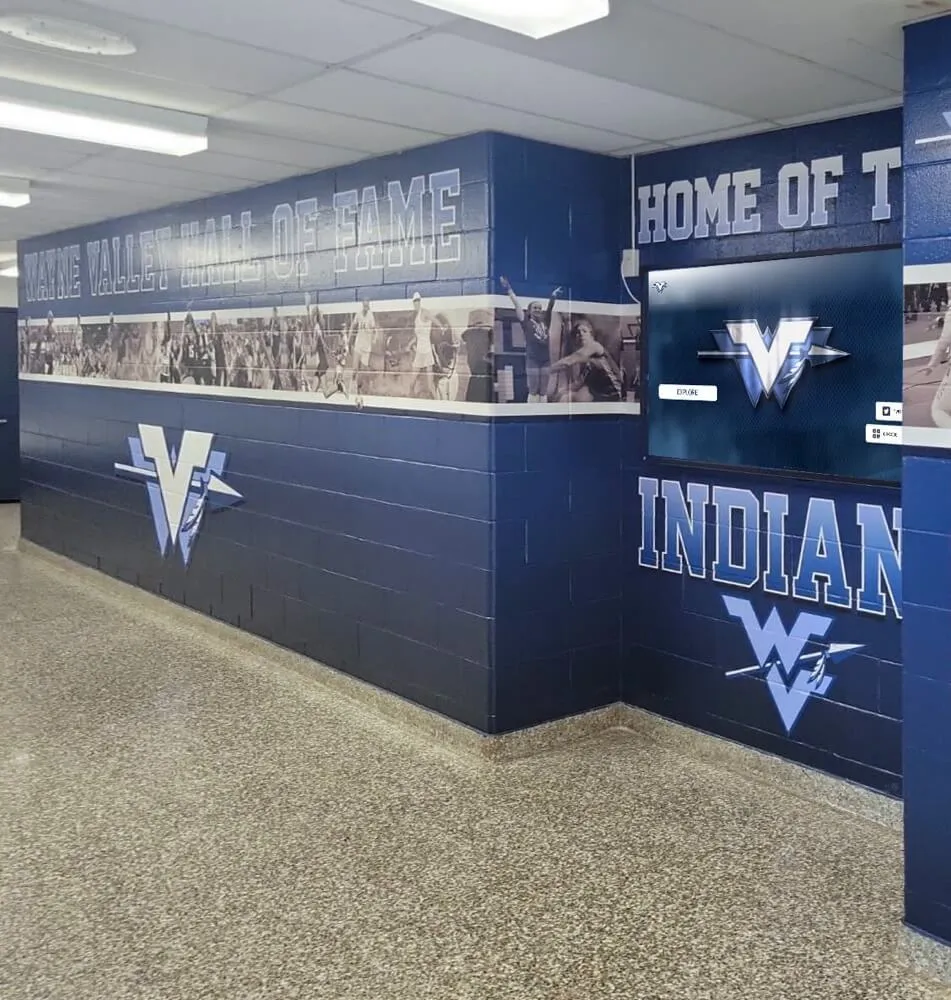
Educational institutions deploy touchscreen displays for [interactive recognition programs](https://touchscreenwebsite.com/blog/interactive-touchscreen-software-guide/) requiring reliable driver support
Core UPDD Components and Architecture
UPDD Touch Software comprises several integrated components working together to provide complete touchscreen functionality:
UPDD Console
The central management application providing driver installation, device configuration, calibration, diagnostics, and monitoring. UPDD Console serves as the primary interface for administrators configuring touch behavior and troubleshooting issues.
Key Console Functions:
- Touch device detection and identification
- Driver installation and updates
- Calibration initiation and management
- Real-time touch testing and diagnostics
- Connection troubleshooting tools
- Hardware information display
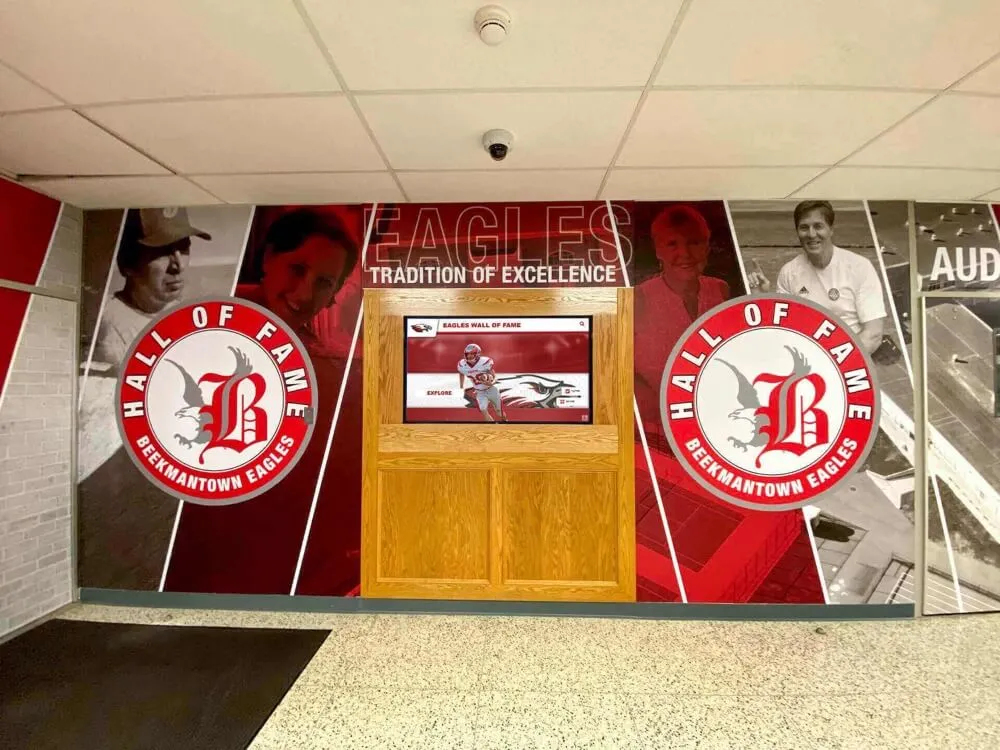
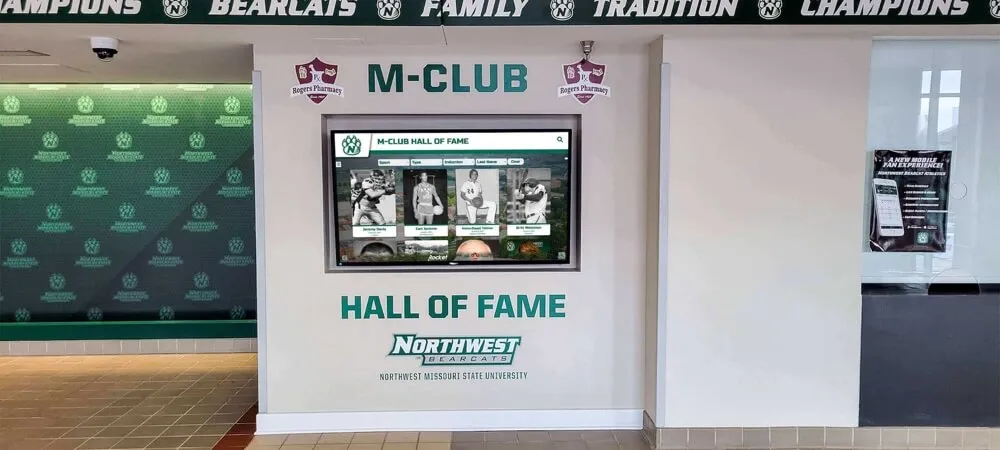
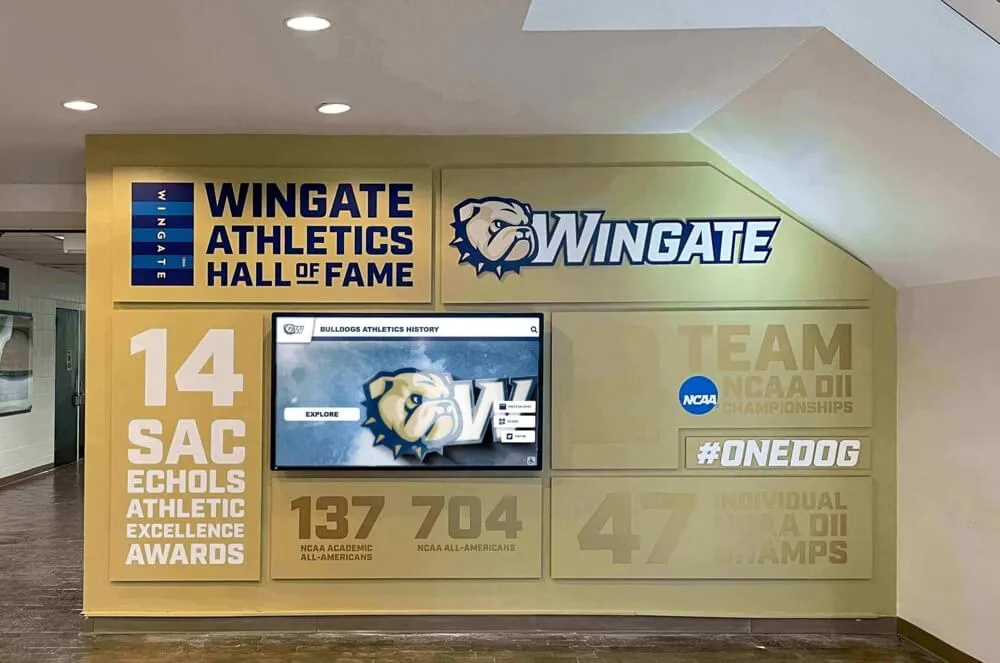
Professional installations require proper driver configuration for optimal touch response
UPDD Commander
The touch behavior configuration utility enabling detailed customization of how touch interactions translate into system actions. UPDD Commander allows administrators to define touch gestures, assign system actions, and create application-specific touch behavior profiles.
Commander Capabilities:
- Touch gesture definition and assignment
- Application-specific behavior profiles
- On-screen keyboard configuration
- System action mapping
- Touch event customization
- Behavior inheritance hierarchies
UPDD API
The comprehensive programming interface enabling developers to create custom applications with direct touch device access rather than relying solely on mouse emulation or native OS touch interfaces.
API Features:
- Direct touch coordinate access
- Multi-touch gesture recognition
- Touch event streaming
- Device capability querying
- Calibration integration
- Custom touch behavior implementation
This multi-component architecture provides flexibility for different organizational needs—from basic driver installation requiring only UPDD Console to advanced custom development leveraging the full API capabilities.
Comprehensive Platform and Operating System Support
UPDD’s cross-platform compatibility represents one of its strongest differentiators from hardware-specific native drivers, enabling consistent touch functionality across diverse computing environments.
Windows Platform Support
UPDD provides extensive Windows support across multiple generations:
Supported Windows Versions:
- Windows 11 (latest builds)
- Windows 10 (all editions)
- Windows 8/8.1
- Windows 7 (Extended Support)
- Windows Vista (legacy support)
- Windows XP (legacy support for V6)
- Windows Embedded variants
- Windows Server editions
This broad version support proves particularly valuable for organizations operating mixed Windows environments or maintaining legacy systems where native touch support may be limited or nonexistent.
Windows-Specific Features:
- Integration with Windows Ink and native touch APIs
- Support for both HID and non-HID USB devices
- Tablet PC Input Panel compatibility
- Windows Presentation Foundation (WPF) support
- Multi-monitor touch configuration
- Windows Hello biometric integration support
Organizations deploying touchscreen software solutions on Windows platforms benefit from UPDD’s comprehensive OS integration while maintaining advanced configuration capabilities unavailable through native Windows touch drivers.
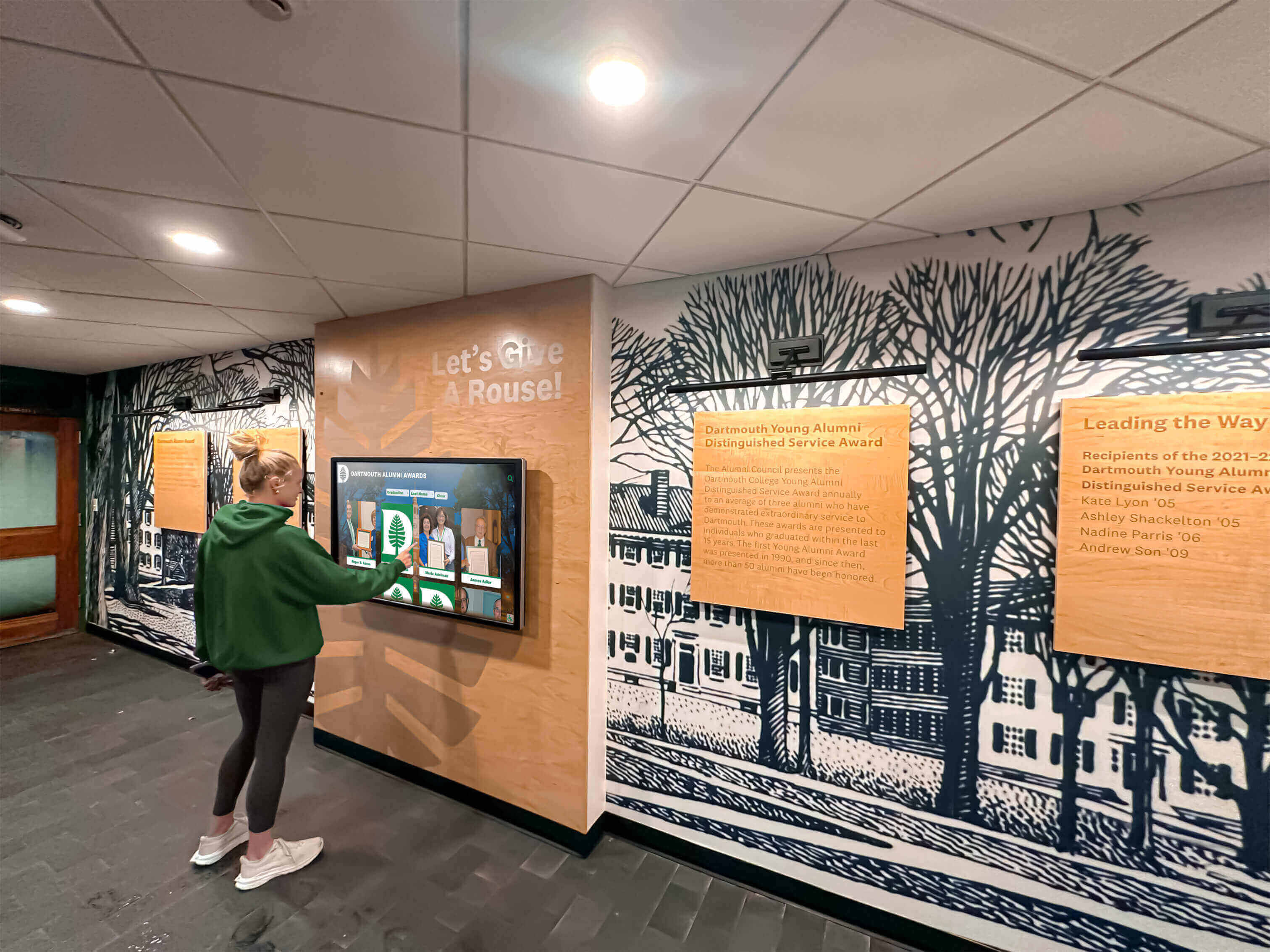
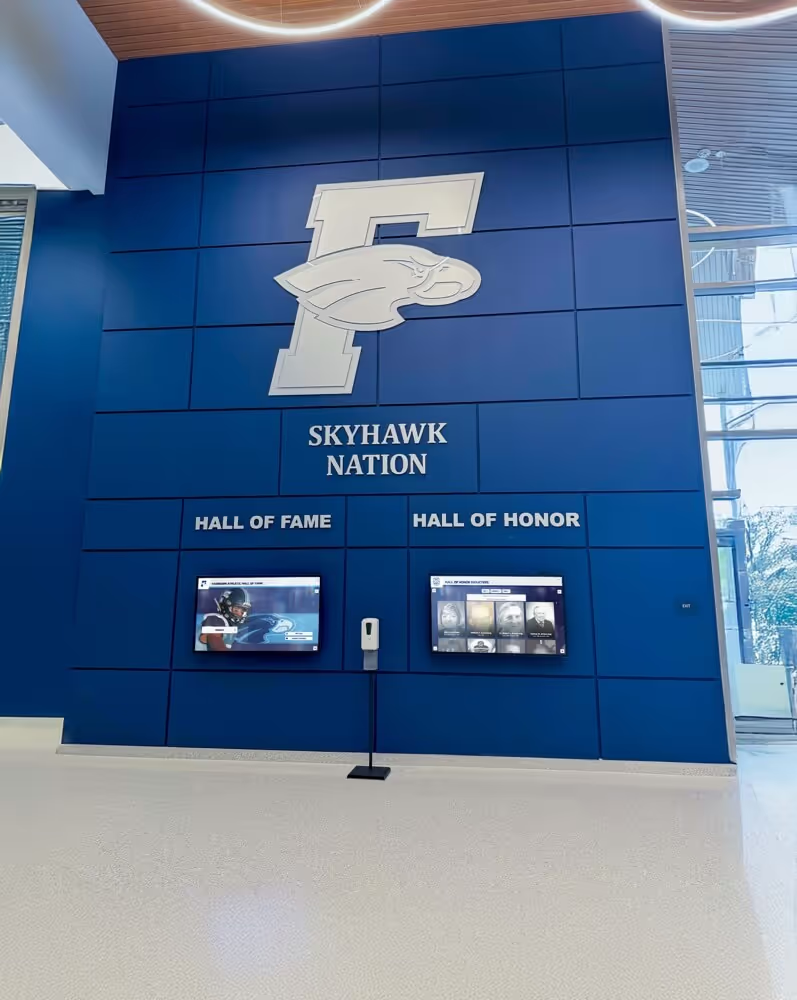
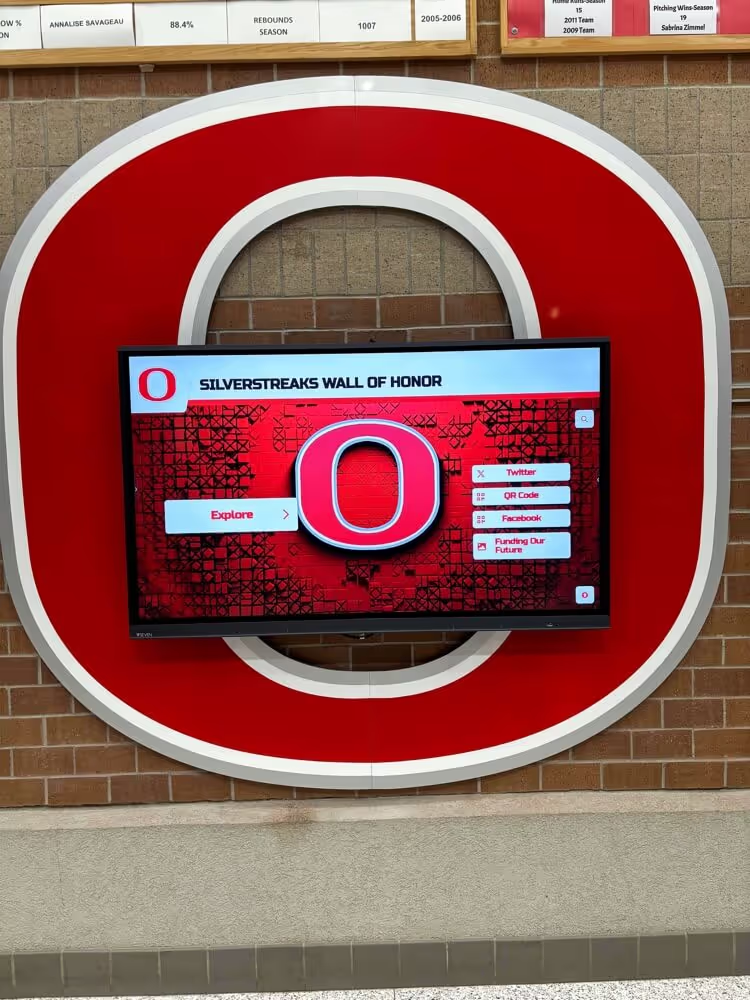
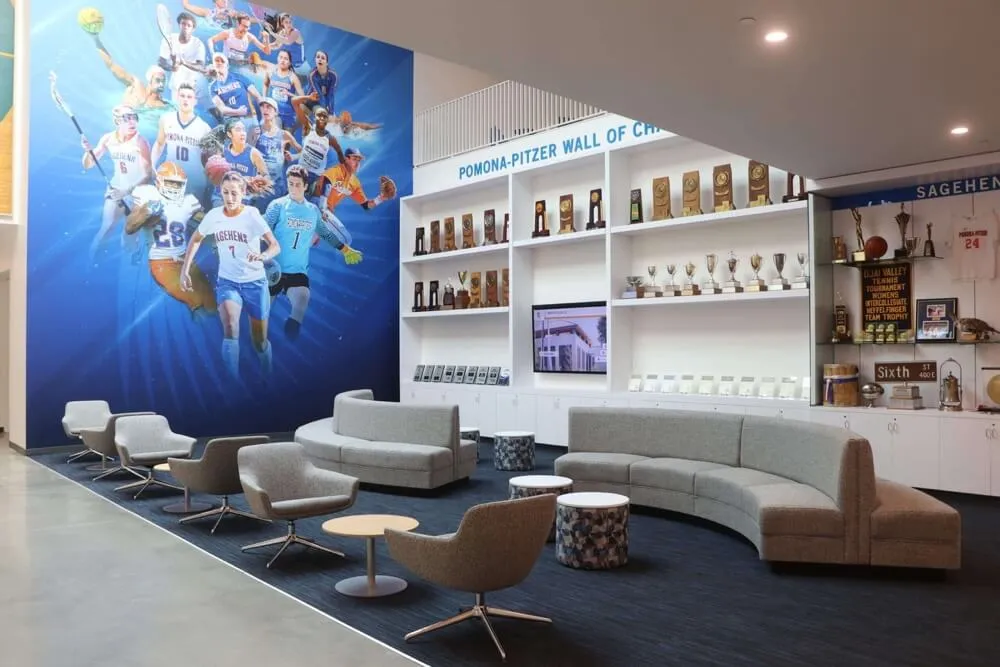
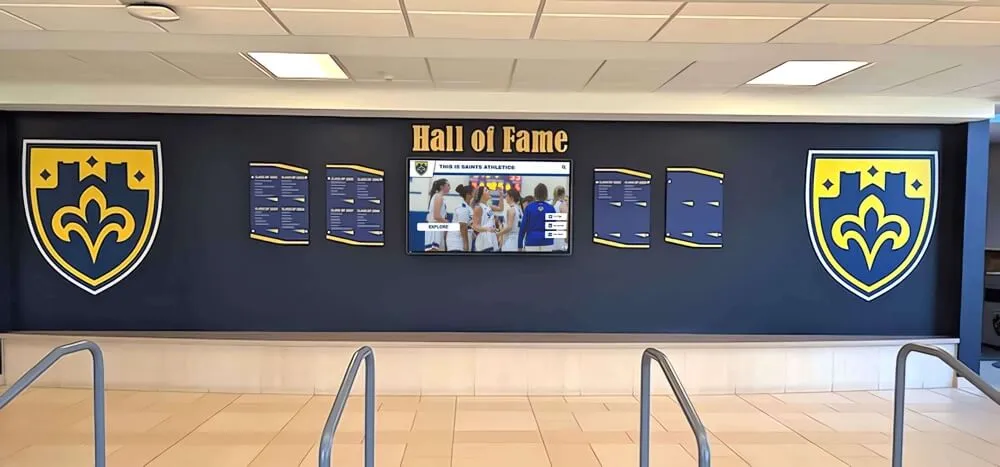
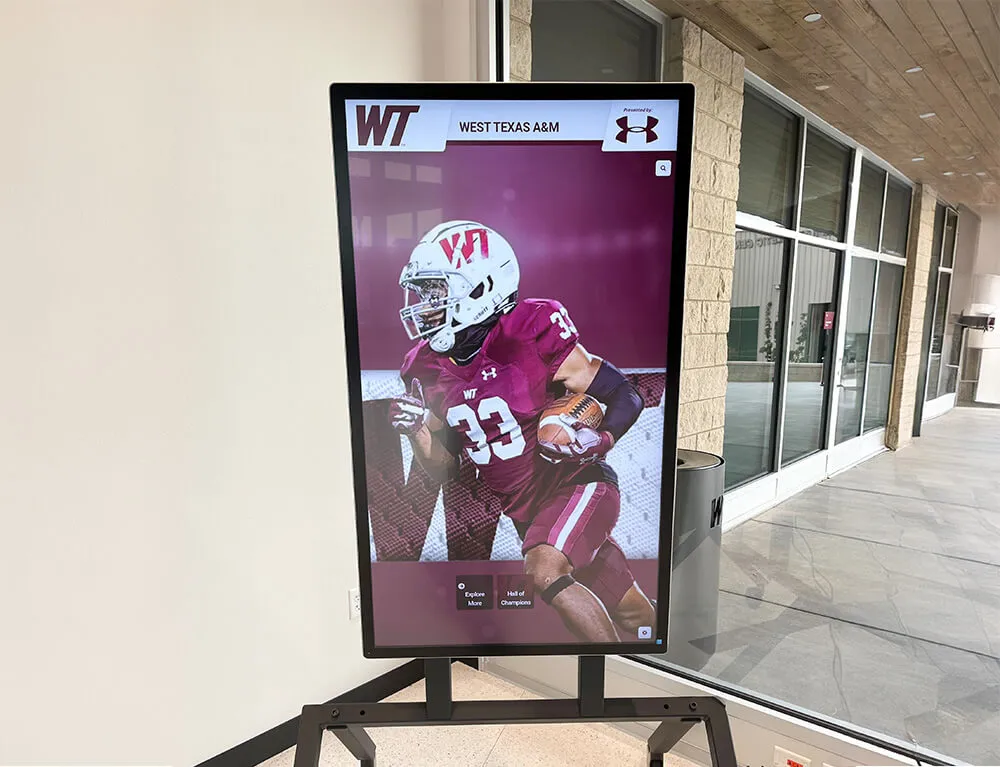
Universities implement touchscreen displays for [alumni engagement applications](https://halloffamewall.com/blog/alumni-engagement-interactive-recognition-displays/) requiring reliable cross-platform driver support
macOS Platform Support
UPDD provides comprehensive macOS support including Apple’s transition to Apple Silicon:
Supported macOS Versions:
- macOS Sonoma (14.x)
- macOS Ventura (13.x)
- macOS Monterey (12.x)
- macOS Big Sur (11.x)
- macOS Catalina (10.15)
- Earlier macOS versions (extensive backward compatibility)
Apple Silicon Native Support: UPDD V7 offers universal binary architecture running natively on both Intel and Apple Silicon (M1, M2, M3, M4) processors without performance-reducing translation layers. This native ARM support ensures optimal performance on Apple’s latest hardware.
macOS-Specific Features:
- Integration with macOS gesture recognition
- Accessibility features compatibility
- Multi-touch trackpad gesture emulation
- Retina display scaling support
- FileVault and security framework compatibility
- Gatekeeper and code signing compliance
Mac users implementing touchscreen solutions gain capabilities often unavailable through limited native macOS touch support, particularly for non-Apple touch hardware.
Linux Platform Support
UPDD extends professional touchscreen capabilities to Linux environments:
Supported Linux Distributions:
- Ubuntu (LTS and current releases)
- Debian
- Fedora
- CentOS/Red Hat Enterprise Linux
- openSUSE
- Linux Mint
- Raspbian (Raspberry Pi)
- Custom Linux distributions
Linux-Specific Features:
- X11 and Wayland compatibility
- systemd integration
- udev rule support
- Input subsystem integration
- Custom kernel module options
- Embedded Linux optimization
Linux deployments in kiosk, industrial, and embedded applications benefit from UPDD’s robust driver support where native touch functionality may be inconsistent across distributions.
Android Platform Support
UPDD provides Android support for specialized applications and OEM implementations:
Android Version Support:
- Android 12+
- Android 11
- Android 10
- Earlier versions (varying support levels)
Android Implementation Notes: Android touch support typically works well through native frameworks, making UPDD most valuable for specific scenarios including legacy hardware support, custom touch behavior requirements, and OEM system integrations where standard Android touch handling proves insufficient.
Organizations implementing interactive touchscreen kiosks across diverse platforms benefit from UPDD’s consistent driver architecture regardless of underlying operating system.
Extensive Touch Hardware Compatibility
UPDD’s universal architecture supports hundreds of touch controller models from dozens of manufacturers, addressing the fragmented touchscreen hardware landscape.
Touch Technology Support
UPDD supports all major touch sensing technologies:
Infrared (IR) Touch
Full support for infrared touchscreen systems using bezels with IR emitters and receivers. Common in large-format displays and public kiosks due to durability and ability to work with any touch object.
Capacitive Touch
Comprehensive support for projected capacitive (PCAP) touchscreens including multi-touch gesture recognition. Dominant technology in mobile devices and modern touchscreen displays.
Resistive Touch
Support for pressure-sensitive resistive touchscreens common in industrial and healthcare applications where gloved operation or stylus precision is required.
Acoustic Wave Touch
Support for surface acoustic wave (SAW) and acoustic pulse recognition (APR) technologies offering excellent optical clarity for specialized applications.
Optical Touch
Support for optical/camera-based touch detection systems using image processing to determine touch coordinates.
Legacy Technologies
Continued support for older touch technologies including early serial and proprietary USB controllers, extending hardware lifespan.
This broad technology support ensures organizations can deploy UPDD regardless of touchscreen hardware specifications, preventing driver compatibility from constraining hardware selection.

Professional touchscreen applications require precise touch accuracy regardless of underlying touch technology
Connection Interface Support
UPDD supports diverse connection methods between touch controllers and computing systems:
USB HID (Human Interface Device): Full support for standards-compliant USB HID touchscreen devices—the most common modern connection method benefiting from plug-and-play functionality with additional UPDD enhancements.
USB Non-HID: Support for touchscreen controllers using non-HID USB protocols—older or specialized controllers not conforming to HID standards but still connecting via USB.
Serial (RS-232): Legacy serial port touch controller support enabling older touchscreen hardware to function on modern computers with serial ports or USB-to-serial adapters.
I2C and SPI: Support for embedded touch controllers using I2C or SPI interfaces common in industrial and custom embedded applications.
This comprehensive interface support prevents connectivity limitations from forcing hardware replacement when perfectly functional touchscreens use non-standard connection methods.
Supported Touch Controller Manufacturers
UPDD supports touch controllers from leading manufacturers including:
- 3M (MicroTouch)
- Elo TouchSystems
- Touch International
- EETI (eGalax)
- NextWindow
- Baanto
- Flatfrog
- PQ Labs
- Neonode
- Atmel
- Synaptics
- And hundreds of additional manufacturers
This extensive manufacturer support means organizations can confidently specify UPDD driver deployment regardless of touchscreen brand, preventing vendor lock-in and enabling hardware flexibility based on cost, availability, or specific feature requirements.
Schools implementing digital recognition displays benefit from driver software compatible with diverse touchscreen hardware across their campus installations.
Advanced Configuration and Calibration Capabilities
UPDD’s sophisticated configuration tools enable precise touch behavior customization impossible with basic native drivers, particularly valuable for demanding applications requiring exact touch accuracy.
UPDD Console: Comprehensive Configuration Interface
UPDD Console provides centralized management for all touchscreen configuration needs:
Core UPDD Console Functions
- ✓Device Detection and Identification: Automatic discovery of connected touchscreen devices with detailed hardware information including manufacturer, model, connection type, and capabilities.
- ✓Driver Management: Installation, updating, and removal of UPDD drivers with version tracking and rollback capabilities if issues arise after updates.
- ✓Touch Testing and Diagnostics: Real-time touch coordinate display, pressure sensitivity testing, and touch event logging for troubleshooting accuracy or responsiveness issues.
- ✓Calibration Initiation: Launch calibration processes for precise touch-to-screen coordinate alignment ensuring accurate touch response across the display surface.
- ✓Multi-Monitor Configuration: Assignment of touch devices to specific monitors in multi-display environments, preventing touch input on one screen from controlling another display.
- ✓Hardware Information Display: Comprehensive details about touch controller capabilities, firmware versions, supported features, and communication parameters.
These Console capabilities ensure administrators can effectively manage touchscreen deployments regardless of complexity or scale.
Precise Calibration for Accurate Touch Response
Calibration aligns the touch controller’s coordinate system with the display’s visual coordinate system, compensating for manufacturing variations and installation factors affecting accuracy:
When Calibration Is Required:
- Initial installation of new touchscreen hardware
- Touch coordinates misaligned with visual elements on screen
- Multi-monitor setups where touch affects incorrect display
- Display resolution or orientation changes
- Touch accuracy degradation over time
- Video image not filling entire display area
UPDD Calibration Process:
- Launch Calibration: Initiate through UPDD Console by clicking “Identify” for the target touch device
- Target Presentation: Calibration graphics appear showing precisely positioned target points
- Touch Target Points: Press and hold each crosshair target until confirmation circle indicates successful registration
- Coordinate Calculation: UPDD calculates transformation mathematics aligning touch coordinates with screen coordinates
- Verification: Test touch accuracy across display surface confirming proper calibration
- Profile Storage: Calibration parameters saved automatically, applied whenever the touch device connects
Multi-Point Calibration: UPDD supports various calibration precision levels from basic 4-point calibration suitable for most applications to 25-point calibration for applications requiring extreme accuracy across large display surfaces.
Organizations deploying precision touchscreen applications benefit from UPDD’s sophisticated calibration ensuring reliable touch accuracy critical for professional implementations.
UPDD Commander: Advanced Touch Behavior Configuration
UPDD Commander enables detailed customization of how touch interactions translate into system behaviors:
Universal Settings Tabs:
- General Settings: System-wide touch behavior configurations applying across all applications
- Touch Behavior: Gesture definitions, action assignments, and touch event mapping
- On-Screen Keyboard: Virtual keyboard configuration for kiosk and tablet-style applications
Touch Event Definitions: UPDD Commander provides predefined touch events including:
- Single tap (touch and release)
- Double tap (two quick successive touches)
- Touch and hold (press and sustain)
- Swipe gestures (directional movement)
- Multi-touch gestures (pinch, zoom, rotate)
- Custom touch patterns
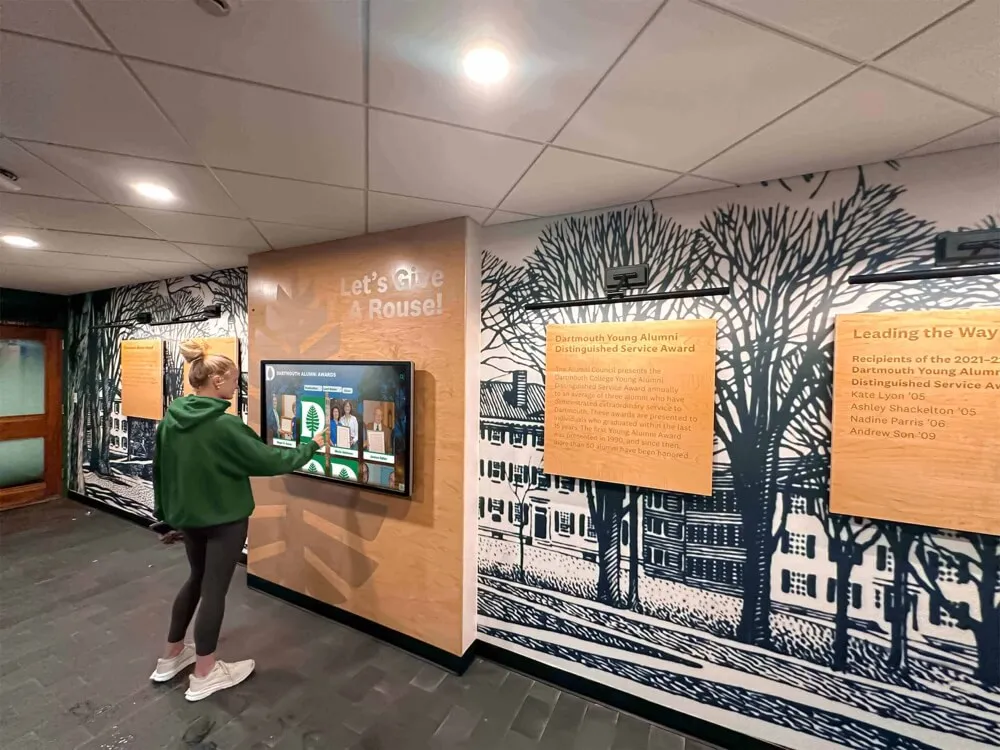
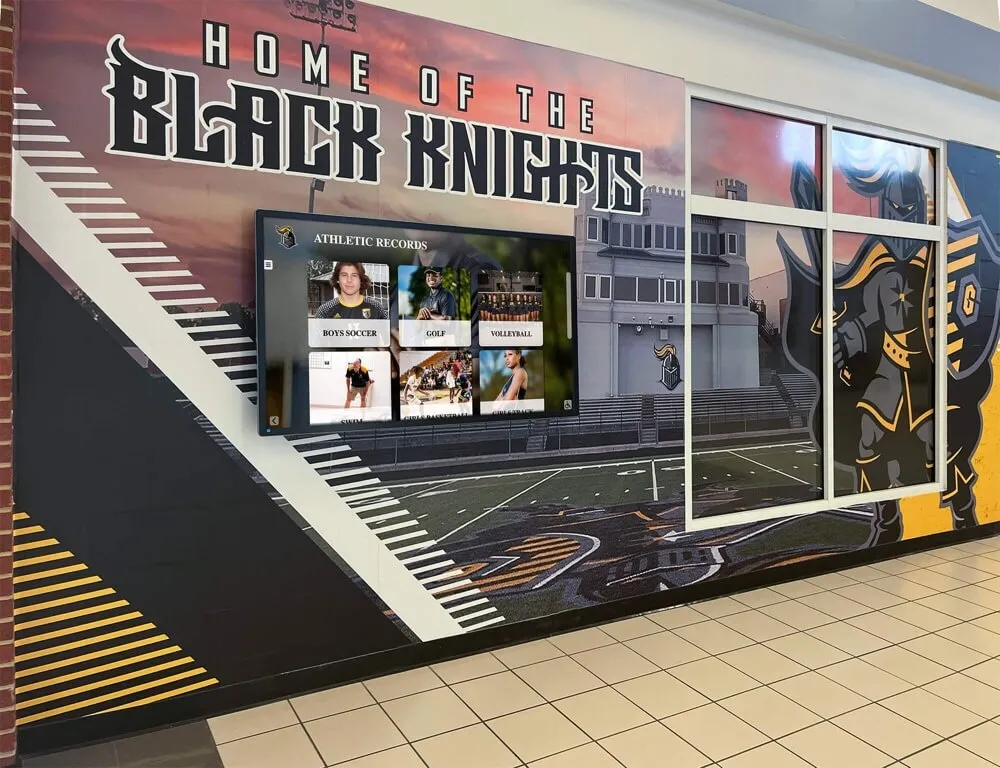
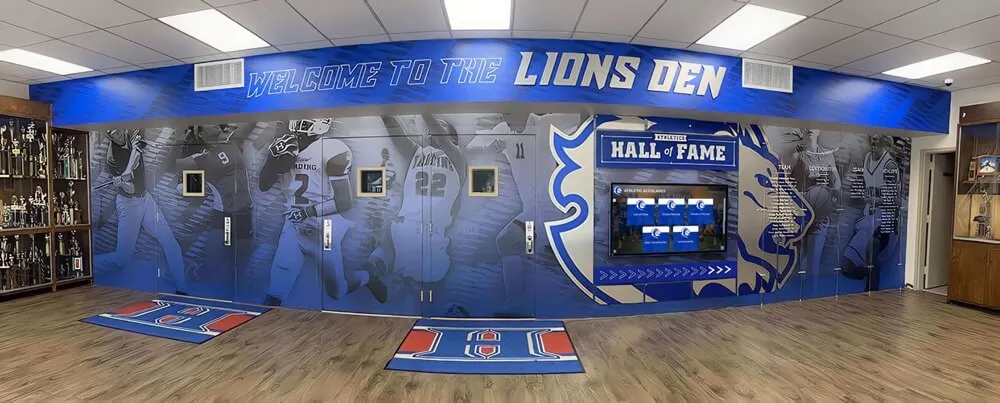
Campus installations benefit from configurable touch behaviors optimized for visitor interaction patterns
System Action Assignments: Each touch event can trigger system actions:
- Mouse button clicks (left, right, middle)
- Keyboard shortcuts
- Application launches
- System commands
- Custom scripts
- UPDD API function calls
Application-Specific Profiles: UPDD Commander supports creating behavior profiles for specific applications, enabling different touch behaviors in different software—particularly valuable when single kiosks run multiple applications with different interaction requirements.
This advanced configuration capability ensures touch behavior precisely matches application requirements rather than accepting one-size-fits-all native touch behavior.
UPDD API: Developer Integration and Custom Applications
Beyond providing enhanced driver functionality for standard applications, UPDD offers comprehensive API access enabling developers to create custom touch-enabled solutions with capabilities impossible through standard OS touch interfaces.
UPDD API Capabilities and Architecture
The UPDD API provides programmatic access to touch devices through consistent cross-platform interfaces:
Core API Functions:
- Touch Coordinate Access: Direct access to raw touch coordinates bypassing mouse emulation for higher precision and lower latency
- Multi-Touch Data Streams: Access to all simultaneous touch points with unique tracking identifiers for complex gesture recognition
- Touch Device Enumeration: Discovery and identification of connected touch devices with capability queries
- Calibration Integration: Programmatic calibration triggering and parameter access for applications requiring automated calibration workflows
- Touch Event Notifications: Event-driven architecture receiving touch events without polling, improving application efficiency
- Custom Behavior Implementation: Override standard touch-to-mouse translation with application-specific touch handling
API Language Support: UPDD provides API libraries and documentation for multiple programming languages:
- C/C++
- C# (.NET)
- Java
- Python
- JavaScript (for web applications)
- Additional language bindings available
TUIO Protocol Support: UPDD implements the TUIO (Tangible User Interface Objects) protocol, enabling compatibility with interactive applications built on this widely-adopted standard for natural user interfaces and tangible computing.
Developer Use Cases for UPDD API
Organizations with development resources leverage UPDD API capabilities for specialized applications:
Custom Kiosk Applications: Developers building public kiosks for museums, retail, education, or healthcare create custom touch interfaces with precise gesture recognition, specialized on-screen keyboards, and behavior optimized for specific content types—beyond what generic kiosk software provides.
Interactive Education Software: Educational application developers implement touch-enabled learning experiences with multi-student simultaneous interaction, object manipulation, and collaborative activities leveraging multi-touch capabilities.
Medical and Healthcare Applications: Healthcare software developers integrate touch interaction for electronic health records, patient check-in systems, and medical imaging workstations where gloved operation and precise touch response are critical.
Industrial Control Systems: Manufacturing and process control software incorporates touch interfaces for equipment operation, monitoring displays, and human-machine interfaces (HMI) in industrial environments.
Creative and Design Tools: Developers creating art, design, and creative applications implement pressure-sensitive touch, multi-touch gesture recognition, and stylus support for professional creative workflows.
Solutions like Rocket Alumni Solutions leverage robust driver foundations to deliver engaging interactive recognition experiences optimized for educational environments.
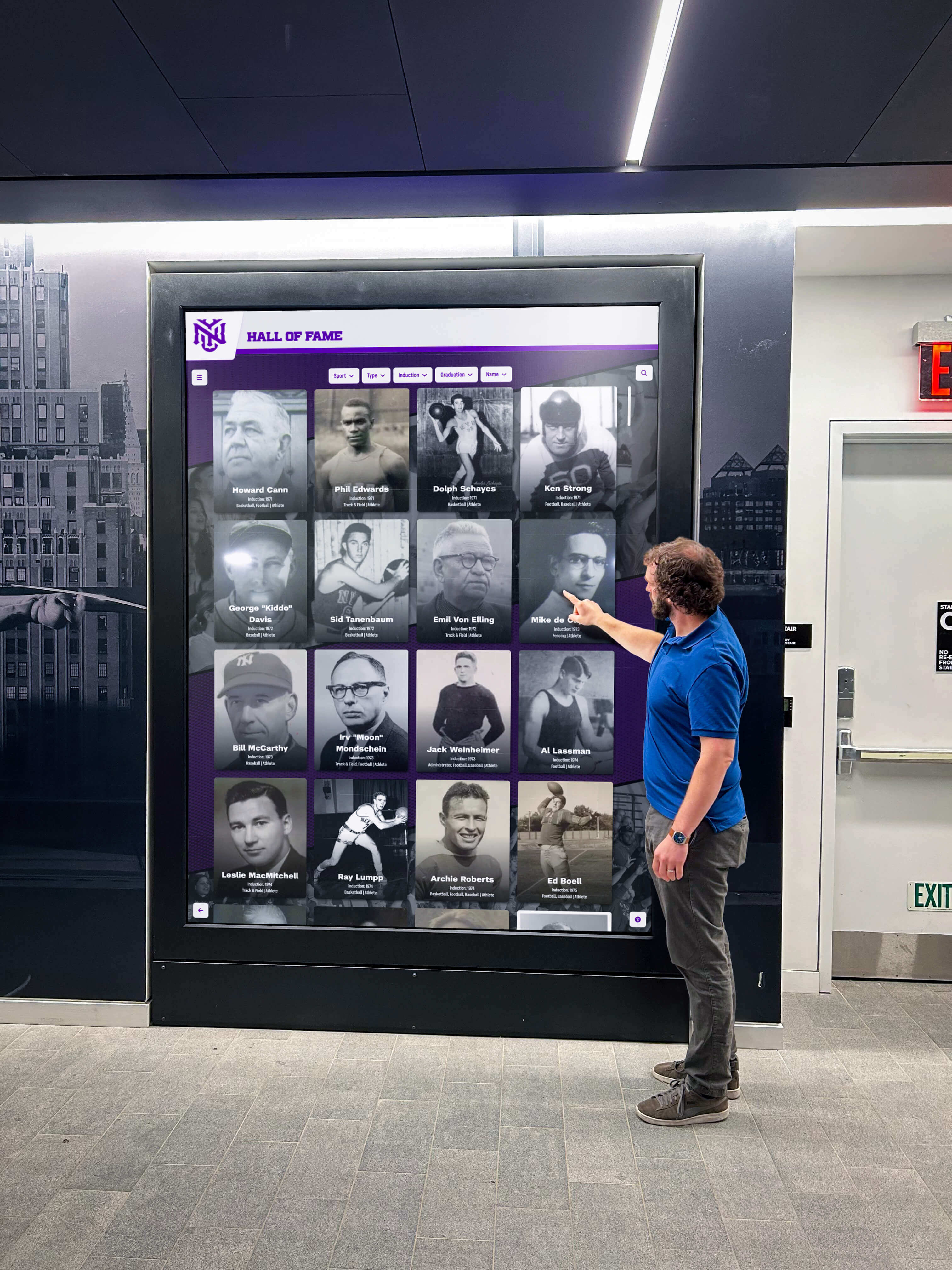
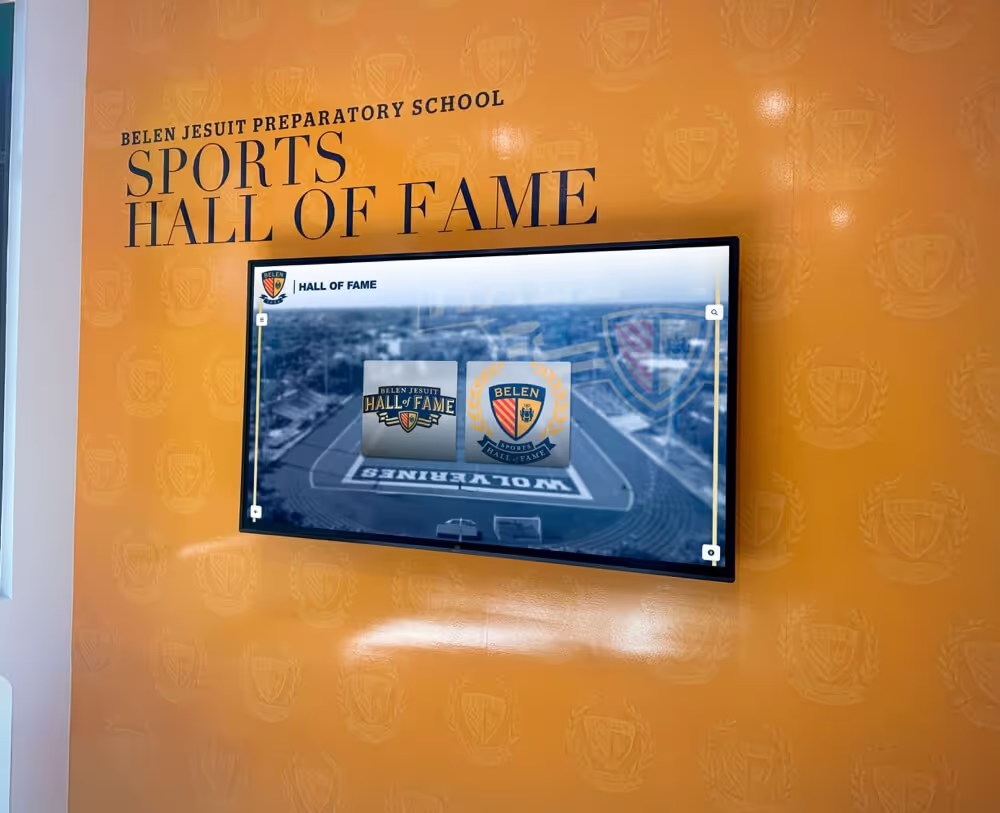
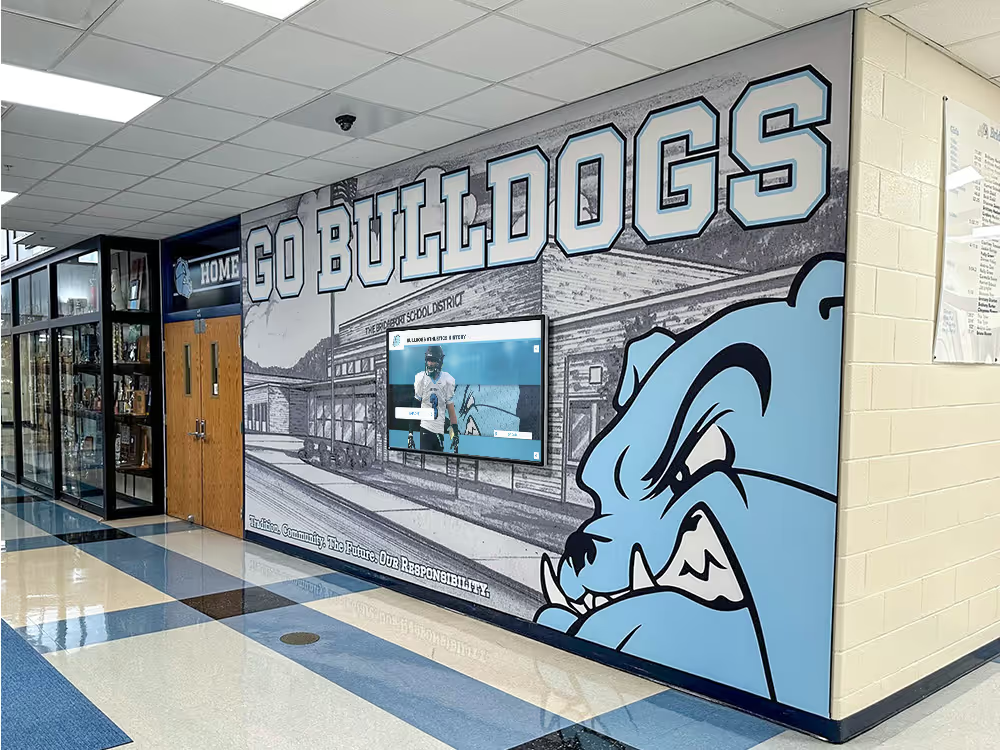
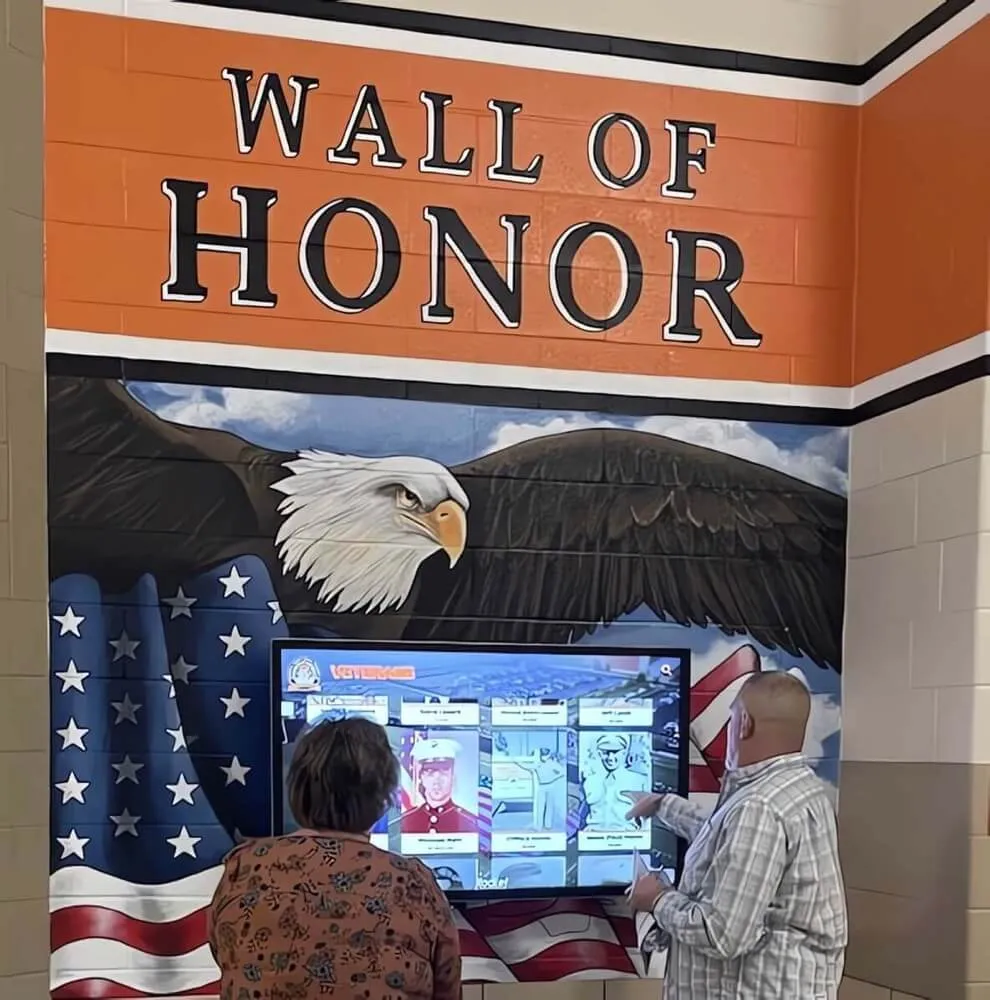
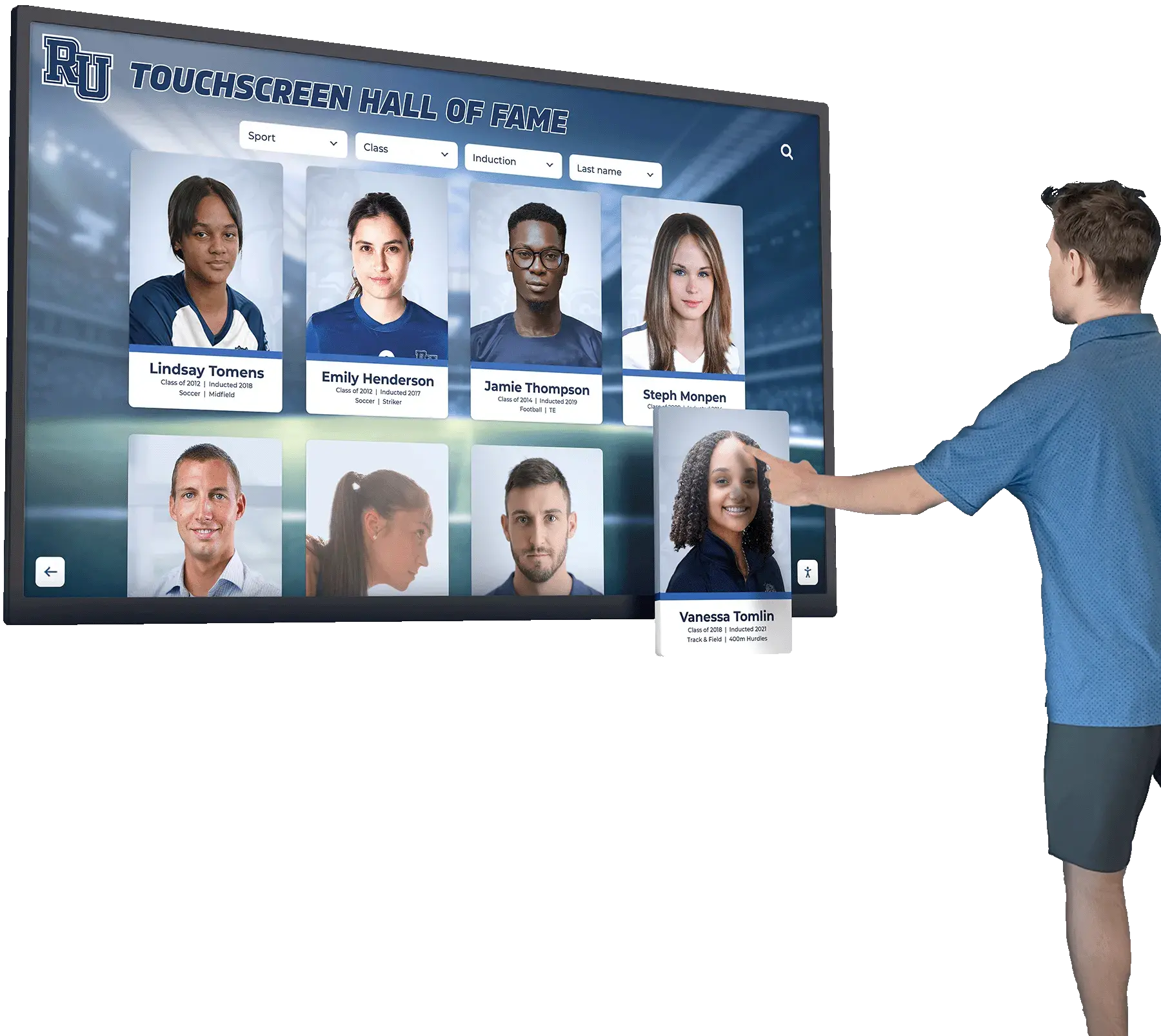
Educational institutions deploy interactive displays requiring reliable driver software and intuitive touch responses
Key Advantages of UPDD Over Native Touch Drivers
While modern operating systems include native touchscreen support, numerous scenarios justify deploying UPDD Touch Software instead of or alongside native drivers.
Legacy Hardware Support and Lifespan Extension
One of UPDD’s most valuable benefits involves extending functional lifespan of older touchscreen hardware:
Operating System Evolution Challenges: Touch controllers designed for Windows XP or Windows 7 often lack native driver support for Windows 10, Windows 11, or modern macOS releases. Manufacturers rarely update drivers for discontinued products, forcing organizations to replace perfectly functional touchscreen hardware due solely to driver incompatibility.
UPDD Legacy Hardware Support: UPDD continues supporting older touch controllers even as operating systems evolve, enabling:
- Windows XP-era touchscreens functioning on Windows 11
- Legacy serial touch controllers working via USB adapters on modern computers
- Proprietary USB touch protocols functioning without manufacturer driver updates
- Industrial touchscreen panels maintaining functionality decades after manufacture
Organizations operating digital display technology benefit from driver software preventing premature hardware obsolescence and maximizing return on touchscreen investments.
Total Cost of Ownership Impact: While UPDD requires licensing fees, these costs often prove minimal compared to replacing functional touchscreen hardware. For organizations with multiple older touchscreen installations, UPDD delivers substantial cost savings by extending hardware lifespan years beyond what native driver support would allow.
Enhanced Functionality Beyond Native Drivers
Native OS touch support provides basic functionality sufficient for consumer applications but often lacks advanced features professional deployments require:
Professional Features UPDD Adds Beyond Native Support
- Precise Multi-Monitor Touch Assignment: Native drivers sometimes struggle correctly assigning touch devices to specific displays in multi-monitor configurations—UPDD provides explicit device-to-display mapping preventing touch on one screen from affecting another
- Advanced Calibration Options: While native touch support includes basic calibration, UPDD offers variable precision calibration from 4-point to 25-point, enabling accuracy optimization for different application requirements
- Touch Behavior Customization: Native drivers provide limited touch-to-system interaction customization—UPDD Commander enables detailed gesture definitions, system action assignments, and application-specific behavior profiles
- Comprehensive Diagnostics: Native OS tools provide minimal touch troubleshooting capability—UPDD Console delivers real-time coordinate display, touch event logging, and detailed hardware information critical for resolving issues
- API Access for Custom Development: Native touch APIs vary across platforms and provide inconsistent access—UPDD delivers consistent cross-platform API enabling custom application development with unified codebase
- On-Screen Keyboard Integration: While operating systems include virtual keyboards, UPDD provides integrated OSK configuration with behavior profiles optimized for kiosk and tablet applications
These advanced features prove particularly valuable for organizations deploying touchscreens in professional contexts where basic consumer-oriented native functionality proves insufficient.
Cross-Platform Consistency and Management Efficiency
Organizations operating heterogeneous computing environments benefit from UPDD’s consistent functionality across different platforms:
Unified Management Interface: UPDD Console and Commander provide identical interfaces across Windows, macOS, and Linux—reducing training requirements and simplifying administration compared to learning platform-specific native tools.
Consistent Touch Behavior: Applications running on different operating systems can deliver identical touch interaction when using UPDD, versus varying native touch behavior across platforms creating inconsistent user experiences.
Centralized Support Relationship: Single vendor relationship for driver support across all platforms versus managing separate support channels for Windows touch issues, macOS problems, and Linux challenges.
Knowledge Transfer: IT staff expertise with UPDD on one platform directly transfers to other platforms, versus platform-specific native driver knowledge requiring separate learning.
Organizations implementing campus-wide touchscreen programs across diverse hardware and operating systems benefit from UPDD’s management simplification.
Installation and Deployment Best Practices
Successful UPDD Touch Software implementation requires following systematic installation and configuration processes ensuring reliable operation.
Pre-Installation Planning and Assessment
Before installing UPDD drivers, proper planning prevents common issues:
Essential Pre-Installation Steps
- Document Existing Touch Hardware: Record touchscreen manufacturer, model numbers, controller types, connection methods, and current driver versions before making changes enabling rollback if needed
- Verify Operating System Compatibility: Confirm your specific OS version appears on UPDD's supported platform list, particularly for cutting-edge OS releases or legacy versions at support boundaries
- Check Architecture Requirements: Verify UPDD version matches processor architecture—V7 required for ARM-based systems like Apple Silicon Macs, while V6 continues supporting older Intel/AMD systems
- Review IT Security Policies: Coordinate with IT security teams regarding driver software installation, particularly in locked-down environments requiring approval processes or special permissions
- Back Up Existing Configurations: Export calibration data and driver settings from existing native drivers before removal, providing fallback if UPDD deployment encounters unexpected issues
- Plan Downtime Windows: Schedule installations during low-usage periods for public-facing displays, ensuring adequate time for installation, configuration, calibration, and testing before returning to production
This preparation dramatically reduces installation complications and enables rapid resolution if issues arise.
UPDD Driver Installation Process
UPDD installation follows straightforward procedures with platform-specific variations:
Windows Installation Steps:
- Download UPDD installer from Touch-Base portal (licensing account required for commercial deployments)
- Run installer with administrator privileges
- Follow installation wizard selecting appropriate components (Console, Commander, API libraries)
- Restart computer when installation completes
- Connect touchscreen hardware if not already connected
- Launch UPDD Console to detect and configure touch devices
macOS Installation Steps:
- Download UPDD disk image (.dmg) file from Touch-Base portal
- Mount disk image and run UPDD installer package
- Provide administrator credentials when prompted
- Allow kernel extension loading in System Settings > Privacy & Security
- Restart computer for driver activation
- Launch UPDD Console from Applications folder
- Connect touchscreen hardware and configure via Console
Linux Installation Steps:
- Download appropriate UPDD package for your distribution (.deb for Debian/Ubuntu, .rpm for Fedora/Red Hat)
- Install package using distribution package manager (dpkg, rpm, or GUI software center)
- Configure udev rules for touch device permissions if needed
- Load UPDD kernel module or restart for automatic loading
- Launch UPDD Console and configure detected touch devices
Post-Installation Verification: After installation on any platform, verify proper operation by:
- Confirming UPDD Console detects connected touchscreen devices
- Testing basic touch functionality with default configuration
- Performing initial calibration if touch coordinates misalign with display
- Testing touch accuracy across entire display surface
- Saving configuration for automatic loading on subsequent boots
Organizations should document platform-specific installation procedures for future reference and training new IT staff.
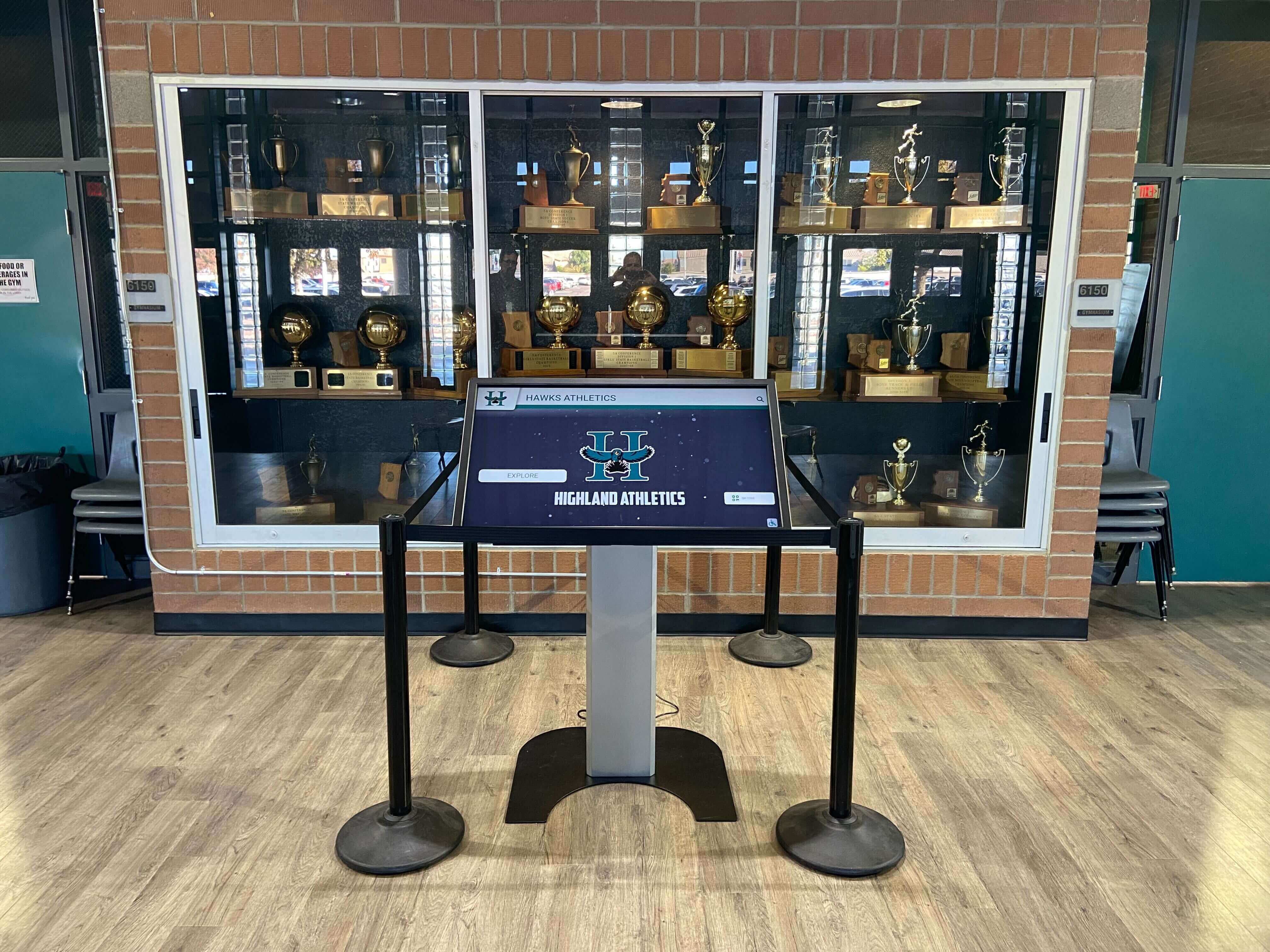
Professional installations require proper driver configuration alongside quality hardware for optimal performance
Multi-Monitor Configuration and Complex Deployments
Organizations deploying multiple displays with touch functionality must configure proper device-to-display assignments:
Multi-Monitor Configuration Process:
- Identify Display Topology: Use operating system display settings to understand monitor arrangement and identification numbers
- Determine Touch Device Count: UPDD Console shows all detected touch devices—match physical devices to Console listings
- Test Default Assignments: Touch each screen noting whether correct display responds or if touch incorrectly controls another monitor
- Reassign Touch Devices: Use UPDD Console to explicitly assign each touch device to its corresponding display
- Recalibrate If Needed: Perform calibration on each display after assignment ensuring coordinate alignment
- Verify All Displays: Systematically test each touchscreen confirming touch interaction stays on intended display
Video Wall Considerations: Large video walls combining multiple displays into single logical desktop require special configuration ensuring touch on each physical panel controls content at correct coordinates within overall video wall image.
Extended vs. Mirrored Displays: Configure UPDD appropriately for extended desktop (each display shows different content) versus mirrored displays (all displays show identical content), as touch behavior requirements differ.
Schools implementing comprehensive recognition programs with multiple touchscreen installations benefit from properly configured multi-monitor driver settings.
Common UPDD Touch Software Applications and Use Cases
UPDD’s versatility enables diverse applications across industries, with specific use cases demonstrating when specialized driver software delivers particular value.
Educational Institution Interactive Displays
Schools, colleges, and universities deploy touchscreen displays for numerous applications where UPDD driver reliability and compatibility prove essential:
Digital Recognition and Alumni Displays: Educational institutions implement interactive halls of fame showcasing athletic achievements, academic honors, and alumni accomplishments. UPDD ensures reliable touch functionality with content management platforms like Rocket Alumni Solutions, enabling visitors to explore profiles, search for specific individuals, and discover institutional history through engaging touch interactions.
Classroom Interactive Whiteboards: Modern classrooms utilize large-format interactive displays for collaborative learning, lesson delivery, and student engagement. UPDD’s multi-touch support and precise calibration ensure responsive interaction for both teacher instruction and student participation.
Campus Wayfinding Kiosks: Universities deploy touchscreen kiosks helping visitors navigate sprawling campuses, locate buildings and departments, and access campus information. UPDD driver reliability ensures these critical navigation tools function consistently for prospective students, new faculty, and campus visitors.
Library Information Systems: Academic libraries implement touchscreen catalogs, database access points, and study room booking kiosks. UPDD’s customizable touch behavior adapts to different library software platforms while maintaining consistent user experience.
Cafeteria and Dining Systems: Campus dining facilities deploy touchscreen menu boards and ordering kiosks. UPDD ensures compatibility with diverse food service software platforms across Windows, Android, and Linux systems.
Educational institutions benefit from driver software supporting diverse hardware across campus without requiring different driver management approaches for different touchscreen brands.
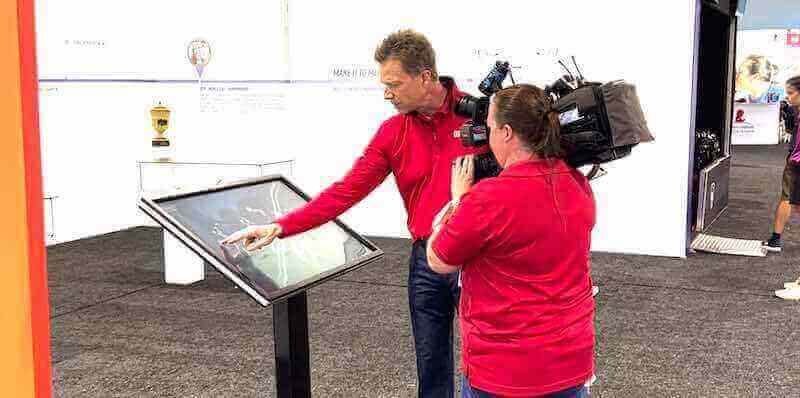
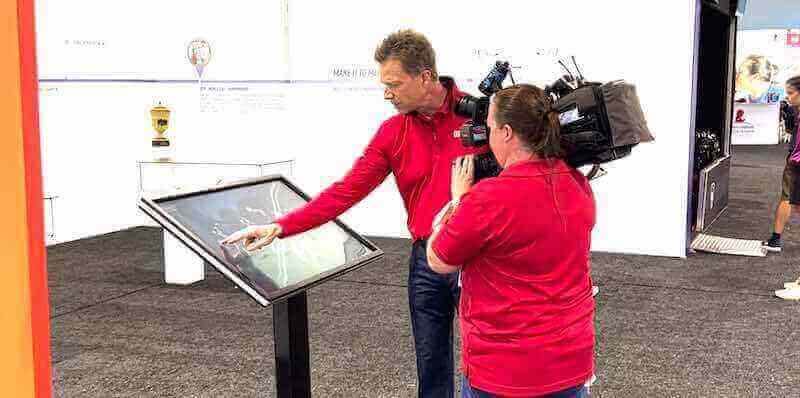
Museums and cultural institutions deploy touchscreen exhibits requiring reliable driver support for visitor interaction
Museum and Cultural Institution Exhibits
Museums, galleries, and cultural organizations leverage touchscreen technology for interpretive exhibits and visitor engagement:
Interactive Collection Databases: Museums implement touchscreen kiosks enabling visitors to explore collection catalogs, search for specific artifacts, access detailed information, and view high-resolution images beyond what physical display space allows. UPDD ensures compatibility with specialized museum collection management software often running on specific platforms or legacy systems.
Historical Timeline Interfaces: Interactive timelines present chronological narratives through touch-enabled exploration of events, people, and artifacts. Multi-touch support enables zooming, panning, and detailed examination of historical materials.
Multilingual Information Systems: Cultural institutions serve diverse audiences requiring content in multiple languages. Touchscreen interfaces with UPDD-powered touch functionality enable visitors to select languages and navigate translated content seamlessly.
Interactive Maps and Floor Plans: Large touchscreen maps help visitors navigate museum spaces, locate specific exhibits, and plan their visit routes. Precise UPDD calibration ensures accurate touch response across large-format displays.
Artist and Artifact Information: Touchscreens adjacent to exhibits provide depth beyond traditional labels—biographies, contextual information, related works, and multimedia content. UPDD compatibility ensures these systems work reliably with specialized interpretive software.
Museums implementing interactive exhibit technology require driver software compatible with diverse content platforms and hardware configurations.
Healthcare and Medical Applications
Healthcare facilities deploy touchscreen technology for patient services, clinical workflows, and administrative functions where reliability and hygiene considerations make UPDD driver capabilities particularly valuable:
Patient Check-In Kiosks: Hospitals and clinics implement self-service check-in reducing waiting times and administrative workload. UPDD ensures compatibility with diverse practice management and electronic health record systems across different medical software platforms.
Wayfinding in Medical Complexes: Large healthcare campuses deploy interactive wayfinding helping patients and visitors navigate complex facilities, locate departments and physician offices, and access facility information.
Bedside Patient Education: Patient rooms increasingly include touchscreen systems delivering education about conditions, procedures, medications, and recovery instructions. UPDD driver reliability ensures these critical communication tools function consistently.
Medical Imaging Workstations: Radiologists and imaging technicians use touchscreen displays for viewing and manipulating medical images. UPDD’s precise calibration and pressure sensitivity support detailed diagnostic work.
Pharmacy and Laboratory Systems: Healthcare facilities use touchscreens for medication management, laboratory information systems, and workflow tracking. UPDD cross-platform support enables consistent touch functionality regardless of underlying healthcare IT systems.
Healthcare touchscreen applications benefit from driver software supporting gloved operation—critical for infection control—and delivering precise touch accuracy for medical applications.
Retail and Hospitality Interactive Experiences
Retail stores, restaurants, and hospitality venues implement touchscreen solutions for customer service, marketing, and operational efficiency:
Self-Service Ordering Kiosks: Quick-service restaurants and fast-casual dining establishments deploy touchscreen ordering kiosks reducing labor costs while improving order accuracy and customization options. UPDD compatibility ensures these systems work with diverse point-of-sale platforms.
Interactive Product Catalogs: Retail stores implement touchscreen displays enabling customers to browse extended product ranges, check inventory, compare options, and access detailed specifications beyond what floor space accommodates.
Hotel Check-In and Concierge: Hotels deploy touchscreen kiosks for self-service check-in/out, room service ordering, and concierge information. UPDD driver reliability ensures these revenue-generating systems function consistently for guest satisfaction.
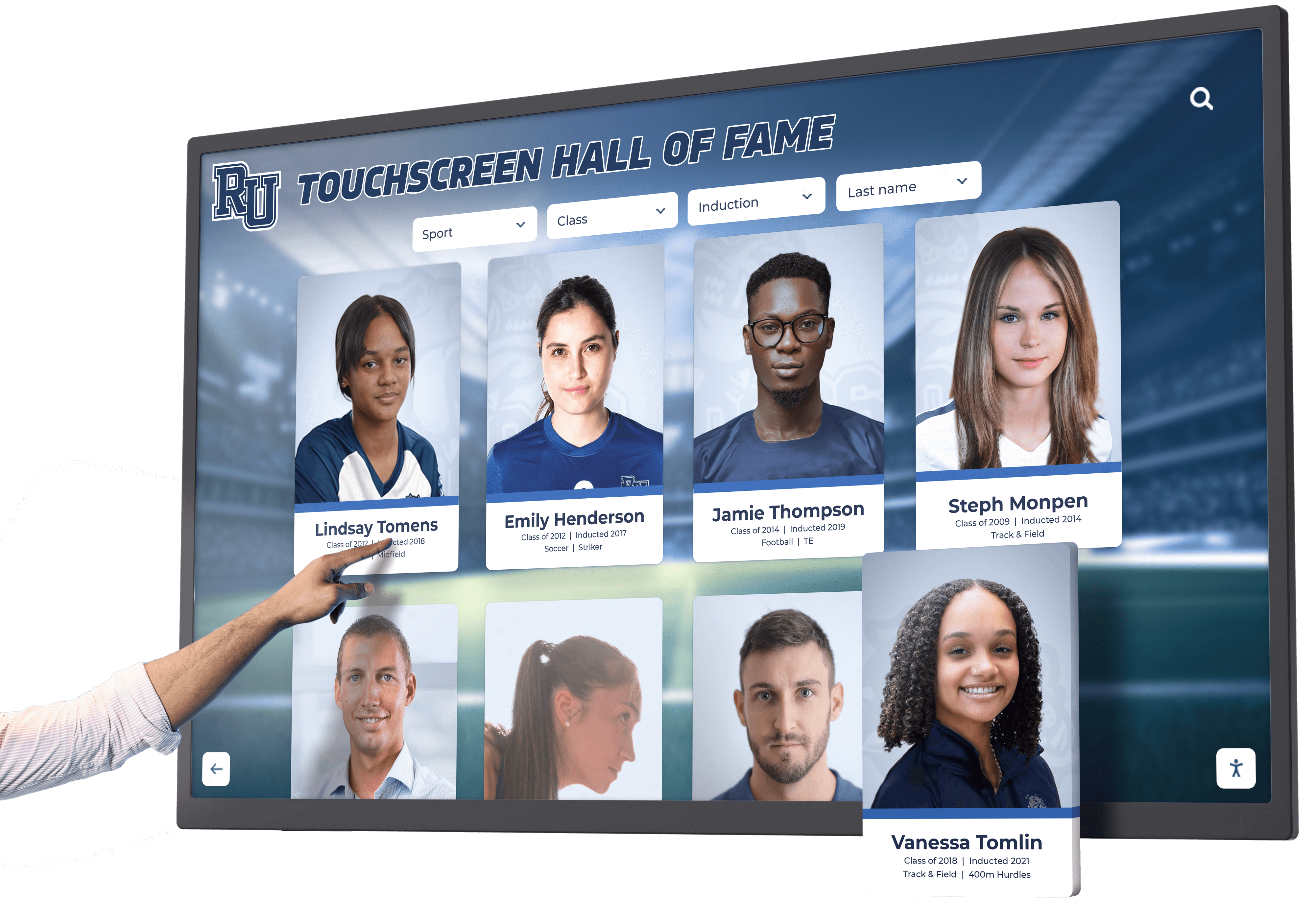
Venues deploy touchscreen displays for visitor engagement and information access
Digital Signage with Touch Interaction: Retailers combine advertising displays with touch interactivity, enabling customers to explore products, access promotions, and request assistance. UPDD enables these hybrid signage/kiosk implementations.
Loyalty Program Enrollment: Touchscreen kiosks facilitate loyalty program signups, capturing customer information and preferences through intuitive touch interfaces powered by reliable UPDD driver support.
Retail organizations implementing interactive display technology require driver software ensuring reliable operation in demanding public-facing environments.
Corporate and Business Applications
Organizations deploy touchscreen solutions for internal operations, visitor services, and facility management:
Building Directory and Wayfinding: Corporate campuses implement touchscreen directories helping employees and visitors locate offices, conference rooms, and amenities. UPDD driver compatibility ensures these systems work with facility management software platforms.
Conference Room Scheduling: Touchscreen panels outside meeting spaces display availability and enable room booking. UPDD integration with calendar systems and room scheduling platforms streamlines meeting coordination.
Employee Recognition Displays: Organizations implement digital recognition programs celebrating employee achievements, milestones, and contributions. Interactive touchscreen displays powered by solutions like Rocket Alumni Solutions create engaging recognition experiences far beyond traditional plaques.
Reception and Visitor Management: Corporate lobbies deploy touchscreen systems for visitor check-in, badge printing, and notification of hosts. UPDD ensures compatibility with security and visitor management platforms.
Training and Presentation Systems: Conference rooms utilize interactive touchscreen displays for training delivery, presentations, and collaborative work sessions. Multi-touch support enables multiple participants to interact simultaneously.
Business environments benefit from driver software delivering enterprise-grade reliability and supporting diverse hardware across facilities.
Troubleshooting Common UPDD Issues and Support Resources
Even with robust driver software, organizations occasionally encounter challenges requiring systematic troubleshooting approaches.
Common UPDD Touch Software Issues and Resolutions
Understanding typical issues and solutions accelerates problem resolution:
Frequent Issues and Resolution Steps
Issue: Touch Device Not Detected
- Verify physical connection between touch controller and computer
- Check USB cable integrity and try different USB port
- Confirm device appears in operating system device manager
- Reinstall UPDD driver if device manager shows errors
- Test with different computer to isolate hardware vs. driver issues
Issue: Inaccurate Touch Coordinates
- Perform UPDD calibration through Console
- Verify display resolution settings match native panel resolution
- Check for display scaling settings affecting coordinate mapping
- Ensure touch device assigned to correct monitor in multi-display setup
- Recalibrate after any display resolution or orientation changes
Issue: Touch Not Responding
- Verify UPDD driver service running in system services/processes
- Check for conflicting native touch drivers simultaneously installed
- Test touch device with UPDD Console diagnostic tools
- Review UPDD Commander settings for conflicting behavior profiles
- Restart system to clear temporary software conflicts
Issue: Multi-Touch Gestures Not Working
- Confirm touch hardware supports multi-touch (some controllers are single-touch only)
- Verify UPDD Commander configured to enable multi-touch gestures
- Check application supports multi-touch input (some software ignores gesture data)
- Test multi-touch with UPDD diagnostic tools to isolate software vs. hardware limitations
Issue: Intermittent Touch Functionality
- Check for loose connections or cable damage
- Monitor for electrical interference from nearby equipment
- Review system power management settings disabling USB devices
- Update UPDD driver to latest version addressing known bugs
- Check touch controller firmware version and update if available
Systematic troubleshooting following these steps resolves most common issues without requiring vendor support.
UPDD Support Resources and Documentation
Touch-Base provides comprehensive resources for UPDD users:
Online Documentation Portal: Touch-Base maintains extensive documentation covering installation procedures, configuration guides, API references, troubleshooting procedures, and best practices organized by platform and topic.
Knowledge Base Articles: Searchable database of specific issues, solutions, and technical notes addressing common questions and specialized scenarios.
Technical Support Services: Commercial UPDD licenses include technical support with varying response times and support channels based on license tier—email, phone, and priority support options available.
User Community Forums: Online forums enable users to share experiences, solutions, and best practices with other UPDD administrators and developers.
Software Updates and Releases: Regular driver updates addressing bugs, adding features, and expanding hardware compatibility—download portal provides access to current releases and legacy versions.
Training Resources: Video tutorials, quick-start guides, and configuration examples help new administrators implement UPDD effectively without extensive learning curves.
Organizations should leverage these resources proactively rather than only during problems, as preventive configuration based on best practices prevents many common issues.
UPDD Licensing, Pricing, and Commercial Deployment
Understanding UPDD licensing models helps organizations plan budgets and ensure compliance with commercial use requirements.
UPDD Licensing Models and Options
Touch-Base offers several licensing options accommodating different deployment scenarios:
Evaluation and Testing: Touch-Base provides trial periods enabling organizations to evaluate UPDD compatibility with specific hardware and applications before purchasing. Evaluation versions typically function fully featured for limited time periods.
Per-Device Commercial Licenses: Standard commercial licensing requires licenses for each touch device (computer or touch controller depending on licensing model). Organizations deploying multiple touchscreens purchase appropriate license quantities.
Site Licenses: Organizations with numerous touchscreen deployments may negotiate site licenses covering multiple devices within defined scope—campus-wide, facility-specific, or organization-wide based on agreement terms.
OEM and Integrator Agreements: Hardware manufacturers and system integrators deploying UPDD with touchscreen products can establish OEM licensing enabling embedded driver distribution.
Academic and Non-Profit Pricing: Educational institutions and qualified non-profit organizations may receive discounted licensing recognizing budget constraints in these sectors.
Organizations should contact Touch-Base directly for current pricing information and licensing guidance based on specific deployment requirements.
Commercial Deployment Compliance
Organizations deploying UPDD commercially should ensure licensing compliance:
License Activation and Registration: Commercial UPDD deployments require license activation through Touch-Base portal using purchased license keys. Proper registration ensures access to updates and technical support.
Audit and Verification: Touch-Base may request deployment verification ensuring license counts match actual installations. Maintaining accurate deployment records facilitates audit responses.
License Transfer and Reuse: Understanding license transfer rights proves important when replacing hardware—some licensing models enable license reassignment while others tie licenses to specific devices.
Support Entitlements: Commercial licenses typically include support periods with renewal options. Organizations should track support expiration dates and renew proactively ensuring continued access to updates and assistance.
Proper licensing ensures legal compliance while supporting Touch-Base’s ongoing development efforts benefiting all users through continued improvements.
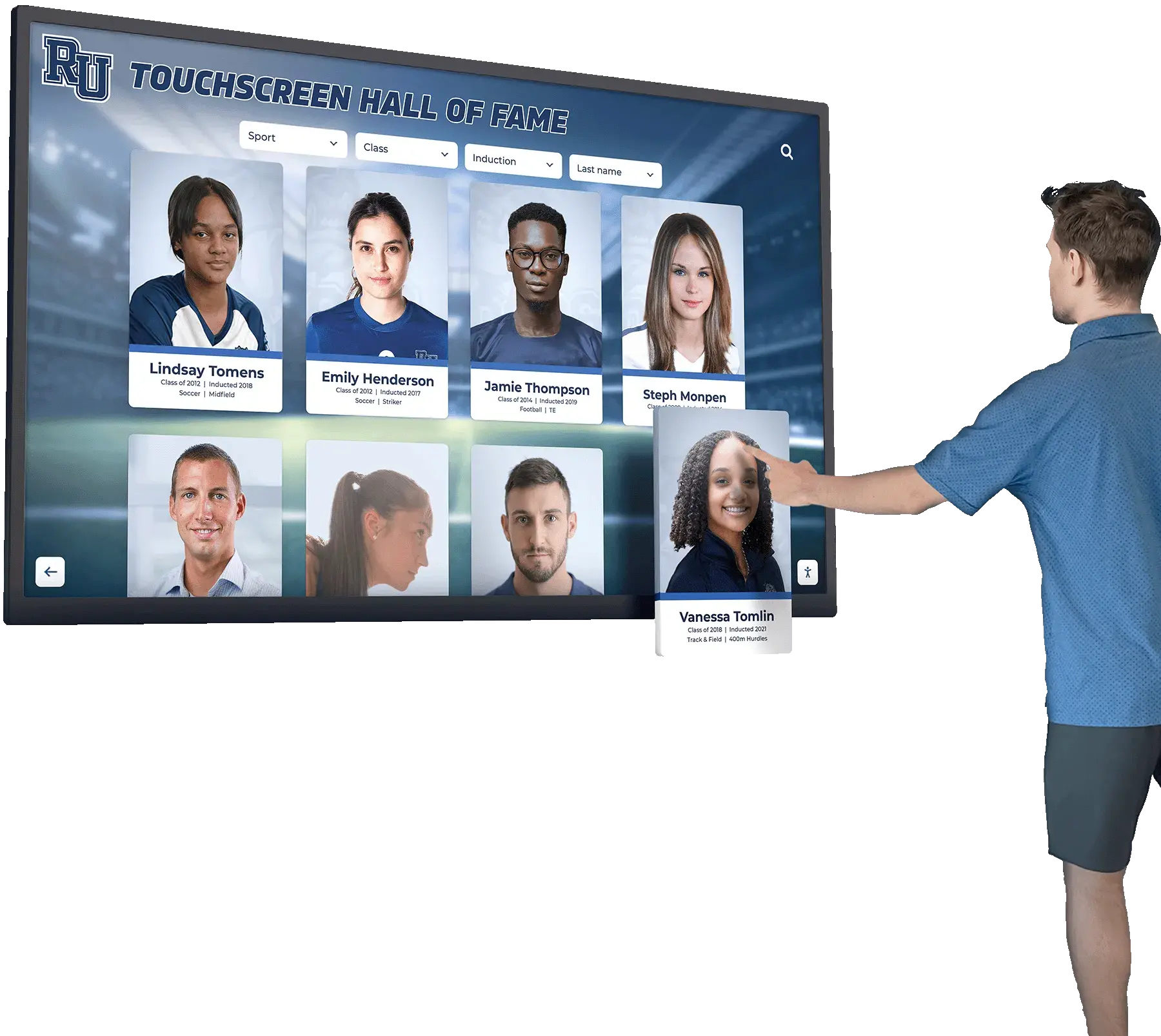
Professional touchscreen deployments require properly licensed driver software ensuring long-term support and compliance
UPDD vs. Alternatives: Comparative Analysis
While UPDD offers extensive capabilities, understanding how it compares to alternatives helps organizations make informed driver software decisions.
UPDD vs. Native Operating System Touch Drivers
The most common comparison involves UPDD versus built-in OS touch support:
When Native Drivers Suffice:
- Modern USB HID touchscreen hardware with current manufacturer support
- Single-display configurations without multi-monitor assignment challenges
- Applications requiring only basic touch-to-mouse translation without customization
- Budget constraints precluding commercial driver licensing
- Simple deployments without advanced calibration or behavior requirements
When UPDD Provides Clear Advantages:
- Legacy touchscreen hardware lacking native driver support for current OS versions
- Multi-monitor configurations requiring explicit touch-to-display assignments
- Applications benefiting from advanced calibration precision
- Custom application development requiring API access beyond native interfaces
- Heterogeneous environments requiring consistent cross-platform touch management
- Situations requiring advanced diagnostic tools unavailable through native support
Neither solution universally superior—appropriate choice depends on specific hardware, operating systems, applications, and organizational requirements.
UPDD vs. Manufacturer-Specific Drivers
Touch hardware manufacturers typically provide drivers for their specific products:
Manufacturer Driver Advantages:
- Often free with hardware purchase
- Theoretically optimized for specific hardware capabilities
- Direct manufacturer support relationship
- Potential firmware update integration
UPDD Advantages Over Manufacturer Drivers:
- Single driver supporting hardware from multiple manufacturers
- Continued support after manufacturers discontinue legacy products
- Consistent interface across different hardware brands
- Cross-platform support often exceeding manufacturer offerings
- Advanced features manufacturers may not implement in basic drivers
Organizations with mixed hardware brands particularly benefit from UPDD’s universal approach versus managing multiple manufacturer-specific driver versions.
UPDD vs. Other Universal Touch Driver Software
Some alternatives to UPDD exist in specialized market segments:
Windows-Only Universal Drivers: Several Windows-specific universal touch solutions exist, but platform limitations constrain organizations operating heterogeneous environments with macOS or Linux systems alongside Windows.
Open-Source Touch Driver Projects: Linux communities develop open-source touch driver projects, valuable for embedded applications and cost-sensitive deployments but generally lacking commercial support, comprehensive documentation, and ease of configuration UPDD provides.
Touch Controller Manufacturer Universal Solutions: Some large touch controller manufacturers offer drivers supporting multiple products from their portfolio, but typically not truly universal across brands.
UPDD’s combination of genuine cross-manufacturer hardware support, comprehensive platform coverage, robust API, and commercial-grade support creates unique value for professional deployments.
Organizations implementing comprehensive campus programs benefit from evaluating whether universal driver software simplifies administration across diverse hardware.
Conclusion: Making Informed UPDD Touch Software Decisions
UPDD Touch Software from Touch-Base delivers comprehensive universal touchscreen driver capabilities addressing diverse organizational needs across platforms, hardware types, and application requirements. Whether extending functional lifespan of legacy touch hardware, implementing multi-monitor configurations requiring explicit device assignments, deploying custom applications with advanced touch behavior requirements, or simply seeking robust cross-platform consistency, UPDD provides professional-grade solutions beyond what native OS touch support typically offers.
Organizations should evaluate UPDD Touch Software based on specific deployment requirements rather than universal recommendations. Legacy hardware requiring driver support unavailable from manufacturers, multi-monitor configurations experiencing touch assignment difficulties, custom application development requiring API access, and heterogeneous computing environments benefiting from management consistency represent clear scenarios where UPDD delivers particular value. Conversely, straightforward single-display deployments using modern USB HID touchscreens with good native driver support may find operating system touch functionality adequate without commercial driver software investment.
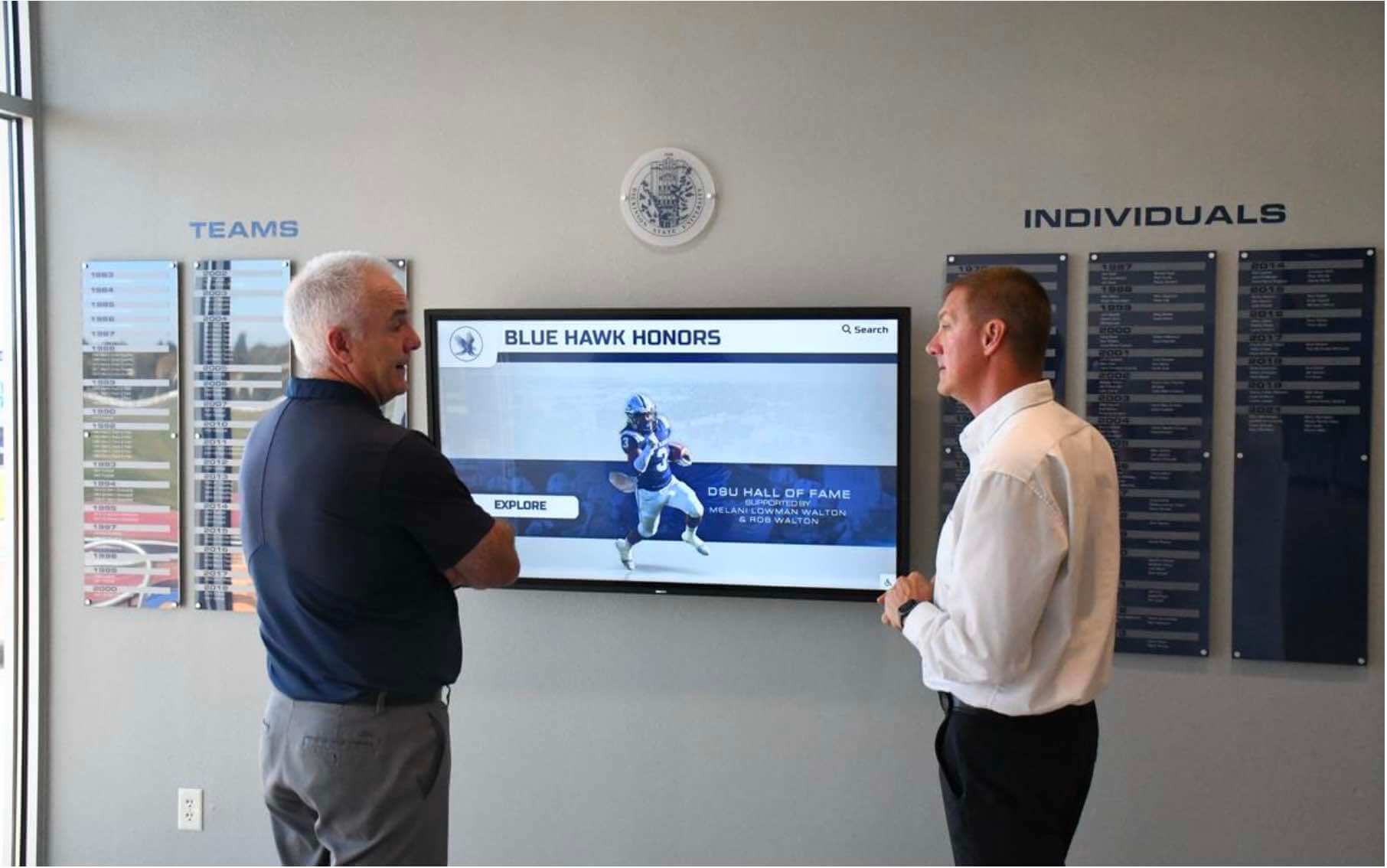
Successful touchscreen implementations combine quality hardware, appropriate driver software, and engaging content platforms
For educational institutions implementing digital recognition programs, museums developing interactive exhibits, healthcare facilities deploying patient services, retail organizations creating customer engagement, or corporate environments implementing building services, UPDD Touch Software ensures touchscreen hardware functions reliably regardless of manufacturer, connection method, or age—preventing driver compatibility from constraining hardware decisions or forcing premature replacement of functional equipment.
Transform Your Touchscreen Recognition Displays
While UPDD provides robust driver foundations, specialized content platforms like Rocket Alumni Solutions deliver engaging interactive experiences designed specifically for educational recognition. Our turnkey solutions combine hardware specification guidance, driver configuration support, and purpose-built recognition software creating impactful displays that honor achievements and strengthen community connections.
Schedule Your ConsultationAs touchscreen technology continues evolving with new hardware capabilities, operating system updates, and application requirements, having robust driver software like UPDD ensures your investments maintain functionality and performance regardless of industry changes. The combination of legacy hardware support, advanced configuration capabilities, comprehensive API access, and professional-grade support creates substantial value for organizations serious about touchscreen deployment success.
Explore how comprehensive touchscreen software solutions combining robust drivers with specialized application platforms transform interactive displays into powerful engagement tools that serve organizational objectives while delivering exceptional user experiences. Whether managing existing touchscreen portfolios or planning new deployments, understanding driver software options including UPDD Touch Software empowers informed decisions ensuring reliable, functional, and valuable touchscreen implementations for years to come.
For organizations seeking specialized touchscreen recognition solutions beyond driver software, discover how platforms like Rocket Alumni Solutions deliver complete interactive display systems designed specifically for celebrating achievements in educational environments, with hardware guidance, driver configuration, and engaging content management creating turnkey recognition programs that inspire communities and honor excellence.