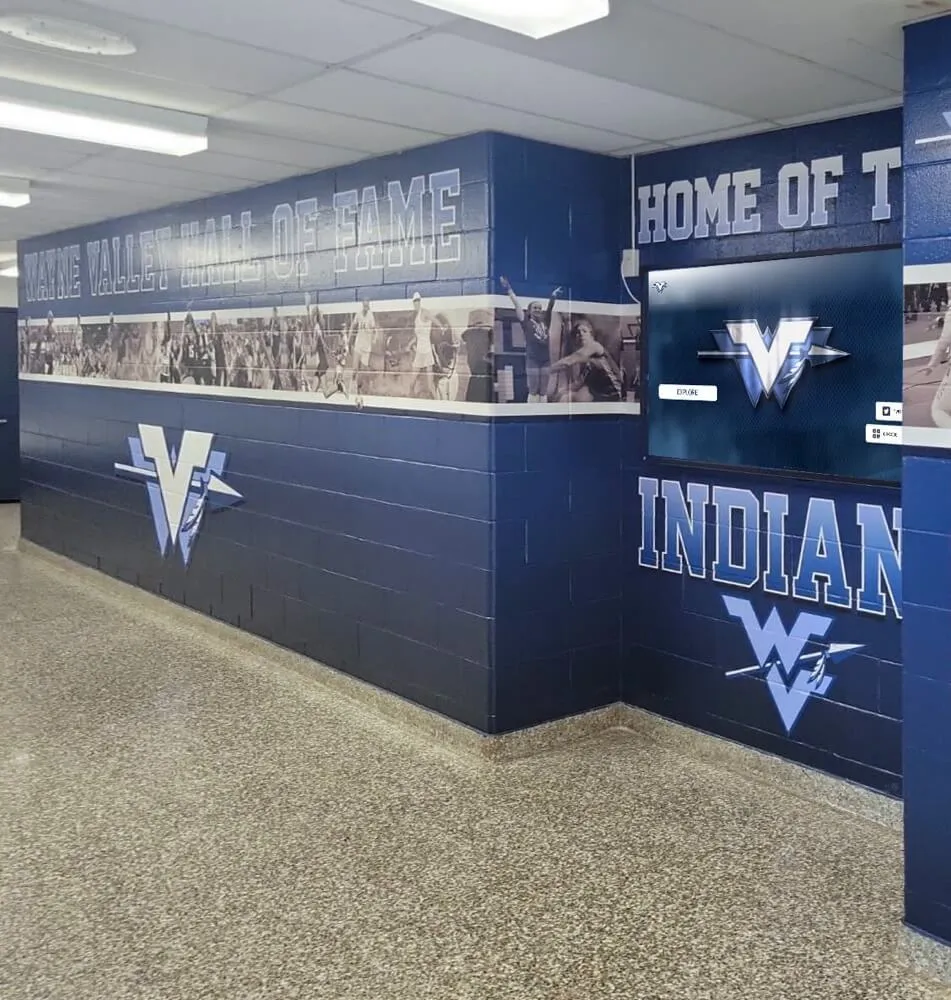
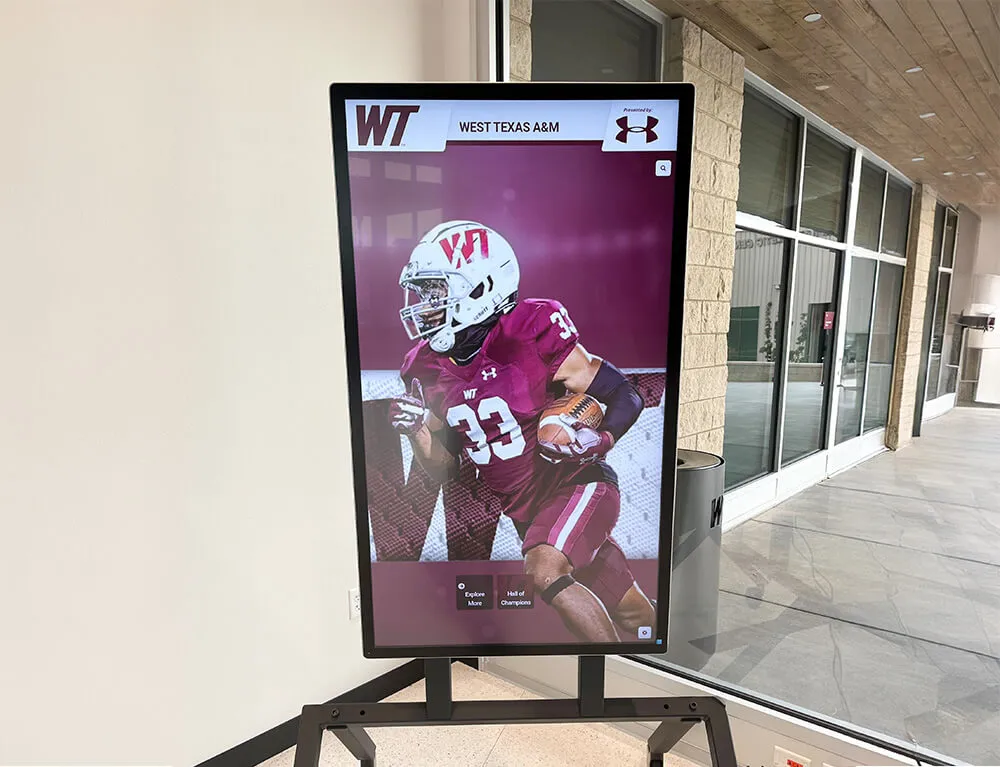
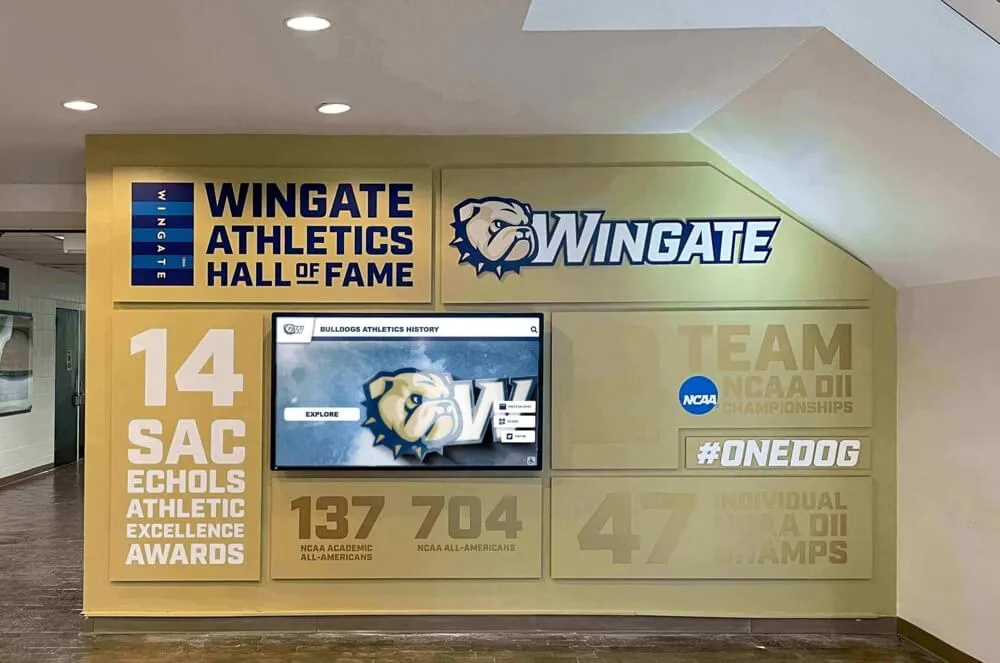
Digital touchscreen displays in schools, museums, and organizations serve diverse audiences with varying abilities. Meeting Web Content Accessibility Guidelines (WCAG) 2.2 Level AA ensures these interactive displays remain accessible to everyone, including visitors with visual, auditory, motor, or cognitive disabilities.
WCAG 2.2, published by the World Wide Web Consortium (W3C) in October 2023, represents the latest international accessibility standard. Level AA conformance—the recommended target for most organizations—balances comprehensive accessibility with practical implementation requirements. Schools implementing digital recognition displays must understand these criteria to create inclusive experiences honoring all community members.
This comprehensive guide explains each WCAG 2.2 success criterion, its importance for touchscreen installations, and practical implementation strategies ensuring your interactive displays meet accessibility requirements while delivering engaging experiences for every visitor.
Organizations deploying touchscreen displays face legal, ethical, and practical imperatives for accessibility compliance. Understanding WCAG 2.2 AA requirements transforms accessibility from checkbox compliance into genuine inclusion enabling all community members to interact meaningfully with institutional recognition and information systems.
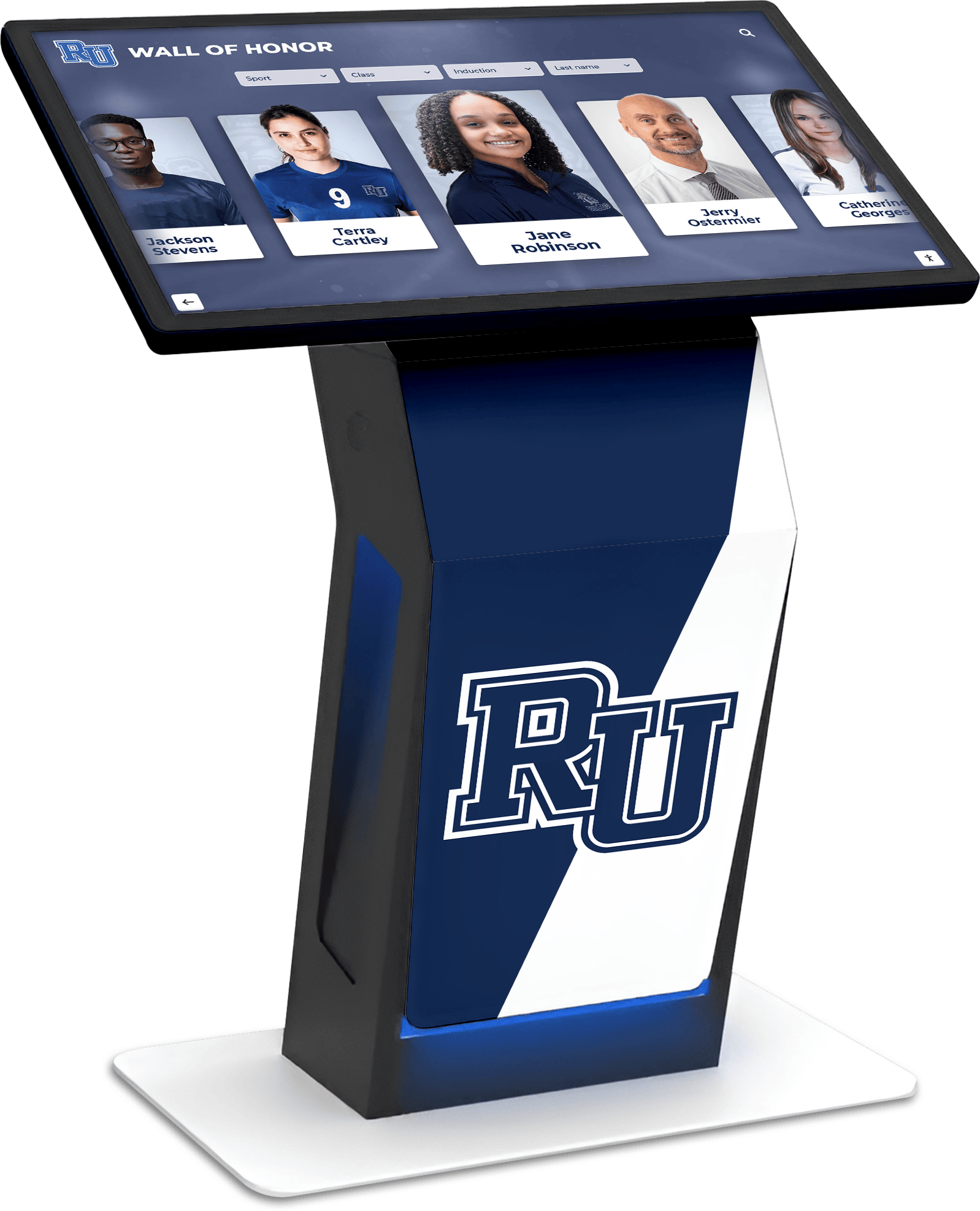
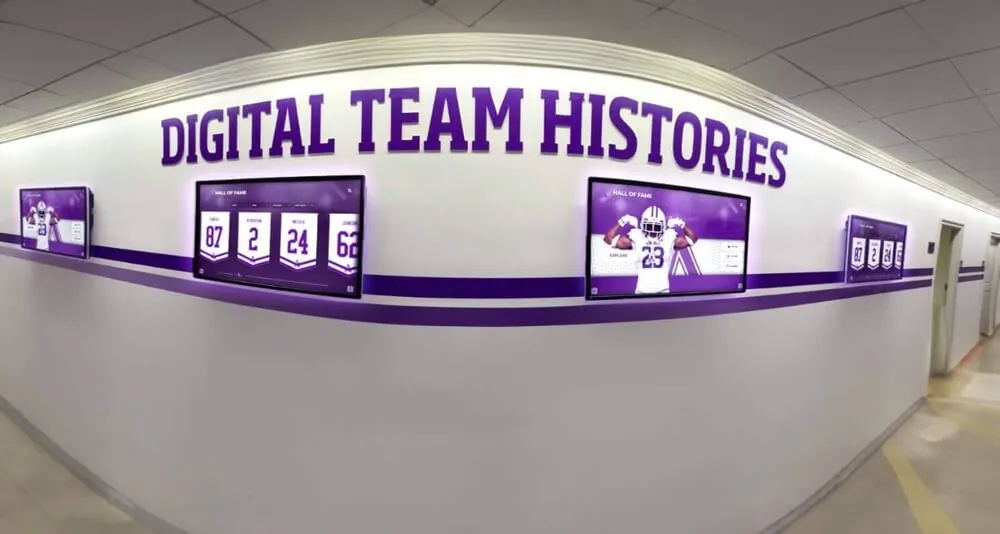
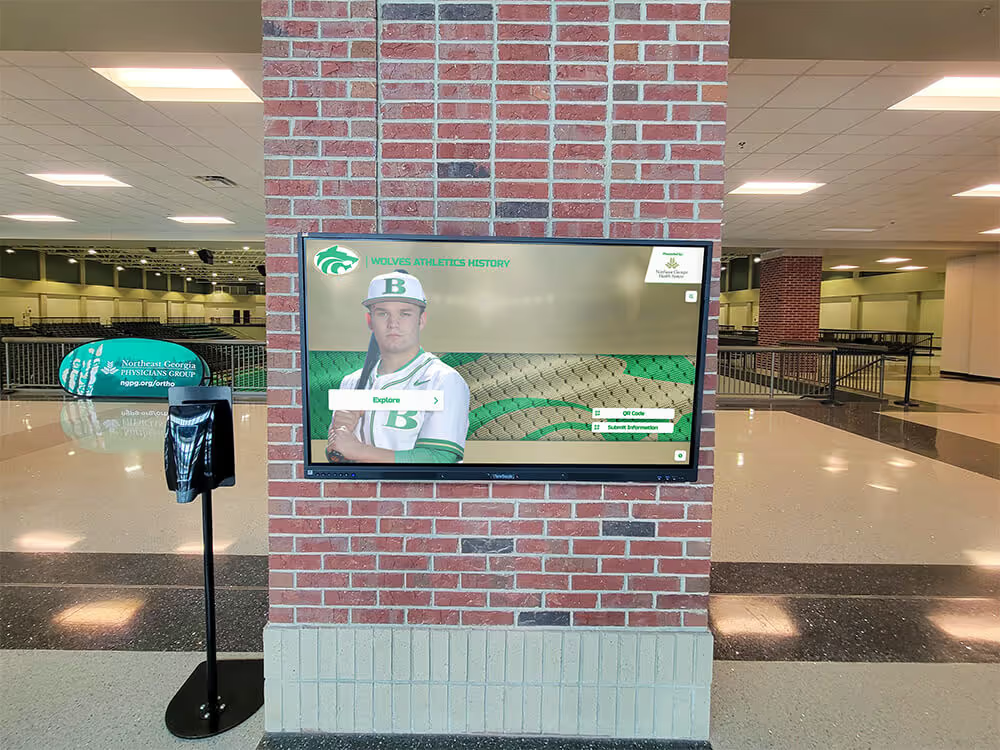
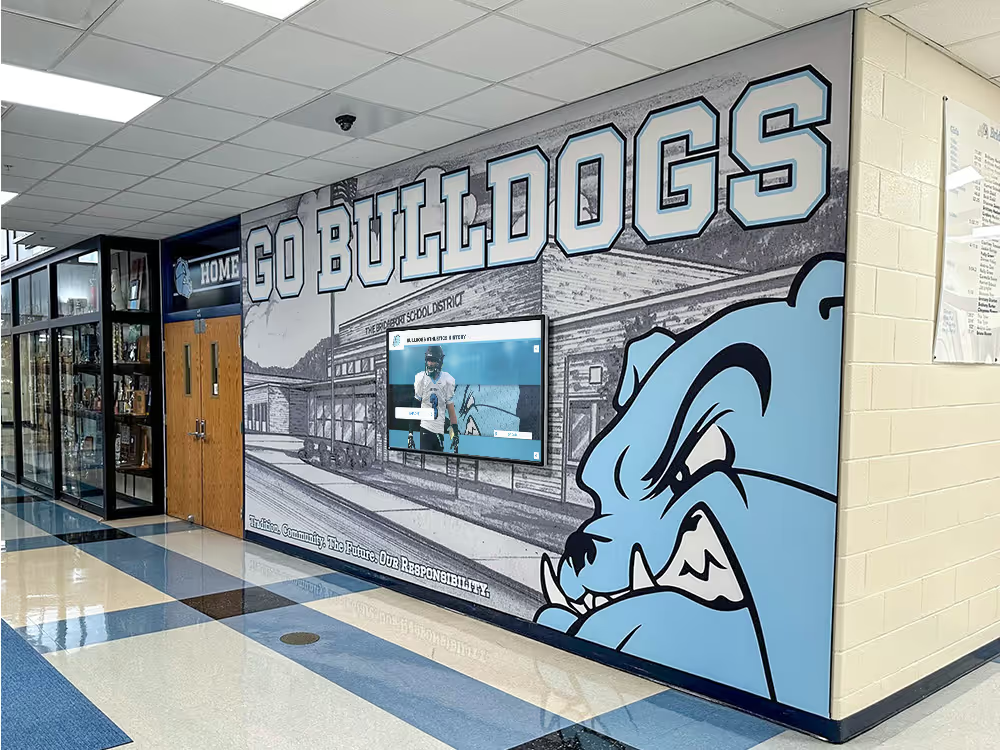
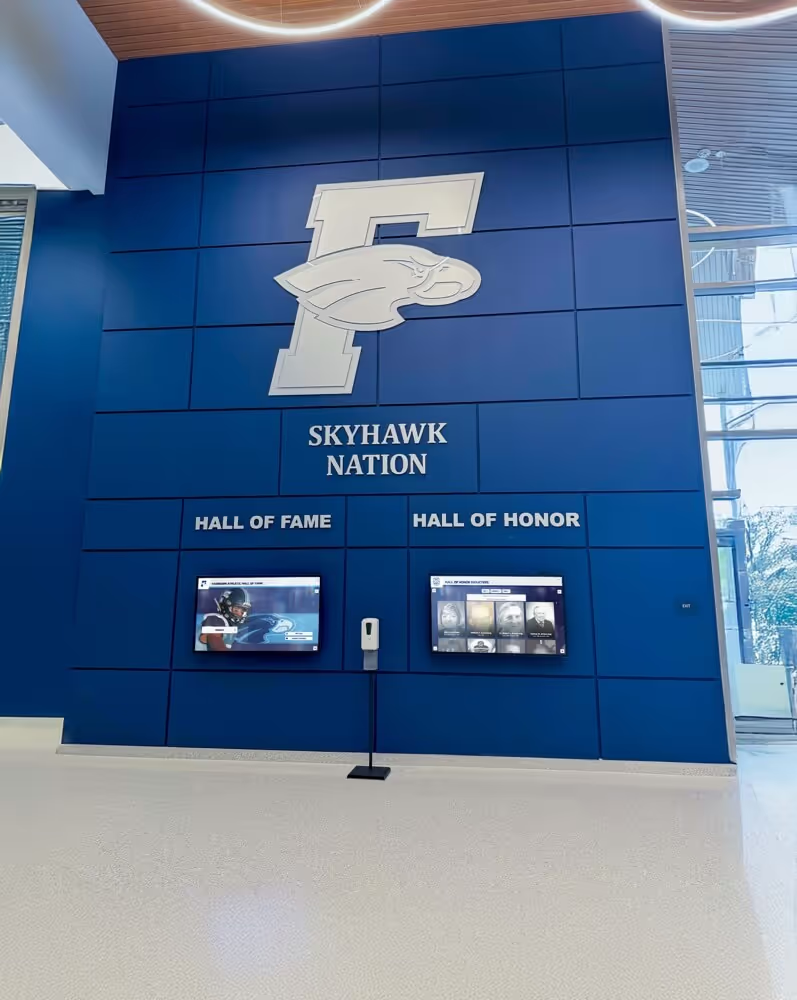
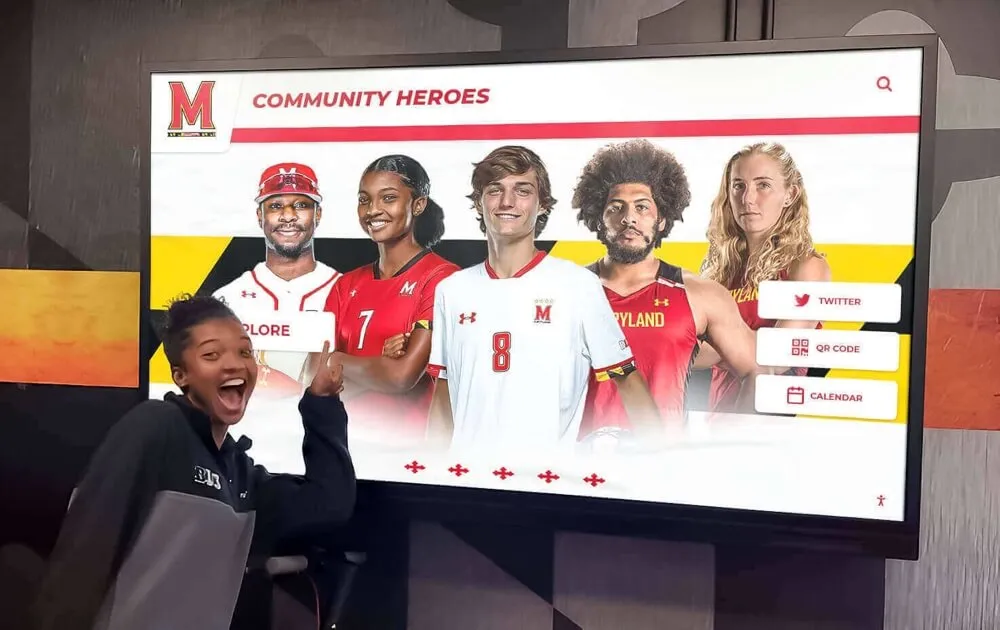
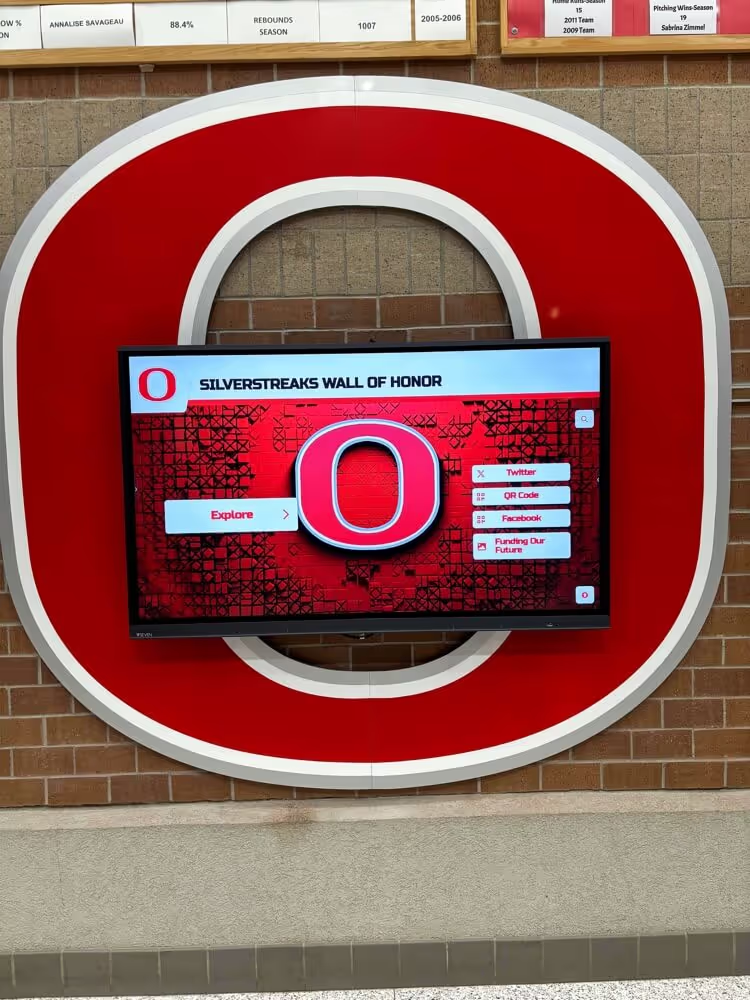
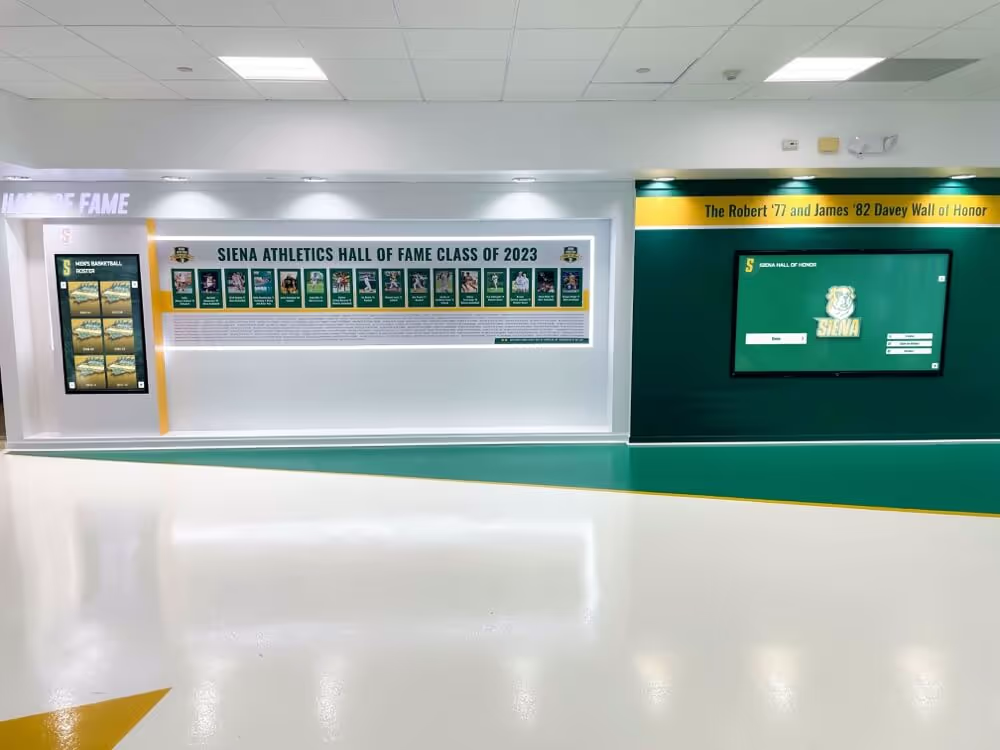
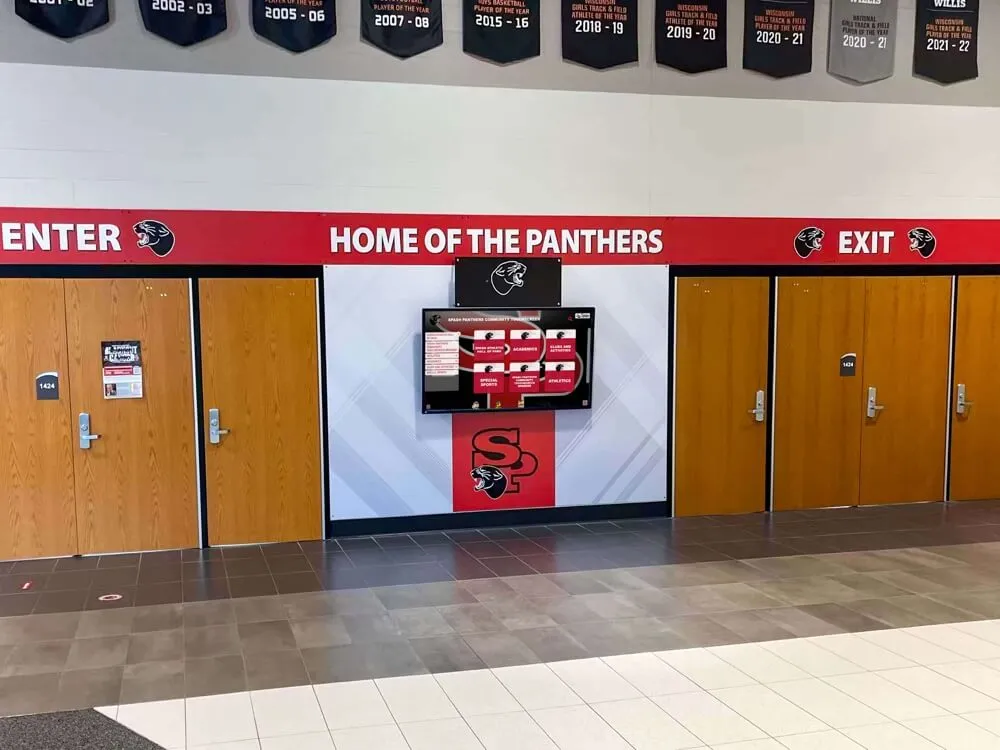
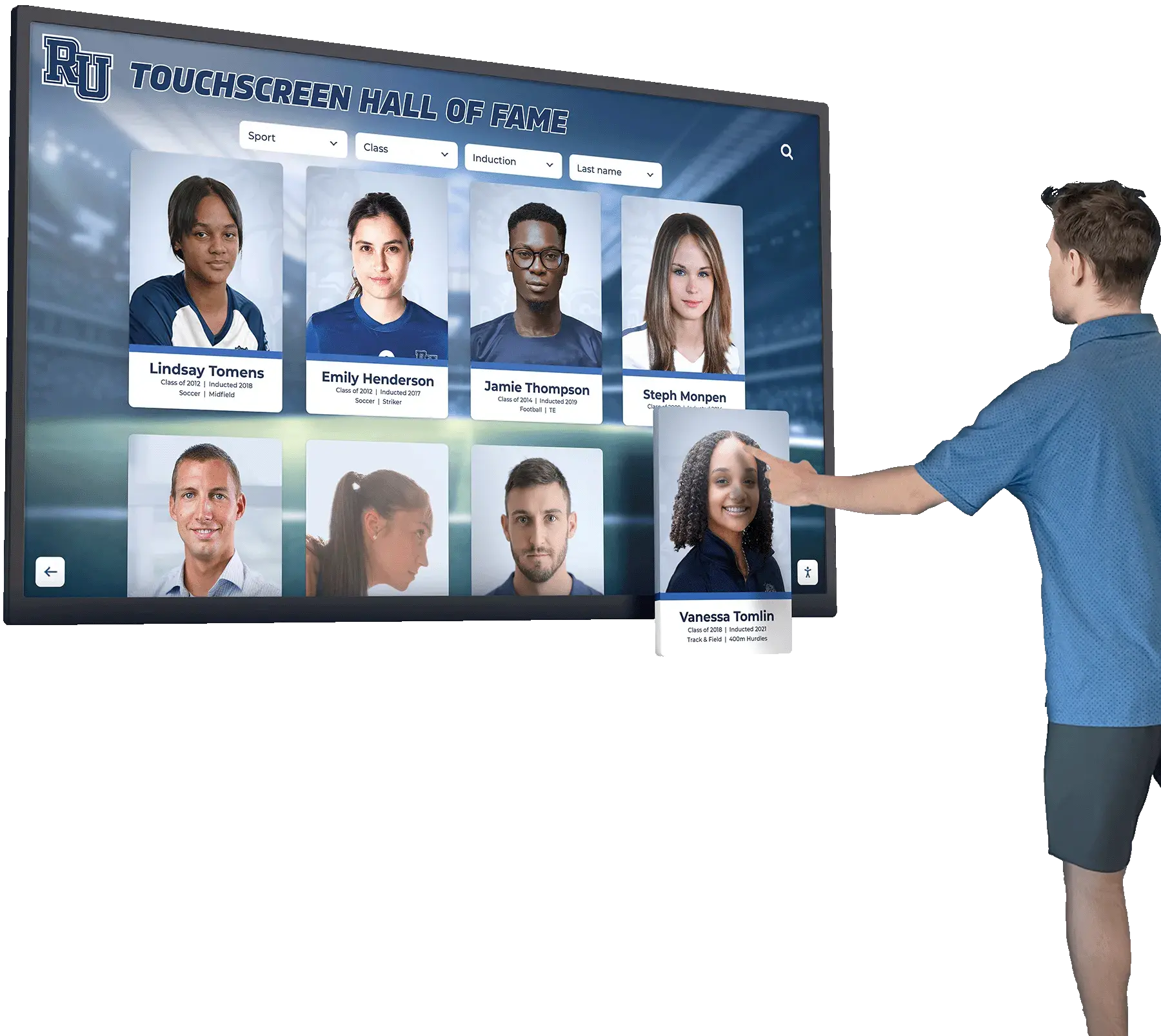
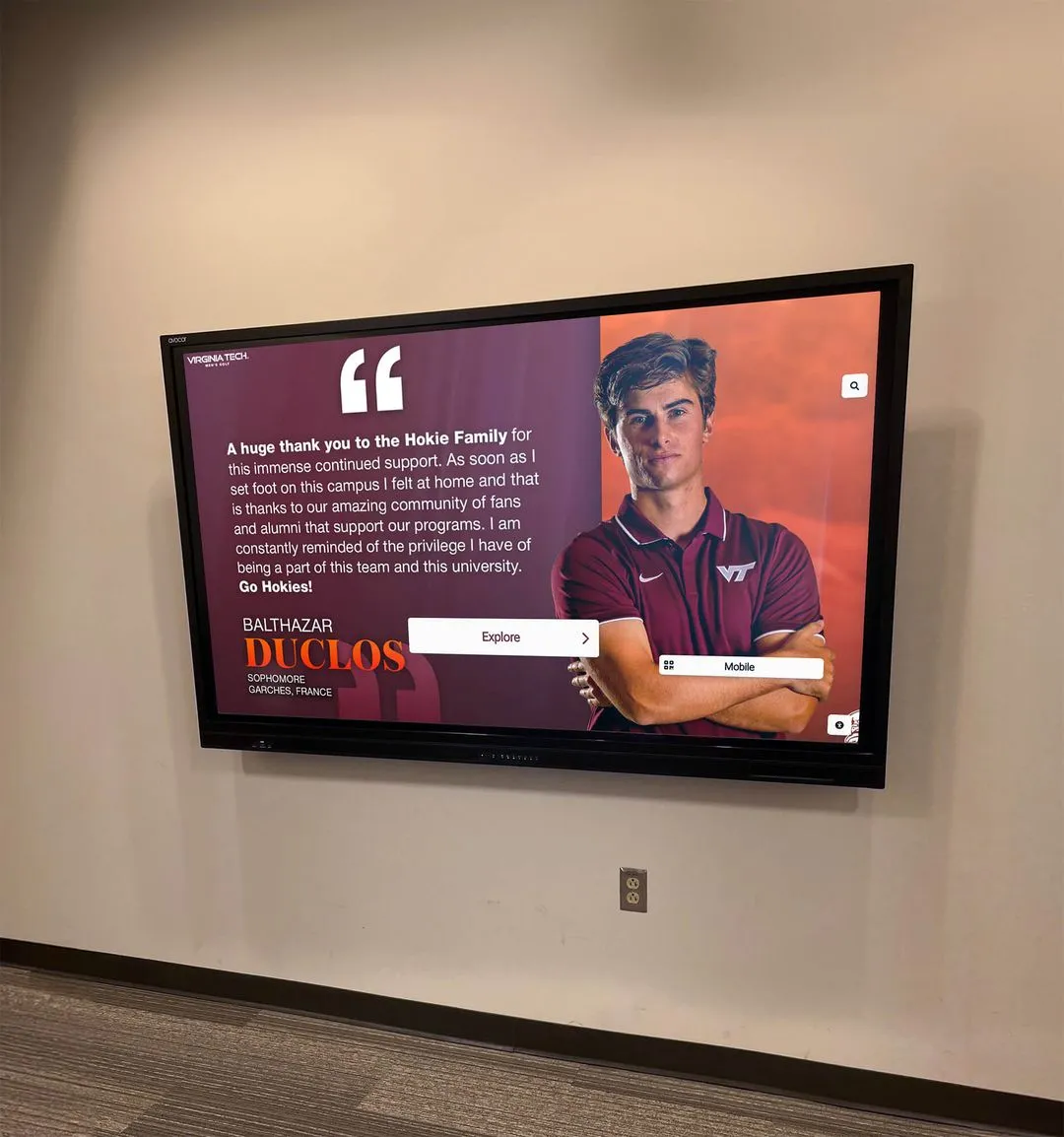
Accessible touchscreen displays ensure all visitors can engage with institutional recognition regardless of ability
Understanding WCAG 2.2 Conformance Levels
WCAG 2.2 organizes accessibility requirements into three progressive conformance levels, each building upon previous requirements to create increasingly comprehensive accessibility.
Level A represents minimum accessibility requirements. Organizations failing to meet Level A criteria create significant barriers preventing people with disabilities from accessing content. These fundamental requirements address the most severe accessibility issues that completely block access for certain user groups.
Level AA represents the recommended target for most organizations and the conformance level typically required by regulations including Section 508 of the Rehabilitation Act and the Americans with Disabilities Act (ADA). Level AA criteria address major accessibility barriers affecting a broader range of users while remaining reasonably achievable for most organizations. Schools implementing touchscreen kiosk solutions should target Level AA as their accessibility baseline.
Level AAA represents the highest conformance level with the most comprehensive accessibility requirements. While Level AAA conformance isn’t always feasible for entire websites or applications, organizations often apply selected Level AAA criteria to specific content areas where enhanced accessibility provides particular value.
Organizations must meet all Level A criteria to claim Level A conformance, all Level A and AA criteria for Level AA conformance, and all criteria across all three levels for Level AAA conformance. Partial conformance—meeting most but not all criteria at a given level—doesn’t constitute official conformance under WCAG standards.
Level A Success Criteria: Foundation of Accessibility
Level A criteria establish the fundamental accessibility baseline enabling basic access for users with disabilities. These requirements address the most critical barriers that completely prevent content access rather than merely making access difficult.
Perceivable Content Requirements
Perceivable requirements ensure users can identify and comprehend content through available senses even when certain sensory channels aren’t available.
1.1.1 Non-text Content (Level A) requires providing text alternatives for non-text content including images, icons, and interactive controls. For touchscreen displays, this means every button, image, and interactive element needs descriptive text alternatives that screen readers can announce to visually impaired users. When visitors cannot see profile photos, award images, or navigation icons, text alternatives communicate equivalent information through audio descriptions. Implementation requires adding alt text to images, ARIA labels to custom controls, and descriptive text for decorative graphics that convey meaning.
1.2.1 Audio-only and Video-only (Prerecorded) (Level A) addresses prerecorded audio or video content without accompanying synchronized alternatives. Touchscreen displays featuring audio-only recordings (like oral history interviews) must provide text transcripts. Video-only content (silent video clips) requires audio descriptions or text transcripts explaining visual information. These alternatives ensure deaf users access audio content while blind users access visual-only presentations.
1.2.2 Captions (Prerecorded) (Level A) mandates synchronized captions for prerecorded video content. Recognition displays incorporating video testimonials, award ceremony recordings, or achievement highlights must include accurate synchronized captions enabling deaf and hard-of-hearing visitors to understand spoken content. Captions should capture not just dialogue but also important sound effects and speaker identification providing context that hearing users receive automatically.
1.2.3 Audio Description or Media Alternative (Prerecorded) (Level A) requires either audio descriptions or full text alternatives for prerecorded video content. Audio descriptions narrate important visual information during natural pauses in dialogue, explaining visual-only content like on-screen actions, setting changes, or visual demonstrations. Alternatively, organizations can provide comprehensive text transcripts describing both audio and visual content for users who cannot access video effectively.

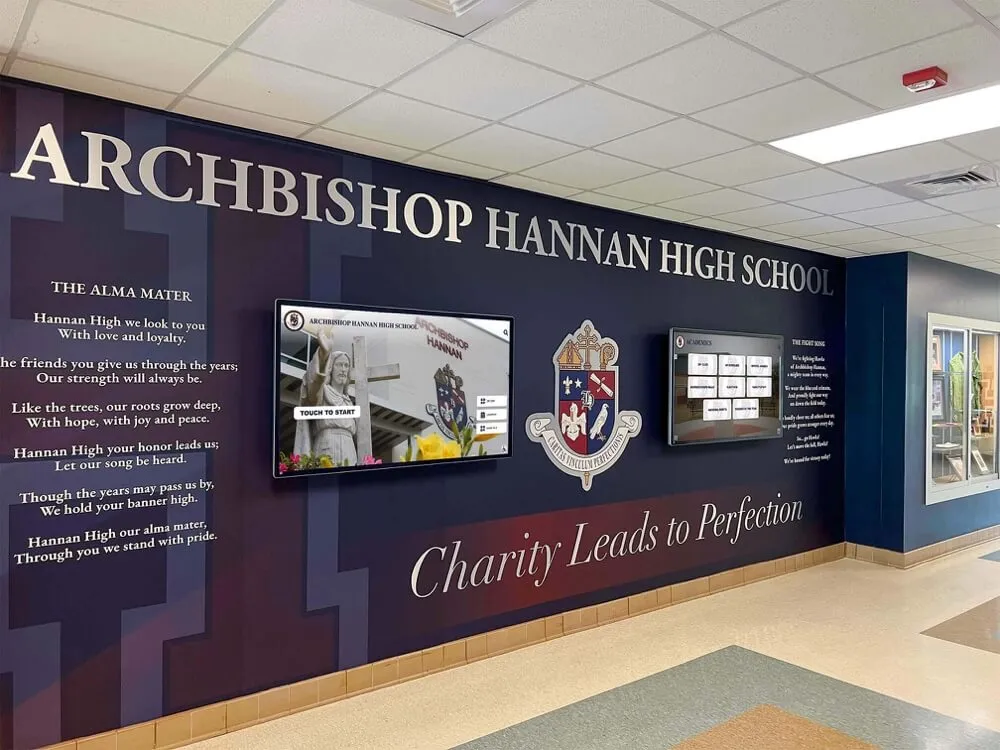
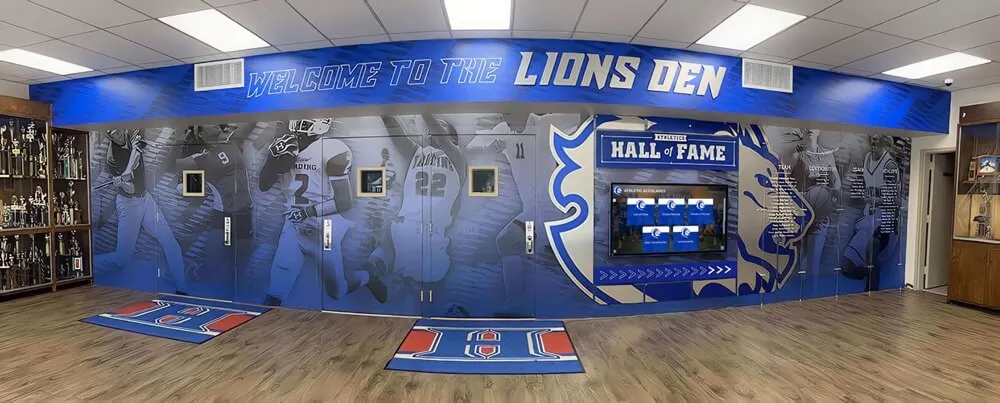
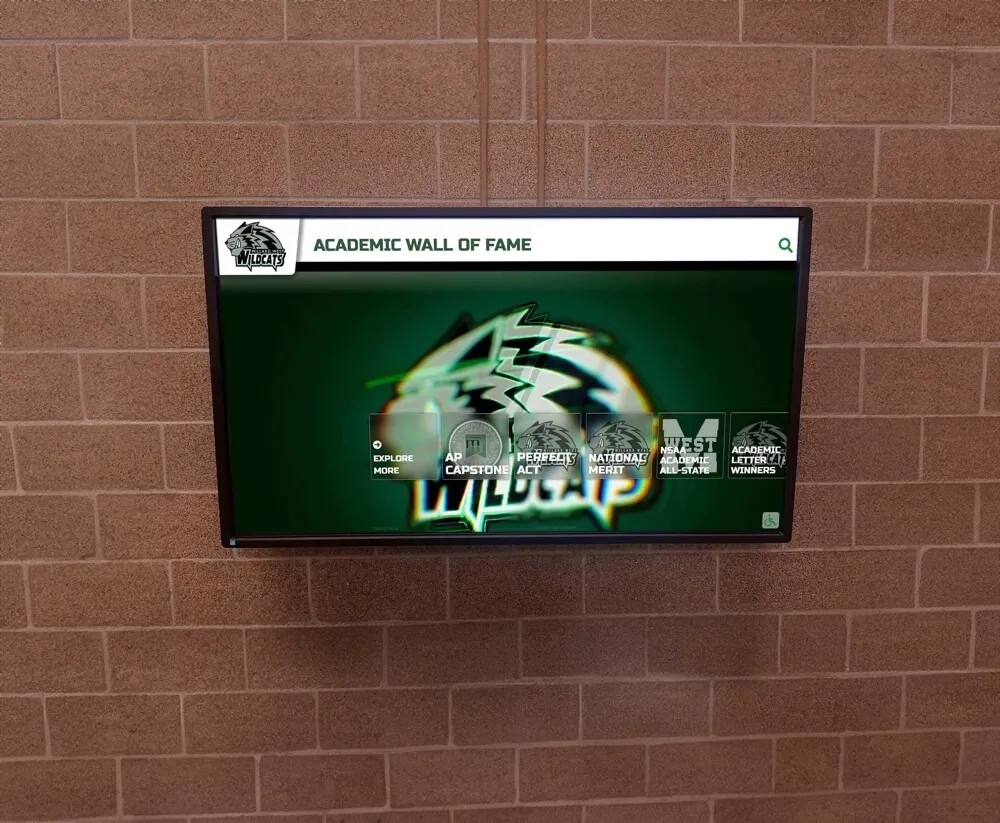
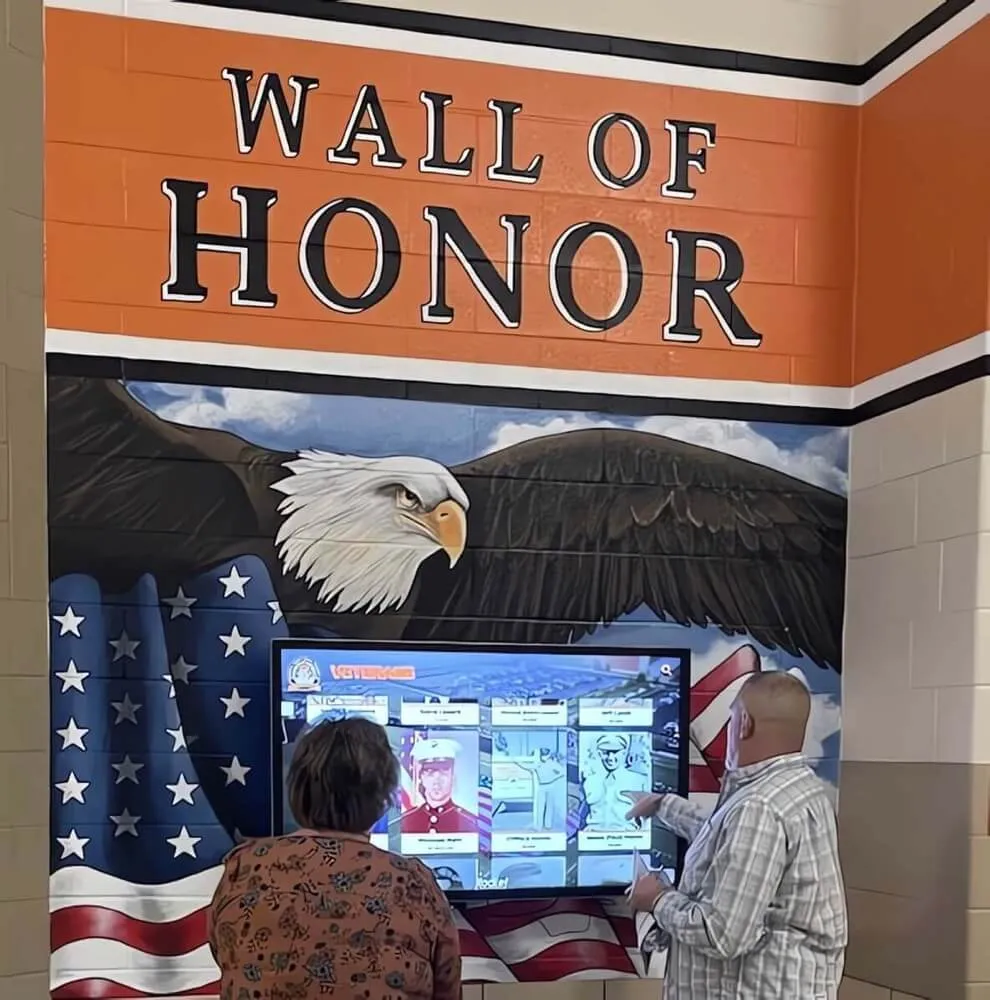
Properly structured content ensures screen readers convey recognition information to visually impaired visitors
1.3.1 Info and Relationships (Level A) requires conveying information, structure, and relationships through code that assistive technologies can understand. Visual presentations using color, position, size, or shape to convey meaning must also encode these relationships programmatically. Touchscreen displays showing organizational hierarchies, timelines, or categorized content must use proper HTML headings, lists, tables, and ARIA landmarks so screen readers communicate these structures to users who cannot see visual layouts. Sports hall of fame displays grouping athletes by sport or year must programmatically identify these categories beyond visual grouping alone.
1.3.2 Meaningful Sequence (Level A) ensures content presented in a specific sequence maintains that sequence when accessed by assistive technologies. Navigation flows, multi-step processes, or chronological timelines must preserve their intended order when screen readers linearize content. Touchscreen interfaces where users navigate through sequential information—like browsing class composites by year or following an institutional history timeline—must maintain logical sequence in underlying code even when visual layout suggests alternative orderings.
1.3.3 Sensory Characteristics (Level A) prohibits relying solely on sensory characteristics like shape, size, visual location, orientation, or sound to communicate instructions or content. Directions stating “tap the round button” or “see the panel on the right” exclude users who cannot perceive shapes or spatial relationships. Instructions must include text labels or other non-sensory identifiers—“tap the Submit button” or “navigate to the Athletics section”—enabling users who cannot see shapes or spatial arrangements to understand directions through other means.
1.4.1 Use of Color (Level A) ensures color alone never conveys information, indicates actions, prompts responses, or distinguishes visual elements. While color can supplement other identifiers, critical information must remain accessible to users with color blindness or using monochrome displays. Donor recognition walls indicating giving levels through color-coded categories must also use icons, labels, or other visual differentiators beyond color alone.
1.4.2 Audio Control (Level A) requires providing controls to pause, stop, or adjust volume for audio playing automatically for more than three seconds. Touchscreen displays in public spaces with auto-playing audio content must include visible, accessible volume and pause controls preventing audio from overwhelming visitors or interfering with assistive technologies that use audio output.
Operable Interface Requirements
Operable criteria ensure users can interact with interface elements and navigate content regardless of input method.
2.1.1 Keyboard (Level A) requires making all functionality available through keyboard interfaces without requiring specific timings for individual keystrokes. While touchscreens primarily use touch input, touchscreen software must also support keyboard or keyboard-equivalent input methods for users with motor disabilities who cannot use touchscreens directly. This includes supporting external keyboards, switch devices, or other alternative input methods that simulate keyboard commands. Navigation through recognition profiles, search functionality, and content filtering must operate through keyboard commands, not just touch gestures.
2.1.2 No Keyboard Trap (Level A) prevents keyboard focus from becoming trapped in any interface component. Users navigating with keyboards or keyboard equivalents must always be able to move focus away from any interface element using standard navigation methods. Modal dialogs, embedded content, or custom interactive components must provide clear exit mechanisms ensuring users never become stuck unable to navigate elsewhere.
2.1.4 Character Key Shortcuts (Level A) addresses single-character keyboard shortcuts. If touchscreen interfaces implement single-key shortcuts (pressing “S” to search, for example), these must be either disableable, remappable to non-printable characters, or only active when the relevant interface component has focus. This prevents unintended activation during voice input or when assistive technologies use character-by-character input.
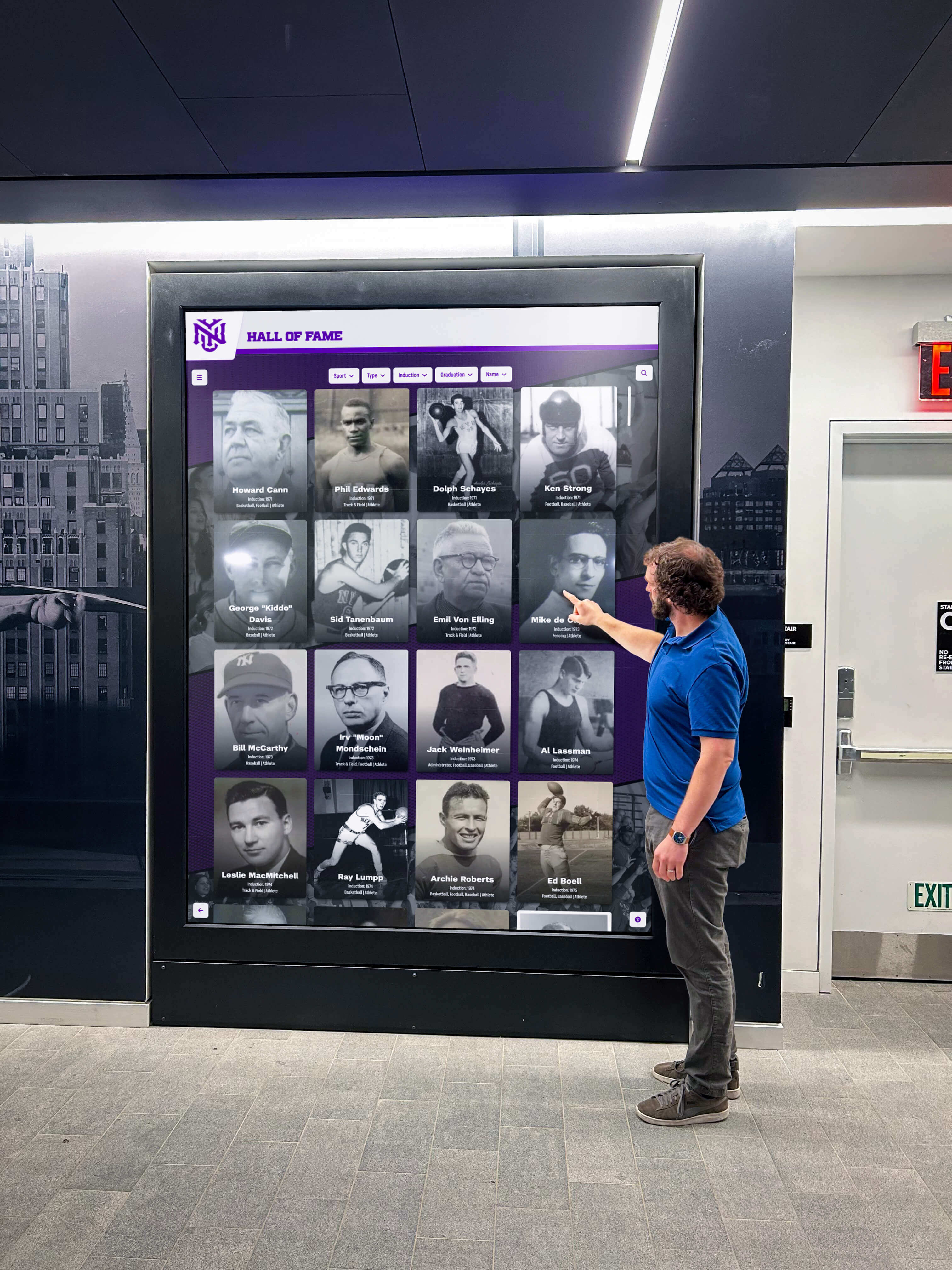
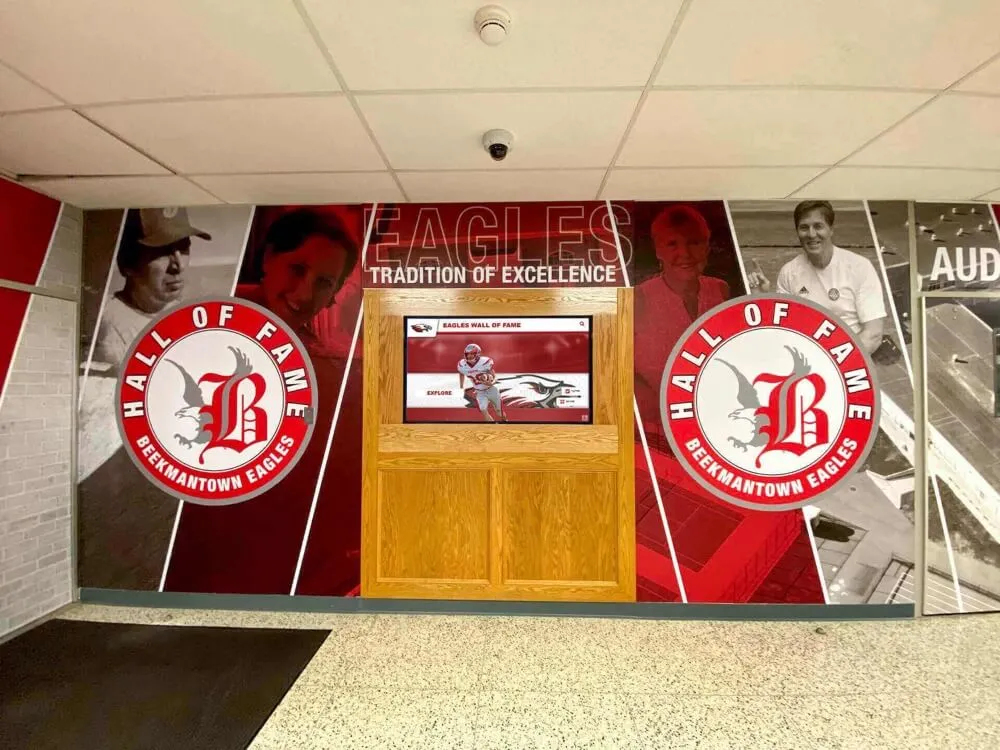
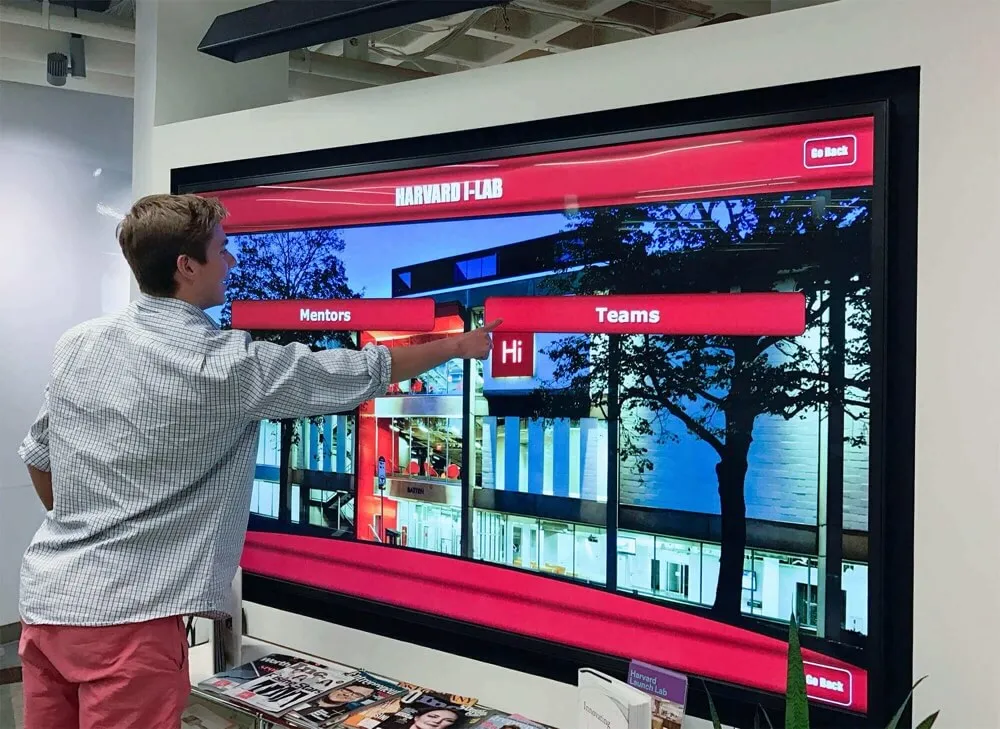
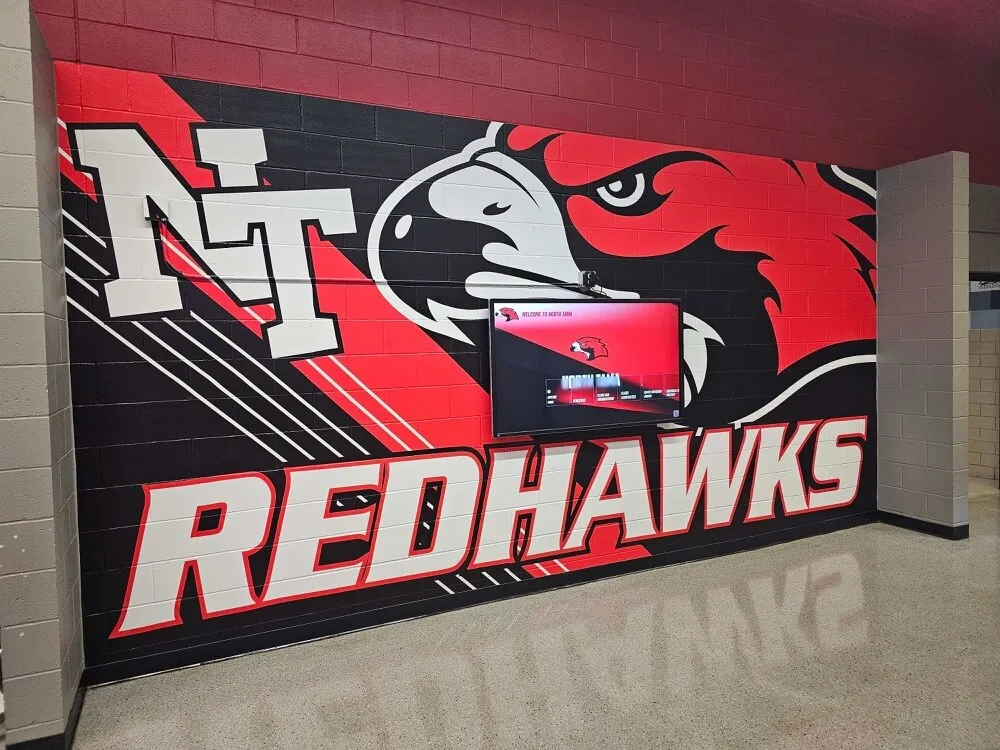
Multiple input methods ensure visitors with diverse abilities can interact with recognition displays
2.2.1 Timing Adjustable (Level A) requires providing users the ability to turn off, adjust, or extend time limits before they occur. Touchscreen interfaces with session timeouts, auto-advancing content, or timed interactions must either eliminate timing constraints, warn users before timeout with options to extend time, or provide at least ten times the default time limit. Recognition displays where visitors browse profiles at their own pace should avoid unnecessary time pressures accommodating users who need additional time to read or interact.
2.2.2 Pause, Stop, Hide (Level A) addresses moving, blinking, scrolling, or auto-updating content. Information that starts automatically, lasts more than five seconds, and is presented alongside other content must provide mechanisms to pause, stop, or hide it. Auto-advancing slideshows, animated banners, or scrolling news feeds on digital signage screens must include pause controls enabling users to stop motion when it interferes with their ability to focus on static content.
2.3.1 Three Flashes or Below Threshold (Level A) prohibits content that flashes more than three times per second unless flashing is below defined thresholds. Rapidly flashing content can trigger seizures in users with photosensitive epilepsy. Touchscreen animations, transitions, or video content must avoid rapid flashing patterns that pose seizure risks.
2.4.1 Bypass Blocks (Level A) provides mechanisms to skip repeated navigation elements and go directly to main content. While touchscreen interfaces typically don’t include extensive navigation blocks found on websites, installations with repeated header elements or navigation menus should provide “skip to content” functionality enabling users to avoid repeatedly navigating through identical elements when accessing different sections.
2.4.2 Page Titled (Level A) requires descriptive titles for each page or screen identifying its topic or purpose. Touchscreen interfaces displaying different content screens—athlete profiles, achievement categories, historical timelines—must programmatically label each screen with descriptive titles that assistive technologies announce when screens change, helping users understand their current location within the interface.
2.4.3 Focus Order (Level A) ensures keyboard focus proceeds through components in a sequence preserving meaning and operability. When users navigate touchscreen interfaces using keyboards or alternative input devices, focus must move logically through interface elements in orders matching visual layouts and preserving relationships between related components.
2.4.4 Link Purpose (In Context) (Level A) requires the purpose of each link to be determinable from link text alone or from link text combined with programmatically determined context. Generic link text like “click here” or “read more” doesn’t convey destination to screen reader users navigating by links alone. Links to athlete profiles, award details, or related content must use descriptive text identifying destinations—“View Sarah Johnson’s athletic achievements” rather than “click here.”
Pointer Gesture Requirements
WCAG 2.1 introduced criteria addressing touchscreen and pointer interactions, recognizing that touchscreens represent primary interfaces for many digital content experiences.
2.5.1 Pointer Gestures (Level A) requires functionality using multipoint or path-based gestures to also be operable with single-pointer actions requiring no path. Complex gestures like pinch-to-zoom, two-finger rotation, or drawing specific patterns must have alternative single-tap interactions. Users with limited dexterity who struggle with complex gestures can still access all functionality through simpler interactions.
2.5.2 Pointer Cancellation (Level A) prevents accidental activation by ensuring single-pointer activation occurs on the up-event (when users release) rather than down-event (when users initially touch), with mechanisms to abort or undo actions. This allows users to slide fingers away from controls if they touch wrong targets accidentally, preventing unintended activation.
2.5.3 Label in Name (Level A) requires user interface components with visible text labels to include those same words in programmatic names accessible to assistive technologies. When buttons display “Search Athletes,” their programmatic names must include “Search Athletes” so voice control users can activate controls by speaking visible labels. This alignment between visible and programmatic labels prevents confusion when voice input users speak visible text but nothing happens because programmatic names differ.
2.5.4 Motion Actuation (Level A) ensures functionality triggered by device motion or user gestures can also be operated through user interface components, with ability to disable motion actuation. While less relevant for stationary touchscreen kiosks, this criterion matters for touchscreen tablets or mobile interfaces accompanying physical installations. Shaking devices or tilting screens to trigger actions must have button-based alternatives.
Understandable Content Requirements
Understandable criteria ensure users can comprehend information and interface operation.
3.1.1 Language of Page (Level A) requires programmatically identifying the default human language of content. Screen readers adjust pronunciation, voice characteristics, and speech patterns based on content language. Touchscreen interfaces must specify their primary language (English, Spanish, etc.) enabling assistive technologies to read content with appropriate pronunciation and linguistic rules.
3.2.1 On Focus (Level A) prevents interface components from automatically initiating context changes merely by receiving focus. Simply moving keyboard focus or hovering over elements must not trigger navigation, form submission, or significant content changes. Users must explicitly activate controls (by clicking, tapping, or pressing Enter) before context changes occur, preventing unexpected disruptions as users navigate through interfaces.
3.2.2 On Input (Level A) prevents changing interface settings from automatically causing context changes unless users receive advance warning. Changing form selections, toggling switches, or adjusting controls must not automatically navigate to new screens, submit data, or dramatically alter content without user confirmation. When automatic submission is unavoidable, clear advance warning prepares users for upcoming changes.
3.2.6 Consistent Help (Level A 2.2 only) requires help mechanisms to appear in the same relative order across multiple screens when available on more than one screen. If touchscreen interfaces include help buttons, contact information, or assistance features, these must maintain consistent positions throughout the interface. Users shouldn’t need to hunt for help mechanisms in different locations as they navigate, reducing cognitive burden for users with disabilities.
Input Assistance Requirements
Input assistance criteria help users avoid and correct mistakes when providing input.
3.3.1 Error Identification (Level A) requires automatically detected input errors to be identified in text and described to users. Form validation errors, search query problems, or invalid selections must present clear text descriptions explaining what went wrong—not just color highlighting or icon indicators alone. Error messages should identify which fields contain errors and describe the problem in terms users understand.
3.3.2 Labels or Instructions (Level A) requires providing labels or instructions when content requires user input. Forms collecting visitor feedback, search interfaces, or interactive elements requiring input must clearly indicate what information is expected, what format is required, and whether fields are required versus optional. Clear labels eliminate confusion and reduce errors, particularly for users with cognitive disabilities who benefit from explicit instructions.
3.3.7 Redundant Entry (Level A 2.2 only) prevents requiring users to enter the same information multiple times within a process unless re-entry is essential for security, previous information is no longer valid, or re-entry is necessary for functionality. While most touchscreen recognition displays don’t collect extensive user input, those incorporating visitor feedback forms or data submission should remember previously entered information, auto-populate fields when appropriate, or provide options to select rather than re-type repeated information.
Parsing and Compatibility Requirements
4.1.1 Parsing (Level A) previously required HTML to be parsed without errors, but WCAG 2.2 officially obsoletes this criterion. The 2023 errata updates indicate this criterion is always considered satisfied and organizations should simply note “Supports” for conformance documentation. HTML validity remains a best practice supporting broader compatibility but is no longer a formal WCAG requirement.
4.1.2 Name, Role, Value (Level A) requires user interface components to have programmatically determined names, roles, states, and properties that assistive technologies can identify. Custom interactive elements must communicate their purpose (name), function (role), and current state (checked, expanded, selected, etc.) through standard mechanisms like ARIA attributes. When touchscreen displays include custom navigation controls, interactive galleries, or specialized interface elements, these must be properly coded so screen readers describe them accurately to users.
Level AA Success Criteria: Enhanced Accessibility
Level AA builds upon Level A foundations to address broader accessibility needs and remove additional barriers affecting substantial user populations. These criteria represent the recommended accessibility target for most organizations.
Enhanced Media Requirements
1.2.4 Captions (Live) (Level AA) requires synchronized captions for live audio content. While most touchscreen recognition displays present prerecorded rather than live content, installations streaming live events, webcasts, or real-time presentations must provide live captioning. This ensures deaf and hard-of-hearing visitors access contemporary events simultaneously with hearing attendees.
1.2.5 Audio Description (Prerecorded) (Level AA) mandates audio descriptions for prerecorded video content. Level A allowed either audio descriptions or full text alternatives; Level AA specifically requires audio descriptions providing narration of important visual information during natural pauses in dialogue. Video content showing visual achievement evidence, ceremonial presentations, or action demonstrations must include audio descriptions explaining visual elements to blind visitors.
Adaptable Content Requirements
1.3.4 Orientation (Level AA 2.1 and 2.2) prevents restricting content to single display orientations (portrait or landscape) unless orientation is essential for functionality. Touchscreen displays should accommodate both portrait and landscape orientations unless specific technical or functional requirements mandate particular orientations. This flexibility accommodates users who mount devices in fixed orientations or have disabilities requiring specific device positioning.
1.3.5 Identify Input Purpose (Level AA 2.1 and 2.2) requires programmatically identifying the purpose of input fields collecting user information. Fields requesting names, email addresses, phone numbers, or other personal information must use autocomplete attributes specifying data types. This enables browsers and assistive technologies to auto-populate fields using saved information, reducing cognitive load and input burden particularly for users with cognitive or motor disabilities. While touchscreen recognition displays typically collect minimal user input, those incorporating feedback forms or data submission should properly identify field purposes.
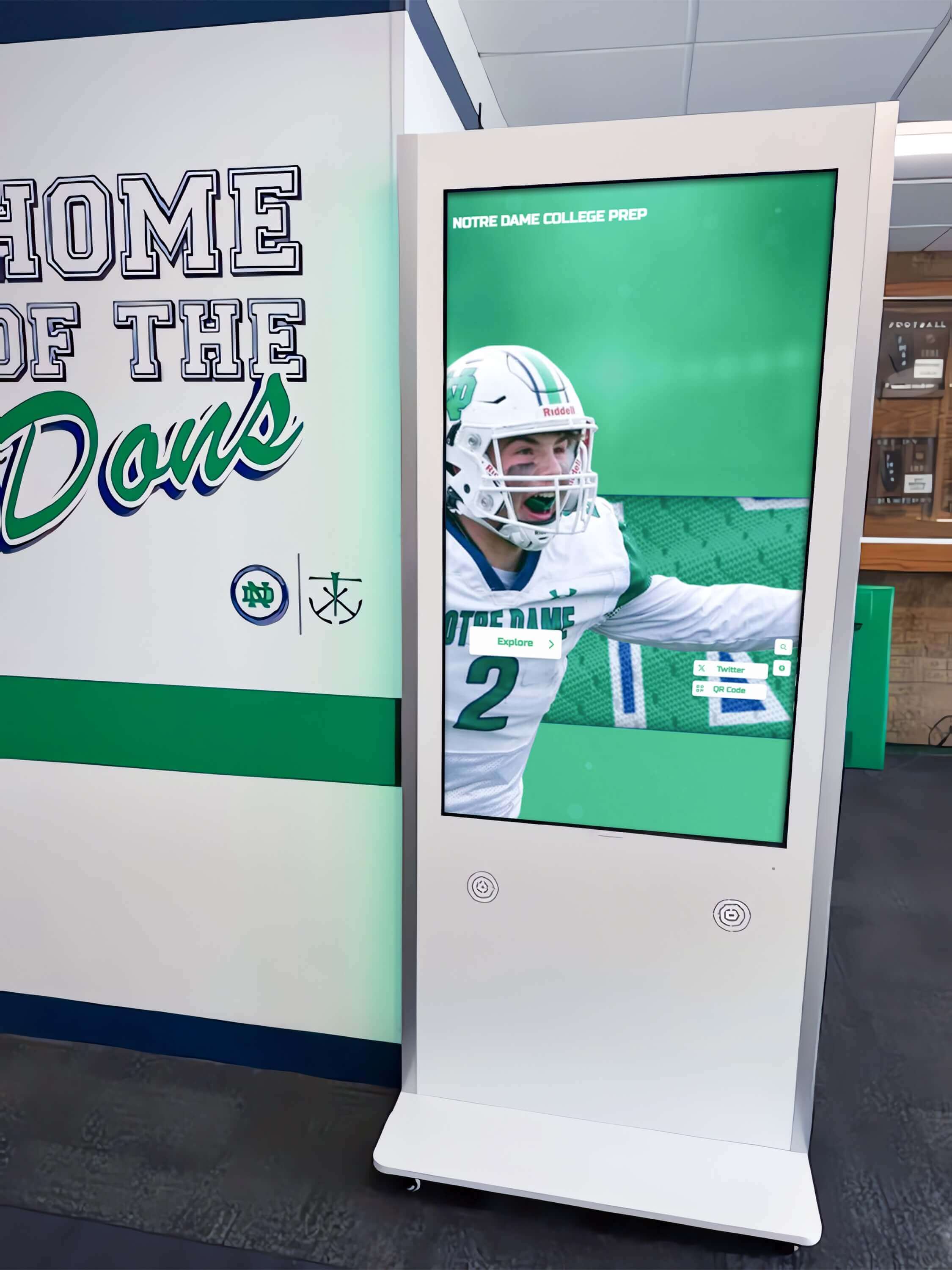
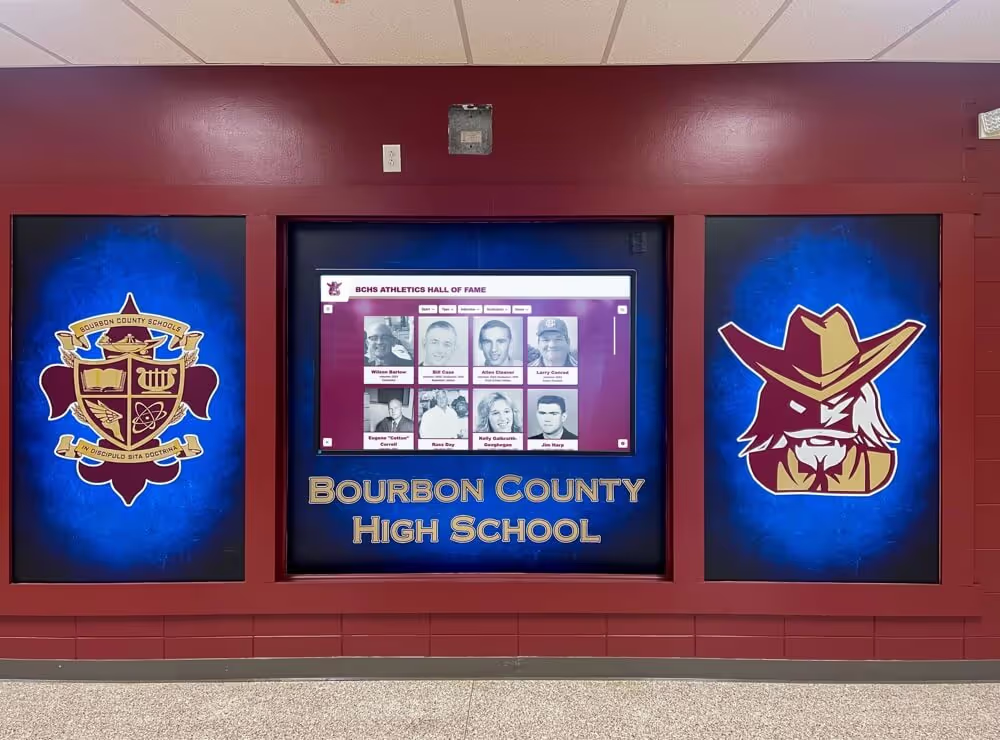
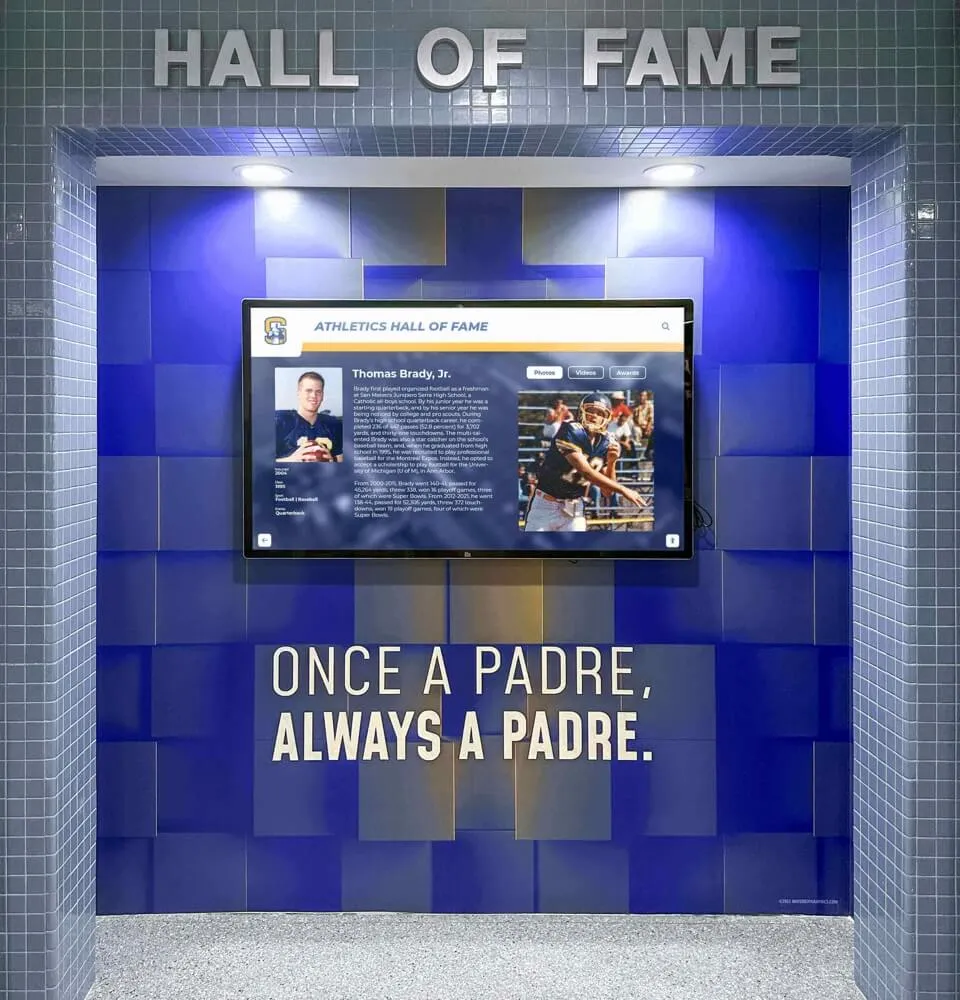
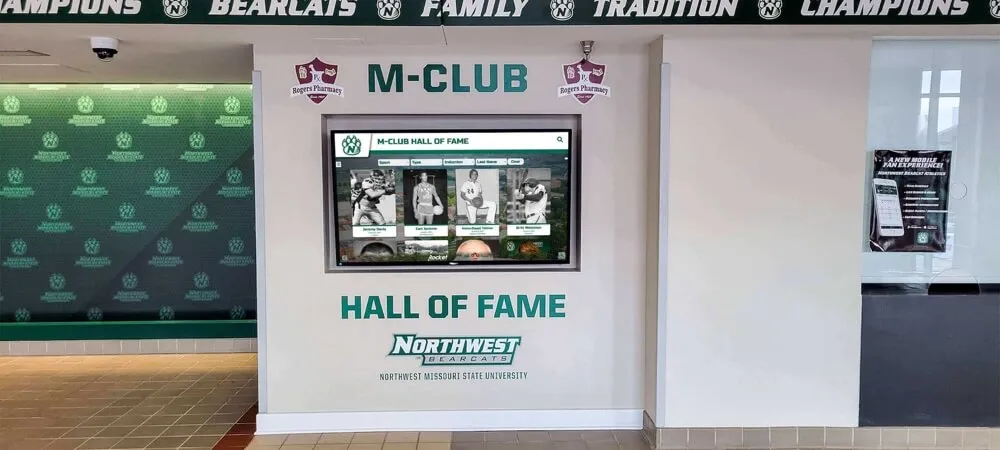
Proper contrast ratios and text sizing ensure readability for visitors with visual impairments
Visual Presentation Requirements
1.4.3 Contrast (Minimum) (Level AA) mandates minimum 4.5:1 contrast ratio between text and backgrounds (3:1 for large text 18pt+ or 14pt+ bold). Adequate contrast ensures visitors with low vision or color blindness can read text content without strain. Touchscreen interfaces must carefully select text and background colors meeting contrast requirements, particularly challenging with branded color schemes. Design templates, profile displays, and navigation elements must all maintain sufficient contrast for readability under varying ambient lighting conditions typical in public spaces.
1.4.4 Resize Text (Level AA) requires supporting text zoom up to 200% without assistive technology and without loss of content or functionality. Users must be able to enlarge text for readability while maintaining access to all information and interactive elements. Touchscreen interfaces should implement responsive designs that reflow content when text sizes increase, preventing horizontal scrolling or content clipping at larger text sizes. Fixed-width layouts or rigid interfaces often fail this criterion when enlarged text overflows containers or causes interface elements to overlap.
1.4.5 Images of Text (Level AA) prohibits using images of text except for logos or when text presentation is essential to conveyed information. Text rendered as actual text rather than images enables customization (size adjustment, color changes, font substitution) that image-based text prevents. Athletic program recognitions, historical plaques, or donor listings should use system fonts rather than embedding text within graphics files unless specific aesthetic requirements demand image-based presentation. This allows users to apply their own display preferences while maintaining screen reader compatibility.
1.4.10 Reflow (Level AA 2.1 and 2.2) requires content to reflow to single columns when zoomed to 400% without requiring scrolling in two dimensions or losing information. Responsive design should adapt content to narrower viewports (equivalent to 320px viewport width at 400% zoom) while maintaining full content access. Users shouldn’t need to scroll both horizontally and vertically to read content—vertical scrolling alone should suffice. For touchscreen displays designed for specific screen sizes, testing must verify acceptable behavior when users with low vision zoom interfaces substantially.
1.4.11 Non-text Contrast (Level AA 2.1 and 2.2) requires 3:1 contrast ratio for user interface components and graphical objects necessary for content comprehension. Interactive buttons, form controls, navigation elements, and meaningful graphics must have sufficient contrast against adjacent colors. Touch targets, interactive elements, and essential graphics must be visually distinguishable from backgrounds enabling low-vision users to perceive interactive opportunities and important visual information.
1.4.12 Text Spacing (Level AA 2.1 and 2.2) requires supporting increased text spacing without loss of content or functionality. Users must be able to adjust line height to at least 1.5 times font size, paragraph spacing to at least 2 times font size, letter spacing to at least 0.12 times font size, and word spacing to at least 0.16 times font size. These adjustments improve readability for users with dyslexia or low vision. Touchscreen interfaces must accommodate these spacing increases without content overflow or element overlap.
1.4.13 Content on Hover or Focus (Level AA 2.1 and 2.2) addresses additional content appearing when users hover over or move focus to interface elements. Tooltips, pop-up information, or contextual help must be dismissible without moving pointer or keyboard focus, hoverable (users can move pointer over additional content without it disappearing), and persistent (content remains visible until users dismiss it, move pointer away, or remove keyboard focus). These requirements prevent additional content from blocking underlying information or disappearing before users can read it.
Navigation and Focus Requirements
2.4.5 Multiple Ways (Level AA) requires providing multiple methods for finding content within sets of screens or pages. Touchscreen displays presenting substantial content should include direct navigation, search functionality, categorical browsing, or alphabetical indexes enabling users to find information through preferred methods. Interactive alumni directories should support searching by name, browsing by graduation year, filtering by achievement category, or exploring chronologically—not forcing all users through single navigation paths.
2.4.6 Headings and Labels (Level AA) requires descriptive headings and labels that describe topics or purposes. Generic labels like “Details” or “Information” should be replaced with specific descriptions identifying content—“Athletic Achievements” or “Academic Recognition” rather than vague headings. Clear, descriptive headings help all users, particularly benefiting users with cognitive disabilities or those using screen readers who navigate by heading structure. Well-labeled sections enable efficient content discovery without reading every word.
2.4.7 Focus Visible (Level AA) mandates visible keyboard focus indicators showing which interface element currently has focus. Users navigating through keyboards or alternative input devices must be able to visually track their position within interfaces. Default browser focus indicators can be subtle; enhanced focus indicators with adequate contrast and clear visibility provide better user experience for keyboard navigation users. Focus indicators should clearly distinguish focused elements from unfocused elements without relying solely on color.
2.4.11 Focus Not Obscured (Minimum) (Level AA 2.2 only) requires keyboard-focused interface components to not be entirely hidden by author-created content. Fixed headers, sticky navigation, or modal overlays must not completely cover elements receiving keyboard focus. While some obstruction is acceptable at Level AA (entire component need not be visible), focused elements cannot be completely hidden behind other interface layers. This ensures keyboard users always see which element currently has focus even when navigating through interfaces with layered content.
Pointer Input Requirements
2.5.7 Dragging Movements (Level AA 2.2 only) requires providing alternatives to dragging movements for operations like reordering lists, adjusting sliders, or moving objects. Users with motor impairments who struggle with sustained pointer contact during dragging need alternative single-pointer operations achieving identical results. Slider controls should include increment/decrement buttons; drag-and-drop reordering should include arrow buttons or similar alternatives; resizing operations should include numeric input fields.
2.5.8 Target Size (Minimum) (Level AA 2.2 only) requires touch targets to be at least 24×24 CSS pixels with specified exceptions for inline targets, user agent controlled elements, and targets with adequate spacing. Adequate touch target sizes reduce accidental activation and accommodate users with motor impairments affecting precise targeting. Buttons, links, and interactive controls must be large enough for reliable activation, particularly important for public touchscreen installations where users have varying motor control abilities and no opportunity to use alternative input devices. Proper spacing between adjacent targets prevents accidental activation of wrong controls.
Language and Consistency Requirements
3.1.2 Language of Parts (Level AA) requires programmatically identifying human language changes within content. When content switches between languages—perhaps including alumnus quotes in Spanish within primarily English recognition displays—each language change must be marked enabling screen readers to adjust pronunciation appropriately. This prevents screen readers from attempting to pronounce Spanish text using English pronunciation rules, creating incomprehensible output for users.
3.2.3 Consistent Navigation (Level AA) requires navigation mechanisms repeated across multiple screens to occur in consistent relative order unless user-initiated changes occur. Main navigation, search interfaces, or repeated interface elements should maintain consistent positions throughout touchscreen applications. Users shouldn’t need to relearn interface layouts as they navigate; consistent positioning reduces cognitive load and builds spatial memory supporting efficient navigation.
3.2.4 Consistent Identification (Level AA) requires components with the same functionality to be identified consistently across multiple screens. Icons, buttons, or controls performing identical functions (search buttons, back navigation, home links) should use consistent labels and presentations throughout interfaces. Varying terminology or visual presentation for identical functions creates confusion, particularly problematic for users with cognitive disabilities who benefit from consistent patterns.
Enhanced Error Prevention
3.3.3 Error Suggestion (Level AA) requires providing correction suggestions when input errors are automatically detected and suggestions are known. Beyond identifying errors, touchscreen interfaces should guide users toward correct input when possible. Spelling suggestions for search queries, format examples for input fields, or recommended corrections for invalid entries help users resolve errors quickly. Generic error messages (“Invalid input”) should be replaced with specific guidance (“Enter date as MM/DD/YYYY”) whenever systems can determine appropriate corrections.
3.3.4 Error Prevention (Legal, Financial, Data) (Level AA) requires error checking, confirmation opportunities, and reversibility for legal commitments, financial transactions, user-controllable data modification, or test response submission. While most touchscreen recognition displays don’t process financial transactions, those accepting donations through integrated giving systems must implement confirmation screens, validation checks, or submission reversibility. Data collection systems must allow users to review, confirm, and correct information before final submission.
3.3.8 Accessible Authentication (Minimum) (Level AA 2.2 only) prohibits requiring cognitive function tests for authentication steps unless alternatives are available. Authentication that depends on memorizing information, solving puzzles, or recalling personal data must provide alternatives like recognizing objects, providing personal non-knowledge-based content, or using authentication mechanisms not relying on cognitive function tests. While most public touchscreen displays don’t require authentication, those incorporating user accounts or personalized features must ensure authentication methods accommodate cognitive disabilities.
Status Messages
4.1.3 Status Messages (Level AA 2.1 and 2.2) requires status messages to be programmatically determinable through roles or properties enabling assistive technologies to present them without receiving focus. Search result counts, submission confirmations, loading indicators, or progress updates must be announced to screen reader users through appropriate ARIA live regions or status roles. These announcements ensure users who cannot see on-screen status messages receive equivalent information through assistive technologies without focus changes disrupting current activities.
Level AAA Success Criteria: Highest Accessibility Standard
Level AAA represents the most comprehensive accessibility conformance but isn’t required for legal compliance nor achievable for all content. Organizations often selectively implement Level AAA criteria for specific content areas where enhanced accessibility provides particular value.
Understanding Level AAA requirements helps organizations identify opportunities for exceeding baseline accessibility standards in ways that significantly benefit users. While achieving full Level AAA conformance across entire touchscreen installations proves impractical for most organizations, implementing selected Level AAA criteria demonstrates commitment to inclusive design beyond minimum legal requirements.
Key Level AAA Criteria include enhanced audio descriptions with descriptions of all visual information during natural pauses and between dialogue, sign language interpretation for prerecorded audio content, reading level accommodations ensuring content doesn’t require advanced reading ability beyond lower secondary education level except for specialized content, enhanced contrast ratios of 7:1 for normal text and 4.5:1 for large text, extended audio descriptions pausing video content when pauses in dialogue don’t provide sufficient time for adequate descriptions, and context-sensitive help providing assistance specific to user’s current activity.
Organizations committed to accessibility excellence can selectively implement Level AAA criteria addressing specific needs of their primary audiences. Educational institutions might prioritize reading level accommodations or enhanced help mechanisms; installations serving senior populations might emphasize enhanced contrast ratios and enlarged default text. Strategic Level AAA implementation tailors accessibility enhancements to specific user populations rather than pursuing blanket Level AAA conformance.

Strategic accessibility implementation creates inclusive experiences exceeding minimum compliance requirements
Implementing WCAG 2.2 AA for Touchscreen Displays
Understanding success criteria represents only the first step; practical implementation requires systematic approaches integrating accessibility throughout design, development, testing, and maintenance processes.
Planning Phase Considerations
Accessibility Requirements Documentation should specify WCAG 2.2 Level AA conformance as a project requirement from the initial planning stages. Including accessibility in requirements documentation from the beginning prevents treating accessibility as an afterthought added late in development when addressing issues proves more difficult and expensive. Organizations should identify specific success criteria most relevant to their content and user populations, prioritizing implementation efforts accordingly.
User Research with People with Disabilities provides invaluable insights into real accessibility needs. Testing early concepts and prototypes with users who have visual, auditory, motor, or cognitive disabilities reveals usability issues that purely technical compliance testing might miss. Schools implementing digital hall of fame displays benefit from engaging community members with disabilities as user testers, providing feedback on interface designs before full implementation.
Vendor Accessibility Evaluation proves critical when selecting display hardware and software platforms. Organizations should request Voluntary Product Accessibility Templates (VPATs) documenting vendors’ WCAG conformance claims. Software platforms like Rocket Alumni Solutions specifically designed for institutional recognition displays build accessibility into architecture from inception rather than retrofitting accessibility into systems designed without consideration for diverse abilities.
Design Phase Implementation
Accessible Design Patterns should inform interface layouts, interactive elements, and content presentation. Design systems incorporating adequate contrast ratios, sufficient touch target sizes, clear focus indicators, and consistent navigation patterns establish accessibility foundations supporting successful implementation. Organizations should develop design guidelines specifying color combinations meeting contrast requirements, minimum button sizes, standard focus indicator styles, and other design specifications ensuring accessibility by default.
Content Structure Planning determines how information hierarchies, navigation systems, and content relationships will be communicated both visually and programmatically. Proper heading structures, semantic HTML elements, and ARIA landmarks create navigable content structures for assistive technology users. Recognition categories, athlete profiles, achievement listings, and historical timelines should be organized with clear hierarchies that work for both visual and non-visual users.
Alternative Content Creation should be planned concurrently with primary content development. Creating alt text for images, transcripts for video content, and captions for audio materials as content is produced prevents large backlogs of uncaptioned video or undescribed images. Organizations should establish workflows where content creators provide alternative text descriptions when uploading media, making accessibility part of standard content development rather than separate remediation projects.
Development Phase Best Practices
Semantic HTML forms the foundation for accessible web-based touchscreen applications. Using appropriate HTML elements (headings, lists, tables, buttons, links) rather than generic div elements with JavaScript event handlers provides built-in accessibility that assistive technologies understand. Proper semantic markup conveys document structure, identifies interactive elements, and communicates relationships between content components.
ARIA Implementation supplements semantic HTML for custom interactive components not fully described by native HTML elements. ARIA (Accessible Rich Internet Applications) attributes communicate roles, states, and properties that assistive technologies need to describe custom widgets. Complex recognition display interfaces might use ARIA to identify accordion panels, modal dialogs, tab interfaces, or custom navigation patterns. Developers should follow ARIA authoring practices documented by W3C rather than inventing custom ARIA patterns, ensuring compatibility with assistive technologies expecting standard implementations.
Keyboard Navigation Development requires implementing full keyboard access concurrently with touch interactions. Developers must ensure all interactive elements receive keyboard focus, visual focus indicators are clearly visible, focus order follows logical sequences, and users can operate all functionality through keyboard commands. Custom touch gestures should have keyboard equivalents; pinch-to-zoom functionality needs keyboard-accessible zoom controls, swipe navigation requires arrow key alternatives, and drag-and-drop operations need keyboard-based movement commands.
Focus Management becomes particularly important in dynamic interfaces where content changes without full page loads. When modal dialogs open, focus should move to dialog content; when dialogs close, focus should return to triggering elements. When error messages appear, focus should move to error descriptions enabling screen reader users to immediately hear error information. Proper focus management prevents keyboard users from becoming disoriented when interface changes occur.
Testing and Validation
Automated Testing Tools identify many accessibility issues quickly but cannot detect all problems. Tools like WAVE, axe DevTools, or Lighthouse scan interfaces for missing alt text, inadequate contrast ratios, heading structure problems, form label issues, and other programmatically detectable issues. Automated testing should be integrated into development workflows, providing immediate feedback when accessibility issues are introduced. However, automated testing typically identifies only 25-35% of accessibility issues; manual testing remains essential.
Manual Testing Procedures should include keyboard-only navigation verifying all functionality is accessible without using mouse or touch input, screen reader testing using tools like NVDA, JAWS, or VoiceOver to experience interfaces as blind users would, zoom testing to verify content reflows appropriately when text sizes increase to 200%, and contrast verification using tools like Color Contrast Analyzer to confirm all text and interface elements meet requirements.
Assistive Technology Testing with actual devices and software that people with disabilities use provides the most accurate assessment of real-world accessibility. Testing with multiple screen reader and browser combinations reveals compatibility issues that single-platform testing might miss. Mobile assistive technology testing becomes relevant when touchscreen displays include companion mobile applications or responsive web interfaces accessible from personal devices.
User Testing with People with Disabilities represents the gold standard for accessibility validation. Observing real users with diverse disabilities interacting with touchscreen displays reveals usability issues that technical testing cannot identify. Users provide qualitative feedback about interface comprehensibility, navigation efficiency, and content clarity that conformance testing alone doesn’t capture.
Maintenance and Ongoing Compliance
Regular Accessibility Audits should be scheduled periodically to identify issues introduced through content updates or interface modifications. Organizations should conduct comprehensive accessibility reviews annually at minimum, with more frequent reviews following significant content additions or interface changes. Maintaining accessibility requires continued vigilance as new content and features can introduce barriers even when original implementations met conformance standards.
Content Editor Training ensures staff members responsible for updating recognition displays understand accessibility requirements and how their content creation practices affect disabled users. Training should cover creating meaningful alt text, maintaining proper heading structures, ensuring adequate contrast, and following established accessibility guidelines. Organizations should develop accessibility checklists and content guidelines supporting consistent accessible content creation.
Feedback Mechanisms should enable users to report accessibility barriers they encounter. Providing accessible contact methods for accessibility issues—email addresses, phone numbers, or web forms—creates channels for identifying problems that internal testing might miss. Organizations should respond promptly to accessibility feedback, prioritizing barrier removal to maintain usable systems for all community members.
Platform Updates from vendors may introduce accessibility improvements or occasionally create new barriers. Organizations using commercial touchscreen display platforms should stay informed about accessibility-related updates, test new releases before deploying broadly, and maintain communication with vendors about accessibility requirements. Platforms specifically designed for accessible institutional recognition like Rocket Alumni Solutions incorporate accessibility testing into update cycles, maintaining conformance across software versions.
Accessibility Benefits Beyond Compliance
Meeting WCAG 2.2 AA requirements delivers advantages beyond satisfying legal obligations or avoiding discrimination complaints. Accessible design produces better user experiences for everyone, not just people with disabilities.
Universal Design Benefits improve usability for all users. Clear navigation helps everyone find information quickly. Adequate contrast enables reading in bright sunlight or dim lighting. Proper content structure supports scanning and information hierarchy. Touch target sizes prevent accidental activation for users of all abilities. Keyboard navigation provides alternatives when touchscreens malfunction or respond slowly. Accessible design fundamentally produces better interfaces that work effectively for wider audiences across diverse usage contexts.
Aging Population Accommodation becomes increasingly important as populations age and age-related disabilities become more common. Vision degradation, reduced hearing acuity, motor control changes, and cognitive changes affect substantial portions of older adult populations. Schools welcoming alumni visitors often serve populations where age-related disabilities are prevalent. Accessible design ensures older alumni can effectively interact with recognition displays honoring their achievements and those of their classmates.
Temporary Disability Support extends benefits to users experiencing temporary impairments like broken arms limiting touch precision, eye injuries affecting vision, ear infections impacting hearing, or cognitive effects from medications. Accessible interfaces accommodate these temporary situations without requiring special accommodation requests.
Situational Disability Mitigation addresses environmental limitations that create temporary accessibility needs. Viewing touchscreens in bright sunlight creates temporary low-vision scenarios requiring adequate contrast. Noisy environments create temporary hearing impairments necessitating captions. Carrying bags or holding children creates temporary motor limitations requiring larger touch targets. Accessible design accommodates these situational disabilities affecting able-bodied users.
Legal Risk Reduction provides organizational protection against discrimination lawsuits, civil rights complaints, and regulatory penalties. Americans with Disabilities Act (ADA) enforcement increasingly addresses digital accessibility; documented WCAG 2.2 AA conformance demonstrates good-faith accessibility efforts even if occasional issues arise. Proactive accessibility implementation proves far less expensive than reactive remediation following complaints or litigation.
Inclusive Mission Alignment demonstrates institutional commitment to diversity, equity, and inclusion. Educational institutions asserting inclusive values should ensure recognition programs celebrating achievements honor all community members by remaining accessible regardless of disability status. Inaccessible recognition systems implicitly exclude people with disabilities from institutional memory and community celebration. Accessible design embodies inclusive values through concrete implementation rather than abstract principles.
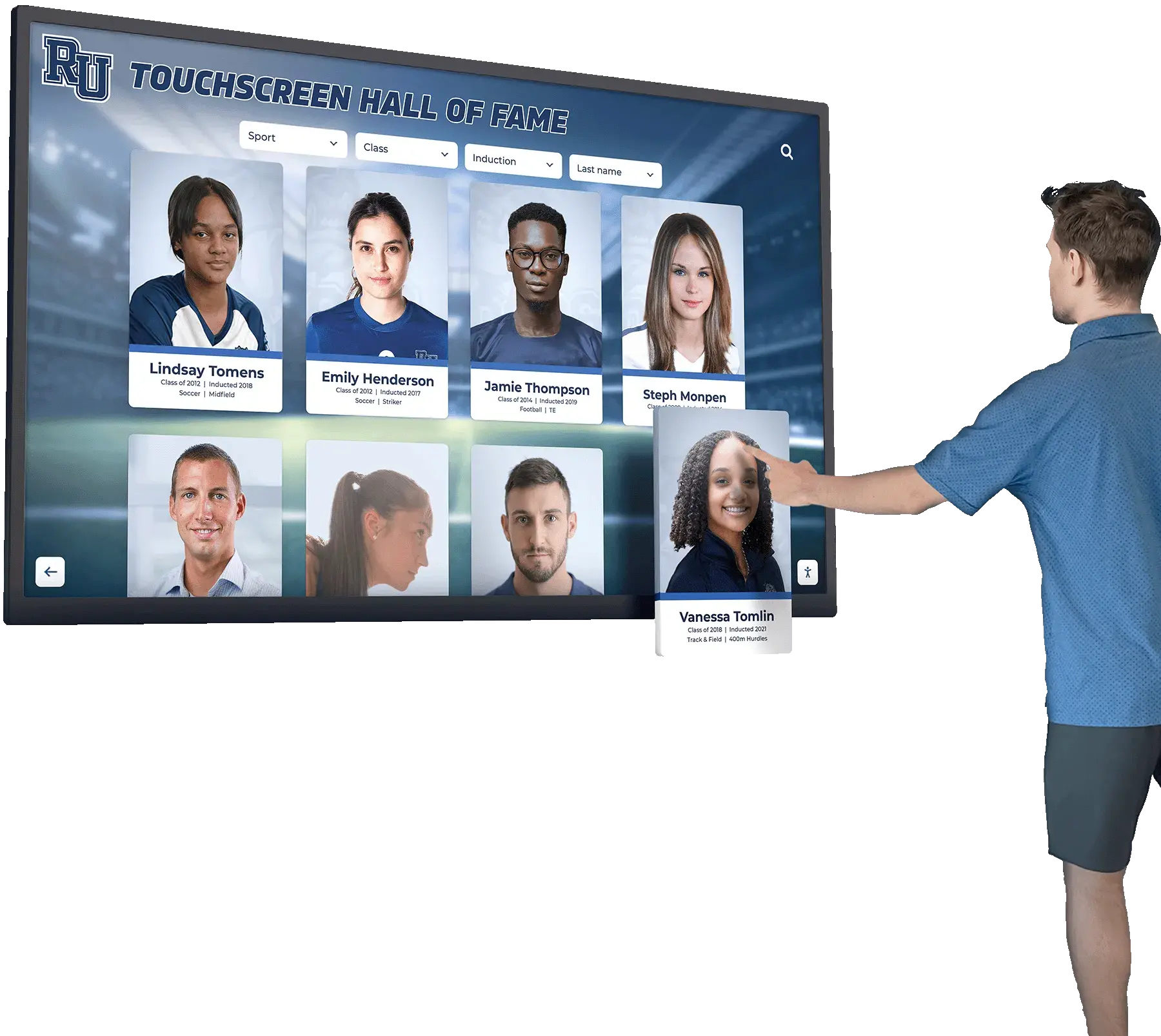
Accessible design creates better experiences for all visitors while ensuring legal compliance
How Rocket Alumni Solutions Addresses WCAG 2.2 AA
Organizations selecting touchscreen display platforms should evaluate vendor accessibility conformance rather than attempting to retrofit accessibility into systems designed without consideration for diverse abilities.
Rocket Alumni Solutions builds WCAG 2.2 Level AA conformance into platform architecture from inception, incorporating accessibility best practices throughout design, development, and maintenance cycles. The platform addresses success criteria through systematic implementation:
Semantic Structure utilizes proper HTML5 elements and ARIA landmarks creating navigable document structures for screen reader users. Content hierarchies, recognition categories, and profile organizations are programmatically conveyed through headings, lists, and regions enabling efficient navigation without visual reference.
Keyboard Accessibility implements comprehensive keyboard navigation supporting users who cannot use touchscreens. All interactive elements receive keyboard focus with visible indicators; complex interactions include keyboard equivalents; focus management maintains orientation during dynamic content updates.
Contrast Compliance ensures design templates meet or exceed WCAG contrast requirements for text and interactive elements. Configurable color schemes maintain contrast ratios across customization options, preventing institutions from inadvertently creating inaccessible color combinations.
Alternative Content Management includes integrated alt text fields, caption upload capabilities, and audio description support within content management systems. Administrators can provide alternative content concurrently with primary content uploads, making accessibility part of standard workflows rather than separate processes.
Responsive Design accommodates text resizing, zoom levels, and mobile viewports without loss of functionality or content. Content reflows appropriately when users increase text sizes or access displays from personal devices with varying screen dimensions.
Testing Integration incorporates automated accessibility testing in development workflows alongside manual testing procedures and assistive technology verification. Regular audits identify and address accessibility issues before they reach production environments.
Documentation and Training provide administrators with guidance on maintaining accessibility through content updates, creating effective alt text, maintaining heading structures, and following accessibility best practices for ongoing content management.
Platform-level accessibility implementation proves more reliable and cost-effective than institutional attempts to make inaccessible platforms accessible through customization. Organizations benefit from vendor expertise, regular updates maintaining conformance with evolving standards, and systematic testing processes ensuring consistent accessibility across platform features.
WCAG 2.2 AA Implementation Checklist
Organizations implementing or evaluating touchscreen recognition displays should use systematic checklists ensuring comprehensive accessibility conformance:
Planning and Procurement
- ☐ Specify WCAG 2.2 Level AA conformance in requirements documentation
- ☐ Request and review vendor VPATs documenting accessibility conformance claims
- ☐ Evaluate vendor accessibility track record and update practices
- ☐ Include users with disabilities in requirements gathering and design review
- ☐ Allocate budget for accessibility testing, remediation, and ongoing maintenance
- ☐ Identify staff responsible for accessibility implementation and monitoring
Design Phase
- ☐ Select color schemes meeting 4.5:1 contrast ratio for normal text, 3:1 for large text
- ☐ Design touch targets at least 24×24 CSS pixels with adequate spacing
- ☐ Create visual focus indicators with adequate contrast and visibility
- ☐ Plan content hierarchies using proper heading structures
- ☐ Design navigation systems with consistent positioning and identification
- ☐ Plan keyboard navigation patterns for all interactive features
- ☐ Create alternative content workflows (alt text, captions, transcripts)
Development and Content
- ☐ Implement semantic HTML structure with proper elements and relationships
- ☐ Add ARIA attributes for custom interactive components following authoring practices
- ☐ Provide text alternatives for all images, icons, and graphical content
- ☐ Caption all prerecorded video content with synchronized, accurate captions
- ☐ Provide audio descriptions or full text alternatives for video content
- ☐ Implement keyboard navigation for all interactive functionality
- ☐ Create visible focus indicators meeting contrast requirements
- ☐ Ensure logical focus order matching visual layouts
- ☐ Identify content language programmatically
- ☐ Provide clear, descriptive labels for all form fields and controls
- ☐ Implement error identification and suggestion mechanisms
- ☐ Test content reflow at 200% zoom and 400% zoom levels
- ☐ Verify adequate spacing between interactive elements
Testing and Validation
- ☐ Run automated accessibility testing tools (WAVE, axe, Lighthouse)
- ☐ Conduct keyboard-only navigation testing of all functionality
- ☐ Test with screen readers (NVDA, JAWS, VoiceOver) on multiple platforms
- ☐ Verify color contrast ratios for all text and interface elements
- ☐ Test zoom functionality up to 200% without horizontal scrolling
- ☐ Validate heading structure and semantic markup
- ☐ Review all alternative text for descriptiveness and accuracy
- ☐ Test with users who have disabilities representing diverse impairments
- ☐ Document accessibility conformance claims and known limitations
- ☐ Create accessibility statement describing conformance level achieved
Maintenance and Ongoing Compliance
- ☐ Schedule regular accessibility audits (annually at minimum)
- ☐ Train content editors on accessibility requirements
- ☐ Establish accessible content creation guidelines and checklists
- ☐ Create feedback mechanisms for users to report accessibility barriers
- ☐ Monitor vendor platform updates for accessibility implications
- ☐ Test significant content additions for continued conformance
- ☐ Maintain documentation of accessibility testing and remediation
- ☐ Update accessibility statement as conformance changes
Systematic checklist utilization throughout project lifecycles ensures comprehensive accessibility implementation rather than fragmented approaches addressing some requirements while overlooking others.
Conclusion: Building Accessible Recognition Systems
WCAG 2.2 Level AA conformance represents achievable accessibility standards creating inclusive touchscreen recognition displays serving all community members regardless of ability. Understanding success criteria, implementing accessibility throughout design and development processes, and maintaining accessibility through ongoing content updates and testing ensures digital recognition systems honor achievements without excluding people with disabilities from participation.
Organizations implementing touchscreen displays face clear choices: retrofit accessibility into systems designed without consideration for diverse abilities, or select platforms building accessibility into architecture from inception. Purpose-built recognition platforms like Rocket Alumni Solutions incorporate WCAG 2.2 AA conformance systematically, providing schools and organizations with accessible solutions without requiring specialized accessibility expertise or extensive custom development.
Accessible design creates better user experiences for everyone while demonstrating institutional commitment to inclusion, reducing legal risks, and ensuring compliance with federal accessibility requirements. Recognition programs celebrating excellence should themselves be excellent—accessible to all, usable by all, honoring all.
Ready to Implement Accessible Touchscreen Recognition Displays?
Discover how Rocket Alumni Solutions provides WCAG 2.2 Level AA compliant touchscreen platforms specifically designed for schools and organizations committed to inclusive recognition. Our built-in accessibility features eliminate complex implementation challenges while ensuring all visitors can engage with your institutional achievements.
Schedule Your Accessibility ConsultationSources
- Web Content Accessibility Guidelines (WCAG) 2.2 - W3C Recommendation, October 2023
- Understanding WCAG 2.2 - W3C Web Accessibility Initiative
- How to Meet WCAG (Quick Reference) - W3C Web Accessibility Initiative
- Section 508 Standards - U.S. General Services Administration
- Americans with Disabilities Act (ADA) Compliance - U.S. Department of Justice