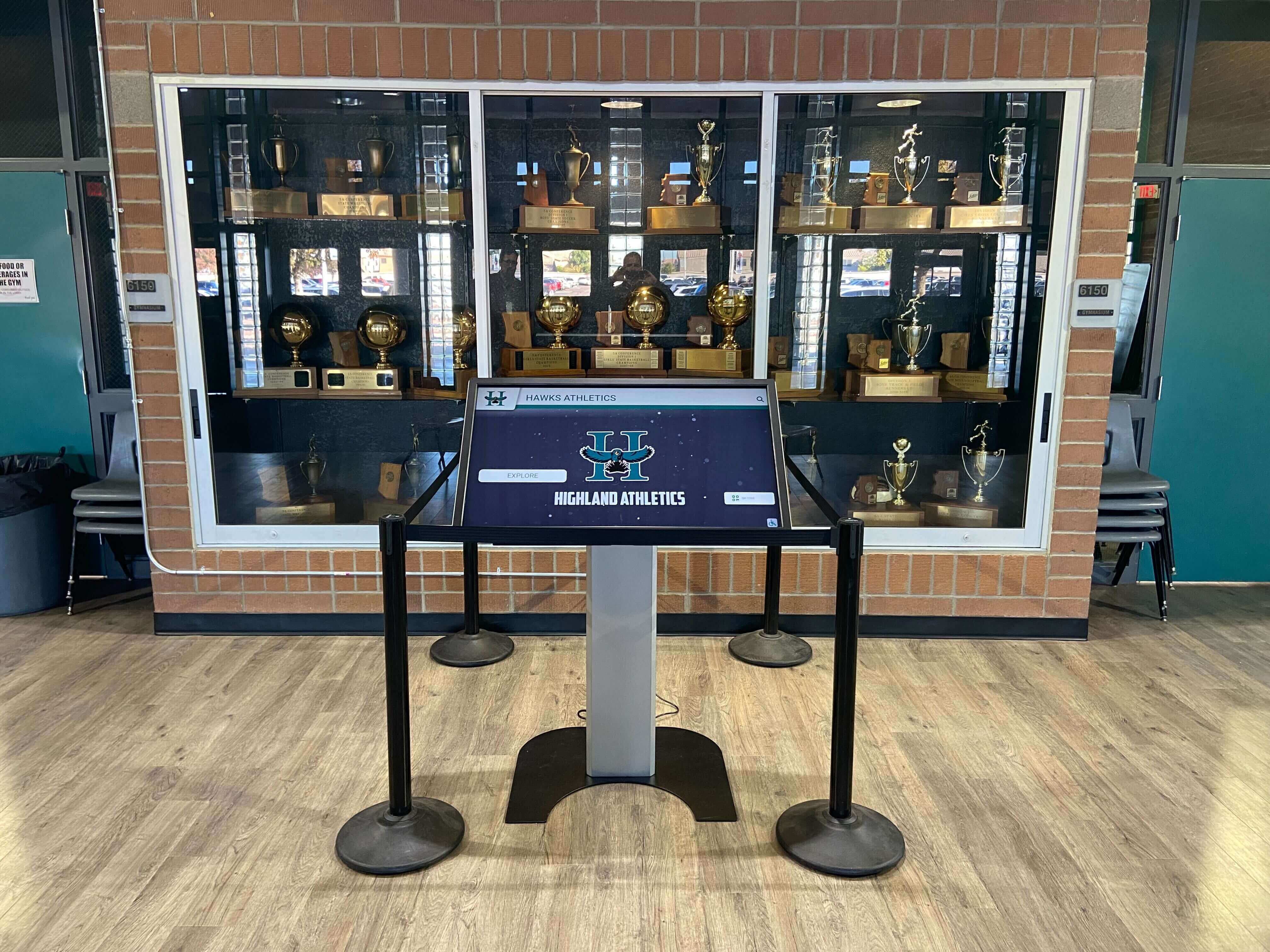
Touchscreen Recognition Display Time Synchronization Checklist: Keep Devices, Logs, and Scheduled Content Aligned
A touchscreen recognition display that fires scheduled content at the wrong time during a graduation ceremony, produces audit logs with timestamps that don’t align with your network records, or loses its CMS connection because its internal clock drifted past a certificate validity boundary doesn’t fail quietly — it fails in front of the students, families, donors, and alumni your school most wants to impress. Athletic directors schedule championship highlight reels to loop before home playoff games. Advancement staff activate donor recognition windows to coincide with capital campaign launches. Facilities teams rely on accurate timestamps when reviewing who changed what and when on a public-facing display. IT coordinators cannot diagnose a blank screen caused by clock skew if the device’s logs don’t align with the rest of the network.
Read More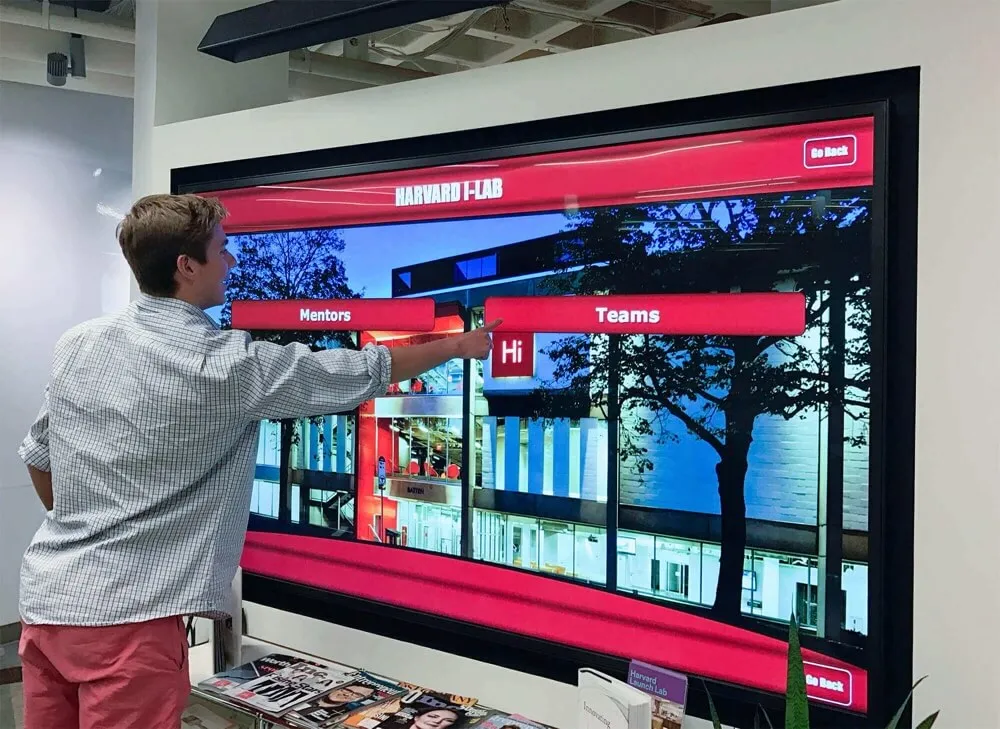
Touchscreen Recognition Display Configuration Baseline Checklist for School IT
A recognition display that ships from a vendor with default administrator credentials, an open remote desktop port, and a publicly routed IP address is not configured for your school’s security posture—it is configured for a warehouse staging bench. Default settings simplify first-time setup; they do not reflect your district’s network segmentation rules, your IT department’s account policies, or your facilities team’s recovery requirements. Without a written document that records every approved setting layer by layer, any technician who touches the display—for a firmware update, a layout change, or a vendor service call—has no reference point for what “correct” looks like. The result is configuration drift: a display whose live settings gradually diverge from what was originally approved, with no record of when, how, or why.
Read More






























